
The panel consists of the lists that are showing connected and blocked USB devices.
Connected USB Devices
The listed devices are connected to the receiver’s USB ports.

Parameters
|
Parameter |
State and Description |
|---|---|
|
Manufacturer, Product, Type |
As coded in the USB device. |
|
CH (Channel) |
Channel A1 and A2 are used for USB communication. A1 is always transparent, A2 can be switched. The USB device on Channel A1 is the one that was connected to the receiver the earliest. |
|
Status |
Active: the device is ready to use in transparent mode. Supported: the device is supported, but not active (no channel is available for extension). Unsupported: the device is not USB HID (e.g. pen drive). |
|
VID, PID |
Vendor ID and Product ID as coded in the USB device. |
|
Address |
See the following section. |
The Address of the Device


Address of the device plugged in = 1 and the device plugged in = 2. Since a USB HUB can be connected to the receiver, the addresses are determined as follows:

▪Address of the USB HUB: 100 (not visible)
▪Address of the USB device connected to the first port of the USB HUB: 104
The example above shows a mouse that is connected to the USB port (Ch A1, Addr 2). The other device is a keyboard, which is connected via an USB HUB – that is why its address is not 1 but 101. Since the extenders are in configuration mode, only one device can be used: the one on channel A1 (the mouse).
Even though USB HUBs are supported by the receiver, only two devices are active at the same time in transparent mode: the devices that are closest to the root address. If an active device is disconnected, the next valid device (that is the closest to the root) will be active.
INFO:Channel A1 and A2 are assigned to the devices automatically when a new device is connected.
Port Numbers
The port numbers of the USB HUB determines the priority of the devices. When more devices are connected to an USB HUB, the USB port number determines the priority of the connected devices: the lower the number, the higher the priority. This priority has an effect when the channels are assigned to the devices.
Blocked USB Devices
The USB blocking feature allows you to activate the desired devices when more than two USB HID devices are connected to the receiver (two channels are available for USB extension). A typical example is shown in the Example 3: Connecting three USB HID devices and a HUB section.
Blocking a Device
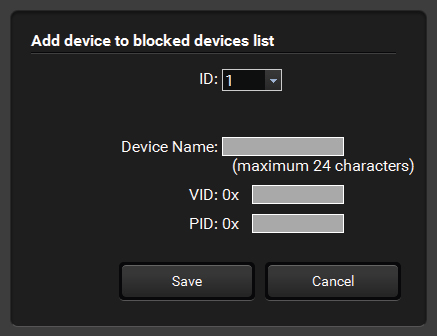
Step 1.Click on the Block manually button, or select a device from the Connected USB devices list and click on Block selected button.
Step 2.Check the fields in the appearing window (Device name, Vendor ID, Product ID) and click on the Save button. The ID is the number of the blocked device in the list.
Step 3.Click on the Apply button in the bottom of the window to save changes. The desired device is added to the Blocked USB devices list and next time when you connect it to the receiver, its status will be displayed as Blocked.
Removing blocked devices
Step 1.Select the device from the Blocked USB devices list.
Step 2.Click on the Remove button.
Step 3.Click on the Apply button on the bottom of the screen to save changes.
INFO:The Remove all button will empty the list of blocked devices.