

4.4. Real-life examples (USB devices and modes)
The background of the USB modes, connected USB devices, displayed information can be understood easier by presenting examples.
Example 1: Connecting Two USB HID Devices
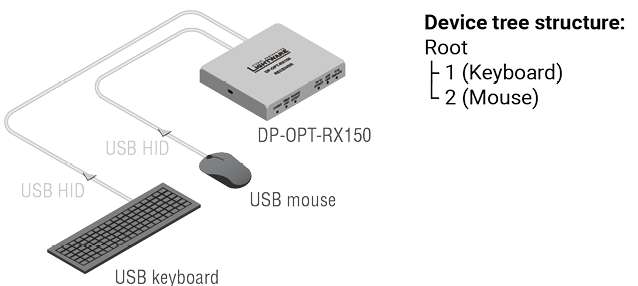
Shown in the LDC:

In a simple case a keyboard and a mouse are connected to the receiver.
In Transparent mode both devices are operable.
In Configuration mode only one of them is available (as seen on the screenshot), the keyboard on channel A1. The second row (the mouse) is blinking, showing that the device is not available.
Example 2: Connecting Two USB HID Devices via an USB HUB
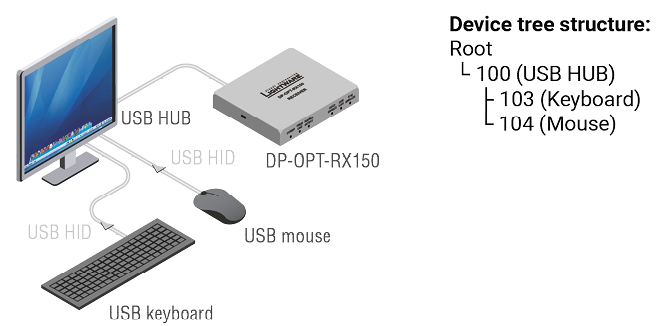
Shown in LDC:

This case is similar to the first, but now the mouse and the keyboard are connected to a local USB HUB. The HUB (with 4 available USB ports) is built into the monitor and connected to the receiver (the address of the HUB is 200). The keyboard is connected to the 2nd port (Addr. 202) and the mouse is connected to the 4th port of the HUB (Addr. 204).
In Transparent mode both devices are operable.
In Configuration mode only one USB HID device is available (as seen on the screenshot), the keyboard on channel A1. The second row (the mouse) is blinking, showing that the device is out of operation currently due to the USB mode.
Example 3: Connecting three USB HID devices and a HUB
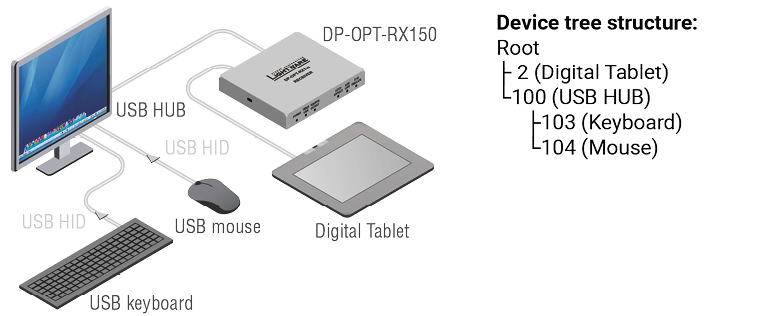
Shown in LDC:

On the third example three USB devices can be seen. A mouse and a keyboard are connected to the USB HUB that is connected to one of the receiver’s USB ports. A presenter device is connected to the other USB port (the presenter is listed as “Keyboard”).
In Transparent mode two devices are operable: the presenter (on channel A1) and the keyboard (on channel A2). The presenter was connected to the receiver the earliest, that is why channel A1 is assigned to the presenter. The address number of the keyboard is lower than the mouse, that is why channel A2 is assigned to the keyboard. If you want to use the mouse, you have to block the presenter or the keyboard (the other option is to disconnect one of them).
In Configuration mode only one device is operable: the presenter on channel A1. The second row (the keyboard) is blinking, showing the device is not available due to the USB mode.
INFO:Channel A1 and A2 are assigned to the devices automatically when a new device is connected; they cannot be changed manually.
INFO:The port numbers of the USB HUB determine the priority of the devices. When more devices are connected to a USB HUB, the USB port number determines the priority of the connected devices: the lower the number, the higher the priority. This priority has an effect when the channels are assigned to the devices.
Example 4: Using an Apple LED cinema display
Shown in LDC:
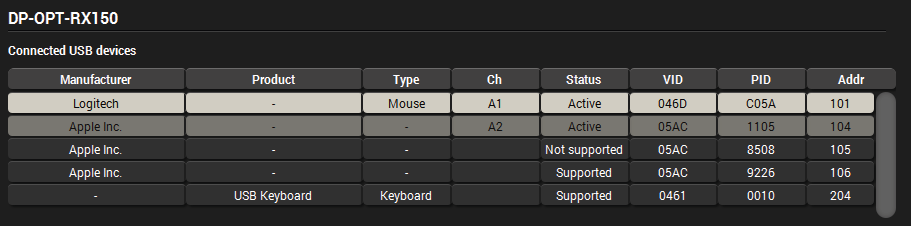
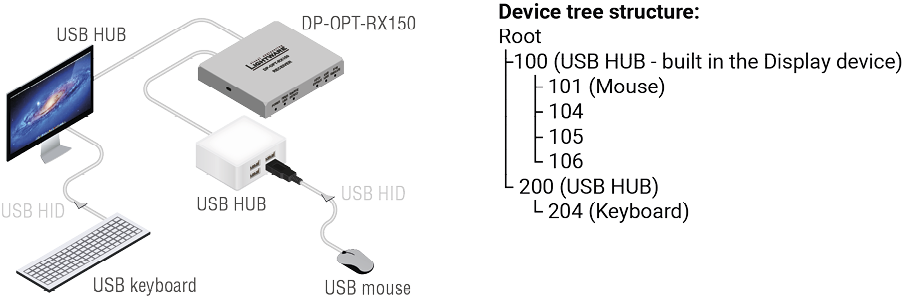
The last example shows a special layout, where an Apple LED cinema display (with built-in USB HUB), a mouse, a keyboard and another simple USB HUB are installed. The layout could cause headache, since the display contains three components which report themselves as HID devices. The result is that the keyboard’s address is lower than the components in the display device and the keyboard will be operable neither in configuration-, nor in transparent mode.
The solution in this case is to block the unnecessary devices, shown in the 2nd and 4th rows. (The device in the 3rd row is not supported, it is not necessary to block.) Block the two devices:
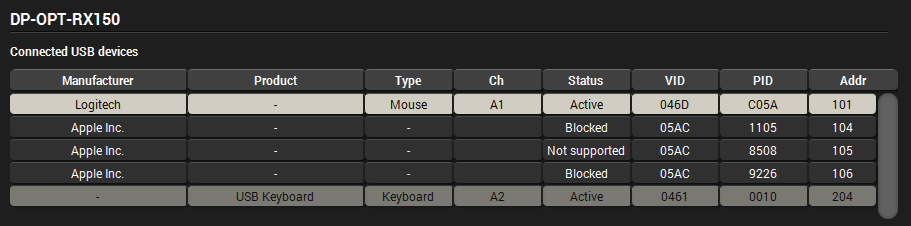
This way in Transparent mode the mouse and the keyboard will be operable.
In Configuration mode only the mouse is available, that is why the last row is blinking.