
USER MANUAL
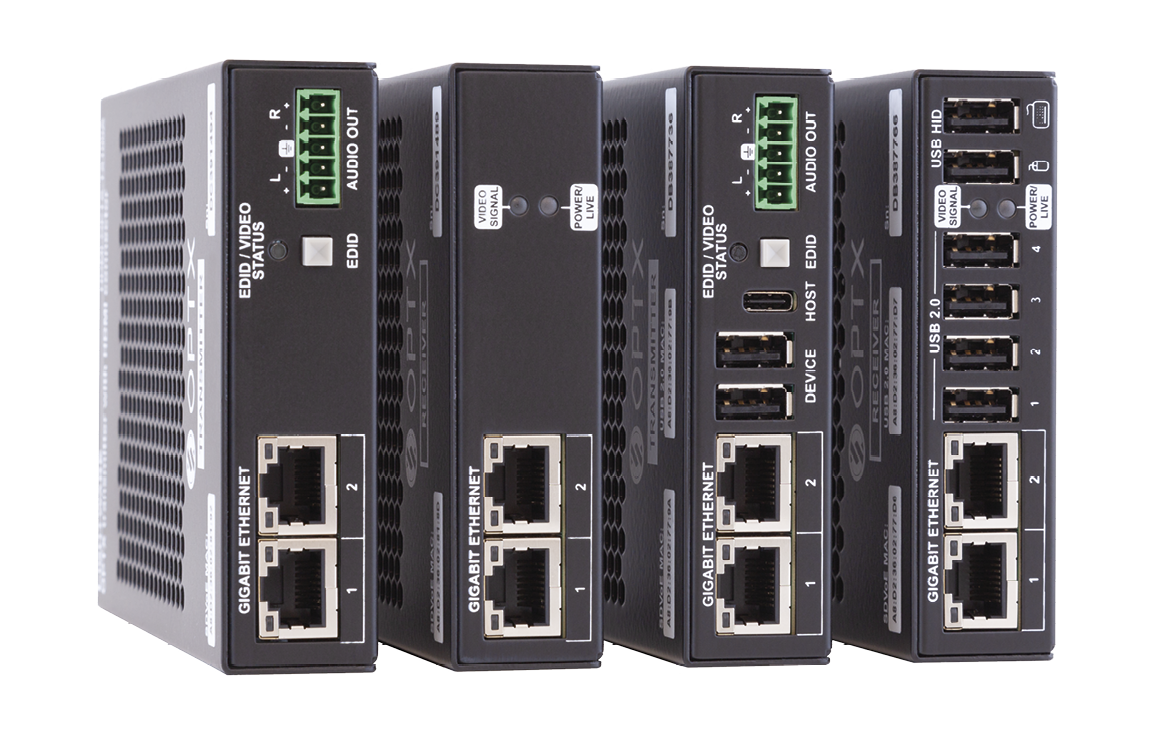
HDMI-TPX-TX106
HDMI-TPX-TX106A
HDMI-TPX-RX106
HDMI-TPX-TX107
HDMI-TPX-RX107
HDMI-TPX-TX209AK
HDMI-TPX-RX209AK
HDMI-TPX-TX106-V2
HDMI-TPX-TX106A-V2
HDMI-TPX-RX106-V2
HDMI-TPX-TX107-V2
HDMI-TPX-RX107-V2
HDMI-TPX-TX209AK-V2
HDMI-TPX-RX109AK-V2
HDMI-TPX-TX209AU2K
HDMI-TPX-RX109AU2K
HDMI-TPX-TX107D
HDMI-TPX-RX107D
HDMI-TPX-TX209DU2K
HDMI-TPX-RX109DU2K
HDMI-TPX-RX107A-SR
HDMI-TPX-RX107AU2K-SR
HDMI-OPTX-TX100A
HDMI-OPTX-RX100A
HDMI-OPTX-TX200AU2K
HDMI-OPTX-RX100AU2K
AV over IP Multimedia Extenders
|
|
|
|
||
|
|
|
|
||
|
|
|
|
||









|
|
|
|
||
|
|
|
|
||
|
|
|
|









Important Safety Instructions
Class II apparatus construction.
The equipment should be operated only from the power source indicated on the product.
To disconnect the equipment safely from power, remove the power cord from the rear of the equipment, or from the power source. The MAINS plug is used as the disconnect device, the disconnect device shall remain readily operable.
There are no user-serviceable parts inside of the unit. Removal of the cover will expose dangerous voltages. To avoid personal injury, do not remove the cover. Do not operate the unit without the cover installed.
The appliance must be safely connected to multimedia systems. Follow instructions described in this manual.
Ventilation
For the correct ventilation and to avoid overheating, ensure enough free space around the appliance. Do not cover the appliance, leave the ventilation holes free and never block or bypass the ventilators (if there are any).
WARNING
To prevent injury, the apparatus is recommended to be securely attach to the floor/wall, or mounted in accordance with the installation instructions. The apparatus shall not be exposed to dripping or splashing, and no objects filled with liquids, such as vases, shall be placed on the apparatus. No naked flame sources, such as lit candles, should be placed on the apparatus.
Waste Electrical & Electronic Equipment (WEEE)

This marking shown on the product or its literature indicates that it should not be disposed with other household wastes at the end of its working life. To prevent possible harm to the environment or human health from uncontrolled waste disposal, please separate this from other types of wastes and recycle it responsibly to promote the sustainable reuse of material resources. Household users should contact either the retailer where they purchased this product or their local government office for details of where and how they can take this item for environmentally safe recycling. Business users should contact their supplier and check the terms and conditions of the purchase contract. This product should not be mixed with other commercial wastes for disposal.
Caution: Laser product


Common Safety Symbols
|
Symbol |
Description |

|
Direct current |

|
Alternating current |

|
Protective conductor terminal |

|
Equipotential Connector |
.png)
|
On (Power) |
.png)
|
Off (Power) |

|
Double insulation |

|
Caution, possibility of electric shock |

|
Caution |

|
Laser radiation |

|
Warning, Rotating fan |

|
Caution: for indoor use only |
Applied SW/FW/HW Environment
All presented functions refer to the indicated products. The descriptions have been made while testing these functions in accordance with the indicated Hardware/Firmware/Software environment:
|
Item |
Version |
|---|---|
|
FW package |
v2.9.0b1 |
|
Lightware Device Updater V2 (LDU2) version |
v2.39.0b9 |
Document Revision History
|
Rev. |
Release date |
Changes |
Editor |
|
v1 |
2026-03-09 |
Initial release |
Tamas Forgacs |
|
... |
|||
|
v3 |
2026-09-14 |
ToC correction. |
Laszlo Zsedenyi |
|
v4 |
2026-09-16 |
RJ45 LED addition. |
Laszlo Zsedenyi |
Contact Us
+36 1 255 3800
+36 1 255 3810
Lightware Visual Engineering PLC.
Gizella 51-57, Budapest H-1143, Hungary
©2026 Lightware Visual Engineering. All rights reserved.
All trademarks mentioned are the property of their respective owners.
Specifications are subject to change without notice.
Thank you for choosing Lightware’s TPX and OPTX series extenders. In the first chapter we would like to introduce the device by highlighting the most important features in the sections listed below:
TPX / OPTX Series Extenders
The TPX / OPTX series transmitter and receiver devices are based on SDVoE technology and allow users to extend HDMI 2.0 compliant video, audio and control signals from a single source to a single destination when they are directly connected.
The Gigabit Ethernet ports are valuable additions allowing users to connect Ethernet capable devices to the corporate user network directly through the TPX extender. This is particularly useful for controlling external devices like projectors and displays.

Beyond the benefits of receiving high-resolution video with corresponding audio content through a distance of at most 100m, the HDMI-TPX-RX107A-SR is also able to handle various connectivity standards including a 1GbE user Ethernet channel over the TPX link, as well as command injection into RS-232.
HDCP 2.3 and basic EDID management functionality are also among the features offered by these devices, such as their connectivity and easy integration into a wide range of AV operations and compatibility with 3rd party devices.
The -U2K series devices are USB2.0 capable extenders also allow transparent and composite USB2.0 transmission in the opposite direction.
The -SR series built-in scaler can cater for adjusting the video content to the format of the attached display. Moreover, the scaler is also able to handle glitches in the video arriving at the input of the corresponding transmitter by outputting an uninterrupted HDMI signal.
The -D series transmitters and receivers allow immediate audio signal de-embedding from the HDMI source that can be then directly sent to an external, Dante®/AES67 capable audio system.
The OPTX family of the products is a version of Lightware’s SDVoE-based TPX Series point-to-point extenders that deliver HDMI 2.0 signals up to 4K60Hz 4:4:4 with ultra-low latency (under 8ms) over a single-mode or multi-mode fiber optics cable up to 300 meters or 10 km, depending on the SFP+ module used.
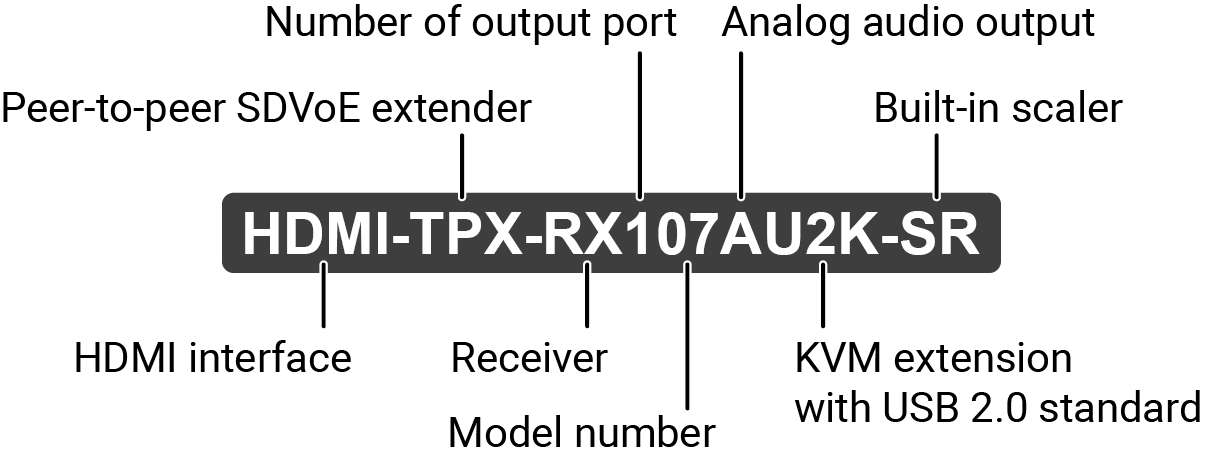
Model Denomination
About the Serial Number
Lightware devices contain a label indicating the unique serial number of the product. The structure is the following:
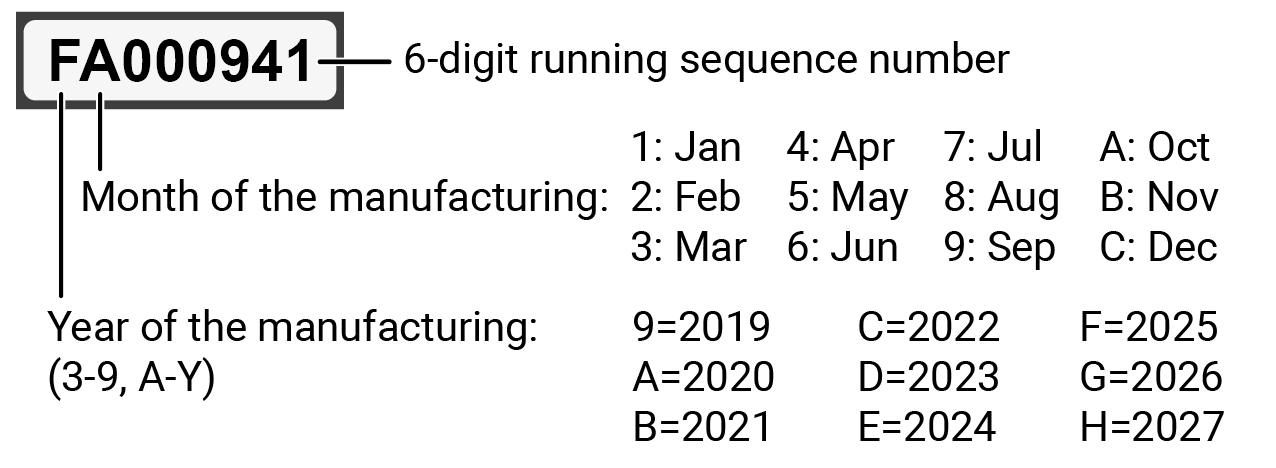
From 1st of October 2024, serial number format of Lightware devices is the following: the first two digits are of the year of manufacture, while the remaining digits make up the running sequence number.

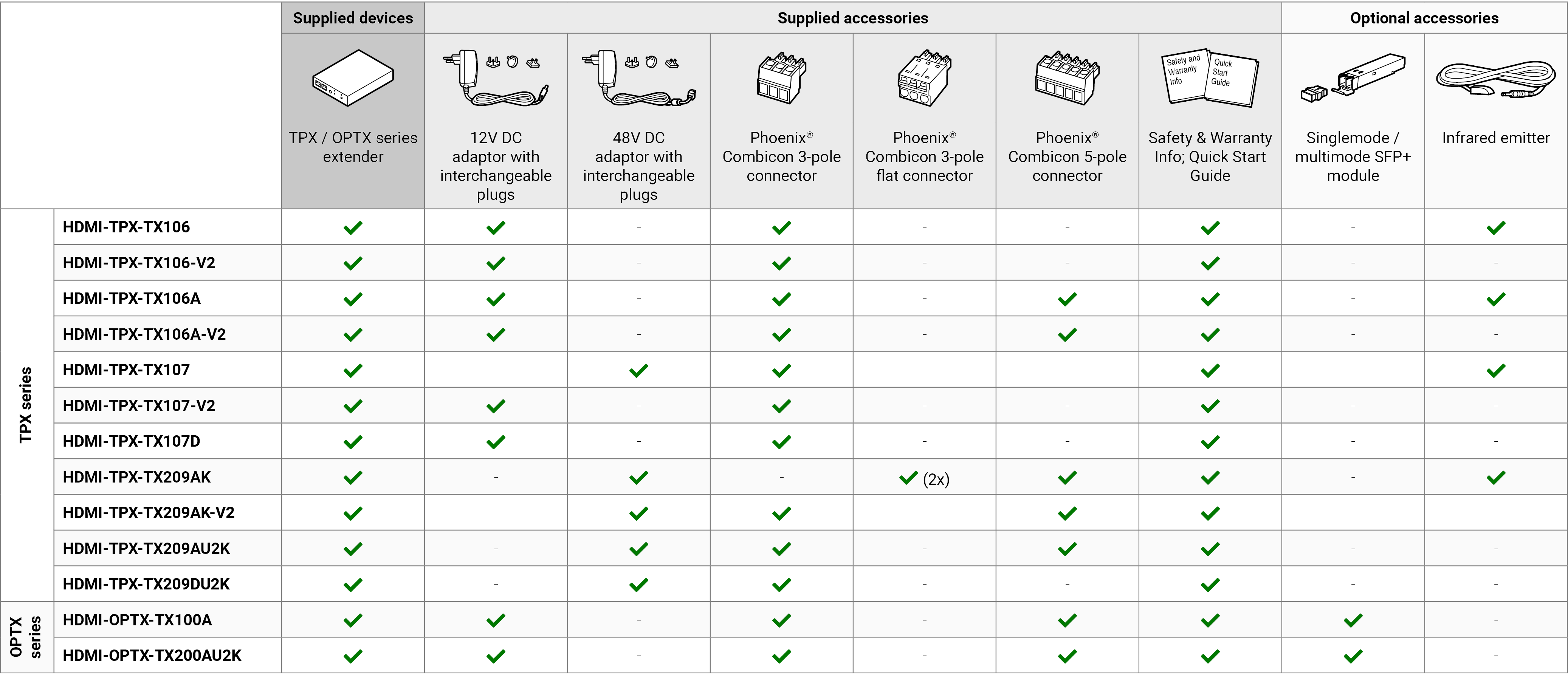
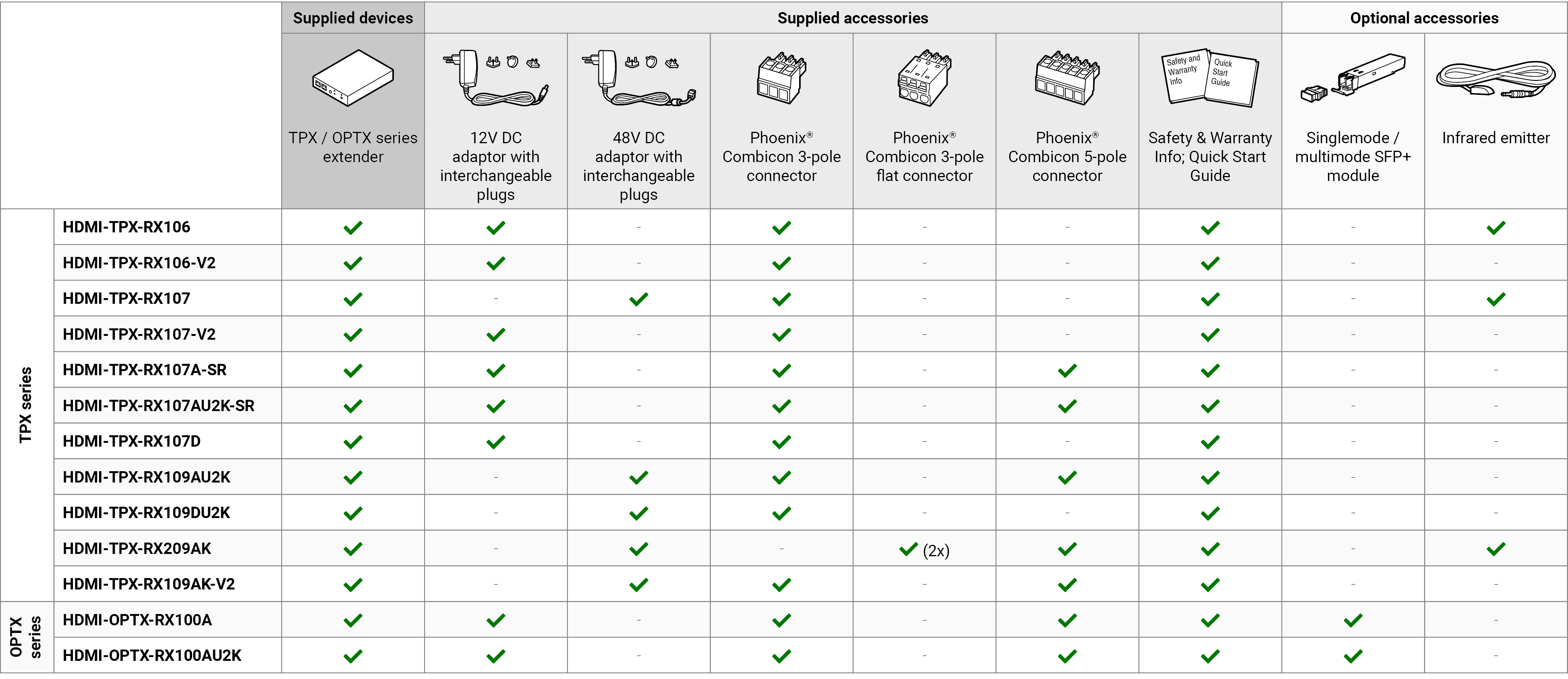
The following table describes all supplied and optional accessories of the TPX/OPTX series devices by models. The optional (not-supplied) accessories can be purchased separately; please contact sales@lightware.com.
INFO:10GbE singlemode/multimode SFP+ modules can be ordered together with or separately from the OPTX endpoint devices. For the details, please contact sales@lightware.com.
INFO:Optional mounting accessories and compatible model list can be found in the Mounting Options - Compatibility Table section.
INFO:10GbE singlemode/multimode SFP+ modules can be ordered together with or separately from the OPTX endpoint devices. For the details, please contact sales@lightware.com.
INFO:Optional mounting accessories and compatible model list can be found in the Mounting Options - Compatibility Table section.
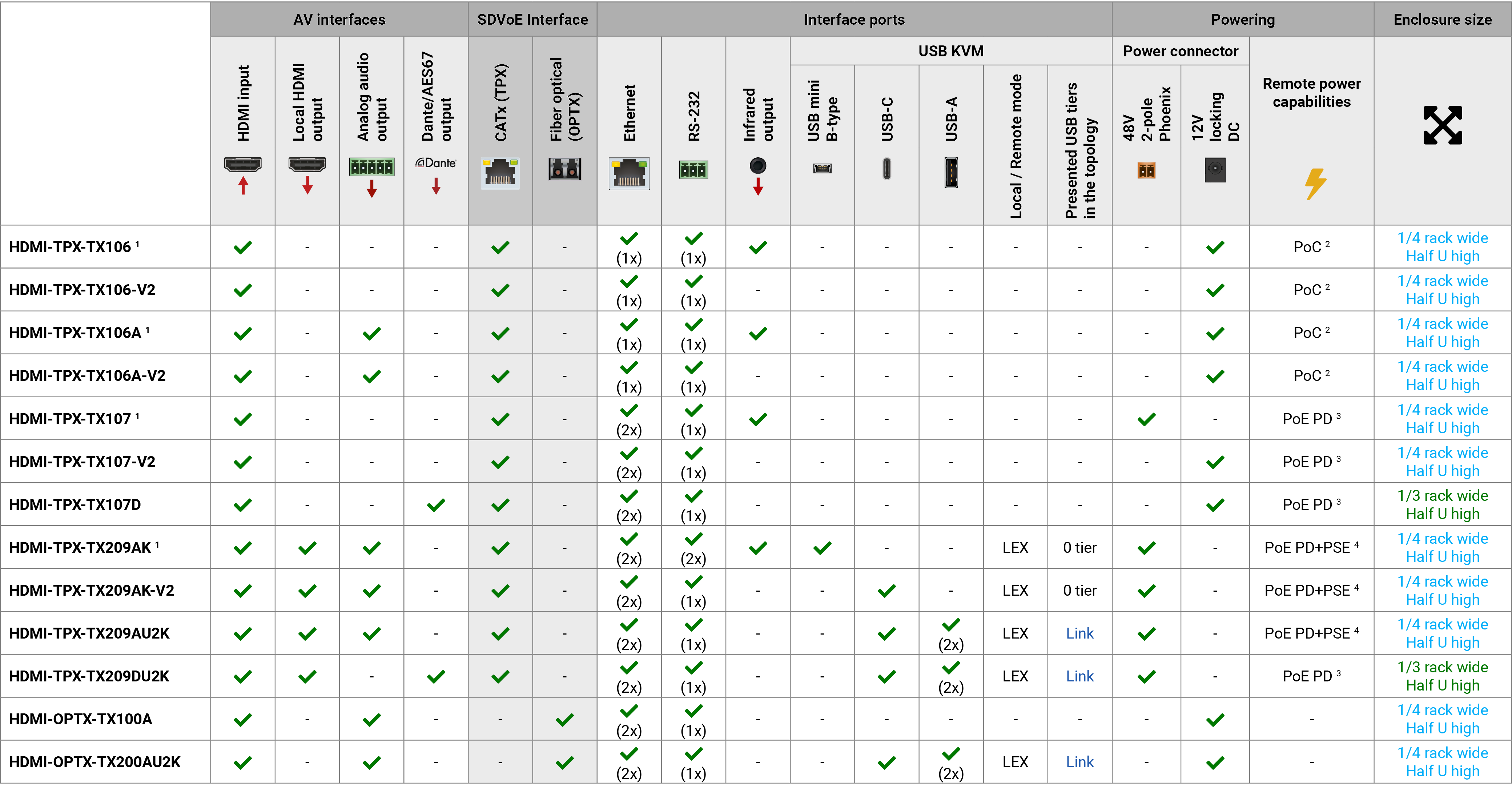
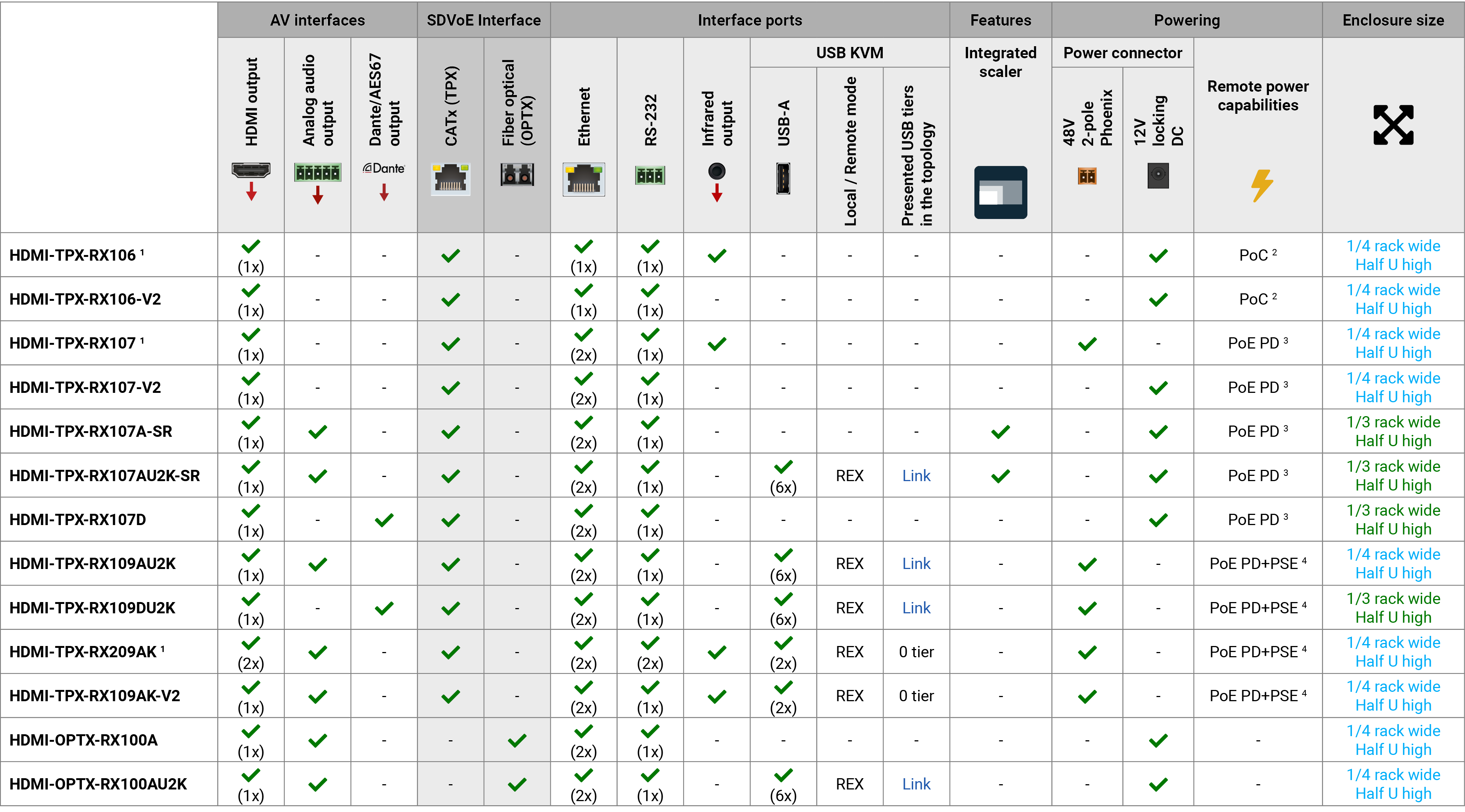
1 The variant will be discountinued. Its successor is the same model name plus a -V2 tag. Exception: the successor of the HDMI-TPX-RX209AK model is the HDMI-TPX-RX109AK-V2.
2 PoC = Power over Cable: 12V power sending over CATx cable only between the compatible devices: HDMI-TPX-TX106, HDMI-TPX-TX106-V2, HDMI-TPX-TX106A, HDMI-TPX-TX106A-V2, HDMI-TPX-RX106, HDMI-TPX-RX106-V2.
3 PoE PD / PoE+ PD = Power over Ethernet, Powered Device: the extender can be powered by the connected remote device (extender or network switch) over CATx cable.
4 PoE PD+PSE / PoE+ PD+PSE= Power over Ethernet, Powered Device + Power Sourcing Equipment: the extender can send power to the connected remote device or can be powered remotely over CATx cable.
List of All Features (In Alphabetic Order)

|
4K Support |
|
Up to HDMI 2.0 4K 2160p@60Hz 4:4:4 video input or 4096x2160@60Hz resolution over a 10 Gigabit network with extra low latency. |
|

|
Analog Audio Support |
|
External analog audio signal can be de-embedded at both the transmitter and receiver sides in case of -A series extenders. |
|

|
Dante® or AES67 Audio De-embedding |
|
The audio of the HDMI signal can be transmitted as a 2-channel Dante® or AES67 source from the -D series models over the dedicated RJ45 connector. |
|

|
HDCP 2.3 Compliant |
|
The TPX extenders comply to the HDCP 2.3 standard. HDCP capability on the digital video inputs can be disabled when non-protected content is extended. |
|

|
Local Video Output |
|
User can attach a local monitor to observe the video signal sent through the TPX ports. The resolution and clock frequency are the same as the HDMI inputs, no internal scaling or conversion is applied. |
|

|
Modular SFP+ Interface |
|
OPTX series endpoints use standard, certified 10 Gbps SFP+ optical modules, which are plug and play, so they are swappable by the user. |
|

|
Remote Power (PoE) |
|
Extender devices fulfill the PoE PD and PoE PD+PSE standards (according to IEEE 802.3af) which means they can be powered over the TPX line by a compatible power source equipment. |
|

|
Scaling the Output Image |
|
Video scaling of -SR series receivers is the process of changing the size of a video frame in order to match the native resolution of a sink. It involves converting the resolution to a higher or lower format, and also a change in aspect ratio; typically from 4:3 to 16:9. |
|

|
Seamless Switching (Clean Cut) |
|
HDMI-TPX-SR series extenders provide seamless switching (clean cut) technology. Apart from being able to scale the video to the resolution of the connected display, seamless switching provides uninterrupted video output when switching between two streams regardless of the format of the video content. Moreover, switching is instantaneous, thus it provides excellent user experience. |
|
|
Serial Data Transmission |
|
Transparent serial data transmission is available between the endpoints, both transmitter and receiver devices. |
|

|
USB KVM Extension Powered by Icron |
|
KVM extension for USB HID (Human Interface Devices, e.g. webcamera, keyboard, mouse, presenter) and Mass Storage devices (Flash drive, Hard drive). |
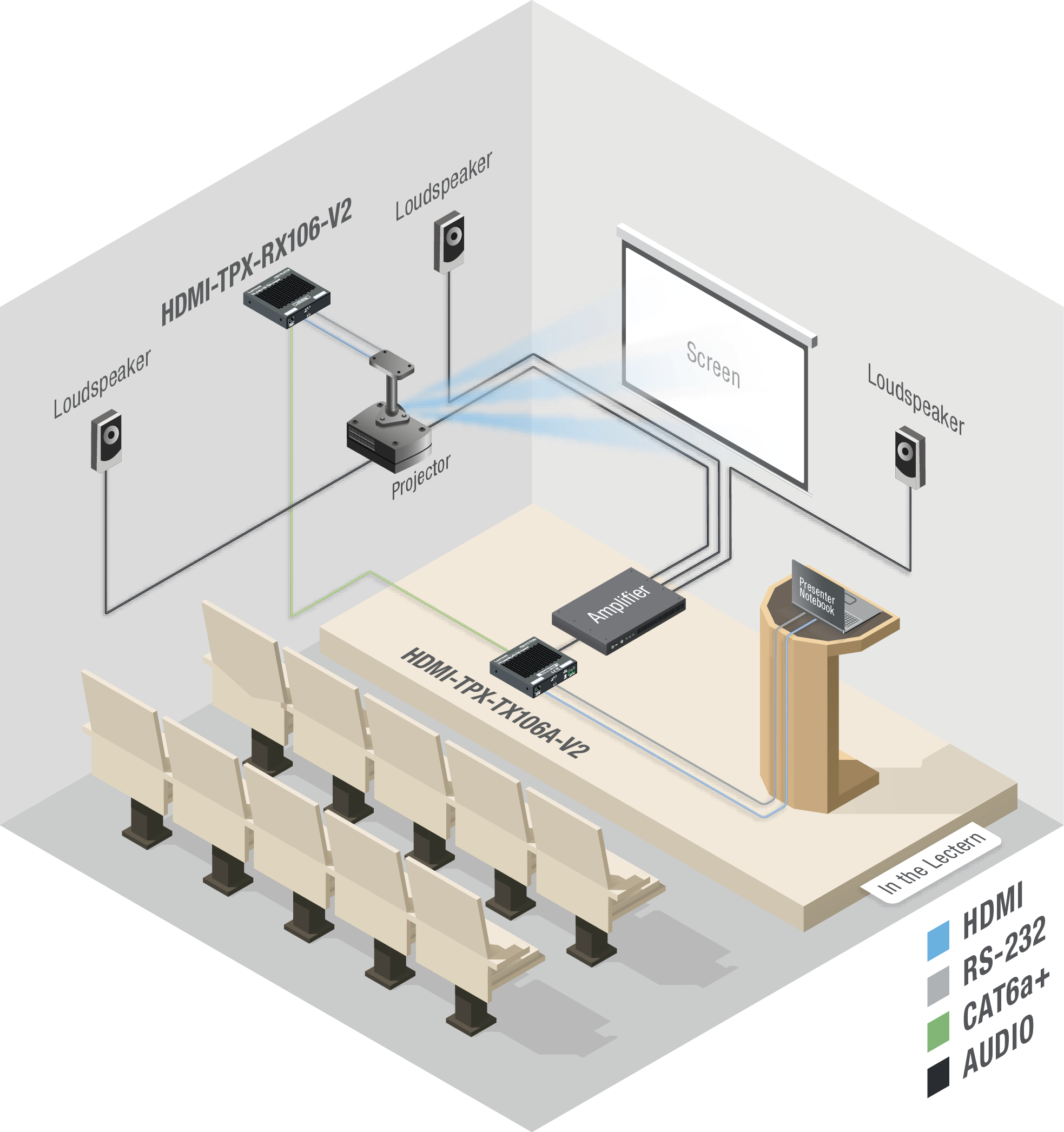
1.5.1. Auditorium with HDMI-TPX series TX-RX Application
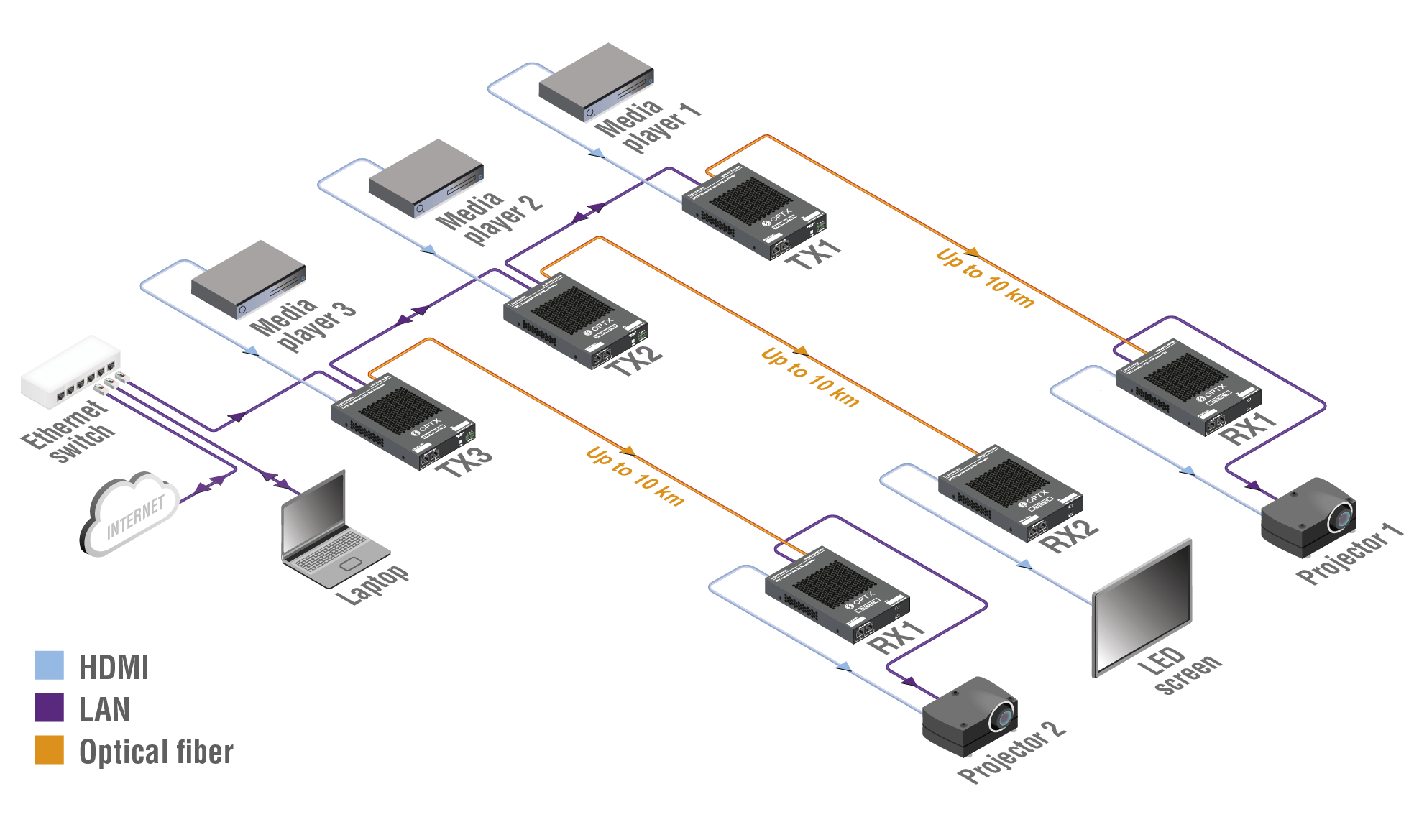
1.5.2. HDMI-OPTX series TX-RX Application
The following sections are about the physical structure of the device, input/ output ports and connectors; software and hardware capabilities:
2.1. Front and Rear View - TPX Series
HDMI-TPX-TX106
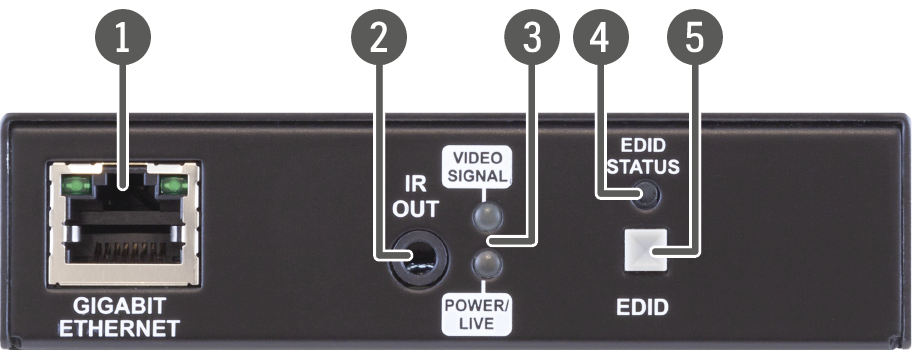
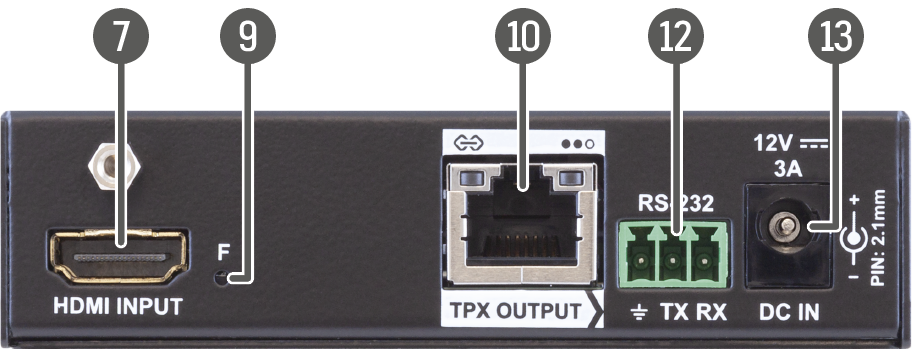
HDMI-TPX-TX106A
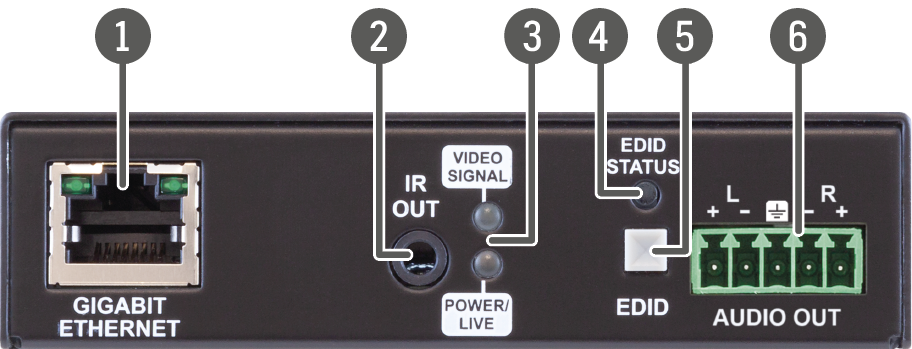
HDMI-TPX-RX106
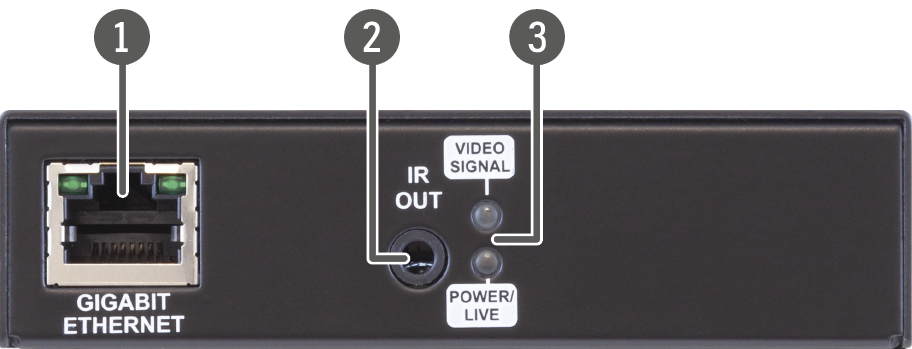
|
|
Gigabit Ethernet port |
1GBase-T RJ45 connector for user Ethernet purpose. See more details about the LED operation in the Gigabit Ethernet Status LEDs section. |
|
|
IR out |
TS (3.5mm jack) output connector for an Infrared emitter unit. |
|
|
Status LEDs |
The LEDs give immediate feedback about the current status of the extender. See the details in the Device Status LEDs - TPX-100 and -AK Series sections. |
|
|
EDID Status LED |
The EDID LED gives immediate feedback about the current status of the EDID emulation. See the details in the Device Status LEDs - TPX-100 and -AK Series section. |
|
|
EDID button |
EDID handling mode can be set, see the details in the EDID Button Function section. |
|
|
Analog audio output |
5-pole Phoenix connector for de-embedding the HDMI audio, which can be transmitted as a 2-channel balanced analog audio signal. |
|
|
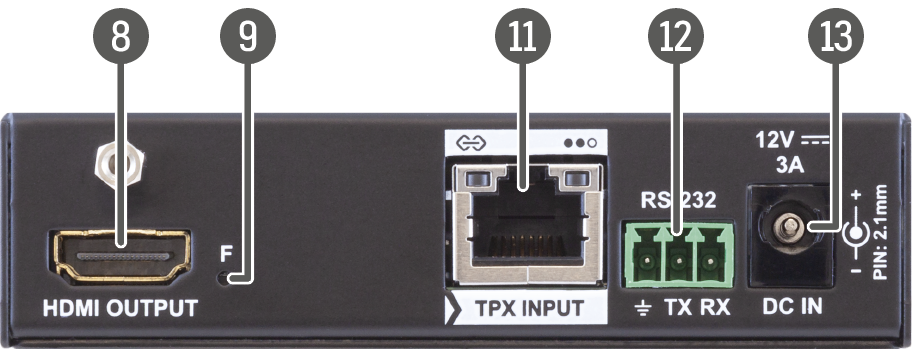
HDMI input |
HDMI input port with HDMI 2.0 support for source devices. |
|
|
HDMI output |
HDMI output port with HDMI 2.0 support for sink devices. |
|
|
Factory reset button |
Hidden button for setting the device to factory default values. See more details about it in the Factory Reset (F) Button section. |
|
|
TPX output |
RJ45 connector for SDVoE output signal transmission. See more details about the connector in the Ethernet Connectors and the TPX Input/Ouput Status LEDs sections. |
|
|
TPX input |
RJ45 connector for SDVoE output signal transmission. See more details about the connector in the Ethernet Connectors and the TPX Input/Ouput Status LEDs sections. |
|
|
RS-232 port |
3-pole Phoenix connector for bi-directional serial communication. See more details about the connector in the RS-232 Connector section. |
|
|
12V DC input |
12V DC input locking connector for local powering. See more details about the powering options of the extenders in the Powering Options for TPX-106 Series section. |


HDMI-TPX-TX106-V2
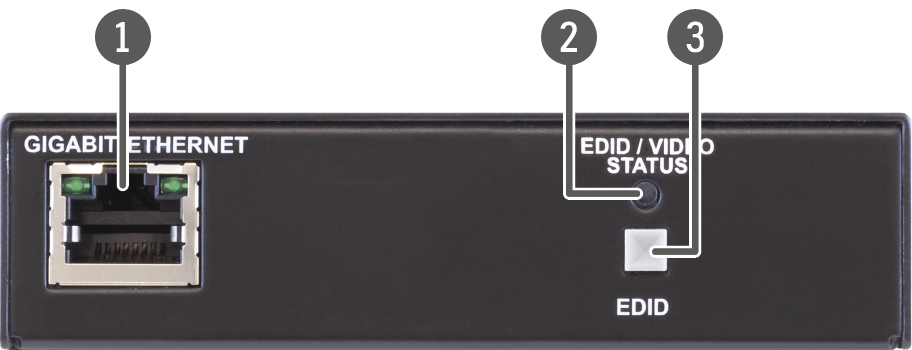
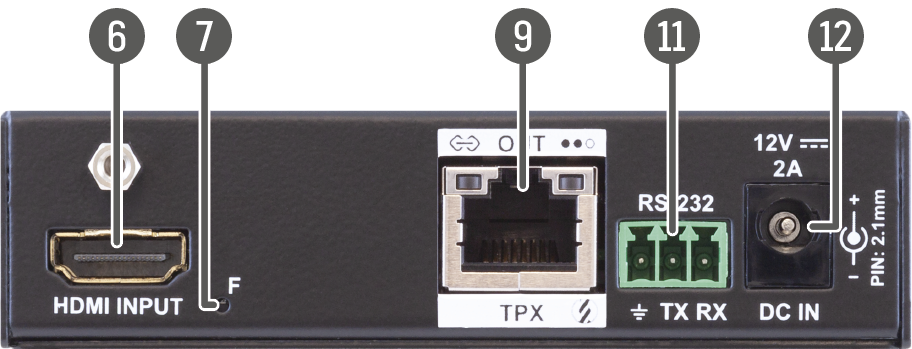
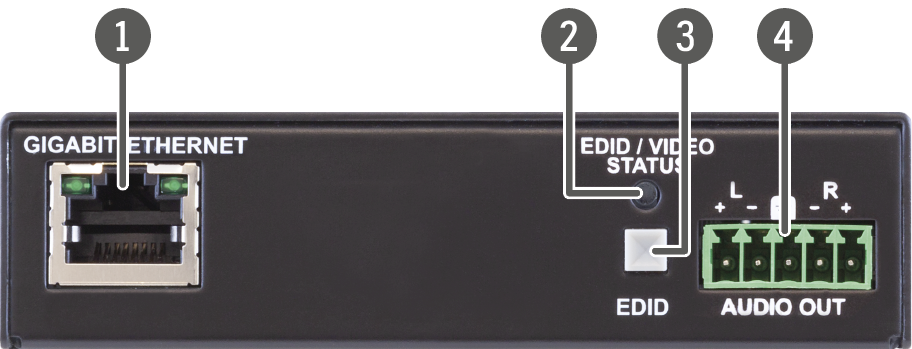
HDMI-TPX-TX106A-V2
HDMI-TPX-RX106-V2
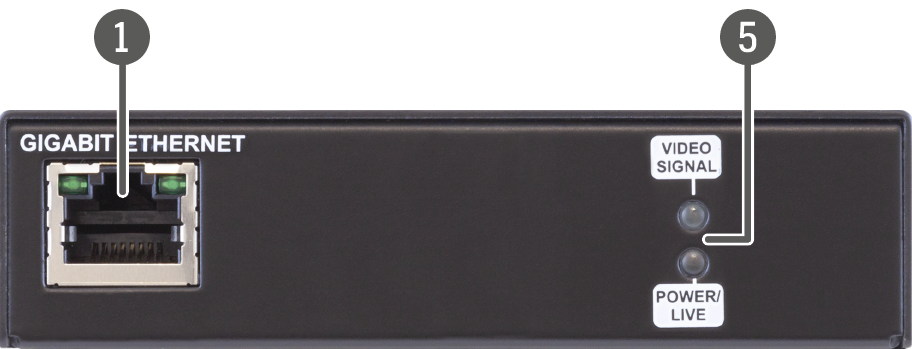
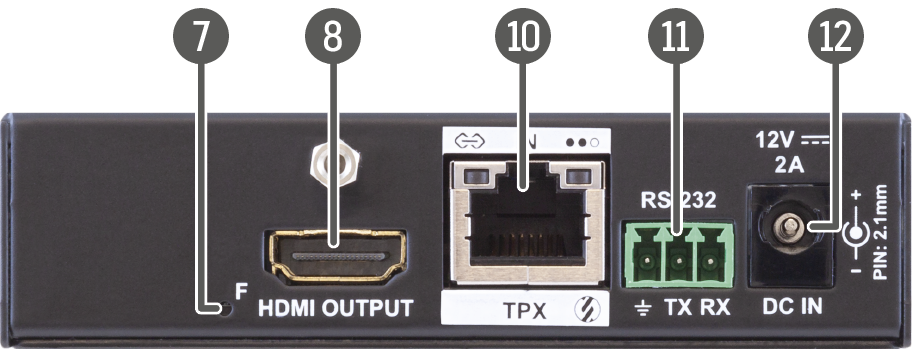
|
|
Gigabit Ethernet port |
1GBase-T RJ45 connector for user Ethernet purpose. See more details about the LED operation in the Gigabit Ethernet Status LEDs section. |
|
|
EDID / Video Status LED |
The EDID LED gives immediate feedback about the current status of the video signal and the EDID emulation. See the details in the Device Status LEDs - TPX -A -D -U2K -V2 Series section. |
|
|
EDID button |
EDID handling mode can be set, see the details in the EDID Button Function section. |
|
|
Analog audio output |
5-pole Phoenix connector for de-embedding the HDMI audio, which can be transmitted as a 2-channel balanced analog audio signal. |
|
|
Status LEDs |
The LEDs give immediate feedback about the current status of the extender. See the details in the Device Status LEDs - TPX -A -D -U2K -V2 Series sections. |
|
|
HDMI input |
HDMI input port with HDMI 2.0 support for source devices. |
|
|
Factory reset button |
Hidden button for setting the device to factory default values. See more details about it in the Factory Reset (F) Button section. |
|
|
HDMI output |
HDMI output port with HDMI 2.0 support for sink devices. |
|
|
TPX output |
RJ45 connector for SDVoE output signal transmission. See more details about the connector in the Ethernet Connectors and the TPX Input/Ouput Status LEDssections. |
|
|
TPX input |
RJ45 connector for SDVoE output signal transmission. See more details about the connector in the Ethernet Connectors and the TPX Input/Ouput Status LEDs sections. |
|
|
RS-232 port |
3-pole Phoenix connector for bi-directional serial communication. See more details about the connector in the RS-232 Connector section. |
|
|
12V DC input |
12V DC input locking connector for local powering. See more details about the powering options of the extenders in the Powering Options for TPX-106 Series section. |
HDMI-TPX-TX107
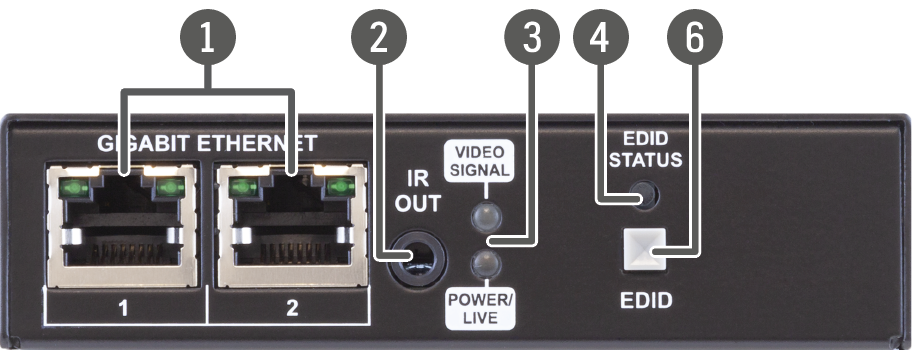
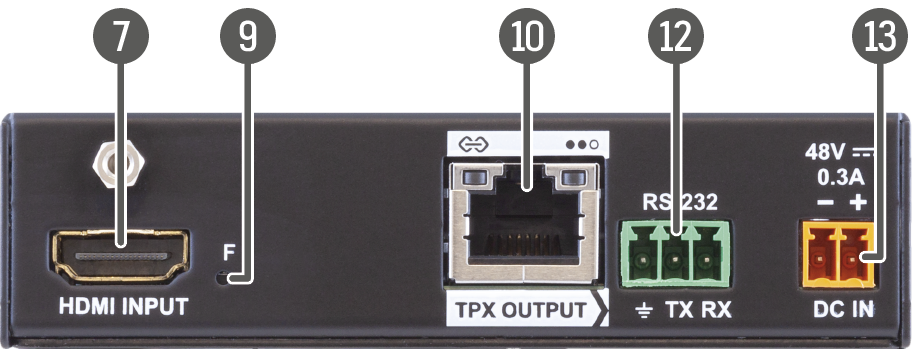
HDMI-TPX-RX107
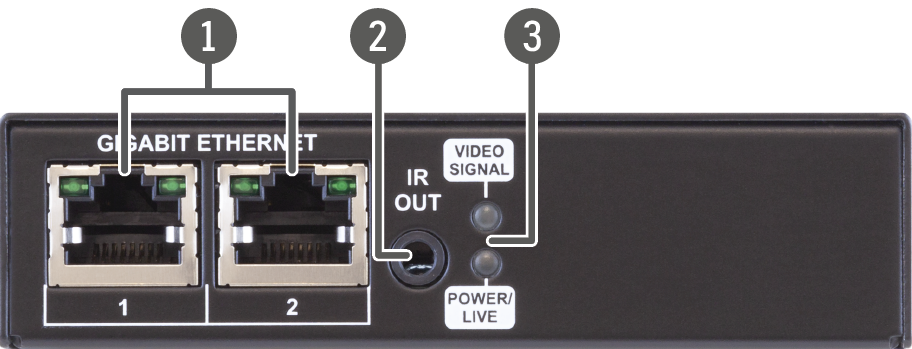
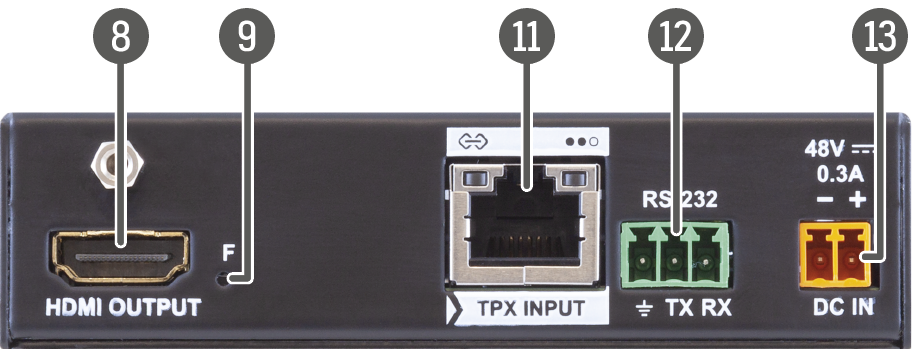
HDMI-TPX-TX107-V2
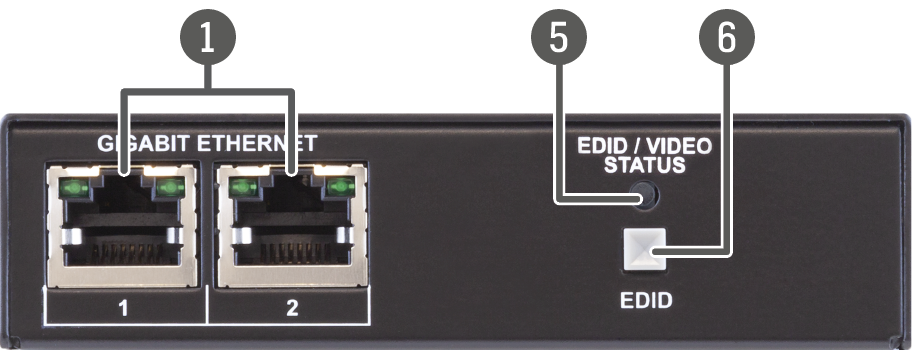
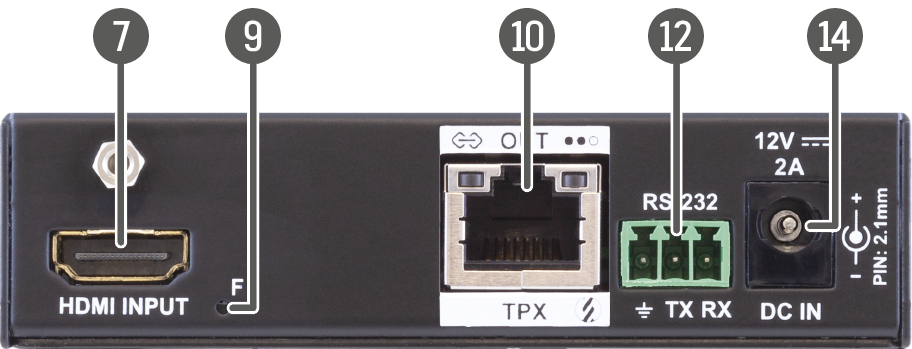
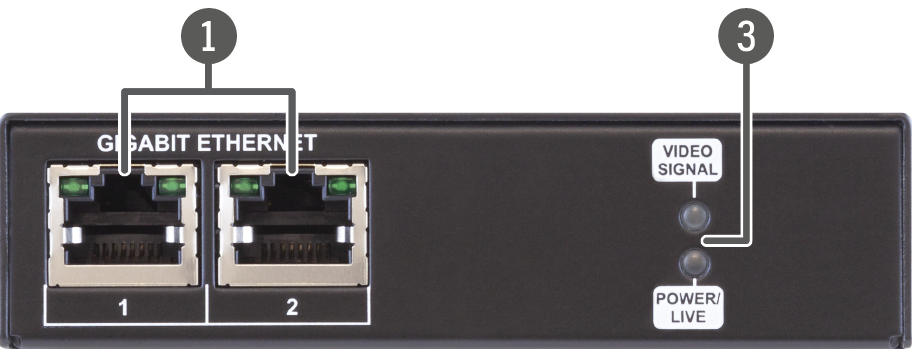
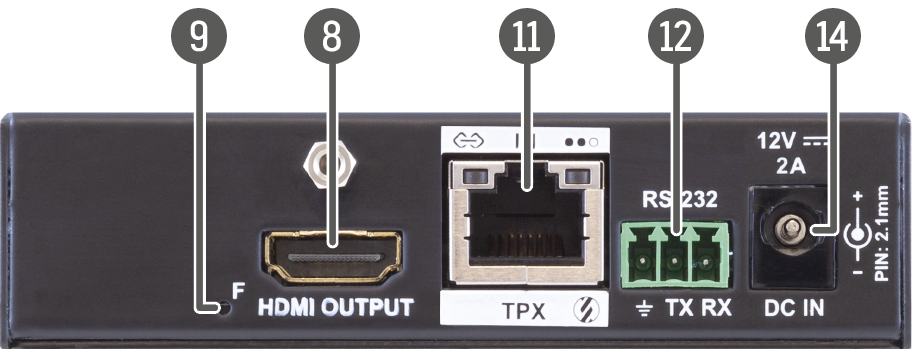
HDMI-TPX-RX107-V2
|
|
Gigabit Ethernet port |
1GBase-T RJ45 connector for user Ethernet purpose. See more details about the LED operation in the Gigabit Ethernet Status LEDs section. |
|
|
IR out |
TS (3.5mm jack) output connector for an Infrared emitter unit. |
|
|
Status LEDs |
The LEDs give immediate feedback about the current status of the extender. See the details in the Device Status LEDs - TPX-100 and -AK Series sections. |
|
|
EDID Status LED |
The EDID LED gives immediate feedback about the current status of the EDID emulation. See the details in the Device Status LEDs - TPX-100 and -AK Series section. |
|
|
EDID / Video Status LED |
The EDID LED gives immediate feedback about the current status of the video signal and the EDID emulation. See the details in the Device Status LEDs - TPX -A -D -U2K -V2 Series section. |
|
|
EDID button |
EDID handling mode can be set, see the details in the EDID Button Function section. |
|
|
HDMI input |
HDMI input port with HDMI 2.0 support for source devices. |
|
|
HDMI output |
HDMI output port with HDMI 2.0 support for sink devices. |
|
|
Factory reset button |
Hidden button for setting the device to factory default values. See more details about it in the Factory Reset (F) Button section. |
|
|
TPX output |
RJ45 connector for SDVoE output signal transmission. See more details about the connector in the Ethernet Connectors and the TPX Input/Ouput Status LEDssections. |
|
|
TPX input |
RJ45 connector for SDVoE output signal transmission. See more details about the connector in the Ethernet Connectors and the TPX Input/Ouput Status LEDssections. |
|
|
RS-232 port |
3-pole Phoenix connector for bi-directional serial communication. See more details about the connector in the RS-232 Connector section. |
|
|
48V DC input |
48V DC input locking connector for local powering. See more details about the powering options of the extenders in the Powering Options for TPX-107 Series section. |
|
|
12V DC input |
12V DC input locking connector for local powering. See more details about the powering options of the extenders in the Powering Options for TPX-107 Series section. |

HDMI-TPX-TX209AK
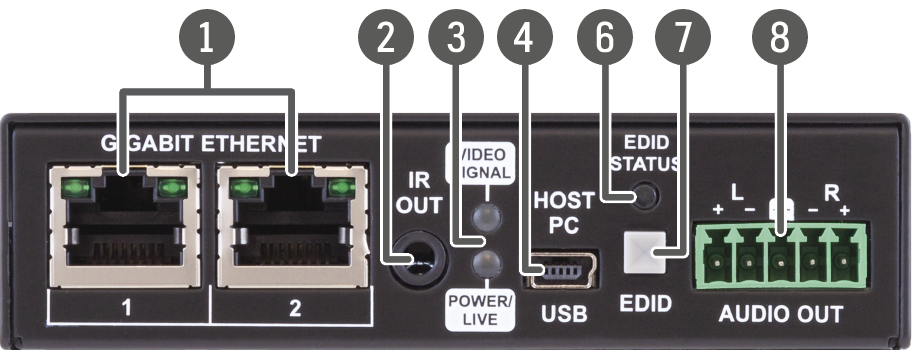
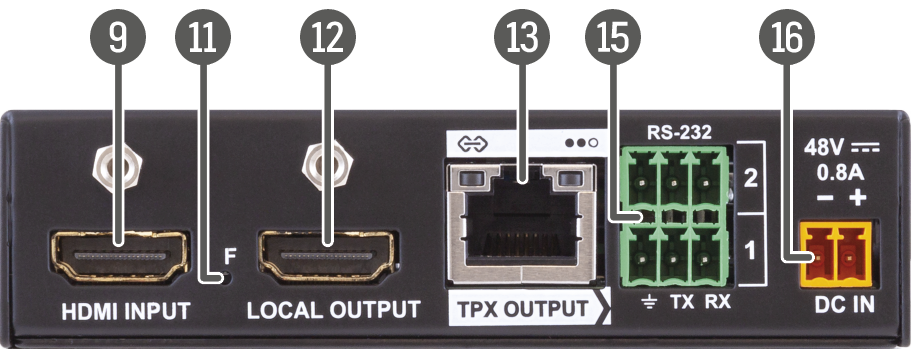
HDMI-TPX-RX209AK
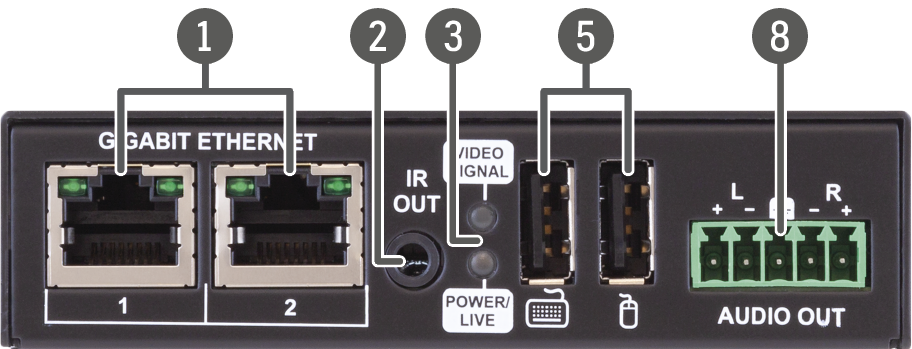
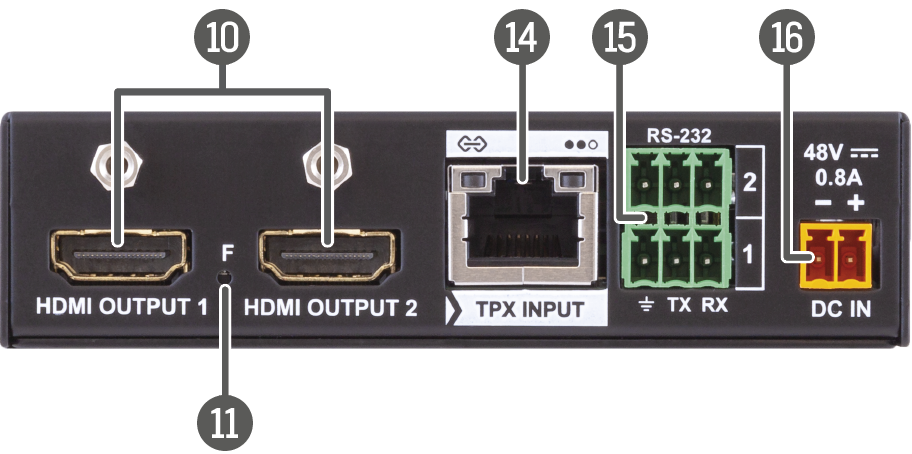
|
|
Gigabit Ethernet port |
1GBase-T RJ45 connector for user Ethernet purpose. See more details about the LED operation in the Gigabit Ethernet Status LEDs section. |
|
|
IR out |
TS (3.5mm jack) output connector for an Infrared emitter unit. |
|
|
Status LEDs |
The LEDs give immediate feedback about the current status of the extender. See the details in the Device Status LEDs - TPX-100 and -AK Series sections. |
|
|
USB mini B-type connector |
USB connection to host (computer) unit via USB mini-B connector. See more details about the USB KVM feature of the device in the USB HID Interface for -K Series Extenders section. |
|
|
USB A-type connectors |
USB K+M ports for HID-compatible devices (preferably keyboard and mouse). See more details about the USB KVM feature of the device in the USB HID Interface for -K Series Extenders section. |
|
|
EDID Status LED |
The EDID LED gives immediate feedback about the current status of the EDID emulation. See the details in the Device Status LEDs - TPX-100 and -AK Series section. |
|
|
EDID button |
EDID handling mode can be set, see the details in the EDID Button Function section. |
|
|
Analog audio output |
5-pole Phoenix connector for de-embedding the HDMI audio, which can be transmitted as a 2-channel balanced analog audio signal. |
|
|
HDMI input |
HDMI input port with HDMI 2.0 support for source devices. |
|
|
HDMI outputs |
HDMI output ports with HDMI 2.0 support for sink devices. The transmitted signals are mirrored on both ports. |
|
|
Factory reset button |
Hidden button for setting the device to factory default values. See more details about it in the Factory Reset (F) Button section. |
|
|
Local HDMI output |
Local HDMI output with the same AV content as the HDMI input. |
|
|
TPX output |
RJ45 connector for SDVoE output signal transmission. See more details about the connector in the Ethernet Connectors and the TPX Input/Ouput Status LEDs sections. |
|
|
TPX input |
RJ45 connector for SDVoE output signal transmission. See more details about the connector in the Ethernet Connectors and the TPX Input/Ouput Status LEDs sections. |
|
|
RS-232 ports |
3-pole Phoenix connectors for bi-directional serial communication. See more details about the connector in the RS-232 Connector section. |
|
|
48V DC input |
48V DC input locking connector for local powering. See more details about the powering options of the extenders in the Powering Options for TPX-209 Series section. |


HDMI-TPX-TX209AK-V2
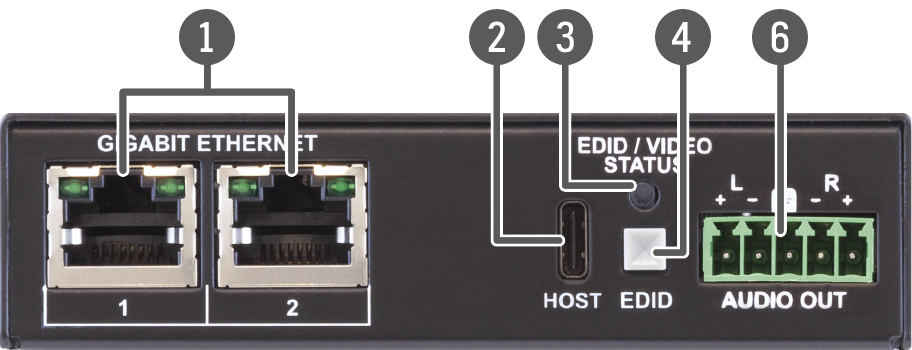
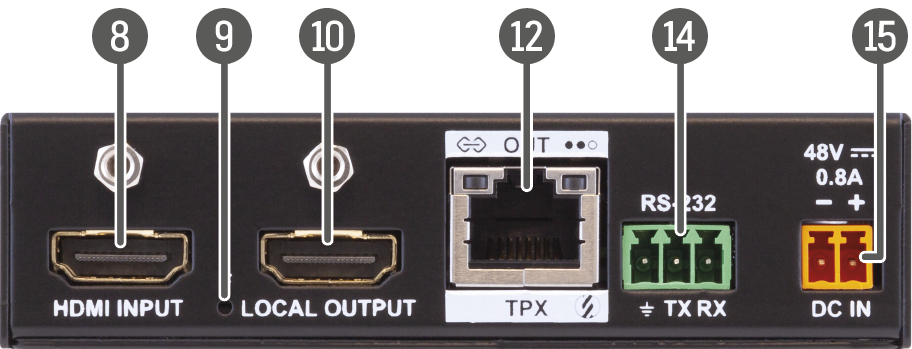
HDMI-TPX-RX109AK-V2
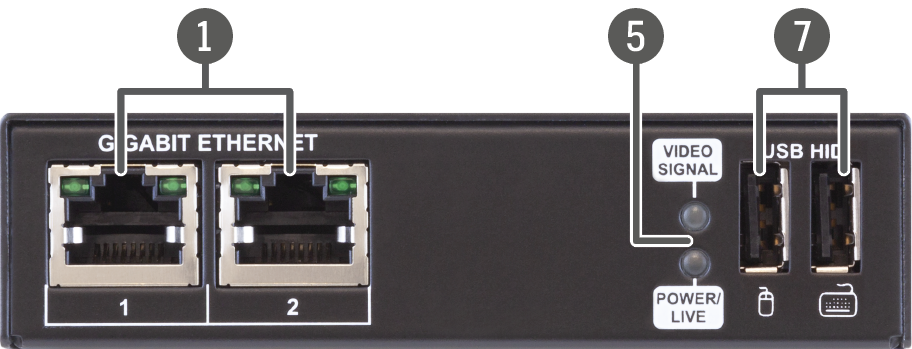
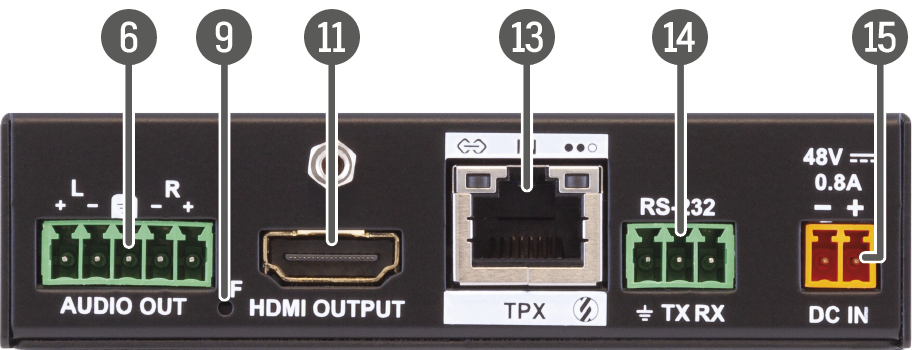
|
|
Gigabit Ethernet port |
1GBase-T RJ45 connector for user Ethernet purpose. See more details about the LED operation in the Gigabit Ethernet Status LEDs section. |
|
|
Host USB-C connector |
USB-C connection between the transmitter and the host computer. The port receives USB data only, no AV signal transmission is accepted. See more details about the USB KVM feature of the device in the USB HID Interface for -K Series Extenders section. |
|
|
EDID / Video Status LED |
The EDID LED gives immediate feedback about the current status of the video signal and the EDID emulation. See the details in the Device Status LEDs - TPX-100 and -AK Series section. |
|
|
EDID button |
EDID handling mode can be set, see the details in the EDID Button Function section. |
|
|
Status LEDs |
The LEDs give immediate feedback about the current status of the extender. See the details in the Device Status LEDs - TPX-100 and -AK Series sections. |
|
|
Analog audio output |
5-pole Phoenix connector for de-embedding the HDMI audio, which can be transmitted as a 2-channel balanced analog audio signal. |
|
|
USB A-type connectors |
USB K+M ports for HID-compatible devices (preferably keyboard and mouse). See more details about the USB KVM feature of the device in the USB HID Interface for -K Series Extenders section. |
|
|
HDMI input |
HDMI input port with HDMI 2.0 support for source devices. |
|
|
Factory reset button |
Hidden button for setting the device to factory default values. See more details about it in the Factory Reset (F) Button section. |
|
|
Local HDMI output |
Local HDMI output with the same AV content as the HDMI input. |
|
|
HDMI output |
HDMI output port with HDMI 2.0 support for sink devices. |
|
|
TPX output |
RJ45 connector for SDVoE output signal transmission. See more details about the connector in the Ethernet Connectors and the TPX Input/Ouput Status LEDs sections. |
|
|
TPX input |
RJ45 connector for SDVoE output signal transmission. See more details about the connector in the Ethernet Connectors and the TPX Input/Ouput Status LEDs sections. |
|
|
RS-232 port |
3-pole Phoenix connector for bi-directional serial communication. See more details about the connector in the RS-232 Connector section. |
|
|
48V DC input |
48V DC input locking connector for local powering. See more details about the powering options of the extenders in the Powering Options for TPX-209 Series section. |
HDMI-TPX-TX209AU2K
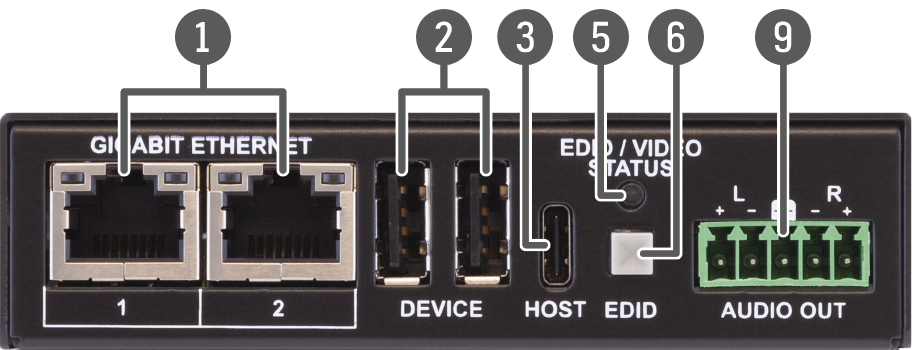
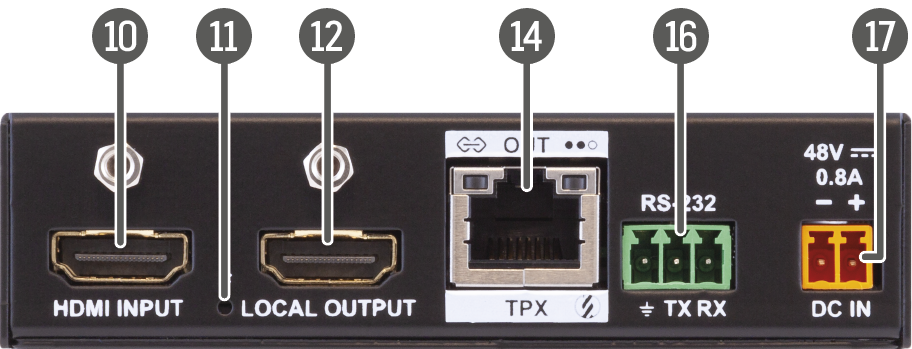
HDMI-TPX-RX109AU2K
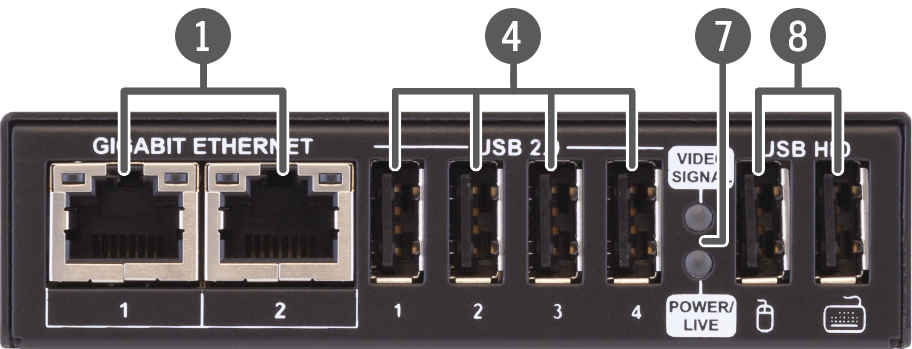
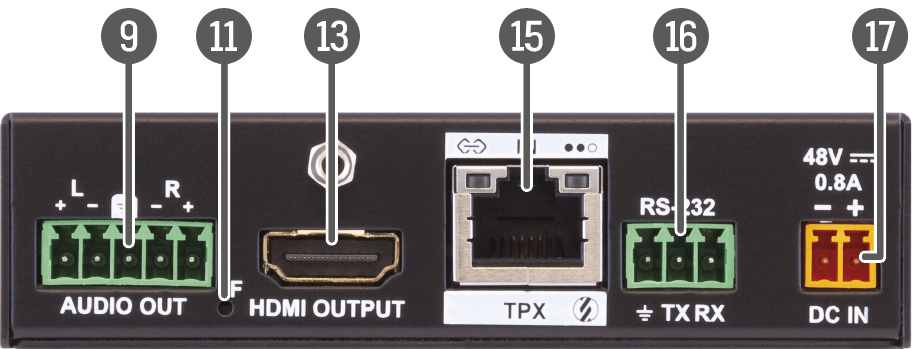
|
|
Gigabit Ethernet port |
1GBase-T RJ45 connector for user Ethernet purpose. See more details about the LED operation in the Gigabit Ethernet Status LEDs section. |
|
|
Device USB-A connectors |
USB-A connectors with USB 2.0 support for various types of USB devices. |
|
|
Host USB-C connector |
USB-C connection between the transmitter and the host computer. The port receives USB data only, no AV signal transmission is accepted. It supports USB 2.0 standard only. See more details about the USB KVM feature of the device in the Icron USB Interface section. |
|
|
USB 2.0 connectors |
USB-A connectors with USB 2.0 support for various types of USB devices (e.g. webcam, microphone, external storage, etc). The signal is transmitted to the receiver over the TPX link. |
|
|
EDID / Video Status LED |
The EDID LED gives immediate feedback about the current status of the video signal and the EDID emulation. See the details in the Device Status LEDs - TPX -A -D -U2K -V2 Series section. |
|
|
EDID button |
EDID handling mode can be set, see the details in the EDID Button Function section. |
|
|
Status LEDs |
The LEDs give immediate feedback about the current status of the extender. See the details in the Device Status LEDs - TPX -A -D -U2K -V2 Series sections. |
|
|
USB HID connectors |
USB K+M ports for HID-compatible devices (preferably keyboard and mouse). See more details about the USB KVM feature of the device in the Icron USB Interface section. |
|
|
Analog audio output |
5-pole Phoenix connector for de-embedding the HDMI audio, which can be transmitted as a 2-channel balanced analog audio signal. |
|
|
HDMI input |
HDMI input port with HDMI 2.0 support for source devices. |
|
|
Factory reset button |
Hidden button for setting the device to factory default values. See more details about it in the Factory Reset (F) Button section. |
|
|
Local HDMI output |
Local HDMI output with the same AV content as the HDMI input. |
|
|
HDMI output |
HDMI output port with HDMI 2.0 support for sink devices. |
|
|
TPX output |
RJ45 connector for SDVoE output signal transmission. See more details about the connector in the Ethernet Connectors and the TPX Input/Ouput Status LEDs sections. |
|
|
TPX input |
RJ45 connector for SDVoE output signal transmission. See more details about the connector in the Ethernet Connectors and the TPX Input/Ouput Status LEDs sections. |
|
|
RS-232 port |
3-pole Phoenix connector for bi-directional serial communication. See more details about the connector in the RS-232 Connector section. |
|
|
48V DC input |
48V DC input locking connector for local powering. See more details about the powering options of the extenders in the Powering Options for TPX-209 Series section. |


HDMI-TPX-TX107D
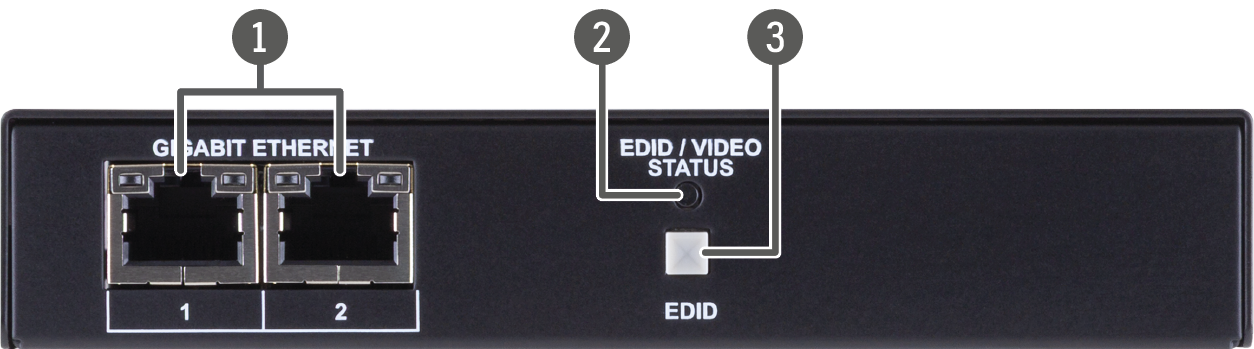
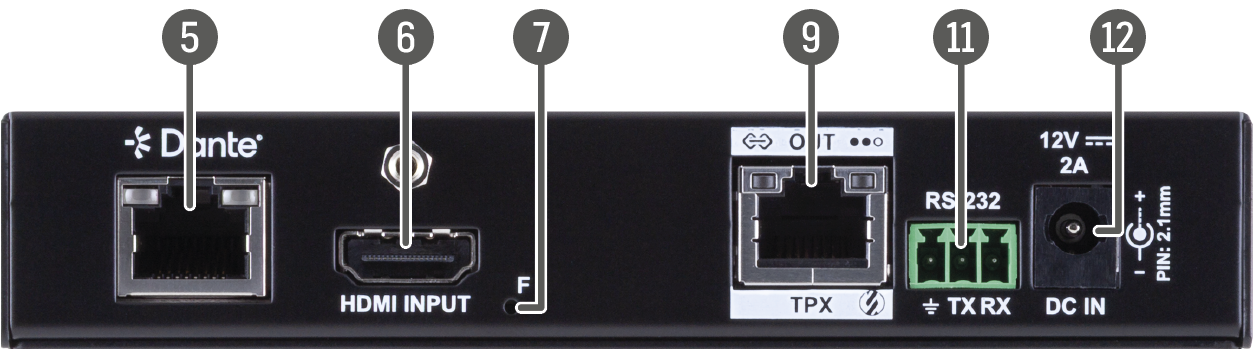
HDMI-TPX-RX107D
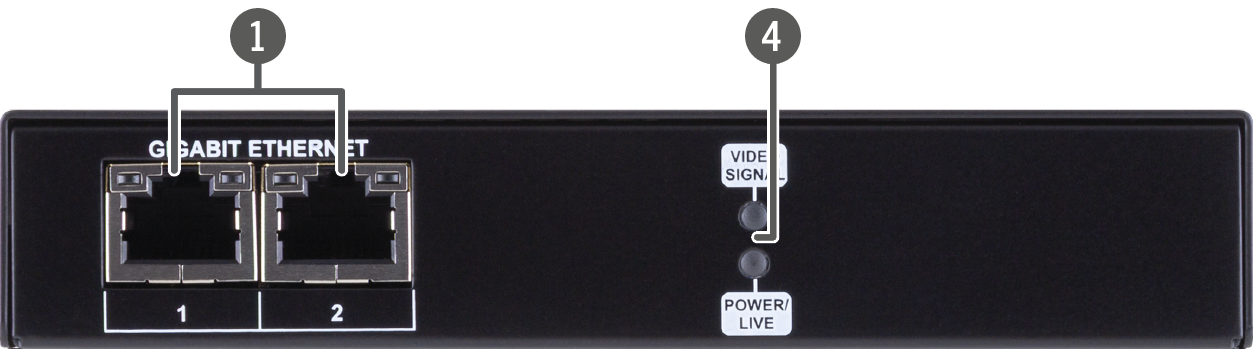
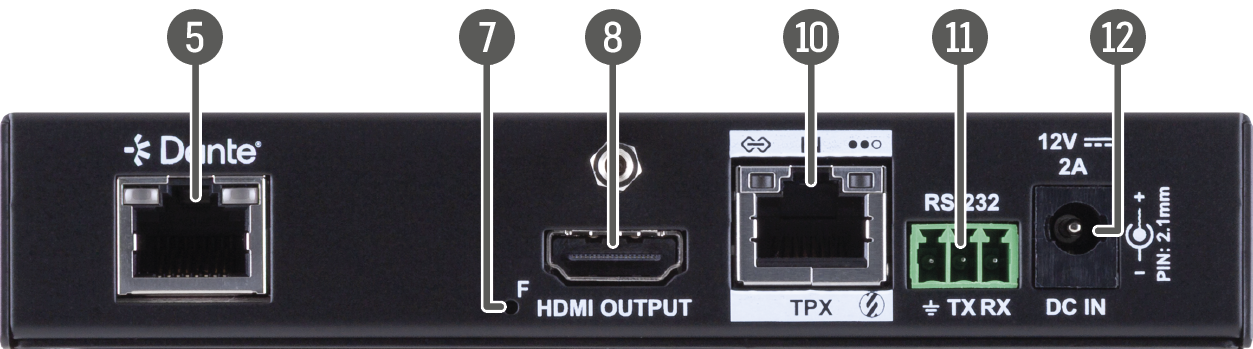
|
|
Gigabit Ethernet port |
1GBase-T RJ45 connector for user Ethernet purpose. See more details about the LED operation in the Gigabit Ethernet Status LEDs section. |
|
|
EDID / Video Status LED |
The EDID LED gives immediate feedback about the current status of the video signal and the EDID emulation. See the details in the Device Status LEDs - TPX -A -D -U2K -V2 Series section. |
|
|
EDID button |
EDID handling mode can be set, see the details in the EDID Button Function section. |
|
|
Status LEDs |
The LEDs give immediate feedback about the current status of the extender. See the details in the Device Status LEDs - TPX -A -D -U2K -V2 Series sections. |
|
|
Dante®/AES67 output |
RJ45 connector for transmitting 2-channel Dante® or AES67 digital audio signal. |
|
|
HDMI input |
HDMI input port with HDMI 2.0 support for source devices. |
|
|
Factory reset button |
Hidden button for setting the device to factory default values. See more details about it in the Factory Reset (F) Button section. |
|
|
HDMI output |
HDMI output port with HDMI 2.0 support for sink devices. |
|
|
TPX output |
RJ45 connector for SDVoE output signal transmission. See more details about the connector in the Ethernet Connectors and the TPX Input/Ouput Status LEDs sections. |
|
|
TPX input |
RJ45 connector for SDVoE output signal transmission. See more details about the connector in the Ethernet Connectors and the TPX Input/Ouput Status LEDs sections. |
|
|
RS-232 port |
3-pole Phoenix connector for bi-directional serial communication. See more details about the connector in the RS-232 Connector section. |
|
|
12V DC input |
12V DC input locking connector for local powering. See more details about the powering options of the extenders in the Powering Options for TPX-107 Series section. |
HDMI-TPX-TX209DU2K
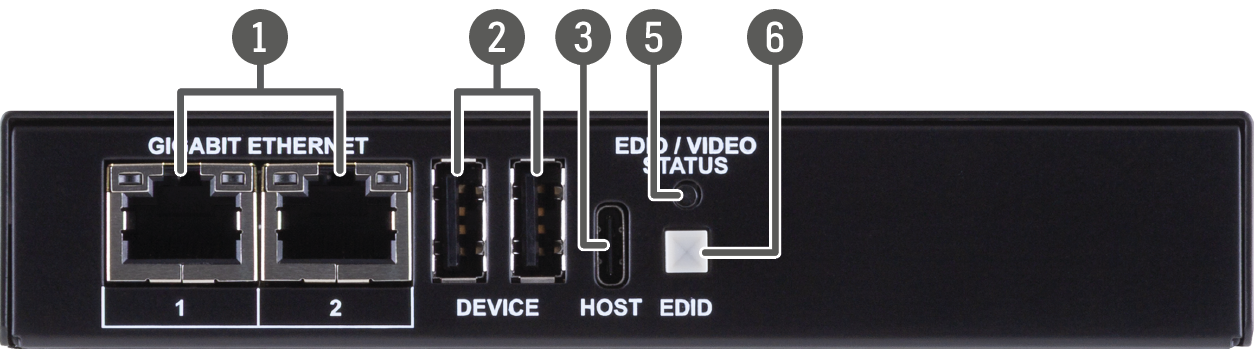
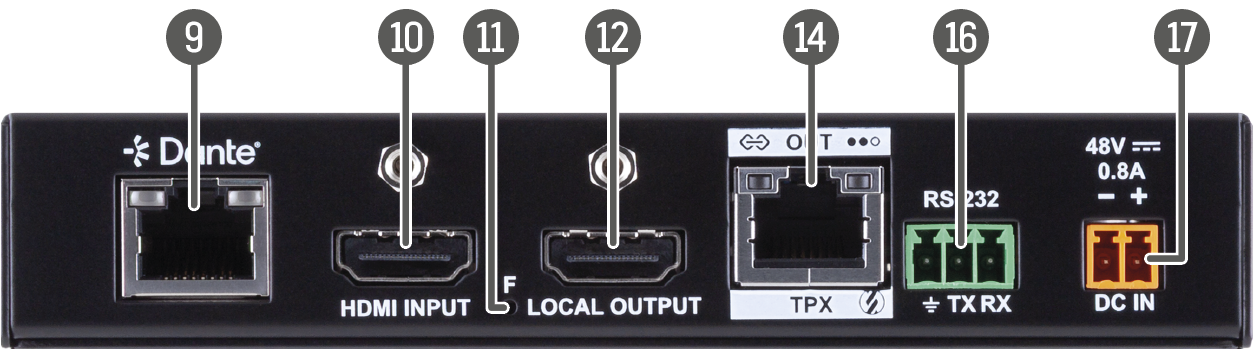
HDMI-TPX-RX109DU2K
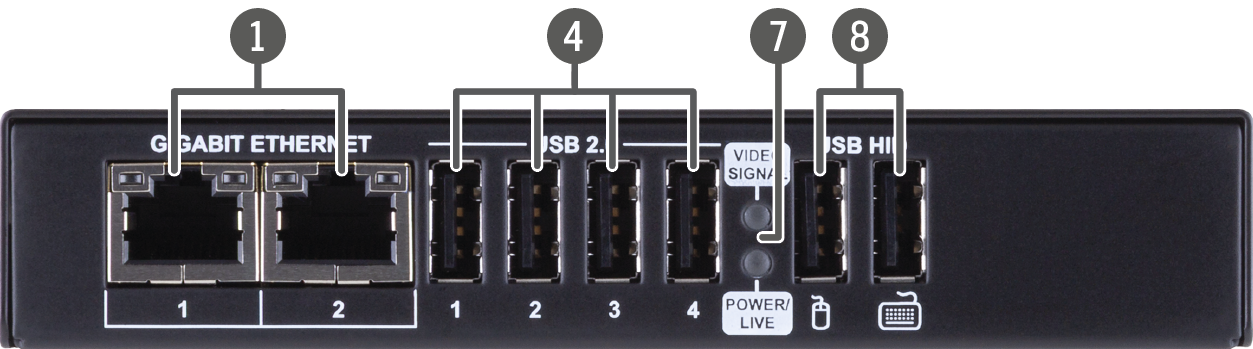
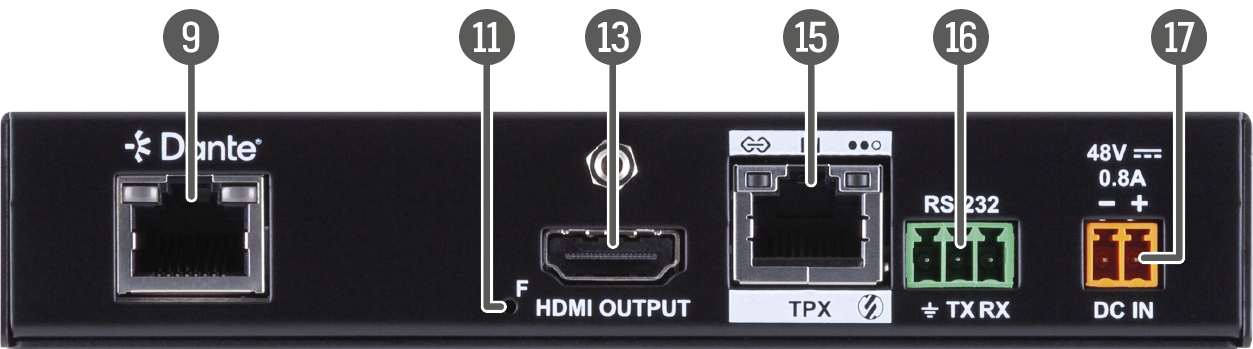
|
|
Gigabit Ethernet port |
1GBase-T RJ45 connector for user Ethernet purpose. See more details about the LED operation in the Gigabit Ethernet Status LEDs section. |
|
|
Device USB-A connectors |
USB-A connectors with USB 2.0 support for various types of USB devices. |
|
|
Host USB-C connector |
USB-C connection between the transmitter and the host computer. The port receives USB data only, no AV signal transmission is accepted. It supports USB 2.0 standard only. |
|
|
USB 2.0 connectors |
USB-A connectors with USB 2.0 support for various types of USB devices (e.g. webcam, microphone, external storage, etc). The signal is transmitted to the receiver over the TPX link. See more details about the USB KVM feature of the device in the Icron USB Interface section. |
|
|
EDID / Video Status LED |
The EDID LED gives immediate feedback about the current status of the video signal and the EDID emulation. See the details in the Device Status LEDs - TPX -A -D -U2K -V2 Series section. |
|
|
EDID button |
EDID handling mode can be set, see the details in the EDID Button Function section. |
|
|
Status LEDs |
The LEDs give immediate feedback about the current status of the extender. See the details in the Device Status LEDs - TPX -A -D -U2K -V2 Series sections. |
|
|
USB HID connectors |
USB K+M ports for HID-compatible devices (preferably keyboard and mouse). See more details about the USB KVM feature of the device in the Icron USB Interface section. |
|
|
Audio output |
5-pole Phoenix connector for de-embedding the HDMI audio, which can be transmitted as a 2-channel balanced analog audio signal. |
|
|
HDMI input |
HDMI input port with HDMI 2.0 support for source devices. |
|
|
Factory reset button |
Hidden button for setting the device to factory default values. See more details about it in the Factory Reset (F) Button section. |
|
|
Local HDMI output |
Local HDMI output with the same AV content as the HDMI input. |
|
|
HDMI output |
HDMI output port with HDMI 2.0 support for sink devices. |
|
|
TPX output |
RJ45 connector for SDVoE output signal transmission. See more details about the connector in the Ethernet Connectors and the TPX Input/Ouput Status LEDs sections. |
|
|
TPX input |
RJ45 connector for SDVoE output signal transmission. See more details about the connector in the Ethernet Connectors and the TPX Input/Ouput Status LEDs sections. |
|
|
RS-232 port |
3-pole Phoenix connector for bi-directional serial communication. See more details about the connector in the RS-232 Connector section. |
|
|
48V DC input |
48V DC input locking connector for local powering. See more details about the powering options of the extenders in the Powering Options for TPX-209 Series section. |


2.1.9. TPX-SR Series Scaling Receivers
HDMI-TPX-RX107A-SR
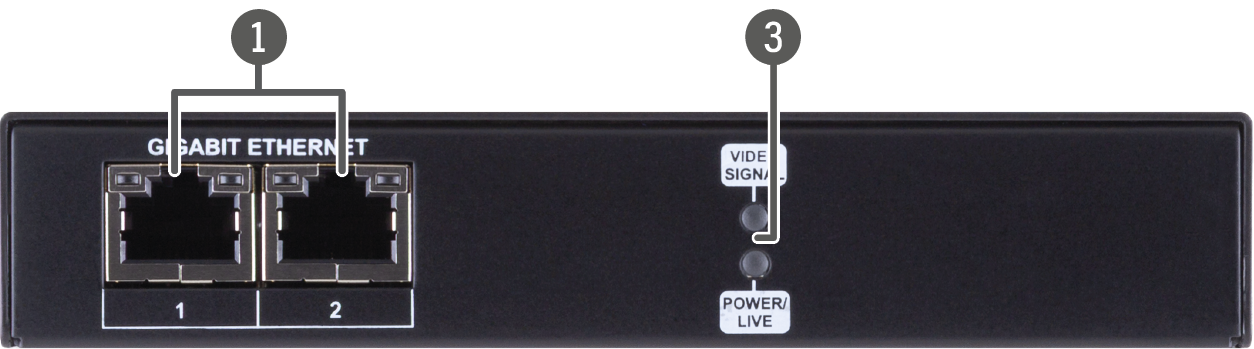
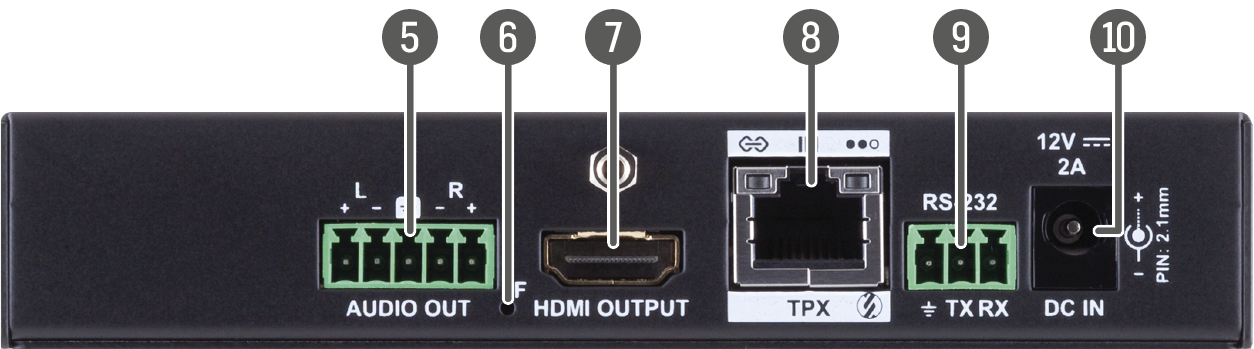
HDMI-TPX-RX107AU2K-SR
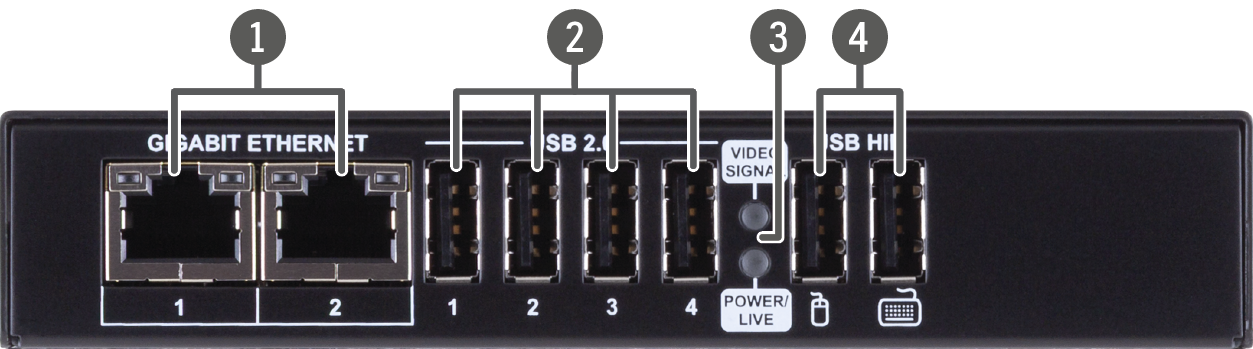
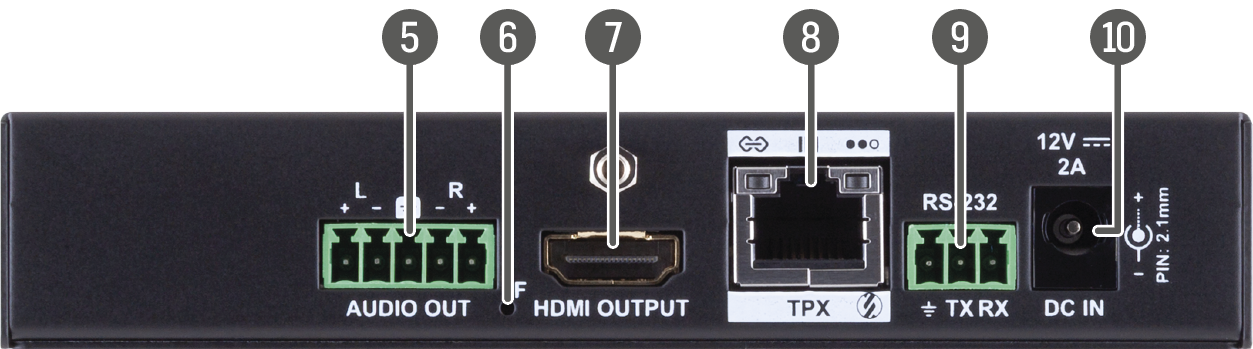
|
|
Gigabit Ethernet port |
1GBase-T RJ45 connector for user Ethernet purpose. See more details about the LED operation in the Gigabit Ethernet Status LEDs section. |
|
|
USB 2.0 connectors |
USB-A connectors with USB 2.0 support for various types of USB devices (e.g. webcam, microphone, external storage, etc). The signal is transmitted to the receiver over the TPX link. See more details about the USB KVM feature of the device in the Icron USB Interface section. |
|
|
Status LEDs |
The LEDs give immediate feedback about the current status of the extender. See the details in the Device Status LEDs - TPX -A -D -U2K -V2 Series sections. |
|
|
USB HID connectors |
USB K+M ports for HID-compatible devices (preferably keyboard and mouse). See more details about the USB KVM feature of the device in the Icron USB Interface section. |
|
|
Analog audio output |
5-pole Phoenix connector for de-embedding the HDMI audio, which can be transmitted as a 2-channel balanced analog audio signal. |
|
|
Factory reset button |
Hidden button for setting the device to factory default values. See more details about it in the Factory Reset (F) Button section. |
|
|
HDMI output |
HDMI output port with HDMI 2.0 support for sink devices. |
|
|
TPX input |
RJ45 connector for SDVoE output signal transmission. See more details about the connector in the Ethernet Connectors and the TPX Input/Ouput Status LEDs sections. |
|
|
RS-232 port |
3-pole Phoenix connector for bi-directional serial communication. See more details about the connector in the RS-232 Connector section. |
|
|
12V DC input |
12V DC input locking connector for local powering. See more details about the powering options of the extenders in the Powering Options for TPX-107 Series section. |
2.2. Front and Rear View - OPTX Series
HDMI-OPTX-TX100A
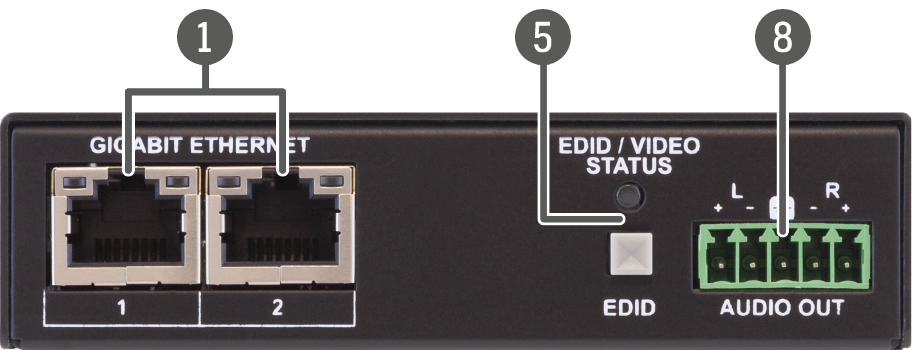
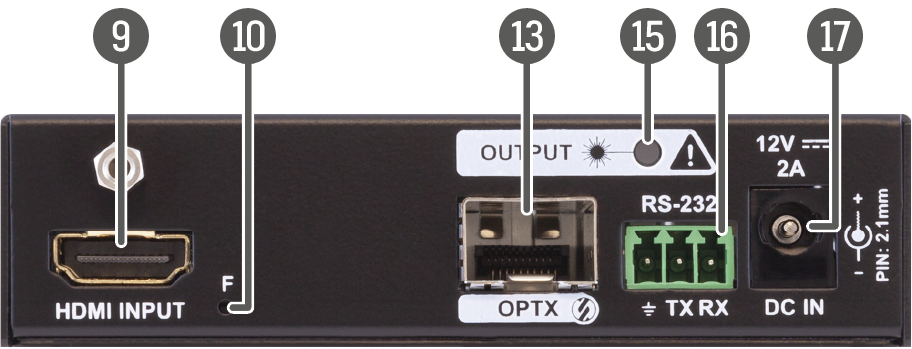
HDMI-OPTX-TX200AU2K
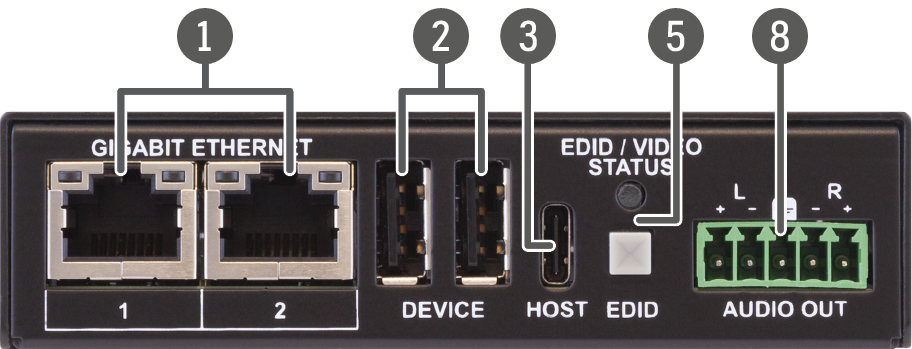
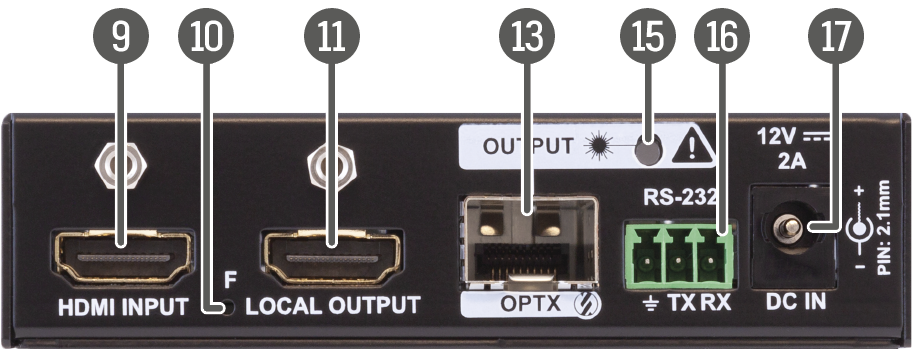
HDMI-OPTX-RX100A
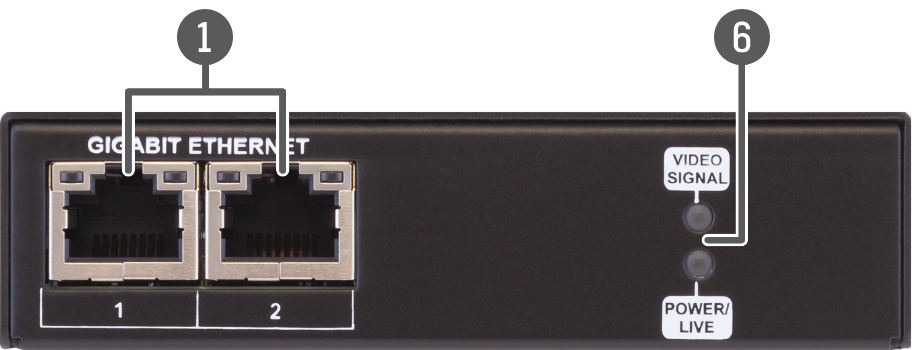
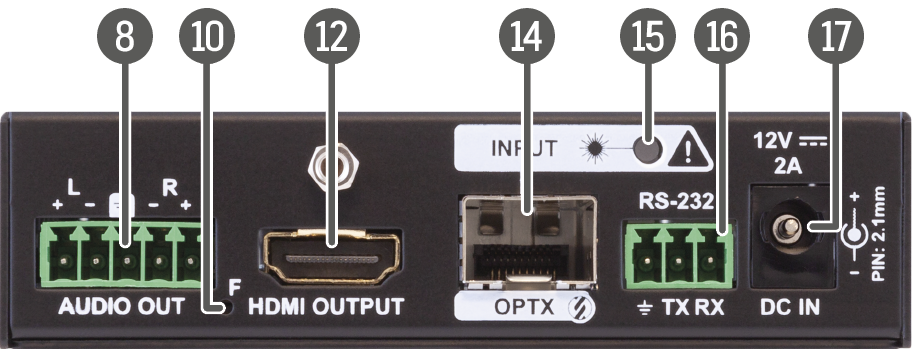
HDMI-OPTX-RX100AU2K
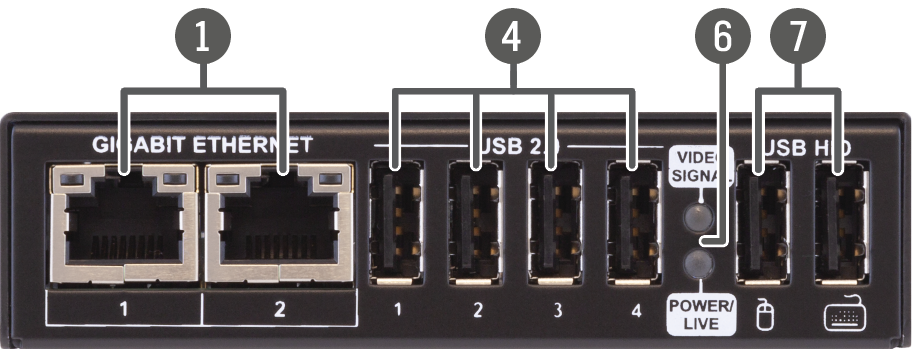
|
|
Gigabit Ethernet port |
1GBase-T RJ45 connector for user Ethernet purpose. See more details about the LED operation in the Gigabit Ethernet Status LEDs section. |
|
|
Device USB-A connectors |
USB-A connectors with USB 2.0 support for various types of USB devices. |
|
|
Host USB-C connector |
USB-C connection between the transmitter and the host computer. The port receives USB data only, no AV signal transmission is accepted. It supports USB 2.0 standard only. |
|
|
USB 2.0 connectors |
USB-A connectors with USB 2.0 support for various types of USB devices (e.g. webcam, microphone, external storage, etc). The signal is transmitted to the receiver over the TPX link. |
|
|
EDID / Video Status LED and EDID button |
The EDID LED gives immediate feedback about the current status of the video signal and the EDID emulation. See the details in the Device Status LEDs - OPTX Series and the EDID Button Function sections. |
|
|
Status LEDs |
The LEDs give immediate feedback about the current status of the extender. See the details in the Device Status LEDs - OPTX Series sections. |
|
|
USB HID connectors |
USB K+M ports for HID-compatible devices (preferably keyboard and mouse). |
|
|
Analog audio output |
5-pole Phoenix connector for de-embedding the HDMI audio, which can be transmitted as a 2-channel balanced analog audio signal. |
|
|
HDMI input |
HDMI input port with HDMI 2.0 support for source devices. |
|
|
Factory reset button |
Hidden button for setting the device to factory default values. See more details about it in the Factory Reset (F) Button section. |
|
|
Local HDMI output |
Local HDMI output with the same AV content as the HDMI input. |
|
|
HDMI output |
HDMI output port with HDMI 2.0 support for sink devices. |
|
|
SFP+ port slot for OPTX output connection |
Optical output port slot for a 10 GbE SFP+ module or a DAC cable. Port can be used for either singlemode or multimode optical connection. See more details in the SFP+ Slot section. |
|
|
SFP+ port slot for OPTX input connection |
Optical input port slot for a 10 GbE SFP+ module or a DAC cable. Port can be used for either singlemode or multimode optical connection. See more details in the SFP+ Slot section. |
|
|
OPTX input/output link LED |
The LED gives immediate feedback about the current status of the extender. See the details in the OPTX Input/Ouput Status LEDs section. |
|
|
RS-232 port |
3-pole Phoenix connector for bi-directional serial communication. See more details about the connector in the RS-232 Connector section. |
|
|
12V DC input |
12V DC input locking connector for local powering. |
2.3. Front and Rear Panel LEDs
2.3.1. Device Status LEDs - TPX-100 and -AK Series
Affected models:
▪HDMI-TPX-RX106
▪HDMI-TPX-RX107
▪HDMI-TPX-RX209AK
▪HDMI-TPX-TX106
▪HDMI-TPX-TX106A
▪HDMI-TPX-TX107
▪HDMI-TPX-TX209AK
|
POWER/LIVE |
Transmitter / Receiver |
||

|
off |
Device is not powered. |
|

|
blinking (green) |
Device is powered on and booting. |
|

|
blinking between 50% and 100% brightness (green) |
Device is powered on and operational. |
|
|
VIDEO SIGNAL |
Transmitter / Receiver |
||

|
off |
No video signal present on the HDMI input (TX) or HDMI output (RX) port. |
|

|
on (green) |
Video signal is present on the HDMI input (TX) or HDMI output (RX) port. |
|
|
EDID STATUS |
Transmitter |
||

|
on (green) |
Custom EDID is emulated on the HDMI input port. |
|

|
on (yellow) |
Transparent EDID is emulated on the HDMI input port. |
|

|
blinking (red) |
Error occured during the EDID emulation. It may be caused by: ▪EDID emulation cannot be set correctly. ▪Device cannot apply user EDID emulation. |
|
2.3.2. Device Status LEDs - TPX -A -D -U2K -V2 Series
Affected models:
▪HDMI-TPX-RX106-V2
▪HDMI-TPX-RX107-V2
▪HDMI-TPX-RX109AK-V2
▪HDMI-TPX-RX107A-SR
▪HDMI-TPX-RX107AU2K-SR
▪HDMI-TPX-RX107D
▪HDMI-TPX-RX109AU2K
▪HDMI-TPX-RX109DU2K
▪HDMI-TPX-TX106-V2
▪HDMI-TPX-TX106A-V2
▪HDMI-TPX-TX107-V2
▪HDMI-TPX-TX107D
▪HDMI-TPX-TX209AU2K
▪HDMI-TPX-TX209AK-V2
▪HDMI-TPX-TX209DU2K
|
POWER/LIVE |
Transmitter / Receiver |
||
|
|
off |
Device is not powered. |
|
|
|
blinking (green) |
Device is powered on and booting. |
|
|
|
blinking between 50% and 100% brightness (green) |
Device is powered on and operational. |
|
|
VIDEO SIGNAL |
Transmitter / Receiver |
||

|
off |
No video signal present on the HDMI output port. |
|

|
on (green) |
Video signal is present on the HDMI output port. |
|
|
EDID / VIDEO STATUS |
Transmitter |
||
|
|
off |
Device is not powered. |
|

|
blinking (green or yellow) |
No video signal present on the HDMI input port. |
|

|
on (green) |
Video signal is present, custom EDID is emulated on the HDMI input port. |
|

|
on (yellow) |
Video signal is present, transparent EDID is emulated on the HDMI input port. |
|

|
blinking (red) |
Error occured during the EDID emulation. It may be caused by: ▪EDID emulation cannot be set correctly. ▪Device cannot apply user EDID emulation. |
|
2.3.3. Device Status LEDs - OPTX Series
Affected models:
▪HDMI-OPTX-TX100A
▪HDMI-OPTX-TX200AU2K
▪HDMI-OPTX-RX100A
▪HDMI-OPTX-RX100AU2K
|
POWER/LIVE |
Transmitter / Receiver |
||
|
|
off |
Device is not powered. |
|
|
|
blinking (green) |
Device is powered on and booting. |
|
|
|
blinking between 50% and 100% brightness (green) |
Device is powered on and operational. |
|
|
VIDEO SIGNAL |
Transmitter / Receiver |
||
|
|
off |
No video signal present on the HDMI output port. |
|
|
|
on (green) |
Video signal is present on the HDMI output port. |
|
|
EDID / VIDEO STATUS |
Transmitter |
||
|
|
off |
Device is not powered. |
|
|
|
blinking (green or yellow) |
No video signal present on the HDMI input port. |
|
|
|
on (green) |
Video signal is present, custom EDID is emulated on the HDMI input port. |
|
|
|
on (yellow) |
Video signal is present, transparent EDID is emulated on the HDMI input port. |
|
|
|
blinking (red) |
Error occured during the EDID emulation. It may be caused by: ▪EDID emulation cannot be set correctly. ▪Device cannot apply user EDID emulation. |
|
2.3.4. Gigabit Ethernet Status LEDs
Affected models: all TPX / OPTX variants
|
GIGABIT ETHERNET - LEFT LED * |
Transmitter / Receiver |
||

|
on (green) * |
Connection is established with 100Mbps bandwith. |
|

|
blinking (green) * |
Data transmission is active. |
|
|
GIGABIT ETHERNET - RIGHT LED |
Transmitter / Receiver |
||
|
|
on (green) |
Connection is established with 1Gbps bandwith. |
|
|
|
blinking (green) |
Data transmission is active. |
|
* Please note that the color of the LED is device-dependent: it can be green or amber.
2.3.5. TPX Input/Ouput Status LEDs
Affected models:
▪All TPX variants
|
TPX INPUT/OUTPUT |

|
Transmitter / Receiver |
|

|
off |
No connection is established between the transmitter and the receiver units. |
|
|
|
on (green) |
Connection is established with 10G / 5G / 2.5G bandwith. |
|
|
TPX INPUT/OUTPUT |

|
Transmitter / Receiver |
|

|
off |
No data transmission on the port. |
|
![[Alt text was not generated.]](UM-web-resources/image/green_LED_blink_square1.png)
|
blinking (green) |
Data transmission is active. |
|
2.3.6. OPTX Input/Ouput Status LEDs
Affected models:
▪All OPTX variants
|
OPTX INPUT / OUTPUT LINK LED |
Transmitter / Receiver |
||
|
|
off |
Device is not powered or SFP+ transceiver module is not installed. |
|

|
on (red) |
Device might emit laser radiation. |
|
|
|
on (green) |
Optical link established. |
|
Affected models:
▪HDMI-TPX-RX107D
▪HDMI-TPX-RX109DU2K
▪HDMI-TPX-TX107D
▪HDMI-TPX-TX209DU2K
|
LED state |
Left LED |
Right LED |
Function |
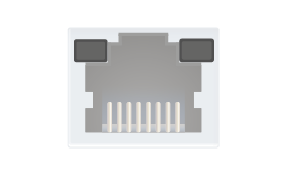
|
Off |
Off |
No power |
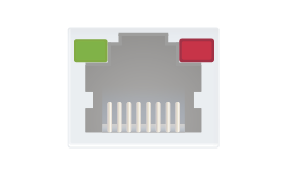
|
Solid green |
Solid red |
Dante is booting |
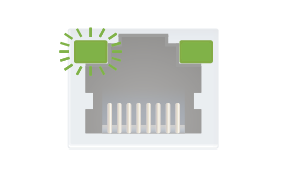
|
Blinking green |
Solid green |
Slave with sync (normal operation) |
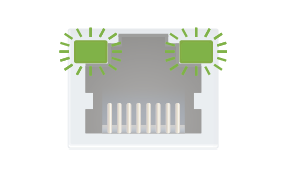
|
Blinking green |
Blinking green |
Clock master (normal operation) |
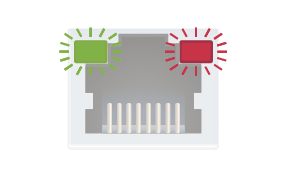
|
Blinking green |
Blinking red |
Acquiring clock sync (normal operation) |
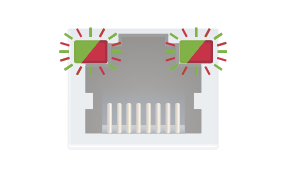
|
Alternating red/green |
Alternating red/green |
Identify (blinking for 6 seconds) |
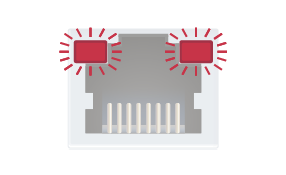
|
Blinking red |
Blinking red |
Dante fail safe |
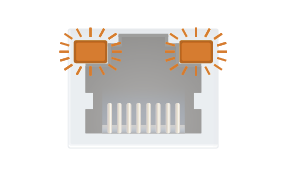
|
Blinking amber |
Blinking amber |
Device is updating |
2.4.1. Factory Reset (F) Button
To restore factory default values, do the following steps: #factory
Step 1.Prepare a thin and long tool (e.g. a pen, toothpick, piece of wire, etc).
Step 2.Make sure the device is powered on and operational.
Step 3.Press and keep pressing the hidden F button on the rear side of the device using the tool for 3 seconds. After 3 seconds the LEDs start blinking faster.
Step 4.The LEDs get dark, the device restores the factory default settings and reboots.

Two EDID emulation modes can be selected with the EDID button: Learned and Transparent. #edid
▪Short press: switch between transparent and learned user EDID.
▪Long press: learn and store EDID from the output of the receiver.

This chapter is about the installation of the device and connecting to other appliances, also presenting the mounting options and further assembly steps:
3.1. Mounting Options - Compatibility Table
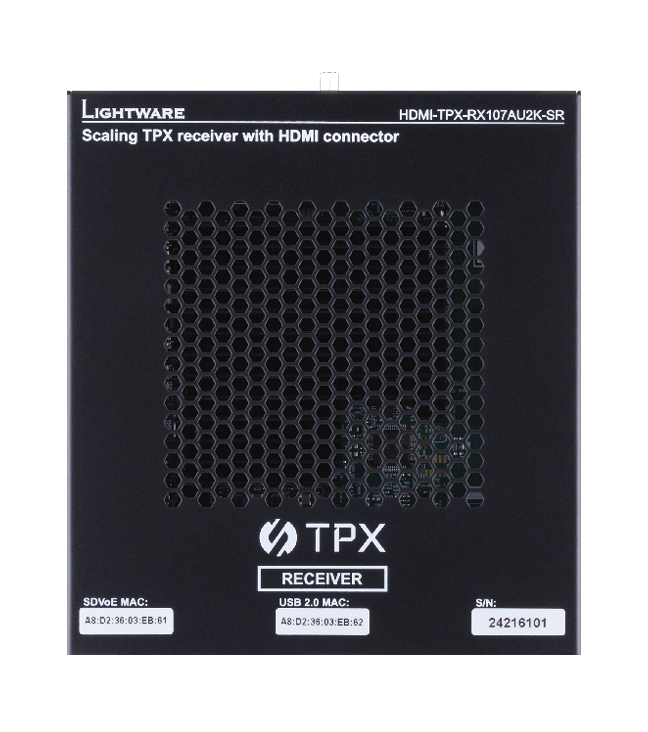
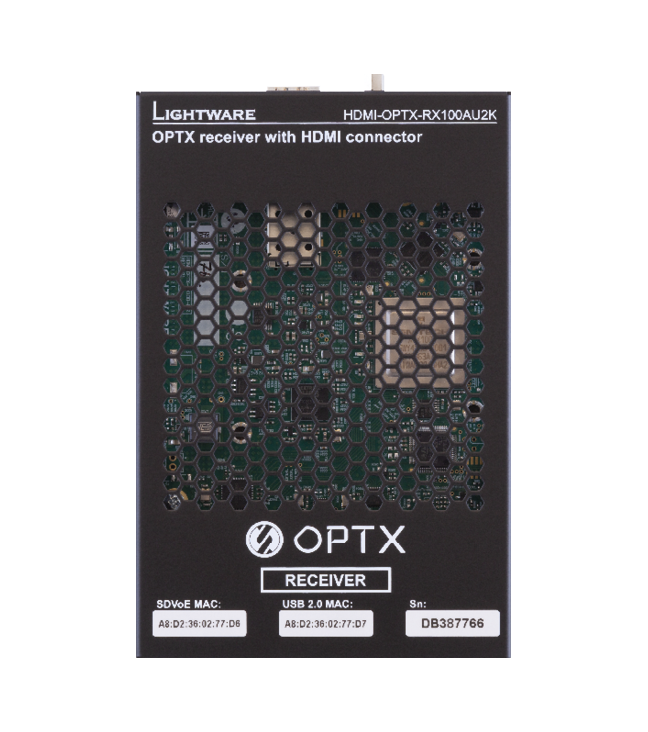
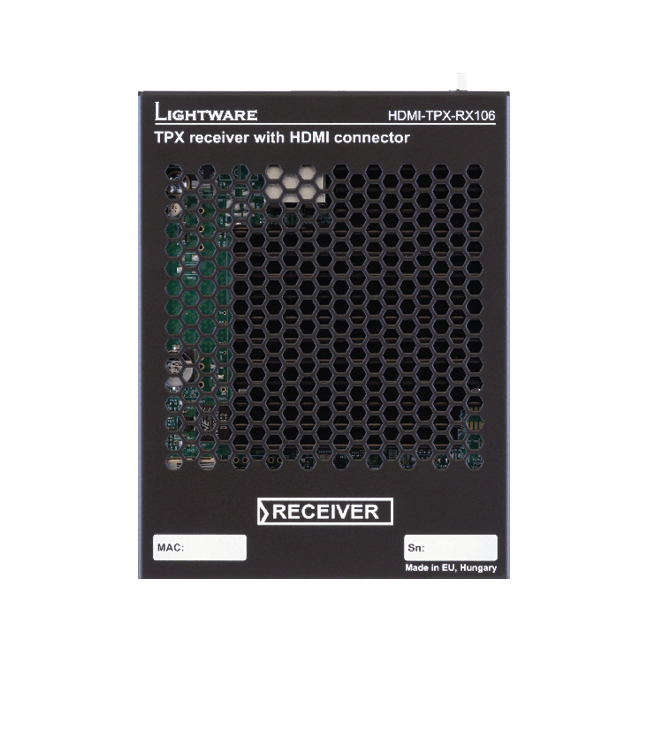
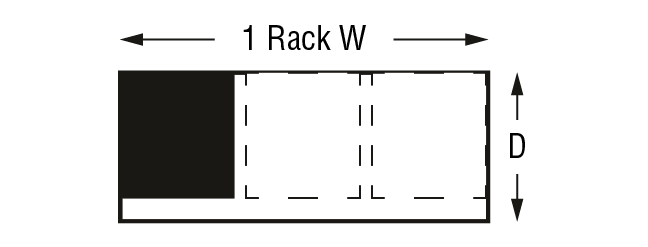
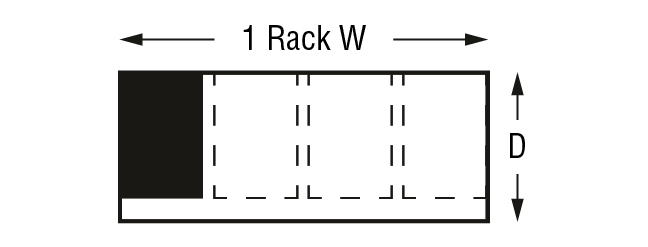
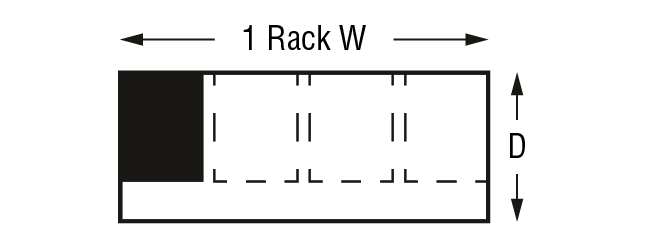
The following table summarizes the compatibility of the TPX series devices with the mounting accessories offered by Lightware. The number in the brackets means how many same-size devices can be assembled to the mounting plate. The dimensions are in mm. The following accessories can be ordered separately, please contact sales@lightware.com for the details.
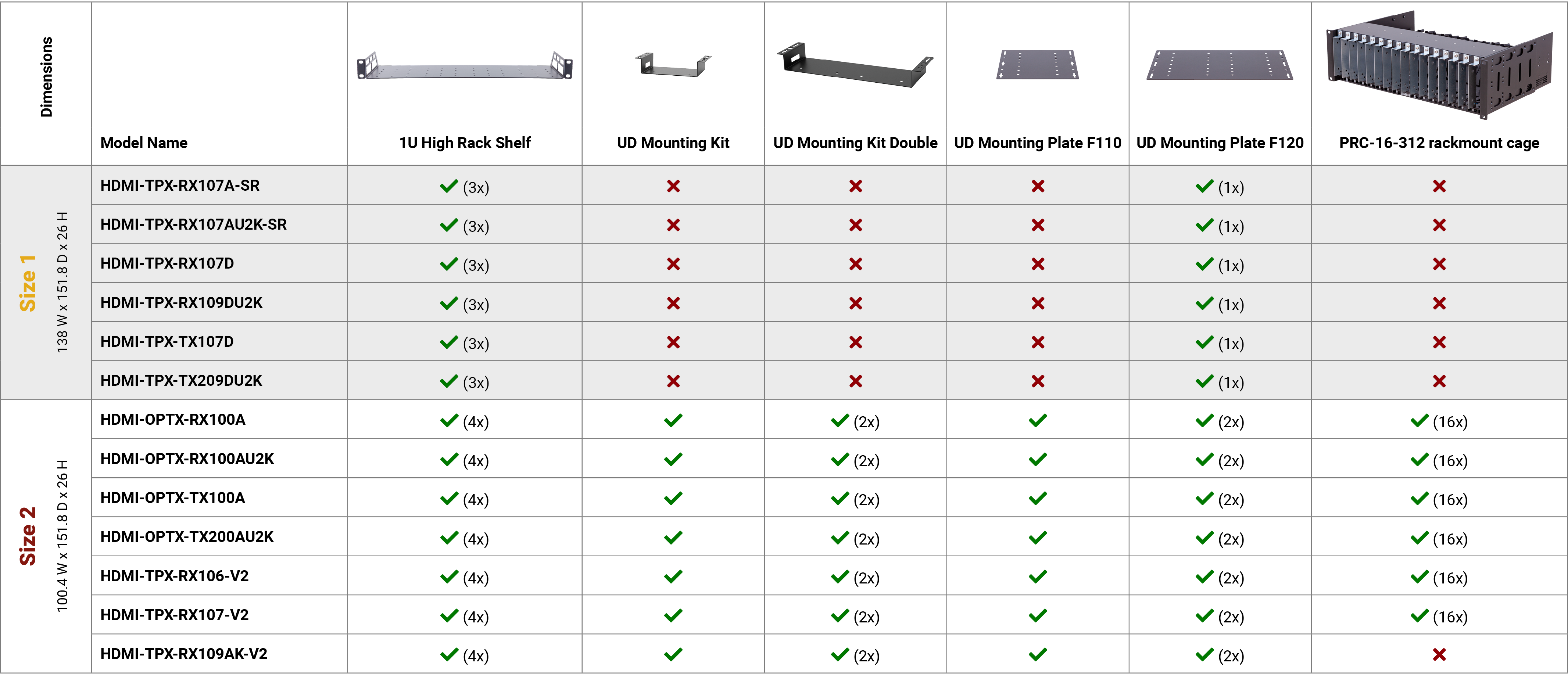
WARNING!Pay attention to the ventilation holes when designing the system. Top and side ventilation holes must not be covered.
INFO:See the details about the assembly steps for each model in our Mounting Assembly Guide downloaded from the website.
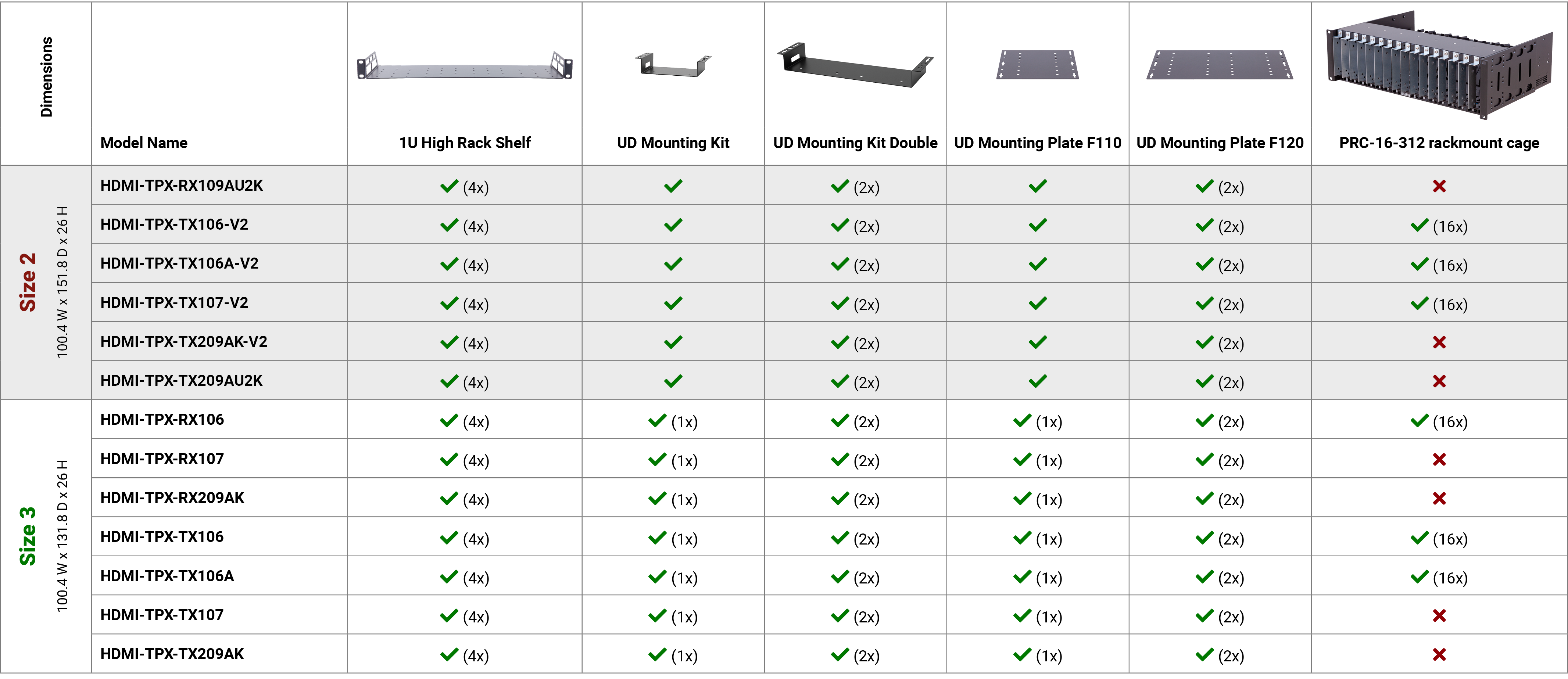
WARNING!Pay attention to the ventilation holes when designing the system. Top and side ventilation holes must not be covered.
INFO:See the details about the assembly steps for each model in our Mounting Assembly Guide downloaded from the website.
3.2. Device Dimensions Visualization
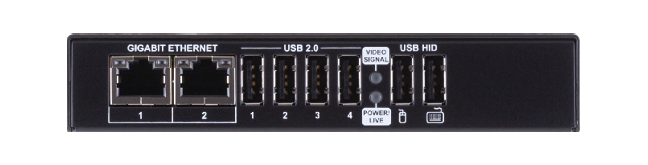
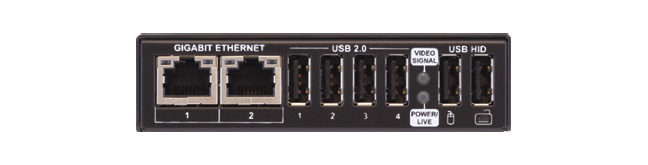
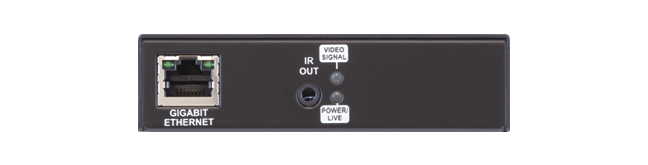
|
1/3 rack wide; half unit high |
1/4 rack wide; half unit high |
1/4 rack wide; half unit high |
|||
|
Width: |
138 mm |
Width: |
100.4 mm |
Width: |
100.4 mm |
|
5.43 inches |
3.95 inches |
3.95 inches |
|||
|
Depth: |
151.8 mm |
Depth: |
151.8 mm |
Depth: |
131.8 mm |
|
5.97 inches |
5.97 inches |
5.19 inches |
|||
|
Height: |
26 mm |
Height: |
26 mm |
Height: |
26 mm |
|
1 inch |
1 inch |
1 inch |
|||
|
|
|
|||
|
|
|
|||
|
|
|
|||
INFO:Size 3 devices will be phased out, their successors will be the -V2 series extenders that fit in the Size 2 sizing.
Certain TPX extenders are built with a 2-pole Phoenix connector for 48V DC 1A power connection.

2-pole Phoenix connector and plug pin assignments
WARNING!Always use the supplied 48V power adaptor. Warranty void if damage occurs due to use of a different power source.
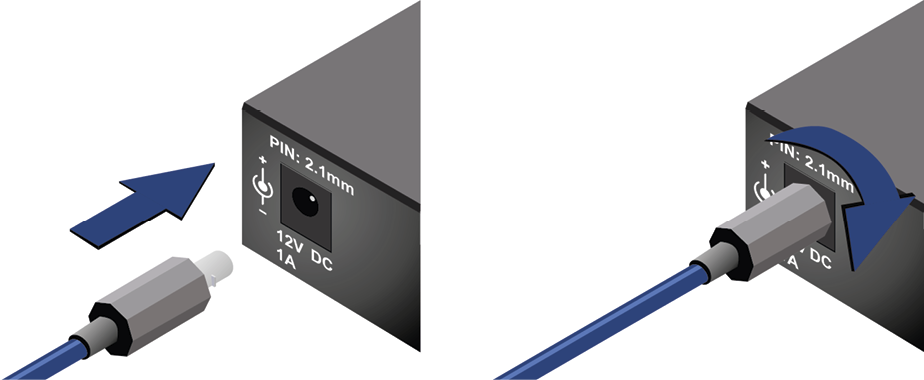
Locking DC connector
Do not forget to turn the plug counterclockwise before disconnecting the power adaptor.
WARNING!Always use the supplied 12V power adaptor. Warranty void if damage occurs due to use of a different power source.
3.3.3. HDMI Input and Output Ports

The HDMI-TPX and HDMI-OPTX series extenders are assembled with standard 19-pole HDMI 2.0 connectors with screw lock for inputs and outputs. Always use 22AWG or higher quality HDMI cables for connecting sources and displays.
5-pole Phoenix connector is used for balanced analog audio output. Unbalanced audio devices can be connected as well. See more details about the balanced and unbalanced output port wiring in the Serial Ports section.
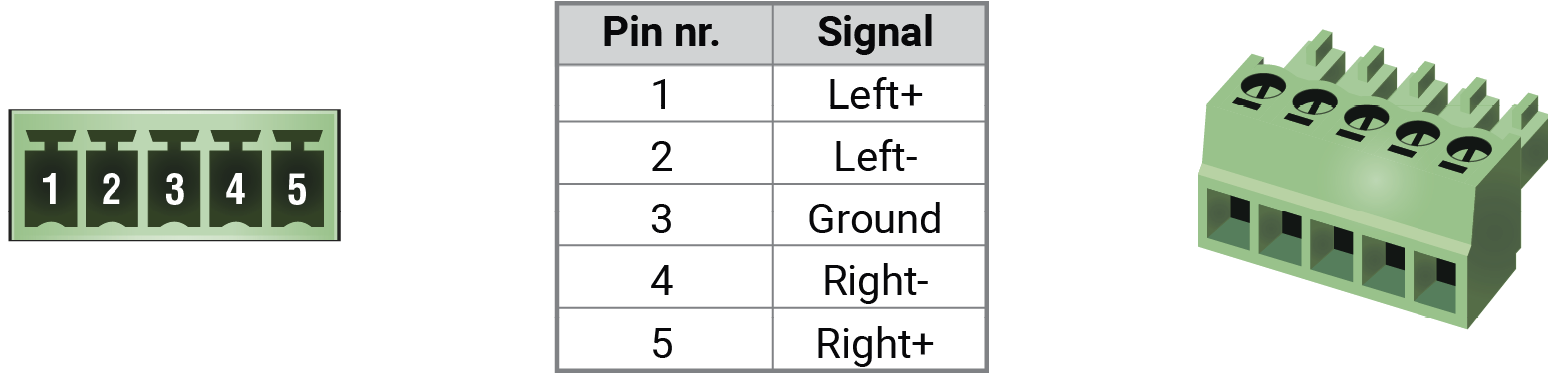
Analog audio connector and plug pin assignments
Compatible Plug Type
Phoenix® Combicon series (3.5mm pitch, 5-pole), type: MC 1.5/5-ST-3.5.
3.3.5. USB-A Connectors for Endpoints
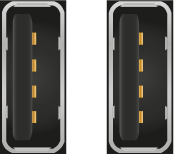
-U2K series endpoint models provide USB-A connectors for KVM functionality supporting HDMI 2.0 standard.
3.3.6. USB Type-C for Endpoints

-U2K series transmitter models provide a USB Type-C connector for USB connection between the transmitter and the host computer.
ATTENTION!The port receives USB data only, no AV signal transmission is accepted. It supports USB 2.0 standard only.
ATTENTION!Before the installation of the Ethernet connections please read our CATx cable recommendations in the CATx Cable Diagnostics for TPX Extenders section.
TPX (SDVoE) Connector
The TPX series extenders provide standard RJ45 connectors for TPX input/output ports. Maximum CATx cable distances can be found in the Maximum Cable Extension section. See Lightware's recommendations for cable types in the CATx Cable Diagnostics for TPX Extenders section.
Control Ethernet Port
The TPX and OPTX series extenders contain RJ45 connectors. The devices are built with 1GBase-T Ethernet for local control functions.
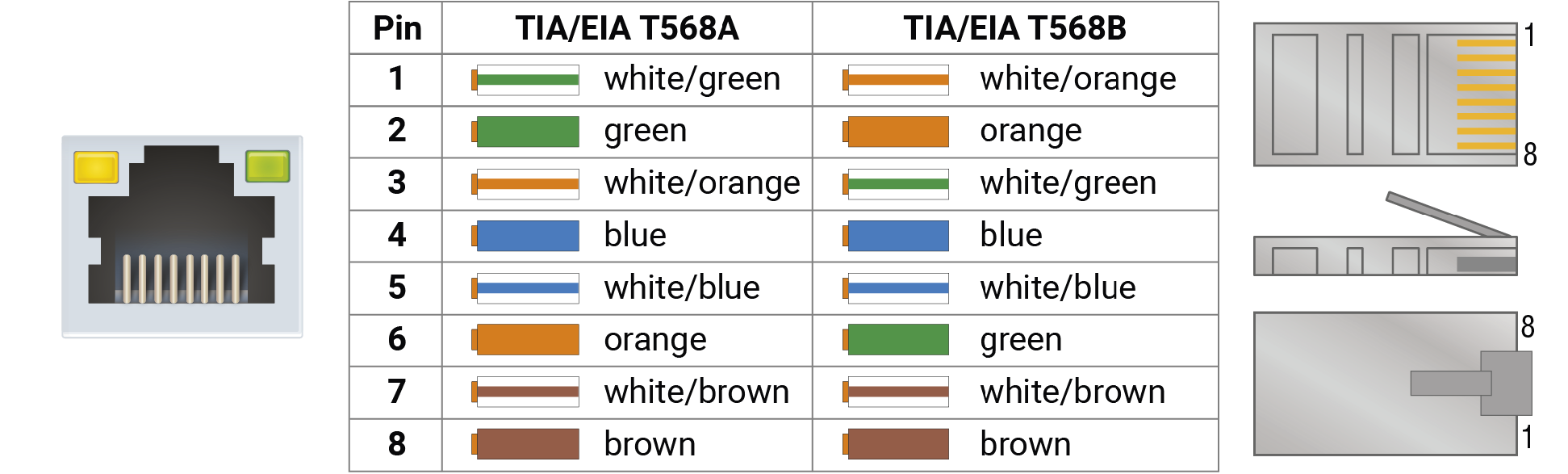
The Ethernet ports can be connected to a LAN hub, switch or router by a CATx cable. Even though both cable types (straight or cross) are supported and handled by the device, the pin assignment below is recommended.
Dante® RJ45 Connector
-D series extenders provide standard RJ45 connectors for transmitting digital audio signal. See Lightware's recommendations for cable types in the CATx Cable Diagnostics for TPX Extenders section.
Wiring of CATx Cables
Lightware recommends the termination of LAN cables on the basis of TIA/EIA T 568 A or TIA/EIA T 568 B standards.
All TPX and OPTX series models contain a 3-pole Phoenix connector, which is used for RS-232 serial connection.

RS-232 connector pin assignments
RS-232 Output Voltage Levels
▪Logic low level: 3V .. 15V
▪Logic high level: -15V .. -3V
Compatible Plug Type
Phoenix® Combicon series (3.5mm pitch, 3-pole), type: MC 1.5/3-ST-3.5.
You can find more information about RS-232 in the Serial Interface section.

IR emitter can be connected to certain TPX models with a TS (Tip and Sleeve) connector. It is also known as (3,5 mm or approx. 1/8”) audio jack, phone jack, phone plug, and mini-jack plug. The pin assignments are the following for the emitter:

|
|
|
Emitter – 2-pole TS |
|
|
1 Tip |
+5V |
|
2 Ring |
Signal (active low) |
|
3 Sleeve |
|
Pin assignment of the 2-pole TS connector

The small form-factor pluggable (SFP) is a compact, hot-pluggable optical module transceiver used for both telecommunication and data communication applications. It is a popular industry format jointly developed and supported by many network component vendors. The SFP interface supports data rates up to 1 Gbit/s. *
DEFINITION:The enhanced small form-factor pluggable (SFP+) is an enhanced version of the SFP that supports data rates up to 10 Gbit/s. *
OPTX series extenders contain standard SFP+ slot for the fiber optical connections via SFP+ module or DAC cable. The installed SFP+ module can be singlemode or multimode as well.
|
OPTX endpoint devices |
|
|
Type of the slot |
SFP+ |
|
Maximum bandwidth per slot |
10 Gbps |
|
Transmitted signal |
Audio, video, Ethernet, RS-232, Infrared, USB KVM |
For the details about the DAC cable / SFP+ module installation, see the SFP+ Slot Connection section.
Maximum Allowed Cable Length
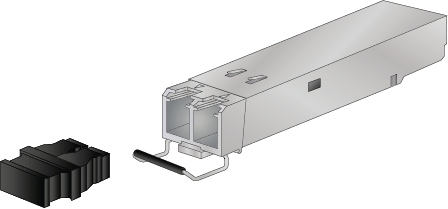
The maximum allowed optical or copper cable length depends of the installed SFP / SFP+ modules. Always check the specification of the optical modules before the fiber optical or copper cabling.
ATTENTION!Always apply equal length copper cables for both SFP+ to RJ45 modules in one endpoint device. Different cable lengths may cause data package loss during the transmission.
* Source: https://en.wikipedia.org/wiki/Small_form-factor_pluggable_transceiver
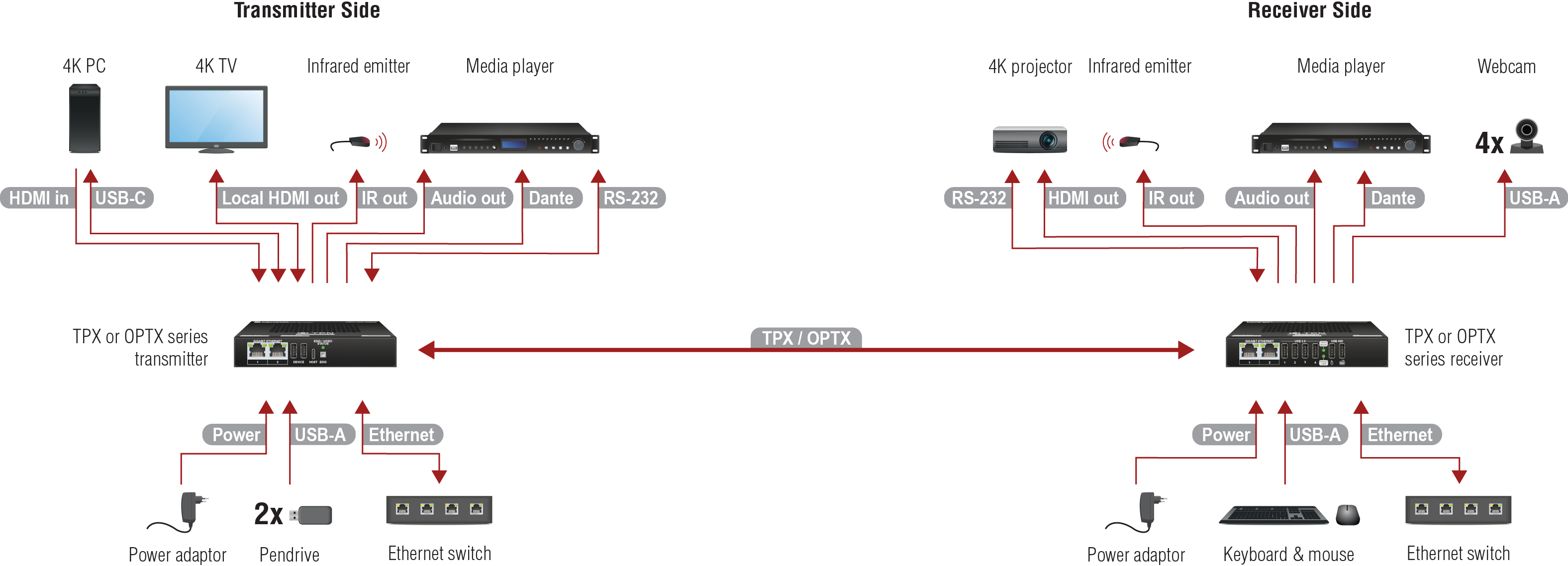
|
Transmitter Side |
|
|---|---|

|
Connect a CATx cable between the TPX output port of the transmitter and the TPX input port of the receiver. |

|
Connect singlemode or multimode (depends on the installed SFP+ modules) fiber optical cables or DAC cables between the transmitter and the receiver. |

|
Connect the source (e.g. media player) to the HDMI input port of the transmitter by an HDMI cable. |

|
Connect the local sink devices (e.g. 4K TV) to the Local output port by an HDMI cable. The output port is a local loopback port in this case: the same stream received on the input port is transmitted forward. |

|
Optionally for analog output: connect an audio device (e.g. media server) to the analog audio output port by an audio cable. |

|
Optionally for Dante/AES67 output: connect a Dante/AES67 device (e.g. media server) to the Dante output port by a CATx cable. |

|
Connect the device to a LAN network. |

|
Connect up to two USB 2.0 devices (e.g. pendrive/microphone/webcam/etc) to the Device ports. |

|
Connect the host PC to the Host port by an USB-C cable. The port supports USB 2.0 standard and receives USB data only, no AV transmission allowed. |

|
Optionally for Infrared extension: connect an IR emitter to the IR OUT port of the transmitter (command injection is available only with 3rd-party software). |

|
Optionally for RS-232: connect a device (e.g. media player) to the RS-232 port. |

|
Powering on the devices is recommended to do as the final step during the installation. Please check the Powering Options section for the options. |
WARNING!User Ethernet is also transmitted over the TPX / OPTX interface, so be sure not to create a network loop.
|
Receiver Side |
|
|---|---|
|
|
Connect a CATx cable between the TPX output port of the transmitter and the TPX input port of the receiver. |
|
|
Connect singlemode or multimode (depends on the installed SFP+ modules) fiber optical cables or DAC cables between the transmitter and the receiver. |

|
Connect the sink (e.g. 4K projector) to the HDMI output port of the receiver by a HDMI cable. |
|
|
Optionally for analog output: connect an audio device (e.g. active speakers) to the analog audio output port by an audio cable. |
|
|
Optionally for Dante/AES67 output: connect a Dante/AES67 device (e.g. media server) to the Dante output port by a CATx cable. |

|
USB 2.0 ports: connect up to four USB 2.0 devices (e.g. pendrive/microphone/webcam/etc) to the receiver. USB HID ports: connect up to two USB HID devices to the receiver (preferably mouse and keyboard). |

|
Connect the device to a LAN network. |

|
Optionally for Infrared extension: connect an IR emitter to the IR OUT port of the receiver (command injection is available only with 3rd-party software). |
|
|
Optionally for RS-232: connect a device (e.g. 4K projector) to the RS-232 port. |

|
Powering on the devices is recommended to do as the final step during the installation. Please check the Powering Options section for the options. |
WARNING!User Ethernet is also transmitted over the TPX / OPTX interface, so be sure not to create a network loop.
DIFFERENCE:Only HDMI-OPTX series extenders are built with SFP+ slot.
INFO:The SFP+ slots support the Plug and Play connection, which means OPTX devices do not need to be powered off before inserting or removing SFP+ modules or DAC cables.
3.5.1. Installation of the SFP+ Module
OPTX series extenders use SFP+ module for the fiber optical connections. The optical module can be changed based on the recent application of the extender: it can be singlemode or multimode, or BiDi module, up to 10 GbE signal transmission.
Inserting and Cabling of SFP+ Modules
Step 1.Put up on the handle bar.
Step 2.Connect the module to the SFP+ port slot.
Step 3.Connect the LC connectors to the SFP+ module.
INFO:The SFP+ modules have a side that clips to the connector on the port of the switch, and is designed to prevent the module from being inserted the wrong way into the port. Do NOT force the module into the port.
Removing SFP+ Modules
Step 1.Disconnect the LC connectors from the SFP+ module.
Step 2.Pull down on the handle bar.
Step 3.Gently slide out the SFP+ module from the slot.
3.5.2. Installation of DAC Cable
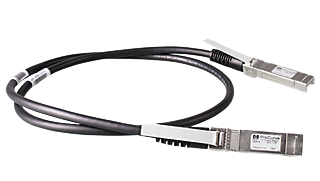
OPTN series endpoints can be connected via DAC (Direct Attach Copper) cables to the network switch. The cable type must support 10 GbE signal transmission.
Inserting the DAC Cable
Step 1.Push the plug of the DAC cable to the SFP+ port slot of the transmitter to stop.
Step 2.Push the other plug of the DAC cable to the SFP+ port slot of the receiver to stop.
Removing the DAC Cable
Pull the handle bar of the plug and gently slide out the cable from the slot.
3.6.1. Powering Options for TPX-106 Series
TPX-106 series extenders are able to supply remote power to each other over the TPX connector.
The TPX-106 series devices can be powered in any of the following ways:
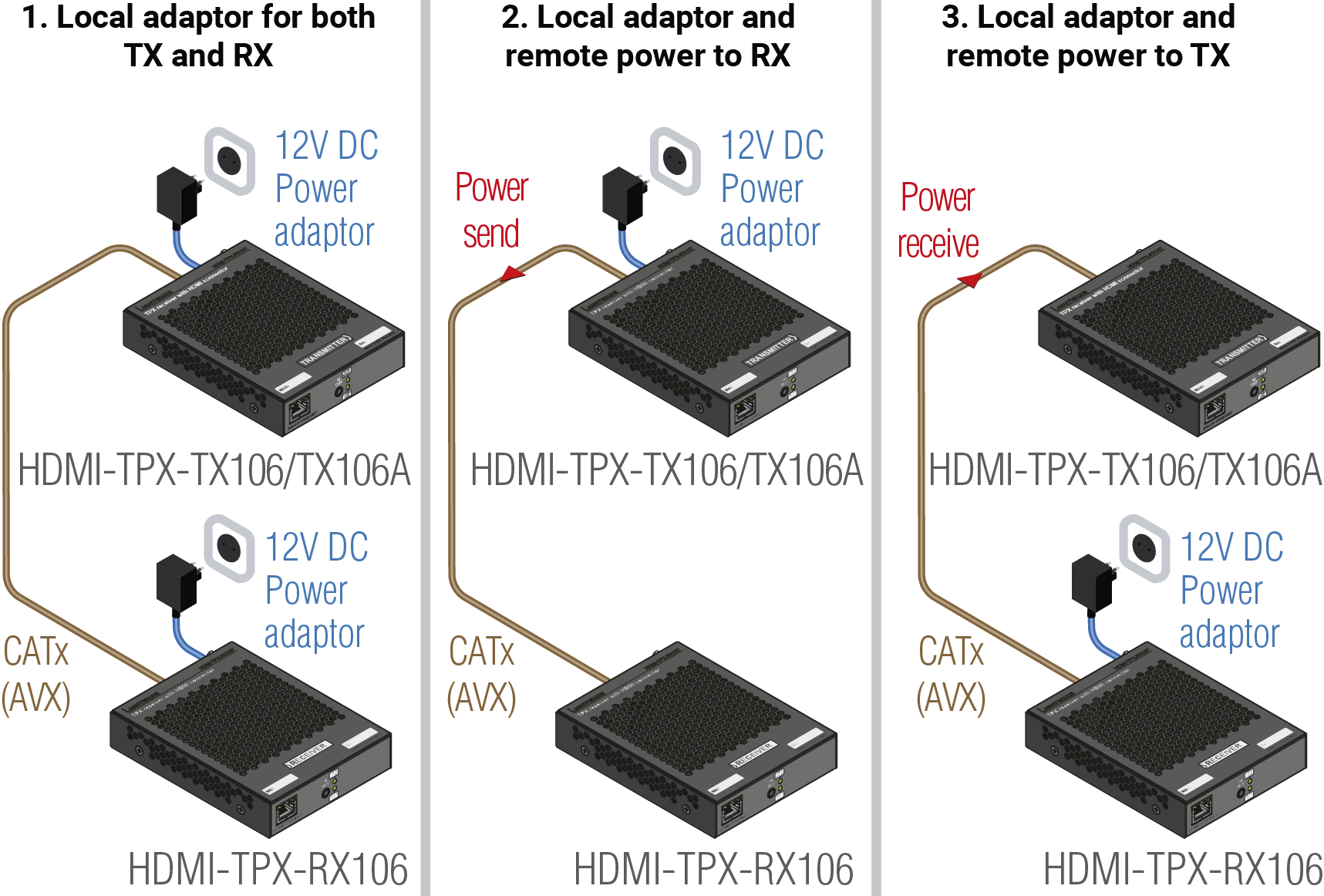
ATTENTION!The HDMI-TPX-106 series models are able to send remote power to each other only.
Affected Models
▪HDMI-TPX-TX106
▪HDMI-TPX-TX106-V2
▪HDMI-TPX-TX106A
▪HDMI-TPX-TX106A-V2
▪HDMI-TPX-RX106
▪HDMI-TPX-RX106-V2
3.6.2. Powering Options for TPX-107 Series
TPX-107 series extenders fulfill the PoE PD (IEEE 802.3af) standard, which means the TPX port can receive power over the TPX line.
The -SR series receivers fulfill the PoE+ PD (IEEE 802.3at) standard, which means the TPX port can receive power over the TPX line.
The TPX-107 series devices can be powered in any of the following ways:
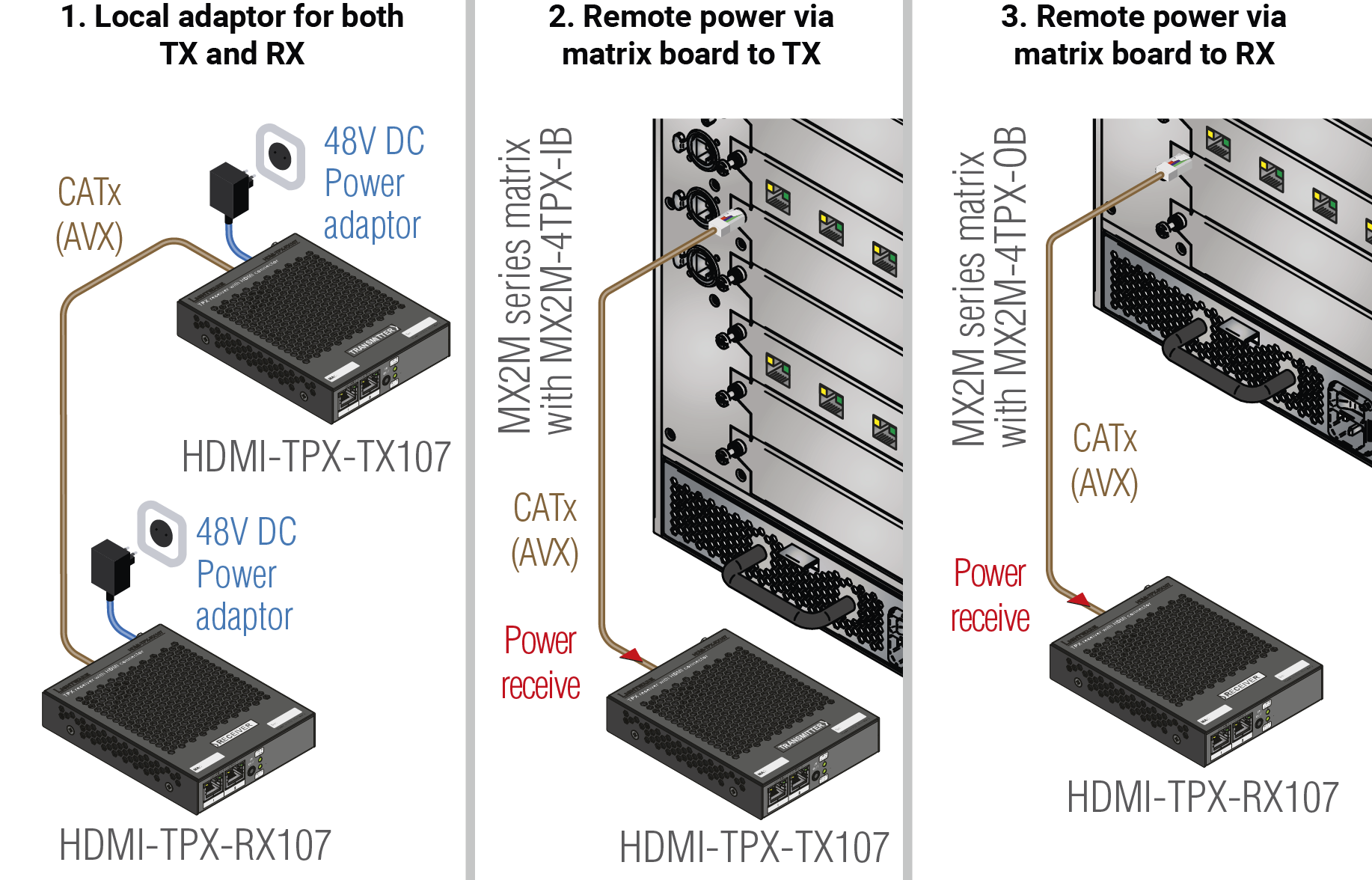
INFO:HDMI-TPX-107 series extenders are not able to send remote power to each other.
Affected Models
|
Model |
Standard |
|
|---|---|---|
|
PoE (IEEE 802.3af) |
PoE+ (IEEE 802.3at) |
|
|
HDMI-TPX-TX107 |
|
|
|
HDMI-TPX-TX107-V2 |
|
|
|
HDMI-TPX-TX107D |
|
|
|
HDMI-TPX-RX107 |
|
|
|
HDMI-TPX-RX107-V2 |
|
|
|
HDMI-TPX-RX107A-SR |
|
|
|
HDMI-TPX-RX107AU2K-SR |
|
|
|
HDMI-TPX-RX107D |
|
|
3.6.3. Powering Options for TPX-209 Series
The HDMI-TPX-209 series devices fulfill the PoE PD+PSE (IEEE802.3af) standard, the -U2K series devices fulfill the PoE+ PD+PSE (IEEE802.3at) standard. They can be powered in any of the following ways:
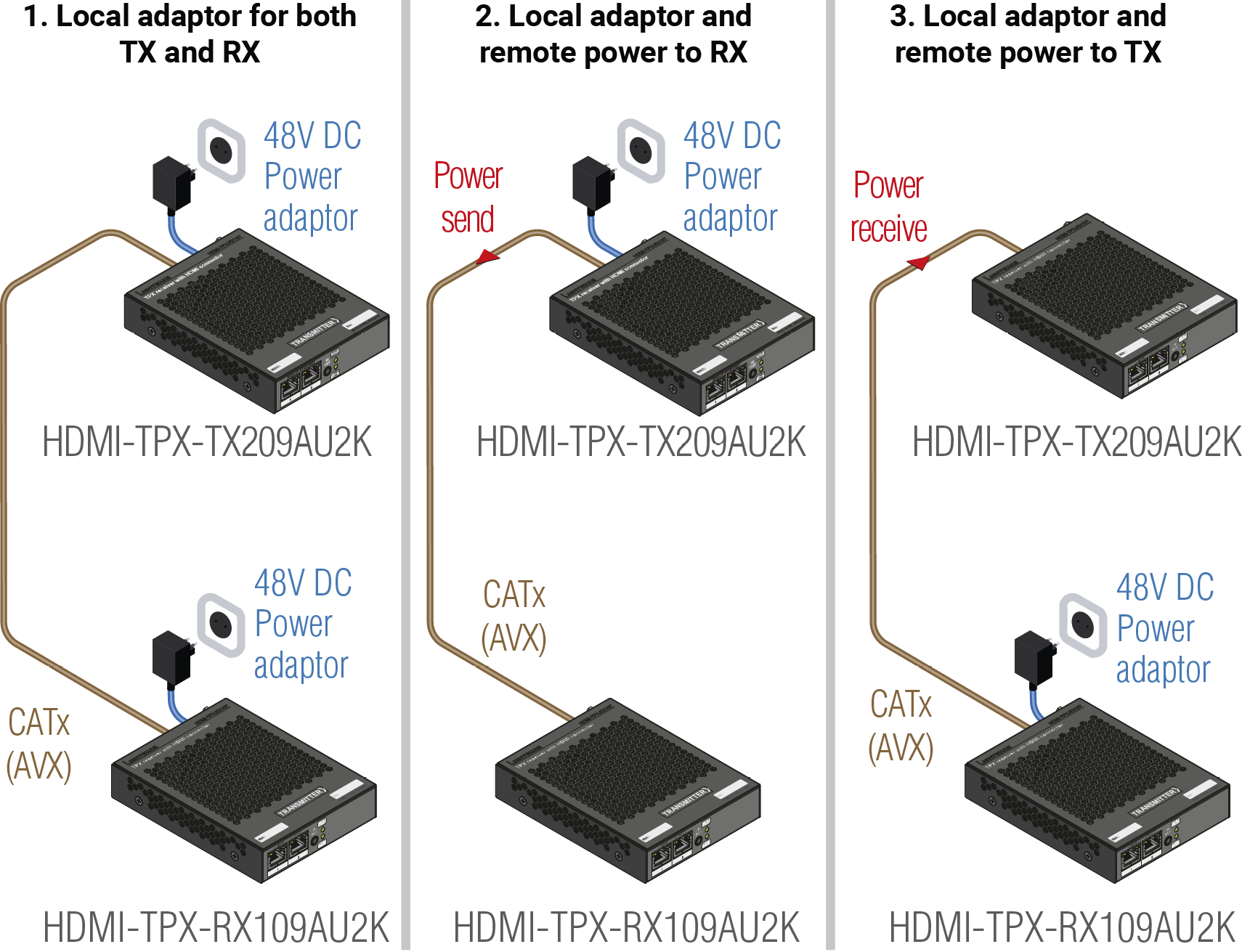
Affected Models
|
Model |
Standard |
|
|---|---|---|
|
PoE (IEEE 802.3af) |
PoE+ (IEEE 802.3at) |
|
|
HDMI-TPX-TX209AK |
|
|
|
HDMI-TPX-TX209AK-V2 |
|
|
|
HDMI-TPX-TX209AU2K |
|
|
|
HDMI-TPX-TX209DU2K |
|
|
|
HDMI-TPX-RX109AK-V2 |
|
|
|
HDMI-TPX-RX109AU2K |
|
|
|
HDMI-TPX-RX109DU2K |
|
|
|
HDMI-TPX-RX209AK |
|
|
4. CATx Cable Diagnostics for TPX Extenders
The chapter summarizes the knowledge and best practices for the TPX CATx cable diagnostics for a better AV network. The following sections can be found in the chapter:
4.1. Bandwidth Requirement of SDVoE Technology
The TPX series transmitter and receiver devices are Lightware’s development allowing users to extend HDMI 2.0 signals up to 4K60 4:4:4 video resolution through 10G Ethernet networks.
The following table shows Lightware’s HDBaseTTM and AV over IP product lines grouped by required data rate.
|
Product Family |
Required Data Rate |
|
VINX |
1G |
|
Gemini (GVN) |
1G |
|
TPS (HDBaseTTM) |
10G |
|
TPX |
10G |
|
TPN |
10G |
|
UBEX |
10G / 20G |
The maximum applicable cable extension is defined by Semtech, the vendor of the SDVoE technology. Lightware has tested the maximum allowed cable lengths on the TPX extenders.

|
Resolution |
CATx CAT6a AWG24 |
|
All resolutions |
100 m |
|
328 feet |
4.3. Recommended CATx Cable Types
Lightware highly recommends using at least CAT6a AWG 24 shielded (S/FTP or S/UTP or SF/UTP or SF/FTP) or higher category 10G Ethernet cables for the TPX or TPN (SDVoE) connection between the transmitter/receiver and the network switch. Usage of e.g. AWG 28 Ethernet cables may reduce the extension distance significantly.
|
UTP Category |
Data Rate |
Shielded / Unshielded |
Protection Type |
Applicable for TPX / TPN Systems |
|
|
CAT5 |
Up to 100 Mbps |
Unshielded |
F/UTP U/FTP F/FTP |
|
|
|
CAT5e |
Up to 1 Gbps |
Unshielded |
|
||
|
CAT6 |
Up to 10 Gbps |
Unshielded |
|
||
|
CAT6 |
Up to 10 Gbps |
Shielded |
S/FTP S/UTP SF/UTP SF/FTP |
|
|
|
CAT6a |
Up to 10 Gbps |
Shielded |
|
||
|
CAT7 |
Up to 10 Gbps |
Shielded |
|
||
|
CAT7a |
Up to 10 Gbps |
Shielded |
|
||
Recommended CATx Cable Model
▪Draka MFO 23
=CAT7, S/FTP, AWG 23
=10GBase-T certified cable
=HDBase-TTM certified cable
=datasheet >>here<<
4.4. Testing the Reliability of the Cabling
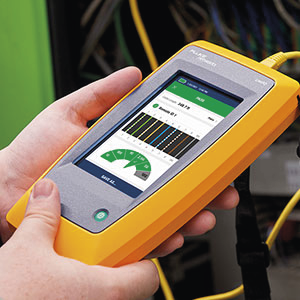
Lightware recommends testing the Ethernet cables before the final installation of TPX / TPN systems. One of the best cable testing tools is the Fluke Cable Tester, which is used by Lightware as well to ensure our quality standards.
▪Fluke Networks MicroScannerTM Cable / PoE Tester
=Recommended for TPX cabling tests
▪Fluke Networks LinkIQ™ Cable+Network Tester
=Recommended for TPN cabling tests
▪Fluke Networks Industrial Ethernet DSX CableAnalyzer™ Kit
=Recommended for TPX and TPN cabling tests
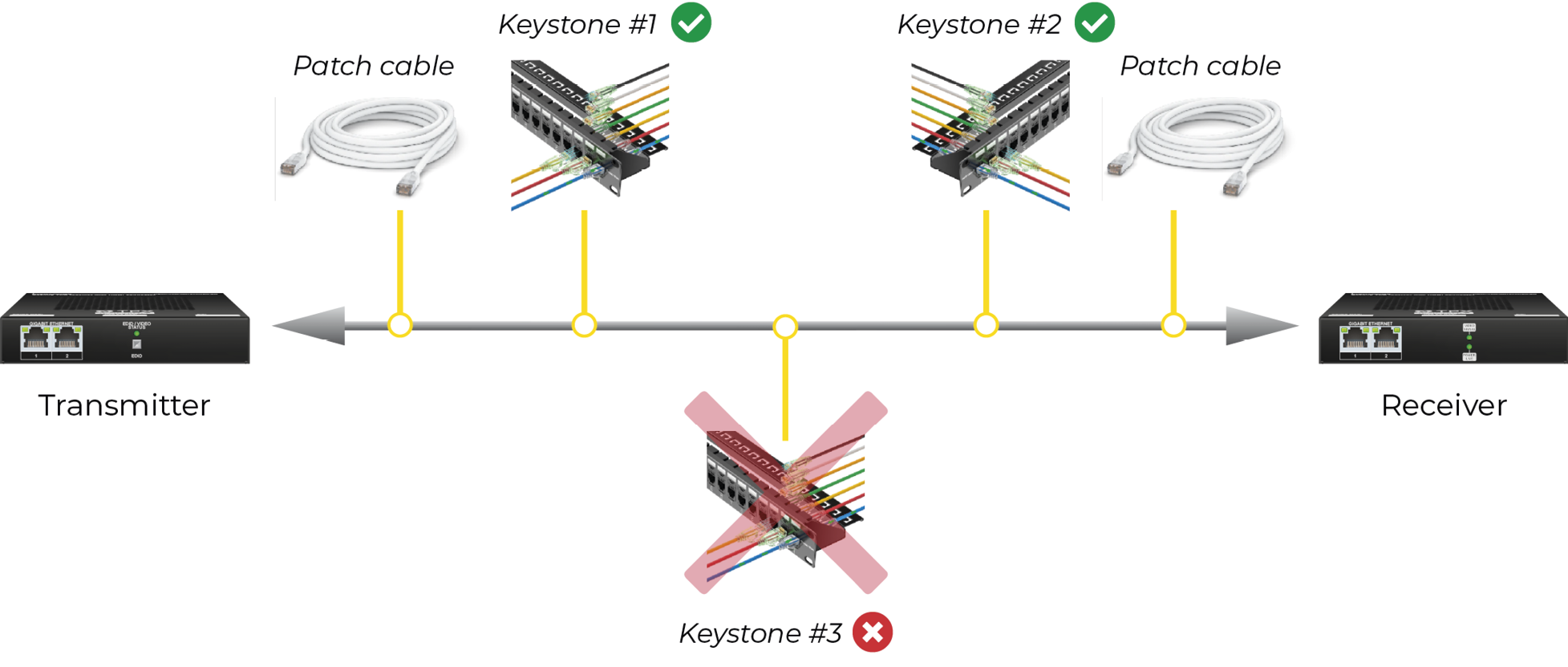
Lightware highly recommends applying a maximum of two keystones (and cable patches) - one on the transmitter and one on the receiver side. Applying more than two keystones may cause signal loss or jitter in the transmission, moreover the noise sensitivity of the system may be significantly higher.
All termination styles of keystones are acceptable (punch-down style, toolless, pass-through and coupler). The most important thing is to pay attention to the correct and trustworthy installation of the wires and make sure they do not move while in use.
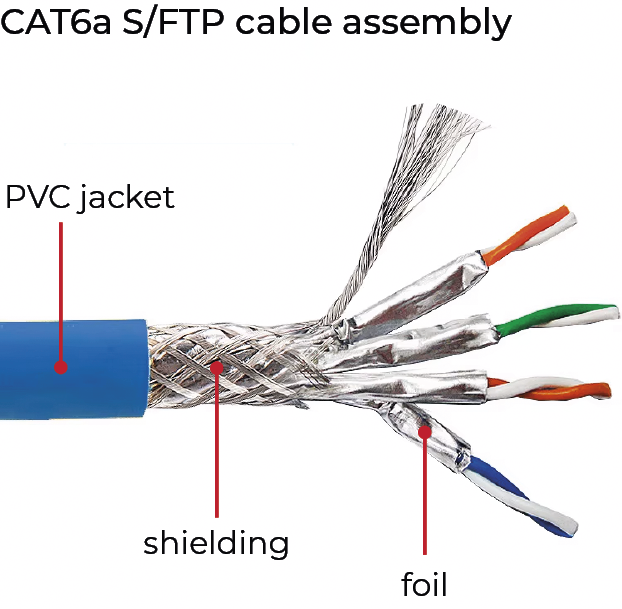
When a keystone or patch cable is assembled, always make sure that the foil and the shielding are unharmed at the connector ends, otherwise the cable will be very sensitive to signal noises.
Example
4.6. Tips & Tricks for the Best TPX Experience
Follow these best practices for TPX and TPN systems easily installable and sustainable.
▪Check the cable length - shall be no longer than 100 m / 328 feet
▪Check the cable type - minimum requirement is CAT6a, shielded, S/FTP, AWG 24, but better cables result in a more relaible AV network
▪No more than two keystones - if it must be more than two, make sure the shielding and foiling is unharmed
▪Test the cables for 10G bandwidth before the installation
The following chapter describes the features of the TPX series devices with a few real-life examples.
HDMI-TPX-TX106
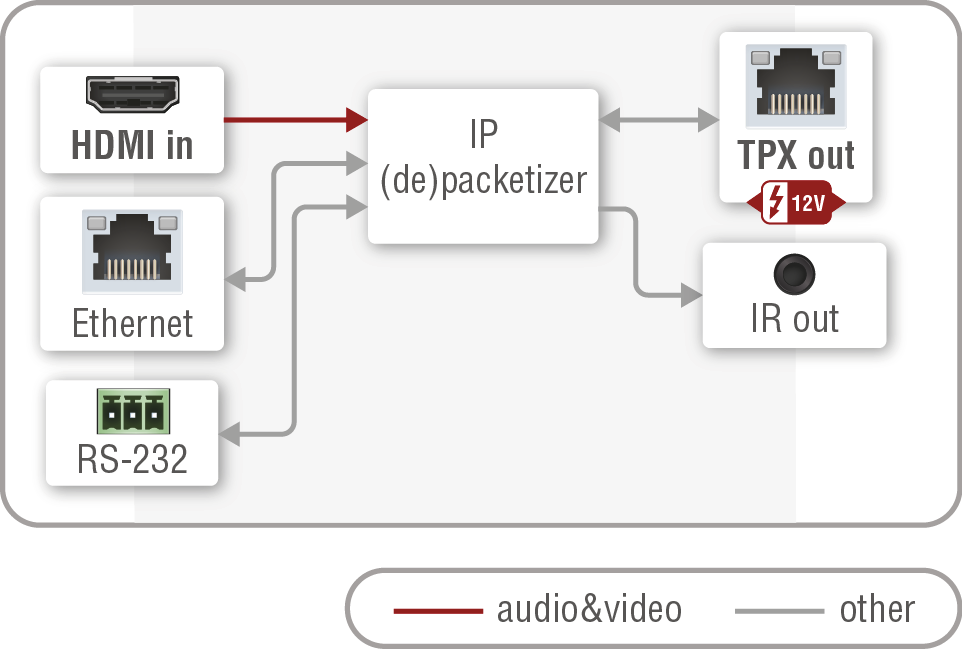
Port diagram of HDMI-TPX-TX106
HDMI-TPX-TX106-V2
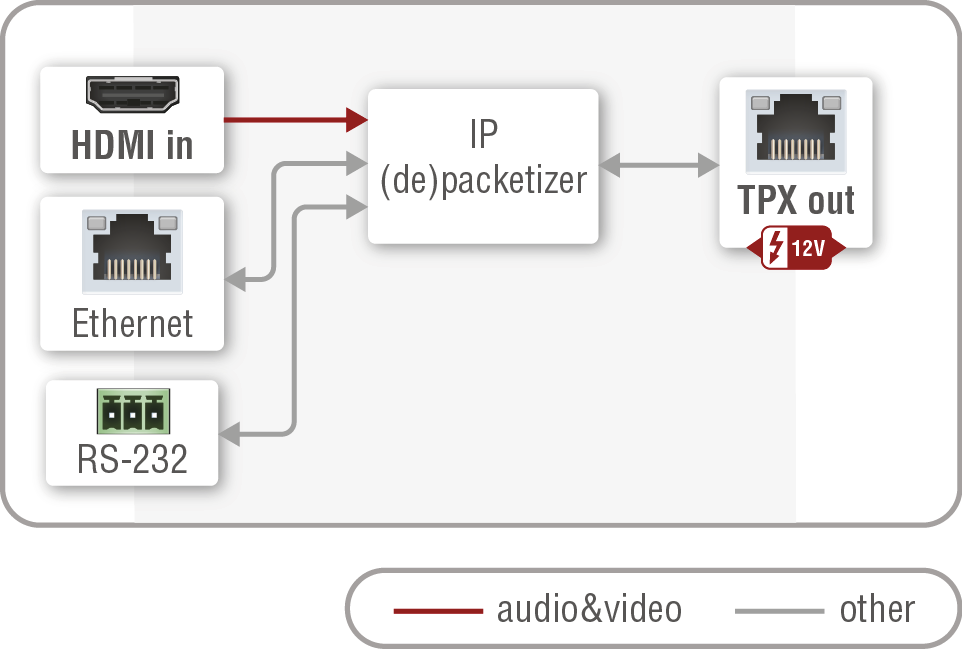
Port diagram of HDMI-TPX-TX106-V2
HDMI-TPX-TX106A
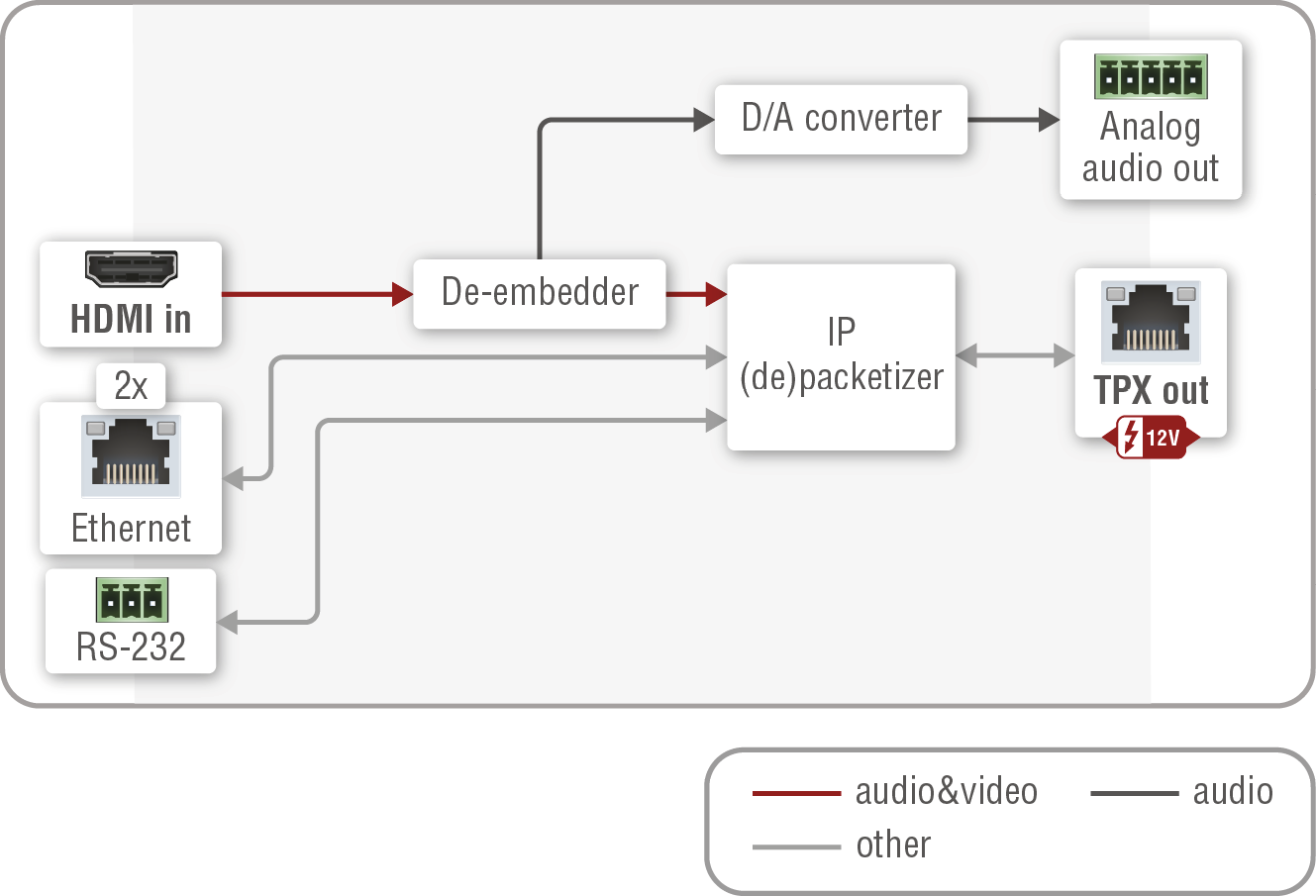
Port diagram of HDMI-TPX-TX106A
HDMI-TPX-TX106A-V2
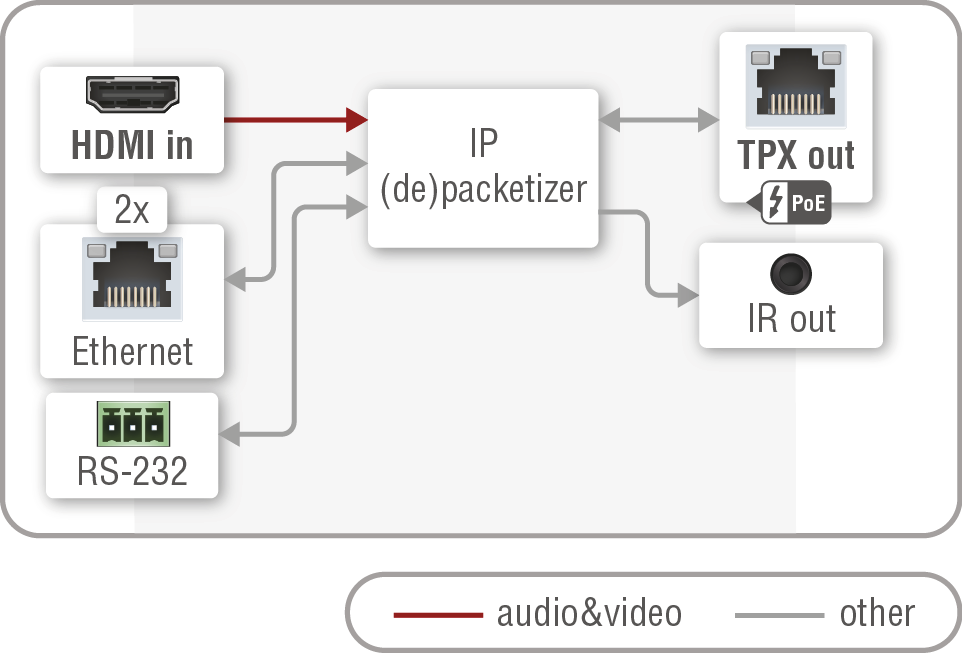
Port diagram of HDMI-TPX-TX106A-V2
HDMI-TPX-TX107
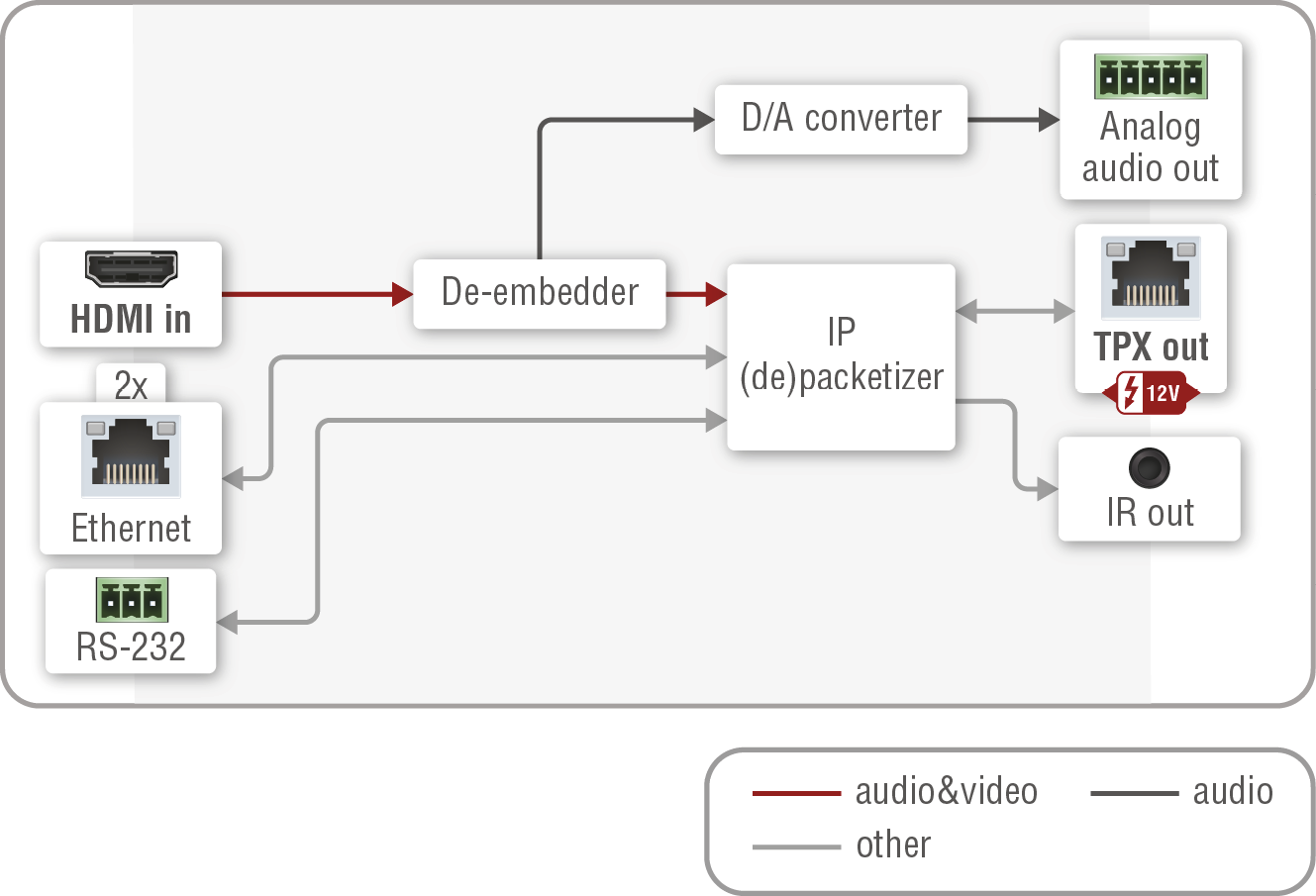
Port diagram of HDMI-TPX-TX107
HDMI-TPX-TX107-V2
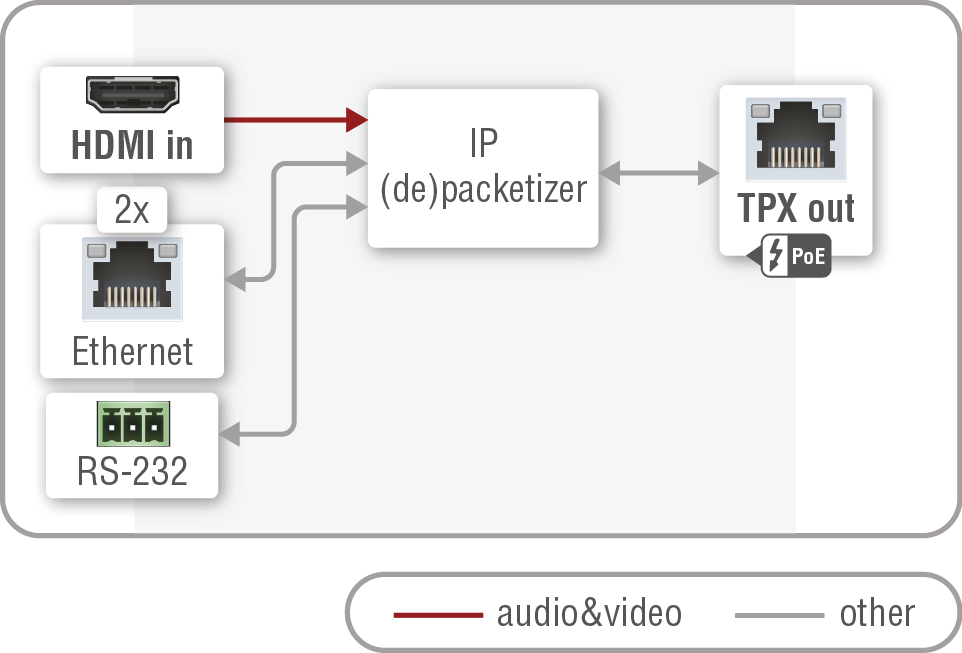
Port diagram of HDMI-TPX-TX107-V2
HDMI-TPX-TX107D
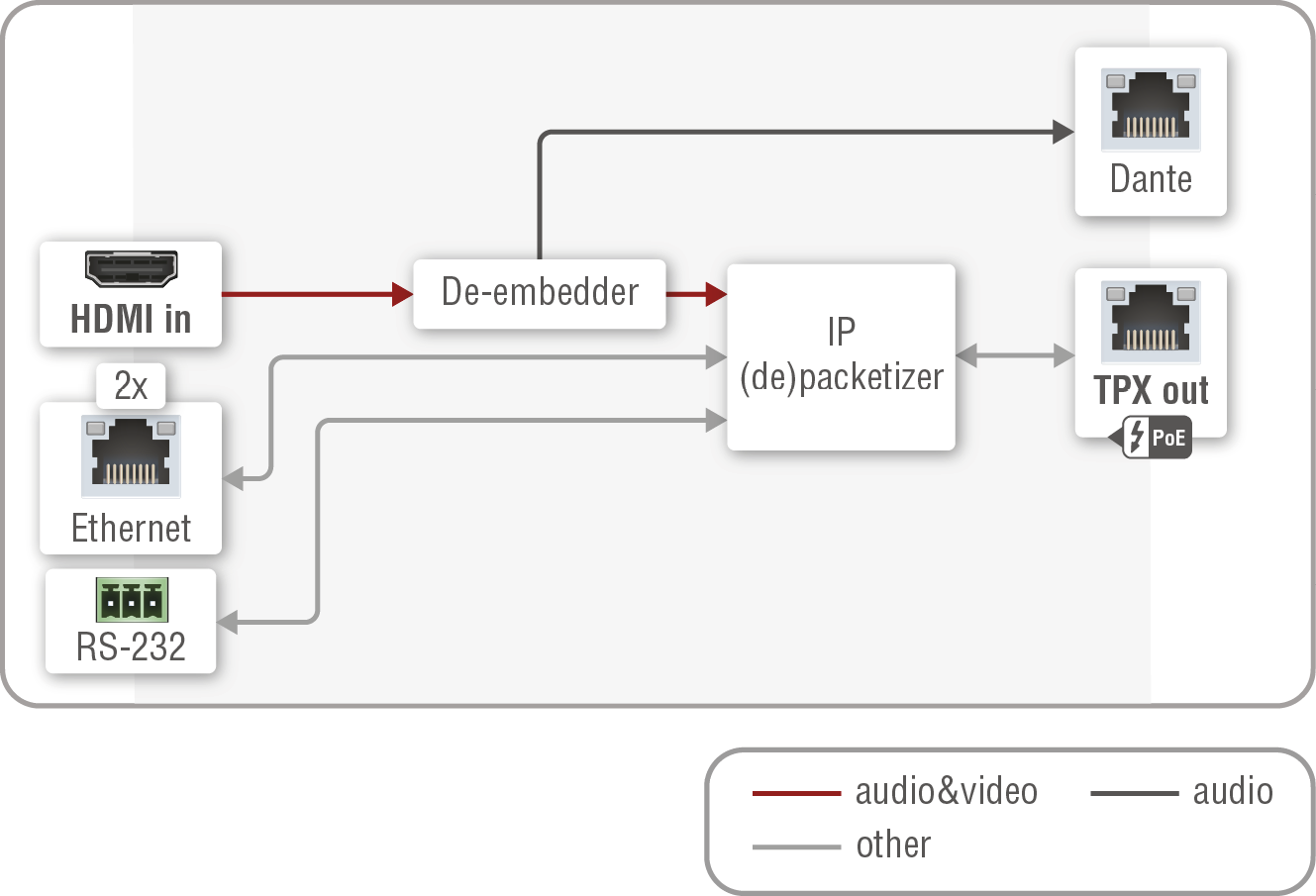
Port diagram of HDMI-TPX-TX107D
HDMI-TPX-TX209AK
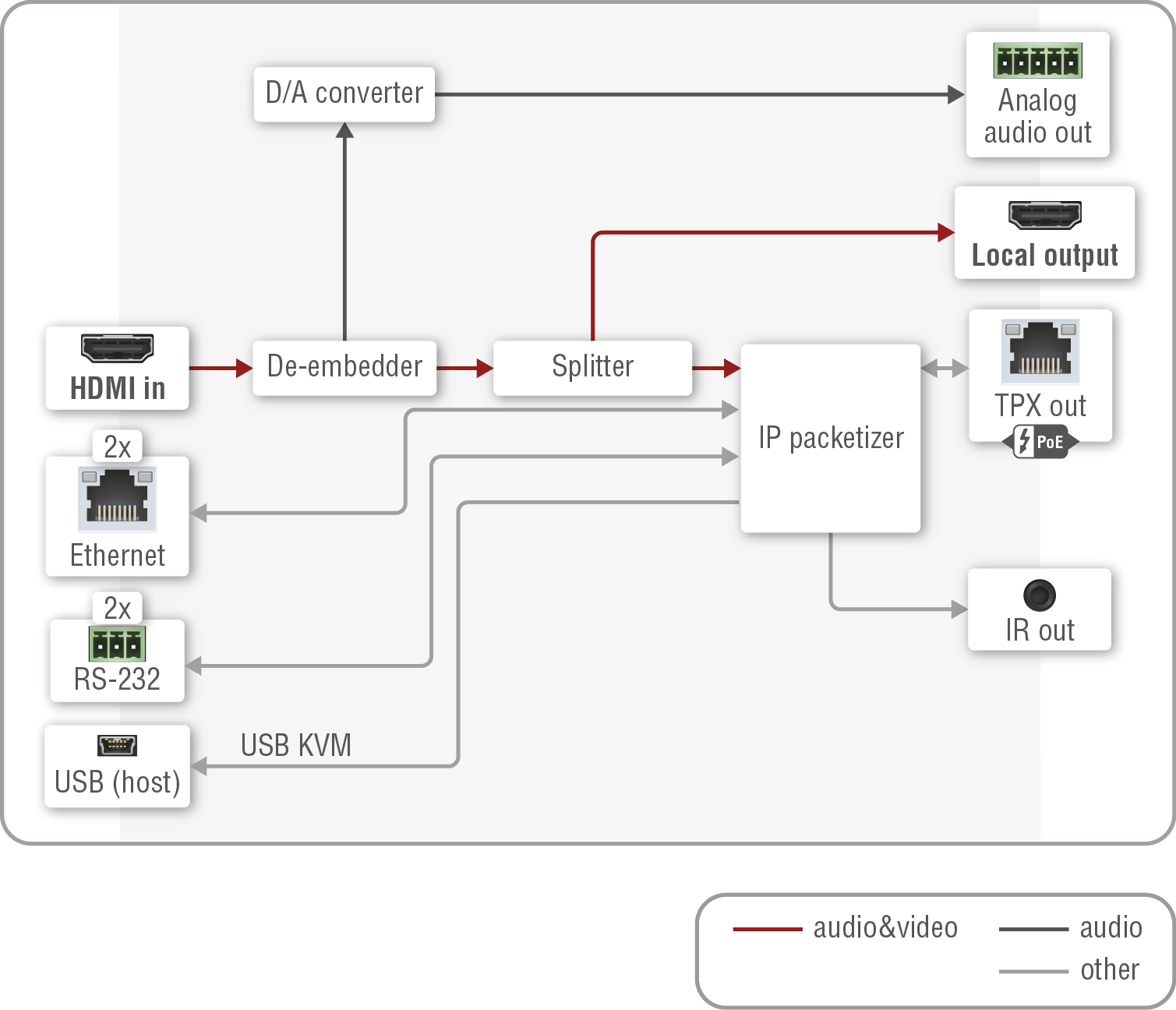
Port diagram of HDMI-TPX-TX209AK
HDMI-TPX-TX209AK-V2
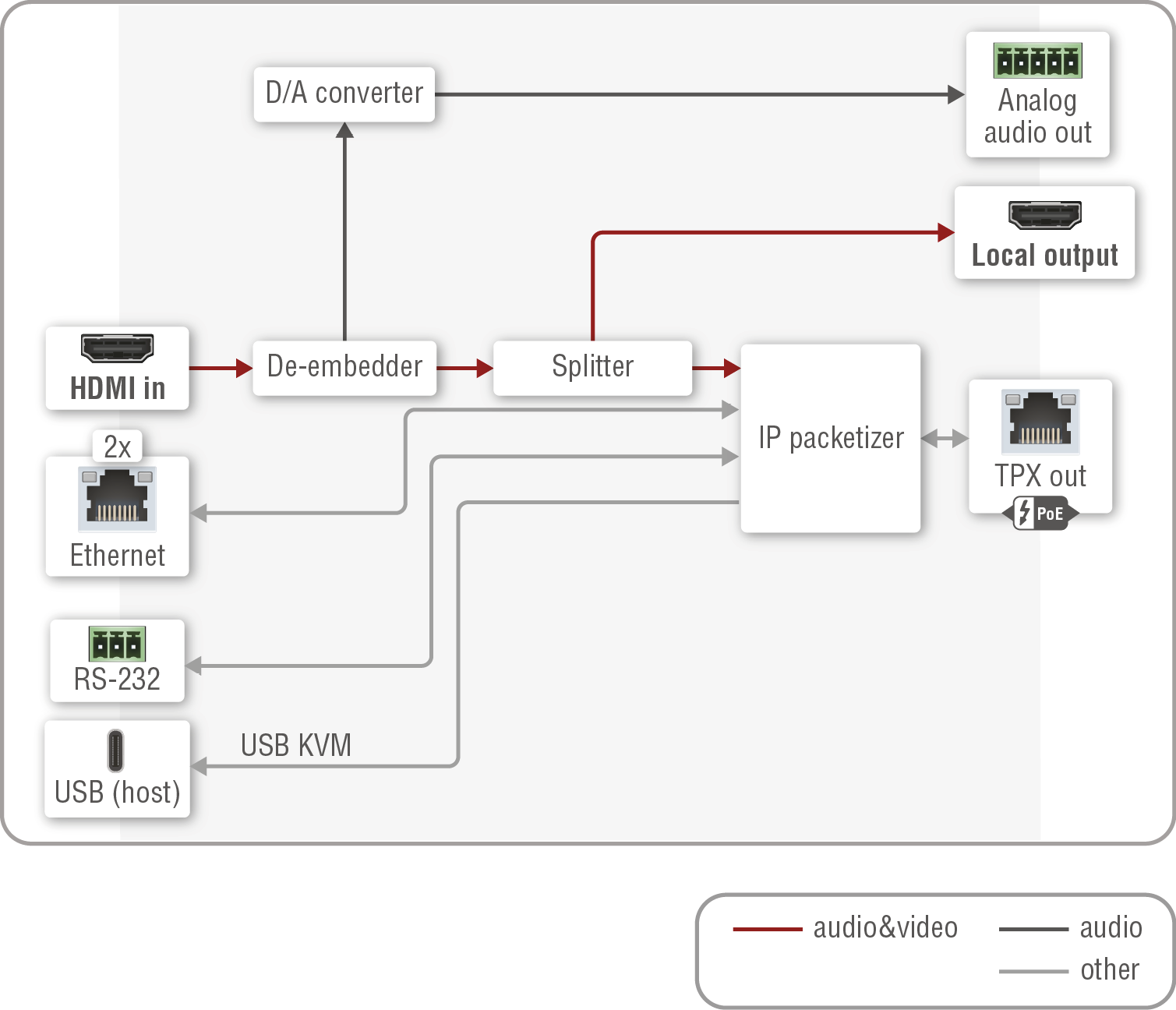
Port diagram of HDMI-TPX-TX209AK-V2
HDMI-TPX-TX209AU2K
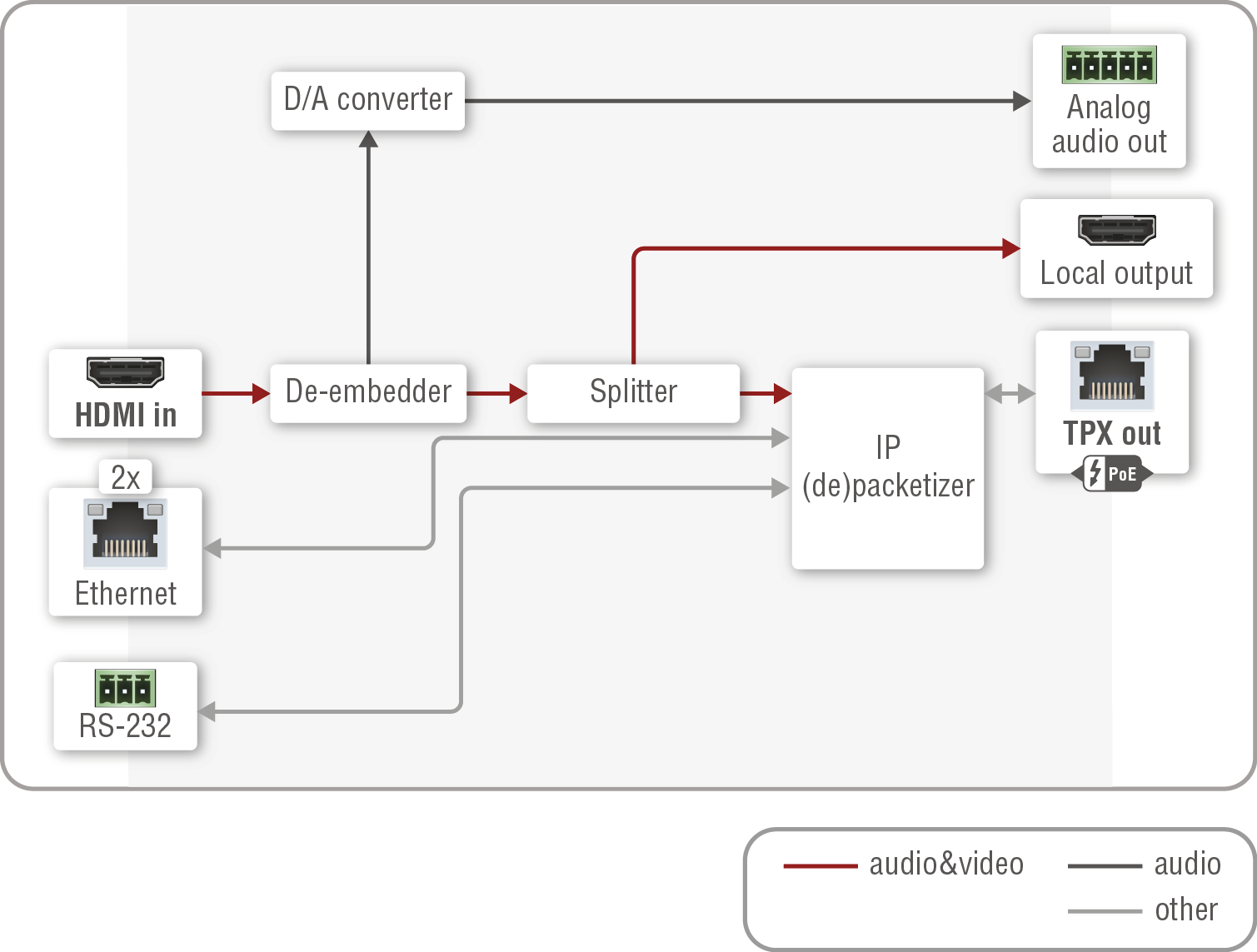
Port diagram of HDMI-TPX-TX209AU2K
HDMI-TPX-TX209DU2K
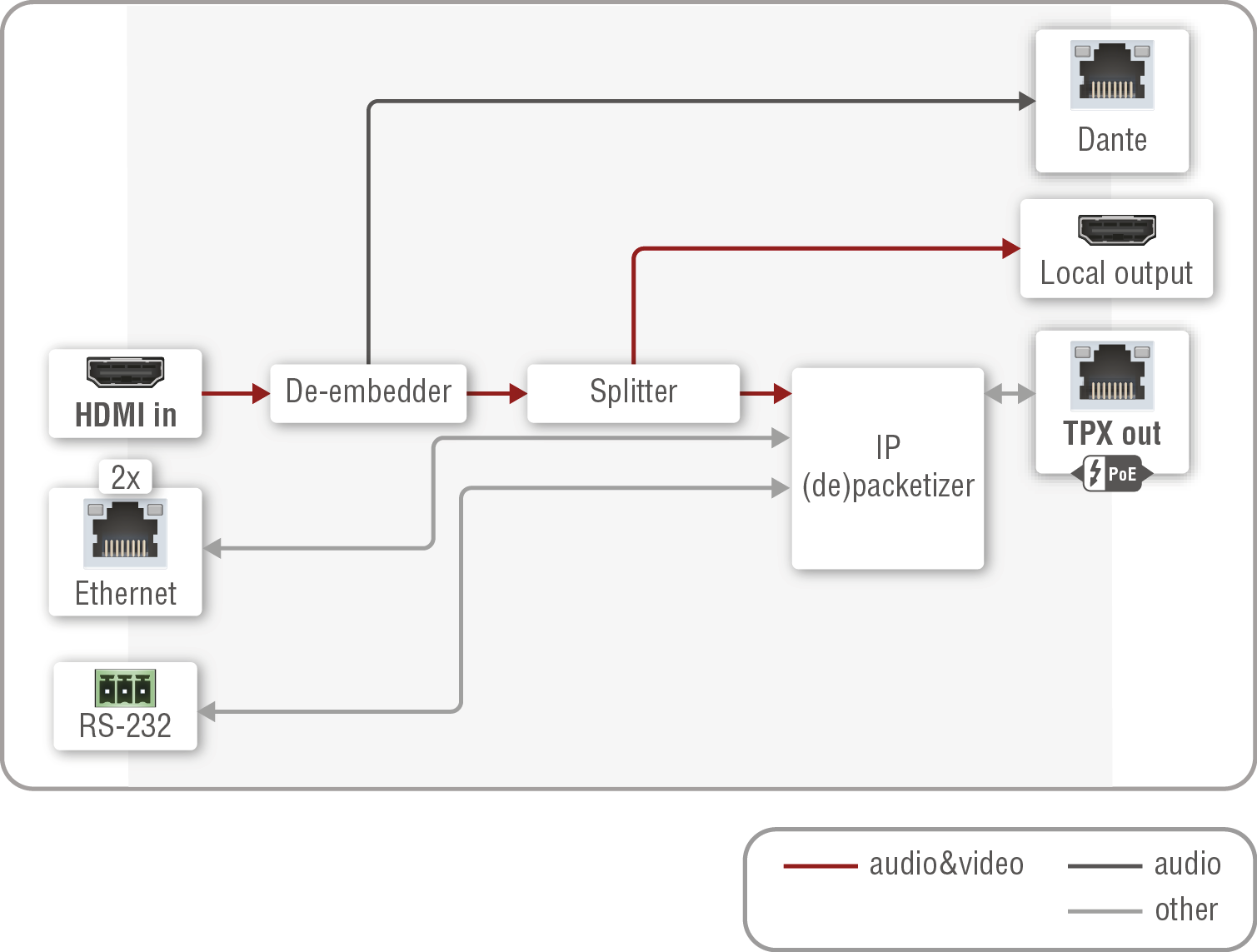
Port diagram of HDMI-TPX-TX209DU2K
HDMI-OPTX-TX100A
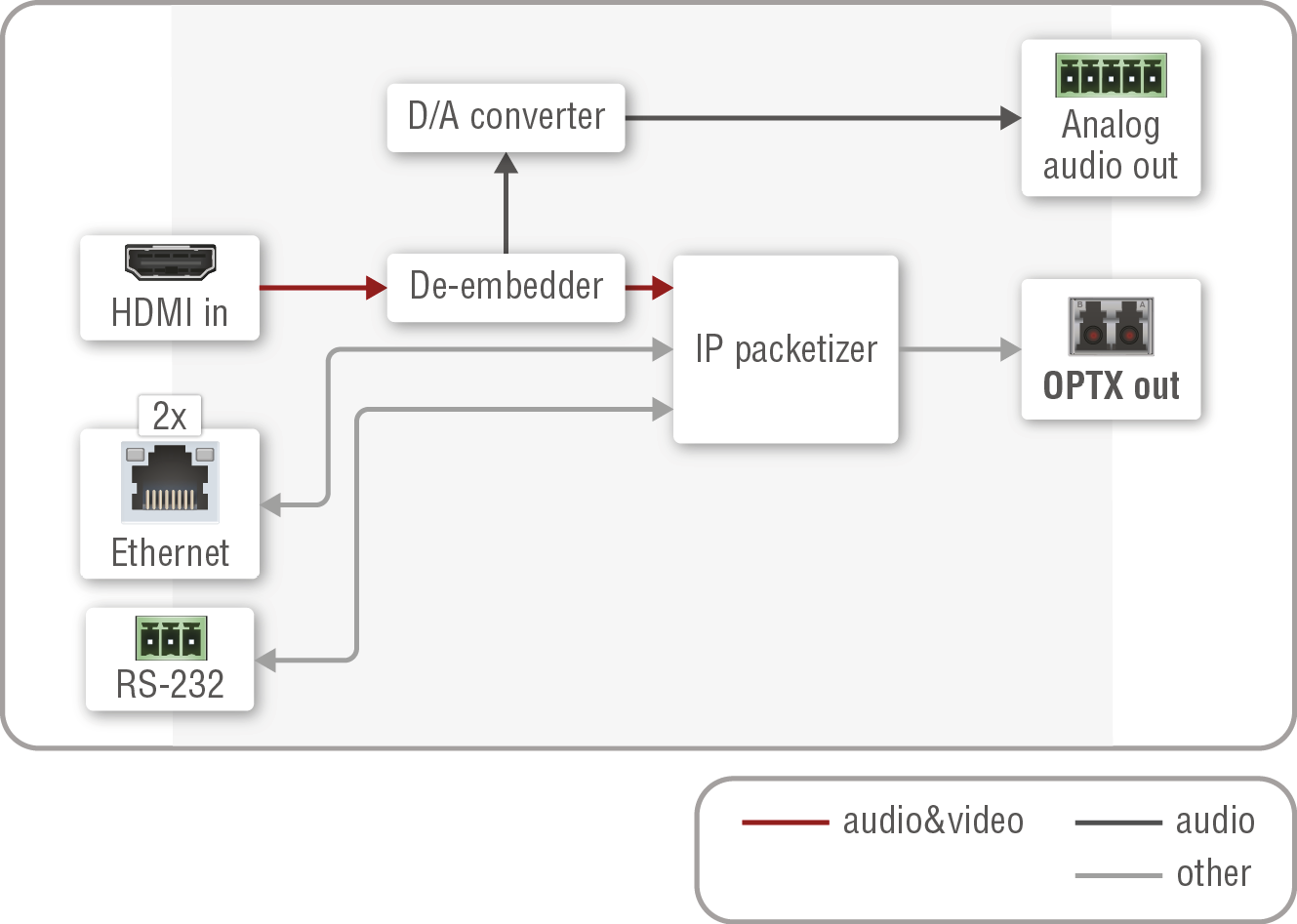
Port diagram of HDMI-OPTX-TX100A
HDMI-OPTX-TX200AU2K
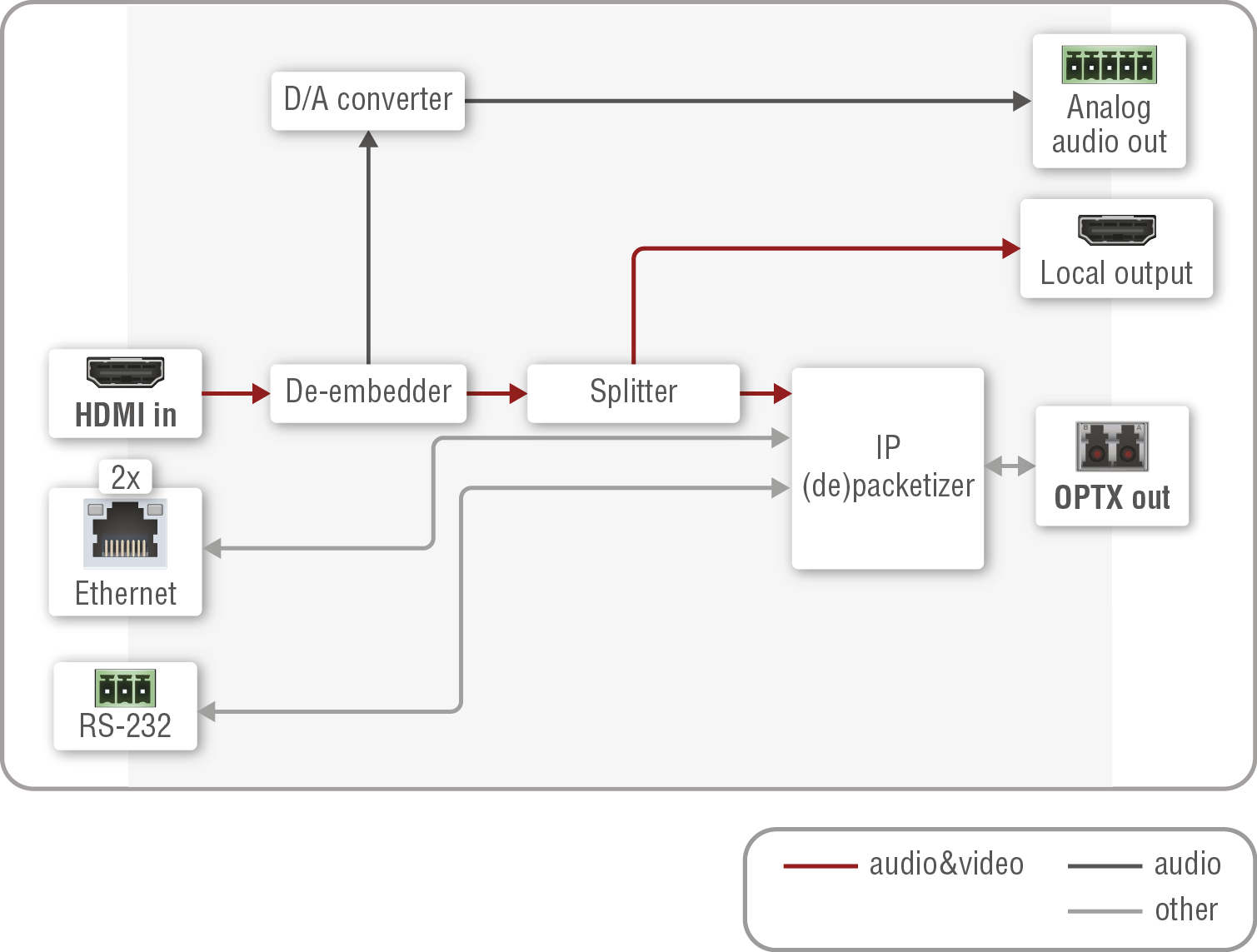
Port diagram of HDMI-OPTX-TX200AU2K
HDMI-TPX-RX106
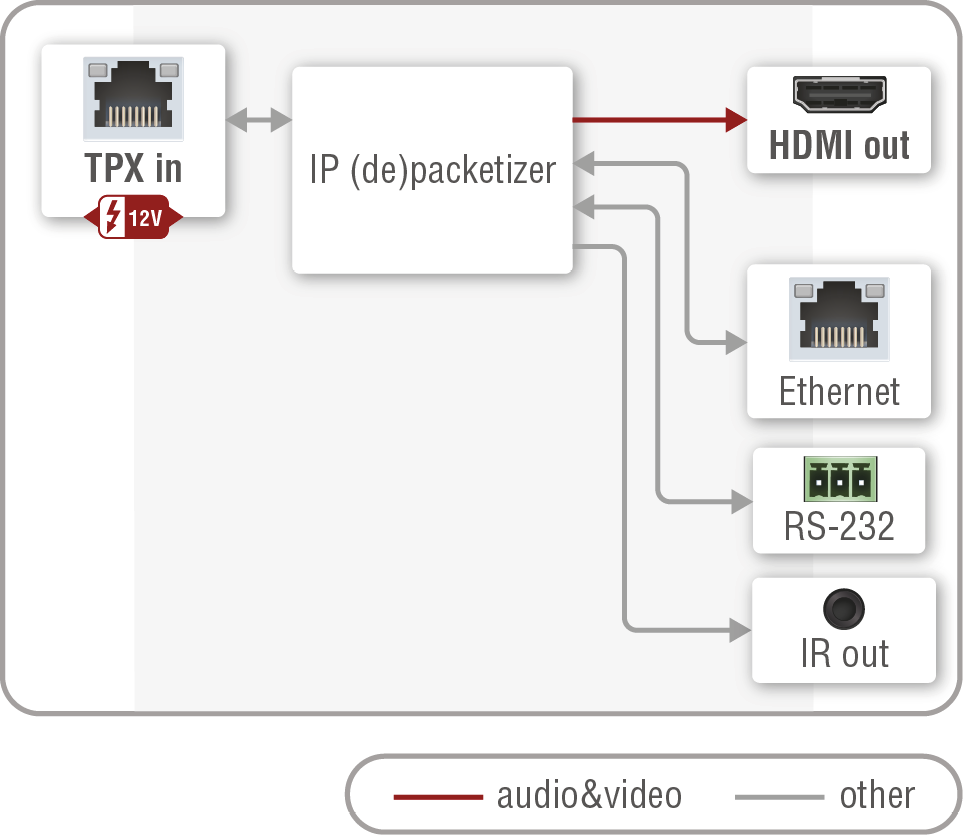
Port diagram of HDMI-TPX-RX106
HDMI-TPX-RX106-V2
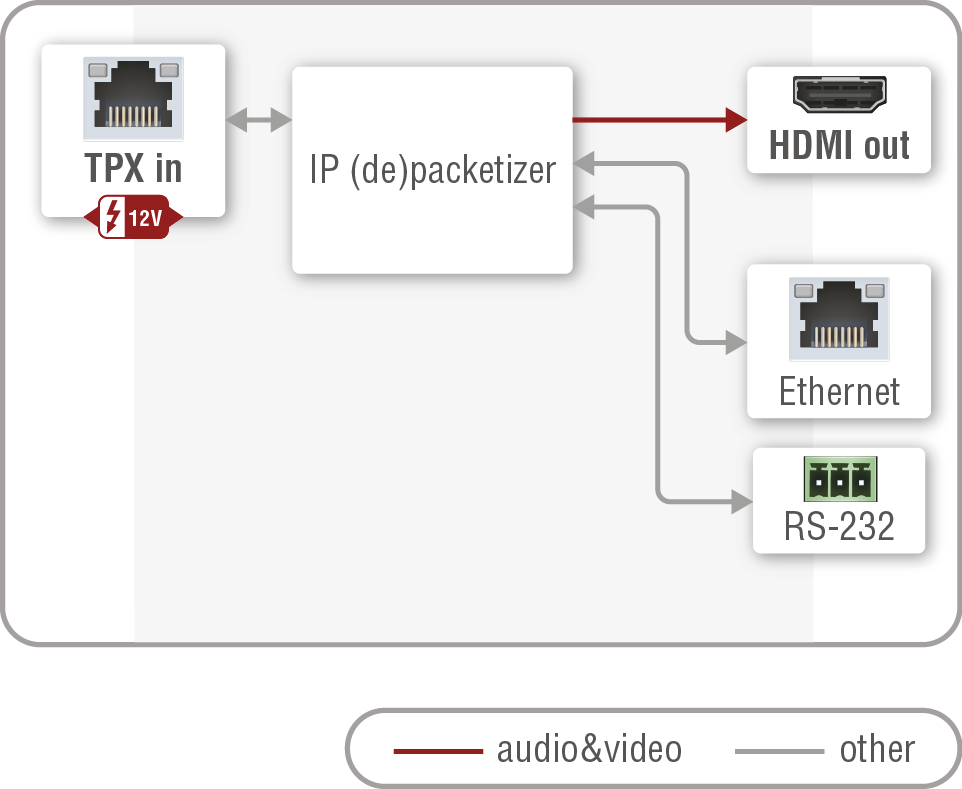
Port diagram of HDMI-TPX-RX106-V2
HDMI-TPX-RX107
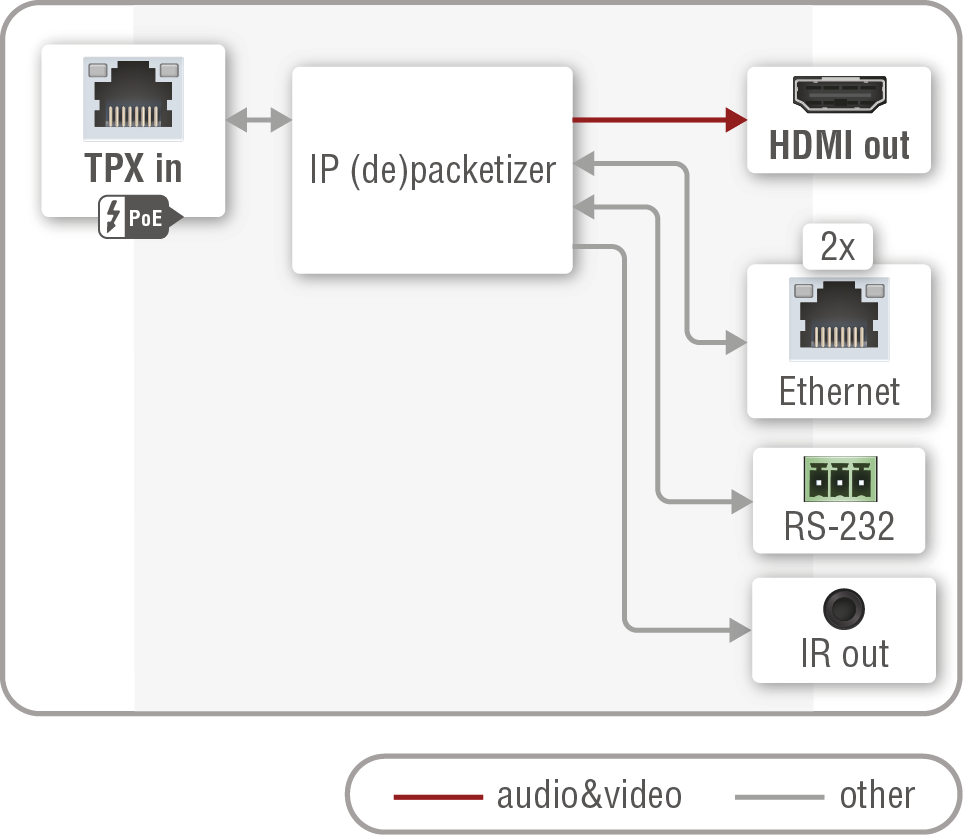
Port diagram of HDMI-TPX-RX107
HDMI-TPX-RX107-V2
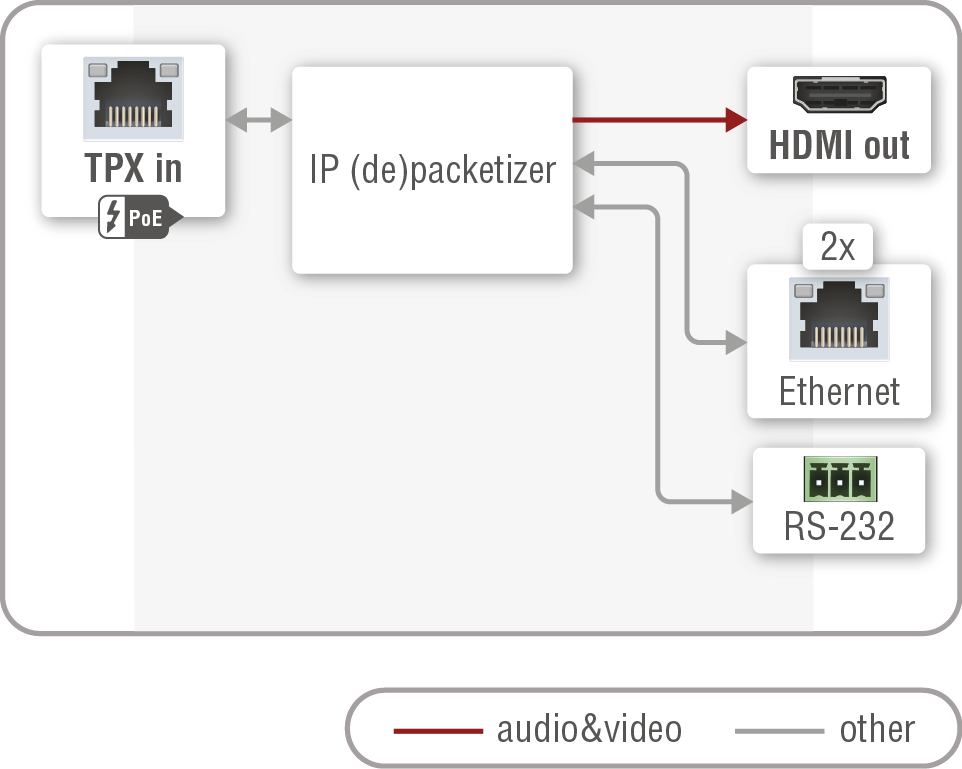
Port diagram of HDMI-TPX-RX107-V2
HDMI-TPX-RX107A-SR
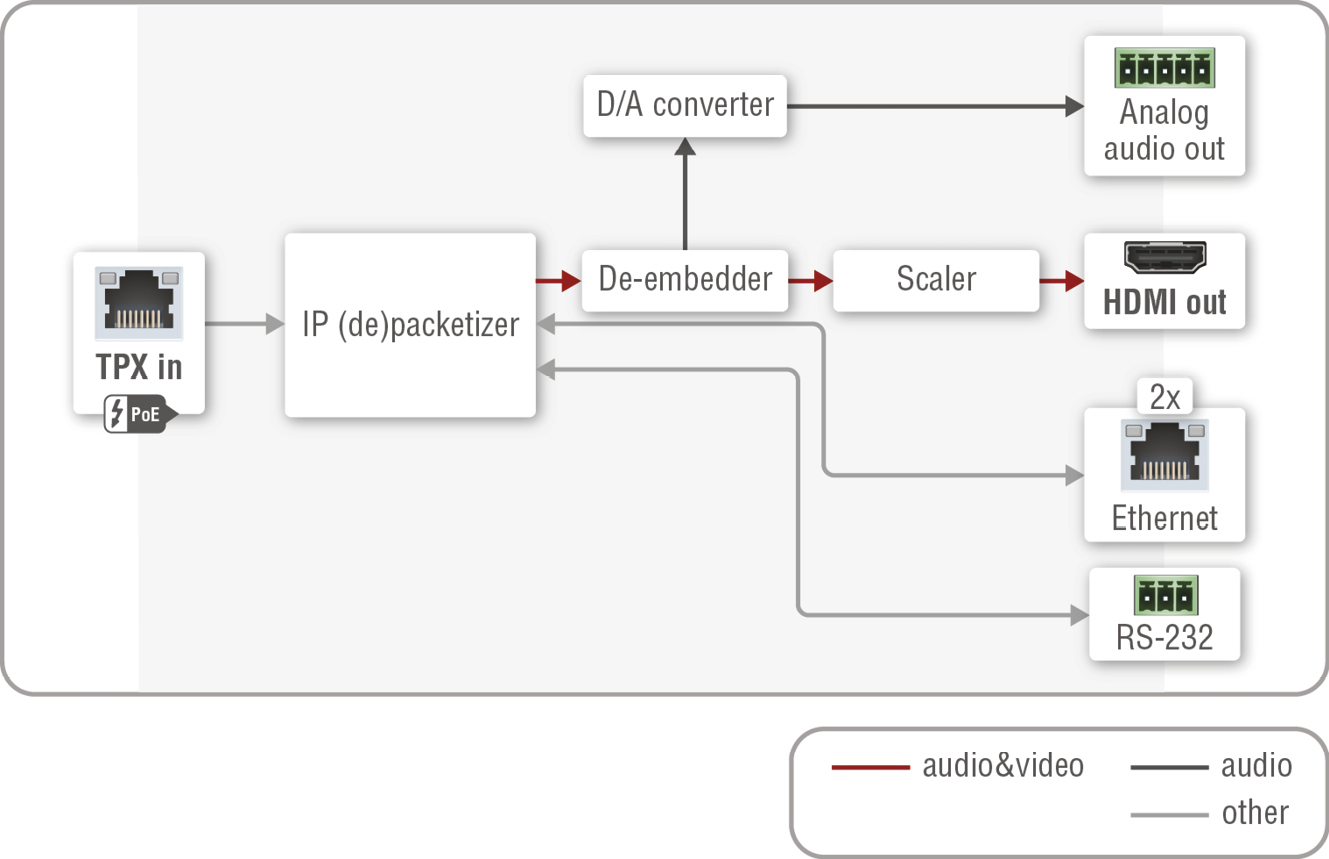
Port diagram of HDMI-TPX-RX107A-SR
HDMI-TPX-RX107AU2K-SR
Port diagram of HDMI-TPX-RX107AU2K-SR
HDMI-TPX-RX109AU2K
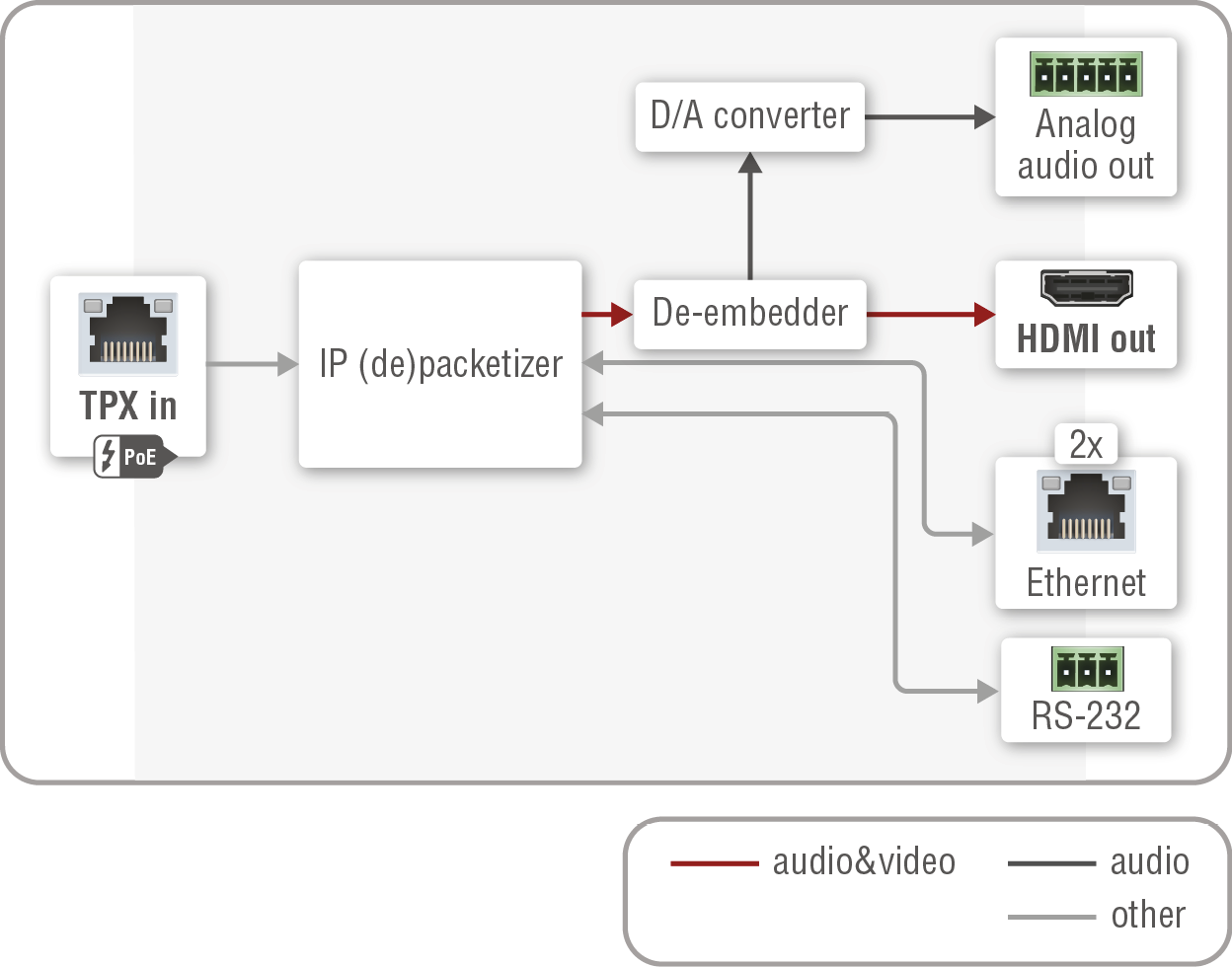
Port diagram of HDMI-TPX-RX109AU2K
HDMI-TPX-RX109DU2K
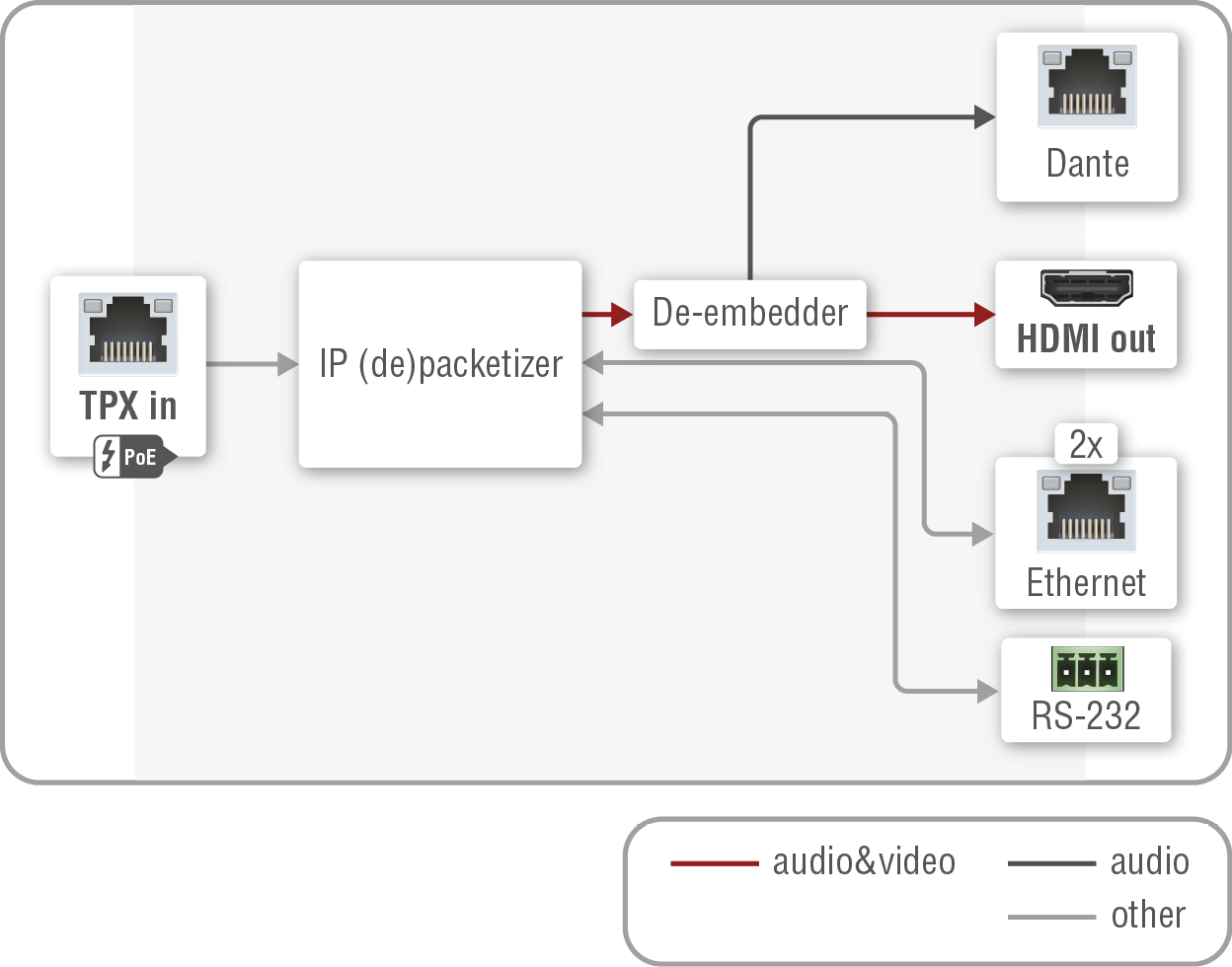
Port diagram of HDMI-TPX-RX109DU2K
HDMI-TPX-RX209AK
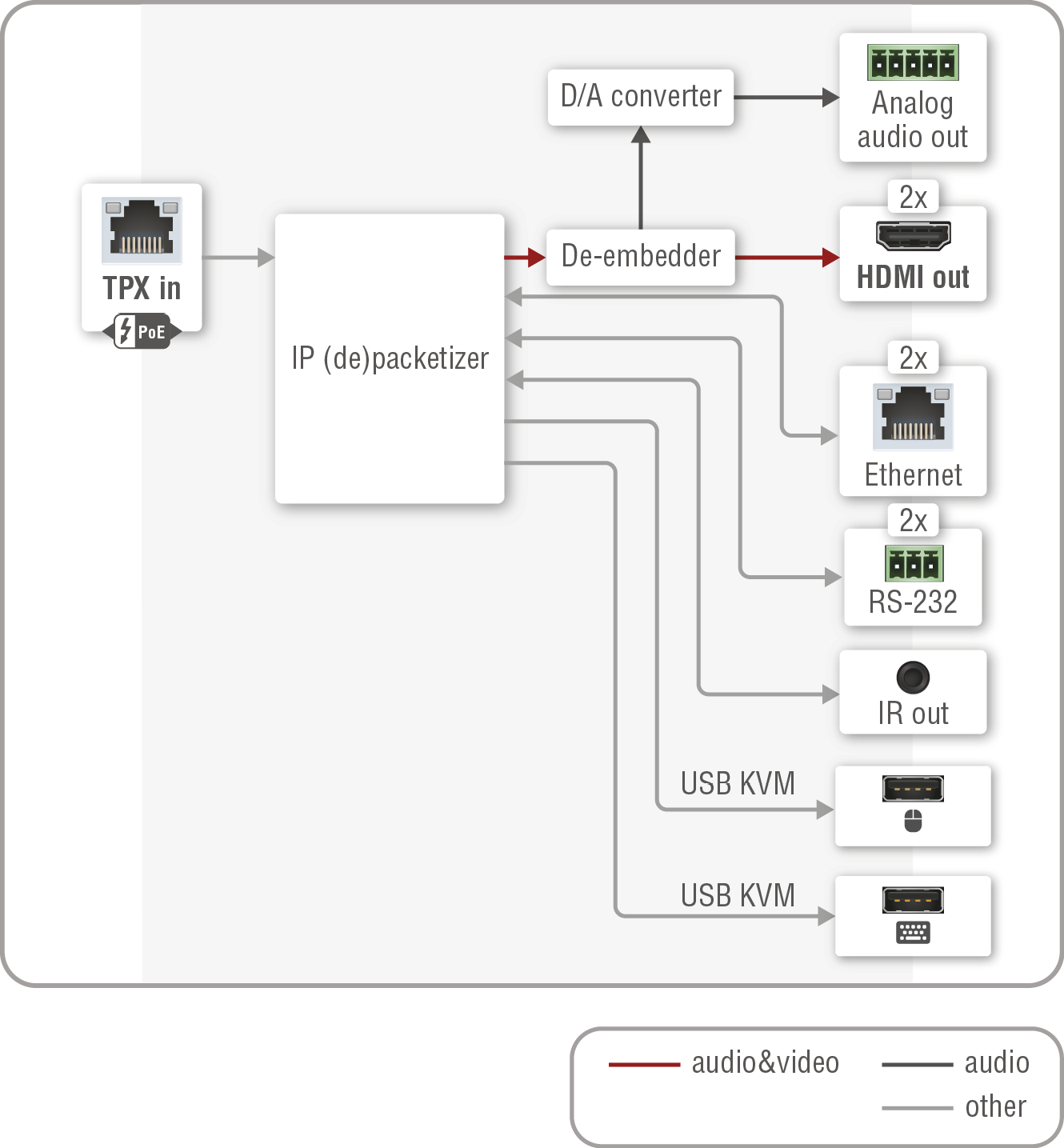
Port diagram of HDMI-TPX-RX209AK
HDMI-TPX-RX109AK-V2
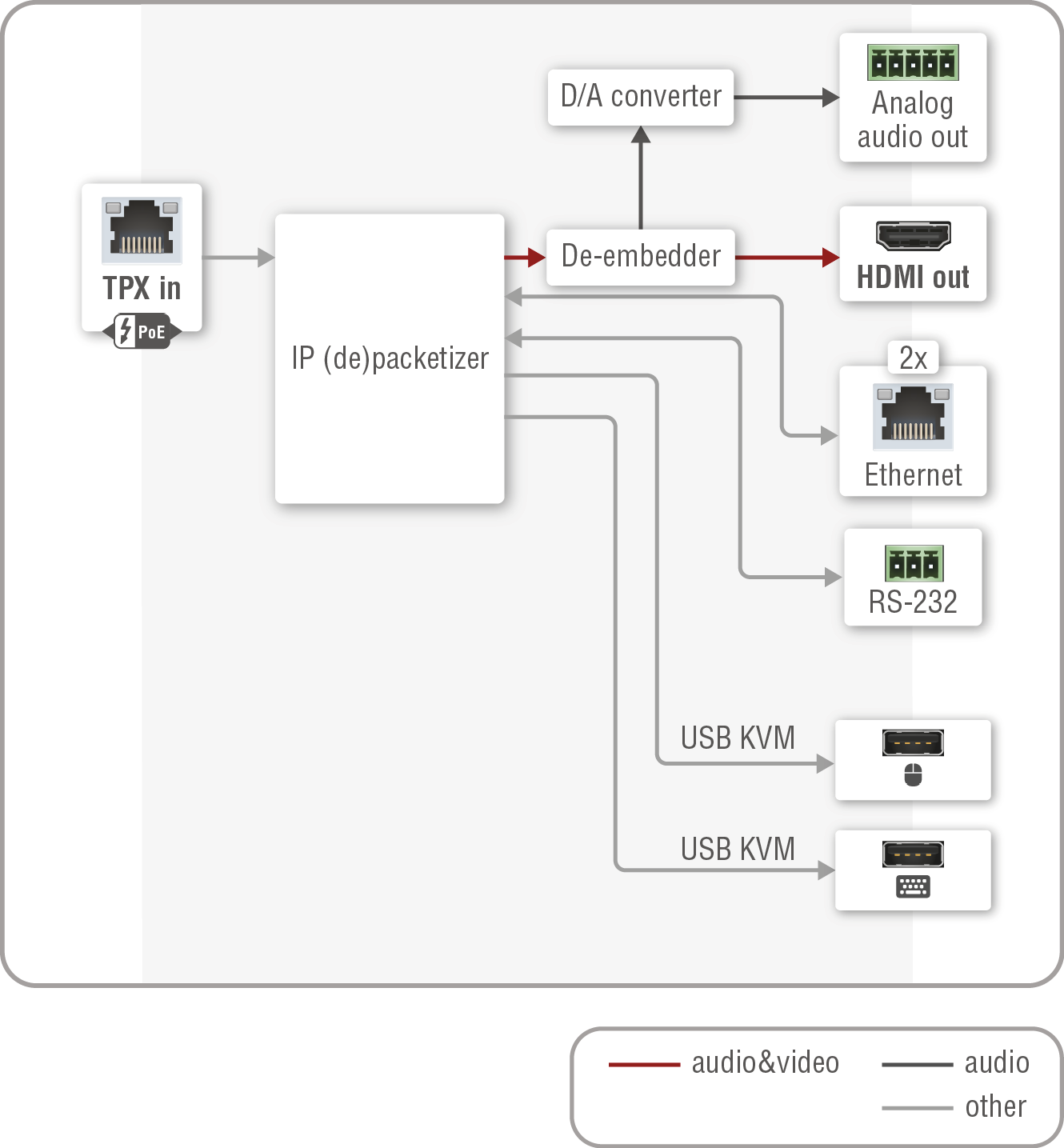
Port diagram of HDMI-TPX-RX109AK-V2
HDMI-OPTX-RX100A
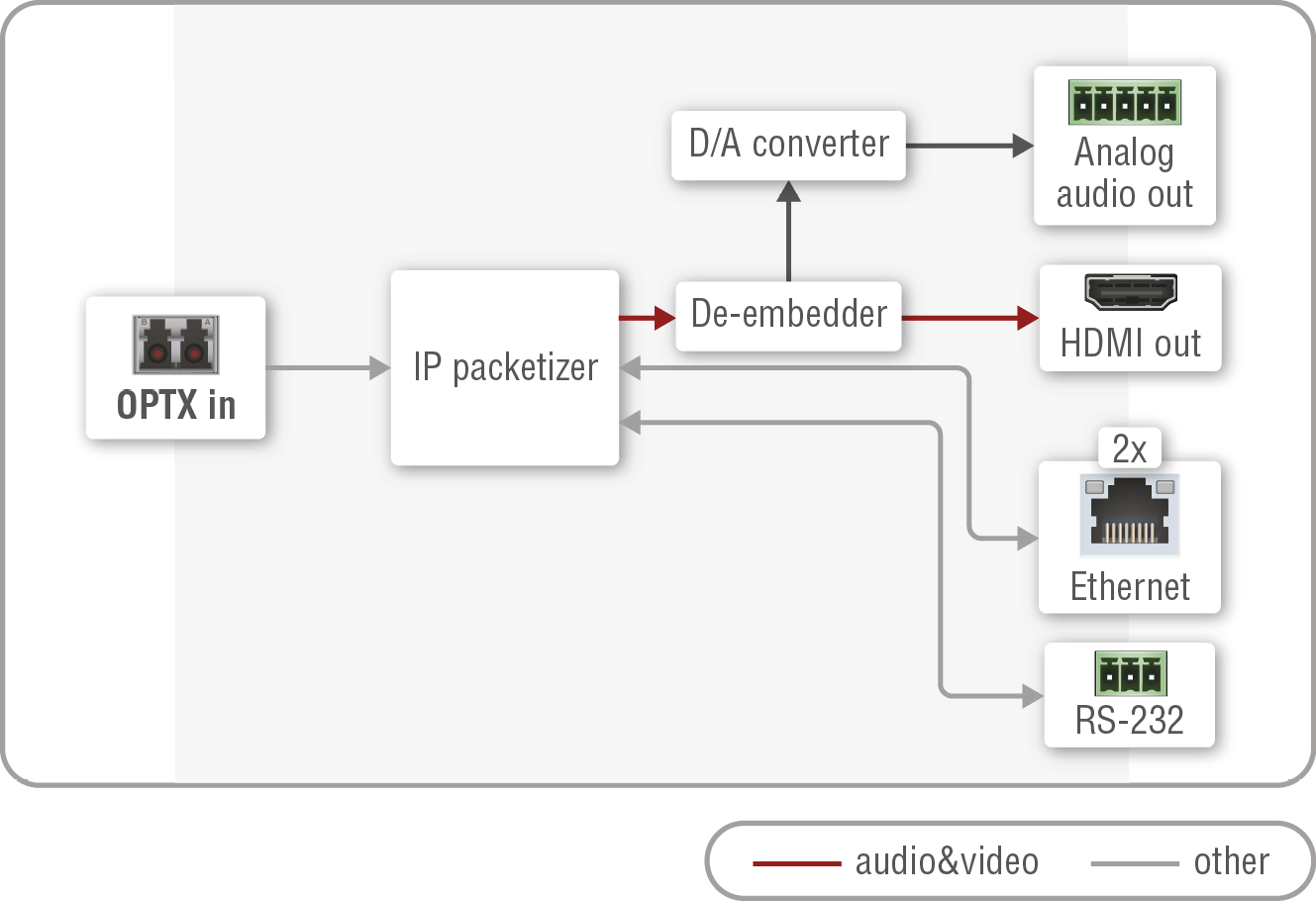
Port diagram of HDMI-OPTX-RX100A
HDMI-OPTX-RX100AU2K
Port diagram of HDMI-OPTX-RX100AU2K
Description
Transmitters
The TPX and OPTX series transmitters can receive one HDMI 2.0 audio/video stream up to 4K@60Hz 4:4:4 resolution from the source devices over the HDMI input port. The signal is transmitted over the TPX or OPTX output port toward the receivers.There is no signal processing (scaling, color conversion, etc) available on the transmitter side except the signal compressing, see more details in the Signal Compression by the SDVoE Technology section about it. The HDMI output port of the TX209AK, TX209AK-V2, TX209AU2K and TX209DU2K models is an HDMI loop-back port and can be used as local HDMI output.
The -A series models are built with an analog audio output port, which de-embeds the audio signal of the HDMI stream and transmits it after the digital-to-analog signal conversion. The port supports 2-channel analog balanced signal with 48 kHz sampling frequency.
The -D series models are built with a Dante®/AES67 digital audio output port, which de-embeds the audio signal of the HDMI stream and transmits it toward the audio sink device. The port supports 2-channel PCM signal with 44.1, 48, 88.2 and 96 kHz sampling frequencies.
Receivers
The TPX and OPTX series receivers can receive one HDMI 2.0 audio/video stream up to 4K@60Hz 4:4:4 resolution from the transmitter over the TPX input port. The stream is transmitted toward to the sink device over the HDMI output port.
The -A series models are built with an analog audio output port, which de-embeds the audio signal of the HDMI stream and transmits it after the digital-to-analog signal conversion. The port supports 2-channel analog balanced signal with 48 kHz sampling frequency.
The -D series models are built with a Dante®/AES67 digital audio output port, which de-embeds the audio signal of the HDMI stream and transmits it toward the audio sink device. The port supports 2-channel PCM signal with 44.1, 48, 88.2 and 96 kHz sampling frequencies.
The -SR series receivers have an integrated scaler that can fit the resolution to the connected sink device. These receivers fulfill the seamless switching (clean cut) features.
ATTENTION!A hot-plug event triggers EDID-based scaling in the -SR series scaling receivers by default operation. See more details about it in the Scaler Operation by Default section.
Powering Options
In case of the TPX-106 series extenders, the TPX port fulfills the PoC powering method, which means the devices are able to send power to each other within the -106 series models.
In case of the TPX-107 series extenders, the TPX port fulfills the PoE PD (IEEE802.3af) standard, which means the device can receive power from the connected remote device.
In case of the TPX-209 series extenders, the TPX port fulfills the PoE PD + PoE PSE (IEEE802.3af) standard, which means the device can receive or send power from the connected remote device.
See more information about it in the Powering Options section.
5.1.2. Signal Compression by the SDVoE Technology
SDVoE technology applies signal compression only if the AV signal is above HDMI 1.4 standard, and the required bandwidth of the transmission would reach 10 Gbps.
The compression ratio on the TPX / OPTX output ports is 1.4 to 1.
ATTENTION!Lightware highly recommends using CAT6a AWG24 or higher category 10G Ethernet cables for the TPX (SDVoE) connection between the transmitter/receiver and the network switch. Usage of e.g. AWG28 Ethernet cables may reduce the extension distance significantly. Learn more in the CATx Cable Diagnostics for TPX Extenders chapter.
DIFFERENCE:The following section refers to the -TX107D, -TX209DU2K, -RX107D and -RX109DU2K models.
The -D series models contain a special module that allows the de-embedding of the audio stream from the incoming HDMI signal and transmitting it as a 2-channel Dante® or AES67 source over the dedicated RJ45 connector. #dante #audio
Supported Audio
|
Audio type |
Signal support |
|
2-ch LPCM * |
supported |
|
Multichannel |
not supported |
|
Compressed DTS/Dolby |
not supported |
* The supported sample rates are 44.1, 48, 88.2 and 96 kHz.
Dante® is a registered trademark of Audinate Pty Ltd.
Important Notes
▪The AES67 mode is supported, which can be set in the Dante® Controller software.
▪Multichannel or encoded audio format cannot be de-embedded. In this case, no audio is sent to the Dante® network.
The TPX/OPTX series transmitter devices transmit the embedded HDMI audio signal over the TPX (CATx) or OPTX (fiber optical) interfaces. The receivers accept and transmit it to the sink devices. The -A series transmitters and receivers can de-embed the HDMI audio and transmit it as an analog audio signal over the 5-pole Phoenix port.
5.2. Scaler Function of the Receiver
DIFFERENCE:Only HDMI-TPX-RX107A-SR and HDMI-TPX-RX107AU2K-SR receiver models have integrated scaler function.
ATTENTION!The following settings are available in BleRiver AV Manager (Config Submenu) only.
The -SR receiver models are built with integrated scaler function. Five different scaler operation modes can be selected in the endpoint as following.
There is no scaling on the output.
▪No frame drop
▪Ultra-low latency
▪No FPS conversion.
ATTENTION!This mode is validated for up to three network switch hops.
Scaler function is on.
▪The clock frequency of the receiver is syncronized with the transmitter's.
▪No frame drop.
▪Ultra-low latency.
▪No FPS conversion.
ATTENTION!This mode is validated for up to three network switch hops.
INFO:This mode is the default in the receiver.
Scaler function is on, optimized for fast switching between the source streams.
▪The clock frequency can be set by the user.
▪There is no network switch hop limitation.
▪Crosspoint switch can be performed fast.
▪One or two frames delay may happen.
Optimized for video wall application. Similar method as the fastswitch scaling.
▪There is no network switch hop limitation.
▪Crosspoint switch can be performed fast.
▪One or two frames delay and tearing effect on the video wall may happen.
Optimized for video wall application. Similar method as the genlock scaling.
▪The clock frequency of the receiver is syncronized with the transmitter's.
▪No frame drop.
▪Ultra-low latency.
▪No FPS conversion.
ATTENTION!This mode is validated for up to three network switch hops.
5.2.2. The Limitations of the Scaler
Bandwidth Related Limitations
The scaler function has bandwidth limitation, which in the practice means that the compression of the original picture is not possible below specific settings. When the scaling is not applicable, the error symptoms could be a flashing screen or displaying a black screen.
The following resolutions cannot be scaled while keeping the aspect ratio:
▪3840x2160 to
=640x480; 800x600; 960x1280; 1024x768; 1050x1400; 1200x1600
▪4096x2160 to
=1280x768; 1680x1050; 1200x1900
Color Space / Color Depth Related Limitations
If the scaler function is enabled in the receiver, the output is always RGB 8 bit/channel.
5.2.3. Scaler Operation by Default
ATTENTION!The following description is related to all models of -SR series scaling receivers.
If a hot-plug event (see examples below) happens with the scaling receiver, the device is restored to EDID-based scaling, therefore the preferred resolution of the sink device is being applied in the scaler. The desired scaler setting is required to be set again.
Hot-plug Event Examples:
▪restarting of the scaling receiver
▪momentary power outage
▪unplugging and re-plugging of the CATx cable in the TPX input port when the receiver is powered remotely (PoE)
▪unplugging and re-plugging of the HDMI output cable
Does not Cause Hot-plug Event:
▪TPX connection error (e.g. unplugging and re-plugging of the CATx cable in the TPX input port if the receiver is not powered over the CATx cable (PoE))
DIFFERENCE:Only the -U2K models are built with Icron USB KVM and USB 2.0 feature.
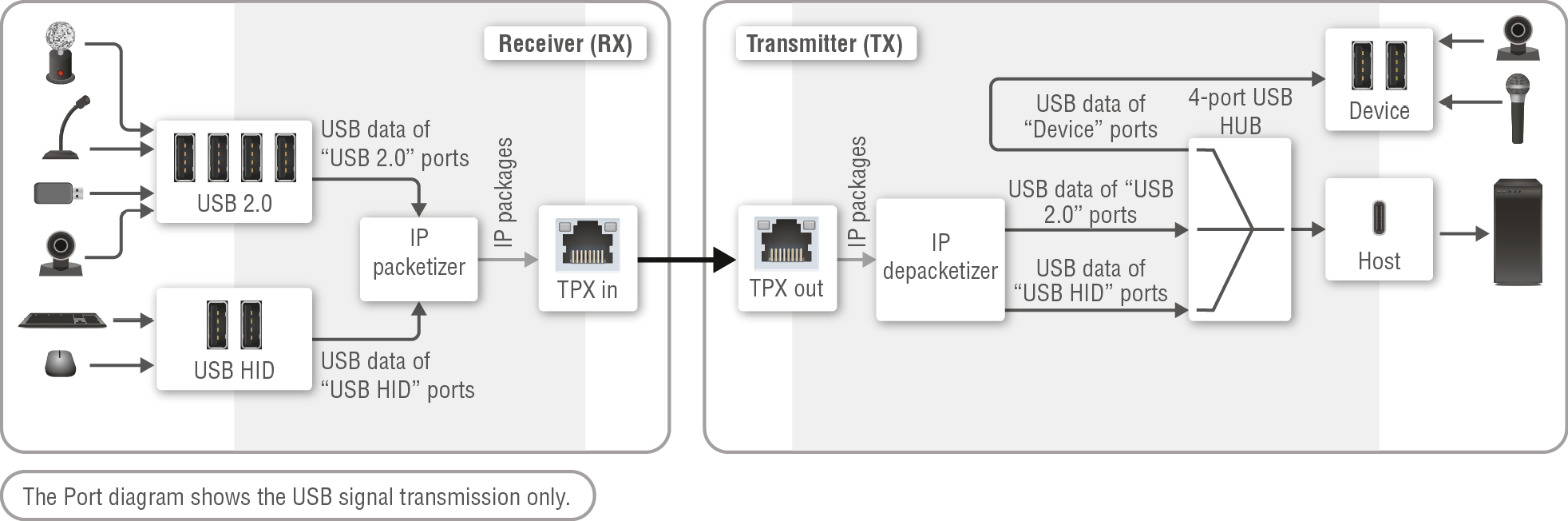
TPX Series Extenders
Affected models:
▪HDMI-TPX-TX209AU2K
▪HDMI-TPX-TX209DU2K
▪HDMI-TPX-RX107AU2K-SR
▪HDMI-TPX-RX109AU2K
▪HDMI-TPX-RX109DU2K
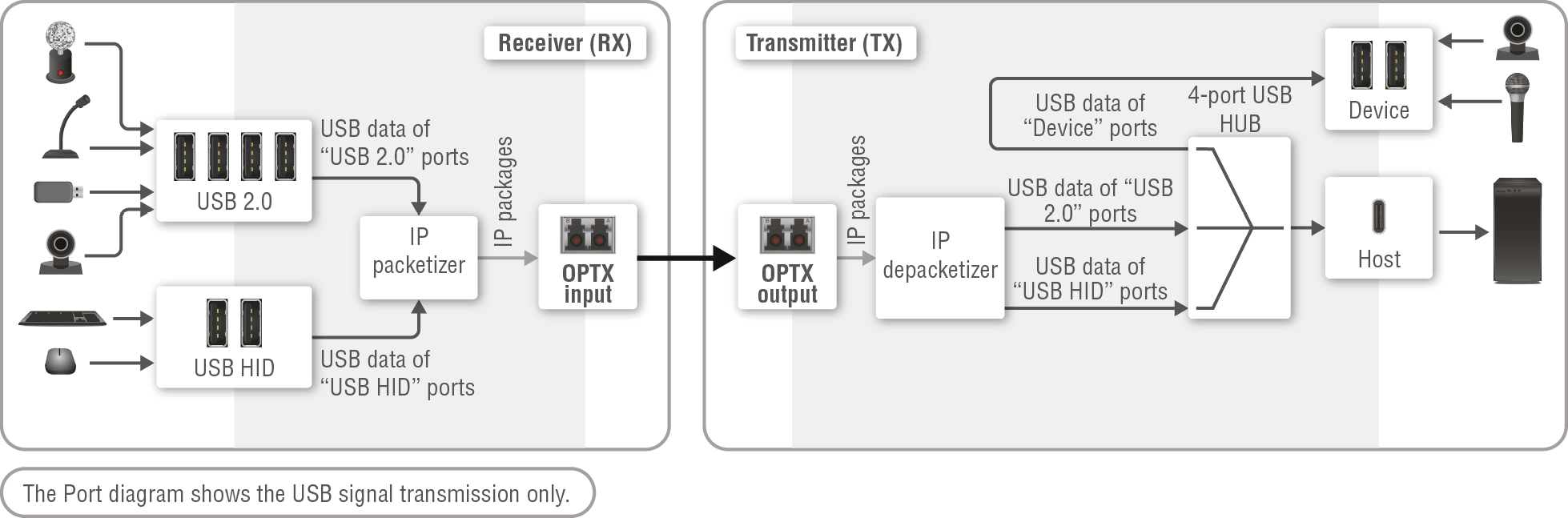
OPTX Series Extenders
Affected models:
▪HDMI-OPTX-TX200AU2K
▪HDMI-OPTX-RX100AU2K
Receiver (REX) Side
The -U2K series receivers are built with 2 pcs of USB-A connectors labeled as USB HID for the peripheral devices (preferably keyboard and mouse) and 4 pcs of USB-A connectors labeled as USB 2.0 for USB 2.0 devices (e.g. webcamera, microphone, flash drive, mass storage, etc). The USB signal is transmitted to the transmitter over the TPX (CATx) or OPTX (fiber optical) interfaces.
The Icron module of the receiver is also called REX - Remote Extender.
Transmitter (LEX) Side
The -U2K series transmitters are built with 2 pcs of USB-A connectors labeled as Device for the peripheral devices (preferably keyboard and mouse) and 1 pc of USB-C connector labeled as Host for the host device (e.g. a computer). The host device can be controlled locally via the Device ports or remotely either via the USB HID ports of the receiver. The USB 2.0 ports of the receiver appear as an external USB device to the host computer.
INFO:The USB-C port receives USB data only, no AV signal transmission is accepted. It supports USB 2.0 standard only.
The Icron module of the transmitter is also called LEX - Local Extender.
USB Modes
SUI / MSA setting:
▪SUI - Simultaneous Users Interaction - this mode is recommended in case of point-multipoint connections (multiple REXes are connected to a single LEX).
▪MSA - Mass Storage Acceleration
5.3.3. Presented USB Tiers in the Topology
USB tiers count presented by the Lightware device out of the total available 7 tiers. The  icon means +1 tier, the
  icon means +2 tiers present in the topology.
Transmitters
|
Local Extender (LEX) Mode Only for transmitters |
||
|---|---|---|
|
Model name |
USB 2.0 layer |
|
|
SUI |
MSA |
|
|
HDMI-TPX-TX209AU2K |
|
|
|
HDMI-TPX-TX209DU2K |
|
|
|
HDMI-OPTX-TX200AU2K |
|
|
Receivers
|
Remote Extender (REX) Mode Only for receivers |
||
|---|---|---|
|
Model name |
USB 2.0 layer |
|
|
SUI (if active on host side) |
MSA (if active on host side) |
|
|
HDMI-TPX-RX109AU2K |
|
|
|
HDMI-OPTX-RX100AU2K |
|
|
Examples
If an HDMI-TPX-TX209AU2K in SUI mode is connected to a HDMI-TPX-RX109AU2K, the USB tier presentation of the extender pair is 1+2=3.
If an HDMI-TPX-TX209AU2K in MSA mode is connected to a HDMI-TPX-RX109AU2K, the USB tier presentation of the extender pair is 1+1=2.
5.4. USB HID Interface for -K Series Extenders
DIFFERENCE:The following section is related to the HDMI-TPX-TX209AK, HDMI-TPX-TX209AK-V2, HDMI-TPX-RX209AK and HDMI-TPX-RX109AK-V2 models only.
HDMI-TPX-TX209AK and HDMI-TPX-RX209AK
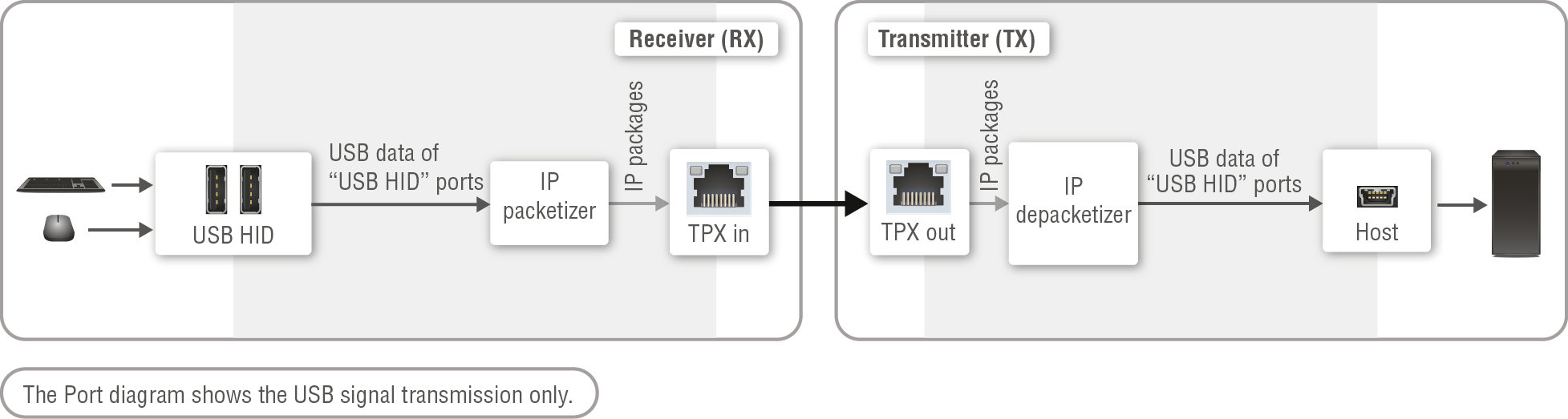
HDMI-TPX-TX209AK-V2 and HDMI-TPX-RX109AK-V2
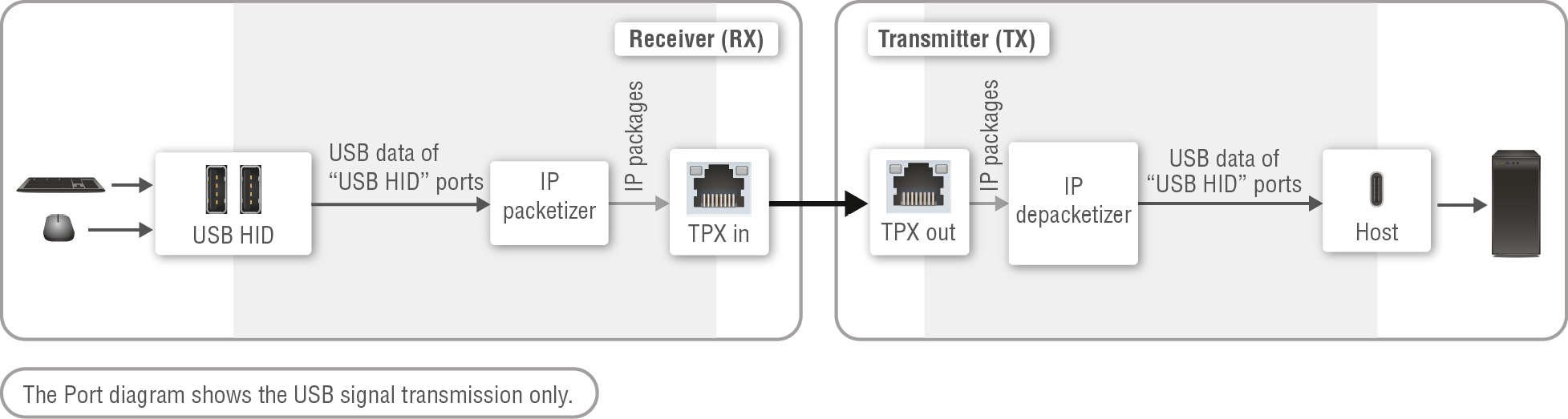
Description
The receivers are built with 2 pcs of USB-A connectors labeled as USB HID for the peripheral devices (preferably keyboard and mouse). The USB signal is transmitted to the transmitter over the TPX (CATx) or OPTX (fiber optical) interfaces.
The transmitter is built with 1 pc of USB mini-B / USB-C connector labeled as Host for the host device (e.g. a computer). The host device can be controlled locally via the Device ports or remotely either via the USB HID ports of the receiver. The USB 2.0 ports of the receiver appear as an external USB device to the host computer.
INFO:The USB-C port receives USB data only, no AV signal transmission is accepted. It supports USB 2.0 standard only.
5.4.2. Presented USB Tiers in the Topology
The -K series transmitters and receivers do not take up any USB tiers on the topology.
All TPX and OPTX series extenders are built with one or two RJ45 Ethernet ports for multiple purposes. The ports support 1GBase-T standard, they are full duplex with autodetect.
Learn more about the equipment of the different extenders in the Model Comparison section.
INFO:The Ethernet ports are not PoE-capable.
The Ethernet ports can be used for the following purposes:
▪controlling the extender remotely;
▪RS-232 and Infrared command injection;
▪updating the firmware of the device.
The Ethernet port can be set to DHCP or static IP address. The setting is available in the BlueRiver AV Manager, see more details in the Config Submenu section, or BlueRiver API control commands, see the details in the IP Configuration Mode Setting section.
This section is about the serial interface of the extenders that are used for command injection purpose over the Ethernet network.
Port Diagram
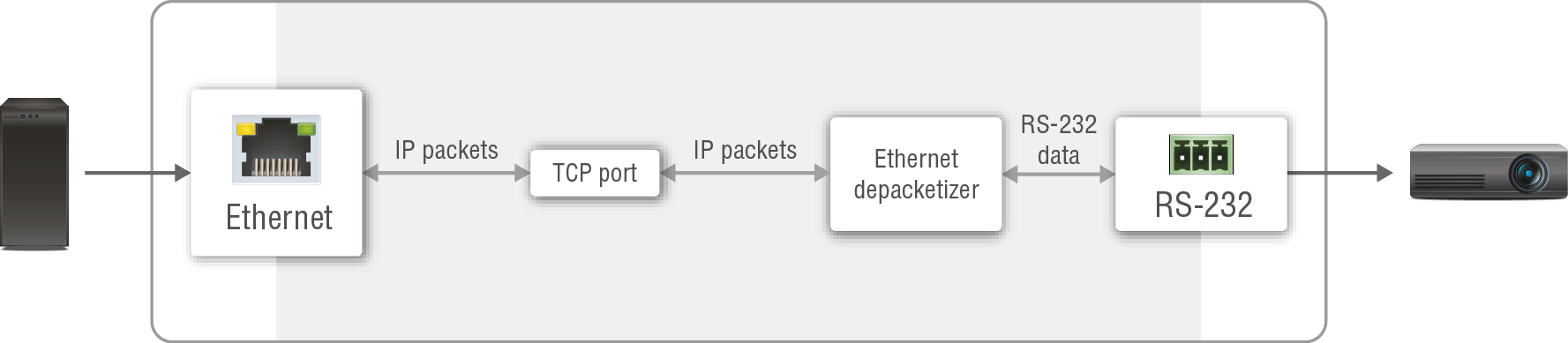
Port diagram of the serial interface of the TPX / OPTX extenders
All TPX and OPTX series extenders are built with RS-232 ports that can be used for sending serial messages over the Ethernet interface.
Message sending function allows RS-232 command sending to a third-party (or a Lightware) device from the extender. Any format is acceptable (text, binary, hexadecimal,etc.), maximum message size is 100Kb. Escaping is unnecessary.
Serial messaging can be performanced in the BlueRiver AV Manager software, see more details in the Config Submenu section.
6. Software Control - BlueRiver AV Manager
The chapter shows the BlueRiver AV Manager software from Semtech, which provides easy access and control features to the TPX or OPTX extenders over a user-friendly GUI.
ATTENTION!In case of using BlueRiver AV Manager, user needs a computer which runs the SDVoE server and the software itself. Lightware highly recommends only one SDVoE server presence on the network.
BlueRiver AV Manager controls and manages AV distribution systems and endpoints that utilize Semtech’s BlueRiver technology platform, including all devices that are compatible with the Software Defined Video over Ethernet (SDVoE™) standard. The easy-to-deploy, highly intuitive software provides manufacturers, resellers and users of AV equipment featuring BlueRiver a free and easily customizable baseline AV control software that can be repackaged to deliver a wide variety of highly targeted user interface (UI) experiences. In addition to standard video and audio, the software can be used to establish and control Video Walls layouts. Basic USB HID and USB 2.0 routing and switching is also supported (mouse, keyboard, webcam, etc.). *
* Source: https://info.semtech.com/blueriver-av-manager
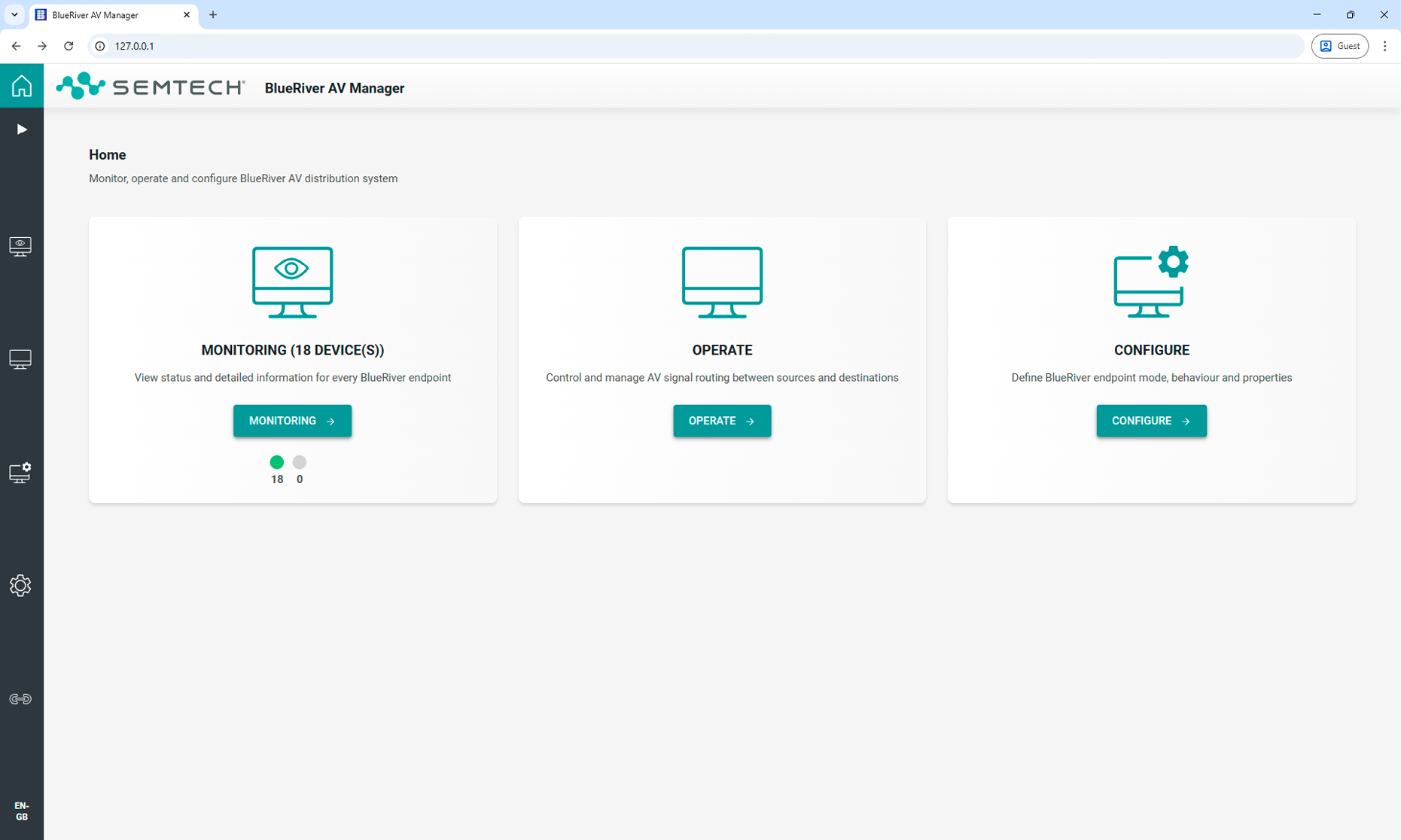
Crosspoint view in the BlueRiver AV Manager software
Functions
The following functions and features are available in the software:
▪Extender configuration
▪Device monitoring
▪Crosspoint setting - only for networked (TPN/OPTN) endpoint devices.
The official user guide can be downloaded from Semtech's website (PDF):
https://info.semtech.com/blueriver-av-manager
INFO:Downloading of the software and the user guide requires a registration on the Semtech's website.
The software can be downloaded from Semtech's website (https://info.semtech.com/blueriver-av-manager) for Windows and Linux operating systems.
INFO:After the installation the Windows and the Linux application have the same look and functionality.
The following ports are reserved by the software:
|
Protocol |
Port Number |
Description |
|---|---|---|
|
TCP |
5920 |
BlueRiver AV Manager Service |
|
TCP |
5936 |
BlueRiver AV Manager SDVoE API Service |
|
TCP |
20020 |
TCI API |
|
TCP |
5148 |
BlueRiver AV Manager |
ATTENTION!The running BlueRiver services on the listed ports can obstruct the SDVoE device discovery functions of the Lightware Device Updater V2 (LDU2). Read more details about it in the Applied Network Ports section.
After installation, the application GUI is accessed through a browser by simply entering the IP address of the computer where the application is installed in the address bar.
If the browser is being run from the same computer as the BlueRiver AV Manager is installed on, user can enter “localhost” or ”http://127.0.0.1” instead of the computer's IP address.
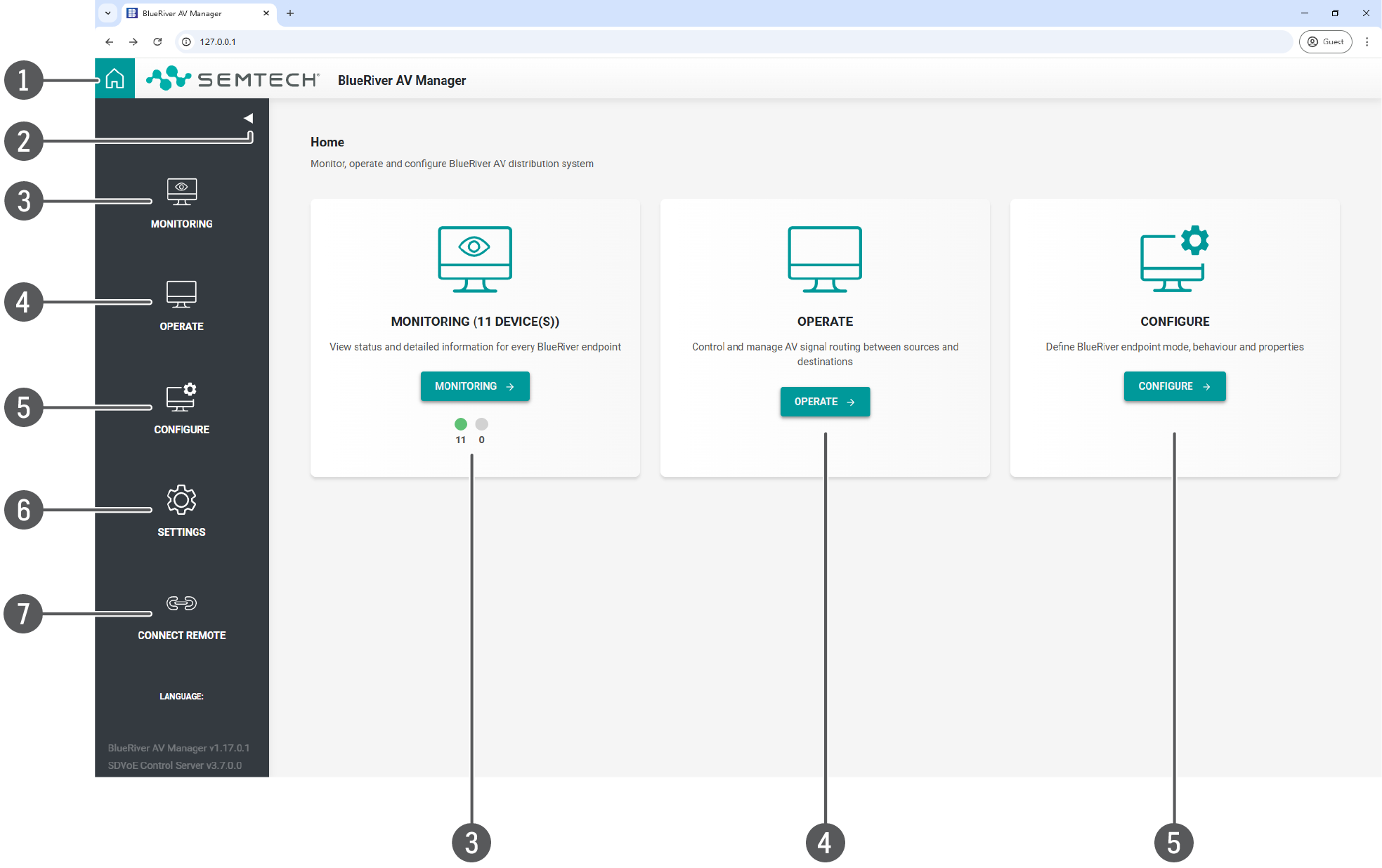
Home page of BlueRiver AV Manager
After the application is opened, the home page is launched first. The three main menus can be opened here on the front window: the Monitoring Menu, the Operate Menu and the Configure Menu, and further menus can be selected on the left side of the page.
Legend
|
|
Home page |
The landing page of the BlueRiver AV Manager. |
|
|
Navigation menu tool |
The collapsible Navigation panel can be used to switch between the tools. |
|
|
Monitoring menu |
When opening either the Monitoring or the Configure tool, all known endpoints are displayed as device cards. The Configure tool also includes pages to configure Video Wall, Multiview, and firmware update. See more details in the Monitoring Menu section. The number with the green dot means the available online endpoint devices; the number with the grey dot means the offline devices. |
|
|
Operate menu |
Control and manage AV and control signal routing between sources and destinations - only for networked (TPN/OPTN) endpoint devices. The functions what are available in the tool: ▪Video signal and video wall crosspoint settings ▪Audio crosspoint settings ▪USB (KVM and Icron USB 2.0 as well) extension settings ▪RS-232 signal routing ▪Infared signal routing ▪CEC signal routing |
|
|
Configure menu |
The Configure menu contains the following tools: ▪Devices - Configuring the endpoint devices on the network. See more details in the Devices section. ▪Wall - Video wall configurator - only for networked (TPN/OPTN) endpoint devices. ▪Multiview - Multiview configurator - only for networked (TPN/OPTN) endpoint devices. ▪FW update - Firmware updating of the extenders. Lightware highly recommends using Lightware Device Updater V2 (LDU2) to update TPX and OPTX series extenders. See more details in the Firmware Update chapter. |
|
|
Settings |
Application settings are accessed directly through the navigation panel.See more details in the Settings Menu section. |
|
|
Connect remote |
Selecting the menu provides access to the software via a mobile device. See more details in the Connection via Mobile Device section. |
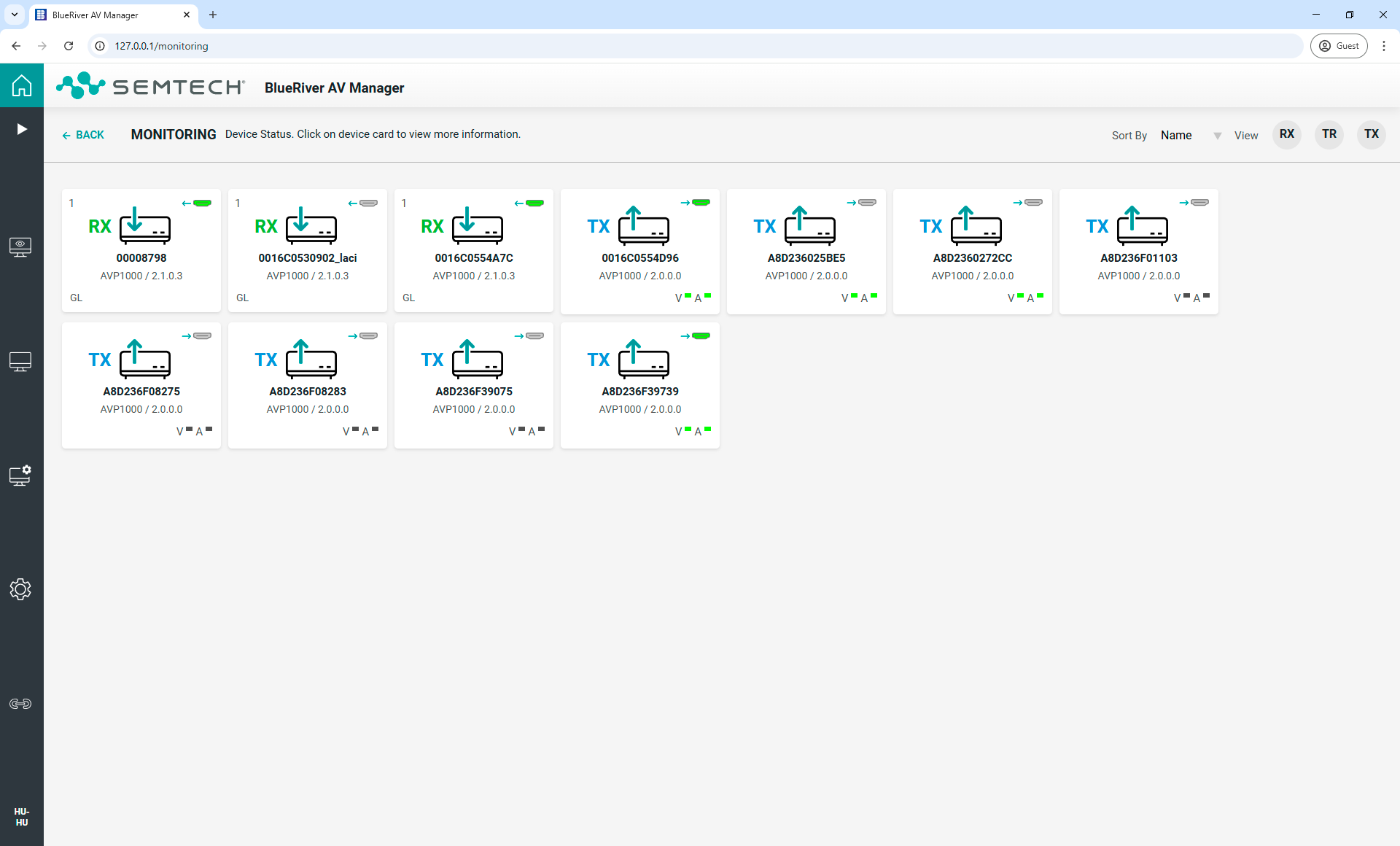
Device cards in the Monitoring menu
The available devices on the network are listed in the Monitoring menu one-by-one on Device cards. There are three submenus on each cards:
▪Config - General and video/audio/control signal-related settings of the extender.
▪Details - General and status information about the extenders.
▪Diagnostic - Network-related diagnostic tool.
When a device card is opened from the Monitoring menu, the default submenu is the Details.
The following information can be found on the Device cards:
▪Device name: it is managed through the Configuration tool.
▪Type: There are two possible TPX / OPTX device types. TX (transmitter) that has an HDMI Input. RX (receiver) that has an HDMI output.
▪Chipset / Firmware version: Lists the BlueRiver chipset used by the device as well as current firmware version.
▪Icon: A configurable pictogram to emphasize the type of HDMI device that is connected to the endpoint.
▪HDMI connector: Illustrates the HDMI connection status. Green indicates that a cable is connected while grey indicates that there is no cable connected. The associated arrow indicates if the connector is an input or an output.
▪Color: Online devices are white. Devices running on fallback golden firmware are yellow, while a greyed-out device indicates that the device is offline (powered off or disconnected from the network).
▪Output mode: Applies only to RX devices, not applicable to TX devices. Devices that have an HDMI output can operate in the following output modes: GL (Genlock), GL-S (Genlock Scaling), FS (Fast Switch), W-GL (Wall-Genlock), W-FS (Wall-Fast Switch) and MV (Multiview). The output mode is configured using the Configuration tool.
▪Video stream: Applies only to TX and TR devices, not applicable to RX devices. Up to two LEDs indicate video streaming status. The top LED represents the native video stream while the bottom LED indicates the scaled video stream. When the LED is green, the stream is started. When the LED is dark, the stream is stopped.
INFO:The BlueRiver AV Manager uses the native video stream except for Multiview mode, which utilizes the scaled stream.
▪Audio stream: Up to three visible LEDs are present, which indicate the audio streaming status. The top LED represents the HDMI audio stream, the middle LED represents the Multichannel auxiliary audio stream, and the bottom LED represents the Stereo auxiliary audio stream. When the LED is green, the stream is started, and when dark, the stream is stopped. LED visibility is dependent on the audio settings in the Settings Menu see that section for more information.
▪Video subscriptions: Applies to RX and TR devices and indicates the number of active video subscriptions.
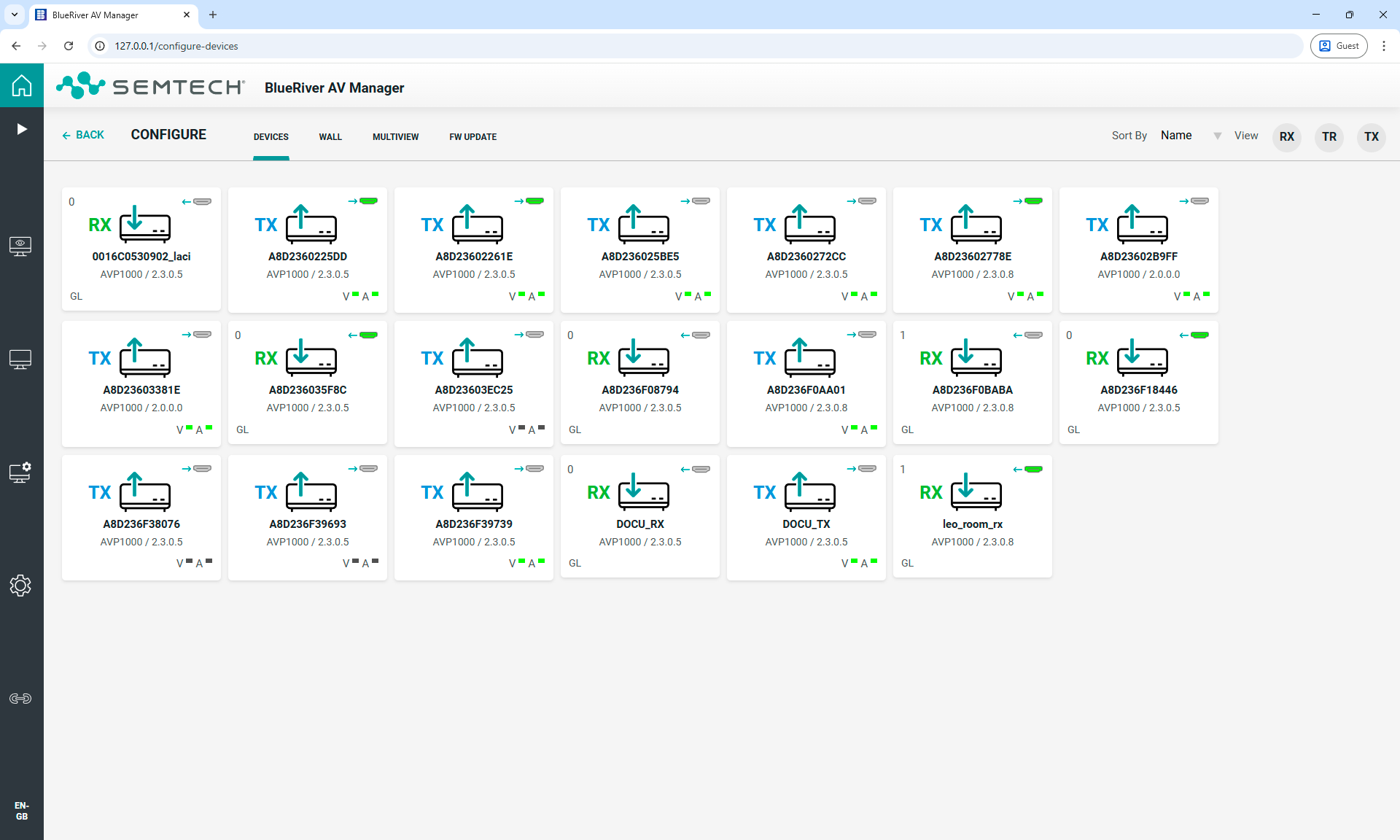
Devices tab in the Configure menu
The available devices on the network are listed in the Configure menu one-by-one on Device cards. There are three submenus on each card:
▪Config - General and video/audio/control signal-related settings of the extender.
▪Details - General and status information about the extenders.
▪Diagnostic - Network-related diagnostic tool.
When a device card is opened from the Configure menu, the default submenu is the Config.
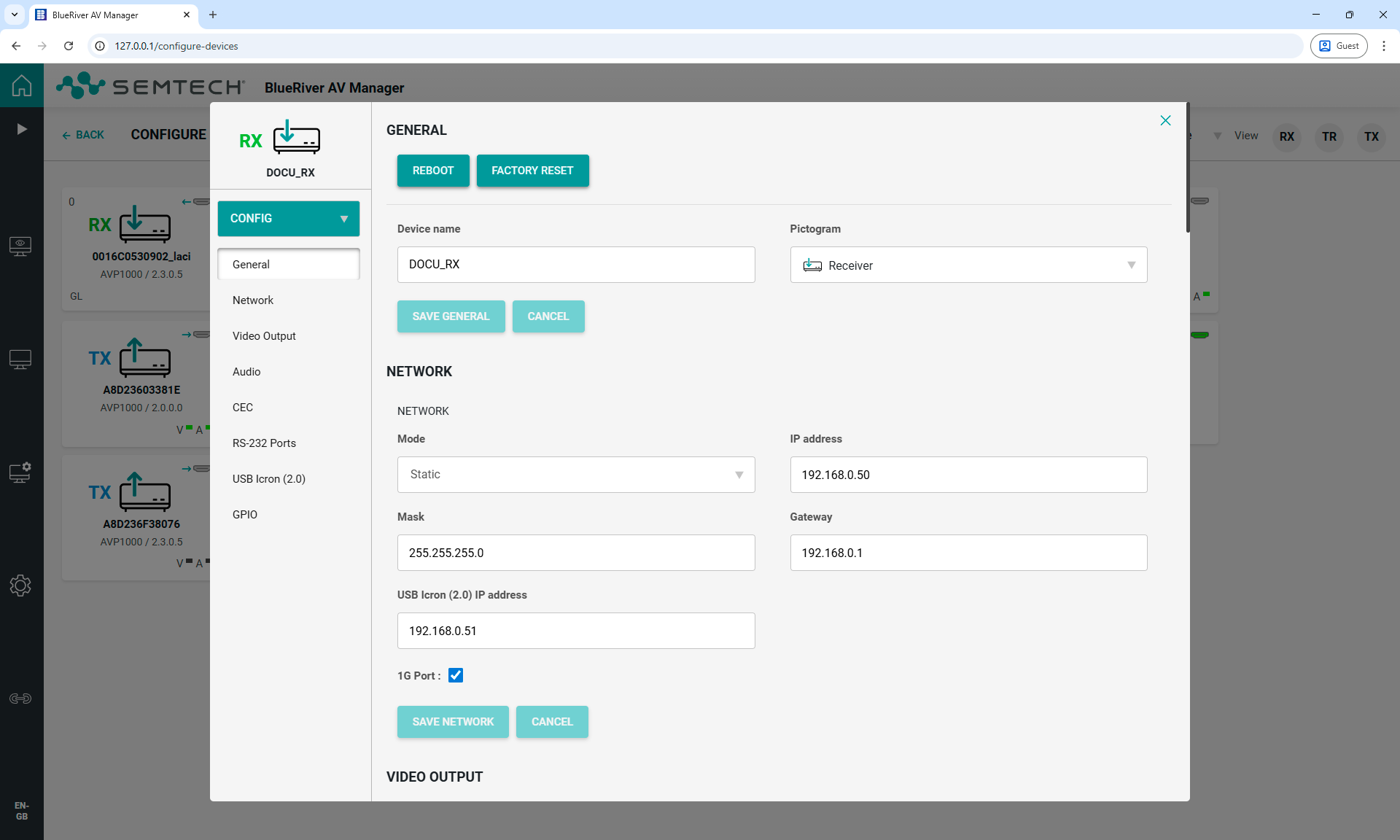
Config submenu on a Device card
Configuration settings can be applied in the extenders as follows:
▪General actions; e.g. reboot and recalling factory default settings;
▪Device name; unique user defined name to identify the device easier on the network,
▪Network related settings; e.g. dynamic or static IP address (DHCP) setting;
▪Video input / output settings; e.g. HDCP settings, display mode (scaler settings), video compression level, EDID uploading;
▪Audio settings; e.g. HDMI output source;
▪CEC (Consumer Electronics Control) settings;
▪RS-232 ports settings; e.g. Baud rate, data bits, stop bits, parity;
▪USB Icron (2.0) settings; e.g. local or remote role;
▪USB HID settings; e.g. local or remote role;
▪GPIO settings; e.g. mode and value by ports.
Application settings are accessed directly through the navigation panel.
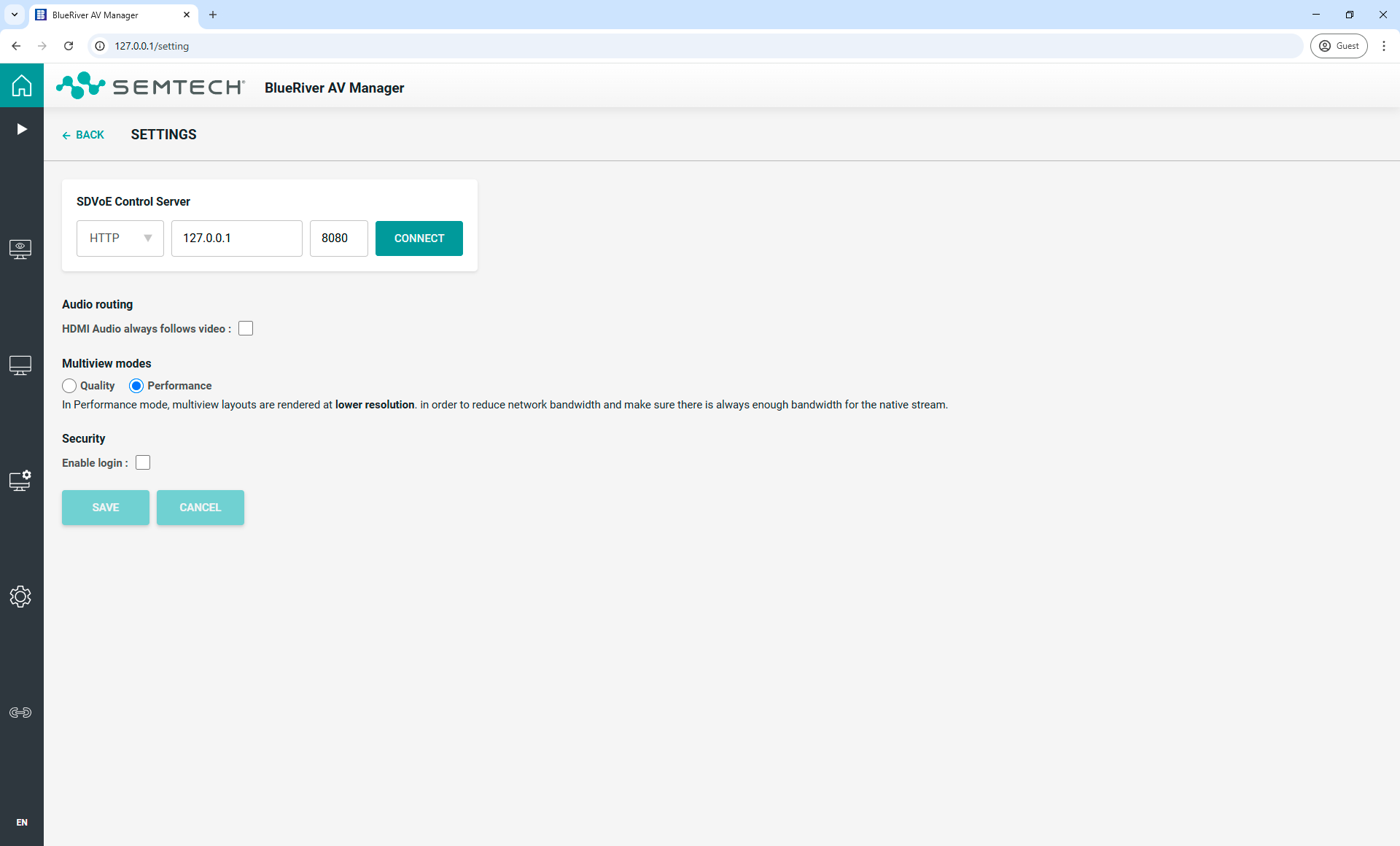
Settings menu
SDVoE Control Server: When BlueRiver AV Manager is started, it connects to the local BlueRiver AV Manager API or to the SDVoE API configured in the BlueRiver AV Manager configuration.conf file if this config is present. Once BlueRiver AV Manager is running, it is possible to change this, and for BlueRiver AV Manager to connect to a different API via either HTTP or HTTPS by entering the desired API IP address and port in the global settings SDVoE Control Server text boxes and clicking on the CONNECT button.
Audio Routing: By default, when using the Operate tool to route video, the associated audio has to be routed separately. Enabling this option allows any audio received from the video source to be automatically routed to the same destinations as the video.
Multiview modes: Multiview relies on additional scaled video streams that can interfere with the native source video stream (not enough bandwidth to carry both). When in Performance mode, Multiview layouts are rendered in lower resolution to reduce the bandwidth usage to accommodate both the native and scaled streams used for Multiview. On the other hand, Quality mode renders Multiview layouts at full resolution while automatically stopping the native video stream.
Security: By default, user login is disabled. Enable this option to activate username and password login.
6.7. Connection via Mobile Device
The BlueRiver AV Manager supports mobile device usage as well. Scan the QR code located in the Connection via Mobile Device menu to open the website of the application.
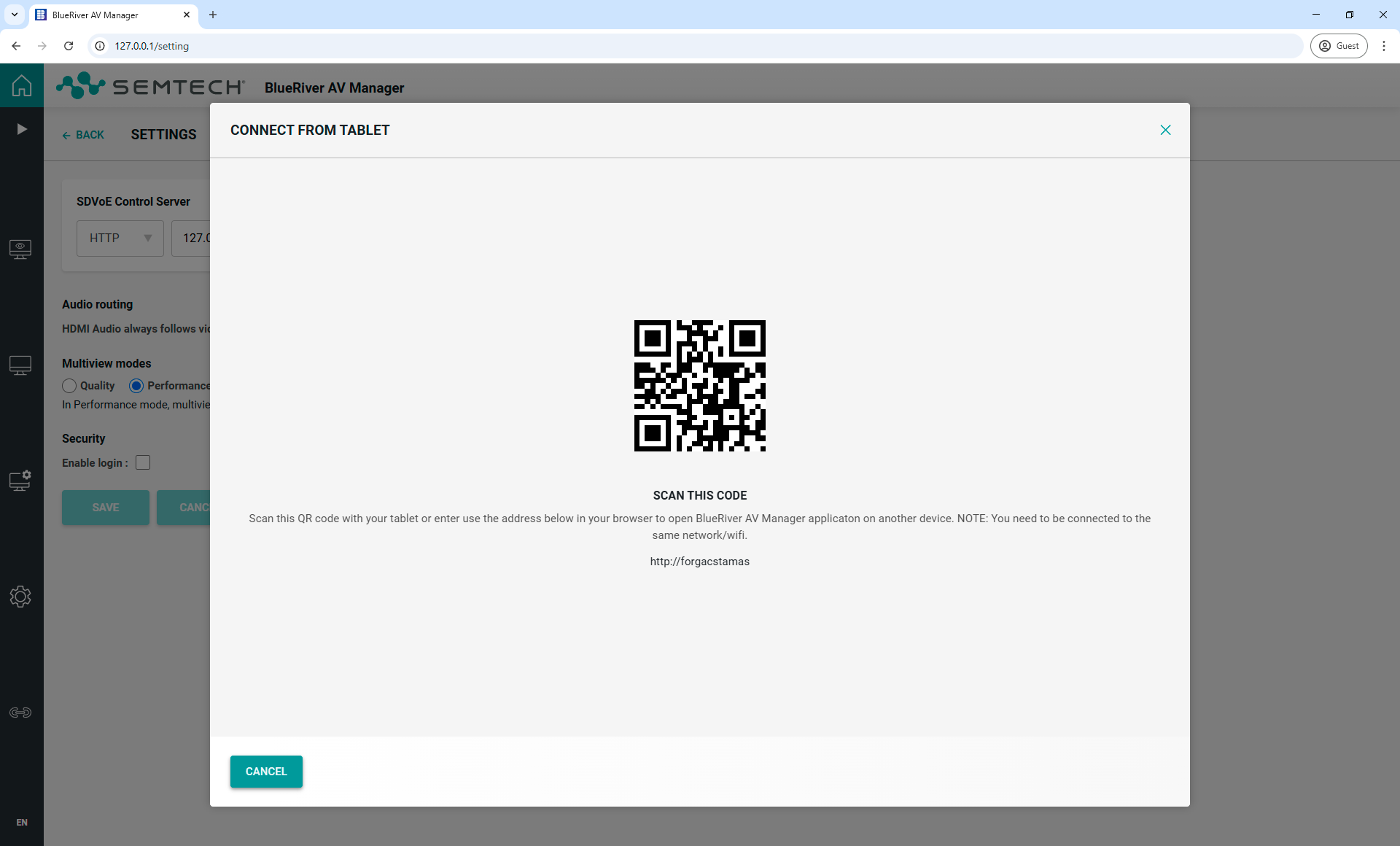
Connection via Mobile Device menu
7. BlueRiver API Control Commands
This section refers to the HDMI video and HDMI audio interfaces of the endpoint devices and describes several related control commands with examples. Two methods are described for the same task in each section: TCI API and REST API.
7.1. Instructions for the Terminal Application Usage
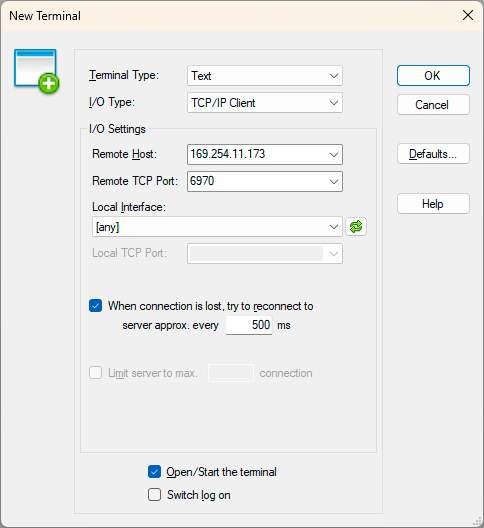
The SDVoE (BlueRiver) protocol commands can be applied to the TPX and OPTX series extenders using a terminal application. You need to install one of them to your control device, for example YAT (Yet Another Terminal) or Putty.
Establishing Connection
Follow the steps to establish connection to the device:
Step 1.Connect the endpoint to a LAN over Ethernet.
Step 2.Open the terminal application (e.g. YAT).
Step 3.Set the New Terminal window as follows:
▪Terminal type: Text
▪I/O Type: TCP/IP Client
▪Remote Host: the IP address of the endpoint
▪Remote TCP Port: 6970
Step 4.Select the OK button and open the connection.
Once the terminal window is opened, you can enter the BlueRiver protocol commands, which are listed in the following sections.
REST API interface can be easily accessed via a web browser's plugin, see the example below:
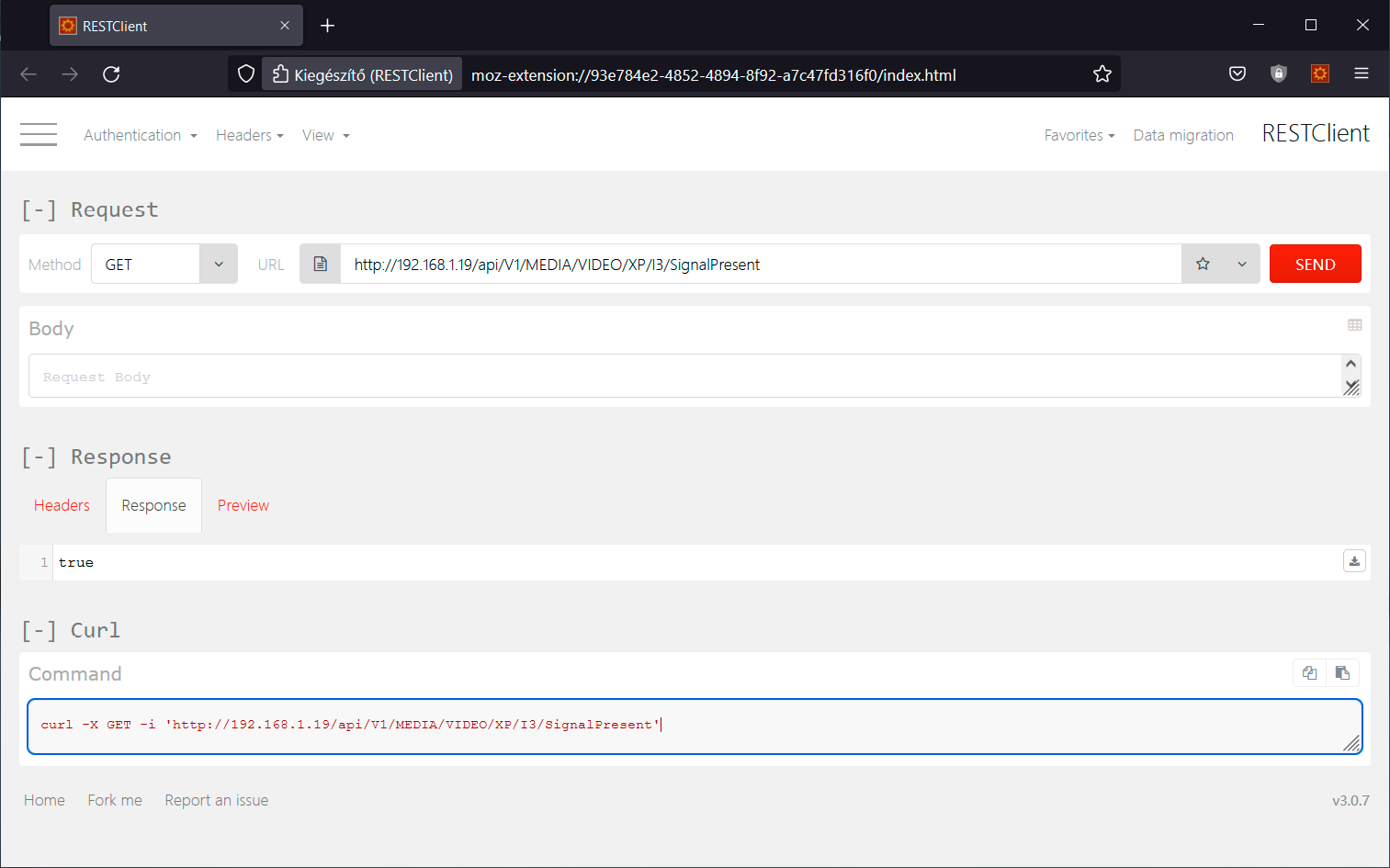
RESTClient plugin for Mozilla Firefox
7.2. BlueRiver API Management Structure Explanation
This section explains how the BlueRiver API management structure works.
The BlueRiver Control Server (API) supports two types of commands:
Immediate: This type of command always immediately returns with either a success or error status.
Background: These commands complete a task in the background. The response of these commands is retrieved using a request command. A unique request ID is assigned to each command of this type when it is issued and using the request command, the user can poll the status of the request.
Implementing background commands prevents stalling client software execution. They prevent the API from waiting for a device to complete a command’s execution. Instead, commands return with a status of “PROCESSING” along with a unique request ID in the request_id member of a response.
The request command is then used with the request ID to retrieve the command’s return.
In the REST API, a PROCESSING response has the HTTP status 201 Created. The Location HTTP header of the response provides a link to the appropriate request resource.
The BlueRiver Control Server (API) buffers command returns and notification events.
The lifecycle of a background command is as follows:
▪Valid background commands return with the status member set to PROCESSING, along with a unique request ID specified in the JSON response.
▪In case of an error, such as “illegal argument”, the command immediately returns an ERROR status.
▪After a command has been issued, its status is retrieved using the request ID through the request command:
=If the command is still being handled, the request command returns a PROCESSING status.
=Once the command has completed, the request command returns a SUCCESS status, as well as the return value (i.e. returned data) of the command.
▪Once a command completes, the event REQUEST_COMPLETE is triggered.
=Once a REQUEST_COMPLETE event is triggered for a given request ID, the request command is guaranteed to return with a SUCCESS status when the request ID is called.
Summary of Command Lifecycle
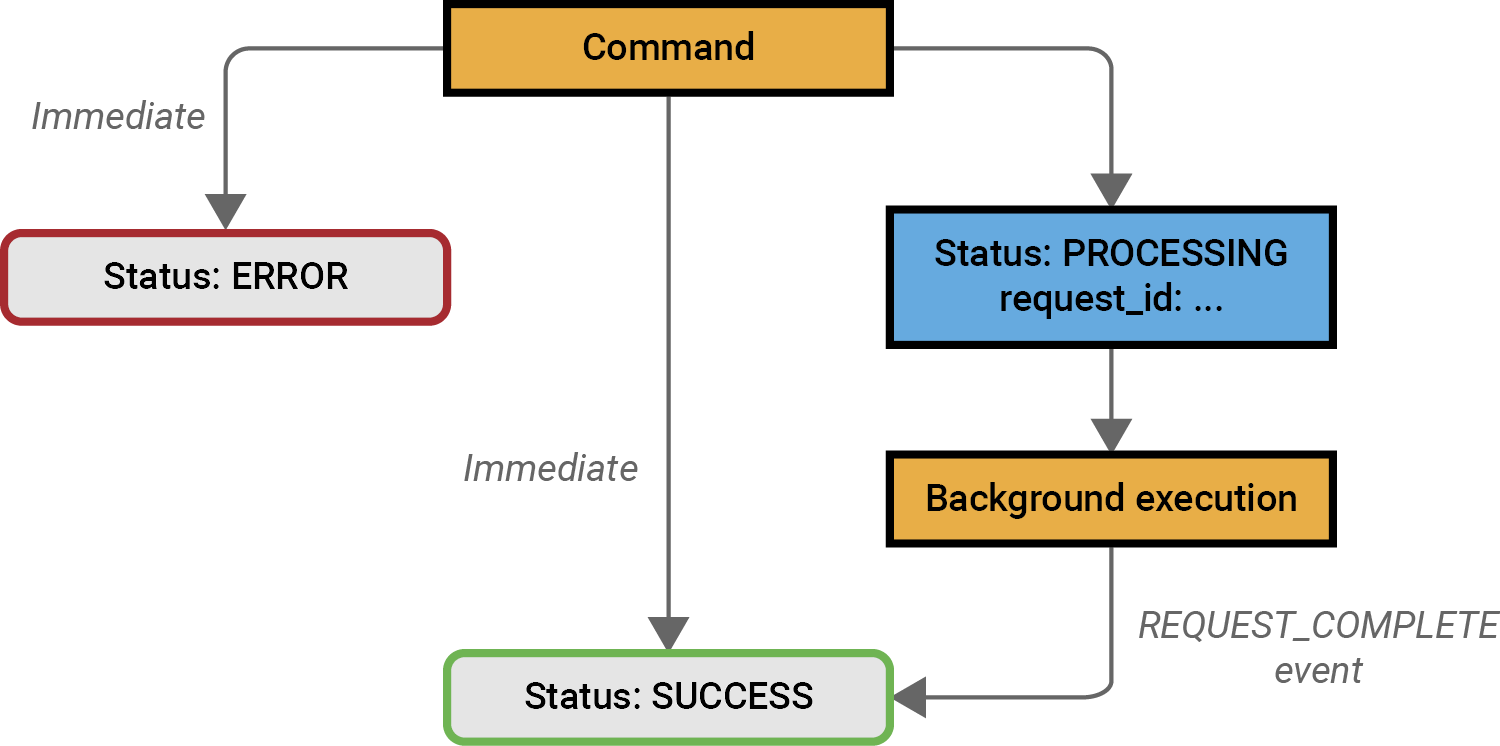
Summary of command lifecycle
7.2.3. Monitoring Command Execution
Command Syntax - REST API
»GET·http://<ip>:<port>/api/request/<request_ID>
Example - REST API
The following example illustrates confirming the successful execution of a stop command sent to a specific transmitter device.
»request-line: POST·http://169.254.11.134:8080/api/device/RX1
»body: {
» "op" : "stop",
» "stream_type" : "HDMI",
» "stream_index" : "0,
» "subscription_index" : 0
» }
»HTTP/1.1 201 Created
»Location: /api/request/85521
«status-line: {
« "status" : "PROCESSING",
« "request_id" : 85521,
« "result" : null,
« "error" : null
« }
Response example of the BlueRiver Control Server (API) for the “REQUEST_COMPLETE” event raised when stop command has completed:
»request-line: GET·http://169.254.11.134:8080/api/event?after=85528
»...
»HTTP/1.1 200 OK
»body: {
» "status" : "SUCCESS",
» "request_id" : null,
» "result" : {
» "events" : [
» {
» "device_id" : null,
» "event_id" : 85529,
» "event_type" : "REQUEST_COMPLETE",
» "timestamp" : 1462902262,
» "request_id" : 85521
» }
» ]
» },
»"error" : null
» }
»request-line: GET·http://169.254.11.134:8080/api/request/85528
»...
»HTTP/1.1 200 OK
»body: {
» "status" : "SUCCESS",
» "request_id" : 85521,
» "result" : {
» "devices" : [
» {
» "device_id" : "001ec0f03668",
» ...
» }
» ],
» "error" : []
» },
»"error" : null},
» }
7.3. Rest API HTTP Command Basics
The following table summarizes the REST API based HTTP commands and their functions.
|
Command |
Description |
|---|---|
|
GET |
The GET method requests a representation of the specified resource. Requests using GET should only retrieve data and should not contain a request content. |
|
POST |
The POST method submits an entity to the specified resource, often causing a change in state or side effects on the server. |
|
PUT |
The PUT method replaces all current representations of the target resource with the request content. |
|
DELETE |
The DELETE method deletes the specified resource. |
INFO:There are commands that immediately take effect and there are commands that need time to be executed. In case of the latter, the status PROCESSING is returned. The final status of the execution can be queried based on the request_id.
7.4.1. Restoring the Factory Default Settings
The command is used to restore the factory default settings of a single or group of devices.
Command and Response - TCI API
»factory·<device>
«{"status":"<status>","request_id":"<request_ID>","result":"<result>","error":"<error>"}
Parameters
|
Parameter |
Parameter description |
Values |
Parameter value |
|
<device> |
The name or MAC address of the transmitter or receiver |
Device name / MAC address |
|
|
ALL |
All devices |
||
|
ALL_TX |
All transmitter devices |
||
|
ALL_RX |
All receiver devices |
Example - TCI API
»factory TX1
«{"status":"PROCESSING","request_id":"155","result":"null","error":"null"}
Command and Response - REST API
»request-line: POST·http://<ip>:<port>/api/device/<device>
»body: {
» "op" : "factory",
» }
«status-line: {
« "status" : "<status>",
« "request_id" : <request_ID>,
« "result" : <result>,
« "error" : <error>
« }
Parameters
|
Parameter |
Parameter description |
Values |
Parameter value |
|
<ip> |
The IP address of the transmitter |
IP address |
|
|
<port> |
Port number |
8080 |
Port number |
|
<device> |
The name or MAC address of the transmitter or receiver |
Device name / MAC address |
|
|
ALL |
All devices |
||
|
ALL_TX |
All transmitter devices |
||
|
ALL_RX |
All receiver devices |
Example - REST API
»request-line: POST·http://169.254.11.134:8080/api/device/TX1
»body: {
» "op" : "factory",
» }
«status-line: {
« "status" : "PROCESSING",
« "request_id" : 68,
« "result" : null,
« "error" : null
« }
7.4.2. Rebooting the Endpoint Device
The command causes the target device(s) to restart. The target device(s) become unavailable for a short period of time while the restart is completed.
Command and Response - TCI API
»reboot·<device>
«{"status":"<status>","request_id":"<request_ID>","result":"<result>","error":"<error>"}
Parameters
|
Parameter |
Parameter description |
Values |
Parameter value |
|
<device> |
The name or MAC address of the transmitter or receiver |
Device name / MAC address |
|
|
ALL |
All devices |
||
|
ALL_TX |
All transmitter devices |
||
|
ALL_RX |
All receiver devices |
Example - TCI API
»reboot ALL_TX
«{"status":"PROCESSING","request_id":"368","result":"null","error":"null"}
Command and Response - REST API
»request-line: POST·http://<ip>:<port>/api/device/<device>
»body: {
» "op" : "reboot"
» }
«status-line: {
« "status" : "<status>",
« "request_id" : <request_ID>,
« "result" : <result>,
« "error" : <error>
« }
Parameters
|
Parameter |
Parameter description |
Values |
Parameter value |
|
<ip> |
The IP address of the transmitter |
IP address |
|
|
<port> |
Port number |
8080 |
Port number |
|
<device> |
The name or MAC address of the transmitter or receiver |
Device name / MAC address |
|
|
ALL |
All devices |
||
|
ALL_TX |
All transmitter devices |
||
|
ALL_RX |
All receiver devices |
Example - REST API
»request-line: POST·http://169.254.11.134:8080/api/device/ALL_TX
»body: {
» "op" : "reboot"
» }
«status-line: {
« "status" : "PROCESSING",
« "request_id" : 368,
« "result" : null,
« "error" : null
« }
The command sets the device name to a custom text.
Command and Response - TCI API
»set·<device>·property·configuration.device_name·<name>
«{"status":"<status>","request_id":"<request_ID>","result":"<result>","error":"<error>"}
Parameters
|
Parameter |
Parameter description |
Values |
Parameter value |
|
<device> |
The name or MAC address of the transmitter or receiver |
Device name / MAC address |
|
|
<name> |
Custom device name |
Example - TCI API
»set 001ec0f04d9c property configuration.device_name TX1
«{"status":"PROCESSING","request_id":"691","result":"null","error":"null"}
Command and Response - REST API
»request-line: POST·http://<ip>:<port>/api/device/<device>
»body: {
» "op" : "set:property",
» "key" : "configuration.device_name",
» "value" : "<name>"
» }
«status-line: {
« "status" : "<status>",
« "request_id" : <request_ID>,
« "result" : <result>,
« "error" : <error>
« }
Parameters
|
Parameter |
Parameter description |
Values |
Parameter value |
|
<ip> |
The IP address of the transmitter |
IP address |
|
|
<port> |
Port number |
8080 |
Port number |
|
<device> |
The name or MAC address of the transmitter or receiver |
Device name / MAC address |
|
|
<name> |
Custom device name |
Example - REST API
»request-line: POST·http://169.254.11.134:8080/api/device/ 001ec0f04d9c
»body: {
» "op" : "set:property",
» "key" : "configuration.device_name",
» "value" : "TX1"
» }
«status-line: {
« "status" : "PROCESSING",
« "request_id" : 691,
« "result" : null,
« "error" : null
« }
7.5. AV Interface Control over API
This section refers to the HDMI video and HDMI audio interfaces of the endpoint devices and describes several related control commands with examples. Two methods are described for the same task in each section:
▪TCI API - it can be applied in a terminal application, e.g. YAT
▪REST API - it can be applied in a web browser with plugins, e.g. Mozilla with RESTClient plugin
API version is required to be specified in each TCP session (not before each command sending) by sending the following command.
Command and Response
»require·blueriver_api<api_version>
«{"status":"<status>","request_id":"<request_ID>","result":"null","error":"null"}
Example
»require blueriver_api3.8.0.1
«{"status":"SUCCESS","request_id":"1501","result":"null","error":"null"}
The command option is used to set the EDID of one or more transmitter device(s). Command applies only to transmitter devices.
Command and Response - TCI API
»set·<transmitter>·edid·<data_hex>
«{"status":"<status>","request_id":"<request_ID>","result":"<result>","error":"<error>"}
Parameters
|
Parameter |
Parameter description |
Values |
Parameter value |
|
<transmitter> |
The name or MAC address of the transmitter |
Device name / MAC address |
|
|
ALL_TX |
All transmitter devices |
||
|
<data_hex> |
EDID data argument in hexadecimal string |
The data argument must be a hexadecimal string representing the binary data to set. Its length must be 512 hexadecimal characters (for example, data length must be 256 bytes). |
Example - TCI API
»set TX1 edid 00ffffffffffff00410c2fc0c52d00000c140103802f1a782e3585a656489a241250 542f6f00714f8180818a9500950fb3000101d1c0023a801871382d40582c4500dc0c 1100001e000000ff0041553531303132303131373137000000fd00384c1e5315000a 202020202020000000fc005068696c69707320323231450a01b602031ef04b100501 020304061213141f230907078301000065030c001100023a801871382d40582c4500 dc0c1100001e8c0ad08a20e02d10103e9600dc0c11000018011d007251d01e206e28 5500dc0c1100001e8c0ad090204031200c405500dc0c110000180000000000000000 0000000000000000000000000000000000ac
«{"status":"PROCESSING","request_id":"5698","result":"null","error":"null"}
Command and Response - REST API
»request-line: POST·http://<ip>:<port>/api/device/<transmitter>
»body: {
» "op" : "set:edid",
» "data_hex" : <data_hex>
» }
«status-line: {
« "status" : "<status>",
« "request_id" : <request_ID>,
« "result" : <result>,
« "error" : <error>
« }
Parameters
|
Parameter |
Parameter description |
Values |
Parameter value |
|
<ip> |
The IP address of the transmitter |
IP address |
|
|
<port> |
Port number |
8080 |
Port number |
|
<device> |
The name or MAC address of the transmitter or receiver |
Device name / MAC address |
|
|
ALL_TX |
All transmitter devices |
||
|
<data_hex> |
EDID data argument in hexadecimal string |
The data argument must be a hexadecimal string representing the binary data to set. Its length must be 512 hexadecimal characters (for example, data length must be 256 bytes). |
Example - REST API
»request-line: POST·http://169.254.11.134:8080/api/device/TX1
»body: {
» "op" : "set:edid",
» "data_hex" : 00ffffffffffff00410c2fc0c52d00000c140103802f1a782e3585a656489a241250 542f6f00714f8180818a9500950fb3000101d1c0023a801871382d40582c4500dc0c 1100001e000000ff0041553531303132303131373137000000fd00384c1e5315000a 202020202020000000fc005068696c69707320323231450a01b602031ef04b100501 020304061213141f230907078301000065030c001100023a801871382d40582c4500 dc0c1100001e8c0ad08a20e02d10103e9600dc0c11000018011d007251d01e206e28 5500dc0c1100001e8c0ad090204031200c405500dc0c110000180000000000000000 0000000000000000000000000000000000ac
» }
«status-line: {
« "status" : "PROCESSING",
« "request_id" : 368,
« "result" : null,
« "error" : null
« }
DIFFERENCE:Only HDMI-TPX-RX107A-SR and HDMI-TPX-RX107AU2K-SR receiver models have integrated scaler function.
INFO:Learn more about the scaler modes of the -SR series endpoint devices in the Scaler Function of the Receiver section.
The command sets the scaler mode of the -SR series receiver.
Command and Response - TCI API
»set·<receiver>·video·<scaling_mode>
«{"status":"<status>","request_id":"<request_ID>","result":"<result>","error":"<error>"}
Parameters
|
Parameter |
Parameter description |
Values |
Parameter value |
|
<receiver> |
The name or MAC address of the receiver |
Device name / MAC address |
|
|
ALL_RX |
All receiver devices |
||
|
<scaling_mode> |
Scaling mode of the receiver |
genlock |
Genlock |
|
genlock_scaling |
Genlock scaling |
||
|
fastswitch |
Fast switch |
||
|
wall |
Wall (Genlock Wall) |
||
|
wall_fs |
Wall FS (Fastswitch Wall) |
Example - TCI API
»set RX2 video genlock_scaling
«{"status":"PROCESSING","request_id":"1661","result":"null","error":"null"}
Command and Response - REST API
»request-line: POST·http://<ip>:<port>/api/device/<receiver>
»body: {
» "op" : "set:video",
» "display_mode" : "<scaling_mode>",
» }
«status-line: {
« "status" : "<status>",
« "request_id" : <request_ID>,
« "result" : <result>,
« "error" : <error>
« }
Parameters
|
Parameter |
Parameter description |
Values |
Parameter value |
|
<ip> |
The IP address of the transmitter |
IP address |
|
|
<port> |
Port number |
8080 |
Port number |
|
<receiver> |
The name or MAC address of the receiver |
Device name / MAC address |
|
|
ALL_RX |
All receiver devices |
||
|
<scaling_mode> |
Scaling mode of the receiver |
genlock |
Genlock |
|
genlock_scaling |
Genlock scaling |
||
|
fastswitch |
Fast switch |
||
|
wall |
Wall (Genlock Wall) |
||
|
wall_fs |
Wall FS(Fastswitch Wall) |
Example - REST API
»request-line: POST·http://169.254.11.134:8080/api/device/RX2
»body: {
» "op" : "set:video",
» "display_mode" : "genlock_scaling",
» }
«status-line: {
« "status" : "PROCESSING",
« "request_id" : 1661,
« "result" : null,
« "error" : null
« }
7.5.4. Scaler Parameter Settings
DIFFERENCE:Only HDMI-TPX-RX107A-SR and HDMI-TPX-RX107AU2K-SR receiver models have integrated scaler function.
INFO:Learn more about the scaler modes of the -SR series endpoint devices in the Scaler Function of the Receiver section.
Command and Response - TCI API
»set·<receiver>·video·<scaling_mode>·size·<horizontal_pixels>·<vertical_pixels>·fps·<fps>
«{"status":"<status>","request_id":"<request_ID>","result":"<result>","error":"<error>"}
Parameters
|
Parameter |
Parameter description |
Values |
Parameter value |
|
<receiver> |
The name or MAC address of the receiver |
Device name / MAC address |
|
|
ALL_RX |
All receiver devices |
||
|
<scaling_mode> |
Scaling mode of the receiver |
genlock |
Genlock |
|
genlock_scaling |
Genlock scaling |
||
|
fastswitch |
Fast switch |
||
|
wall |
Wall (Genlock Wall) |
||
|
wall_fs |
Wall FS(Fastswitch Wall) |
||
|
<horizontal_pixels> |
Horizontal pixels of the display |
||
|
<vertical_pixels> |
Vertical pixels of the display |
||
|
<fps> |
Refresh rate (frame per second) |
Example - TCI API
»set RX2 video fastswitch size 1920 1080 fps 60
«{"status":"PROCESSING","request_id":"68","result":"null","error":"null"}
Command and Response - REST API
»request-line: POST·http://<ip>:<port>/api/device/<receiver>
»body: {
» "op" : "set:video",
» "display_mode" : "<scaling_mode>",
» "video" : {
» "width" : <horizontal_pixels>,
» "height" : <vertical_pixels>,
» "fps" : <fps>
» }
» }
«status-line: {
« "status" : "<status>",
« "request_id" : <request_ID>,
« "result" : <result>,
« "error" : <error>
« }
Parameters
|
Parameter |
Parameter description |
Values |
Parameter value |
|
<ip> |
The IP address of the transmitter |
IP address |
|
|
<port> |
Port number |
8080 |
Port number |
|
<receiver> |
The name or MAC address of the receiver |
Device name / MAC address |
|
|
ALL_RX |
All receiver devices |
||
|
<scaling_mode> |
Scaling mode of the receiver |
genlock |
Genlock |
|
genlock_scaling |
Genlock scaling |
||
|
fastswitch |
Fast switch |
||
|
wall |
Wall (Genlock Wall) |
||
|
wall_fs |
Wall FS(Fastswitch Wall) |
||
|
<horizontal_pixels> |
Horizontal pixels of the display |
||
|
<vertical_pixels> |
Vertical pixels of the display |
||
|
<fps> |
Refresh rate (frame per second) |
Example - REST API
»request-line: POST·http://169.254.11.134:8080/api/device/RX2
»body: {
» "op" : "set:video",
» "display_mode" : "fastswitch",
» "video" : {
» "width" : 1920,
» "height" : 1080,
» "fps" : 60
» }
» }
«status-line: {
« "status" : "PROCESSING",
« "request_id" : 68,
« "result" : null,
« "error" : null
« }
7.6. Icron USB Interface Control over API
DIFFERENCE:The Icron USB 2.0 module of the LARA can be applied to the -U2K series TPX and OPTX extenders and USB20 series extenders only. #kvm #usbkvm #icron
ATTENTION!The Icron interface within the TPX/OPTX devices can only be controlled through the SDVoE protocol if Icron control is enabled in the SDVoE settings.
This section refers to the Icron USB 2.0 interfaces of the endpoint devices and describes several related control commands with examples. Two methods are described for the same task in each section:
▪TCI API - it can be applied in a terminal application, e.g. YAT
▪REST API - it can be applied in a web browser with plugins, e.g. Mozilla with RESTClient plugin
API version is required to be specified in each TCP session (not before each command sending) by sending the following command.
Command and Response
»require·blueriver_api<api_version>
«{"status":"<status>","request_id":"<request_ID>","result":"null","error":"null"}
Example
»require blueriver_api3.8.0.1
«{"status":"SUCCESS","request_id":"1501","result":"null","error":"null"}
7.6.2. Pairing the Devices - SUI Mode
DIFFERENCE:The following commands belong to the setting of SUI mode for LEX and REX devices only. If the devices are in MSA mode, see the Pairing the Devices - MSA Mode section for pairing.
DEFINITION:SUI mode: Simultaneous Users Interaction. This mode allows a single USB tier to be presented to the connected device.
The command pairs a LEX (transmitter) to a REX (receiver). The command is required to be called twice, transmitter to receiver and receiver to transmitter as well.
Command and Response - TCI API
»icron·<transmitter>·pair·<receiver>\r
«{"status":"<status>","request_id":"<request_ID>","result":"<result>","error":"<error>"}
»icron·<receiver>·pair·<transmitter>\r
«{"status":"<status>","request_id":"<request_ID>","result":"<result>","error":"<error>"}
Parameters
|
Parameter |
Parameter description |
Values |
Parameter value |
|
<transmitter> |
The name or MAC address of the transmitter |
Device name / MAC address |
|
|
<receiver> |
The name or MAC address of the receiver |
Device name / MAC address |
Example - TCI API
»icron TX1 pair RX1\r
«{"status":"PROCESSING","request_id":"2336","result":"null","error":"null"}
»icron RX1 pair TX1\r
«{"status":"PROCESSING","request_id":"2337","result":"null","error":"null"}
7.6.3. Unpairing One Device - SUI Mode
DIFFERENCE:The following commands belong to the setting of SUI mode for LEX and REX devices only. If the devices are in MSA mode, see the Pairing the Devices - MSA Mode section for pairing.
DEFINITION:SUI mode: Simultaneous Users Interaction. This mode allows a single USB tier to be presented to the connected device.
The command disconnects a LEX (transmitter) to a REX (receiver). The command is required to be called twice, transmitter to receiver and receiver to transmitter as well.
Command and Response - TCI API
»icron·<transmitter>·unpair·<receiver>\r
«{"status":"<status>","request_id":"<request_ID>","result":"<result>","error":"<error>"}
»icron·<receiver>·unpair·<transmitter>\r
«{"status":"<status>","request_id":"<request_ID>","result":"<result>","error":"<error>"}
Parameters
|
Parameter |
Parameter description |
Values |
Parameter value |
|
<transmitter> |
The name or MAC address of the transmitter |
Device name / MAC address |
|
|
<receiver> |
The name or MAC address of the receiver |
Device name / MAC address |
Example - TCI API
»icron TX1 unpair RX1\r
«{"status":"PROCESSING","request_id":"2336","result":"null","error":"null"}
»icron RX1 unpair TX1\r
«{"status":"PROCESSING","request_id":"2337","result":"null","error":"null"}
7.6.4. Unpairing All Devices - SUI Mode
DIFFERENCE:The following commands belong to the setting of SUI mode for LEX and REX devices only. If the devices are in MSA mode, see the Pairing the Devices - MSA Mode section for pairing.
DEFINITION:SUI mode: Simultaneous Users Interaction. This mode allows a single USB tier to be presented to the connected device.
The command removes all Icron pairings from the selected device.
Command and Response - TCI API
»icron·<device>·unpair\r
«{"status":"<status>","request_id":"<request_ID>","result":"<result>","error":"<error>"}
Parameters
|
Parameter |
Parameter description |
Values |
Parameter value |
|
<device> |
The name or MAC address of the transmitter or receiver |
Device name / MAC address |
Example - TCI API
»icron RX1 unpair\r
«{"status":"PROCESSING","request_id":"2336","result":"null","error":"null"}
7.6.5. Pairing the Devices - MSA Mode
DIFFERENCE:The following commands belong to the setting of MSA mode for LEX and REX devices only. If the devices are in SUI mode, see the Pairing the Devices - SUI Mode section for pairing.
DEFINITION:MSA mode: Mass Storage Acceleration. This mode allows the connected device to see the USB devices connected to the extender as multiple, separate USB tiers.
The command pairs a LEX (transmitter) to one or multiple REXs (receiver(s)). The command is required to be called twice, transmitter to receiver and receiver to transmitter as well.
Command and Response - TCI API
»switch·<transmitter>:USB_ICRON:0·<receiver>:USB_ICRON:0
«{"status":"<status>","request_id":"<request_ID>","result":"<result>","error":"<error>"}
»switch·<receiver>:USB_ICRON:0·<transmitter>:USB_ICRON:0
«{"status":"<status>","request_id":"<request_ID>","result":"<result>","error":"<error>"}
Parameters
|
Parameter |
Parameter description |
Values |
Parameter value |
|
<transmitter> |
The name or MAC address of the transmitter |
Device name / MAC address |
|
|
<receiver> |
The name or MAC address of the receiver |
Device name / MAC address |
|
|
ALL_RX |
All REX (receiver) devices |
Example - TCI API
»switch TX1:USB_ICRON:0 RX1:USB_ICRON:0
«{"status":"PROCESSING","request_id":"2336","result":"null","error":"null"}
»switch RX1:USB_ICRON:0 TX1:USB_ICRON:0
«{"status":"PROCESSING","request_id":"2337","result":"null","error":"null"}
Command and Response - REST API
»request-line: POST·http://<ip>:<port>/api/device/<transmitter>
»body: {
» "op" : "switch:device",
» "stream_type" : "USB_ICRON",
» "stream_index" : "0,
» "dest_device" : "<receiver>",
» "subscription_index" : 0
» }
«status-line: {
« "status" : "<status>",
« "request_id" : <request_ID>,
« "result" : <result>,
« "error" : <error>
« }
»request-line: POST·http://<ip>:<port>/api/device/<receiver>
»body: {
» "op" : "switch:device",
» "stream_type" : "USB_ICRON",
» "stream_index" : "0,
» "dest_device" : "<transmitter>",
» "subscription_index" : 0
» }
«status-line: {
« "status" : "<status>",
« "request_id" : <request_ID>,
« "result" : <result>,
« "error" : <error>
« }
Parameters
|
Parameter |
Parameter description |
Values |
Parameter value |
|
<ip> |
The IP address of the transmitter |
IP address |
|
|
<port> |
Port number |
8080 |
Port number |
|
<transmitter> |
The name or MAC address of the transmitter |
Device name / MAC address |
|
|
<receiver> |
The name or MAC address of the receiver |
Device name / MAC address |
|
|
ALL_RX |
All REX (receiver) devices |
Example - REST API
»request-line: POST·http://169.254.11.134:8080/api/device/TX1
»body: {
» "op" : "switch:device",
» "stream_type" : "USB_ICRON",
» "stream_index" : "0,
» "dest_device" : "RX1",
» "subscription_index" : 0
» }
«status-line: {
« "status" : "PROCESSING",
« "request_id" : 2336,
« "result" : null,
« "error" : null
« }
»request-line: POST·http://169.254.11.134:8080/api/device/RX1
»body: {
» "op" : "switch:device",
» "stream_type" : "USB_ICRON",
» "stream_index" : "0,
» "dest_device" : "TX1",
» "subscription_index" : 0
» }
«status-line: {
« "status" : "PROCESSING",
« "request_id" : 2337,
« "result" : null,
« "error" : null
« }
7.6.6. Setting the USB HID Mode
The command is used to configure a device(s) to serve as USB HID extender(s) and stop any active USB HID streams.
Command and Response - TCI API
»set·<transmitter>·usb·role·<usb_hid_mode>
«{"status":"<status>","request_id":"<request_ID>","result":"<result>","error":"<error>"}
Parameters
|
Parameter |
Parameter description |
Values |
Parameter value |
|
<transmitter> |
The name or MAC address of the receiver |
Device name / MAC address |
|
|
ALL_TX |
All LEX (transmitter) devices |
||
|
<usb_hid_mode> |
USB HID mode of the LEX |
DISABLED |
USB HID support is disabled |
|
OTG |
The device automatically detects the type of the connected USB HID device and sets its role to LOCAL or REMOTE accordingly. |
||
|
LOCAL |
The device acts as a USB device that connects to a USB host (e.g. a PC). |
||
|
REMOTE |
The device acts as a USB host to which USB HID devices are connected (keyboard, mouse, etc.) |
Example - TCI API
»set TX1 usb role local
«{"status":"PROCESSING","request_id":"1059","result":"null","error":"null"}
Command and Response - REST API
»request-line: POST·http://<ip>:<port>/api/device/<transmitter>
»body: {
» "op" : "set:usb",
» "role" : <usb_hid_mode>
» }
«status-line: {
« "status" : "<status>",
« "request_id" : <request_ID>,
« "result" : <result>,
« "error" : <error>
« }
Parameters
|
Parameter |
Parameter description |
Values |
Parameter value |
|
<ip> |
The IP address of the transmitter |
IP address |
|
|
<port> |
Port number |
8080 |
Port number |
|
<transmitter> |
The name or MAC address of the receiver |
Device name / MAC address |
|
|
ALL_TX |
All LEX (transmitter) devices |
||
|
<usb_hid_mode> |
USB HID mode of the LEX |
DISABLED |
USB HID support is disabled |
|
OTG |
The device automatically detects the type of the connected USB HID device and sets its role to LOCAL or REMOTE accordingly. |
||
|
LOCAL |
The device acts as a USB device that connects to a USB host (e.g. a PC). |
||
|
REMOTE |
The device acts as a USB host to which USB HID devices are connected (keyboard, mouse, etc.) |
Example - REST API
»request-line: POST·http://169.254.11.134:8080/api/device/TX1
»body: {
» "op" : "set:usb",
» "role" : LOCAL
» }
«status-line: {
« "status" : "PROCESSING",
« "request_id" : 1059,
« "result" : null,
« "error" : null
« }
This section refers to the Ethernet interface of the extenders and describes several related control commands with examples. Two methods are described for the same task in each section:
▪TCI API - it can be applied in a terminal application, e.g. YAT
▪REST API - it can be applied in a web browser with plugins, e.g. Mozilla with RESTClient plugin
API version is required to be specified in each TCP session (not before each command sending) by sending the following command.
Command and Response
»require·blueriver_api<api_version>
«{"status":"<status>","request_id":"<request_ID>","result":"null","error":"null"}
Example
»require blueriver_api3.8.0.1
«{"status":"SUCCESS","request_id":"1501","result":"null","error":"null"}
7.7.2. IP Configuration Mode Setting
The command is for setting the network mode of the device to dynamic (DHCP) or static IP address.
Command and Response - TCI API
»set·<device>·ip mode·<ip_mode>
«{"status":"<status>","request_id":"<request_ID>","result":"<result>","error":"<error>"}
Parameters
|
Parameter |
Parameter description |
Values |
Parameter value |
|
<device> |
The name or MAC address of the receiver |
Device name / MAC address |
|
|
ALL |
All devices |
||
|
ALL_RX |
All receiver devices |
||
|
ALL_TX |
All transmitter devices |
||
|
<ip_mode> |
IP configuration mode |
DHCP |
For automatic configuration using a DHCP server (with fallback on auto-IP). |
|
MANUAL |
For static IP configuration. |
Example - TCI API
»set RX2 ip mode dhcp
«{"status":"PROCESSING","request_id":"12","result":"null","error":"null"}
Command and Response - REST API
»request-line: POST·http://<ip>:<port>/api/device/<device>
»body: {
» "op" : "set:ip:<ip_mode>,
» }
«status-line: {
« "status" : <status>,
« "request_id" : <request_ID>,
« "result" : <result>,
« "error" : <error>
« }
Parameters
|
Parameter |
Parameter description |
Values |
Parameter value |
|
<device> |
The name or MAC address of the receiver |
Device name / MAC address |
|
|
ALL |
All devices |
||
|
ALL_RX |
All receiver devices |
||
|
ALL_TX |
All transmitter devices |
||
|
<ip_mode> |
IP configuration mode |
DHCP |
For automatic configuration using a DHCP server (with fallback on auto-IP). |
|
MANUAL |
For static IP configuration. |
Example - REST API
»request-line: POST·http://169.254.11.134:8080/api/device/RX2
»body: {
» "op" : "set:ip:dhcp",
» }
«status-line: {
« "status" : "PROCESSING",
« "request_id" : 12
« "result" : null,
« "error" : null
« }
The command is for setting the parameters of the network interface in case of static IP address setting, e.g. IP address, subnet network and gateway address.
Command and Response - TCI API
»set·<device>·ip mode·<ip_mode>·address·<ip_address>·mask·<network_mask>·gateway·<gateway>
«{"status":"<status>","request_id":"<request_ID>","result":"<result>","error":"<error>"}
Parameters
|
Parameter |
Parameter description |
Values |
Parameter value |
|
<device> |
The name or MAC address of the receiver |
Device name / MAC address |
|
|
ALL |
All devices |
||
|
ALL_RX |
All receiver devices |
||
|
ALL_TX |
All transmitter devices |
||
|
<ip_mode> |
IP configuration mode |
MANUAL |
For static IP configuration. |
|
<ip_address> |
Static IP address |
||
|
<network_mask> |
Network mask |
||
|
<gateway> |
Gateway address |
Example - TCI API
»set TX1 ip mode manual address 192.168.0.123 mask 255.255.255.0 gateway 192.168.0.1
«{"status":"PROCESSING","request_id":"125","result":"null","error":"null"}
Command and Response - REST API
»request-line: POST·http://<ip>:<port>/api/device/<device>
»body: {
» "op" : "set:ip:<ip_mode>,
» "address" : <ip_address>,
» "mask" : <subnet_mask>,
» "gateway" : <gateway>
» }
«status-line: {
« "status" : "<status>",
« "request_id" : <request_ID>,
« "result" : <result>,
« "error" : <error>
« }
Parameters
|
Parameter |
Parameter description |
Values |
Parameter value |
|
<device> |
The name or MAC address of the receiver |
Device name / MAC address |
|
|
ALL |
All devices |
||
|
ALL_RX |
All receiver devices |
||
|
ALL_TX |
All transmitter devices |
||
|
<ip_mode> |
IP configuration mode |
MANUAL |
For static IP configuration. |
|
<ip_address> |
Static IP address |
||
|
<network_mask> |
Network mask |
||
|
<gateway> |
Gateway address |
Example - REST API
»request-line: POST·http://169.254.11.134:8080/api/device/RX2
»body: {
» "op" : "set:ip:dhcp",
» "address" : "192.168.0.123",
» "mask" : "255.255.255.0",
» "gateway" : "192.168.0.1"
» }
«status-line: {
« "status" : "PROCESSING",
« "request_id" : 125,
« "result" : null,
« "error" : null
« }
This chapter is meant to help customers perform firmware updates on our products by giving a few tips on how to start and by explaining the features of the Lightware Device Updater v2 (LDU2) software. The latest software and firmware pack can be downloaded from www.lightware.com.
ATTENTION!While the firmware is being updated, the normal operation mode is suspended, as the device is switched to bootload mode. Signal processing is not performed. Do not interrupt the firmware update. If any problem occurs, reboot the device and restart the process.

Lightware Device Updater v2 (LDU2) software is the second generation of the LFP-based (Lightware Firmware Package) firmware update process. #update #firmwareupdate
The devices can be updated over Ethernet or TPX/OPTX interface.
If you want to update the firmware of one or more devices, you need the following:
▪LFP2 file,
▪LDU2 software installed on your PC or Mac.
Both can be downloaded from www.lightware.com.
Optionally, you can download the release notes file in HTML format.
8.2.1. Reserved Ports of the SDVoE Control Server
If the BlueRiver AV Manager and the SDVoE Control Server is installed, several ports are reserved by the software, see the complete list of the reserved ports in the Applied Network Ports section.
ATTENTION!If the following ports are opened, the LDU2 cannot discover the TPX/OPTX series devices. Lightware recommends stopping these services until the firmware updating is completed.
![[Alt text was not generated.]](UM-web-resources/image/TaskManager_BlueRiverPorts.png)
8.2.2. About the Firmware Package (LFP2 File)
All the necessary tools and binary files are packed into the LFP2 package file. You only need this file to do the update on your device.
▪This allows the use of the same LFP2 package for different devices.
▪The package contains all the necessary components, binary, and other files.
▪The release notes is included in the LFP2 file, and is displayed in the window where you select the firmware package file in LDU2.
ATTENTION!Minimum system requirement: 2 GB RAM. The minimum display resolution is 1600x900.
INFO:The Windows and the Mac applications have the same look and functionality.

Download the software from www.lightware.com.
Installation in case of Windows OS
Run the installer. If the User Account Control displays a pop-up message, click Yes.
Installation Modes
|
Normal install |
Snapshot install |
|
Available for Windows, macOS and Linux |
Available for Windows |
|
The installer can update only this instance |
Cannot be updated |
|
One updateable instance may exist for all users |
Many different versions can be installed for all users |
ATTENTION!Using the default Normal install is highly recommended.
INFO:If you have a previously installed version, you will be prompted to remove the old version before installing the new one.
Installation in case of macOS

Mount the DMG file by double clicking on it, and drag the LDU2 icon over the Applications icon to copy the program into the Applications folder. If you want to copy LDU2 into another location, just drag the icon over the desired folder.
ATTENTION!Please check the firewall settings on the macOS device. LDC needs to be added to the exeptions of the blocked softwares for the proper operation.
INFO:This type of installer is equal to the Normal install on Windows.
Installation in case of Linux

Step 1.Download the archive file (tar.gz) from www.lightware.com and unpack it to a temp folder.
Step 2.Run the install_ldu2.sh file in the temp folder. The script will install LDU2 into the following folder: HOME/.local/share/lightware/ldu2.
Step 3.The folder above will contain this file: LightwareDeviceUpdaterV2.sh, which can be used to start LDU2.
You have two options:
▪Starting the LDU2 by double-clicking on the shortcut/program file, or
▪Double-clicking on an LFP2 file.
LDU2 Auto-Update
At startup, the software checks if a newer version is available on the web.
Main Screen

When the software is started by the shortcut, the device discovery screen appears. Press the Discover devices button to start finding the Lightware devices:
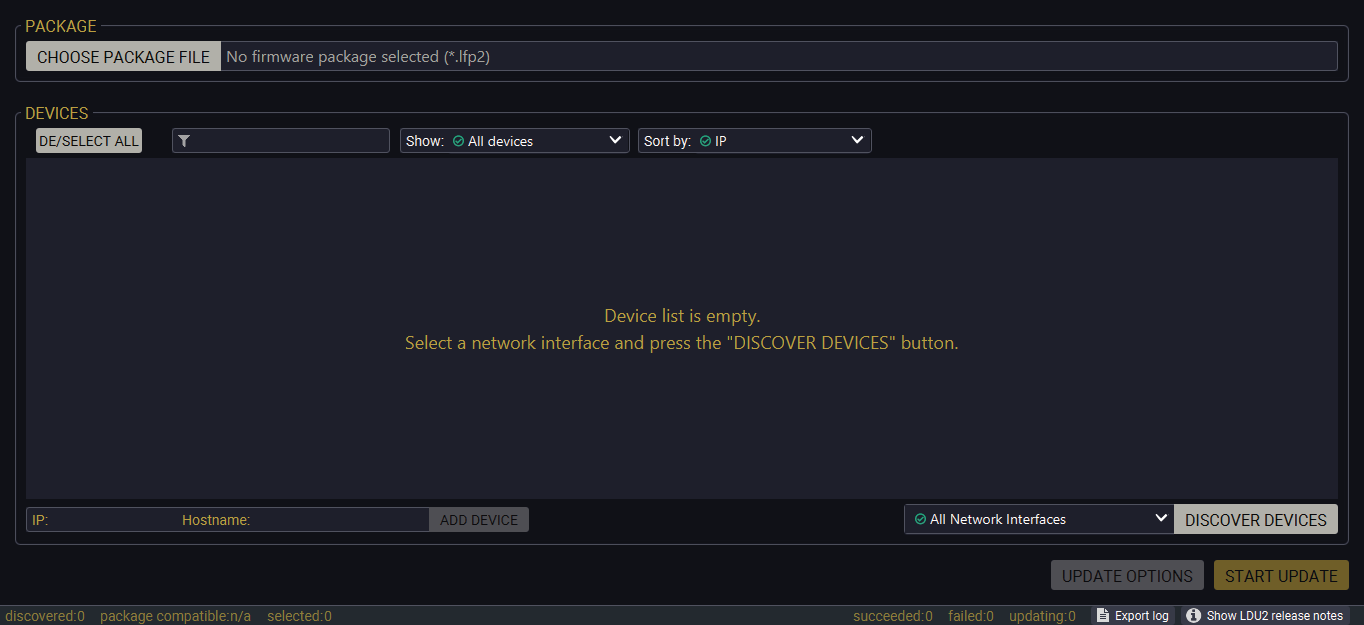
If you start the software by double-clicking on the LFP2 file, the firmware will be loaded. Press the Discover devices button; all the devices will be listed that are compatible with the selected firmware pack.
INFO:If you press the Choose package file button, the release notes of the LFP2 file will be displayed in the right panel; see the Step 1. Select the Firmware Package section.
Device List
When the discovery has completed, the devices available on the network are listed in the application.
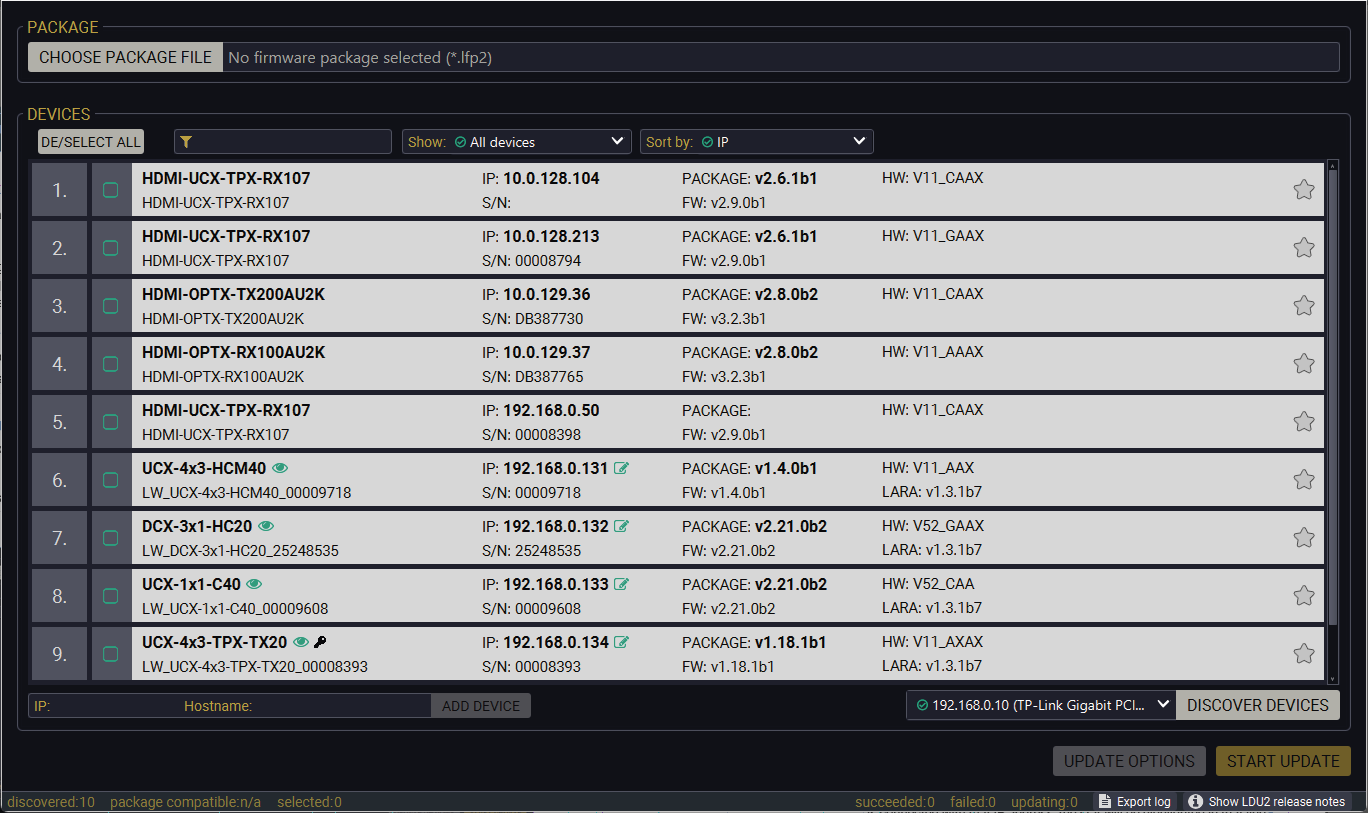
If the desired device is not discovered, you can add it by typing the IP address or the host name in the dedicated field and pressing the Add device button.
ATTENTION!If the device cannot be added by the hostname, please use the IP address.
Legend of the Icons
|
|
IP address editor |
The IP address of the device can be changed in the pop-up window. |
|
|
Identify me |
Clicking on the icon results in the front panel LEDs blinking for 10 seconds, which helps to identify the device phisically. |
|
|
Favorite device |
The device has been marked, thus the IP address is stored. When a device is connected with that IP address, the star will be highlighted in that line. |
|
|
Further information available |
Device is unreachable. Change the IP address by pressing the IP address editor icon or use the front panel buttons (if available). |

|
Service mode |
The device is in bootload mode. Backup and restore cannot be performed in this case. |
Step 1. Select the Firmware Package
Click on the Choose Firmware Package button and navigate to the location where the LFP2 file of the device is saved. When you click on the name of package, the preview of the release notes is displayed on the right side.
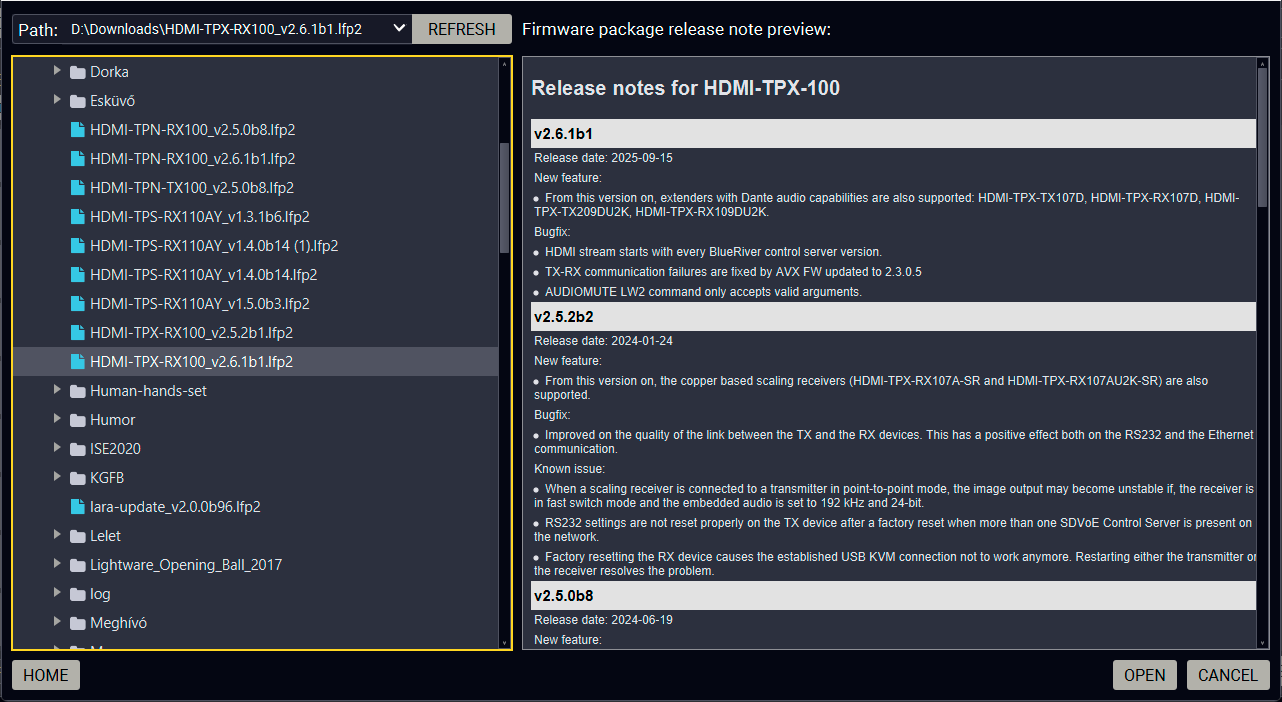
Firmware file browser and the release notes window
After the package file is loaded, the list is filtered to show compatible devices only. The current firmware version of the device is highlighted in orange if it is different from the version of the package loaded.
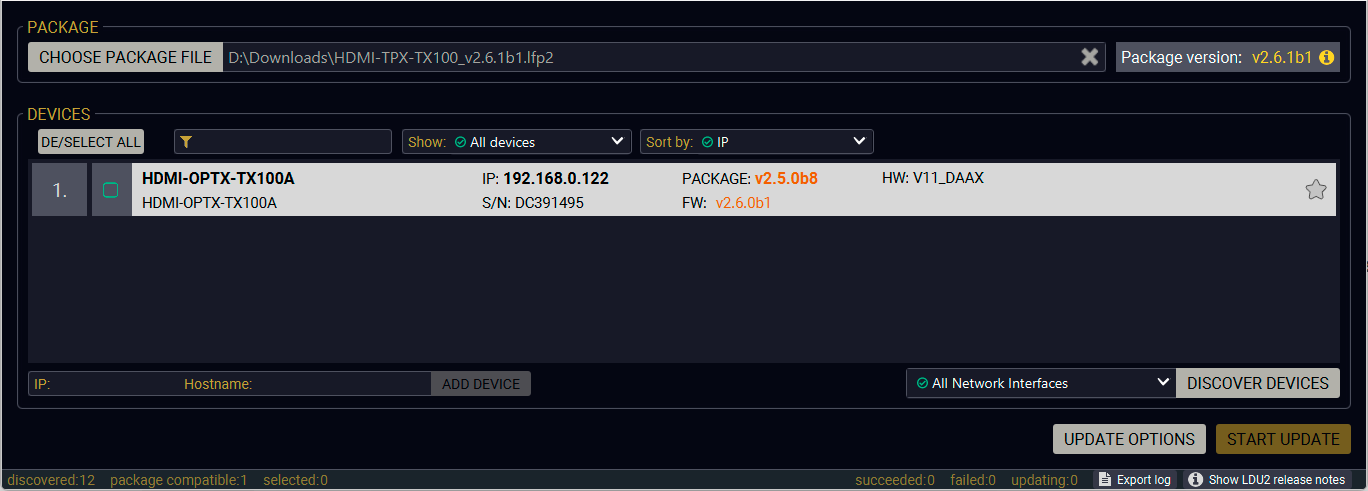
Filtered device list based on the selected firmware package
Step 2. Select the Device for Updating
Pick the device(s) for updating. The selected line will be highlighted in green.
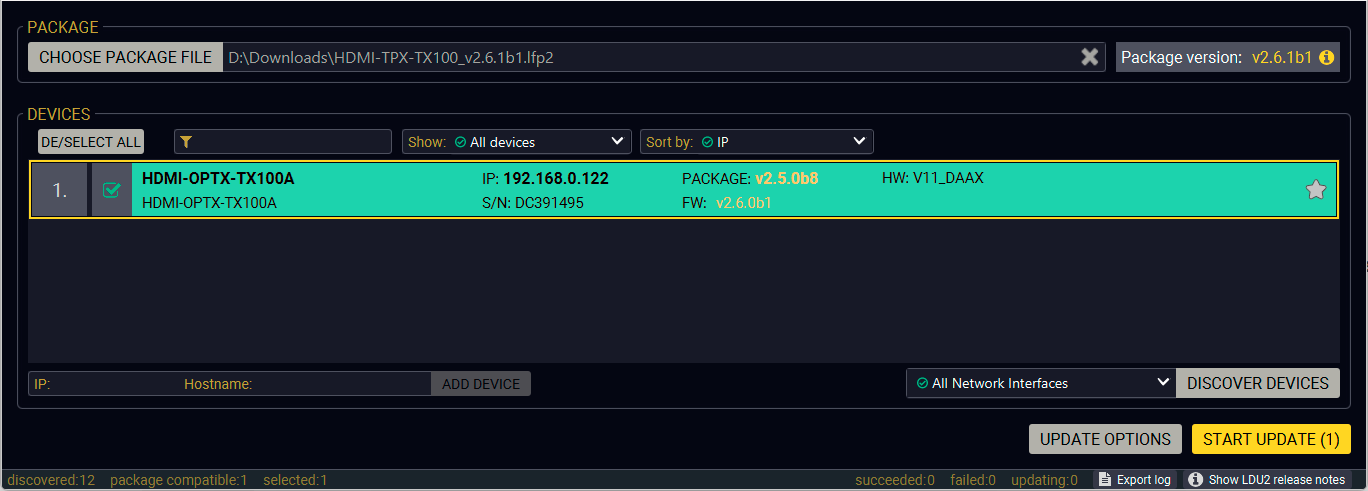
The unit is selected for updating
Step 3. Check the Update Options.
ATTENTION!The default settings in the Parameters window should be fine for most cases. Please do not modify them if it is not necessary.

Click on the Parameters button to configure the firmware update.
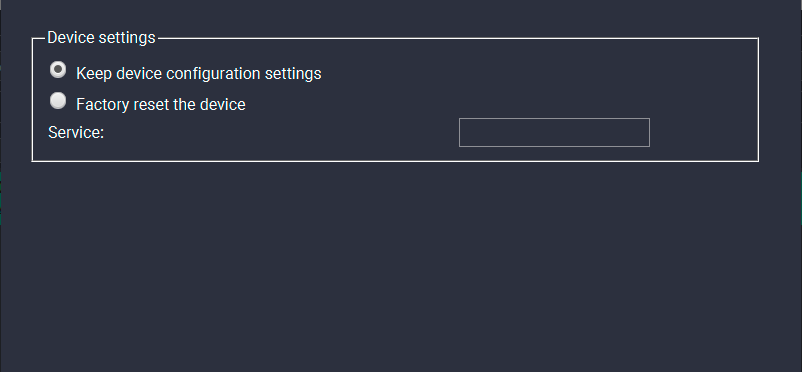
Parameters menu for the endpoint devices
Device Configuration Settings
▪Keep the configuration settings: the configuration settings of the endpoint will be restored after the firmware update.
▪Factory reset the device: if it is checked, all user settings and parameters will be cleared and the factory default settings will be applied to the device when the update is done.
Press the Apply button to finish the Update Options.
Step 4. Start the Update and Wait until It is Finished.
Click on the Start Update button to start the procedure.
The status is shown in percent in the right side of the device line and the status of all of the procedures is shown in the lower light green progress bar.
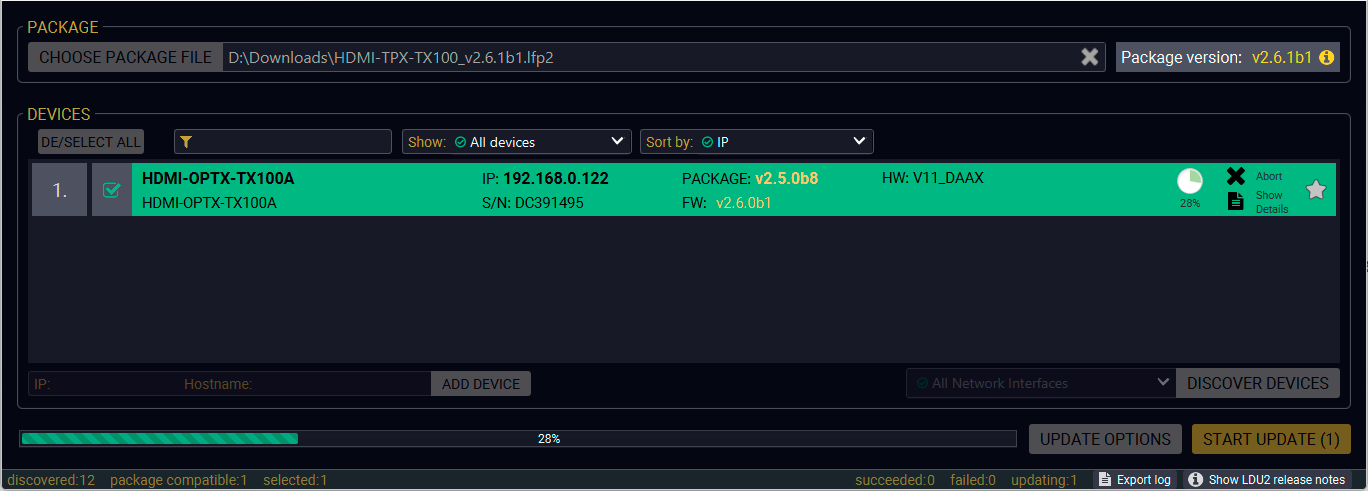
Firmware update is in progress
INFO:The device might reboot several times during the firmware update procedure.
Step 5. Wait until the Unit Reboots with the New Firmware.
Once the firmware update procedure is completed, the unit reboots with the new firmware.
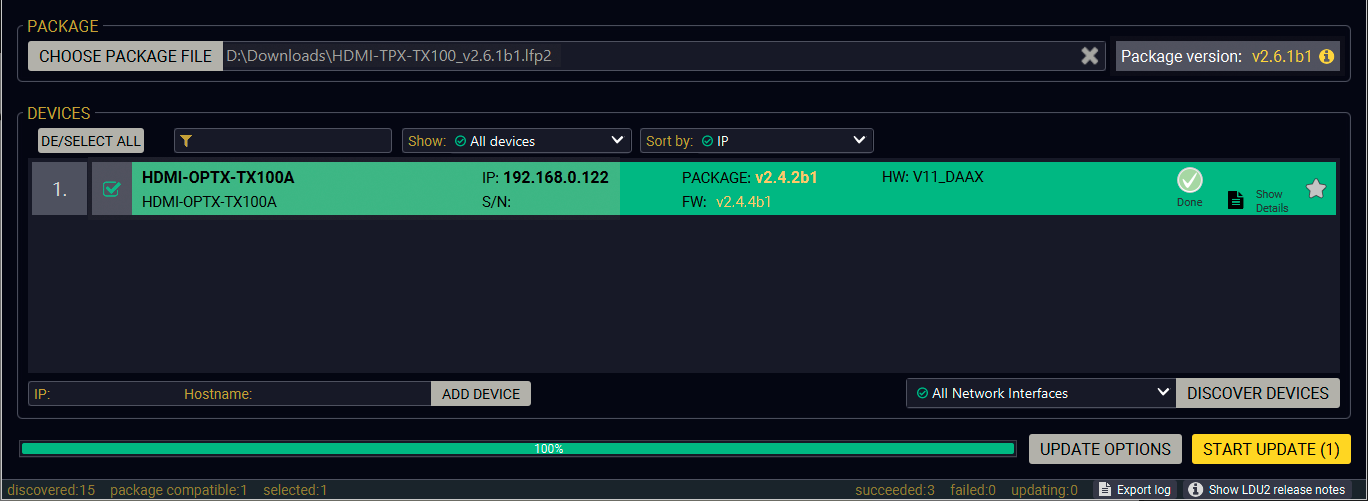
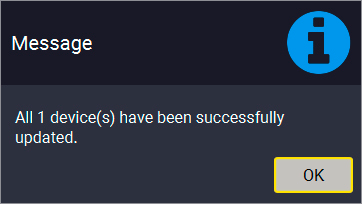
Firmware update procedure is done
8.5. Command Line Interface (CLI)
DIFFERENCE:The Command Line Interface is available from LDU2 v2.9.0b9.
The CLI of the LDU2 software is a simple tool for creating scriptable device updates without the need of human interactions. It allows batch updating just like in case of GUI usage.
Running under Windows® OS
The installer of LDU2 puts the following file into the installation folder:
LightwareDeviceUpdaterV2_CLI.cmd
CLI is available via this file, the exe is not suitable for that purpose. Open a command line window to execute or test the features directly.
Step 1.Open an Explorer window where the cmd file is located, the default is:
c:\Program Files (x86)\Lightware\Lightware Device Updater V2\LightwareDeviceUpdaterV2_CLI.cmd.
Step 2.Click on the address line (highlighted in blue in the picture), type cmd.exe and press enter. The command interpreter window of Windows is opened at the path of the LDU2 install folder.
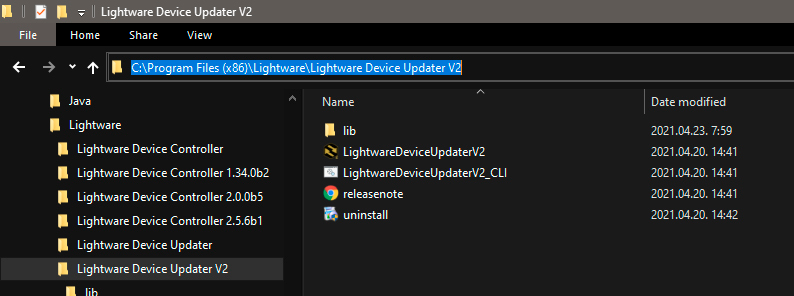
Step 3.Now you can use the LightwareDeviceUpdaterV2_CLI.cmd file with the commands and options, which are described in the coming sections:
Running under Linux
The Command Line Interface under Linux Operating Systems can be run by the following:
LightwareDeviceUpdaterV2.sh.
Running an update:
bash LightwareDeviceUpdaterV2.sh update --ip 172.24.5.27 --package ~/Downloads/HDMI-TPX-TX100_v2.6.1b1.lfp2
The commands and options are the same under Windows® and Linux, too. The following sections contain examples with LightwareDeviceUpdaterV2_CLI.cmd.
Command Structure
The commands can be run over CLI in the following way:
LightwareDeviceUpdaterV2_CLI.cmd [command] [options]
[Command]: a certain command described in the coming sections; only one command can be run at a time
[Options]: mandatory and/or optional parameters of the command, if any. Optional parameters have a default value, which can be found at each affected command. You only have to define the parameter if you want to apply a different value. The order of the options is arbitrary.
Important Notes
▪CLI is case-sensitive (including commands, options and other parameters).
▪There is no limit regarding the number of the devices to update. At most 20 devices are updated simoultaneously, when one of them is finished, the following (21st) will be started automatically.
▪If an update is failed, the IP address of the affected device(s) are listed at the end.
INFO:The commands and options described in the following sections are the same under Windows® and Linux, too. The examples contain LightwareDeviceUpdaterV2_CLI.cmd.
About the Examples
▪Sent command is in blue, response is in grey.
▪If the response in practice is longer than listed in the example, this symbol can be seen: [...].
The defined commands and options can be listed by the help command.
Command
LightwareDeviceUpdaterV2_CLI.cmd help
Example
C:\Program Files (x86)\Lightware\Lightware Device Updater V2>LightwareDeviceUpdaterV2_CLI.cmd help
C:\Program Files (x86)\Lightware\Lightware Device Updater V2>lib\jre\bin\java.exe -jar lib\ldu2.jar help
Command line usage:
Win: LightwareDeviceUpdaterV2_CLI.cmd [command] [options]
Linux: LightwareDeviceUpdaterV2.sh [command] [options]
Commands:
* help
* version
* update
* deviceInfo
* restore
* packageOptions
[...]
The response shows the version of the LDU2 and the version of the Script API (the Application Programming Interface that is used by the LDU2 and the script).
Command
LightwareDeviceUpdaterV2_CLI.cmd version
Example
C:\Program Files (x86)\Lightware\Lightware Device Updater V2>LightwareDeviceUpdaterV2_CLI.cmd version
C:\Program Files (x86)\Lightware\Lightware Device Updater V2>lib\jre\bin\java.exe -jar lib\ldu2.jar version
LDU2 version: 2.10.0b6
Script API version: 1.3.10
8.6.3. Check For New LDU2 Version
The following command can be used to check if an update of LDU2 is available. This is just a request, since the CLI is not suitable for handling the complete installer of the software.
Command
LightwareDeviceUpdaterV2_CLI.cmd checkForUpdates
Example 1
c:\Program Files (x86)\Lightware\Lightware Device Updater V2>LightwareDeviceUpdaterV2_CLI.cmd checkForUpdates
c:\Program Files (x86)\Lightware\Lightware Device Updater V2>lib\jre\bin\java.exe -jar lib\ldu2.jar checkForUpdates
Current LDU2 version: 2.10.0b6
LDU2 is up-to-date
Example 2
c:\Program Files (x86)\Lightware\Lightware Device Updater V2>LightwareDeviceUpdaterV2_CLI.cmd checkForUpdates
c:\Program Files (x86)\Lightware\Lightware Device Updater V2>lib\jre\bin\java.exe -jar lib\ldu2.jar checkForUpdates
Current LDU2 version: 2.9.1b1
New version is available online: 2.10.0b6
Download URL: http://update.lightware.hu/ldu2/lwr/v2.10.0b6/install_LDU2_v2.10.0b6.exe
The most important information about the selected device is displayed; see the example for more details.
Command
LightwareDeviceUpdaterV2_CLI.cmd deviceInfo [options]
Options
|
Option |
Description |
Required? |
|
-i or --ip |
List of IP addresses of devices to be updated |
one of them is mandatory |
|
-n or --hostName |
List of host names of devices to be updated |
|
|
-v or --packageVersion |
Shows installed package version only |
optional |
Example 1
C:\Program Files (x86)\Lightware\Lightware Device Updater V2>LightwareDeviceUpdaterV2_CLI.cmd deviceInfo --ip 192.168.0.100
C:\Program Files (x86)\Lightware\Lightware Device Updater V2>lib\jre\bin\java.exe -jar lib\ldu2.jar deviceInfo --ip 192.168.0.100
Product name: HDMI-OPTX-TX100A
IP address: 192.168.1.19
Serial number: 00007316
MAC address: a8:d2:36:F0:73:16
Part number: 91310078
Device label: LW_HDMI-OPTX-TX100A_00007316
Package version: v1.3.3b3
CPU FW version: v1.3.3b3
HW version: V10_KAK1
Operation mode: Application mode
Example 2
C:\Program Files (x86)\Lightware\Lightware Device Updater V2>LightwareDeviceUpdaterV2_CLI.cmd deviceInfo --ip 192.168.1.7 --packageVersion
C:\Program Files (x86)\Lightware\Lightware Device Updater V2>lib\jre\bin\java.exe -jar lib\ldu2.jar deviceInfo --ip 192.168.0.100 --packageVersion
v1.3.3b3
This command can be used to update the firmware of the devices.
Command
LightwareDeviceUpdaterV2_CLI.cmd update [options]
Options
|
Option |
Description |
Required? |
|
-p or --package |
The path of the firmware package file |
yes |
|
-i or --ip |
List of IP addresses of devices to be updated |
one of them is mandatory |
|
-n or --hostName |
List of host names of devices to be updated |
|
|
-r or --reportProgress |
Report update progress in percentage form. Default: false |
optional |
|
Package-specific options |
Certain LFP2 packages have features that can be applied at this command; see the Package Options section. |
optional |
ATTENTION!The configuration is restored automatically if the factory default option is not applied in the update command. In that case, there is no need to run the restore command after the update.
Example
C:\Program Files (x86)\Lightware\Lightware Device Updater V2>LightwareDeviceUpdaterV2_CLI.cmd update --ip 192.168.1.19 --package C:\Firmwares\taurus_v1.3.3b3.lfp2 --reportProgress
C:\Program Files (x86)\Lightware\Lightware Device Updater V2>lib\jre\bin\java.exe -jar lib\ldu2.jar update --ip 192.168.1.19 --package C:\Firmwares\HDMI-TPX-TX100_v2.6.1b1.lfp2 --reportProgress
[2022-02-11 11:22:52.820] [ INFO] [ main] - Device IPs: [192.168.1.19]
[2022-02-11 11:22:58.317] [ INFO] [ main] - All selected devices are available over the network.
[2022-02-11 11:23:01.308] [ INFO] [ main] - All the selected devices are compatible with the specified package.
[2022-02-11 11:23:04.356] [ INFO] [ 192.168.1.19] - Taurus UCX update process started
[2022-02-11 11:23:04.496] [ INFO] [ 192.168.1.19] - Update API version: 1.0
[2022-02-11 11:23:04.525] [ INFO] [ 192.168.1.19] - Update parameters: deviceIp: 192.168.1.19, factoryDefault: false
[2022-02-11 11:23:04.556] [ INFO] [ 192.168.1.19] - Update protocol: http://
[2022-02-11 11:23:04.558] [ INFO] [ 192.168.1.19] - Authentication type: NONE
[2022-02-11 11:23:04.737] [ INFO] [ 192.168.1.19] - Device info: Product name: HDMI-OPTX-TX100A, Device label: LW_HDMI-OPTX-TX100A_00007316, Serial number: 00007316, Mac address: a8:d2:36:F0:73:16, Ip address: 192.168.1.19, Host name: , Package version: v1.3.3b3, Part number: 91310078, Hw version: V10_KAK1
[2022-02-11 11:23:04.753] [ INFO] [ 192.168.1.19] - Uploading firmware package.
[2022-02-11 11:32:54.050] [ INFO] [ProgressReporter] - Progress: 13%
[2022-02-11 11:32:59.056] [ INFO] [ProgressReporter] - Progress: 19%
[2022-02-11 11:33:04.060] [ INFO] [ProgressReporter] - Progress: 25%
[2022-02-11 11:33:09.067] [ INFO] [ProgressReporter] - Progress: 32%
[2022-02-11 11:33:14.079] [ INFO] [ProgressReporter] - Progress: 38%
[2022-02-11 11:33:19.091] [ INFO] [ProgressReporter] - Progress: 40%
[2022-02-11 11:33:24.098] [ INFO] [ProgressReporter] - Progress: 43%
[2022-02-11 11:33:29.112] [ INFO] [ProgressReporter] - Progress: 46%
[2022-02-11 11:33:34.122] [ INFO] [ProgressReporter] - Progress: 49%
[2022-02-11 11:33:39.133] [ INFO] [ProgressReporter] - Progress: 52%
[2022-02-11 11:33:44.135] [ INFO] [ProgressReporter] - Progress: 55%
[2022-02-11 11:33:49.138] [ INFO] [ProgressReporter] - Progress: 58%
[2022-02-11 11:33:54.144] [ INFO] [ProgressReporter] - Progress: 61%
[2022-02-11 11:33:59.154] [ INFO] [ProgressReporter] - Progress: 64%
[2022-02-11 11:34:04.168] [ INFO] [ProgressReporter] - Progress: 67%
[2022-02-11 11:34:09.169] [ INFO] [ProgressReporter] - Progress: 70%
[2022-02-11 11:25:01.556] [ INFO] [ 192.168.1.19] - Package upload finished.
[2022-02-11 11:25:01.611] [ INFO] [ 192.168.1.19] - Starting internal update process. Device is about to reboot.
[2022-02-11 11:25:01.645] [ INFO] [ 192.168.1.19] - Package file has been uploaded successfully.
The device will now update itself, which may take tens of minutes.
LDU2 is now disconnecting from the device. Please wait until the device finishes the update.
[2022-02-11 11:25:01.646] [ INFO] [ 192.168.1.19] - Done
All 1 update(s) finished successfully.
The lines containing "ProgressReporter" can be enabled optionally. If it is enabled, the current state is displayed every 5 seconds.
ATTENTION!As the example shows, the firmware update progress is not finished at the "Done" line, but the firmware package is uploaded into the device. The device will run the update progress internally.
Shows package-specific update options.
Command
LightwareDeviceUpdaterV2_CLI.cmd packageOptions [options]
Options
|
Option |
Description |
Required? |
|
-p or --package |
The path of the firmware package file |
yes |
Example
c:\Program Files (x86)\Lightware\Lightware Device Updater V2>LightwareDeviceUpdaterV2_CLI.cmd packageOptions --package f:\!!!LIGHTWARE\firmware\HDMI-TPX-TX100_v2.6.1b1.lfp2
Login options:
--user : HTTP(s) basic authentication user (Default: empty string)
--pw : HTTP(s) basic authentication password (Default: empty string)
A package option example can be seen in the following section.
The following options applied:
▪Firmware is updated
▪Authentication is enabled
C:\Program Files (x86)\Lightware\Lightware Device Updater V2>LightwareDeviceUpdaterV2_CLI.cmd update --ip 192.168.1.19 --package C:\Firmwares\HDMI-TPX-TX100_v2.6.1b1.lfp2 --user admin --pw 12345 --reportProgress
C:\Program Files (x86)\Lightware\Lightware Device Updater V2>lib\jre\bin\java.exe -jar lib\ldu2.jar update --ip 192.168.1.19 --package C:\Firmwares\HDMI-TPX-TX100_v2.6.1b1.lfp2 --user admin --pw 12345 --reportProgress
[2022-02-11 11:32:40.831] [ INFO] [ main] - Device IPs: [192.168.1.19]
[2022-02-11 11:32:46.096] [ INFO] [ main] - All selected devices are available over the network.
[2022-02-11 11:32:49.035] [ INFO] [ main] - All the selected devices are compatible with the specified package.
[2022-02-11 11:32:51.994] [ INFO] [ 192.168.1.19] - Taurus UCX update process started
[2022-02-11 11:32:52.087] [ INFO] [ 192.168.1.19] - Update API version: 1.0
[2022-02-11 11:32:52.138] [ INFO] [ 192.168.1.19] - Update parameters: deviceIp: 192.168.1.19, factoryDefault: false
[2022-02-11 11:32:52.189] [ INFO] [ 192.168.1.19] - Update protocol: http://
[2022-02-11 11:32:52.189] [ INFO] [ 192.168.1.19] - Authentication type: BASIC
[2022-02-11 11:32:52.359] [ INFO] [ 192.168.1.19] - Device info: Product name: HDMI-OPTX-TX100A, Device label: LW_HDMI-OPTX-TX100A_00007316, Serial number: 00007316, Mac address: a8:d2:36:F0:73:16, Ip address: 192.168.1.19, Host name: , Package version: v1.3.3b3, Part number: 91310078, Hw version: V10_KAK1
[2022-02-11 11:32:52.374] [ INFO] [ 192.168.1.19] - Uploading firmware package.
[2022-02-11 11:32:54.050] [ INFO] [ProgressReporter] - Progress: 13%
[2022-02-11 11:32:59.056] [ INFO] [ProgressReporter] - Progress: 19%
[2022-02-11 11:33:04.060] [ INFO] [ProgressReporter] - Progress: 25%
[2022-02-11 11:33:09.067] [ INFO] [ProgressReporter] - Progress: 32%
[2022-02-11 11:33:14.079] [ INFO] [ProgressReporter] - Progress: 38%
[2022-02-11 11:33:19.091] [ INFO] [ProgressReporter] - Progress: 40%
[2022-02-11 11:33:24.098] [ INFO] [ProgressReporter] - Progress: 43%
[2022-02-11 11:33:29.112] [ INFO] [ProgressReporter] - Progress: 46%
[2022-02-11 11:33:34.122] [ INFO] [ProgressReporter] - Progress: 49%
[2022-02-11 11:33:39.133] [ INFO] [ProgressReporter] - Progress: 52%
[2022-02-11 11:33:44.135] [ INFO] [ProgressReporter] - Progress: 55%
[2022-02-11 11:33:49.138] [ INFO] [ProgressReporter] - Progress: 58%
[2022-02-11 11:33:54.144] [ INFO] [ProgressReporter] - Progress: 61%
[2022-02-11 11:33:59.154] [ INFO] [ProgressReporter] - Progress: 64%
[2022-02-11 11:34:04.168] [ INFO] [ProgressReporter] - Progress: 67%
[2022-02-11 11:34:09.169] [ INFO] [ProgressReporter] - Progress: 70%
[2022-02-11 11:34:52.599] [ INFO] [ 192.168.1.19] - Package upload finished.
[2022-02-11 11:34:52.683] [ INFO] [ 192.168.1.19] - Starting internal update process. Device is about to reboot.
[2022-02-11 11:34:52.710] [ INFO] [ 192.168.1.19] - Package file has been uploaded successfully.
The device will now update itself, which may take tens of minutes.
LDU2 is now disconnecting from the device. Please wait until the device finishes the update.
[2022-02-11 11:34:52.712] [ INFO] [ 192.168.1.19] - Done
All 1 update(s) finished successfully.
There is a return value in all cases when a command run is finished. Currently, three codes are defined:
|
Code |
Displayed text |
Description |
|
0 |
N/A |
The update performed successfully |
|
1 |
Update error (ErrorCode:1) |
The error happened during the update |
|
2 |
CLI error (ErrorCode:2) |
The error happened before starting the update |
The error line contains further information about the error.
Querying the Exit Code under Windows®
c:\Program Files (x86)\Lightware\Lightware Device Updater V2\echo %errorlevel%
0
Querying the Exit Code under Linux
echo $?
0
If this value is queried after the update and it is 0, the update performed successfully.
8.7. If the Update is not successful
▪Restart the process and try the update again.
▪If the backup cannot be created for some reason, you will get a message whether to continue the process without backup or stop the update. A root cause can be that the desired device is already in bootload (firmware update) mode, thus the normal operation mode is suspended and backup cannot be made.
If an update is not successful, the Export log button becomes red. If you press the button, you can download the log file as a ZIP package, which can be sent to Lightware Support if needed. The log files contain useful information about the circumstances to find the root cause.
Usually, if the system seems not to transport the signal as expected, the best strategy for troubleshooting is to check signal integrity through the whole signal chain starting from source side and moving forward to receiver end. The following sections are available in the chapter:
At first, check front panel LEDs and take the necessary steps according to their states. For more information about status LEDs, refer to the Front and Rear Panel LEDs section.
Legend

|
Link to connections/cabling section. |

|
Link to device operation section. |

|
Link to BlueRiver AV Manager section. |

|
Link to BlueRiver TCI API / REST API section. |
|
Symptom |
Root cause |
Action |
Refer to |
|
|---|---|---|---|---|
|
Audio / Video signal |
||||
|
No picture on the video output |
Device or devices are not powered properly |
Check the extenders and the other devices if they are properly powered; try to unplug and reconnect them. |

|
|
|
Cable connection problem |
Cables must fit very well, check all the connectors (HDMI and CATx/optical/DAC cables). |

|
||
|
|
||||

|
||||
|
Optical cable became contaminated |
Use special fiber optical cable cleaning equipment to clean it carefully. |
|||
|
Singlemode-multimode SFP / SFP+ module pairs |
Check the installed SFP / SFP+ modules and install multimode or singlemode modules by pairs only. |
|
||
|
SFP module is installed instead of SFP+ module |
Install SFP+ transceiver module to the SFP+ port |

|
||
|
Incompatible SFP+ modules are in the transmitter and the receiver |
Check the compatibility of the installed SFP+ modules: singlemode / multimode pairs, parameters of the modules |
![[Alt text was not generated.]](UM-web-resources/image/Pictogram_Cabling_bw5.png)
|
||
|
HDCP mismatch |
Connect a HDCP-compliant sink to the extender or transmit non-protected content |

|
||
|
Picture is jittering/noisy |
Incorrect CATx cable type / length is used |
Check Lightware's recommendations for CATx cable types and maximum extension length |
![[Alt text was not generated.]](UM-web-resources/image/Pictogram_Cabling_bw7.png)
|
|
|
Network settings |
||||
|
No LAN connection can be established |
Incorrect IP address is set (fix IP) |
Use dynamic IP address by enabling DHCP option. |

|
|

|
||||
|
Recall the factory default settings with DHCP setting. |

|
|||

|
||||
|
|
||||
|
No DHCP server on the network, the fallback IP address is unreachable |
Use static IP address |

|
||

|
||||
|
IP address conflict |
Check the IP address of the other devices, too. |
|||
|
RS-232 signal |
||||
|
Connected serial device does not respond |
Cable connection problem |
Check the connectors to fit well; check the wiring of the plugs. |

|
|

|
||||
|
Serial port parameters mismatch with the connected device's ones |
Check the settings of the serial port of the extender. |

|
||
|
Icron USB KVM |
||||
|
No IP address is assigned to the Icron module |
Icron module is not responding |
Restore it to DHCP or static IP address |
|
|
9.2. How to Speed Up the Troubleshooting Process
Lightware’s technical support team is always working hard to provide the fastest support possible. Our team’s response time is one of the best in the industry, and in the toughest of cases we can directly consult with the hardware or software engineer who designed the product, to get the information from the most reliable source.
However, the troubleshooting process can be even faster… with your help.
There are certain pieces of information that push us in the right direction to finding the root cause of the problem. If we receive most of this information in the first e-mail, or it is gathered at the time when you call us, then there is a pretty high chance that we will be able to respond with the final solution right away.
This information is the following:
▪Schematic (a pdf version is preferred, but a hand drawing is sufficient).
▪Serial number(s) of the device(s) (it is either printed somewhere on the box or you can query it in the Device Controller software or on the built-in website).
▪Firmware versions of the devices (please note that there may be multiple CPUs or controllers in the device and we need to know all of their firmware versions, a screenshot is the best option).
▪Cable lengths and types.
▪Patch panels, gender changers or anything else in the signal path that can affect the transmission.
▪Signal type (resolution, refresh rate, color space, deep color).
▪Emulated EDID(s) (please save them as a file and send it to us).
▪Actions to take in order to re-create the problem (if we cannot reproduce the problem, it is hard for us to find the cause).
▪Photo or video about the problem (for example: "image noise" can mean many different things, it’s better if we see it too).
▪Error logs from the Device Controller software.
▪In the case of Event Manager issue, the event file and/or backup file from the Device Controller software.
The more of the above information you can give us, the better. Please send this information to the Lightware Support Team (support@lightware.com) to speed up the troubleshooting process.
The following sections contain descriptions and useful technical information on how the devices work in the background. The content is based on experiences and cases we met in practice. These sections help to understand features and technical standards like the following:
10.1.1. Understanding the EDID
The Extended Display Identification Data (EDID) is the passport of display devices (monitors, TV sets, projectors). It contains information about the capabilities of the display, such as supported resolutions, refresh rates (these are called Detailed Timings), the type and manufacturer of the display device, etc.
After connecting a source to a display (DVI, HDMI, DP), the source reads out the EDID to determine the resolution and refresh rate of the image to be transmitted.
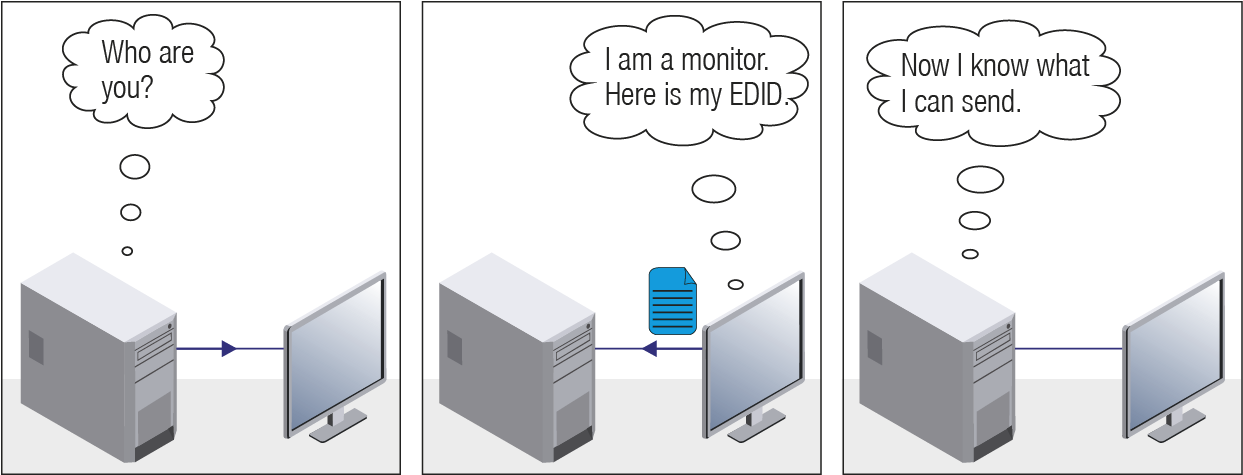
EDID Communication
Most DVI computer displays have a 128-byte long EDID structure. However, Digital Televisions and HDMI capable displays may have another 128 bytes, which is called E-EDID and defined is by CEA (Consumer Electronics Association). This extension contains information about additional Detailed Timings, audio capabilities, speaker allocation and HDMI capabilities. It is important to know that all HDMI capable devices must have CEA extension, but not all devices with CEA extension are HDMI capable.
Common Problems Related to EDID
Problem: “My system consists of the following: a computer, a Lightware device, a WUXGA (1920x1200) LCD monitor, and an SXGA (1280x1024) projector. I would like to see the same image on the monitor and the projector. What EDID should I choose on the Lightware device?”
Solution: If you want to see the image on both displays, you need to select the resolution of the smaller display (in this case SXGA), otherwise the smaller display may not show the higher resolution image.
Problem: “I have changed to a different EDID on an input port of the Lightware device to have a different resolution, but nothing happens.”
Solution: Some graphics cards and video sources read out the EDID only after power-up and later they do not sense that the EDID has been changed. You need to restart your source to make it read out the EDID again.
10.1.2. Advanced EDID Management
Each DVI sink (e.g. monitors, projectors, plasma displays, etc...) must support the EDID data structure. Source BIOS and operating systems are likely to query the sink using DDC2B protocol to determine what pixel formats and interface are supported. The DVI standard uses EDID data structure to identify the monitor type and capabilities. Most DVI sources (VGA cards, set top boxes, etc.) will output DVI signal after accepting the connected sink’s EDID information. In the case of EDID readout failure or missing EDID, the source will not output DVI video signal.
Lightware devices provide the Advanced EDID Management function that helps system integration. The built-in EDID Router can store and emulate factory pre-programmed- and User programmable EDIDs. The EDID of the attached monitors or projectors for each output is stored in a non-volatile memory. This way the EDID of a monitor is available when the monitor is unplugged or switched off.
Any EDID can be emulated on any input. An emulated EDID can be copied from the EDID router’s memory (static EDID emulation), or from the last attached monitor’s memory (dynamic EDID emulation). For example, the Lightware device can be set up to emulate a sink device that is connected to one of the outputs. In this case, the EDID automatically changes if the monitor is replaced with another display device (as long as it has a valid EDID).
EDID is independently programmable for all inputs without affecting each other. All inputs have their own EDID circuit.
INFO:The user is not required to disconnect the video cable to change an EDID as opposed to other manufacturer’s products. The EDID can be changed even if a source is connected to the input and powered ON.
INFO:When the EDID has been changed, the router toggles the HOTPLUG signal for 2 seconds. Some sources do not sense this signal. In such cases, the source device must be restarted or powered OFF and ON again.
Basics
Beside the traditional AV matrix switchers and extenders, the video over IP or networked AV system is the biggest leading technology in the AV industry. The spreading of the technology speeds up the general increasing of the use of the IT-related devices and equipment all around the world - from the offices to the homes.
The main difference compared to the traditional AV technologies is the method of the signal transmission: the networked AV transmitter/encoder devices convert the video signal to TCP/IP packets and transfer them to the receivers/decoders. The interface of the transmission can be CATx or fiber optical cable, depending on the signal bandwidth and the distance between the source and sink devices.
What is TCP/IP?
DEFINITION:TCP/IP, or the Transmission Control Protocol/Internet Protocol, is a suite of communication protocols used to interconnect network devices on the Internet or in a private network.
TCP/IP specifies how data is exchanged over the network by providing end-to-end communications that identify how it should be broken into packets, addressed, transmitted, routed and received at the destination. TCP/IP requires little central management, and it is designed to make networks reliable, with the ability to recover automatically from the failure of any device on the network.
The two main protocols in the Internet protocol suite serve specific functions. TCP defines how applications can create channels of communication across a network. It also manages how a message is assembled into smaller packets before they are then transmitted over the Internet and reassembled in the right order at the destination address.
IP defines how to address and route each packet to make sure it reaches the right destination. Each gateway computer on the network checks this IP address to determine where to forward the message.
Lightware Visual Engineering is a legal HDCP adopter. Several functions have been developed, which helps to solve HDCP related problems. Complex AV systems often have both HDCP and non-HDCP components. The matrix allows transmitting HDCP encrypted and unencrypted signals. The devices will be still HDCP compliant, as they will never output an encrypted signal to a non-HDCP compliant display device. If an encrypted signal is switched to a non-compliant output, a red screen alert or muted screen will appear.
10.3.1. Protected and Unprotected Content
Many video sources send HDCP protected signal if they detect that the sink is HDCP capable – even if the content is not copyrighted. This can cause trouble if an HDCP capable device is connected between the source and the display. In this case, the content cannot be viewed on non-HDCP capable displays and interfaces like event controllers. Rental and staging technicians often complain about certain laptops, which are always sending HDCP encrypted signals if the receiver device (display, matrix router, etc.) reports HDCP compliancy. Even though HDCP encryption is not required all the time (e.g. computer desktop image), certain laptops still do that.
To avoid unnecessary HDCP encryption, Lightware introduced the HDCP enabling/disabling function: the HDCP capability can be disabled in the Lightware device. If HDCP is disabled, the connected source will detect that the sink is not HDCP capable, and turn off authentication.
10.3.2. Disable Unnecessary Encryption
HDCP Compliant Sink
All the devices are HDCP-compliant, no manual setting is required, both protected and unprotected contents are transmitted and displayed on the sink.
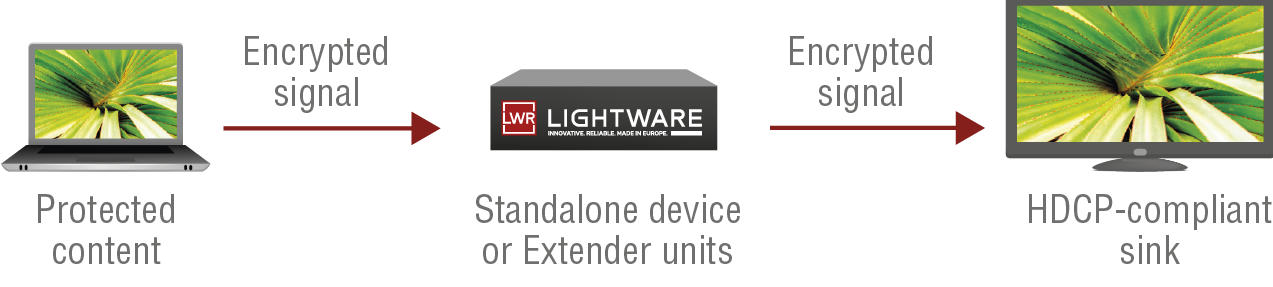
Not HDCP-compliant Sink 1.
Not-HDCP compliant sink is connected to the matrix. Some sources (e.g. computers) always send HDCP encrypted signals if the receiver device reports HDCP compliancy, however, HDCP encryption is not required all the time (e.g. computer desktop image). If HDCP is enabled in the matrix, the image will not be displayed on the sink.
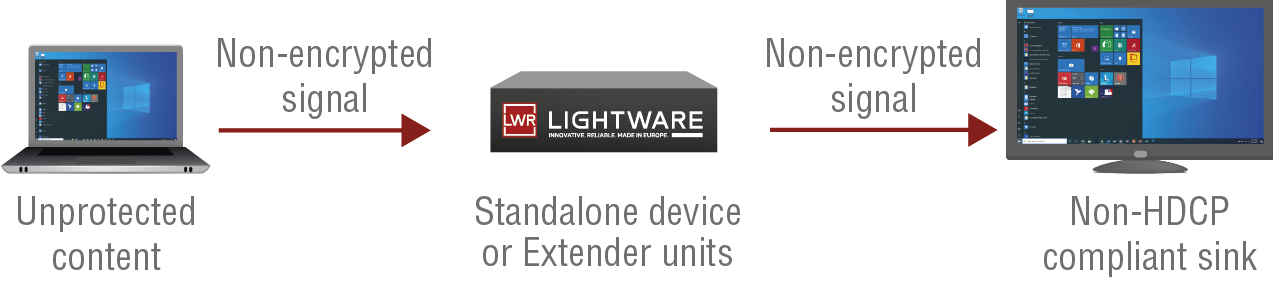
Setting the HDCP parameter to Auto on the output port and disable HDCP on the input port, the transmitted signal will not be encrypted if the content is not protected. Thus, non-HDCP compliant sinks will display non-encrypted signal.
Not HDCP-compliant Sink 2.
The layout is the same as in the previous case: non-HDCP compliant display device is connected to the matrix but the source would send protected content with encryption. If HDCP is enabled on the input port of the matrix, the source will send encrypted signal.
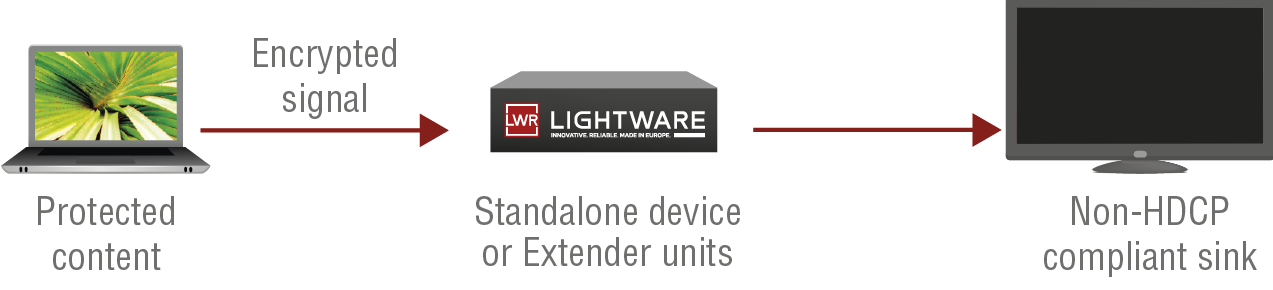
The sink is not HDCP compliant, thus it will not display the video signal, but no picture on video output. If HDCP is disabled on the input port of the matrix, the source will not send the signal. The solution is to replace the display device with an HDCP-capable one.
HDCP 2.3 is the latest evolution of copy protection. It is designed to create a secure connection between a source and a display. The 2.x version of HDCP is not a continuation of HDCPv1, and is rather a completely different link protection. One of the main differences is the number of the allowed devices within a closed AV system: HDCP 2.3 allows 32 devices (HDCP 1.4 allows 128 devices). A further limit is that up to four level is allowed, which means the protected signal can be transmitted over at most four repeater/matrix/switcher devices. HDCP content protection is activated only if an active video stream is transmitted from the source to the display. The encryption is not activated without a video signal.
HDCP 2.3 standard allows the application of a previous version of HDCP (e.g. HDCP 1.4) between the source and the display if the source device allows it. According to the standard, if the image content is protected with HDCP, the highest supported content protection level has to be applied. However, if the highest level of protection is not justified by the source content, the level may be decreased to avoid compatibility problems; this case is determined by the source.
HDCP 2.3 Source and HDCP 1.4 Sink
In this case the signal of an HDCP 2.3 compliant source is switched to an HDCP 1.4 compliant sink device. The signal is encrypted with HDCP 2.3 on the input and encrypted with HDCP 1.4 on the output of the Lightware device. A lower level of encryption may be applied only if the source device/content allows it - according to the HDCP standard. In this case, the HDCP setting on the input port has to be set to HDCP 1.4 and Depends on input on the output port.
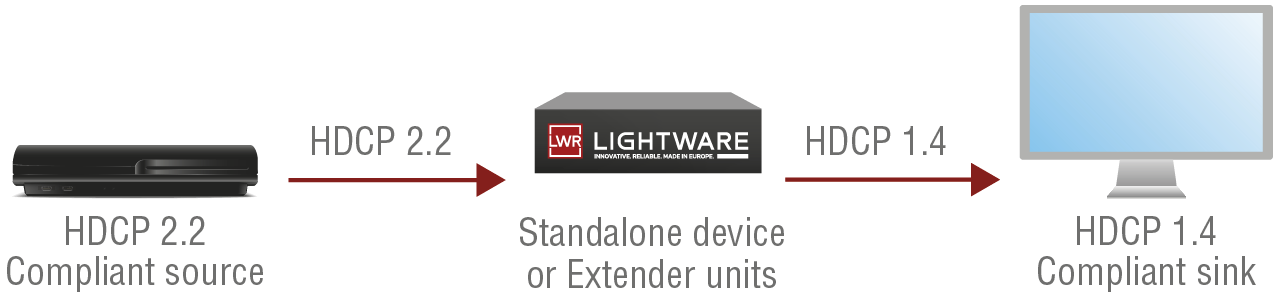
HDCP 1.4 Source and HDCP 2.3 Sink
The example below is the reversal of the previous case. An HDCP 1.4 compliant source sends a signal with HDCP 1.4 encryption. The signal is switched to an HDCP v2.2 compliant sink device. In this case, the outgoing signal has to be encrypted with the highest supported encryption level towards the sink, as the Lightware device and the sink are both HDCP 2.3 compliant. The HDCP 2.3 standard does not allow keeping the original HDCP 1.4 encryption level on the output.
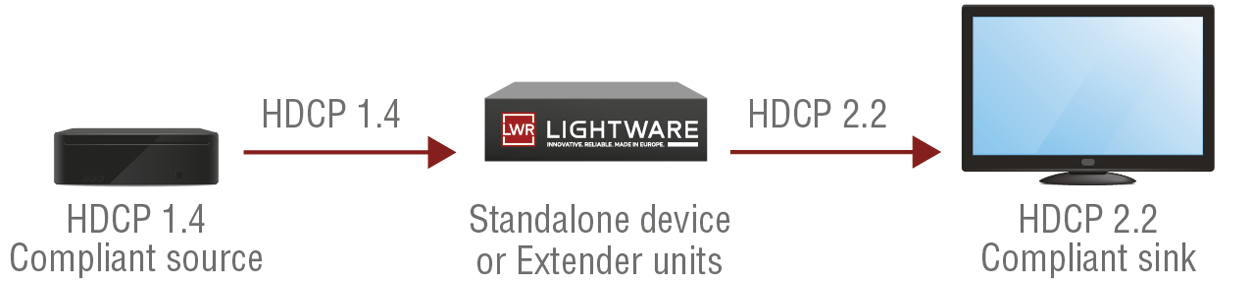
What Kind of Signal Will be on the Output of the Lightware Device?
See the table below that summarizes the possible cases:
|
Incoming Signal |
HDCP 1.4 Compatible Sink |
HDCP 2.3. Compatible Sink |
|---|---|---|
|
HDCP 1.4 |
HDCP 1.4 |
HDCP 2.3 |
|
HDCP 2.3 (convertable)* |
HDCP 1.4 |
HDCP 2.3 |
|
HDCP 2.3 (not convertable)** |
Red screen |
HDCP 2.3 |
* Stream type 0: the video stream allows the conversion of the signal to apply a lower level of encryption.
** Stream type 1: the video stream does not allow the conversion of the signal.
10.4. Pixel Accurate Reclocking
Signal reclocking is an essential procedure in digital signal transmission. After passing the reclocking circuit, the signal becomes stable, jitter-free, and can be transmitted over more equipment like processors or event controllers. Without reclocking, sparkles, noise, and jaggies appear on the image.
Lightware’s sophisticated Pixel Accurate Reclocking technology fixes more problems than general TMDS reclocking. It removes not only intra-pair skew, but inter-pair skew as well. The Pixel Accurate Reclocking circuit eliminates the following errors:
Intra-pair skew
Skew between the + and - wires within a differential wire pair (e.g. Data2- and Data2+). It’s caused by different wire lengths or slightly different wire construction (impedance mismatch) in the DVI cable. It results in jitter.

Inter-pair skew
Skew between two differential wire pairs in a cable. It is caused by different wire pair lengths or different number of twists in the DVI cable. Too much inter-pair skew results in color shift in the picture or sync loss.
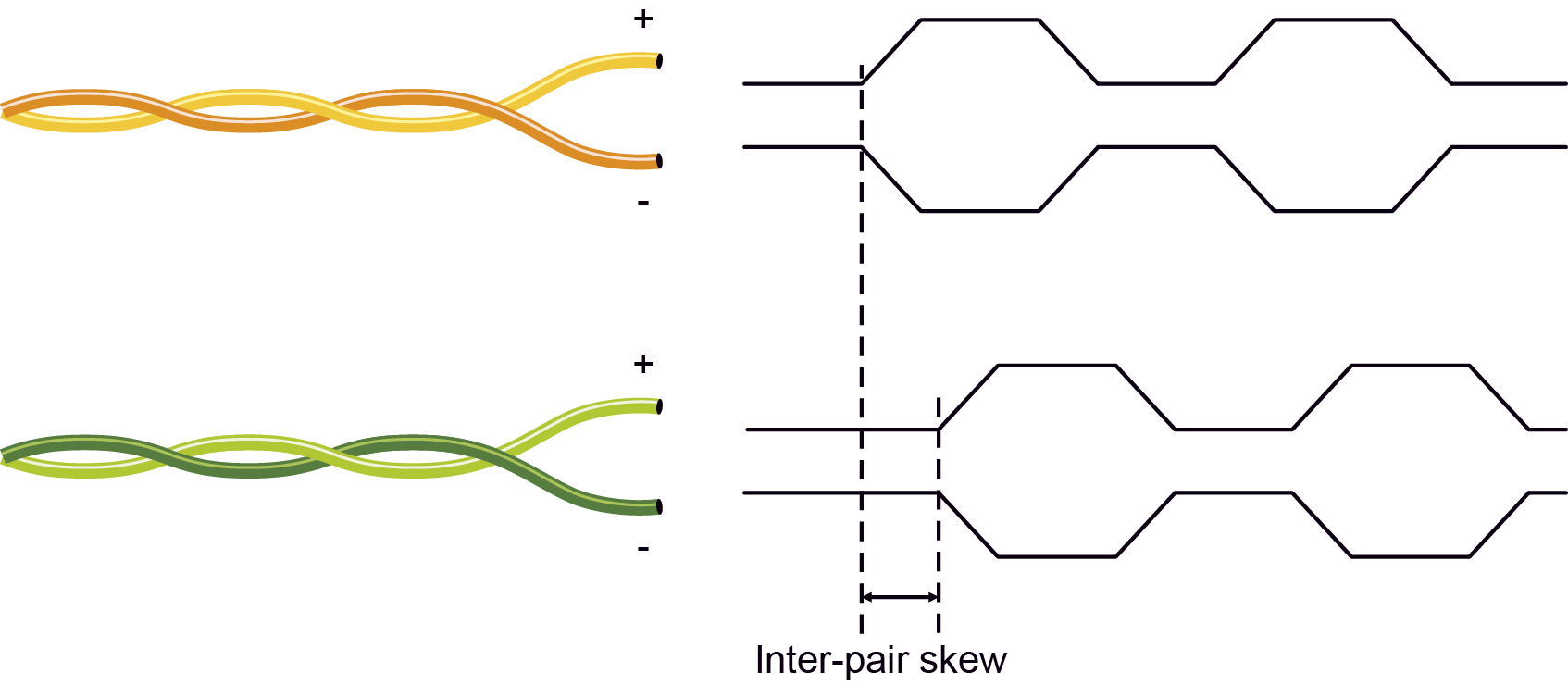
Jitter
Signal instability in the time domain. The time difference between two signal transitions should be a fixed value, but noise and other effects cause variations.

Noise
Electromagnetic interference between other electronic devices such as mobile phones, motors, etc. and the DVI cable are coupled onto the signal. Too much noise results in increased jitter.

Tables, drawings, guides, technical details and the hashtag keyword list as follows:
INFO:Specifications are subject to change without notice.
Affected models:
▪HDMI-TPX-TX106
▪HDMI-TPX-TX106A
▪HDMI-TPX-RX106
General
|
Compliance |
CE, UKCA |
|
EMC (emission) |
EN 55032:2015+A1:2020 |
|
EMC (immunity) |
EN 55035:2017+A11:2020 |
|
RoHS |
EN 63000:2018 |
|
Electrical safety |
EN 62368-1:2024 |
|
Warranty |
3 years |
|
Cooling |
Passive |
|
Operating temperature |
0 to +50˚C (+32 to +122˚F) |
|
Storage temperature |
-40° to +85˚C (-40° to +185˚F) |
|
Operating humidity |
10% to 90%, non-condensing |
Power
|
Power supply option |
External power adaptor |
|
Supported power source |
100-240 V AC; 50/60 Hz |
|
Supplied power |
12V DC, 3A |
|
AC power plug |
Interchangable (EU, UK, JP/US, AUS/NZ) |
|
DC power plug |
Locking DC connector (2.1 mm pin) |
|
Power consumption - without remote power |
7 W |
|
Power consumption - with remote power |
16 W |
|
Heat dissipation - without remote power |
23.9 BTU/h |
|
Heat dissipation - with remote power |
54.6 BTU/h |
Enclosure
|
Rack mountable |
Yes, with mounting accessories, check the Mounting Options - Compatibility Table |
|
Enclosure material |
1 mm steel |
|
Dimensions in mm |
100.4 W x 131.8 D x 26 H |
|
Dimensions in inch |
3.95 W x 5.19 D x 1 H |
|
Weight |
476 g (1.05 lbs) |
Video Input
HDMI Input
DIFFERENCE:Only for HDMI-TPX-TX106 and HDMI-TPX-TX106A models.
|
Connector type |
19-pole HDMI Type A receptacle |
|
Standard |
DVI 1.0, HDMI 1.4, HDMI 2.0 |
|
Supported resolutions at 8 bits/color * |
up to 4096x2160@60Hz (4:4:4) or up to 3840x2160@60Hz (4:4:4) |
|
Audio formats |
8 channel PCM Dolby Digital, Dolby Digital Plus, Dolby TrueHD, Dolby Atmos DTS, DTS-HD Master Audio 7.1, WMA Pro |
|
CEC support |
Transparent |
* All standard VESA, CEA and other custom resolutions up to 600MHz (HDMI 2.0) are supported.
TPX Input
DIFFERENCE:Only for HDMI-TPX-RX106 model.
|
Connector type |
RJ45 female connector |
|
Power over Ethernet |
PoC (Power over Copper - only between TPX-106 series devices) |
|
Data rate |
10GBase-T |
|
Compliance |
SDVoE |
|
HDCP compliance |
HDCP 2.3 |
|
Transferred signals |
Video, Audio, RS-232, Infrared, Ethernet, CEC |
|
Color space |
RGB, YCbCr |
|
Video latency |
0 frame (five lines / under 8ms) |
|
Compression ratio |
1.4 to 1 * |
|
Supported resolutions at 8 bits/color ** |
up to 4096x2160@60Hz (4:4:4) or up to 3840x2160@60Hz (4:4:4) |
|
Audio formats |
8 channel PCM Dolby Digital, Dolby Digital Plus, Dolby TrueHD, Dolby Atmos DTS, DTS-HD Master Audio 7.1, WMA Pro |
Video Outputs
HDMI Output
DIFFERENCE:Only for HDMI-TPX-RX106 model.
|
Connector type |
19-pole HDMI Type A receptacle |
|
Standard |
DVI 1.0, HDMI 1.4, HDMI 2.0 |
|
Supported resolutions at 8 bits/color ** |
up to 4096x2160@60Hz (4:4:4) or up to 3840x2160@60Hz (4:4:4) |
|
Audio formats |
8 channel PCM Dolby Digital, Dolby Digital Plus, Dolby TrueHD, Dolby Atmos DTS, DTS-HD Master Audio 7.1, WMA Pro |
|
CEC support |
Transparent |
TPX Output
DIFFERENCE:Only for HDMI-TPX-TX106 and HDMI-TPX-TX106A models.
|
Connector type |
RJ45 female connector |
|
Power over Ethernet |
PoC (Power over Copper - only between TPX-106 series devices) |
|
Data rate |
10GBase-T |
|
Compliance |
SDVoE |
|
HDCP compliance |
HDCP 2.3 |
|
Transferred signals |
Video, Audio, RS-232, Infrared, Ethernet, CEC |
|
Color space |
RGB, YCbCr |
|
Video latency |
0 frame (five lines / under 8ms) |
|
Compression ratio |
1.4 to 1 * |
|
Supported resolutions at 8 bits/color ** |
up to 4096x2160@60Hz (4:4:4) or up to 3840x2160@60Hz (4:4:4) |
|
Audio formats |
8 channel PCM Dolby Digital, Dolby Digital Plus, Dolby TrueHD, Dolby Atmos DTS, DTS-HD Master Audio 7.1, WMA Pro |
* Compression is applied only if the AV signal exceeds the maximum bandwidth offered by the HDMI1.4 specification.
** All standard VESA, CEA and other custom resolutions up to 600MHz (HDMI 2.0) are supported.
Audio Port
Analog Audio Output
DIFFERENCE:Only for HDMI-TPX-TX106A model.
|
Audio port connector |
5-pole Phoenix® connector |
|
Number of ports |
1 |
|
Audio formats |
2-channel PCM |
|
Signal transmission |
Balanced signal |
|
Sampling frequency |
48 kHz |
Control Ports
Ethernet Port
|
Connector type |
RJ45 female connector |
|
Number of connectors per unit |
1 |
|
Ethernet data rate |
1GBase-T, full duplex with autodetect |
|
Power over Ethernet |
Not supported |
RS-232 Serial Port
|
Connector type |
3-pole Phoenix® connector |
|
Number of ports |
1 |
|
Baud rates |
between 9600 and 115200 baud |
|
Data bits |
8 |
|
Parity |
None / Odd / Even |
|
Stop bits |
1 / 2 |
|
Output voltage: Low level |
from 3V to 15V |
|
Output voltage: High level |
from -15V to -3V |
Infrared Output Port
|
Connector type |
3.5mm TRS (approx. 1/8” jack) |
|
Output signal |
Modulated (38kHz) |
|
Operation mode |
Command injection (only with 3rd-party software) |
Affected models:
▪HDMI-TPX-TX106-V2
▪HDMI-TPX-TX106A-V2
▪HDMI-TPX-RX106-V2
General
|
Compliance |
CE, UKCA |
|
EMC (emission) |
EN 55032:2015+A1:2020 |
|
EMC (immunity) |
EN 55035:2017+A11:2020 |
|
RoHS |
EN 63000:2018 |
|
Electrical safety |
EN 62368-1:2024 |
|
Warranty |
3 years |
|
Cooling |
Passive |
|
Operating temperature |
0 to +50˚C (+32 to +122˚F) |
|
Storage temperature |
-40° to +85˚C (-40° to +185˚F) |
|
Operating humidity |
10% to 90%, non-condensing |
Power
|
Power supply option |
External power adaptor |
|
Supported power source |
100-240 V AC; 50/60 Hz |
|
Supplied power |
12V DC, 2A |
|
AC power plug |
Interchangable (EU, UK, JP/US, AUS/NZ) |
|
DC power plug |
Locking DC connector (2.1 mm pin) |
|
Power consumption - without remote power |
7 W |
|
Power consumption - with remote power |
16 W |
|
Heat dissipation - without remote power |
23.9 BTU/h |
|
Heat dissipation - with remote power |
54.6 BTU/h |
Enclosure
|
Rack mountable |
Yes, with mounting accessories, check the Mounting Options - Compatibility Table |
|
Enclosure material |
1 mm steel |
|
Dimensions in mm |
100.4 W x 151.8 D x 26 H |
|
Dimensions in inch |
3.95 W x 6 D x 1 H |
|
Weight |
476 g (1.05 lbs) |
Video Input
HDMI Input
DIFFERENCE:Only for HDMI-TPX-TX106-V2 and HDMI-TPX-TX106A-V2 models.
|
Connector type |
19-pole HDMI Type A receptacle |
|
Standard |
DVI 1.0, HDMI 1.4, HDMI 2.0 |
|
Supported resolutions at 8 bits/color * |
up to 4096x2160@60Hz (4:4:4) or up to 3840x2160@60Hz (4:4:4) |
|
Audio formats |
8 channel PCM Dolby Digital, Dolby Digital Plus, Dolby TrueHD, Dolby Atmos DTS, DTS-HD Master Audio 7.1, WMA Pro |
|
CEC support |
Transparent |
TPX Input
DIFFERENCE:Only for HDMI-TPX-RX106-V2 model.
|
Connector type |
RJ45 female connector |
|
Power over Ethernet |
PoC (Power over Copper - only between TPX-106 series devices) |
|
Data rate |
10GBase-T |
|
Compliance |
SDVoE |
|
HDCP compliance |
HDCP 2.3 |
|
Transferred signals |
Video, Audio, RS-232, Infrared, Ethernet, CEC |
|
Color space |
RGB, YCbCr |
|
Video latency |
0 frame (five lines / under 8ms) |
|
Compression ratio |
1.4 to 1 * |
|
Supported resolutions at 8 bits/color ** |
up to 4096x2160@60Hz (4:4:4) or up to 3840x2160@60Hz (4:4:4) |
|
Audio formats |
8 channel PCM Dolby Digital, Dolby Digital Plus, Dolby TrueHD, Dolby Atmos DTS, DTS-HD Master Audio 7.1, WMA Pro |
Video Outputs
HDMI Output
DIFFERENCE:Only for HDMI-TPX-RX106-V2 model.
|
Connector type |
19-pole HDMI Type A receptacle |
|
Standard |
DVI 1.0, HDMI 1.4, HDMI 2.0 |
|
Supported resolutions at 8 bits/color ** |
up to 4096x2160@60Hz (4:4:4) or up to 3840x2160@60Hz (4:4:4) |
|
Audio formats |
8 channel PCM Dolby Digital, Dolby Digital Plus, Dolby TrueHD, Dolby Atmos DTS, DTS-HD Master Audio 7.1, WMA Pro |
|
CEC support |
Transparent |
TPX Output
DIFFERENCE:Only for HDMI-TPX-TX106-V2 and HDMI-TPX-TX106A-V2 models.
|
Connector type |
RJ45 female connector |
|
Power over Ethernet |
PoC (Power over Copper - only between TPX-106 series devices) |
|
Data rate |
10GBase-T |
|
Compliance |
SDVoE |
|
HDCP compliance |
HDCP 2.3 |
|
Transferred signals |
Video, Audio, RS-232, Infrared, Ethernet, CEC |
|
Color space |
RGB, YCbCr |
|
Video latency |
0 frame (five lines / under 8ms) |
|
Compression ratio |
1.4 to 1 * |
|
Supported resolutions at 8 bits/color ** |
up to 4096x2160@60Hz (4:4:4) or up to 3840x2160@60Hz (4:4:4) |
|
Audio formats |
8 channel PCM Dolby Digital, Dolby Digital Plus, Dolby TrueHD, Dolby Atmos DTS, DTS-HD Master Audio 7.1, WMA Pro |
* Compression is applied only if the AV signal exceeds the maximum bandwidth offered by the HDMI1.4 specification.
** All standard VESA, CEA and other custom resolutions up to 600MHz (HDMI 2.0) are supported.
Audio Port
Analog Audio Output
DIFFERENCE:Only for HDMI-TPX-TX106A model.
|
Audio port connector |
5-pole Phoenix® connector |
|
Number of ports |
1 |
|
Audio formats |
2-channel PCM |
|
Signal transmission |
Balanced signal |
|
Sampling frequency |
48 kHz |
Control Ports
Ethernet Port
|
Connector type |
RJ45 female connector |
|
Number of connectors per unit |
1 |
|
Ethernet data rate |
1GBase-T, full duplex with autodetect |
|
Power over Ethernet |
Not supported |
RS-232 Serial Port
|
Connector type |
3-pole Phoenix® connector |
|
Number of ports |
1 |
|
Baud rates |
between 9600 and 115200 baud |
|
Data bits |
8 |
|
Parity |
None / Odd / Even |
|
Stop bits |
1 / 2 |
|
Output voltage: Low level |
from 3V to 15V |
|
Output voltage: High level |
from -15V to -3V |
Affected models:
▪HDMI-TPX-TX107
▪HDMI-TPX-RX107
General
|
Compliance |
CE, UKCA |
|
EMC (emission) |
EN 55032:2015+A1:2020 |
|
EMC (immunity) |
EN 55035:2017+A11:2020 |
|
RoHS |
EN 63000:2018 |
|
Electrical safety |
EN 62368-1:2024 |
|
Warranty |
3 years |
|
Cooling |
Passive |
|
Operating temperature |
0 to +50˚C (+32 to +122˚F) |
|
Storage temperature |
-40° to +85˚C (-40° to +185˚F) |
|
Operating humidity |
10% to 90%, non-condensing |
Power
|
Supplied power |
48V DC, 0.3A |
|
AC power plug |
Interchangable (EU, UK, JP/US, AUS/NZ) |
|
DC power plug |
2-pole Phoenix® plug |
|
Power consumption |
11 W |
|
Heat dissipation |
37.5 BTU/h |
Enclosure
|
Rack mountable |
Yes, with mounting accessories, check the Mounting Options - Compatibility Table |
|
Enclosure material |
1 mm steel |
|
Dimensions in mm |
100.4 W x 131.8 D x 26 H |
|
Dimensions in inch |
3.95 W x 5.19 D x 1 H |
|
Weight |
476 g (1.05 lbs) |
Video Input
HDMI Input
DIFFERENCE:Only for HDMI-TPX-TX107 model.
|
Connector type |
19-pole HDMI Type A receptacle |
|
Standard |
DVI 1.0, HDMI 1.4, HDMI 2.0 |
|
Supported resolutions at 8 bits/color * |
up to 4096x2160@60Hz (4:4:4) or up to 3840x2160@60Hz (4:4:4) |
|
Audio formats |
8 channel PCM Dolby Digital, Dolby Digital Plus, Dolby TrueHD, Dolby Atmos DTS, DTS-HD Master Audio 7.1, WMA Pro |
|
CEC support |
Transparent |
TPX Input
DIFFERENCE:Only for HDMI-TPX-RX107 model.
|
Connector type |
RJ45 female connector |
|
Power over Ethernet |
PoE PD (IEEE802.3af) |
|
Data rate |
10GBase-T |
|
Compliance |
SDVoE |
|
HDCP compliance |
HDCP 2.3 |
|
Transferred signals |
Video, Audio, RS-232, Infrared, Ethernet, CEC |
|
Color space |
RGB, YCbCr |
|
Video latency |
0 frame (five lines / under 8ms) |
|
Compression ratio |
1.4 to 1 * |
|
Supported resolutions at 8 bits/color ** |
up to 4096x2160@60Hz (4:4:4) or up to 3840x2160@60Hz (4:4:4) |
|
Audio formats |
8 channel PCM Dolby Digital, Dolby Digital Plus, Dolby TrueHD, Dolby Atmos DTS, DTS-HD Master Audio 7.1, WMA Pro |
Video Outputs
HDMI Output
DIFFERENCE:Only for HDMI-TPX-RX107 model.
|
Connector type |
19-pole HDMI Type A receptacle |
|
Standard |
DVI 1.0, HDMI 1.4, HDMI 2.0 |
|
Supported resolutions at 8 bits/color ** |
up to 4096x2160@60Hz (4:4:4) or up to 3840x2160@60Hz (4:4:4) |
|
Audio formats |
8 channel PCM Dolby Digital, Dolby Digital Plus, Dolby TrueHD, Dolby Atmos DTS, DTS-HD Master Audio 7.1, WMA Pro |
|
CEC support |
Transparent |
TPX Output
DIFFERENCE:Only for HDMI-TPX-TX107 model.
|
Connector type |
RJ45 female connector |
|
Power over Ethernet |
PoE PD (IEEE802.3af) |
|
Data rate |
10GBase-T |
|
Compliance |
SDVoE |
|
HDCP compliance |
HDCP 2.3 |
|
Transferred signals |
Video, Audio, RS-232, Infrared, Ethernet, CEC |
|
Color space |
RGB, YCbCr |
|
Video latency |
0 frame (five lines / under 8ms) |
|
Compression ratio |
1.4 to 1 * |
|
Supported resolutions at 8 bits/color ** |
up to 4096x2160@60Hz (4:4:4) or up to 3840x2160@60Hz (4:4:4) |
|
Audio formats |
8 channel PCM Dolby Digital, Dolby Digital Plus, Dolby TrueHD, Dolby Atmos DTS, DTS-HD Master Audio 7.1, WMA Pro |
* Compression is applied only if the AV signal exceeds the maximum bandwidth offered by the HDMI1.4 specification.
** All standard VESA, CEA and other custom resolutions up to 600MHz (HDMI 2.0) are supported.
Control Ports
Ethernet Port
|
Connector type |
RJ45 female connector |
|
Number of connectors per unit |
2 |
|
Ethernet data rate |
1GBase-T, full duplex with autodetect |
|
Power over Ethernet |
Not supported |
RS-232 Serial Port
|
Connector type |
3-pole Phoenix® connector |
|
Number of ports |
1 |
|
Baud rates |
between 9600 and 115200 baud |
|
Data bits |
8 |
|
Parity |
None / Odd / Even |
|
Stop bits |
1 / 2 |
|
Output voltage: Low level |
from 3V to 15V |
|
Output voltage: High level |
from -15V to -3V |
Infrared Output Port
|
Connector type |
3.5mm TRS (approx. 1/8” jack |
|
Output signal |
Modulated (38kHz) |
|
Operation mode |
Command injection (only with 3rd-party software) |
Affected models:
▪HDMI-TPX-TX107-V2
▪HDMI-TPX-RX107-V2
General
|
Compliance |
CE, UKCA |
|
EMC (emission) |
EN 55032:2015+A1:2020 |
|
EMC (immunity) |
EN 55035:2017+A11:2020 |
|
RoHS |
EN 63000:2018 |
|
Electrical safety |
EN 62368-1:2024 |
|
Warranty |
3 years |
|
Cooling |
Passive |
|
Operating temperature |
0 to +50˚C (+32 to +122˚F) |
|
Storage temperature |
-40° to +85˚C (-40° to +185˚F) |
|
Operating humidity |
10% to 90%, non-condensing |
Power
|
Power supply option |
External power adaptor |
|
Supported power source |
100-240 V AC; 50/60 Hz |
|
Supplied power |
12V DC, 2A |
|
AC power plug |
Interchangable (EU, UK, JP/US, AUS/NZ) |
|
DC power plug |
Locking DC connector (2.1 mm pin) |
|
Power consumption |
11 W |
|
Heat dissipation |
37.5 BTU/h |
Enclosure
|
Rack mountable |
Yes, with mounting accessories, check the Mounting Options - Compatibility Table |
|
Enclosure material |
1 mm steel |
|
Dimensions in mm |
100.4 W x 151.8 D x 26 H |
|
Dimensions in inch |
3.95 W x 6 D x 1 H |
|
Weight |
476 g (1.05 lbs) |
Video Input
HDMI Input
DIFFERENCE:Only for HDMI-TPX-TX107-V2 model.
|
Connector type |
19-pole HDMI Type A receptacle |
|
Standard |
DVI 1.0, HDMI 1.4, HDMI 2.0 |
|
Supported resolutions at 8 bits/color * |
up to 4096x2160@60Hz (4:4:4) or up to 3840x2160@60Hz (4:4:4) |
|
Audio formats |
8 channel PCM Dolby Digital, Dolby Digital Plus, Dolby TrueHD, Dolby Atmos DTS, DTS-HD Master Audio 7.1, WMA Pro |
|
CEC support |
Transparent |
TPX Input
DIFFERENCE:Only for HDMI-TPX-RX107-V2 model.
|
Connector type |
RJ45 female connector |
|
Power over Ethernet |
PoE PD (IEEE802.3af) |
|
Data rate |
10GBase-T |
|
Compliance |
SDVoE |
|
HDCP compliance |
HDCP 2.3 |
|
Transferred signals |
Video, Audio, RS-232, Infrared, Ethernet, CEC |
|
Color space |
RGB, YCbCr |
|
Video latency |
0 frame (five lines / under 8ms) |
|
Compression ratio |
1.4 to 1 * |
|
Supported resolutions at 8 bits/color ** |
up to 4096x2160@60Hz (4:4:4) or up to 3840x2160@60Hz (4:4:4) |
|
Audio formats |
8 channel PCM Dolby Digital, Dolby Digital Plus, Dolby TrueHD, Dolby Atmos DTS, DTS-HD Master Audio 7.1, WMA Pro |
Video Outputs
HDMI Output
DIFFERENCE:Only for HDMI-TPX-RX107-V2 model.
|
Connector type |
19-pole HDMI Type A receptacle |
|
Standard |
DVI 1.0, HDMI 1.4, HDMI 2.0 |
|
Supported resolutions at 8 bits/color ** |
up to 4096x2160@60Hz (4:4:4) or up to 3840x2160@60Hz (4:4:4) |
|
Audio formats |
8 channel PCM Dolby Digital, Dolby Digital Plus, Dolby TrueHD, Dolby Atmos DTS, DTS-HD Master Audio 7.1, WMA Pro |
|
CEC support |
Transparent |
TPX Output
DIFFERENCE:Only for HDMI-TPX-TX107-V2 model.
|
Connector type |
RJ45 female connector |
|
Power over Ethernet |
PoE PD (IEEE802.3af) |
|
Data rate |
10GBase-T |
|
Compliance |
SDVoE |
|
HDCP compliance |
HDCP 2.3 |
|
Transferred signals |
Video, Audio, RS-232, Infrared, Ethernet, CEC |
|
Color space |
RGB, YCbCr |
|
Video latency |
0 frame (five lines / under 8ms) |
|
Compression ratio |
1.4 to 1 * |
|
Supported resolutions at 8 bits/color ** |
up to 4096x2160@60Hz (4:4:4) or up to 3840x2160@60Hz (4:4:4) |
|
Audio formats |
8 channel PCM Dolby Digital, Dolby Digital Plus, Dolby TrueHD, Dolby Atmos DTS, DTS-HD Master Audio 7.1, WMA Pro |
* Compression is applied only if the AV signal exceeds the maximum bandwidth offered by the HDMI1.4 specification.
** All standard VESA, CEA and other custom resolutions up to 600MHz (HDMI 2.0) are supported.
Control Ports
Ethernet Port
|
Connector type |
RJ45 female connector |
|
Number of connectors per unit |
2 |
|
Ethernet data rate |
1GBase-T, full duplex with autodetect |
|
Power over Ethernet |
Not supported |
RS-232 Serial Port
|
Connector type |
3-pole Phoenix® connector |
|
Number of ports |
1 |
|
Baud rates |
between 9600 and 115200 baud |
|
Data bits |
8 |
|
Parity |
None / Odd / Even |
|
Stop bits |
1 / 2 |
|
Output voltage: Low level |
from 3V to 15V |
|
Output voltage: High level |
from -15V to -3V |
Affected models:
▪HDMI-TPX-TX209AK
▪HDMI-TPX-RX209AK
General
|
Compliance |
CE, UKCA |
|
EMC (emission) |
EN 55032:2015+A1:2020 |
|
EMC (immunity) |
EN 55035:2017+A11:2020 |
|
RoHS |
EN 63000:2018 |
|
Electrical safety |
EN 62368-1:2024 |
|
Warranty |
3 years |
|
Cooling |
Passive |
|
Operating temperature |
0 to +50˚C (+32 to +122˚F) |
|
Storage temperature |
-40° to +85˚C (-40° to +185˚F) |
|
Operating humidity |
10% to 90%, non-condensing |
Power
|
Supplied power |
48V DC, 0.8A |
|
AC power plug |
Interchangable (EU, UK, JP/US, AUS/NZ) |
|
DC power plug |
2-pole Phoenix® plug |
|
Power consumption - without remote power |
11 W |
|
Power consumption - with remote power |
22 W |
|
Heat dissipation - without remote power |
37.5 BTU/h |
|
Heat dissipation - with remote power |
75 BTU/h |
Enclosure
|
Rack mountable |
Yes, with mounting accessories, check the Mounting Options - Compatibility Table |
|
Enclosure material |
1 mm steel |
|
Dimensions in mm |
100.4 W x 131.8 D x 26 H |
|
Dimensions in inch |
3.95 W x 5.19 D x 1 H |
|
Weight |
482 g (1.06 lbs) |
Video Input
HDMI Input
DIFFERENCE:Only for HDMI-TPX-TX209AK model.
|
Connector type |
19-pole HDMI Type A receptacle |
|
Standard |
DVI 1.0, HDMI 1.4, HDMI 2.0 |
|
Supported resolutions at 8 bits/color * |
up to 4096x2160@60Hz (4:4:4) or up to 3840x2160@60Hz (4:4:4) |
|
Audio formats |
8 channel PCM Dolby Digital, Dolby Digital Plus, Dolby TrueHD, Dolby Atmos DTS, DTS-HD Master Audio 7.1, WMA Pro |
|
CEC support |
Transparent |
TPX Input
DIFFERENCE:Only for HDMI-TPX-RX209AK model.
|
Connector type |
RJ45 female connector |
|
Power over Ethernet |
PoE PD + PSE (IEEE802.3af) |
|
Data rate |
10GBase-T |
|
Compliance |
SDVoE |
|
HDCP compliance |
HDCP 2.3 |
|
Transferred signals |
Video, Audio, RS-232, Infrared, Ethernet, CEC |
|
Color space |
RGB, YCbCr |
|
Video latency |
0 frame (five lines / under 8ms) |
|
Compression ratio |
1.4 to 1 * |
|
Supported resolutions at 8 bits/color ** |
up to 4096x2160@60Hz (4:4:4) or up to 3840x2160@60Hz (4:4:4) |
|
Audio formats |
8 channel PCM Dolby Digital, Dolby Digital Plus, Dolby TrueHD, Dolby Atmos DTS, DTS-HD Master Audio 7.1, WMA Pro |
Video Outputs
HDMI Output
DIFFERENCE:Only for HDMI-TPX-RX209AK model.
|
Connector type |
19-pole HDMI Type A receptacle |
|
Number of ports |
2 |
|
Standard |
DVI 1.0, HDMI 1.4, HDMI 2.0 |
|
Supported resolutions at 8 bits/color ** |
up to 4096x2160@60Hz (4:4:4) or up to 3840x2160@60Hz (4:4:4) |
|
Audio formats |
8 channel PCM Dolby Digital, Dolby Digital Plus, Dolby TrueHD, Dolby Atmos DTS, DTS-HD Master Audio 7.1, WMA Pro |
|
CEC support |
Transparent |
Local HDMI Output
DIFFERENCE:Only for HDMI-TPX-TX209AK model.
|
Connector type |
19-pole HDMI Type A receptacle |
|
Number of ports |
1 |
|
Standard |
DVI 1.0, HDMI 1.4, HDMI 2.0 |
|
Supported resolutions at 8 bits/color ** |
up to 4096x2160@60Hz (4:4:4) or up to 3840x2160@60Hz (4:4:4) |
|
Audio formats |
8 channel PCM Dolby Digital, Dolby Digital Plus, Dolby TrueHD, Dolby Atmos DTS, DTS-HD Master Audio 7.1, WMA Pro |
|
CEC support |
Transparent |
* Compression is applied only if the AV signal exceeds the maximum bandwidth offered by the HDMI1.4 specification.
** All standard VESA, CEA and other custom resolutions up to 600MHz (HDMI 2.0) are supported.
TPX Output
DIFFERENCE:Only for HDMI-TPX-TX209AK model.
|
Connector type |
RJ45 female connector |
|
Power over Ethernet |
PoE PD + PSE (IEEE802.3af) |
|
Data rate |
10GBase-T |
|
Compliance |
SDVoE |
|
HDCP compliance |
HDCP 2.3 |
|
Transferred signals |
Video, Audio, RS-232, Infrared, Ethernet, CEC |
|
Color space |
RGB, YCbCr |
|
Video latency |
0 frame (five lines / under 8ms) |
|
Compression ratio |
1.4 to 1 * |
|
Supported resolutions at 8 bits/color ** |
up to 4096x2160@60Hz (4:4:4) or up to 3840x2160@60Hz (4:4:4) |
|
Audio formats |
8 channel PCM Dolby Digital, Dolby Digital Plus, Dolby TrueHD, Dolby Atmos DTS, DTS-HD Master Audio 7.1, WMA Pro |
* Compression is applied only if the AV signal exceeds the maximum bandwidth offered by the HDMI1.4 specification.
** All standard VESA, CEA and other custom resolutions up to 600MHz (HDMI 2.0) are supported.
Audio Port
Analog Audio Output
|
Audio port connector |
5-pole Phoenix® connector |
|
Number of ports |
1 |
|
Audio formats |
2-channel PCM |
|
Signal transmission |
Balanced signal |
|
Sampling frequency |
48 kHz |
Control Ports
Ethernet Port
|
Connector type |
RJ45 female connector |
|
Number of connectors per unit |
2 |
|
Ethernet data rate |
1GBase-T, full duplex with autodetect |
|
Power over Ethernet |
Not supported |
Infrared Output Port
|
Connector type |
3.5mm TRS (approx. 1/8” jack |
|
Output signal |
Modulated (38kHz) |
|
Operation mode |
Command injection (only with 3rd-party software) |
RS-232 Serial Port
|
Connector type |
3-pole Phoenix® connector |
|
Number of ports |
2 |
|
Baud rates |
between 9600 and 115200 baud |
|
Data bits |
8 |
|
Parity |
None / Odd / Even |
|
Stop bits |
1 / 2 |
|
Output voltage: Low level |
from 3V to 15V |
|
Output voltage: High level |
from -15V to -3V |
USB Ports
USB Mini-B Port
DIFFERENCE:Only for HDMI-TPX-TX209AK model.
|
Connector type |
USB mini-B receptacle |
|
Number of connectors per unit |
1 |
|
USB compliance |
USB 2.0 |
|
Accepted signal |
USB data only |
USB-A Port
DIFFERENCE:Only for HDMI-TPX-RX209AK model.
|
Connector type |
USB Type-A receptacle |
|
Number of connectors per unit |
2 |
|
USB compliance |
USB 2.0 |
|
Power supplement of all ports |
5V, 1.4A |
|
Max current supplement per USB-A port |
1A |
Affected models:
▪HDMI-TPX-TX209AK-V2
▪HDMI-TPX-RX109AK-V2
General
|
Compliance |
CE, UKCA |
|
EMC (emission) |
EN 55032:2015+A1:2020 |
|
EMC (immunity) |
EN 55035:2017+A11:2020 |
|
RoHS |
EN 63000:2018 |
|
Electrical safety |
EN 62368-1:2024 |
|
Warranty |
3 years |
|
Cooling |
Passive |
|
Operating temperature |
0 to +50˚C (+32 to +122˚F) |
|
Storage temperature |
-40° to +85˚C (-40° to +185˚F) |
|
Operating humidity |
10% to 90%, non-condensing |
Power
|
Supplied power |
48V DC, 0.8A |
|
AC power plug |
Interchangable (EU, UK, JP/US, AUS/NZ) |
|
DC power plug |
2-pole Phoenix® plug |
|
Power consumption - without remote power |
11 W |
|
Power consumption - with remote power |
22 W |
|
Heat dissipation - without remote power |
37.5 BTU/h |
|
Heat dissipation - with remote power |
75 BTU/h |
Enclosure
|
Rack mountable |
Yes, with mounting accessories, check the Mounting Options - Compatibility Table |
|
Enclosure material |
1 mm steel |
|
Dimensions in mm |
100.4 W x 151.8 D x 26 H |
|
Dimensions in inch |
3.95 W x 6 D x 1 H |
|
Weight |
482 g (1.06 lbs) |
Video Input
HDMI Input
DIFFERENCE:Only for HDMI-TPX-TX209AK-V2 model.
|
Connector type |
19-pole HDMI Type A receptacle |
|
Standard |
DVI 1.0, HDMI 1.4, HDMI 2.0 |
|
Supported resolutions at 8 bits/color * |
up to 4096x2160@60Hz (4:4:4) or up to 3840x2160@60Hz (4:4:4) |
|
Audio formats |
8 channel PCM Dolby Digital, Dolby Digital Plus, Dolby TrueHD, Dolby Atmos DTS, DTS-HD Master Audio 7.1, WMA Pro |
|
CEC support |
Transparent |
TPX Input
DIFFERENCE:Only for HDMI-TPX-RX109AK-V2 model.
|
Connector type |
RJ45 female connector |
|
Power over Ethernet |
PoE PD + PSE (IEEE802.3af) |
|
Data rate |
10GBase-T |
|
Compliance |
SDVoE |
|
HDCP compliance |
HDCP 2.3 |
|
Transferred signals |
Video, Audio, RS-232, Infrared, Ethernet, CEC |
|
Color space |
RGB, YCbCr |
|
Video latency |
0 frame (five lines / under 8ms) |
|
Compression ratio |
1.4 to 1 * |
|
Supported resolutions at 8 bits/color ** |
up to 4096x2160@60Hz (4:4:4) or up to 3840x2160@60Hz (4:4:4) |
|
Audio formats |
8 channel PCM Dolby Digital, Dolby Digital Plus, Dolby TrueHD, Dolby Atmos DTS, DTS-HD Master Audio 7.1, WMA Pro |
* Compression is applied only if the AV signal exceeds the maximum bandwidth offered by the HDMI1.4 specification.
** All standard VESA, CEA and other custom resolutions up to 600MHz (HDMI 2.0) are supported.
Video Outputs
HDMI Output
DIFFERENCE:Only for HDMI-TPX-RX109AK-V2 model.
|
Connector type |
19-pole HDMI Type A receptacle |
|
Number of ports |
1 |
|
Standard |
DVI 1.0, HDMI 1.4, HDMI 2.0 |
|
Supported resolutions at 8 bits/color ** |
up to 4096x2160@60Hz (4:4:4) or up to 3840x2160@60Hz (4:4:4) |
|
Audio formats |
8 channel PCM Dolby Digital, Dolby Digital Plus, Dolby TrueHD, Dolby Atmos DTS, DTS-HD Master Audio 7.1, WMA Pro |
|
CEC support |
Transparent |
Local HDMI Output
DIFFERENCE:Only for HDMI-TPX-TX209AK-V2 model.
|
Connector type |
19-pole HDMI Type A receptacle |
|
Number of ports |
1 |
|
Standard |
DVI 1.0, HDMI 1.4, HDMI 2.0 |
|
Supported resolutions at 8 bits/color ** |
up to 4096x2160@60Hz (4:4:4) or up to 3840x2160@60Hz (4:4:4) |
|
Audio formats |
8 channel PCM Dolby Digital, Dolby Digital Plus, Dolby TrueHD, Dolby Atmos DTS, DTS-HD Master Audio 7.1, WMA Pro |
|
CEC support |
Transparent |
TPX Output
DIFFERENCE:Only for HDMI-TPX-TX209AK-V2 model.
|
Connector type |
RJ45 female connector |
|
Power over Ethernet |
PoE PD + PSE (IEEE802.3af) |
|
Data rate |
10GBase-T |
|
Compliance |
SDVoE |
|
HDCP compliance |
HDCP 2.3 |
|
Transferred signals |
Video, Audio, RS-232, Infrared, Ethernet, CEC |
|
Color space |
RGB, YCbCr |
|
Video latency |
0 frame (five lines / under 8ms) |
|
Compression ratio |
1.4 to 1 * |
|
Supported resolutions at 8 bits/color ** |
up to 4096x2160@60Hz (4:4:4) or up to 3840x2160@60Hz (4:4:4) |
|
Audio formats |
8 channel PCM Dolby Digital, Dolby Digital Plus, Dolby TrueHD, Dolby Atmos DTS, DTS-HD Master Audio 7.1, WMA Pro |
* Compression is applied only if the AV signal exceeds the maximum bandwidth offered by the HDMI1.4 specification.
** All standard VESA, CEA and other custom resolutions up to 600MHz (HDMI 2.0) are supported.
Audio Port
Analog Audio Output
|
Audio port connector |
5-pole Phoenix® connector |
|
Number of ports |
1 |
|
Audio formats |
2-channel PCM |
|
Signal transmission |
Balanced signal |
|
Sampling frequency |
48 kHz |
Control Ports
Ethernet Port
|
Connector type |
RJ45 female connector |
|
Number of connectors per unit |
2 |
|
Ethernet data rate |
1GBase-T, full duplex with autodetect |
|
Power over Ethernet |
Not supported |
RS-232 Serial Port
|
Connector type |
3-pole Phoenix® connector |
|
Number of ports |
1 |
|
Baud rates |
between 9600 and 115200 baud |
|
Data bits |
8 |
|
Parity |
None / Odd / Even |
|
Stop bits |
1 / 2 |
|
Output voltage: Low level |
from 3V to 15V |
|
Output voltage: High level |
from -15V to -3V |
USB Ports
USB-C Port
DIFFERENCE:Only for HDMI-TPX-TX209AK-V2 model.
|
Connector type |
USB Type-C receptacle |
|
Number of connectors per unit |
1 |
|
USB compliance |
USB 2.0 |
|
Accepted signal |
USB data only |
USB-A Port
DIFFERENCE:Only for HDMI-TPX-RX109AK-V2 model.
|
Connector type |
USB Type-A receptacle |
|
Number of connectors per unit |
2 |
|
USB compliance |
USB 2.0 |
|
Power supplement of all ports |
5V, 1.4A |
|
Max current supplement per USB-A port |
1A |
Affected models:
▪HDMI-TPX-TX209AU2K
▪HDMI-TPX-RX109AU2K
General
|
Compliance |
CE, UKCA |
|
EMC (emission) |
EN 55032:2015+A1:2020 |
|
EMC (immunity) |
EN 55035:2017+A11:2020 |
|
RoHS |
EN 63000:2018 |
|
Electrical safety |
EN 62368-1:2024 |
|
Warranty |
3 years |
|
Cooling |
Passive |
|
Operating temperature |
0 to +50˚C (+32 to +122˚F) |
|
Storage temperature |
-40° to +85˚C (-40° to +185˚F) |
|
Operating humidity |
10% to 90%, non-condensing |
Power
|
Supplied power |
48V DC, 0.8A |
|
AC power plug |
Interchangable (EU, UK, JP/US, AUS/NZ) |
|
DC power plug |
2-pole Phoenix® plug |
HDMI-TPX-TX209AU2K
|
Power consumption - without remote power |
18 W |
|
Power consumption - with remote power |
21 W |
|
Heat dissipation - without remote power |
61.4 BTU/h |
|
Heat dissipation - with remote power |
71.7 BTU/h |
HDMI-TPX-TX209AU2K
|
Power consumption - without remote power |
22 W |
|
Power consumption - without remote power |
25 W |
|
Heat dissipation - without remote power |
75.1 BTU/h |
|
Heat dissipation - with remote power |
85.3 BTU/h |
Enclosure
|
Rack mountable |
Yes, with mounting accessories, check the Mounting Options - Compatibility Table |
|
Enclosure material |
1 mm steel |
|
Dimensions in mm |
100.4 W x 151.8 D x 26 H |
|
Dimensions in inch |
3.95 W x 6 D x 1 H |
|
Weight |
476 g (1.05 lbs) |
Video Input
HDMI Input
DIFFERENCE:Only for HDMI-TPX-TX209AU2K model.
|
Connector type |
19-pole HDMI Type A receptacle |
|
Standard |
DVI 1.0, HDMI 1.4, HDMI 2.0 |
|
Supported resolutions at 8 bits/color * |
up to 4096x2160@60Hz (4:4:4) or up to 3840x2160@60Hz (4:4:4) |
|
Audio formats |
8 channel PCM Dolby Digital, Dolby Digital Plus, Dolby TrueHD, Dolby Atmos DTS, DTS-HD Master Audio 7.1, WMA Pro |
|
CEC support |
Transparent |
* All standard VESA, CEA and other custom resolutions up to 600MHz (HDMI 2.0) are supported.
TPX Input
DIFFERENCE:Only for HDMI-TPX-RX109AU2K model.
|
Connector type |
RJ45 female connector |
|
Power over Ethernet |
PoE+ PD + PSE (IEEE802.3at) |
|
Data rate |
10GBase-T |
|
Compliance |
SDVoE |
|
HDCP compliance |
HDCP 2.3 |
|
Transferred signals |
Video, Audio, RS-232, Infrared, Ethernet, CEC |
|
Color space |
RGB, YCbCr |
|
Video latency |
0 frame (five lines / under 8ms) |
|
Compression ratio |
1.4 to 1 * |
|
Supported resolutions at 8 bits/color ** |
up to 4096x2160@60Hz (4:4:4) or up to 3840x2160@60Hz (4:4:4) |
|
Audio formats |
8 channel PCM Dolby Digital, Dolby Digital Plus, Dolby TrueHD, Dolby Atmos DTS, DTS-HD Master Audio 7.1, WMA Pro |
Video Outputs
HDMI Output
DIFFERENCE:Only for HDMI-TPX-RX109AU2K model.
|
Connector type |
19-pole HDMI Type A receptacle |
|
Number of ports |
1 |
|
Standard |
DVI 1.0, HDMI 1.4, HDMI 2.0 |
|
Supported resolutions at 8 bits/color ** |
up to 4096x2160@60Hz (4:4:4) or up to 3840x2160@60Hz (4:4:4) |
|
Audio formats |
8 channel PCM Dolby Digital, Dolby Digital Plus, Dolby TrueHD, Dolby Atmos DTS, DTS-HD Master Audio 7.1, WMA Pro |
|
CEC support |
Transparent |
Local HDMI Output
DIFFERENCE:Only for HDMI-TPX-TX209AU2K model.
|
Connector type |
19-pole HDMI Type A receptacle |
|
Number of ports |
1 |
|
Standard |
DVI 1.0, HDMI 1.4, HDMI 2.0 |
|
Supported resolutions at 8 bits/color ** |
up to 4096x2160@60Hz (4:4:4) or up to 3840x2160@60Hz (4:4:4) |
|
Audio formats |
8 channel PCM Dolby Digital, Dolby Digital Plus, Dolby TrueHD, Dolby Atmos DTS, DTS-HD Master Audio 7.1, WMA Pro |
|
CEC support |
Transparent |
TPX Output
DIFFERENCE:Only for HDMI-TPX-TX209AU2K model.
|
Connector type |
RJ45 female connector |
|
Power over Ethernet |
PoE+ PD + PSE (IEEE802.3at) |
|
Data rate |
10GBase-T |
|
Compliance |
SDVoE |
|
HDCP compliance |
HDCP 2.3 |
|
Transferred signals |
Video, Audio, RS-232, Infrared, Ethernet, CEC |
|
Color space |
RGB, YCbCr |
|
Video latency |
0 frame (five lines / under 8ms) |
|
Compression ratio |
1.4 to 1 * |
|
Supported resolutions at 8 bits/color ** |
up to 4096x2160@60Hz (4:4:4) or up to 3840x2160@60Hz (4:4:4) |
|
Audio formats |
8 channel PCM Dolby Digital, Dolby Digital Plus, Dolby TrueHD, Dolby Atmos DTS, DTS-HD Master Audio 7.1, WMA Pro |
* Compression is applied only if the AV signal exceeds the maximum bandwidth offered by the HDMI1.4 specification.
** All standard VESA, CEA and other custom resolutions up to 600MHz (HDMI 2.0) are supported.
Audio Port
Analog Audio Output
|
Audio port connector |
5-pole Phoenix® connector |
|
Number of ports |
1 |
|
Audio formats |
2-channel PCM |
|
Signal transmission |
Balanced signal |
|
Sampling frequency |
48 kHz |
Control Ports
Ethernet Port
|
Connector type |
RJ45 female connector |
|
Number of connectors per unit |
2 |
|
Ethernet data rate |
1GBase-T, full duplex with autodetect |
|
Power over Ethernet |
Not supported |
RS-232 Serial Port
|
Connector type |
3-pole Phoenix® connector |
|
Number of ports |
1 |
|
Baud rates |
between 9600 and 115200 baud |
|
Data bits |
8 |
|
Parity |
None / Odd / Even |
|
Stop bits |
1 / 2 |
|
Output voltage: Low level |
from 3V to 15V |
|
Output voltage: High level |
from -15V to -3V |
USB Ports
USB-C Port
DIFFERENCE:Only for HDMI-TPX-TX209AU2K model.
|
Connector type |
USB Type-C receptacle |
|
Number of connectors per unit |
1 |
|
USB compliance |
USB 2.0 |
|
Accepted signal |
USB data only |
USB-A Port
|
Connector type |
USB Type-A receptacle |
|
Number of connectors per unit (TX / RX) |
2 / 6 |
|
USB compliance |
USB 2.0 |
|
Power supplement of all ports (TX) |
5V, 1.4A |
|
Power supplement of all ports (RX) |
5V, 1.7A (USB 2.0) / 5V, 0.3A (USB HID) |
|
Max current supplement per USB-A port |
1A |
Affected models:
▪HDMI-TPX-TX107D
▪HDMI-TPX-RX107D
General
|
Compliance |
CE, UKCA |
|
EMC (emission) |
EN 55032:2015+A1:2020 |
|
EMC (immunity) |
EN 55035:2017+A11:2020 |
|
RoHS |
EN 63000:2018 |
|
Electrical safety |
EN 62368-1:2024 |
|
Warranty |
3 years |
|
Cooling |
Passive |
|
Operating temperature |
0 to +50˚C (+32 to +122˚F) |
|
Storage temperature |
-40° to +85˚C (-40° to +185˚F) |
|
Operating humidity |
10% to 90%, non-condensing |
Power
|
Power supply option |
External power adaptor |
|
Supported power source |
100-240 V AC; 50/60 Hz |
|
Supplied power |
12V DC, 2A |
|
AC power plug |
Interchangable (EU, UK, JP/US, AUS/NZ) |
|
DC power plug |
Locking DC connector (2.1 mm pin) |
|
Power consumption |
22 W |
|
Heat dissipation |
75 BTU/h |
Enclosure
|
Rack mountable |
Yes, with mounting accessories, check the Mounting Options - Compatibility Table |
|
Enclosure material |
1 mm steel |
|
Dimensions in mm |
138 W x 151.8 D x 26 H |
|
Dimensions in inch |
5.43 W x 6 D x 1 H |
|
Weight |
646 g (1.42 lbs) |
Video Input
HDMI Input
DIFFERENCE:Only for HDMI-TPX-TX107D model.
|
Connector type |
19-pole HDMI Type A receptacle |
|
Standard |
DVI 1.0, HDMI 1.4, HDMI 2.0 |
|
Supported resolutions at 8 bits/color * |
up to 4096x2160@60Hz (4:4:4) or up to 3840x2160@60Hz (4:4:4) |
|
Audio formats |
8 channel PCM Dolby Digital, Dolby Digital Plus, Dolby TrueHD, Dolby Atmos DTS, DTS-HD Master Audio 7.1, WMA Pro |
|
CEC support |
Transparent |
TPX Input
DIFFERENCE:Only for HDMI-TPX-RX107D model.
|
Connector type |
RJ45 female connector |
|
Power over Ethernet |
PoE PD (IEEE802.3af) |
|
Data rate |
10GBase-T |
|
Compliance |
SDVoE |
|
HDCP compliance |
HDCP 2.3 |
|
Transferred signals |
Video, Audio, RS-232, Infrared, Ethernet, CEC |
|
Color space |
RGB, YCbCr |
|
Video latency |
0 frame (five lines / under 8ms) |
|
Compression ratio |
1.4 to 1 * |
|
Supported resolutions at 8 bits/color ** |
up to 4096x2160@60Hz (4:4:4) or up to 3840x2160@60Hz (4:4:4) |
|
Audio formats |
8 channel PCM Dolby Digital, Dolby Digital Plus, Dolby TrueHD, Dolby Atmos DTS, DTS-HD Master Audio 7.1, WMA Pro |
Video Outputs
HDMI Output
DIFFERENCE:Only for HDMI-TPX-RX107D model.
|
Connector type |
19-pole HDMI Type A receptacle |
|
Number of ports |
1 |
|
Standard |
DVI 1.0, HDMI 1.4, HDMI 2.0 |
|
Supported resolutions at 8 bits/color ** |
up to 4096x2160@60Hz (4:4:4) or up to 3840x2160@60Hz (4:4:4) |
|
Audio formats |
8 channel PCM Dolby Digital, Dolby Digital Plus, Dolby TrueHD, Dolby Atmos DTS, DTS-HD Master Audio 7.1, WMA Pro |
|
CEC support |
Transparent |
TPX Output
DIFFERENCE:Only for HDMI-TPX-TX107D model.
|
Connector type |
RJ45 female connector |
|
Power over Ethernet |
PoE PD (IEEE802.3af) |
|
Data rate |
10GBase-T |
|
Compliance |
SDVoE |
|
HDCP compliance |
HDCP 2.3 |
|
Transferred signals |
Video, Audio, RS-232, Infrared, Ethernet, CEC |
|
Color space |
RGB, YCbCr |
|
Video latency |
0 frame (five lines / under 8ms) |
|
Compression ratio |
1.4 to 1 * |
|
Supported resolutions at 8 bits/color ** |
up to 4096x2160@60Hz (4:4:4) or up to 3840x2160@60Hz (4:4:4) |
|
Audio formats |
8 channel PCM Dolby Digital, Dolby Digital Plus, Dolby TrueHD, Dolby Atmos DTS, DTS-HD Master Audio 7.1, WMA Pro |
* Compression is applied only if the AV signal exceeds the maximum bandwidth offered by the HDMI1.4 specification.
** All standard VESA, CEA and other custom resolutions up to 600MHz (HDMI 2.0) are supported.
Audio Port
Dante®/AES67 Output Port
|
Number of ports |
1 |
|
Connector type |
RJ45 female connector |
|
Audio formats |
Dante® or AES67 |
|
Supported channels |
2-channel stereo |
|
Sampling rates |
44.1, 48, 88.2, 96 kHz |
Control Ports
Ethernet Port
|
Connector type |
RJ45 female connector |
|
Number of connectors per unit |
2 |
|
Ethernet data rate |
1GBase-T, full duplex with autodetect |
|
Power over Ethernet |
Not supported |
RS-232 Serial Port
|
Connector type |
3-pole Phoenix® connector |
|
Number of ports |
1 |
|
Baud rates |
between 9600 and 115200 baud |
|
Data bits |
8 |
|
Parity |
None / Odd / Even |
|
Stop bits |
1 / 2 |
|
Output voltage: Low level |
from 3V to 15V |
|
Output voltage: High level |
from -15V to -3V |
Affected models:
▪HDMI-TPX-TX209DU2K
▪HDMI-TPX-RX109DU2K
General
|
Compliance |
CE, UKCA |
|
EMC (emission) |
EN 55032:2015+A1:2020 |
|
EMC (immunity) |
EN 55035:2017+A11:2020 |
|
RoHS |
EN 63000:2018 |
|
Electrical safety |
EN 62368-1:2024 |
|
Warranty |
3 years |
|
Cooling |
Passive |
|
Operating temperature |
0 to +50˚C (+32 to +122˚F) |
|
Storage temperature |
-40° to +85˚C (-40° to +185˚F) |
|
Operating humidity |
10% to 90%, non-condensing |
Power
|
Supplied power |
48V DC, 0.8A |
|
AC power plug |
Interchangable (EU, UK, JP/US, AUS/NZ) |
|
DC power plug |
2-pole Phoenix® plug |
|
Power consumption - without remote power |
11 W |
|
Power consumption - with remote power |
22 W |
|
Heat dissipation - without remote power |
37.5 BTU/h |
|
Heat dissipation - with remote power |
75 BTU/h |
Enclosure
|
Rack mountable |
Yes, with mounting accessories, check the Mounting Options - Compatibility Table |
|
Enclosure material |
1 mm steel |
|
Dimensions in mm |
138 W x 151.8 D x 26 H |
|
Dimensions in inch |
5.43 W x 6 D x 1 H |
|
Weight |
646 g (1.42 lbs) |
Video Input
HDMI Input
DIFFERENCE:Only for HDMI-TPX-TX209DU2K model.
|
Connector type |
19-pole HDMI Type A receptacle |
|
Standard |
DVI 1.0, HDMI 1.4, HDMI 2.0 |
|
Supported resolutions at 8 bits/color * |
up to 4096x2160@60Hz (4:4:4) or up to 3840x2160@60Hz (4:4:4) |
|
Audio formats |
8 channel PCM Dolby Digital, Dolby Digital Plus, Dolby TrueHD, Dolby Atmos DTS, DTS-HD Master Audio 7.1, WMA Pro |
|
CEC support |
Transparent |
* All standard VESA, CEA and other custom resolutions up to 600MHz (HDMI 2.0) are supported.
TPX Input
DIFFERENCE:Only for HDMI-TPX-RX109DU2K model.
|
Connector type |
RJ45 female connector |
|
Power over Ethernet |
PoE+ PD + PSE (IEEE802.3at) |
|
Data rate |
10GBase-T |
|
Compliance |
SDVoE |
|
HDCP compliance |
HDCP 2.3 |
|
Transferred signals |
Video, Audio, RS-232, Infrared, Ethernet, CEC |
|
Color space |
RGB, YCbCr |
|
Video latency |
0 frame (five lines / under 8ms) |
|
Compression ratio |
1.4 to 1 * |
|
Supported resolutions at 8 bits/color ** |
up to 4096x2160@60Hz (4:4:4) or up to 3840x2160@60Hz (4:4:4) |
|
Audio formats |
8 channel PCM Dolby Digital, Dolby Digital Plus, Dolby TrueHD, Dolby Atmos DTS, DTS-HD Master Audio 7.1, WMA Pro |
* Compression is applied only if the AV signal exceeds the maximum bandwidth offered by the HDMI1.4 specification.
** All standard VESA, CEA and other custom resolutions up to 600MHz (HDMI 2.0) are supported.
Video Outputs
HDMI Output
DIFFERENCE:Only for HDMI-TPX-RX109DU2K model.
|
Connector type |
19-pole HDMI Type A receptacle |
|
Number of ports |
1 |
|
Standard |
DVI 1.0, HDMI 1.4, HDMI 2.0 |
|
Supported resolutions at 8 bits/color ** |
up to 4096x2160@60Hz (4:4:4) or up to 3840x2160@60Hz (4:4:4) |
|
Audio formats |
8 channel PCM Dolby Digital, Dolby Digital Plus, Dolby TrueHD, Dolby Atmos DTS, DTS-HD Master Audio 7.1, WMA Pro |
|
CEC support |
Transparent |
Local HDMI Output
DIFFERENCE:Only for HDMI-TPX-TX209DU2K model.
|
Connector type |
19-pole HDMI Type A receptacle |
|
Number of ports |
1 |
|
Standard |
DVI 1.0, HDMI 1.4, HDMI 2.0 |
|
Supported resolutions at 8 bits/color ** |
up to 4096x2160@60Hz (4:4:4) or up to 3840x2160@60Hz (4:4:4) |
|
Audio formats |
8 channel PCM Dolby Digital, Dolby Digital Plus, Dolby TrueHD, Dolby Atmos DTS, DTS-HD Master Audio 7.1, WMA Pro |
|
CEC support |
Transparent |
TPX Output
DIFFERENCE:Only for HDMI-TPX-TX209DU2K model.
|
Connector type |
RJ45 female connector |
|
Power over Ethernet |
PoE+ PD + PSE (IEEE802.3at) |
|
Data rate |
10GBase-T |
|
Compliance |
SDVoE |
|
HDCP compliance |
HDCP 2.3 |
|
Transferred signals |
Video, Audio, RS-232, Infrared, Ethernet, CEC |
|
Color space |
RGB, YCbCr |
|
Video latency |
0 frame (five lines / under 8ms) |
|
Compression ratio |
1.4 to 1 * |
|
Supported resolutions at 8 bits/color ** |
up to 4096x2160@60Hz (4:4:4) or up to 3840x2160@60Hz (4:4:4) |
|
Audio formats |
8 channel PCM Dolby Digital, Dolby Digital Plus, Dolby TrueHD, Dolby Atmos DTS, DTS-HD Master Audio 7.1, WMA Pro |
* Compression is applied only if the AV signal exceeds the maximum bandwidth offered by the HDMI1.4 specification.
** All standard VESA, CEA and other custom resolutions up to 600MHz (HDMI 2.0) are supported.
Audio Port
Dante®/AES67 Output Port
|
Number of ports |
1 |
|
Connector type |
RJ45 female connector |
|
Audio formats |
Dante® or AES67 |
|
Supported channels |
2-channel stereo |
|
Sampling rates |
44.1, 48, 88.2, 96 kHz |
Control Ports
Ethernet Port
|
Connector type |
RJ45 female connector |
|
Number of connectors per unit |
2 |
|
Ethernet data rate |
1GBase-T, full duplex with autodetect |
|
Power over Ethernet |
Not supported |
RS-232 Serial Port
|
Connector type |
3-pole Phoenix® connector |
|
Number of ports |
1 |
|
Baud rates |
between 9600 and 115200 baud |
|
Data bits |
8 |
|
Parity |
None / Odd / Even |
|
Stop bits |
1 / 2 |
|
Output voltage: Low level |
from 3V to 15V |
|
Output voltage: High level |
from -15V to -3V |
USB Ports
USB-C Port
DIFFERENCE:Only for HDMI-TPX-TX209AU2K model.
|
Connector type |
USB Type-C receptacle |
|
Number of connectors per unit |
1 |
|
USB compliance |
USB 2.0 |
|
Accepted signal |
USB data only |
USB-A Port
|
Connector type |
USB Type-A receptacle |
|
Number of connectors per unit (TX / RX) |
2 / 6 |
|
USB compliance |
USB 2.0 |
|
Power supplement of all ports (TX) |
5V, 1.4A |
|
Power supplement of all ports (RX) |
5V, 1.7A (USB 2.0) / 5V, 0.3A (USB HID) |
|
Max current supplement per USB-A port |
1A |
11.1.10. TPX-SR Series Scaling Receivers
Affected models:
▪HDMI-TPX-RX107A-SR
▪HDMI-TPX-RX107AU2K-SR
General
|
Compliance |
CE, UKCA |
|
EMC (emission) |
EN 55032:2015+A1:2020 |
|
EMC (immunity) |
EN 55035:2017+A11:2020 |
|
RoHS |
EN 63000:2018 |
|
Electrical safety |
EN 62368-1:2024 |
|
Warranty |
3 years |
|
Cooling |
Passive |
|
Operating temperature |
0 to +50˚C (+32 to +122˚F) |
|
Storage temperature |
-40° to +85˚C (-40° to +185˚F) |
|
Operating humidity |
10% to 90%, non-condensing |
Power
|
Power supply option |
External power adaptor |
|
Supported power source |
100-240 V AC; 50/60 Hz |
|
Supplied power |
12V DC, 2A |
|
AC power plug |
Interchangable (EU, UK, JP/US, AUS/NZ) |
|
DC power plug |
Locking DC connector (2.1 mm pin) |
|
Power consumption |
22 W |
|
Heat dissipation |
75 BTU/h |
Enclosure
|
Rack mountable |
Yes, with mounting accessories, check the Mounting Options - Compatibility Table |
|
Enclosure material |
1 mm steel |
|
Dimensions in mm |
138 W x 151.8 D x 26 H |
|
Dimensions in inch |
5.43 W x 6 D x 1 H |
|
Weight |
646 g (1.42 lbs) |
Video Inputs
TPX Input
|
Connector type |
RJ45 female connector |
|
Power over Ethernet |
PoE+ PD (IEEE802.3at) |
|
Data rate |
10GBase-T |
|
Compliance |
SDVoE |
|
HDCP compliance |
HDCP 2.3 |
|
Transferred signals |
Video, Audio, RS-232, Infrared, Ethernet, CEC |
|
Color space |
RGB, YCbCr |
|
Video latency |
0 frame (five lines / under 8ms) |
|
Compression ratio |
1.4 to 1 * |
|
Supported resolutions at 8 bits/color ** |
up to 4096x2160@60Hz (4:4:4) or up to 3840x2160@60Hz (4:4:4) |
|
Audio formats |
8 channel PCM Dolby Digital, Dolby Digital Plus, Dolby TrueHD, Dolby Atmos DTS, DTS-HD Master Audio 7.1, WMA Pro |
Video Outputs
HDMI Output
|
Connector type |
19-pole HDMI Type A receptacle |
|
Number of ports |
1 |
|
Standard |
DVI 1.0, HDMI 1.4, HDMI 2.0 |
|
Supported resolutions at 8 bits/color ** |
up to 4096x2160@60Hz (4:4:4) or up to 3840x2160@60Hz (4:4:4) |
|
Audio formats |
8 channel PCM Dolby Digital, Dolby Digital Plus, Dolby TrueHD, Dolby Atmos DTS, DTS-HD Master Audio 7.1, WMA Pro |
|
CEC support |
Transparent |
* Compression is applied only if the AV signal exceeds the maximum bandwidth offered by the HDMI1.4 specification.
** All standard VESA, CEA and other custom resolutions up to 600MHz (HDMI 2.0) are supported.
Audio Port
Analog Audio Output
|
Audio port connector |
5-pole Phoenix® connector |
|
Number of ports |
1 |
|
Audio formats |
2-channel PCM |
|
Signal transmission |
Balanced signal |
|
Sampling frequency |
48 kHz |
Control Ports
Ethernet Port
|
Connector type |
RJ45 female connector |
|
Number of connectors per unit |
2 |
|
Ethernet data rate |
1GBase-T, full duplex with autodetect |
|
Power over Ethernet |
Not supported |
RS-232 Serial Port
|
Connector type |
3-pole Phoenix® connector |
|
Number of ports |
1 |
|
Baud rates |
between 9600 and 115200 baud |
|
Data bits |
8 |
|
Parity |
None / Odd / Even |
|
Stop bits |
1 / 2 |
|
Output voltage: Low level |
from 3V to 15V |
|
Output voltage: High level |
from -15V to -3V |
USB Ports
USB-A Port
DIFFERENCE:Only for HDMI-TPX-RX107AU2K-SR model.
|
Connector type |
USB Type-A receptacle |
|
Number of connectors per unit |
6 |
|
USB compliance |
USB 2.0 |
|
Power supplement of all ports |
5V, 1.7A (USB 2.0) / 5V, 0.3A (USB HID) |
|
Max current supplement per USB-A port |
1A |
Affected models:
▪HDMI-OPTX-TX100A
▪HDMI-OPTX-TX200AU2K
▪HDMI-OPTX-RX100A
▪HDMI-OPTX-RX100AU2K
General
|
Compliance |
CE, UKCA |
|
EMC (emission) |
EN 55032:2015+A1:2020 |
|
EMC (immunity) |
EN 55035:2017+A11:2020 |
|
RoHS |
EN 63000:2018 |
|
Electrical safety |
EN 62368-1:2024 |
|
Laser safety |
EN 60825-1:2014+A11:2021 |
|
Warranty |
3 years |
|
Cooling |
Passive |
|
Operating temperature |
0 to +50˚C (+32 to +122˚F) |
|
Storage temperature |
-40° to +85˚C (-40° to +185˚F) |
|
Operating humidity |
10% to 90%, non-condensing |
Power
|
Power supply option |
External power adaptor |
|
Supported power source |
100-240 V AC; 50/60 Hz |
|
Supplied power |
12V DC, 2A |
|
AC power plug |
Interchangable (EU, UK, JP/US, AUS/NZ) |
|
DC power plug |
Locking DC connector (2.1 mm pin) |
|
Power consumption (TX) |
6.7 W |
|
Power consumption (RX) |
7.3 W |
|
Heat dissipation (TX) |
22.9 BTU/h |
|
Heat dissipation (RX) |
24.9 BTU/h |
Enclosure
|
Rack mountable |
Yes, with mounting accessories, check the Mounting Options - Compatibility Table |
|
Enclosure material |
1 mm steel |
|
Dimensions in mm |
100.4 W x 151.8 D x 26 H |
|
Dimensions in inch |
3.95 W x 6 D x 1 H |
|
Weight |
476 g (1.05 lbs) |
Video Input
HDMI Input
DIFFERENCE:Only for HDMI-OPTX-TX100A and HDMI-OPTX-TX200AU2K models.
|
Connector type |
19-pole HDMI Type A receptacle |
|
Standard |
DVI 1.0, HDMI 1.4, HDMI 2.0 |
|
Supported resolutions at 8 bits/color * |
up to 4096x2160@60Hz (4:4:4) or up to 3840x2160@60Hz (4:4:4) |
|
Audio formats |
8 channel PCM Dolby Digital, Dolby Digital Plus, Dolby TrueHD, Dolby Atmos DTS, DTS-HD Master Audio 7.1, WMA Pro |
|
CEC support |
Transparent |
OPTX Input
|
Connector type |
SFP+ port slot |
|
Data rate |
Up to 10Gbps |
|
Accepted interfaces |
10G SFP+ optical transceiver modules 10G DAC cables |
|
Compliance |
SDVoE |
|
HDCP compliance |
HDCP 2.3 |
|
Transferred signals |
Video, Audio, RS-232, Infrared, Ethernet, CEC |
|
Color space |
RGB, YCbCr |
|
Video latency |
0 frame (five lines/ under 8ms) |
|
Compression ratio |
1.4 to 1 ** |
|
Supported resolutions at 8 bits/color * |
up to 4096x2160@60Hz (4:4:4) or up to 3840x2160@60Hz (4:4:4) |
|
Audio formats |
8 channel PCM Dolby Digital, Dolby Digital Plus, Dolby TrueHD, Dolby Atmos DTS, DTS-HD Master Audio 7.1, WMA Pro |
Video Outputs
HDMI Output
DIFFERENCE:Only for HDMI-OPTX-RX100A and HDMI-OPTX-RX100AU2K models.
|
Connector type |
19-pole HDMI Type A receptacle |
|
Number of ports |
1 |
|
Standard |
DVI 1.0, HDMI 1.4, HDMI 2.0 |
|
Supported resolutions at 8 bits/color ** |
up to 4096x2160@60Hz (4:4:4) or up to 3840x2160@60Hz (4:4:4) |
|
Audio formats |
8 channel PCM Dolby Digital, Dolby Digital Plus, Dolby TrueHD, Dolby Atmos DTS, DTS-HD Master Audio 7.1, WMA Pro |
|
CEC support |
Transparent |
* Compression is applied only if the AV signal exceeds the maximum bandwidth offered by the HDMI1.4 specification.
** All standard VESA, CEA and other custom resolutions up to 600MHz (HDMI 2.0) are supported.
Local HDMI Output
DIFFERENCE:Only for HDMI-OPTX-TX200AU2K model.
|
Connector type |
19-pole HDMI Type A receptacle |
|
Number of ports |
1 |
|
Standard |
DVI 1.0, HDMI 1.4, HDMI 2.0 |
|
Supported resolutions at 8 bits/color ** |
up to 4096x2160@60Hz (4:4:4) or up to 3840x2160@60Hz (4:4:4) |
|
Audio formats |
8 channel PCM Dolby Digital, Dolby Digital Plus, Dolby TrueHD, Dolby Atmos DTS, DTS-HD Master Audio 7.1, WMA Pro |
|
CEC support |
Transparent |
OPTX Output
|
Connector type |
SFP+ port slot |
|
Data rate |
Up to 10Gbps |
|
Accepted interfaces |
10G SFP+ optical transceiver modules 10G DAC cables |
|
Compliance |
SDVoE |
|
HDCP compliance |
HDCP 2.3 |
|
Transferred signals |
Video, Audio, RS-232, Infrared, Ethernet, CEC |
|
Color space |
RGB, YCbCr |
|
Video latency |
0 frame (five lines/ under 8ms) |
|
Compression ratio |
1.4 to 1 ** |
|
Supported resolutions at 8 bits/color * |
up to 4096x2160@60Hz (4:4:4) or up to 3840x2160@60Hz (4:4:4) |
|
Audio formats |
8 channel PCM Dolby Digital, Dolby Digital Plus, Dolby TrueHD, Dolby Atmos DTS, DTS-HD Master Audio 7.1, WMA Pro |
Audio Port
Analog Audio Output
|
Audio port connector |
5-pole Phoenix® connector |
|
Number of ports |
1 |
|
Audio formats |
2-channel PCM |
|
Signal transmission |
Balanced signal |
|
Sampling frequency |
48 kHz |
Control Ports
Ethernet Port
|
Connector type |
RJ45 female connector |
|
Number of connectors per unit |
2 |
|
Ethernet data rate |
1GBase-T, full duplex with autodetect |
|
Power over Ethernet |
Not supported |
RS-232 Serial Port
|
Connector type |
3-pole Phoenix® connector |
|
Number of ports |
1 |
|
Baud rates |
between 9600 and 115200 baud |
|
Data bits |
8 |
|
Parity |
None / Odd / Even |
|
Stop bits |
1 / 2 |
|
Output voltage: Low level |
from 3V to 15V |
|
Output voltage: High level |
from -15V to -3V |
USB Ports
USB-C Port
DIFFERENCE:Only for HDMI-OPTX-TX209AU2K model.
|
Connector type |
USB Type-C receptacle |
|
Number of connectors per unit |
1 |
|
USB compliance |
USB 2.0 |
|
Accepted signal |
USB data only |
USB-A Port
|
Connector type |
USB Type-A receptacle |
|
Number of connectors per unit (TX / RX) |
2 / 6 |
|
USB compliance |
USB 2.0 |
|
Power supplement of all ports (TX) |
5V, 1.4A |
|
Power supplement of all ports (RX) |
5V, 1.7A (USB 2.0) / 5V, 0.3A (USB HID) |
|
Max current supplement per USB-A port |
1A |
11.2. Factory Default Settings
|
Parameter |
Value |
|
Network settings |
|
|
Factory default IP address mode |
DHCP (if there is no DHCP server on the network, auto IP address will be set) |
|
Applied and reserved ports |
|
|
RS-232 settings |
|
|
Baud rate |
9600 |
|
Data bits |
8 |
|
Parity |
None |
|
Stop bits |
1 |
|
Icron settings (only for U2K models) |
|
|
USB mode |
SUI |
|
Port number |
Protocol |
Function |
Affected software |
|---|---|---|---|
|
10001, 10002, 10003, 10004 |
UDP |
Serial / Infrared messages between the extenders |
LDU2, firmware update |
|
6137 |
UDP |
USB 2.0 discovery |
USB20 Configurator, Icron settings |
|
6969 |
UDP |
Communication between the API server and the extenders |
LDU2, firmware update |
|
5920 |
TCP |
BlueRiver AV Manager Service |
BlueRiver AV Manager |
|
5936 |
TCP |
BlueRiver AV Manager SDVoE API Service |
BlueRiver AV Manager |
|
20020 |
TCP |
TCI API |
BlueRiver AV Manager |
|
5148 |
TCP |
BlueRiver AV Manager |
BlueRiver AV Manager |
11.4.1. CATx Cable Extension for TPX Endpoints
Lightware highly recommends using CAT6a AWG24 or higher category 10G Ethernet cables for the TPX (SDVoE) connection between the transmitter/receiver and the network switch. Usage of e.g. AWG28 Ethernet cables may reduce the extension distance significantly.
|
Resolution |
CATx |
|
CAT6a AWG24 |
|
|
All resolutions |
100 m |
Learn more information about the CATx cable types and lengths for TPX extenders in the CATx Cable Diagnostics for TPX Extenders chapter.
11.4.2. Fiber Optical Extension for OPTX Endpoints
The maximum fiber cable extension of the OPTX series endpoint devices depend on the installed SFP+ module. Always read the specification of the module.
The device is built with a 3-pole Phoenix connector. See the examples below of connecting to a DCE (Data Circuit-terminating Equipment) or a DTE (Data Terminal Equipment) type device:
|
Lightware device and a DCE D-SUB 9 and Phoenix |
Lightware device and a DTE D-SUB 9 and Phoenix |
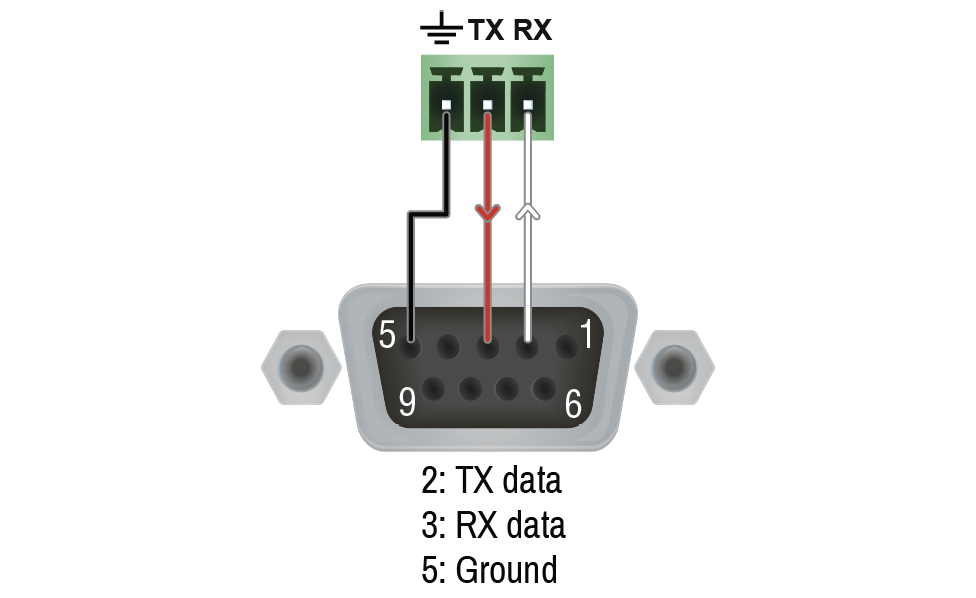
|
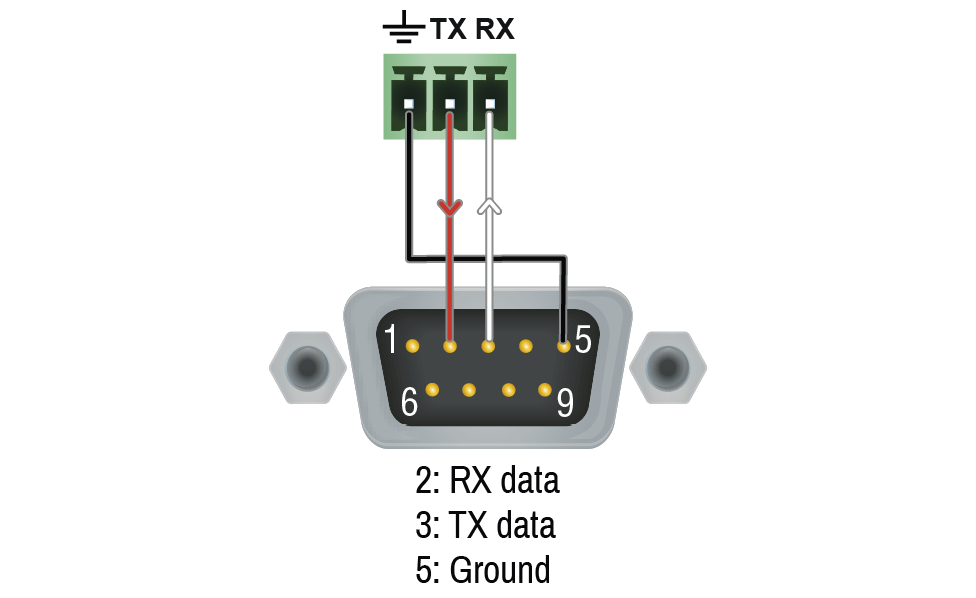
|
Inputs and outputs of audio devices are symmetric or asymmetric. The main advantage of the symmetric lines is the better protection against the noise, therefore they are widely used in the professional audio industry. Symmetric audio is most often referred to as balanced audio, as opposed to asymmetric, which is referred to as unbalanced audio. Ligthware products are usually built with 5-pole Phoenix connectors, so we would like to help users assembling their own audio cables. See the most common cases below.
ATTENTION!Symmetric and asymmetric lines can be linked with passive accessories (e.g. special cables), but in this case half of the line level is lost.
ATTENTION!There are numerous types of regularly used connector and cable types to connect audio devices. Please always make sure that a connector or cable fits your system before use.
ATTENTION!Never join the phase-inverted (negative, cold or -) poles (either right and left) to the ground or to each other on the output side, as this can damage the unit.
INFO:Use a galvanic isolation in case of a ground loop.
The Pinout of the 5-pole Phoenix Connector

Compatible Plug Type: Phoenix® Combicon series (3.5mm pitch, 5-pole), type: MC 1.5/5-ST-3.5.
From Balanced Output to Unbalanced Input
|
Phoenix - 2 x 6.3 (1/4") TS |
Phoenix - 2 x RCA |
Phoenix - 3.5 (1/8") TRS |
||
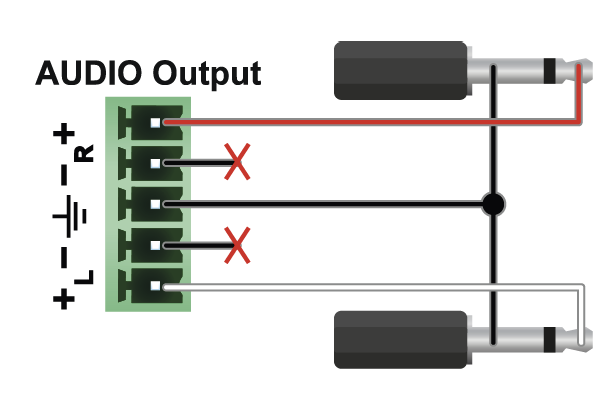
|
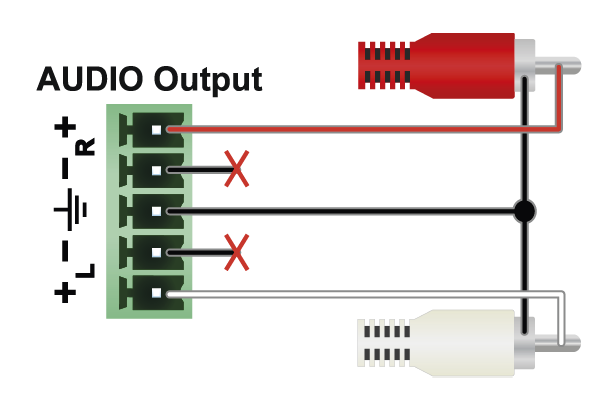
|
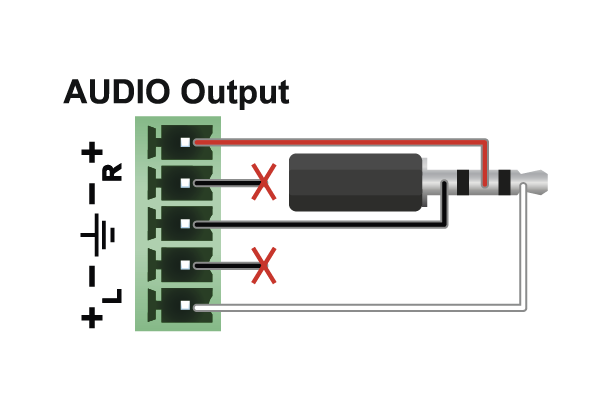
|
From Balanced Output to Balanced Input
|
Phoenix - 2 x 6.3 (1/4") TRS |
Phoenix - 2 x XLR |
|
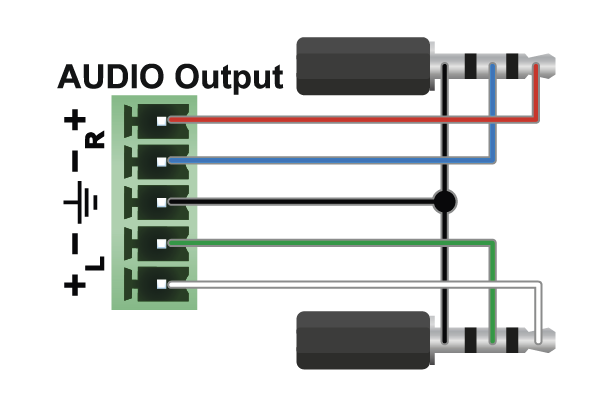
|
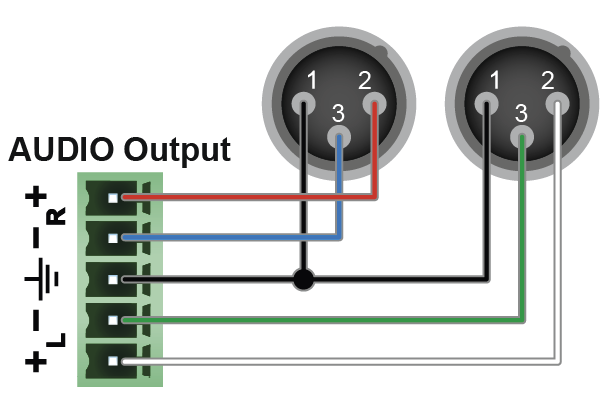
|
11.6.1. Device Dimensions Visualization
|
1/3 rack wide; half unit high |
1/4 rack wide; half unit high |
1/4 rack wide; half unit high |
|||
|
Width: |
138 mm |
Width: |
100.4 mm |
Width: |
100.4 mm |
|
5.43 inches |
3.95 inches |
3.95 inches |
|||
|
Depth: |
151.8 mm |
Depth: |
151.8 mm |
Depth: |
131.8 mm |
|
5.97 inches |
5.97 inches |
5.19 inches |
|||
|
Height: |
26 mm |
Height: |
26 mm |
Height: |
26 mm |
|
1 inch |
1 inch |
1 inch |
|||
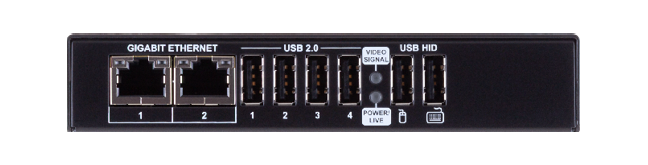
|
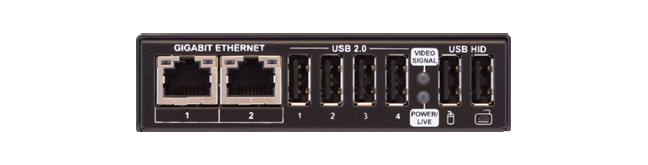
|
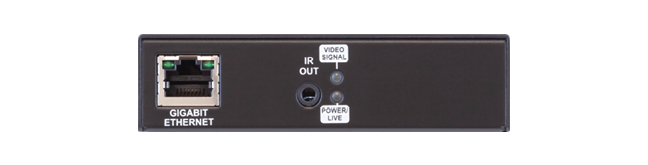
|
|||
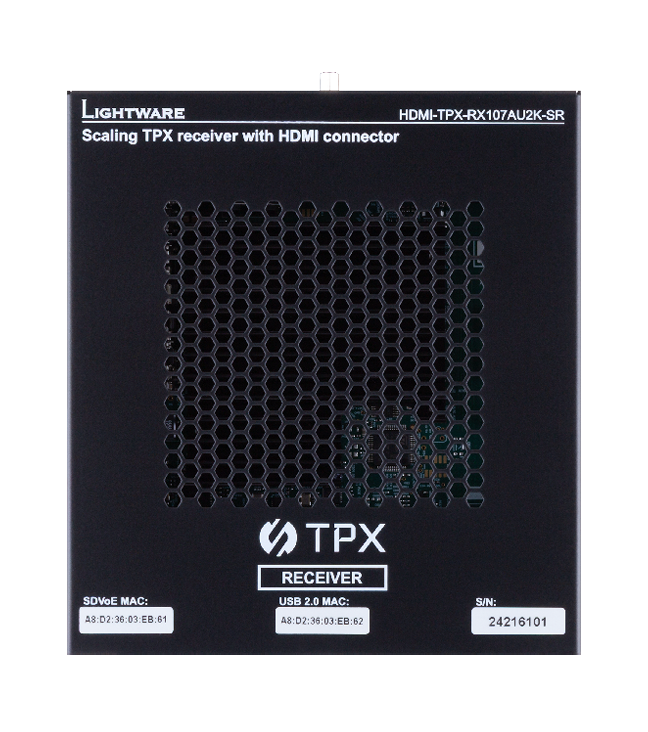
|
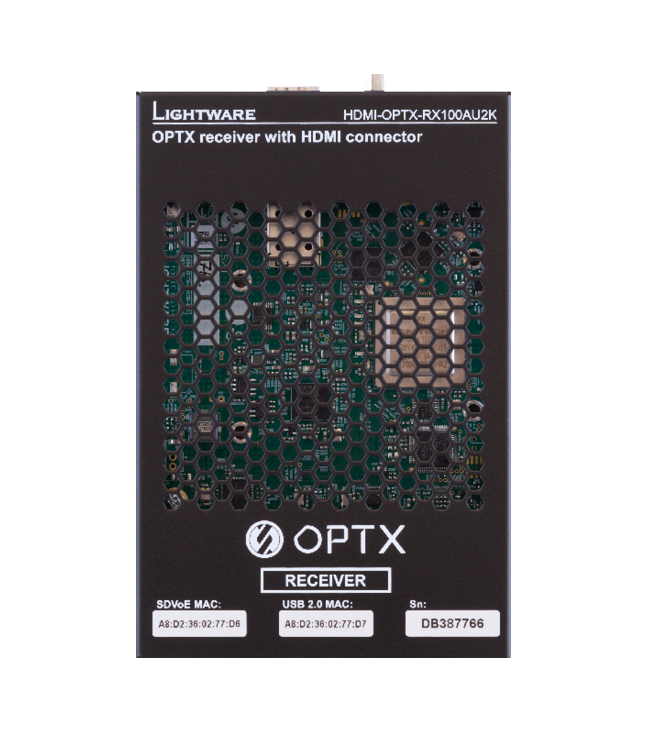
|
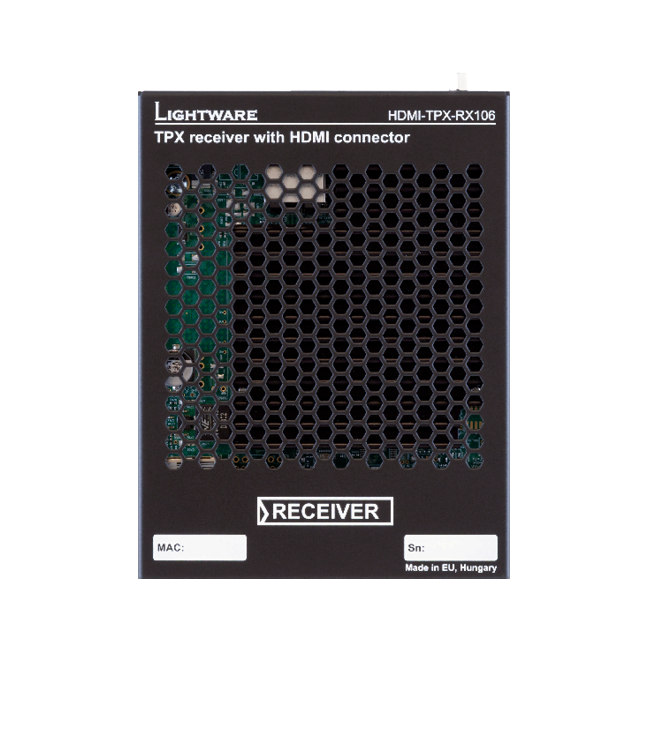
|
|||
|
|
|
|
|||
INFO:Size 3 devices will be phased out, their successors will be the -V2 series extenders that fit in the Size 2 sizing.
The following drawings present the physical dimensions of the Size 1 extenders. Dimensions are in mm.
Affected models:
▪HDMI-TPX-RX107A-SR, -RX107AU2K-SR, -RX107D, -RX109DU2K, -TX107D, -TX209DU2K
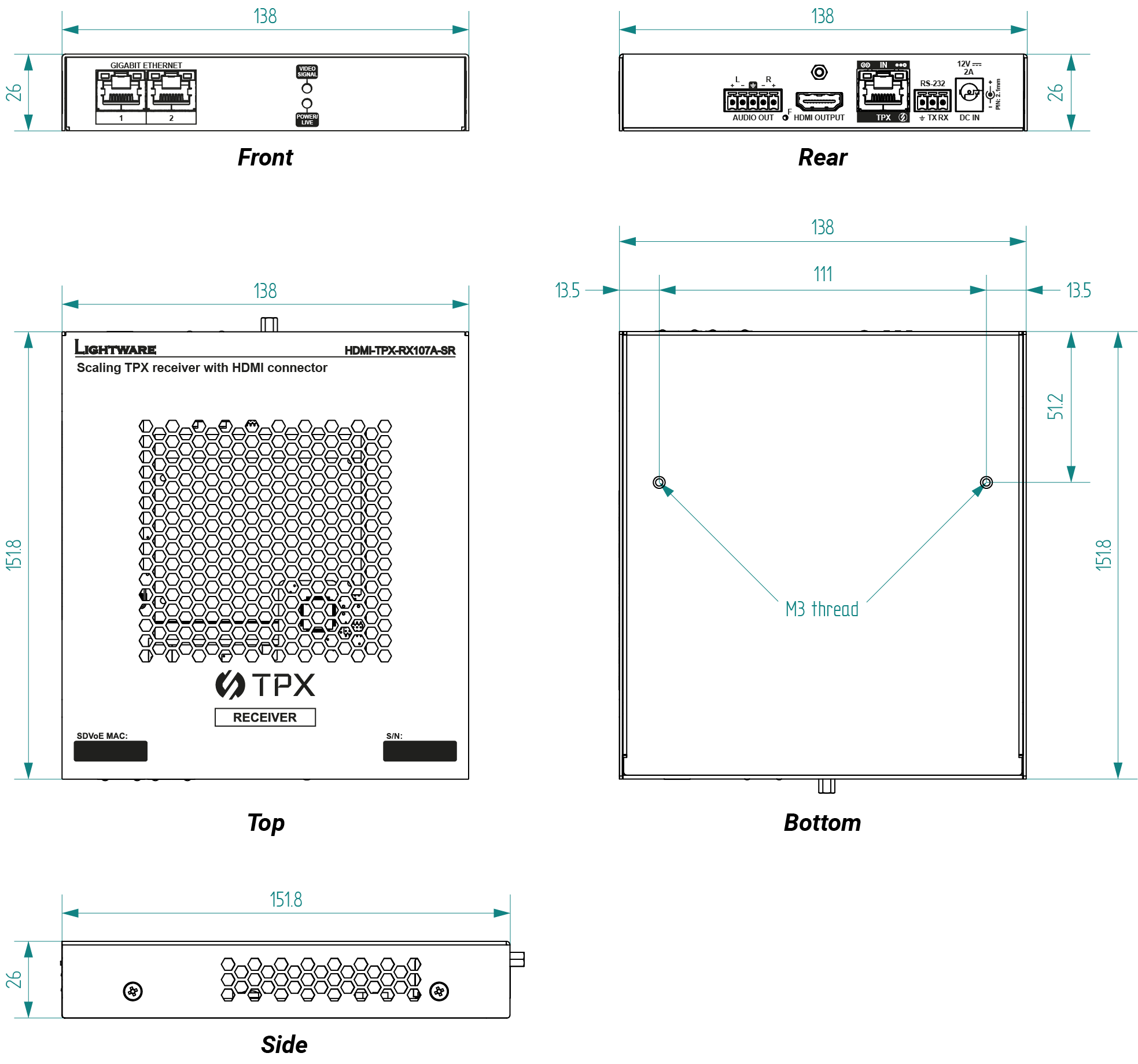
The following drawings present the physical dimensions of the Size 2 extenders. Dimensions are in mm.
Affected models:
▪HDMI-TPX-RX106-V2, -RX107-V2, -RX109AK-V2, -RX109AU2K, -TX106-V2, -TX106A-V2, -TX107-V2, -TX209AK-V2, -TX209AU2K
▪HDMI-OPTX-RX100A, -RX100AU2K, -TX100A, -TX100AU2K
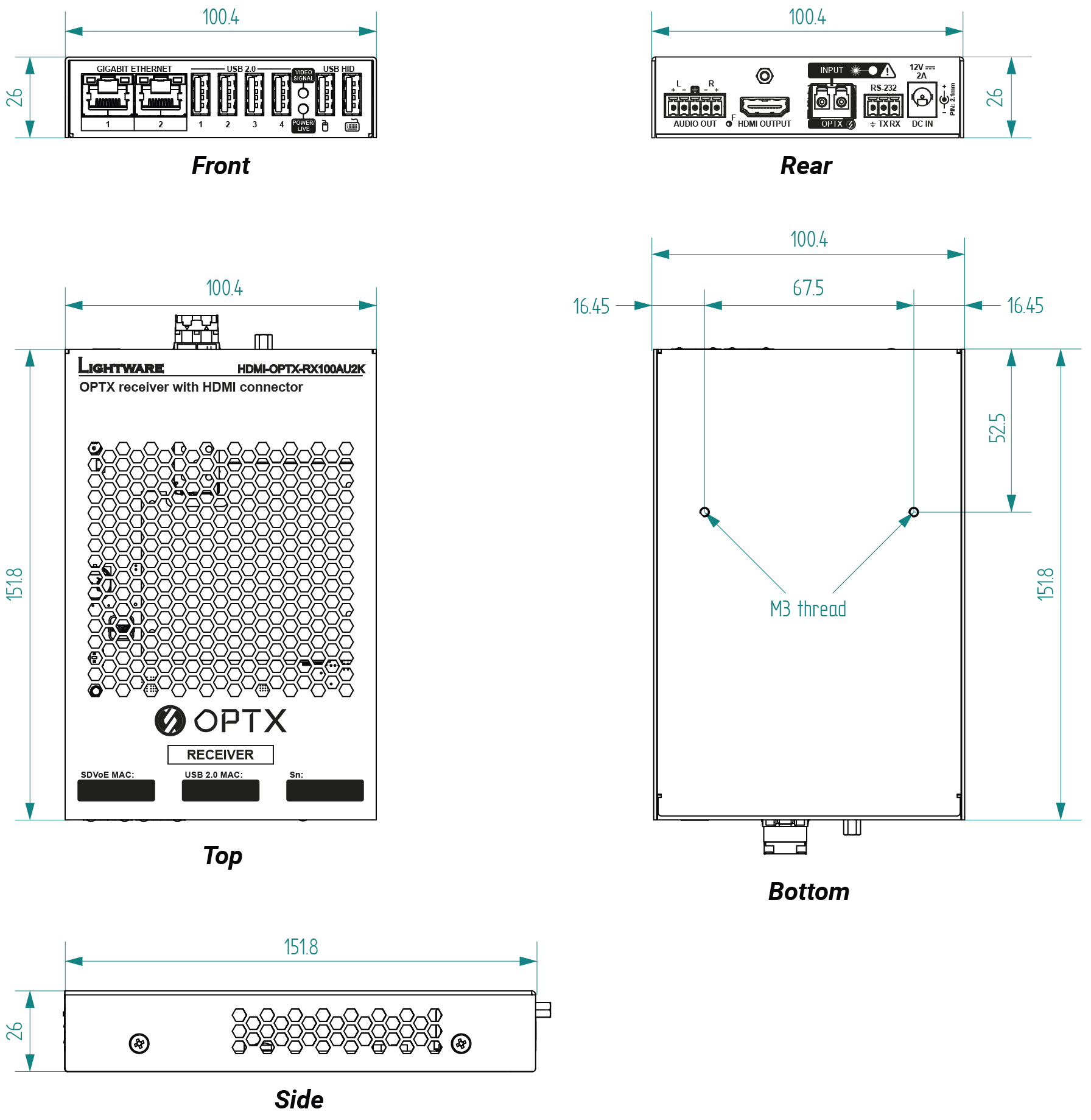
The following drawings present the physical dimensions of the Size 3 extenders. Dimensions are in mm.
Affected models:
▪HDMI-TPX-RX106, -RX107, -RX209AK, -TX106, -TX106A, -TX107, -TX209AK
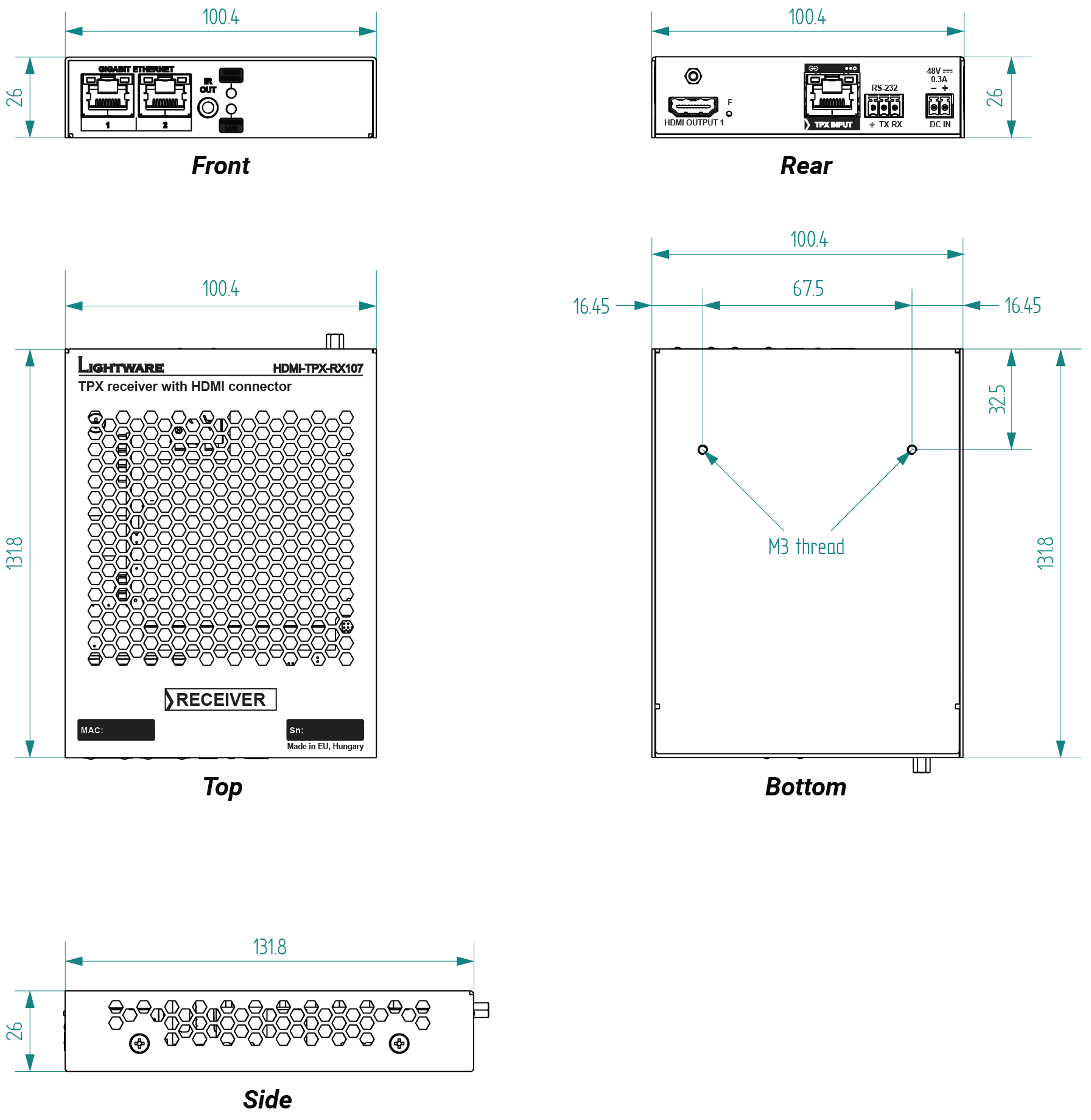
11.7. Release Notes of the Firmware Packages
Affected models:
▪HDMI-OPTX-RX100A
▪HDMI-OPTX-RX100AU2K
▪HDMI-OPTX-TX100A
▪HDMI-OPTX-TX200AU2K
▪HDMI-TPX-RX106-V2
▪HDMI-TPX-RX107-V2
▪HDMI-TPX-RX209AK-V2
▪HDMI-TPX-RX107A-SR
▪HDMI-TPX-RX107AU2K-SR
▪HDMI-TPX-RX107D
▪HDMI-TPX-RX109AU2K
▪HDMI-TPX-RX109DU2K
▪HDMI-TPX-TX106-V2
▪HDMI-TPX-TX106A-V2
▪HDMI-TPX-TX107-V2
▪HDMI-TPX-TX209AK
▪HDMI-TPX-TX107D
▪HDMI-TPX-TX209AU2K
▪HDMI-TPX-TX209DU2K
v2.9.0b1
Release date: 2026-04-30
New feature:
▪Added RX-side VLAN management for systems using HDMI-UCX-TPX-RX107 , including configurable VLAN ports, management-network support, parallel IP addressing, and trunk-mode operation.
Bugfix:
▪Fixed a critical issue that could occur when a UCX TPX TX updated the firmware of a connected HDMI-UCX-TPX-RX107.
v2.8.0b8
Release date: 2026-03-04
New feature:
▪New -V2 variants are supported.
Bugfix:
▪ICRON's USB2.0 ASIC firmware updated to version N18, adding further stabilization to the 10G USB data transmission.
▪Stable connection with Samsung Flip if PIP Capture is turned on.
▪Semtech's AVX SDVoE firmware has been update to version v2.3.0.8 adding further stabilization to the 10G fee.
Known issue:
▪LW2 command {heap} gives invalid value.
▪In rare cases, restart time of devices could increase up to 30 seconds.
▪There is a ~0.3% chance, that an EDID-change on TPX-RX will not take effect in TPX-TX input. Video transfer is possible in this state, but the resolution might be incorrect.
v2.6.1b1
Release date: 2025-09-15
New feature:
▪From this version on, extenders with Dante audio capabilities are also supported: HDMI-TPX-TX107D, HDMI-TPX-RX107D, HDMI-TPX-TX209DU2K, HDMI-TPX-RX109DU2K.
Bugfix:
▪HDMI stream starts with every BlueRiver control server version.
▪TX-RX communication failures are fixed by AVX FW updated to 2.3.0.5
▪AUDIOMUTE LW2 command only accepts valid arguments.
v2.5.2b2
Release date: 2024-01-24
New feature:
▪From this version on, the copper based scaling receivers (HDMI-TPX-RX107A-SR and HDMI-TPX-RX107AU2K-SR) are also supported.
Bugfix:
▪Improved on the quality of the link between the TX and the RX devices. This has a positive effect both on the RS232 and the Ethernet communication.
Known issue:
▪When a scaling receiver is connected to a transmitter in point-to-point mode, the image output may become unstable if, the receiver is in fast switch mode and the embedded audio is set to 192 kHz and 24-bit.
▪RS232 settings are not reset properly on the TX device after a factory reset when more than one SDVoE Control Server is present on the network.
▪Factory resetting the RX device causes the established USB KVM connection not to work anymore. Restarting either the transmitter or the receiver resolves the problem.
v2.5.0b8
Release date: 2024-06-19
New feature:
▪From this version on, the copper based scaling receivers (HDMI-TPN-RX107A-SR and HDMI-TPN-RX107AU2K-SR) are also supported.
Bugfix:
▪Fixed a bug that caused a 422 10bit input signals to be converted to 422 8bit during transmission.
▪Fixed a bug that caused the de-embedded audio to be muted on the analog audio output when a display with DVI EDID is connected to the local output of the transmitter device.
▪From this version on, the HDCP is reported as not supported towards a source connected to a TX device when the supported HDCP version of the sink connected to the RX unit cannot be determined.
▪Fixed a bug that caused the video signal on the HDMI output of a receiver device to disappear when the HDMI cable to a sink device is disconnected and connected again.
Known issue:
▪Factory resetting either the TX or the RX device causes the established USB2.0 connection not to work anymore. Unplugging and replugging the corresponding USB device or restarting either the transmitter or the receiver resolves the problem.
v2.4.0b8
Release date: 2023-11-08
New feature:
▪From this version on, the health status of the receiver can be queried and the analog audio volume can be set from a compatible transmitter device.
Bugfix:
▪Fixed a bug that caused the USB2.0 output not to function after updating the HDMI-TPX-TX and HDMI-TPX-RX pair.
▪Fixed a bug that caused a video with color depth of 10 or 12 bit/component to be converted to 8 bit/component.
▪Fixed a bug that resulted in muted audio on the analog output after a factory reset (e.g., during firmware upgrade).
▪Fixed a bug that caused the USB2.0 and Ethernet transmission to stop intermittently when switching between HDMI1.4 and HDMI2.0 video signals on the input of the transmitter.
Known issue:
▪A clicking sound can be heard in the analog audio output of a receiver device when the format of the input HDMI stream changes.
▪A clicking sound can be heard in the analog audio output when the audio content in the incoming HDMI stream changes from compressed audio to uncompressed audio or vice versa.
v2.3.0b15
Release date: 2023-09-28
Known issue:
▪When switching between HDMI1.4 and HDMI2.0 video signals on the input of the transmitter, the USB2.0 and Ethernet transmission intermittently drops. USB HID is not affected.
▪When updating the HDMI-TPX-TX and HDMI-TPX-RX pair, it might happen that the USB2.0 output stops functioning. Restarting the RX and the TX devices resolves the problem.
▪When a dispay with DVI EDID is connected to the local output of the HDMI-TPX-TX transmitter, the de-embedded audio is muted on the analog audio output.
▪422 10bit signals are converted to 422 8bit during transmission.
v2.2.0b5
Release date: 2023-07-27
New feature:
▪From this version on, the HDMI-UCX-TPX-RX107 product variant is also supported.
Bugfix:
▪Fixed a bug that could have resulted in intermittent drop outs of the transmitted audio content on the output for a brief period of time.
▪Fixed a bug that potentially could cause a crash on the receiver if the video reception was unstable.
Known issue:
▪Video with a color depth of 10 or 12 bit/component is converted to 8 bit/component. Consequently, Dolby Vision and HDR is not supported.
▪Factory resetting the device mutes the audio on the analog output. A power cycle restores audio de-embedding to the analog output.
v1.3.0b3
Release date: 2023-03-31
Bugfix:
▪Fixed a bug that caused the HDCP encryption on the local output of the HDMI-TPX-TX209AK device not to work properly.
▪Fixed a bug that caused the secondary video output of the HDMI-TPX-RX209AK not to work.
v1.2.0b7
Release date: 2022-12-15
Bugfix:
▪Fixed a bug that caused the HDCP capability information not to be transparently passed from the sink on a decoder to the source on the encoder.
Known issue:
▪For resolutions with a pixel clock just above the 340MHz limit, scrambling and TMDS bit clock ratio are not adjusted as required by the HDMI 2.0 specification.
v1.1.0b4
Release date: 2022-04-08
New feature:
▪From this version on, the HDMI-TPX-TX106A, the HDMI-TPX-TX209AK, and the HDMI-TPX-RX209AK product variants are also supported.
Bugfix:
▪Changed the default RS232 configuration parameters to 9600 Baud, 8 data bits, no parity, 1 stop bit.
Known issue:
▪The local output on a HDMI-TPX-TX209AK device is disabled.
▪The secondary video output (HDMI OUTPUT 2) of the HDMI-TPX-RX209AK is disabled.
▪When the audio content in the HDMI input stream is changed from LPCM to any compressed format, the compressed audio briefly (for less than 0.1s) appears on the analog audio output.
v1.0.1b2
Release date: 2021-12-10
Bugfix:
▪Fixed a bug that resulted in infinite attempt to read EDID on the output if the EDID checksum is wrong.
▪Fixed a bug that caused the receiver to output 4kp60 signal only if the connected sink had an EDID with 4kp60 support.
Known issue:
▪The learn EDID feature does not work if no signal source is connected to a HDMI-TPX-TX106/107 transmitter device.
▪For certain HDMI timings (R2560x1600_75Hz, R2560x1600_75Hz, R2560x2048CVT60Hz, R2560x2048CVT60Hz, R1080p100B, R1080p100B, R2560x1600_60Hz, and R2560x1600_60Hz) the HDR content is truncated to 8bit per component on the output.
▪There might be intermittent drop outs of the transmitted audio content on the output for a brief period of time. These are more likely to occur for LPCM content.
▪The VIDEO_STATUS LED does not work on the HDMI-TPX-RX106/107 devices.
v1.0.0b9
Release date: 2021-11-10
Known issue:
▪4kp60 signal is output from the receiver only if the connected sink has an EDID with 4kp60 support.
▪When connected to the receiver, sinks without HDCP 2.3 support will not display content that could otherwise be output using HDCP 1.x. (I.e., signal with content type of Type 0 will not be displayed on such sinks.)
▪CEC commands have to be issued twice to pass through the transmitter - receiver device pair.
▪The VIDEO SIGNAL LED does not work.
11.7.2. HDMI-TPX-100 Legacy Series
Affected models:
▪HDMI-TPX-RX106
▪HDMI-TPX-RX107
▪HDMI-TPX-RX209AK
▪HDMI-TPX-TX106
▪HDMI-TPX-TX106A
▪HDMI-TPX-TX107
▪HDMI-TPX-TX209AK
v2.8.0b3
Release date: 2026-03-04
Bugfix:
▪Semtech's AVX SDVoE firmware has been update to version v2.3.0.8 adding further stabilization to the 10G fee.
11.8. Further Document Information
Symbol Legend
The following symbols and markings are used in the document:
WARNING!Safety-related information that is highly recommended to read and keep in every case!
ATTENTION!Useful information for performing a successful procedure; it is recommended to read.
DIFFERENCE:Feature or function that is available with a specific firmware/hardware version or product variant.
INFO:A notice, which contains additional information. Procedure can be successful without reading it.
DEFINITION:The short description of a feature or a function.
TIPS AND TRICKS:Ideas that you may have not known yet, but can be useful.
Navigation Buttons
|
Buttons in the PDF version |
Buttons in the HTML version |
|||
|
|
Navigate to the Table of Contents. |
|
Open the main Table of Contents. |
|
|
|
Go back to the previous page. If you clicked on a link previously, you can go back to the source page by pressing the button. |
|
Navigate to the Online User Manuals webpage. |
|
|
|
Navigate to the Bookmark page. |
|
Navigate to the Bookmark page in this User Manual. |
|
|
|
Visit www.lightware.com. |
|
Download the PDF version of the User Manual. |
|


About Printing
Lightware Visual Engineering supports green technologies and eco-friendly mentality. Thus, this document is made primarily for digital usage. If you need to print out a few pages for any reason, follow the recommended printing settings:
▪Page size: A4
▪Output size: Fit to page or Match page size
▪Orientation: Landscape
TIPS AND TRICKS: Thanks to the size of the original page, a border around the content (gray on the second picture below) makes it possible to organize the pages better. After punching holes in the printed pages, they can easily be placed into a ring folder.
11.9. Limited Warranty Statement
1. Lightware Visual Engineering PLC (Lightware) warrants to all trade and end user customers that any Lightware product purchased will be free from manufacturing defects in both material and workmanship for three (3) years from purchase unless stated otherwise below. The warranty period will begin on the latest possible date where proof of purchase/delivery can be provided by the customer. In the event that no proof can be provided (empty ‘Date of purchase’ field or a copy of invoice), the warranty period will begin from the point of delivery from Lightware.
1.1. 25G and MODEX product series will be subject to a seven (7) year warranty period under the same terms as outlined in this document.
1.2. If during the first three (3) months of purchase, the customer is unhappy with any aspect of a Lightware product, Lightware will accept a return for full credit.
1.3. Any product that fails in the first six (6) months of the warranty period will automatically be eligible for replacement and advanced replacement where available. Any replacements provided will be warranted for the remainder of the original unit’s warranty period.
1.4. Product failures from six (6) months to the end of the warranty period will either be repaired or replaced at the discretion of Lightware. If Lightware chooses to replace the product, then the replacement will be warranted for the remainder of the original unit’s warranty period.
2. The above-stated warranty and procedures will not apply to any product that has been:
2.1. Modified, repaired or altered by anyone other than a certified Lightware engineer unless expressly agreed beforehand.
2.2. Used in any application other than that for which it was intended.
2.3. Subjected to any mechanical or electrical abuse or accidental damage.
2.4. Any costs incurred for repair/replacement of goods that fall into the categories above (2.1., 2.2., 2.3.) will be borne by the customer at a pre-agreed figure.
3. All products to be returned to Lightware require a return material authorization number (RMA) prior to shipment, and this number must be clearly marked on the box. If an RMA number is not obtained or is not clearly marked on the box, Lightware will refuse the shipment.
3.1. The customer will be responsible for in-bound, and Lightware will be responsible for out-bound shipping costs.
3.2. Newly repaired or replaced products will be warranted to the end of the originally purchased product's warranty period.