
USER MANUAL
Lightware Device Controller Software
(LDC)
Software Platform
|
Rev. |
Release date |
Changes |
Editor |
|
1.0 |
2014-05-21 |
Initial release. |
Zsolt Marko, Laszlo Zsedenyi |
|
. . . |
|||
|
v3 |
2025-11-11 |
New document template, new sections about UCX and MX2M devices, network port list added, general document update. |
Laszlo Zsedenyi |
|
v4 |
2026-09-07 |
ToC correction. |
Laszlo Zsedenyi |
Contact Us
+36 1 255 3800
+36 1 255 3810
Lightware Visual Engineering PLC.
Gizella 51-57, Budapest H-1143, Hungary
©2026 Lightware Visual Engineering. All rights reserved.
All trademarks mentioned are the property of their respective owners.
Specifications are subject to change without notice.
Thank you for using Lightware Device Controller. The software is an easy and comfortable way to control and configure your Lightware device locally or remotely using Ethernet, USB or RS-232 connection. LDC has got a unified look, been improved with many effective and helpful features, but all of the functions remained from the previous versions. It is also available for Windows and macOS platform. An online update function was integrated into the LDC, which helps the users to always have the latest version.
Most Lightware devices are supported by LDC. The new functions and features have been continuously tested in depth device by device with the latest firmware packages since the first edition of the LDC (May 2014).
ATTENTION!As LDC takes the advantage of all new features implemented in the latest firmware, it is highly recommended to update your device to prevent any possible incompatibility issues. Detailed instructions about the updating can be found in the user manual of the device. In case of having any question about firmware updates please contact your local representative or Lightware Support team.
INFO:This is a general description about the Lightware Device Contoller software, where you can read about the basic functions, common features and many more. There are many device specific properties and operation modes that you can find in the product's own user manual (chapters about software control).
ATTENTION!The following features depend on the Lightware product that you are using. Some of them may not be available on your device. Please refer to the user manual of your product.

|
Unique Look and Feel |
|
LDC has unique graphical user interface which is easy to use and overview. |
|

|
Self-Evident Handling |
|
The software is designed to be as easy to use as possible. Functions can be accessed quickly and hints help the user in the fast recognition. |
|

|
Dynamic Crosspoint Layout |
|
The LDC can adapt to different screen sizes. It makes the application easy to use on touchscreen devices like tablet PCs, laptops and also on desktop PCs. |
|

|
Event Manager |
|
The Event Manager tool takes care of all the necessary controls in a smaller configuration by performing predefined actions in response to device status changes. Hence, in a less complex environment, there is no need to invest in additional control solutions, which makes the Lightware devices the best choice for numerous applications. |
|

|
Advanced EDID Management |
|
EDID manager tool makes it easy to create, emulate and manage EDIDs for the perfect audio-video presentation. |
|

|
Frame Detector and Signal Analysis |
|
Using Lightware Device Controller software, the exact video and audio signal format can be determined such as timing, frequencies, scan mode, HDCP encryption, color range, color space and audio sample rate. |
|
|
Open API |
|
Lightware Device Controller contains a Terminal window for sending LW2 commands, and an Advanced view with the LW3 Node tree. |
1.3. Minimum System Requirement
▪RAM: 1 GB
▪Minimum display resolution: 1600x900
2. Install, Update and Connect
The software can be easily installed on a computer with Windows OS or macOS. There are two different ways to install the application: the normal and the snapshot install methods.
2.1. Different Ways of Installation
There are two different ways to install the application: the normal and the snapshot install methods.
|
Normal install |
Snapshot install |
|
Available for Windows and macOS |
Available for Windows OS |
|
The installer can update only this instance |
Cannot be updated |
|
Only one updateable instance can exist for all users |
More than one different version can be installed for all users |
Comparison table of normal and snapshot install
The default method is the Normal installation.
INFO:After the installation, the Windows and the Mac application has the same look and functionality.
2.2. Steps of the Installation - Windows OS
Installation of LDC for Windows can be done in a few easy steps.
Step 1.Visit Lightware’s website (www.lightware.com) and download the LDC software installer for Windows.
Step 2.Run the installer. If the User Account Control drops a pop-up message, click Yes.
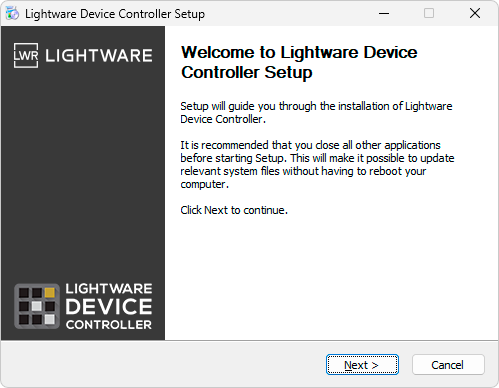
Step 3.The welcome window opens. Click Next.
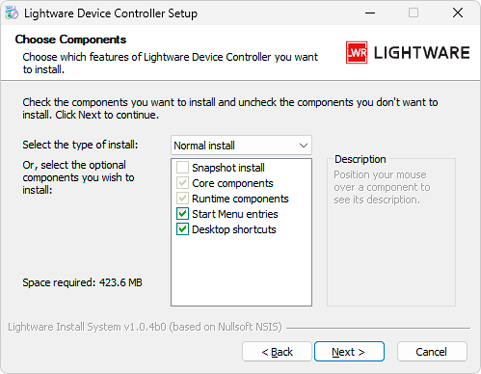
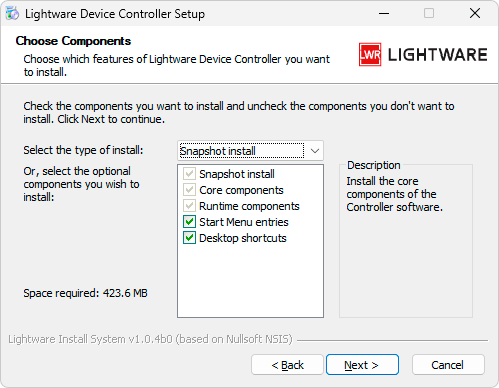
Step 4.Select the type of the installation. Here the normal and the snapshot install can be chosen as mentioned in the previous section. Select the optional components then click Next, using the Normal install as the default method is highly recommended.
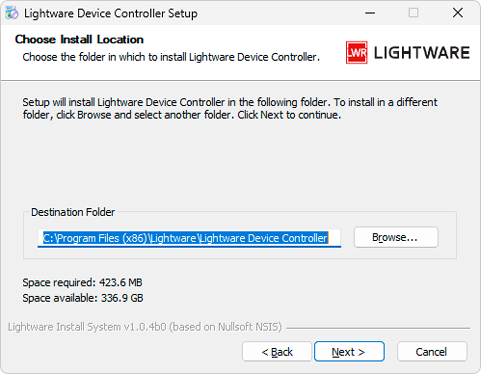
Step 5.Select the destination folder and click Next. Using the default path is highly recommended.
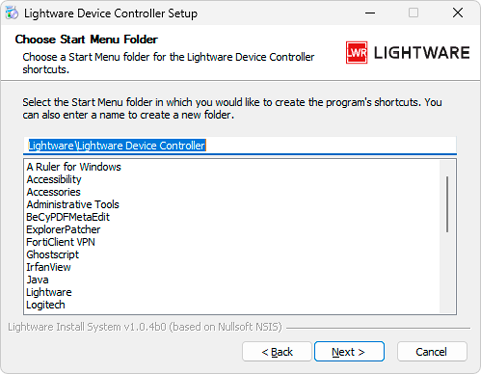
Step 6.Select the Start Menu Folder and click Next. Using the default folder is highly recommended. If the Start menu entries were not checked in Step 3, this window will be skipped.
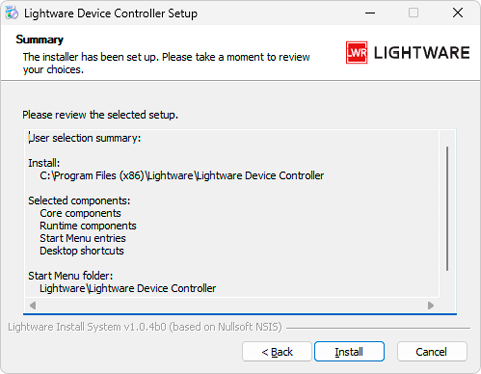
Step 7.Verify the settings, and if they are correct, click Install. (If not, click Back and change the setting.)
Step 8.After the installation of the last component, the Next button is activated. Click on it.
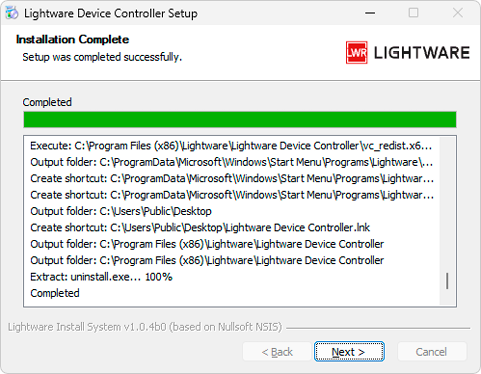
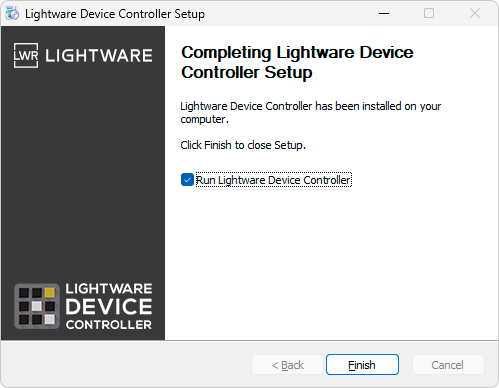
Step 9.If the installation is complete, click Finish. Uncheck the box if the running of the LDC will be postponed. Checking in the release notes box will show the latest released updates in LDC.
2.3. Steps of the Installation - macOS
The installation of the LDC to a computer with macOS can be done in few easy steps.
Step 1.Visit Lightware’s website (www.lightware.com) and download the LDC software installer for macOS.
Step 2.Mount the DMG file by double clicking on it.
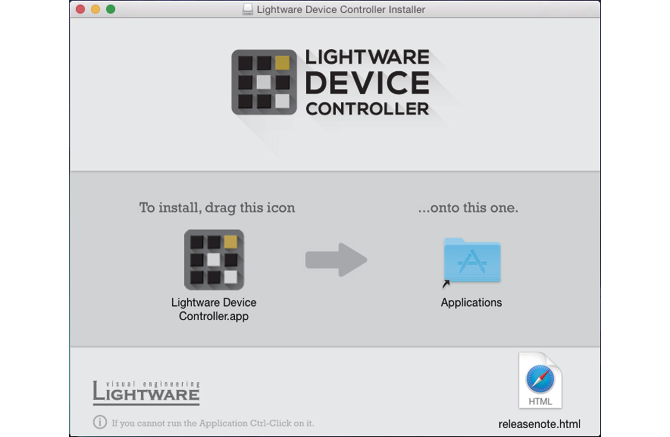
Step 3.Drag the LDC icon over the Applications icon to copy the program into the Applications folder. If you want to copy the LDC into another location, just drag the icon over the desired folder.
The Device Discovery window appears automatically, and the program checks the available updates on Lightware'a website and opens the update window if the LDC found an update.
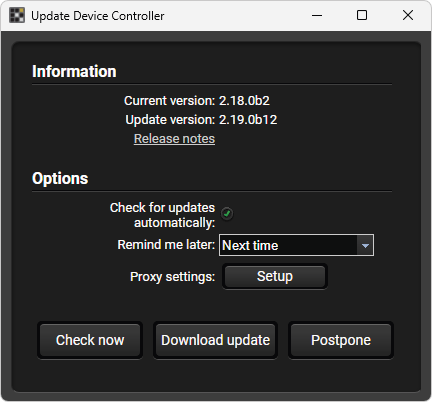
The current and the available update version number can be seen at the top of the window and they are shown in this window even with the snapshot install.
Step 1.Set the desired update setting in the options section.
▪If you do not want to check the update automatically, uncheck the circle, that contains the green tick.
▪If you select Postpone, the reminder can be set for different durations from the drop-down list.
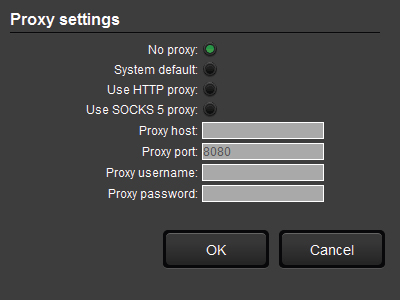
▪If the proxy settings are needed for the update process, set the proper values, then click the OK button.
Step 2.Click on the Download update button to start updating.
INFO:You can check the update manually by opening the About menu on the Device Discovery screen ( button), clicking on the Update and the Check now buttons.
Connect the desired device and the computer via an interface that is supported by the device. It can be:
▪Serial port with:
=RS-232 cable (e.g. DSub-9 - Phoenix)
=FTDI cable (USB-A - Phoenix).
▪Ethernet port, with
=LAN patch cable (via local network); make sure that the computer is in the same network.
=LAN cross cable (direct connection).
=Wi-Fi connection to the LAN where the Lightware device is installed.
▪USB, with USB-A - mini USB cable.
INFO:If the computer has multiple Ethernet connections (for example Wi-Fi and LAN connections are used simultaneously), you will have to know the IP address for the one that is used for controlling the device.
INFO:Upon connecting the device to the computer with USB, the operating system recognizes the device as a standard HID device and installs the required driver.
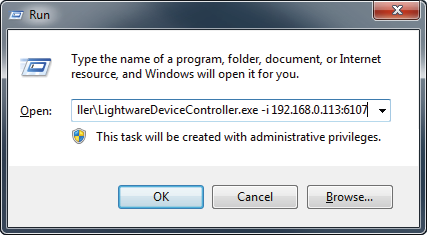
The common way to start the software is to double-click on the LDC icon. But the LDC can be run by command line parameters as follows:
Connecting to a Device with Static IP Address
The LDC is connected to a device with the indicated static IP address directly; the Device Discovery window is not displayed. When the port number is not set, the default port is used: 10001 (LW2 protocol). For LW3, devices use the 6107 port number.
Format: LightwareDeviceController -i <IP_address>:<port>
Example: LightwareDeviceController -i 192.168.0.20:6107
Connecting to a Device via a Serial Port
Format: LightwareDeviceController -c <COM_port>:<Baud>
Example: LightwareDeviceController -c COM1:57600
The LDC is connected to a device with the indicated COM port directly; the Device Discovery window is not displayed. If no Baud rate is set, the application will detect it automatically.
Adjusting the Zoom
The window can be zoomed to a specific value to fit to the resolution of the desktop (higher/lower). '1' is the default value (100%).
Format: LightwareDeviceController -z <magnifying_value>
Example: LightwareDeviceController -z 1.2
ATTENTION!The last set value is stored and applied when LDC is started without a parameter.
2.7. Applied Ports (Network Settings)
The following ports are necessary to pass via a network switch/firewall for a proper working between the device and the softwares:
|
Purpose/function |
Affected software |
Protocol |
Port nr. |
|
Device Discovery |
LDC |
UDP |
224.0.0.251:5353 |
|
Remote IP |
LDC |
UDP |
230.76.87.82:37421 |
|
Find me (LMDMP) |
- |
UDP |
230.76.87.82:37422 |
|
LW2 protocol |
- |
TCP |
10001 |
|
LW3 protocol |
- |
TCP |
6107 |
|
HTTP port |
- |
TCP |
80 |
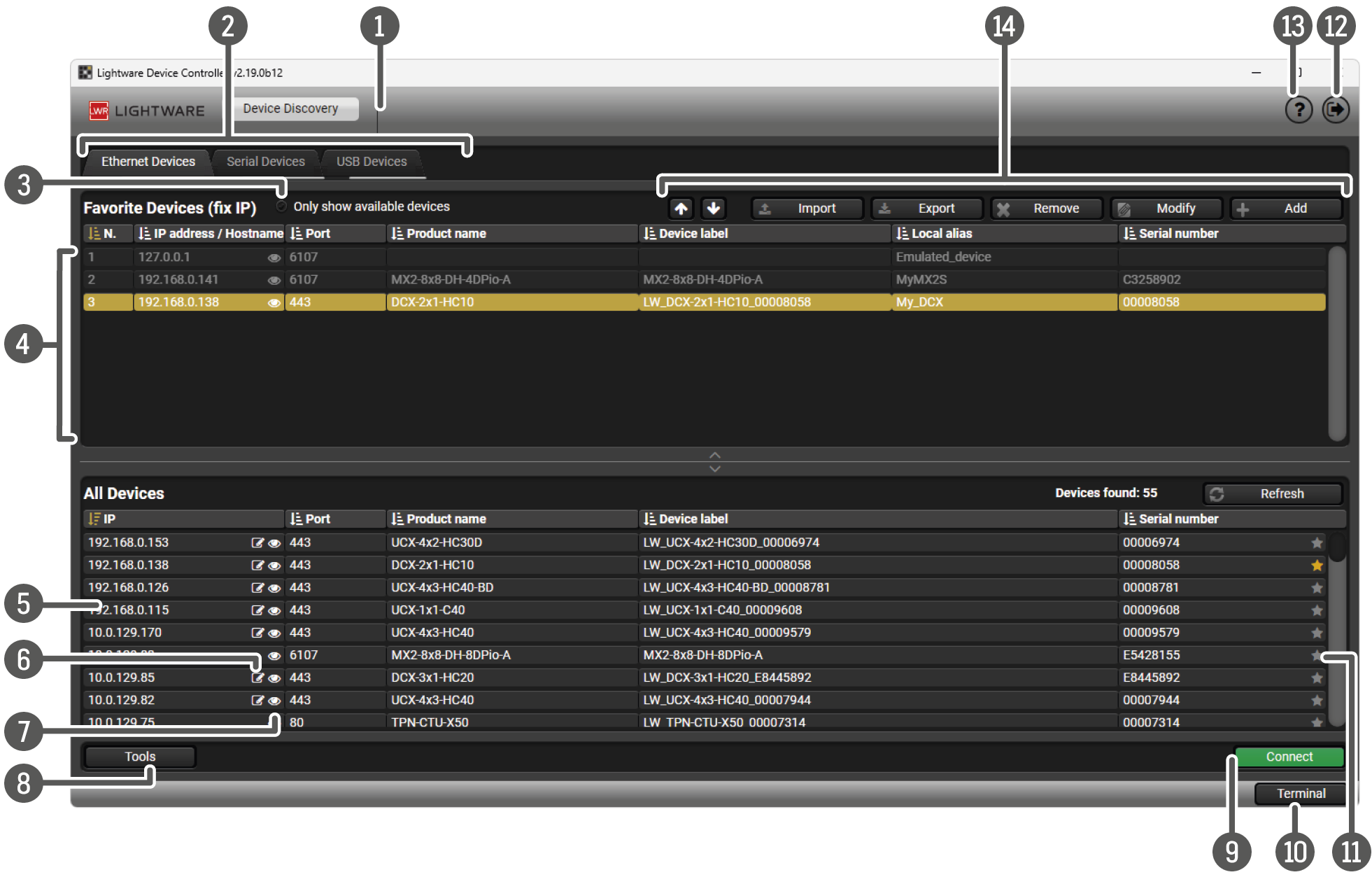
Start the application. The Device Discovery screen appears automatically, which displays the discovered Ethernet devices. It contains two sections: Favorite Devices (fix IP) and All Devices.
|
|
Device discovery screen |
Navigating to the home screen. |
|
|
|
Connection type tabs |
The discovered devices are listed here by connection types. Ethernet Devices tab: units connected via Ethernet connection to LAN. Serial Devices tab: units connected via RS-232 cable to the computer. USB Devices: units connected via USB cable to the computer. |
|
|
|
Only show connected devices option |
If checked: the Favorite devices list shows only the connected devices. If unckecked: the Favorite devices that are recently not connected to LAN still appear, but are displayed in grey. |
|
|
|
Favorite devices |
List of devices that are selected as favorite (via LAN). |
|
|
|
All devices |
List of devices that are available in the LAN. |
|
|
|
Change the IP Address |
Quick way to change the IP address settings of the selected device without entering its settings/network menu (if this function is supported by the device). |
|
|
|
Identify me |
Clicking on the |
|
|
|
Tools button |
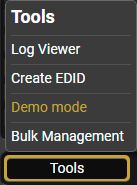
The following tools are available: Log Viewer: saved log files can be opened and analyzed in this window, for the details, see the Log section. Create EDID: EDID creator wizard panel opens. You can create and save unique EDIDs here. For the details, see the Creating an EDID - Easy EDID Creator section. Demo mode: you can connect to a virtual matrix and try out functions and working methods. For the details, see the Demo Mode Tool section. Bulk management: It is possible to configure several devices at once with the Bulk Device Management tool. The support of this feature is device-dependent. |
|
|
|
Connect button |
You can connect to the selected device by clicking on this button. |
|
|
|
Terminal button |
Terminal window for subscribe history of protocol commands independently of the connected device. |
|
|
|
Favorite device selector |
Click on the star if you want to save the device as favorite. This changes the color of the selected star to yellow, and the device appears in the Favorite Devices window. Clicking again on a yellow star will remove the device from the list of favorite devices. |
|
|
|
Exit button |
Close the program. |
|
|
|
About menu |
Clicking on it, the About window opens. Revision number, website and e-mail address can be found here. Update button offers a manual checking of updates of LDC. |
|
|
|
Function buttons of Favorite Devices |

|
Move up the selected device in the list. |

|
Move down the selected device in the list. |
||

|
Remove the selected device from favorite devices. |
||

|
Modify connection properties of the selected device. For more details, see the Modify Button section. |
||
|
Add a new device to the list of favorite devices. In this case you have to know the fixed IP address of the device. For more details, see the Add Button section. |
||


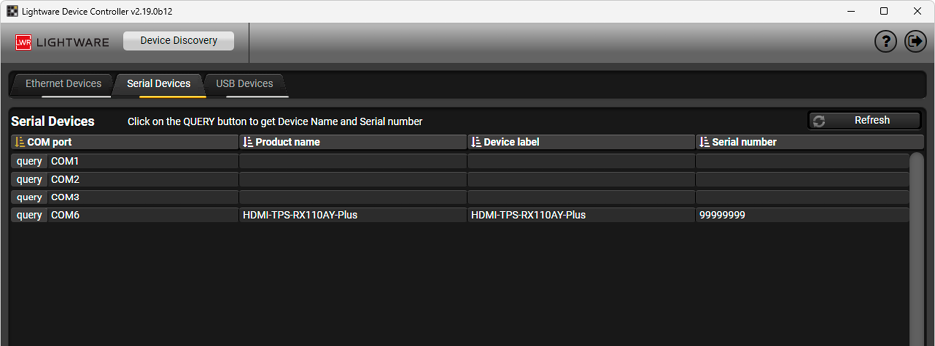
Serial Devices tab
Choose the Serial devices tab for connection via RS-232 port. Click on the Query button to display the desired device and double click on it to establish the connection.
ATTENTION!A COM port may be unavailable if it is used by another application. In that case the device will not be available for LDC. Please check the Serial port setting as well to be in Control mode.
INFO:For RS-232 connection, the router has to use 9600 or 57600 baud rate. The controller software determines the baud rate automatically.
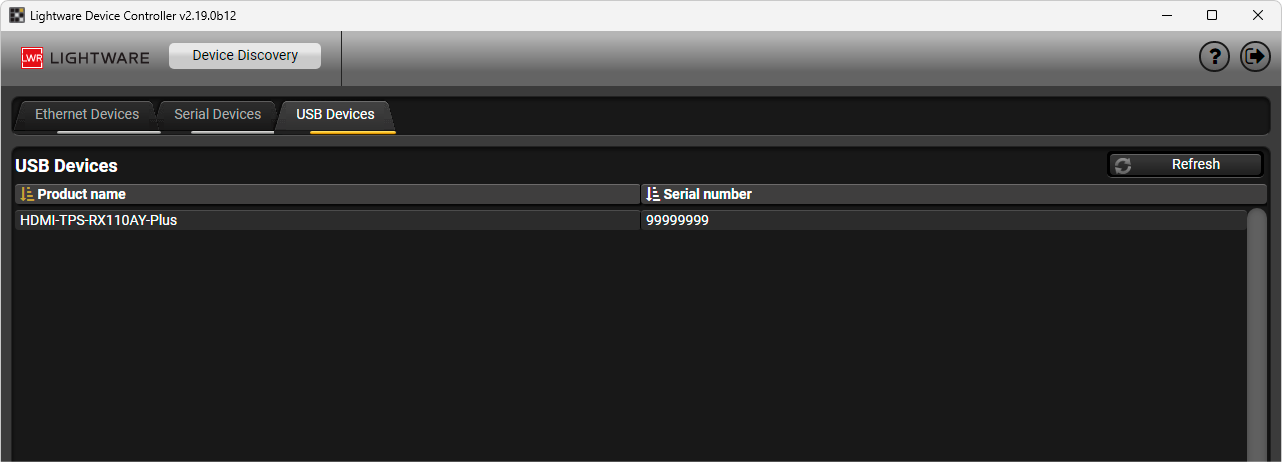
USB Devices tab
Choose the USB devices tab for connection via USB port. Double click on the desired device to establish the connection.
ATTENTION!Make sure that the firewall is not blocking the application.

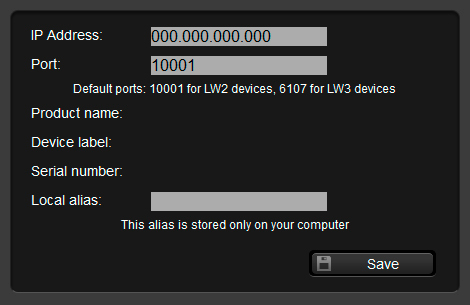
To add a new device with fixed IP address to the Favorite Devices list, choose the Add button. You have to know the exact IP address and the port number of the desired unit. (Default port numbers: 10001 for LW2 devices, 6107 for LW3 devices.)
You can add a unique alias name to the device for easier identification. (This alias is stored on your computer only.)

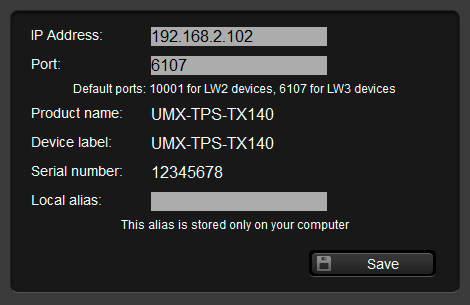
You can modify each device's properties by clicking on the Modify button, e.g. fixed IP address, port number and Local alias name. To store the given data, click on the Save button.
ATTENTION!Make sure the fixed IP address of the device is correct. Incorrect IP address may result in connection problems.
2.9.3. Changing the IP Address
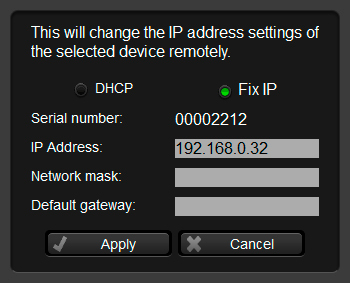
It is not necessary to enter the device's settings/network menu to modify the IP address settings quickly, you can set them by clicking on the pencil icon  beside the IP address in the All Devices menu.
In this window you can only see the new settings.
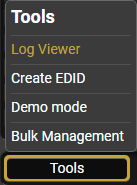
This tool can be used for reviewing log files that were saved previously.
To start Log Viewer, click on the Tools menu in the lower left corner of the window and select Log Viewer. Click on the Open LOG button to open the desired log file. Browse the file and select it, then click on the Open button. The content of the log file is listed in the window.
The user has two options to review log files: User information and Debug. Debug shows the original content of the log file, User information shows the user readable data. Default value is the User information, which is also the recommended option.
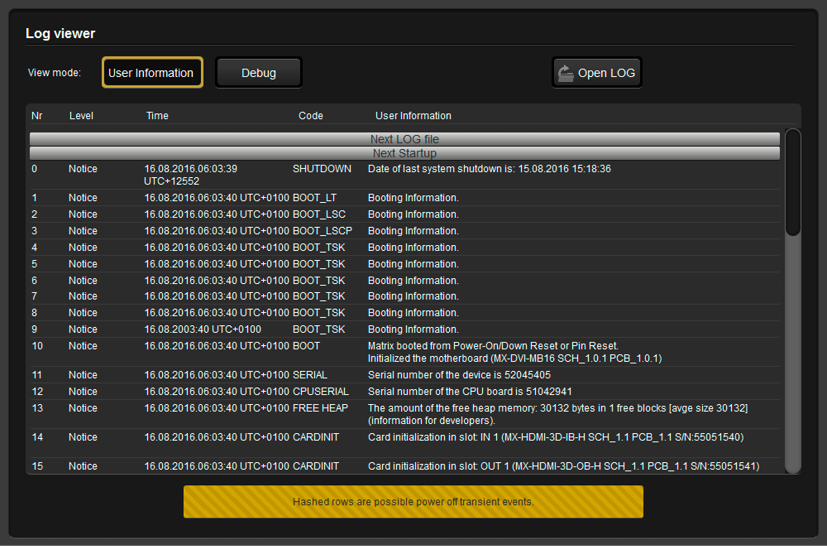
Log Viewer window with an opened log file
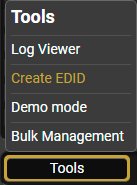
This tool opens the Easy EDID Creator wizard, which can be used for creating unique EDIDs in few simple steps. You can select resolution with refresh rating, signal type (even 3D support), audio format and it can be saved in a .bin or .dat file.
To start Create EDID tool, click on the Tools menu in the lower left corner of the window and select Create EDID. The functionality is the same as the Easy EDID Creator; for the detailed information, please see the EDID EDitor Application Notes document.
Demo mode is a virtual MX-FR17 matrix switcher with full functionality built into the LDC. Functions and options are the same as a real MX-FR17 device.
To start Demo mode, click on the Tools menu in the lower left corner of the window and select Demo mode. The application looks and functionality are the same as LDC for matrix switchers, for the detailed information, see the Crosspoint Menu of Matrix Switchers section.
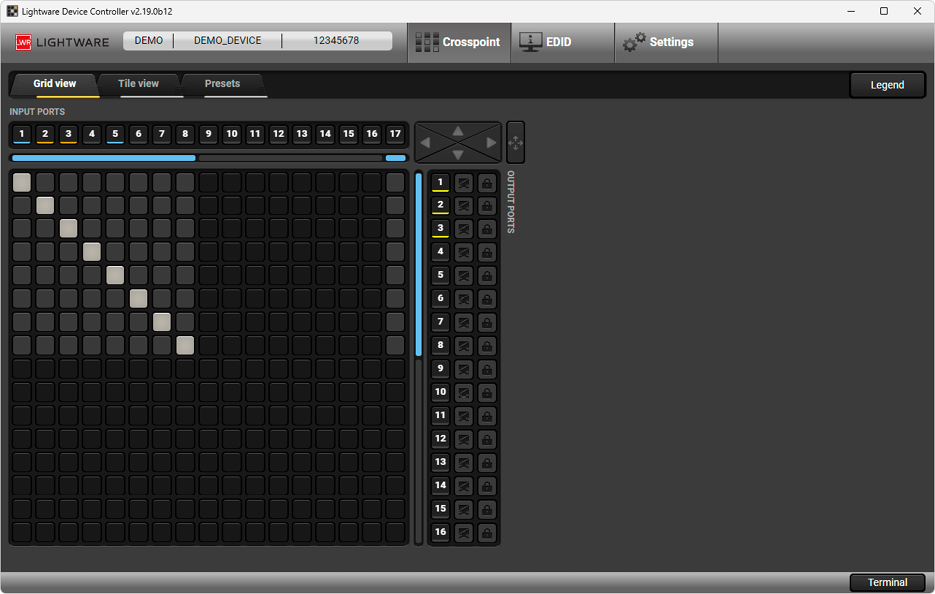
Demo mode window in LDC
It is possible to configure several devices at once with the Bulk Device Management tool. This feature can be accessed by clicking on the Tools button in the bottom left corner of the Device Discovery window and choosing the Bulk Management option.
DIFFERENCE:This feature is availabe for numerous Lightware devices. Please find the up-to-date list in the Bulk Management menu in LDC.
You can configure multiple devices with the Bulk management feature by:
a)Changing the network settings, or
b)Changing the full device configuration (as known from the Configuration Cloning).
2.13.1. Changing the Network Settings
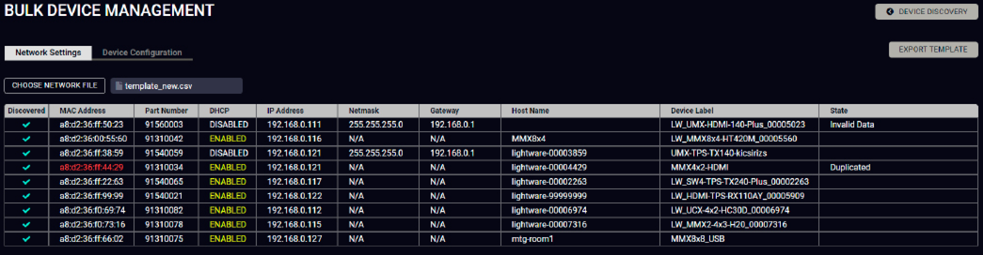
It is possible to set the network settings of several devices at once by using a .csv file that contains the list of the devices that we need to configure, then uploading it into the LDC. The CSV file has 'columns' with the network parameters. The steps in a nutshell:
Step 1.Press the Export template button and download the CSV file.
Step 2.Fill the cells with the desired settings and save the file.
Step 3.Upload the CSV file: Press the Choose network file button.
Step 4.Press the Apply settings button.
Please note that if the data in the file is missing or incorrect, then the discovery of the affected device will fail and an 'Invalid data' message will be displayed in the State column. In case of an IP or MAC address conflict, the message is 'Duplicated'.

2.13.2. Changing the Full Device Configuration
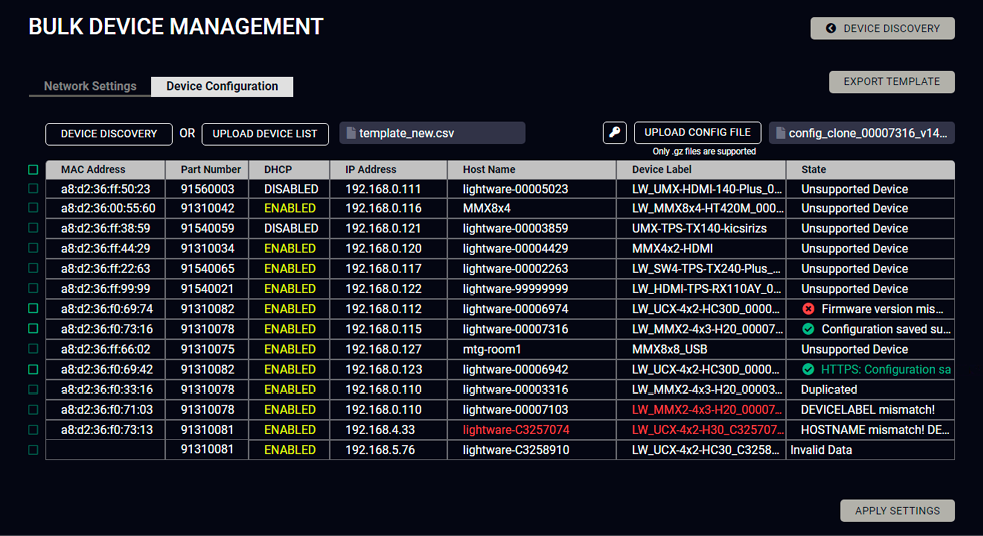
Here you can choose the devices that need to be configured and upload a previously saved configuration to all of them at once. This is a helpful tool for quick and easy reconfiguration of the devices after a firmware update. This function allows uploading configurations to devices with the same firmware version, without changing their network settings. The steps in a nutshell:
Step 1.Arrange the settings in a device, and save the configuration in the Settings/System menu in LDC.
Step 2.Open the Bulk Management/Device Configuration page from Device Discovery.
Step 3.Press the Device discovery button to list all compatible devices, or press the Upload device list button.
Step 4.Select the desired devices from the list.
Step 5.Press the Upload config file button and browse the file.
Step 6.If it is necessary, fill out the credentials.
Step 7.Click on the Apply settings button to start the reconfiguration procedure.
3. Crosspoint Menu of Extenders
The following screenshots and descriptions are referring to various type of transmitters. Your actual device may have different ports, settings and functions than represented in this chapter. Please check the user manual of your actual device for the available settings.
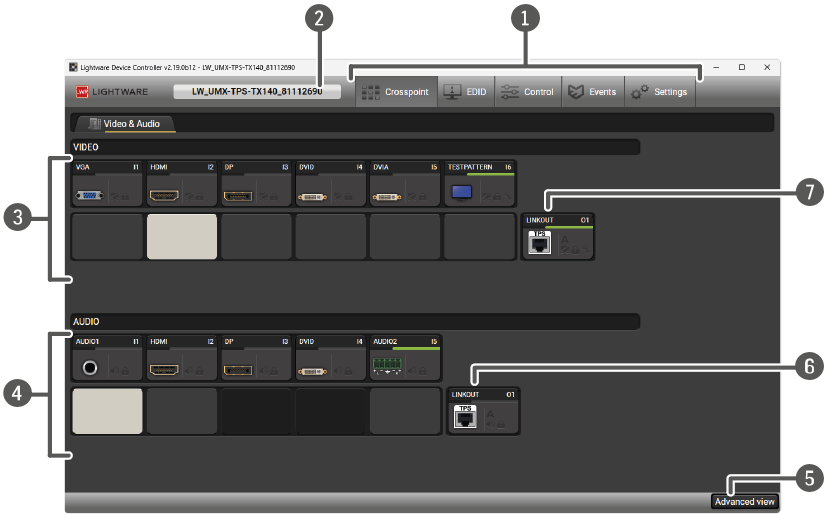
|
|
Main menu |
The available menu items are displayed. The active one is highlighted with dark grey background color. |
|
|
Information ribbon |
The label shows the type of the connected device. Device discovery window can be displayed by clicking on this ribbon. |
|
|
Video input ports |
Each tile represents a video input port. The tile below the port shows current crosspoint setting; if the port is switched to the output, the color of the tile is white, otherwise grey. |
|
|
Audio input ports |
Each tile represents an audio input port. The tile below the port shows current crosspoint setting; if the port is switched to the output, the color of the tile is white, otherwise grey. Dark grey means the audio port is not allowed to embed in the current video input port. |
|
|
Advanced view |
Displaying Advanced view page, showing the Terminal window and the protocol tree. |
|
|
Audio output port |
The audio output of the TPS and local outputs; the audio signal is the same on those ports. |
|
|
Video output port |
The video output of the TPS and local outputs; the video signal is the same on those ports. |
Port Tiles
The colors of the port tiles and the displayed icons represent different states and information:
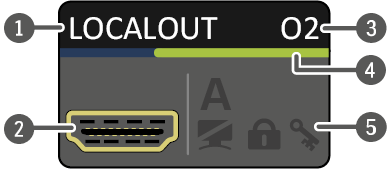
|
|
Port name |
|
|
Port icon |
|
|
Port number |
|
|
Signal present indicator green: present grey: not present |
|
|
State indicators |
State Indicators
Following icons display different states of the port/signal:
|
Icon |
Icon is grey |
Icon is black |
Icon is green |

|
Signal is not encrypted with HDCP |
- |
|

|
Port is unmuted |
Port is muted |
- |

|
Port is unlocked |
Port is locked |
- |

|
- |
Autoselect is enabled |
3.2. Port Properties and Settings
3.2.1. Video Input Port Properties and Settings
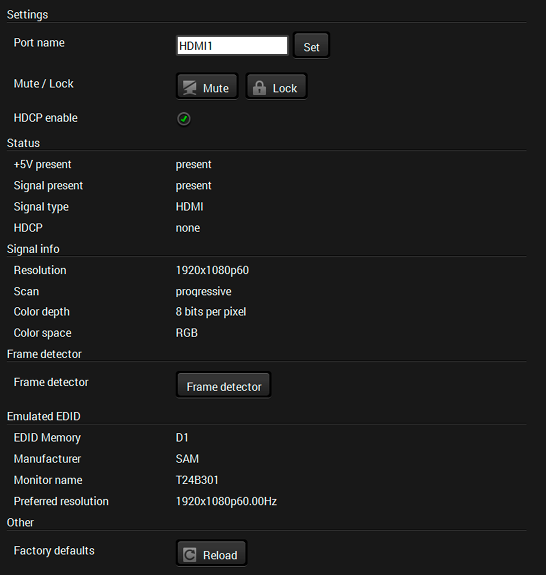
Click on a video input port to display its properties; Signal status information and the most important parameters are displayed. Special functions (e.g. frame detector (see more details in the Grid View section), HDCP switch, muting, and locking) are also available on the panel. Factory default settings can be recalled with a dedicated button.
The look and content are port-dependent.
Video input port properties window
3.2.2. Analog Audio Input Port Properties and Settings
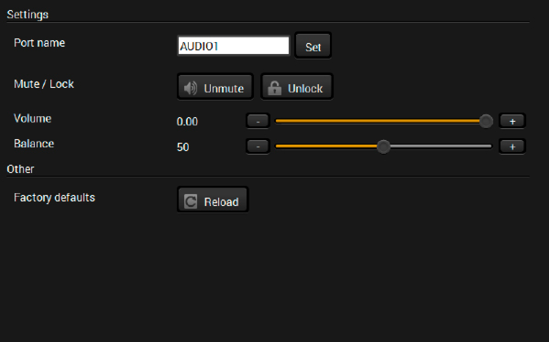
Audio input port properties window
Click on an analog audio input port to display its properties; Signal status information and the most important parameters are displayed. The user can set the volume, balance and gain levels, as well as mute or lock the port. Factory default settings can be recalled with a dedicated button.
The look and content are port-dependent.
3.2.3. Output Port Properties and Settings
Click on an output port to display its properties; Signal status information and the most important parameters are displayed. The user can set the autoselect mode and priorities, as well as mute and lock the port and set HDMI, HDCP, power 5V, color space and TPS modes. Frame detector (see more details in the Frame Detector section) and Cable diagnostics (see more details in the Cable Diagnostics section) are also available from this menu. Factory default settings can be recalled with a dedicated button.
The look and content are port-dependent.
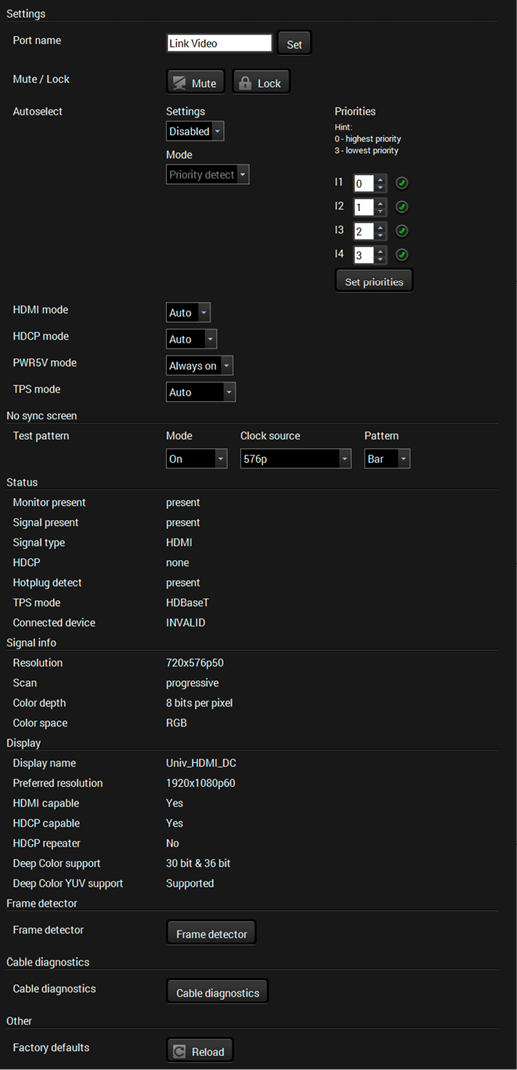
Output port properties window
There are three types of Autoselect as follows.
▪First detect mode: selected input port is kept connected to the output while it has an active signal
▪Priority detect mode: always the highest priority active input is selected to transmit.
▪Last detect mode: always the last attached input is selected to transmit.
The following flowchart shows how the Autoselect feature works:
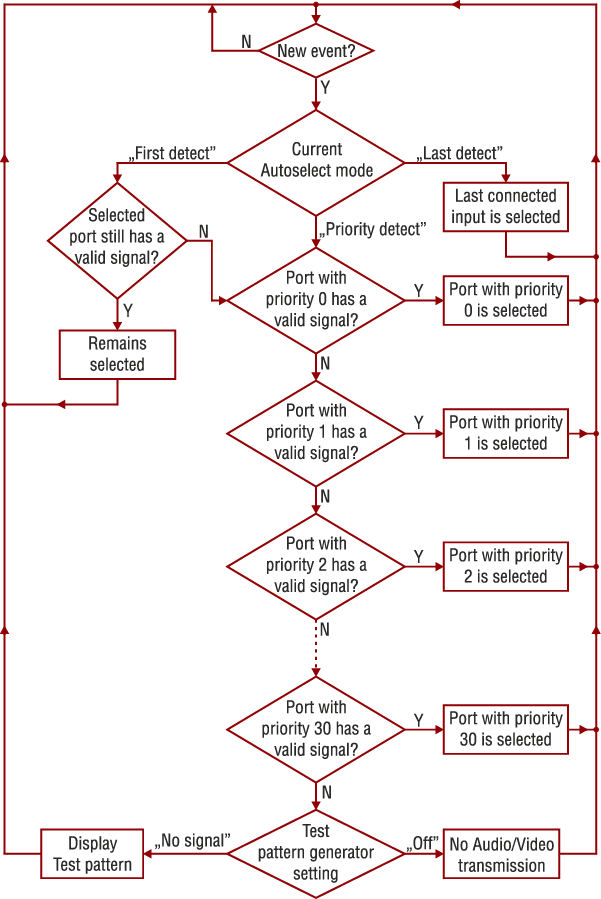
Flowchart of Autoselect modes
4. Crosspoint Menu of Matrix Switchers
The following screenshots and descriptions are referring to various matrix switchers. Your actual device may have different cards and ports, settings and functions than represented in this chapter. Please check the user manual of your actual device for the available settings.
Grid view is a user-friendly graphical display of the matrix switchers' crosspoints. It's an easy way to change between the input sources and output sinks.
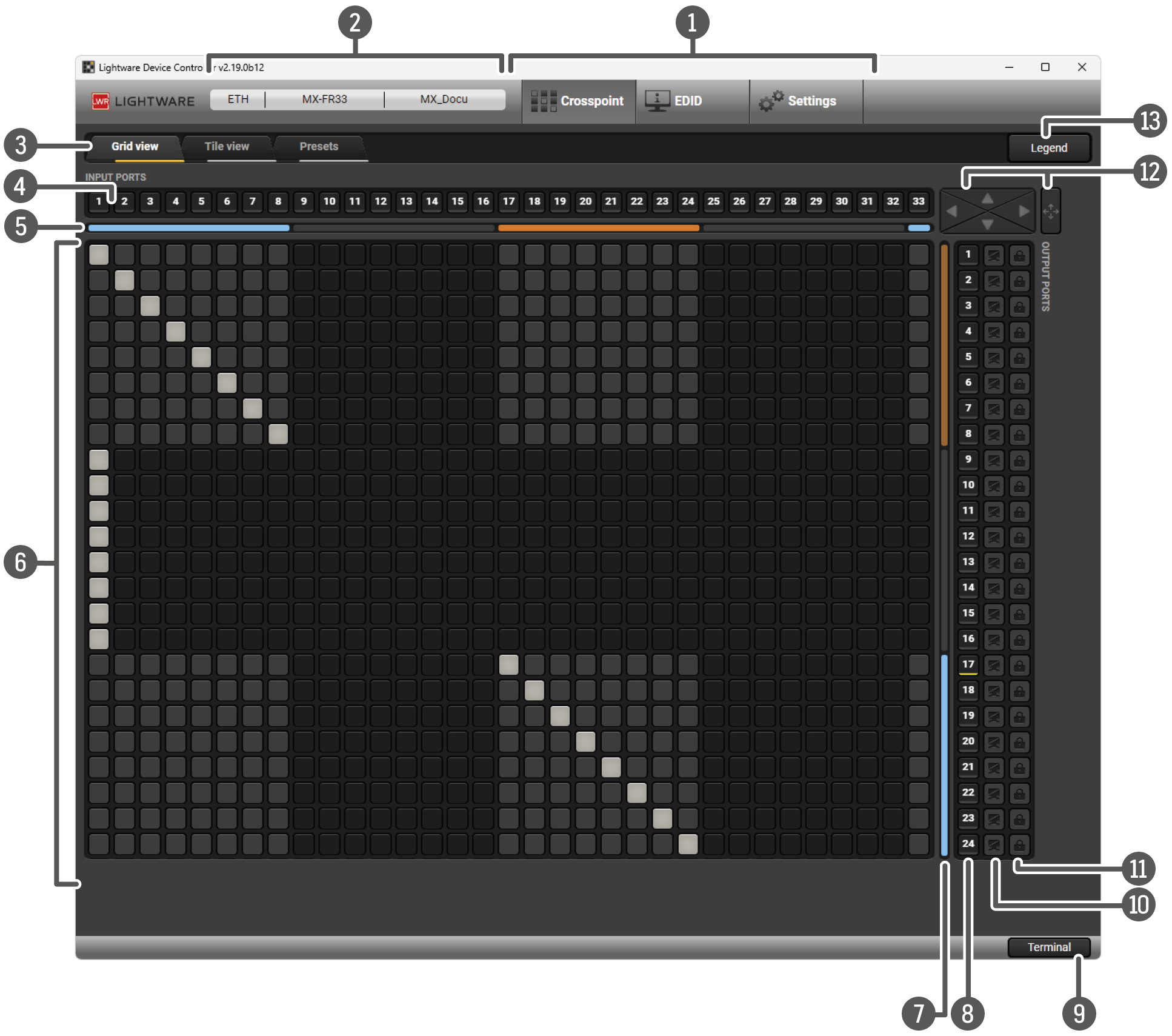
Grid view in crosspoint menu for matrix switchers
|
|
Main menu |
The available menu items are displayed. The active one is highlighted with dark grey background color. |
|
|
Information ribbon |
This label shows the interface type, the name and the serial number of the connected device. If the device has more than one interface, the ribbon shows only the one that has made the connection. The device discovery window can be started by clicking on this ribbon. |
|
|
Tab selector ribbon |
The crosspoint and the settings menu contain more than one tab. Click on the desired one to select it. The yellow line shows which tab is the active one. |
|
|
Input ports |
Each number represents an input port. If the window size does not allow all the ports to be displayed, pages can be turned with the left and right arrow buttons of the navigator. |
|
|
Type of input ports |
The color of the line shows what kind of input boards are installed (see the Input and Output Board Types section). |
|
|
Connections |
Dark grey square means the port is not available. Light grey square means the port is available, but there is no connection. White square means there is a connection between the input and the output port. |
|
|
Type of output boards |
The color of the line shows what kind of output boards are installed (see section Input and Output Board Types). |
|
|
Output ports |
Each number represents an output port. If the window size does not allow all the ports to be displayed, pages can be turned with the up and down arrow buttons of the navigator. |
|
|
Terminal |
This general-purpose terminal is created mainly for testing and debugging purposes. For more information, see the Terminal (LW2 Devices) section. |
|
|
Mute buttons |
Outputs can be easily muted by clicking on the mute button. |
|
|
Lock buttons |
To prevent unwanted switching, outputs can be locked to any input. |
|
|
Navigation buttons |
If the window size does not allow all the ports to be displayed, pages can be turned with the arrow buttons of the navigator. |
|
|
Legend button |
Opens the window about port symbols and the coloring of I/O boards. |

TIPS AND TRICKS:Instead of navigation buttons you can use the scroll wheel of the mouse moving between the input and output boards.
Status Display
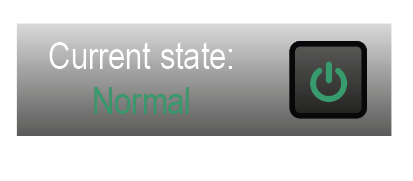
In certain devices, current state of the matrix is visible in the right upper corner. Here you can switch between Normal and Standby mode. Standby mode stops operating the device, shuts off the ventilator. It allows to review the crosspoints, settings etc. but not allows to modify them.
4.1.1. Input and Output Board Types
Lightware MX matrix frames can be equipped with different types of boards. The colored bars below/next to the input/output ports display the type of the board in each slot. Whether it is an optical, a twisted pair or other kind of board, a different color represents its type.
INFO:Many Lightware devices are compact built systems, which do not have any separate boards. However, board types are shown to help identify the ports.
Color Legend for Board Types
|
|
Unknown board or empty slot |
|
MX-DVI-OPT or MX-HDMI-OPT board |
|
|
MX-DVID board |
|
MXD-UMX or MX-DVII-HDCP board |
|
|
MX-DVI-DL board |
|
MX-TPS or MX-4TPS2-4HDMI board |
|
|
MX-DVI-TP board |
|
MX-AUDIO board |
|
|
MX-HDMI or MX-DVI-HDCP board |
|
MX-3GSDI board |
|
|
MX-HDMI-TP or MXD-HDMI-TP board |


Legend
The legend in the grid view helps identifying the current status of the input and output boards.
Switching
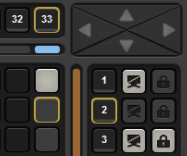
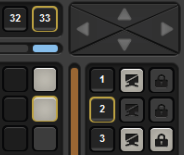
To make a connection, click on the desired square. If there is no connection between the desired input and output (the square is dark grey), the mouse pointer becomes a hand (link pointer) before clicking. If the output port is not locked, the connection is made, the square becomes white and the cursor changes back to a pointer.
For example, input 33 is not connected to output 2 according to the first picture above. After the connection is established, the square becomes light grey.
Muting Outputs
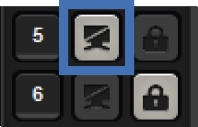
Outputs can be easily muted by clicking on the button showing a crossed out monitor beside the output. This means that no signal is present at this output. If mute is active, the color of the button’s background changes to white.
INFO:Outputs can be disconnected from any inputs (by protocol command). In this case, the crosspoint view will not show any white squares for the disconnected output and the output will have no signal, just like when muted. Click on a crosspoint square to connect the output to an input again.
Locking Outputs
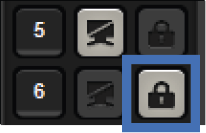
Outputs can be locked to any input. After locking an input to an output, no switching is permitted to this output unless it is unlocked again. If output lock is active, the color of the button’s background changes to white.
INFO:Loading a preset does not change either the lock state or the switch state of a locked output. If an output is locked to an input before preset loading, it will also be locked to that input after preset loading, so locked outputs ignore the preset.
The tile view is to display the input and output ports by tiles. Each tile means an input or output port and additionally shows the most important port and signal information. Thus, the user can check the status of many ports at the same time without clicking on a port or opening port settings window.
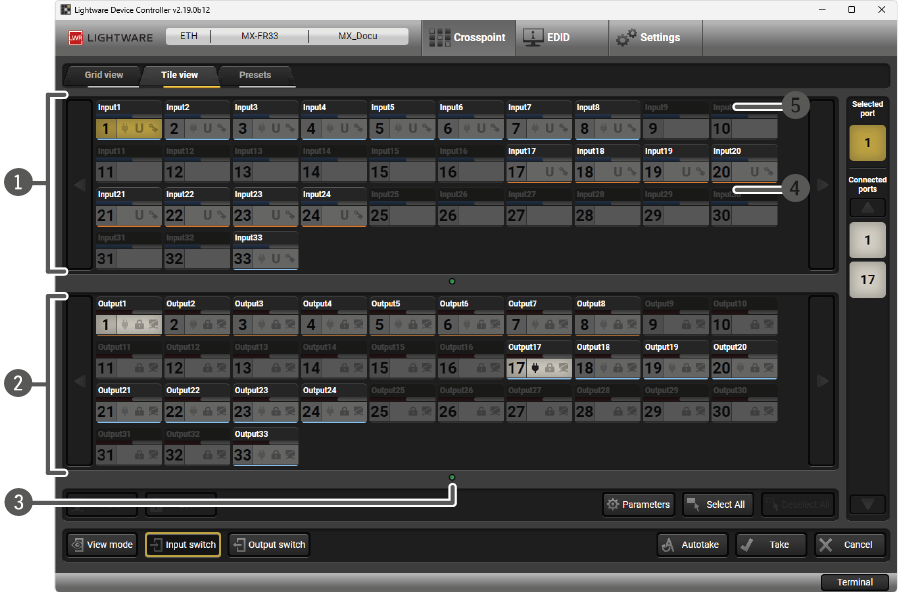
|
|
Input ports |
Each tile represents an input port. If window size does not allow all the ports to be displayed, pages can be turned with the left and right arrow buttons. |
|
|
Output ports |
Each tile represents an output port. If window size does not allow all the ports to be displayed, pages can be turned with the left and right arrow buttons. |
|
|
Page indicator |
Current page is displayed with a green dot; if other pages exist, they are displayed with black dots. |
|
|
Connected port(s) |
Ports connected to the selected port are listed on the port bar with white background. |
|
|
Selected port |
Last selected port is displayed with yellow background on the port bar. Press the button to open the port settings window. |

Display Modes
Three display modes are defined in Tile view for matrix switchers:
▪View mode,
▪Input switch mode and
▪Output switch mode.
Control Buttons
|
Mute or unmute selected output port(s) |
|
Open port settings window |
|
Lock or unlock selected output port(s) |
|
Select all ports (only in output switch mode) |
|
Activate View mode |
|
Deselect all ports (only in output switch mode) |
|
Activate Input switch mode |
|
Toggle Autotake mode ON/OFF |
|
Activate Output switch mode |

|
Execute crosspoint changes in Take mode |
The colors of the port tiles and the displayed icons represent different states and information about selected port:
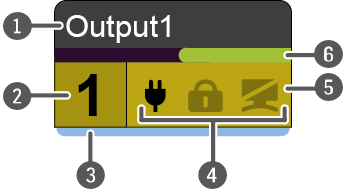
|
|
Port name |
|
|
Port number |
|
|
Board type |
|
|
State indicators |
|
|
Background color |
|
|
Signal present indicator green: present grey: not present |
Following sections describe these meanings.
Background Colors (Port State)
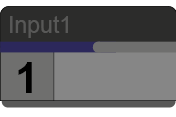
The colors of the port tiles represent different states of the port as follows:
|
Dark grey |
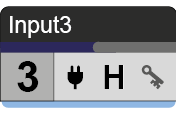
|
White |
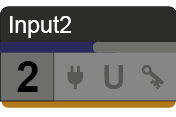
|
Light grey |
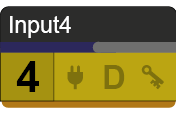
|
Yellow |
State Indicators for Output Ports
The following icons display different states of the output port:
|
Icon |
Icon is not displayed |
Icon is grey |
Icon is black |

|
No information is available about connection status |
Port is available but inactive |
Port is available and sink is connected (hotplug detected) |

|
- |
Port is unmuted |
Port is muted |

|
- |
Port is unlocked |
Port is locked |
State Indicators for Input Ports
The following icons display different states of the input port/signal:
|
Icon |
Icon is gray |
Icon is black |
Icon is green |

|
No information is available about connection status |
Port is available but inactive |
Port is available and source is connected (power +5V detected) |
|
[Signal type] |
No information is available |
Last detected signal type is displayed |
U – unknown signal |

|
HDCP is not supported |
Signal is not encrypted with HDCP |
Signal is encrypted with HDCP |

This mode was designed to display crosspoint state of a selected and its connected port(s).
INFO:Crosspoint settings cannot be changed in View mode, but port settings are available.
4.2.3. Changing the Crosspoint Settings
Crosspoint changes can be made in Input switch mode and Output switch mode. The working method is the same in both cases, but the priority is different.
Input Switch Mode
The mode can be also named as ‘Input priority-mode’. In the mode an input port has to be selected first, then the connected output port(s) is/are shown. Thus, the output port(s) connected to the input port can be changed.
Output Switch Mode
This mode can be also named as ‘Output priority-mode’. In the mode an output port has to be selected first, then the connected input port is shown. Thus, the output port connected to the input port can be changed.
ATTENTION!Output ports can be (un)locked and (un)muted only in Output switch mode.
Switching Operations
Take Mode

If the Autotake button is outlined with black color, Take mode is active. In Take mode any crosspoint change – (dis)connect ports to/from the previously selected port – is executed only after pressing the Take button. The following steps describe the process of the switching:
Step 1.Press the desired Input switch or Output switch button to select switching mode.
Step 2.Select the desired port; it will be highlighted with yellow color and displayed on the port bar on the right, too.
Step 3.Connected port(s) is/are highlighted with white color and displayed on the port bar on the right, too.
Step 4.Create the desired crosspoint settings by (de)selecting the ports; they will start to blink.
Step 5.Press the Take button to execute changes or Cancel to ignore the operations.
INFO:Take mode remains active until it is switched off. Selecting another view mode or menu does not change the Take/Autotake mode state.
Autotake Mode

If the Autotake button is outlined with yellow color, Autotake mode is active. In this mode any crosspoint change – (dis)connect ports to/from the previously selected port – is executed immediately after pressing the port button. The following steps describe the process of the switching:
Step 1.Press the desired Input switch or Output switch button to select switching mode.
Step 2.Select the desired port; it will be highlighted with yellow color and displayed on the port bar on the right, too.
Step 3.Connected ports are highlighted with white color and displayed on the port bar on the right, too.
Step 4.Create the desired crosspoint settings by (de)selecting the ports; the changes are executed immediately.
INFO:Autotake mode remains active until it is switched off. Selecting another view mode or menu does not change the Take/Autotake mode state.
Port Settings

Press the desired port button on the port bar on the right.
INFO:Port settings of the selected port are also available by pressing the Parameters button.
4.3. Port Properties and Settings
4.3.1. Input Port Properties and Settings
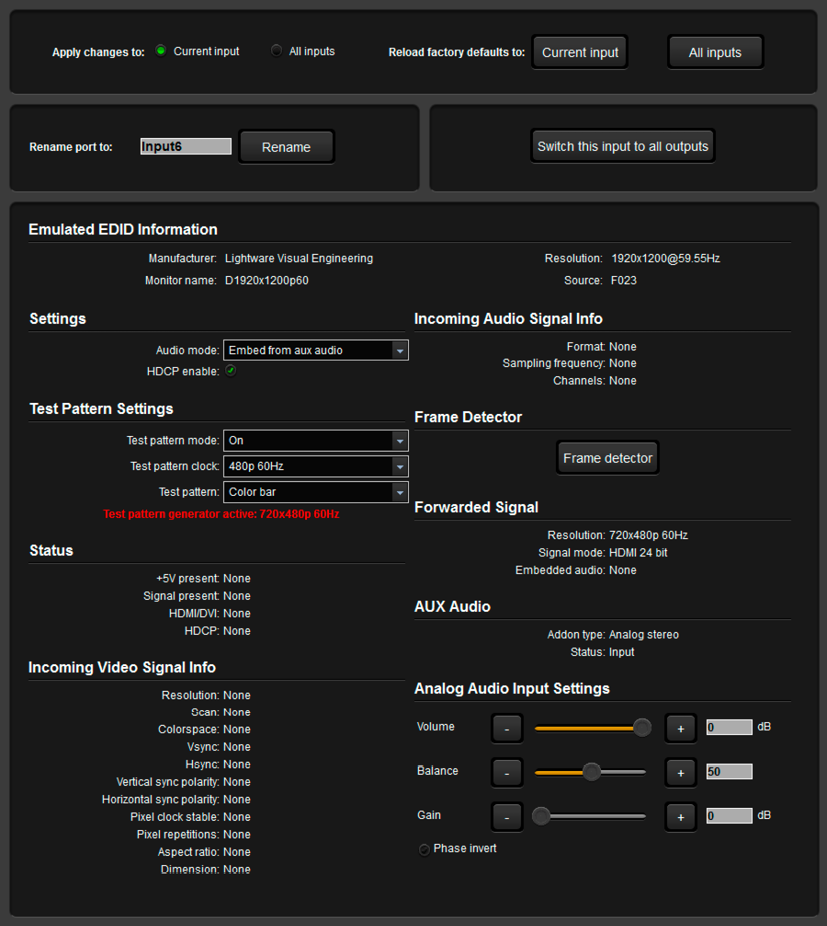
Matrix input port properties window
Click on the number of the desired port in case of grid view or on the headline of the port in case of tile view to open the port properties window. Signal status information and the most important parameters are displayed. Audio mode, HDCP settings, properties of the test pattern are available from this menu. If analog audio is present, the user can set the volume, balance and gain values here. Special functions (e.g. frame detector, switching this input to all outputs, etc) are also available on the panel.
4.3.2. Output Port Properties and Settings
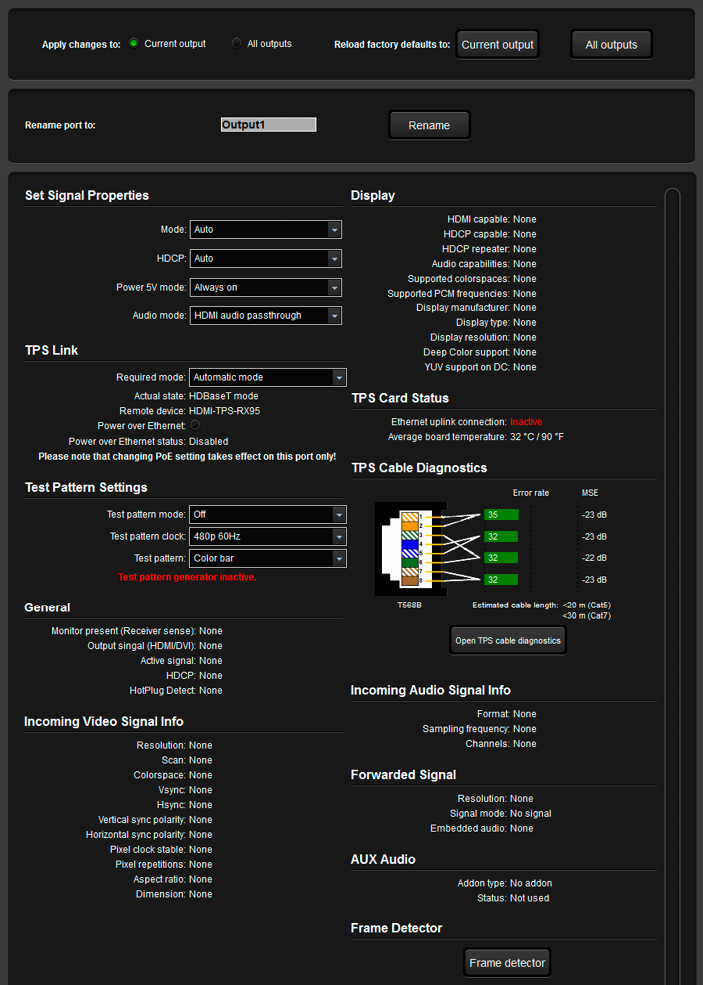
Matrix output port (TPS) properties window
Click on the number of the desired port in case of grid view or on the headline of the port in case of tile view to open the port properties window. Signal status information and the most important parameters are displayed. Audio mode, HDCP settings, properties of the test pattern are available from this menu. If analog audio is present, the user can set the volume, balance and gain values here. Special functions (e.g. frame detector (see in the Frame Detector section), TPS Ethernet cable diagnostics (see the Cable Diagnostics section), remote RS-232 command sending, switching this input to all outputs, etc) are also available on the panel.
The look and content are port-dependent.
Preset operations can be done in the Crosspoint submenu on the Preset tab in devices that, support Preset operations, e.g. matrix switchers. Each Lightware matrix switcher has 32 preset memories that can be loaded and saved at any time.
DEFINITION:A preset setting stores a full configuration of all outputs, so preset loading has an effect on every output, except the locked ones.

Presets tab
A preset can be selected by pressing its button on the left. Preset preview (on the right) will show the crosspoint settings of input and output ports.
Loading a Preset
Step 1.Select Preset tab from Crosspoint menu.
Step 2.Select the preset memory (Preset1...Preset32) you want to load the next crosspoint configuration.
Step 3.Press the Load button below Preset preview list. Now the preset is loaded.
Step 4.The new I/O configuration is displayed in Grid view.
Saving a Preset
Step 1.Make the desired crosspoint connections in Tile view or Grid view.
Step 2.Select the preset memory (Preset1...Preset32) where you want to save your current crosspoint connections.
Step 3.Press the Save button below Preset preview list.
Step 4.A confirmation message is displayed on the information bar; the preset is stored.
Renaming a Preset
Step 1.Select the preset memory (Preset1...Preset32) you want to rename.
Step 2.Type the desired name and press the Rename Preset button; the new name is stored.
4.5. Crosspoint Menu (MX2M Matrix Switchers)
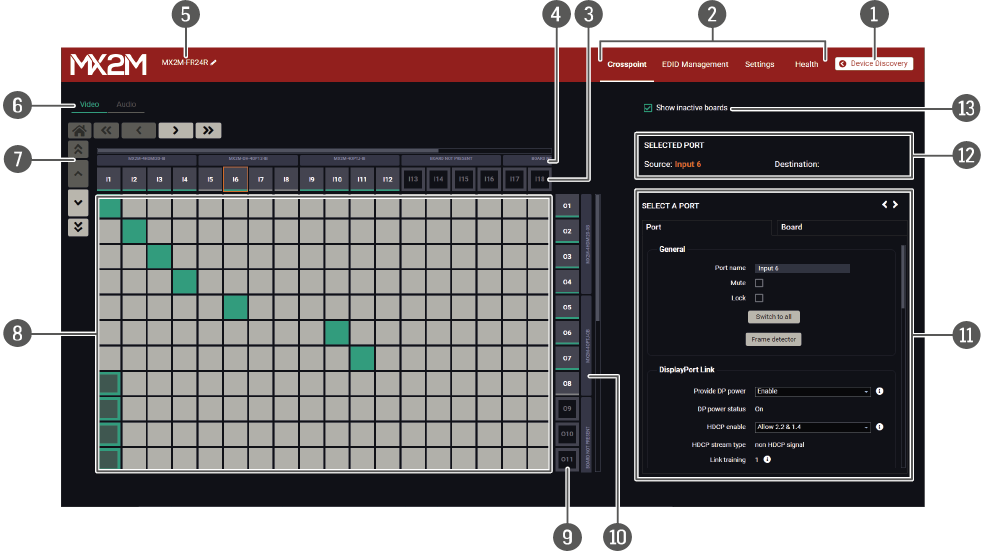
Crosspoint menu - Video layer
|
|
Device Discovery |
Clicking on the button results in returning to the Device Discovery window. The connection with the current device will be terminated. |
|
|
Main menu |
The available menu items (Crosspoint Menu, EDID Management Menu, Settings Menu and Health Menu) are displayed. The Terminal window is available under the Settings menu. |
|
|
Source streams |
Each tile represents a video stream coming from one of the input ports of the input boards (IB). Clicking on the tile opens the Video Port Properties Windows on the right side. |
|
|
Input Boards |
The grey bars group the destination ports belonging to a single input board. Board not present description means there is no input board seated to the frame or the board is unavailable. Enabling the Show inactive boards switcher shows the inactive boards in the crosspoint table. |
|
|
Device label |
The device label of the matrix is displayed here. It can be modified by the user to any unique name by clicking on the icon. The device label can be 39 characters long and ASCII characters are allowed. Longer names will be truncated. |
|
|
Layer tabs |
The Video Layer and the Audio Layer crosspoint panel can be selected on the tabs. |
|
|
Navigation buttons |
Clicking on the navigation buttons shows the available sources/destinations and crosspoints that cannot be displayed within the initial window size. The |
|
|
Connections |
The crosspoint connections can be selected in this table. |
|
|
Destination ports |
Each tile represents an output port of the output boards (OB). Clicking on the tile opens the Video Port Properties Windows on the right side. |
|
|
Output boards |
The grey bars group the destination ports belonging to a single output board. Board not present description means there is no output board seated to the frame or the board is unavailable. Enabling of the Show inactive boards switcher shows the inactive boards in the crosspoint table. |
|
|
Properties window |
The properties, available settings, and status information of the selected source or destination are displayed in this section. Two tabs are available: Port and Board. |
|
|
Selected / Highlighted streams |
Showing the currently selected connections. Move the cursor above the desired crosspoint and the names of the source and destination are displayed in the field. |
|
|
Show inactive boards switcher |
When it is enabled, the inactive boards are shown in the crosspoint table. When it is disabled, the inactive boards are hidden. |


5. Crosspoint Menu of Taurus UCX Devices
The following screenshots and descriptions are referring to various Taurus UCX devices. Your actual device may have different ports, settings and functions than represented in this chapter. Please check the user manual of your actual device for the available settings.
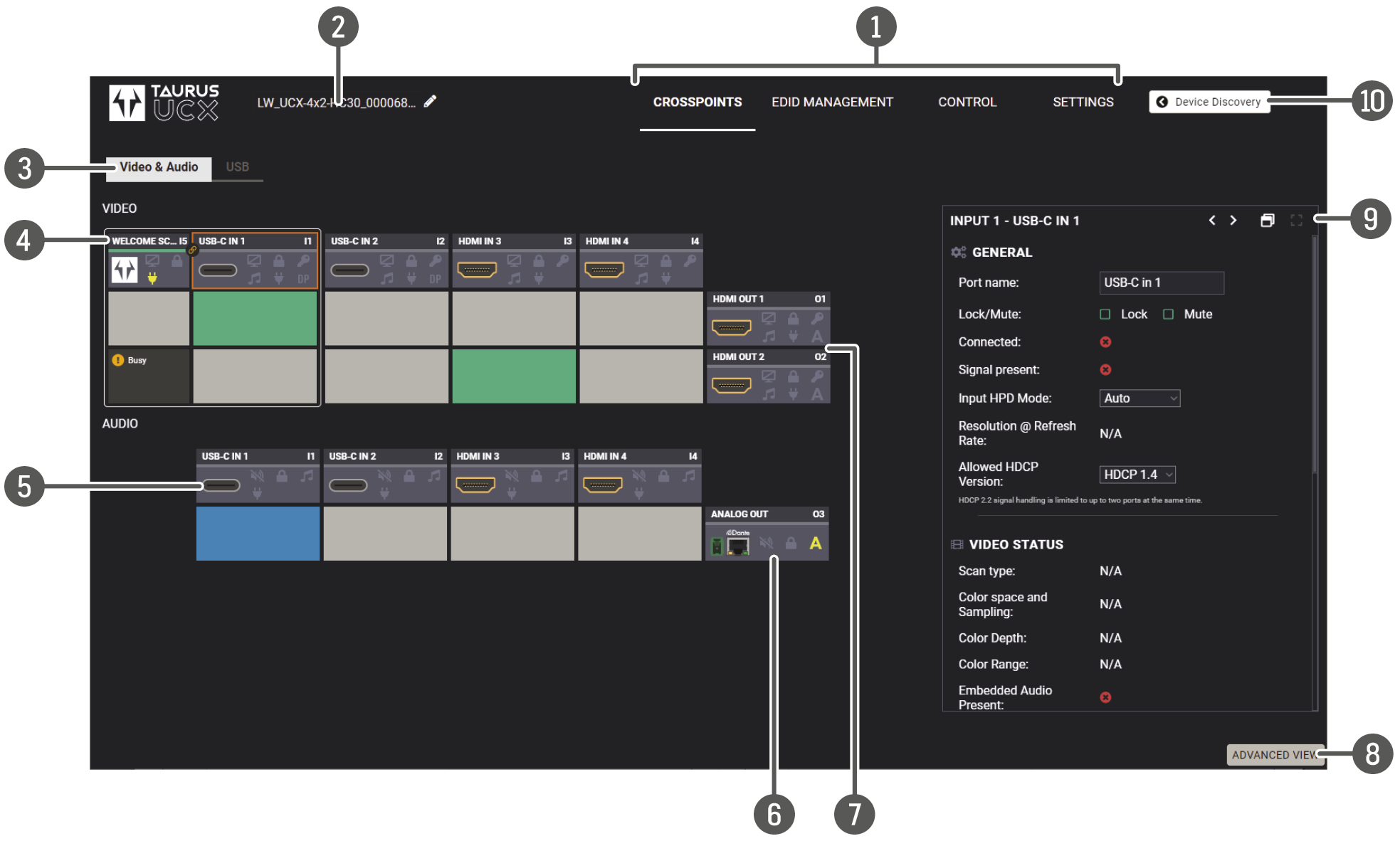
|
|
Main menu |
The available menu items are displayed. The active one is shown with dark grey background color. |
|
|
Information ribbon |
The label shows the device label, which can be edited in the Settings menu - Status tab. |
|
|
Submenu selector |
The audio and video crosspoint menu and the USB crosspoint menu are available under the two tabs. |
|
|
Video input ports |
Each tile represents a video input port: Welcome Screen, USB-C Inputs, HDMI Video Inputs. The tile below the port shows the current crosspoint setting; if the port is switched to the output, the color of the tile is green, otherwise grey. Clicking on the tile opens the input properties window. |
|
|
Audio input ports |
Each tile represents an audio input port. All of them are logical audio ports, they mean the de-embedded audio channel of the selected USB-C/HDMI inputs. |
|
|
Audio output port |
Analog audio output port; clicking on the O3 tile opens the Analog Audio Output window. The de-embedded audio is mirrored to the Dante Audio Output in case of UCX-4x2-HC30D and UCX-4x2-HC40D. |
|
|
Video output ports |
HDMI video output ports; clicking on the tile opens the HDMI Video Output port properties window. |
|
|
Advanced view |
Displaying the Advanced View Window, showing the Terminal window and the LW3 protocol tree. |
|
|
Properties window |
Settings and status information of the selected panel are displayed in this section. Clicking on the icon opens the properties section in a new window. 
|
|
|
Navigation button |
The device discovery window can be displayed by clicking on this button. |


The colors of the port tiles and the displayed icons represent different states and information:
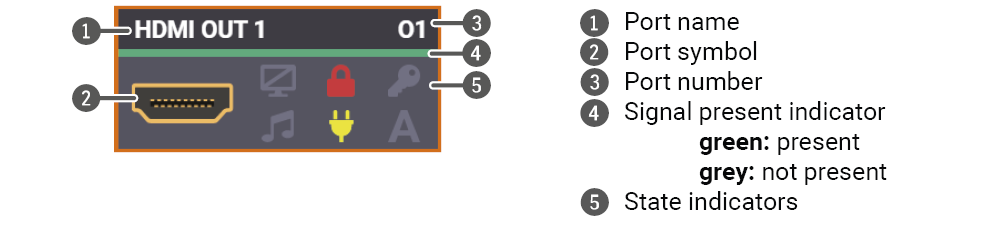
State Indicators
The following icons display different states of the port/signal:
|
Icon is grey |
Description |
Icon is highlighted |
Description |

|
Port is unmuted |

|
Port is muted |

|
Port is unlocked |

|
Port is locked |

|
Signal is not encrypted with HDCP |
|
Signal is encrypted with HDCP |

|
Embedded audio is not present |

|
Embedded audio is present |

|
There is no connected device |

|
The device is connected |

|
No USB Host connected or DP Alt mode is not supported by USB Host |

|
DP Alternate mode successfully entered |

|
Unable to enter DP Alternate mode |
||

|
Autoselect is disabled |

|
Autoselect is enabled |

|
Audio is unmuted |

|
Audio is muted |

|
Charging function is inactive |

|
Charges the connected device |
The built-in diagnostic tools help the user get infomation about the quality of the signal transmission.
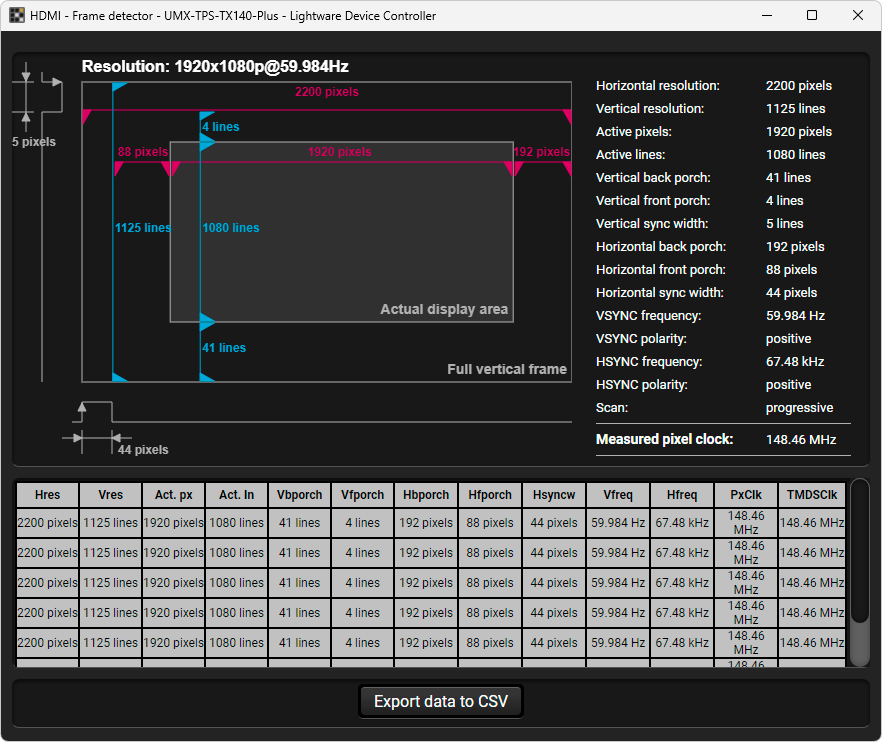
The ports can show detailed information about the signal like blanking intervals and active video resolution. This feature is a good troubleshooter if compatibility problems occur during system installation. To access this function, open the port properties window and click on the Frame detector button.
Frame detector window
Lightware’s Frame Detector function works like a signal analyzer and makes it possible to determine the exact video format that is present on the port, thus helps to identify many problems. E.g. actual timing parameters may differ from the expected and this may cause some displays to drop the picture.
Frame Detector measures detailed timings on the video signals just like a built-in oscilloscope, but it is much easier to use. Actual display area shows the active video size (light gray). Dark gray area of the full frame is the blanking interval, which can contain the info frames and embedded audio data for HDMI signals. Shown values are measured actually on the signal and not retrieved only from the HDMI info frames.
The cable diagnostics is a useful tool to determine any cable related issues in case of TPS connection. The estimated cable length and the quality of the link are measured periodically and the diagnostic window shows the values in real-time. If the green bars hit the first line in the middle they turn red. It means the number of the errors – during the extension – is higher than recommended. The link might be alive but recovery of the received data is not guaranteed.
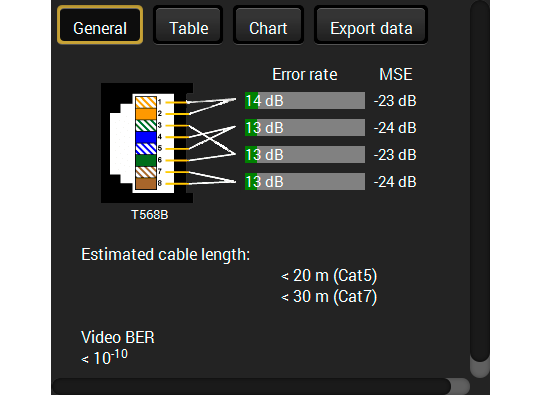
INFO:Each bar represents a differential line in the CATx cable. The inappropriate termination of the cable usually causes high error rates. Check the cable terminations or change the cable.
Video Bit Error Ratio
This feature works in conjunction with the TPS receiver’s side and is about to show the average bit error numbers in the transmitted video signal. The value is displayed only if the installed firmware on the RX side supports this feature.
Reference Values
|
Value |
Explanation |
|
10-10-10-9 |
Excellent image quality |
|
10-8 |
Minor error, not recognizable by eyes |
|
10-7 |
Sometimes recognizable flash on a special test pattern |
|
10-6 |
Small noise can be seen |
|
10-5 |
Easy to recognize image error |
|
10-4 |
Bad image quality |
Above displayed “Video BER < 10-10” value means that on average there is 1 bad pixel after 1010 pixels, which means the number of the bit errors is about 1 pixel in every 15 minutes.
Cable Diagnostics for Matrix Switchers
Cable diagnostics can be displayed in advanced modes in case of matrix switchers. Two ways are available: table view and chart view. Data can be exported to a file on clicking on the Export data button.
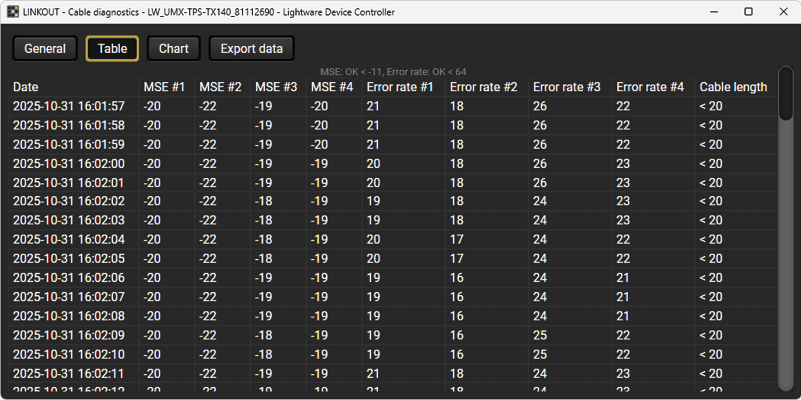
Table view of cable diagnostics
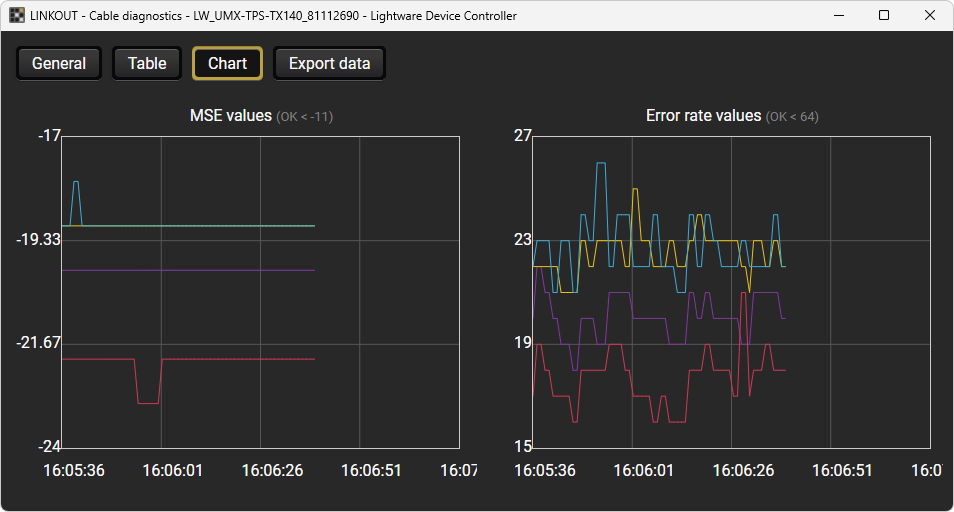
Chart view of cable diagnostics
The output ports can send a special image towards the sink devices for testing purposes.
The setting is available on output ports with the following parameters:

Mode
▪On: the test pattern is always sent to the output port.
▪Off: the test pattern generator is off.
▪No signal: the test pattern generator is switched on if no video signal is switched to the given output port.
Clock Source
▪480p / 576p / Original video signal: the clock frequency of the test pattern.
Pattern
▪Red
▪Green
▪Blue
▪Black
▪White
▪Ramp
▪Chess
▪Bar
▪Cycle (all the patterns are changed sequentially approx. in every 2 seconds).

ATTENTION!The Mode can be set individually on each port, but the Clock source and the Pattern are common for the output ports. E.g. the Clock source and Pattern settings are the same on LINKOUT and LOCALOUT output ports.
Advanced EDID Management can be accessed by selecting the EDID menu.
There are two panels: the left one contains Source EDIDs, the right one contains Destination places where the EDIDs can be emulated or copied.
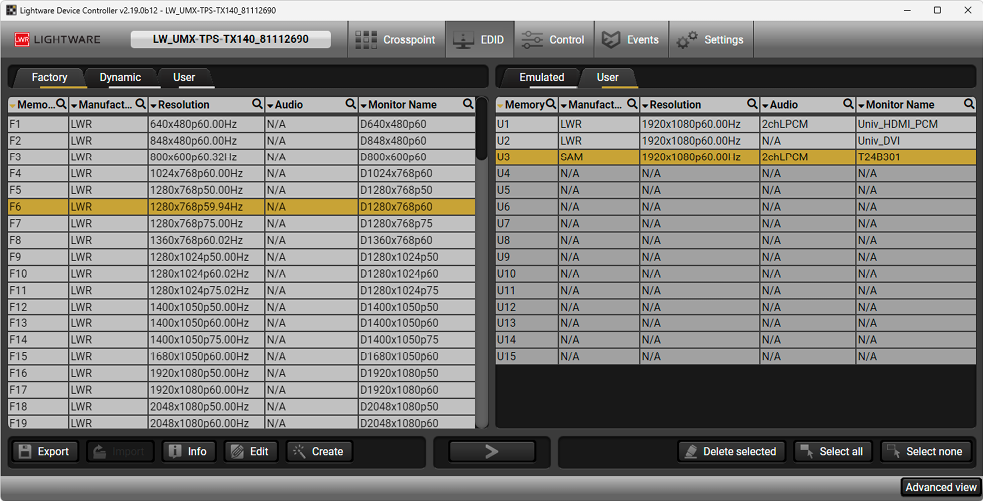
EDID menu
Control Buttons
|
Exporting an EDID (save to a file) |

|
Executing EDID emulation or copying (Transfer button) |
|
Importing an EDID (load from a file) |
|
Deleting EDID (from User memory) |
|
Display EDID Summary window |
|
Selecting all memory places in the right panel |
|
Opening Advanced EDID Editor with the selected EDID |
|
Selecting none of the memory places in the right panel |
|
Opening Easy EDID Creator |
Step 1.Choose the desired EDID list on the source panel and select an EDID.
Step 2.Press the Emulated button on the top of the Destination panel.
Step 3.Select the desired port on the right panel (one or more ports can be selected); the EDID(s) will be highlighted with yellow.
Step 4.Press the Transfer button to change the emulated EDID.
The process is the same as changing the emulated EDID; the only difference is the Destination panel: press the User button. Thus, one or more EDIDs can be copied into the user memory either from the factory memory or from a connected sink (Dynamic).
ATTENTION!This function works on Windows and macOS operating systems and under Firefox or Chrome web browsers only.
Source EDID can be downloaded as a file (*.bin, *.dat or *.edid) to the computer.
Step 1.Select the desired EDID from the Source panel (line will be highlighted with yellow).
Step 2.Press the Export button to open the dialog box and save the file to the computer.
Previously saved EDID (*.bin, *.dat or *.edid file) can be uploaded to the user memory:
Step 1.Press the User button on the top of the Source panel and select a memory slot.
Step 2.Press the Upload button below the Source panel.
Step 3.Browse the file in the opening window, then press the Open button. Browsed EDID is imported into the selected User memory.
ATTENTION!The imported EDID overwrites the selected memory place even if it is not empty.
The EDID(s) from User memory can be deleted as follows:
Step 1.Press the User button on the top of the Destination panel.
Step 2.Select the desired memory slot(s); one or more can be selected (“Select All” and “Select None” buttons can be used). The EDID(s) will be highlighted with yellow.
Step 3.Press the Clear selected button to delete the EDID(s).
Select an EDID from the Source panel and press the Info button to display the EDID summary.
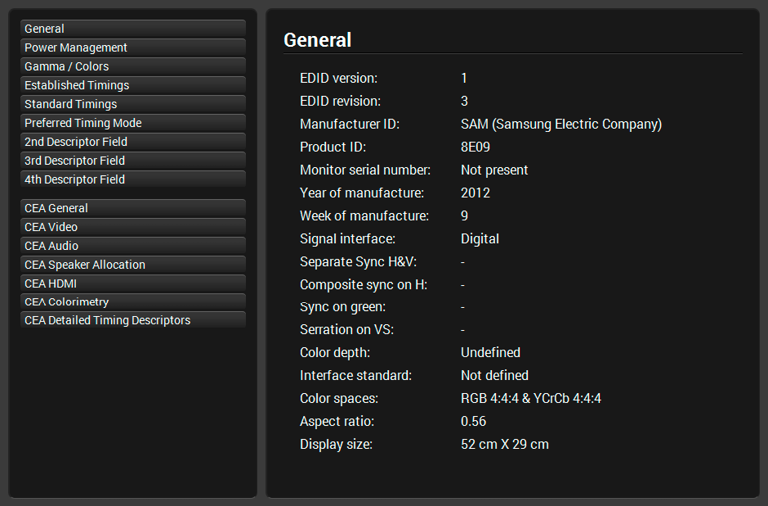
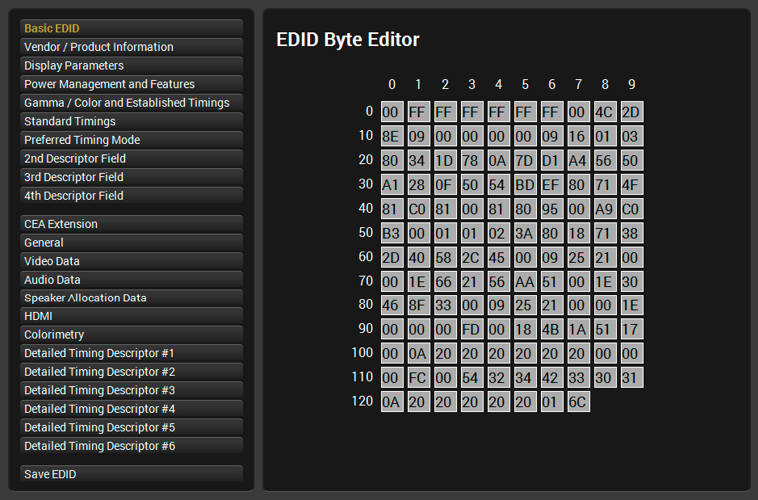
Select an EDID from the Source panel and press the Edit button to display the Advanced EDID Editor window. The editor can read and write all descriptors that are defined in the standards, including the additional CEA extensions. Any EDID from the device’s memory or a saved EDID file can be loaded into the editor. The software resolves the raw EDID and displays it as readable information to the user. All descriptors can be edited, saved in an EDID file, or uploaded to the User memory. For more details about EDID Editor, please see the EDID Editor Application Notes document.
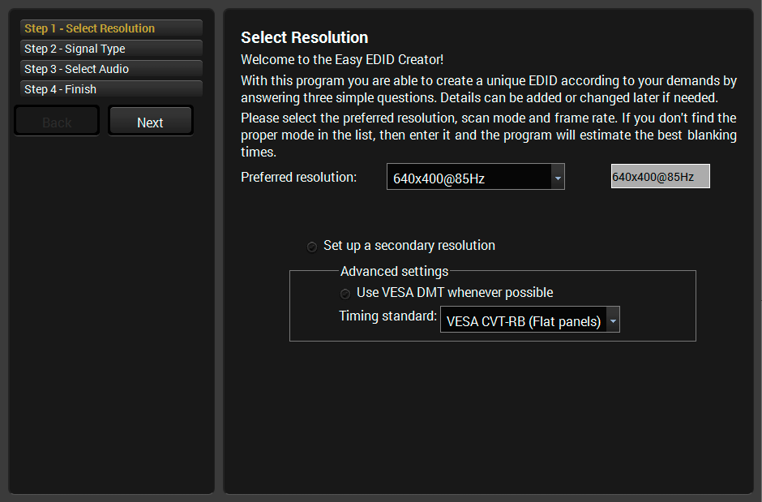
7.5. Creating an EDID - Easy EDID Creator
Since the Advanced EDID Editor mentioned previously needs more complex knowledge about EDID, Lightware introduced a wizard-like interface for fast and easy EDID creation. With Easy EDID Creator it is possible to create custom EDIDs in four simple steps. By clicking on the Create button below the Source panel, Easy EDID Creator is opened in a new window. For more details about EDID Creator, please see the EDID Editor Application Notes document.
Control menu is not available for all Lightware devices, it depends on the model that you are currently using. The menu gives the opportunity to set up the channels that can be used to connect to or control third party devices.
All serial port-related settings can be set under this tab. The user can set parameters by connector types (Phoenix, D-sub, TPS or fiber optical). RS-232 mode, baud rate, data bits, parity, stop bits, and Lightware protocol (LW2 or LW3) can be set or modified here.
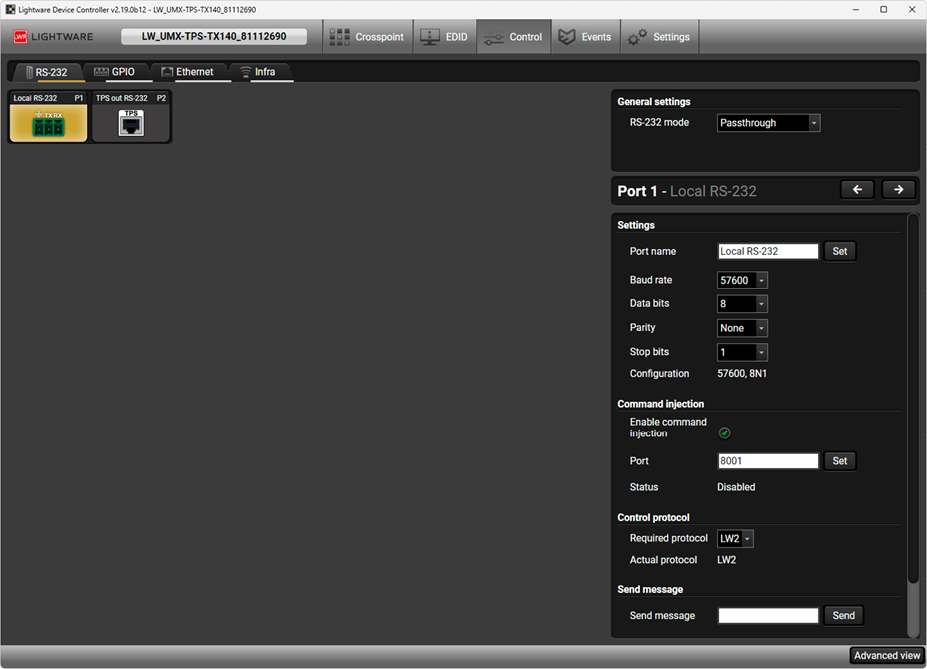
RS-232 tab
There are three RS-232 modes that can be set:
a)Control
b)Pass-through
c)Command injection
Control Mode
The incoming data from the given port is processed and interpreted by the Microcontroller. The mode allows controlling the transmitter directly. LW2 or LW3 protocol commands are accepted – depending on the current port setting.
Pass-Through Mode
In pass-through mode, the given device forwards the data that is coming from one of its ports to another same type of port. The command is not processed by the CPU. Incoming serial data is forwarded from one port to another port inside the transmitter.
Command Injection Mode
In this mode, the transmitter works as an RS-232 bidirectional converter. The optical signal is converted to RS-232 data and vice versa. Optical port numbers are defined for the serial ports (optical and local) for this purpose. E.g. the default Command Injection port number of the local RS-232 port is 8001. If a command is coming from the optical interface which is addressed to the port no. 8001, it will be transmitted to the Tx pin of the local RS-232 port. That works in the opposite direction as well and the method is the same on the serial interface of the optical port.
GPIO (general purpose input/output ports) is a multifunctional connector type, which is used for controlling third-party devices. User can set the name, the level (low or high), and the direction of each pin on this tab.
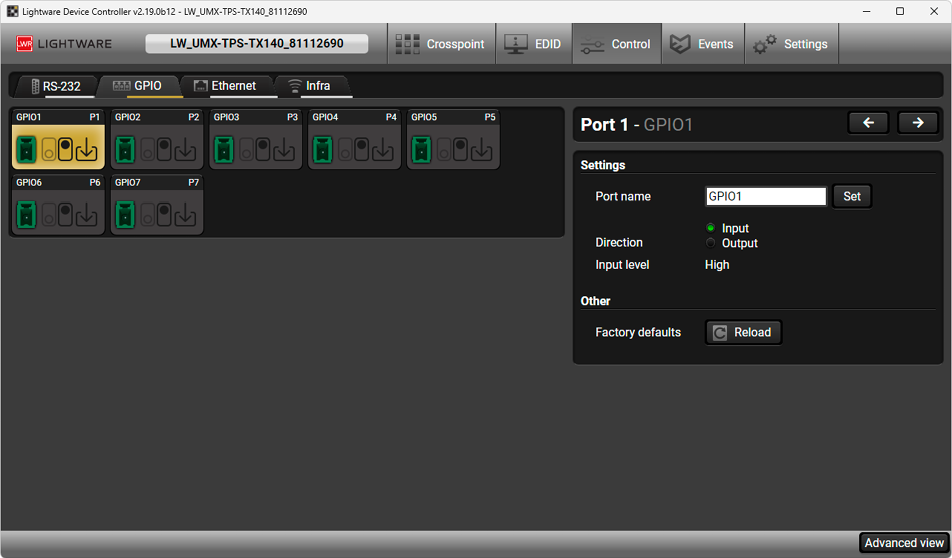
GPIO tab
The user can enable or disable Ethernet ports on this tab.
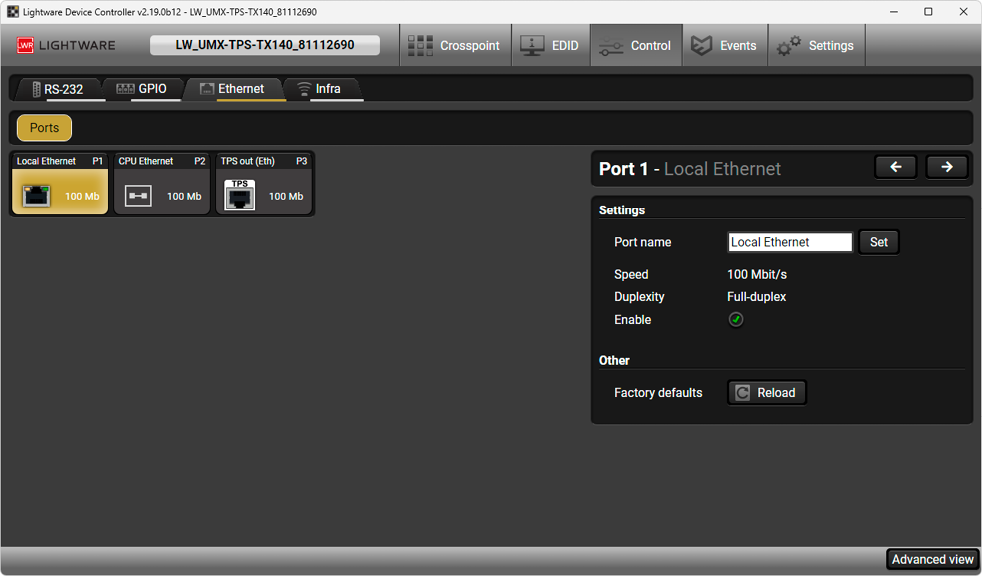
Ethernet tab
Infra-Red (IR) receiver and transmitter options can be found on this tab. There are three buttons available here: IR codes, Ports, and Clear all IR codes.
IR codes
The user can set the name of the IR code, the fingerprint (hash), and the repeat timeout in ms, as well as actions can be ordered to each IR code.
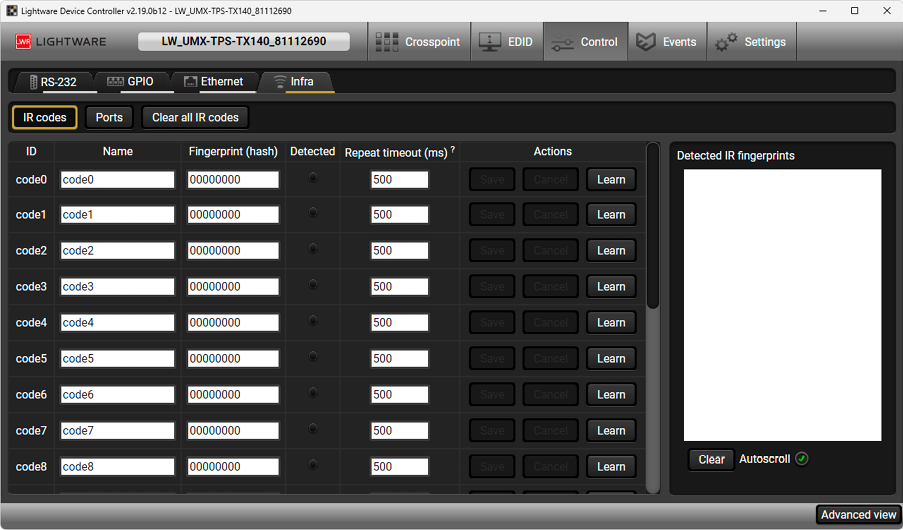
Infra tab - IR codes window
|
Description |
Function |
|
ID |
Code number. |
|
Name |
You can give an unique name for the desired code. |
|
Fingerprint (hash) |
Fingerprint code in pronto hexa format. |
|
Detected |
Indicator gives feedback about the given IR code is detected currently. |
|
Repeat timeout (ms) |
You can set a timeout to avoid the involuntary code recurrence. |
|
Actions |
Action buttons for the desired IR code: |
|
Detected IR fingerprints |
You can check the detected IR codes in this panel. Pushing Clear button deleting all current fingerprints and switch on or off the automatic scrolling with the Autoscroll pipe. |
Ports
The user can set the name and command injection port to each source and destination as well as command injection function can be enabled/disabled for the input/output ports.
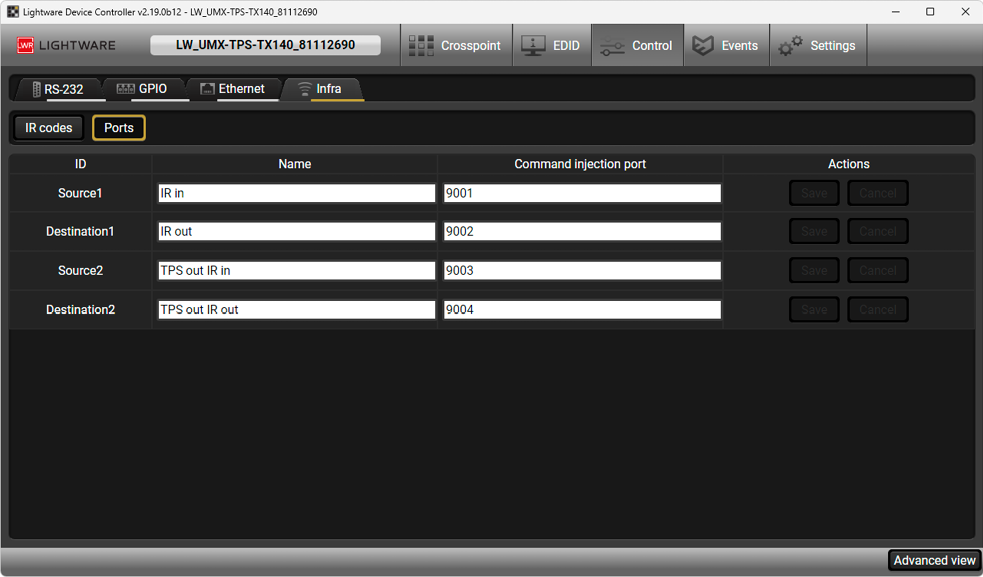
Infra tab - Ports window
Clear all IR codes
Pushing the button results in deleting all stored IR fingerprints.
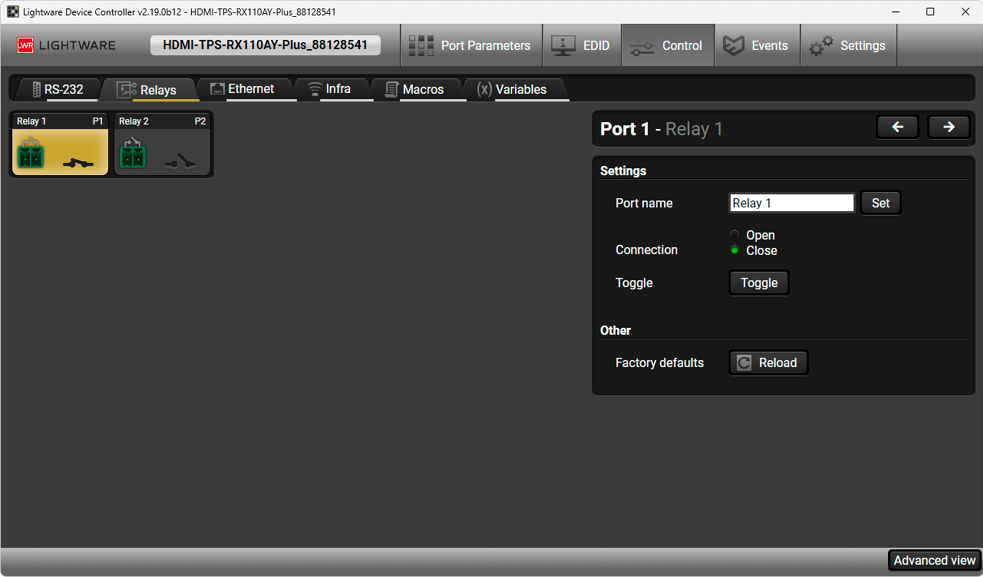
Relays tab in Control menu
The following settings are available for the relay ports:
▪Connection state: Open or Close;
▪Toggle;
▪Reloading factory defaults
The Event Manager can be started under this tab. For more details, see the next chapter.
Event Manager is a smart, built-in, added value room control feature in the Lightware HDBaseT™ compatible TPS extender family and in most Lightware matrix switchers like the MMX6x2-HT series units. The feature is available through LDC.
The feature means that the device can sense changes on its ports and is able to react according to the pre-defined settings. The development idea of the Event manager is based on users’ feedbacks. In many cases internal events (such as signal present or HDCP active) are necessary to display, but it is not easy when the device is hard to access (e.g. built under the desk).
The Event manager can be configured to perform an action if a condition has been detected. E.g. the desired setup is that after a certain type of signal has been detected on I1 port, the port has to be switched to O1. The settings can be done via the LDC in the Control/Events tab, or by LW3 protocol commands. The number of configurable events depends on the device that you are currently using.
Numerous new ideas and requests have been received in connection with the features and settings of the Event manager since the first release. Therefore, the user interface has been re-designed and many new functions have been implemented. The Event editor can be opened by pressing the Edit button at each Event.
There is a gray bar on the left of the Event panel in each line. If a condition and an action are set and the Event is enabled, the bar is displayed in green.
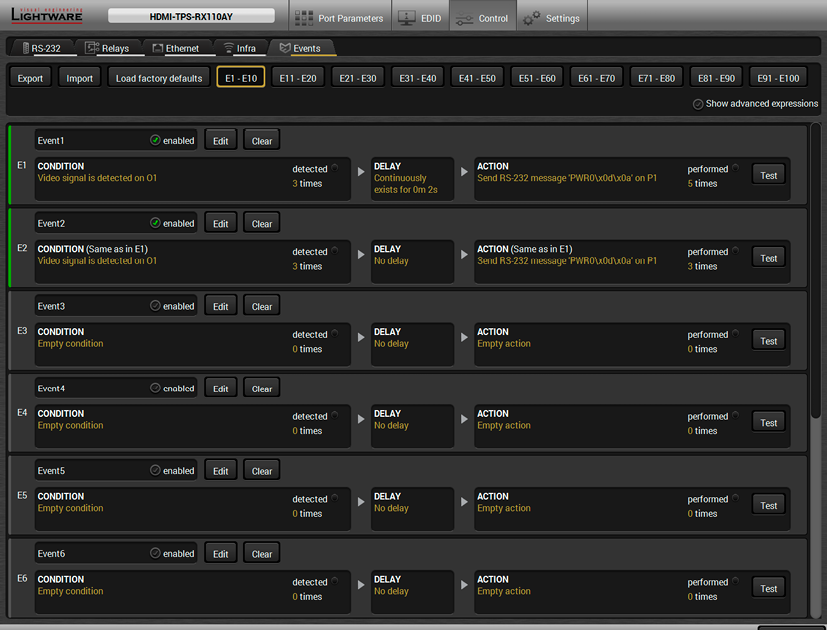
Control menu, Event Manager tab
Press the Edit button in the desired Event line to open the Event editor window.
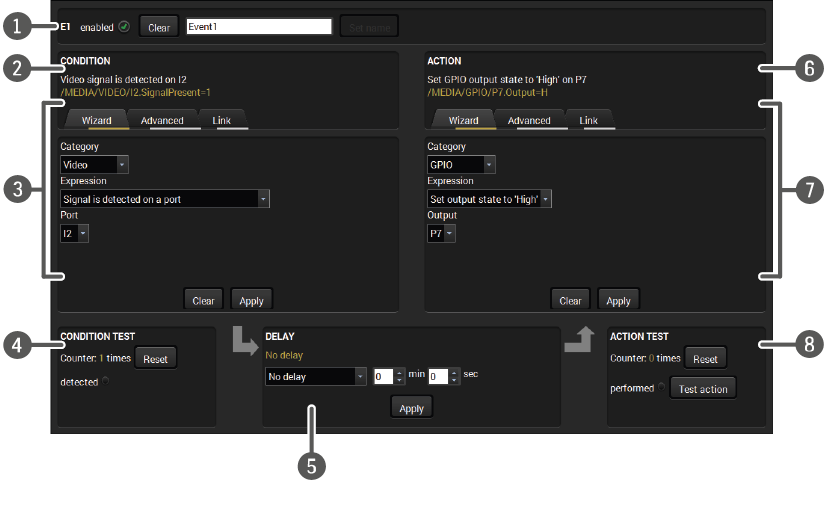
|
|
Event header |
The name of the Event is displayed. Type the desired name and press the Set name button. The Event can be cleared by the Clear button. Use the tick mark to enable/disable the Event. |
|
|
Condition header |
If the condition is set, the description (white colored text) and the exact LW3 protocol expression (yellow colored text) can be seen. If the advanced mode was used, the description is “Custom condition”. |
|
|
Condition panel |
The Wizard, the Advanced or the Link tool is available to set the condition. The parameters and settings are displayed below the buttons. |
|
|
Condition test |
The set condition can be tested to see the working method in practice. |
|
|
Delay settings |
The action can be scheduled to follow the condition after the set time value. |
|
|
Action header |
If the action is set, the description (white colored text) and the exact LW3 protocol expression (yellow colored text) can be seen. If the advanced mode was used, the description is “Custom action”. |
|
|
Action panel |
The Wizard, the Advanced or the Link tool is available to set the action. The parameters and settings are displayed below the buttons. |
|
|
Action test |
The set action can be tested to see the working method in practice. |
9.3. Create or Modify an Event
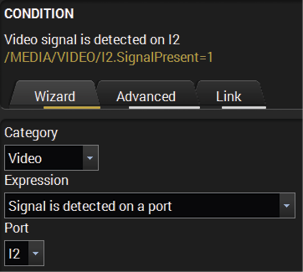
The wizard mode lists the most common conditions and actions, so the user does not have to look for LW3 nodes and properties.
Step 1.Click on the Edit button of the desired Event; the Event editor is displayed.
Step 2.The wizard mode is displayed by default. Select the desired Category first (e.g. Audio or Video).
Step 3.Select the desired Expression from the drop-down menu. If any other parameter is necessary to set, it is going to be displayed.
Step 4.Press the Apply button to store the settings of the Condition.
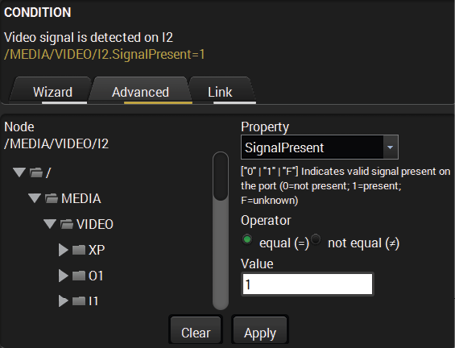
The goal of this mode is the same as of the wizard: set the properties and methods for conditions and actions. The difference is the number of the available and usable properties and methods of the LW3 protocol. Advanced mode allows almost all of it.
Step 1.Click on the Edit button of the desired Event; the Event editor is displayed.
Step 2.The wizard is the default, so press the Advanced button. The LW3 protocol tree is displayed, showing the list of the properties in the drop-down menu. Navigate to the desired node.
Step 3.Select the desired Property from the menu. The manual of the property is displayed below to help select the necessary property and set the value.
Step 4.Set the desired value and operator, then press the Apply button to store settings.
The new interface allows creating more actions to the same condition. In that case, a condition can trigger more actions. To set such an Event, the Link tool has been introduced.
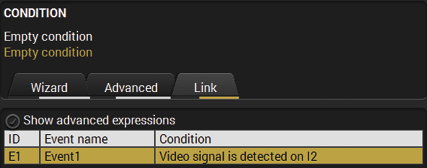
Step 1.Click on the Edit button of the desired Event; the Event editor is displayed.
Step 2.The wizard is the default, so press the Link button.
Step 3.All the saved Events are analyzed and the conditions are listed (it takes a few seconds to finish). The Show advanced expressions option allows showing the exact path and setting the value of the property.
Step 4.Select the desired Condition and press the Apply button to store the settings.
9.4. Special Tools and Accessories
The Name of the Event
The name of a port can be changed by typing the new name and clicking on the Set button. The following characters are allowed when naming: letters (A-Z) and (a-z), numbers (0-9), special characters: hyphen ( - ), underscore ( _ ), and space ( ).
Enable or Disable an Event
The set Event can be enabled or disabled in the Event list, or directly in the Event editor window by setting the tick mark beside the name.
Testing the Condition
When the desired Condition is arranged, the setting can be tested. The Event list and the Event editor contains a panel showing if the set condition is detected and if so, how many times. The Counter can be reset in the Event editor. If the Condition is true, the detected mark turns green for two seconds and the Counter is increased.
Testing the Action
The method is the same as testing the Condition, but in this case, the Action can be triggered manually by pressing the Test button.
TIPS AND TRICKS:The Test button is also placed on the Action panel in the Event list. Thus, you can check the Actions without opening the Event editor.
Delay the Action
In most cases the Action is performed immediately after the Condition is detected. But sometimes a delay is necessary between the Condition and the Action. Therefore, the new Event manager contains the Delay panel, that allows that feature with the settings below:
▪No delay: when the Condition is detected, the Action is launched.
▪Simple delay: when the Condition is detected, the Action is launched after the set time interval.
▪Still exists: when the Condition is detected, the Action is launched after the set time interval only if the Condition still exists.
▪Continuously exists: when the Condition is detected, the Action is launched after the set time interval only if the Condition has been existing continuously.
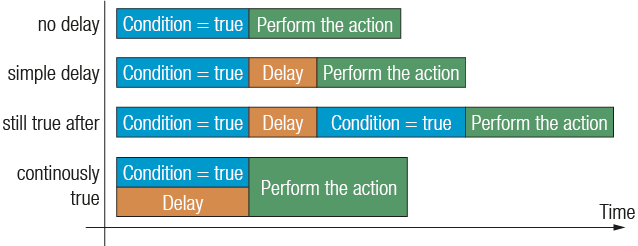
The available delay settings of an Event
TIPS AND TRICKS:Show advanced expressions option is a useful tool when you look for the path or value of a property, but just the expression is displayed. The option is available in the Event list window or when the Link tool is used.
9.5. Clear one or more Event(s)
Clear an Event
Press the Clear button in the Event list or in the header section in the Event editor.
Clear all Events
When all the Events must be cleared, press the Load factory defaults button above the Event list. You will be prompted to confirm the process.
The feature allows saving all the Events. The backup file can be uploaded to another similar series device.
Export all the Events
Step 1.Press the Export button above the Event list.
Step 2.The Save as dialog box will appear. Set the desired folder and file name, then press the Save button.
The generated file is a simple text file that contains LW3 protocol commands. The file can be viewed by a simple text editor, e.g. Notepad.
ATTENTION!Editing the file is recommended only for expert users.
Import all the Events
Step 1.Press the Import button above the Event list.
Step 2.The Open dialog box will appear. Select the desired folder and file, then press the Open button.
10. Settings Menu of Extenders
The menu contains hardware- and software-related settings and information about the connected device. The content of the tabs is also device-dependent.
The most important hardware and software related information can be found on this tab: hardware and firmware version, serial numbers, temperatures, voltage information. Device label can be changed here and measurements can be reset with a dedicated Reset button.
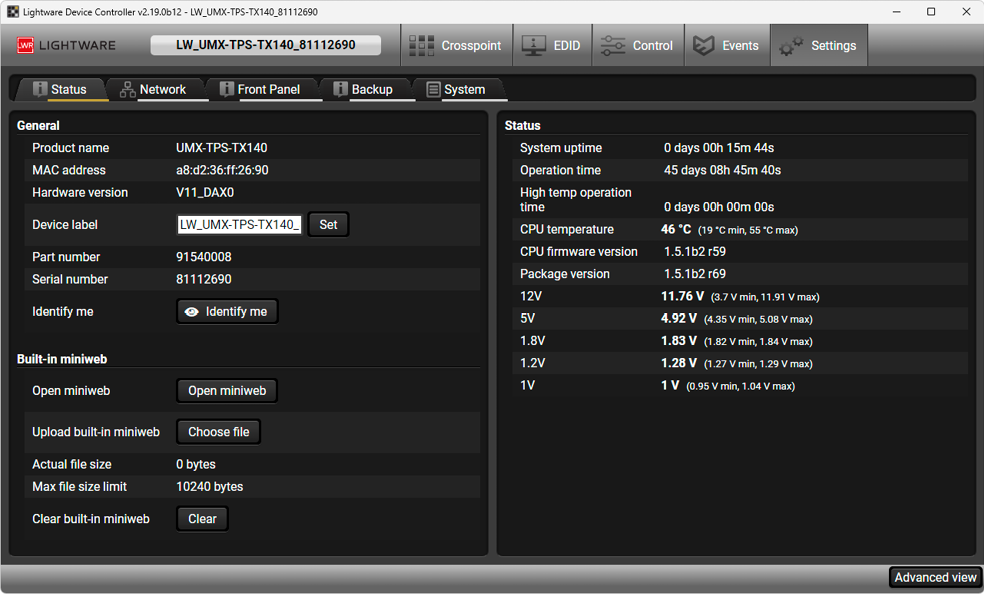
Status tab
IP address and DHCP settings can be set on this tab. Always press the Apply changes button to save changes. Factory defaults settings can be recalled with a dedicated button.
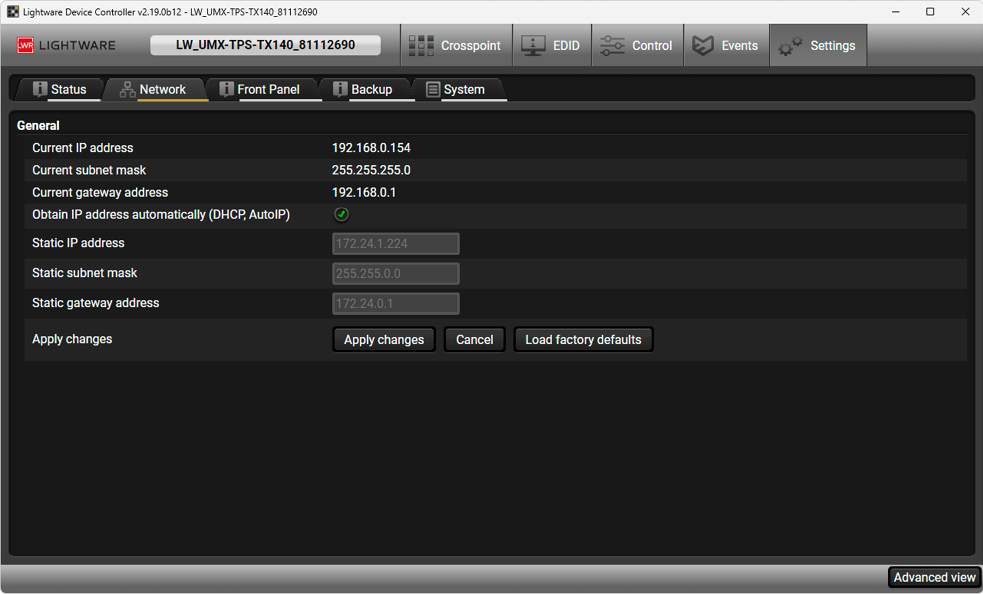
Network tab
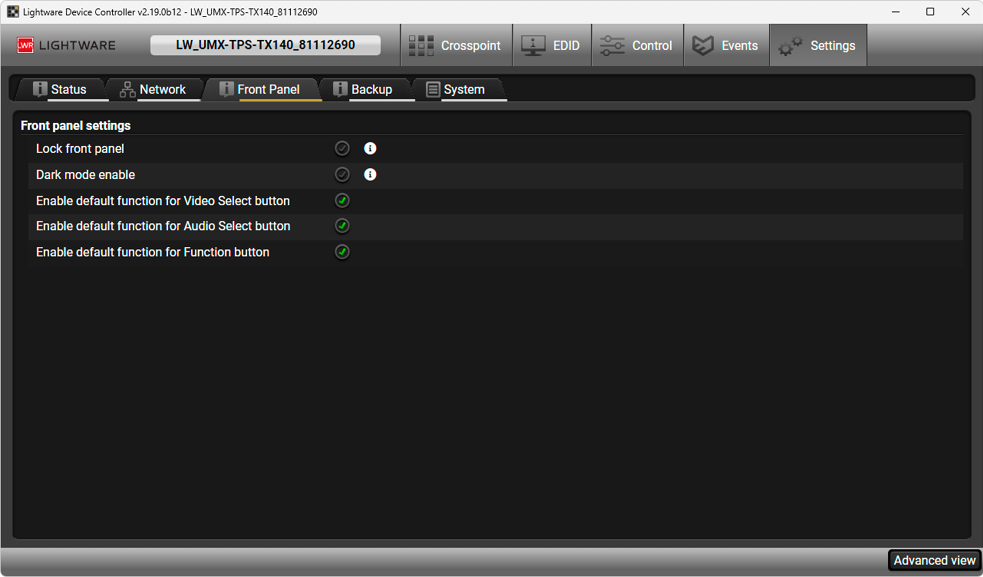
Front panel tab
Front panel operation LEDs and buttons can be configured on this tab.
▪Locking the front panel: You can disable the functionality of the front panel buttons. This is the same method of the control lock that can be activated by the front panel buttons.
▪Dark mode enable/disable: video and audio LEDs on the front panel are turned off 60 seconds after enabling the dark mode.
▪Enable default function for Video Select / Audio Select / Function (Show me) button: when this property is disabled, it means that pushing the button will not perform the original function. This makes the button free for programming a custom function with the Event Manager.
10.4. Configuration Cloning (Backup)
The configuration cloning of Lightware LW3 devices is a simple method that eliminates the need to repeatedly configure certain devices to have identical (non-factory) settings. If the devices are installed in the same type of system multiple times, then it is enough to set up only one device to fit the user’s needs and then copy those settings to the others, thus saving time and resources.
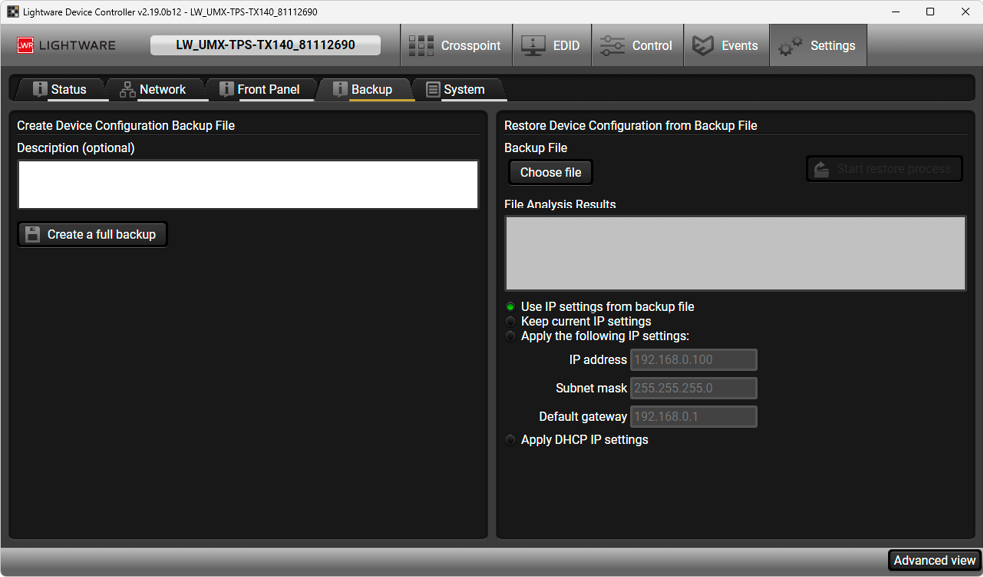
Backup tab
10.4.1. Cloning Steps in a Nutshell
Installing multiple devices with the same customized configuration settings can be done in a few easy steps:
Step 1.Configure one device with all your desired settings with the LDC software.
Step 2.Backup the full configuration file to your computer.
Step 3.If needed, make some modifications to the configuration file using a text editor (e.g. Notepad). E.g. modifying the static IP address is needed when DHCP is not used.
Step 4.Connect to the other device that needs to be configured and upload (restore) your configuration file.
Step 5.Ready! You can have as many totally identical, customized devices as you like.
10.4.2. Save the Settings of the Device (Backup)
Step 1.Apply the desired settings in the transmitter (port parameters, crosspoint, etc.)
Step 2.Select the Settings / Backup tab from the menu.
Step 3.Write a short description in the text box on the left (optional).
Step 4.Press the Create a full backup button. You will be prompted to save the file to the computer. The default file name is the following:
Step 5.Set the desired file name, select the folder and save the file.
TIPS AND TRICKS:Using the exact product type in the filename is recommended since it makes the file usage more comfortable.
About the Backup File
The backup file is a simple text file that contains LW3 protocol commands. The first line is the description, and the further lines are the commands that will be executed during the restore process. The file can be viewed (and/or edited) by a simple text editor, e.g. Notepad.
ATTENTION!Editing the command lines is only recommended for expert users.
10.4.3. Upload the Settings to a Device (Restore)
WARNING!Please note that the settings will be permanently overwritten with the restored parameters in the device. Withdrawal is not possible.
ATTENTION!The cloning is successful when the backup file is downloaded from the same type of source device as the destination device.
The restoring process
Step 1.Select the Settings / Backup tab from the menu.
Step 2.Click on the Choose file button on the right panel and browse the desired file.
Step 3.The file is checked and the result will be displayed in the textbox below. If the file is correct, the settings can be restored.
Step 4.Choose the IP settings that you want to use after backup. You can apply settings from the backup file, keep actual settings, set it manually in a dialog box or apply DHCP.
Step 5.Press the Start restore process button and click on the Yes button when asked.
Step 6.Reboot the device to apply the network settings after finishing.
10.4.4. Create and Restore Backups from the Device Memory
Certain devices (e.g. MMX6x2-HT series) are able to store backups in their own memory and can be recalled from there so the user does not need to save backup files to the local computer. Eight slots are available for this purpose.
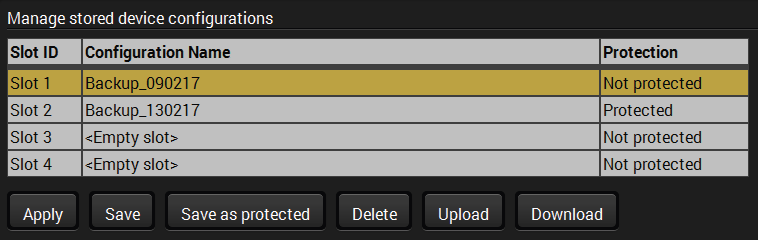
You can save presets as not protected using the Save button and as protected using the Save as protected button. Restoring a preset, select the slot of the desired backup and click on the Apply button. You can save presets from a file from your local computer by clicking on the Upload button and you can also save a preset from the device's memory to a backup file using the Download button. If you do not need a saved preset any more, select it and click on the Delete button.
WARNING!Loading factory default settings will erase all presets that have been saved in the device memory!
Three functions can be found here:
▪Download system log - saving the file of the device.
▪Load factory defaults - recalling factory default settings and values.
▪Reboot - rebooting the system.
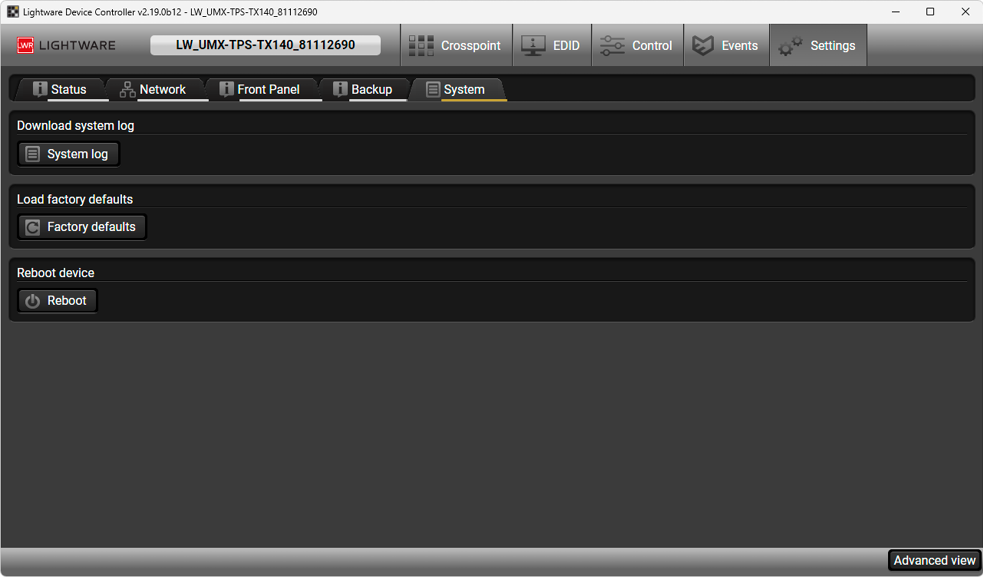
System tab
11. Settings Menu of Matrix Switchers
The menu contains hardware- and software-related settings and information about the connected device. The content of the tabs is also device-dependent.
Settings about establishing the connection to the desired device are available on this tab.
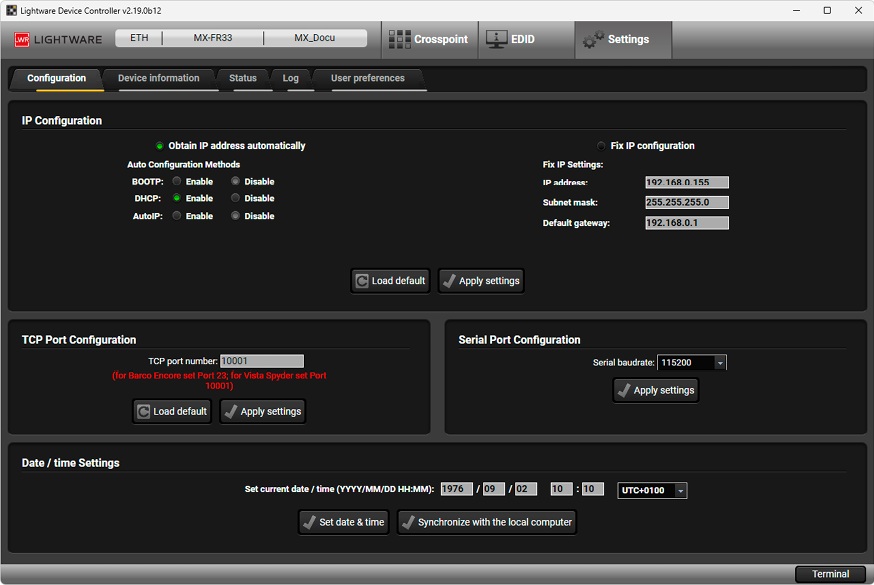
Configuration tab
IP Configuration
The IP address and TCP/IP port can be set up here.
INFO:The load default button restores the default network settings (fix IP) to the device. Default network settings can be found in the user manual of the actual device.
INFO:When serial port is used for the connection, these settings cannot be changed.
Obtain IP Address Automatically
By selecting the Obtain IP address automatically option, the device gets the IP address from the DHCP server on the LAN, or if DHCP server is not present, it gets an AutoIP address from 169.254.xxx.xxx domain. Set BOOTP, DHCP and AutoIP settings according to your network requirements. Always press the Apply settings button to save changes.
Fix IP Configuration
In this case, the connected device has an IP address configuration set up by the user/administrator. Depending on the modified settings, you might need to restart the device and the Control Software. Always press the Apply settings button to save changes.
TCP Port Configuration
Devices can be accessed via this TCP/IP port number with TCP connection. Port number can be modified to any number between 1025 and 65535, except the followings: 9999, 14000 - 14009, 30704, and 30718. To use a matrix with Barco Encore, set the port number to 23. To use a matrix with Vista Spyder, set the port number to 10001. Always press the Apply settings button to save changes.
Serial Port Configuration
The Baud rate for serial connection can be set from the drop-down list: 9600, 19200, 38400, 57600, or 115200. Always press the Apply settings button to save changes.
Basic information about the connected device and installed cards are listed on this tab.
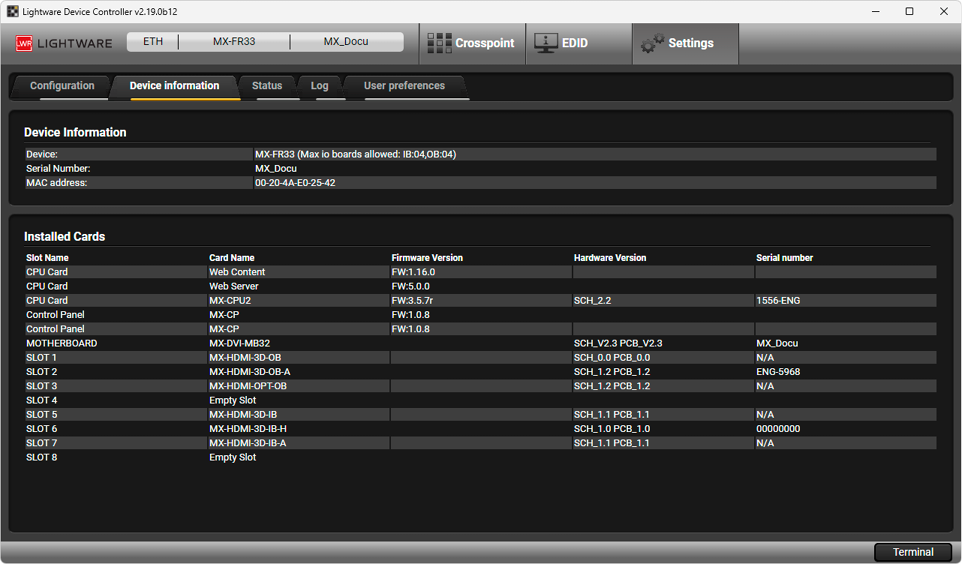
Device information tab
The voltage levels, fan speeds and temperature measured by the CPU of the device are shown. Press the Refresh button to show/update values.
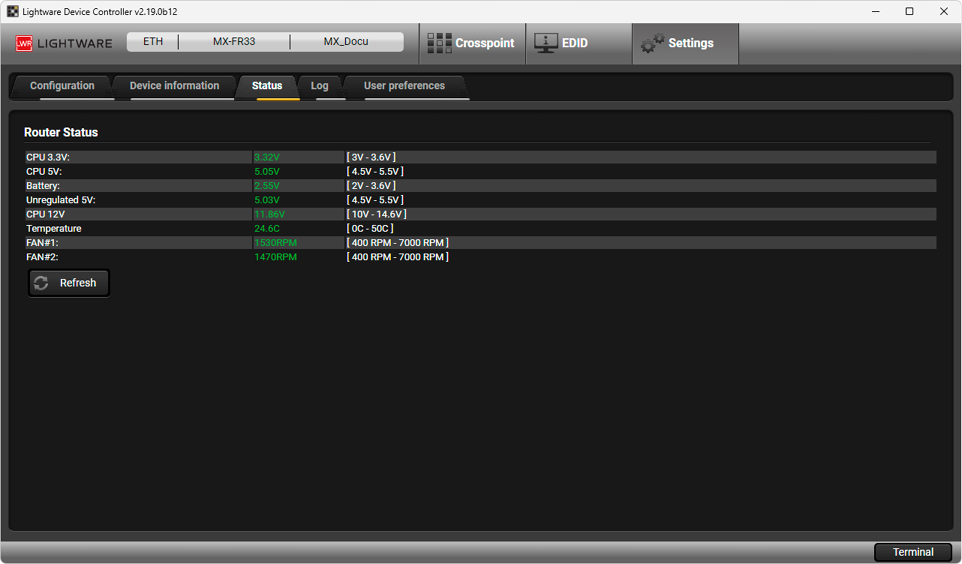
Status tab
Events logged by the device and report generators can be found on Log tab. There are two sections: Report and Log viewer.
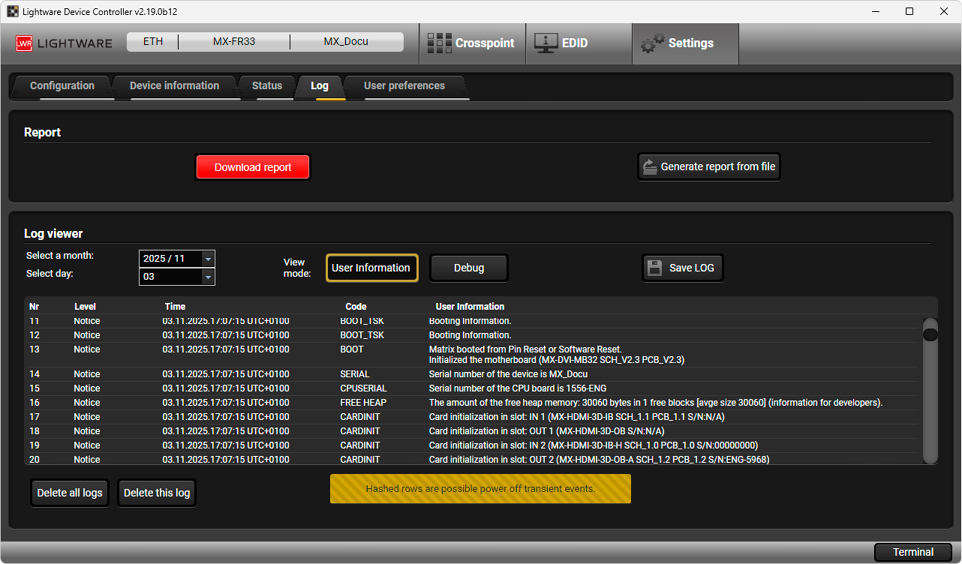
Log tab
Report Section
LDC is able to collect information from the device and save it to a report file. This information package can be sent to Lightware support team when a problem may arise with the device.
Press the red button: Generate report file.
LDC collects the needed information; this may take up to 5 minutes.
After generating the report, a ‘Save as’ dialog box appears. Select the folder where you want to save the report file. The default file name can be changed.
The report contains the following device-dependent information (if available):
▪Current command protocol,
▪Device type and serial number,
▪Current crosspoint state,
▪Firmware versions of all the internal controllers,
▪Installed I/O board types and versions,
▪Hardware health status,
▪All EDID headers and status (emulated, dynamic, factory, user),
▪Basic error list, log file list and last detailed error log.
Open Custom Report from File
The Controller Software is able to send a custom command file to certain devices (matrix switchers). The command file can be generated by Lightware support. This is needed when some special commands have to be used for configuring the device or troubleshooting.
INFO:This function is only for special troubleshooting cases.
Error Log Viewer (MX Matrix Switchers, UMX Extenders)
Log files saved by the devices can be downloaded and viewed with this function. The columns in the list are the following: error level, time, error code, error parameter, processor task identifier, occurrences and extra information.
The device creates a new error log file every time it is started, except if a log file exists for that day. The software allows selecting only the months and days that have a log.
Step 1.Select the month of the error log.
Step 2.Select the day.
Step 3.The error log is downloaded and shown as a table.
Step 4.The error log can be saved in a CSV file on the computer by the Export to CSV file button.
There are two viewing modes available: User information and Debug. User information contains user-friendly data, using this view mode is highly recommended.
Logs can be deleted one-by-one or all the logs at the same time with the Delete all logs and Delete this log buttons.
The tab shows some settings in connection with the LDC displaying/working mode.
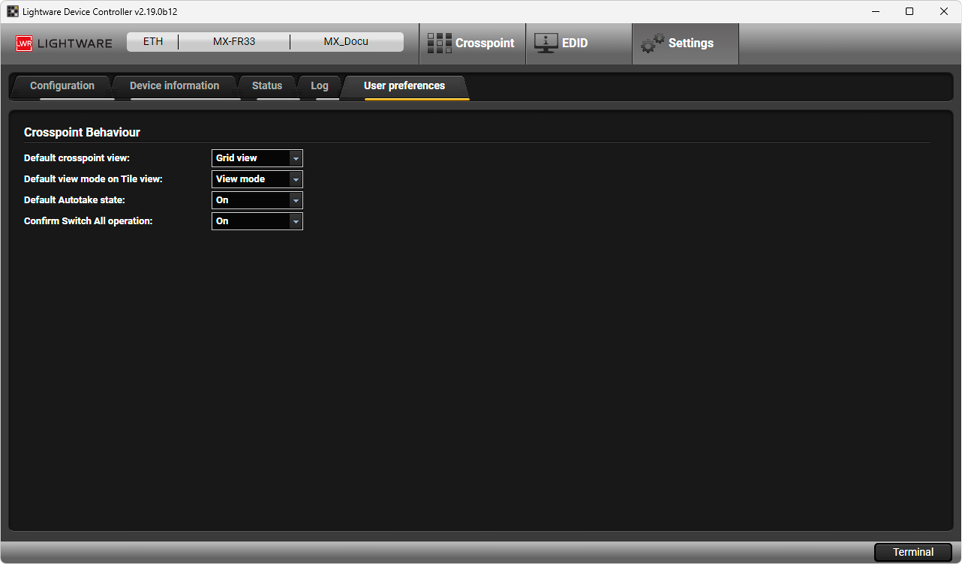
User preferences tab
Lightware Device Controller contains a Terminal window for sending LW2 commands, and an Advanced view with the LW3 Node tree.
This general purpose terminal is intended mainly for testing and debugging purposes. When a successful connection is established with a router, this terminal can be used either via serial RS-232, TCP/IP LAN or USB connection. All commands can be used here that are discussed in the programmer’s reference. The command text can be typed directly.
By default, commands are automatically surrounded by framing brackets. Every sent command and every received response gets an arrow (-> or <-) prefix, and has different font colors in order to help distinguish between them.
The timecode in every row shows the exact time when the command was sent or the response received.
If the Command framing checkbox is unchecked, you can send multiple commands together, however, in this case you have to type in the framing brackets manually.
The terminal can be also opened after starting the LDC - press the Terminal button on the Device discovery page on the bottom of the window.
TIPS AND TRICKS:The typed commands can be 'browsed' when the cursor is in the command line and you press the up button on the keyboard. The commands are stored until the LDC is closed.
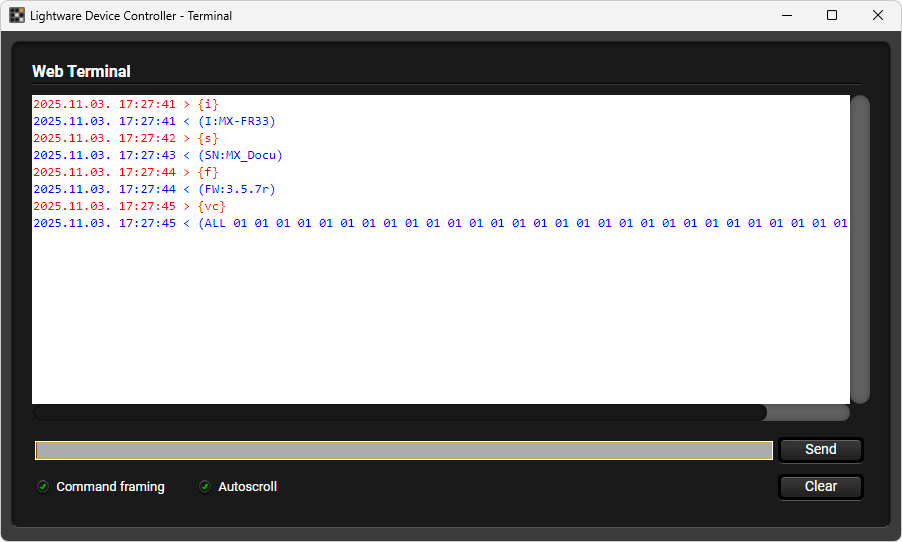
Terminal window
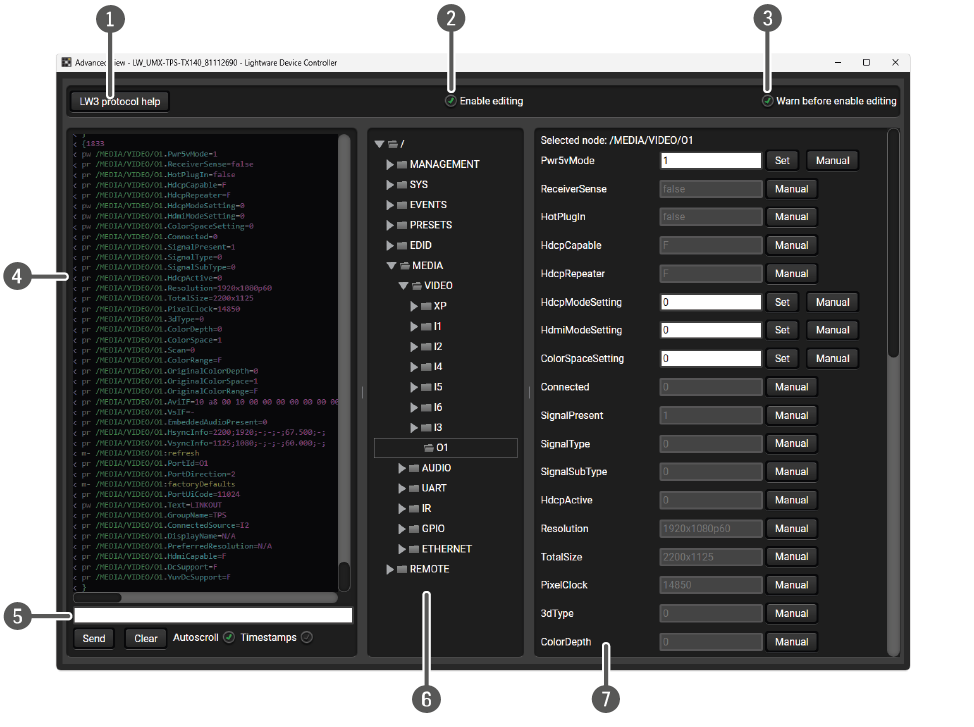
|
|
LW3 protocol help |
Pushing the button results in a help window opening that describes the most important information about LW3 protocol commands in HTML format. |
|
|
Edit mode |
The default appearance is the read-only mode. If you want to modify the values or parameters, tick the option. You will be prompted to confirm your selection. |
|
|
Warning mode |
If this is checked in, a warning window pops up when you enable the Edit mode. |
|
|
Terminal window |
Commands and responses with time and date are listed in this window. Sent command is displayed in red and starts with the ‘>’ character, received response is displayed in blue and starts with the ‘<’ character. The content of the window can be emptied with the Clear button. If the Autoscroll option is ticked, the list is scrolled automatically when a new line is added. |
|
|
Command line |
Type the desired command and execute it with the Send button. Clear all current commands and responses in the Terminal window with the Clear button. |
|
|
Protocol tree |
LW3 protocol tree; select an item to see its content. |
|
|
Node list |
Correspondent parameters and nodes are shown that are connected to the selected item in the protocol tree. Manual button: Manual (short description) of the node can be called and displayed in the terminal window. Set button: Saves the value/parameter typed in the textbox. Call button: Calls the method, e.g. reloads factory default settings. |
Further Document Information
Symbol Legend
The following symbols and markings are used in the document:
WARNING!Safety-related information that is highly recommended to read and keep in every case!
ATTENTION!Useful information for performing a successful procedure; it is recommended to read.
DIFFERENCE:Feature or function that is available with a specific firmware/hardware version or product variant.
INFO:A notice, which contains additional information. Procedure can be successful without reading it.
DEFINITION:The short description of a feature or a function.
TIPS AND TRICKS:Ideas that you may have not known yet, but can be useful.
Navigation Buttons
|
Buttons in the PDF version |
Buttons in the HTML version |
|||
|
|
Navigate to the Table of Contents. |
|
Open the main Table of Contents. |
|
|
|
Go back to the previous page. If you clicked on a link previously, you can go back to the source page by pressing the button. |
|
Navigate to the Online User Manuals webpage. |
|
|
|
Navigate to the Bookmark page. |
|
Navigate to the Bookmark page in this User Manual. |
|
|
|
Visit www.lightware.com. |
|
Download the PDF version of the User Manual. |
|


About Printing
Lightware Visual Engineering supports green technologies and eco-friendly mentality. Thus, this document is made primarily for digital usage. If you need to print out a few pages for any reason, follow the recommended printing settings:
▪Page size: A4
▪Output size: Fit to page or Match page size
▪Orientation: Landscape
TIPS AND TRICKS: Thanks to the size of the original page, a border around the content (gray on the second picture below) makes it possible to organize the pages better. After punching holes in the printed pages, they can easily be placed into a ring folder.