
USER MANUAL
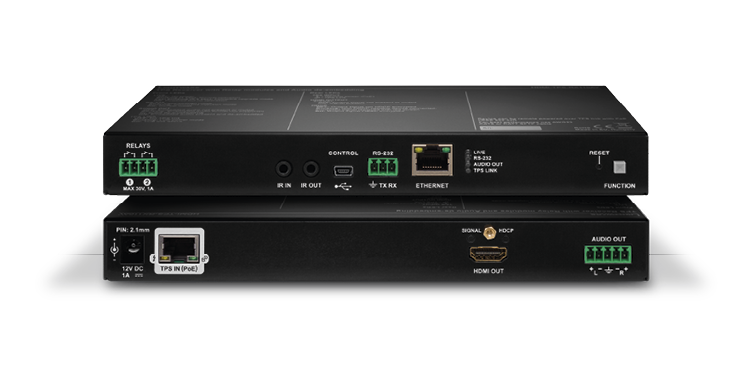
HDMI-TPS-RX110AY
HDMI-TPS-RX110AY-Plus
HDBaseTTM Multimedia Extender
|
|
|
|
||
|
|
|
|
||
|
|
|
|
||





|
|
|
|
||
|
|
|
|
||
|
|
|
|





Important Safety Instructions
Class II apparatus construction.
The equipment should be operated only from the power source indicated on the product.
To disconnect the equipment safely from power, remove the power cord from the rear of the equipment, or from the power source. The MAINS plug is used as the disconnect device, the disconnect device shall remain readily operable.
There are no user-serviceable parts inside of the unit. Removal of the cover will expose dangerous voltages. To avoid personal injury, do not remove the cover. Do not operate the unit without the cover installed.
The appliance must be safely connected to multimedia systems. Follow instructions described in this manual.
Ventilation
For the correct ventilation and to avoid overheating, ensure enough free space around the appliance. Do not cover the appliance, leave the ventilation holes free and never block or bypass the ventilators (if there are any).
WARNING
To prevent injury, the apparatus is recommended to be securely attached to the floor/wall, or mounted in accordance with the installation instructions. The apparatus shall not be exposed to dripping or splashing, and no objects filled with liquids, such as vases, shall be placed on the apparatus. No naked flame sources, such as lit candles, should be placed on the apparatus.
Waste Electrical & Electronic Equipment (WEEE)

This marking shown on the product or its literature indicates that it should not be disposed with other household wastes at the end of its working life. To prevent possible harm to the environment or human health from uncontrolled waste disposal, please separate this from other types of wastes and recycle it responsibly to promote the sustainable reuse of material resources. Household users should contact either the retailer where they purchased this product or their local government office for details of where and how they can take this item for environmentally safe recycling. Business users should contact their supplier and check the terms and conditions of the purchase contract. This product should not be mixed with other commercial wastes for disposal.
Common Safety Symbols
|
Symbol |
Description |

|
Direct current |

|
Alternating current |

|
Protective conductor terminal |

|
Equipotential Connector |
.png)
|
On (Power) |
.png)
|
Off (Power) |

|
Double insulation |

|
Caution, possibility of eletric shock |

|
Caution |

|
Laser radiation |

|
Warning, Rotating fan |

|
Caution: for indoor use only |
Applied SW/FW/HW Environment
All presented functions refer to the indicated products. The descriptions have been made while testing these functions in accordance with the indicated Hardware/Firmware/Software environment:
|
Item |
Version |
|---|---|
|
FW package |
v1.5.0b3 |
|
HW version |
1.2 |
|
Lightware Device Controller (LDC) version |
v2.7.5b2 |
|
Lightware Device Updater V2 (LDU2) version |
v2.23.0b1 |
Document Revision History
|
Rev. |
Release date |
Changes |
Editor |
|
v1.0 |
2016-12-22 |
Initial release. |
Tamas Forgacs |
|
... |
|||
|
v4 |
2026-04-30 |
New User Manual template applied, minor corrections |
Nikolett Keindl |
|
v5 |
2026-09-01 |
ToC correction. |
Laszlo Zsedenyi |
Contact Us
+36 1 255 3800
+36 1 255 3810
Lightware Visual Engineering PLC.
Gizella 51-57, Budapest H-1143, Hungary
©2026 Lightware Visual Engineering. All rights reserved.
All trademarks mentioned are the property of their respective owners.
Specifications are subject to change without notice.
Thank you for choosing Lightware’s HDMI-TPS-RX110AY series receiver. In the first chapter we would like to introduce the device, highlighting the most important features in the sections listed below:
A small size HDBaseTTM TPS receiver unit is being developed in the Lightware works with one PoE capable TPS input and a single HDMI output. The unit is full 4K/UHD and 3D capable and HDCP compliant. The HDMI audio is de-embedded to the balanced audio output via a Phoenix (Euroblock) connector, the audio port has volume and balance control. The built-in Event Manager feature and the dual Relay module of the device are both configurable via the Lightware Device Controller software. Further control options are served by the USB, RS-232, IR (in and out), and Ethernet ports.
Model Denomination
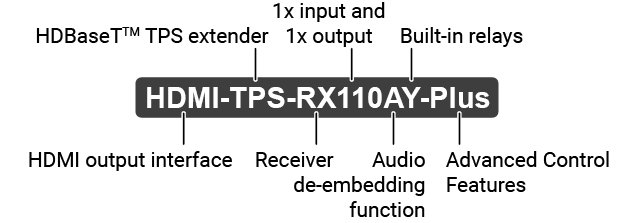
About the Serial Number
Lightware devices contain a label indicating the unique serial number of the product. The structure is the following:
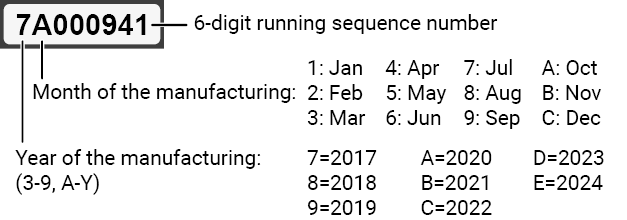
From 1st of October 2024, serial number format of Lightware devices is the following: the first two digits are of the year of manufacture, while the remaining digits make up the running sequence number.

The receiver is compatible with other Lightware TPS transmitters, matrix TPS and TPS2 boards, 25G TPS2 boards, as well as third-party HDBaseT-extenders, displays, but not compatible with the phased out TPS-90 extenders.
ATTENTION!The receiver is PoE-compatible (Power over Ethernet, can be powered remotely via using CATx cable), but the device can only receive power from, and cannot send power to other PoE-compatible devices. Only the TPS connector is PoE-compatible, the Ethernet port cannot receive power.

|
The receiver is compatible with any third-party HDBaseTTM device. |
HDBaseTTM and the HDBaseT Alliance logo are trademarks of the HDBaseT Alliance.
The List of Compatible Lightware Devices
▪MX Modular matrix frames - MX-TPS/TPS2-OB
▪25G Modular matrix frames - 25G-TPS2-OB
▪Standalone TPS matrix frames – MMX6x2-HT series
▪TPS transmitters:
=HDMI-TPS-TX95/96/97 and WP/FP-HDMI-TPS-TX97
=DVI-HDCP-TPS-TX95/96/97
=UMX-TPS-TX100 and WP/FP-UMX-TPS-TX100 series
=HDMI-TPS-TX200 series and SW4-TPS-TX240
▪Single port standalone TPS power injector – TPS-PI-1P1
|
Supplied device |
Supplied accessories |
|||||
|
|
|
|
|
|
|
|
|
Receiver device |
12V DC |
Phoenix® Combicon 3-pole connector |
Phoenix® Combicon 4-pole connector |
Phoenix® Combicon 5-pole connector |
Safety and warranty info, QSG |
|
|
HDMI-TPS- RX110AY |
|
|
|
|
|
|
|
HDMI-TPS- RX110Y-Plus |
|
|
|
|
|
|






|
3D and 4K Support |
|
High bandwidth allows extension of resolutions of up to 4K, and even 3D sources and displays are supported. |
|

|
Signal Transmission up to 170 m |
|
Video and audio signal transmission (HDMI, Ethernet, RS-232, and Infra-Red) over a single CAT5e…CAT7e cable. |
|

|
Pixel Accurate Reclocking |
|
Each output has a clean, jitter free signal, eliminating signal instability and distortion caused by long cables or connector reflections. |
|

|
Frame Detector and Signal Analysis |
|
The exact video and audio signal format can be determined such as timing, frequencies, scan mode, HDCP encryption, color range, color space and audio sample rate. |
|

|
HDCP-compliant |
|
The receiver fulfills the HDCP standard. HDCP capability on the digital video inputs can be disabled when non-protected content is extended. |
|

|
Built-in Event Manager |
|
The Event Manager tool takes care of all the necessary control in a smaller configuration by performing predefined actions in response to device status changes. Hence, in a less complex environment there is no need to invest in additional control solutions, which makes the receiver the best choice for numerous applications. |
|

|
Remote Power |
|
The receiver is PoE-compatible and can be powered locally by the supplied power adaptor, or remotely via the TPS connection (through the CATx cable) with a compatible power source equipment, e.g. MMX6x2-HT series matrix switchers and TPS2 matrix boards. |
|

|
Bi-directional RS-232 Pass-through |
|
AV systems can also contain serial port controllers and controlled devices. Serial port pass-through supports any unit that works with standard RS-232. |
|

|
Relay |
|
2x controllable relay modules up to 30V, 1A support. |
|

|
Ethernet Control |
|
Multiple simultaneous TCP/IP connections are available with a simple ASCII-based protocol for controlling, configuring the receiver or performing a firmware update. |
|

|
Dark Mode |
|
Rental application requires this function that keeps the LEDs unlit to hide the device during an event. |
Advanced Control Features (Only for HDMI-TPS-RX110AY-Plus model)

|
Consumer Electronic Control |
|
Supports transmitting standard CEC commands in order to remote control the source or sink device. |
|

|
Infra Message Sending |
|
Infrared (IR) is a wireless technology used for device communication over short ranges. Third party control systems may send IR control commands to endpoints turning them on and off or switching their inputs. |
|

|
RS-232 Recognizer |
|
Support recognizing incoming RS-232 messages to integrate with 3rd party devices like VC codec. |
The available models have different features depending on their design. The following table contains the most important differences between the two models:
|
Advanced Control Features |
|||
|
Infra message sending |
CEC message sending |
RS-232 recognizer |
|

|

|

|
|
|
HDMI-TPS-RX110AY |
- |
- |
- |
|
HDMI-TPS-RX110AY-Plus |
|
|
|

The AV input/output ports, interface ports and the software features that are not mentioned here are the same in case of both models.
Standalone Application Diagram
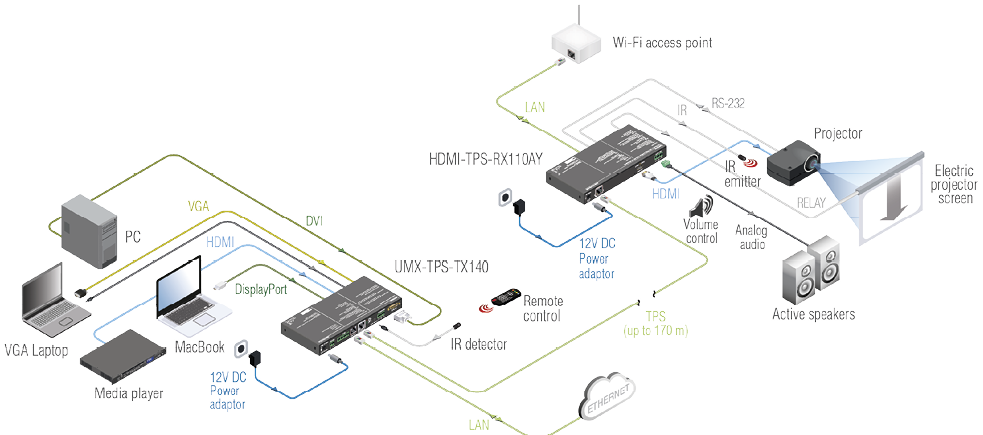
Integrated System Diagram
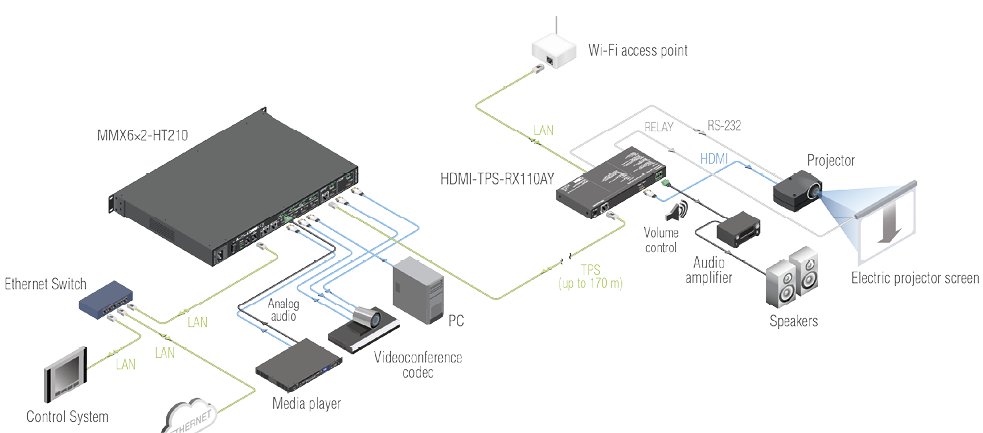
The chapter is about the installation of the device and connecting to other appliances, also presenting the mounting options and further assembly steps:
To mount the receiver, Lightware supplies optional accessories for different usage. There are two kinds of mounting kits with a similar fixing method. The receiver has two mounting holes with inner thread on the bottom side; see the bottom view in the Mechanical Drawings section. Fasten the device by the screws enclosed to the accessory:
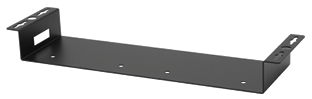
Under-desk double mounting kit

1U high rack shelf
The Under-desk double mounting kit makes it easy to mount a single device on any flat surface, e.g. furniture. The 1U high rack shelf provides mounting holes for fastening two half-rack or four quarter-rack sized units. Pocket-sized devices can also be fastened to the shelf. To order mounting accessories, please contact sales@lightware.com.
WARNING!Always use the supplied screws. Using different (e.g. longer) ones may cause damage to the device.
INFO:The receiver is half-rack sized.
Allows rack mounting for half-rack, quarter-rack and pocket sized units.
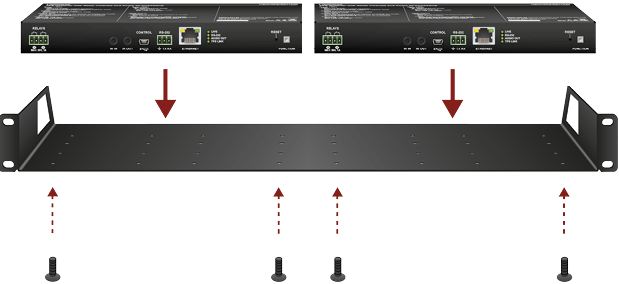
The 1U high rack shelf provides mounting holes for fastening two half-rack or four quarter-rack sized units. Pocket sized devices can also be fastened to the self.
2.1.2. Under-desk Double Mounting Kit
The UD-kit double makes it easy to mount a single receiver on any flat surface (e.g. furniture).
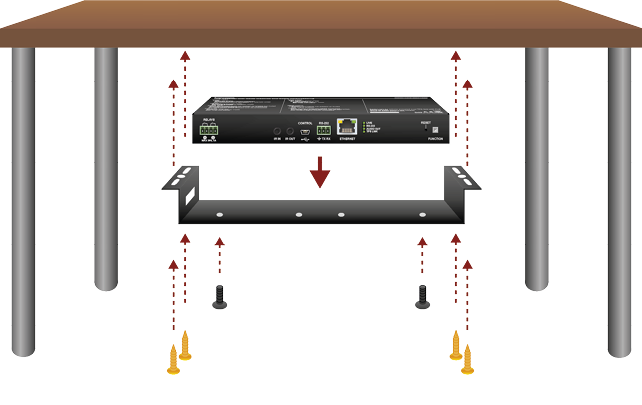
INFO:The chipboard screws are not supplied with the mounting kit.

Locking DC connector
Do not forget to turn the plug counterclockwise before disconnecting the power adaptor.
WARNING!Always use the supplied 12V power adaptor. Warranty void if damage occurs due to use of a different power source.

The extender provides a standard 19 pole HDMI connector for output. Always use high quality HDMI cables for connecting sources and displays.
A 5-pole Phoenix connector is used for balanced analog audio output. Unbalanced audio signals can be connected as well. For unbalanced output, connect + and ground to the source and connect – to the ground.

Analog audio connector and plug pin assignments
Compatible Plug Type
Phoenix® Combicon series (3.5mm pitch, 5-pole), type: MC 1.5/5-ST-3.5.
You can find more information about analog audio function in the Audio Interface section. Audio cable wiring guide is in the Cable Wiring Guide section.
2.2.4. Ethernet Connector (TPS and LAN Ports)
The extender provides standard RJ45 connectors for TPS IN and LAN ports. Always use high quality Ethernet cables for connecting transmitters and receivers. Maximum CATx cable distances can be found in the Mechanical Drawings section.
Wiring of TPS and LAN Cables
Lightware recommends the termination of LAN cables on the basis of TIA/EIA T 568 A or TIA/EIA T 568 B standards.

Wiring of LAN cables by types
WARNING!Never connect a non-assembled CATx cable to the port while the unit is powered, it may damage the device.
You can find more information about the TPS interface in the TPS Interface section.

The extender provides a standard USB 2.0 mini B-type connector for software control purpose.
An IR detector and IR emitter can be connected to the receiver with TRS (Tip, Ring, and Sleeve) connectors. They are also known as (3,5 mm or approx. 1/8”) audio jack, phone jack, phone plug, and mini-jack plug. The pin assignments are the following for the detector and the emitter:


INFO:Ring pole of the emitter is optional. If your IR emitter has three-pole TRS plug, then the Ring and the Sleeve are the same signal (Output - ).
You can find more information about the Infrared interface in the IR Interface section.
The receiver contains a 3-pole Phoenix connector, which is used for RS-232 serial connection.

RS-232 connector pin assignments
Compatible Plug Type
Phoenix® Combicon series (3.5mm pitch, 3-pole), type: MC 1.5/3-ST-3.5.
You can find more information about the RS-232 interface in the Serial Interface section.
The receiver contains a 4-pole Phoenix connector, which is used for relay connection.

Relay connector pin assignment
INFO:The maximum ratings for each relay are 30V and 1A, AC/DC.
Compatible Plug Type
Phoenix® Combicon series (3.5mm pitch, 4-pole), type: MC 1.5/4-ST-3.5.
You can find more information about the relay interface in the Relay Interface section.
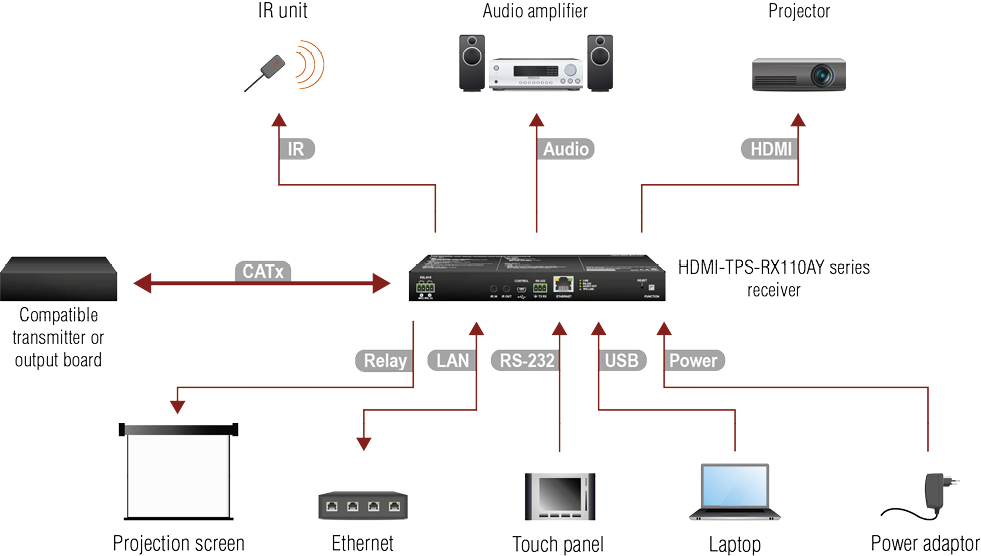

|
Connect the compatible transmitter or the matrix output board and the receiver unit by a CATx cable via the TPS connectors. |

|
Connect the sink device to the HDMI output port. |

|
Optionally connect an audio device (e.g. an audio amplifier) to the audio output port. See the wiring guide for the Phoenix 5-pole connector in the Cable Wiring Guide section. |

|
Optionally for Infrared extension: |

|
Optionally connect the receiver to a control device (e.g. laptop) with an USB mini cable. |

|
Optionally for RS-232 extension: connect a controller/controlled device (e.g. touch panel) to the RS-232 port. |

|
Optionally connect the receiver to a LAN network in order to control the device. |

|
Optionally for relays: connect a controlled device (e.g. a projection screen) to the relay port. |

|
See powering options in the next section. |
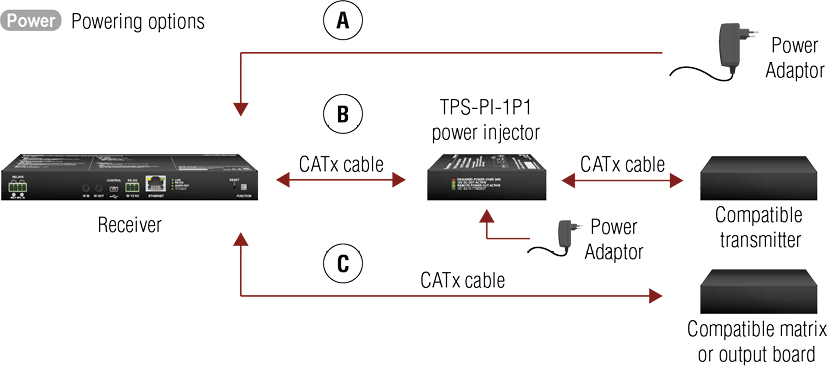

|
Using local PSU - connect the power adaptor to the DC input on the receiver first, then to the AC power socket. |

|
Using PoE with connecting a transmitter: connect the TPS IN (PoE) port of the receiver to the TPS+PoE output port of the TPS-PI-1P1 power injector by a CATx cable, as well as connect the TPS output port of the transmitter to the TPS port of the TPS-PI-1P1 by a CATx cable. |

|
Using PoE with connecting a matrix or an output board: connect the TPS IN (PoE) port of the receiver to the PoE-compatible TPS output port of the matrix or output board by a CATx cable. |
ATTENTION!In case of connecting the receiver to an output board of the matrix, always connect an external PSU to the board. For the detailed information, please read the user manual of the matrix.
ATTENTION!The Ethernet port does not support PoE. Only the TPS port supports PoE function.
INFO:If both remote and local power sources are connected, the remote power will be used.
3
The following sections are about the physical structure of the device, input/ output ports and connectors:

|
|
Relay |
4-pole Phoenix connector for relay ports. Pin assignment can be found in the Relay Connector section. |
|
|
IR IN and OUT |
3-pole TRS connector, also known as 3.5 mm (1/8”) jack plug for optional IR receiver (IR IN) and transmitter (IR OUT). Pin assignments can be found in the IR Connector section. |
|
|
USB |
USB interface for LDC connection to control the receiver. |
|
|
RS-232 |
3-pole Phoenix connector for controlling the device with LDC or third-party control systems. Pin assignment can be found in the RS-232 Connector section. |
|
|
Ethernet |
Locking RJ45 connector for controlling the device with LDC or third-party control systems and LDU for firmware update. |
|
|
Status LEDs |
The LEDs give immediate feedback about the current state of the device. See the details below. |
|
|
Reset button |
Pressing the reset button reboots the extender. |
|
|
Function button |
Special functions are available via this button (switch to bootload mode, enable DHCP, restore factory default settings). For the details about special functions, see the Connecting Steps section. |


INFO:The illumination of the status LEDs can be switched off (dark mode) in the LDC software (see the details in the Front Panel section) and using LW3 protocol command (see the details in the Dark Mode section).
|
LIVE LED |
FRONT |
||

|
off |
The device is not powered. |
|

|
green |
blinking slow |
Device is powered and operational. |

|
green |
blinking fast |
Device is in bootload mode. |

|
green |
on |
The device is powered but not operational. |
|
RS-232 |
FRONT |
||
|
|
off |
RS-232 ports (local and link) in Passthrough mode. |
|
|
|
green |
blinking |
Command Injection mode is active. |
|
|
green |
on |
RS-232 ports (local and link) are in Control mode. |
|
AUDIO OUT |
FRONT |
||
|
|
off |
Embedded audio is not present or analog output is muted. |
|
|
|
green |
blinking |
Embedded audio format is not supported for audio de-embedding. |
|
|
green |
on |
Embedded audio is present and de-embedded. |
|
TPS LINK |
FRONT |
||
|
|
off |
No TPS link between transmitter and receiver. |
|
|
|
green |
blinking |
Device is in low power mode or in Ethernet fallback mode. |
|
|
green |
on |
TPS link is established, HDBaseT or Long Reach mode is active. |

|
|
DC 12V IN |
Local power in; connect the output of the supplied 12V DC power adaptor. For more details, see the next section. |
|
|
TPS IN (PoE) |
Locking RJ45 connector. Connect a twisted pair cable between the transmitter and the receiver. Remote powering is also available through this connector. Maximum CATx cable distances can be found in the Maximum Extension Distances section. |
|
|
SIGNAL status LED |
The LED gives immediate feedback about current state of the HDMI output signal. See the legend below. |
|
|
HDMI OUT |
Connect an HDMI cable between the receiver and the local sink device. The applied cable shall not be more than 30 m (when the signal is 1080p) or 20 m (when the signal is 4K). |
|
|
HDCP status LED |
The LED gives immediate feedback about the current state of the HDCP. See the legend next to the table. |
|
|
AUDIO OUT |
5-pole Phoenix connector for asymmetric analog audio output. Pin assignment can be found in the next section. |
Front/Rear LEDs
|
TPS Input LED (Remote power, left) |
REAR |
|||

|
off |
Remote power (PoE) is inactive, device is powered locally. |
||

|
amber |
on |
Remote power is active. |
|
|
TPS Input LED (TPS connection, right) |
REAR |
|||
|
|
off |
No TPS link between the transmitter and receiver. |
||

|
green |
blinking |
Device is in low power mode or Ethernet fallback mode. |
|

|
green |
on |
TPS signal is present. |
|
|
SIGNAL LED for HDMI Output |
REAR |
|||

|
off |
Output signal is not present or muted. |
||

|
green |
on |
Signal is present. |
|
|
HDCP LED for HDMI Output |
REAR |
|||
|
|
off |
Output signal is not HDCP-encrypted. |
||

|
green |
blinking |
Non-HDCP capable device is connected, encrypted signal is replaced with red screen. |
|
|
|
green |
on |
Output signal is HDCP-encrypted. |
|
3.3. Front Panel - Special Functions
3.3.1. Programmable Function Button

An action or an operation can be assigned to the Function button. “Function button pressed” is a condition that can be selected in the Event Manager. See more details in the Event Manager section. #function
HighlightMe (Default Function)
DIFFERENCE:This feature is available only from FW package v1.5.0b3.
This feature is to help find the desired device in the Device discovery window of the Lightware Device Controller software. Press the Show Me button for 5 seconds until the front panel LEDs start to blink slowly, then release the button. In parallel, the device is highlighted in green for 4 seconds in the Device discovery window of the LDC, see the Highlighting the Device section. #highlightme
3.3.2. Enable Dynamic (DHCP) IP Address

The device gets a static IP address as a factory default setting. If this setting does not fit the circumstances during install or usage, DHCP can be enabled from the front panel:
Step 1.Make sure the device is powered on and operational.
Step 2.Press and keep pressing the Function button for 5 seconds.
Step 3.After 5 seconds the front panel LEDs start blinking; release the button and press it 3 times again quickly (within 3 seconds).
Step 4.The LEDs get dark, DHCP gets enabled.
#dhcp
3.3.3. Reset to Factory Default Settings

To restore factory default values, do the following steps:
Step 1.Make sure the device is powered on and operational.
Step 2.Press and keep pressing the Function button for 10 seconds. After 5 seconds the front panel LEDs start blinking, but keep on pressing the button.
Step 3.After 10 seconds the blinking gets faster; release the button and press it 3 times again quickly (within 3 seconds).
Step 4.The LEDs get dark, the device restores the factory default settings and reboots.
Factory default settings are listed in the Factory Default Settings section. #factory

In a few cases (after firmware update, etc) you may need to reset the device. Pushing the reset button is the same as disconnecting and reconnecting the power adaptor to the receiver. To reset the device, follow these steps:
Step 1.Push the button with a thin object for a second.
Step 2.Wait until the device reboots. You can use the receiver when the LIVE LED is blinking slowly again.
ATTENTION!Resetting the device does not reset the settings to factory defaults. To reset factory default settings, see the previous section.
#reset #restart #reboot
It may happen that the firmware update process is not successful, as the device cannot be switched to bootload mode automatically. In this case, the receiver device can be forced to switch to bootload mode as follows:
Step 1.Make sure the device is powered off.
Step 2.Press and keep pressing the Function button.
Step 3.Power on the receiver. If the device is switched to bootload mode, the LIVE LED is blinking quickly (less than 500 ms duty cycle). The other LEDs are off.
#bootload
The following chapter describes the features of the device with a few real-life examples. The topics that are described:
HDMI-TPS-RX110AY is a multifunctional receiver with HDBaseTTM (TPS) technology. The device can be controlled over many kinds of interfaces, e.g. Ethernet, USB, RS-232, and Infrared. The receiver is built with audio de-embedder and relay function.
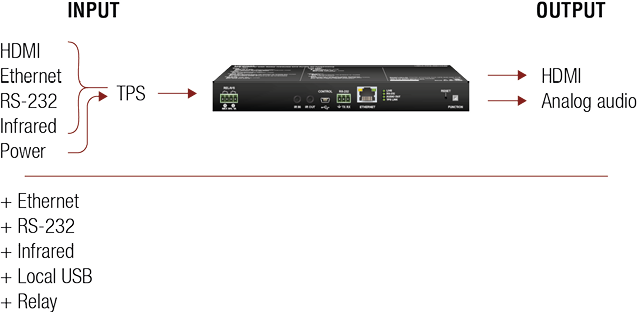
Summary of the interfaces
The following figure describes the port diagram of the device:

Port diagram of HDMI-TPS-RX110AY receiver
The device receives HDMI/DVI, Ethernet, RS-232 and Infrared signals on the TPS input line. A/V signals are processed in the HDBaseTTM receiver unit. The audio de-embedder separates the digital audio and video signals. The digital video signal through the HDMI re-clocker can be forwarded to the local sink device by the HDMI output port while digital audio signal is converted to analog by the digital-analog (D/A) converter and forwarded to the local audio sink device by the analog audio output port.
The device is built with TPS (Twisted Pair Single) interface, which is using HDBaseTTM technology. It means the unit receives video, audio, Ethernet, RS-232 and Infrared signals via a single CATx cable.
TPS Interface Working Modes
The TPS working mode between the transmitter and the receiver is determined by the mode set in them. Both devices' TPS mode settings together determine the finally established TPS transmission mode.
The following TPS modes are defined in the receiver:
▪Auto: The TPS mode is determined automatically.
▪HDBaseT: Ideal for high resolution signals of up to 4K.
▪Long reach: Ideal for big distances with up to 1080p@60Hz with extended cable lengths.
▪LPPF1*: Only RS-232 communication is transmitted (@ 9600 baud).
▪LPPF2*: Only RS-232 (@ 9600 baud) and Ethernet communication are transmitted.
* LPPF: Low Power Partial Functionality.
|
Selected mode on RX side |
||||||
|
LPPF1 |
LPPF2 |
HDBaseT |
Long reach |
Auto |
||
|
Selected mode on TX side |
LPPF1 |
LPPF1 |
LPPF1 |
LPPF1 |
LPPF1 |
LPPF1 |
|
LPPF2 |
LPPF1 |
LPPF2 |
LPPF2 |
LPPF2 |
LPPF2 |
|
|
HDBaseT |
LPPF1 |
LPPF2 |
HDBaseT |
Long reach |
HDBaseT |
|
|
Long reach |
LPPF1 |
LPPF2 |
Long reach |
Long reach |
Long reach |
|
|
Auto |
LPPF1 |
LPPF2 |
HDBaseT |
Long reach |
HDBaseT ** |
|
** If there is a valid HDMI/DVI signal on the TX side, the TPS mode will be HDBaseT on both sides. If the transmitter does not transmit HDMI/DVI signal, the TPS mode will automatically be changed to LPPF2 or LPPF1. Long reach mode is not available when both sides are set to Auto mode.
When using automatic operation mode selection, the device determines the mode of operation. If both halves are set to Auto mode, the source side is the initiator. It will negotiate each state transition with its sink side partner.
When one of the devices is configured to manual operation mode selection, the other device may be placed in automatic mode. In this case, the mode transition negotiation is initiated by the host-managed device, and the auto-mode device follows through. The allowed cable lengths and resolutions are listed in the Maximum Extension Distances section.
The device can receive embedded audio signal on the TPS input line.
The device can transmit two types of audio:
▪Embedded (HDMI) and
▪Analog balanced stereo audio.
Audio de-embedding
The receiver has a built-in audio de-embedder, which means the device is able to receive HDMI signal with embedded audio via the TPS line and can separate it to video and audio signals on the output side.
ATTENTION!The de-embedding function supports 2 channel PCM audio signals only. Other audio formats are not supported and de-embedding will not be successful.
4.4.3. Audio Options - Example
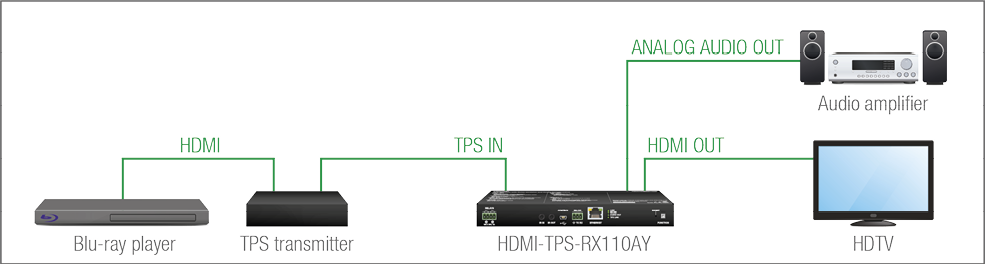
The Concept
The source is a Blu-ray player that sends audio and video signals on HDMI to the transmitter. The receiver accepts the signal on the TPS line, the audio signal is still embedded. HDMI-TPS-RX110AY de-embeds the AV signal to separate the digital audio and analog audio signals and transmit them to the HD TV and the audio amplifier.
The following ways are available for the audio devices:
▪The Receiver transmits the digital audio signal together with the video signal to the HDTV.
▪The Receiver de-embeds the digital audio signal and converts it to an analog one. It is transmitted to the Audio amplifier. So the HDTV provides the picture and the Audio amplifier provides the sound. In this case the digital audio on the HDMI line needs to be muted.
The device can receive digital video signal via the TPS line from any HDBaseTTM compliant transmitter, matrix or matrix board. On the output side the receiver transmits HDMI signal toward the sink.
Video Interface - Example
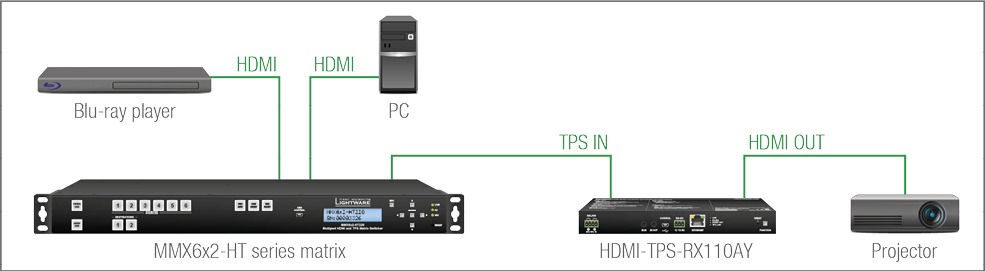
The Concept
The Receiver is connected to the Matrix, which has two sources: a Blu-ray player and a PC. The input source can be selected in the matrix, which transmits the video signal toward the receiver via the TPS interface.
The HDMI-TPS-RX110AY has several control functions. This chapter is about the possibilities through two simple layout examples.
System Control via Local Ethernet (Example)

The following ways are available for device control:
▪The System controller can communicate with the Receiver via the TPS line of the Transmitter by using LW2/LW3 protocol commands.
▪The System controller can communicate directly with the Projector via their IP:port address.
▪The Receiver can send commands (e.g. as an action by the Event Manager) to the IP:port address of the Projector by using LW3 protocol methods.
System Control via Local RS-232 (Example)
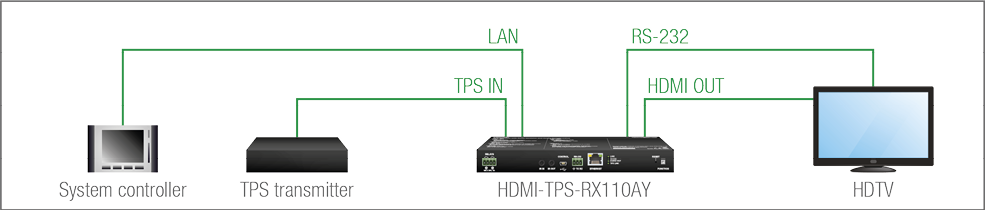
The following ways are available for controlling the devices:
▪The System controller can communicate with LW2/LW3 protocol commands via the local RS-232 port of the Receiver.
▪The System controller can send TCP or UDP messages to the IP:port address of the Receiver by using LW3 protocol methods.
▪The Receiver can send LW3 protocol commands to the HDTV via the local RS-232 port.
Technical Background
Serial data communication can be established via the local RS-232 port (Phoenix connector) or via the TPS lines. The RS-232 ports – which are connected to the CPU – can be configured separately (e.g. if the Baud rates are different, the CPU does the conversion automatically between the ports). The RS-232 port can be switched to Pass-through mode, Control mode, or Command Injection mode; see the figure below.
ATTENTION!Only one mode can be used at the same time: Control mode, Pass-through mode, or Command Injection mode. If you choose one of them, the TPS serial link and the local RS-232 port will operate in the same mode.
Pass-through Mode

Block diagram of the serial interface in pass-through mode
In pass-through mode, the given device forwards the data that is coming from one of its ports to another, same type of port. The command is not processed by the CPU. Incoming serial data is forwarded from the TPS input port to the local RS-232 port and vice versa inside the receiver.
Control Mode
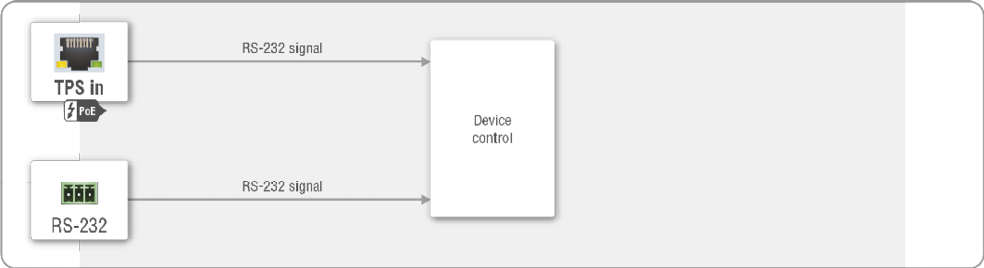
Block diagram of the serial interface in control mode
The incoming data from the given port is processed and interpreted by the CPU. The mode allows to control the receiver directly. LW2 or LW3 protocol commands are accepted – depending on the current port setting.
Command Injection Mode
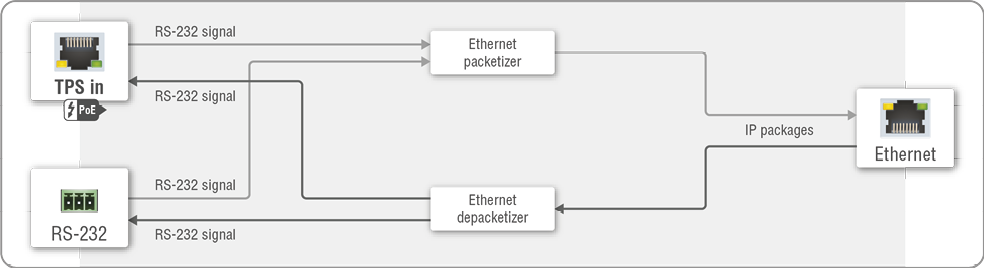
Block diagram of the serial interface in command injection mode
In this mode, the receiver works as an RS-232 bidirectional converter. The TPS signal is converted to RS-232 data and vice versa. TCP/IP port numbers are defined for the serial ports (TPS and local) for this purpose. E.g. the default Command Injection port number of the local RS-232 port is 8001. If a command is coming from the TPS interface that is addressed to the port no. 8001, it will be transmitted to the Tx pin of the local RS-232 port. That works in the opposite direction as well, and the method is the same on the serial interface of the TPS port too.
RS-232 Signal Transmission – Example

The Concept
The System controller can send commands to the receiver through the TPS transmitter and is able to remote control the projector via RS-232.
Settings
▪System controller: wireless IP connection to the same Ethernet as the transmitter is connected to. Use a dedicated software tool (e.g. a terminal) that is suitable for sending commands via TCP/IP to a certain IP:port address.
▪Transmitter: set the RS-232 mode to Command Injection on the TPS output port. Set the further parameters (Baud rate, Data bits, etc.) in accordance with the specifications of the projector. The transmitter will transmit the RS-232 data toward the receiver.
▪Receiver: set the RS-232 mode to Pass-through on the RS-232 port.
▪Projector: note the RS-232 port setting that is specified by the Manufacturer. Connect a suitable serial cable with the proper wiring.
DIFFERENCE:This feature is available only in the HDMI-TPS-RX110AY-Plus model.
When the HDMI-TPS-RX110AY-Plus has an active video signal, the receiver logs into the VC codec automatically.
Steps and Settings

|
Process |
Settings |
|
When signal presents on any HDMI input, the extender sends a message: 'ping'. |
This condition and the action is set in Event manager. |
|
|
The serial communication is scanned continuously by the recognizer in the extender and gets the 'Login name' string. |
|
Video codec sends a message: 'Login name:'. |
|
|
|
|
|
When 'Login name:' is detected in the string, the extender sends a message: 'Admin'. |
This condition and the action is set in Event manager. |
|
|
The serial communication is scanned continuously by the recognizer in the extender and gets the 'Password' string. |
|
Video codec sends a message: 'Password:'. |
|
|
|
|
|
When 'Password:' is detected in the string, the extender sends a message: 'Admin'. |
This condition and the action is set in Event manager. |
|
|
|
|
Login is established, Video codec is ready to use. |
First, configure the recognizer for the serial communication, after that set the events in the Event Manager (for more details, see the Event Manager section). The RS-232 recognizer settings need to be done with the Lightware Device Controller Software (see the Message Recognizer section) or with LW3 protocol commands (see the RS-232 Message Recognizer section).
Settings in the Event manager
▪E1. When the signal is present on the O1 port of the HDMI-TPS-RX110AY-Plus, it sends a message 'PING' on the P1 port of the RS-232 to the VC codec. For more details, see the RS-232 Settings section.
▪E2. Set a condition where 'Login name:' is the recognized RS-232 message. Action is sending serial message ('Admin') on the P1 port to the VC codec.
▪E3. Set a condition where 'Password:' is the recognized RS-232 message. Action is sending serial message ('Admin') on the P1 port to the VC codec.
ATTENTION!For the complete usage attach an IR emitter unit to the IR OUT and an IR detector unit to the IR IN connectors.
Technical Background
The Infrared signal transmission is similar to the serial data communication. The receiver contains a dedicated IR I/O connection, and can also transmit/receive IR signal via the TPS interface. The signal is in pronto HEX format in both cases.

Block diagram of the IR interface
The most trivial usage of the IR interface is the transparent mode: signals received or sent on local IR ports are transmitted directly on the TPS IR link port and vice versa. Beside this, there is an IR recognizer in the device that you can assign actions in Event Manager for. The third option is the command injection mode (like at serial interface in the previous section), where you can send IR commands over LAN. Command injection mode can be turned on and off by input/output ports.
INFO:All settings are available in the LDC software, see the settings in the Infra section.
INFO:The modulation of the output IR signal can be turned off or on by an LW3 command, see the Enabling/Disabling Output Signal Modulation section.
IR Signal Transmission - Example
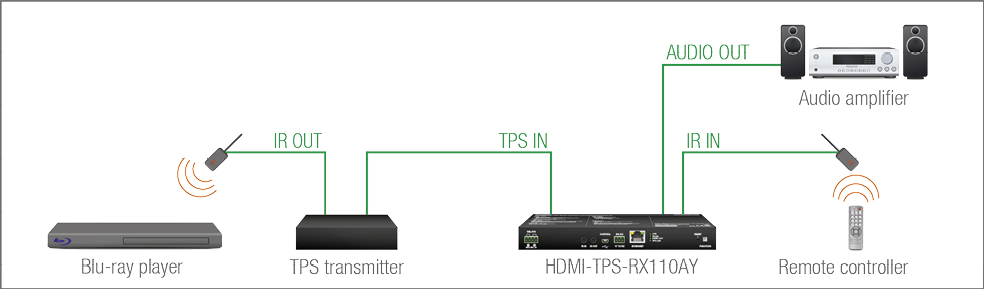
The Concept
An IR detector is attached to the Infrared input port of the Receiver and IR signals are sent by the Remote controller. The Receiver is connected to a compatible Transmitter built with an IR output port via TPS line. An audio device is also connected to the audio output port of the receiver.
The following ways are available for controlling the devices:
▪Transparent mode: IR signals are received over the local IR input port of the Receiver from the Remote controller. The signals are transmitted further over the TPS line to the Transmitter, which can control the Blu-ray player via an IR emitter.
▪Event Manager usage: set an action in Event Manager that if the volume control buttons are pressed on the Remote controller, the volume of the analog audio port of the Receiver increase or decrease accordingly. In this case you can control the audio device via the Receiver remotely. See the details about the Event Manager settings in the Event Manager section.
Advanced IR Functionality
DIFFERENCE:This feature is available only in the HDMI-TPS-RX110AY-Plus model.
HDMI-TPS-RX110AY-Plus can send Little-endian pronto hex IR codes on its IR output port.
It is possible in the following ways:
▪With Lightware Device Controller software (for more details, see the Sending pronto hex codes (Little-endian format) section)
▪With Event Manager (for more details, see the Sending pronto hex codes (Little-endian format) and Event Manager sections)
▪With LW3 protocol command (for more information, see Sending Pronto Hex Codes in Little-endian Format via IR Port)
Sending Bigger-endian pronto hex code is also available, see Sending Pronto Hex Codes in Big-endian Format via IR Port.
The HDMI-TPS-RX110AY receiver contains two relay modules, which can be accessed by a 4-pole Phoenix connector. The relays can be controlled by Lightware protocol commands (LW3), and Event manager actions can also be assigned to the port.
ATTENTION!The device is built with normally open (N.O.) contact relays, which means when the unit is not powered (DC plug is disconnected), the relays will be open.
INFO:The default state of each relay port is open.
Application of Relays - Example
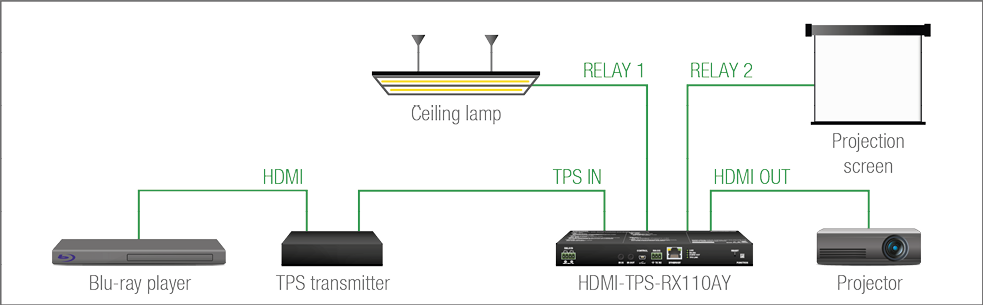
The Concept
The ceiling lamp is turned off by Relay 1 and the projection screen is rolled down by Relay 2 when a signal is received from the transmitter over the TPS input line.
Settings of the Receiver
▪Relay 1: create an event in Event manager: when a signal is present on Input 1 (I1), set Relay 1 to be open. Also create another event: when signal is not present on Input 1 (I1), set Relay 1 to be closed.
▪Relay 2: create an event in Event manager: when a signal is present on Input 1 (I1), set Relay 2 to be closed. Also create another event: when signal is not present on Input 1 (I1), set Relay 2 to be open.
When the Blu-ray player starts to play the presentation video, a signal is received over the TPS input line, so Relay 1 opens, which turns off the lights, Relay 2 closes and the projection screen is rolled down. When the presentation ends, signal ceases on the TPS input line, so Relay 1 closes, the lights are turned on, Relay 2 opens and the projection screen returns to its enclosure.
See the details about the Event Manager settings in the Event Manager section.
4.6.5. Consumer Electronics Control (CEC) Interface
DIFFERENCE:This feature is available only in the HDMI-TPS-RX110AY-Plus model.
Consumer Electronics Control (CEC) is a bi-directional communication, defined in the HDMI standard. This feature is for remote control of the source and sink devices in the A/V system.
The HDMI-TPS-RX110AY-Plus model is able to send and receive CEC commands from the input ports towards the source and from the output port towards the sink. For more information about sending CEC messages, see the Relay Port Settings section.
CEC has a dedicated pin in the HDMI connector. DVI connector does not contain this pin, so the CEC transmission brakes when a HDMI-DVI connector or adapter is in the signal route.
CEC Application Example
When active signal is detected on the TPS in, the transmitter automatically sends a CEC message to the HDTV to wake up.

Create an event in the event manager:
▪Set as a condition: signal is present on the output (O1),
▪Set as an action: send a CEC command 'Image view on' O1 output port.
See the details about the Event Manager settings in the Event Manager section.
ATTENTION!The CEC command sending over TPS interface is working only with CEC-transparent TPS transmitters. For the details, please download our Using CEC in Lightware Devices document on https://lightware.com/support/guides-and-white-papers website.
The device can be controlled over the front panel USB mini B-type connector. This interface only supports LW3 protocol. The interface can be used to establish a connection to the Lightware Device Controller software.
The device can be controlled over the Ethernet port. This interface supports both LW2 and LW3 protocols.
4.7.1. Device Control over Ethernet
The interface can also be used to remote control a third-party device, establish connection to the Lightware Device Updater software or perform firmware update.
Third-party Device Control via Local Ethernet (Example)

The following ways are available for device control:
▪The system controller can communicate with the transmitter via Ethernet using LW2/LW3 protocol commands.
▪The system controller can communicate with the projector by its IP:port address.
▪The transmitter can send commands (e.g. as an action in the Event Manager) to the IP:port address of the projector by using LW3 protocol commands. See the Event Manager usage in the Event Manager section, and find the related LW3 protocol commands in the Ethernet Message Sending section.
DIFFERENCE:This feature is available from FW package v1.5.0b3.
The well-known wake-on-lan feature (sending magic Packet to the target PC) is available. This can be used to power on a computer automatically: just send a simple LW3 command; see the Powering on a Computer over Ethernet (Wake-on-LAN) section.
INFO:Please make sure the feature is enabled in the target PC and it is powered (but switched off).

DIFFERENCE:This feature is available only in the HDMI-TPS-RX110AY-Plus model, from FW package v1.5.0b3.
The feature is almost the same as in case of the RS-232, but for the network interface: the incoming TCP messages can be processed, which may trigger actions. The combination of the TCP recognizer and the Event Manager gives numerous opportunities for creating automatic room solutions. #tcprecognizer
TCP Recognizer Example
When the Projector switches off, the button light (1) of the TBP6-EU button panel is turned off automatically.
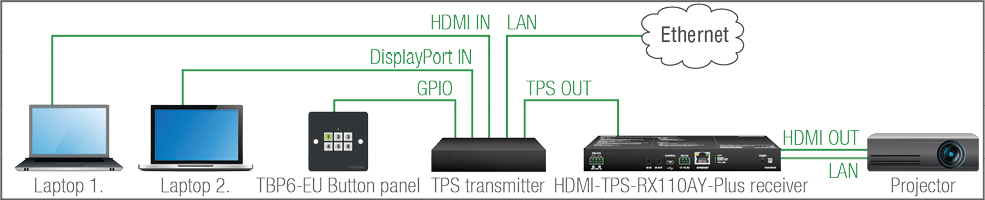
When the power-off process is started in the projector, it will send a message over Ethernet. That message will be recognized by the Switcher and it will be used as a Condition in Event Manager.
How to set up the transmitter?
Step 1.Configure the recognizer for the communication by the LDC, see the TCP Clients (TCP Message Recognizer) section, or by LW3 protocol commands (see the TCP Message Recognizer section). Define the desired device as a TCP client. (The Projector is saved as 'C1' in this example.)
Step 2.Create the following event in the Event manager:
E1. When the (PWR!001 "On") message is recognized from the C1 client, the GPIO pin 1 is set to low level.
DIFFERENCE:This feature is available only in the HDMI-TPS-RX110AY-Plus model, from FW package v1.5.0b3.
These features can be used to process a group of pre-defined commands. The commands can be stored in the device as macros or you can save the commands in a plain text file and send them to the device by an HTTP message.
LW3 over HTTP (Command Salvo)
This feature allows the LW device to be controlled over HTTP. In this case, a batch of commands is sent over HTTP to the Lightware device for processing. Save the LW3 commands into a file, post it to the <IP_address>/protocol.lw3 file and the commands are processed immediately. #http
Running Macros
In this case, the command sequences (macros) are stored in the device. You can create your custom macros in a file, upload them into the device and run at any time. The number of the macros depends on the device type, at most 50 macros can be saved in the receiver. See more information about the feature in the Macros section. #macro
DIFFERENCE:This feature is available only in the HDMI-TPS-RX110AY-Plus model, from FW package v1.5.0b3.
These entry-level network security improvements help prevent unauthorized access to the Lightware device: #new
▪Cleartext login
▪IP Port Block
▪MAC Filtering
The Cleartext Login tool allows setting a password for login, thus the device will not accept any command coming from an interface (RS-232, Ethernet, etc…), only the device type and the serial number can be queried without login. You can set all affected TCP/IP ports individually to enable or disable.
The IP Port Block feature is an additional protection for the Cleartext login. There are TCP/IP ports in Lightware devices that are not protected by the login, so you can disable them if necessary. Example: due to the working method of the LW2 communication, the Cleartext login does not provide protection when an LW2 command is sent to the device, that is why the TCP port no.10001 shall be blocked manually.
Another level of security is the MAC Filtering tool. You can create an ’allowlist’ of network devices based on the MAC address that are allowed:
▪Controlling the device (Send option), or
▪Querying parameters (Receive option) to/from the Lightware device.
The table below shows the protection levels of these features.
|
IP Port |
Function |
MAC Filter |
Cleartext Login |
IP Port Block |
|---|---|---|---|---|
|
80 |
HTTP Post&Get |
|
- |
|
|
81 |
LW3 control (miniweb) |
|
|
- |
|
6107 |
LW3 protocol |
|
|
- |
|
800x |
Command injection (RS-232) |
|
- |
|
|
900x |
Command injection (IR) |
|
- |
|
|
10001 |
LW2 protocol |
|
- |
|
ATTENTION!Be careful when combining these functions; improper settings may cause malfunction.
Most of these features are available in LDC, see the Settings Menu section.
It is possible to configure several devices at once with the Bulk Device Management tool. This feature can be accessed by clicking on the Tools button in the bottom left corner of the Device Discovery window of the LDC and choosing the Bulk Management option. #new
See the Bulk Device Management section for more details.
This function makes it possible to change and adjust the network settings of several devices at once (unique settings for each device), without having to set them at each device one by one. A .csv file can be created containing the list and desired settings of the devices and it can be uploaded into the LDC to be applied to the devices quickly.

4.11. The Event Manager Feature
The Event Manager feature means that the device can sense changes on its ports and is able to react according to the pre-defined settings. Lightware Device Controller contains a user-friendly software tool and allows to create Events by defining a Condition and an Action.
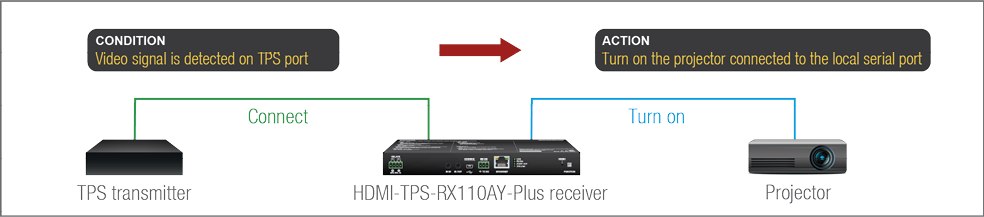
Event Manager example
See more information about the settings in the Event Manager section.
Event Manager +
The AND Operator
DIFFERENCE:This feature is available from FW package v1.5.0b3.
The practical experience has shown that there is a need to examine several conditions (up to four) as follows: if one of the set conditions becomes true (while the other conditions are fulfilled), then the set Action is launched. For example, in a meeting room we have the following situation:
▪Signal is present on an input port,
▪A GPIO pin state becomes ’low’ (by an external device).
If the two Conditions are present at the same time, the Action is launched. Just create the two Conditions into separate Events, then create a third Event, select the two Conditions and define the Action.
See the Combine Links section for the settings in LDC.
Event Manager Variables
DIFFERENCE:This feature is available only in the HDMI-TPS-RX110AY-Plus model, from FW package v1.5.0b3.
A brand new area is opened by implementing the variables. You can create custom variables in number or text format, which can be used in the Event Manager. The variables can have the following properties/methods:
▪Numeric (integer) type with min/max value setting, or string-type (determined automatically)
▪Increment/step the numeric value,
▪Value-dependent case operations,
▪Reading and storing the value of an LW3 property into a string or a numeric variable.
The defined variables are stored in a non-volatile memory and the value is kept in case of a reboot. The new opportunities allow creating a monitoring/controlling system without connecting an additional control processor.
See the Variables section for the settings in LDC.
Condition Trigger
DIFFERENCE:This feature is available only in the HDMI-TPS-RX110AY-Plus model, from FW package v1.5.0b3.
This improvement in the Event Manager works as if a condition is detected. When a complex control system is built, a Condition may trigger numerous Actions. A typical example is when a system is powered on and the ’ready-to-use’ state has to be loaded. In this case, there could be many actions that are based on the same condition. In order to reduce the number of the commands, you can trigger one ’key’ condition, which could start the whole process.
See the Condition Triggering section for the settings in LDC.
4.12. Further Built-in Features
4.12.1. Automatically Launched Actions – The Event Manager
The Event Manager feature means that the device can sense changes on its ports and is able to react according to the pre-defined settings. Lightware Device Controller contains a user-friendly software tool and allows to create Events by defining a Condition and an Action.
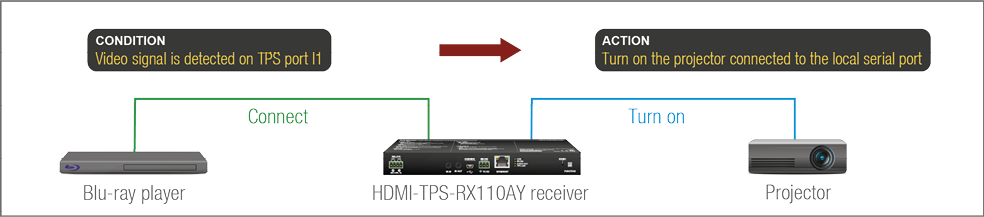
Event Manager example
See more information about the settings in the Event Manager section.
4.12.2. Receiver Cloning – Configuration Backup and Restore
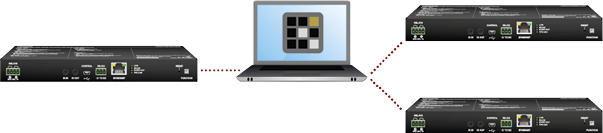
The receiver (configuration) cloning of HDMI-TPS-RX110AY is a simple method that eliminates the need to repeatedly configure certain devices to have identical (non-factory) settings. If the devices are installed in the same type of system multiple times, then it is enough to set up only one device to fit the user’s needs and then copy those settings to the others, thus saving time and resources.
See more information about the settings in the Configuration Cloning (Backup Tab) section.
4.12.3. Remote Firmware Update of Connected Lightware Devices

The firmware of the Lightware TPS devices can be updated individually by the Lightware Device Updater (LDU) software. HDMI-TPS-RX110AY contains a feature that allows having a faster and more comfortable firmware update process. When the firmware of the connected extenders has to be updated, the TPS connection is necessary towards the extenders – nothing else. The LDU will find the connected devices and update them.
The user has more possibilities to control the device besides the front panel buttons. The following list contains the software control modes:
▪Lightware Device Controller (LDC): you can connect to the device via our control software using USB, RS-232 or Ethernet interfaces and control or configure the device as you wish. For the details, see the Software Control - Lightware Device Controller chapter.
▪LW2 protocol commands: you can configure the device by using the reduced command set of LW2 protocol. For more details, see the LW2 Programmers' Reference chapter.
▪LW3 protocol commands: you can configure the device by using the full-range command set of LW3 protocol. For more details, see the LW3 Programmers’ Reference chapter.
5
5. Software Control - Lightware Device Controller
The device can be controlled by a computer through RS-232, Ethernet and USB interfaces by the Lightware Device Controller (LDC). The software can be installed on a Windows PC or macOS. The application and the User Manual can be downloaded from www.lightware.com.
INFO:After the installation, the Windows and the Mac applications have the same look and functionality. This type of the installer is equal to the Normal install in case of Windows and results in an updateable version with the same attributes.
Minimum System Requirement
RAM: 1 GB
Minimum display resolution: 1280x720
Installation for Windows OS
Run the installer. If the User Account Control drops a pop-up message, click Yes.
During the installation you will be prompted to select the type of the installation: normal and the snapshot install:
|
Normal install |
Snapshot install |
|
Available for Windows and macOS |
Available for Windows |
|
The installer can update only this instance |
Cannot be updated |
|
Only one updateable instance can exist for all users |
More than one different version can be installed for all users |
Comparison of installation types
ATTENTION!Using the Normal install as the default choice is highly recommended.
Installation for macOS
Mount the DMG file by double clicking on it, and drag the LDC icon over the Applications icon to copy the program into the Applications folder. If you want to copy the LDC into another location, just drag the icon over the desired folder.
ATTENTION!Please check the firewall settings on the macOS device. LDC needs to be added to the exceptions of the blocked software for the proper operation.
Updating LDC
Step 1.Run the application.
The Device Discovery window appears automatically, and the program checks the available updates on Lightware’s website and opens the update window if the LDC found updates.
The current and the update version number can be seen at the top of the window and they are shown in this window even with the snapshot install.
The Update window can also be opened by clicking on the About  icon and the Update button.
Step 2.Set the desired update setting in the Options section.
▪If you do not want to check for updates automatically, uncheck the circle that contains the green tick.
▪If you want to postpone the update, a reminder can be set with different delays from the drop down list.
▪If the proxy settings traverse the update process, set the proper values, then click on the OK button.
Step 3.Click on the Download update button to start the updating.
The updates can be checked manually by clicking on the Check now button.
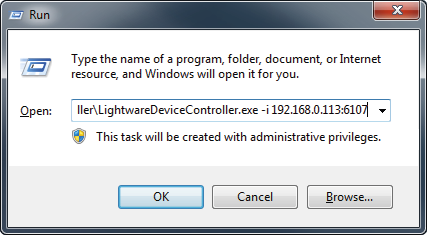
The common way to start the software is to double-click on the LDC icon. But the LDC can be run by command line parameters as follows:
Connecting to a Device with Static IP Address
The LDC is connected to a device with the indicated static IP address directly; the Device Discovery window is not displayed. When the port number is not set, the default port is used: 10001 (LW2 protocol). For LW3, devices use the 6107 port number.
Format: LightwareDeviceController -i <IP_address>:<port>
Example: LightwareDeviceController -i 192.168.0.20:6107
Connecting to a Device via a Serial Port
Format: LightwareDeviceController -c <COM_port>:<Baud>
Example: LightwareDeviceController -c COM1:57600
The LDC is connected to a device with the indicated COM port directly; the Device Discovery window is not displayed. If no Baud rate is set, the application will detect it automatically.
Adjusting the Zoom
The window can be zoomed to a specific value to fit to the resolution of the desktop (higher/lower). '1' is the default value (100%).
Format: LightwareDeviceController -z <magnifying_value>
Example: LightwareDeviceController -z 1.2
ATTENTION!The last set value is stored and applied when LDC is started without a parameter.
5.3. Establishing the Connection
Connecting Steps
Step 1.Connect the device to a computer via USB, RS-232 or Ethernet.
Step 2.Run the controller software; the device discovery window appears automatically. There are three tabs for the different types of interfaces: Ethernet, Serial, and USB.
Step 3.Select the desired unit and click on the green Connect button (or just double-click on the device).
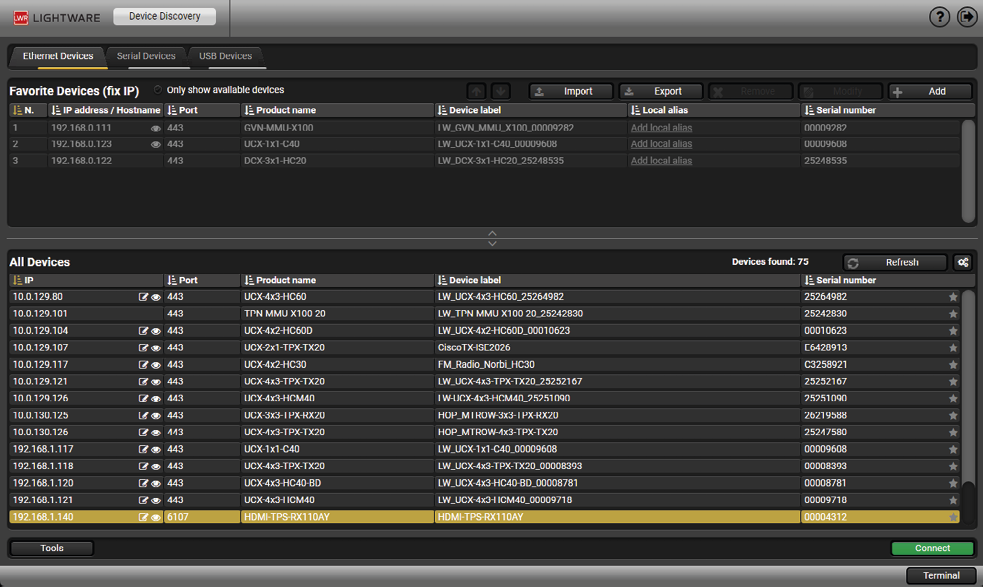
Device discovery window in LDC
The Ethernet tab consists of two lists. The All devices list contains all Lightware devices that are available in the connected network (in the 255.255.0.0 subnet). However, there is no need to browse all available devices, as you can expand the list of Favorite devices with any Lightware device that is connected via Ethernet in any of the following ways:
▪Mark the desired device with the  symbol in the All Devices list,
▪Press the Add button and add the device in the appearing window, or
▪Import the list of favorite devices that was exported previously.

Press the Add button; in the appearing window you can enter the IP address. The host name of the desired device can be used instead if it is supported. That allows setting a unique name to identify the device in a network. If the host name is saved in this window and the IP address is changing, the device will still be available and connectible.
ATTENTION!The host name connection-feature does not work when the target device is accessed over VPN.
See more information about the host name property in the Setting the Host Name section.
Import/Export the List of Favorite Devices
The list of favorite devices can be exported/imported by the dedicated buttons (saved as *.JSON file). The list can be imported later (in another computer, too), but please note that the current list will be overwritten by the imported list.
Changing the IP Address 
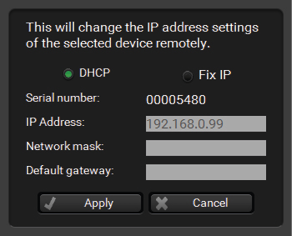
To modify the IP address settings quickly, it is not necessary to enter the device's settings/network menu, you can set them by clicking on the pencil icon beside the IP address.
You can see the new settings only in this window. The device needs a few seconds to apply the new settings.
Identifying the Device 
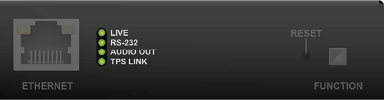
Clicking on the icon results in the status LEDs blinking for 10 seconds. The feature helps find the device itself physically.
DIFFERENCE:This feature is available from FW package v1.5.0b3.
The opposite feature is also available to help find the desired device. Press the Show Me button for 5 seconds, until the front panel LEDs start to blink slowly. In parallel, the device is highlighted in green for 4 seconds in the Device discovery window of the LDC. #highlightme

INFO:"Highlight Me" is the default function of the Show Me button. If you assign a different function to the button, the feature above will not be available.
If the device is connected via the RS-232 port, click on the Query button next to the desired serial port to display the device’s name and serial number. Double-click on the device, or select it and click on the green Connect button.
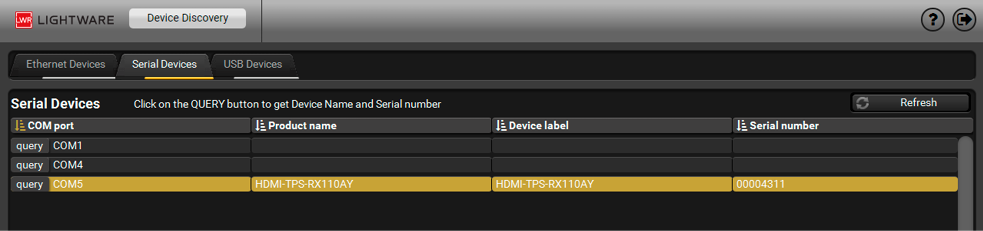
ATTENTION!Before the device is connected via the local RS-232 port, make sure that Control mode and LW3 protocol are set on the serial port. Furthermore, the RS-232 port must be free and other serial connection must not be established to the device over that port.
Connect the device to a PC/computer over the USB mini-B type connector. Refresh the list and double-click on the device or select it and click on the green Connect button.

The Tools menu contains the following options:
▪Log Viewer: The tool can be used for reviewing log files that have been saved previously.
▪Create EDID: This tool opens the Easy EDID Creator wizard, which can be used for creating unique EDIDs in a few simple steps. Functionality is the same as that of the Easy EDID Creator.
▪Demo Mode: This is a virtual MX-FR17 matrix router with full functionality built into the LDC. Functions and options are the same as that of a real MX-FR17 device.
▪Bulk Management: This tool allows changing the network settings of several devices at once. See the details in the next section.
The Terminal window is also available by pressing its button on the bottom.
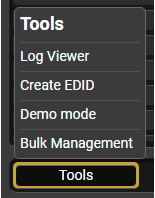
It is possible to configure several devices at once with the Bulk Device Management tool. This feature can be accessed by clicking on the Tools button in the bottom left corner of the Device Discovery window and choosing the Bulk Management option. #new
DIFFERENCE:This function is available from the firmware version v2.6.0b6 of the LDC and v1.5.0b3 of the HDMI-TPS-RX110AY series devices.
It is possible to set the network settings of several devices at once by using a .csv file that contains the list of the devices that we need to configure, then uploading it into the LDC.
Please note that if the data in the file is missing or incorrect, then the discovery of the affected device will fail and an 'Invalid data' message will be displayed in the State column. In case of an IP or MAC address conflict, the message is 'Duplicated'.
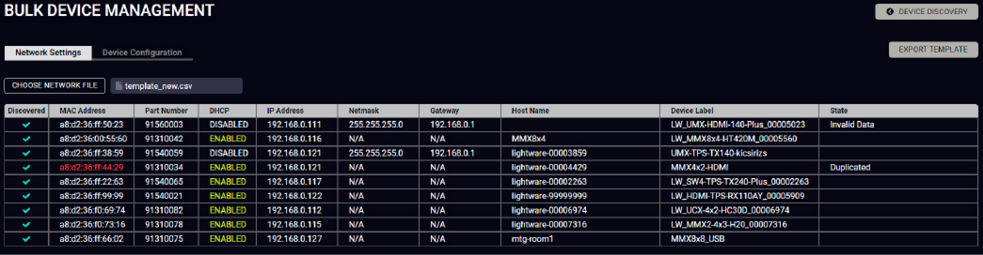

Changing the network settings can be done in a few easy steps:
Step 1.First alter the settings you need to change in the .csv file that contains the devices. You can use a template file accessible via the Export template button and saving the file to your computer, then filling it out with the parameters of the devices. The file contains the MAC address, Partnumber, DHCP status, IP address, Netmask, Gateway, Hostname and Device label of each device.
Step 2.Upload the .csv file into the LDC by pressing the Choose network file button and browsing the file in the pop-up window. This will result in a list of the devices appearing on the screen.
Step 3.Finally, press the Apply settings button to execute the changes. This might take up to a minute to finish.
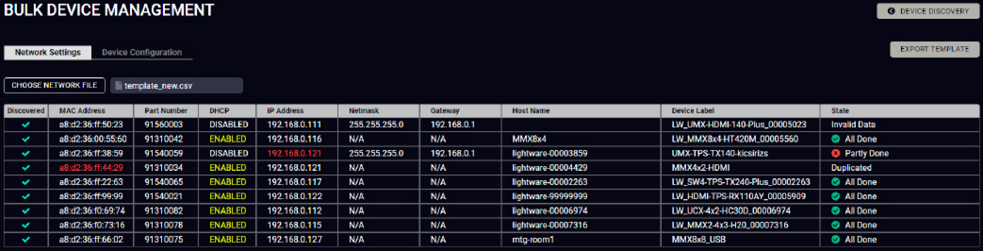
|
Message |
DHCP enabled |
DHCP disabled |
Device discovered |
|
|
Successful procedure |
|
|
|
|
Failure setting the Host name and/or the Device label |
|
|
|
Unavailable device |
Host name and Device label missing |
IP address, Network, and/or Gateway missing |
|
|
Failed |
Host name and Device label incorrect |
IP address, Network and Gateway incorrect |
|
|
IP mismatch |
- |
Host name and Device label incorrect |
|


ATTENTION!The 'Failed' and 'IP mismatch' status indicators are not common, they appear when the multicast and/or the port used for LMDMP connection is disabled, or if the firmware version of the device is below the recommended (see the pop-up window when opening the Bulk Management or the beginning of this chapter).

Video tab in Port parameters menu
The most important video related information and settings are available on this tab.
Link Video (I1)
This is the TPS (HDBaseT) input line of the receiver. Clicking on the TPS icon results in the settings panel appearing on the right side. You can check the status of the line, signal info and current emulated EDID.
Available Settings:
▪HDCP setting (enable / disable);
▪TPS mode (see details in the TPS Interface section);
▪Cable Diagnostics and Frame Detector tools;
▪Reloading Factory Default Settings.
HDMI OUT Video (O1)
This is the HDMI output line of the receiver. Clicking on the HDMI icon results in the settings panel appearing on the right side. You can check the status of the line, signal and display info.
Available Settings:
▪Mute/Unmute port;
▪Signal type: Auto, DVI, or HDMI;
▪HDCP mode: Auto or Always;
▪Power 5V mode: Auto, Always on, or Always off;
▪Connected Source port no.
▪Test pattern mode: Off, On, No signal;
▪Test pattern clock source: 480p, 576p, or Original video signal;
▪Test pattern: Red, Green, Blue, Black, White, Ramp, Chess, Bar, Cycle;
▪Reloading Factory Default Settings.
#hdcp #tpsmode #cablediagnostics #mute #unmute #signaltype #power5v #testpattern #framedetector
TIPS AND TRICKS:Hover the mouse cursor over the information ribbon; the product name and the IP address of the device will appear as a tooltip text.

DIFFERENCE:This feature is available only in the HDMI-TPS-RX110AY-Plus model.
The HDMI-TPS-RX110AY-Plus model is able to send and receive Consumer Electronics Control (CEC) commands. This feature is for remote control of the source or sink device. CEC is a bi-directional communication via HDMI cable.
ATTENTION!It can occur that the third-party device can receive, but not execute the command, because it is not supported by the product. Check the accepted commands in the documentation of the device.
INFO:The first 2x2 bytes of the CEC commands contain identification data of the source and destination address. When the port is an input, it is always 04 (from the TV to the Playback device 1.), when the port is an output, it is always 40 (from the Playback device 1. to the TV).
The CEC panel is available on the port properties window of the TPS input and HDMI output ports.
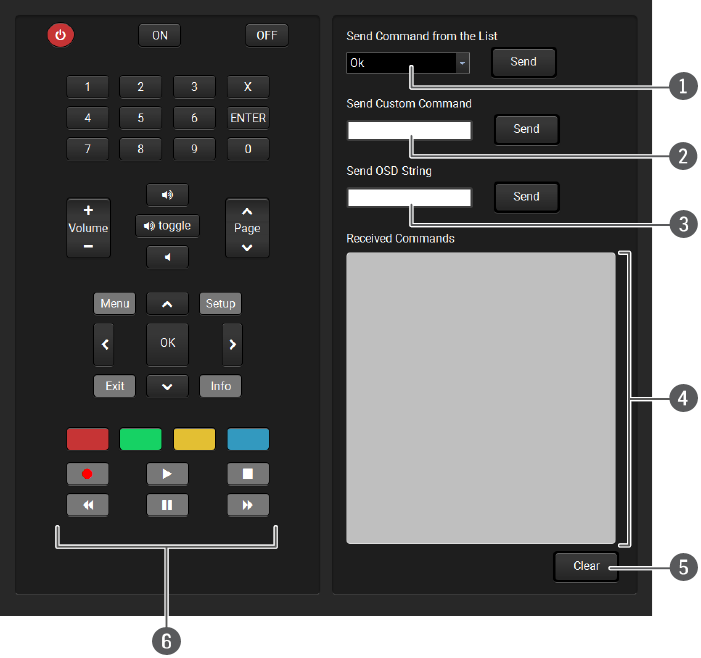
CEC control panel on the HDMI out port properties window
|
|
Drop-down command list |
This list contains the basic CEC commands; most of them are displayed on the graphical interface, too (on the left side). Click on the Send button to send the command. |
|
|
Custom command textbox |
The text field is for sending hexadecimal commands to the source. The maximum length of the message could be 30 characters (15 bytes). Click on the Send button to send the command. |
|
|
OSD string textbox |
A max. 14-character-long text can be shown on the sink device. The send OSD (On-screen display) command textbox is the input field of the string. Alphanumeric characters, glyphs and space are accepted. Click on the Send button to execute the command. |
|
|
Received Command box |
Displays all of the sent (in red) CEC commands and the received answers (in blue) with a timestamp. Legend of the received message: < [10:33:17] ACK Answer for the acknowledged command. < [10:35:01] NACK Answer for the not acknowledged command. < [10:33:17] IN PROGRESS The command is in progress at the moment. < [10:33:17] FAILED Answer for other failure. < [10:35:40] feature_abort_<*> This is the most common answer from the third-party devices when the command is delivered, but the execution is refused. The cause of the refusal stands after the 'feature_abort' expression. |
|
|
Clear button |
Click on the Clear button to erase the content of the terminal window. |
|
|
CEC command button panel |
This panel provides quick and easy management of CEC commands. These buttons are pre-programmed with basic functions and send commands towards the sink. The communication is displayed in the Received Command box. For the list of the commands, see the Relay Port Settings section. Both the layout and functionality are similar to the design of a remote control. |


ATTENTION!Make sure that the controlled unit is CEC-capable and this function is enabled.
#cec
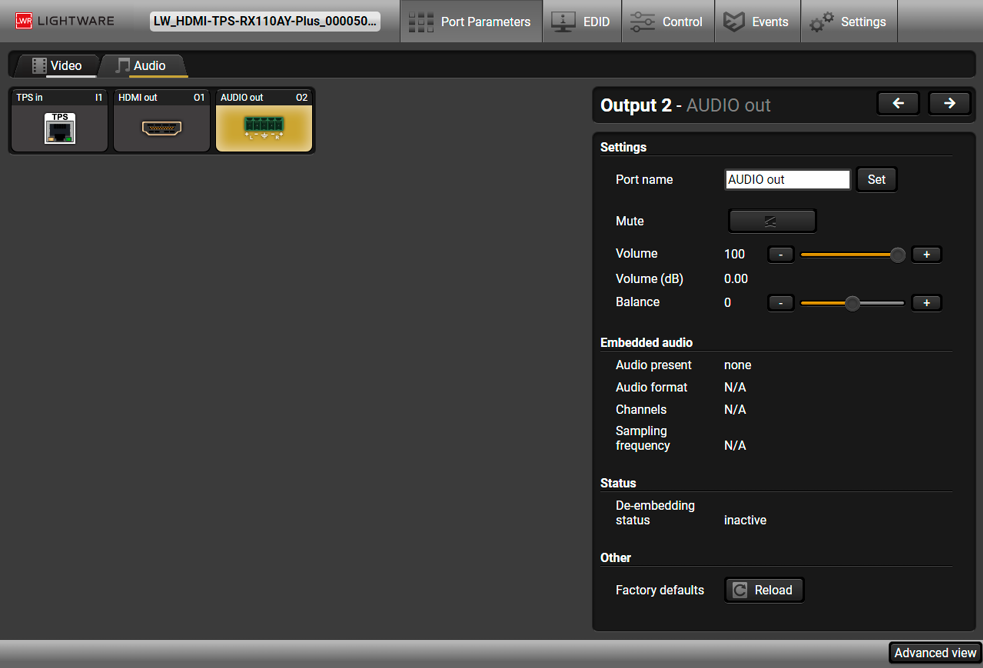
Audio tab in Port parameters menu
The most important audio related information and settings are available on this tab.
Link Audio (I1)
This is the embedded TPS audio input line of the receiver. Clicking on the TPS icon results in the settings panel appearing on the right side. You can check the signal info of the port.
Available Settings:
▪Mute/Unmute port;
▪Lock/Unlock port;
▪Reloading factory defaults (see factory default settings in the Factory Default Settings section).
HDMI OUT Audio (O1)
This is the embedded HDMI audio output line of the receiver. Clicking on the HDMI icon results in the settings panel appearing on the right side. You can check the signal info of the port.
Available Settings:
▪Mute/Unmute port;
▪Lock/Unlock port;
▪Reloading factory defaults (see factory default settings in the Factory Default Settings section).
Audio Out (O2)
This is the de-embedded analog audio output line of the receiver. Clicking on the HDMI icon results in the settings panel appearing on the right side. You can check the signal info and the de-embedding status of the signal.
Available Settings:
▪Mute/Unmute port;
▪Volume (in percent);
▪Balance;
▪Reloading factory defaults (see factory default settings in the Factory Default Settings section).
#mute #unmute #lock #unlock #volume #balance #analogaudio
The ports can show detailed information about the signal like blanking intervals and active video resolution. This feature is a good troubleshooter if compatibility problems occur during system installation. To access this function, open the port properties window and click on the Frame detector button.
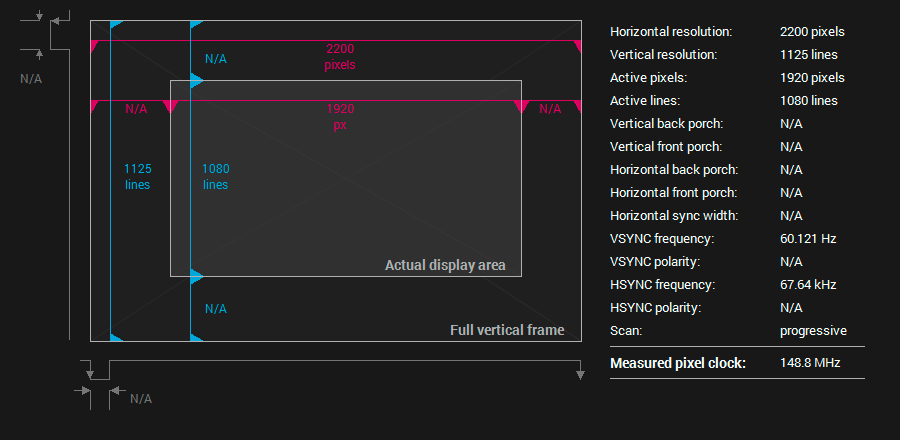
Frame detector window
Lightware’s Frame Detector function works like a signal analyzer and makes it possible to determine the exact video format that is present on the port, thus helps identify many problems. E.g. actual timing parameters may differ from the expected and this may cause some displays to drop the picture.
Frame Detector measures detailed timings on the video signals just like a built-in oscilloscope, but it is much easier to use. Actual display area shows the active video size (light gray). The dark gray area of the full frame is the blanking interval, which can contain the info frames and embedded audio data for HDMI signals.The shown values are measured directly on the signal and not retrieved only from the HDMI info frames.
The cable diagnostics is a useful tool to determine any cable related issues in case of the TPS connection. The estimated cable length and the quality of the link are measured periodically and the diagnostic window shows the values in real-time. If the green bars hit the first line in the middle, they turn red. It means the number of the errors during the extension is higher than what is generally deemed acceptable. The link might be alive, but recovery of the received data is not guaranteed.
INFO:Each bar represents a differential line in the CATx cable. The inappropriate termination of the cable usually causes high error rates. Check the cable terminations or change the cable.
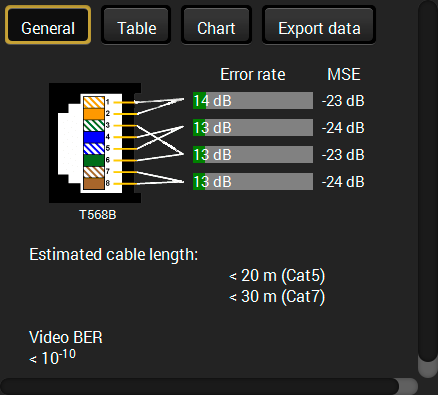
Reference Values
|
Value |
Explanation |
|
10-10-10-9 |
Excellent image quality |
|
10-8 |
Minor error, not recognizable by eyes |
|
10-7 |
Sometimes recognizable flash on a special test pattern |
|
10-6 |
Small noise can be seen |
|
10-5 |
Easy to recognize image error |
|
10-4 |
Bad image quality |
The “Video BER < 10-10” value displayed above means that on average there is 1 bad pixel after 1010 pixels, which means the number of the bit errors is about 1 pixel in every 80 seconds.
INFO:You can find more details about maximum twisted pair cable distances in the Mechanical Drawings section.
Table and Chart Views
Cable diagnostics can be displayed in advanced modes as well. Two ways are available: table view and chart view. Data can be exported to a file by clicking on the Export data button.
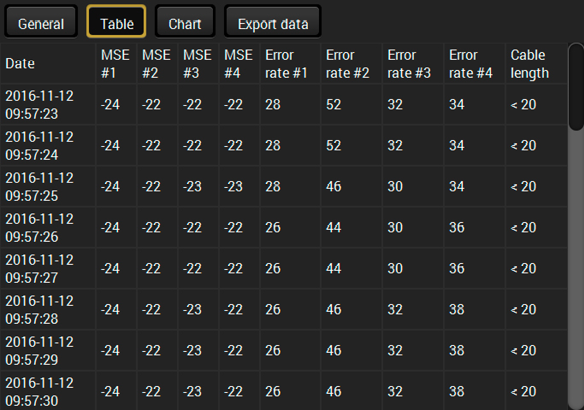
Table view of cable diagnostics
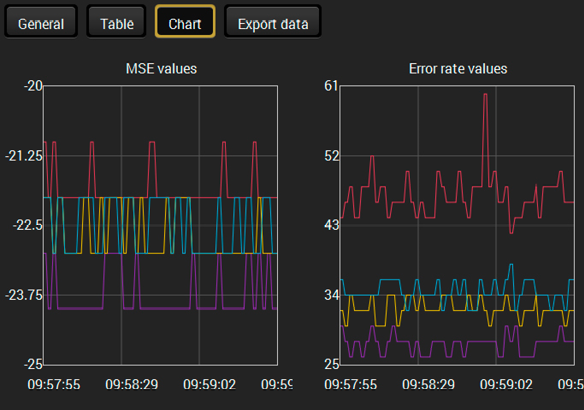
Chart view of cable diagnostics
#framedetector #cablediagnostics
Advanced EDID Management can be accessed by selecting the EDID menu. There are two panels: the left one contains Source EDIDs, the right one contains Destination places where the EDIDs can be emulated or copied.
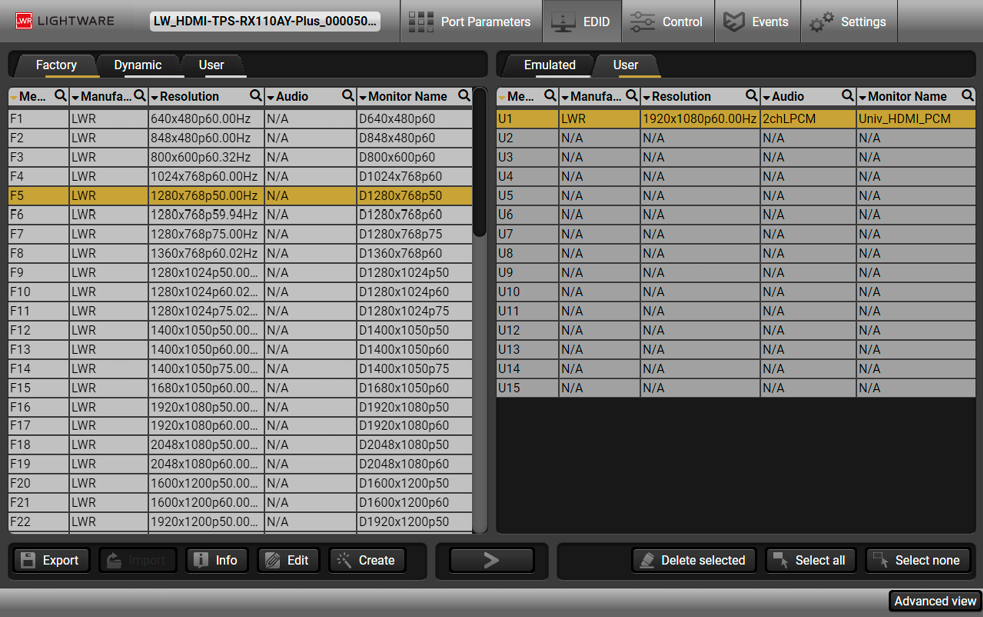
EDID menu
Control Buttons

|
Exporting an EDID (save to a file) |

|
Transfer button: executing EDID emulation or copying |

|
Importing an EDID (load from a file) |

|
Deleting EDID (from User memory) |

|
Display EDID Summary window |

|
Selecting all memory places in the right panel |

|
Opening Advanced EDID Editor with the selected EDID |

|
Selecting none of the memory places in the right panel |

|
Opening Easy EDID Creator |
#edid |
Changing Emulated EDID #edid

Step 1.Choose the desired EDID list on the source panel and select an EDID.
Step 2.Press the Emulated button on the top of the Destination panel.
Step 3.Select the desired port on the right panel (one or more ports can be selected); the EDID(s) will be highlighted in yellow.
Step 4.Press the Transfer button to change the emulated EDID.
Learning an EDID
The process is the same as changing the emulated EDID; the only difference is the Destination panel: press the User button. Thus, one or more EDIDs can be copied into the user memory either from the factory memory or from a connected sink (Dynamic).
Exporting an EDID

ATTENTION!This function is working on Windows and macOS operating systems and under Firefox or Chrome web browsers only.
Source EDID can be downloaded as a file (*.bin, *.dat or *.edid) to the computer.
Step 1.Select the desired EDID from the Source panel (line will be highlighted in yellow).
Step 2.Press the Export button to open the dialog box and save the file to the computer.
Importing an EDID

Previously saved EDID (*.bin, *.dat or *.edid file) can be uploaded to the user memory:
Step 1.Press the User button on the top of the Source panel and select a memory slot.
Step 2.Press the Import button below the Source panel.
Step 3.Browse the file in the opening window, then press the Open button. The browsed EDID is imported into the selected User memory.
ATTENTION!The imported EDID overwrites the selected memory place even if it is not empty.
Deleting EDID(s)
The EDID(s) from User memory can be deleted as follows:

Step 1.Press the User button on the top of the Destination panel.

Step 2.Select the desired memory slot(s); one or more can be selected (“Select All” and “Select None” buttons can be used). The EDID(s) will be highlighted in yellow.

Step 3.Press the Delete selected button to delete the EDID(s).
Select an EDID from the Source panel and press the Info button to display the EDID summary.


EDID summary window

Select an EDID from the Source panel and press the Edit button to display the Advanced EDID Editor window. The editor can read and write all descriptors that are defined in the standards, including the additional CEA extensions. Any EDID from the device’s memory or a saved EDID file can be loaded into the editor. The software resolves the raw EDID and displays it as readable information to the user. All descriptors can be edited, saved in an EDID file, or uploaded to the User memory. For more details about the EDID Editor, please visit our website and download the EDID Editor Application Notes. #edid
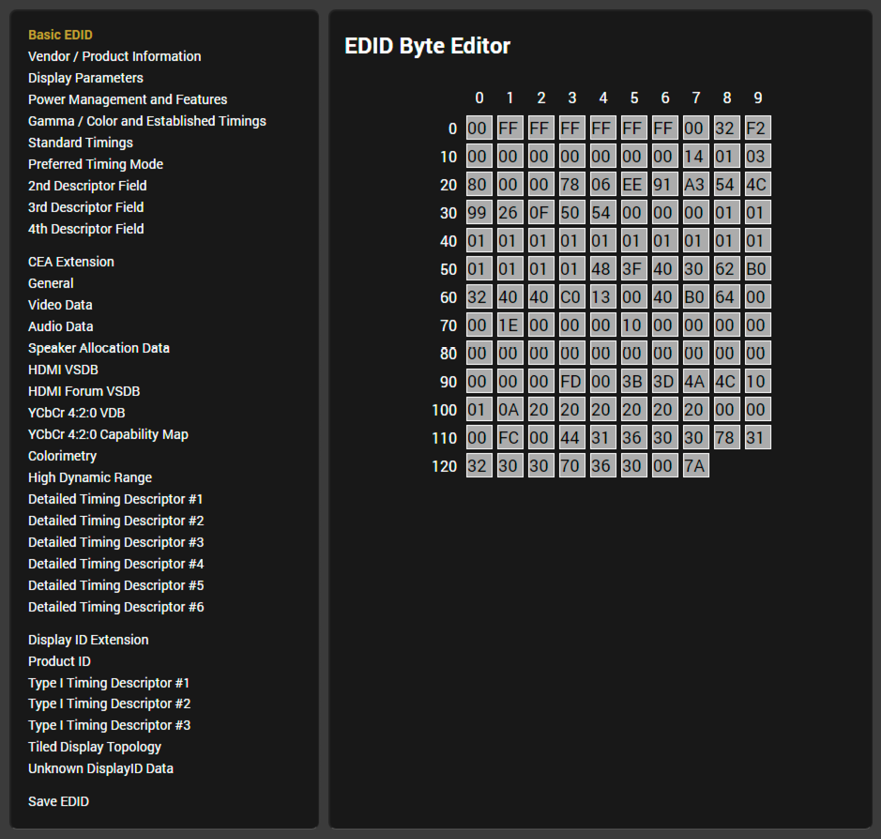
EDID Editor window
5.7.4. Creating an EDID - Easy EDID Creator

Since the Advanced EDID Editor mentioned above needs more complex knowledge about EDID, Lightware introduced a wizard-like interface for fast and easy EDID creation. With Easy EDID Creator, it is possible to create custom EDIDs in four simple steps. By clicking on the Create button below the Source panel, the Easy EDID Creator is opened in a new window. For more details about the EDID Editor, please visit our website and download the EDID Editor Application Notes.
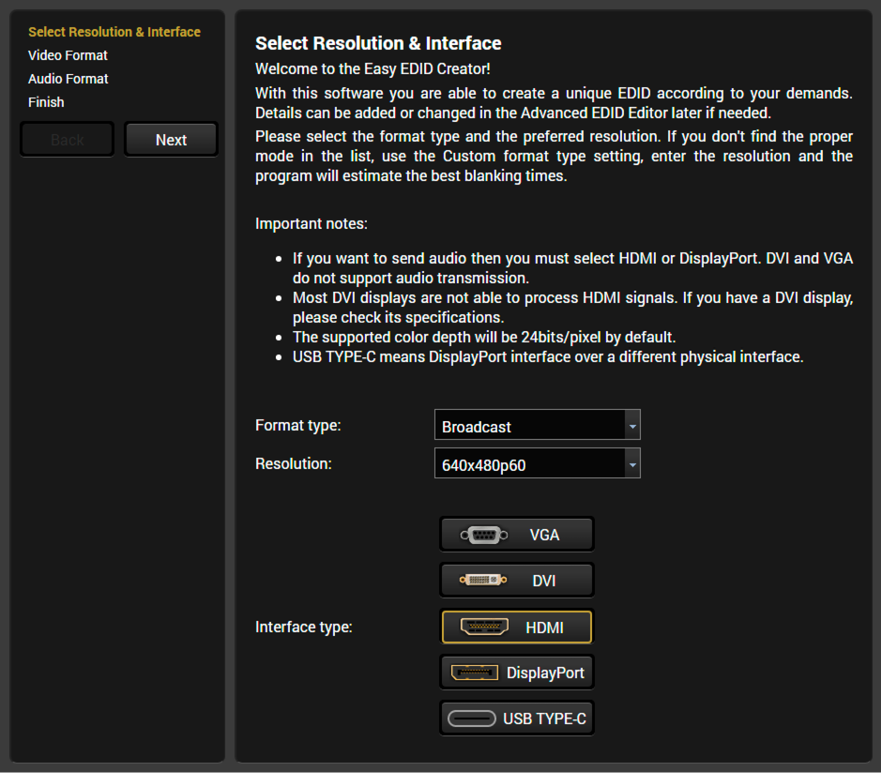
EDID Creator Window
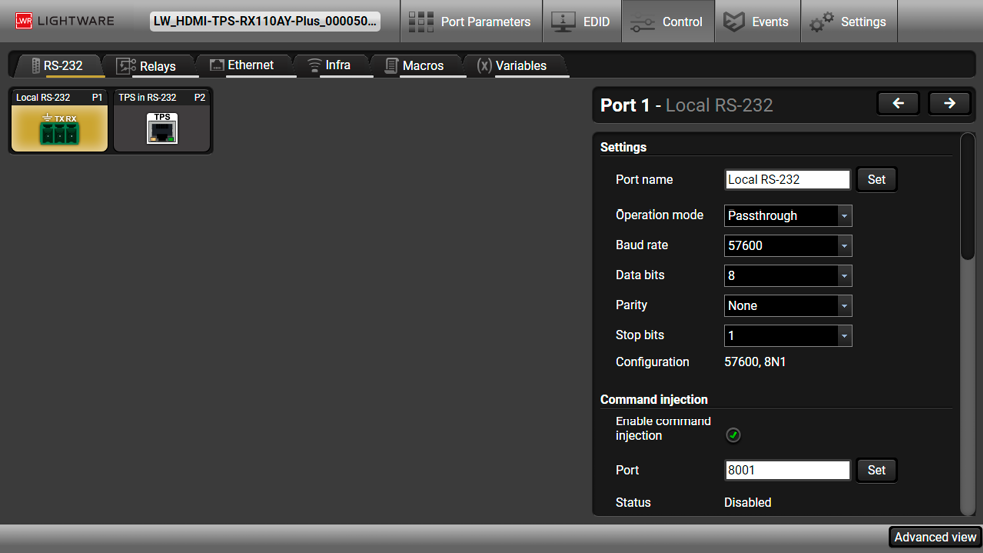
RS-232 tab in Control menu
The following settings and functions are available (both on local and TPS serial ports):
▪Operation mode: Pass-through, Control, or Command Injection (for more details about serial interface modes, see the Serial Interface section);
▪Baud rate: 4800, 7200, 9600, 14400, 19200, 38400, 57600, 115200;
▪Data bits: 8 or 9;
▪Parity: None, Odd, or Even;
▪Stop bits: 1, 1.5, or 2;
▪Command injection: enable or disable;
▪Command injection port number;
▪Control protocol: LW2 or LW3;
▪Message sending via serial port;
▪Reloading factory defaults (see factory default settings in the Factory Default Settings section).
ATTENTION!Operation mode of the local and TPS serial ports can be set together only. It means if you set the local RS-232 port to Control mode, the TPS serial link will be changed to Control mode automatically as well.
ATTENTION!If the receiver is connected to a TPS2 output board of a matrix frame, the RS-232 configuration settings (baud rate, data bits, e.t.c.) will not be changeable on the receiver side.

DIFFERENCE:This feature is available only in the HDMI-TPS-RX110AY-Plus model.
The HDMI-TPS-RX110AY-Plus model can analyze and store the received serial data. For more information, see the RS-232 Recognizer section.
Check the Enable message recognizer on this port option to switch the recognizer on.
Delimiter sequence text box is for setting the delimiter string in hex format. When this string is detected in the incoming serial data, the device saves the RS-232 message data from the first bit until the delimiter (or the data between the two delimiters).
INFO:0D0A is the factory default value, this is the hexadecimal code of Carriage Return and Line Feed. LW3 protocol commands end with this formula, so the default value support the recognition of the LW3 commands and the stored changes automatically.
If the Timeout is enabled and set, the received data is saved when the timeout has passed after the last received message.
The Received messages box shows the last received and stored message in Text (RECOGNIZER.Rx), Hex (RECOGNIZER.RxHex), and Hash (RECOGNIZER.Hash) format. The Hex and Hash contains the delimiter.
Press the Clear button to erase this storage.
Clicking on Reload restores the Factory Default Settings of the recognizer.
ATTENTION!The Message recognizer settings are mirrored on the Local and TPS in serial ports.
INFO:Message recognizer operates independently of the RS-232 mode.
#recognizer #rs232recognizer #rs-232recognizer
Configuration Example for the Message Recognizer
The detailed description below shows how to configure the message recognizer in the RS-232 Recognizer section.
When the HDMI-TPS-RX110AY-Plus has an active video signal, the switcher logs into the VC codec automatically. The signal presence triggers a bi-directional communication with the VC codec via RS-232:
Step 1.Turn on the recognizer: Enable it on the P1 serial port.

Step 2.Set the delimiter (in hex format). In this case, the delimiter character is ':', which is '3a' in hex format. When the delimiter string is detected in the incoming serial data, the serial message is stored in string (in Rx and ActiveRx property), hex (in RxHex and ActiveHex property) and hash (in Hash and ActiveHash property) format. These stored contents can be set as a condition in the event manager.
INFO:The stored content is the incoming data that arrives before the delimiter or between the two delimiters.
Step 3.Set the Active timeout to 100. This property is responsible for erasing the temporary storage (ActiveRx, ActiveRxHex, ActiveHash) after the time has passed. In the example below it can be seen how the recognizer properties change during the communication:
»HDMI-TPS-RX110AY-Plus: PING
|
Rx |
RxHex |
Hash |
ActiveRx |
ActiveRxHex |
ActiveHash |
|---|---|---|---|---|---|
«VC codec: Login:
|
Rx |
RxHex |
Hash |
ActiveRx |
ActiveRxHex |
ActiveHash |
|---|---|---|---|---|---|
|
Login: |
4C6F67696E3A |
2D8A5E38 |
Login: |
4C6F67696E3A |
2D8A5E38 |
»HDMI-TPS-RX110AY-Plus: Admin
Active timeout has passed, so the values of the Active- prefixed properties are deleted.
|
Rx |
RxHex |
Hash |
ActiveRx |
ActiveRxHex |
ActiveHash |
|---|---|---|---|---|---|
|
Login: |
4C6F67696E3A |
2D8A5E38 |
«VC codec: Password:
|
Rx |
RxHex |
Hash |
ActiveRx |
ActiveRxHex |
ActiveHash |
|---|---|---|---|---|---|
|
Password: |
50617373776F72643A |
79059B26 |
Password: |
50617373776F72643A |
79059B26 |
»HDMI-TPS-RX110AY-Plus: Admin
Active timeout has passed, so the values of the Active- prefixed properties are deleted.
|
Rx |
RxHex |
Hash |
ActiveRx |
ActiveRxHex |
ActiveHash |
|---|---|---|---|---|---|
|
Password: |
50617373776F72643A |
79059B26 |
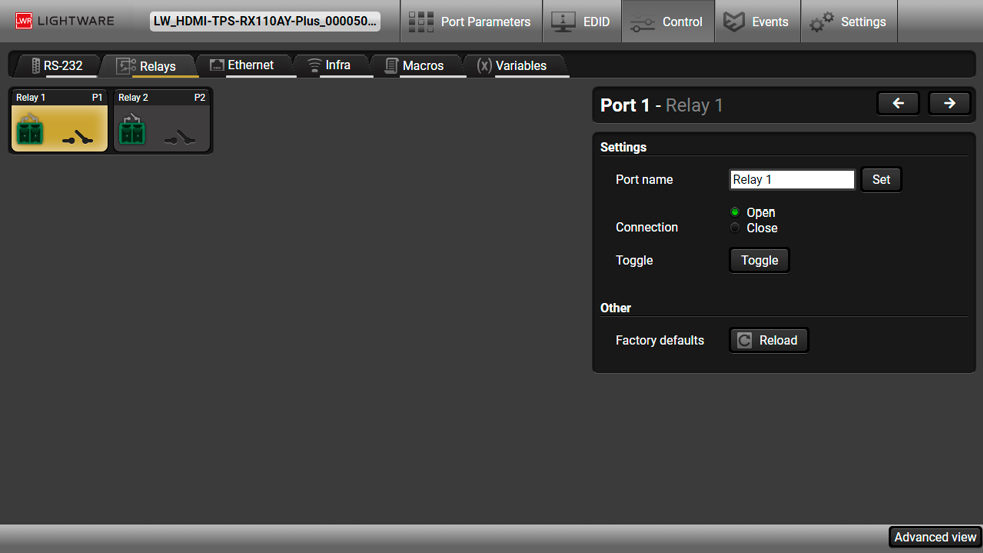
Relays tab in Control menu
Two relays are built into the HDMI-TPS-RX110AY receiver. The following settings are available for both relay ports:
▪Connection state: Open or Close;
▪Toggle;
▪Reloading factory defaults (see factory default settings in the Factory Default Settings section).
#relay

Ports
Ethernet Tab in the Control Menu
Two ports are displayed in the Ethernet settings: Local, CPU, and TPS. You can check the status of the Ethernet line by each port: the speed and the duplexity of the connection.
The following settings are available for the local port:
▪Enable / disable the port;
▪Reloading factory defaults.
ATTENTION!If the Ethernet port is set to disabled, this may break the connection with the device.
INFO:The CPU Ethernet port cannot be disabled.
HTTP Clients (HTTP Post and Put Message Sending)
DIFFERENCE:This feature is available only in the HDMI-TPS-RX110AY-Plus model, from FW package v1.5.0b3.
ATTENTION!This feature means posting or putting HTTP messages from the Lightware device to another device. Encrypted transmission (HTTPS) is not supported.
The HTTP Clients tab allows sending HTTP post and put messages to the desired server IP:port no. Control commands can be sent to the target device, but it is not suitable for processing the response (e.g. querying a parameter/status), since the response is just an acknowledge (ACK). #http
The feature is available also via LW3 commands, see the HTTP Messaging section.
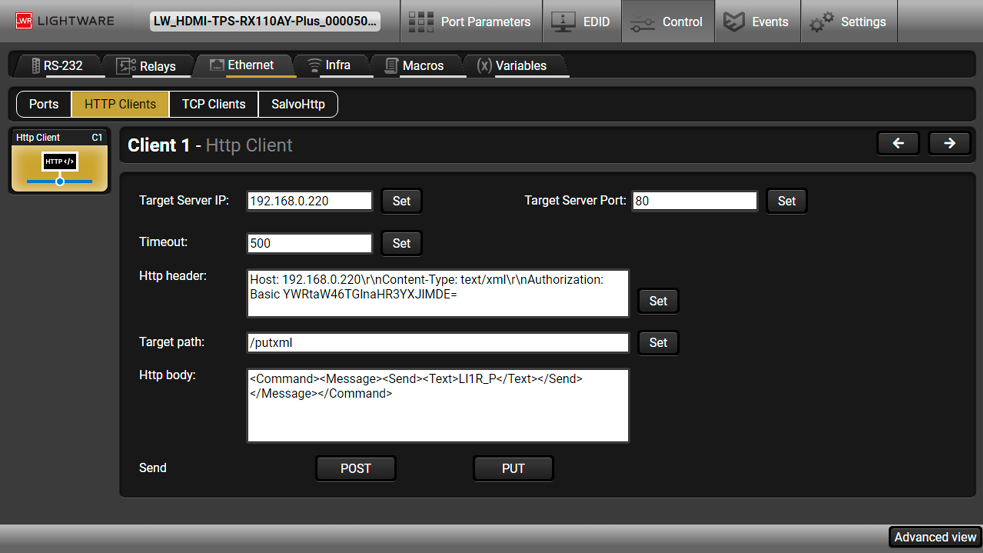
HTTP Clients tab in the Control/Ethernet menu
When you press the enter in the Http header or Http body text box, the \r\n is added automatically.
TCP Clients (TCP Message Recognizer)
DIFFERENCE:This feature is available only in the HDMI-TPS-RX110AY-Plus model, from FW package v1.5.0b3.
This tab is the preparing and monitoring interface for the TCP recognizer, which may trigger Event Manager Actions. A simple example can be seen in the TCP Recognizer section.

TCP Clients tab in the Control/Ethernet menu
The target device has to be set as a TCP client (three clients can be set):
Step 1.Type and set the Target IP address.
Step 2.Type and set the TCP port number.
Step 3.Make sure the same TCP port is opened and Enabled in the target device.
Step 4.Press the Connect to target button.
Step 5.Make the target device send a message and check it in the Detected messages list.
▪Auto reconnect: Numeric value; sets the time (seconds) between the automatic reconnections.
▪Delimiter: When the delimiter hex string is detected in the incoming data, the message is saved from the first bit until the delimiter (or the data between the two delimiters).
▪Timeout: If there is no response within the set time interval (milliseconds), the data that is received from the last delimiter will be accepted.
▪Trigger Action: If data is received that is closed with the recognized delimiter, an Action can be run. Type the number of the Event (without the letter 'E'). #tcprecognizer #message
SalvoHttp Status Page (Receiving HTTP Message)
DIFFERENCE:This feature is available only in the HDMI-TPS-RX110AY-Plus model, from FW package v1.5.0b3.
ATTENTION!This feature means sending HTTP messages from an external device to the Lightware device. Encrypted transmission (HTTPS) is not supported.
In this case, a batch of commands can be sent over HTTP to the Lightware device for processing. Post the commands to the <IP_address>/protocol.lw3 address, and the commands are processed immediately and sequentially. #http
Control commands can be sent to the Lightware device, but it is not suitable for querying a parameter/status, since the LW3 responses are not sent back to the sender.
ATTENTION!If the Cleartext Login (Login Settings) is enabled in the device, the login has to be the first command. No commands will be processed without a successful login. See the syntax in the Cleartext Login Protection section.
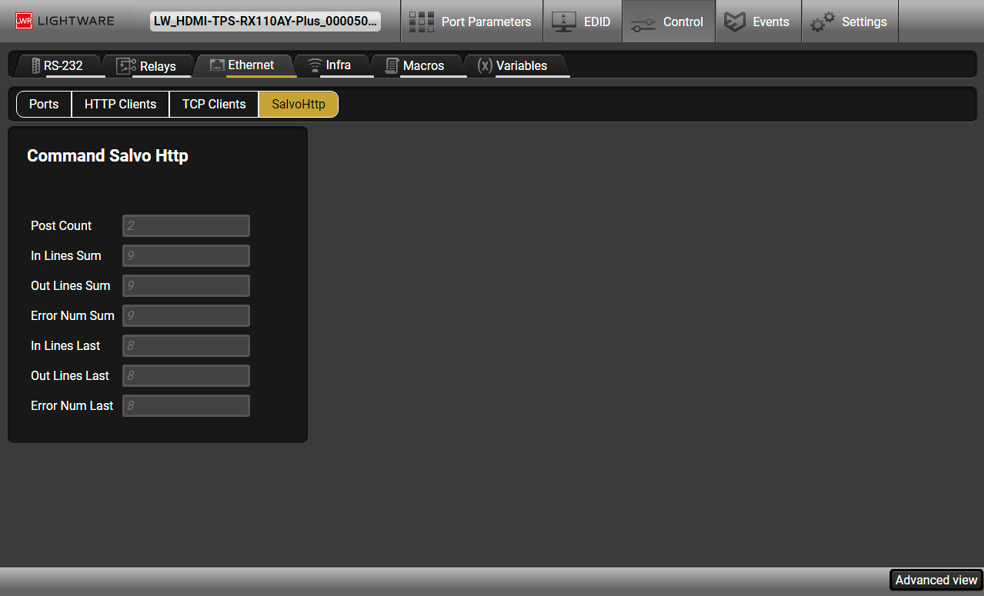
SalvoHttp tab in the Control/Ethernet menu
ATTENTION!The device has no built-in Infrared receiver and transmitter. For the complete usage attach an IR emitter unit to the IR OUT and an IR detector unit to the IR IN connectors.
Infrared (IR) receiver and transmitter options can be found on this tab. There are three submenus available under it: IR codes, Ports, and Clear all IR codes.
IR Codes
The user can set the name of the IR code, the fingerprint (hash), and the repeat timeout in ms, and actions can also be ordered to each IR code.
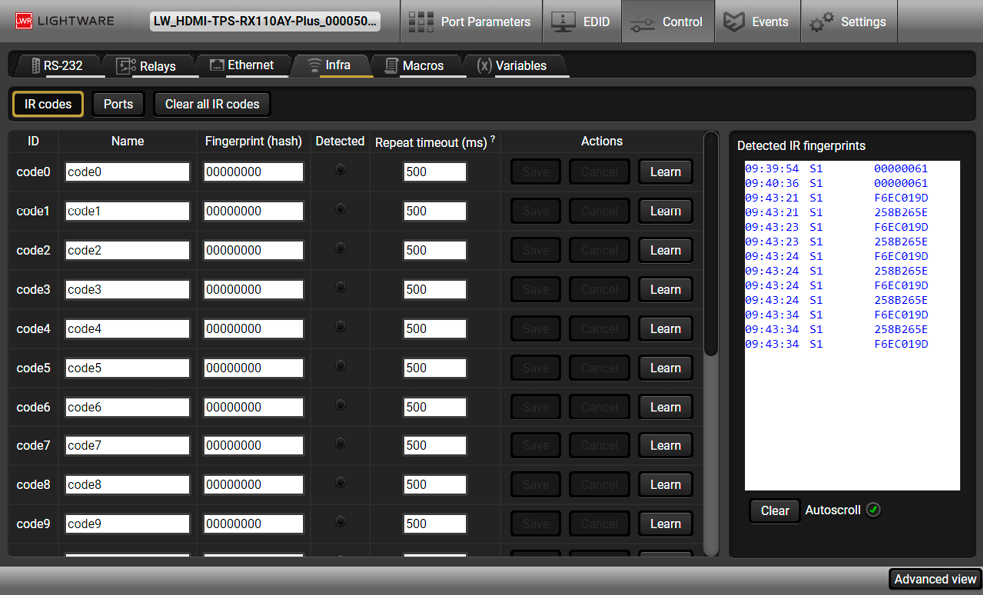
IR codes window in Control menu
|
Description |
Function |
|---|---|
|
ID |
Code number. |
|
Name |
You can give an unique name for the desired code. |
|
Fingerprint (hash) |
Fingerprint code in pronto hexa format. |
|
Detected |
Indicator gives feedback whether the given IR code is detected currently. |
|
Repeat timeout (ms) |
You can set a timeout to avoid the involuntary code recurrence. |
|
Actions |
Action buttons for the desired IR code: |
|
Detected IR fingerprints |
You can check the detected IR codes in this panel. Pressing the Clear button deletes all current fingerprints and automatic scrolling can be switched on or off by checking the Autoscroll option. |
20 fingerprints can be stored in the device at the same time. Each of them can be ordered to an action in Event Manager. For more details about events, see the Event Manager section.
Learning IR Codes
Step 1.Connect an IR detector unit to the IR IN port of the receiver.
Step 2.Click on the Learn button.
Step 3.Turn the remote controller to the IR detector. A pop-up window appears in LDC - press your remote button to learn.
Step 4.Once the code is received, a new window pops up in LDC - learning completed. Click on OK to continue.
Step 5.Optionally type a unique name for the code in the Name text box. The default name is code#, e.g. code0.
#infra #infrared
Ports Section for the HDMI-TPS-RX110AY Model
User can set the name and command injection port for each source and destination. For more details about the IR interface, see the IR Interface section.
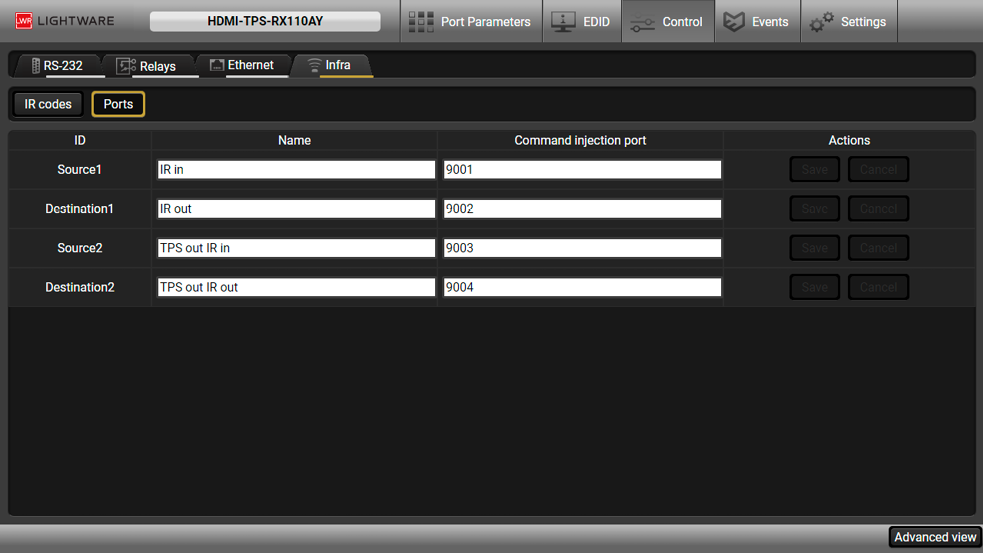
Infra tab - Ports window
Clear all IR codes
Clicking on the button deletes all stored IR fingerprints.
Ports Section for the HDMI-TPS-RX110AY-Plus Model
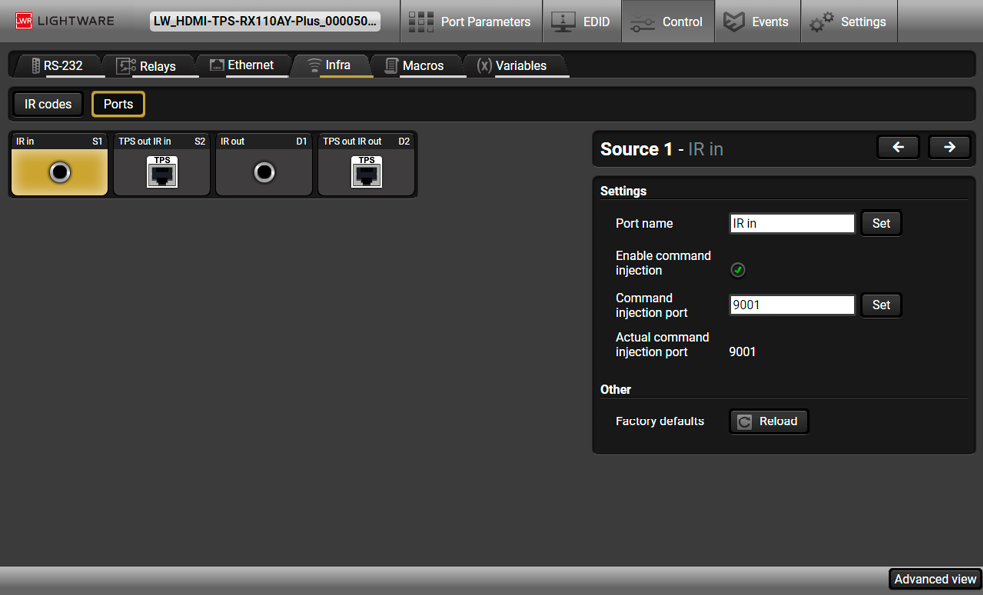
Infra tab - Ports window for the HDMI-TPS-RX110AY-Plus model
The user can set the name and command injection port for each source and destination. For more details about the IR interface, see the IR Interface section.
The following settings are also available:
▪Port name;
▪Enable / disable the port;
▪Port number;
▪Enable / disable command injection;
▪Message sending function (little-endian pronto hex code). For more details, see the next section;
▪Reload Factory Default Settings.
Sending pronto hex codes (Little-endian format)
Copy the raw, little endian-format IR code into the Send Pronto Hex entry field and click on the Send button.
The maximum length of the code can be 765 characters (765 bytes). For more details about the accepted IR code formats, see the Sending Pronto Hex Codes in Little-endian Format via IR Port section.
This entry field does not store the code. The code can be saved into an action in the event manager with the following parameters: Category: Infra; Expression: Send pronto hex; Port: D1; Pronto hex: <custom_code>
In the Event Manager, the maximum length of the code can be 184 characters (184 bytes). #message
INFO:Sending bigger endian-format code is available with an LW3 protocol command, see the Sending Pronto Hex Codes in Big-endian Format via IR Port section.
Clear all IR codes
Clicking on the button deletes all stored IR fingerprints.
DIFFERENCE:This feature is available only in the HDMI-TPS-RX110AY-Plus model, from FW package v1.5.0b3.
DEFINITION:A macro is a batch of pre-defined commands stored in the device. #macro
You can create your custom macros in a file, upload them to the device and run at any time. The number of the macros depends on the device type, the device can handle up to 50 macros.
Important Notes about Macros
▪The macros are stored in the internal device presets.
▪The commands of a macro are executed sequentially (even if error happens at a command).
▪Macros allow long commands, which is suitable for e.g. infra code sending.
▪Macros cannot be edited in the device.
▪Macros are not saved when backup is created. See the Saving the Macros section.
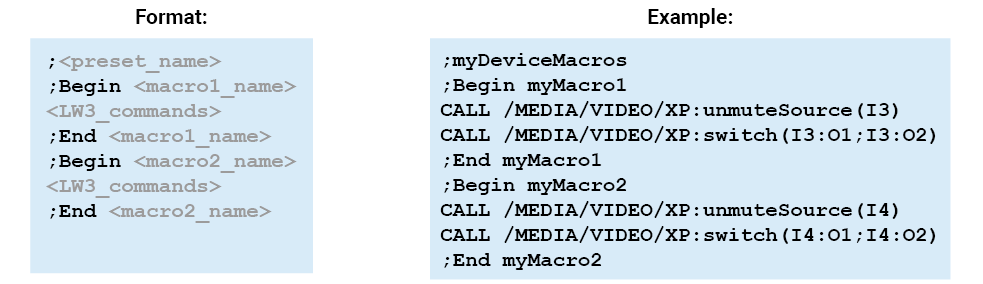
<preset_name>: it will be displayed in the Settings/Backup submenu (device configurations list).
<macro_name>: each Macro must have a unique name.
<LW3_commands>: LW3 SET and CALL commands. Syntax is not checked, error is not reported.
ATTENTION!If you use the same name for a new macro, the existing one will be deleted.
Open a simple text editor and save the file with 'LW3' extension.
Uploading New Macros into the Internal Device Configuration Preset
The uploading steps are the following:
Step 1.Create the file with macros according to the macro file structure and save it.
Step 2.Navigate to the Settings/Backup submenu.
Step 3.Select the device configuration preset at the bottom of the page.
Step 4.Press the Upload button, browse the LW3 file and press Open.
ATTENTION!The preset and the macros of the selected slot will be erased. If there is a macro with the same name already in the device, it will be removed and the new one will be available.
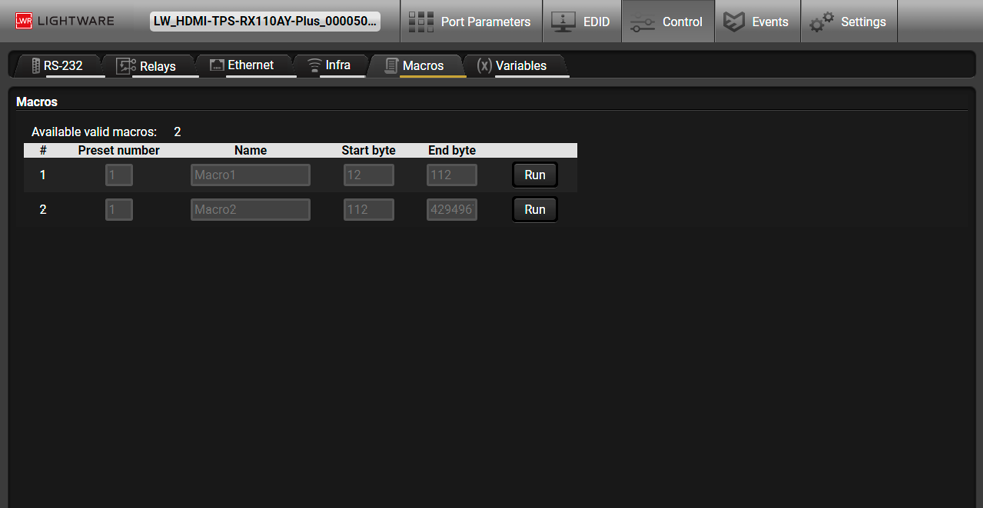
Discovered Macros in the device shown under Control/Macros submenu
Adding Macros by Preserving the Current Preset and Macros
If you follow the steps below, the existing macros of the selected preset will be preserved. But if there is a macro with the same name already in the device, it will be removed and the new will be available.
Step 1.Navigate to the Settings/Backup submenu.
Step 2.Select the device configuration preset at the bottom of the page.
Step 3.Press the Download button and click on Save in the pop-up window.
Step 4.Open the file with a simple text editor and add the desired macros to the bottom of the commands between the ;Begin <macro_name> and ;End <macro_name> labels.
Step 5.Save the file and navigate to the Settings/Backup submenu.
Step 6.Select the device configuration preset.
Step 7.Press the Upload button, browse the LW3 file and press Open.
When you make a backup of the device, the macros are not saved in that file. Sometimes, it is necessary to save the macros into a file and for example apply them in another (same type of) device. Follow these steps:
Step 1.Navigate to the Settings/Backup submenu.
Step 2.Select the device configuration preset at the bottom of the page.
Step 3.Press the Download button and click on Save in the pop-up window.
DIFFERENCE:This feature is available only in the HDMI-TPS-RX110AY-Plus model, from FW package v1.5.0b3.
You can create custom variables in number or text format, which can be used in the Event Manager. The variables can have the following properties/methods: #variables
▪Numeric (integer) type with min/max value setting, or string-type (determined automatically)
▪Increment/step the numeric value,
▪Value-dependent case operations,
▪Reading and storing the values of LW3 properties into string or numeric variables.
▪The max length of a string variable can be 15 characters. Numeric variable is defined between -2147483648 and 2147483647.
The defined variables are stored in a non-volatile memory and the value is kept in case of a reboot.
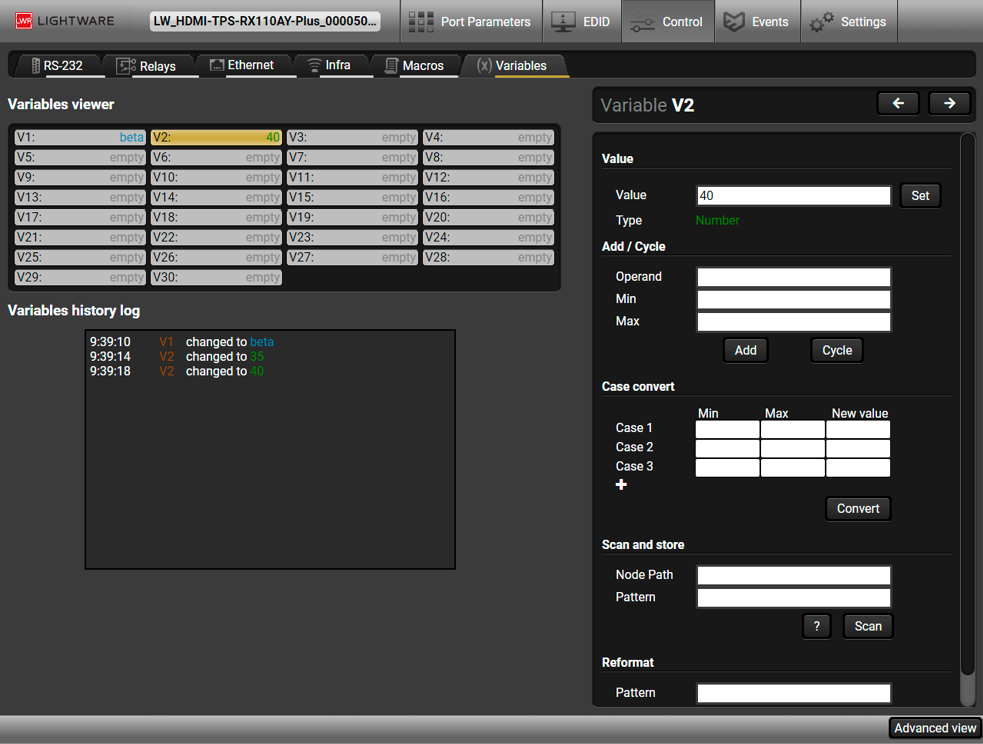
Variables tab in the Control menu
Value Section
You can set the value of the variable by the field. The type of the variable is determined automatically based on its value (numeric/string).
Add / Cycle Section
This section can be used for numeric types.
▪Operand: the increment, the number that will be added to the current value (negative value is accepted).
▪Min (optional): the lowest allowed value
▪Max (optional): the highest allowed value
▪Add button: the operand will be added to the current value. If the result would be higher than the max setting, the max will be valid; if the result would be lower than the min setting, the min will be valid
▪Cycle button: the operand will be added to the current value. If the result would be beyond the limit (min/max), the value will be stepped to the other end of the interval.
Examples
The following shows the difference between the Add and the Cycle options. The input values are the same in both cases:
▪Min: 1
▪Max: 5
▪Operand: 1


In Add case: when the value hits the limit (max), the operand will not increase the value any more.
In Cycle case: when the value hits the limit (max), the value will be stepped to the other end of the interval.
Similar case happens vice versa: when the operand is a negative number and the value hits the min value.
TIPS AND TRICKS:Set min=1, max=2, operand=1 and use the cycle method. Thus, the value of the variable can be toggled, which can be linked to a property with two states (e.g. low/high level) in the Event manager.
Case Convert
This tool can be used to change the value of a variable if it fits in any of the defined intervals. The check and the change will be performed only if you press the Convert button. A typical example is when two different ranges of values have to meet:
Incoming values: between 0 and 255 (e.g. the slider of a controller can have these values).
Outgoing values: between 0 and 100 (e.g. the controlled device accepts these values).
Defined cases:
|
Min |
Max |
New value |
|
|---|---|---|---|
|
Case 1 |
1 |
25 |
10 |
|
Case 2 |
26 |
50 |
20 |
|
Case 3 |
51 |
75 |
30 |
|
Case 4 |
76 |
100 |
40 |
|
Case 5 |
101 |
125 |
50 |
|
Case 6 |
126 |
150 |
60 |
|
Case 7 |
151 |
175 |
70 |
|
Case 8 |
176 |
200 |
80 |
|
Case 9 |
201 |
225 |
90 |
|
Case 10 |
226 |
255 |
100 |
Scan and Store
This tool can be used to get the value (or a part) of an LW3 property. The defined path will be checked according to the pattern and the result will be saved into the variable (number or string type). Press the ? button to open the pattern options:
|
Pattern |
Pattern description |
|
%s |
String of characters stopping at the first whitespace character |
|
%<number>s |
The next <number> of characters (string) stopping at the first whitespace |
|
%c |
One character |
|
%<number>c |
The next <number> of characters |
|
%[<characters>] |
Defined character set, specified between brackets |
|
%[^<characters>] |
Negated character set that will be skipped, specified between brackets |
|
%* |
Ignored part |
|
<custom_text> |
User-defined text |
Examples
|
Node Path 1 |
Property Value |
Pattern 1 |
Scanned result |
|
/MANAGEMENT/STATUS.CpuTemperature |
32 C; 0;75; 0;79;21;34; |
%s |
32 |
|
/MANAGEMENT/STATUS.CpuFirmware |
1.3.0b0 r1 |
%12s |
1.3.0b0 |
|
/MEDIA/VIDEO/I6.Resolution |
640x480p60 |
%3c |
640 |
|
/MEDIA/UART/P1.Rs232Configuration |
57600, 8N1 |
%*[^,], %s |
8N1 |
|
/MEDIA/AUDIO/XP.SourcePortStatus |
T000A;T000A;T0008;T000A;T000C |
%*6c%5c |
T000A |
|
/MEDIA/VIDEO/I6.Resolution |
640x480p60 |
%[^b]%* |
640 |
|
/MANAGEMENT/NETWORK.HostName |
lightware-00005031 |
lightware- |
00005031 |
1 defined by the user
Reformat
The value of the variable can be changed by adding text as prefix and/or postfix. Type %s to indicate where to insert the original value.
Example
▪Original value: 3
▪Pattern: input%s
▪Modified value: input3

The feature means that the device can sense changes on its ports and is able to react according to the pre-defined settings. The development idea of the Event manager is based on users’ feedbacks. In many cases internal events (such as signal present or HDCP active) are necessary for displaying, but it is not easy when the device is hard to access (e.g. built under the desk).
INFO:For tips and tricks and detailed description about the application of Event Manager, please download the Event Manager Application Notes.
The Event manager can be configured to perform an action if a condition has been detected. E.g. the desired setup is that after a certain type of signal has been detected on I1 port, the port has to be switched to O1. The settings can be done via the LDC in the Events menu, or by LW3 protocol commands. The number of configurable events depends on the device that you are currently using.
Numerous new ideas and requests have been received in connection with the features and settings of the Event manager since the first release. Therefore, the user interface has been re-designed and many new functions have been implemented. The Event editor can be opened by pressing the Edit button at each Event.
There is a grey bar on the left of the Event panel in each line. If a condition and an action are set and the Event is enabled, the bar is displayed in green.
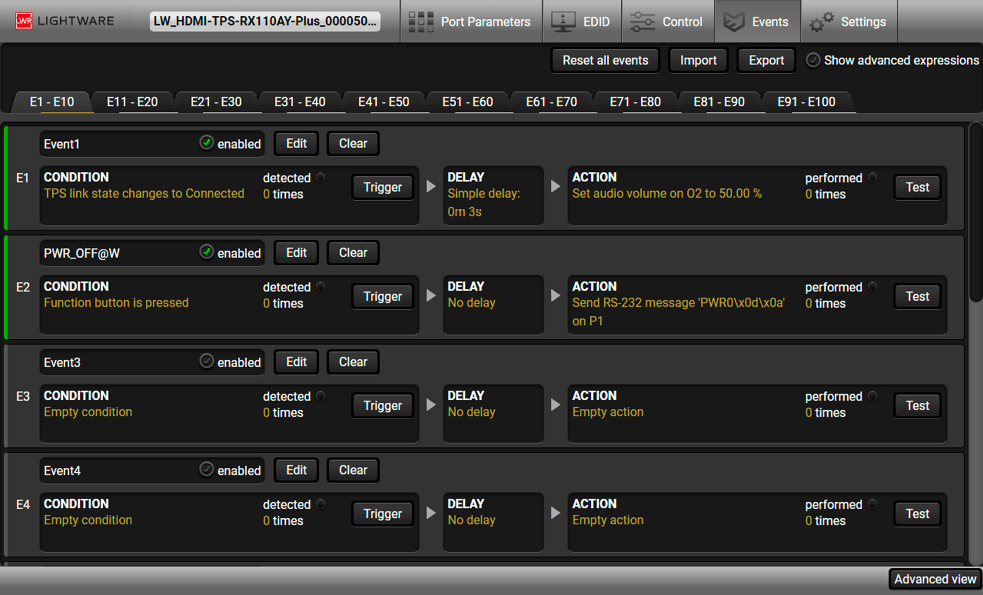
Events menu #eventmanager
Press the Edit button in the desired Event line to open the Event editor window.
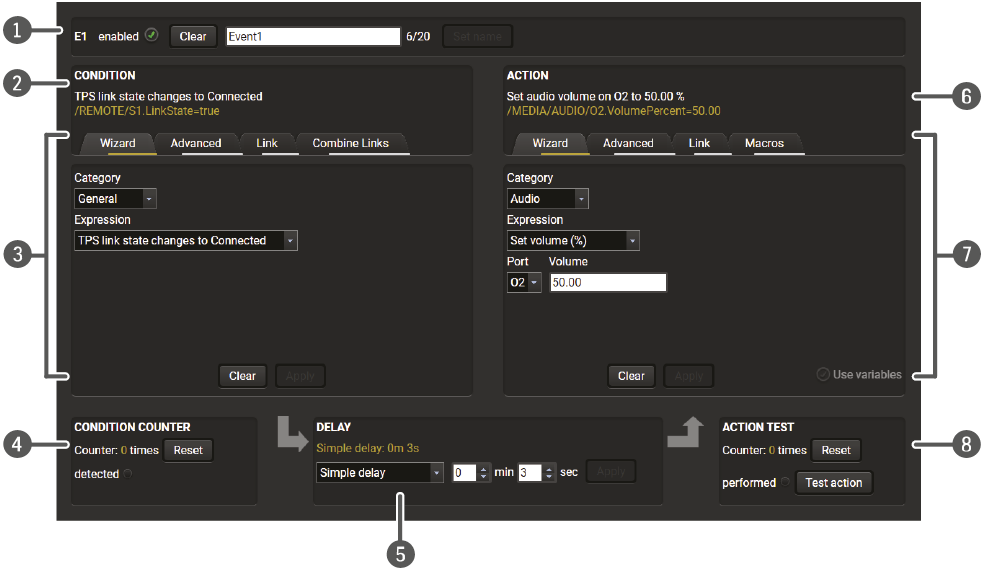
|
|
Event header |
The name of the Event is displayed. Type the desired name and press the Set name button. The Event can be cleared by the Clear button. Use the tick mark to enable/disable the Event. |
|
|
Condition header |
If the condition is set, the description (white colored text) and the exact LW3 protocol expression (yellow colored text) can be seen. If the advanced mode was used the description is “Custom condition”. |
|
|
Condition panel |
Different tools are available at the tabs for setting the desired Condition. The parameters and settings are displayed below the buttons. |
|
|
Condition counter |
The set condition can be tested to see the working method in the practice. |
|
|
Delay settings |
The action can be scheduled to follow the condition after the set time value. |
|
|
Action header |
If the action is set, the description (white colored text) and the exact LW3 protocol expression (yellow colored text) can be seen. If the advanced mode was used the description is “Custom action”. |
|
|
Action panel |
Different tools are available at the tabs for setting the desired Condition. The parameters and settings are displayed below the buttons. |
|
|
Action test |
The set action can be tested to see the working method in the practice. |


5.8.2. Create or Modify an Event
Wizard Mode
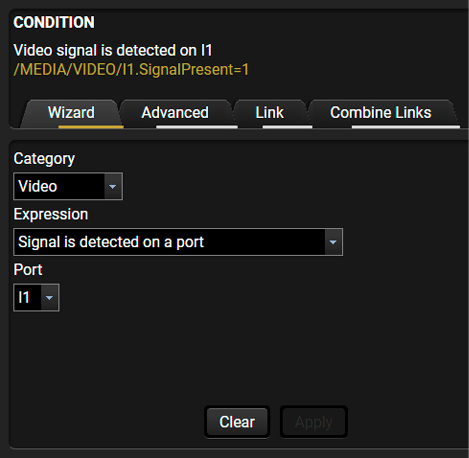
The wizard mode lists the most common conditions and actions, so the user does not have to look for LW3 nodes and properties.
Step 1.Click on the Edit button of the desired Event; the Event editor is displayed.
Step 2.The wizard mode is displayed by default. Select the desired Category first (e.g. Audio or Video).
Step 3.Select the desired Expression from the drop-down menu. If any other parameter is necessary to set, it is going to be displayed.
Step 4.Press the Apply button to store the settings of the Condition.
INFO:This mode is also available for setting the Action.
Advanced Mode
The goal of this mode is the same as of the wizard: set the properties and methods for conditions and actions. The difference is the number of the available and usable properties and methods of the LW3 protocol. Advanced mode allows almost all of it.
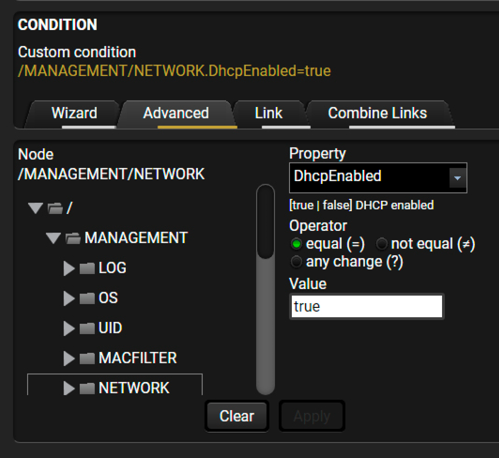
Step 1.Click on the Edit button of the desired Event; the Event editor is displayed.
Step 2.The wizard mode is the default, press the Advanced button. The LW3 protocol tree is displayed showing the list of the properties in the drop-down menu. Navigate to the desired node.
Step 3.Select the desired Property from the menu. The manual of the property is displayed below to help to select the necessary property and to set the value.
Step 4.Set the desired value and operator, then press the Apply button to store settings.
INFO:This mode is also available for setting the Action.
The Link Tool
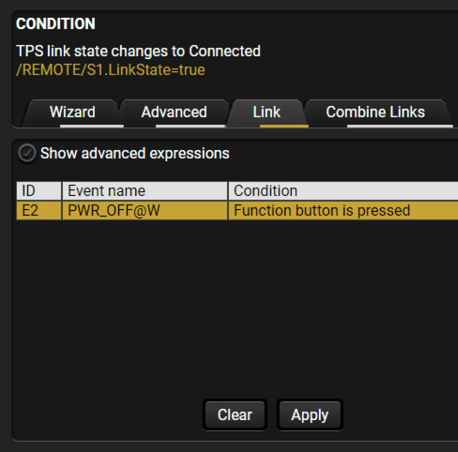
The new interface allows creating more actions for the same condition. In that case, a condition can trigger more actions. To set such an Event, the Link tool has been introduced.
Step 1.Click on the Edit button of the desired Event; the Event editor is displayed.
Step 2.The wizard mode is displayed by default, press the Link button.
Step 3.All the saved Events are analyzed and the conditions are listed (it takes some seconds to finish). The Show advanced expressions option allows showing the exact path and set the value of the given property.
Step 4.Select the desired Condition and press the Apply button to store the settings.
INFO:This mode is also available for setting the Action.
DIFFERENCE:This feature is available from FW package v1.5.0b3.

The first generation of the Event Manager is able to sense a change (one condition) but in some cases that is not enough. The practical experience has shown there is a need to examine more conditions as follows: if one of the set conditions becomes true (while the other conditions are fulfilled), then the set Action is launched. The Combine Links tool allows setting these Conditions. Follow the steps below:
Step 1.Create individual Conditions in separate Events.
Step 2.Create a new Event and navigate to the Combine Links tab in the Editor.
Step 3.Select up to four Conditions in the left panel.
Step 4.Set the desired Action (and do not forget to enable the Events).
INFO:This mode is available for setting the Condition only.
Linking a Macro (Action)
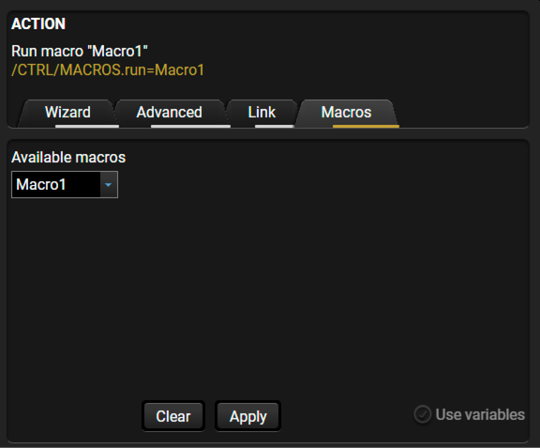
DIFFERENCE:This feature is available only in HDMI-TPS-RX110AY-Plus model from FW package v1.5.0b3.
Macros stored in the device can be run as Actions. Thus, a lot of commands can be run by using only one Event. The commands will be processed one-by-one after each other. #macro
Step 1.Click on the Edit button of the desired Event; the Event editor is displayed.
Step 2.The wizard mode is the default, press the Macros button in the Action panel.
Step 3.Select the desired Macro from the list then press the Apply button to store settings.
If the Use variables option is enabled, you can link a variable by the $ character. If you do so (e.g. $1), the device will handle it as the V1 variable. You can send the value of the variable e.g. as a TCP message.
See more information about the Macro settings in the Macros section.
5.8.3. Special Tools and Accessories
The Name of the Event
The name of a port can be changed by typing the new name and clicking the Set button. The following characters are allowed when naming:
Letters (A-Z) and (a-z), numbers (0-9), special characters: hyphen ( - ), underscore ( _ ), and space ( ).
Enable or Disable an Event
The set Event can be enabled or disabled in the Event list, or directly in the Event editor window by setting the tick mark beside the name.
Testing the Condition
When the desired Condition is arranged, the setting can be tested. The Event list and the Event editor contains a small panel that shows if the set condition is detected and how many times. The Counter can be reset by the button in Event editor. If the Condition is true, the detected mark turns green for two seconds and the Counter is increased.
Testing the Action
The method is the same as testing the Condition, but in this case, the Action can be triggered manually by pressing the Test button.
TIPS AND TRICKS:The Test button is also placed on the Action panel in the Event list. Thus, you can check the Actions without opening the Event editor.
Delay the Action
In most cases the Action is performed immediately after the Condition is detected. But sometimes a delay is necessary between the Condition and the Action. Therefore, the new Event manager contains the Delay panel which allows that feature with below settings:
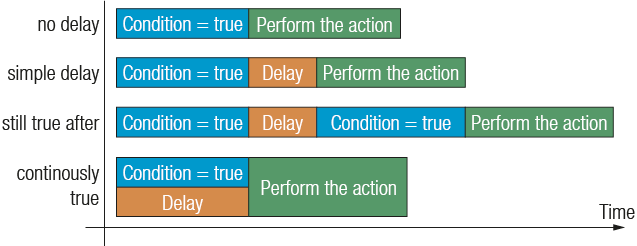
▪No delay: when the Condition is detected, the Action is launched.
▪Simple delay: when the Condition is detected, the Action is launched after the set time interval.
▪Still true after: when the Condition is detected, the Action is launched after the set time interval only if the Condition still exists.
▪Continuously true: when the Condition is detected, the Action is launched after the set time interval only if the Condition has been existing continuously.
TIPS AND TRICKS:Show advanced expressions option is a useful tool when you look for the path or value of a property but just the expression is displayed. The option is available in the Event list window or when Link tool is used.
Variables
DIFFERENCE:This feature is available only in HDMI-TPS-RX110AY-Plus model from FW package v1.5.0b3.
The variables and the tools (shown in the Control/Variables tab) can be used in the Event Manager.
Condition Wizard #variables
The desired variable can be checked if its value is changed to a specific value.
Action Wizard
The value of a variable can be set/changed by the same methods as in the Control/Variables tab:
▪Setting the exact value
▪Increasing the value with/without limits
▪Converting the value (e.g. interval change)
▪Scanning and storing, or reformatting a property/parameter
If the Use variables option is enabled, you can link a variable by the $ character. If you do so (e.g. $1), the device will handle it as the V1 variable. You can send the value of the variable e.g. as a TCP message.
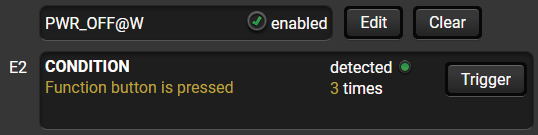

DIFFERENCE:This feature is available only in HDMI-TPS-RX110AY-Plus model from FW package v1.5.0b3.
This improvement works as if a condition is detected. When a complex control system is built, a Condition may trigger numerous Actions. A typical example is when a system is powered on and the ’ready-to-use’ state has to be loaded. In this case, there could be many actions which are based on the same condition. In order to reduce the number of the commands, you can trigger one ’key’ condition, which could start the whole process.
5.8.4. Clear One or More Event(s)
Clear an Event
Press the Clear button in the Event list or in the header section in the Event editor.
Clear all Events
When all the Events must be cleared press the Load factory defaults button above the Event list. You will be prompted to confirm the process.
5.8.5. Export and Import Events
The feature allows saving all the Events. The backup file can be uploaded to another HDMI-TPS-RX110AY receiver.
Export all the Events
Step 1.Press the Export button above the Event list.
Step 2.The Save as dialog box will appear. Set the desired folder and file name, then press the Save button.
The generated file is a simple text file which contains LW3 protocol commands. The file can be viewed by a simple text editor, e.g. Notepad.
ATTENTION!Editing the file is recommended only for expert users.
Import all the Events
Step 1.Press the Import button above the Event list.
Step 2.The Open dialog box will appear. Select the desired folder and file, then press the Open button.
5.8.6. Event Creating - Example
The following example shows you on a real-life situation how to set up an Event.
The Concept
The HDMI-TPS-RX110AY receiver is connected to a projector by the HDMI output port. The receiver is also connected to the projector by the RS-232 port and can send commands via the serial line.
The task is to turn on the projector when signal is detected on the HDMI output port.
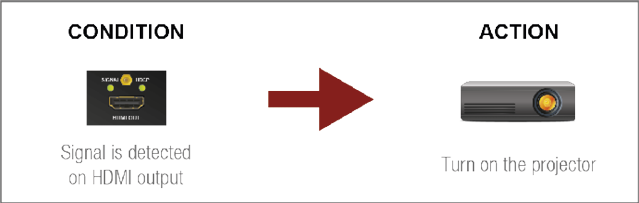
Make sure that the serial line is established between the receiver and the projector. Check that the RS-232 settings of the receiver is set exactly the same which required for the projector: baud rate, data bits, parity, stop bits. The receiver needs to be set to: Control protocol: LW3; and RS-232 mode: Pass-through. See the relevant LDC settings in the RS-232 section.
Setting the Event
You can create the Event in the Wizard in few simple steps:
Step 1.Set the condition.
Select the required parameters to set the condition:
▪Category: Video;
▪Expression: Signal is detected on a port;
▪Port: O1.
Click on the Apply button to complete the procedure. When it is done, the condition appears on the upper side in textual and LW3 command format as well.
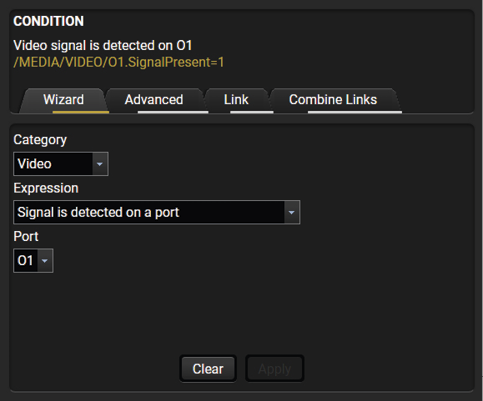
Step 2.Set the action.
If the condition is fulfilled, the following action needs to be launched: the receiver sends a command to the projector over the serial line:
▪Power on - the required command which is accepted by the projector: PWR0<CR><LF>
For this instance the command has to be closed with the <CR><LF> characters so they need to be escaped. You can use the following format for escaping:
<command1><\x0d\x0a><command2><\x0d\x0a>...
...<commandn><\x0d\x0a>
In the current case the command is: PWR0\x0d\x0a
Select the required parameters to set the action:
▪Category: RS-232;
▪Expression: Send RS-232 message;
▪Port: P1;
▪Message: PWR0\x0d\x0a
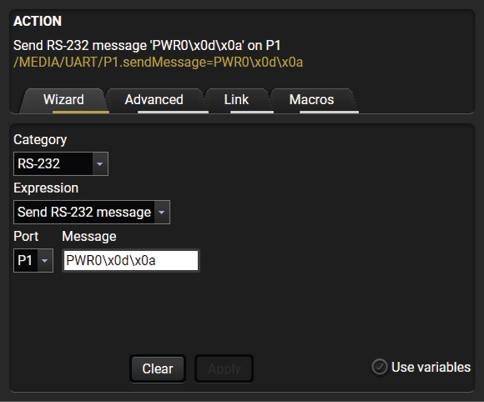
Step 3.Enable the Event.
Select the E1 enabled pipe in upper left corner to set the Event as launched.
INFO:If you do not find the required category/expression/etc what you need, choose the Advanced mode in the Wizard where the entire LW3 structure tree is available. For example instead of signal detection you can set a specified resolution or color range either as a condition.
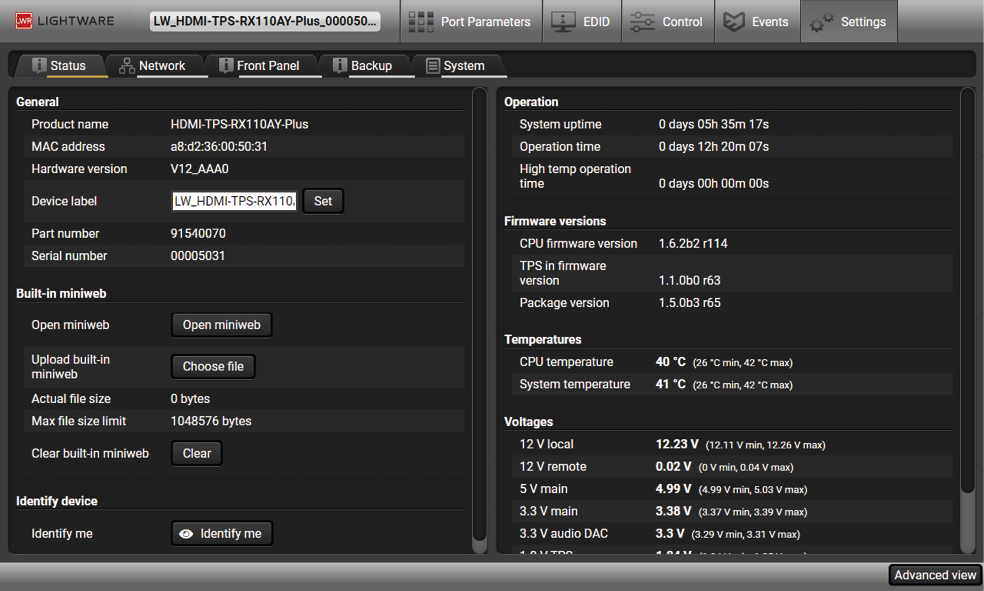
Status tab in Settings menu
The most important hardware and software related information can be found on this tab: hardware and firmware version, serial numbers, temperatures, operation time, and voltage information. Device label can be changed to unique description by the Set button. #label #devicelabel #status #firmwareversion #producttype #serialnumber #miniweb #builtinweb #web
INFO:The Device label is a user-editable name displayed next to the main menu. The Product name is a read-only property.
Please note that the Miniweb-related descriptions can be found in The Built-in Miniweb section.
Identify Me Feature
Clicking on the Identify me button results the status LEDs blinking in green for 10 seconds. The feature helps identifying the device itself in the rack shelf. #identifyme
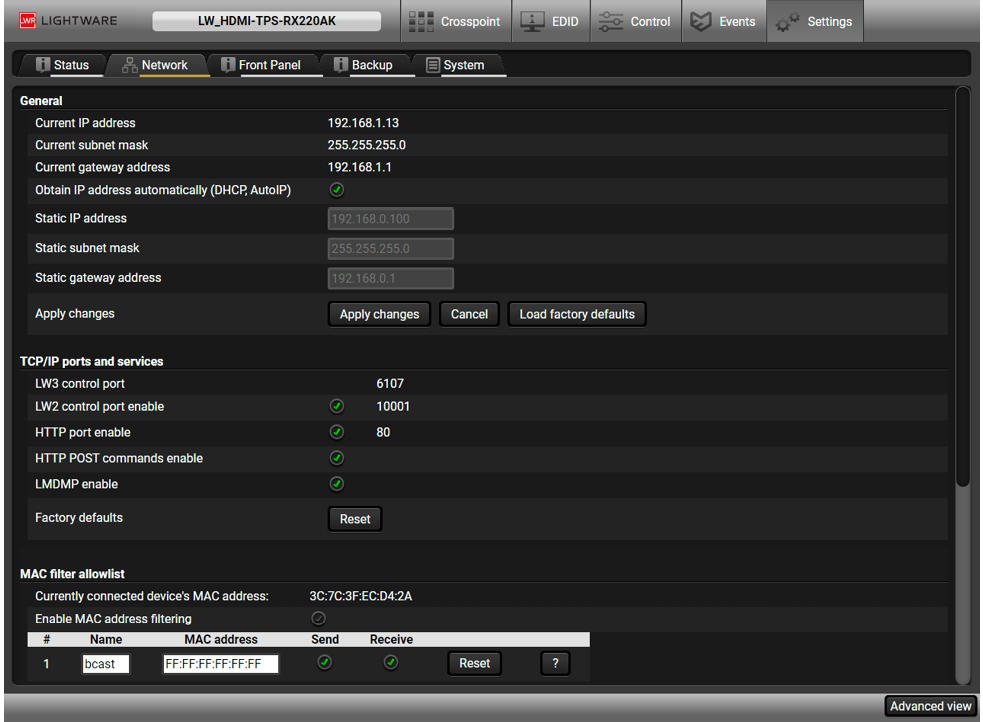
Network tab in Settings menu
General
IP address and DHCP settings can be set on this tab. Always press the Apply settings button to save changes. Factory defaults settings can be recalled with a dedicated button.
TCP/IP Ports and Services
DIFFERENCE:This feature is available only in HDMI-TPS-RX110AY-Plus model from FW package v1.5.0b3.
The IP Port Block feature is an additional protection for the Cleartext login, see the Cleartext Login (Login Settings) section. There are TCP/IP ports in Lightware devices which are not protected by the login, so you can disable them if necessary. For example, due to the working method of the LW2 communication, the Cleartext login does not provide protection when LW2 command is sent to the device, that is why the TCP port no.10001 shall be blocked manually. #dhcp #ipaddress #network #portblock
DIFFERENCE:This feature is available only in HDMI-TPS-RX110AY-Plus model from FW package v1.5.0b3.
Another level of the security is the MAC Filtering tool. You can create a list of network devices based on the MAC address which are allowed: #macfilter
▪Controlling the device (Send option), or
▪Querying parameters (Receive option) to/from the Lightware device.
Do not forget to press the Apply changes button to store the new settings.
ATTENTION!The first three lines are factory default values and they are necessary for the proper working.
ATTENTION!If the device is installed in a network where it gets IP address from a DHCP server and you plan to use the MAC filtering, make sure the MAC address of the DHCP server is added to the white list. Otherwise, the device will not get IP address and will be unreachable.

Front panel tab in Settings menu
Available settings:
▪Lock front panel: the Function button functionally can be disabled with the option is marked.
▪Dark mode enable: when dark mode is enabled, all status LEDs are switched off after one minute, if no button pressed. Pressing the Function button brings back status info on the LEDs without performing the function of the button itself.
▪Enable default function for Function button: enabling the option results the default function of the Function button is enabled. #buttonlock #lockbutton #darkmode
Details about this function can be found in the Configuration Cloning (Backup Tab) section.
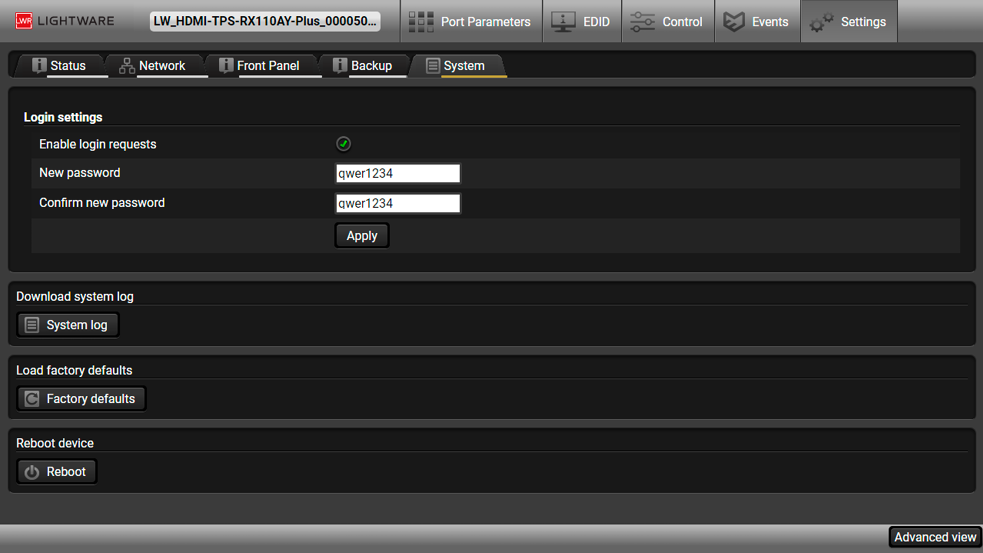
System tab in Settings menu
Cleartext Login (Login Settings)
DIFFERENCE:This feature is available only in HDMI-TPS-RX110AY-Plus model from FW package v1.5.0b3.
This cleartext login tool allows setting a password, thus, the device will not accept any command coming from a control interface (RS-232, Ethernet, etc…) without login. The device will be visible in the Device Discovery window (as the device type and the serial number can be queried without login) but connection can be established only after successful login. The login is valid until a TCP socket break in case of Ethernet connection. #login
ATTENTION!If the login is enabled, the password will be asked when opening The Built-in Miniweb.
INFO:The login password is erased and the login is disabled when restoring the factory default values.
Three functions are available under System tab: #log #systemlog #factory #restart #reboot
▪Download system log - saving the file of the device.
▪Load factory defaults - recalling factory defaults settings and values. All factory default settings are listed in the Factory Default Settings section.
▪Reboot - rebooting the system.
DEFINITION:The miniweb is a dedicated location in the memory where an HTML file can be uploaded to. If the http://<IP_address>/index.html page or the http://<host_name>/index.html is opened in a web browser, the file is displayed.
ATTENTION!The Miniweb is available from FW package v1.1.5b1. The default control page can installed in the device during the first firmware update process by the user if the necessary parameter is enabled. See the Step 3. Check the update parameters section.
The default control page allows the following:
▪Source selection: This block can be used to select an input or enable/disable the Autoselect remotely e.g. from a mobile device.
▪Action triggers: The action trigger buttons can be used to perform a configured Event Action without waiting for the condition to occur. This can be done remotely from a mobile device, too.
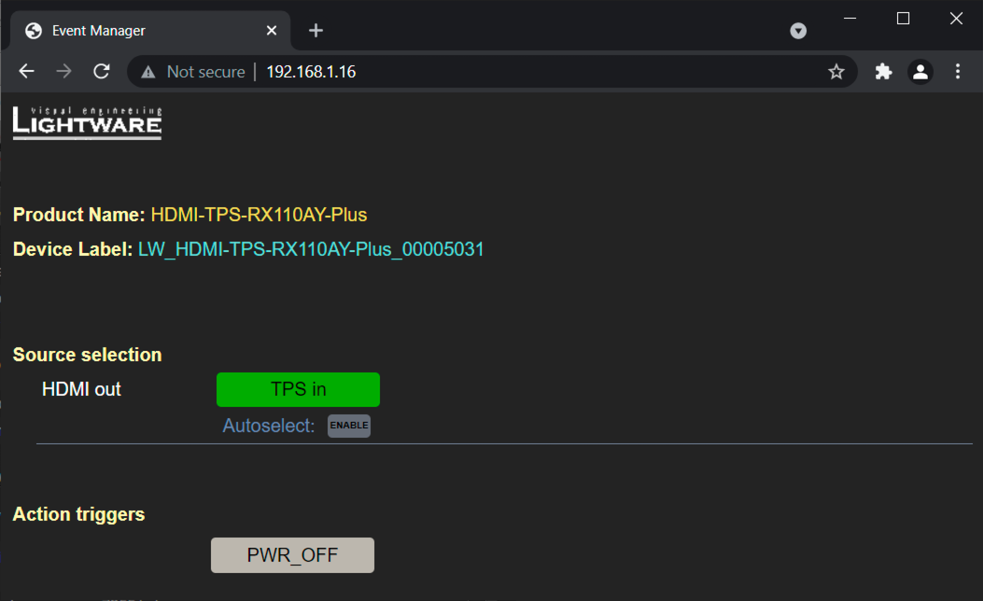
The Control Page Displayed in a Desktop Browser (with Action Trigger Buttons)
#miniweb #builtinweb #web
The Miniweb is available via:
▪Opening a web browser and typing the http://<IP_address>.index.html or the http://<IP_address> in the address line, or
▪Launching the LDC, connecting to the device, navigating to Settings/Status and pressing the Open miniweb button.
INFO:The host name can be used instead of the IP address; see the Setting the Host Name section.
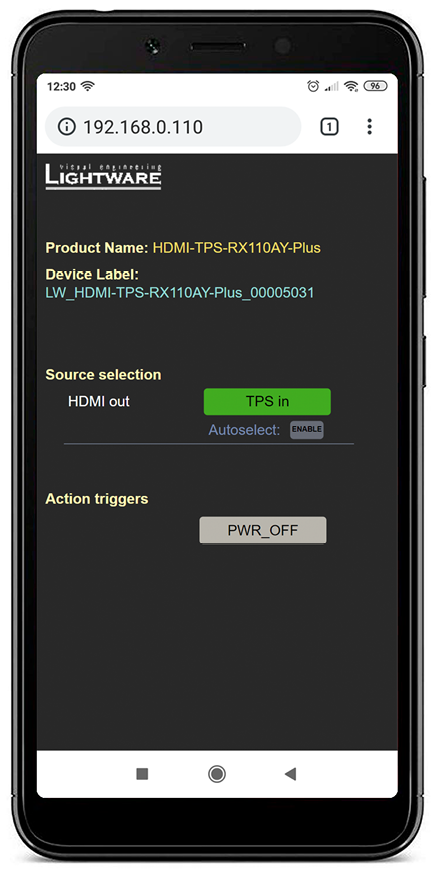
The Control Page Displayed in a Smartphone Browser
The Default Status Page
If there is no control page uploaded, the default status page will be displayed (which is also available by opening the <IP_address>/status.html address.
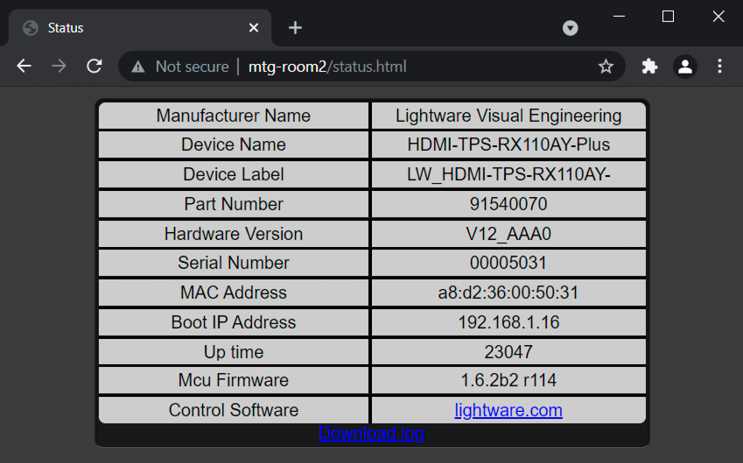
The Factory Default Status Page (status.html)
The buttons of the Action triggers section are linked to Actions of certain Events in the Event Manager. These buttons are displayed only for specific events:
▪Any Event that does not have the @W suffix in its name will not be displayed as a trigger button.
▪The displayed trigger buttons will get a text label with the event name except the suffix.
To add the desired Action as a button, append the name of the desired Event with the @W characters - see below (type uppercase for 'W', as it is case-sensitive):
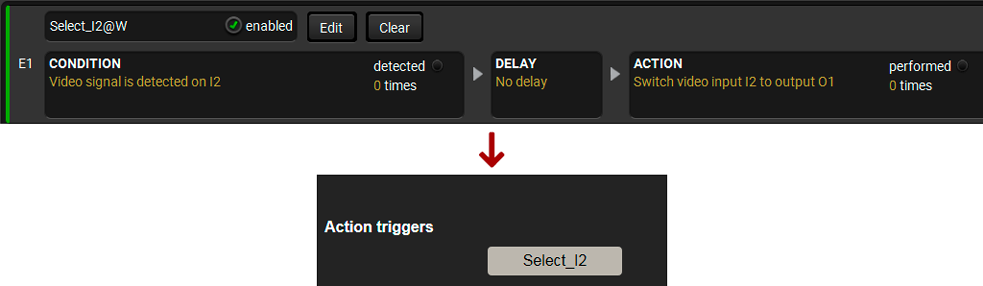
Action Trigger Button added in the Event Manager and displayed in the Control Page
Customized HTML
The default control page can be replaced in the LDC; navigate to the Settings/Status page. A custom HTML file can be uploaded by pressing the Choose file button. Pay attention to the size of the HTML file. Only one file is allowed, and the maximum file size is 10 KB.
Press the Reset button to remove the control page. The default control page can be restored during a firmware update process, see the Step 3. Check the update parameters section.

The Built-in Miniweb Section in LDC
5.11. Configuration Cloning (Backup Tab)
Configuration cloning of Lightware LW3 devices is a simple method that eliminates the need to repeatedly configure certain devices to have identical (non-factory) settings. If the devices are installed in the same type of system multiple times, then it is enough to set up only one device to fit the user’s needs, and then copy those settings to the others, thus saving time and resources.
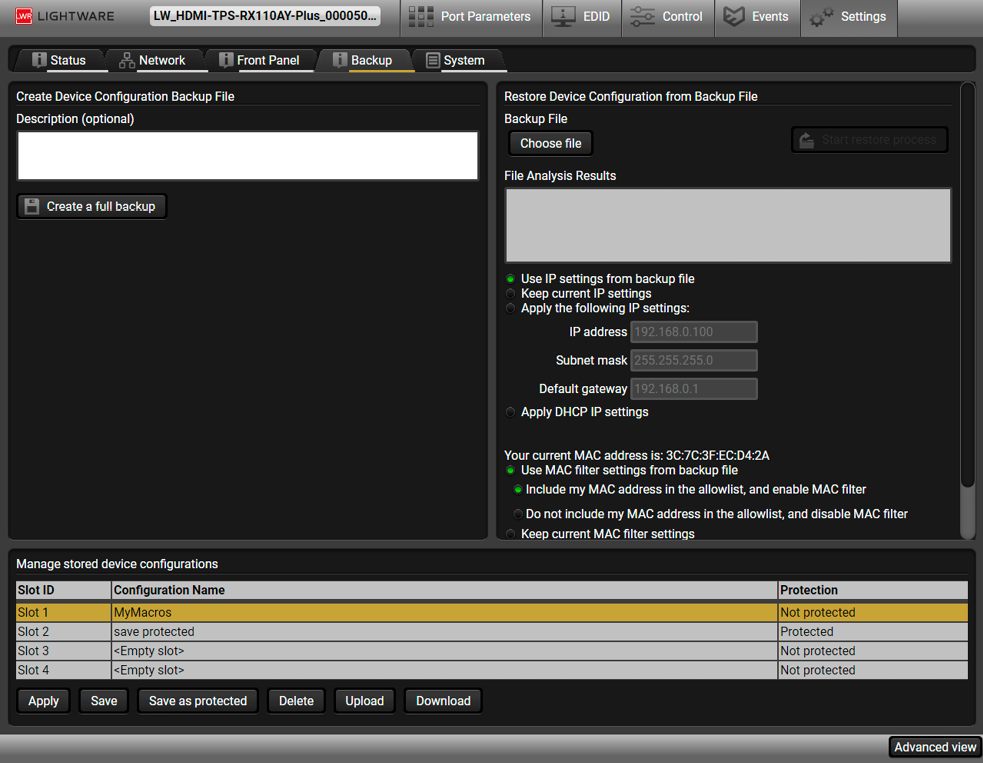
Backup tab in the Settings menu
Installing multiple devices with the same customized configuration settings can be done in a few easy steps:
Step 1.Configure one device with all your desired settings using the LDC software.
Step 2.Backup the full configuration file to your computer.
Step 3.If needed, make some modifications to the configuration file using a text editor (e.g. Notepad). E.g. modifying the static IP address is necessary when DHCP is not used.
Step 4.Connect to the other device that needs to be configured and upload (restore) your configuration file.
Step 5.Done! You can have as many totally identical, customized devices as you like.
ATTENTION!Macros cannot be saved into the backup file. If you have macros stored in a Configuration slot, download it separately and upload it in the target device.
5.11.2. Save the Settings of a Device (Backup)
Step 1.Apply the desired settings in the device (port settings, parameters, etc.)
Step 2.Select the Settings / Backup tab from the menu.
Step 3.Write a short description in the text box on the left (optional).
Step 4.Press the Create a full backup button. You will be prompted to save the file to the computer. The default file name is the following:
BACKUP_<DEVICE TYPE>_SN<SERIAL NUMBER>.LW3
Step 5.Set the desired file name, select the folder and save the file.
TIPS AND TRICKS:Using the exact product type in the filename is recommended, since it makes the file usage more comfortable.
About the Backup File
The backup file is a simple text file, which contains LW3 protocol commands. The first line is the description and the further lines are the commands that will be executed during the restoration process. The file can be viewed (and/or edited) by a simple text editor, e.g. Notepad.
See the entire list of saved data in the Content of Backup File section.
ATTENTION!Editing the command lines is only recommended for expert users.
5.11.3. Upload the Settings to a Device (Restore)
WARNING!Please note that the settings will be permanently overwritten with the restored parameters in the device. Withdrawal is not possible.
ATTENTION!The cloning can be successful if the backup file is downloaded from the same type of source device as the destination device.
The Restoring Process
Step 1.Select the Settings / Backup tab from the menu.
Step 2.Click on the Choose file button on the right panel and browse the desired file.
Step 3.The file is checked and the result will be displayed in the textbox below. If the file is correct, the settings can be restored.
Step 4.Choose the IP settings that you want to use after backup. You can apply settings from the backup file, keep actual settings, set it manually in a dialog box or apply DHCP.
Step 5.Select the desired MAC filter settings to be applied in the device. See more information about this feature in the MAC Filter Allowlist section.
Step 6.Press the Start restore process button and click on the Yes button when asked.
Step 7.Reboot the device to apply the network settings after finishing.
5.11.4. Create and Restore Backups from the Device Memory
The device can store configurations in its own memory, four internal slots are available for this purpose.

You can save the configuration to the internal slot:
▪without protection: it can be easily applied/deleted, or
▪with protection: applying or deleting a configuration may be protected by a password.

|
Loading the selected configuration |

|
Deleting the selected configuration |

|
Saving the current configuration to the selected slot without protection |

|
Loading a configuration from a file to the selected slot |

|
Saving the current configuration to the selected slot with a password |

|
Saving the selected configuration as a file |
The preset can be used for the macros as well, please see the Macros section.
WARNING!Loading factory default settings will erase the internal preset in the device memory!
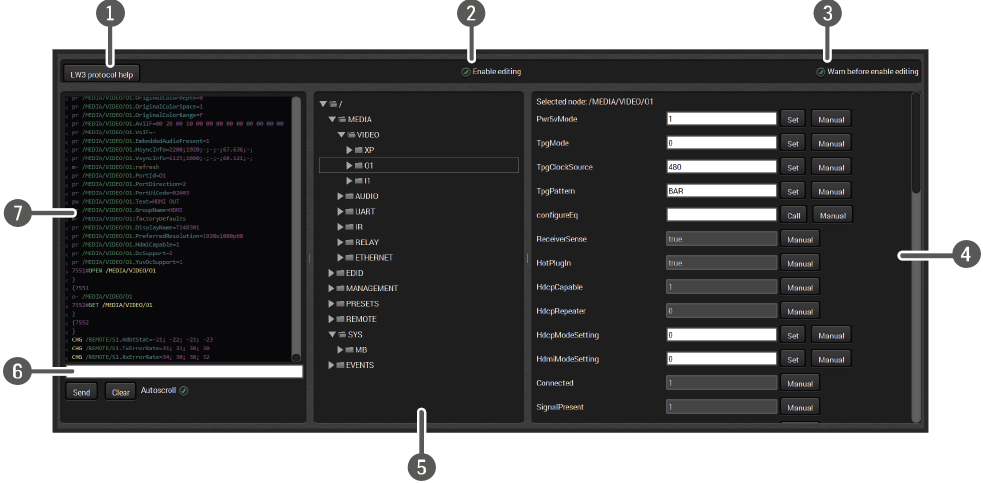
|
|
LW3 protocol help |
Pushing the button opens a help window, which describes the most important information about LW3 protocol commands in HTML format. |
|
|
|
Edit mode |
The default appearance is the read-only mode. If you want to modify the values or parameters, tick the option. You will be prompted to confirm your selection. |
|
|
|
Warning mode |
If this is checked, a warning window pops up when you enable Edit mode. |
|
|
|
Node list |
Correspondent parameters and nodes are shown that are connected to the selected item in the protocol tree. The commands typed in these fields are escaped automatically |
|
|
Manual button: |
Manual (short description) of the node can be called and displayed in the terminal window. |
||
|
Set button: |
Saves the value/parameter typed in the textbox. |
||
|
Call button: |
Calls the method, e.g. reloads factory default settings. |
||
|
|
Protocol tree |
LW3 protocol tree; select an item to see its content. |
|
|
|
Command line |
Type the desired command and execute it by the Send button. Clear all current commands and responses in the Terminal window by the Clear button. The commands typed in this line are not escaped automatically. |
|
|
|
Terminal window |
Commands and responses with time and date are listed in this window. The sent command starts with ‘>’ character, the received response starts with ‘<’ character. The color of each item depends on the type of the command and response. The content of the window can be emptied by the Clear button. If the Autoscroll option is ticked, the list is scrolled automatically when a new line is added. |
|
#terminal #advancedview
6
The device can be controlled through a reduced command set of LW2 protocol commands to ensure the compatibility with other Lightware products. The supported LW2 commands are described in this chapter.
The protocol description hereinafter stands for Lightware protocol 2. The commands below can be sent to the device in RAW format via the TCP/IP port no. 10001.
The receiver accepts commands surrounded by curly brackets - { } - and responds data surrounded by round brackets - ( ) - only if a command was successfully executed. All input commands are converted to uppercase, but response commands can contain upper and lower case letters as well.
Legend for Control Commands
|
Format |
Explanation |
|
<in> |
Input number in 1- or 2-digit ASCII format (01, 5, 07, 16, etc.) |
|
<out> |
Output number in 1- or 2-digit ASCII format |
|
<in/out> |
Input or output port number in 1- or 2-digit ASCII format * |
|
<in2> |
Input number in 2-digit ASCII format (01, 02, 10, 12 etc.) |
|
<out2> |
Output number in 2-digit ASCII format (01, 02, 10, 12 etc.) |
|
<in2/out2> |
Input or output number in 2-digit ASCII format* |
|
<loc> |
Location number in 1-, 2- or 3-digit ASCII format |
|
<id> |
ID number in 1- or 2-digit ASCII format |
|
<id2> |
ID number in 2-digit ASCII format |
|
CrLf |
Carriage return, Line feed (0x0D, 0x0A) |
|
· |
Space character (0x20) |
|
→ |
Each command issued by the controller |
|
|
Each response received from the router |


* The command has the same arguments on the input ports and the output port, as well.
6.2. Instructions for the Terminal Application Usage

Terminal Application
The LW2 protocol commands can be applied to the receiver using a terminal application. You need to install one of them on your control device, for example Putty or CLI. #terminal
Establishing Connection
Follow the steps for establishing connection to the receiver:
Step 1.Connect the receiver to a LAN over Ethernet (see the details in the Connecting Steps section).
Step 2.Open the terminal application (e.g. Putty).
Step 3.Add the IP address of the device (default: 192.168.0.100) and the port number (10001).
Step 4.Select the Raw connection type, and open the connection.
Once the terminal window is opened, you can enter the LW2 protocol commands, which are listed in the following sections.
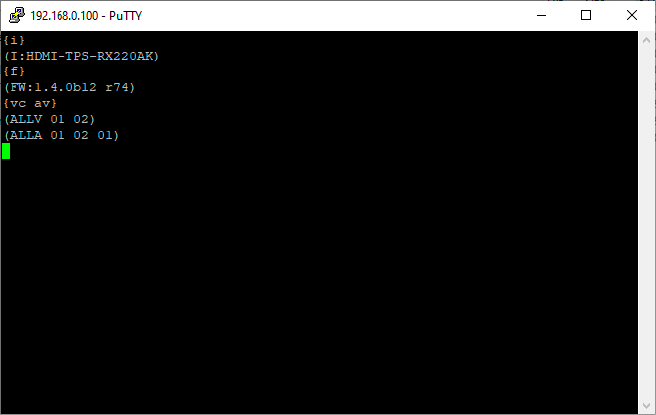
LW2 protocol command communication in a terminal window
6.3.1. List of All Available LW2 Commands
Command and Response
»{lcmd}
«(LCMD# LCMD: List all commands)CrLf
«<LW2_commands>CrLf
«(LCMD END)CrLf
Example
»{lcmd}
«(LCMD# LCMD: List all commands)
«(LCMD# PING: Always response PONG)
«(LCMD# CT: Compile time)
«...
«(LCMD END)
6.3.2. Viewing the Product Type
The device responds its name. #producttype
Command and Response
»{i}
«(I:<product_type>)CrLf
Example
»{i}
«(I:HDMI-TPS-RX110AY)
6.3.3. Querying the Control Protocol
The device can be controlled with different control protocols. This command queries the active protocol of the currently used control interface. #protocol
Command and Response
»{p_?}
«(CURRENT·PROTOCOL·=·#<protocol>)CrLf
Example
»{p_?}
«(CURRENT PROTOCOL = #1)
Explanation
The device communicates with LW2 protocol.
6.3.4. Viewing the Firmware Version of the CPU
Command and Response #firmwareversion
»{f}
«(FW:<firmware_version>)CrLf
Example
»{f}
«(FW:1.4.0b12 r74)
Simple test to see if the connection is established successfully.
Command and Response
»{ping}
«(PONG!)CrLf
Example
»{ping}
«(PONG!)
6.3.6. Viewing the Serial Number
The device responds its 8-digit serial number. #serialnumber
Command and Response
»{s}
«(SN:<serial_number>)CrLf
Example
»{s}
«(SN:A2000274)
Returns the date when the CPU firmware was compiled.
Command and Response
»{ct}
«(COMPILED:·<date>·<time>)CrLf
Example
»{ct}
«(Compiled: Jan 29 2020 17:16:28)
6.3.8. Viewing Installed Boards
Shows the hardware name and revision of the installed cards.
Command and Response
»{is}
«(SL#·0·<mb_desc>)CrLf
«(SL·END)CrLf
Example
»{is}
«(SL# 0 HDMI-TPS-RX110AY)
«(SL END)
6.3.9. Viewing Firmware for All Controllers
Shows the firmware versions of all installed controllers. #firmwareversion
Command and Response
»{fc}
«(CF·<device>·<firmware_version>)CrLf
«(CF·END)CrLf
Example
»{fc}
«(CF HDMI-TPS-RX110AY 1.4.0b12 r74)
«(CF END)
The device can be restarted without unplugging power. #restart #reboot
Command and Response
»{rst}
«
Example
»{rst}
«
6.3.11. Querying Health Status
Internal voltages and measured temperature values are shown. #status
Command and Response
»{st}
«(ST·<health_status>)CrLf
Example
»{st}
«(ST CPU 12.18V 5.03V 3.30V 0.01V 3.38V 1.30V 1.86V 0.99V 0.01V 53.67C 53.67C)
6.3.12. Restoring Factory Default Settings
All settings and parameters are reset to factory default, see the table in the Factory Default Settings section. #factory
Command and Response
»{factory=all}
«(FACTOR Y ALL…)CrLf
Example
»{factory=all}
«(FACTORY ALL…)
INFO:<A/V/AV> option usually can be skipped for legacy purposes. In this case, the devices change all (Video & Audio) layers, but using status commands, it displays information about only the Video layer. Please use the AV option when available.
Command and Response #mute
»{#<out>·<layer>}
«(1MT<out>·<layer>)CrLf
Parameters
|
Identifier |
Parameter description |
Value |
Parameter value |
|
<layer> |
The layer of the HDMI signal |
A |
Audio layer |
|
V |
Video layer |
||
|
AV |
Audio and video layers together |
Example
»{#2 A}
«(1MT02 A)
Explanation
The audio signal of the Analog audio out (02) is muted.
ATTENTION!Muting does not change the state of the crosspoint, but disables the output itself. This way the last connection can be easily restored with an unmute command. Switching a muted output does not unmute the output.
Command and Response #unmute
»{+<out>·<layer>}
«(0MT<out>·<layer>)CrLf
Parameters
|
Identifier |
Parameter description |
Value |
Parameter value |
|
<layer> |
The layer of the HDMI signal |
A |
Audio layer |
|
V |
Video layer |
||
|
AV |
Audio and video layers together |
Example
»{+1}
«(0MT01)
Explanation
The audio and video signals of the HDMI out (01) is unmuted.
INFO:Unmuting an output makes the previous connection active, as the crosspoint state has not been changed by the muting command, only the output was disabled.
Lock an output port. The state of the output cannot be changed until unlocking.
Command and Response #lock
»{#><out>·<layer>}
«(1LO<out>·<layer>)CrLf
Parameters
|
Identifier |
Parameter description |
Value |
Parameter value |
|
<layer> |
The layer of the HDMI signal |
A |
Audio layer |
|
V |
Video layer |
||
|
AV |
Audio and video layers together |
Example
»{#>1 V}
«(1LO01 V)
Explanation
The video signal of the HDMI out (01) is locked.
Command and Response #unlock
»{+<<out>·<layer>}
«(0LO<out>·<layer>)CrLf
Parameters
|
Identifier |
Parameter description |
Value |
Parameter value |
|
<layer> |
The layer of the HDMI signal |
A |
Audio layer |
|
V |
Video layer |
||
|
AV |
Audio and video layers together |
Example
»{+<1}
«(0LO01)
Explanation
The audio and video signals of the HDMI out 1 (01) is unlocked.
6.4.5. Viewing the Connection State on the Outputs
Command and Response #portstatus
»{VC·<layer>}
«(ALL<layer>·<state_letter><in>)CrLf
Parameters
|
Identifier |
Parameter description |
Value |
Parameter value |
|
<layer> |
The layer of the HDMI signal |
A |
Audio layer |
|
V |
Video layer |
||
|
AV |
Audio and video layers together |
||
|
<state_letter> |
The mute and lock state of the output port. |
L |
The output port is locked. |
|
M |
The output port is muted. |
||
|
U |
The output port is locked and muted. |
Example
»{vc av}
«(ALLV 01)
«(ALLA 01 01)
Explanation
The O1 audio and O1 video output ports are connected to the I1 audio and I1 video input ports.
6.4.6. Viewing Crosspoint Size
Shows the physical crosspoint size.
Command and Response
»{GETSIZE·<layer>}
«(SIZE=<size>·<layer>)CrLf
Parameters
|
Identifier |
Parameter description |
Value |
Parameter value |
|
<size> |
The size of the crosspoint |
<in>x<out> |
The number of the input ports and the output ports separated with an "x". |
|
<layer> |
The layer of the HDMI signal |
A |
Audio layer |
|
V |
Video layer |
||
|
AV |
Audio and video layers together |
Example
»{getsize av}
«(SIZE=1x1 V)
«(SIZE=1x2 A)
Explanation
The device reports that it has a video crosspoint with 1 input and 1 output, and an audio crosspoint with 1 input and 2 outputs.
The network configuration of the device can be queried as follows. #network #ipaddress #dhcp
Command and Response
»{IP_STAT=?}
«(IP_STAT=<mode>;<ip_address>;<subnet_mask>;<gateway_addr>)CrLf
Parameters
|
Identifier |
Parameter description |
Value |
Parameter value |
|
<mode> |
Static IP address setting or DHCP (dynamic IP address) |
0 |
Static IP address |
|
1 |
DHCP |
||
|
<ip_address> |
Current IP address of the device |
IP address (four decimal octets separated by dots). |
|
|
<subnet_mask> |
Current subnet mask of the device |
Subnet mask (four decimal octets separated by dots). |
|
|
<gateway_address> |
Current gateway address of the device |
Gateway address (four decimal octets separated by dots). |
Example
»{ip_stat=?}
«(IP_STAT=0;192.168.0.75;255.255.255.0;192.168.0.1)
Explanation
The device has a static (fix) IP address: 192.168.0.75; the subnet mask is 255.255.255.0, the gateway address is 192.168.0.1.
6.5.2. Querying the IP Address
IP address can be queried as follows.
Command and Response
»{IP_ADDRESS=?}
«(IP_ADDRESS=<mode>;<ip_address>)CrLf
Parameters
|
Identifier |
Parameter description |
Value |
Parameter value |
|
<mode> |
Static IP address setting or DHCP (dynamic IP address) |
0 |
Static IP address |
|
1 |
DHCP |
||
|
<ip_address> |
Current IP address of the device |
IP address (four decimal octets separated by dots). |
Example
»{ip_address=?}
«(IP_ADDRESS=1;192.168.2.118)
Explanation
The device has a DHCP (dynamic) IP address: 192.168.2.118.
IP address can be set as follows.
Command and Response
»{IP_ADDRESS=<mode>;<ip_address>}
«(IP_ADDRESS=<mode>;<ip_address>)CrLf
Parameters
|
Identifier |
Parameter description |
Value |
Parameter value |
|
<mode> |
Static IP address setting or DHCP (dynamic IP address) |
0 |
Static IP address |
|
1 |
DHCP |
||
|
<ip_address> |
IP address of the device |
IP address (four decimal octets separated by dots). |
Example
»{ip_address=1;}
«(IP_ADDRESS=1;192.168.2.118)
Explanation
The device is set to DHCP (dynamic) IP address and got 192.168.2.118.
6.5.4. Querying the Subnet Mask
IP address can be queried as follows.
Command and Response
»{IP_NETMASK=?}
«(IP_NETMASK=<subnet_mask>)CrLf
Parameters
|
Identifier |
Parameter description |
Value |
Parameter value |
|
<subnet_mask> |
Current subnet mask of the device |
Subnet mask (four decimal octets separated by dots). |
Example
»{ip_netmask=?}
«(IP_NETMASK=255.255.255.0)
6.5.5. Setting the Subnet Mask
IP address can be set as follows.
Command and Response
»{IP_NETMASK=<subnet_mask>}
«(IP_NETMASK=<subnet_mask>)CrLf
Parameters
|
Identifier |
Parameter description |
Value |
Parameter value |
|
<subnet_mask> |
Subnet mask of the device |
Subnet mask (four decimal octets separated by dots). |
Example
»{ip_netmask=255.255.0.0}
«(IP_NETMASK=255.255.0.0)
6.5.6. Querying the Gateway Address
Gateway address can be queried as follows.
Command and Response
»{IP_GATEWAY=?}
«(IP_GATEWAY=<gateway_address>)CrLf
Parameters
|
Identifier |
Parameter description |
Value |
Parameter value |
|
<gateway_address> |
Current gateway address of the device |
Gateway address (four decimal octets separated by dots). |
Example
»{ip_gateway=?}
«(IP_GATEWAY=192.168.0.1)
6.5.7. Setting the Gateway Address
Gateway address can be set as follows.
Command and Response
»{IP_GATEWAY=<gateway_address>}
«(IP_GATEWAY=<gateway_address>)CrLf
Parameters
|
Identifier |
Parameter description |
Value |
Parameter value |
|
<gateway_address> |
Current gateway address of the device |
Gateway address (four decimal octets separated by dots). |
Example
»{ip_gateway=192.168.0.1}
«(IP_GATEWAY=192.168.0.1)
6.5.8. Applying Network Settings
Applying the network settings and restarting the network interface.
ATTENTION!The command is always required as the last step for applying the modified network settings.
Command and Response
»{IP_APPLY}
«(IP_APPLY)CrLf
Example
»{ip_apply}
«(IP_APPLY)
6.6.1. Setting the RS-232 Mode
RS-232 mode can be set as follows. See more details about RS -232 modes in the Serial Interface section. #rs232 #rs-232 #serial #commandinjection #protocol
Command and Response
»{RS232=<mode>}
«(RS232=<mode>)CrLf
Parameters
|
Identifier |
Parameter description |
Value |
Parameter value |
|
<mode> |
RS-232 operation mode |
CONTROL |
Control mode |
|
CI |
Command injection mode |
||
|
PASS |
Pass-through mode |
Example
»{rs232=control}
«(RS232=CONTROL)
INFO:The current RS-232 mode can be queried by the {RS232=?} command.
6.6.2. Setting the Local RS-232 Parameters
The parameters of local RS -232 port can be set as follows.
Command and Response
»{RS232_LOCAL_FORMAT=<BaudRate>;<DataBit>;<Parity>;<StopBit>}
«(RS232_LOCAL_FORMAT=<BaudRate>;<DataBit>;<Parity>;<StopBit>)CrLf
Parameters
|
Identifier |
Parameter description |
Value |
Parameter value |
|
<BaudRate> |
Baud rate |
X |
No change |
|
4800 |
4800 |
||
|
7200 |
7200 |
||
|
9600 |
9600 |
||
|
14400 |
14400 |
||
|
19200 |
19200 |
||
|
38400 |
38400 |
||
|
57600 |
57600 |
||
|
115200 |
115200 |
||
|
<DataBit> |
Data bit |
X |
No change |
|
8 |
8 |
||
|
9 |
9 |
||
|
<Parity> |
Parity |
X |
No change |
|
N |
None |
||
|
E |
Even |
||
|
O |
Odd |
||
|
<StopBit> |
Stop Bit |
X |
No change |
|
1 |
1 |
||
|
1,5 |
1,5 |
||
|
2 |
2 |
Example
»{rs232_local_format=9600;8;O;X}
«(RS232_LOCAL_FORMAT=9600;8;O;X)
Explanation
Local RS-232 port is set as the following: the baud rate to 9600, data bit to 8, parity to odd, and stop bit is not changed, remained 1.
INFO:The current local RS-232 parameters can be queried by the {RS232_LOCAL_FORMAT=?} command.
6.6.3. Setting the Link RS-232 Parameters
The parameters of link RS-232 (TPS) port can be set as follows.
Command and Response
»{RS232_LINK_FORMAT=<BaudRate>;<DataBit>;<Parity>;<StopBit>}
«(RS232_LINK_FORMAT=<BaudRate>;<DataBit>;<Parity>;<StopBit>)CrLf
Parameters
|
Identifier |
Parameter description |
Value |
Parameter value |
|
<BaudRate> |
Baud rate |
X |
No change |
|
4800 |
4800 |
||
|
7200 |
7200 |
||
|
9600 |
9600 |
||
|
14400 |
14400 |
||
|
19200 |
19200 |
||
|
38400 |
38400 |
||
|
57600 |
57600 |
||
|
115200 |
115200 |
||
|
<DataBit> |
Data bit |
X |
No change |
|
8 |
8 |
||
|
9 |
9 |
||
|
<Parity> |
Parity |
X |
No change |
|
N |
None |
||
|
E |
Even |
||
|
O |
Odd |
||
|
<StopBit> |
Stop Bit |
X |
No change |
|
1 |
1 |
||
|
1,5 |
1,5 |
||
|
2 |
2 |
Example
»{rs232_link_format=9600;8;O;X}
«(RS232_LINK_FORMAT=9600;8;O;X)
Explanation
Link RS-232 port is set as the following: the baud rate to 9600, data bit to 8, parity to odd, and stop bit is not changed, remained 1.
INFO:The current link RS-232 parameters can be queried by the {RS232_LINK_FORMAT=?} command.
6.6.4. Setting the Local RS-232 Control Protocol
The control protocol of local RS-232 port can be set as follows.
Command and Response
»{RS232_LOCAL_PROT=<protocol>}
«(RS232_LOCAL_PROT=<protocol>)CrLf
Parameters
|
Identifier |
Parameter description |
Value |
Parameter value |
|
<protocol> |
RS-232 control protocol |
LW2 |
LW2 control protocol |
|
LW3 |
LW3 control protocol |
Example
»{rs232_local_prot=lw2}
«(RS232_LOCAL_PROT=LW2)
INFO:The current local RS-232 parameters can be queried by the {RS232_LOCAL_PROT=?} command.
6.6.5. Setting the Link RS-232 Control Protocol
The control protocol of link RS-232 (TPS) port can be set as follows.
Command and Response
»{RS232_LINK_PROT=<protocol>}
«(RS232_LINK_PROT=<protocol>)CrLf
Parameters
|
Identifier |
Parameter description |
Value |
Parameter value |
|
<protocol> |
RS-232 control protocol |
LW2 |
LW2 control protocol |
|
LW3 |
LW3 control protocol |
Example
»{rs232_link_prot=lw2}
«(RS232_LINK_PROT=LW2)
INFO:The current local RS-232 parameters can be queried by the {RS232_LINK_PROT=?} command.
6.7.1. Querying the Relay Connection State
Current relay connection state can be queried. #relay
Command and Response
»{RELAY<port_nr>=?}
«(RELAY<port_nr>=<direction>;<state>)CrLf
Parameters
|
Identifier |
Parameter description |
Value |
Parameter value |
|
<direction> |
Direction of the relay (input/output) |
O |
Output (it is always O as Output) |
|
<state> |
State of the connection |
C |
Closed |
|
O |
Opened |
Example
»{relay1=?}
«(RELAY1=O;O)
Explanation
Relay1 is opened now.
6.7.2. Setting the Relay Connection State
Command and Response
»{RELAY<port_nr>=<direction>;<state>}
«(RELAY<port_nr>=<direction>;<state>)CrLf
Parameters
|
Identifier |
Parameter description |
Value |
Parameter value |
|
<direction> |
Direction of the relay (input/output) |
O |
Output (it is always O as Output) |
|
<state> |
State of the connection |
C |
Closed |
|
O |
Opened |
Example
»{relay1=O;C}
«(RELAY1=O;C)
Explanation
Relay1 is closed now.
6.8. LW2 Commands – Quick Summary
7
The device can be controlled through Lightware 3 (LW3) protocol commands to ensure the compatibility with other Lightware products. The supported LW3 commands are described in this chapter
The Lightware Protocol #3 (LW3) is implemented in almost all new Lightware devices (matrix switchers, signal extenders and distribution amplifiers) since 2012. The protocol is ASCII-based and all commands are terminated with a carriage return (Cr, ‘\r’) and line feed (Lf, ‘\n’) pair. It is organized as a tree structure that provides outstanding flexibility and user-friendly handling with ‘nodes’, ‘properties’ and ‘methods’. The Advanced View of the Lightware Device Controller software is the perfect tool for browsing and learning how the LW3 protocol can be used in practice.
7.2. Instructions for the Terminal Application Usage

Terminal Application
The LW3 protocol commands can be applied to the receiver using a terminal application. You need to install one of them on your control device, for example Putty or CLI. #terminal
Establishing Connection
Follow the steps for establishing connection to the receiver:
Step 1.Connect the receiver to a LAN over Ethernet (see the details in the Connecting Steps section).
Step 2.Open the terminal application (e.g. Putty).
Step 3.Add the IP address of the device (default: 192.168.0.100) and the port number (6107).
Step 4.Select the Raw connection type, and open the connection.
Once the terminal window is opened, you can enter the LW3 protocol commands, which are listed in the following sections.
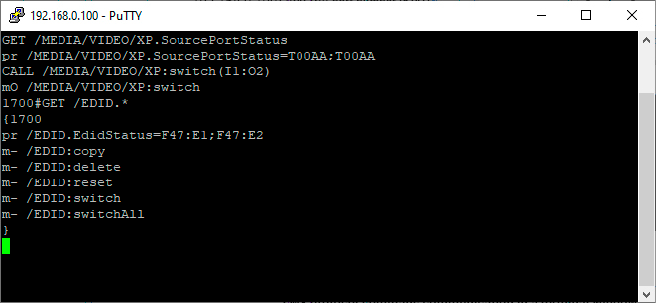
LW3 protocol command communication in a terminal window
7.3.1. LW3 Tree Structure and Command Structure (examples)
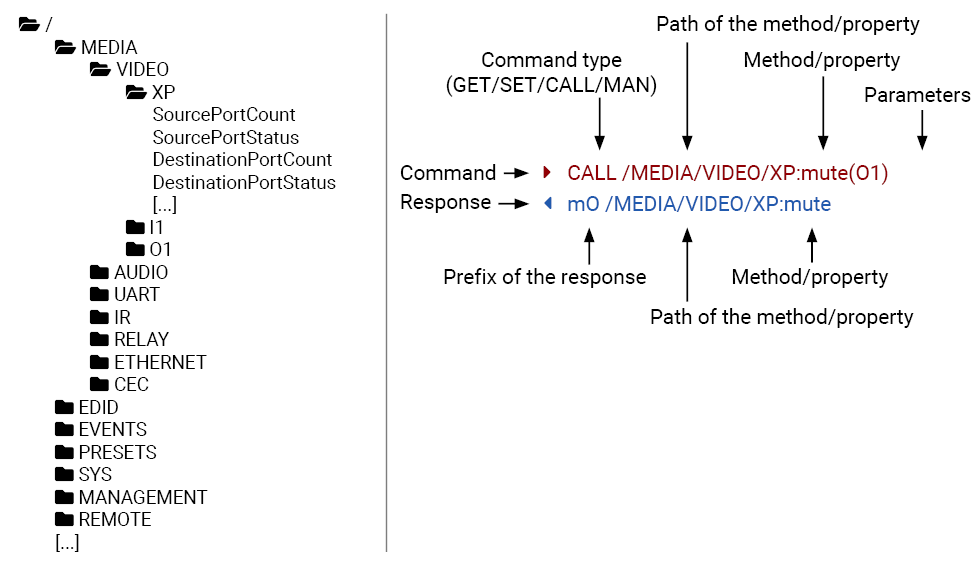
▪All names and parameters are case-sensitive.
▪The nodes are separated by a slash (‘/’) character.
▪The node name can contain the elements of the English alphabet and numbers.
▪The length of a line (command/response, command type / prefix, path, method/property and parameters together) can be max. 800 bytes.
▪The command lines have to be closed by Carriage return and Line Feed (CrLf)
▪Use the TCP port no. 6107 when using LW3 protocol over Ethernet.
▪When a command is issued by the device, the received response cannot be processed by the CPU.
▪The node paths describe the exact location of the node, listing each parent node up to the root.
GET command
The GET command can be used to get the child nodes, properties and methods of a specific node. It can also be used to get the value of a property. Use the dot character (.) when addressing a property:
»GET /.SerialNumber
«pr /.SerialNumber=87654321
GETALL command
The GETALL command can be used to get all child nodes, properties and methods of a node with one command.
»GETALL /MEDIA/UART
«ns /MEDIA/UART/RECOGNIZER
«ns /MEDIA/UART/P1
«ns /MEDIA/UART/P2
«pr /MEDIA/UART.PortCount=2
«pr /MEDIA/UART.PortUi=P1:12209;P2:12224
«pr /MEDIA/UART.P1=Local RS-232
«pr /MEDIA/UART.P2=TPS in RS-232
SET command
The SET command can be used to modify the value of a property. Use the dot character (.) when addressing the property:
»SET /MEDIA/VIDEO/O1.TpgPattern=CYCLE
«pw /MEDIA/VIDEO/O1.TpgPattern=CYCLE
CALL command
A method can be invoked by the CALL command. Use the colon character (:) when addressing the method:
»CALL /MEDIA/RELAY/P1:toggle(P1)
«mO /MEDIA/RELAY/P1:toggle
MAN command
The manual is a human readable text that describes the syntax and provides a hint on how to use the primitives. For every node, property and method in the tree there is a manual; type the MAN command to get the manual:
»MAN /MEDIA/VIDEO/O1.Pwr5vMode
«pm /MEDIA/VIDEO/O1.Pwr5vMode ["0" | "1" | "2"] 0 - Auto, 1 - Always On, 2 - Always Off
DEFINITION:The prefix is a 2-character-long code that describes the type of the response.
The following prefixes are defined in the LW3 protocol:
|
Prefix |
Description |
Prefix |
Description |
|
|
n- |
a node |
pm |
a manual for the property |
|
|
nE |
an error for a node |
m- |
a method |
|
|
nm |
a manual for a node |
mO |
a response after a successful method execution |
|
|
ns |
a child node of a node |
|||
|
pr |
a read-only property |
mF |
a response after a failed method execution |
|
|
pw |
read-write property |
mE |
an error for a method |
|
|
pE |
an error for the property |
mm |
a manual for a method |
There are several error messages defined in the LW3 protocol, all of them have a unique error number.
»CALL /MEDIA/VIDEO/XP:lock(IA)
«mE /MEDIA/VIDEO/XP:lock %E002:Not exist
DEFINITION:An escape sequence is a sequence of characters that does not represent itself when used inside a character or string literally, but is translated into another character or a sequence of characters.
Property values and method parameters can contain characters that are used as control characters in the protocol. They must be escaped. The escape character is the backslash (‘\’) and escaping means injecting a backslash before the character that should be escaped (like in C language).
Control characters are the following: \ { } # % ( ) \r \n \t
The original message: CALL /MEDIA/UART/P1:sendMessage(Set(01))
The escaped message: CALL /MEDIA/UART/P1:sendMessage(Set\(01\))
DEFINITION:The signature is a 4-digit-long hexadecimal value that can be optionally placed before every command to keep a command and the corresponding responses together as a group.
Each line is terminated with carriage return (Cr, ‘\r’) and line feed (Lf, ‘\n’) characters. In several cases the number of the lines in the response cannot be determined in advance, e.g. the client intends to receive the whole response and also wants to be sure that the received lines belong together and to the same command. In these cases a special feature, the ‘signature’ can be used. The response to that particular command will also be preceded by the signature, and the corresponding lines will be between brackets:
»1700#GET /EDID.*
«{1700
«pr /EDID.EdidStatus=D1:E1
«m- /EDID:copy
«m- /EDID:delete
«m- /EDID:reset
«m- /EDID:switch
«m- /EDID:switchAll
«}
INFO:The lines of the signature are also Cr and Lf terminated.
DEFINITION:Subscription to a node means that the user will get a notification if a property of the node changes.
A user can subscribe to any node. These notifications are asynchronous messages and are useful to keep the client application up to date, without having to periodically poll the node to detect a changed property. When the user does not want to be informed about the changes anymore, he can simply unsubscribe from the node.
ATTENTION!The subscriptions are handled separately for connections. Hence, if the connection is terminated, all registered subscriptions are deleted. After reopening a connection all subscribe commands have to be sent in order to get the notifications of the changes on that connection.
Subscribe to a Node
»OPEN /MEDIA/VIDEO
«o- /MEDIA/VIDEO
Subscribe to Multiple Nodes
»OPEN /MEDIA/VIDEO/*
«o- /MEDIA/VIDEO/*
Unsubscribe from a Node
»CLOSE /MEDIA/VIDEO
«c- /MEDIA/VIDEO
Get the Active Subscriptions
»OPEN
«o- /MEDIA/VIDEO
«o- /EDID
«o- /DISCOVERY
Unsubscribe from Multiple Nodes
»CLOSE /MEDIA/VIDEO/*
«c- /MEDIA/VIDEO/*
7.3.9. Notifications about the Changes of the Properties
When the value of a property is changed and the user is subscribed to the node that the property belongs to, an asynchronous notification is generated. This notification is called the ‘change message’. The format of such a message is very similar to the response for the GET command:
«CHG /EDID.EdidStatus=F48:E1
A Short Example of How to Use the Subscription
There are two independent users controlling the device through two independent connections (Connection #1 and Connection #2). The events in the rows occur after each other.
|
»OPEN /MEDIA/AUDIO/O2 «o- /MEDIA/AUDIO/O2 »GET /MEDIA/AUDIO/O2.VolumePercent «pw /MEDIA/AUDIO/O2.VolumePercent=100.00 |
connection #1 |
|
»GET /MEDIA/AUDIO/O2.VolumePercent «pw /MEDIA/AUDIO/O2.VolumePercent=100.00 «SET /MEDIA/AUDIO/O2.VolumePercent=50.00 «pw /MEDIA/AUDIO/O2.VolumePercent=50.00 |
connection #2 |
|
«CHG /MEDIA/AUDIO/O2.VolumePercent=50.00 |
connection #1 |
Explanation: The first user (Connection #1) set a subscription to a node. Later the other user (Connection #2) made a change, and thanks to the subscription, the first user got a notification about the change.
7.3.10. Legend for the Control Commands
|
Format |
Description |
|
<in> |
Input port number |
|
<out> |
Output port number |
|
<port> |
Input or output port number |
|
<loc> |
Location number |
|
<parameter> |
Specific property, which is defined and described in the command |
|
<expression> |
Batched parameters: the underline means that more expressions or parameters can be placed by using a semicolon, e.g. O1;O2 or F27:U1;F47:U2 |
|
|
Sent command |
|
|
Received response |
|
· |
Space character |


Further not listed <parameters> are defined at each command.
7.4.1. Querying the Product Name
The name of the product is a read-only parameter and cannot be modified.
Command and Response
»GET·/.ProductName
«pr·/.ProductName=<Product_name>
Example
»GET /.ProductName
«pr /.ProductName=HDMI-TPS-RX110AY-Plus
7.4.2. Setting the Device Label
ATTENTION!The device label can be changed to a custom text in the Status tab of the LDC software. This writable parameter is not the same as the ProductName parameter. #devicelabel
The default format of the device label is: LW_<product_name>_<serial_no>
Command and Response #devicelabel #label
»SET·/MANAGEMENT/UID/DeviceLabel=<Custom_name>
«pw·/MANAGEMENT/UID/DeviceLabel=<Custom_name>
The Device Label can be 39 character length and ASCII characters are allowed. Longer names are truncated.
Example
»SET /MANAGEMENT/UID.DeviceLabel=RX110_Conference1
«pw /MANAGEMENT/UID.DeviceLabel=RX110_Conference1
7.4.3. Querying the Serial Number
Command and Response
»GET·/.SerialNumber
«pr·/.SerialNumber=<serial_nr>
Example
»GET /.SerialNumber
«pr /.SerialNumber=87654321
7.4.4. Querying the Firmware Version
Command and Response #firmwareversion
»GET·/SYS/MB.FirmwareVersion
«pr·/SYS/MB.FirmwareVersion=<firmware_version>
Example
»GET /SYS/MB.FirmwareVersion
«pr /SYS/MB.FirmwareVersion=1.4.0b14
Calling the method results the blinking of the status LEDs for 10 seconds. The feature helps to identify the device itself in the rack shelf.
Command and Response #identifyme
»CALL·/MANAGEMENT/UI:identifyMe()
«mO·/MANAGEMENT/UI:identifyMe=
Example
»CALL /MANAGEMENT/UI:identifyMe()
«mO /MANAGEMENT/UI:identifyMe
This command turns the LEDs on/off on the device.
Command and Response #darkmode
»SET·/MANAGEMENT/UI/DARKMODE.DarkModeEnable=<status>
«pw·/MANAGEMENT/UI/DARKMODE.DarkModeEnable=<status>
Parameters
|
Identifier |
Parameter description |
Value |
Explanation |
|
<status> |
Status of the dark mode |
true |
Dark mode is enabled. |
|
false |
Dark mode is disabled. |
Example
»SET /MANAGEMENT/UI/DARKMODE.DarkModeEnable=true
«pw /MANAGEMENT/UI/DARKMODE.DarkModeEnable=true
The receiver can be restarted – the current connections (LAN, RS-232, USB) will be terminated.
Command and Response #restart #reboot
»CALL·/SYS:reset()
«mO·/SYS:reset=
Example
»CALL /SYS:reset()
«mO /SYS:reset=
7.4.8. Restoring the Factory Default Settings
Command and Response #factory
»CALL·/SYS:factoryDefaults()
«mO·/SYS:factoryDefaults=
Example
»CALL /SYS:factoryDefaults()
«mO /SYS:factoryDefaults=
The device is restarted, current connections are terminated, and the default settings are restored. See the complete list in the Factory Default Settings section.
DIFFERENCE:This feature is available only in the HDMI-TPS-RX110AY-Plus model, from FW package v1.5.0b3.
DEFINITION:A macro is a batch of pre-defined commands stored in the device. #macro
You can create your custom macros in a file, upload them to the device and run at any time. The uploading can be done over LDC, see the Uploading New Macros into the Internal Device Configuration Preset section. The following LW3 command is suitable only for running a macro.
Command and Response
»CALL·/CTRL/MACROS:run(<macro_name>)
«mO·/CTRL/MACROS:run
Example
»CALL /CTRL/MACROS:run(Macro1)
7.5. Cleartext Login Protection
DIFFERENCE:This feature is available only in the HDMI-TPS-RX110AY-Plus model, from FW package v1.5.0b3.
The cleartext login tool allows setting a password for login, thus any change in the device can be performed only after a successful login – coming from any control interface (RS-232, Ethernet, etc…). The login is valid until a TCP socket break in case of Ethernet connection. #login
ATTENTION!If the login is enabled, the miniweb is not available.
INFO:The login password is erased and the login is disabled when restoring the factory default values.
The following can be queried without login:
▪ProductName
▪PartNumber
▪SerialNumber
▪FirmwareVersion
▪PackageVersion
▪MacAddress
7.5.1. Setting the Login Password
Command and Response
»CALL·/LOGIN:setPassword(<password>)
«mO·/LOGIN:setPassword
Example
»CALL /LOGIN:setPassword(pr0t3ctED)
«mO /LOGIN:setPassword
7.5.2. Logging into the Device
Command and Response
»CALL·/LOGIN:login(<password>)
«mO·/LOGIN:login
Example
»CALL /LOGIN:login(pr0t3ctED)
«mO /LOGIN:login
After a successful login, the LoggedIn property becomes true and the LW3 tree is available.
7.5.3. Logging out of the Device
Command and Response
»CALL·/LOGIN:logout(<password>)
«mO·/LOGIN:logout
Example
»CALL /LOGIN:logout(pr0t3ctED)
«mO /LOGIN:logout
After a successful logout, the LoggedIn property becomes false and the LW3 tree is protected.
7.5.4. Enabling/Disabling the Cleartext Login Function
ATTENTION!This property can be changed only, if the LoggedIn property is true.
Command and Response
»SET·/LOGIN:LoginEnable=<login_state>
«pw·/LOGIN.LoginEnable=<login_state>
Parameters
If the <login_state> parameter is true (or 1), the Cleartext login function is enabled, if the parameter is false (or 0), the function is disabled. Please note that the function can be enabled without setting a password by the setPassword method.
Example
»SET /LOGIN.LoginEnable=true
«pw /LOGIN.LoginEnable=true
INFO:Video port numbering can be found in the Input/Output Port Numbering section.
7.6.1. Querying the Status of Source Ports
Command and Response #portstatus
»GET·/MEDIA/VIDEO/XP.SourcePortStatus
«pr·/MEDIA/VIDEO/XP.SourcePortStatus=<in_state>
The response contains 5 ASCII characters for each port. The first character indicates the mute/lock state, the next four characters represent a 2-byte HEX code, showing the current state of the input ports.
Example
»GET /MEDIA/VIDEO/XP.SourcePortStatus
«pr /MEDIA/VIDEO/XP.SourcePortStatus=M00AA
Parameters
|
Letter (Character 1) |
||
|
Mute state |
Lock state |
|
|
T |
Unmuted |
Unlocked |
|
L |
Unmuted |
Locked |
|
M |
Muted |
Unlocked |
|
U |
Muted |
Locked |
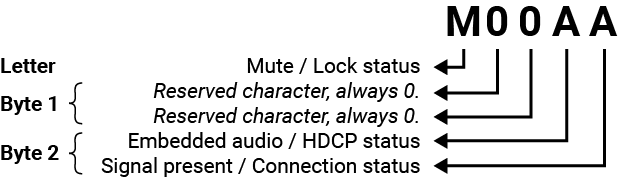
|
Byte 1 |
Byte 2 |
|||||||
|
Character 2 |
Character 3 |
Character 4 |
Character 5 |
|||||
|
BIT 7-6 |
BIT 5-4 |
BIT 3-2 |
BIT 1-0 |
BIT 7-6 |
BIT 5-4 |
BIT 3-2 |
BIT 1-0 |
|
|
Reserved |
Reserved |
Reserved |
Reserved |
Embedded audio status |
HDCP status |
Signal present status |
Connection status |
|
|
0 0 |
Reserved |
Reserved |
Reserved |
Reserved |
Unknown |
|||
|
0 1 |
Reserved |
|||||||
|
1 0 |
No embedded audio |
Not encrypted |
No signal |
Not connected |
||||
|
1 1 |
Embedded audio presents |
Encrypted |
Signal presents |
Connected |
||||
The Most Common Received Port Status Responses
|
T00AA |
T |
0 |
0 |
A |
A |
||||
|
Unlocked, Unmuted |
0 0 |
0 0 |
0 0 |
0 0 |
1 0 |
1 0 |
1 0 |
1 0 |
|
|
Reserved |
Reserved |
Reserved |
Reserved |
No embedded audio |
Not encrypted |
No signal |
Not connected |
||
|
T00AB |
T |
0 |
0 |
A |
B |
||||
|
Unlocked, Unmuted |
0 0 |
0 0 |
0 0 |
0 0 |
1 0 |
1 0 |
1 0 |
1 1 |
|
|
Reserved |
Reserved |
Reserved |
Reserved |
No embedded audio |
Not encrypted |
No signal |
Connected |
||
|
T00AF |
T |
0 |
0 |
A |
F |
||||
|
Unlocked, Unmuted |
0 0 |
0 0 |
0 0 |
0 0 |
1 0 |
1 0 |
1 1 |
1 1 |
|
|
Reserved |
Reserved |
Reserved |
Reserved |
No embedded audio |
Not encrypted |
Signal presents |
Connected |
||
|
T00EF |
T |
0 |
0 |
E |
F |
||||
|
Unlocked, Unmuted |
0 0 |
0 0 |
0 0 |
0 0 |
1 1 |
1 0 |
1 1 |
1 1 |
|
|
Reserved |
Reserved |
Reserved |
Reserved |
Embedded audio presents |
Not encrypted |
Signal presents |
Connected |
||
|
T00BF |
T |
0 |
0 |
B |
F |
||||
|
Unlocked, Unmuted |
0 0 |
0 0 |
0 0 |
0 0 |
1 0 |
1 1 |
1 1 |
1 1 |
|
|
Reserved |
Reserved |
Reserved |
Reserved |
No embedded audio |
Encrypted |
Signal presents |
Connected |
||
|
T00FF |
T |
0 |
0 |
F |
F |
||||
|
Unlocked, Unmuted |
0 0 |
0 0 |
0 0 |
0 0 |
1 1 |
1 1 |
1 1 |
1 1 |
|
|
Reserved |
Reserved |
Reserved |
Reserved |
Embedded audio presents |
Encrypted |
Signal presents |
Connected |
||
7.6.2. Querying the Status of Destination Port
Command and Response #portstatus
»GET·/MEDIA/VIDEO/XP.DestinationPortStatus
«pr·/MEDIA/VIDEO/XP.DestinationPortStatus=<out_state>
Parameters
<out_state>: the response contains 5 ASCII characters for each port. The first character indicates the mute/lock state, the next 2-byte long HEX code shows the current state of the output port.
Example
»GET /MEDIA/VIDEO/XP.DestinationPortStatus
«pr /MEDIA/VIDEO/XP.DestinationPortStatus=M00BF
Legend
See the previous section.
Explanation
|
M |
0 |
0 |
B |
F |
||||
|
Unlocked, Muted |
0 0 |
0 0 |
0 0 |
0 0 |
1 0 |
1 1 |
1 1 |
1 1 |
|
Reserved |
Reserved |
Reserved |
Reserved |
No embedded audio |
Encrypted |
Signal presents |
Connected |
|
Command and Response #mute
»CALL·/MEDIA/VIDEO/XP:muteSource(<in>)
«mO·/MEDIA/VIDEO/XP:muteSource
Example
»CALL /MEDIA/VIDEO/XP:muteSource(I1)
«mO /MEDIA/VIDEO/XP:muteSource
Command and Response #unmute
»CALL·/MEDIA/VIDEO/XP:unmuteSource(<in>)
«mO·/MEDIA/VIDEO/XP:unmuteSource
Example
»CALL /MEDIA/VIDEO/XP:unmuteSource(I1)
«mO /MEDIA/VIDEO/XP:unmuteSource
Command and Response #lock
»CALL·/MEDIA/VIDEO/XP:lockSource(<in>)
«mO·/MEDIA/VIDEO/XP:lockSource
Example
»CALL /MEDIA/VIDEO/XP:lockSource(I1)
«mO /MEDIA/VIDEO/XP:lockSource
Command and Response #unlock
»CALL·/MEDIA/VIDEO/XP:unlockSource(<in>)
«mO·/MEDIA/VIDEO/XP:unlockSource
Example
»CALL /MEDIA/VIDEO/XP:unlockSource(I1)
«mO /MEDIA/VIDEO/XP:unlockSource
Command and Response #mute
»CALL·/MEDIA/VIDEO/XP:muteDestination(<out>)
«mO·/MEDIA/VIDEO/XP:muteDestination
Example
»CALL /MEDIA/VIDEO/XP:muteDestination(O1)
«mO /MEDIA/VIDEO/XP:muteDestination
Command and Response #unmute
»CALL·/MEDIA/VIDEO/XP:unmuteDestination(<out>)
«mO·/MEDIA/VIDEO/XP:unmuteDestination
Example
»CALL /MEDIA/VIDEO/XP:unmuteDestination(O1)
«mO /MEDIA/VIDEO/XP:unmuteDestination
Command and Response #lock
»CALL·/MEDIA/VIDEO/XP:lockDestination(<out>)
«mO·/MEDIA/VIDEO/XP:lockDestination
Example
»CALL /MEDIA/VIDEO/XP:lockDestination(O1)
«mO /MEDIA/VIDEO/XP:lockDestination
Command and Response #unlock
»CALL·/MEDIA/VIDEO/XP:unlockDestination(<out>)
«mO·/MEDIA/VIDEO/XP:unlockDestination
Example
»CALL /MEDIA/VIDEO/XP:unlockDestination(O1)
«mO /MEDIA/VIDEO/XP:unlockDestination
7.6.11. HDCP Setting (Input Port)
HDCP capability can be enabled/disabled on the input ports, thus non-encrypted content can be seen on a non-HDCP compliant display. See more information in the HDCP Management section.
Command and Response #hdcp
»SET·/MEDIA/VIDEO/<in>.HdcpEnable=<logical_value>
«pw·/MEDIA/VIDEO/<in>.HdcpEnable=<logical_value>
Parameters
|
Identifier |
Parameter description |
Value |
Parameter value |
|
<logical_value> |
HDCP enable/disable setting |
true |
HDCP encryption is enabled. |
|
false |
HDCP encryption is disabled. |
Example
»SET /MEDIA/VIDEO/I1.HdcpEnable=false
«pw /MEDIA/VIDEO/I1.HdcpEnable=false
7.6.12. HDCP Setting (Output Port)
HDCP capability can be set to Auto/Always on the output ports, thus non-encrypted content can be transmitted to a non-HDCP compliant display. See more information in the HDCP Management section.
Command and Response #hdcp
»SET·/MEDIA/VIDEO/<out>.HdcpModeSetting=<HDCP_mode>
«pw·/MEDIA/VIDEO/<out>.HdcpModeSetting=<HDCP_mode>
Parameters
|
Identifier |
Parameter description |
Value |
Parameter value |
|
<HDCP_mode> |
HDCP mode |
0 |
Auto |
|
1 |
Always |
Example
»SET /MEDIA/VIDEO/O1.HdcpModeSetting=0
«pw /MEDIA/VIDEO/O1.HdcpModeSetting=0
7.6.13. Test Pattern Generator Mode
The output port can send a special image towards the sink device for testing purposes. The setting is available on the input ports with the parameters listed below.
Command and Response #testpattern
»SET·/MEDIA/VIDEO/<out>.TpgMode=<mode>
«pw·/MEDIA/VIDEO/<out>.TpgMode=<mode>
Parameters
|
Identifier |
Parameter description |
Value |
Parameter value |
|
<mode> |
Test pattern generator mode |
0 |
Always off: the test pattern is not displayed on the output. |
|
1 |
Always on: the test pattern is displayed on the output. |
||
|
2 |
Auto: the test pattern is displayed if there is no signal on the input port. |
Example
»SET /MEDIA/VIDEO/O1.TpgMode=2
«pw /MEDIA/VIDEO/O1.TpgMode=2
7.6.14. Test Pattern Generator Clock Source
Command and Response
»SET·/MEDIA/VIDEO/<out>.TpgClockSource=<clock_frequency>
«pw·/MEDIA/VIDEO/<out>.TpgClockSource=<clock_frequency>
Parameters
|
Identifier |
Parameter description |
Value |
Parameter value |
|
<clock_frequency> |
Clock frequency |
480 |
480p |
|
576 |
576p |
||
|
EXT |
External clock (from actual TMDS source) |
Example
»SET /MEDIA/VIDEO/O1.TpgClockSource=576
«pw /MEDIA/VIDEO/O1.TpgClockSource=576

Command and Response
»SET·/MEDIA/VIDEO/<out>.TpgPattern=<pattern>
«pw·/MEDIA/VIDEO/<out>.TpgPattern=<pattern>
Parameters
|
Identifier |
Parameter description |
Value |
Parameter value |
|
<pattern> |
The test pattern displayed on the sink device |
RED |
Red |
|
GREEN |
Green |
||
|
BLUE |
Blue |
||
|
BLACK |
Black |
||
|
WHITE |
White |
||
|
RAMP |
Ramp |
||
|
CHESS |
Chess |
||
|
BAR |
Bar |
||
|
CYCLE |
Cycle setting means all the patterns are changed sequentially approx. every 2 seconds |
Example
»SET /MEDIA/VIDEO/O1.TpgPattern=GREEN
«pw /MEDIA/VIDEO/O1.TpgPattern=GREEN
7.6.16. HDMI Mode Settings (Output Port)
Command and Response #hdmimode
»SET·/MEDIA/VIDEO/<out>.HdmiModeSetting=<mode>
«pw·/MEDIA/VIDEO/<out>.HdmiModeSetting=<mode>
Parameters
|
Identifier |
Parameter description |
Value |
Parameter value |
|
<mode> |
HDMI mode |
0 |
Auto |
|
1 |
DVI |
||
|
2 |
HDMI |
Example
»SET /MEDIA/VIDEO/O1.HdmiModeSetting=2
«pw /MEDIA/VIDEO/O1.HdmiModeSetting=2
7.6.17. Querying the Recent TPS Mode
Command and Response #tpsmode
»GET·/REMOTE/<port>.tpsMode
«pr·/REMOTE/<port>.tpsMode=<TPS_mode>
Parameters
|
Identifier |
Parameter description |
Value |
Parameter value |
|
<TPS_mode> |
TPS mode |
A |
Auto |
|
H |
HDBaseT |
||
|
L |
Long reach |
||
|
1 |
LPPF1 |
||
|
2 |
LPPF2 |
Example
»GET /REMOTE/S1.tpsMode
«pr /REMOTE/S1.tpsMode=H
See more information about TPS modes in the TPS Interface section.
Command and Response
»SET·/REMOTE/<port>.tpsModeSetting=<TPS_mode>
«pw·/REMOTE/<port>.tpsModeSetting=<TPS_mode>
Parameters
|
Identifier |
Parameter description |
Value |
Parameter value |
|
<TPS_mode> |
TPS mode |
A |
Auto |
|
H |
HDBaseT |
||
|
L |
Long reach |
||
|
1 |
LPPF1 |
||
|
2 |
LPPF2 |
Example
»SET /REMOTE/S1.tpsModeSetting=A
«pw /REMOTE/S1.tpsModeSetting=A
See more information about TPS modes in the TPS Interface section.
INFO:Audio port numbering can be found in the Input/Output Port Numbering section.
7.7.1. Querying the Status of Source Ports
Command and Response #portstatus
»GET·/MEDIA/AUDIO/XP.SourcePortStatus
«pr·/MEDIA/AUDIO/XP.SourcePortStatus=<in_state>
The response contains 5 ASCII characters for each port. The first character indicates the mute/lock state, the next four characters represent a 2-byte HEX code, showing the current state of the input port.
Example
»GET /MEDIA/AUDIO/XP.SourcePortStatus
«pr /MEDIA/AUDIO/XP.SourcePortStatus=T000F
Legend:
|
Letter (Character 1) |
||
|
Mute state |
Lock state |
|
|
T |
Unmuted |
Unlocked |
|
L |
Unmuted |
Locked |
|
M |
Muted |
Unlocked |
|
U |
Muted |
Locked |

|
Byte 1 |
Byte 2 |
|||||||
|
Character 2 |
Character 3 |
Character 4 |
Character 5 |
|||||
|
BIT 7-6 |
BIT 5-4 |
BIT 3-2 |
BIT 1-0 |
BIT 7-6 |
BIT 5-4 |
BIT 3-2 |
BIT 1-0 |
|
|
Reserved |
Reserved |
Reserved |
Reserved |
Reserved |
Reserved |
Signal present status |
Connection status |
|
|
0 0 |
Reserved |
Reserved |
Reserved |
Reserved |
Reserved |
Reserved |
Unknown |
|
|
0 1 |
Reserved |
|||||||
|
1 0 |
No signal |
Not connected |
||||||
|
1 1 |
Signal presents |
Connected |
||||||
The Most Common Received Port Status Responses
|
T000A |
T |
0 |
0 |
0 |
A |
||||
|
Unlocked, Unmuted |
0 0 |
0 0 |
0 0 |
0 0 |
0 0 |
0 0 |
1 0 |
1 0 |
|
|
Reserved |
Reserved |
Reserved |
Reserved |
Reserved |
Reserved |
No signal |
Not connected |
||
|
T000B |
T |
0 |
0 |
0 |
B |
||||
|
Unlocked, Unmuted |
0 0 |
0 0 |
0 0 |
0 0 |
0 0 |
0 0 |
1 0 |
1 1 |
|
|
Reserved |
Reserved |
Reserved |
Reserved |
Reserved |
Reserved |
No signal |
Connected |
||
|
T000F |
T |
0 |
0 |
0 |
F |
||||
|
Unlocked, Unmuted |
0 0 |
0 0 |
0 0 |
0 0 |
0 0 |
0 0 |
1 1 |
1 1 |
|
|
Reserved |
Reserved |
Reserved |
Reserved |
Reserved |
Reserved |
Signal presents |
Connected |
||
Only for Phoenix audio port: Character 5 is C (11 00) which means signal is present, but the cable connection status is unknown. The explanation is that the Phoenix connector has no pin that can indicate the connection status, so this is always unknown.
|
T000C |
T |
0 |
0 |
0 |
C |
||||
|
Unlocked, Unmuted |
0 0 |
0 0 |
0 0 |
0 0 |
0 0 |
0 0 |
1 1 |
0 0 |
|
|
Reserved |
Reserved |
Reserved |
Reserved |
Reserved |
Reserved |
Signal presents |
Unknown |
||
7.7.2. Querying the Status of Destination Port
Command and Response #portstatus
»GET·/MEDIA/AUDIO/XP.DestinationPortStatus
«pr·/MEDIA/AUDIO/XP.DestinationPortStatus=<out1_state>;<out2_state>
The response contains 5 ASCII characters for each port. The first character indicates the mute/lock state, the next 2-byte long HEX code shows the current state of the output port.
Example
»GET /MEDIA/AUDIO/XP.DestinationPortStatus
«pr /MEDIA/AUDIO/XP.DestinationPortStatus=T000F;T000B
Legend
See the previous section.
Example and Explanation
|
T |
0 |
0 |
0 |
F |
||||
|
Unlocked, Unmuted |
0 0 |
0 0 |
0 0 |
0 0 |
0 0 |
0 0 |
1 1 |
1 1 |
|
Reserved |
Reserved |
Reserved |
Reserved |
Reserved |
Reserved |
Signal presents |
Connected |
|
Command and Response #mute
»CALL·/MEDIA/AUDIO/XP:muteSource(<in>)
«mO·/MEDIA/AUDIO/XP:muteSource
Example
»CALL /MEDIA/AUDIO/XP:muteSource(I1)
«mO /MEDIA/AUDIO/XP:muteSource
Command and Response #unmute
»CALL·/MEDIA/AUDIO/XP:unmuteSource(<in>)
«mO·/MEDIA/AUDIO/XP:unmuteSource
Example
»CALL /MEDIA/AUDIO/XP:unmuteSource(I1)
«mO /MEDIA/AUDIO/XP:unmuteSource
Command and Response #lock
»CALL·/MEDIA/AUDIO/XP:lockSource(<in>)
«mO·/MEDIA/AUDIO/XP:lockSource
Example
»CALL /MEDIA/AUDIO/XP:lockSource(I1)
«mO /MEDIA/AUDIO/XP:lockSource
Command and Response #unlock
»CALL·/MEDIA/AUDIO/XP:unlockSource(<in>)
«mO·/MEDIA/AUDIO/XP:unlockSource
Example
»CALL /MEDIA/AUDIO/XP:unlockSource(I1)
«mO /MEDIA/AUDIO/XP:unlockSource
Command and Response #mute
»CALL·/MEDIA/AUDIO/XP:muteDestination(<out>)
«mO·/MEDIA/AUDIO/XP:muteDestination
Example
»CALL /MEDIA/AUDIO/XP:muteDestination(O1)
«mO /MEDIA/AUDIO/XP:muteDestination
Command and Response #unmute
»CALL·/MEDIA/AUDIO/XP:unmuteDestination(<out>)
«mO·/MEDIA/AUDIO/XP:unmuteDestination
Example
»CALL /MEDIA/AUDIO/XP:unmuteDestination(O1)
«mO /MEDIA/AUDIO/XP:unmuteDestination
Command and Response #lock
»CALL·/MEDIA/AUDIO/XP:lockDestination(<out>)
«mO·/MEDIA/AUDIO/XP:lockDestination
Example
»CALL /MEDIA/AUDIO/XP:lockDestination(O1)
«mO /MEDIA/AUDIO/XP:lockDestination
Command and Response #unlock
»CALL·/MEDIA/AUDIO/XP:unlockDestination(<out>)
«mO·/MEDIA/AUDIO/XP:unlockDestination
Example
»CALL /MEDIA/AUDIO/XP:unlockDestination(O1)
«mO /MEDIA/AUDIO/XP:unlockDestination
7.8. Analog Audio Output Settings
Command and Response #analogaudio #volume
»SET·/MEDIA/AUDIO/<out>.VolumedB=<level>
«pw·/MEDIA/AUDIO/<out>.VolumedB=<level>
Parameters
|
Identifier |
Parameter description |
Value |
Explanation |
|
<level> |
Setting the output volume (attenuation) |
between -95.625 dB and 0 dB |
Step is -0.375 dB. The value is rounded up if necessary, to match with the step value. |
Example
»SET /MEDIA/AUDIO/O2.VolumedB=-15
«pw /MEDIA/AUDIO/O2.VolumedB=-15.00
7.8.2. Volume Setting (dB) in Steps
Command and Response
»CALL·/MEDIA/AUDIO/<out>.stepVolumedB(<step>)
«mO·/MEDIA/AUDIO/<out>.stepVolumedB
Parameters
|
Identifier |
Parameter description |
Value |
Explanation |
|
<level> |
Setting the output volume (attenuation) |
between -95.625 dB and 0 dB |
Step is -0.375 dB. The value is rounded up if necessary, to match with the step value. |
Example
»CALL /MEDIA/AUDIO/O2.stepVolumedB(5)
«mO /MEDIA/AUDIO/O2.stepVolumedB
7.8.3. Volume Setting (Percent)
Command and Response
»SET·/MEDIA/AUDIO/<out>.VolumePercent=<percent>
«pw·/MEDIA/AUDIO/<out>.VolumePercent=<percent>
Parameters
|
Identifier |
Parameter description |
Value |
Explanation |
|
<level> |
Setting the output volume (attenuation) |
between 100%.and 0% |
Step is 1%. The value is rounded up if necessary, to match with the step value. |
Example
»SET /MEDIA/AUDIO/O2.VolumePercent=50
«pw /MEDIA/AUDIO/O2.VolumePercent=50
7.8.4. Volume Setting (Percent) in Steps
Command and Response
»CALL·/MEDIA/AUDIO/<out>.stepVolumePercent(<percent>)
«pw·/MEDIA/AUDIO/<out>.stepVolumePercent
Parameters
|
Identifier |
Parameter description |
Value |
Explanation |
|
<level> |
Setting the output volume (attenuation) |
between 100%.and 0% |
Step is 1%. The value is rounded up if necessary, to match with the step value. |
Example
»CALL /MEDIA/AUDIO/O2.stepVolumePercent(15)
«mO /MEDIA/AUDIO/O2.stepVolumePercent
Command and Response #balance
»SET·/MEDIA/AUDIO/<out>.Balance=<level>
«pw·/MEDIA/AUDIO/<out>.Balance=<level>
Parameters
|
Identifier |
Parameter description |
Value |
Explanation |
|
<level> |
Setting the balance |
between -100.and 100 |
Step is 1. -100 means balanced to left, 0 is center (default), 100 means balanced to right. |
Example
»SET /MEDIA/AUDIO/O2.Balance=0
«pw /MEDIA/AUDIO/O2.Balance=0
7.8.6. Balance Setting in Steps
Command and Response
»CALL·/MEDIA/AUDIO/<out>.stepBalance(<level>)
«mO·/MEDIA/AUDIO/<out>.stepBalance
Parameters
|
Identifier |
Parameter description |
Value |
Explanation |
|
<level> |
Setting the balance |
between -100.and 100 |
Step is 1. -100 means balanced to left, 0 is center (default), 100 means balanced to right. |
Example
»CALL /MEDIA/AUDIO/O2.stepBalance(1)
«mO /MEDIA/AUDIO/O2.stepBalance
The graphical interface of the Event Manager can be found in the LDC, which allows creating any kind of Events. In certain cases, the Events have to be arranged or modified by LW3 commands from another device. These commands are detailed in the coming sections.
7.9.1. How to arrange an Event?
The following are necessary to have a successful event:
▪Defining the Condition
▪Defining the Action
▪Setting the Delay (optional)
▪Name the Event and set to Enabled. (Setting the Event to Enabled as the last step is recommended.)
Command and Response
»SET·/EVENTS/E<loc>.Condition=<expression>
«pw·/EVENTS/E<loc>.Condition=<expression>
Parameters
The structure of the <expression> is: <node_path>.<property>=<value>.
Example 1 – property changes to a set value
»SET /EVENTS/E1.Condition=/MEDIA/VIDEO/I1.SignalPresent=1
«pw /EVENTS/E1.Condition=/MEDIA/VIDEO/I1.SignalPresent=1
The Condition is fulfilled if the SignalPresent property changes to '1'.
Example 2 – property changes anything but the set value
In some cases, the opposite is necessary: when the property does not equal with the value. If you need so, the ConditionInverted property must be set to true:
»SET /EVENTS/E2.Condition=/MEDIA/VIDEO/O1.ConnectedSource=I1
«pw /EVENTS/E2.Condition=/MEDIA/VIDEO/O1.ConnectedSource=I1
»SET /EVENTS/E2.ConditionInverted=true
«pw /EVENTS/E2.ConditionInverted=true
The Condition is fulfilled if the ConnectedSource property does not equal with 'I1' (in other words: if other input port is connected to O1 than I1).
Example 3 – property changes to anything
DIFFERENCE:This feature is available from FW package v1.5.0b3.
When it is not the property value that matters, but the change of the property value, the change can be set as a condition. In this case, put a ? character to the end of the desired property:
»SET /EVENTS/E3.Condition=/MEDIA/VIDEO/O1.ConnectedSource?
«pw /EVENTS/E3.Condition=/MEDIA/VIDEO/O1.ConnectedSource?
If the ConnectedSource property changes (due to a crosspoint-switch), the set Condition is fulfilled.
7.9.2. Setting a Condition by Linking Another Condition
Command and Response
»SET·/EVENTS/E<loc>.Condition=<event_nr>
«pw·/EVENTS/E<loc>.Condition=<event_nr>
Parameters
The <event_nr> means the number (location) of the linked event without letter 'E'.
Example
»SET /EVENTS/E2.Condition=1
«pw /EVENTS/E2.Condition=1
The Condition of the E2 Event is set to be the same as set at E1 Event.
7.9.3. Setting a Condition by Linking More Conditions
DIFFERENCE:This feature is available from FW package v1.5.0b3.
The first generation of the Event Manager is able to sense a change (one condition), but in some cases that is not enough. The practical experience has shown there is a need to examine more conditions (up to four) as follows: if one of the set conditions becomes true (while the other conditions are fulfilled), then the set Action is launched.
Command and Response
»SET·/EVENTS/E<loc>.Condition=<event_nr>&<event_nr>&<event_nr>&<event_nr>
«pw·/EVENTS/E<loc>.Condition=<event_nr>&<event_nr>&<event_nr>&<event_nr>
Parameters
The <event_nr> parameters mean the numbers (locations) of the linked Events without letter 'E'. Up to four event numbers can be set.
Example
»SET /EVENTS/E4.Condition=1&2&3
«pw /EVENTS/E4.Condition=1&2&3
If two Conditions exist and the third is detected (changes to true), the Condition of E4 will be fulfilled and the Action of E4 will be launched.
TIPS AND TRICKS:You do not have to define Actions for E1, E2 and E3 Events and you can leave those Disabled.
7.9.4. Setting an Action by Specifying a Direct Path
Command and Response
»SET·/EVENTS/E<loc>.Action=<expression>
«pw·/EVENTS/E<loc>.Action=<expression>
Parameters
The structure of the <expression> is: <node_path>.<property_or_method>=<value>. Properties and methods are handled in the same way: dot (.) stands after the path in both cases, colon (:) is not used. Do not use brackets for methods. The <value> parameter is optional in case of certain methods.
Example
»SET /EVENTS/E1.Action=/MEDIA/AUDIO/O2.VolumePercent=50
«pw /EVENTS/E1.Action=/MEDIA/AUDIO/O2.VolumePercent=50
7.9.5. Setting an Action by Linking Another Action
Command and Response
»SET·/EVENTS/E<loc>.Action=<event_nr>
«pw·/EVENTS/E<loc>.Action=<event_nr>
Parameters
The <event_nr> means the number (location) of the linked event without letter 'E'.
Example
»SET /EVENTS/E2.Action=1
«pw /EVENTS/E2.Action=1
The Action of the E2 Event is set to be the same as set at E1 Event.
7.9.6. Setting an Action by Linking a Macro
DIFFERENCE:This feature is available only in the HDMI-TPS-RX110AY-Plus model, from FW package v1.5.0b3.
Command and Response
»SET·/EVENTS/E<loc>.Action=<macro_name>
«pw·/EVENTS/E<loc>.Action=<macro_name>
Parameters
The <macro_name> means the name of the macro that can be seen in LDC (see the Macros section) or can be queried by the GET /CTRL/MACROS.<id> command.
Example
»SET /EVENTS/E1.Action=Macro1
«pw /EVENTS/E2.Action=Macro1
In most cases, the Action is performed immediately after the Condition is detected. But sometimes a delay is necessary between the Condition and the Action, thus the following delay options are defined:
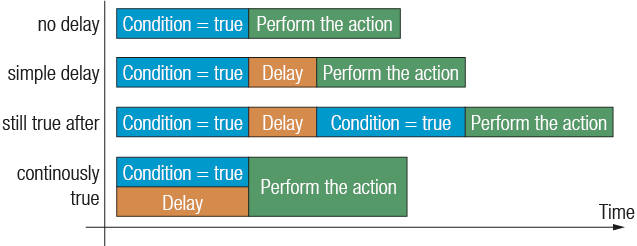
Command and Response (summary)
»SET·/EVENTS/E<loc>.ConditionTimeout=<time>
«pw·/EVENTS/E<loc>.ConditionTimeout=<time>
»SET·/EVENTS/E<loc>.ConditionEndCheck=<true/false>
«pw·/EVENTS/E<loc>.ConditionEndCheck=<true/false>
»SET·/EVENTS/E<loc>.ConditionTimeoutContinuous=<true/false>
«pw·/EVENTS/E<loc>.ConditionTimeoutContinuous=<true/false>
Parameters
The <time> parameter means seconds. Set the following properties for the desired delay type:
|
Delay type |
Properties to set |
Value |
Result |
|
no delay |
/EVENTS/E<loc>.ConditionTimeout |
0 |
The Action will be launched after the Condition is detected. |
|
simple delay |
/EVENTS/E<loc>.ConditionTimeout |
<time> |
If the Condition is detected, the action will be launched after the set time. |
|
still true after |
/EVENTS/E<loc>.ConditionTimeout |
<time> |
The Condition is fulfilled only if is detected after the set time again. |
|
/EVENTS/E<loc>.ConditionEndCheck |
true |
||
|
continuously true |
/EVENTS/E<loc>.ConditionTimeout |
<time> |
The Condition is fulfilled only if it is existing continuously during the set time. |
|
/EVENTS/E<loc>.ConditionEndCheck |
true |
||
|
/EVENTS/E<loc>.ConditionTimeoutContinuous |
true |
Example 1 (simple delay)
»SET /EVENTS/E1.ConditionTimeout=10
«pw /EVENTS/E1.ConditionTimeout=10
If the Condition is detected (the ConditionDetect property becomes true), the ConditionTimeoutPending property becomes true. 10 seconds later the ConditionTimeoutPending property becomes false, and the set Action is launched.
Example 2 ('still true after' delay type)
»SET /EVENTS/E1.ConditionTimeout=10
«pw /EVENTS/E1.ConditionTimeout=10
»SET /EVENTS/E1.ConditionTimeoutPending=true
«pw /EVENTS/E1.ConditionTimeoutPending=true
If the Condition is detected (the ConditionDetect property becomes true), the ConditionTimeoutPending property becomes true. 10 seconds later the Condition is checked again (the ConditionTimeoutPending property becomes false). If the Condition can be detected again (the ConditionDetect property becomes true again), the Condition is fulfilled and the set Action is launched.
Example 3 ('continuously true' delay type)
»SET /EVENTS/E1.ConditionTimeout=10
«pw /EVENTS/E1.ConditionTimeout=10
»SET /EVENTS/E1.ConditionTimeoutContinuous=true
«pw /EVENTS/E1.ConditionTimeoutContinuous=true
If the Condition is detected (the ConditionDetect property becomes true), the ConditionTimeoutPending property becomes true. If the Condition can be detected in the following 10 seconds continuously (the ConditionDetect property stays true), the Condition is fulfilled, the ConditionTimeoutPending property becomes false, and the set Action is launched.
7.10.2. Setting the Name of the Event
Command and Response
»SET·/EVENTS/E<loc>.Name=<string>
«pw·/EVENTS/E<loc>.Name=<string>
Parameters
The <string> may contain letters (A-Z) and (a-z), numbers (0-9), special characters: hyphen ( - ), underscore ( _ ), and space ( ) up to 20 characters. Longer strings result in an error, unaccepted characters are skipped.
Example
»SET /EVENTS/E1.Name=Projector_ON
«pw /EVENTS/E1.Name=Projector_ON
7.10.3. Enabling/Disabling the Event
Command and Response
»SET·/EVENTS/E<loc>.Enabled=<true/false>
«pw·/EVENTS/E<loc>.Enabled=<true/false>
Parameters
When the property value is true (or 1), the Action will be launched if the Condition is detected. If the property is false (or 0), the Action will not run, however, the Condition counter will be increased when detected.
Example
»SET /EVENTS/E1.Enabled=true
«pw /EVENTS/E1.Enabled=true
7.10.4. Triggering a Condition
DIFFERENCE:This feature is available only in the HDMI-TPS-RX110AY-Plus model, from FW package v1.5.0b3.
This feature works like a condition is fulfilled. When a complex control system is built, a Condition may trigger numerous Actions. A typical example is when a system is powered on and the ’ready-to-use’ state has to be loaded. In this case, there could be many actions that are based on the same condition. In order to reduce the number of the commands, you can trigger one ’key’ condition, which starts the whole process.
Command and Response
»CALL·/EVENTS/E<loc>:triggerCondition(1)
«mO·/EVENTS/E<loc>:triggerCondition
Example
»CALL /EVENTS/E1:triggerCondition(1)
«mO /EVENTS/E1:triggerCondition
The Condition of Event1 is fulfilled, the set Action will be launched (after the delay if set).
7.10.5. Querying the Condition Counter
This property shows how many times the Condition has been detected and triggered altogether. The counter is reset at boot.
Command and Response
»GET·/EVENTS/E<loc>.ConditionCount
«pw·/EVENTS/E<loc>.ConditionCount=<num_value>
Example
»GET /EVENTS/E1.ConditionCount
«pw /EVENTS/E1>.ConditionCount=5
7.10.6. Querying the Condition Trigger Counter
DIFFERENCE:This feature is available only in the HDMI-TPS-RX110AY-Plus model, from FW package v1.5.0b3.
This property shows how many times the Condition has been triggered, but does not contain the number of real detections. The counter is reset at boot.
Command and Response
»GET·/EVENTS/E<loc>.ExternalConditionTriggerCount
«pw·/EVENTS/E<loc>.ExternalConditionTriggerCount=<num_value>
Example
»GET /EVENTS/E1.ExternalConditionTriggerCount
«pw /EVENTS/E1.ExternalConditionTriggerCount=2
This tool is for launching the Action without detecting or triggering the Condition.
Command and Response
»CALL·/EVENTS/E<loc>:ActionTest(1)
«mO·/EVENTS/E<loc>:ActionTest
Example
»CALL /EVENTS/E1:ActionTest(1)
«mO /EVENTS/E1:ActionTest
DIFFERENCE:This feature is available only in the HDMI-TPS-RX110AY-Plus model, from FW package v1.5.0b3.
Custom variables (up to 30 pcs.) can be defined in number or text format, which are available also in the Event Manager. The maximum length of a variable can be 15 characters and they are stored in a non-volatile memory, thus the value is kept in case of a reboot. The type of the variable (text or string) is determined automatically based on the value. If an operation cannot be performed (e.g. adding number value to a string-type variable), error will be the response. #variables
Command and Response
»SET·/CTRL/VARS/V<loc>.Value=<value>
«pw·/CTRL/VARS/V<loc>.Value=<value>
Parameters
|
Parameter |
Parameter description |
Value |
Value description |
|
<loc> |
The location of the variable |
1-30 |
|
|
<value> |
The value of the variable |
Custom |
Length can be max 15 characters. Numeric variable is defined between -2147483648 and 2147483647. |
Example
»SET /CTRL/VARS/V1.Value=120
«pw /CTRL/VARS/V1.Value=120
7.11.2. Addition and Subtraction (Add Method)
The value of a numeric variable can be increased by adding a positive value or it can be decreased by adding a negative value. Minimum and maximum values can be defined as limits.
Command and Response
»CALL·/CTRL/VARS/V<loc>:add(<operand>;<min>;<max>)
«mO·/CTRL/VARS/V<loc>:add
Parameters
|
Parameter |
Parameter description |
Value |
Value description |
|
<loc> |
The location of the variable |
1-30 |
|
|
<operand> |
The value that is added to the variable |
Integer |
Negative value is also accepted |
|
<min> |
The lowest allowed value (optional) |
Integer |
Negative value is also accepted |
|
<max> |
The highest allowed value (optional) |
Integer |
Negative value is also accepted |
If the value of the variable is higher or equal to <max>, the new value will be <max>. Likewise, in case of <min> setting: if the value of the variable is lower or equal to <min>, the new value will be <min>.
Examples
Change messages (CHG) can be seen after each response for the better understanding, which are not part of the command, but they can be set as described in the Subscription section.
Example 1 – addition
»GET /CTRL/VARS/V1.Value
«pw /CTRL/VARS/V1.Value=6
»CALL /CTRL/VARS/V1:add(1)
«mO /CTRL/VARS/V1:add
«CHG /CTRL/VARS/V1.Value=7
»CALL /CTRL/VARS/V1:add(1)
«mO /CTRL/VARS/V1:add
«CHG /CTRL/VARS/V1.Value=8
»CALL /CTRL/VARS/V1:add(2)
«mO /CTRL/VARS/V1:add
«CHG /CTRL/VARS/V1.Value=10
Example 2 – subtraction
»GET /CTRL/VARS/V1.Value
«pw /CTRL/VARS/V1.Value=10
»CALL /CTRL/VARS/V1:add(-2)
«mO /CTRL/VARS/V1:add
«CHG /CTRL/VARS/V1.Value=8
»CALL /CTRL/VARS/V1:add(-2)
«mO /CTRL/VARS/V1:add
«CHG /CTRL/VARS/V1.Value=6
»CALL /CTRL/VARS/V1:add(-10)
«mO /CTRL/VARS/V1:add
«CHG /CTRL/VARS/V1.Value=-4
Example 3 – addition with 'max' value
»GET /CTRL/VARS/V1.Value
«pw /CTRL/VARS/V1.Value=16
»CALL /CTRL/VARS/V1:add(2;10;20)
«mO /CTRL/VARS/V1:add
«CHG /CTRL/VARS/V1.Value=18
»CALL /CTRL/VARS/V1:add(2;10;20)
«mO /CTRL/VARS/V1:add
«CHG /CTRL/VARS/V1.Value=20
»CALL /CTRL/VARS/V1:add(2;10;20)
«mO /CTRL/VARS/V1:add
«CHG /CTRL/VARS/V1.Value=20
Example 4 – subtraction with 'min' value
»GET /CTRL/VARS/V1.Value
«pw /CTRL/VARS/V1.Value=14
»CALL /CTRL/VARS/V1:add(-2;10;20)
«mO /CTRL/VARS/V1:add
«CHG /CTRL/VARS/V1.Value=12
»CALL /CTRL/VARS/V1:add(-2;10;20)
«mO /CTRL/VARS/V1:add
«CHG /CTRL/VARS/V1.Value=10
»CALL /CTRL/VARS/V1:add(-2;10;20)
«mO /CTRL/VARS/V1:add
«CHG /CTRL/VARS/V1.Value=10
7.11.3. Addition and Subtraction (Cycle Method)
The value of a numeric variable can be increased by adding a positive value or it can be decreased by adding a negative value. Minimum and maximum values can be defined as limits. This method has the feature that if the value hits the limit (min/max), the value will be stepped to the other end of the interval.
Command and Response
»CALL·/CTRL/VARS/V<loc>:cycle(<operand>;<min>;<max>)
«mO·/CTRL/VARS/V<loc>:cycle
Parameters
|
Parameter |
Parameter description |
Value |
Value description |
|
<loc> |
The location of the variable |
1-30 |
|
|
<operand> |
The value that is added to the variable |
Integer |
Negative value is also accepted |
|
<min> |
The lowest allowed value (optional) |
Integer |
Negative value is also accepted |
|
<max> |
The highest allowed value (optional) |
Integer |
Negative value is also accepted |
If the calculated value is beyond the limit (min/max), the value will be stepped to the other end of the interval.
Examples
Change messages (CHG) can be seen after each response for the better understanding, which are not part of the command, but they can be set as described in the Subscription section.
Example 1 – addition
»GET /CTRL/VARS/V1.Value
«pw /CTRL/VARS/V1.Value=18
»CALL /CTRL/VARS/V1:cycle(1;10;20)
«mO /CTRL/VARS/V1:cycle
«CHG /CTRL/VARS/V1.Value=19
»CALL /CTRL/VARS/V1:cycle(1;10;20)
«mO /CTRL/VARS/V1:cycle
«CHG /CTRL/VARS/V1.Value=20
»CALL /CTRL/VARS/V1:cycle(1;10;20)
«mO /CTRL/VARS/V1:cycle
«CHG /CTRL/VARS/V1.Value=10
»CALL /CTRL/VARS/V1:cycle(1;10;20)
«mO /CTRL/VARS/V1:cycle
«CHG /CTRL/VARS/V1.Value=11
Example 2 – subtraction
»GET /CTRL/VARS/V1.Value
«pw /CTRL/VARS/V1.Value=13
»CALL /CTRL/VARS/V1:cycle(-2;10;20)
«mO /CTRL/VARS/V1:cycle
«CHG /CTRL/VARS/V1.Value=11
»CALL /CTRL/VARS/V1:cycle(-2;10;20)
«mO /CTRL/VARS/V1:cycle
«CHG /CTRL/VARS/V1.Value=20
»CALL /CTRL/VARS/V1:cycle(-2;10;20)
«mO /CTRL/VARS/V1:cycle
«CHG /CTRL/VARS/V1.Value=18
7.11.4. Value Change with Intervals (Case)
This command can be used to change the value of a variable if it fits in any of the defined intervals.
Command and Response
»CALL·/CTRL/VARS/V<loc>:case(<min> <max> <val>;)
«mO·/CTRL/VARS/V<loc>:case
Parameters
|
Parameter |
Parameter description |
Value |
|
<loc> |
The location of the variable |
1-30 |
|
<min> |
The lowest value of the interval |
Integer |
|
<max> |
The highest value of the interval |
Integer |
|
<val> |
The new value that will be valid if the current value is in the interval |
Integer |
The parameters are divided by a space character, and the interval groups are divided by semicolons. Up to 16 cases can be defined.
Examples
»CALL /CTRL/VARS/V1:case(10 20 15)
«mO /CTRL/VARS/V1:case
A typical example is when two different ranges of values have to meet:
Incoming values: between 0 and 255 (e.g. the slider of a controller can have these values).
Outgoing values: between 0 and 100 (e.g. the controlled device accepts these values).
Defined cases:
|
Min |
Max |
New value |
|
|---|---|---|---|
|
Case 1 |
1 |
25 |
10 |
|
Case 2 |
26 |
50 |
20 |
|
Case 3 |
51 |
75 |
30 |
|
Case 4 |
76 |
100 |
40 |
|
Case 5 |
101 |
125 |
50 |
|
Case 6 |
126 |
150 |
60 |
|
Case 7 |
151 |
175 |
70 |
|
Case 8 |
176 |
200 |
80 |
|
Case 9 |
201 |
225 |
90 |
|
Case 10 |
226 |
255 |
100 |
The command looks like:
»CALL /CTRL/VARS/V1:case(1 25 10;26 50 20;51 75 30;76 100 40;101 125 50;126 150 60;151 175 70; 176 200 80; 201 225 90; 226 255 100)
«mO /CTRL/VARS/V1:case
This command can be used to get the value (or a part of the value) of an LW3 property. The defined path will be scanned according to the pattern and the result will be the value of the variable (number or string type).
Command and Response
»CALL·/CTRL/VARS/V<loc>:scanf(<path>.<property>;<pattern>)
«mO·/CTRL/VARS/V<loc>:scanf
Parameters
|
Parameter |
Parameter description |
Value |
|
<loc> |
The location of the variable |
1-30 |
|
<path>.<property> |
The LW3 property with node |
|
|
<pattern> |
The pattern that scans the property for the desired result |
see below |
Pattern options
|
Pattern |
Pattern description |
|
%s |
String of characters stopping at the first whitespace character |
|
%<number>s |
The next <number> of characters (string) stopping at the first whitespace |
|
%c |
One character |
|
%<number>c |
The next <number> of characters |
|
%[<characters>] |
Defined character set, specified between brackets |
|
%[^<characters>] |
Negated character set that will be skipped, specified between brackets |
|
%* |
Ignored part |
|
<custom_text> |
User-defined text |
The patterns can be combined to get the desired result as shown in the examples.
ATTENTION!Do not forget to escape the % character as shown in the example below.
Examples
»CALL /CTRL/VARS/V1:scanf(/MEDIA/AUDIO/XP.SourcePortStatus;\%5c)
«mO /CTRL/VARS/V1:scanf
»GET /CTRL/VARS/V1.Value
«pw /CTRL/VARS/V1.Value=T00AA
A simple pattern has been applied: we need the first five characters from the property value.
Further Examples
|
<path>.<property> |
Property Value |
<pattern> |
Scanned result |
|
/MANAGEMENT/STATUS.CpuTemperature |
42 C; 0;75; 0;7 |
%s |
42 |
|
/MANAGEMENT/STATUS.CpuFirmware |
1.3.0b3 r32 |
%12s |
1.3.0b3 |
|
/MEDIA/VIDEO/XP.DestinationPortStatus |
T00AA;T00AF |
%6c |
T00AA |
|
/MEDIA/UART/P1.Rs232Configuration |
57600, 8N1 |
%*[^,], %s |
8N1 |
|
/MEDIA/AUDIO/XP.SourcePortStatus |
T000A;T000B;T000F |
%*6c%5c |
T000B |
|
/MANAGEMENT/NETWORK.HostName |
lightware-00005031 |
lightware-%[0-9] |
00005031 |
The value of the variable can be changed by adding text as prefix and/or sufffix.
ATTENTION!Think about the length of the value: 15 characters are allowed, the others are truncated.
Command and Response
»CALL·/CTRL/VARS/V<loc>:printf(<prefix>%s<postfix>)
«mO·/CTRL/VARS/V<loc>:printf
Parameters
|
Parameter |
Parameter description |
Value |
Value description |
|
<loc> |
The location of the variable |
1-30 |
|
|
<prefix> |
The text before the original value of the property (optional) |
Custom |
ASCII characters |
|
%s |
The original value of the variable |
||
|
<postfix> |
The text following the original value of the property (optional) |
Custom |
ASCII characters |
Example
»GET /CTRL/VARS/V1.Value
»pw /CTRL/VARS/V1.Value=01
»CALL /CTRL/VARS/V1:printf(PWR%s)
«mO /CTRL/VARS/V1:printf
»GET /CTRL/VARS/V1.Value
«pw /CTRL/VARS/V1.Value=PWR01
The 'PWR' string has been inserted before the original value.
7.12. Ethernet Port Configuration
7.12.1. Querying the DHCP State
Command and Response #network #ipaddress #dhcp
»GET·/MANAGEMENT/NETWORK.DhcpEnabled
«pw·/MANAGEMENT/NETWORK.DhcpEnabled=<logical_value>
Parameters
|
Identifier |
Parameter description |
Value |
Parameter value |
|
<logical_value> |
DHCP (dynamic IP address) setting |
true |
Dynamic IP address is set. |
|
false |
Fix IP address is set. |
Example
»GET /MANAGEMENT/NETWORK.DhcpEnabled
«pw /MANAGEMENT/NETWORK.DhcpEnabled=true
7.12.2. Changing the DHCP State
Command and Response
»SET·/MANAGEMENT/NETWORK.DhcpEnabled=<logical_value>
«pw·/MANAGEMENT/NETWORK.DhcpEnabled=<logical_value>
Parameters
See the previous section.
Example
»SET /MANAGEMENT/NETWORK.DhcpEnabled=false
«pw /MANAGEMENT/NETWORK.DhcpEnabled=false
7.12.3. Querying the IP Address
Command and Response
»GET·/MANAGEMENT/NETWORK.IpAddress
«pr·/MANAGEMENT/NETWORK.IpAddress=<IP_Address>
Example
»GET /MANAGEMENT/NETWORK.IpAddress
«pr /MANAGEMENT/NETWORK.IpAddress=192.168.0.100
7.12.4. Changing the IP Address (Static)
Command and Response
»SET·/MANAGEMENT/NETWORK.StaticIpAddress=<IP_address>
«pw·/MANAGEMENT/NETWORK.StaticIpAddress=<IP_address>
Example
»SET /MANAGEMENT/NETWORK.StaticIpAddress=192.168.0.85
«pw /MANAGEMENT/NETWORK.StaticIpAddress=192.168.0.85
7.12.5. Querying the Subnet Mask
Command and Response
»GET·/MANAGEMENT/NETWORK.NetworkMask
«pr·/MANAGEMENT/NETWORK.NetworkMask=<netmask>
Example
»GET /MANAGEMENT/NETWORK.NetworkMask
«pr /MANAGEMENT/NETWORK.NetworkMask=255.255.255.0
7.12.6. Changing the Subnet Mask (Static)
Command and Response
»SET·/MANAGEMENT/NETWORK.StaticNetworkMask=<netmask>
«pw·/MANAGEMENT/NETWORK.StaticNetworkMask=<netmask>
Example
»SET /MANAGEMENT/NETWORK.StaticNetworkMask=255.255.255.0
«pw /MANAGEMENT/NETWORK.StaticNetworkMask=255.255.255.0
7.12.7. Querying the Gateway Address
Command and Response
»GET·/MANAGEMENT/NETWORK.GatewayAddress
«pr·/MANAGEMENT/NETWORK.GatewayAddress=<gw_address>
Example
»GET /MANAGEMENT/NETWORK.GatewayAddress
«pr /MANAGEMENT/NETWORK.GatewayAddress=192.168.0.1
7.12.8. Changing the Gateway Address (Static)
Command and Response
»SET·/MANAGEMENT/NETWORK.StaticGatewayAddress=<gw_address>
«pw·/MANAGEMENT/NETWORK.StaticGatewayAddress=<gw_address>
Example
»SET /MANAGEMENT/NETWORK.StaticGatewayAddress=192.168.0.5
«pw /MANAGEMENT/NETWORK.StaticGatewayAddress=192.168.0.5
7.12.9. Querying the MAC Address
Command and Response
»GET·/MANAGEMENT/NETWORK.MacAddress
«pr·/MANAGEMENT/NETWORK.MacAddress=<MAC_address>
Example
»GET /MANAGEMENT/NETWORK.MacAddress
«pr /MANAGEMENT/NETWORK.MacAddress=A8:D2:36:00:43:12
7.12.10. Applying Network Settings
Calling the method applies all network settings to the device.
Command and Response
»CALL·/MANAGEMENT/NETWORK.ApplySettings()
«mO·/MANAGEMENT/NETWORK.ApplySettings
Example
»CALL /MANAGEMENT/NETWORK.ApplySettings()
«mO /MANAGEMENT/NETWORK.ApplySettings
7.13.1. Device Filter Based on MAC Address
DIFFERENCE:This feature is available only in the HDMI-TPS-RX110AY-Plus model, from FW package v1.5.0b3.
You can create a list of network devices based on the MAC address that are allowed controlling the device, or querying parameters to/from the Lightware device. #macfilter
ATTENTION!If the device is installed in a network where it gets IP address from a DHCP server and you plan to use the MAC filtering, make sure the MAC address of the DHCP server is added to the white list. Otherwise, the device will not get an IP address and will be unreachable.
Command and Response
»SET·/MANAGEMENT/MACFILTER.MACaddress<loc>=<MAC_address>;<receive>;<send>;<name>
«pw·/MANAGEMENT/MACFILTER.MACaddress<loc>=<MAC_address>;<receive>;<send>;<name>
The filter is disabled by default. Set the FilterEnable property to true as shown in the example.
Parameters
|
Parameter |
Parameter description |
Values |
Value description |
|
<loc> |
Location of the address |
1-8 |
The default values of 1, 2 and 3 ensure that address resolution and device discovery continue to work after enabling the MAC filter |
|
<MAC_address> |
The MAC address of the device |
Unique value |
Hex format, divided by a colon |
|
<receive> |
Enable/disable the parameter querying option |
false (or 0) |
The device is not allowed to query parameters from the LW device |
|
true (or 1) |
The device is allowed to query parameters from the LW device |
||
|
<send> |
Enable/disable the parameter setting option |
false (or 0) |
The device is not allowed to change parameters in the LW device |
|
true (or 1) |
The device is allowed to change parameters in the LW device |
||
|
<name> |
Unique name for the better identification (optional) |
Any string |
Up to 5 ASCII characters (longer names are truncated) |
Example
»SET /MANAGEMENT/MACFILTER/MACaddress4=(04:D4:C4:4D:01:43;1;1;Tech)
«pw /MANAGEMENT/MACFILTER/MACaddress4=(04:D4:C4:4D:01:43;1;1;Tech)
»SET /MANAGEMENT/MACFILTER.FilterEnable=true
«pw /MANAGEMENT/MACFILTER.FilterEnable=true
The new MAC address is saved into the 4th property with the name 'Tech', which may query/set parameters from/in the Lightware device. The FilterEnable property is set to true, thus the filter is enabled.
7.13.2. Blocking the LW2 Control Port
DIFFERENCE:This feature is available only in the HDMI-TPS-RX110AY-Plus model, from FW package v1.5.0b3.
This command is for blocking the LW2 control port; it is an additional protection for the Cleartext login function.
Command and Response #portblock
»SET·/MANAGEMENT/SERVICEFILTER.Lw2Enabled=<port_mode>
«pw·/MANAGEMENT/SERVICEFILTER.Lw2Enabled=<port_mode>
Example
»SET /MANAGEMENT/SERVICEFILTER.Lw2Enabled=false
«pw /MANAGEMENT/SERVICEFILTER.Lw2Enabled=false
7.13.3. Blocking the HTTP Port
DIFFERENCE:This feature is available only in the HDMI-TPS-RX110AY-Plus model, from FW package v1.5.0b3.
This command is for blocking the HTTP port (80); it is an additional protection for the Cleartext login function.
Command and Response
»SET·/MANAGEMENT/SERVICEFILTER.HttpEnabled=<port_mode>
«pw·/MANAGEMENT/SERVICEFILTER.HttpEnabled=<port_mode>
Example
»SET /MANAGEMENT/SERVICEFILTER.HttpEnabled=true
«pw /MANAGEMENT/SERVICEFILTER.HttpEnabled=true
7.13.4. Blocking Reception of HTTP Posts
DIFFERENCE:This feature is available only in the HDMI-TPS-RX110AY-Plus model, from FW package v1.5.0b3.
This command is for blocking HTTP posts; it is an additional protection for the Cleartext login function.
Command and Response
»SET·/MANAGEMENT/SERVICEFILTER.HttpEnabled=<port_mode>
«pw·/MANAGEMENT/SERVICEFILTER.HttpEnabled=<port_mode>
Example
»SET /MANAGEMENT/SERVICEFILTER.HttpEnabled=true
«pw /MANAGEMENT/SERVICEFILTER.HttpEnabled=true
7.13.5. Powering on a Computer over Ethernet (Wake-on-LAN)
DIFFERENCE:This feature is available from FW package v1.5.0b3.
The well-known wake-on-lan feature (sending a magic Packet to the target PC) is available via the following command:
Command and Response
»CALL·/MEDIA/ETHERNET:wakeOnLan(MAC_address)
«mO·/MEDIA/ETHERNET:wakeOnLan
Example
»CALL /MEDIA/ETHERNET:wakeOnLan(AA:BB:CC:22:14:FF)
«mO /MEDIA/ETHERNET:wakeOnLan
Please make sure the feature is enabled in the target PC and it is powered (but switched off).
DIFFERENCE:This feature is available from FW package v1.5.0b3.
The host name is a property that can be used instead of the IP address when connecting to the device. It is also suitable for finding in the Device Discovery window of the LDC, see more details in the Add New Favorite Device section. Furthermore, it can be used to open the The Built-in Miniweb. If the IP address of the device is changing, the host name can be used as a fixed property.
Command and Response
»SET·/MANAGEMENT/NETWORK.HostName=<unique_name>
«pw·/MANAGEMENT/NETWORK.HostName=<unique_name>
Parameters
The <unique_name> can be 1-64 characters long and the following are allowed for naming: the elements of the English alphabet and numbers. Hyphen (-) and dot (.) is also accepted, except as last character.
Example
»SET /MANAGEMENT/NETWORK.HostName=my-receiver
«pw /MANAGEMENT/NETWORK.HostName=my-receiver
7.14. Ethernet Message Sending
The device can be used for sending a message to a certain IP:port address. The three different commands allow controlling the connected (third-party) devices.
7.14.1. Sending a TCP Message (ASCII-format)
The command is for sending a command message in ASCII-format. This method allows escaping the control characters.
Command and Response
»CALL·/MEDIA/ETHERNET:tcpMessage(<IP_address>:<port_no>=<message>)
«mO·/MEDIA/ETHERNET:tcpMessage
Example
»CALL /MEDIA/ETHERNET:tcpMessage(192.168.0.103:6107=C00)
«mO /MEDIA/ETHERNET:tcpMessage
The 'C00' message is sent to the indicated IP:port address.
Example with HEX codes
»CALL /MEDIA/ETHERNET:tcpMessage(192.168.0.20:5555=C00\x0a\x0d)
«mO /MEDIA/ETHERNET:tcpMessage
The 'C00' message with CrLf (Carriage return and Line feed) is sent to the indicated IP:port address. The \x sequence indicates the HEXA code; see more information in the Escaping section.
7.14.2. Sending a TCP Text (ASCII-format)
The command is for sending a text message in ASCII-format. This method does not allow escaping or inserting control characters.
Command and Response
»CALL·/MEDIA/ETHERNET:tcpText(<IP_address>:<port_no>=<text>)
«mO·/MEDIA/ETHERNET:tcpText
Example
»CALL /MEDIA/ETHERNET:tcpText(192.168.0.103:6107=pwr_on)
«mO /MEDIA/ETHERNET:tcpText
The 'pwr_on' text is sent to the indicated IP:port address.
7.14.3. Sending a TCP Binary Message (HEX-format)
The command is for sending a binary message in Hexadecimal format. This method does not require escaping the control and non-printable characters.
Command and Response
»CALL·/MEDIA/ETHERNET.tcpBinary(<IP_address>:<port_no>=<HEX_message>)
«mO·/MEDIA/ETHERNET:tcpBinary
Example
»CALL /MEDIA/ETHERNET:tcpBinary(192.168.0.103:6107=0100000061620000cdcc2c40)
«mO /MEDIA/ETHERNET:tcpBinary
The '0100000061620000cdcc2c40' message is sent to the indicated IP:port address.
INFO:There is no need to insert a space or other separator characters between the binary messages.
7.14.4. Sending a UDP Message (ASCII-format)
The command is for sending a UDP message in ASCII-format. This method allows escaping the control characters.
Command and Response
»CALL·/MEDIA/ETHERNET:udpMessage(<IP_address>:<port_no>=<message>)
«mO·/MEDIA/ETHERNET:udpMessage
Example
»CALL /MEDIA/ETHERNET:udpMessage(192.168.0.103:6107=C00)
«mO /MEDIA/ETHERNET:udpMessage
The 'C00' message is sent to the indicated IP:port address.
Example with HEX codes
»CALL /MEDIA/ETHERNET:udpMessage(192.168.0.20:9988=C00\x0a\x0d)
«mO /MEDIA/ETHERNET:udpMessage
The 'C00' message with CrLf (Carriage return and Line feed) is sent to the indicated IP:port address. The \x sequence indicates the HEXA code; see more information in the Escaping section.
7.14.5. Sending a UDP Text (ASCII-format)
The command is for sending a text message in ASCII-format via UDP-protocol. This method does not allow escaping or inserting control characters.
Command and Response
»CALL·/MEDIA/ETHERNET:udpText(<IP_address>:<port_no>=<text>)
«mO·/MEDIA/ETHERNET:udpText
Example
»CALL /MEDIA/ETHERNET:udpText(192.168.0.20:9988=open)
«mO /MEDIA/ETHERNET:udpText
The 'open' text is sent to the indicated IP:port address.
7.14.6. Sending a UDP Binary Message (HEX-format)
The command is for sending a binary message in Hexadecimal format. This method does not require escaping the control and non-printable characters.
Command and Response
»CALL·/MEDIA/ETHERNET:udpBinary(<IP_address>:<port_no>=<HEX_message>)
«mO·/MEDIA/ETHERNET:udpBinary
Example
»CALL /MEDIA/ETHERNET:udpBinary(192.168.0.20:9988=433030)
«mO /MEDIA/ETHERNET:udpBinary
The '433030' message is sent to the indicated IP:port address.
INFO:There is no need to insert a space or other separator characters between the binary messages.
DIFFERENCE:This feature is available only in the HDMI-TPS-RX110AY-Plus model, from FW package v1.5.0b3.
Http post and put messages can be sent from the Lightware device for more integration with third-party devices. #http
ATTENTION!This feature means posting or putting HTTP messages from the Lightware device to another device. Encrypted transmission (HTTPS) is not supported.
7.15.1. Setting the Target IP Address
Command and Response
»SET·/CTRL/HTTP/C1.ServerIP=<IP_address>
«pw·/CTRL/HTTP/C1.ServerIP=<IP_address>
Example
»SET /CTRL/HTTP/C1.ServerIP=192.168.0.220
«pw /CTRL/HTTP/C1.ServerIP=192.168.0.220
Command and Response
»SET·/CTRL/HTTP/C1.ServerPort=<port_no>
«pw·/CTRL/HTTP/C1.ServerPort=<port_no>
Example
»SET /CTRL/HTTP/C1.ServerPort=80
«pw /CTRL/HTTP/C1.ServerIP=80
7.15.3. Setting the Target Path
This property sets the path in the target device where the post/put message is to be sent.
Command and Response
»SET·/CTRL/HTTP/C1.File=<path>
«pw·/CTRL/HTTP/C1.File=<path>
Example
»SET /CTRL/HTTP/C1.File=/putxml
«pw /CTRL/HTTP/C1.File=/putxml
7.15.4. Setting the Message Header
Command and Response
»SET·/CTRL/HTTP/C1.Header=<header_text>
«pw·/CTRL/HTTP/C1.Header=<header_text>
Example
»SET /CTRL/HTTP/C1.Header=Host: 192.168.0.220\r\nContent-Type: text/xml\r\nAuthorization: Basic YWRtaW46TGlnaHR3YXJlMDE=
«pw /CTRL/HTTP/C1.Header=Host: 192.168.0.220\r\nContent-Type: text/xml\r\nAuthorization: Basic YWRtaW46TGlnaHR3YXJlMDE=
7.15.5. Sending a Post Message
Command and Response
»CALL·/CTRL/HTTP/C1:post(<body_text>)
«mO·/CTRL/HTTP/C1:post
Example
»CALL /CTRL/HTTP/C1:post(<Command><Message><Send><Text>LI1R_P</Text></Send></Message></Command>)
«mO /CTRL/HTTP/C1:post
Command and Response
»CALL·/CTRL/HTTP/C1:put(<body_text>)
«mO·/CTRL/HTTP/C1:put
Example
»CALL /CTRL/HTTP/C1:put(<Command><Message><Send><Text>LI1R_P</Text></Send></Message></Command>)
«mO /CTRL/HTTP/C1:put
DIFFERENCE:This feature is available only in the HDMI-TPS-RX110AY-Plus model, from FW package v1.5.0b3.
This tool can be used to recognize messages coming from a TCP server. You can link an immediate event Action that is run when a message is recognized, but you can also use it in Event manager. #tcprecognizer #message
Preparation
Step 1.Set a TCP client in the Lightware device (three TCP clients can be run at the same time), set the properties of the target TCP server.
Step 2.Set the DelimiterHex and the TimeOut settings for the proper message processing
Step 3.Make sure the TCP/IP port is opened in the target device (think about Firewall settings in the network).
Step 4.Connect to the TCP server.
Working Method
A message gets recognized from the incoming data if one of the following occurs:
▪The set DelimiterHex is detected in the message, or
▪The set TimeOut has passed since receiving the last data bit.
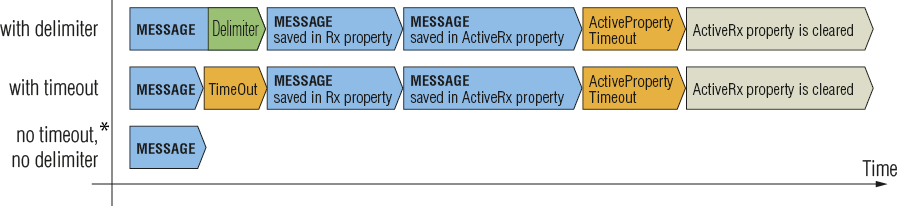
* In that case, the not-recognized data is kept in the memory (up to 128 bytes). If the DelimiterHex is detected later, or the TimeOut parameter is set in the meantime, the data appears in the Rx, RxHex, Hash and ActiveRx, ActiveRxHex, ActiveRxHash properties.
7.16.1. Setting the IP Address of the TCP Server
Command and Response
»SET·/CTRL/TCP/C<loc>.ServerIP=<IP_address>
«pw·/CTRL/TCP/C<loc>.ServerIP=<IP_address>
Parameters
The <loc> parameter can be 1, 2 or 3, as at most three TCP connections can be established at the same time.
Example
»SET /CTRL/TCP/C1.ServerIP=192.168.1.14
«pw /CTRL/TCP/C1.ServerIP=192.168.1.14
7.16.2. Setting the TCP/IP Port Number of the TCP Server
Command and Response
»SET·/CTRL/TCP/C<loc>.ServerPort=<port_no>
«pw·/CTRL/TCP/C<loc>.ServerPort=<port_no>
Example
»SET /CTRL/TCP/C1.ServerPort(4999)
«pw /CTRL/TCP/C1.ServerPort(4999)
7.16.3. Connecting to a TCP Server
Command and Response
»CALL·/CTRL/TCP/C<loc>:connect()
«mO·/CTRL/TCP/C<loc>:connect
Example
»CALL /CTRL/TCP/C1:connect()
«mO /CTRL/TCP/C1:connect
7.16.4. Disconnecting from a TCP Server
Command and Response
»CALL·/CTRL/TCP/C<loc>:disconnect()
«mO·/CTRL/TCP/C<loc>:disconnect
Example
»CALL /CTRL/TCP/C1:disconnect()
«mO /CTRL/TCP/C1:disconnect
7.16.5. Setting the Delimiter Hex
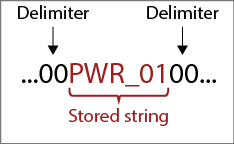
This property stores the delimiter that is between the messages (e.g. Cr, Lf, Space). The value has to be in hex format (e.g.0D, 0A, 20).
Command and Response
»SET·/CTRL/TCP/C<loc>.DelimiterHex=<delimiter>
«pw·/CTRL/TCP/C<loc>.DelimiterHex=<delimiter>
Parameters
The <delimiter> parameter can be max. 8 characters long (16 hex digits) in hex format.
Example
»SET /CTRL/TCP/C1.DelimiterHex=00
«pw /CTRL/TCP/C1.DelimiterHex=00
When the set time has passed after the last received message and delimiter was not detected, the device saves the data into the Rx, RxHex, Hash properties. The timeout setting is useful if there is no special or easily defined delimiter in the incoming data, but there is a time gap between the messages.
Command and Response
»SET·/CTRL/TCP/C<loc>.TimeOut=<timeout>
«pw·/CTRL/TCP/C<loc>.TimeOut=<timeout>
Parameters
The <timeout> parameter sets the time value in milliseconds: 0 means the timeout is disabled, min. value is 10.
Example
»SET /CTRL/TCP/C1.TimeOut=20
«pw /CTRL/TCP/C1.TimeOut=20
7.16.7. Querying the Last Recognized Message (String)
The recognized message is stored as a string in the property below until the next recognized message or until the clear() method is called.
TIPS AND TRICKS:When this property is set as a condition in the Event Manager and the same strings follow each other, the action will execute once. (A Condition can be detected in Event Manager if a change happens. But if the same string is saved into the property after each other, it will not cause a change.)
Command and Response
»GET·/CTRL/TCP/C<loc>.Rx
«pr·/CTRL/TCP/C<loc>.Rx=<recognized_string>
Parameters
The <recognized_string> parameter can be max. 128 bytes long.
Example
»GET /CTRL/TCP/C1.Rx
«pr /CTRL/TCP/C1.Rx=PWR_off
7.16.8. Querying the Last Recognized Message (Hex)
The recognized message is stored as a hex message in the property below until the next recognized message or until the clear() method is called.
Command and Response
»GET·/CTRL/TCP/C<loc>.RxHex
«pr·/CTRL/TCP/C<loc>.RxHex=<recognized_hex_data>
Example
»GET /CTRL/TCP/C1.RxHex
«pr /CTRL/TCP/C1.RxHex=5057525F6F6666
7.16.9. Clearing the Last Recognized Stored Message
This method clears the stored recognized messages from Rx, RxHex and Hash properties.
Command and Response
»CALL·/CTRL/TCP/C<loc>:clear()
«mO·/CTRL/TCP/C<loc>:clear
Example
»CALL /CTRL/TCP/C1:clear()
«mO /CTRL/TCP/C1:clear
7.16.10. Querying the Last Recognized Active Message (String)
The recognized data is stored in string in the property below temporarily. When the time set in the ActiveTimeout property has passed, the property is cleared.
TIPS AND TRICKS:When this property is set as a condition in the Event Manager, and the same strings follow each other, the action will execute on every occasion. (A Condition can be detected in Event Manager if a change happens. In this case, the string is stored in the property, and after the ActiveTimeout it will be cleared. If the same string is saved into the (empty) property, it will cause a change.)
Command and Response
»GET·/CTRL/TCP/C<loc>.ActiveRx
«pr·/CTRL/TCP/C<loc>.ActiveRx=<recognized_string>
Parameters
The <recognized_string> parameter is a max. 12-byte-long recognized data string.
Example
»GET /CTRL/TCP/C1.ActiveRx
«pr /CTRL/TCP/C1.ActiveRx=AudOut+
INFO:Please note that the property contains the string until the ActivePropertyTimeout has passed only.
7.16.11. Querying the Last Recognized Active Message (Hex)
Command and Response
»GET·/CTRL/TCP/C<loc>.ActiveRxHex
«pr·/CTRL/TCP/C<loc>.ActiveRxHex=<recognized_hex>
Parameters
The <recognized_hex> parameter is the recognized data in hex format.
Example
»GET /CTRL/TCP/C1.ActiveRxHex
«pr /CTRL/TCP/C1.ActiveRxHex=4175644F75742B00
INFO:Please note that the property contains the data until the ActivePropertyTimeout has passed only.
7.16.12. Setting the Active Timeout
This property is responsible for clearing the ActiveRx, ActiveRxHex, ActiveHash properties after the elapsed time. Default value is 50ms.
Command and Response
»SET·/CTRL/TCP/C<loc>.ActivePropertyTimeout=<a_timeout>
«pw·/CTRL/TCP/C<loc>.ActivePropertyTimeout=<a_timeout>
Parameters
The <a_timeout> parameter is the active timeout value (ms) between 0 and 255.
Example
»SET /CTRL/TCP/C1.ActivePropertyTimeout=255
«pw /CTRL/TCP/C1.ActivePropertyTimeout=255
7.16.13. Running an Immediate Event Action
When a message is recognized (DelimiterHex is detected in the message, or TimeOut has passed since receiving the last data bit) a specific Action of an Event can be run by the following command.
Command and Response
»SET·/CTRL/TCP/C<loc>.ActionTrigger=<event_nr>
«pw·/CTRL/TCP/C<loc>.ActionTrigger=<event_nr>
Parameters
The <event_nr> means the number (location) of the linked Event Action without letter 'E'. (There is no need to define a Condition in the linked Event.)
Example
»SET /CTRL/TCP/C1.ActionTrigger=5
«pw /CTRL/TCP/C1.ActionTrigger=5
7.17. RS-232 Port Configuration
INFO:Serial (local and link) port numbering can be found in the Input/Output Port Numbering section.
Command and Response #rs232 #rs-232 #serial
»SET·/MEDIA/UART/<port>.ControlProtocol=<protocol>
«pw·/MEDIA/UART/<port>.ControlProtocol=<protocol>
Parameters
|
Identifier |
Parameter description |
Value |
Parameter value |
|
<protocol> |
Control protocol applied on the selected serial port |
0 |
LW2 protocol |
|
1 |
LW3 protocol |
Example
»SET /MEDIA/UART/P1.ControlProtocol=1
«pw /MEDIA/UART/P1.ControlProtocol=1
Command and Response
»SET·/MEDIA/UART/<port>.Baudrate=<baudrate>
«pw·/MEDIA/UART/<port>.Baudrate=<baudrate>
Parameters
|
Identifier |
Parameter description |
Value |
Parameter value |
|
<baudrate> |
BAUD rate value |
0 |
4800 |
|
1 |
7200 |
||
|
2 |
9600 |
||
|
3 |
14400 |
||
|
4 |
19200 |
||
|
5 |
38400 |
||
|
6 |
57600 |
||
|
7 |
115200 |
Example
»SET /MEDIA/UART/P1.Baudrate=2
«pw /MEDIA/UART/P1.Baudrate=2
Command and Response
»SET·/MEDIA/UART/<port>.DataBits=<databits>
«pw·/MEDIA/UART/<port>.DataBits=<databits>
Parameters
|
Identifier |
Parameter description |
Value |
Parameter value |
|
<databits> |
Databits value |
8 |
8 |
|
9 |
9 |
Example
»SET /MEDIA/UART/P1.DataBits=8
«pw /MEDIA/UART/P1.DataBits=8
Command and Response
»SET·/MEDIA/UART/<port>.StopBits=<stopbits>
«pw·/MEDIA/UART/<port>.StopBits=<stopbits>
Parameters
|
Identifier |
Parameter description |
Value |
Parameter value |
|
<stopbits> |
Stopbits value |
0 |
1 |
|
1 |
1,5 |
||
|
2 |
2 |
Example
»SET /MEDIA/UART/P1.StopBits=0
«pw /MEDIA/UART/P1.StopBits=0
Command and Response
»SET·/MEDIA/UART/ <port>.Parity=<parity>
«pw·/MEDIA/UART/<port>.Parity=<parity>
Parameters
|
Identifier |
Parameter description |
Value |
Parameter value |
|
<parity> |
Parity setting |
0 |
None |
|
1 |
Odd |
||
|
2 |
Even |
Example
»SET /MEDIA/UART/P1.Parity=0
«pw /MEDIA/UART/P1.Parity=0
Command and Response
»SET·/MEDIA/UART/<port>.Rs232Mode=<mode>
«pw·/MEDIA/UART/<port>.Rs232Mode=<mode>
Parameters
|
Identifier |
Parameter description |
Value |
Parameter value |
|
<stopbits> |
Stopbits value |
0 |
Pass-through |
|
1 |
Control |
||
|
2 |
Command injection |
Example
»SET /MEDIA/UART/P1.Rs232Mode=1
«pw /MEDIA/UART/P1.Rs232Mode=1
7.17.7. Querying the Command Injection Mode
Command and Response
»GET·/MEDIA/UART/<port>.CommandInjectionStatus
«pr·/MEDIA/UART/<port>.CommandInjectionStatus=<logical_value>
Parameters
|
Identifier |
Parameter description |
Value |
Parameter value |
|
<logical_value> |
Command injection mode status |
true |
Command injection mode is enabled. |
|
false |
Command injection mode is disabled. |
Example
»SET /MEDIA/UART/P1.CommandInjection=true
«pw /MEDIA/UART/P1.CommandInjectionEnable=true
7.17.8. Changing the Command Injection Mode
Command and Response
»SET·/MEDIA/UART/<port>.CommandInjectionEnable=<logical_value>
«pw·/MEDIA/UART/<port>.CommandInjectionEnable=<logical_value>
Parameters
|
Identifier |
Parameter description |
Value |
Parameter value |
|
<logical_value> |
Command injection mode setting |
true |
Command injection mode is enabled. |
|
false |
Command injection mode is disabled. |
Example
»SET /MEDIA/UART/P1.CommandInjectionEnable=true
«pw /MEDIA/UART/P1.CommandInjectionEnable=true
ATTENTION!The local RS-232 and TPS serial link are mirrored. If you change the RS-232 mode on the P1 (local) port, P2 (TPS serial link) will also be changed.
7.18.1. Sending a Message (ASCII-format) via RS-232
The command is for sending a command message in ASCII-format. This method allows escaping the control characters. For more information see the Escaping section.
Command and Response #message
»CALL·/MEDIA/UART/P1:sendMessage(<message>)
«mO·/MEDIA/UART/P1:sendMessage
Example
»CALL /MEDIA/UART/P1:sendMessage(PWR0)
«mO /MEDIA/UART/P1:sendMessage
The 'PWR0' message is sent out via the P1 serial port.
7.18.2. Sending a Text (ASCII-format) via RS-232
The command is for sending a command message in ASCII-format. This method does not require escaping the control and non-printable characters.
Command and Response
»CALL·/MEDIA/UART/P1:sendText(<message>)
«mO·/MEDIA/UART/P1:sendText
Example
»CALL /MEDIA/UART/P1:sendText(open)
«mO /MEDIA/UART/P1:sendText
The 'open' text is sent out via the P1 serial port.
7.18.3. Sending a Binary Message (HEX-format) via RS-232
The command is for sending a binary message in Hexadecimal format. This method does not require escaping the control and non-printable characters.
Command and Response
»CALL·/MEDIA/UART/P1:sendBinaryMessage(<message>)
«mO·/MEDIA/UART/P1:sendBinaryMessage
Example
»CALL /MEDIA/UART/P1:sendBinaryMessage(433030)
«mO /MEDIA/UART/P1:sendBinaryMessage
The '433030' message is sent out via the P1 serial port.
7.18.4. Using Hexadecimal Codes
Hexadecimal codes can be inserted in the ASCII message when using:
sendMessage command: CALL /MEDIA/UART/P1:sendMessage(C00\x0D)
tcpMessage command: CALL /MEDIA/ETHERNET:tcpMessage(C00\x0D)
udpMessage command: CALL /MEDIA/ETHERNET:udpMessage(C00\x0D)
▪C00: the message.
▪\x: indicates that the following is a hexadecimal code.
▪0D: the hexadecimal code (Carriage Return)
7.19. RS-232 Message Recognizer
DIFFERENCE:This feature is available only in the HDMI-TPS-RX110AY-Plus model, from FW package v1.5.0b3.
This tool can be used to recognize messages coming from the RS-232 port. The message can be used as a Condition in Event manager and an Action can be defined for it.
Working Method
A message gets recognized from the incoming data if one of the following occurs:
▪The set DelimiterHex is detected in the message, or
▪The set TimeOut has been elapsed since receiving the last data bit.
* In that case, the not-recognized data is kept in the memory (up to 128 bytes). If the DelimiterHex is detected later, or the TimeOut parameter is set meanwhile, the data appears in the Rx, RxHex, Hash and ActiveRx, ActiveRxHex, ActiveRxHash properties.
7.19.1. Enabling/Disabling the Recognizer
Command and Response
»SET·/MEDIA/UART/<serial_port>.RecognizerEnable=<recognizer_enable>
«pw·/MEDIA/UART/<serial_port>.RecognizerEnable=<recognizer_enable>
Parameters
|
Parameter |
Parameter description |
Values |
Value description |
|
<serial_port> |
Serial port number |
P1, P2 |
|
|
<recognizer_enable> |
Recognizer mode |
true |
Recognizer is enabled |
|
false |
Recognizer is disabled |
Example
»SET /MEDIA/UART/P1.RecognizerEnable=true
«pw /MEDIA/UART/P1.RecognizerEnable=true
#recognizer #rs232recognizer #rs-232recognizer
7.19.2. Setting the Delimiter Hex
This property stores the delimiter that is between the messages (e.g. Cr, Lf, Space). The value has to be in hex format (e.g.0D, 0A, 20).

Command and Response
»SET·/MEDIA/UART/RECOGNIZER.DelimiterHex=<delimiter>
«pw·/MEDIA/UART/RECOGNIZER.DelimiterHex=<delimiter>
Parameters
The <delimiter> parameter can be max. 8 characters long (or 16 hex digits) in hex format.
Example
»SET /MEDIA/UART/RECOGNIZER.DelimiterHex=3a
«pw /MEDIA/UART/RECOGNIZER.DelimiterHex=3a
When the set time has passed after the last received message and delimiter was not detected, the device saves the data into the Rx, RxHex, Hash properties. The timeout setting is useful if there is no special or easily defined delimiter in the incoming data, but there is a time gap between the messages.
Command and Response
»SET·/MEDIA/UART/RECOGNIZER.TimeOut=<timeout>
«pw·/MEDIA/UART/RECOGNIZER.TimeOut=<timeout>
Parameters
The <timeout> parameter sets the timeout value in milliseconds: 0 means the timeout is disabled, min. value is 10.
Example
»SET /MEDIA/UART/RECOGNIZER.TimeOut=20
«pw /MEDIA/UART/RECOGNIZER.TimeOut=20
7.19.4. Querying the Last Recognized Message (String)
The recognized message is stored as a string in the property below until the next recognized message or until the RECOGNIZER.clear() method is called.
TIPS AND TRICKS:When this property is set as a condition in the Event Manager and the same strings follow each other, the action will execute once. (A Condition can be detected in Event Manager if a change happens. But if the same string is saved into the property after each other, it will not cause a change.)
Command and Response
»GET·/MEDIA/UART/RECOGNIZER.Rx
«pr·/MEDIA/UART/RECOGNIZER.Rx=<recognized_string>
Parameters
The <recognized_string> parameter can be max. 12-byte-long recognized data string.
Example
»GET /MEDIA/UART/RECOGNIZER.Rx
«pr /MEDIA/UART/RECOGNIZER.Rx=Login:
7.19.5. Querying the Last Recognized Message(Hex)
Command and Response
»GET·/MEDIA/UART/RECOGNIZER.RxHex
«pr·/MEDIA/UART/RECOGNIZER.RxHex=<recognized_hex>
Parameters
The <recognized_hex> parameter is the recognized data in hex format.
Example
»GET /MEDIA/UART/RECOGNIZER.RxHex
«pr /MEDIA/UART/RECOGNIZER.RxHex=FF1F4C6F67696E3A
7.19.6. Clearing the Last Recognized Stored Message
This method deletes all stored received serial messages.
Command and Response
»CALL·/MEDIA/UART/RECOGNIZER:clear()
«mO·/MEDIA/UART/RECOGNIZER:clear
Example
»CALL /MEDIA/UART/RECOGNIZER:clear()
«mO /MEDIA/UART/RECOGNIZER:clear
7.19.7. Querying the Last Recognized Active Message (String)
The recognized data is stored in string in the property below temporarily. When the time set in the ActiveTimeout property has passed, the property is cleared.
TIPS AND TRICKS:When this property is set as a condition in the Event Manager and the same strings follow each other, the action will execute on every occasion. (A Condition can be detected in Event Manager if a change happens. In this case, the string is stored in the property, and after the ActiveTimeout it will be cleared. If the same string is saved into the (empty) property, it will cause a change.)
Command and Response
»GET·/MEDIA/UART/RECOGNIZER.ActiveRx
«pr·/MEDIA/UART/RECOGNIZER.ActiveRx=<recognized_string>
Parameters
The <recognized_string> parameter is a max. 12-byte-long recognized data string.
Example
»GET /MEDIA/UART/RECOGNIZER.ActiveRx
«pr /MEDIA/UART/RECOGNIZER.ActiveRx=Login:
7.19.8. Querying the Last Recognized Active Message (Hex)
Command and Response
»GET·/MEDIA/UART/RECOGNIZER.ActiveRxHex
«pr·/MEDIA/UART/RECOGNIZER.ActiveRxHex=<recognized_hex>
Parameters
The <recognized_hex> parameter is the recognized data in hex format.
Example
»GET /MEDIA/UART/RECOGNIZER.ActiveRxHex
«pr /MEDIA/UART/RECOGNIZER.ActiveRxHex= 4C6F67696E3A
7.19.9. Setting the Active Timeout
This property is responsible for clearing the ActiveRx, ActiveRxHex, ActiveHash properties after the elapsed time. Default value is 50ms.
Command and Response
»SET·/MEDIA/UART/RECOGNIZER.ActivePropertyTimeout=<a_timeout>
«pw·/MEDIA/UART/RECOGNIZER.ActivePropertyTimeout=<a_timeout>
Parameters
The <a_timeout> parameter is the active timeout value (ms) between 0 and 255.
Example
»SET /MEDIA/UART/RECOGNIZER.ActivePropertyTimeout=255
«pw /MEDIA/UART/RECOGNIZER.ActivePropertyTimeout=255
7.19.10. Running an Immediate Event Action
DIFFERENCE:This feature is available from FW package v1.5.0b3.
When a message is recognized (DelimiterHex is detected in the message, or TimeOut has passed since receiving the last data bit) a specific Action of an Event can be run by the following command.
Command and Response
»SET·/CTRL/TCP/C<loc>.ActionTrigger=<event_nr>
«pw·/CTRL/TCP/C<loc>.ActionTrigger=<event_nr>
Parameters
The <event_nr> means the number (location) of the linked Event Action without the letter 'E'. (There is no need to define a Condition in the linked Event.)
Example
»SET /CTRL/TCP/C1.ActivePropertyTimeout=255
«pw /CTRL/TCP/C1.ActivePropertyTimeout=255
DIFFERENCE:This feature is available only in the HDMI-TPS-RX110AY-Plus model, from FW package v1.3.1b6.
The device is able to send and receive Consumer Electronics Control (CEC) commands. This feature is for remote controlling the source or sink device. CEC is a bi-directional communication via the HDMI cable.
INFO:The hidden first 2 bytes of the CEC command is static, it refers to the logical address of the sender and the addressee. If the port is input, it is always 04 (from the TV to the Playback device 1.), if the port is output, it is always 40 (from the Playback device 1. to the TV). Broadcast addressing is also possible (in this case it is 0F or 4F).
7.20.1. Press&Release Commands
DIFFERENCE:This feature is available only in the HDMI-TPS-RX110AY-Plus model, from FW package v1.5.0b3.
The CEC commands below are called 'push-button commands' like a button in a remote controller, e.g. volume up/down. When the CEC command is sent, the 'release' command is also sent in the background. Certain devices require this feature for the proper working, but this is necessary only for push-button commands.
Command and Response#cec
»CALL·/MEDIA/CEC/<port>:sendClick(<command>)
«mO·/MEDIA/CEC/<port>:sendClick
Parameters
The <port> parameter means the video input or output port. The following are accepted as a <command>:
|
ok |
number_2 |
input_select |
rewind |
select_media_4 |
|
back |
number_3 |
display_info |
fast_forward |
select_media_5 |
|
up |
number_4 |
power_legacy |
eject |
power_toggle |
|
down |
number_5 |
page_up |
skip_forward |
power_on |
|
left |
number_6 |
page_down |
skip_backward |
power_off |
|
right |
number_7 |
volume_up |
3d_mode |
stop_function |
|
root_menu |
number_8 |
volume_down |
stop_record |
f1 |
|
setup_menu |
number_9 |
mute_toggle |
pause_record |
f2 |
|
contents_menu |
dot |
mute |
play_forward |
f3 |
|
favorite_menu |
enter |
unmute |
play_reverse |
f4 |
|
media_top_menu |
clear |
play |
select_next_media |
|
|
media_context_menu |
channel_up |
stop |
select_media_1 |
|
|
number_0 |
channel_down |
pause |
select_media_2 |
|
|
number_1 |
sound_select |
record |
select_media_3 |
Example
»CALL /MEDIA/CEC/I2:sendClick(play)
«mO /MEDIA/CEC/I2:sendClick
Command and Response
»CALL·/MEDIA/CEC/<port>:send(<command>)
«mO·/MEDIA/CEC/<port>:send
Parameters
The <port> parameter means the video input (I1-I4) or video output (O1-O2) port. The following is accepted as <command>:
|
image_view_on |
standby |
text_view_on |
active_source |
|
get_cec_version |
set_osd |
clear_osd |
give_power_status |
The set_osd command requires to also send another command, see the following section.
Example
»CALL /MEDIA/CEC/I2:send(standby)
«mO /MEDIA/CEC/I2:send
The OSD string sending consists of two steps. First, set the OsdString property with the desired text, then call the send method.
Command and Response
»SET·/MEDIA/CEC/<port>.OsdString=<text>
«pw·/MEDIA/CEC/<port>.OsdString=<text>
»CALL·/MEDIA/CEC/<port>:send(set_osd)
«mO·/MEDIA/CEC/I2:send
Parameters
|
Parameter |
Parameter description |
Values |
Value description |
|
<port> |
Video input or video output port |
I1-I4 |
Video inputs |
|
O1-O2 |
Video outputs |
||
|
<text> |
The desired OSD string |
Letters (A-Z) and (a-z), hyphen (-), underscore (_), numbers (0-9), and dot (.). Max length: 14 characters. |
Example
»SET /MEDIA/CEC/I2.OsdString=Lightware
«pw /MEDIA/CEC/I2.OsdString=Lightware
»CALL /MEDIA/CEC/I2:send(set_osd)
«mO /MEDIA/CEC/I2:send
7.20.4. Sending CEC Commands in Hex Format
Command and Response
»CALL·/MEDIA/CEC/<port>:sendHex(<hex_code>)
«mO·/MEDIA/CEC/<port>:sendHex
Parameters
|
Parameter |
Parameter description |
Values |
Value description |
|
<port> |
Video input or video output port |
I1-I4 |
Video inputs |
|
O1-O2 |
Video outputs |
||
|
<hex_code> |
The desired CEC command |
Max. 30 characters (15 bytes) in hexadecimal format. |
Example
»CALL /MEDIA/CEC/I2:sendHex(8700E091)
«mO /MEDIA/CEC/I2:sendHex
7.20.5. Querying the Last Received CEC Message
Command and Response
»GET·/MEDIA/CEC/<port>.LastReceivedMessage
«pr·/MEDIA/CEC/<port>.LastReceivedMessage=<CEC_message>
Paramters
|
Parameter |
Parameter description |
Values |
|
<port> |
Video port |
I1-I4 or O1-O2 |
|
<CEC_message> |
The last incoming CEC message from the connected device. |
Example
»GET /MEDIA/CEC/I2.LastReceivedMessage
«pr /MEDIA/CEC/I2.LastReceivedMessage=give_power_status
TIPS AND TRICKS:This property can be a condition in the Event manager. When the connected device sends status information via CEC, it could be a trigger for an action.
7.21. Infrared Port Configuration
Port Numbering
|
Infrared port type |
Parameter |
Infrared port |
LW3 port number |
|
Input |
<in> |
IR in (local) |
S1 |
|
TPS in (IR in) |
S2 |
||
|
Output |
<out> |
IR out (local) |
D1 |
|
TPS in (IR out) |
D2 |
7.21.1. Enabling/Disabling Command Injection Mode
Command and Response
»SET·/MEDIA/IR/<in|out>.CommandInjectionEnable=<logical_value>
«pw·/MEDIA/IR/<in|out>.CommandInjectionEnable=<logical_value>
Parameters
|
Identifier |
Parameter description |
Value |
Explanation |
|
<logical_value> |
Command injection setting |
true |
Command injection is enabled. |
|
false |
Command injection is disabled. |
Example
»SET /MEDIA/IR/S1.CommandInjectionEnable=true
«pw /MEDIA/IR/S1.CommandInjectionEnable=true
7.21.2. Changing the Command Injection Port Number
Command and Response
»SET·/MEDIA/IR/<in|out>.CommandInjectionPort=<port_no>
«pw·/MEDIA/IR/<in|out>.CommandInjectionPort=<port_no>
Example
»SET /MEDIA/IR/S1.CommandInjectionPort=9001
«pw /MEDIA/IR/S1.CommandInjectionPort=9001
7.21.3. Enabling/Disabling Output Signal Modulation
Command and Response
»SET·/MEDIA/IR/<out>.EnableModulation=<logical_value>
«pw·/MEDIA/IR/<out>.EnableModulation=<logical_value>
Parameters
|
Identifier |
Parameter description |
Value |
Explanation |
|
<logical_value> |
Signal modulation enable/disable setting |
true |
The signal modulation is enabled. |
|
false |
The signal modulation is disabled. |
Example
»SET /MEDIA/IR/D1.EnableModulation=false
«pw /MEDIA/IR/D1.EnableModulation=false
Signal modulation is turned off on IR output (D1).
INFO:The default setting value is true (enabled).
7.22. Infrared Message Sending
7.22.1. Sending Pronto Hex Codes in Little-endian Format via IR Port
DIFFERENCE:This feature is available only in the HDMI-TPS-RX110AY-Plus model.
Command and Response
»CALL·/MEDIA/IR/<output_port>:sendProntoHex(<hex_code>)
«mO·/MEDIA/IR/<output_port>:sendProntoHex
Parameters
|
Identifier |
Parameter description |
Parameter values |
|
<output_port> |
Output port of the Infrared interface |
Local Infra output: D1; TPS Infra output: D2 |
|
<hex_code> |
Pronto hex format code |
Accepts a maximum of 765-character-long code in hexadecimal format (0-9; A-F; a-f) without space character in little-endian system. |
INFO:This command can send exactly one pronto hex message. The header of the IR code contains the length of the whole code in hexa format. If the code is deficient or duplicated, it causes a syntax error.
For more details about the pronto hex codes, see the IR Interface section.
Example
»CALL /MEDIA/IR/D1:sendProntoHex(00006D0025000300A900A80015 003F0015003F0015003F00150 015001500150015001500150015001500150015003F0015003F0015003F0015001500150015001500 1500150015001500150015003F0015003F001503F00150015001500150015001500150015001500150015001500150015001500150015003F0015003F0015003F0015003F0015003F0015000207A900A8001500150015006E0E)
«mO /MEDIA/IR/D1:sendProntoHex
TIPS AND TRICKS:Download a code that belongs to your controlled device from a web database from the Internet.
7.22.2. Sending Pronto Hex Codes in Big-endian Format via IR Port
DIFFERENCE:This feature is available only in the HDMI-TPS-RX110AY-Plus model.
Command and Response
»CALL·/MEDIA/IR/<output_port>:sendProntoHexBigEndian(<hex_code>)
«mO·/MEDIA/IR/<output_port>:sendProntoHexBigEndian
Parameters
|
Identifier |
Parameter description |
Parameter values |
|
<output_port> |
Output port of the Infrared interface |
Local Infra output: D1; TPS Infra output: D2 |
|
<hex_code> |
Pronto hex format code |
Accepts a maximum of 765-character-long code in hexadecimal format (0-9; A-F; a-f) without space character in big-endian system. |
INFO:This command can send exactly one pronto hex message. The header of the IR code contains the length of the whole code in hexa format. If the code is deficient or duplicated, it causes a syntax error.
For more details about the pronto hex codes see IR Interface section.
Example
»CALL /MEDIA/IR/D1:sendProntoHexBigEndian(0000006d0025000300a900a80015 003f0015003f0015 003f00150015001500150015001500150015001500150015003f0015003f0015003f001500150015001 50015001500150015001500150015003f0015003f0015003f00150015001500150015001500150015001500150015001500150015001500150015003f0015003f0015003f0015003f0015003f0015070200a900a80015001500150e6e)
«mO /MEDIA/IR/D1:sendProntoHexBigEndian
TIPS AND TRICKS:Learning raw IR code with a terminal program:
Step 1.Connect to the HDMI-TPS-RX110AY-Plus device with a terminal program.
Step 2.Push the desired button of the remote control to scan the raw IR code.
Step 3.Remove all non-hexadecimal characters (e.g. spaces, h characters etc.) from the code.
The pronto hex code that is learned by a Lightware device is in big-endian format.
7.23.1. Querying the Connection State
Command and Response #relay
»GET·/MEDIA/RELAY/CTRL.Output
«pr·/MEDIA/RELAY/CTRL.Output=<connection_state>
Parameters
|
Identifier |
Parameter description |
Value |
Explanation |
|
<connection_state> |
Connection state of the relay |
O |
Opened |
|
C |
Closed |
Example
»GET /MEDIA/RELAY/CTRL.Output
«pr /MEDIA/RELAY/CTRL.Output=C;O
P1 relay port is closed, the P2 relay port is opened.
7.23.2. Changing the Connection State
Command and Response
»SET·/MEDIA/RELAY/<port>.Output=<connection_state>
«pw·/MEDIA/RELAY/<port>.Output=<connection_state>
Parameters
See at previous section.
Example
»SET /MEDIA/RELAY/P1.Output=C
«pw /MEDIA/RELAY/P1.Output=C
P1 relay port is set to be closed.
7.23.3. Toggling the Connection State
Command and Response
»CALL·/MEDIA/RELAY/<port>:toggle()
«mO·/MEDIA/RELAY/<port>:toggle
Example
»CALL /MEDIA/RELAY/P1:toggle()
«mO /MEDIA/RELAY/P1:toggle
The connection state of P1 port is changed to closed from opened.
Parameters
|
Parameter |
Description |
|
<emulated> |
The emulated EDID memory of the desired input port. Example: E1. |
|
<dynamic> |
Dynamic EDID memory index. Example: D1 |
|
<user> |
User EDID memory index. Example: U1 |
|
<factory> |
Factory EDID memory index. Example: F1 |
7.24.1. Querying the Emulated EDIDs
Command and Response #edid
»GET·/EDID.EdidStatus
«pr·/EDID.EdidStatus=<dynamic|user|factory>:<emulated>;...;<dynamic|user|factory>:<emulated>
Example
»GET /EDID.EdidStatus
«pr /EDID.EdidStatus=D1:E1;D1:E2;D1:E3;D1:E4
The emulated EDID memory for an input port is listed with the EDID number that is currently emulated on the input.
7.24.2. Querying the Validity of a Dynamic EDID
Command and Response
»GET·/EDID/D/<dynamic>.Validity
«pr·/EDID/D/<dynamic>.Validity=<logical_value>
Parameters
The <logical_value> can be true or false.
Example
»GET /EDID/D/D1.Validity
«pr /EDID/D/D1.Validity=true
7.24.3. Querying the Preferred Resolution of an User EDID
Command and Response
»GET·/EDID/U/<user>.PreferredResolution
«pr·/EDID/U/<user>.PreferredResolution=<resolution>
Example
»GET /EDID/U/U2.PreferredResolution
«pr /EDID/U/U2.PreferredResolution=1920x1080p60.00Hz
7.24.4. Emulating an EDID to an Input Port
Command and Response
»CALL·/EDID:switch(<dynamic|user|factory>:<emulated>)
«mO·/EDID:switch
Example
»CALL /EDID:switch(F49:E2)
«mO /EDID:switch
7.24.5. Emulating an EDID to All Input Ports
Command and Response
»CALL·/EDID:switchAll(<dynamic|user|factory>)
«mO·/EDID:switchAll
Example
»CALL /EDID:switchAll(F47)
«mO /EDID:switchAll
7.24.6. Copying an EDID to User Memory
Command and Response
»CALL·/EDID:copy(<dynamic|emulated|factory|user>:<user>)
«mO·/EDID:copy
Example
»CALL /EDID:copy(D1:U1)
«mO /EDID:copy
The EDID of the last connected sink of D1 (Output 1) has been copied to U1.
7.24.7. Deleting an EDID from User Memory
Command and Response
»CALL·/EDID:delete(<user>)
«mO·/EDID:delete
Example
»CALL /EDID:delete(U1)
«mO /EDID:delete
7.24.8. Resetting the Emulated EDIDs
Command and Response
»CALL·/EDID:reset()
«mO·/EDID:reset
Example
»CALL /EDID:reset()
«mO /EDID:reset
Calling this method switches all emulated EDIDs to a factory default one. See the table in the Factory EDID List section.
8
The receiver can be updated using the Lightware Device Updater V2 (LDU2) software via Ethernet. The firmware pack with the necessary components (*.lfp2 file) for your specific product, the LDU2 application, and the User manual can be downloaded from the Support page of our website www.lightware.com.
ATTENTION!While the firmware is being updated, the normal operation mode is suspended, as the device is switched to bootload mode. Signal processing is not performed. Do not interrupt the firmware update. If any problem occurs, reboot the device and restart the process.
Lightware Device Updater v2 (LDU2) software is the second generation of the LFP-based (Lightware Firmware Package) firmware update process.

DIFFERENCE:The software can be used for uploading the packages with LFP2 extension only. LDU2 is not suitable for using LFP files, please use the LDU software for that firmware update.
Most Lightware devices can be controlled over several interfaces (e.g. Ethernet, USB, RS-232). But the firmware can be updated usually over one dedicated interface, which is the Ethernet in most cases.
If you want to update the firmware of one or more devices, you need the following:
▪LFP2 file,
▪LDU2 software installed on your PC or Mac.
Both can be downloaded from www.lightware.com.
Optionally, you can download the release notes file in HTML format.
8.2.1. About the Firmware Package (LFP2 File)
All the necessary tools and binary files are packed into the LFP2 package file. You need only this file to do the update on your device.
▪This allows the use of the same LFP2 package for different devices.
▪The package contains all the necessary components, binary, and other files.
▪The release notes is included in the LFP2 file, which is displayed in the window where you select the firmware package file in LDU2.
ATTENTION!Minimum system requirement: 2 GB RAM. The minimum screen resolution is 1600x900.
INFO:The Windows and the Mac applications have the same look and functionality.
Download the software from www.lightware.com.
Installation Modes
|
Normal install |
Snapshot install |
|
Available for Windows, macOS and Linux |
Available for Windows only |
|
The installer can update only this instance |
Cannot be updated |
|
One updateable instance may exist for all users |
Many different versions can be installed for all users |
ATTENTION!Using the default Normal install is highly recommended.
INFO:If you have a previously installed version, you will be prompted to remove the old version before installing the new one.
Installation in case of Windows OS

Run the installer. If the User Account Control displays a pop-up message, click Yes.
Using the Normal install (default setting) is highly recommended.
Installation in case of macOS

Mount the DMG file by double clicking on it, and drag the LDU2 icon over the Applications icon to copy the program into the Applications folder. If you want to copy LDU2 into another location, just drag the icon over the desired folder.
INFO:This type of installer is equal to the Normal install of Windows.
ATTENTION!Please check the firewall settings on the macOS device. LDU2 needs to be added to the exeptions of the blocked softwares for proper operation.
Installation in case of Linux

Step 1.Download the archive file (tar.gz) from www.lightware.com and unpack it to a temp folder.
Step 2.Run the install_ldu2.sh file in the temp folder. The script will install LDU2 into the following folder: HOME/.local/share/lightware/ldu2.
Step 3.The folder above will contain this file: LightwareDeviceUpdaterV2.sh that can be used to start LDU2.
ATTENTION!The computer that runs LDU2 and the target device (that will be updated) must be in the same subnet. The update cannot be performed behind a firewall or gateway.
You have two options:
▪Starting the LDU2 by double-clicking on the shortcut/program file, or
▪Double-clicking on an LFP2 file.
The software can be used over:
▪The Graphical User Interface (GUI), or by
▪The Command Line Interface (CLI).
LDU2 Auto-Update
At startup, the software checks if a newer version is available on the web.
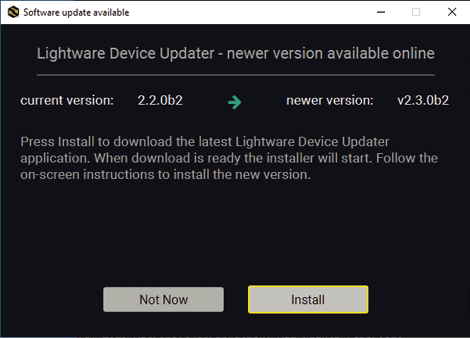
Main Screen

When the software is started by the shortcut, the device discovery screen appears. Press the Search for devices button to start finding the Lightware devices:
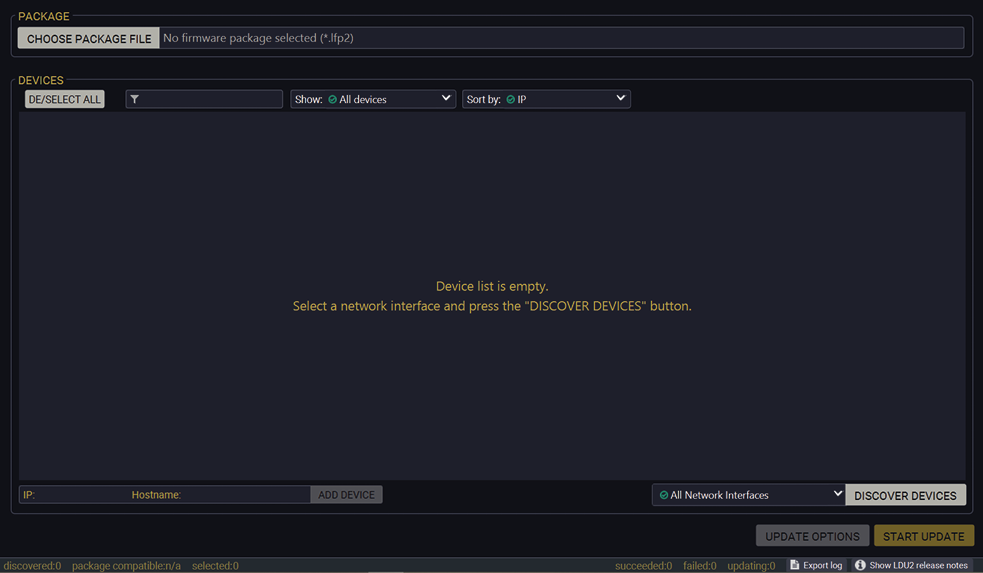
Devices may also be added manually by typing the IP address in the box near the bottom of the screen. From LDU2 version v2.16.1, manual addition of devices can also be done using the hostname.
ATTENTION!If the device cannot be added by the hostname, please use the IP address.
If you start the software by double-clicking on the LFP2 file, the firmware will be loaded. Press the Discover devices button; all the devices will be listed that are compatible with the selected firmware pack.
INFO:If you press the Choose package file button, the release notes of the LFP2 file will be displayed in the right panel; see the Step 1. Select the Firmware Package section.
Device List
When the discovery has completed, the devices available on the network are listed in the application.
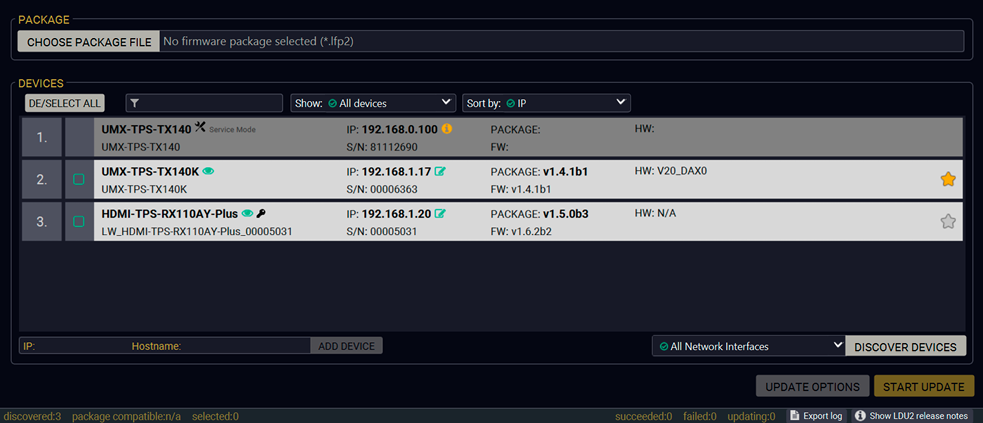
If the desired device is not discovered, you can add it by typing the IP address in the dedicated field and pressing the Add device button.
Legend of the Icons

|
IP address editor |
The IP address of the device can be changed in the pop-up window. |

|
Identify me |
Clicking on the icon results in the front panel LEDs blinking for 10 seconds, which helps identify the device physically. |

|
Favorite device |
The device has been marked, thus the IP address is stored. When a device is connected with that IP address, the star will be highlighted in that line. |

|
Further information available |
Device is unreachable. Change the IP address by pressing the IP address editor icon or use the front panel buttons (if available). |

|
Cleartext login enabled |
The password-protection is enabled. You have to enter the password to perform the firmware update in the Parameters window or in the appearing window in the beginning of the update. |

|
Service mode |
The device is in bootload mode. Backup and restore cannot be performed in this case. |
ATTENTION!While the firmware is being updated, the normal operation mode is suspended, as the device is switched to bootload mode. Signal processing is not performed. Do not interrupt the firmware update. If any problem occurs, reboot the unit and restart the process.
Keeping the Configuration Settings
By default, device configuration settings are restored when firmware update is finished. If factory reset has been chosen in the parameters window, all device settings will be erased. In the case of factory reset, you can save the settings of the device in the Lightware Device Controller software and restore it later.
The following flow chart demonstrates how this function works in the background.
Step 1.Create a backup
The current configuration of the device is being saved into a configuration backup file on your computer.
Step 2.Start the Update
The device reboots and starts in bootload mode (firmware update mode).
Step 3.Update
The CPU firmware is changed to the new one.
Step 4.Factory reset
All configuration settings are restored to the factory default values.
Step 5.Conversion / Restore
The firmware package checks the backup data before the restoration procedure, and if it is necessary, a conversion is applied to avoid incompatibility problems between the firmware versions. All configuration settings are restored to the device after the conversion.
If the factory default option is selected in the Parameters window, the conversion / restoration procedure will not be performed!
Step 6.Finish
Once the firmware update procedure is finished, the device reboots and is ready to use.
Step 1. Select the Firmware Package

Click on the Choose Package File button and navigate to the location where the LFP2 file was saved. When you click on the name of package, the preview of the release notes is displayed in the right panel.
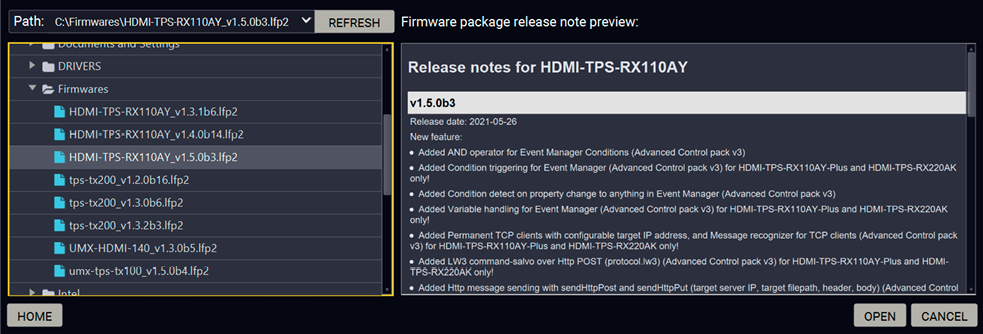
After the package file is loaded, the list is filtered to show the compatible devices only. The current firmware version of the device is highlighted in orange if it is different from the version of the package loaded.
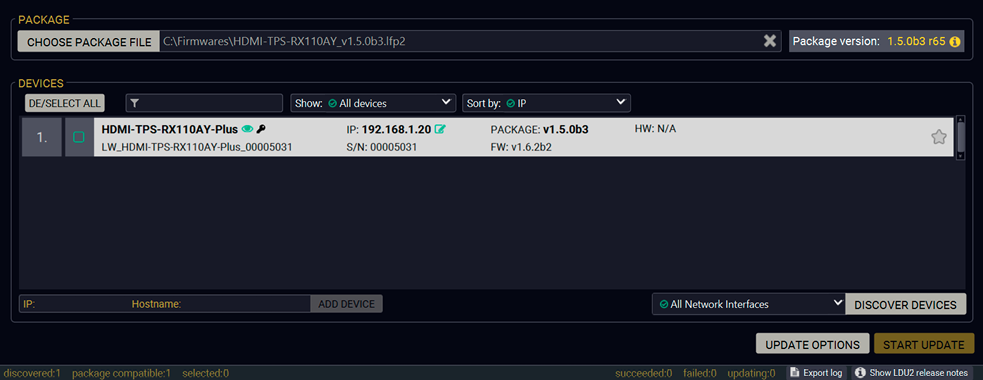
INFO:If you start the update by double-clicking on the LFP file, the screen above will be loaded right away.
The Meaning of the Symbols
|
|
Show details |
The log about the updating process of the device can be displayed in a new window. |
|
|
Service mode |
The device is in bootload mode. Backup and restore cannot be performed in this case. |


Step 2. Select the desired devices for updating
Select the devices for updating; the selected line will be highlighted in green.
If you are not sure which device to select, press the Identify me button. It makes the front panel LEDs blink for 10 seconds. The feature helps find the device physically.
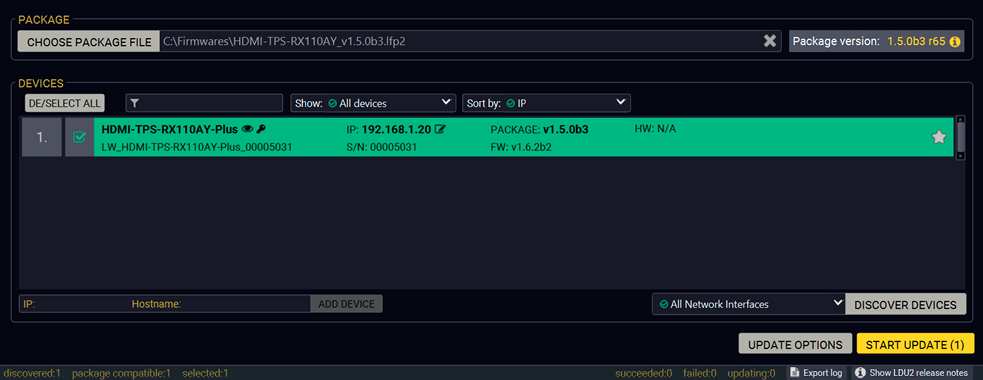
Step 3. Check the update parameters

DIFFERENCE:The appearing settings are device-dependent and can be different from device to device.
Clicking on the Update Options button, special settings will be available like:
▪Creating a backup about the configuration,
▪Restore the configuration or reloading the factory default settings after the firmware update,
▪Uploading the default Miniweb (if available)
▪Enter the password for the Cleartext login. #builtinweb #miniweb #web
INFO:The password entered here will be used for all the selected devices where the Cleartext login is enabled. If the password is incorrect, a window will appear to request the correct one at each device during the update.
Please arrange the settings carefully.
Step 4. Start the update and wait until it is finished
Click on the Start Update button to start the procedure. The status is shown in percent in the right side of the device line and the overall process in the bottom progress bar.
If the Cleartext login is enabled and you did not enter the password in the Parameters window (or it is incorrect), a window will appear to request the password at each device.
INFO:The device might reboot during the firmware update procedure.
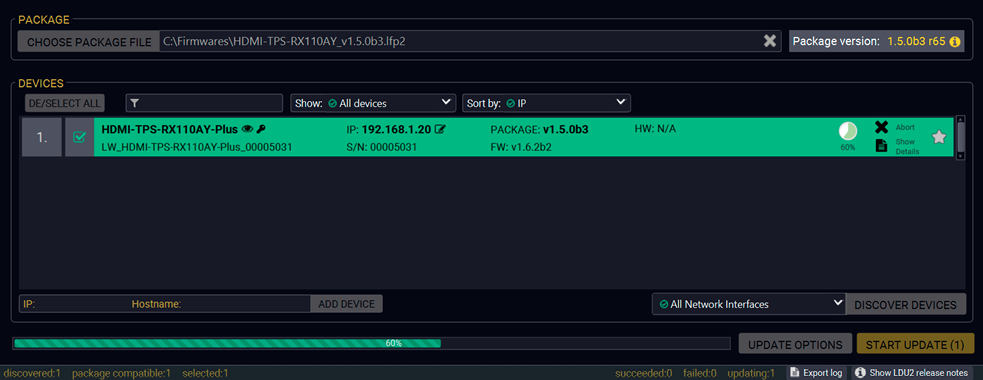
The log about the updating process can be displayed in a new window by pressing the  button. When the progress bar reaches 100% (Done is displayed at all devices), the update of all devices is finished successfully and a message appears; you can close the software.
Step 5. Wait until the unit reboots with the new firmware.
Once the firmware update procedure is completed, the device is rebooted with the new firmware. Shutting down and restarting the device is recommended.
8.5. Command Line Interface (CLI)
DIFFERENCE:The Command Line Interface is available from LDU2 v2.9.0b9.
The CLI of the LDU2 software is a simple tool for creating scriptable device updates without the need for human interactions. It allows batch updating with the same features that are available in case of GUI usage. #new
Running under Windows® OS
The installer of LDU2 puts the following file into the installation folder:
LightwareDeviceUpdaterV2_CLI.cmd
CLI is available via this file, the exe is not suitable for that purpose. Open a command line window to execute or test the features directly.
Step 1.Open an Explorer window where the cmd file is located, the default is:
c:\Program Files (x86)\Lightware\Lightware Device Updater V2\LightwareDeviceUpdaterV2_CLI.cmd.
Step 2.Click on the address line (highlighed with blue in the picture), type cmd.exe and press enter. The command interpreter window of Windows is opened at the path of the LDU2 install folder.
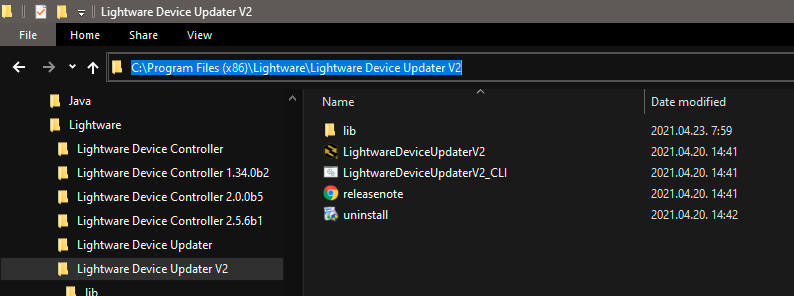
Step 3.Now you can use the LightwareDeviceUpdaterV2_CLI.cmd file with the commands and options that are described in the coming sections:
Running under Linux
The Command Line Interface under Linux Operating Systems can be run by the following:
LightwareDeviceUpdaterV2.sh
Running an update:
bash LightwareDeviceUpdaterV2.sh update --ip 172.24.5.27 --package ~/Downloads/tps-tx200_1.3.1b3.lfp2
The commands and options are the same under Windows® and Linux, too. The following sections contain examples with LightwareDeviceUpdaterV2_CLI.cmd.
Command Structure
The commands can be run over CLI in the following way:
LightwareDeviceUpdaterV2_CLI.cmd [command] [options]
[Command]: a certain command described in the coming sections; only one command can be run at a time
[Options]: mandatory and/or optional parameters of the command, if any. Optional parameters have a default value, which can be found at each affected command. You only have to define the parameter if you want to apply a different value. The order of the options is arbitrary.
Important Notes
▪CLI is case-sensitive (including commands, options and other parameters).
▪There is no limit regarding the number of the devices to update. At most 20 devices are updated simoultaneously, when one of them is finished, the following (21st) will be started automatically.
▪If an update is failed, the IP address of the affected device(s) are listed at the end.
INFO:The commands and options described in the following sections are the same under Windows® and Linux, too. The examples contain LightwareDeviceUpdaterV2_CLI.cmd.
About the Examples
▪Sent command is in blue, response is in grey.
▪If the response in practice is longer than listed in the example, this symbol can be seen: [...].
The defined commands and options can be listed by the help command.
Command
LightwareDeviceUpdaterV2_CLI.cmd help
Example
C:\Program Files (x86)\Lightware\Lightware Device Updater V2>LightwareDeviceUpdaterV2_CLI.cmd help
C:\Program Files (x86)\Lightware\Lightware Device Updater V2>lib\jre\bin\java.exe -jar lib\ldu2.jar help
Command line usage:
Win: LightwareDeviceUpdaterV2_CLI.cmd [command] [options]
Linux: LightwareDeviceUpdaterV2.sh [command] [options]
Commands:
* help
* version
* update
* deviceInfo
* restore
* packageOptions
[...]
The response shows the version of the LDU2 and the version of the Script API (the Application Programming Interface that is used by the LDU2 and the script).
Command
LightwareDeviceUpdaterV2_CLI.cmd version
Example
C:\Program Files (x86)\Lightware\Lightware Device Updater V2>LightwareDeviceUpdaterV2_CLI.cmd version
C:\Program Files (x86)\Lightware\Lightware Device Updater V2>lib\jre\bin\java.exe -jar lib\ldu2.jar version
LDU2 version: 2.10.0b4
Script API version: 1.3.10
8.6.3. Check For New LDU2 Version
The following command can be used to check if an update of LDU2 is available. This is just a request, since the CLI is not suitable for handling the complete installer of the software.
Command
LightwareDeviceUpdaterV2_CLI.cmd checkForUpdates
Example 1
c:\Program Files (x86)\Lightware\Lightware Device Updater V2>LightwareDeviceUpdaterV2_CLI.cmd checkForUpdates
c:\Program Files (x86)\Lightware\Lightware Device Updater V2>lib\jre\bin\java.exe -jar lib\ldu2.jar checkForUpdates
Current LDU2 version: 2.9.1b1
LDU2 is up-to-date
Example 2
c:\Program Files (x86)\Lightware\Lightware Device Updater V2>LightwareDeviceUpdaterV2_CLI.cmd checkForUpdates
c:\Program Files (x86)\Lightware\Lightware Device Updater V2>lib\jre\bin\java.exe -jar lib\ldu2.jar checkForUpdates
Current LDU2 version: 2.9.1b1
New version is available online: v2.9.2b2
Download URL: http://update.lightware.hu/ldu2/lwr/v2.9.2b2/install_LDU2_v2.9.2b2.exe
The most important information about the selected device is displayed; see the example for more details.
Command
LightwareDeviceUpdaterV2_CLI.cmd deviceInfo [options]
Options
|
Option |
Description |
Required? |
|
-i or --ip |
List of IP addresses of devices to be updated |
one of them is mandatory |
|
-n or --hostName |
List of host names of devices to be updated |
|
|
-v or --packageVersion |
Shows installed package version only |
optional |
Example 1
C:\Program Files (x86)\Lightware\Lightware Device Updater V2>LightwareDeviceUpdaterV2_CLI.cmd deviceInfo --ip 192.168.1.2
C:\Program Files (x86)\Lightware\Lightware Device Updater V2>lib\jre\bin\java.exe -jar lib\ldu2.jar deviceInfo --ip 192.168.1.2
Product name: HDMI-TPS-RX110AY-Plus
IP address: 192.168.1.2
Serial number: 00005031
MAC address: a8:d2:36:00:50:31
Part number: 91540070
Device label: LW_HDMI-TPS-RX110AY-Plus_00005031
Package version: v1.5.0b3
CPU FW version: v1.6.2b2
HW version: V12_AAA0
Operation mode: Application mode
Example 2
C:\Program Files (x86)\Lightware\Lightware Device Updater V2>LightwareDeviceUpdaterV2_CLI.cmd deviceInfo --ip 192.168.1.2 --packageVersion
C:\Program Files (x86)\Lightware\Lightware Device Updater V2>lib\jre\bin\java.exe -jar lib\ldu2.jar deviceInfo --ip 192.168.1.2 --packageVersion
v1.5.0b3
This command can be used to update the firmware of the devices.
Command
LightwareDeviceUpdaterV2_CLI.cmd update [options]
Options
|
Option |
Description |
Required? |
|
-p or --package |
The path of the firmware package file |
yes |
|
-i or --ip |
List of IP addresses of devices to be updated |
one of them is mandatory |
|
-n or --hostName |
List of host names of devices to be updated |
|
|
-b or --backupFolder |
Folder to create device configuration backup at. Default: USER_HOME/.ldu2/backup |
optional |
|
-f or --factoryDefault |
Apply factory reset during device update. Default: false |
optional |
|
-r or --reportProgress |
Report update progress in percentage form. Default: false |
optional |
|
Certain LFP2 packages have features that can be applied at this command; see the Package Options section. |
optional |
ATTENTION!The configuration is restored automatically if the factory default option is not applied in the update command. In that case, there is no need to run the restore command after the update.
Example
C:\Program Files (x86)\Lightware\Lightware Device Updater V2>LightwareDeviceUpdaterV2_CLI.cmd update --ip 192.168.1.2 --package C:\Firmwares\HDMI-TPS-RX110AY_v1.5.0b3.lfp2 --reportProgress
C:\Program Files (x86)\Lightware\Lightware Device Updater V2>lib\jre\bin\java.exe -jar lib\ldu2.jar update --ip 192.168.1.2 --package C:\Firmwares\HDMI-TPS-RX110AY_v1.5.0b3.lfp2 --reportProgress
[2021-06-15 11:23:08.517] [ INFO] [ main] - Device IPs: [192.168.1.2]
[2021-06-15 11:23:11.278] [ INFO] [ main] - All the selected devices are accessible over the network.
[2021-06-15 11:23:11.460] [ INFO] [ main] - All the selected devices are compatible with the specified package.
[2021-06-15 11:23:11.865] [ INFO] [ 192.168.1.2] - Package version: 1.5.0b3
[2021-06-15 11:23:11.956] [ INFO] [ 192.168.1.2] - Login functionality is currently not enabled.
[2021-06-15 11:23:11.978] [ INFO] [ 192.168.1.2] - Creating backup of device settings...
[2021-06-15 11:23:15.154] [ INFO] [ 192.168.1.2] - Backup HTTP enable properties
[2021-06-15 11:23:16.467] [ INFO] [ProgressReporter] - Progress: 2%
[2021-06-15 11:23:17.660] [ INFO] [ 192.168.1.2] - HTTP and HTTP post have got enabled on port 80
[2021-06-15 11:23:17.761] [ INFO] [ 192.168.1.2] - Backup of device preset MyMacros (preset1) is queued
[2021-06-15 11:23:17.804] [ INFO] [ 192.168.1.2] - Backup of device preset save protected (preset2) is queued
[2021-06-15 11:23:17.883] [ INFO] [ 192.168.1.2] - Creating backup of device presets...
[2021-06-15 11:23:18.744] [ INFO] [ 192.168.1.2] - Creating miniweb backup...
[2021-06-15 11:23:18.745] [ INFO] [ 192.168.1.2] - Making backup of the miniweb file.
[2021-06-15 11:23:21.362] [ INFO] [ 192.168.1.2] - HTTP and HTTP post properties have got restored on port 80
[2021-06-15 11:23:21.388] [ INFO] [ 192.168.1.2] - Switching device into bootload mode...
[2021-06-15 11:23:21.469] [ INFO] [ProgressReporter] - Progress: 5%
[...]
If the ProgressReporter option is enabled, the current state is displayed every 5 seconds.
Restores device configuration from a backup file.
TIPS AND TRICKS:This command can be used for uploading a configuration to numerous devices (aka Configuration cloning by CLI).
Command
LightwareDeviceUpdaterV2_CLI.cmd restore [options]
Options
|
Option |
Description |
Required? |
|
-i or --ip |
List of IP addresses of devices to be updated |
one of them is mandatory |
|
-n or --hostName |
List of host names of devices to be updated |
|
|
-b or --backupFile |
The path of the configuration backup file |
yes |
|
-k or --keepOriginalIp |
Do not override the network settings of the device with the ones in the backup file. It comes in handy when multiple devices' configuration is being restored from a single backup file. Default: false |
optional |
ATTENTION!The configuration is restored automatically if the factory default option is not applied in the update command. In that case, there is no need to run the restore command after the update.
Example
C:\Program Files (x86)\Lightware\Lightware Device Updater V2>LightwareDeviceUpdaterV2_CLI.cmd restore --ip 192.168.1.2 --backupFile C:\My_backup\my_backup.lw3 --keepOriginalIp
C:\Program Files (x86)\Lightware\Lightware Device Updater V2>lib\jre\bin\java.exe -jar lib\ldu2.jar restore --ip 192.168.1.2 --backupFile C:\My_backup\my_backup.lw3 --keepOriginalIp
[2021-06-15 11:41:11.076] [ INFO] [ main] - Executing configuration restore...
[2021-06-15 11:41:11.086] [ INFO] [ main] - Device IPs: [192.168.1.2]
INFO:The firmware package checks the backup data before the restoration procedure and if it is necessary, a conversion is applied to avoid incompatibility problems between the firmware versions. In that case, two backup files are created: the original and a new one with "_converted" suffix. Using the last one for restoring is recommended.
Shows package-specific update options.
Command
LightwareDeviceUpdaterV2_CLI.cmd packageOptions [options]
Options
|
Option |
Description |
Required? |
|
-p or --package |
The path of the firmware package file |
yes |
Example
C:\Program Files (x86)\Lightware\Lightware Device Updater V2>LightwareDeviceUpdaterV2_CLI.cmd packageOptions --package C:\Firmwares\HDMI-TPS-RX110AY_v1.5.0b3.lfp2
C:\Program Files (x86)\Lightware\Lightware Device Updater V2>lib\jre\bin\java.exe -jar lib\ldu2.jar packageOptions --package C:\Firmwares\HDMI-TPS-RX110AY_v1.5.0b3.lfp2
Backup and restore options:
--skipPresetsAtRestore : if true, device presets will not be restored. (Default: false)
--uploadDefaultMiniWeb : if true and no custom miniweb is present on the device, the default built-in miniweb will be uploaded to the device. (Default: false)
Login options:
--clearTextLoginPw : The cleartext login password used when updating devices. (Default: empty string)
Test options:
--test : if true, no update will be performed, communication with the device will be tested. (Default: false)
Advanced (developer) options:
--updateVs100 : If true, the VS100 Rx firmware will also be updated. (default: false)
Package option example can be seen in the following section.
Example 1
The following options are applied:
▪Firmware is updated
▪Factory default settings are restored
C:\Program Files (x86)\Lightware\Lightware Device Updater V2>LightwareDeviceUpdaterV2_CLI.cmd update --ip 192.168.1.2 --factoryDefault --package C:\Firmwares\HDMI-TPS-RX110AY_v1.5.0b3.lfp2
C:\Program Files (x86)\Lightware\Lightware Device Updater V2>lib\jre\bin\java.exe -jar lib\ldu2.jar update --ip 192.168.1.2 --factoryDefault --package C:\Firmwares\HDMI-TPS-RX110AY_v1.5.0b3.lfp2
[2021-06-15 11:45:03.753] [ INFO] [ main] - Device IPs: [192.168.1.2]
[2021-06-15 11:45:07.625] [ INFO] [ main] - All the selected devices are accessible over the network.
[2021-06-15 11:45:07.855] [ INFO] [ main] - All the selected devices are compatible with the specified package.
[2021-06-15 11:45:08.384] [ INFO] [ 192.168.1.2] - Package version: 1.5.0b3
[2021-06-15 11:45:08.476] [ INFO] [ 192.168.1.2] - Login functionality is currently not enabled.
[2021-06-15 11:45:08.529] [ INFO] [ 192.168.1.2] - Switching device into bootload mode...
[2021-06-15 11:45:28.972] [ INFO] [ 192.168.1.2] - Gathering UID information from device...
[2021-06-15 11:45:29.557] [ INFO] [ 192.168.1.2] - UID info - Device IP: 192.168.1.2 Product name: HDMI-TPS-RX110AY-Plus Product part number: 91540070 Serial number: 00005031 Hardware version: V12_AAA0 MAC address: A8:D2:36:00:50:31
[2021-06-15 11:45:30.053] [ INFO] [ 192.168.1.2] - Package version on device: 1.5.0b3 r65
[2021-06-15 11:45:30.098] [ INFO] [ 192.168.1.2] - Updating Firmware of the MCU...
[2021-06-15 11:45:30.582] [ INFO] [ 192.168.1.2] - [tps_rx200.bin]'s current version on device: 1.6.2b2 r114
[2021-06-15 11:45:30.584] [ INFO] [ 192.168.1.2] - [tps_rx200.bin]'s version in the package: 1.6.2b2 r114
[2021-06-15 11:45:58.103] [ INFO] [ 192.168.1.2] - [tps_rx200.bin]'s firmware version updated in FVS EEPROM.
[2021-06-15 11:46:04.653] [ INFO] [ 192.168.1.2] - Setting system information...
[2021-06-15 11:46:11.197] [ INFO] [ 192.168.1.2] - Starting application...
[2021-06-15 11:47:55.972] [ INFO] [ 192.168.1.2] - Done
All 1 update(s) finished successfully.
Example 2
The following options are applied:
▪Cleartext login password is applied
▪Custom backup folder is set
▪Current configuration is saved
▪Firmware is updated and saved configuration is restored
C:\Program Files (x86)\Lightware\Lightware Device Updater V2>LightwareDeviceUpdaterV2_CLI.cmd update --ip 192.168.1.2 --package C:\Firmwares\HDMI-TPS-RX110AY_v1.5.0b3.lfp2 --backupFolder C:\My_backup --clearTextLoginPw qwer1234
C:\Program Files (x86)\Lightware\Lightware Device Updater V2>lib\jre\bin\java.exe -jar lib\ldu2.jar update --ip 192.168.1.2 --package C:\Firmwares\HDMI-TPS-RX110AY_v1.5.0b3.lfp2 --backupFolder C:\My_backup --clearTextLoginPw qwer1234
[2021-06-15 11:57:35.437] [ INFO] [ main] - Device IPs: [192.168.1.2]
[2021-06-15 11:57:38.676] [ WARN] [ pool-2-thread-1] - NetworkMask property is not available. Cannot determine whether the device is on the same network or not.
[2021-06-15 11:57:38.756] [ WARN] [ pool-2-thread-1] - Bonjour device builder error messages: [object Array]
[2021-06-15 11:57:38.849] [ INFO] [ main] - All the selected devices are accessible over the network.
[2021-06-15 11:57:39.091] [ INFO] [ main] - All the selected devices are compatible with the specified package.
[2021-06-15 11:57:39.671] [ INFO] [ 192.168.1.2] - Package version: 1.5.0b3
[2021-06-15 11:57:39.793] [ INFO] [ 192.168.1.2] - Logged in successfully.
[2021-06-15 11:57:39.834] [ INFO] [ 192.168.1.2] - Creating backup of device settings...
[2021-06-15 11:57:43.159] [ INFO] [ 192.168.1.2] - Backup HTTP enable properties
[2021-06-15 11:57:45.627] [ INFO] [ 192.168.1.2] - HTTP and HTTP post have got enabled on port 80
[2021-06-15 11:57:45.941] [ INFO] [ 192.168.1.2] - Backup of device preset save protected (preset2) is queued
[2021-06-15 11:57:46.029] [ INFO] [ 192.168.1.2] - Creating backup of device presets...
[2021-06-15 11:57:47.258] [ INFO] [ 192.168.1.2] - No miniweb file is found on the device.
[2021-06-15 11:57:49.805] [ INFO] [ 192.168.1.2] - HTTP and HTTP post properties have got restored on port 80
[2021-06-15 11:57:49.896] [ INFO] [ 192.168.1.2] - Switching device into bootload mode...
[2021-06-15 11:58:11.221] [ INFO] [ 192.168.1.2] - Gathering UID information from device...
[2021-06-15 11:58:11.786] [ INFO] [ 192.168.1.2] - UID info - Device IP: 192.168.1.2 Product name: HDMI-TPS-RX110AY-Plus Product part number: 91540070 Serial number: 00005031 Hardware version: V12_AAA0 MAC address: A8:D2:36:00:50:31
[2021-06-15 11:58:12.283] [ INFO] [ 192.168.1.2] - Package version on device: 1.5.0b3 r65
[2021-06-15 11:58:12.832] [ INFO] [ 192.168.1.2] - Updating Firmware of the MCU...
[2021-06-15 11:58:13.317] [ INFO] [ 192.168.1.2] - [tps_rx200.bin]'s current version on device: 1.6.2b2 r114
[2021-06-15 11:58:13.318] [ INFO] [ 192.168.1.2] - [tps_rx200.bin]'s version in the package: 1.6.2b2 r114
[2021-06-15 11:58:40.813] [ INFO] [ 192.168.1.2] - [tps_rx200.bin]'s firmware version updated in FVS EEPROM.
[2021-06-15 11:58:47.374] [ INFO] [ 192.168.1.2] - Setting system information...
[2021-06-15 11:58:53.928] [ INFO] [ 192.168.1.2] - Starting application...
[2021-06-15 12:00:40.361] [ INFO] [ 192.168.1.2] - Waiting for VS100...
[2021-06-15 12:00:42.029] [ INFO] [ 192.168.1.2] - Restoring device presets...
[2021-06-15 12:00:42.051] [ INFO] [ 192.168.1.2] - Deleting preset: preset2
[2021-06-15 12:00:43.854] [ INFO] [ 192.168.1.2] - Restoring preset: save protected (preset2)
[2021-06-15 12:00:46.614] [ INFO] [ 192.168.1.2] - Restoring device settings from the following backup file: C:\My_backup\backup_91540070_00005031_2021-06-15_11-57-40_converted.lw3 ...
[2021-06-15 12:00:50.452] [ INFO] [ 192.168.1.2] - Device settings have been restored
[2021-06-15 12:00:50.486] [ INFO] [ 192.168.1.2] - Resetting device...
[2021-06-15 12:00:55.301] [ INFO] [ 192.168.1.2] - Done
All 1 update(s) finished successfully.
Example 3
The following options are applied:
▪Cleartext login password is applied
▪Custom backup folder is set
▪Current configuration is saved
▪Firmware is not updated but the process and the connection is tested
C:\Program Files (x86)\Lightware\Lightware Device Updater V2>LightwareDeviceUpdaterV2_CLI.cmd update --test --ip 192.168.1.2 --package C:\Firmwares\HDMI-TPS-RX110AY_v1.5.0b3.lfp2 --backupFolder C:\My_backup --clearTextLoginPw qwer1234
C:\Program Files (x86)\Lightware\Lightware Device Updater V2>lib\jre\bin\java.exe -jar lib\ldu2.jar update --test --ip 192.168.1.2 --package C:\Firmwares\HDMI-TPS-RX110AY_v1.5.0b3.lfp2 --backupFolder C:\My_backup --clearTextLoginPw qwer1234
[2021-06-15 12:02:16.764] [ INFO] [ main] - Device IPs: [192.168.1.2]
[2021-06-15 12:02:20.090] [ WARN] [ pool-2-thread-1] - NetworkMask property is not available. Cannot determine whether the device is on the same network or not.
[2021-06-15 12:02:20.209] [ WARN] [ pool-2-thread-1] - Bonjour device builder error messages: [object Array]
[2021-06-15 12:02:20.250] [ INFO] [ main] - All the selected devices are accessible over the network.
[2021-06-15 12:02:20.494] [ INFO] [ main] - All the selected devices are compatible with the specified package.
[2021-06-15 12:02:21.008] [ INFO] [ 192.168.1.2] - PASSED - Test #01 - Communication over LW3
[2021-06-15 12:02:21.062] [ INFO] [ 192.168.1.2] - PASSED - Test #02 - Cleartext login - PW is correct
[2021-06-15 12:02:21.112] [ INFO] [ 192.168.1.2] - Creating backup of device settings...
[2021-06-15 12:02:24.302] [ INFO] [ 192.168.1.2] - Backup HTTP enable properties
[2021-06-15 12:02:26.809] [ INFO] [ 192.168.1.2] - HTTP and HTTP post have got enabled on port 80
[2021-06-15 12:02:27.078] [ INFO] [ 192.168.1.2] - Backup of device preset save protected (preset2) is queued
[2021-06-15 12:02:27.229] [ INFO] [ 192.168.1.2] - Creating backup of device presets...
[2021-06-15 12:02:28.277] [ INFO] [ 192.168.1.2] - No miniweb file is found on the device.
[2021-06-15 12:02:30.742] [ INFO] [ 192.168.1.2] - HTTP and HTTP post properties have got restored on port 80
[2021-06-15 12:02:30.743] [ INFO] [ 192.168.1.2] - PASSED - Test #03 - Configuration and/or device preset backup created
[2021-06-15 12:02:30.762] [ INFO] [ 192.168.1.2] - Switching device into bootload mode...
[2021-06-15 12:02:32.447] [ INFO] [ 192.168.1.2] - PASSED - Test #04 - Switch device into bootloader mode
[2021-06-15 12:02:43.553] [ INFO] [ 192.168.1.2] - PASSED - Test #05 - Communication with bootloader
[2021-06-15 12:02:43.566] [ INFO] [ 192.168.1.2] - Gathering UID information from device...
[2021-06-15 12:02:44.081] [ INFO] [ 192.168.1.2] - PASSED - Test #06 - TFTP file transfer
[2021-06-15 12:02:57.308] [ INFO] [ 192.168.1.2] - PASSED - Test #07 - Start application FW
[2021-06-15 12:02:57.360] [ INFO] [ 192.168.1.2] - Done
All 1 update(s) finished successfully.
There is a return value in all cases when a command run is finished. Currently, three codes are defined:
|
Code |
Displayed text |
Description |
|
0 |
N/A |
The update performed successfully |
|
1 |
Update error (ErrorCode:1) |
The error happened during the update |
|
2 |
CLI error (ErrorCode:2 |
The error happened before starting the update |
The error line contains further information about the error.
Querying the Exit Code under Windows®
c:\Program Files (x86)\Lightware\Lightware Device Updater V2\echo %errorlevel%
0
Querying the Exit Code under Linux
echo $?
0
If this value is queried after the update and it is 0, the update performed successfully.
8.7. If the Update is not successful
▪Restart the process and try the update again.
▪If the device cannot be switched to bootload (firmware update) mode, you can do that manually as written in the User manual of the device. Please note that backup and restore cannot be performed in this case.
▪If the backup cannot be created for some reason, you will get a message to continue the process without backup or stop the update. A root cause can be that the desired device is already in bootload (firmware update) mode, thus the normal operation mode is suspended and backup cannot be made.
▪If an update is not successful, the Export log button becomes red. If you press the button, you can download the log file as a ZIP package, which can be sent to Lightware Support if needed. The log files contain useful information about the circumstances to find the root cause. #bootload
9
Usually, if the system seems not to transport the signal as expected, the best strategy for troubleshooting is to check signal integrity through the whole signal chain starting from source side and moving forward to receiver end. The following sections are available in the chapter:
Legend

|
Link to the section of connections/cabling. |

|
Link to the section of front panel operation. |

|
Link to the section of LDC software. |

|
Link to the section of LW2 protocol commands. |

|
Link to the section of LW3 protocol commands. |
At first, check the front panel LEDs and take the necessary steps according to their states. For more information about status LEDs, refer to the Front View and Rear View sections.
|
Symptom |
Root cause |
Action |
Refer to |
|
|---|---|---|---|---|
|
Video signal |
||||
|
No picture on the video output |
Device or devices are not powered properly |
Check the receiver and the other devices if they are properly powered; try to unplug and reconnect them. |

|
|
|
Cable connection problem |
Cables must fit very well, check all the connectors (video and TPS cables). |

|
||
|
No incoming signal |
If the TPS LINK LED does not shine, no signal is present on the TPS input port. Check the source device and the CATx cable. |

|
||
|
TPS mode problem |
Check the current TPS mode and the selected modes of the extenders. |

|
||
|
The output is muted |
Check the mute state of output port. |

|
||

|
||||

|
||||
|
Display is not able to receive the video format |
Check the emulated EDID; select another (e.g. emulate the EDID of the display on the input port). |

|
||

|
||||
|
HDCP is disabled |
Enable HDCP on the input and output port. |

|
||

|
||||
|
|
||||
|
Not the desired picture displayed on the video output |
Video output is set to test pattern (no sync screen) statically |
Check Test Pattern settings in the HDMI output properties. |

|
|

|
||||
|
Video output is set to test pattern (no sync screen) as there is no picture on video source |
Check video settings of the source. |
|||
|
Symptom |
Root cause |
Action |
Refer to |
|
|---|---|---|---|---|
|
Audio signal |
||||
|
No audio is present on output |
Source audio volume is low or muted |
Check the audio settings of the source. |
||
|
Output port is muted |
Check the output port properties. |
|
||
|
|
||||
|
|
||||
|
Analog audio volume is set low |
Check the Analog audio output port settings (volume). |
|
||
|
|
||||
|
HDMI output signal contains no audio |
HDMI mode was set to DVI |
Check the properties of the output port and set to HDMI or Auto. |
|
|
|
|
||||
|
DVI EDID is emulated |
Check the EDID and select an HDMI EDID to emulate. |
|
||

|
||||
|
RS-232 signal |
||||
|
Connected serial device does not respond |
Cable connection problem |
Make sure the connectors fit well; check the wiring of the plugs. |
|
|
|
RS-232 settings are different |
Check the port settings of the transmitter and/or the receiver and the connected serial device(s). Pay attention to Link and/or Local ports. |
|
||
|
|
||||

|
||||
|
RS-232 mode is not right |
Check the RS-232 mode settings (pass-through, control or command injection). |
|
||
|
|
||||
|
|
||||
|
Network |
||||
|
No LAN connection can be established |
Incorrect IP address is set (fix IP) |
Use dynamic IP address by enabling DHCP option. |

|
|

|
||||
|
|
||||
|
|
||||
|
Restore the factory default settings (with fix IP). |

|
|||
|
|
||||

|
||||
|
|
||||
|
IP address conflict |
Check the IP address of the other devices, too. |
|||
|
Symptom |
Root cause |
Action |
Refer to |
|
|
Miscellaneous |
||||
|
Function button is out of operation |
Function button is locked |
Unlock the button. |

|
|
|
Error messages received always |
Different protocol is set |
Check the port protocol settings (LW2 / LW3) and use the proper protocol commands. |
|
|
|
|
||||
|
|
||||
|
|
||||
9.2. How to Speed Up the Troubleshooting Process
Lightware’s technical support team is always working hard to provide the fastest support possible. Our team’s response time is one of the best in the industry, and in the toughest of cases we can directly consult with the hardware or software engineer who designed the product to get the information from the most reliable source.
However, the troubleshooting process can be even faster… with your help.
There are certain pieces of information that push us in the right direction to find the root cause of the problem. If we receive most of this information in the first e-mail, or it is gathered at the time when you call us, then there is a pretty high chance that we will be able to respond with the final solution right away. This information is the following:
▪Schematic (a pdf version is preferred, but a hand drawing is sufficient).
▪Serial number(s) of the device(s) (it is either printed somewhere on the box or you can query it in the Device Controller software or on the built-in website).
▪Firmware versions of the devices (please note that there may be multiple CPUs or controllers in the device and we need to know all of their firmware versions, a screenshot is the best option).
▪Cable lengths and types (in our experience, it’s usually the cable).
▪Patch panels, gender changers or anything else in the signal path that can affect the transmission.
▪Signal type (resolution, refresh rate, color space, deep color).
▪Emulated EDID(s) (please save them as a file and send it to us).
▪Actions to take in order to re-create the problem (if we cannot reproduce the problem, it is hard for us to find the cause).
▪Photo or video about the problem (‘image noise’ can mean many different things, it’s better if we see it too).
▪Error logs from the Device Controller software.
▪In the case of Event Manager issue, the event file and/or backup file from the Device Controller software.
The more of the information above you can give us, the better. Please send this information to the Lightware Support Team (support@lightware.com) to speed up the troubleshooting process.
The following sections contain descriptions and useful technical information on how the devices work in the background. The content is based on experiences and cases we met in the practice. These sections help to understand features and technical standards like the following:
10.1.1. Understanding the EDID
The Extended Display Identification Data (EDID) is the passport of display devices (monitors, TV sets, projectors). It contains information about the capabilities of the display, such as supported resolutions, refresh rates (these are called Detailed Timings), the type and manufacturer of the display device, etc.
After connecting a source to a display (DVI, HDMI, DP), the source reads out the EDID to determine the resolution and refresh rate of the image to be transmitted.

EDID Communication
Most DVI computer displays have a 128-byte-long EDID structure. However, Digital Televisions and HDMI capable displays may have another 128 bytes, which is called E-EDID and is defined by CEA (Consumer Electronics Association). This extension contains information about additional Detailed Timings, audio capabilities, speaker allocation and HDMI capabilities. It is important to know that all HDMI capable devices must have CEA extension, but not all devices with CEA extension are HDMI capable.
Common Problems Related to EDID
Problem: “My system consists of the following: a computer, a Lightware device, a WUXGA (1920x1200) LCD monitor, and an SXGA (1280x1024) projector. I would like to see the same image on the monitor and the projector. What EDID should I choose on the Lightware device?”
Solution: If you want to see the image on both displays, you need to select the resolution of the smaller display (in this case SXGA), otherwise the smaller display may not show the higher resolution image.
Problem: “I have changed to a different EDID on an input port of the Lightware device to have a different resolution, but nothing happens.”
Solution: Some graphics cards and video sources read out the EDID only after power-up and later they do not sense that EDID has been changed. You need to restart your source to make it read out the EDID again.
10.1.2. Advanced EDID Management
Each DVI sink (e.g. monitors, projectors, plasma displays, etc...) must support the EDID data structure. Source BIOS and operating systems are likely to query the sink using DDC2B protocol to determine what pixel formats and interface are supported. DVI standard uses EDID data structure to identify the monitor type and capabilities. Most DVI sources (VGA cards, set top boxes, etc.) will output DVI signal after accepting the connected sink’s EDID information. In the case of EDID readout failure or missing EDID, the source will not output DVI video signal.
Lightware devices provide the Advanced EDID Management function that helps system integration. The built-in EDID Router can store and emulate factory pre-programmed- and User programmable EDIDs. The EDID of the attached monitors or projectors for each output are stored in a non-volatile memory. This way the EDID of a monitor is available when the monitor is unplugged or switched off.
Any EDID can be emulated on any input. An emulated EDID can be copied from the EDID router’s memory (static EDID emulation), or from the last attached monitor’s memory (dynamic EDID emulation). For example, the Lightware device can be set up to emulate a sink device that is connected to one of the outputs. In this case the EDID automatically changes if the monitor is replaced with another display device (as long as it has a valid EDID).
The EDID is independently programmable for all inputs without affecting each other. All inputs have their own EDID circuit.
INFO:The user is not required to disconnect the video cable to change an EDID as opposed to other manufacturer’s products. The EDID can be changed even if a source is connected to the input and powered ON.
INFO:When the EDID has been changed, the router toggles the HOTPLUG signal for 2 seconds. Some sources do not sense this signal. In such cases, the source device must be restarted or powered OFF and ON again.
Lightware Visual Engineering is a legal HDCP adopter. Several functions have been developed which helps to solve HDCP related problems. Complex AV systems often have both HDCP and non-HDCP components. The receiver allows transmitting HDCP encrypted and unencrypted signals. The devices will be still HDCP compliant, as they will never output an encrypted signal to a non-HDCP compliant display device. If an encrypted signal is switched to a non-compliant output, a red screen alert or muted screen will appear.
10.2.1. Protected and Unprotected Content
Many video sources send HDCP protected signal if they detect that the sink is HDCP capable – even if the content is not copyrighted. This can cause trouble if an HDCP capable device is connected between the source and the display. In this case, the content cannot be viewed on non-HDCP capable displays and interfaces like event controllers. Rental and staging technicians often complain about certain laptops, which are always sending HDCP encrypted signals if the receiver device (display, matrix router, etc.) reports HDCP compliancy. Even though HDCP encryption is not required all the time (e.g. computer desktop image), certain laptops still do that.
To avoid unnecessary HDCP encryption, Lightware introduced the HDCP enabling/disabling function: the HDCP capability can be disabled in the Lightware device. If HDCP is disabled, the connected source will detect that the sink is not HDCP capable, and turn off authentication.
10.2.2. Disable Unnecessary Encryption
HDCP Compliant Sink

All the devices are HDCP-compliant, no manual setting is required, both protected and unprotected content is transmitted and displayed on the sink.
Not HDCP-compliant Sink 1.

Non-HDCP compliant sink is connected to the receiver. Some sources (e.g. computers) always send HDCP encrypted signals if the receiver device reports HDCP compliancy, however, HDCP encryption is not required all the time (e.g. computer desktop image). If HDCP is enabled in the receiver, the image will not be displayed on the sink.
Setting the HDCP parameter to Auto on the output port and disabling HDCP on the input port, the transmitted signal will not be encrypted if the content is not protected. Thus, non-HDCP compliant sinks will display non-encrypted signal.
Not HDCP-compliant Sink 2.

The layout is the same as in the previous case: non-HDCP compliant display device is connected to the receiver, but the source would send protected content with encryption. If HDCP is enabled on the input port of the receiver, the source will send encrypted signal. The sink is not HDCP compliant, thus it will display a red screen. If HDCP is disabled on the input port of the receiver, the source will not send the signal. The solution is to replace the display device with an HDCP-capable one.
10.3. Pixel Accurate Reclocking
Signal reclocking is an essential procedure in digital signal transmission. After passing the reclocking circuit, the signal becomes stable, jitter-free, and can be transmitted over more equipment like processors, or event controllers. Without reclocking, sparkles, noise, and jaggies appear on the image.
Lightware’s sophisticated Pixel Accurate Reclocking technology fixes more problems than general TMDS reclocking. It removes not only intra-pair skew, but inter-pair skew as well. The Pixel Accurate Reclocking circuit eliminates the following errors:
Intra-pair skew
Skew between the + and - wires within a differential wire pair (e.g. Data2- and Data2+). It’s caused by different wire lengths or slightly different wire construction (impedance mismatch) in the DVI cable. It results in jitter.

Inter-pair skew
Skew between two differential wire pairs in a cable. It is caused by different wire pair lengths or different number of twists in the DVI cable. Too much inter-pair skew results in color shift in the picture or sync loss.
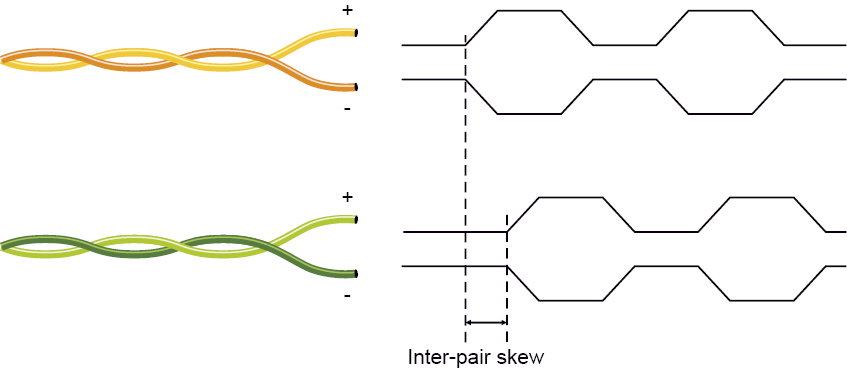
Jitter
Signal instability in the time domain. The time difference between two signal transitions should be a fixed value, but noise and other effects cause variations.

Noise
Electromagnetic interference between other electronic devices such as mobile phones, motors, etc. and the DVI cable are coupled onto the signal. Too much noise results in increased jitter.

Tables, drawings, guides, hashtag keyword list and technical details as follows:
General
|
Compliance |
CE, UKCA |
|
EMC (emission) |
EN 55032:2015+A1:2020 |
|
EMC (immunity) |
EN 55035:2017+A11:2020 |
|
RoHS |
EN 63000:2018 |
|
Electrical safety |
EN 62368-1:2020 |
|
Warranty |
3 years |
|
Operating temperature |
0 to +50˚C (+32 to +122˚F) |
|
Operating humidity |
10% to 90%, non-condensing |
|
Cooling |
Passive |
Power
|
Power supply option |
Power adaptor / PoE |
|
Power consumption (min/max) |
3.3W / 7.9W |
|
Heat dissipation (min/max) |
11 BTU/h / 27 BTU/h |
|
Power over Ethernet |
via TPS input (IEEE802.3af) |
Power Adaptor
|
Supported power source |
100-240 V AC; 50/60 Hz |
|
Supplied power |
12V DC, 2A |
|
AC power plug |
Interchangable (EU, UK, JP/US, AUS/NZ) |
|
DC power plug |
Locking DC connector (2.1/5.5 mm pin) |
Enclosure
|
Enclosure material |
1 mm steel |
|
Dimensions in mm |
221 W x 100.4 D x 26 H |
|
Dimensions in inch |
8.7 W x 3.95 D x 1.02 H |
|
Weight |
607 g (1.34 lb) |
Video Ports
TPS Input Port
|
Connector type |
RJ45 connector |
|
Power over Ethernet (PoE) |
yes (IEEE 802.3af) |
|
Compliance |
HDBaseTTM |
|
HDCP compliance |
HDCP 1.4 |
|
Transferred signals |
Video, Audio, RS-232, Infrared, Ethernet |
|
Color space |
RGB, YCbCr |
|
Video delay |
0 frame |
|
Supported resolutions at 8 bits/color * |
up to 4096x2048@30Hz (4:4:4) or 4096x2048@60Hz (4:2:0); up to 3840x2160@30Hz (4:4:4) or 3840x2160@60Hz (4:2:0); 1920x1080@60Hz (4:4:4) up to 12 bits/color |
|
Audio formats |
8 channel PCM |
|
Dolby TrueHD, DTS-HD Master Audio 7.1 |
* All standard VESA, CEA and other custom resolutions up to 300MHz (HDMI1.4) are supported.
HDMI Output Port
|
Connector type |
19-pole HDMI Type A receptacle |
|
A/V standard |
DVI 1.0, HDMI 1.4 |
|
HDCP compliance |
HDCP 1.4 |
|
Color space |
RGB, YCbCr |
|
Supported resolutions at 8 bits/color * |
up to 4096x2048@30Hz (4:4:4) or 4096x2048@60Hz (4:2:0); up to 3840x2160@30Hz (4:4:4) or 3840x2160@60Hz (4:2:0); 1920x1080@60Hz (4:4:4) up to 12 bits/color |
|
Audio formats |
8 channel PCM, Dolby TrueHD; DTS-HD Master Audio 7.1 |
* All standard VESA and CEA resolutions up to 300MHz (HDMI1.4) and other custom resolutions up to 300Mhz are supported.
Audio ports
Analog Audio Output Port
|
Connector type |
5-pole Phoenix connector |
|
Audio formats |
2-ch PCM |
|
Sampling frequency |
48 kHz |
|
Signal transmission |
Balanced and unbalanced audio |
|
Volume |
-57 dB - 0 dB |
|
Balance |
0 - 100 (50 = center) |
|
Nominal Differential Output Level @ 0 dB Volume setting |
+6.72 dBu (balanced) |
Control Ports
RS-232 Port
|
Connector type |
3-pole Phoenix connector |
|
Baud rates |
Between 4800 and 115200 Baud |
|
Data bits |
8 or 9 |
|
Parity |
None / Odd / Even |
|
Stop bits |
1 / 1.5 / 2 |
USB Port
|
Connector type |
mini B-type |
|
Port capability |
device control |
Infrared Port
|
Input connector type |
3.5 mm TRS (approx. 1/8" jack) |
|
Output connector type |
3.5 mm TS (approx. 1/8" jack) |
|
Input carrier frequency |
38 kHz |
|
Output signal |
modulated (38kHz) |
Ethernet Port
|
Connector type |
RJ45 female connector |
|
Ethernet data rate |
10/100Base-T, full duplex with autodetect |
|
Power over Ethernet (PoE) |
Not supported |
Relay Port
|
Connector type |
4-pole Phoenix connector |
|
Number of relays |
2 |
|
Type |
Normally open contacts |
|
Maximum ratings |
30 V, 1A, AC/DC |
|
Default connection state |
Open |
11.2. Input/Output Port Numbering
The following table contains the input and output ports with their ID numbers that shall be used when protocol command sending or in Lightware Device Controller.
Audio/Video Ports
|
Port name |
Video port nr. |
Emulated EDID memory |
Audio port nr. |
||
|
LW2 |
LW3 |
LW2 |
LW3 |
||
|
TPS Link in |
1 |
I1 |
E1 |
1 |
I1 |
|
HDMI out |
1 |
O1 |
- |
1 |
O1 |
|
Audio out |
- |
- |
- |
2 |
O2 |
RS-232 Ports
|
Port name |
Port nr. (LW2 / LW3) |
|
Local |
P1 |
|
TPS link |
P2 |
Infrared Ports
|
Port name |
Port nr. (LW3) |
|
Local IR input |
S1 |
|
Local IR output |
D1 |
|
TPS link input |
S2 |
|
TPS link output |
D2 |
The backup file contains numerous settings and parameters saved from the device. When the file is uploaded to a device, the following will be overwritten:
|
TPS input port |
|
Video port name, Audio port name, HDCP setting |
|
Ethernet port name, Ethernet port status (enable / disable) |
|
Remote port name, Remote port status (enable / disable) |
|
Analog audio output port |
|
Port name, Volume, Balance |
|
HDMI output port |
|
Port name, HDCP mode, HDMI mode, Power +5V mode |
|
Test pattern mode, clock source, and type |
|
Audio port name, Audio output enabled, S/PDIF mode |
|
Port parameters |
|
Mute video ports |
|
Mute audio ports, Lock audio ports |
|
Local and TPS serial port |
|
RS-232 mode, Control protocol, Baud rate, Data bits, Stop bits, Parity |
|
Port name and CI (Command Injection) port number |
|
Local and TPS IR port |
|
Port status (enable / disable), Code length, Repetition code, Enable modulation |
|
Input port name, Output port name |
|
CI status (enable / disable), CI port number |
|
USB port |
|
Port name, Port status (enable / disable) |
|
Relay ports |
|
Port name, Connection state |
|
Network settings |
|
DHCP status (enable / disable) |
|
Static IP address, Network mask, Gateway address |
|
Further settings |
|
User EDID data (U1-U15) |
|
Event manager: settings of all Events (E1-E100) |
11.4. Factory Default Settings
|
Parameter |
Setting/Value |
|---|---|
|
Video port settings |
|
|
TPS mode |
Auto |
|
HDCP |
Enabled |
|
Test pattern mode |
Disabled |
|
Test pattern clock source |
480p |
|
Test pattern |
Bar |
|
Output HDMI mode |
Auto |
|
Output HDCP mode |
Auto |
|
Power 5V mode |
Always on |
|
Analog audio port settings |
|
|
Volume |
0.00 dB (100%) |
|
Balance |
0 (center) |
|
Network settings |
|
|
IP address |
192.168.0.100 |
|
Subnet mask |
255.255.255.0 |
|
Static gateway |
192.168.0.1 |
|
DHCP |
Disabled |
|
Port numbers (LW2 / LW3 / HTTP) |
10001 / 6107 / 80 |
|
TPS Ethernet status |
Enabled |
|
Relay port settings |
|
|
Connection state |
Open |
|
RS-232 settings |
|
|
Control protocol |
LW2 |
|
Baud rate |
57600 |
|
Databits |
8 |
|
Parity |
No |
|
Stopbits |
1 |
|
Operation mode (Link and Local) |
Pass-through |
|
Command injection port nr. (Local / TPS) |
8001 / 8002 |
|
IR port settings |
|
|
Command injection status |
Enabled |
|
Comm. inj. input port nr. (Local / TPS) |
9001 / 9002 |
|
Comm. inj. output port nr. (Local / TPS) |
9003 / 9004 |
The following drawings present the physical dimensions of the receiver. Dimensions are in mm.
Bottom View
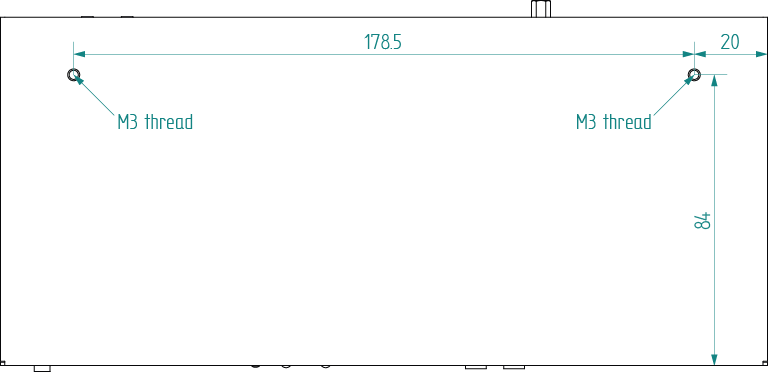
Front View

Top View

Rear View

Side View
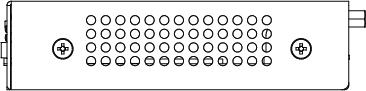
Inputs and outputs of audio devices are symmetric or asymmetric. The main advantage of the symmetric lines is the better protection against the noise, therefore they are widely used in the professional audio industry. Symmetric audio is most often referred to as balanced audio, as opposed to asymmetric, which is referred to as unbalanced audio. Ligthware products are usually built with 5-pole Phoenix connectors, so we would like to help users assemble their own audio cables. See the most common cases below.
ATTENTION!Symmetric and asymmetric lines can be linked with passive accessories (e.g. special cables), but in this case half of the line level is lost.
ATTENTION!There are numerous types of regularly used connector and cable types to connect audio devices. Please always make sure that a connector or cable fits your system before use.
ATTENTION!Never join the phase-inverted (negative, cold or -) poles (either right or left) to the ground or to each other on the output side, as this can damage the unit.
INFO:Use a galvanic isolation in case of a ground loop.
The device is built with a 3-pole Phoenix connector. See the examples below of connecting to a DCE (Data Circuit-terminating Equipment) or a DTE (Data Terminal Equipment) type device:
|
Lightware device and a DCE D-SUB 9 and Phoenix |
Lightware device and a DTE D-SUB 9 and Phoenix |
|
|
|


The Pinout of the 5-pole Phoenix Connector
From Unbalanced Output to Balanced Input
|
2 x 6.3 (1/4") TS - Phoenix |
2 x RCA - Phoenix |
3.5 (1/8") TRS - Phoenix |
||
|
|
|
|
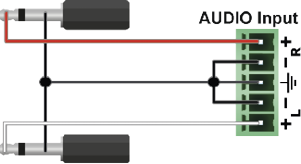

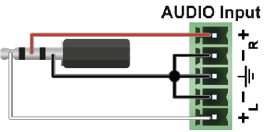
From Balanced Output to Unbalanced Input
|
Phoenix - 2 x 6.3 (1/4") TS |
Phoenix - 2 x RCA |
Phoenix - 3.5 (1/8") TRS |
||
|
|
|
|
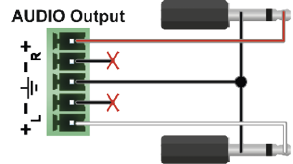
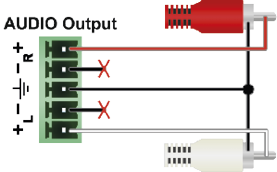
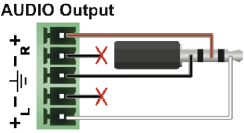
From Balanced Output to Balanced Input
|
Phoenix - 2 x 6.3 (1/4") TRS |
Phoenix - 2 x XLR |
2 x 6.3 TRS (1/4") - Phoenix |
||
|
|
|
|
||
|
2 x XLR - Phoenix |
Phoenix - Phoenix |
|||
|
|
|

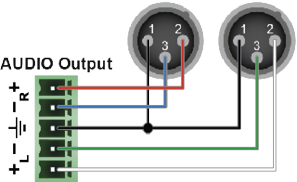


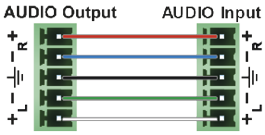
|
Mem |
Resolution |
Type |
EDID features |
|||
|---|---|---|---|---|---|---|
|
F1 |
640 x |
480p |
@ 60.00 |
Hz |
D |
|
|
F2 |
848 x |
480p |
@ 60.00 |
Hz |
D |
|
|
F3 |
800 x |
600p |
@ 60.32 |
Hz |
D |
|
|
F4 |
1024 x |
768p |
@ 60.00 |
Hz |
D |
|
|
F5 |
1280 x |
768p |
@ 50.00 |
Hz |
D |
|
|
F6 |
1280 x |
768p |
@ 59.94 |
Hz |
D |
|
|
F7 |
1280 x |
768p |
@ 75.00 |
Hz |
D |
|
|
F8 |
1360 x |
768p |
@ 60.02 |
Hz |
D |
|
|
F9 |
1280 x |
1024p |
@ 50.00 |
Hz |
D |
|
|
F10 |
1280 x |
1024p |
@ 60.02 |
Hz |
D |
|
|
F11 |
1280 x |
1024p |
@ 75.02 |
Hz |
D |
|
|
F12 |
1400 x |
1050p |
@ 50.00 |
Hz |
D |
|
|
F13 |
1400 x |
1050p |
@ 60.00 |
Hz |
D |
|
|
F14 |
1400 x |
1050p |
@ 75.00 |
Hz |
D |
|
|
F15 |
1680 x |
1050p |
@ 60.00 |
Hz |
D |
|
|
F16 |
1920 x |
1080p |
@ 50.00 |
Hz |
D |
|
|
F17 |
1920 x |
1080p |
@ 60.00 |
Hz |
D |
|
|
F18 |
2048 x |
1080p |
@ 50.00 |
Hz |
D |
|
|
F19 |
2048 x |
1080p |
@ 60.00 |
Hz |
D |
|
|
F20 |
1600 x |
1200p |
@ 50.00 |
Hz |
D |
|
|
F21 |
1600 x |
1200p |
@ 60.00 |
Hz |
D |
|
|
F22 |
1920 x |
1200p |
@ 50.00 |
Hz |
D |
|
|
F23 |
1920 x |
1200p |
@ 59.56 |
Hz |
D |
|
|
F24 |
2048 x |
1200p |
@ 59.96 |
Hz |
D |
|
|
F29 |
1920 x |
1080p |
@ 60.00 |
Hz |
U |
|
|
F30 |
1440 x |
480i |
@ 60.05 |
Hz |
H |
2chLPCM |
|
F31 |
1440 x |
576i |
@ 50.08 |
Hz |
H |
2chLPCM |
|
F32 |
640 x |
480p |
@ 59.95 |
Hz |
H |
2chLPCM |
|
F33 |
720 x |
480p |
@ 59.94 |
Hz |
H |
2chLPCM |
|
F34 |
720 x |
576p |
@ 50.00 |
Hz |
H |
2chLPCM |
|
F35 |
1280 x |
720p |
@ 50.00 |
Hz |
H |
2chLPCM |
|
F36 |
1280 x |
720p |
@ 60.00 |
Hz |
H |
2chLPCM |
|
F37 |
1920 x |
1080i |
@ 50.04 |
Hz |
H |
2chLPCM |
|
F38 |
1920 x |
1080i |
@ 50.00 |
Hz |
H |
2chLPCM |
|
F39 |
1920 x |
1080i |
@ 60.05 |
Hz |
H |
2chLPCM |
|
F40 |
1920 x |
1080i |
@ 60.05 |
Hz |
H |
2chLPCM |
|
F41 |
1920 x |
1080p |
@ 24.00 |
Hz |
H |
2chLPCM |
|
F42 |
1920 x |
1080p |
@ 25.00 |
Hz |
H |
2chLPCM |
|
F43 |
1920 x |
1080p |
@ 30.00 |
Hz |
H |
2chLPCM |
|
F44 |
1920 x |
1080p |
@ 50.00 |
Hz |
H |
2chLPCM |
|
F45 |
1920 x |
1080p |
@ 59.94 |
Hz |
H |
2chLPCM |
|
F46 |
1920 x |
1080p |
@ 60.00 |
Hz |
H |
2chLPCM |
|
F47 |
1920 x |
1080p |
@ 60.00 |
Hz |
U |
2chLPCM |
|
F48 |
1920 x |
1080p |
@ 60.00 |
Hz |
U |
2chLPCM, 8chLPCM, DD, DTS, AAC, DD+, DTS-HD, MLP, DST, WMAP |
|
F49 |
1920 x |
1080p |
@ 60.00 |
Hz |
U |
2chLPCM, 8chLPCM, DD, DTS, AAC, DD+, DTS-HD, MLP, DST, WMAP |
|
F90 |
1920 x |
2160p |
@ 59.99 |
Hz |
D |
|
|
F91 |
1024 x |
2400p |
@ 60.01 |
Hz |
D |
|
|
F94 |
2048 x |
1536p |
@ 60.00 |
Hz |
D |
|
|
F96 |
2560 x |
1600p |
@ 59.86 |
Hz |
D |
|
|
F97 |
3840 x |
2400p |
@ 24.00 |
Hz |
D |
|
|
F98 |
1280 x |
720p |
@ 60.00 |
Hz |
H |
2chLPCM |
|
F99 |
1920 x |
1080p |
@ 60.00 |
Hz |
H |
2chLPCM |
|
F100 |
1024 x |
768p |
@ 60.00 |
Hz |
H |
2chLPCM |
|
F101 |
1280 x |
1024p |
@ 50.00 |
Hz |
H |
2chLPCM |
|
F102 |
1280 x |
1024p |
@ 60.02 |
Hz |
H |
2chLPCM |
|
F103 |
1280 x |
1024p |
@ 75.02 |
Hz |
H |
2chLPCM |
|
F104 |
1600 x |
1200p |
@ 50.00 |
Hz |
H |
2chLPCM |
|
F105 |
1600 x |
1200p |
@ 60.00 |
Hz |
H |
2chLPCM |
|
F106 |
1920 x |
1200p |
@ 59.56 |
Hz |
H |
2chLPCM |
|
F107 |
2560 x |
1440p |
@ 59.95 |
Hz |
H |
2chLPCM |
|
F108 |
2560 x |
1600p |
@ 59.86 |
Hz |
H |
2chLPCM |
|
F109 |
3840 x |
2400p |
@ 24.00 |
Hz |
H |
2chLPCM |
|
F110 |
3840 x |
2160p |
@ 24.00 |
Hz |
H |
2chLPCM |
|
F111 |
3840 x |
2160p |
@ 25.00 |
Hz |
H |
2chLPCM |
|
F112 |
3840 x |
2160p |
@ 30.00 |
Hz |
H |
2chLPCM |
|
F118 |
3840 x |
2160p |
@ 30.00 |
Hz |
U |
2chLPCM |
|
F119 |
3840 x |
2160p |
@ 30.00 |
Hz |
U |
2chLPCM, 8chLPCM, DD, DTS, AAC, DD+, DTS-HD, MLP, DST, WMAP |
|
F120 |
3840 x |
2160p |
@ 60.00 |
Hz |
H |
2chLPCM |
Legend
D: DVI EDID
H: HDMI EDID
U: Universal EDID, supporting many standard resolutions:
▪F29: Universal EDID for DVI signals (no audio support).
▪F47: HDMI EDID supporting PCM audio.
▪F48: HDMI EDID supporting all type of audio.
▪F49: HDMI EDID supporting all type of audio and deep color.
▪F89: Universal EDID for analog signals (no audio support).
▪F118: HDMI EDID supporting PCM audio and 4K@30 Hz signals.
▪F119: HDMI EDID supporting all type of audio and 4K@30 Hz signals.
Please note that minor changes in the factory EDID list may be applied in further firmware versions.
11.8. Maximum Extension Distances
|
Resolution |
Pixel clock rate |
Cable lengths ( Auto / Longreach TPS mode) |
||
|
CAT5e AWG24 |
CAT7 AWG26** |
CAT7 AWG23 |
||
|
1024x768@60Hz |
65 MHz |
100 m / 130 m* |
90 m / 120 m* |
120 m / 170 m* |
|
1280x720p@60Hz |
73.8 MHz |
100 m / 130 m* |
90 m / 120 m* |
120 m / 170 m* |
|
1920x1080p@60Hz / 24bpp |
148.5 MHz |
100 m / 130 m* |
90 m / 120 m* |
120 m / 170 m* |
|
1920x1200@60Hz |
152.9 MHz |
100 m / NA |
90 m / NA |
120 m / NA |
|
1600x1200@60Hz |
162 MHz |
100 m / NA |
90 m / NA |
120 m / NA |
|
1920x1080@60Hz / 36bpp |
223.6 MHz |
70 m / NA |
70 m / NA |
100 m / NA |
|
3840x2160@30Hz UHD |
297 MHz |
70 m / NA |
70 m / NA |
100 m / NA |
|
4096x2160@30Hz 4K |
297 MHz |
70 m / NA |
70 m / NA |
100 m / NA |
* With Long reach operation mode, which supports pixel clock frequencies up to 148.5 MHz.
** When remote powering is used with AWG26 cables, distances are 20% shorter.
11.9. Applied Ports (Network Settings)
The following ports are necessary to pass via a network switch/firewall for a proper working between the device and the softwares:
|
Purpose/function |
Affected software |
Protocol |
Port nr. |
|
Firmware update TFTP |
LDU2 |
UDP |
69 |
|
UDP |
49990 |
||
|
UDP |
49995 |
||
|
Device Discovery |
LDC |
UDP |
224.0.0.251:5353 |
|
Remote IP |
LDC |
UDP |
230.76.87.82:37421 |
|
Find me (LMDMP) |
- |
UDP |
230.76.87.82:37422 |
|
LW2 protocol |
- |
TCP |
10001 |
|
LW3 protocol |
- |
TCP |
6107 |
|
HTTP port |
- |
TCP |
80 |
|
RS-232 command injection |
- |
TCP |
8001 |
|
IR command injection |
- |
TCP |
9001, 9002 |
11.10. Release Notes of the Firmware Packages
v1.5.0b3
Release date: 2021-05-26
New feature:
▪Added AND operator for Event Manager Conditions (Advanced Control pack v3)
▪Added Condition triggering for Event Manager (Advanced Control pack v3) for HDMI-TPS-RX110AY-Plus and HDMI-TPS-RX220AK only!
▪Added Condition detect on property change to anything in Event Manager (Advanced Control pack v3)
▪Added Variable handling for Event Manager (Advanced Control pack v3) for HDMI-TPS-RX110AY-Plus and HDMI-TPS-RX220AK only!
▪Added Permanent TCP clients with configurable target IP address, and Message recognizer for TCP clients (Advanced Control pack v3) for HDMI-TPS-RX110AY-Plus and HDMI-TPS-RX220AK only!
▪Added LW3 command-salvo over Http POST (protocol.lw3) (Advanced Control pack v3) for HDMI-TPS-RX110AY-Plus and HDMI-TPS-RX220AK only!
▪Added Http message sending with sendHttpPost and sendHttpPut (target server IP, target filepath, header, body) (Advanced Control pack v3) for HDMI-TPS-RX110AY-Plus and HDMI-TPS-RX220AK only!
▪Added method to send Wake On LAN packet (Advanced Control pack v3)
▪Added cleartext login function (disabled by default) (Advanced Control pack v3) for HDMI-TPS-RX110AY-Plus and HDMI-TPS-RX220AK only!
▪Added MAC filtering (Advanced Control pack v3) for HDMI-TPS-RX110AY-Plus and HDMI-TPS-RX220AK only!
▪Added IP port and services filtering (Advanced Control pack v3) for HDMI-TPS-RX110AY-Plus and HDMI-TPS-RX220AK only!
▪Added Macro capability (running partial device preset with tags) (Advanced Control pack v3) for HDMI-TPS-RX110AY-Plus and HDMI-TPS-RX220AK only!
▪Added new method for CEC control button sendClick (Advanced Control pack v3) for HDMI-TPS-RX110AY-Plus and HDMI-TPS-RX220AK only!
▪Added LMDMP (Lightware Multicast Device Management Protocol) feature.
▪Modified DeviceLabel property default text to LW_<productname>_<serialnum>
▪Added properties in root node: FirmwareVersion, PackageVersion, MacAddress.
▪Minor performance improvements and modifications.
▪Added Network HostName property (default: lightware-<serialnum>).
▪Added new ConnectedSource property for media output nodes.
▪Introduces “--test” option for the update CLI command. This “update test mode” checks communication with the device over various protocols. One can perform this verification step before actually starting the device update.
Bugfix:
▪Update Control USB interface driver.
▪Improved network compatibility with 10.x.x.x IP address range.
▪Fixed issue with tick counter when the device is continuously operating for a very long time.
v1.4.0b14
Release date: 2020-02-07
New feature:
▪KVM transmission between USB HID extension (Human Interface Devices, e.g. keyboard, mouse, presenter and a PC or a Laptop) for HDMI-TPS-RX220AK only! The device utilizes control over USB KVM, and can be remotely powered over TPS link with PoE (IEEE 802.3af), a useful array of features to further simplify the operation for system integrators and users.
▪RX220AK works as a matrix.
v1.3.1b6
Release date: 2019-09-25
New feature:
▪Compatible for LDU2 only! Use LDU2 v2.0.0 or later for the upgrade!
▪Added 'Disable default button function' option to support button customization in Event Manager
▪Added 'Dark mode' function to turn off front panel LEDs
▪Modified RS-232 modes to support SendMessage in Control mode
▪Firmware platform library updated
▪CEC - sendCEC command (e.g. turn on the TV with Event Actions) for HDMI-TPS-RX110AY-Plus only!
▪Sending IR codes (SendProntoHex e.g. send max. 200 Byte IR code with Event Actions) for HDMI-TPS-RX110AY-Plus only!
v1.1.0b3
Release date: 2018-04-09
This user manual contains keywords with hashtags (#) to help you find the relevant information as quick as possible.
The format of the keywords is the following:
#<keyword>
The usage of the keywords: use the Search function (Ctrl+F / Cmd+F) of your PDF reader application, type the # (hashtag) character and the wished keyword.
The #new special keyword indicates a new feature/function that has just appeared in the latest firmware or software version.
Example
#dhcp
This keyword is placed at the DHCP (dynamic IP address) setting in the front panel operation, the Lightware Device Controller (LDC) and the LW3 programmer's reference section.
The following list contains all hashtag keywords placed in the document with a short description belonging to them. The list is in alphabetical order by the hashtag keywords.
|
Hashtag Keyword |
Description |
|---|---|
|
#advancedview |
Advanced view / Terminal window |
|
#analogaudio |
Analog audio related settings |
|
#autoselect |
Autoselect feature settings |
|
#backup |
Configuration cloning (backup) |
|
#balance |
Balance (for analog audio) setting |
|
#bootload |
Bootload mode setting |
|
#builtinweb |
Built-in miniweb |
|
#buttonlock |
Front panel button lock setting |
|
#cablediagnostics |
Cable diagnostics tool in LDC |
|
#cec |
CEC related settings |
|
#commandinjection |
RS-232 command injection settings |
|
#configurationcloning |
Configuration cloning (backup) |
|
#crosspoint |
Crosspoint switch setting |
|
#darkmode |
Dark mode setting |
|
#devicelabel |
Device label |
|
#dhcp |
Dynamic IP address (DHCP) setting |
|
#diagnostic |
Failure diagnostic related tool/information |
|
#edid |
EDID related settings |
|
#eventmanager |
Event manager |
|
#factory |
Factory default settings |
|
#firmwareversion |
Firmware version query |
|
#framedetector |
Frame detector in LDC |
|
#function |
Function button |
|
#hdcp |
HDCP-encryption related setting |
|
#highlightme |
Find the device in LDC Device discovery |
|
#http |
Http post and put messaging, salvo commands |
|
#identifyme |
Identify me (identify the device) feature |
|
#infra |
Infrared port related settings |
|
#infrared |
Infrared port related settings |
|
#ipaddress |
IP address related settings |
|
#label |
Device label |
|
#lock |
Port lock setting |
|
#lockbutton |
Front panel button lock setting |
|
#log |
System log |
|
#login |
Cleartext login feature |
|
#macfilter |
MAC filtering (IT security) |
|
#macro |
Macro-handling |
|
#message |
|
|
#miniweb |
Built-in miniweb |
|
#mute |
Port mute setting |
|
#network |
Network (IP address) related settings |
|
#nosyncscreen |
Test pattern (no sync screen) settings |
|
#portblock |
IP port blocking (IT security) |
|
#portstatus |
Source/destination port status query |
|
#producttype |
Product type query |
|
#protocol |
RS-232 protocol setting |
|
#reboot |
Restarting the device |
|
#recognizer |
RS-232 recognizer related settings |
|
#relay |
Relay related settings |
|
#restart |
Restarting the device |
|
#rs232 |
RS-232 related settings |
|
#rs-232 |
RS-232 related settings |
|
#rs232recognizer |
RS-232 recognizer related settings |
|
#rs-232recognizer |
RS-232 recognizer related settings |
|
#serial |
RS-232 related settings |
|
#serialnumber |
Serial number query |
|
#signaltype |
HDMI/DVI signal type setting |
|
#status |
Status query |
|
#switch |
Crosspoint switch setting |
|
#systemlog |
System log |
|
#tcprecognizer |
TCP message recognizer-related settings |
|
#terminal |
Advanced view / Terminal window |
|
#testpattern |
Test pattern (no sync screen) settings |
|
#tpsmode |
TPS (HDBaseT) mode setting |
|
#unlock |
Port unlock setting |
|
#unmute |
Port unmute setting |
|
#variables |
Variable-management |
|
#volume |
Volume (for analog audio) setting |
|
#web |
Built-in miniweb |

11.12. Further Document Information
Symbol Legend
The following symbols and markings are used in the document:
WARNING!Safety-related information that is highly recommended to read and keep in every case!
ATTENTION!Useful information for performing a successful procedure; it is recommended to read.
DIFFERENCE:Feature or function that is available with a specific firmware/hardware version or product variant.
INFO:A notice, which contains additional information. Procedure can be successful without reading it.
DEFINITION:The short description of a feature or a function.
TIPS AND TRICKS:Ideas that you may have not known yet, but can be useful.
Navigation Buttons
|
Buttons in the PDF version |
Buttons in the HTML version |
|||
|
|
Navigate to the Table of Contents. |
|
Open the main Table of Contents. |
|
|
|
Go back to the previous page. If you clicked on a link previously, you can go back to the source page by pressing the button. |
|
Navigate to the Online User Manuals webpage. |
|
|
|
Navigate to the Bookmark page. |
|
Navigate to the Bookmark page in this User Manual. |
|
|
|
Visit www.lightware.com. |
|
Download the PDF version of the User Manual. |
|


About Printing

Lightware Visual Engineering supports green technologies and eco-friendly mentality. Thus, this document is made primarily for digital usage. If you need to print out a few pages for any reason, follow the recommended printing settings:
▪Page size: A4
▪Output size: Fit to page or Match page size
▪Orientation: Landscape
TIPS AND TRICKS: Thanks to the size of the original page, a border around the content (gray on the second picture below) makes it possible to organize the pages better. After punching holes in the printed pages, they can easily be placed into a ring folder.
11.13. Limited Warranty Statement
1. Lightware Visual Engineering PLC (Lightware) warrants to all trade and end user customers that any Lightware product purchased will be free from manufacturing defects in both material and workmanship for three (3) years from purchase unless stated otherwise below. The warranty period will begin on the latest possible date where proof of purchase/delivery can be provided by the customer. In the event that no proof can be provided (empty ‘Date of purchase’ field or a copy of invoice), the warranty period will begin from the point of delivery from Lightware.
1.1. 25G and MODEX product series will be subject to a seven (7) year warranty period under the same terms as outlined in this document.
1.2. If during the first three (3) months of purchase, the customer is unhappy with any aspect of a Lightware product, Lightware will accept a return for full credit.
1.3. Any product that fails in the first six (6) months of the warranty period will automatically be eligible for replacement and advanced replacement where available. Any replacements provided will be warranted for the remainder of the original unit’s warranty period.
1.4. Product failures from six (6) months to the end of the warranty period will either be repaired or replaced at the discretion of Lightware. If Lightware chooses to replace the product, then the replacement will be warranted for the remainder of the original unit’s warranty period.
2. The above-stated warranty and procedures will not apply to any product that has been:
2.1. Modified, repaired or altered by anyone other than a certified Lightware engineer unless expressly agreed beforehand.
2.2. Used in any application other than that for which it was intended.
2.3. Subjected to any mechanical or electrical abuse or accidental damage.
2.4. Any costs incurred for repair/replacement of goods that fall into the categories above (2.1., 2.2., 2.3.) will be borne by the customer at a pre-agreed figure.
3. All products to be returned to Lightware require a return material authorization number (RMA) prior to shipment, and this number must be clearly marked on the box. If an RMA number is not obtained or is not clearly marked on the box, Lightware will refuse the shipment.
3.1. The customer will be responsible for in-bound, and Lightware will be responsible for out-bound shipping costs.
3.2. Newly repaired or replaced products will be warranted to the end of the originally purchased product's warranty period.