
USER MANUAL
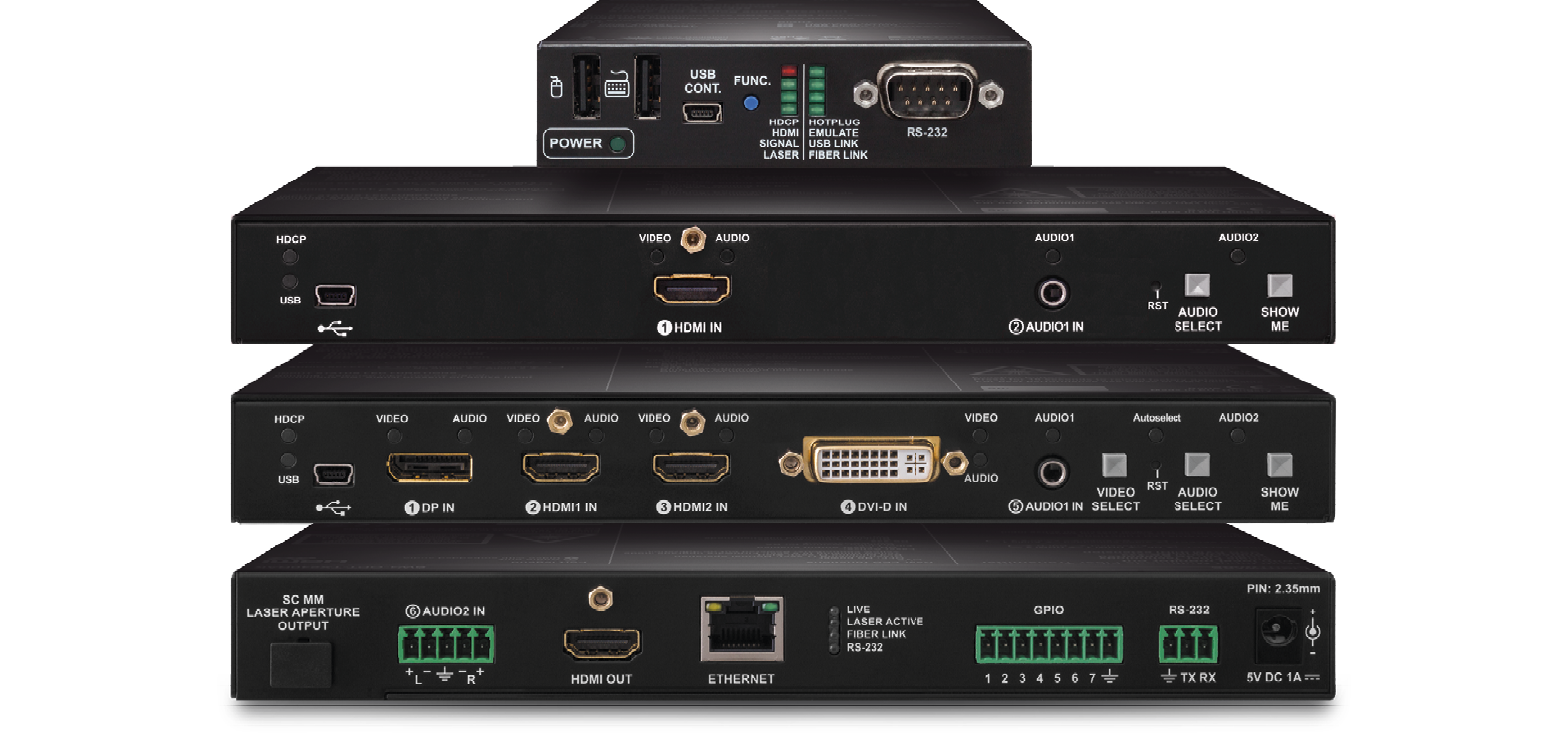
HDMI-3D-OPT-TX210A
HDMI-3D-OPT-TX210RAK
SW4-OPT-TX240RAK
HDMI-3D-OPT-RX150RA
Fiber Optical Multimedia Extender
|
|
|
|
||
|
|
|
|
||
|
|
|
|
||









|
|
|
|
||
|
|
|
|
||
|
|
|
|









Important Safety Instructions
Class II apparatus construction.
The equipment should be operated only from the power source indicated on the product.
To disconnect the equipment safely from power, remove the power cord from the rear of the equipment, or from the power source. The MAINS plug is used as the disconnect device, the disconnect device shall remain readily operable.
There are no user-serviceable parts inside of the unit. Removal of the cover will expose dangerous voltages. To avoid personal injury, do not remove the cover. Do not operate the unit without the cover installed.
The appliance must be safely connected to multimedia systems. Follow instructions described in this manual.

Ventilation
For the correct ventilation and to avoid overheating, ensure enough free space around the appliance. Do not cover the appliance, leave the ventilation holes free and never block or bypass the ventilators (if there are any).
WARNING
To prevent injury, the apparatus is recommended to be securely attach to the floor/wall, or mounted in accordance with the installation instructions. The apparatus shall not be exposed to dripping or splashing, and no objects filled with liquids, such as vases, shall be placed on the apparatus. No naked flame sources, such as lit candles, should be placed on the apparatus.
Waste Electrical & Electronic Equipment (WEEE)

This marking shown on the product or its literature indicates that it should not be disposed with other household wastes at the end of its working life. To prevent possible harm to the environment or human health from uncontrolled waste disposal, please separate this from other types of wastes and recycle it responsibly to promote the sustainable reuse of material resources. Household users should contact either the retailer where they purchased this product or their local government office for details of where and how they can take this item for environmentally safe recycling. Business users should contact their supplier and check the terms and conditions of the purchase contract. This product should not be mixed with other commercial wastes for disposal.
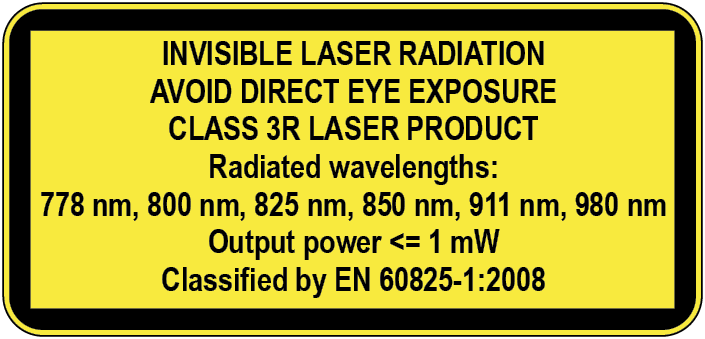
Caution: Laser product

Common Safety Symbols
|
Symbol |
Description |

|
Direct current |

|
Alternating current |

|
Protective conductor terminal |

|
Equipotential Connector |
.png)
|
On (Power) |
.png)
|
Off (Power) |

|
Double insulation |

|
Caution, possibility of eletric shock |

|
Caution |

|
Laser radiation |

|
Warning, Rotating fan |

|
Caution: for indoor use only |
Applied SW/FW/HW Environment
All presented functions refer to the indicated products. The descriptions have been made while testing these functions in accordance with the indicated Hardware/Firmware/Software environment:
|
Item |
Version |
|---|---|
|
Controller firmware - Transmitters |
v1.2.1 |
|
Controller firmware - Receiver |
v2.1.1 |
|
Hardware - Transmitters |
v1.1 |
|
Hardware - Receiver |
v1.3 |
|
Lightware Device Controller (LDC) version |
v2.7.5b2 |
|
Lightware Device Updater (LDU) version |
v1.5.3b3 |
Document Revision History
|
Rev. |
Release date |
Changes |
Editor |
|
v1.0 |
2016-08-31 |
Initial release. |
Tamas Forgacs |
|
... |
|||
|
v4 |
2026-02-02 |
New User Manual template applied |
Nikolett Keindl |
|
v5 |
2026-09-01 |
ToC correction. |
Laszlo Zsedenyi |
Contact Us
+36 1 255 3800
+36 1 255 3810
Lightware Visual Engineering PLC.
Gizella 51-57, Budapest H-1143, Hungary
©2026 Lightware Visual Engineering. All rights reserved.
All trademarks mentioned are the property of their respective owners.
Specifications are subject to change without notice.
Thank you for choosing Lightware’s HDMI-3D-OPT series device. In the first chapter we would like to introduce the device, highlighting the most important features in the sections listed below:
HDMI-3D-OPT series transmitters and receivers extend HDMI 1.4, DVI 1.0, HDCP and bi-directional RS-232 signals over one multi-mode fiber and transmit video signal with embedded audio to a distance of up to 2500 meters.
The extender was designed to handle HDMI 1.4 and DP 1.1 digital video signals and analog stereo audio from local inputs or HDMI embedded audio up to eight-channel PCM or HBR audio. Analog audio is converted into digital format. The device has a local HDMI video output for monitoring. The video and the embedded audio of the local output is the same as the one transmitted via the OPT link. The HDMI-3D-OPT series extenders handles HDCP encryption.
Using the factory, custom or transparent EDID emulation the user can fix and lock EDID data on each input connector. Advanced EDID Management forces the required resolution from any video source and fixes the output format conforming to the system requirements. The unit offers bi-directional and transparent RS-232.
All devices can be mounted on a rack shelf or used standalone. HDMI-3D-OPT series extenders are compatible with both OPT series extenders and matrix switchers.
The device features Pixel Accurate Reclocking, a Lightware technology to eliminate jitter and skew generated by low quality sources and multiple daisy-chained devices.
Single fiber technology makes these units fully HDMI and HDCP compliant without a need of a second fiber cable or copper connections. The bi-directional communication required for HDCP handshaking is performed via the same fiber core that transmits the video signal.
Galvanic isolation between source and display helps avoiding ground loops and hum effects. No delay occurs in the signal during optical conversion, the video image is transported without frame latency. This feature is crucial in 3D applications and systems where audio is processed separately.
Model Denomination
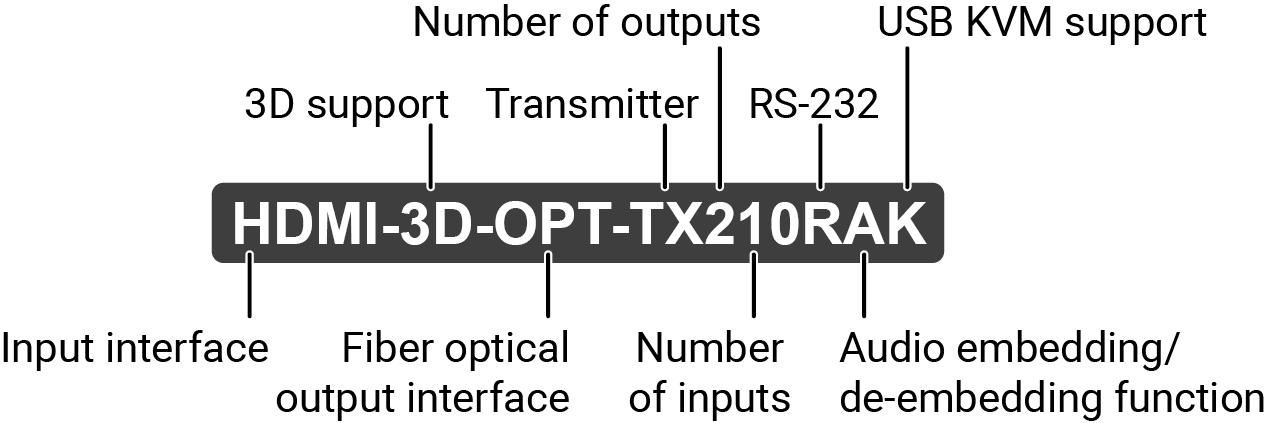
Lightware devices contain a label indicating the unique serial number of the product. The structure is the following:
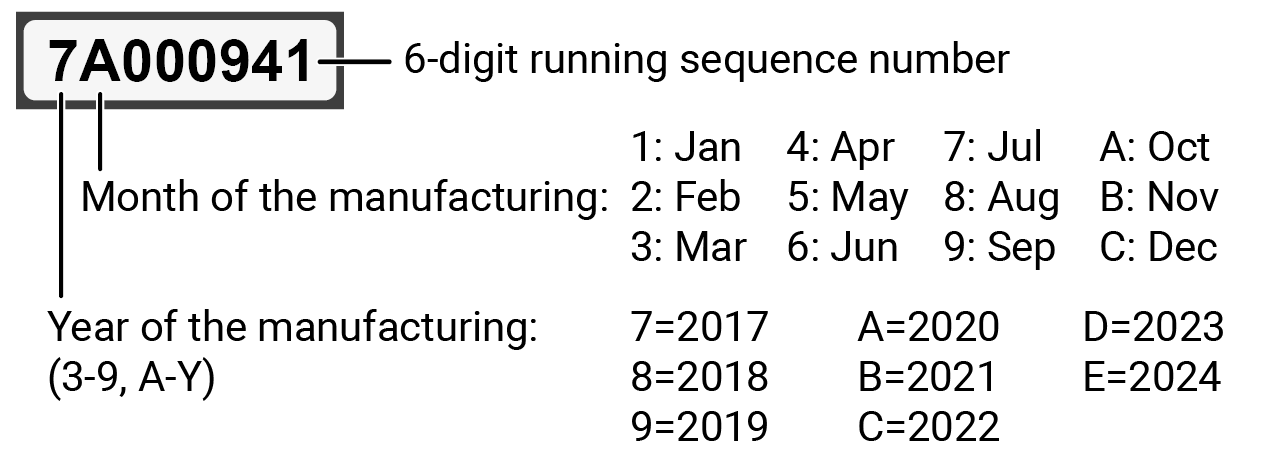
From 1st of October 2024, serial number format of Lightware devices is the following: the first two digits are of the year of manufacture, while the remaining digits make up the running sequence number.

Transmitter
The transmitters are compatible with the following receivers and input boards:
▪HDMI-3D-OPT-RX150RA receiver;
▪MX modular frames with MX-DVI-OPT-IB and MX-HDMI-OPT-IB cards.
Receiver
The receiver is compatible with the following transmitters and output boards:
▪HDMI-3D-OPT series transmitters;
▪UMX-OPT-TX150R transmitter;
▪HDMI-OPT series transmitters;
▪MX modular frames with MX-DVI-OPT-OB and MX-HDMI-OPT-OB cards.
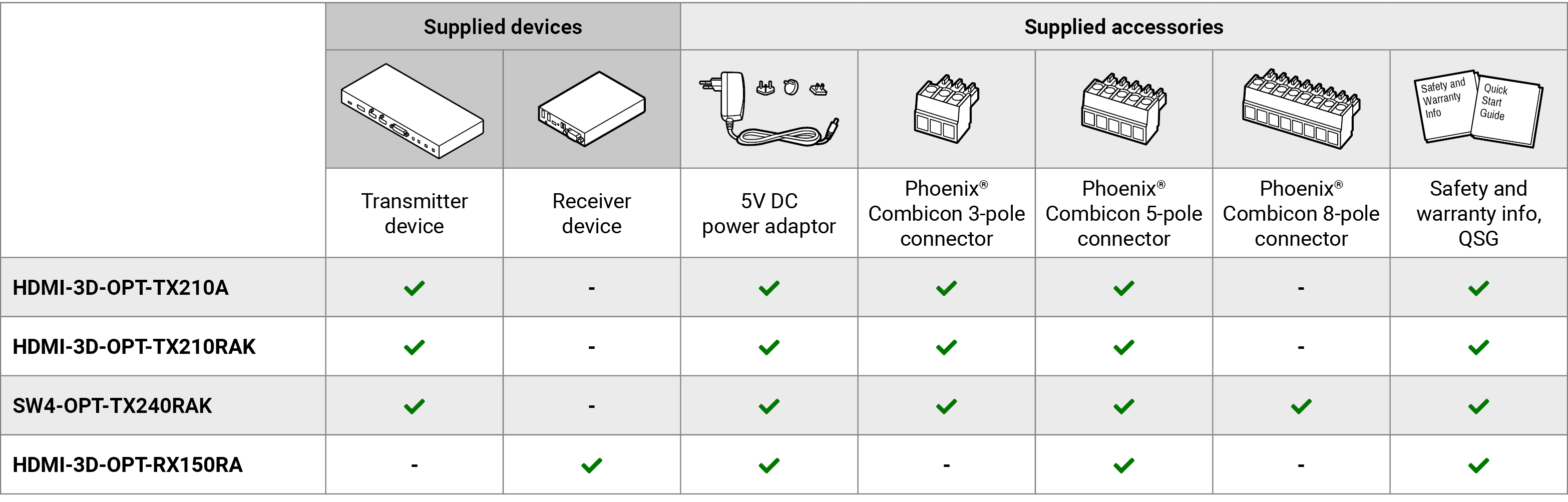
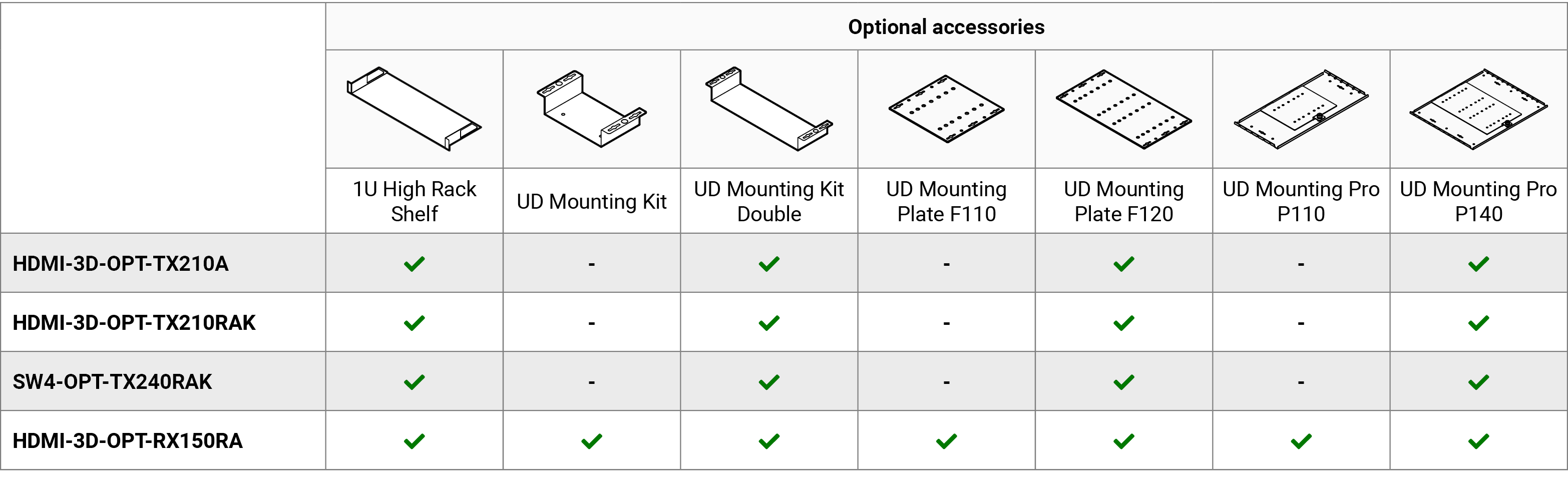
The following tables describe all supplied and optional accessories of the HDMI-3D-OPT series devices by model. The optional (not-supplied) accessories can be purchased separately; please contact sales@lightware.com.
1.4. Model Comparison of the Transmitters
The available models have different features depending on their design. The following table contains the most important differences between the models:
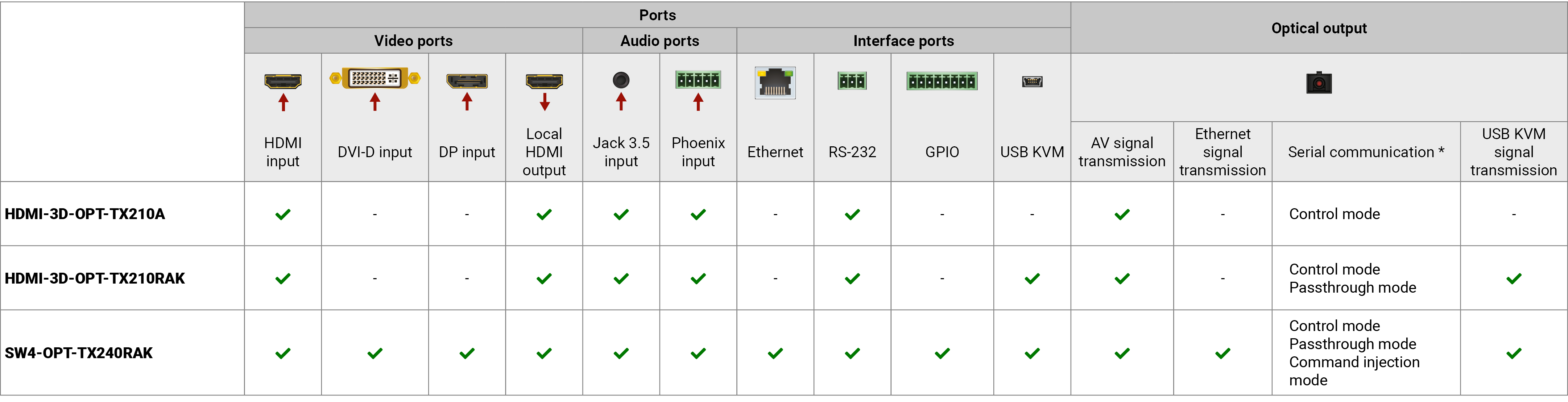
* See more information about serial interface modes in the Serial Interface section.

|
3D and 4K Support |
|
High bandwidth allows extension of resolutions up to 4K and even 3D sources and displays are supported. |
|
|
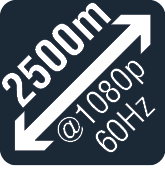
Signal Transmission up to 2500 m |
|
Video and audio signal transmission (DVI, HDMI or DisplayPort, and RS-232) over one multi-mode fiber optical cable. |
|

|
Deep Color Support and Conversion |
|
It is possible to transmit the highest quality 36-bit video streams for perfect color reproduction. |
|

|
Autoselect Function for Video Inputs |
|
The Autoselect feature can sense the port status on the video input ports and select one of them automatically. Priority number can be set for each input port and the feature allows to set variuos modes for the automatic input selection (First detect, Last detect, Priority mode). |
|

|
HDCP-compliant |
|
The receiver fulfills the HDCP standard. HDCP capability on the digital video inputs can be disabled when non-protected content is extended. |
|

|
Built-in Event Manager |
|
The Event Manager tool takes care of all the necessary control in a smaller configuration by performing predefined actions in response to device status changes. Hence, in a less complex environment, there is no need to invest in additional control solutions, which makes the receiver the best choice for numerous applications. |
|

|
Pixel Accurate Reclocking |
|
Each output has a clean, jitter free signal, eliminating signal instability and distortion caused by long cables or connector reflections. |
|

|
USB KVM |
|
Connected USB HID devices (e.g. keyboard, mouse, USB HUB) are extended from transmitter to receiver, thus a computer can be controlled remotely. |
|
|
Bi-directional RS-232 Pass-through |
|
AV systems can also contain serial port controllers and controlled devices. Serial port pass-through supports any unit that works with standard RS-232. |
|

|
GPIO Control Port |
|
7 GPIO pins operating at TTL digital signal levels and that can be controlled with both LW2 and LW3 commands. |
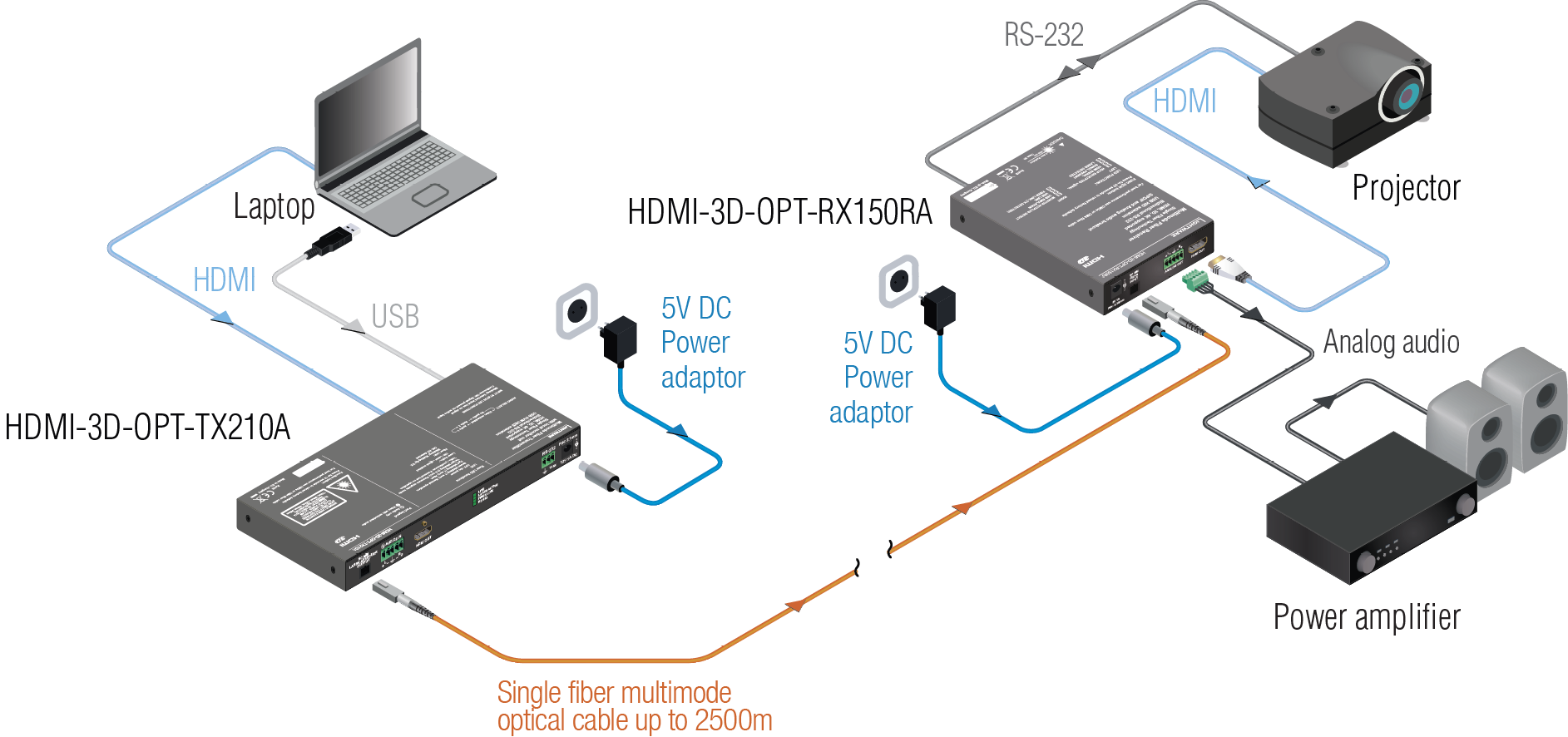
Application Diagram - HDMI-3D-OPT-TX210A
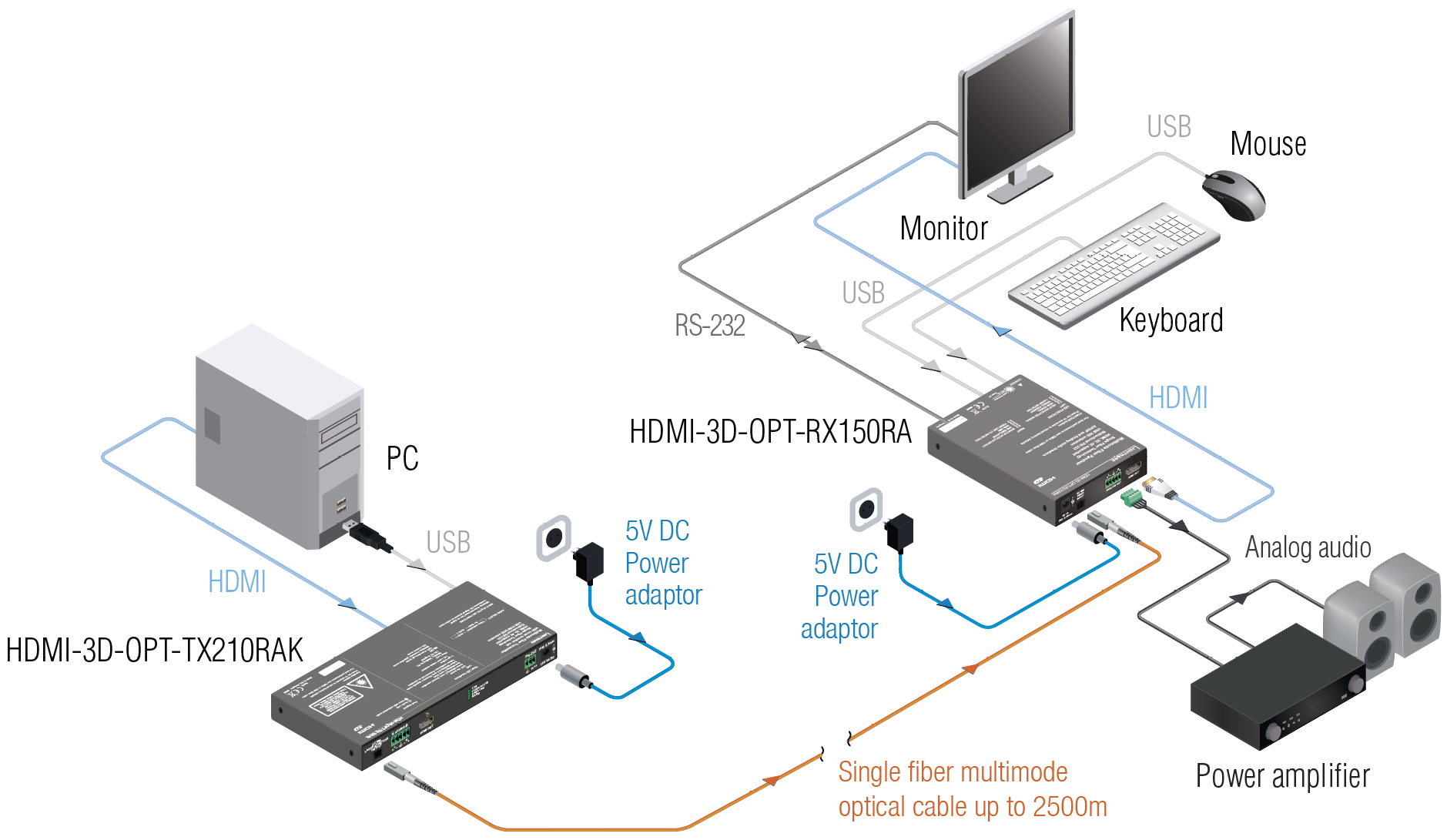
Application Diagram - HDMI-3D-OPT-TX210RAK
Application Diagram - SW4-OPT-TX240RAK
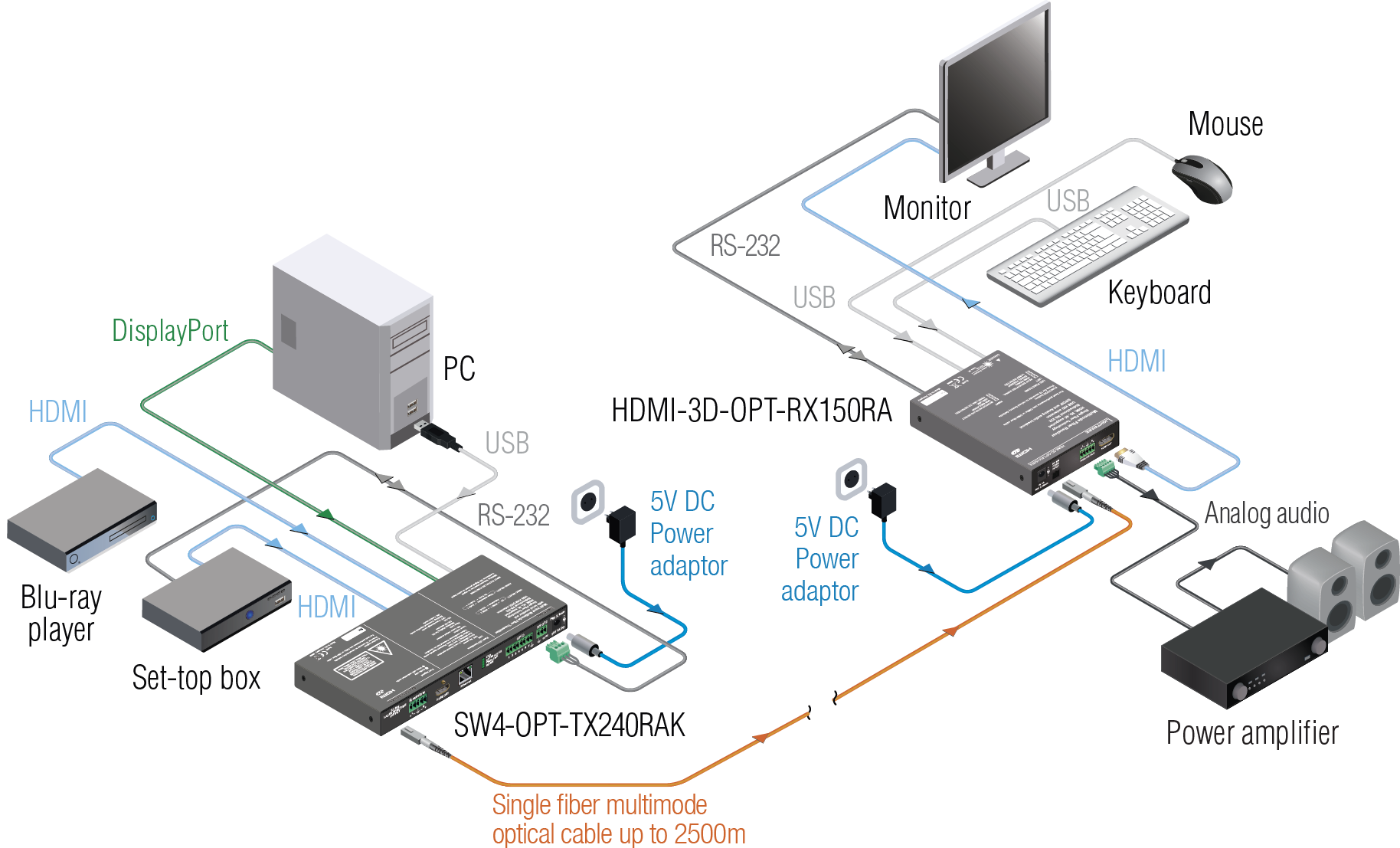
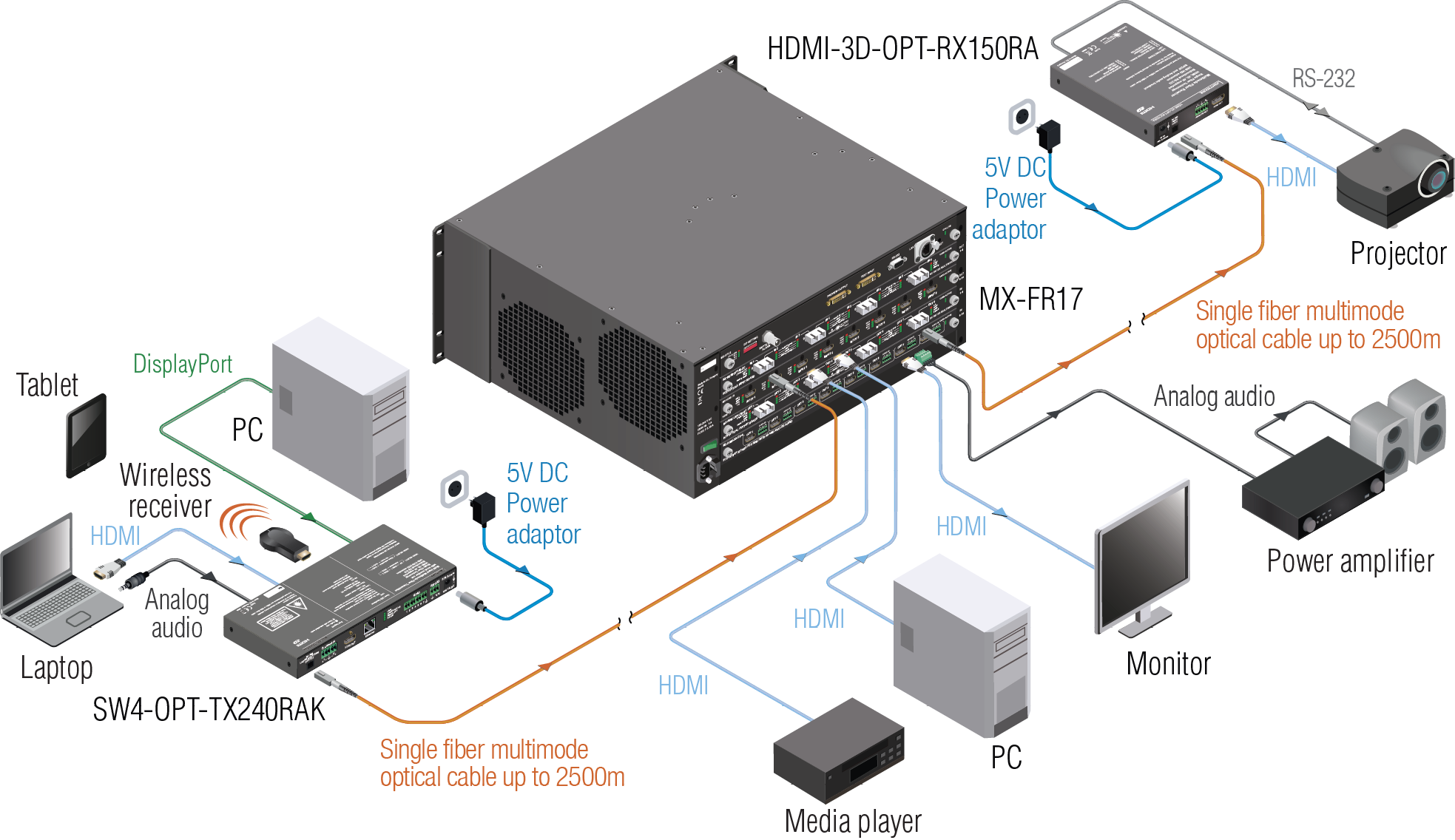
Integrated System Diagram - SW4-OPT-TX240RAK
The following sections are about the physical structure of the device, input/output ports and connectors.
HDMI-3D-OPT-TX210A
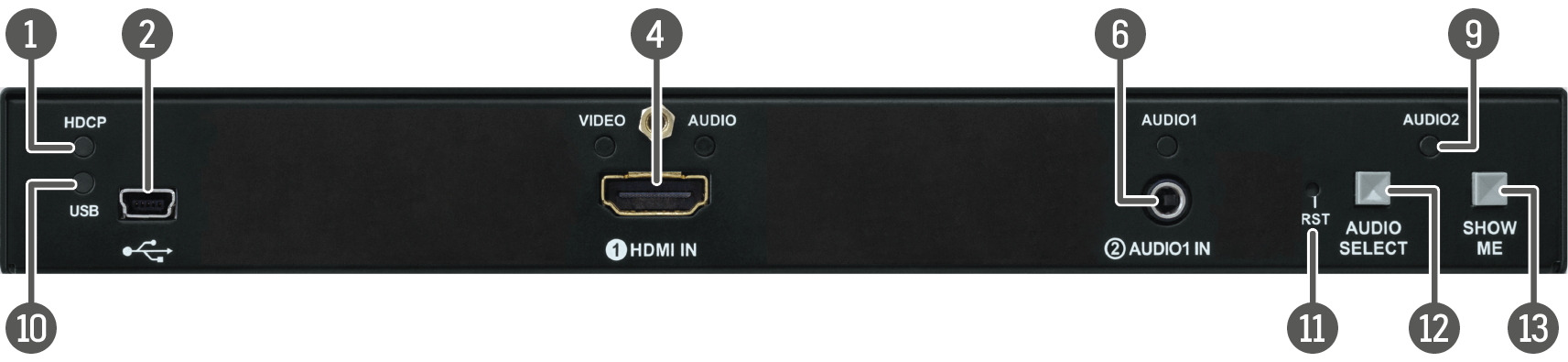
HDMI-3D-OPT-TX210RAK
SW4-OPT-TX240RAK
|
|
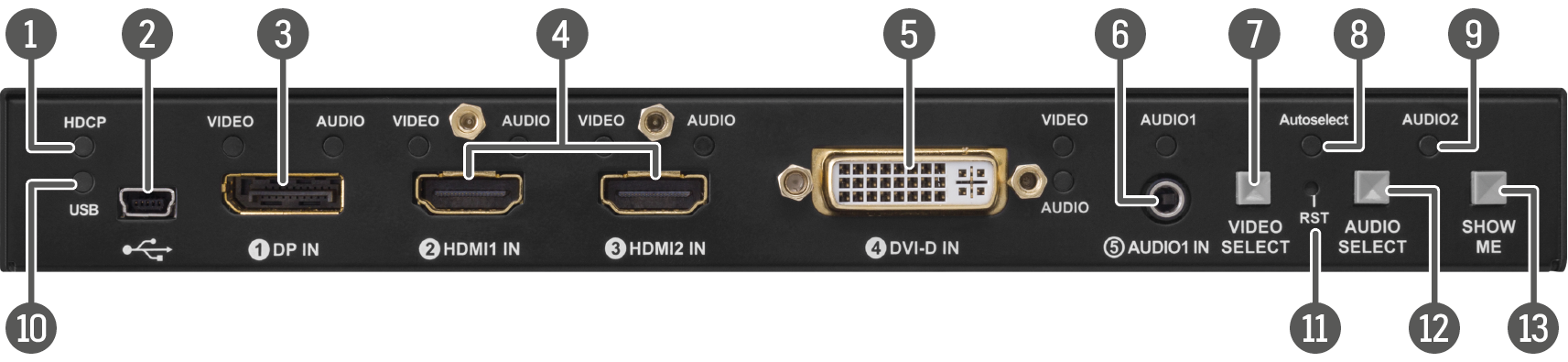
HDCP status LED |
LED gives feedback about the HDCP status of the video output signal. See details in the HDCP LED section. |
|
|
USB connector |
USB interface for LDC connection, firmware update purpose, and USB KVM function. |
|
|
DisplayPort input |
DisplayPort connector for DisplayPort video and audio signal. |
|
|
HDMI input |
HDMI connector for DVI video or HDMI video and audio signal. |
|
|
DVI-D input |
DVI-I connector for DVI-D or HDMI video and audio signal. |
|
|
Audio1 input |
3.5 mm Jack connector for asymmetric analog audio input signal. |
|
|
Video Select button |
Button for switching between video sources. See the details in the Video Select Button section. |
|
|
Autoselect status LED |
LED gives feedback about the status of Autoselect feature. See the details in the Autoselect LED section. |
|
|
Audio2 status LED |
LED gives feedback about actual connection status of Audio2 input port (on the rear side of device). |
|
|
USB LED |
LED gives feedback about the status of USB operations (LDC control, firmware update, and USB KVM function). See the details in the USB LED section. |
|
|
Reset button |
Reset button reboots the extender. This is the same as disconnecting the device from the power source and reconnecting it again. |
|
|
Audio Select button |
Button for switching between audio sources. See the details in the Audio Select Button section. |
|
|
Show Me button |
Special functions are available with this button (switch to bootload mode, enable DHCP, restore factory default settings, condition launching in Event Manager). For the details about special functions, see the Special Button Functions - Transmitter section. |


INFO:Operation of the audio and video status LEDs can be found in the Video Input LEDs and the Audio Input LEDs sections.
HDMI-3D-OPT-TX210A

HDMI-3D-OPT-TX210RAK

SW4-OPT-TX240RAK

|
|
SC fiber output |
Connect a multimode single fiber optical cable between the transmitter and the receiver unit. Maximum fiber cable distances can be found in the Maximum Fiber Cable Extensions section. |
|
|
Audio2 input |
5-pole Phoenix connector for balanced analog audio input signal. Pin assignment can be found in the Analog Stereo Audio Connector (5-pole Phoenix) section. |
|
|
HDMI output |
Local HDMI output with the same AV content as the fiber optical output. |
|
|
Ethernet |
Locking RJ45 connector for configuring the device using Lightware Device Controller (LDC). Any third-party control system can use this port to control the device. |
|
|
Status LEDs |
The LEDs give immediate feedback about actual state of the device. See the details in the Rear Panel Status LEDs - Transmitter section. |
|
|
GPIO |
8-pole Phoenix connector for configurable general purpose input/output ports. Pin assignment can be found in the GPIO - General Purpose Input/Output Ports section. |
|
|
RS-232 |
3-pole Phoenix connector for RS-232 serial port. Pin assignment can be found in the RS-232 Connector (3-pole Phoenix) section. |
|
|
5V DC input |
Local power in; connect the output of the supplied 5V DC power adaptor. For more information, see the 5V DC Connection section. |
2.3. Front and Rear View - Receiver
|
|
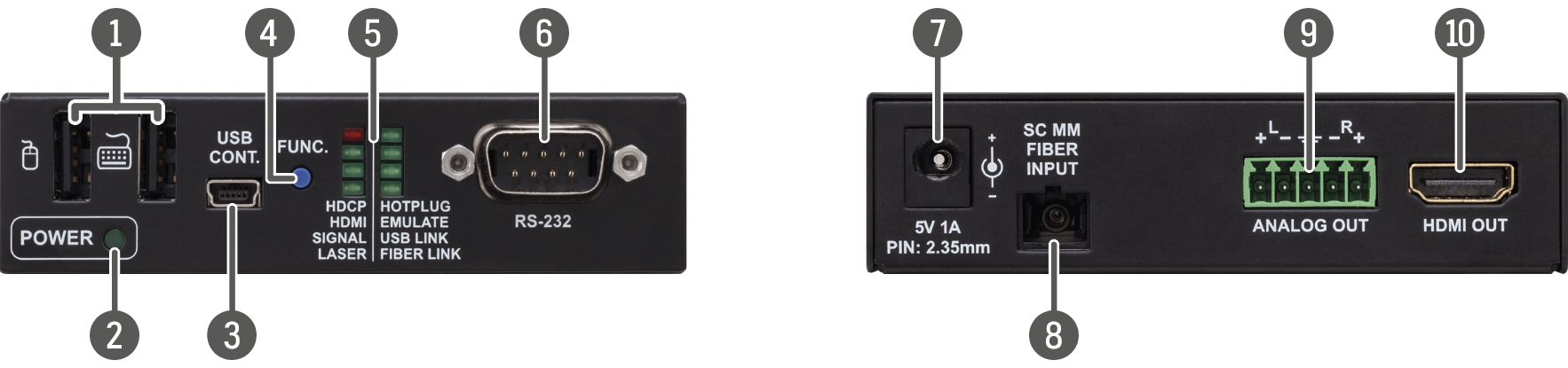
USB KVM ports |
USB KVM ports for HID-compatible devices (preferably keyboard and mouse). See more information in the USB KVM Function section. |
|
|
Power LED |
The LED indicates the power status of the device. See the details in the POWER LED section. |
|
|
USB control port |
USB interface for LDC connection, and firmware update purpose. |
|
|
Function button |
Factory default settings and bootload mode can be called using the button. See the details in the Special Button Functions - Receiver section. |
|
|
Status LEDs |
The LEDs give immediate feedback about actual state of the device. See the details in the Status LEDs section. |
|
|
RS-232 |
D-sub connector for RS-232 serial port. |
|
|
5V DC input |
Local power in; connect the output of the supplied 5V DC power adaptor. For more information, see the 5V DC Connection section. |
|
|
SC fiber input |
Connect a multi-mode single fiber optical cable between the receiver and the transmitter unit. Maximum fiber cable distances can be found in the Maximum Fiber Cable Extensions section. |
|
|
Analog audio output |
5-pole Phoenix connector for balanced analog audio output signal. Pin assignment can be found in the Analog Stereo Audio Connector (5-pole Phoenix) section. |
|
|
HDMI output |
HDMI connector for DVI video or HDMI video and audio. |


This chapter is about operating the device, describing the functions that are available by the front panel controls:
3.1. Front Panel LEDs - Transmitter

|
OFF: |
The video source is not selected. |
|
BLINKING: |
The video source is selected, but signal is not detected. |
|
ON: |
The video source is selected and signal is detected. |
INFO:When Autoselect is enabled and video signal is not present at all, video LEDs blink.

|
OFF: |
The audio source is not selected. |
|
BLINKING: |
The audio source is selected, but no signal is detected, regardless of the output mode (e.g. DVI EDID is emulated on the port with HDMI signal). |
|
ON (with short pause): |
Audio source is selected, the audio is embedded to the output video stream. |
|
ON (continouosly): |
Audio source is selected, the port is active, but audio is not embedded in the video stream (e.g. the output mode is DVI). |

|
OFF: |
Video output signal is not encrypted with HDCP. |
|
ON: |
Video output signal is encrypted with HDCP. |
#frontpanel

HDMI-3D-OPT-TX210A
|
OFF: |
USB is disconnected or there is no USB data transfer over the port. |
|
BLINKING (green): |
USB connection is established between the transmitter and the computer. |
HDMI-3D-OPT-TX210RAK / SW4-OPT-TX240RAK
|
OFF: |
USB is disconnected or there is no USB data transfer over the port. |
|
ON (green): |
USB KVM: composite mode is active. |
|
ON (yellow): |
USB KVM: transparent mode is active. |

|
OFF: |
Autoselect function is disabled. |
|
BLINKING: |
Autoselect function is enabled, searching for signal (the video input LEDs are also blinking). |
|
ON: |
Autoselect function is enabled, the active video signal is found (the selected video input's LED is also ON). |
3.2. Front Panel Buttons - Transmitter

Only for SW4-OPT-TX240RAK model: the desired video input can be selected by the Video Select button from the front panel. The selection order of the inputs is the following:
|
SW4-OPT-TX240RAK: |

|

The desired audio input can be selected by the Audio Select button from the front panel. The selection order of the inputs depends on the model as follows:
|
HDMI-3D-OPT-TX210A: |
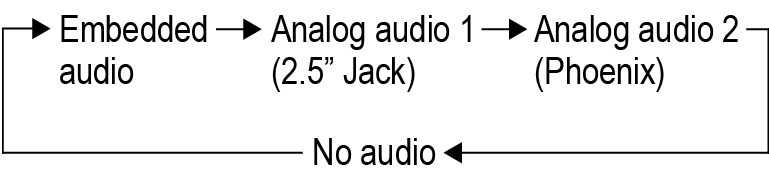
|
|
HDMI-3D-OPT-TX210RAK: |
|
|
SW4-OPT-TX240RAK: |
3.2.3. Programmable Show Me Button

Action or an operation can be assigned to the Show Me button. “Show Me button pressed” is a condition that can be selected in the Event Manager. See more details in the Event Manager section.
#frontpanel #button #showme
3.3. Special Button Functions - Transmitter
3.3.1. Enable DHCP (Dynamic) IP Address
DIFFERENCE:This function is available for the SW4-OPT-TX240RAK model only.

The device has a static IP address as a factory default setting. If this setting does not fit the circumstances during install or usage, DHCP can be enabled from the front panel:
Step 1.Make sure the device is powered on and operational.
Step 2.Press and keep pressing the Show Me button for 5 seconds.
Step 3.After 5 seconds the front panel LEDs start blinking; release the button and press it 3 times again quickly (within 3 seconds).
Step 4.The LEDs get dark, DHCP gets enabled.
3.3.2. Reset to Factory Default Settings

To restore factory default values, follow these steps:
Step 1.Make sure the device is powered on and operational.
Step 2.Press and keep pressing the Show Me button for 10 seconds. After 5 seconds front panel LEDs start blinking, but keep on pressing the button.
Step 3.After 10 seconds the LEDs start blinking faster; release the button and press it 3 times again quickly (within 3 seconds).
Step 4.The LEDs get dark, the device restores the factory default settings and reboots.
Factory default settings are listed in the Factory Default Settings section. #factory

Press the Audio Select and Show Me buttons together (within 100 ms) to disable/enable front panel buttons; the front panel LEDs blink 4 times when locking/unlocking. If the control lock is enabled and a button is pressed, the front panel LEDs blink 3 times quickly. #controllock #lockbutton
3.3.4. Restarting of the Device

In few cases (after firmware update, etc) you may need to restart the device. Pushing the reset button is the same as disconnecting and reconnecting the power adaptor to the transmitter. To restart the device follow the steps:
Step 1.Push the button with a thin object for a second.
Step 2.Wait until the device reboots. You can use the transmitter when the LIVE LED is blinking slowly again.
ATTENTION!Reseting the device does not reset the settings to factory defaults. To reset factory default settings, see the previous section.
#restart #reboot
3.3.5. Entering Firmware Update Mode

It may happen that the firmware update process is not successful and the device cannot be switched to bootload mode automatically. In this case, the device can be forced into firmware update mode as follows:
Step 1.Make sure the transmitter is powered off.
Step 2.Press and keep pressing the Show Me button.
Step 3.Power on the transmitter while the Show Me button is being pressed. If the device is switched to firmware update mode, the LIVE LED is blinking quickly (less than 500 ms duty cycle). The other LEDs are off.
The procedure of firmware update can be found in the Firmware Update chapter. #bootload
3.4. Rear Panel Status LEDs - Transmitter

|
ON (yellow): |
The device is powered, but not operational. |
|
BLINKING (green): |
The device is powered and operational. |
|
BLINKING (red): |
Alert is detected. |
|
BLINKING (yellow): |
Firmware update mode, device is in bootload mode. |
|
OFF: |
The device is not powered. |

|
ON (red): |
Laser transmission is enabled. |

|
ON: |
Fiber link is established. |
|
OFF: |
No fiber link between the transmitter and the receiver. |

|
ON: |
RS-232 ports (local and link) are in Control Mode. |
|
BLINKING: |
Command Injection Mode is active. (only in case of SW4-OPT-TX240RAK model) |
|
OFF: |
RS-232 ports (local and link) are in Pass-through Mode. |
DIFFERENCE:Only HDMI-3D-OPT-TX210RAK and SW4-OPT-TX240RAK models have RS-232 LED.
3.5. Front Panel LEDs - Receiver
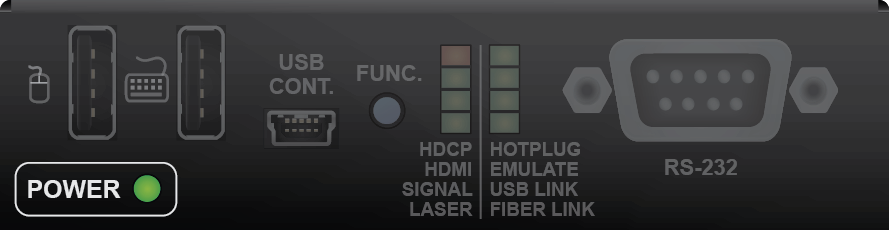
|
ON: |
The receiver is powered. |
#frontpanel
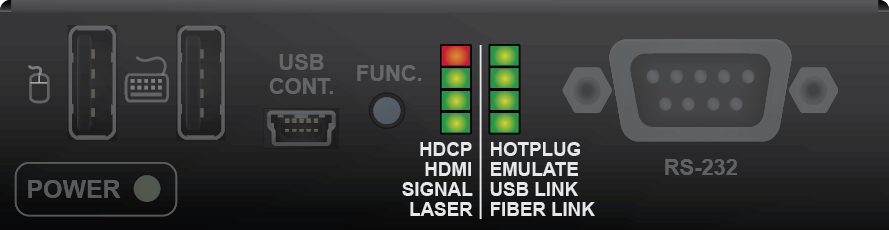
HDCP
|
ON: |
Video input signal is encrypted with HDCP. |
|
OFF: |
Video input signal is not encrypted with HDCP. |
HDMI
|
ON: |
The input and output signal type is HDMI. |
|
BLINKING: |
The input signal type is HDMI but the output signal is DVI. |
|
OFF: |
The input signal type is DVI. |
SIGNAL
|
ON: |
A valid video clock signal is present on the fiber input port of the receiver. |
LASER
|
ON: |
The laser signal of a connected transmitter is detected on the fiber input port. |
HOTPLUG
|
ON: |
A powered sink device is connected to the HDMI OUT port and sends hotplug signal. |
EMULATE
|
ON: |
Composite port is active in the USB KVM crosspoint. |
|
OFF: |
No port is active or transparent port is active in the USB KVM crosspoint. |
USB LINK
|
ON: |
USB KVM signal is detected on the fiber input port. |
FIBER LINK
|
ON: |
A powered transmitter is connected to the receiver and they can communicate over the fiber optical cable. |
3.6. Special Button Functions - Receiver
3.6.1. Reset to Factory Default Settings
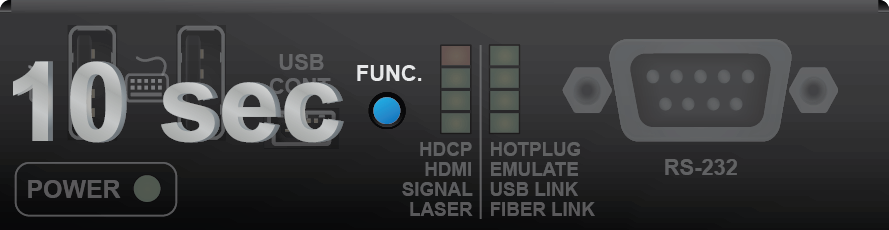
To restore factory default values, do the following steps:
Step 1.Make sure the device is powered on and operational.
Step 2.Press and keep pressing the Show Me button for 10 seconds. After 5 seconds front panel LEDs start blinking, but keep on pressing the button.
Step 3.After 10 seconds the LEDs start blinking faster; release the button and press it 3 times again quickly (within 3 seconds).
Step 4.The LEDs get dark, the device restores the factory default settings and reboots.
Factory default settings are listed in the Factory Default Settings section.
#frontpanel #button #function #factory
3.6.2. Entering Firmware Update Mode
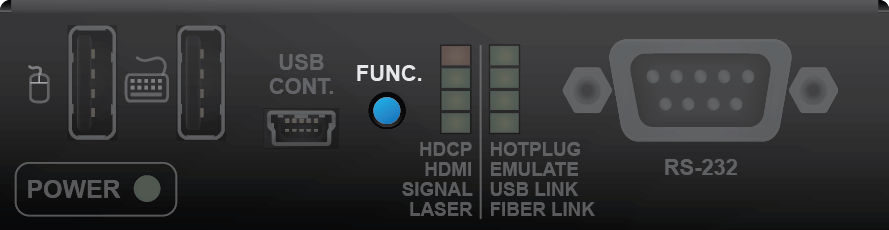
It may happen that the firmware update process is not successful and the device cannot be switched to bootload mode automatically. In this case, the device can be forced into firmware update mode as follows:
Step 1.Make sure the receiver is powered off.
Step 2.Press and keep pressing the Function button.
Step 3.Power on the receiver. If the device is switched to bootload mode, the Status LEDs are blinking quickly (less than 500 ms duty cycle).
The procedure of firmware update can be found in the Firmware Update chapter. #bootload
The chapter is about the installation of the device and connecting to other appliances, also presenting the mounting options and further assembly steps:
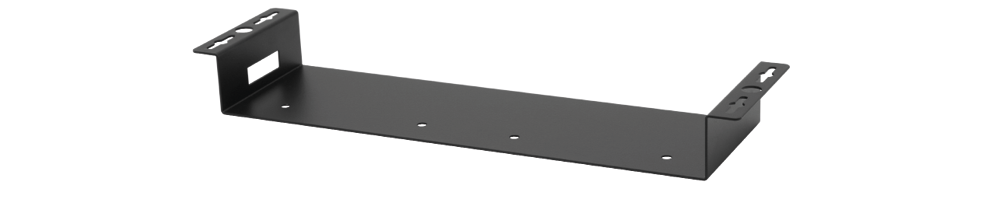
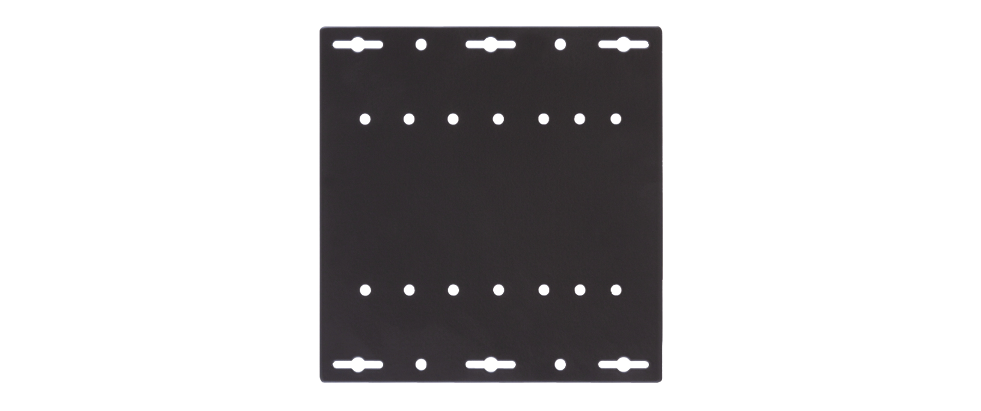
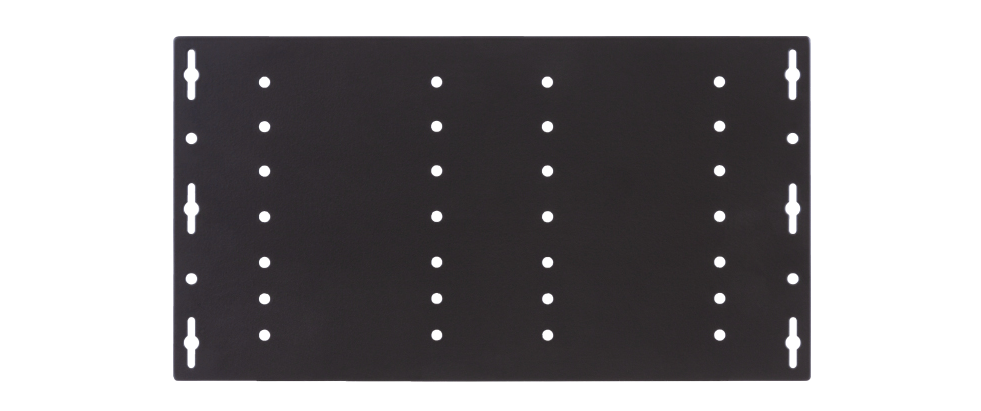
To mount the transmitter, Lightware supplies optional accessories for different usage. There are seven kinds of mounting kits with a similar fixing method. The device has two mounting holes with inner thread on the bottom side; see the bottom view in the Mechanical Drawings section. Fasten the device with the screws enclosed to the accessory:

|
|
|
1U high rack shelf |
|

|
|
|
Under-desk mounting kit |
Under-desk double mounting kit |
|
|
|
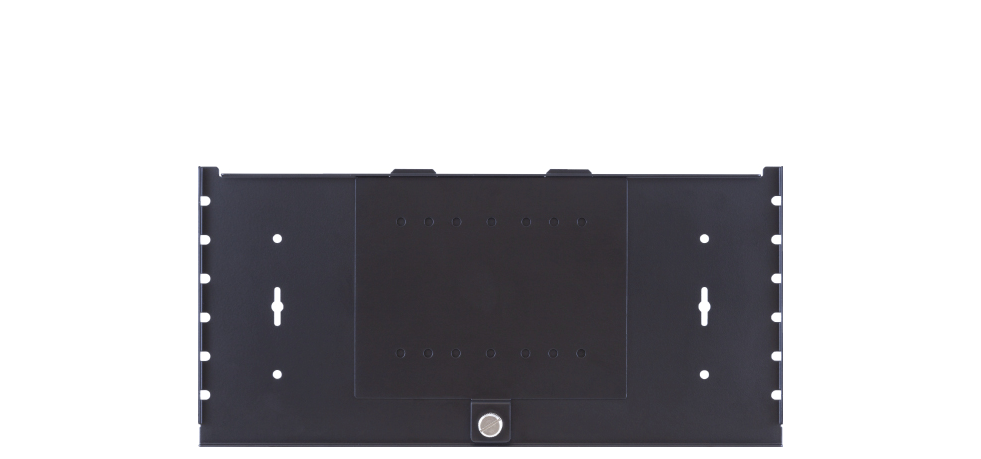
UD Mounting Plate F110 |
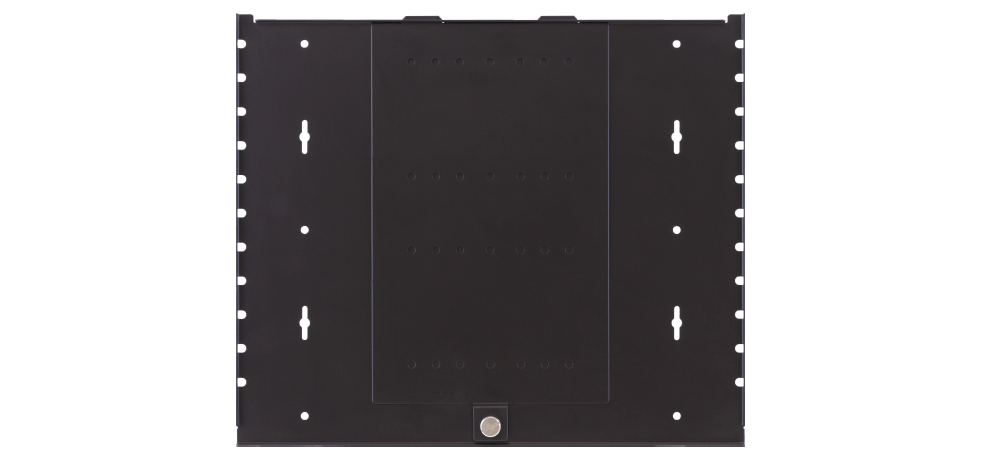
UD Mounting Plate F120 |
|
|
|
UD Mounting Pro P110 |
UD Mounting Pro P140 |
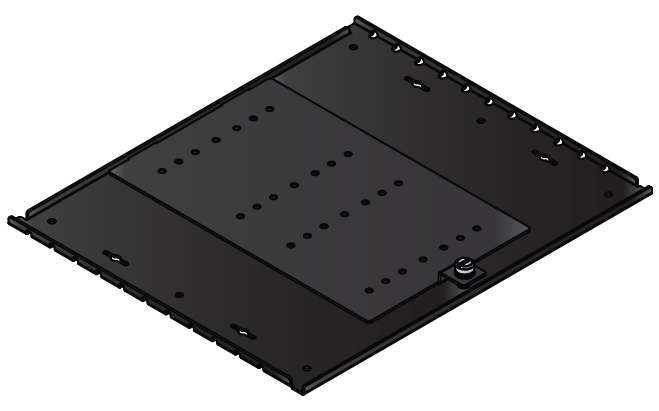
The Under-desk double mounting kit makes it easy to mount a single device on any flat surface, e.g. furniture. 1U high rack shelf provides mounting holes for fastening two half-rack or four quarter-rack sized units. Pocket-sized devices can also be fastened on the shelf. To order mounting accessories, please contact sales@lightware.com.
WARNING!Always use the supplied screws. Using different (e.g. longer) ones may cause damage the device.
INFO:The transmitters are half-rack sized, the receiver is quarter-rack sized.
1U High Rack Shelf
Allows rack mounting for half-rack, quarter-rack and pocket sized units.
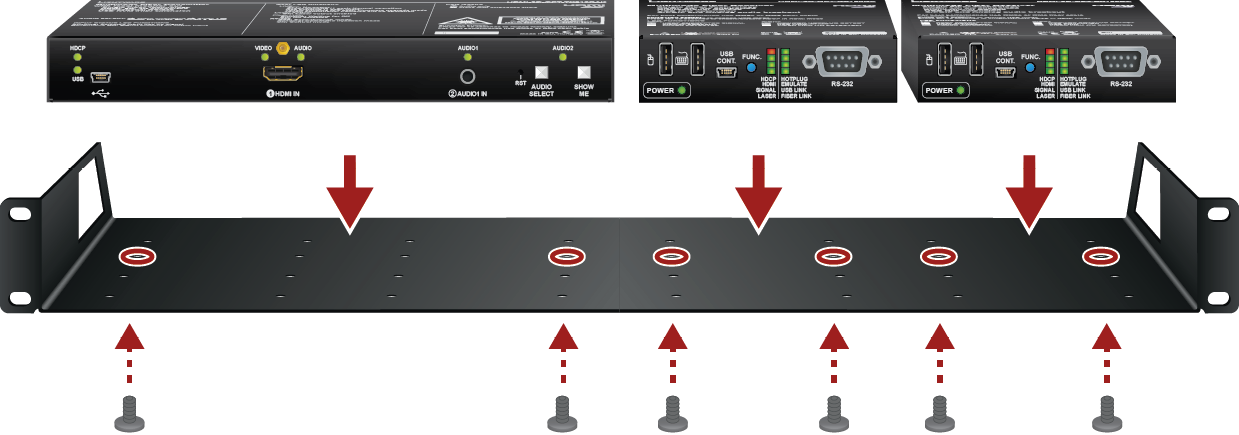
1U high rack shelf provides mounting holes for fastening two half-rack or four quarter-rack sized units. Pocket sized devices can also be fastened to the self.
The UD kit allows a receiver to be easily mounted on any flat surface (e.g. furniture). Only quarter-rack sized units (HDMI-3D-OPT-RX150RA receiver) can be installed to the kit.
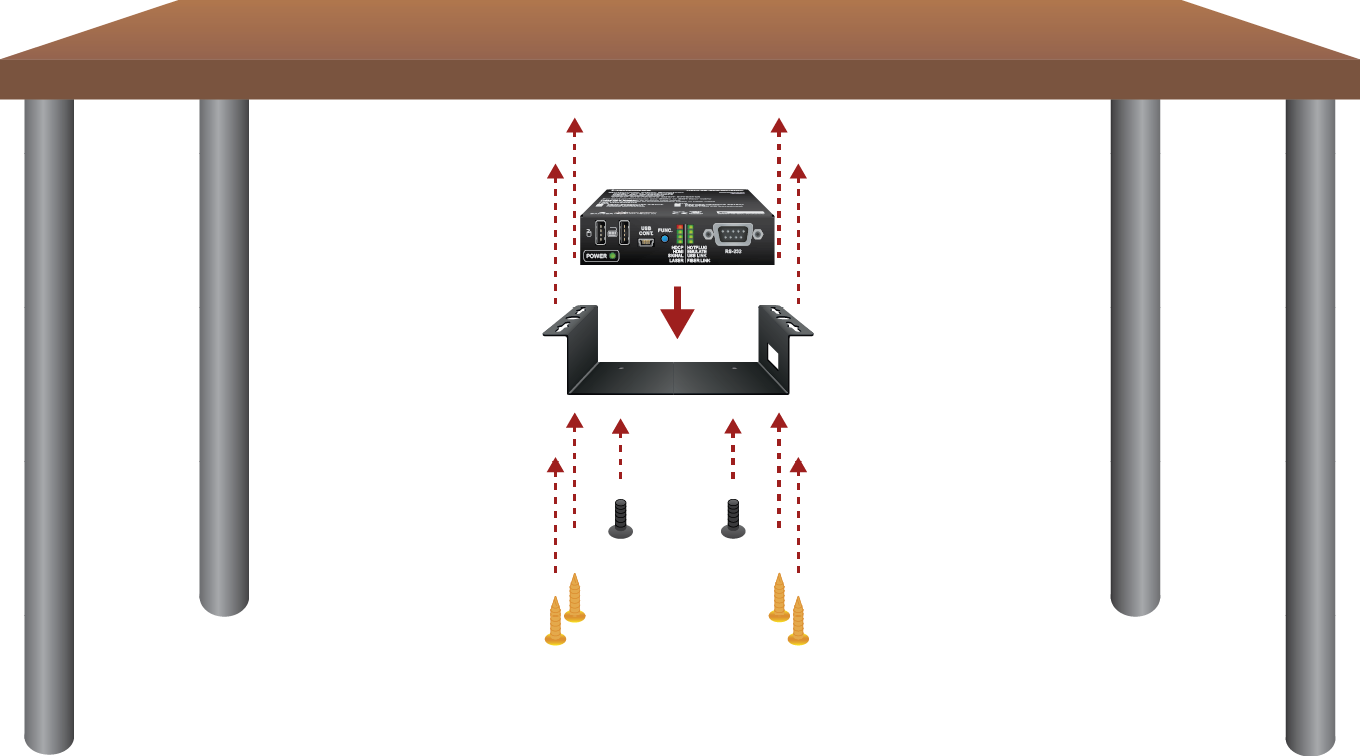
INFO:The chipboard screws are not supplied with the mounting kit.
Under-desk Double Mounting Kit
The UD-kit double makes it easy to mount a single transmitter or multiple receivers on any flat surface (e.g. furniture).
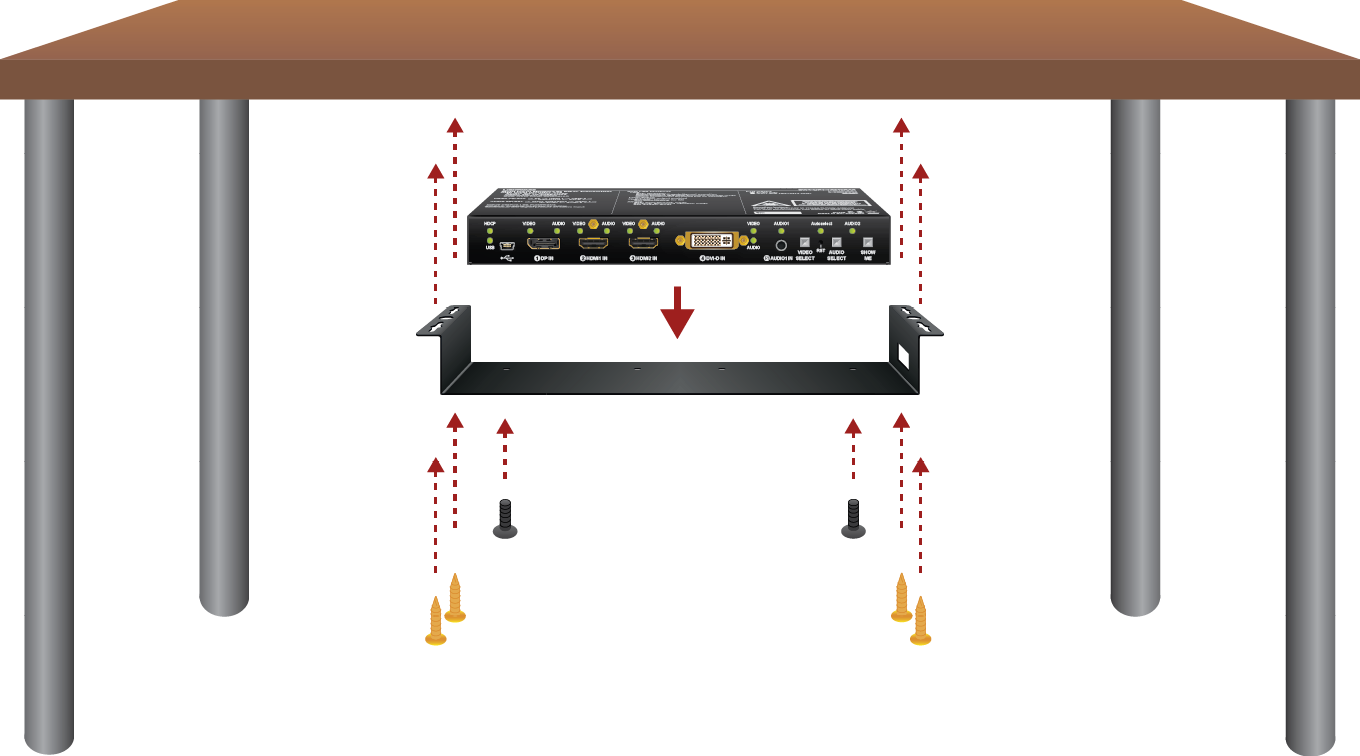
INFO:The chipboard screws are not supplied with the mounting kit.
Under-Desk Mounting Plates
|
Accessory |
Number of mountable devices |
Features |
|
|---|---|---|---|
|
UD Mounting Plate F110 |
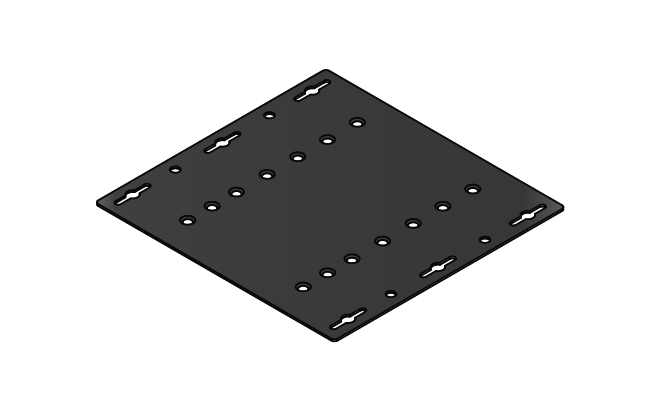
|
1 quarter-rack sized |
Lightweight design |
|
UD Mounting Plate F120 |
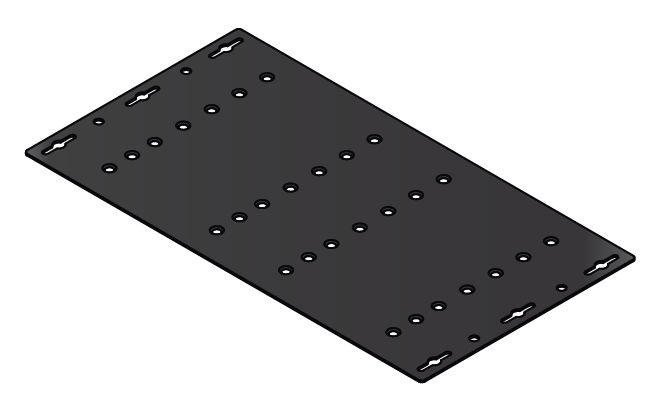
|
2 quarter-rack sized or 1 half-rack sized |
Lightweight design |
|
UD Mounting Pro P110 |
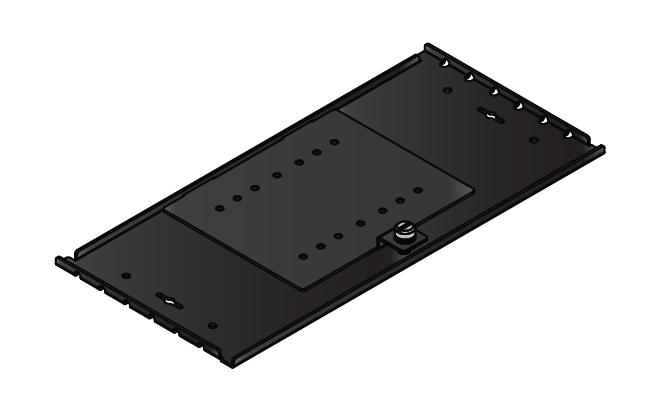
|
1 quarter-rack sized |
Easy to change the mounted device |
|
UD Mounting Pro P140 |
|
2 quarter-rack sized or 1 half-rack sized |
Easy to change the mounted devices |
INFO:For more details about the options of the applications and the assembly steps, please download the Mounting Assembly Guide from our website.
|
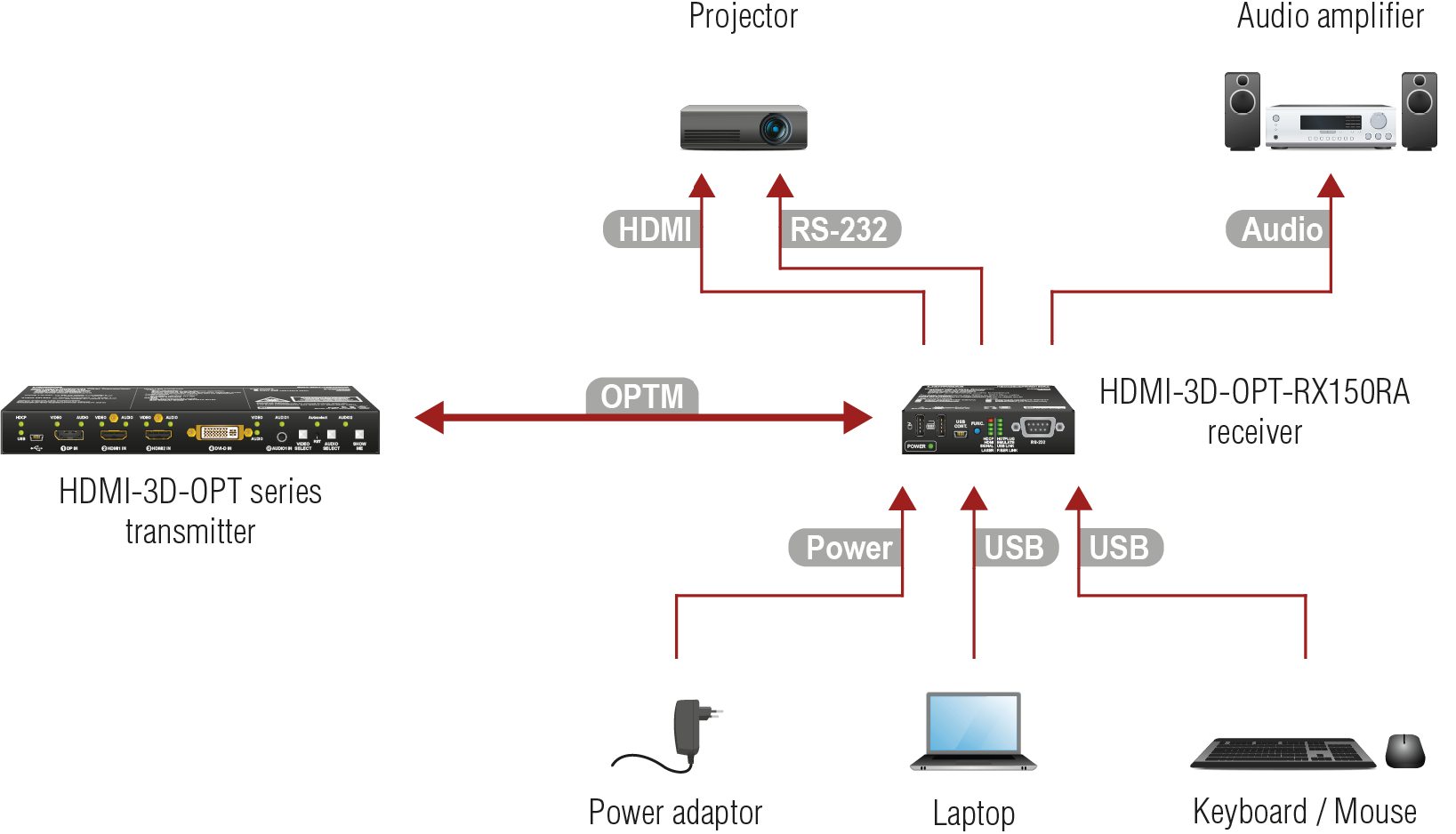
Connect the receiver and a compatible transmitter (e.g. a HDMI-3D-OPT series transmitter) or matrix output board using a multimode single fiber optical cable. |

|
Connect the sink device (e.g. a projector) to the HDMI output port with an HDMI cable. |
|
Optionally for RS-232 control: connect a controller/controlled device (e.g. projector) to the RS-232 port. |
|
Optionally connect an analog audio device with balanced audio signal (e.g. audio amplifier) to the 5-pole Phoenix audio output port. See the Cable Wiring Guide for the correct wiring. |
|
Optionally for USB control: connect the receiver to the controller device (e.g. laptop) with a USB mini B-type cable. |
|
Optionally for USB HID extension: connect at least one USB HID device (e.g. keyboard and/or mouse) to the receiver. |

|
Connect the power adaptor to the DC input of the receiver first, then to the AC power socket. |
ATTENTION!Only HID-compliant devices are supported by the extenders. Non-HID devices (USB sticks, webcams, etc) will not be working with the receiver.
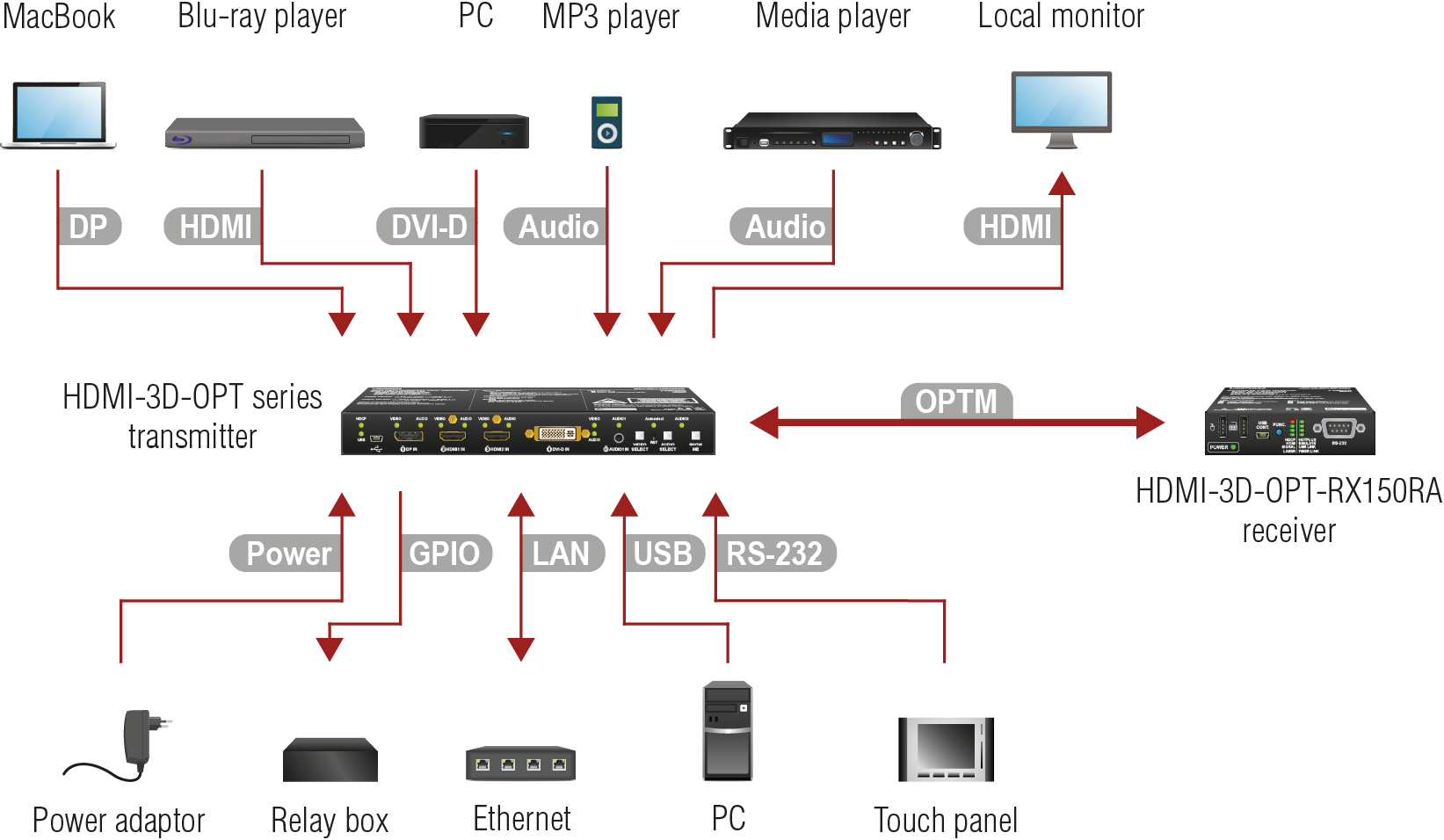
|
Connect the transmitter and a compatible receiver (e.g. a HDMI-3D-OPT-RX150RA) or matrix input board using a multimode single fiber optical cable. |
|
Connect the source(s) (e.g. a MacBook / Blu-ray player / PC) to the input port(s) of the transmitter with a DP / DVI-D / HDMI cable(s). |
|
Optionally connect an assymmetric audio device with unbalanced audio signal (e.g. an MP3 player) to the 2.5" TRS (jack) audio input port. |
|
Optionally connect a symmetric audio device with balanced audio signal (e.g. a media player) to the 5-pole Phoenix audio input port. See the Cable Wiring Guide for the correct wiring. |

|
Connect the local sink device (e.g. a monitor) to the HDMI output port with an HDMI cable. |
|
Optionally for USB HID extension: connect the transmitter to the computer with a USB mini B-type cable. |
|
Optionally for RS-232 control: connect a controller/controlled device (e.g. a touch panel) to the RS-232 port. |

|
Optionally connect the switcher to a LAN network in order to control the device. |

|
Optionally connect a controller/controlled device (e.g. relay box) to the GPIO port. |

|
Connect the power adaptor to the DC input of the transmitter first, then to the AC power socket. |
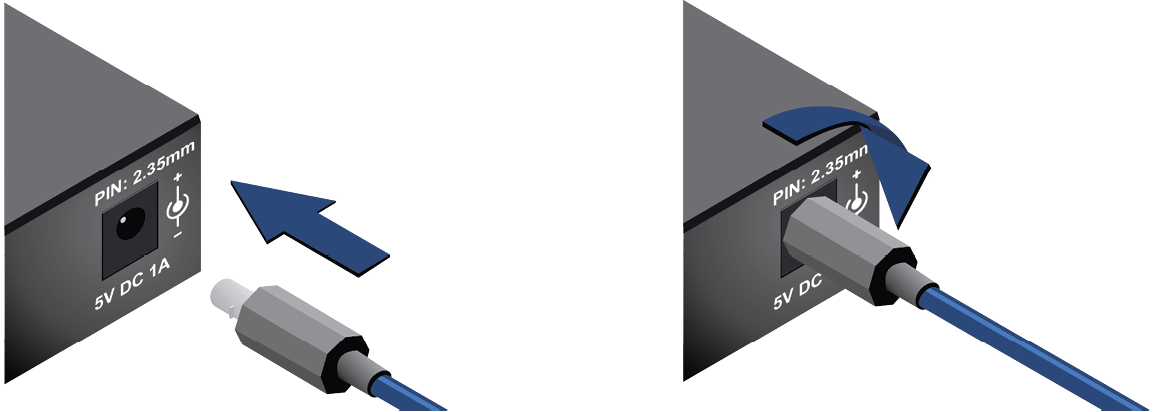
Locking DC connector
The extenders are built with locking 5V DC connector. Do not forget to turn the plug counterclockwise before disconnecting the power adaptor.
WARNING!Always use the supplied 5V power adaptor. Warranty void if damage occurs due to use of a different power source.

The extenders provide standard 19-pole HDMI connectors for input and output. Always use high-quality HDMI cables for connecting sources and displays.

SW4-OPT-TX240RAK transmitter provides a standard 20-pole DisplayPort connector for input. Always use high quality DP cables for connecting DisplayPort devices.
4.3.4. SC Fiber Optical Connector

HDMI-3D-OPT series transmitters and receivers provide multimode SC fiber optical input and output connectors.
Maximum fiber cable distances can be found in the Maximum Fiber Cable Extensions section.
WARNING!Please do not look directly into the SC fiber optical connector if the cable is connected to the transmitter only and the laser is active.
SW4-OPT-TX240RAK transmitter provides 29-pole „digital only” DVI-I Dual-Link connectors (only digital pins are internally connected) for input and local output. This way, users can plug in any DVI connector, but keep in mind that analog signals (such as VGA or RGBHV) are not processed.
Always use high-quality DVI cables for connecting sources and displays.

|
Pin |
Signal |
Pin |
Signal |
|
1 |
TMDS Data2- |
16 |
Hot Plug Detect |
|
2 |
TMDS Data2+ |
17 |
TMDS Data0- |
|
3 |
TMDS Data2 Shield |
18 |
TMDS Data0+ |
|
4 |
Not connected |
19 |
TMDS Data0 Shield |
|
5 |
Not connected |
20 |
Not connected |
|
6 |
DDC Clock |
21 |
Not connected |
|
7 |
DDC Data |
22 |
TMDS Clock Shield |
|
8 |
Not connected |
23 |
TMDS Clock+ |
|
9 |
TMDS Data1- |
24 |
TMDS Clock- |
|
10 |
TMDS Data1+ |
C1 |
Not connected |
|
11 |
TMDS Data1 Shield |
C2 |
Not connected |
|
12 |
Not connected |
C3 |
Not connected |
|
13 |
Not connected |
C4 |
Not connected |
|
14 |
+5V Power |
C5 |
GND |
|
15 |
GND (for +5V) |
4.3.6. Analog Stereo Audio Connector (3.5 mm Jack)

The connector is used for receiving unbalanced analog audio signal. It is also known as (3.5 mm or approx. 1/8”) audio jack, phone jack, phone plug and mini-jack plug.

Jack audio plug pin assignments
You can find more information about audio functions in the Audio Interface section.
4.3.7. Analog Stereo Audio Connector (5-pole Phoenix)

5-pole Phoenix connector is used for balanced analog audio output. Unbalanced audio signals can be connected as well. For unbalanced output connect + and ground to the source and connect – to the ground.
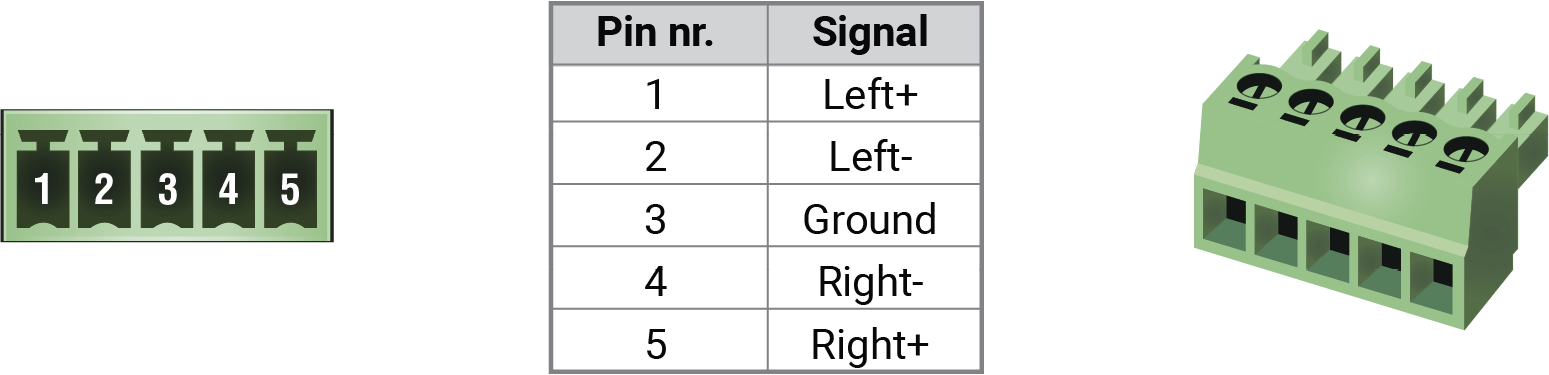
Analog audio connector and plug pin assignments
Compatible Plug Type
Phoenix® Combicon series (3.5mm pitch, 5-pole), type: MC 1.5/5-ST-3.5.
You can find more information about the analog audio function in the Audio Interface section. Audio cable wiring guide is in the Cable Wiring Guide section.
4.3.8. RS-232 Connector (3-pole Phoenix)

The extender contains a 3-pole Phoenix connector which is used for RS-232 serial connection.

RS-232 connector pin assignments
Compatible Plug Type
Phoenix® Combicon series (3.5mm pitch, 3-pole), type: MC 1.5/3-ST-3.5.
You can find more information about the RS-232 interface in the Serial Interface section.
4.3.9. RS-232 Connector (D-sub)
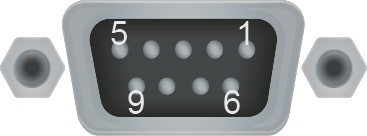
HDMI-3D-OPT-RX150RA receiver contains RS-232 port which can be connected to via an industry standard 9-pole D-sub female connector.
|
Pin nr. |
RS-232 pin-out |
|
1 |
Not connected |
|
2 |
TX data transmit (output) |
|
3 |
RX data receive (input) |
|
4 |
DTR (Internally connected to Pin 6) |
|
5 |
GND signal ground (shield) |
|
6 |
DSR (Internally connected to Pin 4) |
|
7 |
RTS (Internally connected to Pin 8) |
|
8 |
CTS (Internally connected to Pin 7) |
|
9 |
Not connected |
You can find more information about the RS-232 interface in the Serial Interface section.
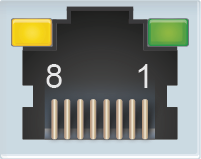
The extender provides standard RJ45 connectors for LAN port. Always use high quality Ethernet cables for connecting transmitters and receivers.
Wiring LAN Cables
Lightware recommends the termination of LAN cables on the basis of TIA/EIA T 568 A or TIA/EIA T 568 B standards.
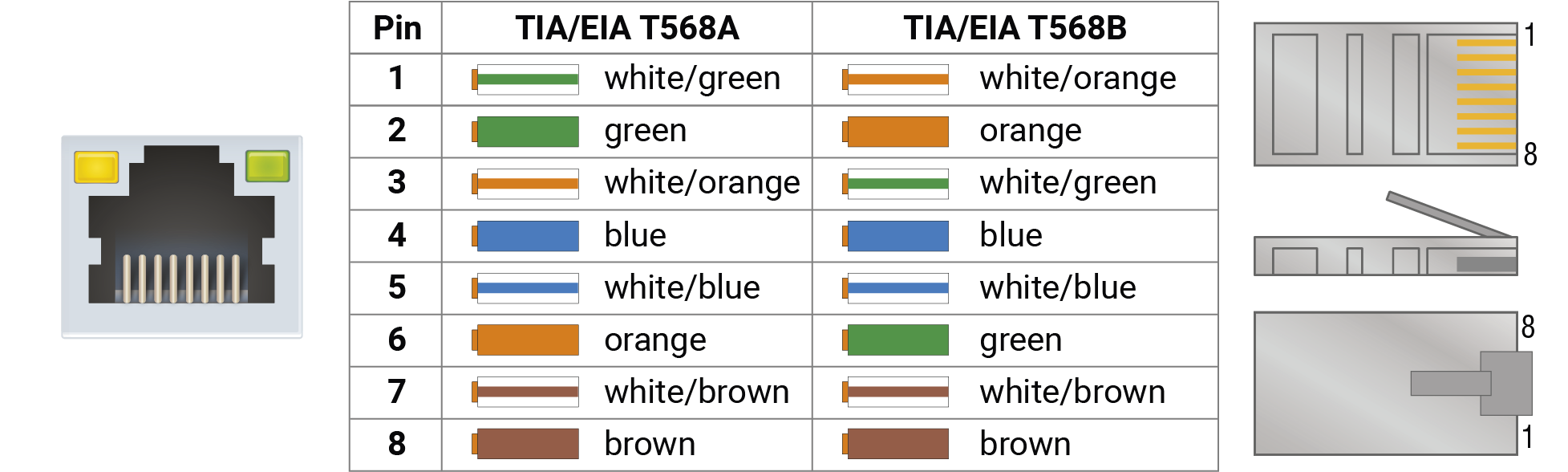
Pin assignments of RJ45 connector types
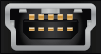
The extenders provide standard USB mini B-type connector for software control and USB KVM purposes.
You can find more information about the USB KVM function in the USB KVM Function section.
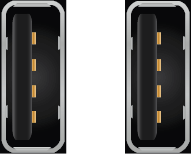
HDMI-3D-OPT-RX150RA receiver provides USB 2.0 connectors to support KVM functions. The unit has 2x USB 2.0 A-type connectors.
You can find more information about the USB KVM function in the USB KVM Function section.
4.3.13. GPIO - General Purpose Input/Output Ports
SW4-OPT-TX240RAK transmitter contains a 8-pole Phoenix connector with seven GPIO pins that operate at TTL digital signal levels and can be set to high or low level (Push-Pull). The direction of the pins can be input or output (adjustable). Voltage ranges for GPIO inputs are the following:
|
Input voltage [V] |
Output voltage [V] |
Max. current [mA] |
|
|
Logical low level |
0 - 0.8 |
0 - 0.5V |
30 |
|
Logical high level |
2 - 5 |
4.5 - 5V |
18 |
INFO:The maximum total current for the seven GPIO pins is 180 mA.
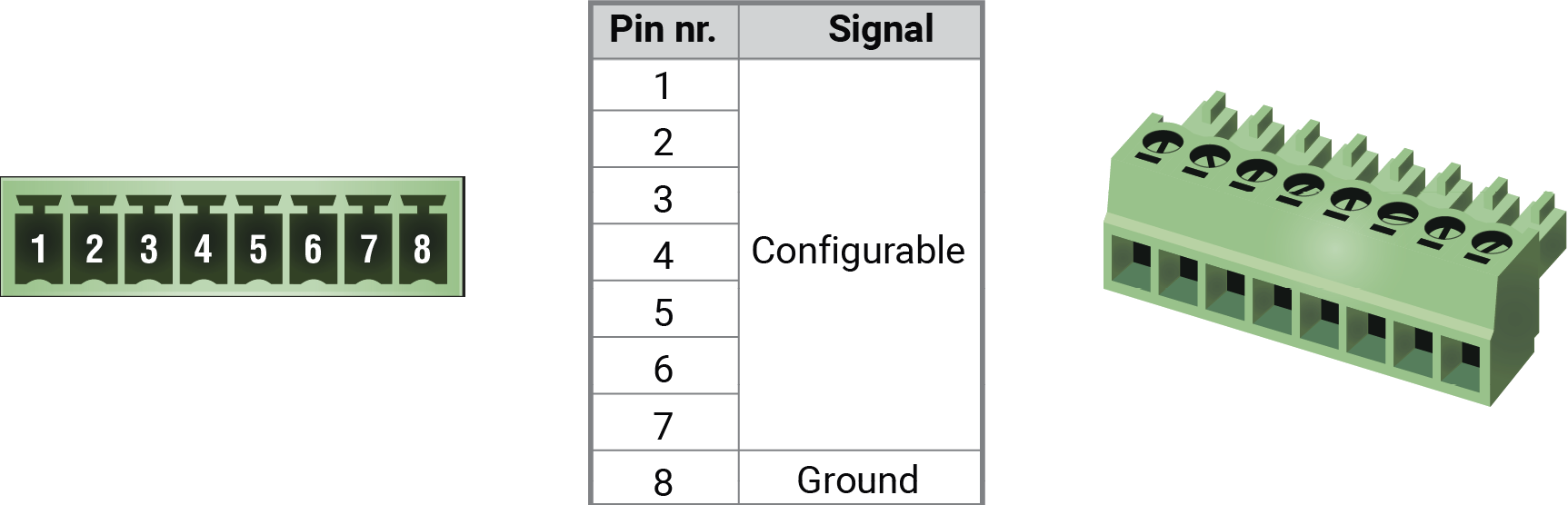
GPIO connector and plug pin assignments
Compatible plug type
Phoenix® Combicon series (3.5mm pitch 8-pole), type: MC 1.5/8-ST-3.5.
You can find more information about the GPIO interface in the GPIO Interface section.
The following sections are about the physical structure of the device, input/ output ports and connectors:
HDMI-3D-OPT-TX200 series transmitters have a multimode single fiber output interface, which is able to transmit different type of signals at the same time. The transmitter accepts digital video (DP, HDMI, and DVI-D) and analog audio sources (Jack and 5-pole Phoenix). The device can be controlled over LAN, RS-232 (3-pole Phoenix), and USB interfaces. The transmitter is able control third-party devices using the built-in GPIO ports. The transmitter also has USB KVM functionality.
Interfaces of HDMI-3D-OPT-TX210A
Interfaces of HDMI-3D-OPT-TX210RAK
Interfaces of SW4-OPT-TX240RAK
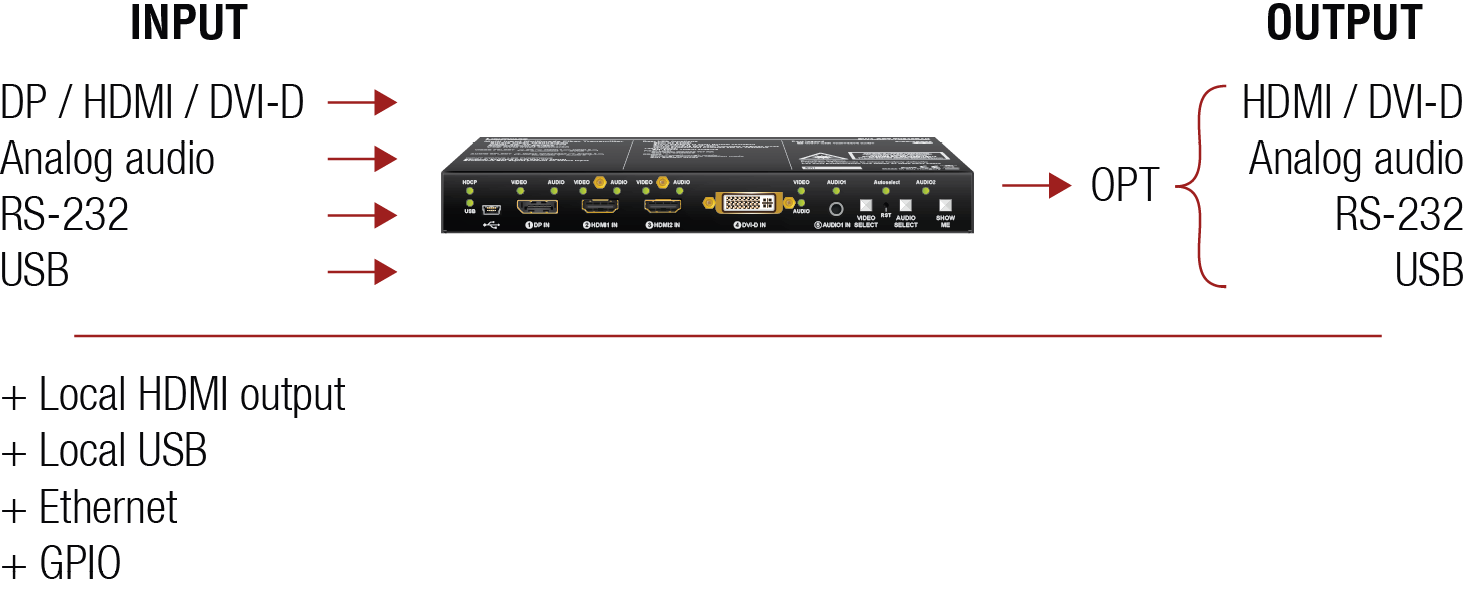
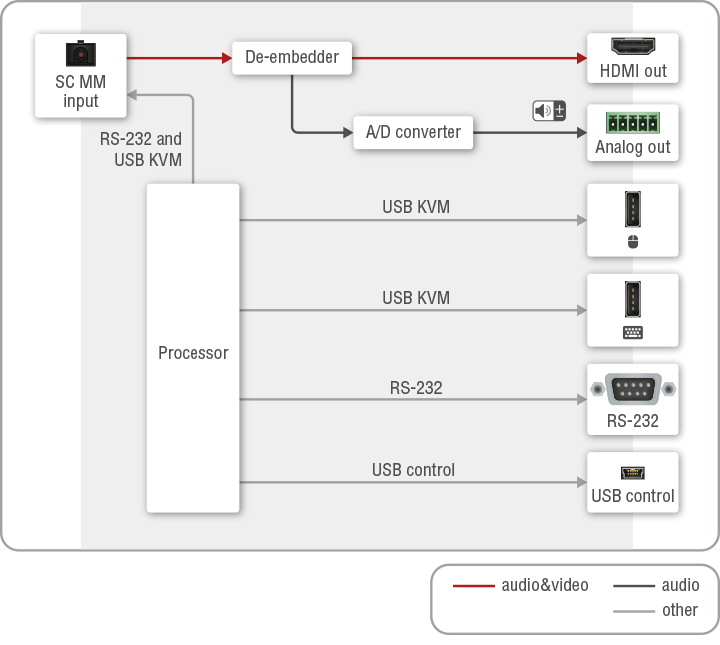
HDMI-3D-OPT-RX150RA receiver has a multimode single fiber input interface, which is able to receive different type of signals at the same time. The device accepts digital video and digital/analog audio, RS-232, and USB KVM signals over a single fiber cable. The device is able to deembed the audio signal to the analog (5-pole Phoenix) and transmit it to the audio source devices. The unit can be controlled USB interface (USB mini B-type) and built with a bidirectional RS-232 port (D-sub). The device also has USB KVM functionality.
Interfaces of HDMI-3D-OPT-RX150RA
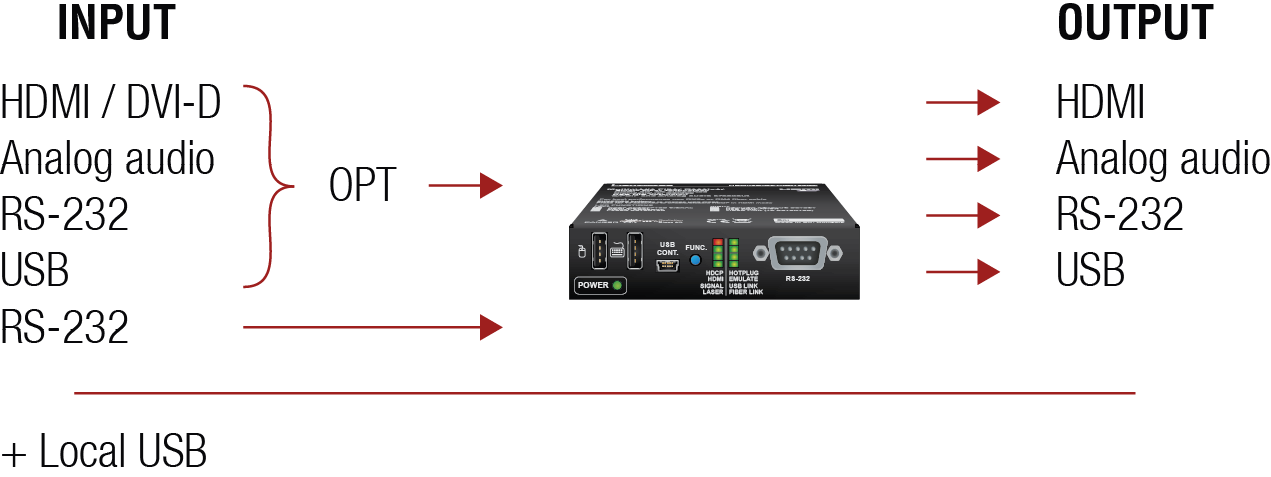
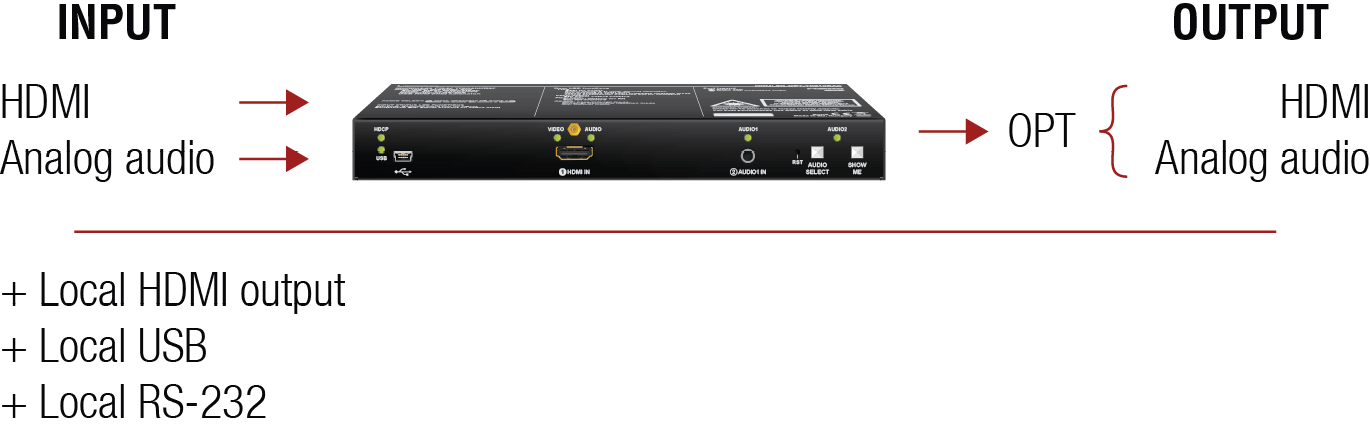
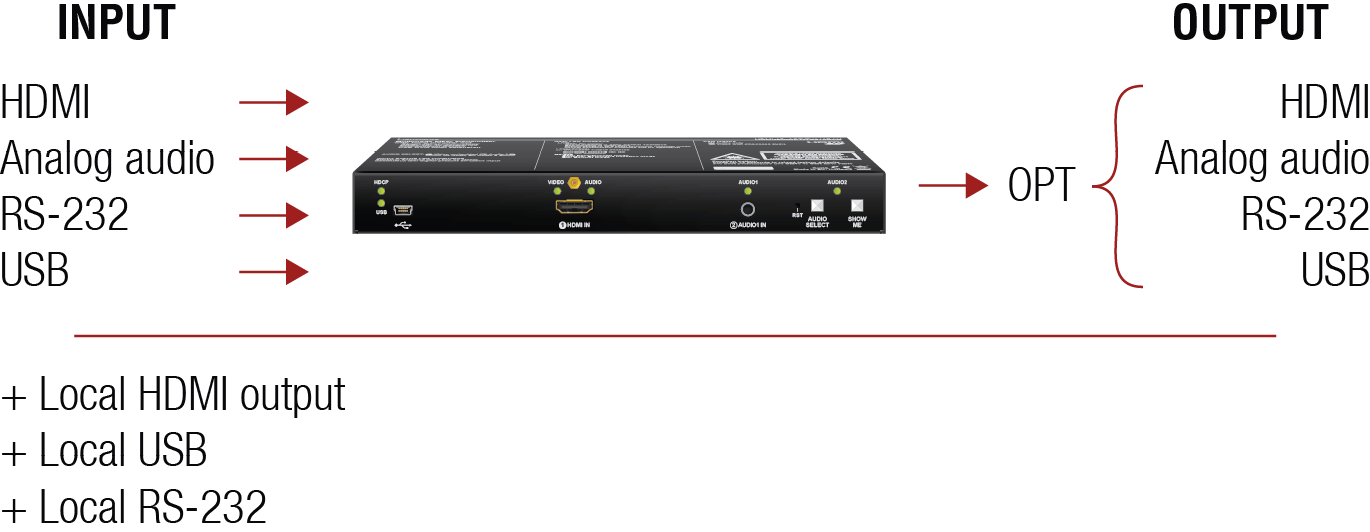
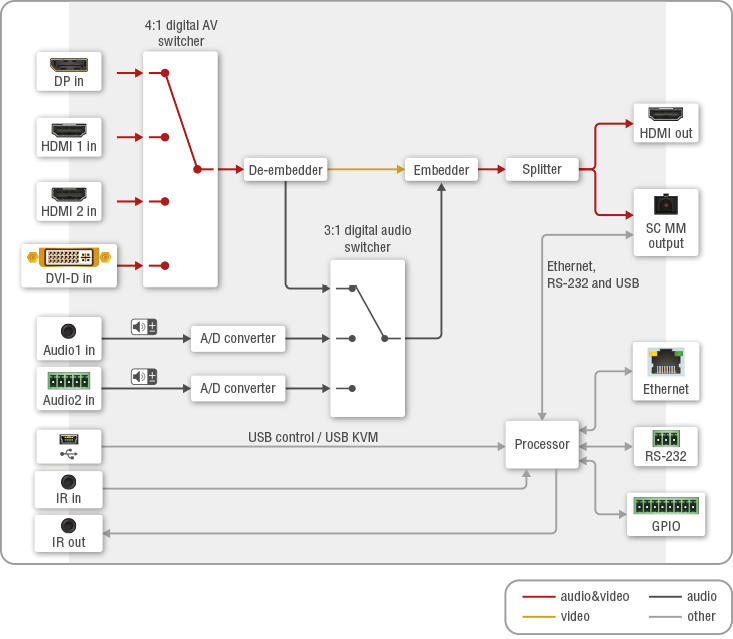
The following diagrams introduce the route of the different signal types (including the audio/video and control signals as well) from the input to the output ports in the device.
HDMI-3D-OPT-TX210A
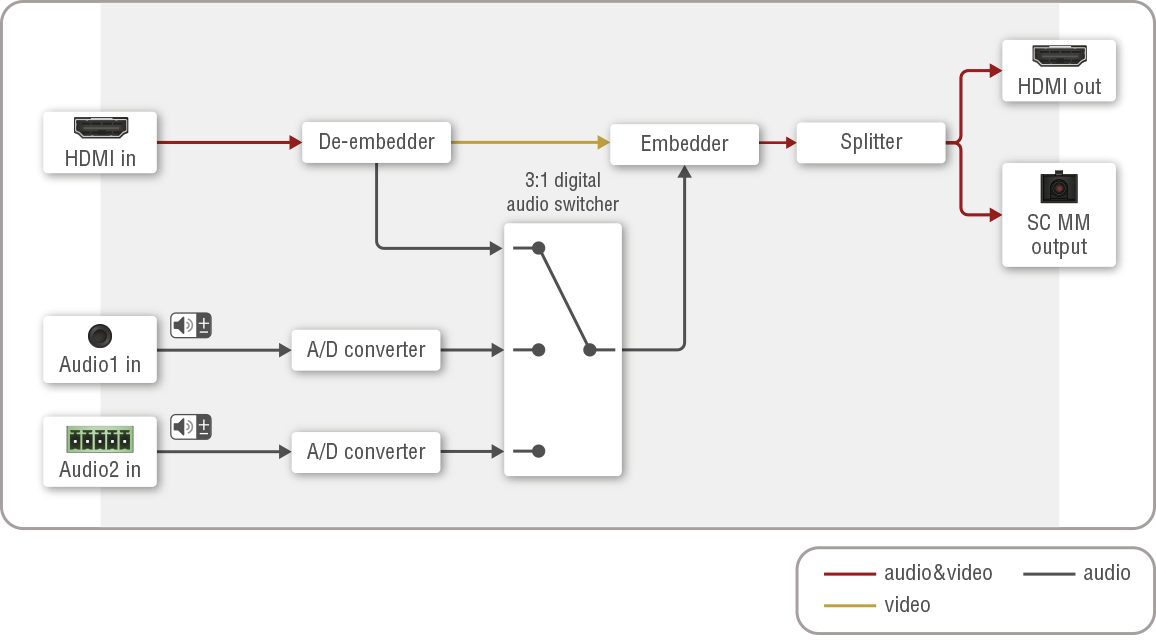
HDMI-3D-OPT-TX210RAK
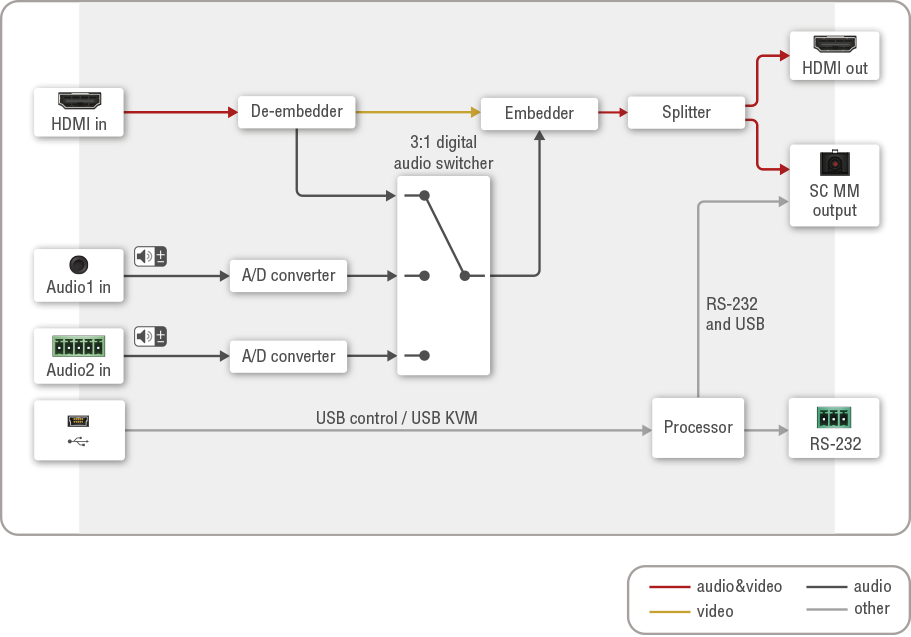
SW4-OPT-TX240RAK
HDMI-3D-OPT-RX150RA
5.3.1. Audio Inputs and Modes - Transmitter
The transmitter can receive audio from two type of sources:
▪Embedded (2x HDMI, 1x DP, 1x DVI-D);
▪Analog audio sources (1x Jack and 1x 5-pole Phoenix).
The audio coming from the analog inputs can be assigned to any video input. The gain levels of the analog audio input and the volume of the analog audio output ports are adjustable.
Audio Embedding – Allowed Connections
When the desired video signal is selected, the audio of the transmitted signal can be:
▪The audio of the original signal, or
▪The analog audio signal.
INFO:In case of SW4-OPT-TX240RAK model the audio of the HDMI 2 input can be embedded only in the original video stream. The audio of HDMI1 input cannot be mixed with the video of HDMI 2 input and vice versa.
5.3.2. Audio Outputs and Modes - Receiver
The receiver can transmit audio on three types of audio ports:
▪Embedded (HDMI);
▪Analog balanced audio (5-pole Phoenix).
The digital audio signal coming from the the optical input port can be transmitted on any audio output port: HDMI or the analog audio output port. The volume and balance levels are adjustable on the analog output port.
Supported Audio Formats
The table below shows the supported audio formats by output port.
|
Audio formats |
Audio outputs |
|
|
Embedded audio |
Analog audio output |
|
|
Multichannel PCM |
Max 8 channel |
Stereo PCM |
|
Dolby Digital 2.1 |
|
- |
|
Dolby Digital 5.1 |
|
- |
|
Dolby Digital 7.1 |
|
- |
|
DTS 2.1 |
|
- |
|
DTS 5.1 |
|
- |
|
DTS 7.1 |
|
- |
|
Dolby TrueHD (HBR) |
|
- |
|
DTS-HD (HBR) |
|
- |
|
DTS-HD Master Audio (HBR) |
|
- |
|
All other HDMI specified standards |
|
- |

5.3.3. Audio Options - Example
The Concept
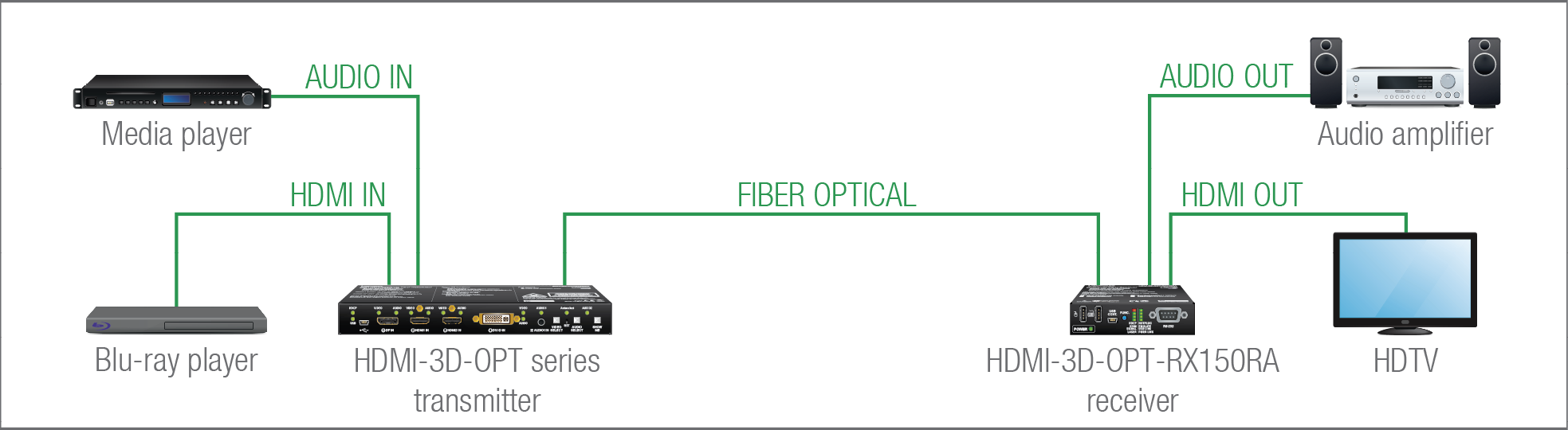
Two audio source devices are connected to the trasmitter: a Blu-ray player that has embedded digital audio on HDMI; and a media player that sends analog audio to the transmitter. On the receiver's side there are two audio source devices: an HDTV that can receive digital audio on HDMI; and an audio amplifier that can receive both analog or digital audio signals.
As the transmitter is able to embed the analog audio signal to the HDMI signal, the user can transmit the audio of the Blu-ray player or the audio of the media player as well.
INFO:One audio (embedded or analog) and one video signal can be transmitted via the optical output at the same time.
The receiver has built-in de-embedder function so the user can transmit audio signal to the audio amplifier and the HDTV as well.
All related audio settings are available in the Lightware Device Controller software, see the Port Properties Windows section.
Transmitter
The video crosspoint settings can be controlled in any of the following ways:
▪Pressing the Video Select button on the device,
▪Using Lightware Device Controller (LDC),
▪Sending LW2 or LW3 protocol commands, or
▪Using the Autoselect function.
INFO:The audio/video signal on the local HDMI output port is always the same as on the optical output port.
Direct Selection on SW4-OPT-TX240RAK Transmitter
The desired video input can be selected by the Video select button, the order is the following:

Beside selecting crosspoints manually, you can choose the Autoselect option both in case of audio and video ports.
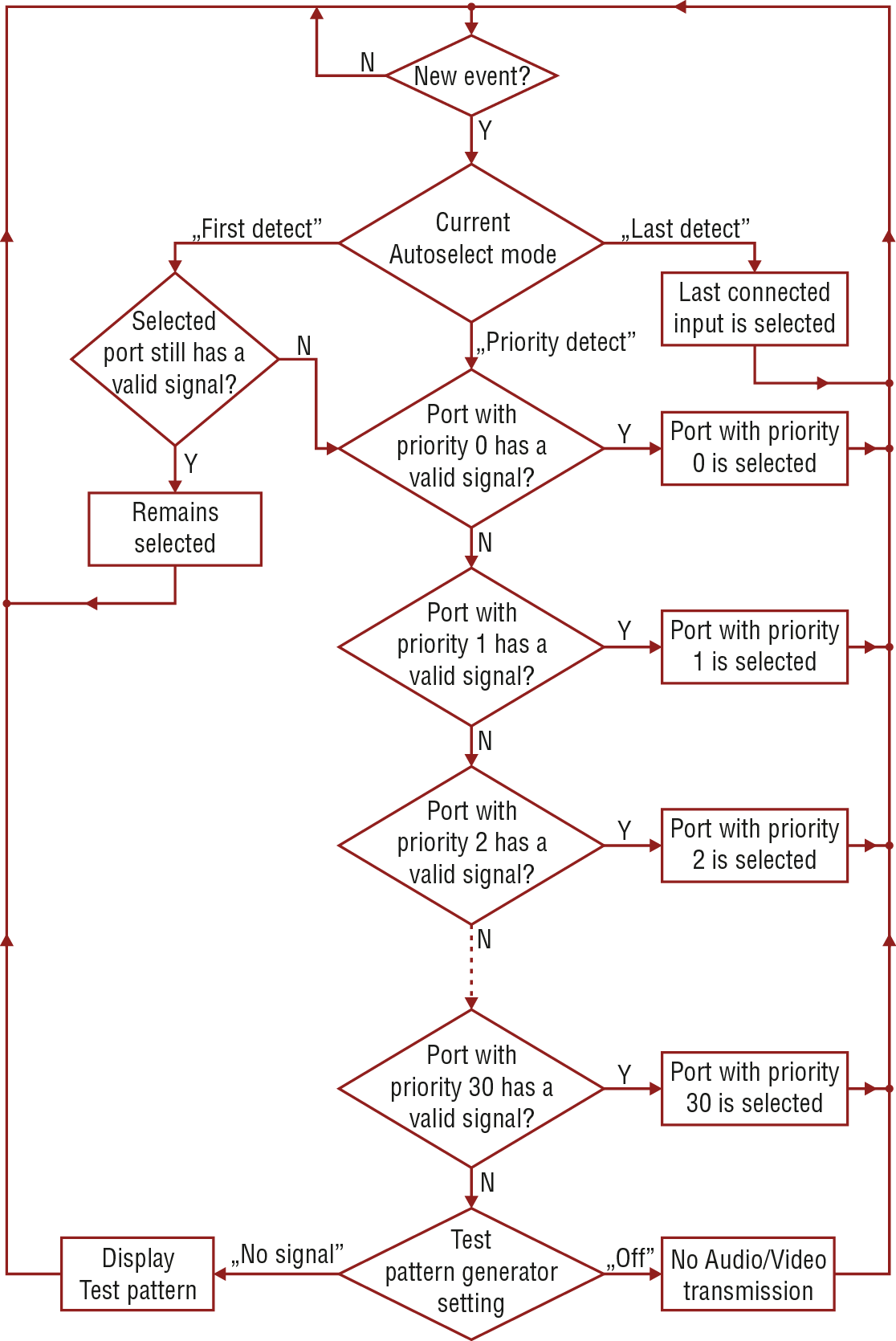
There are three types of Autoselect as follows.
▪First detect mode: selected input port is kept connected to the output while it has an active signal.
▪Priority detect mode: always the highest priority active input is selected to transmit.
▪Last detect mode: always the last attached input is selected to transmit.
Flowchart of Autoselection modes
Automatic Input Selection - Example
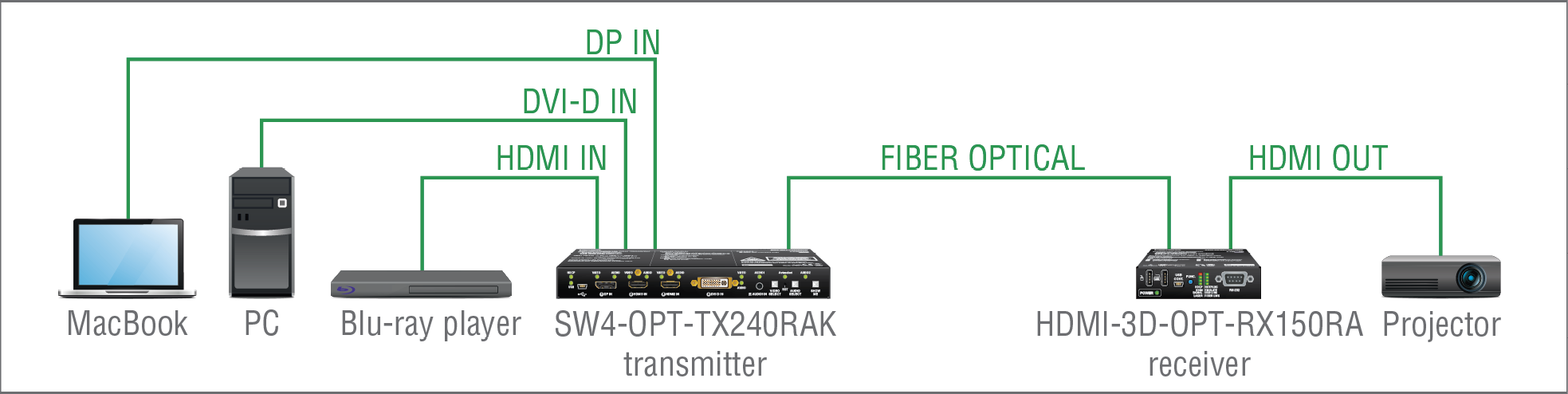
The Concept
If there is no other source connected to the transmitter but the MacBook, DP input will be automatically switched to the optical output. If the MacBook and the PC are both connected to the transmitter, DVI-D input will be switched to the optical output. If the Blu-ray player is connected on the HDMI input of the transmitter, it will be switched to the optical output – independently of the presence of other video signals.
Settings
▪Optical output: Set the Autoselect to Enabled. Set Autoselect mode to Priority detect. The priorities are the following (the lowest number means the highest priority):
|
Source device |
Input port |
Priority |
|
MacBook |
I1 (DP IN) |
2 |
|
PC |
I4 (DVI-D IN) |
1 |
|
Blu-ray player |
I2 (HDMI IN) |
0 |
Priorities can be set in the Lightware Device Controller software, see the related settings in the Video Outputs and Digital Audio Outputs sections.
HDMI-3D-OPT-TX210RAK, SW4-OPT-TX240RAK, and the HDMI-3D-OPT-RX250RA extenders support HID-compliant (Human Interface Device) devices to transmit USB signal between the source and sink devices. The transmitter connects to the controlled device (e.g. PC) and the controlling devices (e.g. computer mouse, keyboard, touch panel) are connected to the receiver.
ATTENTION!Only HID-compliant devices are supported by the extenders. Non-HID devices (USB sticks, webcams, etc) will not be working with the extenders.
USB KVM function can be used in two different modes: Transparent and Composite mode. The following sections show the difference between the two modes:
Transparent Mode
Transparent mode is a simple USB data transmission between the extenders. The same data is transmitted on the TX side as the one received on the RX side. The content of the transmitted packets are unknown to the Lightware infrastructure, so the data is not modified in any way during the transmission.
Key Features:
▪Supports all HID-compliant devices.
▪Driver software for all connected USB devices has to be installed on the controlled computer. When you switch the crosspoint between two sources, the connected mouse and keyboard will be detected as a new hardware in the operating system.
Composite Mode
The composite mode is an advanced data transmission method, recommended for most users. The devices use their own data packets during data transmission. Thus, the content of the transmitted packets is known to the Lightware infrastructure.
Key Features:
▪Supports the following HID-compliant devices: computer mouse, keyboard built with 107 keys and/or specific multimedia keys.
▪No driver software is needed for the connected devices. The operating system uses the driver of the extender to establish the connection for the USB devices.
INFO:You can find the related settings for the Lightware Device Controller software in the USB KVM section.
USB KVM - Example 1

The Concept
The PC is connected to the transmitter with a USB cable. The signal is transmitted over the fiber optical line from the receiver, which is connected to the controller devices (to the keyboard and the mouse), to the transmitter. The physical distance between the controlled PC and the controller devices can be up to 2500 meters.
USB KVM - Example 2
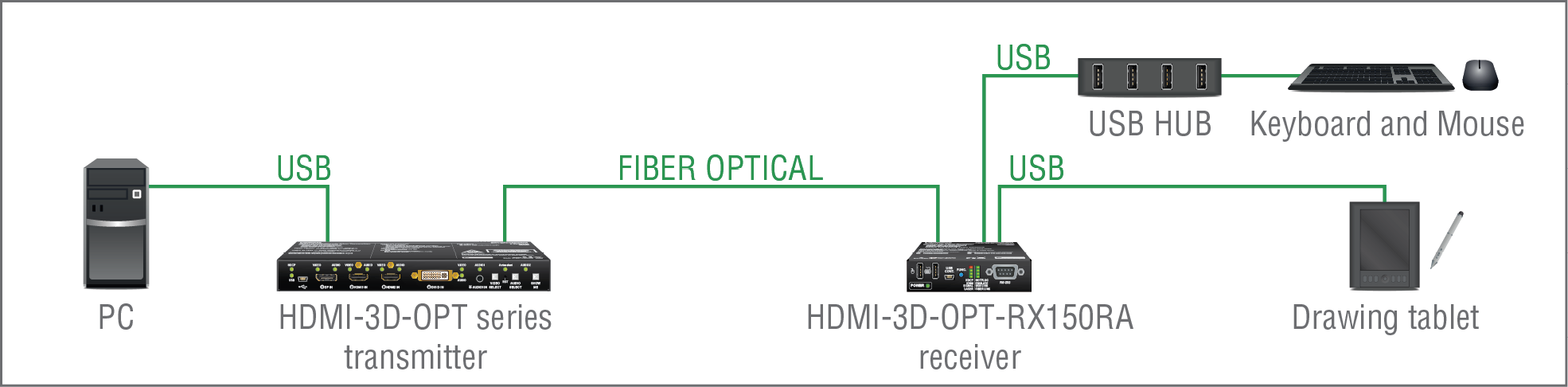
The Concept
Two devices are connected to the USB ports of the Receiver:
▪A Drawing tablet;
▪A USB HUB which has four USB ports - a Keyboard and a Mouse are connected to the HUB.
The PC can be controlled via the keyboard and the mouse, while the drawing tablet is also working as an input device beside them.
Settings:
▪Keyboard and mouse (via the USB HUB): the devices need to be set to Composite mode. The extenders can handle both of them if the devices are HID-compliant computer mouse and/or keyboard built with 107 keys and/or specific multimedia keys.
▪Drawing tablet: the device needs to be set to Transparent mode because these kinds of devices may have special functions that cannot be supported by the composite mode.
All related settings are available in the LDC software, see the USB KVM section.
INFO:The extenders support up to 8 physical USB HUB ports.
The interfaces of the HDMI-3D-OPT series extenders can be used to install the device at various points of a complex AV system. Additionally, the transmitter and the receiver are able to handle controlling functions. This section presents the possibilities through the built-in control ports of the extenders.
DIFFERENCE:Only HDMI-3D-OPT-TX210RAK and SW4-OPT-TX240RAK transmitters, and HDMI-3D-OPT-RX150RA receiver have RS-232 interface.
Serial data communication can be established via the local RS-232 port (Phoenix connector) or via the optical line. The RS-232 ports – which are connected to the processor (CPU) – can be configured separately (e.g. if the Baud rates are different, the microcontroller does the conversion automatically between the ports). The RS-232 port can be switched to Control mode, Command Injection mode, or can be Pass-through mode; see the following figure.
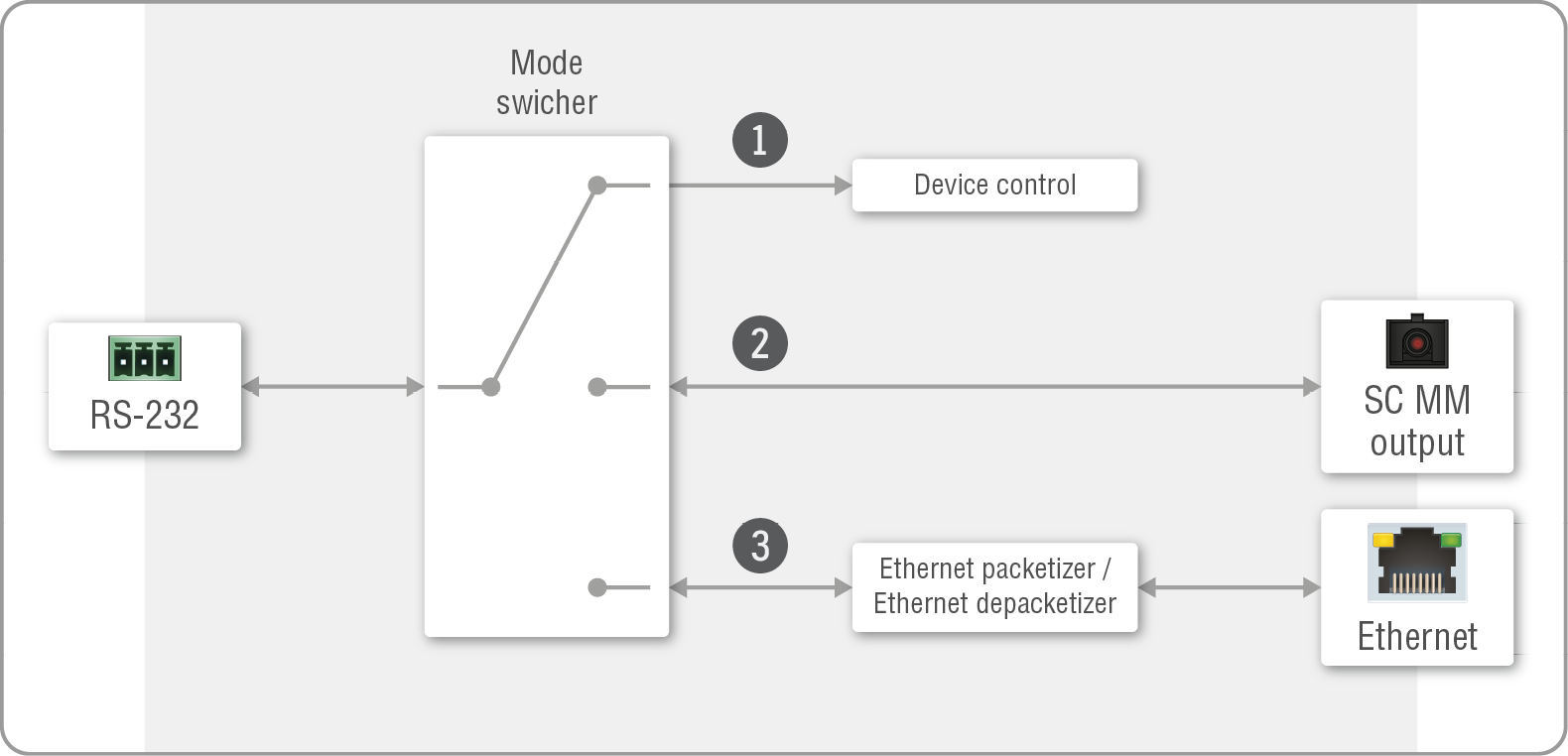
The block diagram of the serial interface
The following settings are defined:
|
|
The Local serial port is in Control mode. |
|
|
The Local serial port is in Pass-through mode. |
|
|
The Local serial port is in Command Injection mode. |


All settings are available in the LDC software, see settings in the RS-232 section.
The incoming data from the given port is processed and interpreted by the CPU. The mode allows controlling the matrix directly. LW2 or LW3 protocol commands are accepted – depending on the current port setting.
In pass-through mode, the given device forwards the data that is coming from one of its ports to another port of the same type. The command is not processed by the CPU. Incoming serial data is forwarded from one port to another inside the extender.
DIFFERENCE:HDMI-3D-OPT-RX150RA receiver has no command injection mode.
In this mode, the extender works as a TCP/IP <-> RS-232 bidirectional converter. The TCP/IP data signal is converted to RS-232 data and vice versa. TCP/IP port numbers are defined for the serial ports (optical link and local) for this purpose. E.g. the default Command Injection port number of the local RS-232 port is 8001. If data is coming from the optical interface that is addressed to the port no. 8001, it will be transmitted to the Tx pin of the local RS-232 port. It also works in the opposite direction, and the method is the same on the serial interface of the optical port as well.
RS-232 Signal Transmission - Example 1
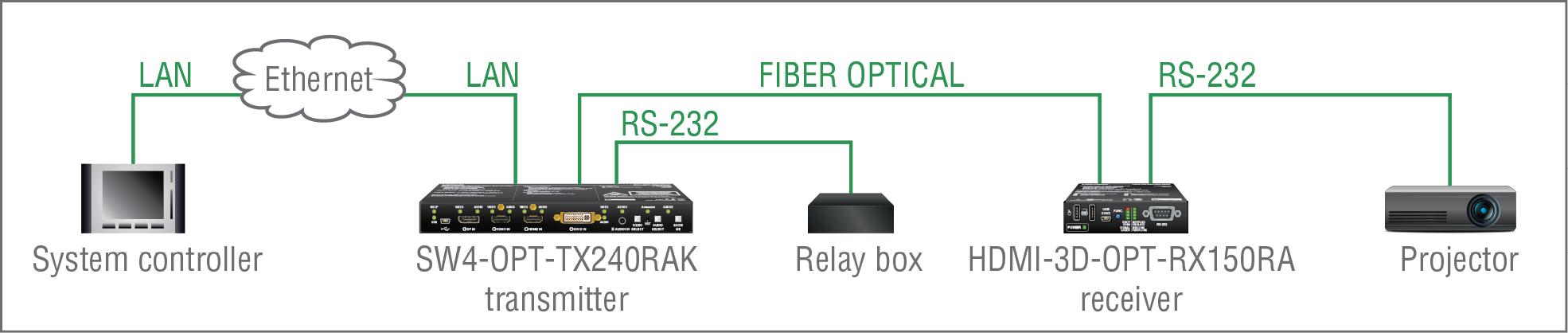
The following ways are available for controlling the devices:
▪The System controller can communicate with the Transmitter via LW2/LW3 protocol commands sent to the local IP:port address.
▪The System controller can communicate directly with the Projector or an Extender via their IP:port address.
▪The System controller can communicate directly with the RS-232 Relay box connected to the Transmitter. In this case, Command Injection mode has to be enabled on the local RS-232 port.
▪The Transmitter can send a command (e.g. as an action by the Event Manager) to the IP:port address of the Projector or the Receiver using LW3 protocol methods.
Command Sending
▪You can send LW3 protocol commands to the 192.168.0.100:6107 port to control the transmitter.
▪You can send LW2 protocol commands to the 192.168.0.100:10001 port to control the transmitter.
▪You can send commands to the 192.168.0.100:8001 port to control the projector. This port number means the RS-232 interface of the optical output port (O1).
DIFFERENCE:Only SW4-OPT-TX240RAK model has Ethernet LAN port.
INFO:The values above are examples and based on factory default settings.
RS-232 Signal Transmission - Example 2

The Concept
You can control the Projector over the extenders with the System controller. The controller is connected to the local RS-232 port of the Transmitter, which transmits the signal toward the Receiver over the fiber optical line. The Projector is connected to the local RS-232 port of the Receiver. The serial connection is bidirectional, which means the controller receives responses from the projector.
In this case the RS-232 port of both the transmitter and the receiver must be set to Pass-through mode.
DIFFERENCE:Only SW4-OPT-TX240RAK model has GPIO interface.
The GPIO (General Purpose Input/Output) port is a multifunctional input/output interface to control the SW4-OPT-TX240RAK transmitter or third-party devices and peripherals. You can establish connection between the controller/controllable device and the transmitter via the 8-pole Phoenix connector. The direction of the seven pins is configurable independently based on the purpose of the application.
GPIO Options - Example
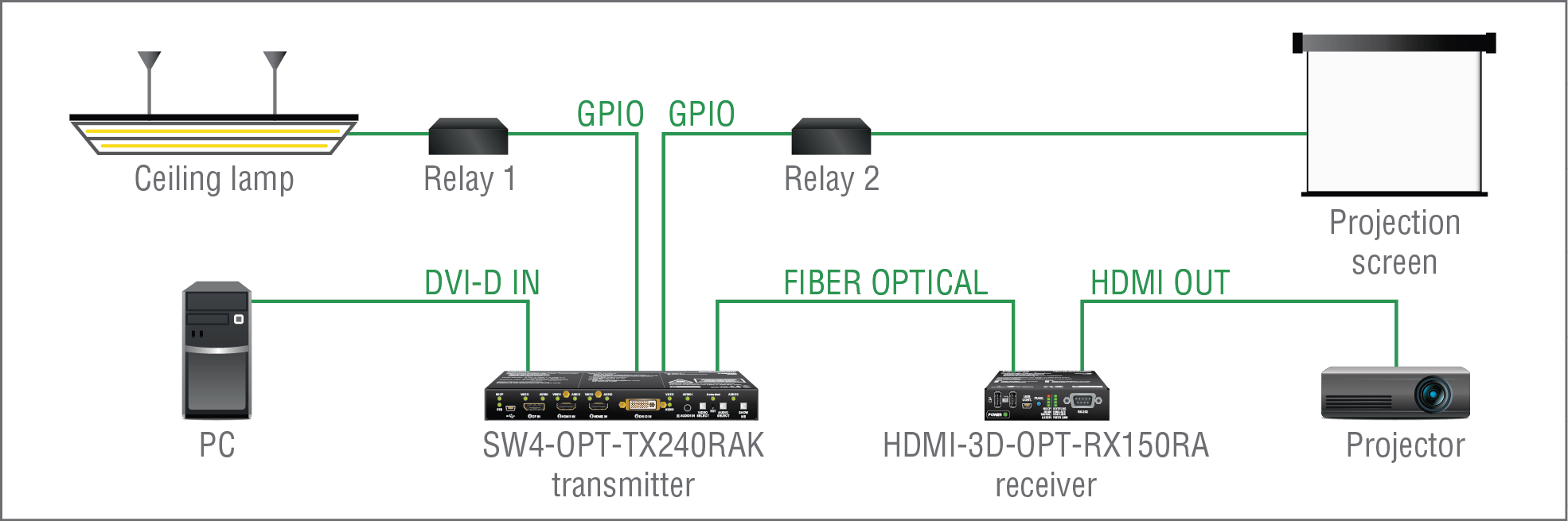
The Concept
The ceiling lamp is turned off by Relay 1 and the projection screen is rolled down by Relay 2 when signal is received from the PC over the DVI-D input. Both relays are controlled by the GPIO port.
Settings of the Transmitter
▪For Relay 1: create an event in Event Manager: when signal is present on Input 1 (I1), set the GPIO pins to low level to open Relay 1. Also create another event: when signal is not present on Input 1 (I1), set GPIO pins to high level to close Relay 1.
▪For Relay 2: create an event in Event Manager: when signal is present on Input 1 (I1), set the GPIO pins to high level to close Relay 2. Also create another event: when signal is not present on Input 1 (I1), set the GPIO pins to low level to open Relay 2.
When the PC starts to play the video presentation, the signal is received over the DVI-D input, so the GPIO pins send a signal to Relay 1 to open, which turns off the lights. Furthermore, the GPIO pins also send a signal to Relay 2 to close, and the projection screen is rolled down. When the presentation ends, signal ceases on the DVI-D input, so the GPIO pins send a signal to Relay 1 to close, which turns on the lights and sends a signal to Relay 2 to open, so the projection screen returns to its enclosure.
ATTENTION!Please always check the electrical parameters of the devices that you want to control. The maximum current of one GPIO pin is 30 mA, the maximum total current for the seven pins is 180 mA.
See the LDC settings for GPIO port in the GPIO section. Also see the details about the Event Manager settings in the Event Manager section.
The device can be controlled over the front panel USB mini B-type connector. This interface only supports LW3 protocol. The interface can be used to establish connection to the Lightware Device Controller software.
5.7.4. Ethernet Control Interface
INFO:Only SW4-OPT-TX240RAK model has Ethernet control interface.
The device can be controlled over the rear panel standard RJ45 connector. The interface can be used to establish connection to the Lightware Device Controller software.
5.8. Further Built-in Features
5.8.1. Automatically Launched Actions - The Event Manager

The Event Manager feature means that the device can sense changes on its ports and is able to react according to the pre-defined settings. Lightware Device Controller contains a user-friendly software tool and allows creating Events by defining a Condition and an Action.
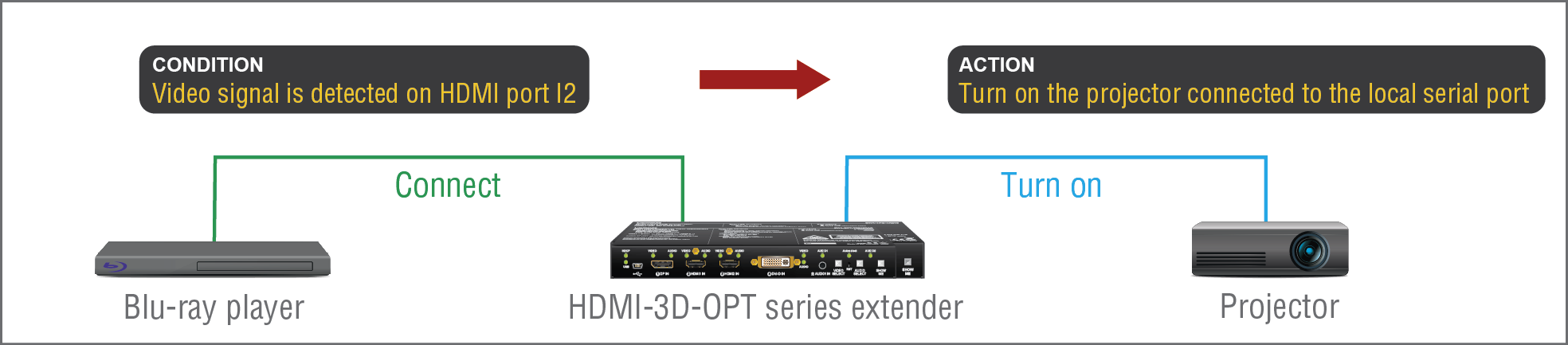
Event Manager example
See more information about the settings in the Event Manager section.
5.8.2. Advanced EDID Management
Factory Preset EDIDs
The factory EDIDs (F1-F136) are factory preprogrammed and cannot be modified. These are the most common resolutions. They are specially provided to force graphic cards to output only the exact pixel resolution and refresh rate.
Universal EDID allows multiple resolutions, including all common VESA defined resolutions. The use of universal EDIDs is recommended for fast and easy system setup.
Sources and Destinations
The EDID memory consists of four parts:
▪Factory EDID list shows the pre-programmed EDIDs (F1-F136).
▪Dynamic EDID list shows the display device connected to the device's outputs. The unit stores the last display devices’ EDID on either output, so there is an EDID shown even if there is no display device attached to the output port at the moment.
▪User memory locations (U1 – U14 for the transmitter; U1 – U15 for the receiver) can be used to save custom EDIDs.
▪Emulated EDID list shows the currently emulated EDID for the inputs. The source column displays the memory location that the current EDID was routed from.
The source reads the EDID from the Emulated EDID memory on the INPUT port. Any EDID from any of the User/Factory/Dynamic EDID lists can be copied to the user memory.
There are two types of emulation: static and dynamic.
▪Static EDID emulation: an EDID from the Factory or User EDID list is selected. Thus, the Emulated EDID remains the same until the user emulates another EDID.
▪Dynamic EDID emulation: it can be enabled by selecting D1 or D2 EDID memory. The attached monitor’s EDID is copied to the input; if a new monitor is attached to the output, the emulated EDID changes automatically.
See more information about the settings in the EDID Menu section.
5.8.3. Extender Cloning – Configuration Backup and Restore
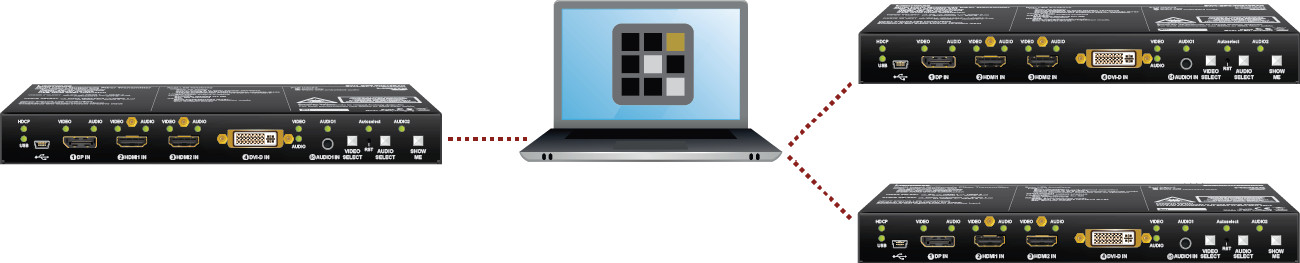
The configuration cloning of HDMI-3D-OPT series devices is a simple method that eliminates the need to repeatedly configure certain devices to have identical (non-factory) settings. If the devices are installed in the same type of system multiple times, then it is enough to set up only one device to fit the user’s needs and then copy those settings to the others, thus saving time and resources.
See more information about the settings in the Configuration Cloning (Backup Tab) section.
Th user has more possibilities to control the device besides the front panel buttons. The following list contains the software control modes:
▪Lightware Device Controller (LDC) - you can connect to the device via our control software using Ethernet or RS-232 interface and control or configure the device as you wish. For more details, see the Software Control - Lightware Device Controller chapter.
▪LW2 protocol commands: you can configure the device by using the reduced command set of LW2 protocol. For more details, see the LW2 Programmer's Reference chapter.
▪LW3 protocol commands: you can configure the device by using the full-range command set of LW3 protocol. For more details, see the LW3 Programmer's Reference chapter.
6. Software Control - Lightware Device Controller
The device can be controlled by a computer through USB, RS-232 and Ethernet (only for SW4-OPT-TX240RAK model) interfaces via the Lightware Device Controller (LDC). The software can be installed on a Windows PC or macOS. The application can be downloaded from www.lightware.com.
INFO:After the installation, the Windows and the macOS applications have the same look and functionality.
Minimum System Requirement
RAM: 1 GB
Minimum display resolution: 1280x720
Installation for Windows OS
Run the installer. If the User Account Control drops a pop-up message, click Yes.
During the installation you will be prompted to select the type of the installation: normal and the snapshot install:
|
Normal install |
Snapshot install |
|
Available for Windows and macOS |
Available for Windows |
|
The installer can update only this instance |
Cannot be updated |
|
Only one updateable instance can exist for all users |
More than one different version can be installed for all users |
Comparison of installation types
ATTENTION!Using the Normal install as the default choice is highly recommended.
Installation for macOS
Mount the DMG file by double clicking on it, and drag the LDC icon over the Applications icon to copy the program into the Applications folder. If you want to copy the LDC into another location, just drag the icon over the desired folder.
ATTENTION!Please check the firewall settings on the macOS device. LDC needs to be added to the exeptions of the blocked software for the proper operation.
Updating LDC
Step 1.Run the application.
The Device Discovery window appears automatically, the program checks the available updates on the Lightware website, and opens the update window if LDC updates are found.
The current and the update version number can be seen at the top of the window, and they are shown in this window even with the snapshot install.
The Update window can also be opened by clicking on the About  icon and the Update button.
Step 2.Set the desired update setting in the Options section.
▪If you do not want to check for updates automatically, uncheck the circle that contains the green tick.
▪If you want to postpone the update, a reminder can be set with different delays from the drop-down list.
▪If the proxy settings traverse the update process, set the proper values, then click on the OK button.
Step 3.Click on the Download update button to start the update.
The updates can be checked manually by clicking on the Check now button.
The common way to start the software is to double-click on the LDC icon. But the LDC can also be run by command line parameters as follows:
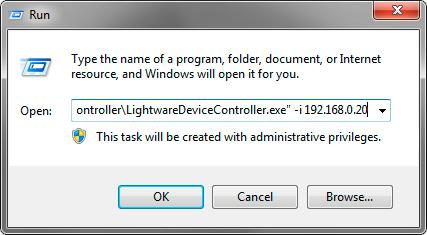
Launching of LDC in a Run window in Windows operating system
Connecting to a Device with Static IP Address
Format: LightwareDeviceController -i <IP_address>:<port>
Example: LightwareDeviceController -i 192.168.0.20:6107
The LDC is connected to a device with the indicated static IP address directly; the Device Discovery window is not displayed. When the port number is not set, the default port is used: 10001 (LW2 protocol). For LW3 devices, use the 6107 port number.
Adjusting the Zoom
The window can be zoomed to a specific value to fit to the resolution of the desktop (higher/lower). '1' is the default value (100%).
Format: LightwareDeviceController -z <magnifying_value>
Example: LightwareDeviceController -z 1.2
ATTENTION!The last set value is stored and applied when LDC is started without a parameter.
6.3. Establishing the Connection
Step 1.Connect the device to a computer via Ethernet.
Step 2.Run the controller software; device discovery window appears automatically.
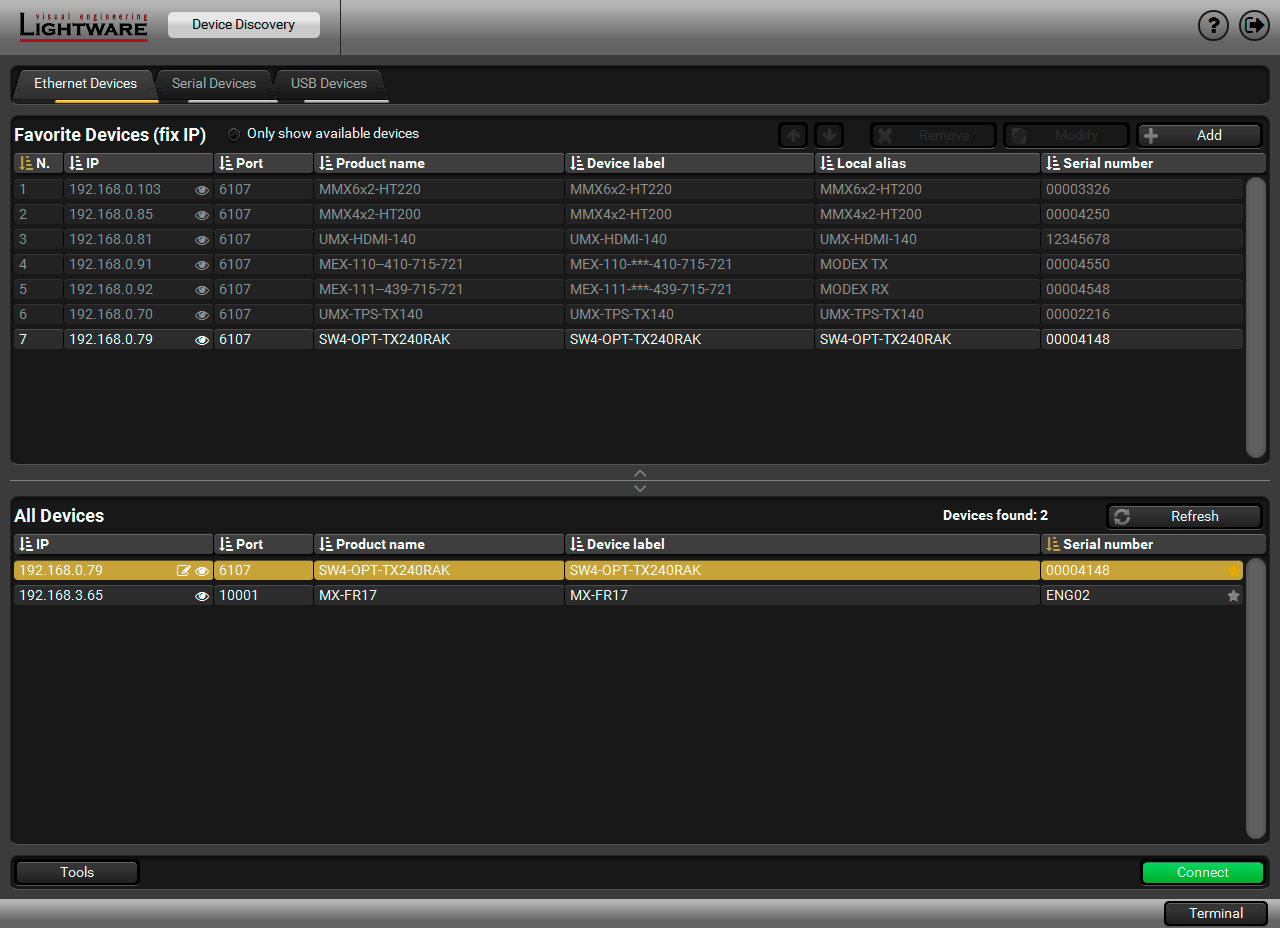
Device discovery window in LDC
Changing the IP Address 
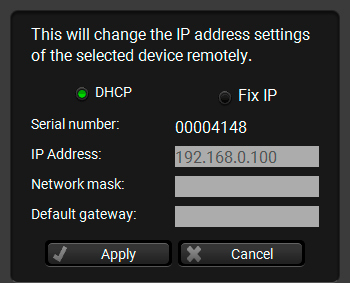
To modify IP address settings quickly, it is not necessary to enter the device's settings/network menu, you can set them by clicking on the pencil icon next to the IP address.
You can see the new settings only in this window.
#network #ipaddress #dhcp #mac
Identifying the Device 
Clicking on the icon makes the four front panel LEDs blink in green for 10 seconds. The feature helps to identify the device itself in the rack shelf. #identifyme
Import/Export the List of Favorite Devices
DIFFERENCE:This feature is available only from LDC version v2.5.5.
The list of favorite devices can be exported/imported using the dedicated buttons (saved as *.JSON file). The list can be imported later (in another computer, too), but please note that the current list will be overwritten by the imported list.
Step 3.Select the unit from the discovered Ethernet devices or under Serial devices; when the device is connected through RS-232, click on the Query button next to the desired serial port to display the name and serial number of the device. Double click on the transmitter or select the device and click on the Connect button.
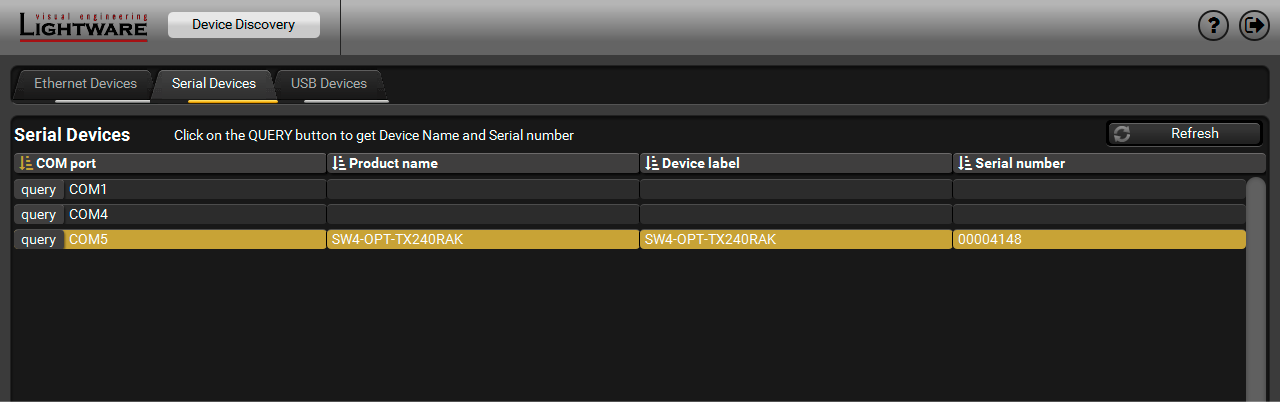
Serial devices tab in LDC
ATTENTION!Before the device is connected via the local RS-232 port, make sure that Control mode and LW3 protocol are set on the serial port.
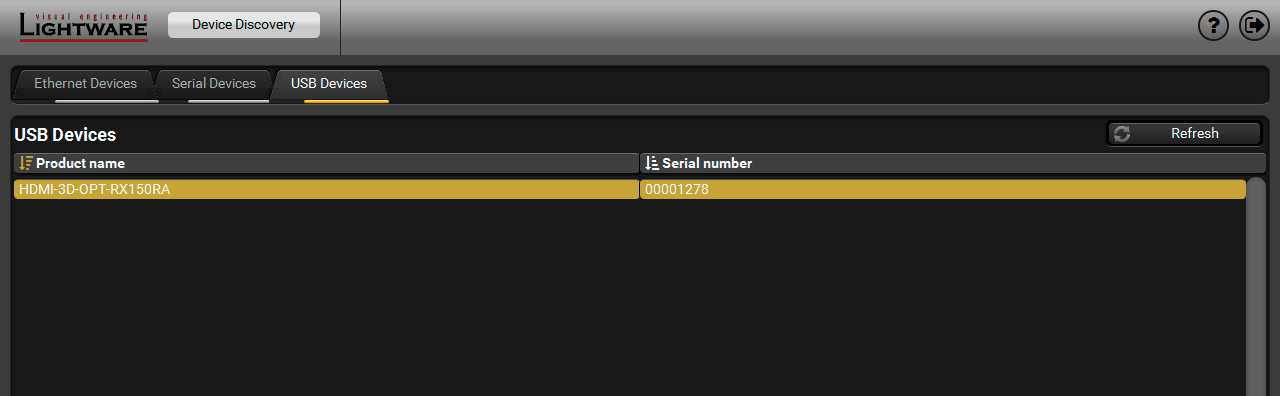
USB tab in LDC
6.4. Crosspoint / Port Control Menu
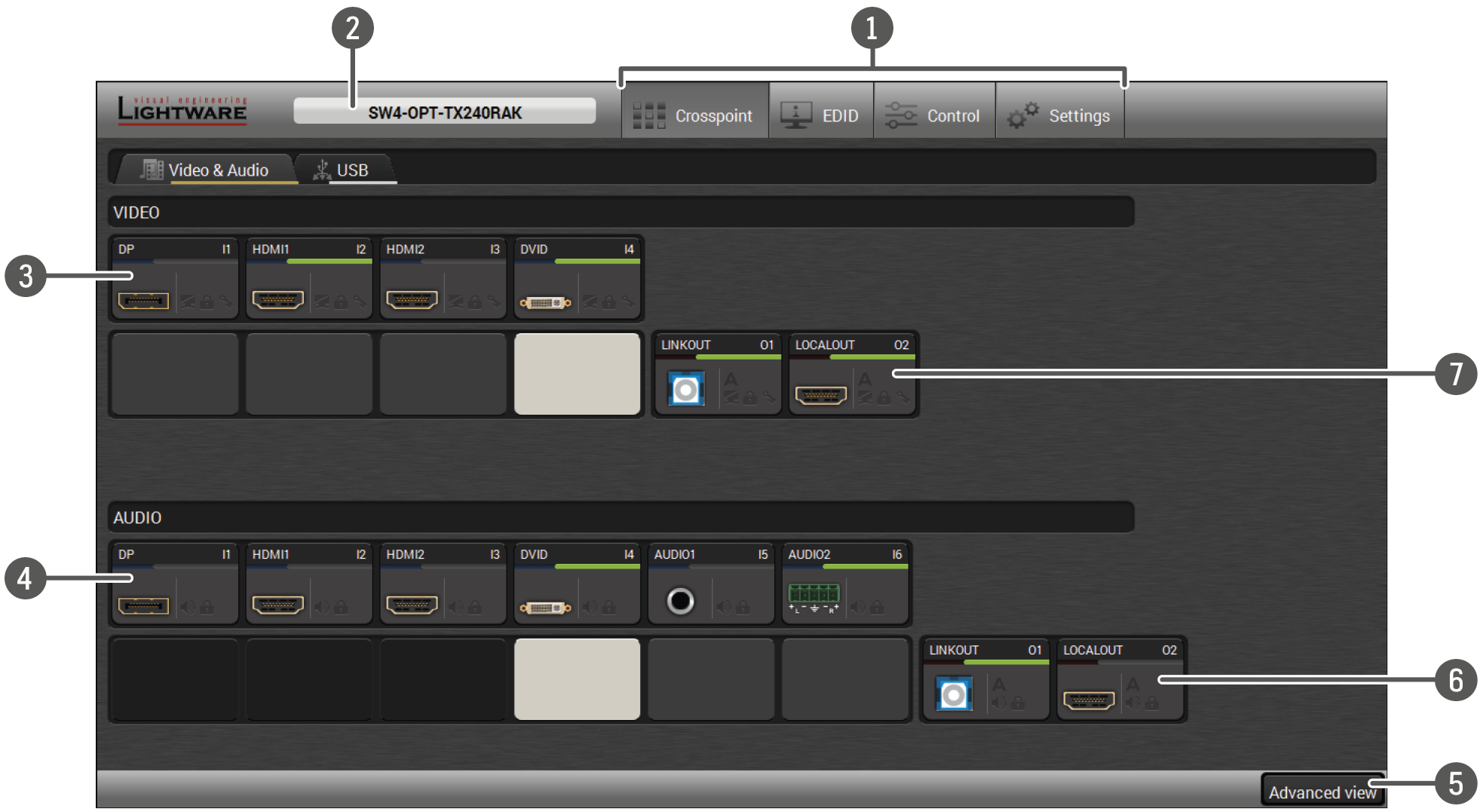
|
|
Main menu |
The available menu items are displayed. The active one is showed with dark grey background color. |
|
|
Information ribbon |
The label shows the device label that can be edited in the Settings menu - Status tab. You can return to the Device discovery window by clicking on this ribbon. |
|
|
Video input ports |
Each tile represents a video input port. The tile below the port shows the current crosspoint setting; if the port is switched to the output, the color of the tile is white, otherwise grey. |
|
|
Audio input ports |
Each tile represents an audio input port. The tile below the port shows the current crosspoint setting; if the port is switched to the output, the color of the tile is white, otherwise grey. Dark grey means the audio port is not allowed to embed in the current video input port. |
|
|
Advanced view |
Displaying the Advanced View Window, showing the Terminal window and the LW3 protocol tree. |
|
|
Audio output ports |
The audio output of the optical link and local HDMI out ports. Clicking on the tile opens the Digital Audio Outputs port properties window. |
|
|
Video output ports |
The video output of the optical link and local HDMI out ports. Clicking on the tile opens the Video Outputs port properties window. #crosspoint #switch |


Port Tiles
The colors of the port tiles and the displayed icons represent different states and information:
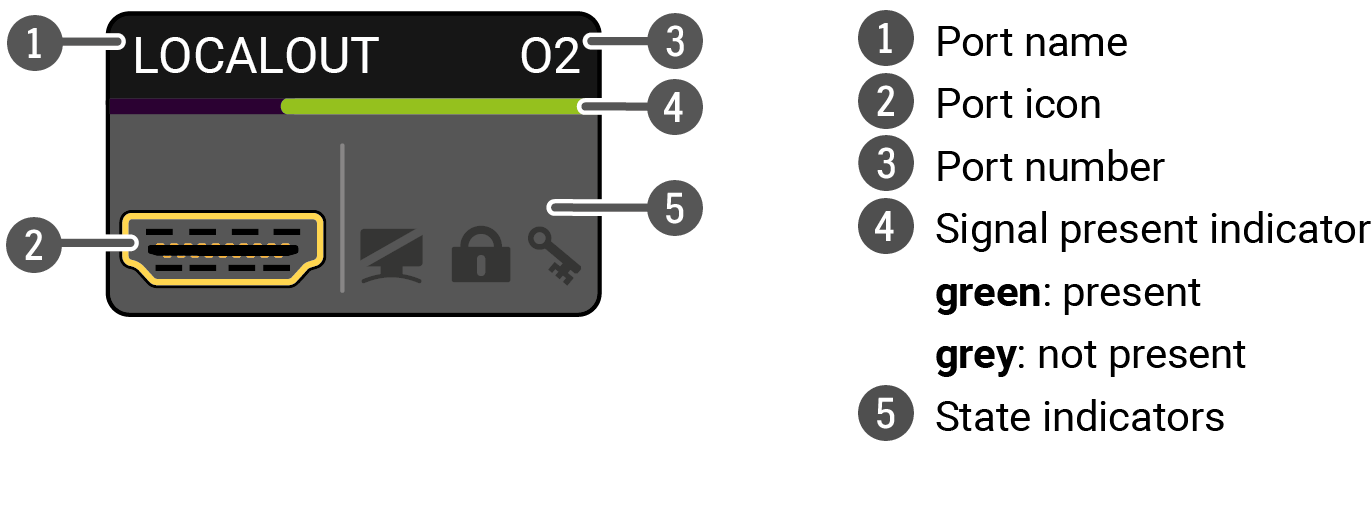
State Indicators
The following icons display different states of the port/signal:
|
Icon |
Icon is grey |
Icon is black |
Icon is green |

|
Signal is not encrypted with HDCP |
Signal is encrypted with HDCP |
- |

|
Port is unmuted |
Port is muted |
- |

|
Port is unlocked |
Port is locked |
- |

|
Autoselect is disabled |
- |
Autoselect is enabled |
Clicking on the port tile opens the Port properties window. This section shows the available settings and status information by port types. #status #portstatus #mute #unmute #lock #unlock #hdcp #signaltype #power5v #audio #autoselect
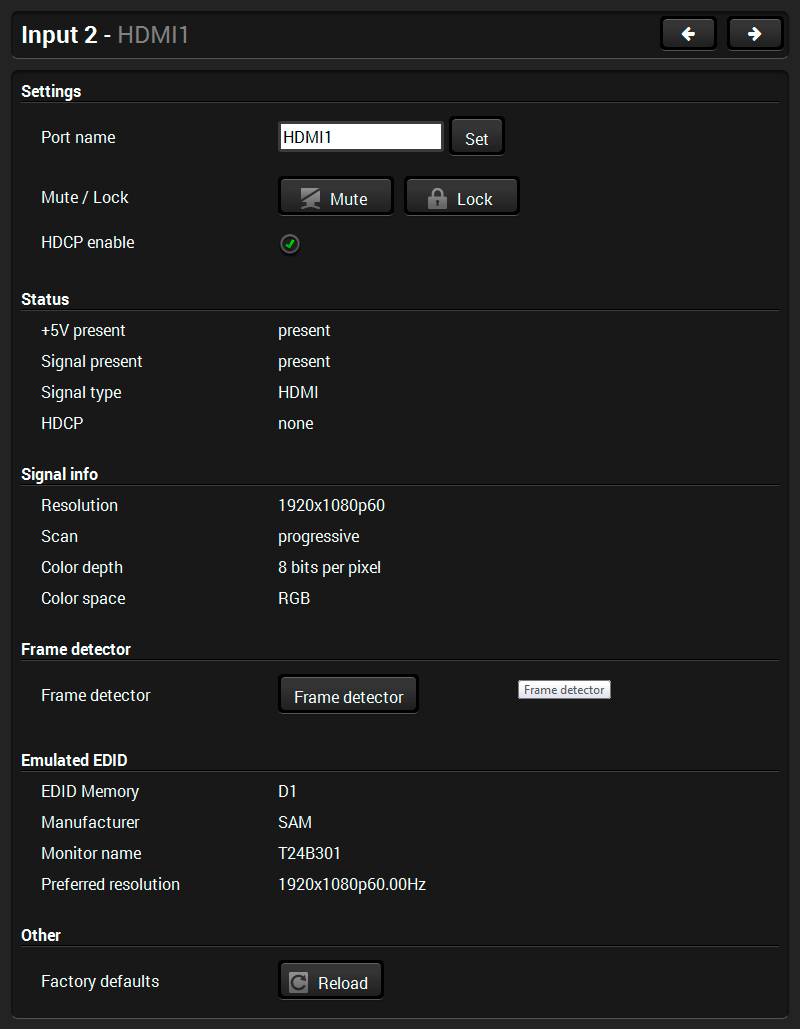
Clicking on the HDMI, DisplayPort, or DVI-D video input port icon opens the Port properties window. The most important information and settings are available from the panel.
Available settings:
▪Mute/unmute the port;
▪Lock/unlock the port;
▪HDCP setting (enable / disable);
▪Reloading factory default settings for the selected port.
Clicking on the HDMI, DisplayPort, or DVI-D audio input port icon opens the Port properties window. The most important information and settings are available from the panel.
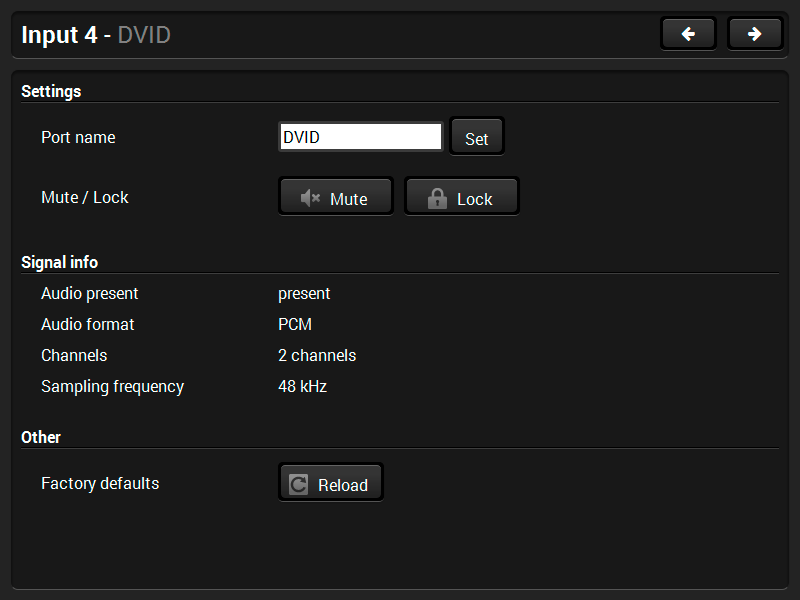
Port properties window of the DVI-D audio input
Certain parameters of the embedded audio input signal can be set as follows:
▪Mute/unmute the port;
▪Lock/unlock the port;
▪Reloading factory default settings for the selected port.
Clicking on the analog audio input port icon opens the Port properties window. The most important information and settings are available from the panel
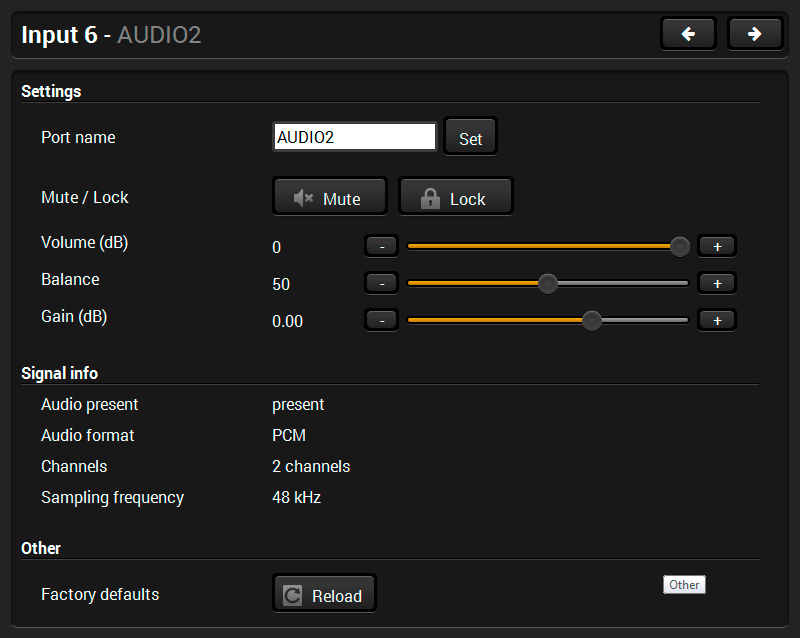
Port properties window of the Analog Audio 2 (Phoenix) input
Certain parameters of the analog audio input signal can be set as follows:
▪Mute/unmute the port;
▪Lock/unlock the port;
▪Volume: from 0 dB to -95.62 dB, in step of 0.375 dB (default is 0 dB);
▪Balance: from 0 to 100, in step of 1 (default is 50 = center);
▪Gain: -12 to 6 dB, in step of 3 dB (default is 0 dB);
▪Reloading factory default settings for the selected port.
#analogaudio #volume #balance #gain
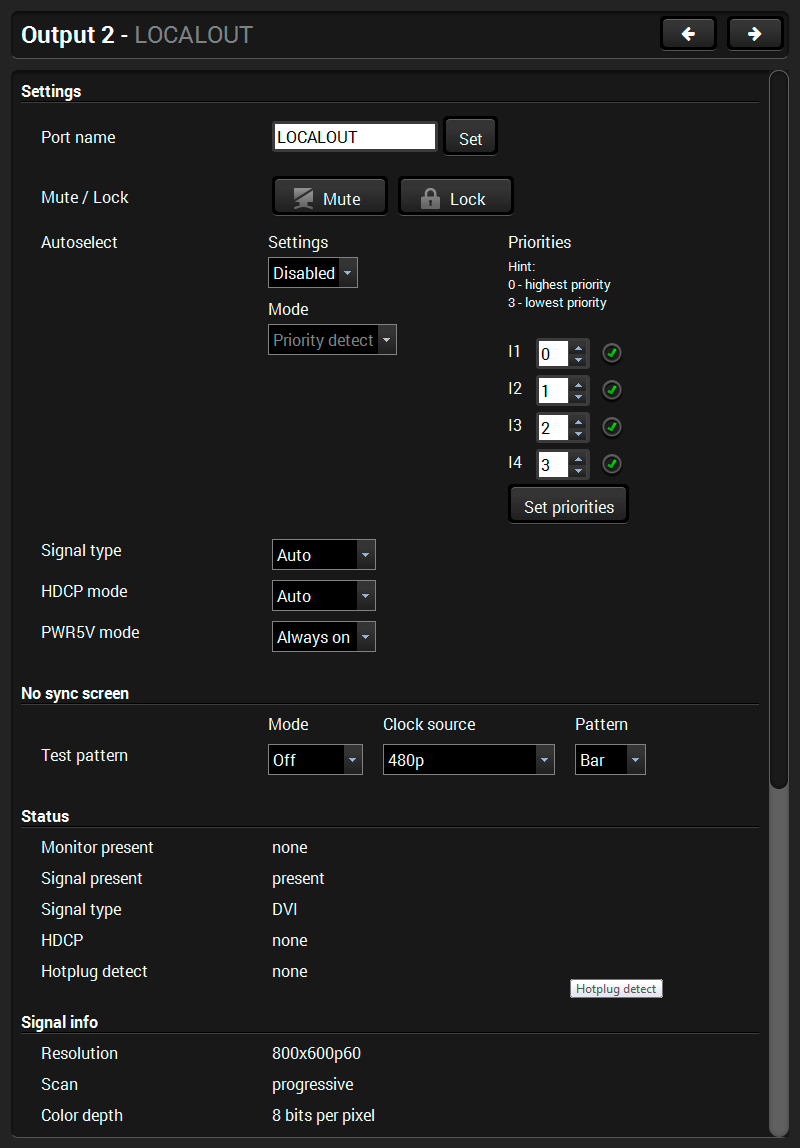
Click on the output port to display its properties. The most important information and settings are available from the panel.
Available settings:
▪Mute/unmute the port;
▪Lock/unlock the port;
▪Autoselect settings: enable / disable, mode and priorities (see more details about the feature in The Autoselect Feature section);
▪Signal type: Auto / DVI / HDMI - The outgoing signal format can be selected from a drop-down menu;
▪HDCP mode: Auto / Always - The transmitter forces the source to send the signal without encryption if the content allows when Auto mode is selected;
▪Power 5V mode: Auto / Always on / Always off - The setting lets the source and the sink devices be connected – independently of the transmitted signal;
▪Laser enable:
=On: high-speed (AV signal) and low-speed (serial, USB) communications are transmitted.
=Standby: only low-speed (serial, USB) communication is transmitted.
▪No sync screen: configuration settings of the test pattern. See more details in the No Sync Screen (Test Pattern) section.
▪Reloading factory default settings for the selected port.
Click on the output port to display its properties. The most important information and settings are available from the panel.
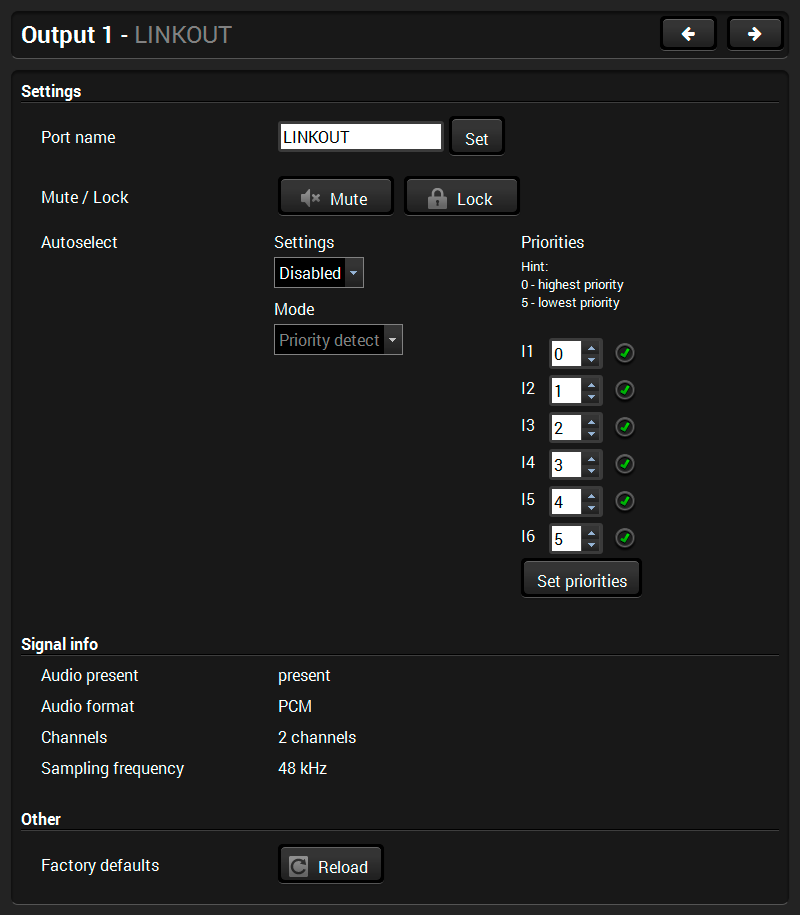
Port properties window of the optical link audio output
Available settings:
▪Mute/unmute the port;
▪Lock/unlock the port;
▪Autoselect settings: enable / disable, mode and priorities (see more details about the feature in The Autoselect Feature section);
▪Reloading factory default settings for the selected port.
Click on the output port to display its properties. The most important information and settings are available from the panel.
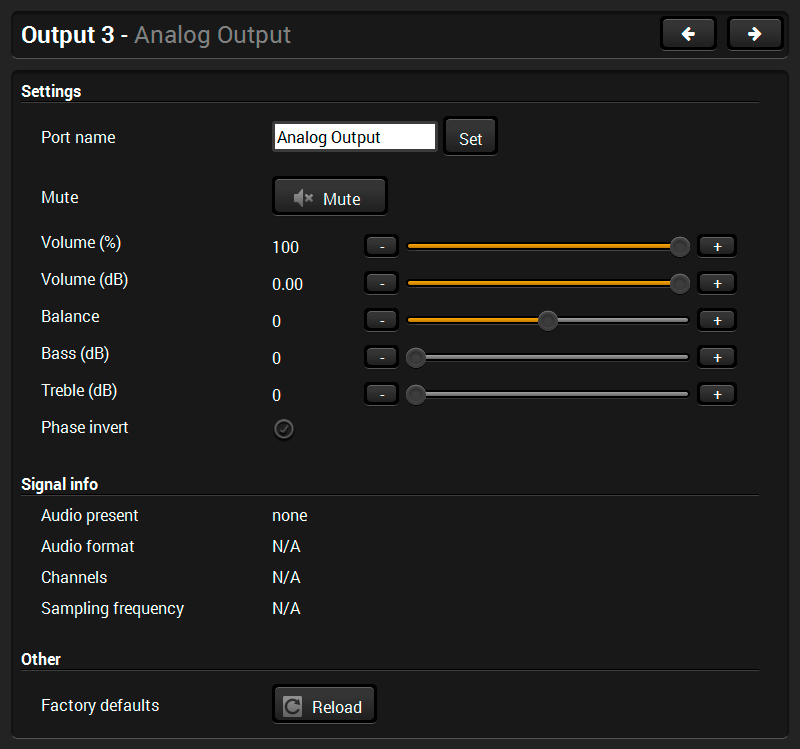
Port properties window of the analog audio output
Certain parameters of the analog audio output signal can be set as follows:
▪Mute/unmute the port;
▪Lock/unlock the port;
▪Volume (%): from 100% to 0%, in step of 1% (default is 100%);
▪Volume (dB): from 0 dB to -63 dB, in step of 1 dB (default is 0 dB);
▪Balance: from -100 to 100, in step of 1 (default is 0 = center);
▪Bass (dB): from 0 dB to 24 dB, in step of 2 dB (default is 0 dB);
▪Treble (dB): from 0 dB to 6 dB, in step of 2 dB (default is 0 dB);
▪Phase invert: enable / disable;
▪Reloading factory default settings for the selected port.
The ports can show detailed information about the signal, like full size and active video resolution. This feature is a good troubleshooter if compatibility problems occur during system installation. To access this function, open the port properties window and click on the Frame detector button. #framedetector #diagnostic
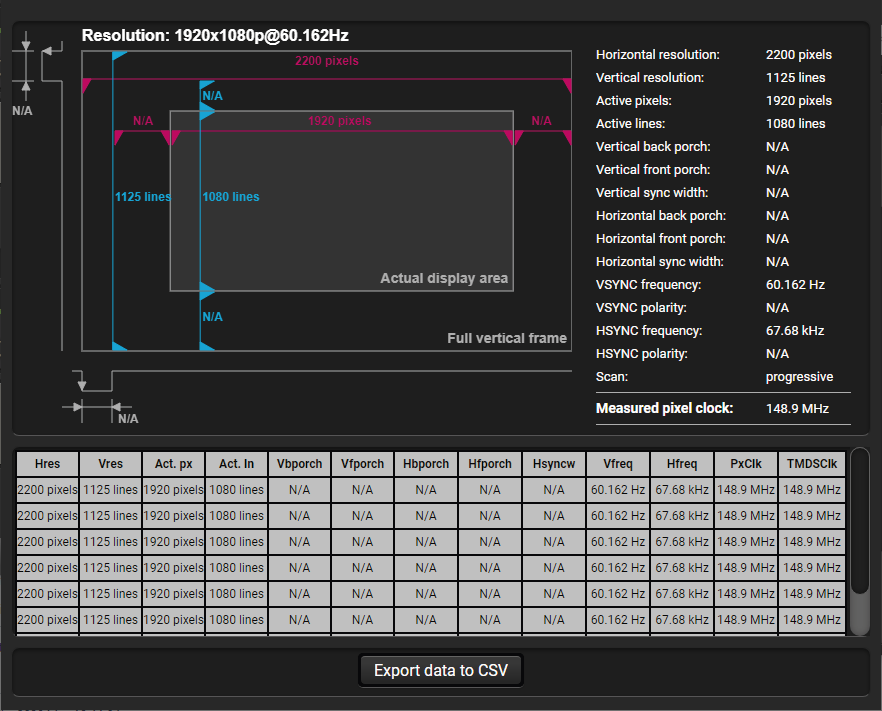
Frame detector window
Lightware’s Frame Detector function works like a signal analyzer, and makes it possible to determine the exact video format that is present on the port, thus helping to identify many problems. E.g. actual timing parameters may differ from the expected, and this may cause some displays to drop the picture.
Frame Detector measures detailed timings on the video signals just like a built-in oscilloscope, but it is much easier to use. The actual display area shows the active video size (light grey). The dark grey area of the full frame is the blanking interval, which can contain the info frames and embedded audio data for HDMI signals. Shown values are measured directly on the signal and not retrieved only from the HDMI info frames.
6.6.2. No Sync Screen (Test Pattern)

Test pattern options in the port properties window of the optical output
The No sync screen feature generates an image that can be displayed when there is no incoming signal on the port. The following settings can be set for the Test Pattern function:
Mode
▪On: the video output port always transmits the test pattern.
▪No signal: the video output port transmits the test pattern if there is no incoming signal on the selected input port.
▪Off: the test pattern function is disabled, the video output port transmits the video signal of the selected input port.
Clock Source
▪480p
▪576p
▪Original video signal
Pattern

▪Red
▪Green
▪Blue
▪Black
▪White
▪Ramp
▪Chess
▪Bar
▪Cycle
#testpattern #nosyncscreen
6.7.1. USB KVM in the Receiver
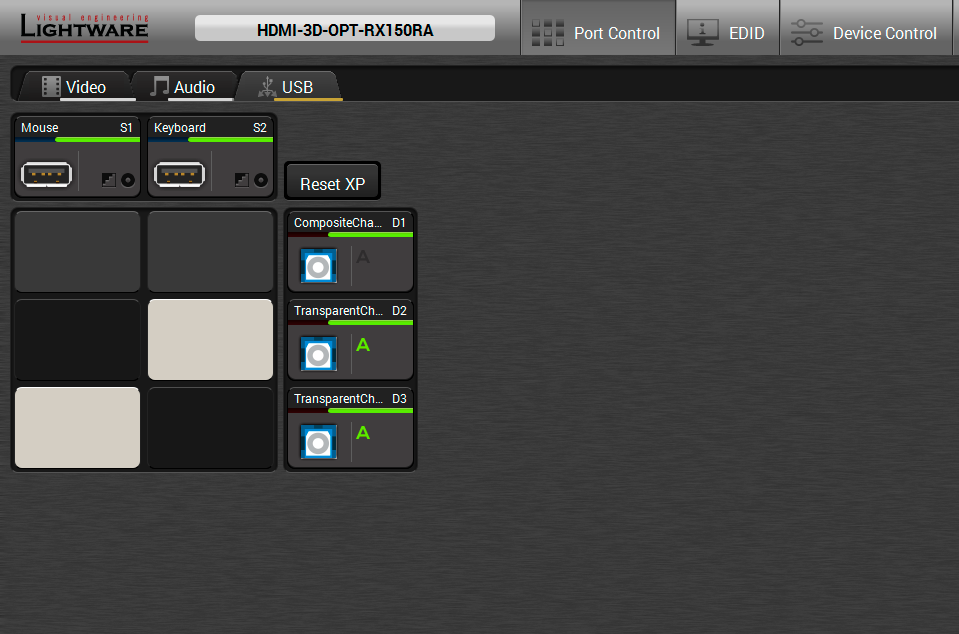
USB KVM layer in the Receiver
Two USB modes can be set on the USB KVM tab: Transparent and Composite. For the detailed information about the these modes, see the USB KVM Function section.
You can use the crosspoint selectors for switching between the USB modes. The factory default settings is the Autoselect (indicated with green A on the output side), which means the extender recognizes the attached USB HID devices and sets the mode automatically. In this case the A icon is highlighted in green on the output ports.
You can recall the default crosspoint settings by clicking on the Reset XP button.
#kvm #usbkvm #switch #crosspoint
Port Properties
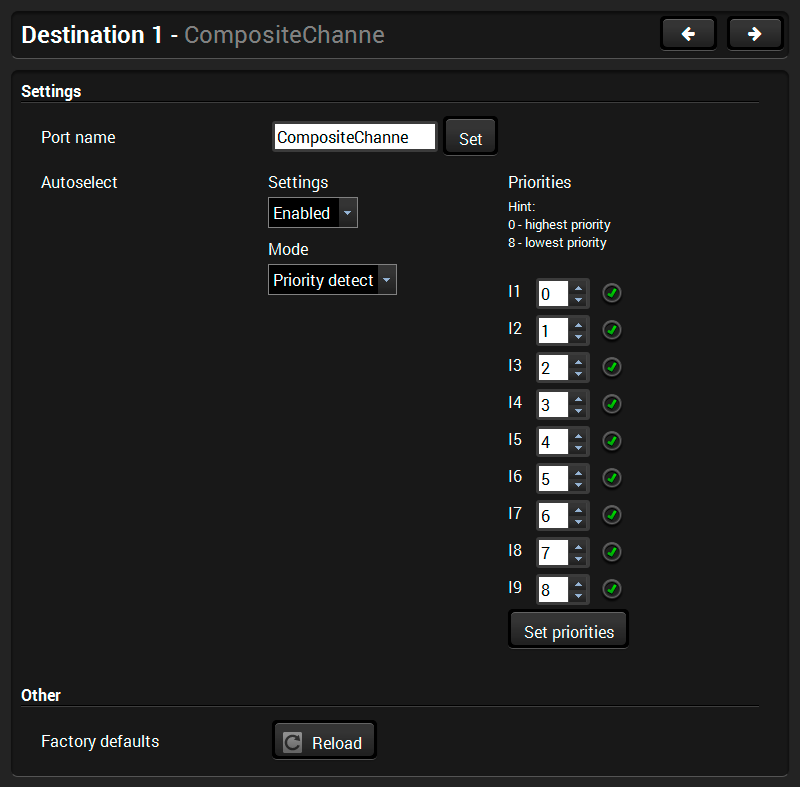
Click on the output port to open the port properties window. The most important status information is displayed on the panel and the Autoselect mode and the priorities can be set.
Port properties window - Composite mode
Using USB HUBs
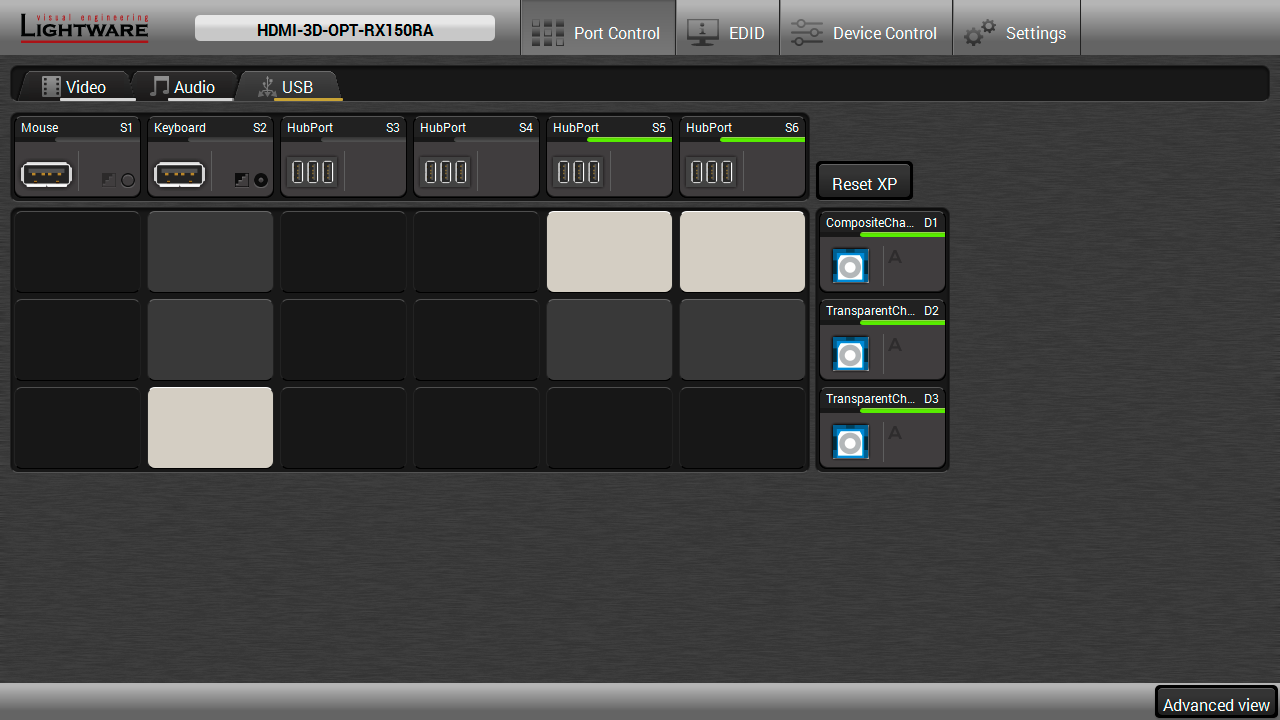
USB KVM layer in case of a connected 4-port USB HUB
The receiver is built with two physical USB ports but the users are able to extend the number of the handled HID-compliant devices using USB HUBs. The extender can handle up to 5 USB ports.
ATTENTION!The transparent channels can handle one USB device only, the composite channel can handle more HID-compliant devices.
6.7.2. USB KVM in the Transmitter
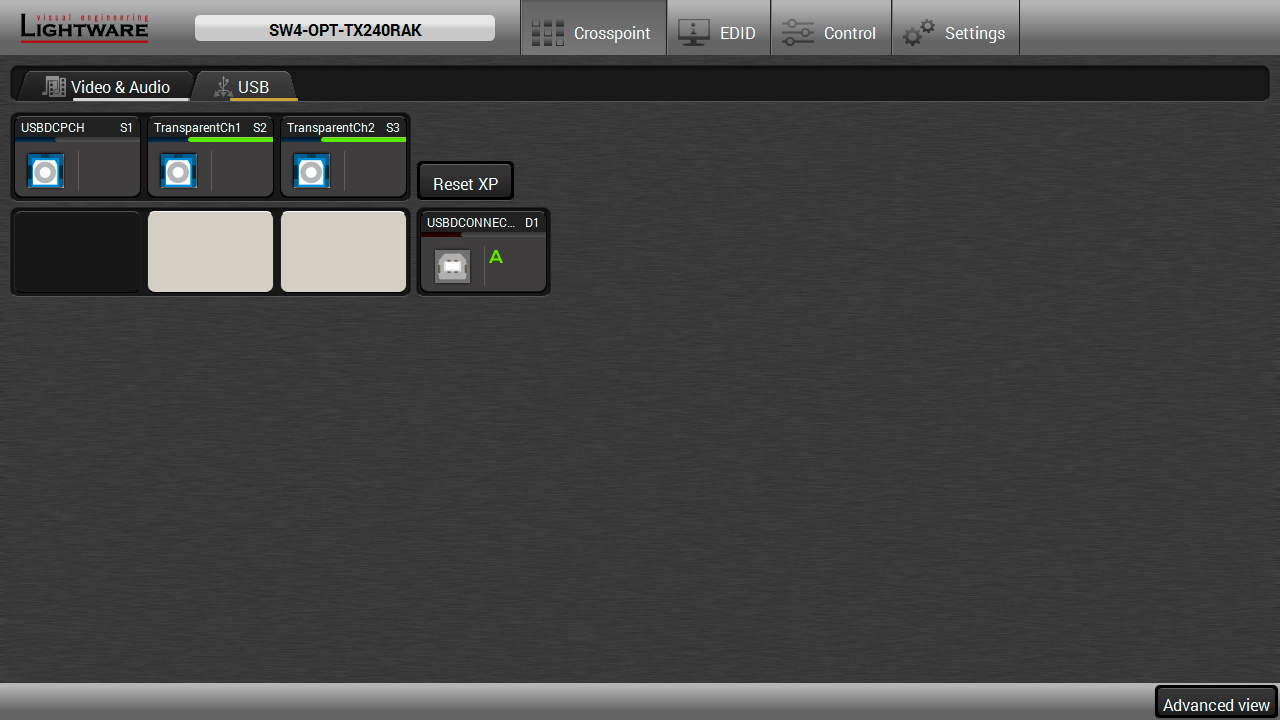
USB KVM layer in the Transmitter
The crosspoint status can be set on the USB KVM tab. USB mode can be Transparent or Composite, see the details in the USB KVM Function section. The green highlights indicate the active USB mode. The USB KVM function works only if the crosspoint is set to the active USB channel.
You can recall the default crosspoint settings by clicking on the Reset XP button.
INFO:Crosspoint switching in the transmitter between the composite and transparent channels will be successful only if active USB devices are present on the receiver side.
Advanced EDID Management can be accessed by selecting the EDID menu. There are two panels: the left one contains Source EDIDs, the right one contains Destination places where the EDIDs can be emulated or copied.
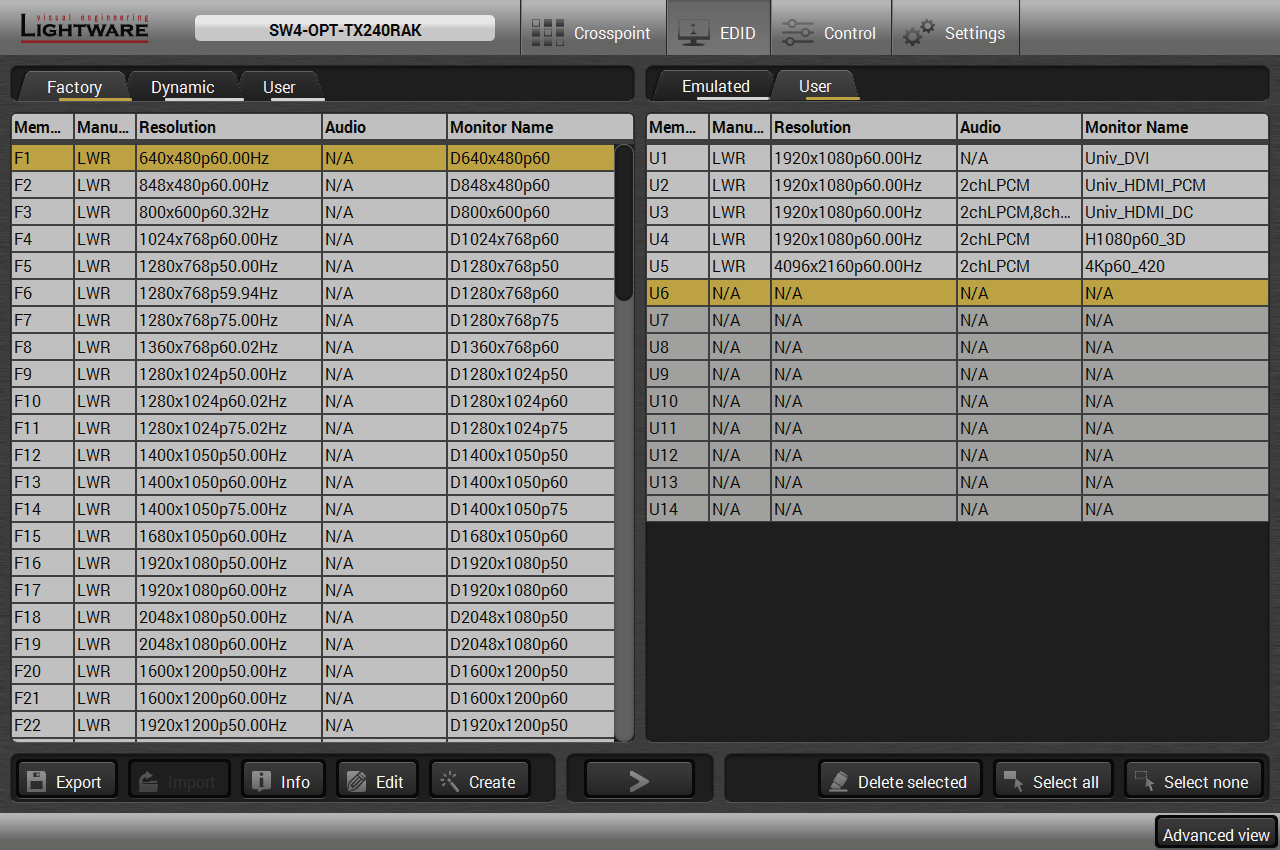
EDID menu
Control Buttons #edid

|
Exporting an EDID (save to a file) |

|
Transfer button: executing EDID emulation or copying |

|
Importing an EDID (load from a file) |

|
Deleting EDID (from User memory) |

|
Display EDID Summary window |

|
Selecting all memory places in the right panel |

|
Opening Advanced EDID Editor with the selected EDID |

|
Selecting none of the memory places in the right panel |

|
Opening Easy EDID Creator |
Changing Emulated EDID

Step 1.Choose the desired EDID list on the source panel and select an EDID.
Step 2.Press the Emulated tab on the top of the Destination panel.
Step 3.Select the desired port on the right panel (one or more ports can be selected); the EDID(s) will be highlighted in yellow.
Step 4.Press the Transfer button to change the emulated EDID.
Learning an EDID
The process is the same as changing the emulated EDID; the only difference is the Destination panel: press the User tab. Thus, one or more EDIDs can be copied into the user memory either from the factory memory or from a connected sink (Dynamic).
Exporting an EDID
ATTENTION!This function works on Windows and macOS operating systems and under Firefox or Chrome web browsers only.

Source EDID can be downloaded as a file (*.bin, *.dat or *.edid) to the computer.
Step 1.Select the desired EDID from the Source panel (line will be highlighted in yellow).
Step 2.Press the Export button to open the dialog box and save the file to the computer.
Importing an EDID

Previously saved EDID (*.bin, *.dat or *.edid file) can be uploaded to the user memory:
Step 1.Press the User tab on the top of the Source panel and select a memory slot.
Step 2.Press the Import button below the Source panel.
Step 3.Browse the file in the opening window, then press the Open button. The browsed EDID is imported into the selected User memory.
ATTENTION!The imported EDID overwrites the selected memory place even if it is not empty.
Deleting EDID(s)

The EDID(s) from User memory can be deleted as follows:
Step 1.Press the User tab on the top of the Destination panel.
Step 2.Select the desired memory slot(s); one or more can be selected (“Select All” and “Select None” buttons can be used). The EDID(s) will be highlighted in yellow.
Step 3.Press the Delete selected button to delete the EDID(s).

Select an EDID from the Source panel and press the Info button to display the EDID summary.
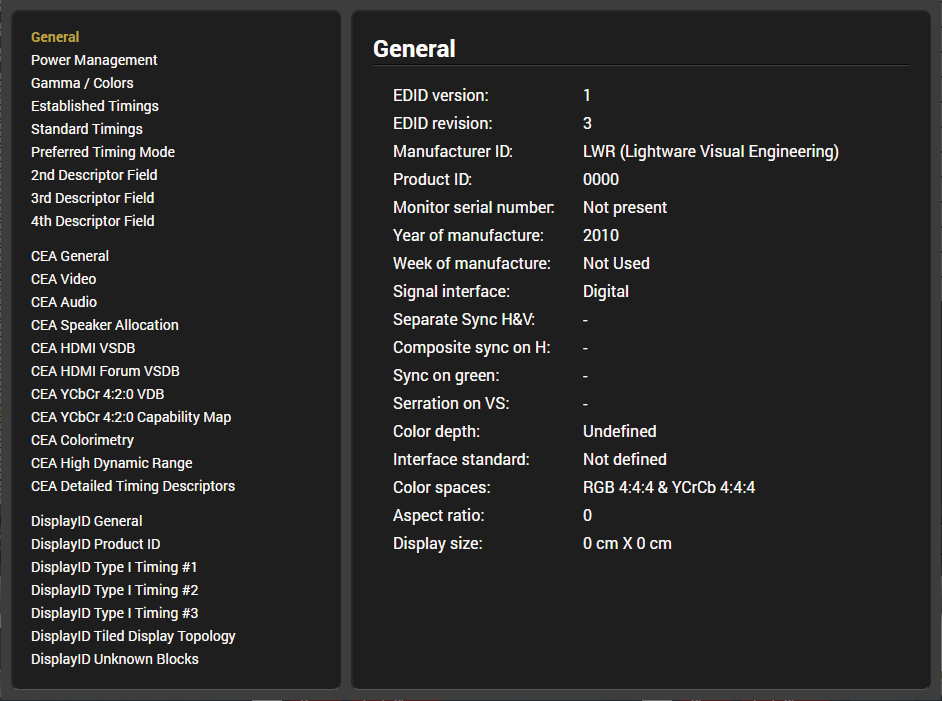
EDID summary window

Select an EDID from the Source panel and press the Edit button to display the Advanced EDID Editor window. The editor can read and write all descriptors, which are defined in the standards, including the additional CEA extensions. Any EDID from the device’s memory or a saved EDID file can be loaded into the editor. The software resolves the raw EDID and displays it as readable information to the user. All descriptors can be edited and saved in an EDID file, or uploaded to the User memory. For more details about the EDID Editor, please visit our website and download the EDID Editor Application Notes.
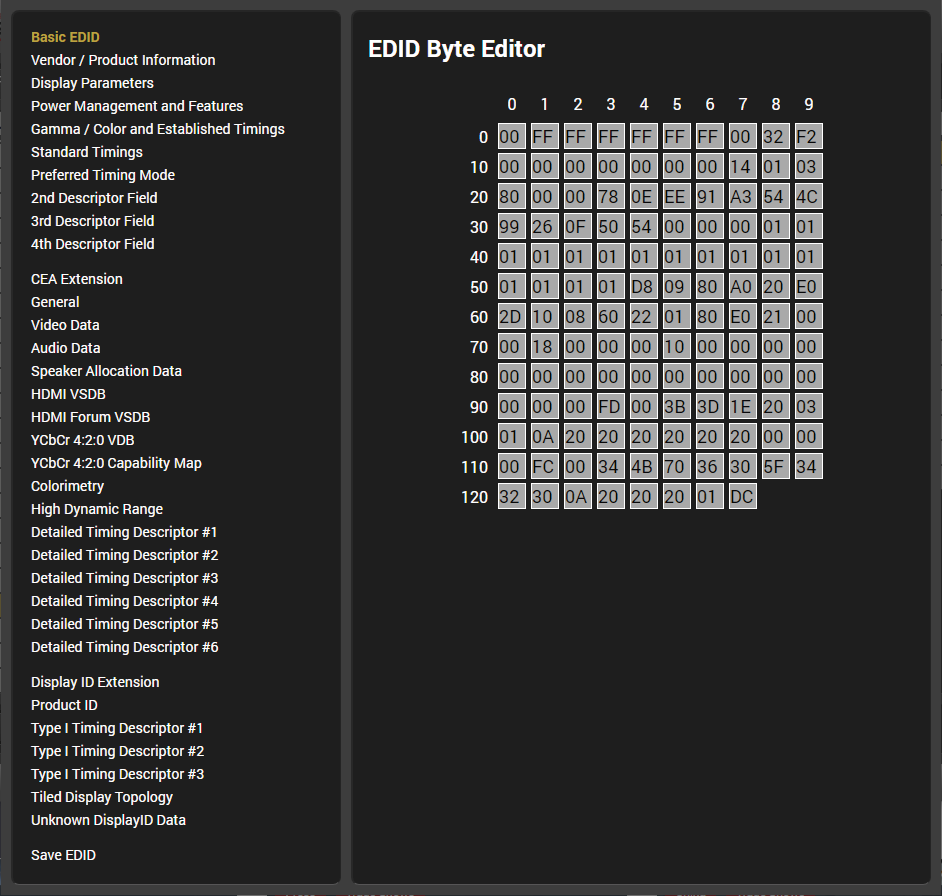
EDID Editor window
6.8.4. Creating an EDID - Easy EDID Creator

Since the Advanced EDID Editor mentioned above needs more complex knowledge about EDID, Lightware introduced a wizard-like interface for fast and easy EDID creation. With Easy EDID Creator, it is possible to create custom EDIDs in four simple steps. By clicking on the Create button below the Source panel, Easy EDID Creator is opened in a new window. For more details about the EDID Editor, please visit our website and download the EDID Editor Application Notes.
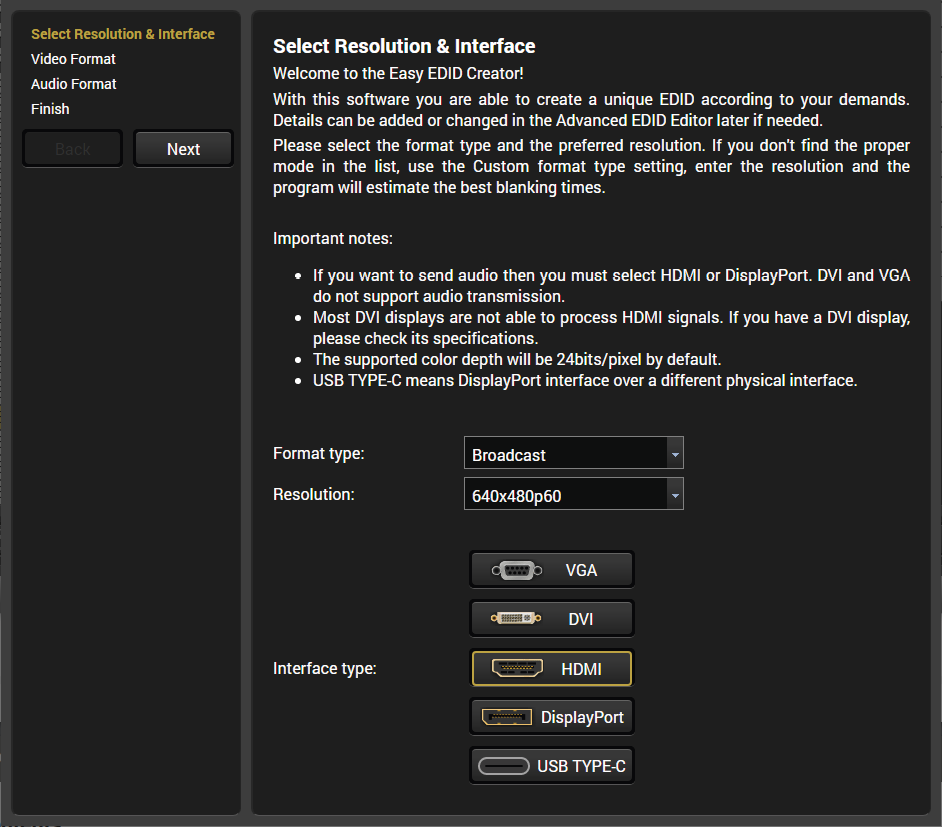
EDID Creator window
6.9. Control / Device Control Menu
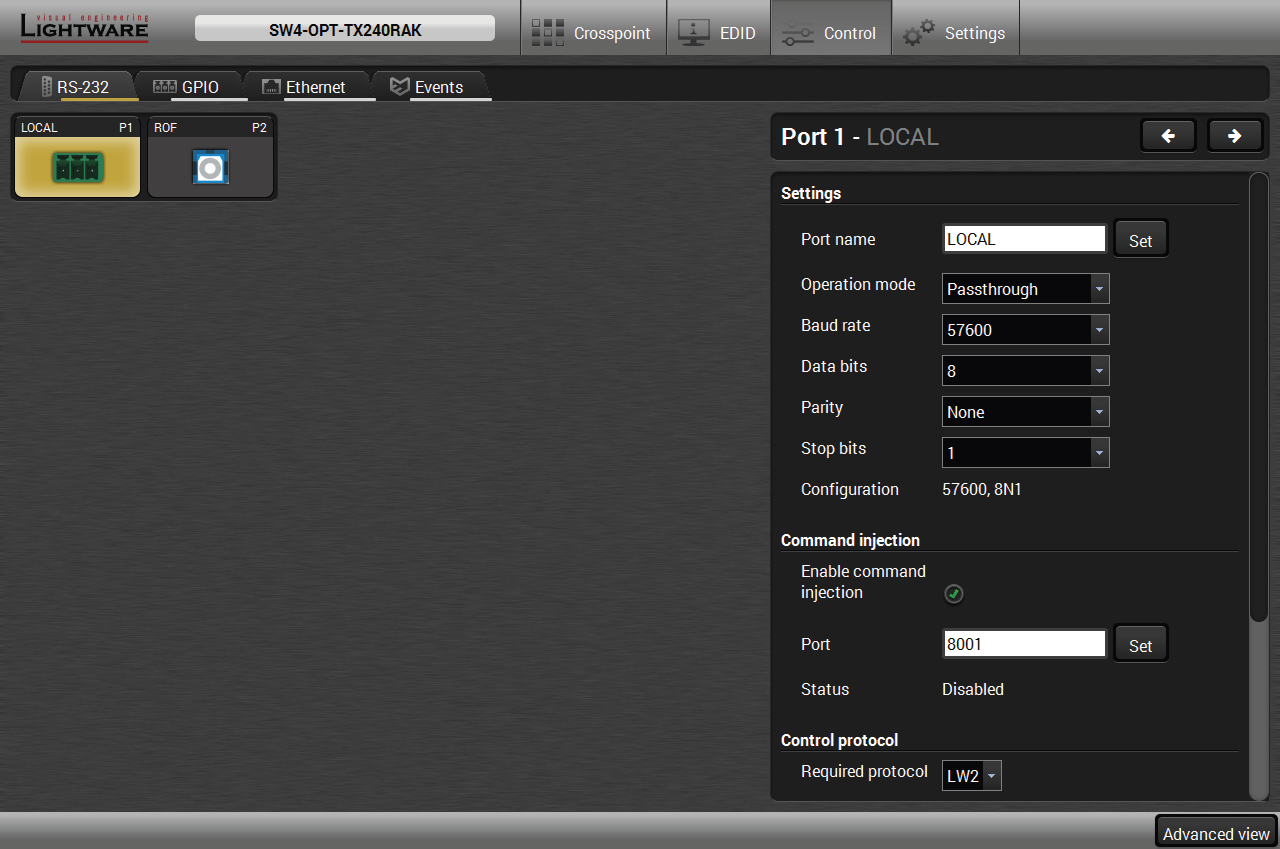
RS-232 tab in Control menu
The following settings and functions are available on the local and optical link RS-232 port:
▪Operation mode: Control, Pass-through and Command Injection (for more details about serial interface modes, see the Serial Interface section);
▪Baud rate: 4800, 7200, 9600, 14400, 19200, 38400, 57600, 115200;
▪Data bits: 8 or 9;
▪Parity: None, Odd, or Even;
▪Stop bits: 1, 1.5, or 2;
▪Command injection: enable or disable;
▪Command injection port number;
▪Control protocol: LW2 or LW3;
▪Message sending via serial port;
▪Reloading the Factory Default Settings. #rs232 #rs-232 #serial #protocol #message #commandinjection
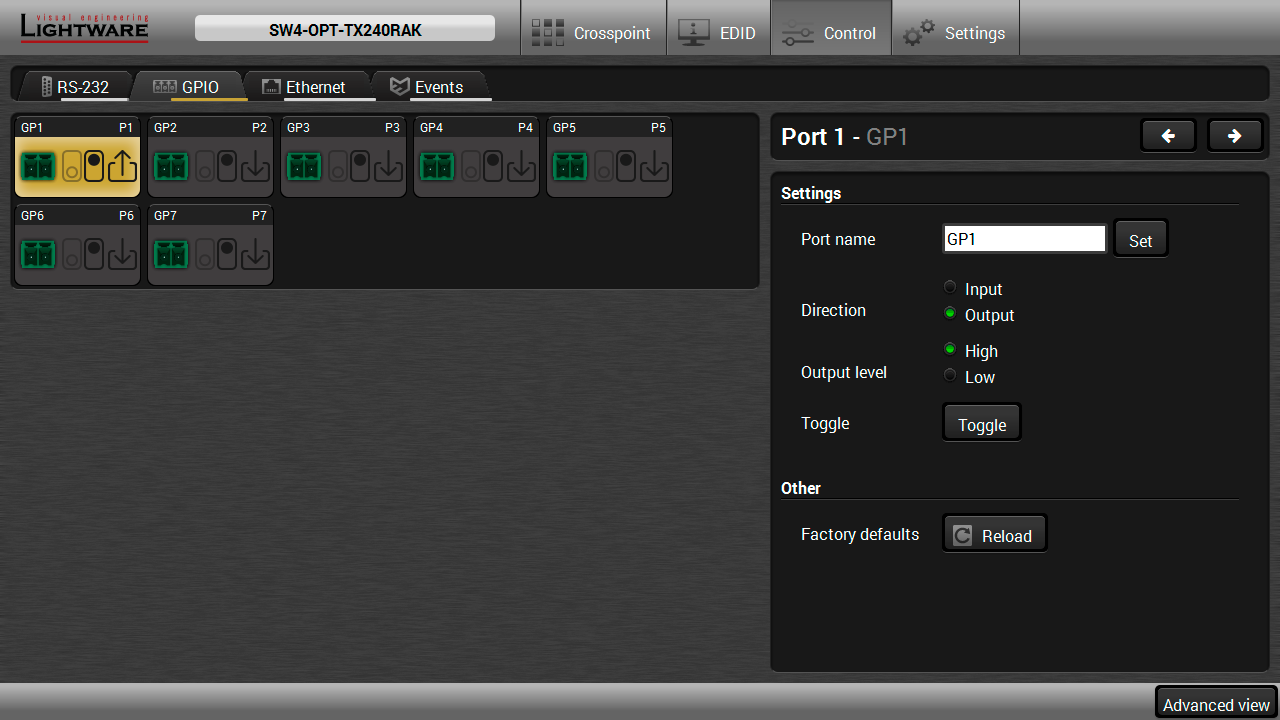
GPIO tab in Control menu
The GPIO port has 7 pins that operate at TTL digital signal levels and can be controlled by LDC or protocol commands. Select a GPIO pin and open the Port settings section; the settings (pin direction and input level) are displayed on the port tiles as well:

INFO:Output level can be set only in case of setting the pin direction to Output. In case of Input direction the output level setting and the Toggle button is not available.
For more details about GPIO interface, see the GPIO Interface section. #gpio
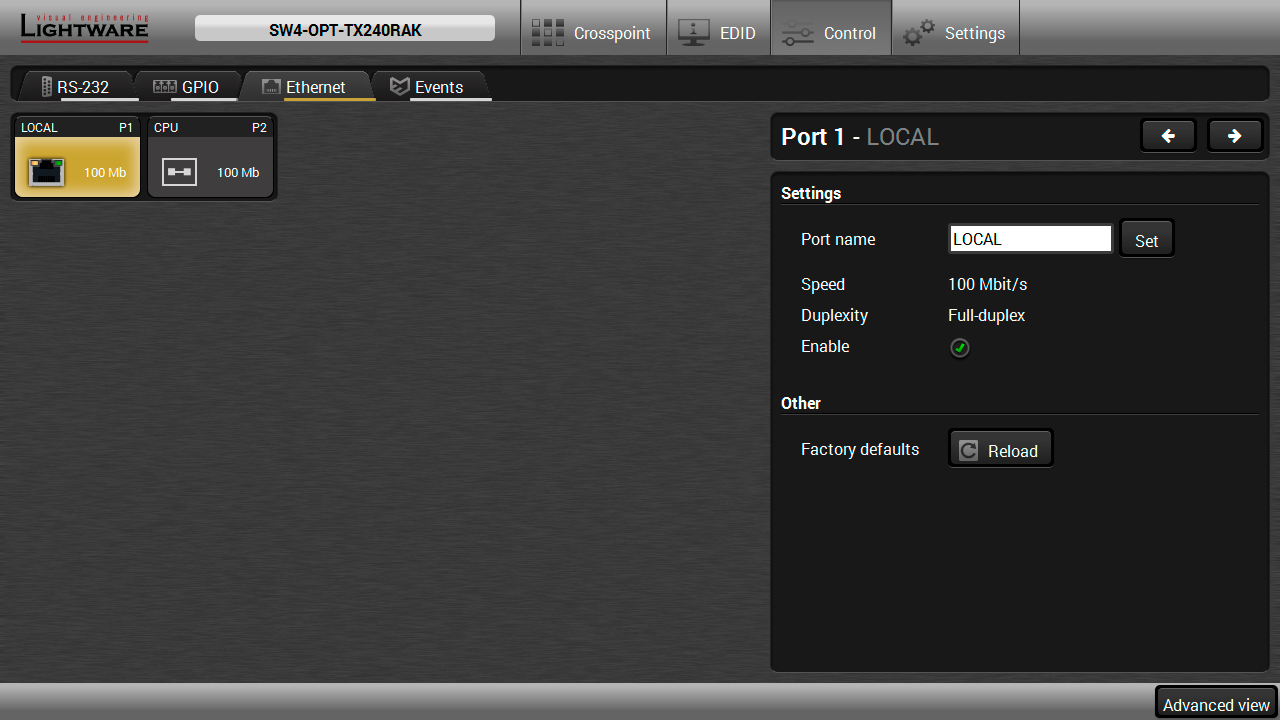
Ethernet tab in Control menu
Two ports are displayed in the Ethernet settings: Local and CPU. You can check the status of the Ethernet line by each ports: the speed and the duplexity of the connection.
The following settings are available for the local port:
▪Enable / disable the port;
▪Reloading factory defaults.
ATTENTION!If the Ethernet port is set to disabled, this may break the connection with the device.
INFO:CPU Ethernet port cannot be disabled.
#ethernet

The feature means that the device can sense changes on its ports and able to react according to the pre-defined settings. The development idea of the Event manager is based on users’ feedbacks. In many cases internal events (such as signal present or HDCP active) are necessary to display, but it is not easy when the device is hard to access (e.g. built under the desk).
INFO:For tips and tricks and detailed description about the application of Event Manager, please download the Event Manager Application Notes.
The Event manager can be configured to perform an action if a condition has been detected. E.g. the desired setup is that after a certain type of signal has been detected on I1 port, the port has to be switched to O1. The settings can be done via the LDC in the Control/Events tab, or by LW3 protocol commands. The number of configurable events depends on the device that you are using.
Numerous new ideas and requests have been received in connection with the features and settings of the Event manager since the first release. Therefore, the user interface has been re-designed and many new functions have been implemented. The Event editor can be opened by pressing the Edit button at each Event.
There is a grey bar on the left of the Event panel in each line. If a condition and an action are set and the Event is enabled, the bar is displayed in green. #eventmanager
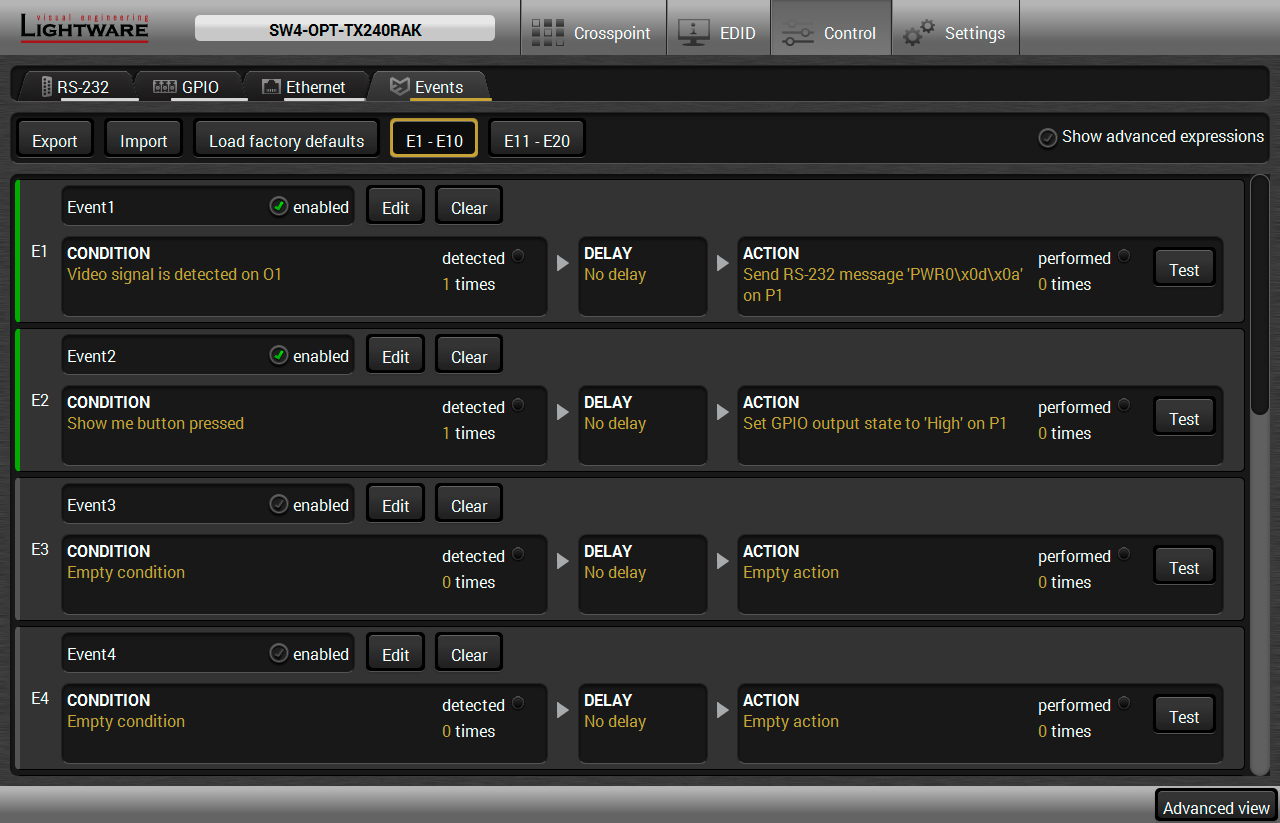
The Event Editor
Press the Edit button in the desired Event line to open the Event editor window.
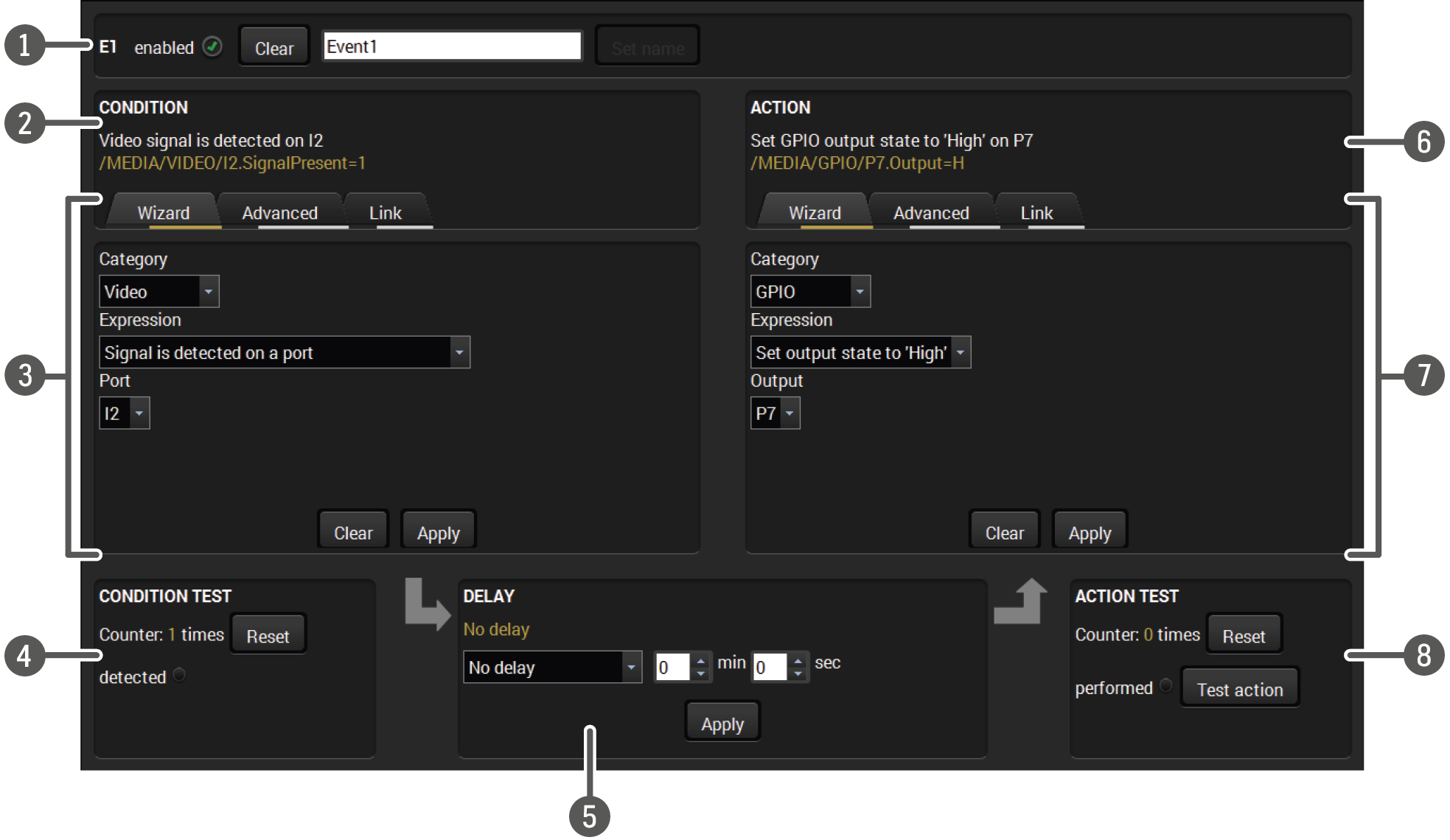
|
|
Event header |
The name of the Event is displayed. Type the desired name and press the Set name button. The Event can be cleared by the Clear button. Use the tick mark to enable/disable the Event. |
|
|
Condition header |
If the condition is set, the description (white colored text) and the exact LW3 protocol expression (yellow colored text) can be seen. If the advanced mode was used, the description is “Custom condition”. |
|
|
Condition panel |
The Wizard, the Advanced or the Link tool is available to set the condition. The parameters and settings are displayed under the tabs. |
|
|
Condition test |
The set condition can be tested to see the working method in the practice. |
|
|
Delay settings |
The action can be scheduled to follow the condition after the set time value. |
|
|
Action header |
If the action is set, the description (white colored text) and the exact LW3 protocol expression (yellow colored text) can be seen. If the advanced mode was used, the description is “Custom action”. |
|
|
Action panel |
The Wizard, the Advanced or the Link tool is available to set the action. The parameters and settings are displayed under the tabs. |
|
|
Action test |
The set action can be tested to see the working method in the practice. |


6.10.1. Create or Modify an Event
Wizard Mode
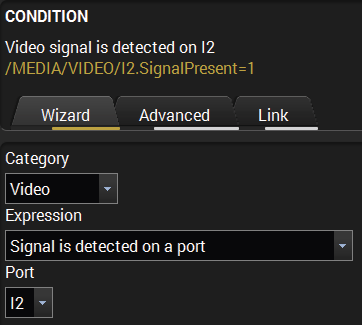
The wizard mode lists the most common conditions and actions, so the user does not have to look for LW3 nodes and properties.
Step 1.Click on the Edit button of the desired Event; the Event editor is displayed.
Step 2.The wizard mode is displayed as default. Select the desired Category first (e.g. Audio or Video).
Step 3.Select the desired Expression from the drop-down menu. If any other parameter is necessary to set, it is going to be displayed.
Step 4.Press the Apply button to store the settings of the Condition.
Advanced Mode
The goal of this mode is the same as the wizard: set the properties and methods for conditions and actions. The difference is the number of available and usable properties and methods of the LW3 protocol. Advanced mode allows almost all of it.
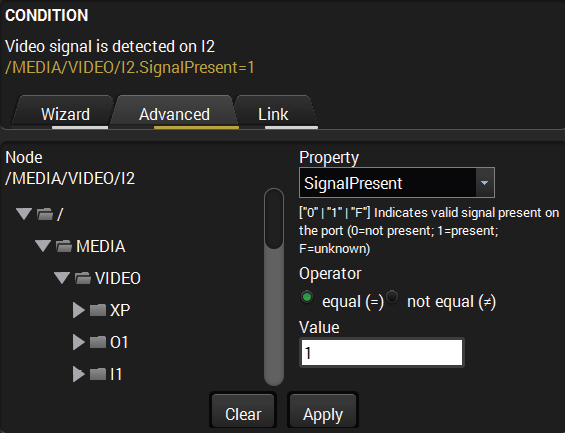
Step 1.Click on the Edit button of the desired Event; the Event editor is displayed.
Step 2.The wizard mode is displayed as default, press the Advanced tab. The LW3 protocol tree is displayed, showing the list of the properties in the drop-down menu. Navigate to the desired node.
Step 3.Select the desired Property from the menu. The manual of the property is displayed below to help select the necessary property and set the value.
Step 4.Set the desired value and operator, then press the Apply button to store settings.
The Link Tool
The new interface allows creating more actions to the same condition. In this case, a condition can trigger more actions. To set such an Event, the Link tool has been introduced.
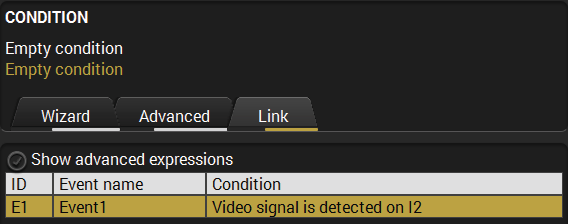
Step 1.Click on the Edit button of the desired Event; the Event editor is displayed.
Step 2.The wizard mode is displayed as default, press the Link tab.
Step 3.All the saved Events are analyzed and the conditions are listed (it takes a few seconds to finish). The Show advanced expressions option allows showing the exact path and setting the value of the given property.
Step 4.Select the desired Condition and press the Apply button to store the settings.
6.10.2. Special Tools and Accessories
The Name of the Event
The name of a port can be changed by typing the new name and clicking on the Set button. The following characters are allowed when naming:
Letters (A-Z) and (a-z), numbers (0-9), special characters: hyphen ( - ), underscore ( _ ), and space ( ).
Enable or Disable an Event
The set Event can be enabled or disabled in the Event list, or directly in the Event editor window by setting the tick mark beside the name.
Testing the Condition
When the desired Condition is arranged, the setting can be tested. The Event list and the Event editor contains a small panel that shows if the set condition is detected and how many times. The Counter can be reset via the button in Event editor. If the Condition is true, the detected mark turns green for two seconds and the Counter is increased.
Testing the Action
The method is the same as testing the Condition, but in this case, the Action can be triggered manually by pressing the Test button.
TIPS AND TRICKS:The Test button is also placed on the Action panel in the Event list. Thus, you can check the Actions without opening the Event editor.
Delay the Action
In most cases the Action is performed immediately after the Condition is detected. But sometimes a delay is necessary between the Condition and the Action. Therefore, the new Event manager contains the Delay panel, which contains the settings below:
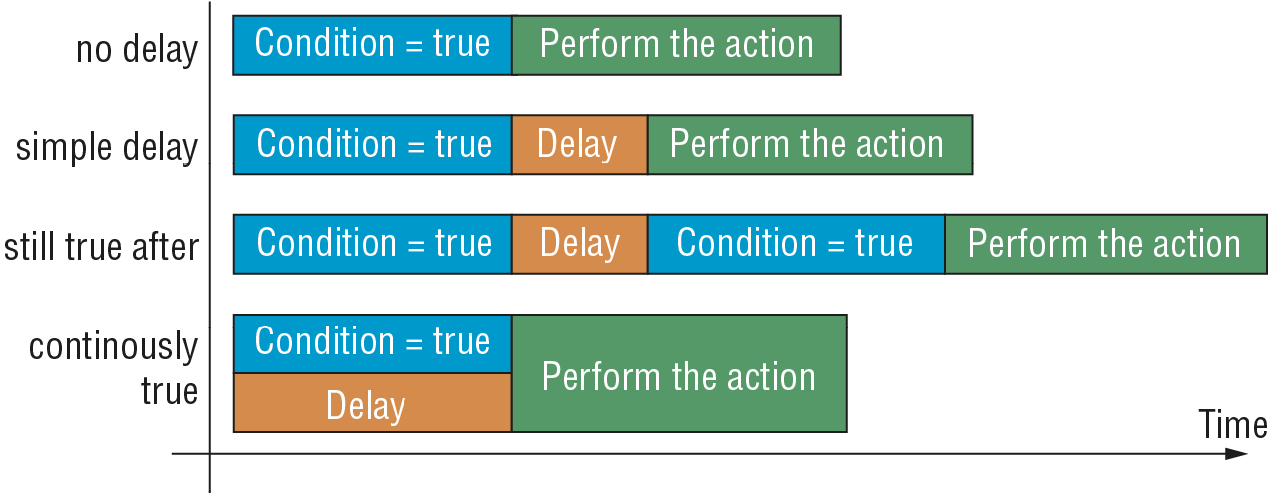
▪No delay: when the Condition is detected, the Action is launched.
▪Simple delay: when the Condition is detected, the Action is launched after the set time interval.
▪Still true after: when the Condition is detected, the Action is only launched after the set time interval if the Condition still exists.
▪Continuously true: when the Condition is detected, the Action is only launched after the set time interval if the Condition has been existing continuously.
TIPS AND TRICKS:Show advanced expressions option is a useful tool when you look for the path or value of a property. The option is available in the Event list window or when the Link tool is used.
6.10.3. Clear One or More Event(s)
Clear an Event
Press the Clear button in the Event list or in the header section in the Event editor.
Clear all Events
When all the Events must be cleared, press the Load factory defaults button above the Event list. You will be prompted to confirm the process.
6.10.4. Export and Import Events
The feature allows saving all the Events. The backup file can be uploaded to another HDMI-3D-OPT series extender.
Export all the Events
Step 1.Press the Export button above the Event list.
Step 2.The Save as dialog box will appear. Set the desired folder and file name, then press the Save button.
The generated file is a simple text file that contains LW3 protocol commands. The file can be viewed by a simple text editor, e.g. Notepad.
ATTENTION!Editing the file is recommended only for expert users.
Import all the Events
Step 1.Press the Import button above the Event list.
Step 2.The Open dialog box will appear. Select the desired folder and file, then press the Open button.
6.10.5. Event Creating - Example
The following example shows you on a real-life situation how to set up an Event.
The Concept
The SW4-OPT-TX240RAK is connected to a projector through the optical output port. The transmitter is also connected to the projector by the RS-232 port and can send commands via the serial line.
The task is to turn on the projector when signal is detected on the optical output port.

RS-232 Settings
Make sure that the serial line is established between the transmitter and the projector. Check that the RS-232 settings of the transmitter is set exactly the same as required for the projector: baud rate, data bits, parity, stop bits. The transmitter needs to be set to: Control protocol: LW3; and RS-232 mode: Pass-through. See the relevant LDC settings in the RS-232 section.
Setting the Event
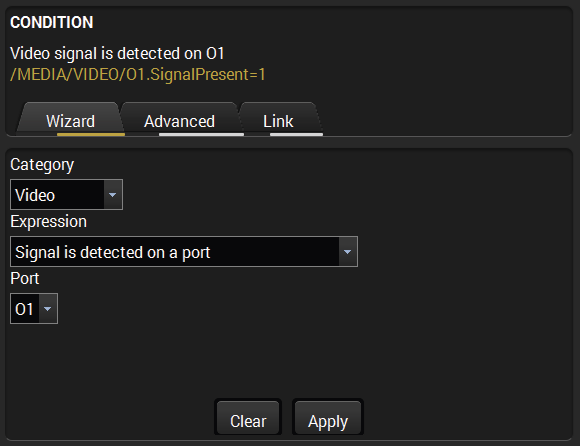
You can create the Event in the Wizard in a few simple steps:
Step 1.Set the condition.
Select the required parameters to set the condition:
▪Category: Video;
▪Expression: Signal is detected on a port;
▪Port: O1.
Click on the Apply button to complete the procedure. When it is done, the condition appears on the upper side in textual and LW3 command format as well.
Step 2.Set the action.
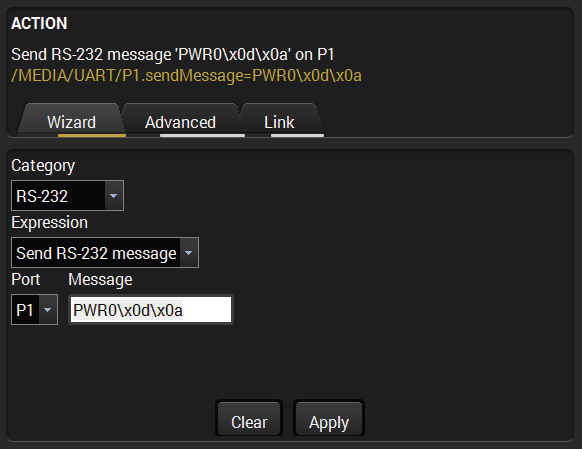
If the condition is fulfilled, the following action needs to be launched: the receiver sends a command to the projector over the serial line:
▪Power on - the required command that is accepted by the projector: PWR0<CR><LF>
For this instance, the command has to be closed with the <CR><LF> characters, so they need to be escaped. You can use the following format for escaping:
<command1><\x0d\x0a><command2><\x0d\x0a>...
...<commandn><\x0d\x0a>
In the current case the command is: PWR0\x0d\x0a
Select the required parameters to set the action:
▪Category: RS-232;
▪Expression: Send RS-232 message;
▪Port: P1;
▪Message: PWR0\x0d\x0a
Step 3.Enable the Event.
Check in the E1 enabled option in the upper left corner to set the Event as launched.
INFO:If you do not find the required category/expression/etc that you need, choose the Advanced mode in the Wizard where the entire LW3 stucture tree is available. For example, instead of signal detection, you can set a specified resolution or color range as a condition as well.
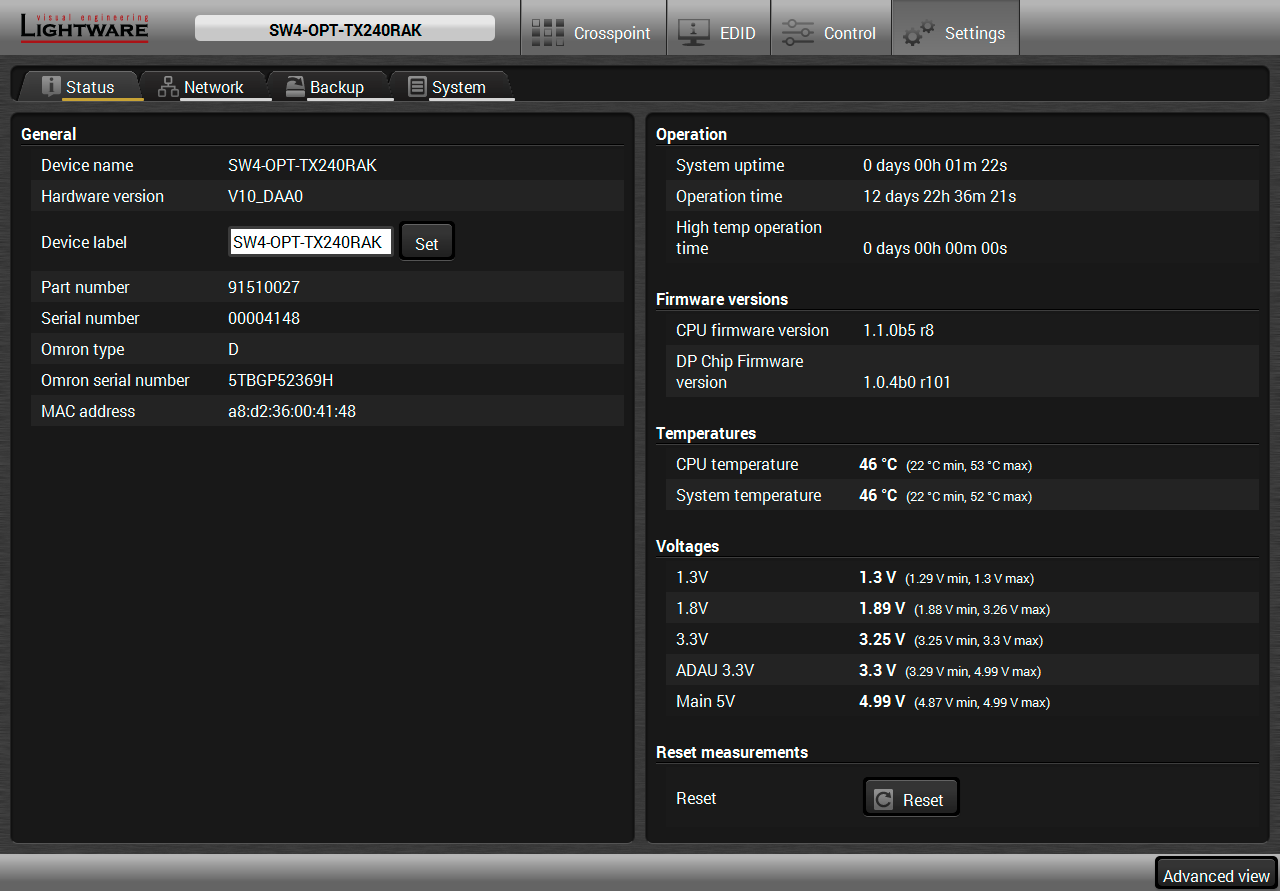
Status tab in Settings menu
The most important hardware and software related information can be found on this tab: hardware and firmware version, serial numbers, temperatures, operation time, and voltage information. Device label can be changed to a unique description using the Set button.
#status #label #devicelabel #producttype #serialnumber
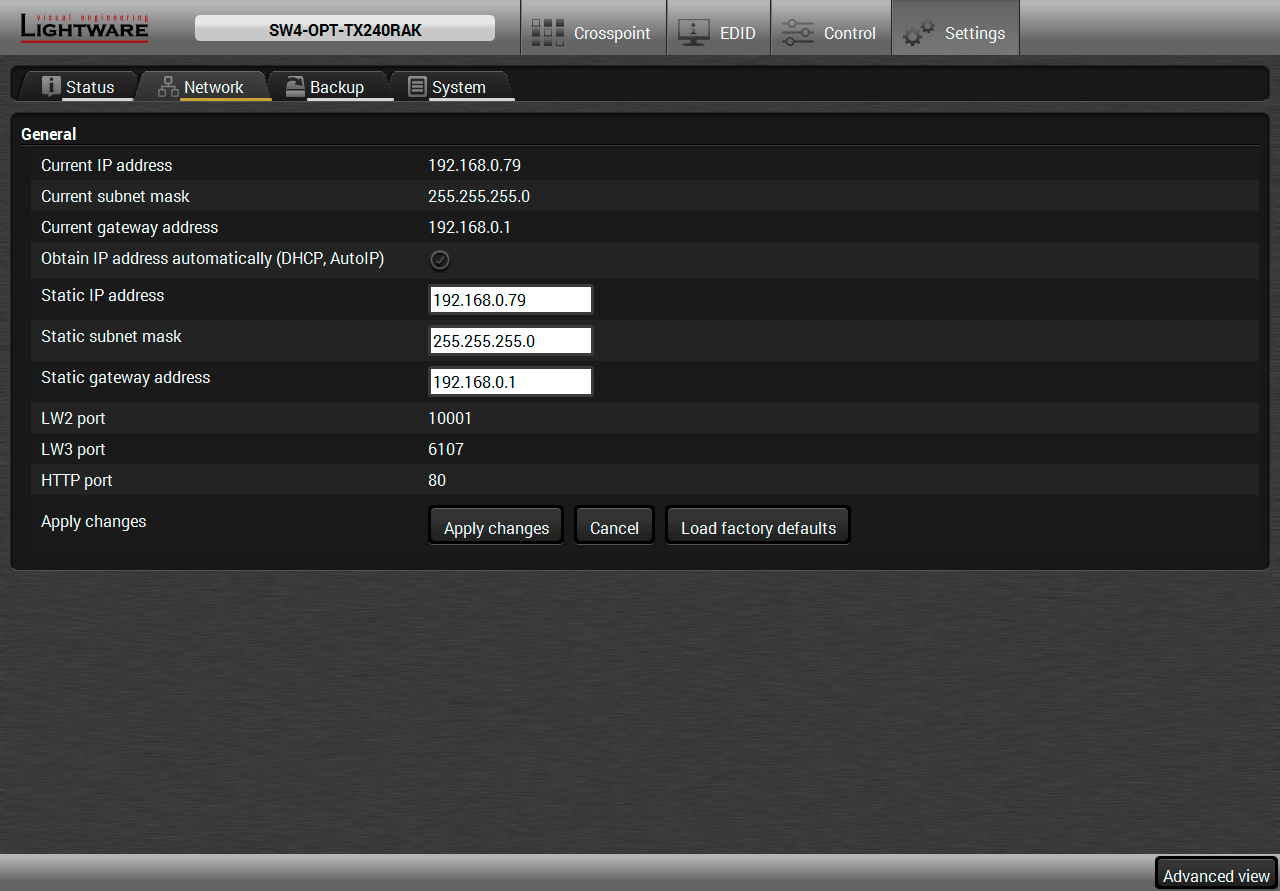
Network tab in Settings menu
IP address and DHCP settings can be set on this tab. Always press the Apply settings button to save changes. Factory default settings can be recalled with a dedicated button. #ipaddress #network #dhcp
Details about this function can be found in the Configuration Cloning (Backup Tab) section.
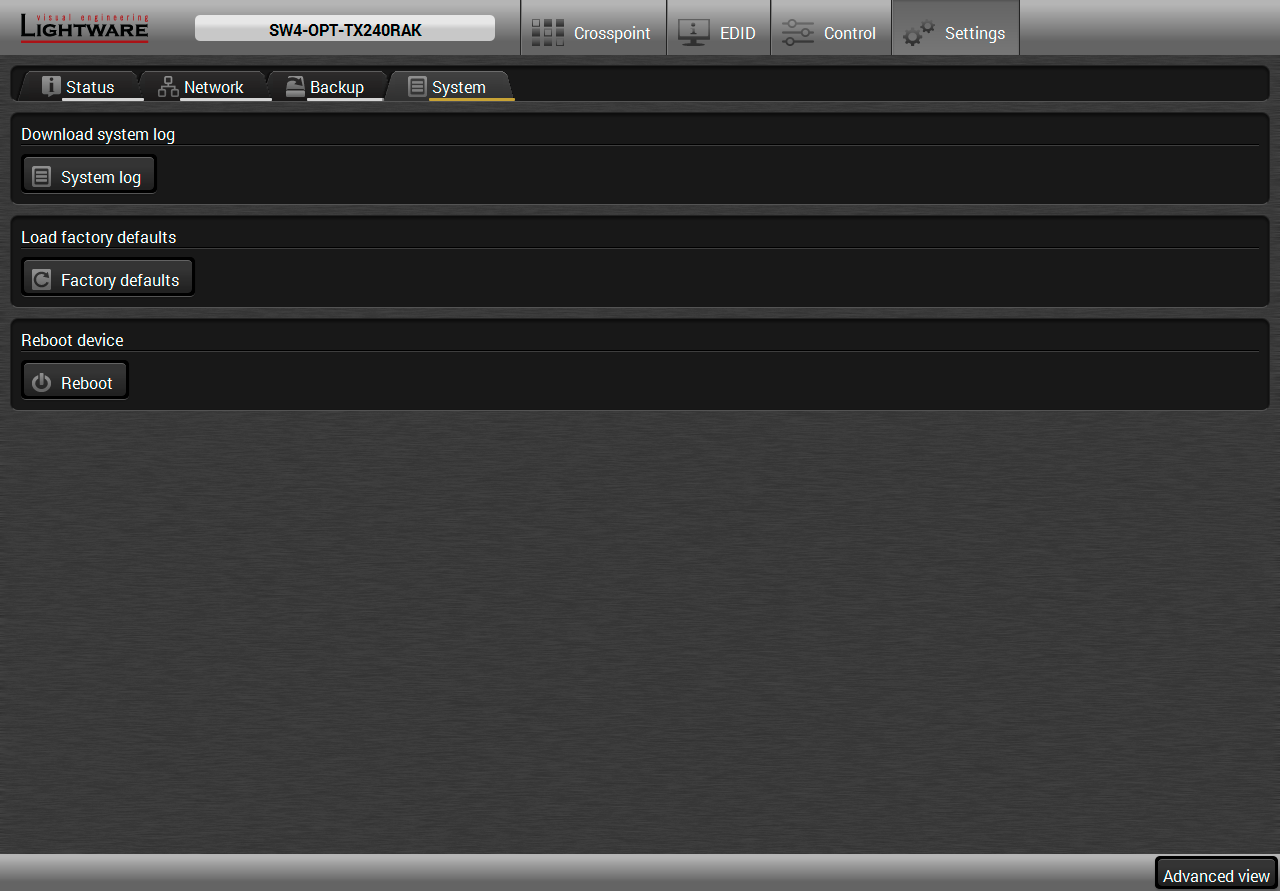
System tab in Settings menu
Three functions are available under System tab:
▪Download system log - saving the file of the device.
▪Load factory defaults - recalling factory default settings and values. All factory default settings are listed in the Factory Default Settings section.
▪Reboot - rebooting the system.
#systemlog #log #factory #reboot #restart
6.12. Configuration Cloning (Backup Tab)
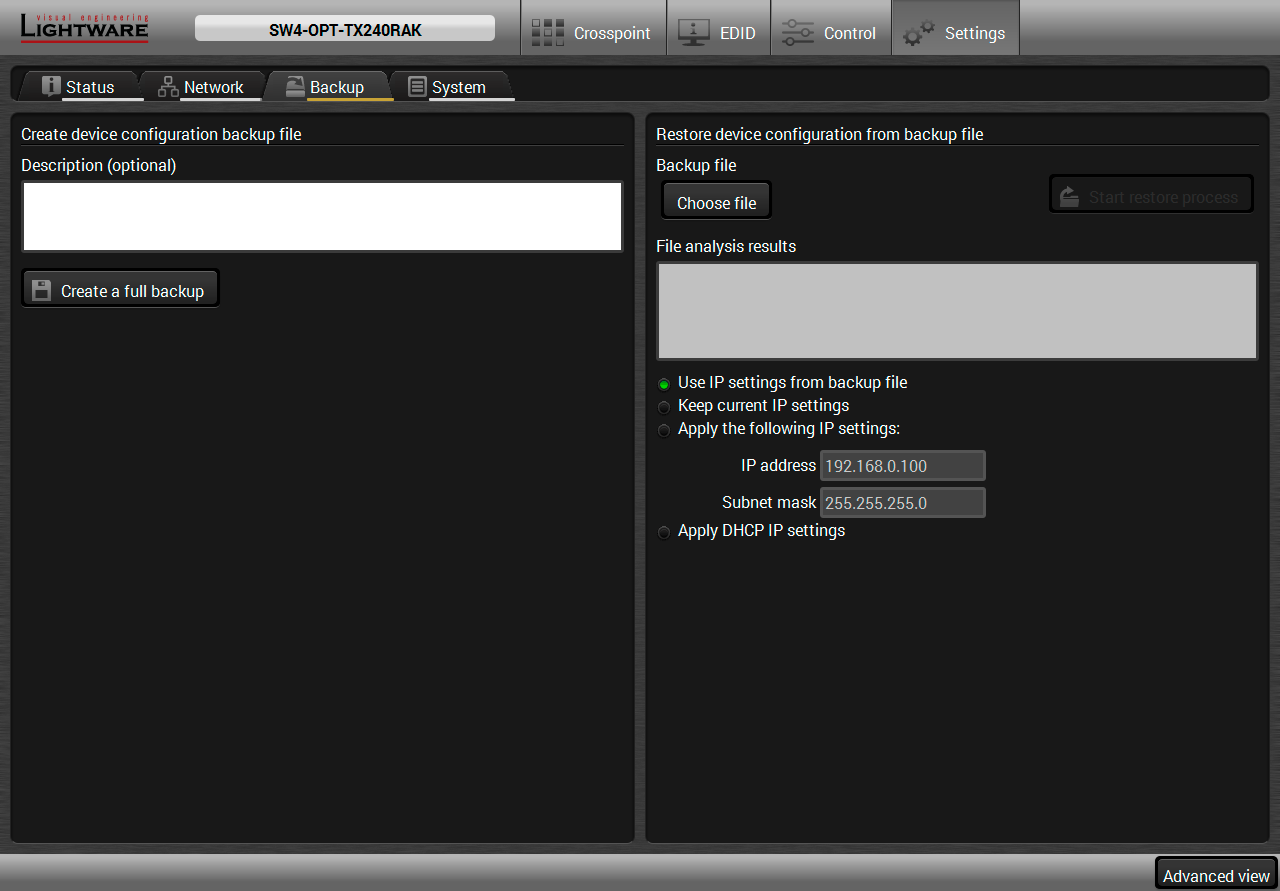
Backup tab in Settings menu
Configuration cloning of Lightware LW3 devices is a simple method that eliminates the need to repeatedly configure certain devices to have identical (non-factory) settings. If the devices are installed in the same type of system multiple times, then it is enough to set up only one device to fit the user’s needs and then copy those settings to the others, thus saving time and resources. #backup #configurationcloning
Installing multiple devices with the same customized configuration settings can be done in a few easy steps:
Step 1.Configure one device with all your desired settings using the LDC software.
Step 2.Backup the full configuration file to your computer.
Step 3.If needed, make some modifications to the configuration file using a text editor (e.g. Notepad). E.g. modifying the static IP address is necessary when DHCP is not used.
Step 4.Connect to the other device that needs to be configured and upload (restore) your configuration file.
Step 5.Done! You can have as many totally identical, customized devices as you like.
6.12.2. Save the Settings of a Device (Backup)
Step 1.Apply the desired settings in the transmitter (port parameters, crosspoint, etc.)
Step 2.Select the Settings / Backup tab from the menu.
Step 3.Write a short description in the text box on the left (optional).
Step 4.Press the Create a full backup button. You will be prompted to save the file to the computer. The default file name is the following:
|
BACKUP_<DEVICE TYPE>_SN<SERIAL NUMBER>.LW3 |
Step 5.Set the desired file name, select the folder and save the file.
TIPS AND TRICKS:Using the exact product type in the filename is recommended since it makes the file usage more comfortable.
About the Backup File
The backup file is a simple text file that contains LW3 protocol commands. The first line is the description and the further lines are the commands that will be executed during the restoring process. The file can be viewed (and/or edited) by a simple text editor, e.g. Notepad.
See the entire list of saved data in the Content of Backup File section.
ATTENTION!Editing the command lines is only recommended for expert users.
6.12.3. Upload the Settings to a Device (Restore)
WARNING!Please note that the settings will be permanently overwritten with the restored parameters in the device. Undoing it is not available.
ATTENTION!The cloning is successful when the backup file is downloaded from the same type of source device as the destination device.
The Restoring Process
Step 1.Select the Settings / Backup tab from the menu.
Step 2.Click on the Choose file button on the right panel and browse the desired file.
Step 3.The file is verified and the result will be displayed in the textbox below. If the file is correct, then the settings can be restored.
Step 4.Choose IP settings that you want to use after backup. You can apply settings from the backup file, keep actual settings, set it manually in a dialog box or apply DHCP.
Step 5.Press the Start restore process button and click on the Yes button when asked.
Step 6.Reboot the device to apply the network settings after finishing.
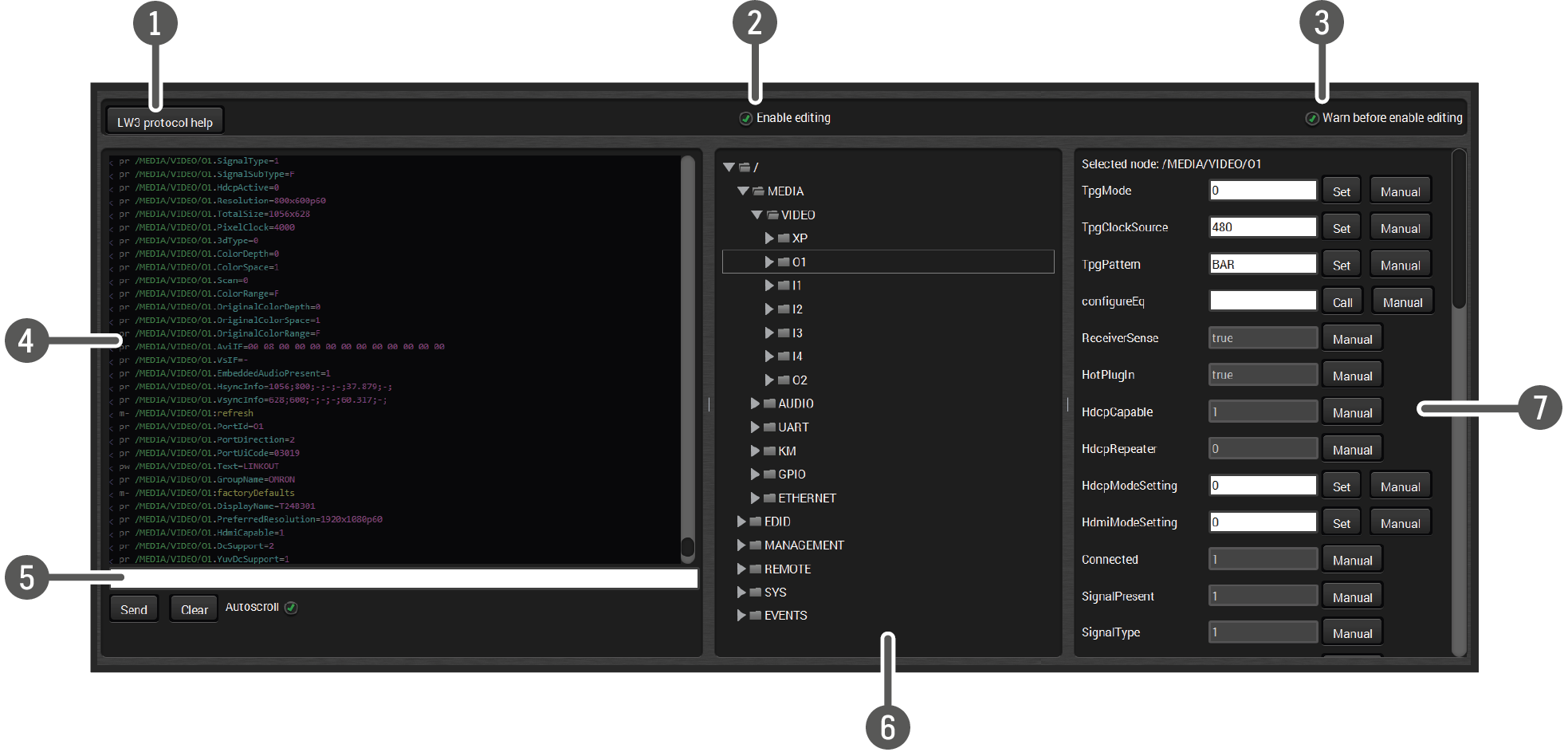
|
|
LW3 protocol help |
Pushing the button opens a help window that describes the most important information about LW3 protocol commands in HTML format. |
|
|
|
Edit mode |
The default appearance is the read-only mode. If you want to modify the values or parameters, tick the option. You will be prompted to confirm your selection. #terminal #advancedview |
|
|
|
Warning mode |
If this box is checked in, a warning window pops up when you enable Edit mode. |
|
|
|
Terminal window |
Commands and responses with time and date are listed in this window. Sent command starts with ‘>’ character, received response starts with ‘<’ character. The color of each item depends on the type of the command and response. The content of the window can be emptied by the Clear button. If the Autoscroll option is ticked, the list is scrolled automatically when a new line is added. |
|
|
|
Command line |
Type the desired command and execute it by the Send button. Clear all current commands and responses in the Terminal window with the Clear button. |
|
|
|
Protocol tree |
LW3 protocol tree; select an item to see its content. |
|
|
|
Node list |
Correspondent parameters and nodes are shown that are connected to the selected item in the protocol tree. |
|
|
Manual button: |
Manual (short description) of the node can be called and displayed in the terminal window. |
||
|
Set button: |
Saves the value/parameter typed in the textbox. |
||
|
Call button: |
Calls a method, e.g. reloads factory default settings. |
||
The device can be controlled through a reduced command set of LW2 protocol commands to ensure the compatibility with other Lightware products. The supported LW2 commands are described in this chapter.
The protocol description hereinafter stands for Lightware protocol 2. The commands below can be sent to the device in RAW format via the TCP/IP port no. 10001.
The receiver accepts commands surrounded by curly brackets - { } - and responds data surrounded by round brackets - ( ) - only if a command was successfully executed. All input commands are converted to uppercase, but response commands can contain upper and lower case letters as well.
Legend for Control Commands
|
Format |
Explanation |
|
<in> |
Input number in 1- or 2-digit ASCII format (01, 5, 07, 16, etc.) |
|
<out> |
Output number in 1- or 2-digit ASCII format |
|
<in/out> |
Input or output port number in 1- or 2-digit ASCII format * |
|
<in2> |
Input number in 2-digit ASCII format (01, 02, 10, 12 etc.) |
|
<out2> |
Output number in 2-digit ASCII format (01, 02, 10, 12 etc.) |
|
<in2/out2> |
Input or output number in 2-digit ASCII format* |
|
<loc> |
Location number in 1-, 2- or 3-digit ASCII format |
|
<id> |
ID number in 1- or 2-digit ASCII format |
|
<id2> |
ID number in 2-digit ASCII format |
|
CrLf |
Carriage return, Line feed (0x0D, 0x0A) |
|
· |
Space character (0x20) |
|
→ |
Each command issued by the controller |
|
|
Each response received from the router |


* The command has the same arguments on the input ports and the output port as well.
7.2. Instructions for the Terminal Application Usage
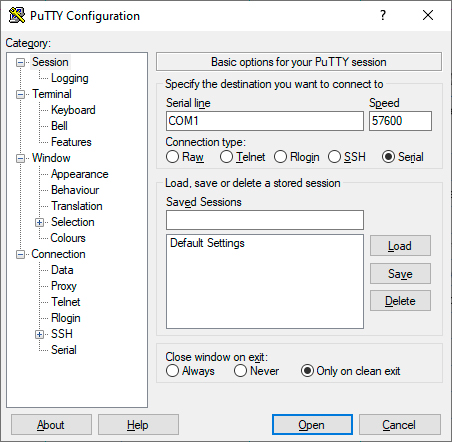
Terminal Application
The LW2 protocol commands can be applied to the transmitter using a terminal application. You need to install one of them to your control device, for example Putty or CLI. #terminal
Establishing Connection
Follow the steps for establishing connection to the device:
Step 1.Connect the transmitter / receiver to the controller device over Ethernet or RS-232.
Step 2.Open the terminal application (e.g. Putty).
Step 3.Add the Serial line of the device and the Speed (default: 57600).
Step 4.Select the Serial connection type, and open the connection.
ATTENTION!Make sure that the control protocol is set to LW2 on the serial port. The protocol setting can be checked in LDC (see the details in the RS-232 section) and via LW3 protocol command (see the details in the Setting the Protocol section).
Once the terminal window is opened, you can enter the LW2 protocol commands, which are listed in the following sections.
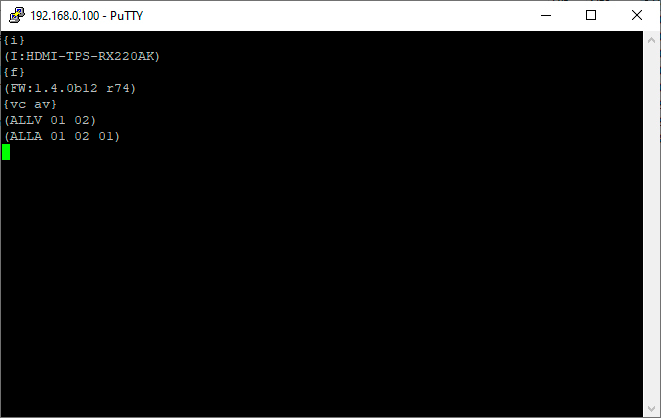
LW2 protocol command communication in a terminal window
7.3.1. List of All Available LW2 Commands
Command and Response
»{lcmd}
«(LCMD# LCMD: List all commands)CrLf
«<LW2_commands>CrLf
«(LCMD END)CrLf
Example
»{lcmd}
«(LCMD# LCMD: List all commands)
«(LCMD# PING: Always response PONG)
«(LCMD# CT: Compile time)
«...
«(LCMD END)
INFO:The response is longer, not all the lines can be seen in the example.
The device responds with its name.
Command and Response #producttype
»{i}
«(I:<PRODUCT_TYPE>)CrLf
Example
»{i}
«(I:HDMI-3D-OPT-TX210DD)
7.3.3. Querying the Device Label
This command is for querying the label of the device, which can be changed in the Status menu in LDC or with an LW3 command, see the Setting the Device Label section.
Command and Response #label #devicelabel
»{label}
«(LABEL=<device_label>)CrLf
Example
»{label}
«(LABEL=TX210DD_ConferenceRoom)
7.3.4. Querying Control Protocol
This command queries the active protocol of the currently used control interface.
Command and Response #protocol
»{P_?}
«(CURRENT·PROTOCOL·=·#<protocol>)CrLf
Example
»{p_?}
«(CURRENT PROTOCOL = #1)
'#1' means the device communicates with LW2 protocol.
7.3.5. Viewing Firmware Version of the CPU
Command and Response #firmwareversion
»{F}
«(FW:<FW_VER><s>)CrLf
Example
»{f}
«(FW:1.6.0b13 r99)
<FW_VER> is the firmware version. It is followed by <s> string, which may indicate special versions.
Returns the date of when the CPU firmware was compiled.
Command and Response
»{CT}
«(Complied: <DATE&TIME>)CrLf
Example
»{ct}
«(Compiled: Sep 30 2021 14:07:56)
The device responds with its 8-digit serial number.
Command and Response #serialnumber
»{S}
«(SN:<SERIAL_N>)CrLf
Example
»{s}
«(SN:5A004254)
The serial number structure can be found in the About the Serial Number section.
7.3.8. Viewing Installed Board
Shows the hardware name and the revision of the installed boards.
Command and Response
»{IS}
«(SL#·0·<MB_DESC>)CrLf
«(SL·END)CrLf
Example
»{is}
«(SL# 0 HDMI-3D-OPT-TX210DD)
«(SL END)
The device reports its motherboard (slot 0).
7.3.9. Viewing Firmware for All Controllers
Shows the firmware versions of all installed controllers.
Command and Response
»{FC}
«(CF·<DESC>)CrLf
«(CF·<DESC>)CrLf
«…
«(CF END)CrLf
Example
»{fc}
«(CF HDMI-3D-OPT-TX210DD 1.2.0b1 r53)
«(CF END)
The device has one control panel.
7.3.10. Querying Health Status
Internal voltages and measured temperature values are shown.
Command and Response #status
»{ST}
«(ST·<DESC>)CrLf
Example
»{st}
«(ST CPU 12.16V 5.03V 3.30V 3.33V 3.37V 1.30V 1.86V 1.00V 53.22C 53.26C)
The device can be restarted without unplugging power.
Command and Response #reboot #restart
»{RST}
«
Example
»{rst}
«
The device reboots; no response is sent in this case.
7.3.12. Restoring Factory Default Settings
Settings can be reset to factory default values as follows: #factory
Command and Response
»{FACTORY=ALL}
«(FACTORY ALL…)CrLf
Example
»{factory=all}
«(FACTORY ALL…).
All settings and parameters are reset to factory default, see the table in the Factory Default Settings section.
7.4.1. Switching an Input to the Outputs
Switching an input <in> to output <out>. Following commands with A, V, AV parameter value can take effect on multiple layers, according to their parameters. Depending on ‘A’ or ‘V’ it can change only the Audio or only the Video layer; ‘AV’ changes both. #crosspoint #switch
Command and Response
»{<in>@<out>•<layer>}
«(O<out2>•I<in2>•<layer>)CrLf
Parameters
|
Parameter |
Parameter description |
Value |
Value description |
|
<layer> |
Signal type of the layer |
A |
Audio layer |
|
V |
Video layer |
||
|
AV |
Audio & video layer |
||
|
<out> |
Output port |
O1 |
|
|
<in> |
Input port |
I1-I6 |
Device-dependent, see the Input/Output Port Numbering section |
|
0 |
Using the '0' (zero) value, the input will be disconnected and no signal will appear on the output. |
INFO:The <layer> parameter can usually be skipped for legacy purposes. In this case, the devices change all (Video & Audio) layers, but using status commands it displays information about only the Video layer. Please use the AV option when available.
Example 1
»{2@1 AV}
«(O01 I02 AV)
I2 audio and I2 video input ports are switched to the O1 output port.
Example 2
»{0@1}
«(O01 I00)
ATTENTION!The response of this command does not show whether the output is muted. To check the mute status, a separate query has to be used, like {VC}.
Mute the <out> output. The output signal is turned off.
Command and Response #mute #lock #unmute #unlock
»{#<out>•<layer>}
«(1MT<out2>•<layer>)CrLf
Example
»{#01 A}
«(1MT01 A)
ATTENTION!Muting does not change the state of the crosspoint, but disables the output itself. This way the last connection can be easily restored with an unmute command. Switching a muted output does not unmute the output.
Unmute the <out> output.
Command and Response
»{+<out>•<layer>}
«(0MT<out2>•<layer>)CrLf
Example
»{+01 V}
«(0MT01 V)
INFO:Unmuting an output makes the previous connection active, as the crosspoint state has not been changed by the muting command, only the output was disabled.
Locking an output port. The output’s state cannot be changed until unlocking.
Command and Response
»{#><out>•<layer>}
«(1LO<out²>•<layer>)CrLf
Example
»{#>01 A}
«(1LO01 A)
Unlocking an output port. The connection on output can be changed.
Command and Response
»{+<<out>•<layer>}
«(0LO<out2>•<layer>)CrLf
Example
»{+<01 V}
«(0LO01 V)
O1 video output port is unlocked.
INFO:The device issues the response above regardless of the previous state of the output (whether it was locked or unlocked).
7.4.6. Viewing Connection State on the Output
Viewing the crosspoint state of the device; showing the input port numbers connected to the outputs.
Command and Response #crosspoint #switch
»{VC•<layer>}
«(ALL<layer>•<O01>•<O02>)CrLf
Parameters
O01 shows the corresponding output’s connection state.
|
Parameter |
Parameter description |
Value |
Value description |
|
<layer> |
Signal type of the layer |
A |
Audio layer |
|
V |
Video layer |
||
|
AV |
Audio & video layer |
State letters
|
Letter |
State |
Example |
|
L |
Output is locked |
L01 |
|
M |
Output is muted |
M01 |
|
U |
Output is locked and muted |
U01 |
Example
»{VC AV}
«(ALLV 01 02)
«(ALLA 02 02 02)
I1 video input port is connected to the O1 video output port; I2 video input port is connected to the O2 video output port; I2 audio input port is connected to all the audio output ports (O1, O2, O3).
7.4.7. Viewing the Crosspoint Size
Shows the physical crosspoint size.
Command and Response
»{getsize•<layer>}
«(SIZE=<size>•<layer>)CrLf
Parameters
|
Parameter |
Parameter description |
Value |
Value description |
|
<size> |
Crosspoint size |
<number_of_inputs>x<number_of _outputs> |
|
|
<layer> |
Signal type of the layer |
A |
Audio layer |
|
V |
Video layer |
||
|
AV |
Audio & video layer |
||
Example
»{GETSIZE AV}
«(SIZE=6x1 V)
«(SIZE=5x1 A)
The device has a video crosspoint (6 inputs and 1 output) and an audio crosspoint (5 inputs and 1 output).
7.4.8. Changing the Video Autoselect Mode
The autoselect mode of the video outputs can be changed.
Command and Response #autoselect
»{AS_V<out>=<state>;<mode>}
«(AS_V<out>=<state>;<mode>)CrLf
Parameters
|
Parameter |
Parameter description |
Value |
Value description |
|
<state> |
Showing the Autoselect state |
E |
Autoselect is enabled |
|
D |
Autoselect is disabled |
||
|
<mode> |
The autoselect mode setting |
F |
First detect mode |
|
L |
Last detect mode |
||
|
P |
Priority detect mode |
The output port numbers are listed in the Input/Output Port Numbering section.
Example
»{as_v1=E;P}
«(AS_V1=E;P)
The Autoselect mode of audio output 1 is enabled and set to Priority mode.
INFO:The Autoselect mode can be queried by typing the {as_v<out>=?} command.
7.4.9. Changing the Audio Autoselect Mode
The autoselect mode of the audio output can be changed.
Command and Response
»{AS_A<out>=<state>;<mode>}
«(AS_A<out>=<state>;<mode>)CrLf
Parameters
See the previous section.
Example
»{as_a1=E;P}
«(AS_A1=E;P)
The Autoselect mode of audio output 1 is enabled and set to Priority mode.
INFO:The Autoselect mode can be queried by typing the {as_a<out>=?} command.
7.4.10. Changing the Video Input Priorities
The settings of video input priority can be changed as follows.
Command and Response
»{PRIO_V<out>=<in1_prio>;<in2_prio>;…;<inn_prio>}
«(PRIO_V<out>=<in1_prio>;<in2_prio>;…;<inn_prio>)CrLf
Parameters
|
Parameter |
Parameter description |
Value |
Value description |
|
<in1_prio> <in2_prio> <inn_prio> |
Priority number of the input ports |
0-5, 31 |
0: Highest priority 5: Lowest priority 31: Skip the port from the priority list |
See more details about port numbering in the Input/Output Port Numbering section.
Example
»{prio_v1=1;0;2;3}
«(PRIO_V1=1;0;2;3)
ATTENTION!Always set the priority of all ports when changing, otherwise the change will not be executed and the response will be the current setting (like querying the priority setting).
INFO:The video priorities can be queried by typing the {prio_v<out>=?} command.
7.4.11. Changing the Audio Input Priorities
The settings of audio input priority can be changed as follows.
Command and Response
»{PRIO_A<out>=<in1_prio>;<in2_prio>;…;<inn_prio>}
«(PRIO_A<out>=<in1_prio>;<in2_prio>;…;<inn_prio>)CrLf
Parameters
See the previous section.
Example
»{prio_a1=1;0;2}
«(PRIO_A1=1;0;2)
Input 2 has the highest priority (0), Input 1 has the second highest (1). Input 3 has the lowest priority (2).
ATTENTION!Always set the priority of all ports when changing, otherwise the change will not be executed and the response will be the current setting (like querying the priority setting).
INFO:The audio priorities can be queried by typing the {prio_a<out>=?} command.
DIFFERENCE:This section refers to the SW4-OPT-TX240RAK model only.
7.5.1. Querying the Current IP Status
The IP address settings can be queried as follows. #dhcp #ipaddress #network
Command and Response
»{IP_STAT=?}
«(IP_STAT=<type>;<ip_address>;<subnet_mask>;<gateway_addr>)CrLf
Parameters
|
Parameter |
Parameter description |
Value |
Value description |
|
<type> |
Assignment of the IP address |
0 |
Static |
|
1 |
Dynamic (DHCP) |
||
|
<ip_addr> |
IP address |
(four decimal octets separated by dots) |
|
|
<subnet_mask> |
Subnet mask |
(four decimal octets separated by dots) |
|
|
<gateway_addr> |
Gateway address |
(four decimal octets separated by dots) |
|
Example
»{ip_stat=?}
«(IP_STAT=0;192.168.0.100;255.255.255.0;192.168.0.1)
The device has a static (fix) IP address: 192.168.0.100; the subnet mask is 255.255.255.0, the gateway address is 192.168.0.1.
IP address can be set as follows.
Command and Response
»{IP_ADDRESS=<type>;<ip_address>}
«(IP_ADDRESS=<type>;<ip_address>)CrLf
Parameters
See the previous section.
Example
»{ip_address=0;192.168.0.110}
«(IP_ADDRESS=0;192.168.0.110)
INFO:The IP address can be queried by typing the {ip_address=?} command. The response contains the fix IP address that is stored in the device even if DHCP is enabled; in this case, this IP address is not valid.
7.5.3. Setting the Subnet Mask
Subnet mask can be set as follows.
Command and Response
»{IP_NETMASK=<subnet_mask>}
«(IP_NETMASK=<subnet_mask>)CrLf
Parameters
See the Querying the Current IP Status section.
Example
»{ip_netmask=255.255.255.0}
«(IP_NETMASK=255.255.255.0)
INFO:The subnet mask can be queried by typing the {ip_address=?} command. The response contains the fix IP subnet mask that is stored in the device even if DHCP is enabled; in this case, this IP subnet mask is not valid.
7.5.4. Setting the Gateway Address
Gateway address can be set as follows.
Command and Response
»{IP_GATEWAY=<gateway_addr>}
«(IP_GATEWAY=<gateway_addr>)CrLf
Parameters
See the Querying the Current IP Status section.
Example
»{ip_gateway=192.168.0.50}
«(IP_GATEWAY=192.168.0.50)
INFO:The gateway address can be queried by typing the {ip_gateway=?} command. The response contains the static IP gateway address that is stored in the device even if DHCP is enabled. In that case, the latest valid gateway address (for static IP) is stored.
7.5.5. Applying Network Settings
Apply the network settings and restart the network interface.
Command and Response
»{ip_apply}
«(IP_APPLY)CrLf
Example
»{ip_apply}
«(IP_APPLY)
7.5.6. Enabling/Disabling the Ethernet Port
Command and Response #ethernet
»{ETH_ENABLE=<switch>}
«(ETH_ENABLE=<switch>)CrLf
Parameters
If the <switch> parameter is 0, the port is disabled. If its value is 1, the port is enabled.
Example
»{ETH_ENABLE=1}
«(ETH_ENABLE=1)
DIFFERENCE:This section refers to the SW4-OPT-TX240RAK model only.
7.6.1. Setting the Level and Direction for Each Pins
GPIO pins can be configured as follows. See more details about the GPIO connector in the GPIO - General Purpose Input/Output Ports section and about the interface in the GPIO Interface section.
Command and Response #gpio
»{GPIO<pin_nr>=<dir>;<level>}
«(GPIO<pin_nr>=<dir>;<level>)CrLf
Parameters
|
Parameter |
Parameter description |
Value |
Value description |
|
<pin_nr> |
GPIO pin number |
0-6 |
Static |
|
<dir> |
The direction of the communication |
I |
Input |
|
O |
Output |
||
|
<level> |
The level of the pin |
L |
Low |
|
H |
High |
||
|
T |
Toggle between low and high |
Example
»{gpio1=O;H}
«(GPIO1=O;H)
GPIO pin 1 is set to output with high level.
INFO:The current GPIO pin configuration can be queried by typing the {GPIO<pin_nr>=?} command.
7.7. LW2 Commands – Quick Summary
The device can be controlled through Lightware 3 (LW3) protocol commands to ensure the compatibility with other Lightware products. The supported LW3 commands are described in this chapter.
The Lightware Protocol #3 (LW3) is implemented in almost all new Lightware devices (matrix switchers, signal extenders and distribution amplifiers) since 2012. The protocol is ASCII-based, and all commands are terminated with a carriage return (Cr, ‘\r’) and line feed (Lf, ‘\n’) pair. It is organized as a tree structure that provides outstanding flexibility and user-friendly handling with ‘nodes’, ‘properties’ and ‘methods’. The Advanced View of the Lightware Device Controller software is the perfect tool for browsing and learning how the LW3 protocol can be used in practice.
8.2. Instructions for the Terminal Application Usage
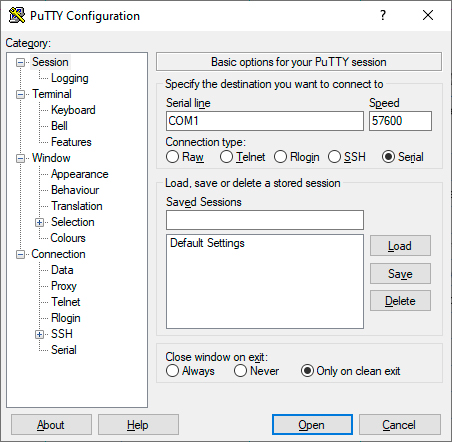
Terminal Application
The LW3 protocol commands can be applied to the transmitter using a terminal application. You need to install one of them to your control device, for example Putty or CLI. #terminal
Establishing Connection
Follow the steps to establish connection to the device:
Step 1.Connect the transmitter to the controller device over RS-232.
Step 2.Open the terminal application (e.g. Putty).
Step 3.Add the Serial line of the device and the Speed (default: 57600).
Step 4.Select the Serial connection type, and open the connection.
ATTENTION!Make sure that the control protocol is set to LW3 on the serial port. The protocol setting can be checked in LDC (see the details in the RS-232 section).
Once the terminal window is opened, you can enter the LW3 protocol commands, which are listed in the following sections.
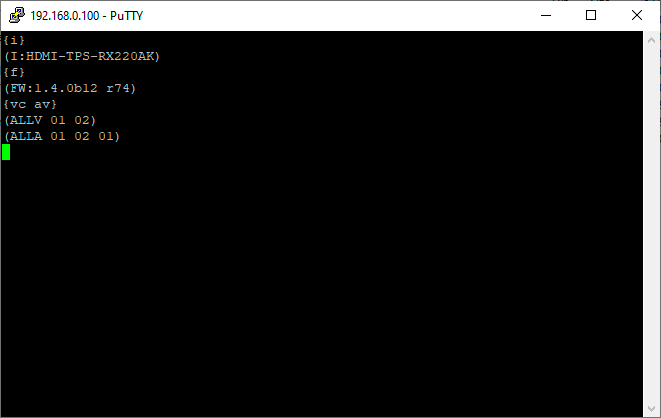
LW3 protocol command communication in a terminal window
8.3.1. LW3 Tree Structure and Command Structure (examples)
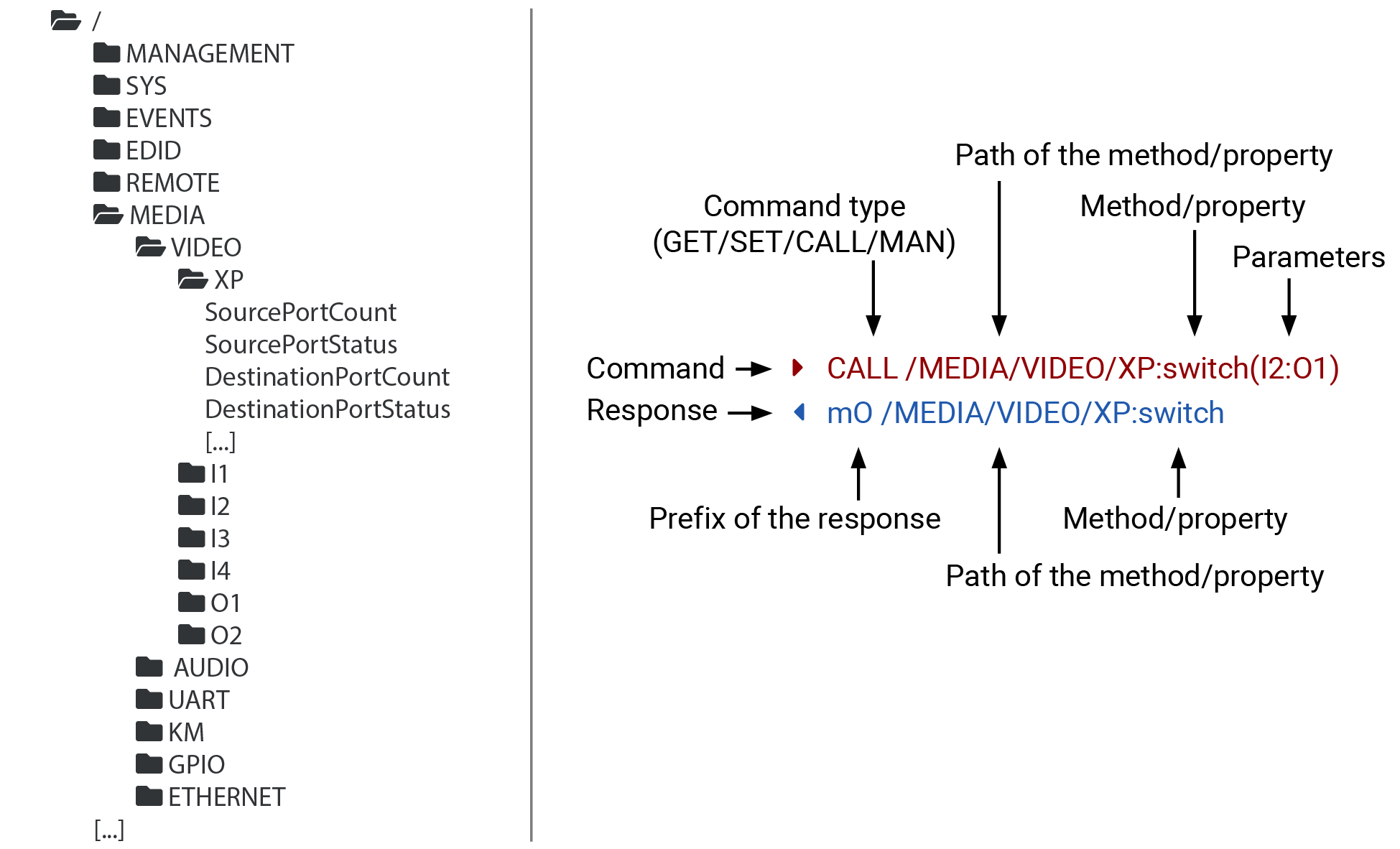
▪All names and parameters are case-sensitive.
▪The nodes are separated by a slash (‘/’) character.
▪The node name can contain the elements of the English alphabet and numbers.
▪The command lines have to be closed by Carriage return and Line Feed (CrLf).
▪Use the TCP port no. 6107 when using LW3 protocol over Ethernet.
▪The length of a line (command/response, command type / prefix, path, method/property and parameters together) can be max. 800 bytes.
▪When a command is issued by the device, the received response cannot be processed by the CPU.
▪The node paths describe the exact location of the node, listing each parent node up to the root.
8.3.3. Legend for the Control Commands
Command and Response – Example
»GET·/MEDIA/VIDEO/I2.SignalPresent
«pr·/MEDIA/VIDEO/I2.SignalPresent=<signal_present>
|
Format |
Description |
|
<in> |
Input port number |
|
<out> |
Output port number |
|
<port> |
Input or output port number |
|
<loc> |
Location number |
|
<parameter> |
Specific property defined and described in the command |
|
<expression> |
Batched parameters: the underline means that more expressions or parameters can be placed by using a semicolon, e.g. I1;I3 or F27:E1;F47:E2 |
|
|
Sent command |
|
|
Received response |
|
· |
Space character |


Further, not listed <parameters> are defined at each command.
The GET command can be used to get the child nodes, properties and methods of a specific node. It can also be used to get the value of a property. Use the dot character (.) when addressing a property:
»GET /.SerialNumber
«pr /.SerialNumber=87654321
GETALL command
The GETALL command can be used to get all child nodes, properties and methods of a node with one command.
»GETALL /MEDIA/UART
«ns /MEDIA/UART/P1
«ns /MEDIA/UART/P2
«pr /MEDIA/UART.PortCount=2
«pr /MEDIA/UART.PortUi=P1:01209;P2:12219
«pr /MEDIA/UART.P1=LOCAL
«pr /MEDIA/UART.P2=ROF
SET command
The SET command can be used to modify the value of a property. Use the dot character (.) when addressing the property:
»SET /MEDIA/VIDEO/I1.HdcpEnable=true
«pw /MEDIA/VIDEO/I1.HdcpEnable=true
CALL command
A method can be invoked by the CALL command. Use the colon character (:) when addressing the method:
»CALL /MEDIA/VIDEO/XP:unlockSource(I1)
«mO /MEDIA/VIDEO/XP:unlockSource
MAN command
The manual is a human readable text that describes the syntax and provides a hint on how to use the primitives. For every node, property and method in the tree there is a manual; type the MAN command to get the manual:
»MAN /MEDIA/VIDEO/O1.TpgMode
«pm /MEDIA/VIDEO/O1.TpgMode [0 | 1 | 2] 0 - Test pattern disabled, 1 - Test pattern enabled, 2 - Test pattern no signal mode.
DEFINITION:The prefix is a 2-character-long code that describes the type of the response.
The following prefixes are defined in the LW3 protocol:
|
Prefix |
Description |
Prefix |
Description |
|
|
n- |
a node |
pm |
a manual for the property |
|
|
nE |
an error for a node |
m- |
a method |
|
|
nm |
a manual for a node |
mO |
a response after a successful method execution |
|
|
ns |
a child node of a node |
|||
|
pr |
a read-only property |
mF |
a response after a failed method execution |
|
|
pw |
read-write property |
mE |
an error for a method |
|
|
pE |
an error for the property |
mm |
a manual for a method |
There are several error messages defined in the LW3 protocol, all of them have a unique error number.
»CALL /MEDIA/VIDEO/XP:switch(IA:O1)
«mE /MEDIA/VIDEO/XP:switch %E004:Invalid value
DEFINITION:An escape sequence is a sequence of characters that does not represent itself when used inside a character or string literally, but is translated into another character or a sequence of characters.
Property values and method parameters can contain characters that are used as control characters in the protocol. They must be escaped. The escape character is the backslash (‘\’) and escaping means injecting a backslash before the character that should be escaped (like in C language).
Control characters are the following: \ { } # % ( ) \r \n \t
The original message: CALL·/MEDIA/UART/P1:sendMessage(Set(01))
The escaped message: CALL·/MEDIA/UART/P1:sendMessage(Set\(01\))
DEFINITION:The signature is a 4-digit-long hexadecimal value that can be optionally placed before every command to keep a command and the corresponding responses together as a group.
Each line is terminated with carriage return (Cr, ‘\r’) and line feed (Lf, ‘\n’) characters. In several cases the number of the lines in the response cannot be determined in advance, e.g. the client intends to receive the whole response and also wants to be sure that the received lines belong together and to the same command. In these cases a special feature, the ‘signature’ can be used. The response to that particular command will also be preceded by the signature, and the corresponding lines will be between brackets:
»1700#GET /EDID.*
«{1700
«pr /EDID.EdidStatus=D1:E1;F136:E2;D1:E3;D1:E4
«m- /EDID:copy
«m- /EDID:delete
«m- /EDID:reset
«m- /EDID:switch
«m- /EDID:switchAll
«}
INFO:The lines of the signature are also Cr and Lf terminated.
DEFINITION:Subscription to a node means that the user will get a notification if a property of the node changes.
A user can subscribe to any node. These notifications are asynchronous messages, and are useful to keep the client application up to date without having to periodically poll the node to detect a changed property. When the user does not want to be informed about the changes anymore, he can simply unsubscribe from the node.
ATTENTION!The subscriptions are handled separately for connections. Hence, if the connection is terminated, all registered subscriptions are deleted. After reopening a connection, all subscribe commands have to be sent in order to get the notifications of the changes on that connection.
Subscribe to a Node
»OPEN /MEDIA/VIDEO
«o- /MEDIA/VIDEO
Subscribe to Multiple Nodes
»OPEN /MEDIA/VIDEO/*
«o- /MEDIA/VIDEO/*
Unsubscribe from a Node
»CLOSE /MEDIA/VIDEO
«c- /MEDIA/VIDEO
Get the Active Subscriptions
»OPEN
«o- /MEDIA/VIDEO
«o- /EDID
«o- /DISCOVERY
Unsubscribe from Multiple Nodes
»CLOSE /MEDIA/VIDEO/*
«c- /MEDIA/VIDEO/*
8.3.10. Notifications about the Changes of the Properties
When the value of a property is changed, and the user is subscribed to the node that the property belongs to, an asynchronous notification is generated. This notification is called the ‘change message’. The format of such a message is very similar to the response for the GET command:
«CHG /EDID.EdidStatus=F48:E1
A Short Example of How to Use the Subscription
There are two independent users controlling the device through two independent connections (Connection #1 and Connection #2). The events in the rows occur after each other.
|
»OPEN /MEDIA/AUDIO/I5 «o- /MEDIA/AUDIO/I5 »GET /MEDIA/AUDIO/I5.VolumePercent «pw /MEDIA/AUDIO/I5.VolumePercent=100.00 |
connection #1 |
|
»GET /MEDIA/AUDIO/I5.VolumePercent «pw /MEDIA/AUDIO/I5.VolumePercent=100.00 »SET /MEDIA/AUDIO/I5.VolumePercent=50.00 «pw /MEDIA/AUDIO/I5.VolumePercent=50.00 |
connection #2 |
|
«CHG /MEDIA/AUDIO/I5.VolumePercent=50.00 |
connection #1 |
The first user (Connection #1) set a subscription to a node. Later the other user (Connection #2) made a change, and thanks to the subscription, the first user got a notification about the change.
8.4.1. Querying the Product Name
The name of the product is a read-only parameter and cannot be modified.
Command and Response #producttype
»GET·/.ProductName
«pr·/.ProductName=<product_name>
Example
»GET /.ProductName
«pr /.ProductName=SW4-OPT-TX240RAK
8.4.2. Setting the Device Label
ATTENTION!The device label can be changed to a custom text in the Status tab of the LDC software. This writable parameter is not the same as the ProductName parameter. #devicelabel #label
The default format of the device label is: LW_<product_name>_<serial_no>
Command and Response
»SET·/MANAGEMENT/UID.DeviceLabel=<Custom_name>
«pw·/MANAGEMENT/UID.DeviceLabel=<Custom_name>
The Device Label can be 39 characters long and ASCII characters are allowed. Longer names are truncated.
Example
»SET /MANAGEMENT/UID.DeviceLabel=SW4_Control_room
«pw /MANAGEMENT/UID.DeviceLabel=SW4_Control_room
8.4.3. Querying the Serial Number
Command and Response #serialnumber
»GET·/.SerialNumber
«pr·/.SerialNumber=<serial_nr>
Example
»GET /.SerialNumber
«pr /.SerialNumber=87654321
8.4.4. Querying the Firmware Version
Command and Response #firmwareversion
»GET·/SYS/MB.FirmwareVersion
«pr·/SYS/MB.FirmwareVersion=<firmware_version>
Example
»GET /SYS/MB.FirmwareVersion
«pr /SYS/MB.FirmwareVersion=1.2.0b1 r43
The devices can be restarted – the current connections (Ethernet, USB and RS-232) will be terminated.
Command and Response #reboot #reset #restart
»CALL·/SYS:reset()
«mO·/SYS:reset=
Example
»CALL /SYS:reset()
«mO /SYS:reset=
8.4.6. Recalling the Factory Default Settings
Command and Response #factory
»CALL·/SYS:factoryDefaults()
«mO·/SYS:factoryDefaults=
Example
»CALL /SYS:factoryDefaults()
«mO /SYS:factoryDefaults=
The device is restarted, current connections are terminated, and the default settings are restored. See the complete list in the Factory Default Settings section.
8.4.7. Locking the Front Panel Buttons
Command and Response #frontpanel #controllock #button
»SET·/MANAGEMENT/UI.ControlLock=<lock_status>
«pw·/MANAGEMENT/UI.ControlLock=<lock_status>
Parameters
|
Identifier |
Parameter description |
Value |
Explanation |
|
<lock_status> |
Control lock status of the front panel buttons |
0 |
None - All functions of the front panel buttons are enabled. |
|
1 |
Locked - The front panel buttons are locked and they can be unlocked by pressing the Audio select and the Show me buttons, or with an LW3 protocol command. |
||
|
2 |
Force locked - Locking and unlocking of the front panel buttons are possible only via protocol command. |
Example
»SET /MANAGEMENT/UI.ControlLock=1
«pw /MANAGEMENT/UI.ControlLock=1
INFO:Video port numbering can be found in the Input/Output Port Numbering section.
8.5.1. Querying the Status of Source Ports
Command and Response
»GET·/MEDIA/VIDEO/XP.SourcePortStatus
«pr·/MEDIA/VIDEO/XP.SourcePortStatus=<in1_state>;<in2_state>;<…>; <in#_state>
The response contains 5 ASCII characters for each port. The first character indicates the mute/lock state, the next four characters represent a 2-byte HEX code showing the current state of the input ports.
Example
»GET /MEDIA/VIDEO/XP.SourcePortStatus
«pr /MEDIA/VIDEO/XP.SourcePortStatus=T00FF;T00EF;T00AA;T00FF
Parameters
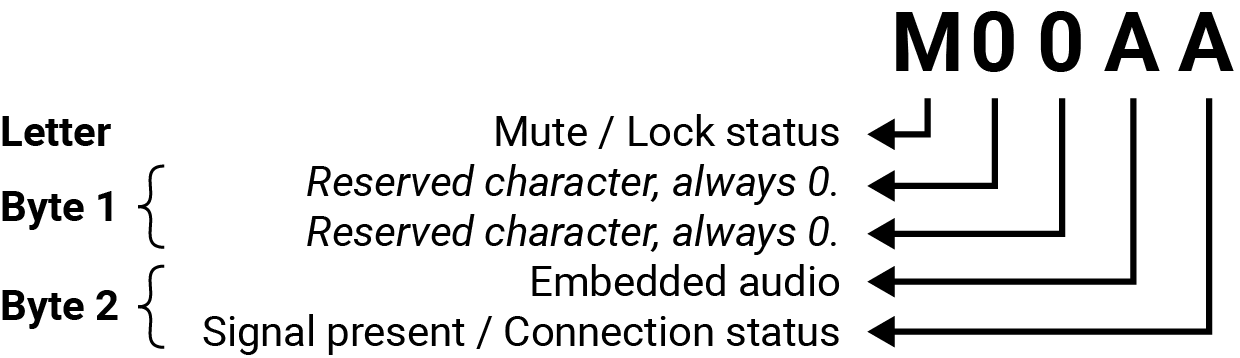
|
Letter (Character 1) |
||
|
Mute state |
Lock state |
|
|
T |
Unmuted |
Unlocked |
|
L |
Unmuted |
Locked |
|
M |
Muted |
Unlocked |
|
U |
Muted |
Locked |
|
Byte 1 |
Byte 2 |
|||||||
|
Character 2 |
Character 3 |
Character 4 |
Character 5 |
|||||
|
BIT 7-6 |
BIT 5-4 |
BIT 3-2 |
BIT 1-0 |
BIT 7-6 |
BIT 5-4 |
BIT 3-2 |
BIT 1-0 |
|
|
Reserved |
Reserved |
Reserved |
Reserved |
Embedded audio status |
Reserved |
Signal present status |
Connection status |
|
|
0 0 |
Reserved |
Reserved |
Reserved |
Reserved |
Unknown |
|||
|
0 1 |
Reserved |
|||||||
|
1 0 |
No embedded audio |
Reserved |
No signal |
Not connected |
||||
|
1 1 |
Embedded audio presents |
Signal presents |
Connected |
|||||
The Most Common Received Port Status Responses
|
T00AA |
T |
0 |
0 |
A |
A |
||||
|
Unlocked, Unmuted |
0 0 |
0 0 |
0 0 |
0 0 |
1 0 |
1 0 |
1 0 |
1 0 |
|
|
Reserved |
Reserved |
Reserved |
Reserved |
No embedded audio |
Not encrypted |
No signal |
Not connected |
||
|
T00AB |
T |
0 |
0 |
A |
B |
||||
|
Unlocked, Unmuted |
0 0 |
0 0 |
0 0 |
0 0 |
1 0 |
1 0 |
1 0 |
1 1 |
|
|
Reserved |
Reserved |
Reserved |
Reserved |
No embedded audio |
Not encrypted |
No signal |
Connected |
||
|
T00AF |
T |
0 |
0 |
A |
F |
||||
|
Unlocked, Unmuted |
0 0 |
0 0 |
0 0 |
0 0 |
1 0 |
1 0 |
1 1 |
1 1 |
|
|
Reserved |
Reserved |
Reserved |
Reserved |
No embedded audio |
Not encrypted |
Signal presents |
Connected |
||
|
T00EF |
T |
0 |
0 |
E |
F |
||||
|
Unlocked, Unmuted |
0 0 |
0 0 |
0 0 |
0 0 |
1 1 |
1 0 |
1 1 |
1 1 |
|
|
Reserved |
Reserved |
Reserved |
Reserved |
Embedded audio presents |
Not encrypted |
Signal presents |
Connected |
||
|
T00BF |
T |
0 |
0 |
B |
F |
||||
|
Unlocked, Unmuted |
0 0 |
0 0 |
0 0 |
0 0 |
1 0 |
1 1 |
1 1 |
1 1 |
|
|
Reserved |
Reserved |
Reserved |
Reserved |
No embedded audio |
Encrypted |
Signal presents |
Connected |
||
|
T00FF |
T |
0 |
0 |
F |
F |
||||
|
Unlocked, Unmuted |
0 0 |
0 0 |
0 0 |
0 0 |
1 1 |
1 1 |
1 1 |
1 1 |
|
|
Reserved |
Reserved |
Reserved |
Reserved |
Embedded audio presents |
Encrypted |
Signal presents |
Connected |
||
8.5.2. Querying the Status of Destination Port
Command and Response #status #portstatus
»GET·/MEDIA/VIDEO/XP.DestinationPortStatus
«pr·/MEDIA/VIDEO/XP.DestinationPortStatus=<out1_state>;<out2_state>;<…>;<out#_state>
The response contains 5 ASCII characters for each port. The first character indicates the mute/lock state, the next four characters represent a 2-byte HEX code showing the current state of the output ports.
Example
»GET /MEDIA/VIDEO/XP.DestinationPortStatus
«pr /MEDIA/VIDEO/XP.DestinationPortStatus=M00BF;T00FF
Legend
See at the previous section.
Example and Explanation
|
M |
0 |
0 |
B |
F |
||||
|
Unlocked, Muted |
0 0 |
0 0 |
0 0 |
0 0 |
1 0 |
1 1 |
1 1 |
1 1 |
|
Reserved |
Reserved |
Reserved |
Reserved |
No embedded audio |
Encrypted |
Signal presents |
Connected |
|
8.5.3. Querying the Video Crosspoint Setting
Command and Response
»GET·/MEDIA/VIDEO/XP.DestinationConnectionList
«pr·/MEDIA/VIDEO/XP.DestinationConnectionList=<in1>;<in2>;...;<in#>
Example
»GET /MEDIA/VIDEO/XP.DestinationConnectionList
«pr /MEDIA/VIDEO/XP.DestinationConnectionList=I1;I1
8.5.4. Switching a Video Input
Command and Response #crosspoint #switch
»CALL·/MEDIA/VIDEO/XP:switch(<in>:<out>)
«mO·/MEDIA/VIDEO/XP:switch
Example
»CALL /MEDIA/VIDEO/XP:switch(I2:O1)
«mO /MEDIA/VIDEO/XP:switch
Example 2
»CALL /MEDIA/VIDEO/XP:switch(0:O1)
«mO /MEDIA/VIDEO/XP:switch
When using 0 (zero) value as an input, the input will be disconnected and no signal will appear on the output.
8.5.5. Disconnecting the Video Inputs
Command and Response #crosspoint #switch
»CALL·/MEDIA/VIDEO/XP:switch(0:<out>)
«mO·/MEDIA/VIDEO/XP:switch
Example
»CALL /MEDIA/VIDEO/XP:switch(0:O1)
«mO /MEDIA/VIDEO/XP:switch
Input ports are disconnected from the O1 port.
8.5.6. Querying the Video Autoselect Settings
Command and Response
»GET·/MEDIA/VIDEO/XP.DestinationPortAutoselect
«pr·/MEDIA/VIDEO/XP.DestinationPortAutoselect=<out1_set>;<out2_set>;<…>;<out#_set>
Parameters
|
Identifier |
Parameter description |
Value |
Parameter value |
|
<out#_set> |
Two-letter code of the Autoselect settings – 1st letter |
E |
Autoselect is enabled. |
|
D |
Autoselect is disabled. |
||
|
Two-letter code of the Autoselect settings – 2nd letter |
F |
First detect: the first active video input is selected. |
|
|
P |
Priority detect: it is always the highest priority active video input that will be selected. |
||
|
L |
Last detect: it is always the last attached input that is automatically switched to the output. |
Example
»GET /MEDIA/VIDEO/XP.DestinationPortAutoselect
«pr /MEDIA/VIDEO/XP.DestinationPortAutoselect=EL
Explanation
The response shows the settings of each output one by one. EL: the Autoselect is Enabled on the output, selected mode is Last detect. For more details, see The Autoselect Feature section.
8.5.7. Changing the Autoselect Mode
Command and Response #autoselect
»CALL·/MEDIA/VIDEO/XP:setDestinationPortAutoselect(<out1_set>;<out2_set>;<…>;<out#_set>)
«mO·/MEDIA/VIDEO/XP.setDestinationPortAutoselect
Parameters
See the previous section.
Example 1
»CALL /MEDIA/VIDEO/XP:setDestinationPortAutoselect(O1:EP)
«mO /MEDIA/VIDEO/XP:setDestinationPortAutoselect
The setting is changed to EP: Autoselect is enabled (E); the mode is set to priority detect (P).
Example 2
»CALL /MEDIA/VIDEO/XP:setDestinationPortAutoselect(O1:D)
«mO /MEDIA/VIDEO/XP:setDestinationPortAutoselect
The setting is changed to DPM: Autoselect is disabled (D). The other settings remain unchanged. Since the outputs are linked, the change will affect local and link out.
8.5.8. Querying the Input Port Priority
Command and Response
»GET·/MEDIA/VIDEO/XP.PortPriorityList
«pr·/MEDIA/VIDEO/XP.PortPrioirtyList=<out1_list>;<out2_list>;<…>;<out#_list>
The response shows the priority of each output one after another. The priority number can be from 0 to 31; 0 is the highest and 30 is the lowest priority. 31 means that the port will be skipped from the priority list.
Parameters
<out#_list> The input port priority order of the given output port: <in1>,<in2>,<…>,<in>
Example
»GET /MEDIA/VIDEO/XP.PortPriorityList
«pr /MEDIA/VIDEO/XP.PortPriorityList=0,1,2,3,4,5
Parameters
|
Output |
||||||
|
Video input port |
I1 |
I2 |
I3 |
I4 |
I5 |
I6 |
|
Priority |
0 |
1 |
2 |
3 |
4 |
5 |
Highest priority is assigned to I1 port.
ATTENTION!The same priority number can be set to different input ports. When the priority numbers match, the input port with the lowest port number will have the highest priority.
8.5.9. Changing the Input Port Priority
Command and Response
»CALL·/MEDIA/VIDEO/XP:setAutoselectionPriority(<in>\(<out>\):<prio>);(<in>\(<out>\):<prio>)
«mO·/MEDIA/VIDEO/XP:setAutoselectionPrioirty
Parameters
The <prio> parameter is the Priority number from 0 to 31, equal numbers are allowed (31 means that the port will be skipped from the priority list). An input port priority can be set on an output port. Many settings can be executed by separating them with a semicolon (no space), see the example below.
Example
»CALL /MEDIA/VIDEO/XP:setAutoselectionPriority(I1\(O1\):4;I2\(O1\):4)
«mO /MEDIA/VIDEO/XP:setAutoselectionPriority
Explanation
The priority number of Input 1 and Input 2 has been set to 4 on Output 1. The example shows that certain control characters have been escaped: the backslash “\” character is inserted before the “(“ and “)” characters.
Command and Response #mute
»CALL·/MEDIA/VIDEO/XP:muteSource(<in>)
«mO·/MEDIA/VIDEO/XP:muteSource
Example
»CALL /MEDIA/VIDEO/XP:muteSource(I1)
«mO /MEDIA/VIDEO/XP:muteSource
Command and Response #unmute
»CALL·/MEDIA/VIDEO/XP:unmuteSource(<in>)
«mO·/MEDIA/VIDEO/XP:unmuteSource
Example
»CALL /MEDIA/VIDEO/XP:unmuteSource(I1)
«mO /MEDIA/VIDEO/XP:unmuteSource
Command and Response #lock
»CALL·/MEDIA/VIDEO/XP:lockSource(<in>)
«mO·/MEDIA/VIDEO/XP:lockSource
Example
»CALL /MEDIA/VIDEO/XP:lockSource(I1)
«mO /MEDIA/VIDEO/XP:lockSource
Command and Response #unlock
»CALL·/MEDIA/VIDEO/XP:unlockSource(<in>)
«mO·/MEDIA/VIDEO/XP:unlockSource
Example
»CALL /MEDIA/VIDEO/XP:unlockSource(I1)
«mO /MEDIA/VIDEO/XP:unlockSource
Command and Response #mute
»CALL·/MEDIA/VIDEO/XP:muteDestination(<out>)
«mO·/MEDIA/VIDEO/XP:muteDestination
Example
»CALL /MEDIA/VIDEO/XP:muteDestination(O1)
«mO /MEDIA/VIDEO/XP:muteDestination
Command and Response #unmute
»CALL·/MEDIA/VIDEO/XP:unmuteDestination(<out>)
«mO·/MEDIA/VIDEO/XP:unmuteDestination
Example
»CALL /MEDIA/VIDEO/XP:unmuteDestination(O1)
«mO /MEDIA/VIDEO/XP:unmuteDestination
Command and Response #lock
»CALL·/MEDIA/VIDEO/XP:lockDestination(<out>)
«mO·/MEDIA/VIDEO/XP:lockDestination
Example
»CALL /MEDIA/VIDEO/XP:lockDestination(O1)
«mO /MEDIA/VIDEO/XP:lockDestination
8.5.17. Unlocking Video Output
Command and Response #unlock
»CALL·/MEDIA/VIDEO/XP:unlockDestination(<out>)
«mO·/MEDIA/VIDEO/XP:unlockDestination
Example
»CALL /MEDIA/VIDEO/XP:unlockDestination(O1)
«mO /MEDIA/VIDEO/XP:unlockDestination
8.5.18. Setting the HDCP (Input Port)
HDCP capability can be enabled/disabled on the input ports so that non-encrypted content can be seen on a non-HDCP compliant display. See more information in the HDCP Management section.
Command and Response #hdcp
»SET·/MEDIA/VIDEO/<in>.HdcpEnable=<logical_value>
«pw·/MEDIA/VIDEO/<in>.HdcpEnable=<logical_value>
Parameters
|
Identifier |
Parameter description |
Value |
Parameter value |
|
<logical_value> |
HDCP enable/disable setting |
true |
HDCP encryption is enabled. |
|
false |
HDCP encryption is disabled. |
Example
»SET /MEDIA/VIDEO/I2.HdcpEnable=true
«pw /MEDIA/VIDEO/I2.HdcpEnable=true
INFO:HDCP can be set for digital video inputs (I2, I3, I4) only. The function is unavailable on the analog inputs (I1, I5).
8.5.19. Setting the HDCP (Output Port)
HDCP capability can be set to Auto/Always on the output ports, so that non-encrypted content can be transmitted to a non-HDCP compliant display. See more information in the HDCP Management section.
Command and Response #hdcp
»SET·/MEDIA/VIDEO/<out>.HdcpModeSetting=<HDCP_mode>
«pw·/MEDIA/VIDEO/<out>.HdcpModeSetting=<HDCP_mode>
Parameters
|
Identifier |
Parameter description |
Value |
Parameter value |
|
<HDCP_mode> |
HDCP mode |
0 |
Auto |
|
1 |
Always |
Example
»SET /MEDIA/VIDEO/O1.HdcpModeSetting=0
«pw /MEDIA/VIDEO/O1.HdcpModeSetting=0
8.5.20. Test Pattern Generator Mode
The output port can send a special image towards the sink device for testing purposes. The setting is available on the output ports with the parameters listed below.
Command and Response #testpattern #nosyncscreen
»SET·/MEDIA/VIDEO/<out>.TpgMode=<mode>
«pw·/MEDIA/VIDEO/<out>.TpgMode=<mode>
Parameters
|
Identifier |
Parameter description |
Value |
Parameter value |
|
<mode> |
Test pattern generator mode |
0 |
Always off: the test pattern is not displayed on the output. |
|
1 |
Always on: the test pattern is displayed on the output. |
||
|
2 |
Auto: the test pattern is displayed if there is no signal on the input port. |
Example
»SET /MEDIA/VIDEO/O1.TpgMode=2
«pw /MEDIA/VIDEO/O1.TpgMode=2
8.5.21. Test Pattern Generator Clock Source
Command and Response
»SET·/MEDIA/VIDEO/<out>.TpgClockSource=<clock_frequency>
«pw·/MEDIA/VIDEO/<out>.TpgClockSource=<clock_frequency>
Parameters
|
Identifier |
Parameter description |
Value |
Parameter value |
|
<clock_frequency> |
Clock frequency |
480 |
480p |
|
576 |
576p |
||
|
EXT |
External clock (from actual TMDS source) |
Example
»SET /MEDIA/VIDEO/O1.TpgClockSource=576
«pw /MEDIA/VIDEO/O1.TpgClockSource=576

Command and Response
»SET·/MEDIA/VIDEO/<out>.TpgPattern=<pattern>
«pw·/MEDIA/VIDEO/<out>.TpgPattern=<pattern>
Parameters
|
Identifier |
Parameter description |
Value |
Parameter value |
|
<pattern> |
The test pattern displayed on the sink device |
RED |
Red |
|
GREEN |
Green |
||
|
BLUE |
Blue |
||
|
BLACK |
Black |
||
|
WHITE |
White |
||
|
RAMP |
Ramp |
||
|
CHESS |
Chess |
||
|
BAR |
Bar |
||
|
CYCLE |
Cycle setting means all patterns are changed sequentially approx. every 2 seconds |
Example
»SET /MEDIA/VIDEO/O1.TpgPattern=GREEN
«pw /MEDIA/VIDEO/O1.TpgPattern=GREEN
8.5.23. Signal Type Settings (Output Port)
Command and Response #signaltype
»SET·/MEDIA/VIDEO/<out>.HdmiModeSetting=<mode>
«pw·/MEDIA/VIDEO/<out>.HdmiModeSetting=<mode>
Parameters
|
Identifier |
Parameter description |
Value |
Parameter value |
|
<mode> |
HDMI mode |
0 |
Auto |
|
1 |
DVI |
||
|
2 |
HDMI |
Example
»SET /MEDIA/VIDEO/O1.HdmiModeSetting=2
«pw /MEDIA/VIDEO/O1.HdmiModeSetting=2
INFO:Audio port numbering can be found in the Input/Output Port Numbering section.
8.6.1. Querying the Status of Source Ports
Command and Response #status #portstatus #audio
»GET·/MEDIA/AUDIO/XP.SourcePortStatus
«pr·/MEDIA/AUDIO/XP.SourcePortStatus=<in1_state>;<in2_state>;<…>; <in#_state>
The response contains 5 ASCII characters for each port. The first character indicates the mute/lock state, the next four characters represent a 2-byte HEX code showing the current state of the input ports.
Example
»GET /MEDIA/AUDIO/XP.SourcePortStatus
«pr /MEDIA/AUDIO/XP.SourcePortStatus=T000F;M000B;T000A
Legend:
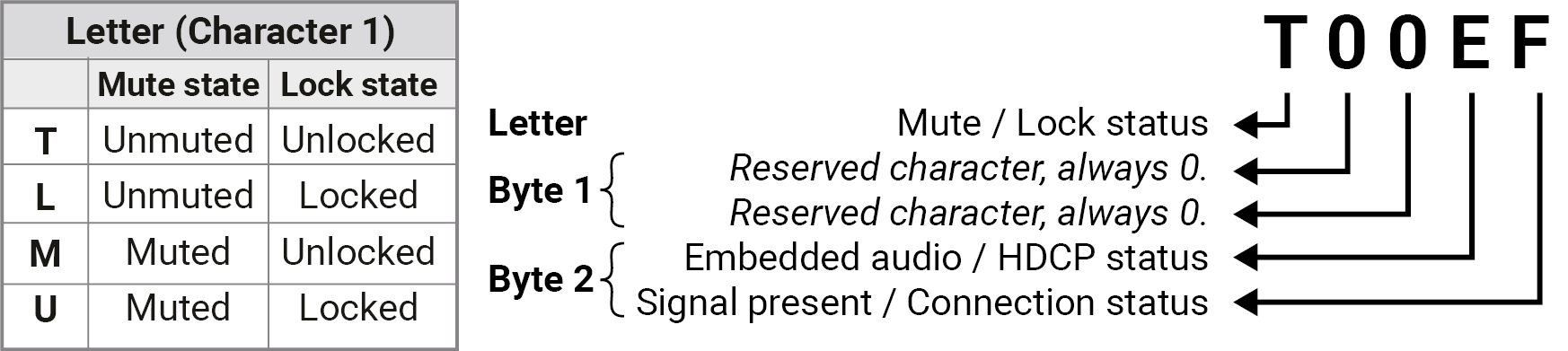
|
Byte 1 |
Byte 2 |
|||||||
|
Character 2 |
Character 3 |
Character 4 |
Character 5 |
|||||
|
BIT 7-6 |
BIT 5-4 |
BIT 3-2 |
BIT 1-0 |
BIT 7-6 |
BIT 5-4 |
BIT 3-2 |
BIT 1-0 |
|
|
Reserved |
Reserved |
Reserved |
Reserved |
Reserved |
Reserved |
Signal present status |
Connection status |
|
|
0 0 |
Reserved |
Reserved |
Reserved |
Reserved |
Reserved |
Reserved |
Unknown |
|
|
0 1 |
Reserved |
|||||||
|
1 0 |
No signal |
Not connected |
||||||
|
1 1 |
Signal presents |
Connected |
||||||
Example and Explanation (for input 2, M000B):
|
M |
0 |
0 |
0 |
B |
||||
|
Unlocked, Muted |
0 0 |
0 0 |
0 0 |
0 0 |
0 0 |
0 0 |
1 0 |
1 1 |
|
Reserved |
Reserved |
Reserved |
Reserved |
Reserved |
Reserved |
No signal |
Connected |
|
The Most Common Received Port Status Responses
|
T000A |
T |
0 |
0 |
0 |
A |
||||
|
Unlocked, Unmuted |
0 0 |
0 0 |
0 0 |
0 0 |
0 0 |
0 0 |
1 0 |
1 0 |
|
|
Reserved |
Reserved |
Reserved |
Reserved |
Reserved |
Reserved |
No signal |
Not connected |
||
|
T000B |
T |
0 |
0 |
0 |
B |
||||
|
Unlocked, Unmuted |
0 0 |
0 0 |
0 0 |
0 0 |
0 0 |
0 0 |
1 0 |
1 1 |
|
|
Reserved |
Reserved |
Reserved |
Reserved |
Reserved |
Reserved |
No signal |
Connected |
||
|
T000F |
T |
0 |
0 |
0 |
F |
||||
|
Unlocked, Unmuted |
0 0 |
0 0 |
0 0 |
0 0 |
0 0 |
0 0 |
1 1 |
1 1 |
|
|
Reserved |
Reserved |
Reserved |
Reserved |
Reserved |
Reserved |
Signal presents |
Connected |
||
Only for Phoenix audio port: Character 5 is C (11 00), which means signal is present, but the cable connection status, is unknown. The explanation is Phoenix connector has no pin that can indicate the connection status so this is always unknown.
8.6.2. Querying the Status of Destination Port
Command and Response #status #portstatus
»GET·/MEDIA/AUDIO/XP.DestinationPortStatus
«pr·/MEDIA/AUDIO/XP.DestinationPortStatus=<out1_state>
The response contains 5 ASCII characters for each port. The first character indicates the mute/lock state, the next 2-byte long HEX code showing the current state of the output port.
Example
»GET /MEDIA/AUDIO/XP.DestinationPortStatus
«pr /MEDIA/AUDIO/XP.DestinationPortStatus=T000F
Legend
See at the previous section.
Example and Explanation
|
T |
0 |
0 |
0 |
F |
||||
|
Unlocked, Unmuted |
0 0 |
0 0 |
0 0 |
0 0 |
0 0 |
0 0 |
1 1 |
1 1 |
|
Reserved |
Reserved |
Reserved |
Reserved |
Reserved |
Reserved |
Signal presents |
Connected |
|
8.6.3. Querying the Audio Crosspoint Setting
Command and Response
»GET·/MEDIA/AUDIO/XP.DestinationConnectionList
«pr·/MEDIA/AUDIO/XP.DestinationConnectionList=<in>
Example
»GET /MEDIA/AUDIO/XP.DestinationConnectionList
«pr /MEDIA/AUDIO/XP.DestinationConnectionList=I5
I5 input port is connected to the output port.
Command and Response #switch #crosspoint
»CALL·/MEDIA/AUDIO/XP:switch(<in>:<out>)
«mO·/MEDIA/AUDIO/XP:switch
Example
»CALL /MEDIA/AUDIO/XP:switch(I2:O1)
«mO /MEDIA/AUDIO/XP:switch
Explanation: I2 port is connected to O1 port.
8.6.5. Querying the Audio Autoselect Settings
Command and Response #autoselect
»GET·/MEDIA/AUDIO/XP.DestinationPortAutoselect
«pr·/MEDIA/AUDIO/XP.DestinationPortAutoselect=<out_set>
The response shows the settings of each output one by one.
Parameters
|
Identifier |
Parameter description |
Value |
Parameter value |
|
<out_set> |
Two-letter code of the Autoselect settings 1st letter |
E |
Autoselect is enabled. |
|
D |
Autoselect is disabled. |
||
|
Two-letter code of the Autoselect settings 2nd letter |
F |
First detect: the first active audio input is selected. |
|
|
P |
Priority detect: always the highest priority active audio input will be selected. |
||
|
L |
Last detect: always the last attached input is switched to the output automatically. |
||
|
S |
Static: the audio input follows the selected video if the video signal contains embedded audio. |
Example
»GET /MEDIA/AUDIO/XP.DestinationPortAutoselect
«pr /MEDIA/AUDIO/XP.DestinationPortAutoselect=EL
Explanation
EL: the Autoselect is Enabled on output, selected mode is Last detect.
INFO:For more information about the Autoselect feature see The Autoselect Feature section.
8.6.6. Changing the Autoselect Mode
Command and Response #audio
»CALL·/MEDIA/AUDIO/XP:setDestinationPortAutoselect(<out>:<out_set>)
«mO·/MEDIA/AUDIO/XP.setDestinationPortAutoselect
Parameters
See at the previous section.
Example 1
»CALL /MEDIA/AUDIO/XP:setDestinationPortAutoselect(O1:EL)
«mO /MEDIA/AUDIO/XP:setDestinationPortAutoselect
The setting is changed to EPM: Autoselect is enabled (E); the mode is set to Priority detect (P), and the port will be disconnected if a higher priority port becomes active (M).
Example 2
»CALL /MEDIA/AUDIO/XP:setDestinationPortAutoselect(O1:D)
«mO /MEDIA/AUDIO/XP:setDestinationPortAutoselect
The setting is changed to DPM: Autoselect is disabled (D). The other settings remain unchanged.
INFO:For more information about the Autoselect feature see The Autoselect Feature section.
8.6.7. Querying the Input Port Priority
Command and Response
»GET·/MEDIA/AUDIO/XP.PortPriorityList
«pr·/MEDIA/AUDIO/XP.PortPrioirtyList=<out1_list>;<out2_list>;<…>;<out#_list>
The response shows the priority of each output one after another. The priority number can be from 0 to 31; 0 is the highest and 30 is the lowest priority. 31 means that the port will be skipped from the priority list.
Parameters
<out1_list> The input port priority order of the given output port: <in1>,<in2>,…,<in>
Example
»GET /MEDIA/AUDIO/XP.PortPriorityList
«pr /MEDIA/AUDIO/XP.PortPriorityList=0,1,2
|
Output |
|||
|
Audio input port |
I1 |
I2 |
I3 |
|
Priority |
0 |
1 |
2 |
Highest priority is assigned to I1 port.
ATTENTION!The same priority number can be set to different input ports. When the priority numbers match, the input port with the lowest port number will have the highest priority.
8.6.8. Changing the Input Port Priority
Command and Response #audio
»CALL·/MEDIA/AUDIO/XP:setAutoselectionPriority<(in>\(<out>\):<prio>);(<in>\(<out>\):<prio>)
«mO·/MEDIA/AUDIO/XP:setAutoselectionPrioirty
Parameters
|
<prio> |
Priority number from 0 to 31, equal numbers are allowed (31 means that the port will be skipped from the priority list). |
An input port priority can be set on an output port. Many settings can be executed by separating with a semicolon (no space), see the example below.
Example
»CALL /MEDIA/VIDEO/XP:setAutoselectionPriority(I1\(O1\):4;I2\(O1\):4)
«mO /MEDIA/VIDEO/XP:setAutoselectionPriority
Explanation:
The priority number of input 1 and Input 2 has been set to 4 on output 1. The example shows that certain control characters have been escaped: the backslash “\” character is inserted before the “(“ and “)” characters. See more information about the escaping in the Escaping section.
Command and Response #mute
»CALL·/MEDIA/AUDIO/XP:muteSource(<in>)
«mO·/MEDIA/AUDIO/XP:muteSource
Example
»CALL /MEDIA/AUDIO/XP:muteSource(I1;I3)
«mO /MEDIA/AUDIO/XP:muteSource
Command and Response #unmute
»CALL·/MEDIA/AUDIO/XP:unmuteSource(<in>)
«mO·/MEDIA/AUDIO/XP:unmuteSource
Example
»CALL /MEDIA/AUDIO/XP:unmuteSource(I1;I2)
«mO /MEDIA/AUDIO/XP:unmuteSource
Command and Response #lock
»CALL·/MEDIA/AUDIO/XP:lockSource(<in>)
«mO·/MEDIA/AUDIO/XP:lockSource
Example
»CALL /MEDIA/AUDIO/XP:lockSource(I2;I4)
«mO /MEDIA/AUDIO/XP:lockSource
Command and Response #unlock
»CALL·/MEDIA/AUDIO/XP:unlockSource(<in>)
«mO·/MEDIA/AUDIO/XP:unlockSource
Example
»CALL /MEDIA/AUDIO/XP:unlockSource(I1;I4)
«mO /MEDIA/AUDIO/XP:unlockSource
Command and Response #mute
»CALL·/MEDIA/AUDIO/XP:muteDestination(<out>)
«mO·/MEDIA/AUDIO/XP:muteDestination
Example
»CALL /MEDIA/AUDIO/XP:muteDestination(O1)
«mO /MEDIA/AUDIO/XP:muteDestination
Command and Response #unmute
»CALL·/MEDIA/AUDIO/XP:unmuteDestination(<out>)
«mO·/MEDIA/AUDIO/XP:unmuteDestination
Example
»CALL /MEDIA/AUDIO/XP:unmuteDestination(O1)
«mO /MEDIA/AUDIO/XP:unmuteDestination
Command and Response #lock
»CALL·/MEDIA/AUDIO/XP:lockDestination(<out>)
«mO·/MEDIA/AUDIO/XP:lockDestination
Example
»CALL /MEDIA/AUDIO/XP:lockDestination(O1)
«mO /MEDIA/AUDIO/XP:lockDestination
8.6.16. Unlocking Audio Output
Command and Response #unlock
»CALL·/MEDIA/AUDIO/XP:unlockDestination(<out>)
«mO·/MEDIA/AUDIO/XP:unlockDestination
Example
»CALL /MEDIA/AUDIO/XP:unlockDestination(O1)
«mO /MEDIA/AUDIO/XP:unlockDestination
8.7. Analog Audio Port Settings
8.7.1. Setting the Volume in dB
Command and Response #analogaudio #volume #balance #gain
»SET·/MEDIA/AUDIO/<in|out>.VolumedB=<volume>
«pw·/MEDIA/AUDIO/<in|out>.VolumedB=<volume>
Parameters
|
Parameter |
Parameter description |
|
<volume> |
Sets the input volume (attenuation) between -95.62 dB and 0 dB. |
Example
»SET /MEDIA/AUDIO/I3.VolumedB=-15
«pw /MEDIA/AUDIO/I3.VolumedB=-15.000
8.7.2. Setting the Volume in Percent
Command and Response
»SET·/MEDIA/AUDIO/<in|out>.VolumePercent=<percent>
«pw·/MEDIA/AUDIO/<in|out>.VolumePercent=<percent>
Example
»SET /MEDIA/AUDIO/O3.VolumePercent=50
«pw /MEDIA/AUDIO/O3.VolumePercent=50.00
Command and Response #balance
»SET·/MEDIA/AUDIO/<in|out>.Balance=<balance>
«pw·/MEDIA/AUDIO/<in|out>.Balance=<balance>
Parameters
|
Parameter |
Parameter description |
|
<balance> |
Sets the balance; -100 means left balance, +100 means right balance, step is 1. Center is 0 (default). |
Example
»SET /MEDIA/AUDIO/I3.Balance=+25
«pw /MEDIA/AUDIO/I3.Balance=+25
INFO:The setting is available on the analog audio input port only.
Command and Response #gain
»SET·/MEDIA/AUDIO/<in>.Gain=<gain>
«pw·/MEDIA/AUDIO/<in>.Gain=<gain>
Parameters
|
Parameter |
Parameter description |
|
<gain> |
Sets the input gain between -12 dB and 35 dB. |
Example
»SET /MEDIA/AUDIO/I3.Gain=4
«pw /MEDIA/AUDIO/I3.Gain=4
The Event Manager in the LDC allows the creation of any kind of Events. Sometimes, the events have to be arranged or modified by LW3 commands from another device. These commands are detailed in the coming sections. #eventmanager
8.8.1. How to arrange an Event?
The following are necessary to have a successful event:
▪Defining the Condition
▪Defining the Action
▪Setting the Delay (optional)
▪Name the Event and set to Enabled. (Setting the Event to Enabled is recommended as the last step.)
Command and Response
»SET·/EVENTS/E<loc>.Condition=<expression>
«pw·/EVENTS/E<loc>.Condition=<expression>
Parameters
The structure of the <expression> is: <node_path>.<property>=<value>.
Example 1 – property changes to a set value
»SET /EVENTS/E1.Condition=/MEDIA/VIDEO/I1.SignalPresent=1
«pw /EVENTS/E1.Condition=/MEDIA/VIDEO/I1.SignalPresent=1
The Condition is fulfilled if the SignalPresent property changes to '1'.
Example 2 – property changes anything but the set value
In some cases, the opposite is necessary: when the property does not equal with the value. If you need so, the ConditionInverted property must be set to true:
»SET /EVENTS/E2.Condition=/MEDIA/VIDEO/O1.ConnectedSource=I1
«pw /EVENTS/E2.Condition=/MEDIA/VIDEO/O1.ConnectedSource=I1
»SET /EVENTS/E2.ConditionInverted=true
«pw /EVENTS/E2.ConditionInverted=true
The Condition is fulfilled if the ConnectedSource property does not equal with 'I1' (in other words: if other input port is connected to O1 than I1).
Example 3 – property changes to anything
When it is not the property value that matters, but the change of the property value, the change can be set as a condition. In this case, put a ? character to the end of the desired property:
»SET /EVENTS/E3.Condition=/MEDIA/VIDEO/O1.ConnectedSource?
«pw /EVENTS/E3.Condition=/MEDIA/VIDEO/O1.ConnectedSource?
If the ConnectedSource property changes (due to a crosspoint-switch), the set Condition is fulfilled.
8.8.2. Setting a Condition by Linking Another Condition
Command and Response
»SET·/EVENTS/E<loc>.Condition=<event_nr>
«pw·/EVENTS/E<loc>.Condition=<event_nr>
Parameters
The <event_nr> means the number (location) of the linked event without letter 'E'.
Example
»SET /EVENTS/E2.Condition=1
«pw /EVENTS/E2.Condition=1
The Condition of the E2 Event is set to be the same as set for E1 Event.
8.8.3. Setting a Condition by Linking More Conditions
The first generation of the Event Manager is able to sense a change (one condition), but in some cases that is not enough. The practical experience has shown there is a need to examine more conditions (up to four) as follows: if one of the set conditions becomes true (while the other conditions are fulfilled), then the set Action is launched.
Command and Response
»SET·/EVENTS/E<loc>.Condition=<event_nr>&<event_nr>&<event_nr>&<event_nr>
«pw·/EVENTS/E<loc>.Condition=<event_nr>&<event_nr>&<event_nr>&<event_nr>
Parameters
The <event_nr> parameters mean the numbers (locations) of the linked Events without letter 'E'. Up to four event number can be set.
Example
»SET /EVENTS/E4.Condition=1&2&3
«pw /EVENTS/E4.Condition=1&2&3
If two Conditions exist and the third is detected (changes to true), the Condition of E4 will be fulfilled and the Action of E4 will be launched.
TIPS AND TRICKS:You do not have to define Actions for E1, E2 and E3 Events, and you can leave those Disabled.
8.8.4. Setting an Action by Specifying a Direct Path
Command and Response
»SET·/EVENTS/E<loc>.Action=<expression>
«pw·/EVENTS/E<loc>.Action=<expression>
Parameters
The structure of the <expression> is: <node_path>.<property_or_method>=<value>. Properties and methods are handled in the same way: dot (.) stands after the path in both cases, colon (:) is not used. Do not use brackets for methods. The <value> parameter is optional in case of certain methods.
Example
»SET /EVENTS/E1.Action=/MEDIA/AUDIO/XP.switch=I2:O1
«pw /EVENTS/E1.Action=/MEDIA/AUDIO/XP.switch=I2:O1
8.8.5. Setting an Action by Linking Another Action
Command and Response
»SET·/EVENTS/E<loc>.Action=<event_nr>
«pw·/EVENTS/E<loc>.Action=<event_nr>
Parameters
The <event_nr> means the number (location) of the linked event without letter 'E'.
Example
»SET /EVENTS/E2.Action=1
«pw /EVENTS/E2.Action=1
The Action of the E2 Event is set to be the same as set for E1 Event.
In most cases, the Action is performed immediately after the Condition is detected. But sometimes a delay is necessary between the Condition and the Action, thus the following delay options are defined: #eventmanager
Command and Response (summary)
»SET·/EVENTS/E<loc>.ConditionTimeout=<time>
«pw·/EVENTS/E<loc>.ConditionTimeout=<time>
»SET·/EVENTS/E<loc>.ConditionEndCheck=<true/false>
«pw·/EVENTS/E<loc>.ConditionEndCheck=<true/false>
»SET·/EVENTS/E<loc>.ConditionTimeoutContinuous=<true/false>
«pw·/EVENTS/E<loc>.ConditionTimeoutContinuous=<true/false>
Parameters
The <time> parameter means seconds. Set the following properties for the desired delay type:
|
Delay type |
Properties to set |
Value |
Result |
|
no delay |
/EVENTS/E<loc>.ConditionTimeout |
0 |
The Action will be launched after the Condition is detected. |
|
simple delay |
/EVENTS/E<loc>.ConditionTimeout |
<time> |
If the Condition is detected, the action will be launched after the set time. |
|
still true after |
/EVENTS/E<loc>.ConditionTimeout |
<time> |
The Condition is fulfilled only if it is detected again after the set time. |
|
/EVENTS/E<loc>.ConditionEndCheck |
true |
||
|
continuously true |
/EVENTS/E<loc>.ConditionTimeout |
<time> |
The Condition is fulfilled only if it is existing continuously during the set time. |
|
/EVENTS/E<loc>.ConditionEndCheck |
true |
||
|
/EVENTS/E<loc>.ConditionTimeoutContinuous |
true |
Example 1 (simple delay)
»SET /EVENTS/E1.ConditionTimeout=10
«pw /EVENTS/E1.ConditionTimeout=10
If the Condition is detected (the ConditionDetect property becomes true), the ConditionTimeoutPending property becomes true. 10 seconds later the ConditionTimeoutPending property becomes false and the set Action is launched.
Example 2 ('still true after' delay type)
»SET /EVENTS/E1.ConditionTimeout=10
«pw /EVENTS/E1.ConditionTimeout=10
»SET /EVENTS/E1.ConditionTimeoutPending=true
«pw /EVENTS/E1.ConditionTimeoutPending=true
If the Condition is detected (the ConditionDetect property becomes true), the ConditionTimeoutPending property becomes true. 10 seconds later the Condition is checked again (the ConditionTimeoutPending property becomes false). If the Condition can be detected again (the ConditionDetect property becomes true again), the Condition is fulfilled and the set Action is launched.
Example 3 ('continuously true' delay type)
»SET /EVENTS/E1.ConditionTimeout=10
«pw /EVENTS/E1.ConditionTimeout=10
»SET /EVENTS/E1.ConditionTimeoutContinuous=true
«pw /EVENTS/E1.ConditionTimeoutContinuous=true
If the Condition is detected (the ConditionDetect property becomes true), the ConditionTimeoutPending property becomes true. If the Condition can be detected in the following 10 seconds continuously (the ConditionDetect property stays true), the Condition is fulfilled, the ConditionTimeoutPending property becomes false, and the set Action is launched.
8.9.2. Setting the Name of the Event
Command and Response
»SET·/EVENTS/E<loc>.Name=<string>
«pw·/EVENTS/E<loc>.Name=<string>
Parameters
The <string> may contain letters (A-Z) and (a-z), numbers (0-9), special characters: hyphen ( - ), underscore ( _ ), and space ( ), up to 20 characters. Longer string results in an error, unaccepted characters are skipped.
Example
»SET /EVENTS/E1.Name=Projector_ON
«pw /EVENTS/E1.Name=Projector_ON
8.9.3. Enabling/Disabling the Event
Command and Response
»SET·/EVENTS/E<loc>.Enabled=<true/false>
«pw·/EVENTS/E<loc>.Enabled=<true/false>
Parameters
When the property value is true (or 1), the Action will be launched if the Condition is detected. If the property is false (or 0), the Action will not run, however, the Condition counter will be increased when detected.
Example
»SET /EVENTS/E1.Enabled=true
«pw /EVENTS/E1.Enabled=true
This feature works like a condition is fulfilled. When a complex control system is built, a Condition may trigger numerous Actions. A typical example is when a system is powered on and the ’ready-to-use’ state has to be loaded. In this case, there could be many actions that are based on the same condition. In order to reduce the number of the commands, you can trigger one ’key’ condition, which starts the whole process.
Command and Response
»CALL·/EVENTS/E<loc>:triggerCondition(1)
«mO·/EVENTS/E<loc>:triggerCondition
Example
»CALL /EVENTS/E1:triggerCondition(1)
«mO /EVENTS/E1:triggerCondition
The Condition of Event1 is fulfilled, the set Action will be launched (after the delay if set).
8.9.5. Querying the Condition Counter
This property shows how many times the Condition has been detected and triggered altogether. The counter is reset at boot.
Command and Response
»GET·/EVENTS/E<loc>.ConditionCount
«pw·/EVENTS/E<loc>.ConditionCount=<num_value>
Example
»GET /EVENTS/E1.ConditionCount
«pw /EVENTS/E1>.ConditionCount=5
8.9.6. Querying the Condition Trigger Counter
This property shows how many times the Condition has been triggered, but does not contain the number of real detections. The counter is reset at boot.
Command and Response
»GET·/EVENTS/E<loc>.ExternalConditionTriggerCount
«pw·/EVENTS/E<loc>.ExternalConditionTriggerCount=<num_value>
Example
»GET /EVENTS/E1.ExternalConditionTriggerCount
«pw /EVENTS/E1.ExternalConditionTriggerCount=2
This tool is for launching the Action without detecting or triggering the Condition.
Command and Response
»CALL·/EVENTS/E<loc>:ActionTest(1)
«mO·/EVENTS/E<loc>:ActionTest
Example
»CALL /EVENTS/E1:ActionTest(1)
«mO /EVENTS/E1:ActionTest
8.10. Ethernet Port Configuration
8.10.1. Setting the DHCP State
ATTENTION!When you change a network property, the new value is stored, but the applySettings method must always be called to apply the new settings. When two or more network parameters are changed, the applySettings method is enough to be called once as a final step.
Command and Response #dhcp #network #ipaddress #ethernet
»SET·/MANAGEMENT/NETWORK.DhcpEnabled=<dhcp_status>
«pw·/MANAGEMENT/NETWORK.DhcpEnabled=<dhcp_status>
Parameters
If the <dhcp_status> parameter is true, the current IP address setting is DHCP, if the parameter is false, the current IP address is static.
Example
»SET /MANAGEMENT/NETWORK.DhcpEnabled=true
«pw /MANAGEMENT/NETWORK.DhcpEnabled=true
»CALL /MANAGEMENT/NETWORK:applySettings(1)
«mO /MANAGEMENT/NETWORK:applySettings
INFO:The applySettings method will save and apply the new value and the device will reboot.
INFO:The current setting can be queried by the GET command.
8.10.2. Changing the IP Address (Static)
Command and Response
»SET·/MANAGEMENT/NETWORK.StaticIpAddress=<IP_address>
«pw·/MANAGEMENT/NETWORK.StaticIpAddress=<IP_address>
Example
»SET /MANAGEMENT/NETWORK.StaticIpAddress=192.168.0.85
«pw /MANAGEMENT/NETWORK.StaticIpAddress=192.168.0.85
»CALL /MANAGEMENT/NETWORK:applySettings(1)
«mO /MANAGEMENT/NETWORK:applySettings
INFO:The applySettings method will save and apply the new value and the device will reboot.
INFO:The current setting can be queried by the GET command.
8.10.3. Changing the Subnet Mask (Static)
Command and Response #ipaddress
»SET·/MANAGEMENT/NETWORK.StaticNetworkMask=<netmask>
«pw·/MANAGEMENT/NETWORK.StaticNetworkMask=<netmask>
Example
»SET /MANAGEMENT/NETWORK.StaticNetworkMask=255.255.255.0
«pw /MANAGEMENT/NETWORK.StaticNetworkMask=255.255.255.0
»CALL /MANAGEMENT/NETWORK:applySettings(1)
«mO /MANAGEMENT/NETWORK:applySettings
INFO:The applySettings method will save and apply the new value and the device will reboot.
INFO:The current setting can be queried by using the GET command.
8.10.4. Changing the Gateway Address (Static)
Command and Response
»SET·/MANAGEMENT/NETWORK.StaticGatewayAddress=<gw_address>
«pw·/MANAGEMENT/NETWORK.StaticGatewayAddress=<gw_address>
Example
»SET /MANAGEMENT/NETWORK.StaticGatewayAddress=192.168.0.5
«pw /MANAGEMENT/NETWORK.StaticGatewayAddress=192.168.0.5
»CALL /MANAGEMENT/NETWORK:applySettings(1)
«mO /MANAGEMENT/NETWORK:applySettings
INFO:The applySettings method will save and apply the new value and the device will reboot.
INFO:The current setting can be queried by using the GET command.
8.10.5. Applying Network Settings
Command and Response
»CALL·/MANAGEMENT/NETWORK:ApplySettings(1)
«m0·/MANAGEMENT/NETWORK:ApplySettings
Example
»CALL /MANAGEMENT/NETWORK:ApplySettings(1)
«m0 /MANAGEMENT/NETWORK:ApplySettings
All network settings that have been changed are applied and the network interface restarts.
8.11. RS-232 Port Configuration
INFO:RS-232 port numbering can be found in the Input/Output Port Numbering section.
Command and Response #rs232 #rs-232 #serial #protocol
»SET·/MEDIA/UART/<port>.ControlProtocol=<protocol>
«pw·/MEDIA/UART/<port>.ControlProtocol=<protocol>
Parameters
|
Identifier |
Parameter description |
Value |
Parameter value |
|
<protocol> |
Control protocol that is applied on the selected serial port |
0 |
LW2 protocol |
|
1 |
LW3 protocol |
Example
»SET /MEDIA/UART/P1.ControlProtocol=1
«pw /MEDIA/UART/P1.ControlProtocol=1
Command and Response
»SET·/MEDIA/UART/<port>.Baudrate=<baudrate>
«pw·/MEDIA/UART/<port>.Baudrate=<baudrate>
Parameters
|
Identifier |
Parameter description |
Value |
Parameter value |
|
<baudrate> |
BAUD rate value |
0 |
4800 |
|
1 |
7200 |
||
|
2 |
9600 |
||
|
3 |
14400 |
||
|
4 |
19200 |
||
|
5 |
38400 |
||
|
6 |
57600 |
||
|
7 |
115200 |
Example
»SET /MEDIA/UART/P1.Baudrate=2
«pw /MEDIA/UART/P1.Baudrate=2
Command and Response
»SET·/MEDIA/UART/<port>.DataBits=<databits>
«pw·/MEDIA/UART/<port>.DataBits=<databits>
Parameters
|
Identifier |
Parameter description |
Value |
Parameter value |
|
<databits> |
Databits value |
8 |
8 |
|
9 |
9 |
Example
»SET /MEDIA/UART/P1.DataBits=8
«pw /MEDIA/UART/P1.DataBits=8
Command and Response
»SET·/MEDIA/UART/<port>.StopBits=<stopbits>
«pw·/MEDIA/UART/<port>.StopBits=<stopbits>
Parameters
|
Identifier |
Parameter description |
Value |
Parameter value |
|
<stopbits> |
Stopbits value |
0 |
1 |
|
1 |
1,5 |
||
|
2 |
2 |
Example
»SET /MEDIA/UART/P1.StopBits=0
«pw /MEDIA/UART/P1.StopBits=0
Command and Response
»SET·/MEDIA/UART/ <port>.Parity=<parity>
«pw·/MEDIA/UART/<port>.Parity=<parity>
Parameters
|
Identifier |
Parameter description |
Value |
Parameter value |
|
<parity> |
Parity setting |
0 |
None |
|
1 |
Odd |
||
|
2 |
Even |
Example
»SET /MEDIA/UART/P1.Parity=0
«pw /MEDIA/UART/P1.Parity=0
8.11.6. Setting the RS-232 Operation Mode
Command and Response #rs232 #rs-232 #serial #commandinjection
»SET·/MEDIA/UART/<port>.Rs232Mode=<mode>
«pw·/MEDIA/UART/<port>.Rs232Mode=<mode>
Parameters
|
Identifier |
Parameter description |
Value |
Parameter value |
|
<stopbits> |
Stopbits value |
0 |
Pass-through |
|
1 |
Control |
||
|
2 |
Command injection |
Example
»SET /MEDIA/UART/P1.Rs232Mode=1
«pw /MEDIA/UART/P1.Rs232Mode=1
INFO:See more information about RS-232 modes in the Technical Background section.
8.11.7. Enabling/Disabling Command Injection
Command and Response
»SET·/MEDIA/UART/<port>.CommandInjectionEnable=<logical_value>
«pw·/MEDIA/UART/<port>.CommandInjectionEnable=<logical_value>
Parameters
|
Identifier |
Parameter description |
Value |
Parameter value |
|
<logical_value> |
Command injection enable/disable setting |
true |
Command injection is enabled. |
|
false |
Command injection is disabled. |
Example
»SET /MEDIA/UART/P1.CommandInjectionEnable=true
«pw /MEDIA/UART/P1.CommandInjectionEnable=true
INFO:The Command injection status is stored in another read-only property:
/MEDIA/UART/<serial_port>.CommandInjectionStatus.
8.12. Ethernet Message Sending
The device can be used for sending a message to a certain IP:port address. The three different commands allow controlling the connected (third-party) devices. #message
8.12.1. Sending a TCP Message (ASCII-format)
The command is for sending a command message in ASCII-format. This method allows escaping the control characters.
Command and Response
»CALL·/MEDIA/ETHERNET:tcpMessage(<IP_address>:<port_no>=<message>)
«mO·/MEDIA/ETHERNET:tcpMessage
Example
»CALL /MEDIA/ETHERNET:tcpMessage(192.168.0.103:6107=C00)
«mO /MEDIA/ETHERNET:tcpMessage
The 'C00' message is sent to the indicated IP:port address.
Example with HEX codes
»CALL /MEDIA/ETHERNET:tcpMessage(192.168.0.20:5555=C00\x0a\x0d)
«mO /MEDIA/ETHERNET:tcpMessage
The 'C00' message with CrLf (Carriage return and Line feed) is sent to the indicated IP:port address. The \x sequence indicates the HEX code; see more information in the Escaping section.
8.12.2. Sending a TCP Text (ASCII-format)
The command is for sending a text message in ASCII-format. This method does not allow escaping or inserting control characters.
Command and Response
»CALL·/MEDIA/ETHERNET:tcpText(<IP_address>:<port_no>=<text>)
«mO·/MEDIA/ETHERNET:tcpText
Example
»CALL /MEDIA/ETHERNET:tcpText(192.168.0.103:6107=pwr_on)
«mO /MEDIA/ETHERNET:tcpText
The 'pwr_on' text is sent to the indicated IP:port address.
8.12.3. Sending a TCP Binary Message (HEX-format)
The command is for sending a binary message in Hexadecimal format. This method does not require escaping the control and non-printable characters.
Command and Response
»CALL·/MEDIA/ETHERNET.tcpBinary(<IP_address>:<port_no>=<HEX_message>)
«mO·/MEDIA/ETHERNET:tcpBinary
Example
»CALL /MEDIA/ETHERNET:tcpBinary(192.168.0.103:6107=0100000061620000cdcc2c40)
«mO /MEDIA/ETHERNET:tcpBinary
The '0100000061620000cdcc2c40' message is sent to the indicated IP:port address.
INFO:There is no need to insert a space or other separator character between the binary messages.
8.12.4. Sending a UDP Message (ASCII-format)
The command is for sending a UDP message in ASCII-format. This method allows escaping the control characters.
Command and Response
»CALL·/MEDIA/ETHERNET:udpMessage(<IP_address>:<port_no>=<message>)
«mO·/MEDIA/ETHERNET:udpMessage
Example
»CALL /MEDIA/ETHERNET:udpMessage(192.168.0.103:6107=C00)
«mO /MEDIA/ETHERNET:udpMessage
The 'C00' message is sent to the indicated IP:port address.
Example with HEX codes
»CALL /MEDIA/ETHERNET:udpMessage(192.168.0.20:9988=C00\x0a\x0d)
«mO /MEDIA/ETHERNET:udpMessage
The 'C00' message with CrLf (Carriage return and Line feed) is sent to the indicated IP:port address. The \x sequence indicates the HEX code; see more information in the Escaping section.
8.12.5. Sending a UDP Text (ASCII-format)
The command is for sending a text message in ASCII-format via UDP-protocol. This method does not allow escaping or inserting control characters.
Command and Response
»CALL·/MEDIA/ETHERNET:udpText(<IP_address>:<port_no>=<text>)
«mO·/MEDIA/ETHERNET:udpText
Example
»CALL /MEDIA/ETHERNET:udpText(192.168.0.20:9988=open)
«mO /MEDIA/ETHERNET:udpText
The 'open' text is sent to the indicated IP:port address.
8.12.6. Sending a UDP Binary Message (HEX-format)
The command is for sending a binary message in Hexadecimal format. This method does not require escaping the control and non-printable characters.
Command and Response
»CALL·/MEDIA/ETHERNET:udpBinary(<IP_address>:<port_no>=<HEX_message>)
«mO·/MEDIA/ETHERNET:udpBinary
Example
»CALL /MEDIA/ETHERNET:udpBinary(192.168.0.20:9988=433030)
«mO /MEDIA/ETHERNET:udpBinary
The '433030' message is sent to the indicated IP:port address.
INFO:There is no need to insert a space or other separator character between the binary messages.
8.13.1. Sending a Message (ASCII-format) via RS-232
The command is for sending a command message in ASCII-format. This method allows escaping the control characters. For more information, see the Escaping section.
Command and Response #message
»CALL·/MEDIA/UART/P1:sendMessage(<message>)
«mO·/MEDIA/UART/P1:sendMessage
Example
»CALL /MEDIA/UART/P1:sendMessage(PWR0)
«mO /MEDIA/UART/P1:sendMessage
The 'PWR0' message is sent out via the P1 serial port.
8.13.2. Sending a Text (ASCII-format) via RS-232
The command is for sending a command message in ASCII-format. This method does not require escaping the control and non-printable characters.
Command and Response
»CALL·/MEDIA/UART/P1:sendText(<message>)
«mO·/MEDIA/UART/P1:sendText
Example
»CALL /MEDIA/UART/P1:sendText(open)
«mO /MEDIA/UART/P1:sendText
The 'open' text is sent out via the P1 serial port.
8.13.3. Sending a Binary Message (HEX-format) via RS-232
The command is for sending a binary message in Hexadecimal format. This method does not require escaping the control and non-printable characters.
Command and Response
»CALL·/MEDIA/UART/P1:sendBinaryMessage(<message>)
«mO·/MEDIA/UART/P1:sendBinaryMessage
Example
»CALL /MEDIA/UART/P1:sendBinaryMessage(433030)
«mO /MEDIA/UART/P1:sendBinaryMessage
The '433030' message is sent out via the P1 serial port.
8.13.4. Using Hexadecimal Codes
Hexadecimal codes can be inserted in the ASCII message when using:
sendMessage command: CALL /MEDIA/UART/P1:sendMessage(C00\x0D)
tcpMessage command: CALL /MEDIA/ETHERNET:tcpMessage(C00\x0D)
udpMessage command: CALL /MEDIA/ETHERNET:udpMessage(C00\x0D)
▪C00: the message.
▪\x: indicates that the following is a hexadecimal code.
▪0D: the hexadecimal code (Carriage Return)
DIFFERENCE:Only SW4-OPT-TX240RAK model has GPIO interface.
INFO:Use the GET command to query a parameter. #gpio
Parameters
|
Identifier |
Parameter description |
Value |
Parameter value |
|
<port> |
The desired GPIO port |
P1-P8 |
GPIO port number |
8.14.1. Setting the Direction of a GPIO Pin
Command and Response
»SET·/MEDIA/GPIO/<port>.Direction=<direction>
«pw·/MEDIA/GPIO/<port>.Direction=<direction>
Parameters
|
Identifier |
Parameter description |
Value |
Parameter value |
|
<direction> |
Direction of the GPIO pin |
I |
Input |
|
O |
Output |
Example
»SET /MEDIA/GPIO/P1.Direction=I
«pw /MEDIA/GPIO/P1.Direction=I
8.14.2. Setting the Output Level of a GPIO Pin
Command and Response
»SET·/MEDIA/GPIO/<port>.Output=<value>
«pw·/MEDIA/GPIO/ <port>.Output=<value>
Parameters
|
Identifier |
Parameter description |
Value |
Parameter value |
|
<value> |
Level value of the GPIO pin |
H |
Logical high level |
|
L |
Logical low level |
Example
»SET /MEDIA/GPIO/P1.Output=H
«pw /MEDIA/GPIO/P1.Output=H
8.14.3. Toggling the Level of a GPIO Pin
Command and Response
»CALL·/MEDIA/GPIO/<port>:toggle()
«mO·/MEDIA/GPIO/ <port>:toggle
Example
»CALL·/MEDIA/GPIO/P1:toggle()
«mO /MEDIA/GPIO/P1:toggle
Explanation
If the direction of the pin is input: the output value is toggled. If the direction of the pin is output: the output value and the input value are toggled.
Parameters
|
Parameter |
Description |
|
<emulated> |
The emulated EDID memory of the desired input port. Example: E1. |
|
<dynamic> |
Dynamic EDID memory index. Example: D1 |
|
<user> |
User EDID memory index. Example: U1 |
|
<factory> |
Factory EDID memory index. Example: F1 |
8.15.1. Querying the Emulated EDIDs
Command and Response #edid
»GET·/EDID.EdidStatus
«pr·/EDID.EdidStatus=<dynamic|user|factory>:<emulated>;...;<dynamic|user|factory>:<emulated>
Example
»GET /EDID.EdidStatus
«pr /EDID.EdidStatus=D1:E1;D1:E2;D1:E3;D1:E4
Emulated EDID memory for the input port is listed with the EDID number that is currently emulated on the input.
8.15.2. Querying the Validity of a Dynamic EDID
Command and Response
»GET·/EDID/D/<dynamic>.Validity
«pr·/EDID/D/<dynamic>.Validity=<logical_value>
Parameters
The <logical_value> can be true or false.
Example
»GET /EDID/D/D1.Validity
«pr /EDID/D/D1.Validity=true
8.15.3. Querying the Preferred Resolution of an User EDID
Command and Response
»GET·/EDID/U/<user>.PreferredResolution
«pr·/EDID/U/<user>.PreferredResolution=<resolution>
Example
»GET /EDID/U/U2.PreferredResolution
«pr /EDID/U/U2.PreferredResolution=1920x1080p60.00Hz
8.15.4. Emulating an EDID to an Input Port
Command and Response
»CALL·/EDID:switch(<dynamic|user|factory>:<emulated>)
«mO·/EDID:switch
Example
»CALL /EDID:switch(F49:E2)
«mO /EDID:switch
8.15.5. Emulating an EDID to All Input Ports
Command and Response
»CALL·/EDID:switchAll(<dynamic|user|factory>)
«mO·/EDID:switchAll
Example
»CALL /EDID:switchAll(F47)
«mO /EDID:switchAll
8.15.6. Copying an EDID to User Memory
Command and Response
»CALL·/EDID:copy(<dynamic|emulated|factory|user>:<user>)
«mO·/EDID:copy
Example
»CALL /EDID:copy(D1:U1)
«mO /EDID:copy
The EDID of the last connected sink of D1 (Output 1) has been copied to U1.
8.15.7. Deleting an EDID from User Memory
Command and Response
»CALL·/EDID:delete(<user>)
«mO·/EDID:delete
Example
»CALL /EDID:delete(U1)
«mO /EDID:delete
8.15.8. Resetting the Emulated EDIDs
Command and Response
»CALL·/EDID:reset()
«mO·/EDID:reset
Example
»CALL /EDID:reset()
«mO /EDID:reset
Calling this method switches all emulated EDIDs to a factory default one. See the table in the Factory EDID List section.
The extender can be updated using Lightware Device Updater (LDU) software over USB. The firmware pack with the necessary components (*.lfp file) for your specific product, and the LDU application can be downloaded from our website www.lightware.com.
ATTENTION!While the firmware is being updated, the normal operation mode is suspended as the transmitter is switched to bootload mode. Signal processing is not performed. Do not interrupt the firmware update. If any problem occurs, reboot the device and restart the process.
ATTENTION!The firmware update process has an effect on the configuration and the settings of the device. For more details, please see the Keeping the Configuration Settings section before the update.
9.1. About the Firmware Package (LFP file)
The firmware files are packed in one package, which is called an LFP file. You only need this file to update your device.
▪The package contains all the necessary components, binary, and other files; You do not have to get further files.
▪There is a descriptor file in the package that contains each firmware with the version number and a list showing the compatible devices. The descriptor is displayed after the LFP file is loaded into the LDU.
Step 1.Get the firmware pack and the Lightware Device Updater (LDU) application.
Step 2.Install the LDU application.
Step 3.Establish the connection between the computer and the device(s).
Step 4.Start the LDU and follow the instructions shown on the screen.
INFO:After the installation the Windows and the Mac applications have the same look and functionality. This type of the installer is equal with the Normal install in case of Windows and results in an updateable version with the same attributes.
Installation for Windows OS
INFO:The application can be installed under Windows XP or above.
Run the installer. If the User Account Control drops a pop-up message, click Yes. During the installation you will be prompted to select the type of the installation:
|
Normal install |
Snapshot install |
|
Available for Windows, macOS and Linux |
Available for Windows only |
|
The installer can update only this instance |
Cannot be updated |
|
One updateable instance may exist for all users |
Many different versions can be installed for all users |
ATTENTION!Using the Normal install as default is highly recommended.
Installation for macOS
Mount the DMG file by double clicking on it and drag the LDU icon over the Applications icon to copy the program into the Applications folder. If you want to copy the LDU into another location, just drag the icon over the desired folder.
9.4.1. Establish the Connection
Make sure that the computer and the device are connected via an USB mini cable and the connection is established between them.
9.4.2. Prepare the Firmware Update in LDC
The device can only be updated over USB if the USB crosspoint is set to the Composite channel.
Start the Lightware Device Controller (LDC) software and navigate to the Crosspoint menu - USB tab. Check the crosspoint state and set it to the Composite channel.
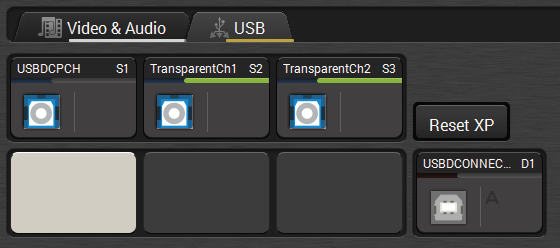
USB crosspoint - Composite mode in LDC
ATTENTION!After the setting is done it is highly recommended to close the LDC software to avoid possible connection problems between the device and the LDU software.
9.4.3. Start the LDU and Follow the Instructions
After launching LDU, the welcome screen appears:
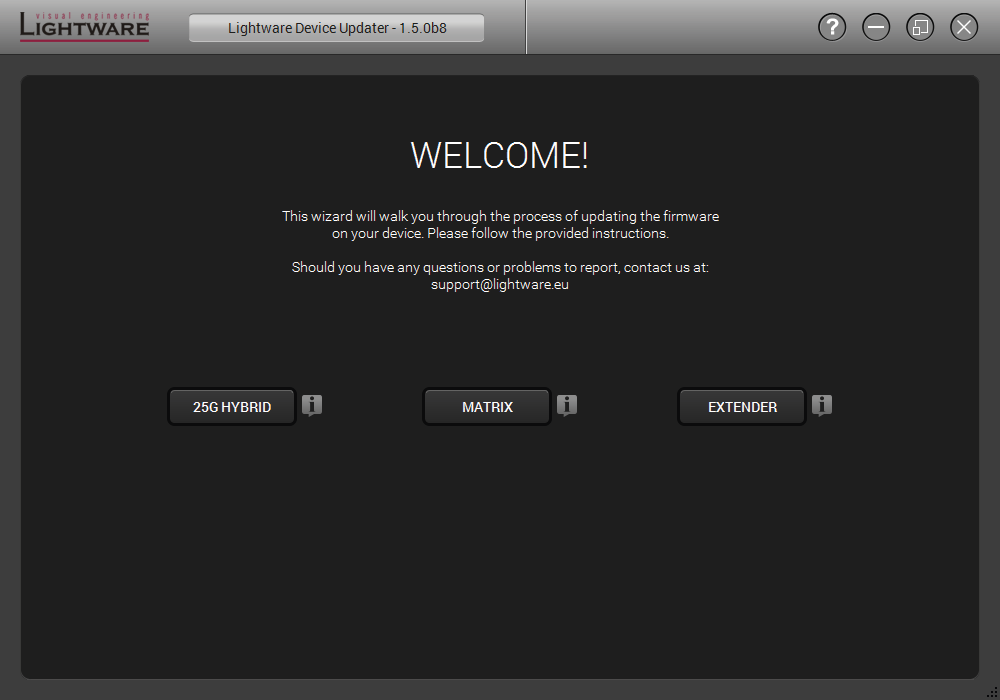
After pressing the  button, a list will appear showing the supported devices:
Click on the Extender button on the main screen.
Step 1.Select the package.
Click on the Browse button and select the “.lfp” file that will be used for the update.
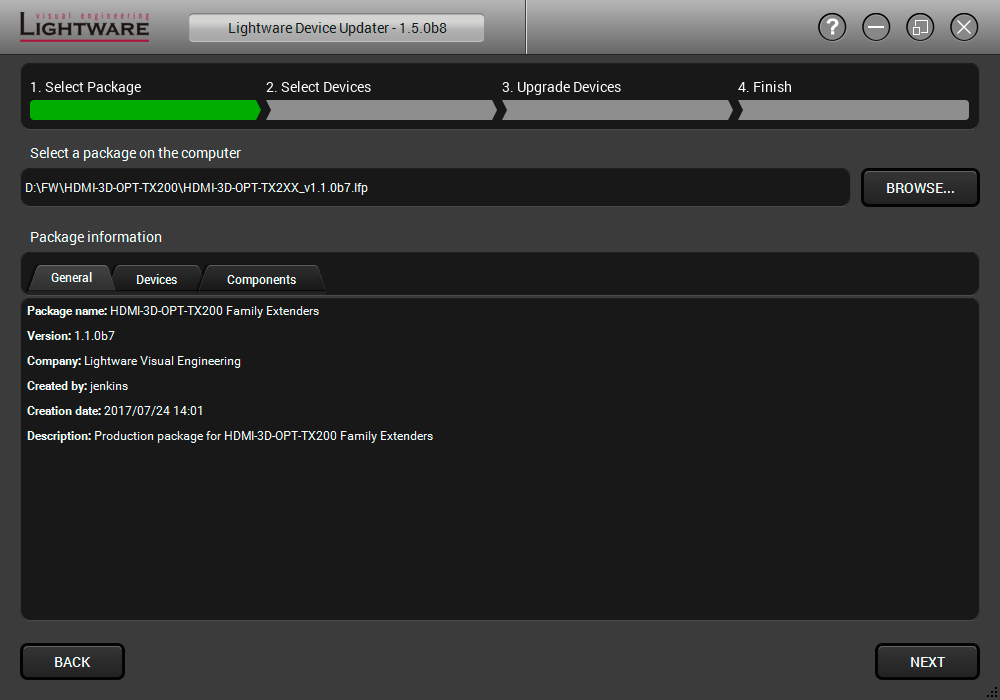
The package information is displayed:
▪General version info, creation date, short description,
▪Devices that are compatible with the firmware,
▪Components in the package with release notes.
Click on the Next button and follow the instructions.
TIPS AND TRICKS:Files with “.lfp” extension are associated to LDU during installation. If you double click on the “.lfp” file, the application is launched, the package is loaded automatically, and the screen above appears.
Step 2.Select a device.
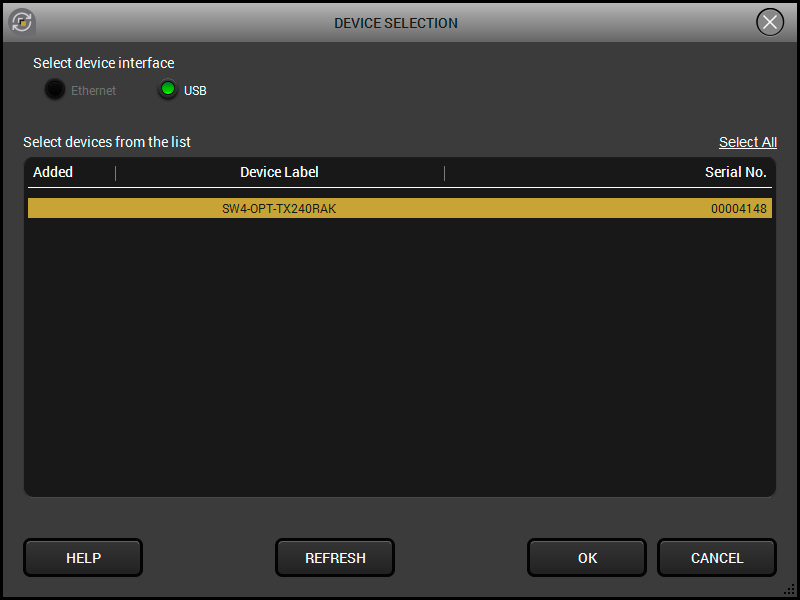
The next step is to select the desired device(s). The available and supported devices are searched for and listed automatically. If the desired device is not listed, update the list by clicking on the Refresh button. Select the desired device by highlighting them: they will appear with a yellow background, then click OK.
A tick mark can be seen in the Added column if the device was added by the user previously.
The components of the installed and update firmware version for the selected devices are listed on the following screen. (Update version will be uploaded to the device.)
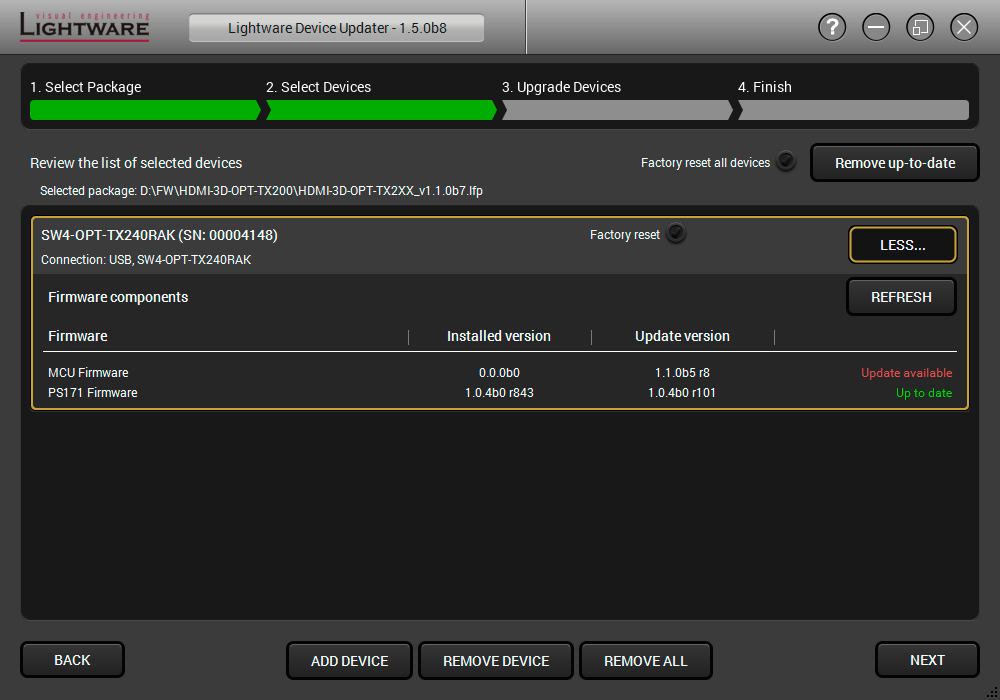
Add a device by clicking on the Add device button. The previous screen will appear; select the desired device(s) and click OK.
Remove a device by selecting it (highlight with yellow) and clicking on the Remove device button, or by clicking on the Remove all button to clear the list.
Enabling Factory reset will restore factory default values for all settings in the device. Three different statuses can exist:
▪Enabled by user: all settings will be set to factory default values.
▪Disabled by user: your settings will be saved and restored after updating.
▪Enabled by default and not changeable by user: firmware update must perform a factory reset to apply all changes coming with the new firmware version.
Click on the Next button to continue.
Step 3.Update the device.
Click on the Start button to start the update process.
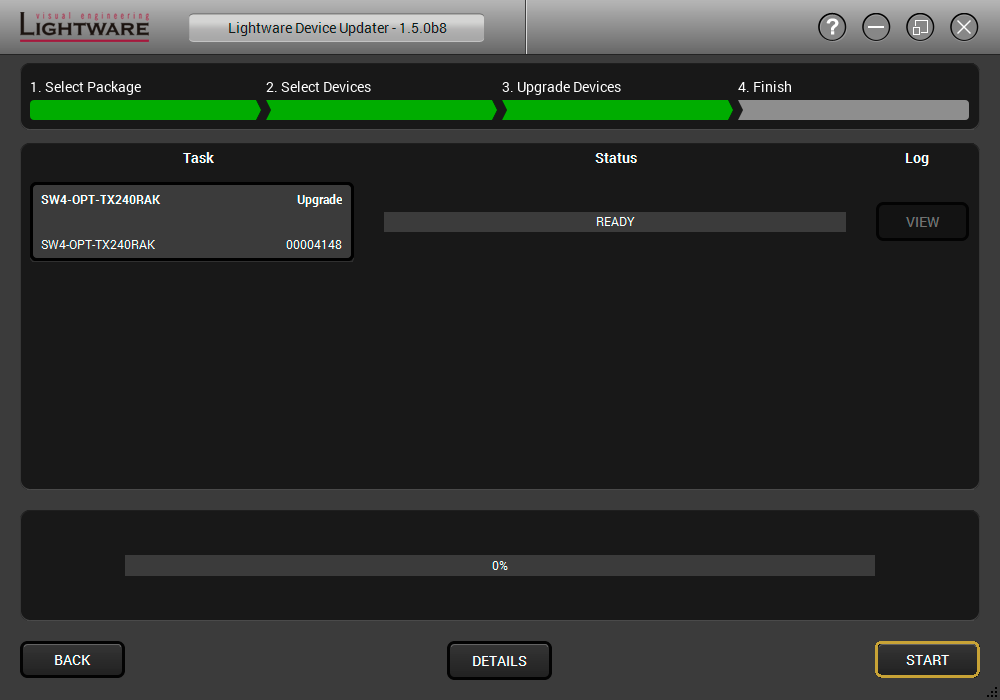
Two warning windows will pop up before updating the device:
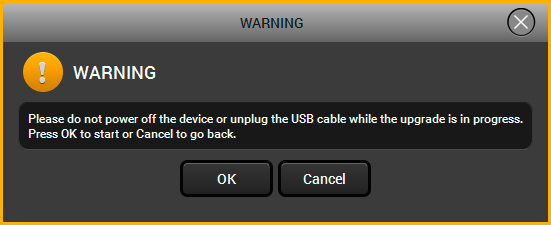
▪Do not power off the device or unplug the USB cable while the update is in progress. Click OK to continue.
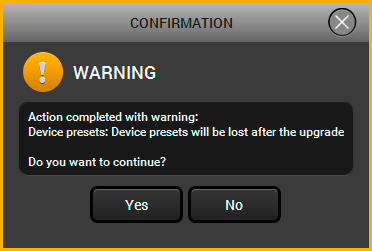
▪The device presets will be lost after the update.
After you confirmed the warnings and clicked on the Start button, the update process starts immediately.
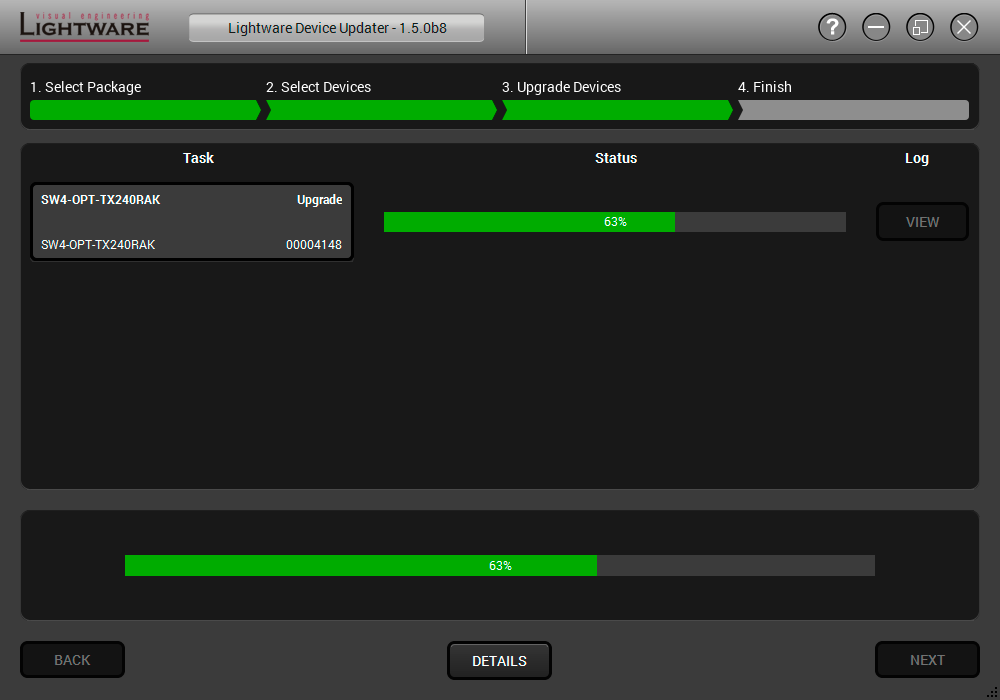
Details button opens a new window where the process is logged – see below.
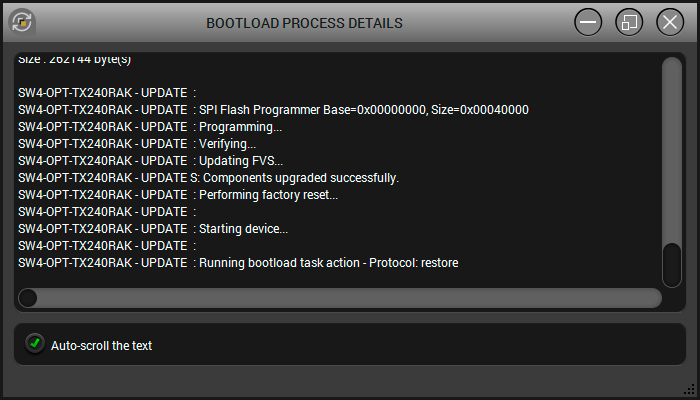
Step 4.Finish.
If the update of a device is finished, the log can be opened via the View button on the right. When all the tasks are finished, a window appears. Click OK to close and Next to display the summary page.
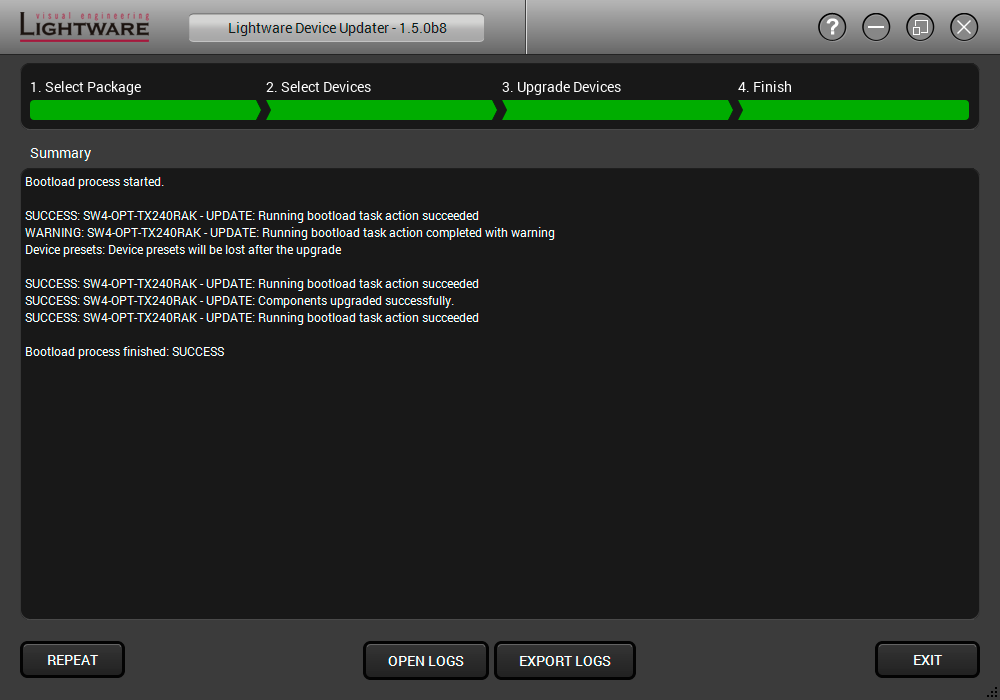
Clicking on the Repeat button starts the process again with the selected device(s).
The Open logs button opens the temporary folder where the logs can be found.
Export logs by saving the files as a zipped file.
Press Exit to close the program.
If the update fails, the progress bar of the device turns red. Restart the device(s) and repeat the process.
ATTENTION!Although the device is rebooted after the firmware update, switching it off and on again is recommended.
9.5. Keeping the Configuration Settings
ATTENTION!While the firmware is being updated, the normal operation mode is suspended, as the device is switched to bootload mode. Signal processing is not performed. Do not interrupt the firmware update. If any problem occurs, reboot the unit and restart the process.
By default, device configuration settings are restored when firmware update is finished. If factory reset has been chosen in the parameters window, all device settings will be erased. In the case of a factory reset, you can save the settings of the device in the Lightware Device Controller software and restore it later.
The following steps demonstrate how this function works in the background.
Step 1.Create a backup
The current configuration of the device is being saved into a configuration backup file on your computer.
Step 2.Start the Update
The device reboots and starts in bootload mode (firmware update mode).
Step 3.Update
The CPU firmware is changed to the new one.
Step 4.Factory reset
All configuration settings are restored to the factory default values.
Step 5.Conversion / Restore
The firmware package checks the backup data before the restoration procedure, and if it is necessary, a conversion is applied to avoid incompatibility problems between the firmware versions. All configuration settings are restored to the device after the conversion.
If the factory default option is selected in the Parameters window, the conversion / restore procedure will not be performed!
Step 6.Finish
Once the firmware update procedure is finished, the device reboots and is ready to use.
Instructions page in the optical extender firmware package
ATTENTION!In specific cases restoring cannot be applied fully and certain settings are not copied back to the device. If a warning message appears, the user can get back the original data from the backup. Logs of the update procedure contain all backup data, it can be exported at the end of the update procedure. In case of any questions, please contact support@lightware.com.
ATTENTION!In certain cases, the new firmware version requires setting all parameters to factory defaults. In this case, the “Factory reset” option is enabled by default and unchangeable by the user, see details in the Firmware Components section.
ATTENTION!The feature is only supported by LDU version 1.3.0 and above.
Usually, if the system seems not to transport the signal as expected, the best strategy for troubleshooting is to check signal integrity through the whole signal chain starting from the source side and moving forward to the receiver end. The following sections are available in the chapter:
First, check front panel LEDs and take the necessary steps according to their states. For more information about status LEDs, refer to Rear Panel Status LEDs - Transmitter and Front Panel LEDs - Receiver sections.
Legend

|
Link to the section of connections/cabling. |

|
Link to the section of front panel operation. |
|
Link to the section of LDC software. |
|
Link to the section of LW2 protocol commands. |

|
Link to the section of LW3 protocol commands. |
|
Symptom |
Root cause |
Action |
Refer to |
|
|---|---|---|---|---|
|
Video signal |
||||
|
No picture on the video output |
Device or devices are not powered properly |
Check the extenders and the other devices if they are properly powered; try to unplug and reconnect them. |

|
|
|
Cable connection problem |
Cables must fit very well, check all the connectors (video and optical cables). |

|
||
|
Optical cable became contaminated |
Use special fiber optical cable cleaning equipment to clean it carefully. |
|||
|
No incoming signal (transmitter) |
No video signal is present on the HDMI/DVI-D/DP input ports. Check the source device and the HDMI/DVI/DP cable(s). |

|
||
|
No incoming signal (receiver) |
If the Signal LED does not light, no signal is present on the optical input port. Check the source device and the fiber cable. |
|
||
|
The input port is muted |
Check the mute state of input port. |

|
||

|
||||
|
The output port is muted |
Check the mute state of output port. |
|
||
|
||||
|
|
||||
|
Display is not able to receive the video format |
Check the emulated EDID; select another (e.g. emulate the display’s EDID on the input port). |
|
||

|
||||
|
HDCP is disabled |
Enable HDCP on the input and output ports. |

|
||
|
|
||||

|
||||
|
|
||||
|
Not the desired picture displayed on the video output |
Video output is set to test pattern (no sync screen) statically |
Check test pattern settings in the properties of the output ports. |

|
|

|
||||
|
Video output is set to test pattern (no sync screen) as there is no picture on video source |
Check the video settings of the source. |
|||
|
Audio signal |
||||
|
No audio is present on output |
Source audio volume is low or muted |
Check the audio settings of the source. |
||
|
Audio input port is muted |
Check the audio input port properties. |

|
||
|
||||
|
||||
|
Audio output port is muted |
Check the audio output port properties. |
|
||
|
||||
|
|
||||
|
Analog audio input: volume is set very low (TX) |
Check the Analog audio input port settings (Volume). |
|
||
|
|
||||
|
|
||||
|
Analog audio output: volume is set very low (RX) |
Check the Analog audio output port settings (Volume). |
|
||
|
|
||||
|
|
||||
|
HDMI output signal contains no audio |
HDMI mode was set to DVI |
Check the properties of the output port and set the signal type to HDMI or Auto. |
|
|
|
||||
|
DVI EDID is emulated |
Check the EDID and select and HDMI EDID to emulate. |
|
||

|
||||
|
RS-232 signal |
||||
|
Connected serial device does not respond |
Cable connection problem |
Check the connectors to fit well; check the wiring of the plugs. |

|
|

|
||||
|
RS-232 settings are different |
Check the port settings of the extender and the connected serial device(s). |
|
||
|
|
||||
|
RS-232 mode is not right |
Check the RS-232 mode settings (control, pass-through, or command injection) |
|
||
|
|
||||
|
Ethernet (only for SW4-OPT-TX240RAK) |
||||
|
No LAN connection can be established |
Incorrect IP address is set (fix IP) |
Use dynamic IP address by enabling DHCP option. |
|
|
|
|
||||
|
|
||||
|
Restore the factory default settings (with fix IP). |

|
|||
|
|
||||
|
|
||||
|
|
||||
|
IP address conflict |
Check the IP address of the other devices, too. |
|||
|
USB KVM |
||||
|
USB device does not operate |
Cables are not connected on both sides |
Check the USB cable between TX and the computer. |
||
|
Not supported USB device is connected |
Mostly keyboard, mouse (USB HID devices) are supported, check your device type. |
|||
|
USB crosspoint set to the non-active channel |
Check the USB mode in the transmitter in LDC and change to the active channel. |
|
||
|
Incorrect USB mode is set |
Check the USB mode in the receiver in LDC and change to Composite or Transparent mode. |

|
||
|
GPIO |
||||
|
Connected device does not respond |
Cable connection problem |
Check the connectors to fit well; check the wiring of the plugs. |

|
|
|
Output level cannot be changed |
The direction of the selected pin is set to input |
Check and modify the direction setting of the desired pin. |
|
|
|
|
||||
|
|
||||
|
Miscellaneous |
||||
|
Front panel buttons are out of operation |
Buttons are locked |
Unlock the buttons. |

|
|
|
Error messages received continously |
Different protocol is set |
Check the port protocol settings (LW2 / LW3) and use the proper protocol commands. |
|
|

|
||||
10.2. How to Speed Up the Troubleshooting Process
Lightware’s technical support team is always working hard to provide the fastest support possible. Our team’s response time is one of the best in the industry and in the toughest of cases we can directly consult with the hardware or software engineer who designed the product to get the information from the most reliable source.
However, the troubleshooting process can be even faster… with your help.
There are certain pieces of information that push us in the right direction to find the root cause of the problem. If we receive most of this information in the first e-mail or it is gathered at the time when you call us, then there is a pretty high chance that we will be able to respond with the final solution right away.
This information is the following:
▪Schematic (a pdf version is preferred, but a hand drawing is sufficient).
▪Serial number(s) of the device(s) (it is either printed somewhere on the box or you can query it in the Device Controller software or on the built-in website).
▪Firmware versions of the devices (please note that there may be multiple CPUs or controllers in the device and we need to know all of their firmware versions, a screenshot is the best option).
▪Cable lengths and types (in our experience, it’s usually the cable).
▪Patch panels, gender changers or anything else in the signal path that can affect the transmission.
▪Signal type (resolution, refresh rate, color space, deep color).
▪Emulated EDID(s) (please save them as a file and send it to us).
▪Actions to take in order to re-create the problem (if we cannot reproduce the problem, it is hard for us to find the cause).
▪Photo or video about the problem (‘image noise’ can mean many different things, it’s better if we see it too).
▪Error logs from the Device Controller software.
▪In the case of Event Manager issue, the event file and/or backup file from the Device Controller software.
The more of the information above you can give us, the better. Please send this information to the Lightware Support Team (support@lightware.com) to speed up the troubleshooting process.
The following sections contain descriptions and useful technical information on how the devices work in the background. The content is based on experiences and cases we met in the practice. These sections help to understand features and technical standards like the following:
11.1.1. Understanding the EDID
The Extended Display Identification Data (EDID) is the passport of display devices (monitors, TV sets, projectors). It contains information about the capabilities of the display, such as supported resolutions, refresh rates (these are called Detailed Timings), the type and manufacturer of the display device, etc.
After connecting a source to a display (DVI, HDMI, DP), the source reads out the EDID to determine the resolution and refresh rate of the image to be transmitted.
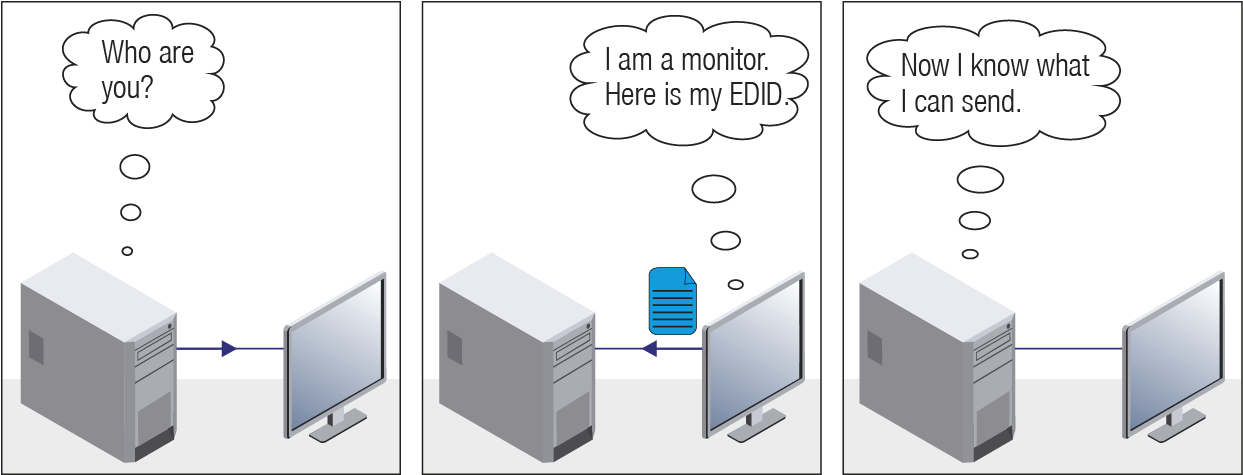
EDID Communication
Most DVI computer displays have a 128-byte-long EDID structure. However, Digital Televisions and HDMI capable displays may have another 128 bytes, which is called E-EDID, and is defined by CEA (Consumer Electronics Association). This extension contains information about additional Detailed Timings, audio capabilities, speaker allocation and HDMI capabilities. It is important to know that all HDMI capable devices must have CEA extension, but not all devices with CEA extension are HDMI capable.
Common Problems Related to EDID
Problem: “My system consists of the following: a computer, a Lightware device, a WUXGA (1920x1200) LCD monitor, and an SXGA (1280x1024) projector. I would like to see the same image on the monitor and the projector. What EDID should I choose on the Lightware device?”
Solution: If you want to see the image on both displays, you need to select the resolution of the smaller display (in this case SXGA), otherwise the smaller display may not show the higher resolution image.
Problem: “I have changed to a different EDID on an input port of the Lightware device to have a different resolution, but nothing happens.”
Solution: Some graphics cards and video sources read out the EDID only after power-up and later they do not sense that the EDID has been changed. You need to restart your source to make it read out the EDID again.
11.1.2. Advanced EDID Management
Each DVI sink (e.g. monitors, projectors, plasma displays, etc.) must support the EDID data structure. Source BIOS and operating systems are likely to query the sink using DDC2B protocol to determine what pixel formats and interface are supported. DVI standard uses the EDID data structure to identify the monitor type and capabilities. Most DVI sources (VGA cards, set top boxes, etc.) will output DVI signal after accepting the connected sink’s EDID information. In the case of EDID readout failure or missing EDID, the source will not output DVI video signal.
Lightware devices provide the Advanced EDID Management function that helps system integration. The built-in EDID Router can store and emulate factory pre-programmed and user programmable EDIDs. The EDIDs of the attached monitors or projectors for each output are stored in a non-volatile memory. This way the EDID of a monitor is available when the monitor is unplugged or switched off.
Any EDID can be emulated on any input. An emulated EDID can be copied from the EDID router’s memory (static EDID emulation), or from the last attached monitor’s memory (dynamic EDID emulation). For example, the Lightware device can be set up to emulate a sink device that is connected to one of the outputs. In this case, the EDID automatically changes if the monitor is replaced with another display device (as long as it has a valid EDID).
The EDID is independently programmable for all inputs without affecting each other. All inputs have their own EDID circuit.
INFO:The user is not required to disconnect the video cable to change an EDID as opposed to other manufacturer’s products. EDID can be changed even if a source is connected to the input and powered ON.
INFO:When EDID has been changed, the router toggles the HOTPLUG signal for 2 seconds. Some sources do not sense this signal. In such cases, the source device must be restarted or powered OFF and ON again.
Lightware Visual Engineering is a legal HDCP adopter. Several functions have been developed that help solve HDCP related problems. Complex AV systems often have both HDCP and non-HDCP components. The transmitter allows transmitting both HDCP encrypted and unencrypted signals. The devices will be still HDCP compliant, as they will never output an encrypted signal to a non-HDCP compliant display device. If an encrypted signal is switched to a non-compliant output, a red screen alert or muted screen will appear.
11.2.1. Protected and Unprotected Content
Many video sources send HDCP protected signal if they detect that the sink is HDCP capable – even if the content is not copyrighted. This can cause trouble if an HDCP capable device is connected between the source and the display. In this case, the content cannot be viewed on non-HDCP capable displays and interfaces like event controllers. Rental and staging technicians often complain about certain laptops, which are always sending HDCP encrypted signals if the receiver device (display, matrix router, etc.) reports HDCP compliancy. Even though HDCP encryption is not required all the time (e.g. computer desktop image), certain laptops still do that.
To avoid unnecessary HDCP encryption, Lightware introduced the HDCP enabling/disabling function: the HDCP capability can be disabled in the Lightware device. If HDCP is disabled, the connected source will detect that the sink is not HDCP capable, and turn off authentication.
11.2.2. Disable Unnecessary Encryption
HDCP Compliant Sink

All the devices are HDCP-compliant, no manual setting is required, both protected and unprotected content is transmitted and displayed on the sink.
Not HDCP-compliant Sink 1.

Not-HDCP compliant sink is connected to the receiver. Some sources (e.g. computers) always send HDCP encrypted signals if the receiver device reports HDCP compliancy, however, HDCP encryption is not required all the time (e.g. computer desktop image). If HDCP is enabled in the transmitter, the image will not be displayed on the sink.
Setting the HDCP parameter to Auto on the output port and disabling HDCP on the input port, the transmitted signal will not be encrypted if the content is not protected. Thus, non-HDCP compliant sinks will display non-encrypted signal.
Not HDCP-compliant Sink 2.

The layout is the same as in the previous case: non-HDCP compliant display device is connected to the receiver, but the source would send protected content with encryption. If HDCP is enabled on the input port of the transmitter, the source will send encrypted signal. The sink is not HDCP compliant, thus it will not display the video signal (but blank/red/muted/etc. screen). If HDCP is disabled on the input port of the transmitter, the source will not send the signal. The solution is to replace the display device to an HDCP-capable one.
11.3. Pixel Accurate Reclocking
Signal reclocking is an essential procedure in digital signal transmission. After passing the reclocking circuit, the signal becomes stable, jitter-free, and can be transmitted over more equipment like processors, or event controllers. Without reclocking, sparkles, noise, and jaggies appear on the image.
Lightware’s sophisticated Pixel Accurate Reclocking technology fixes more problems than general TMDS reclocking. It removes not only intra-pair skew, but inter-pair skew as well. The Pixel Accurate Reclocking circuit eliminates the following errors:
Intra-pair skew
Skew between the + and - wires within a differential wire pair (e.g. Data2- and Data2+). It’s caused by different wire lengths or slightly different wire construction (impedance mismatch) in the DVI cable. It results in jitter.
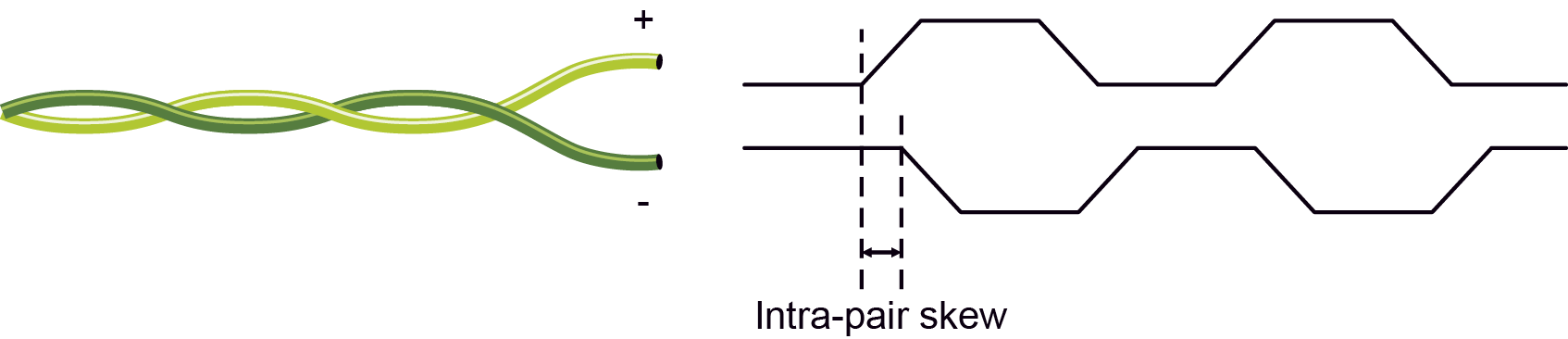
Inter-pair skew
Skew between two differential wire pairs in a cable. It is caused by different wire pair lengths or different number of twists in the DVI cable. Too much inter-pair skew results in color shift in the picture or sync loss.
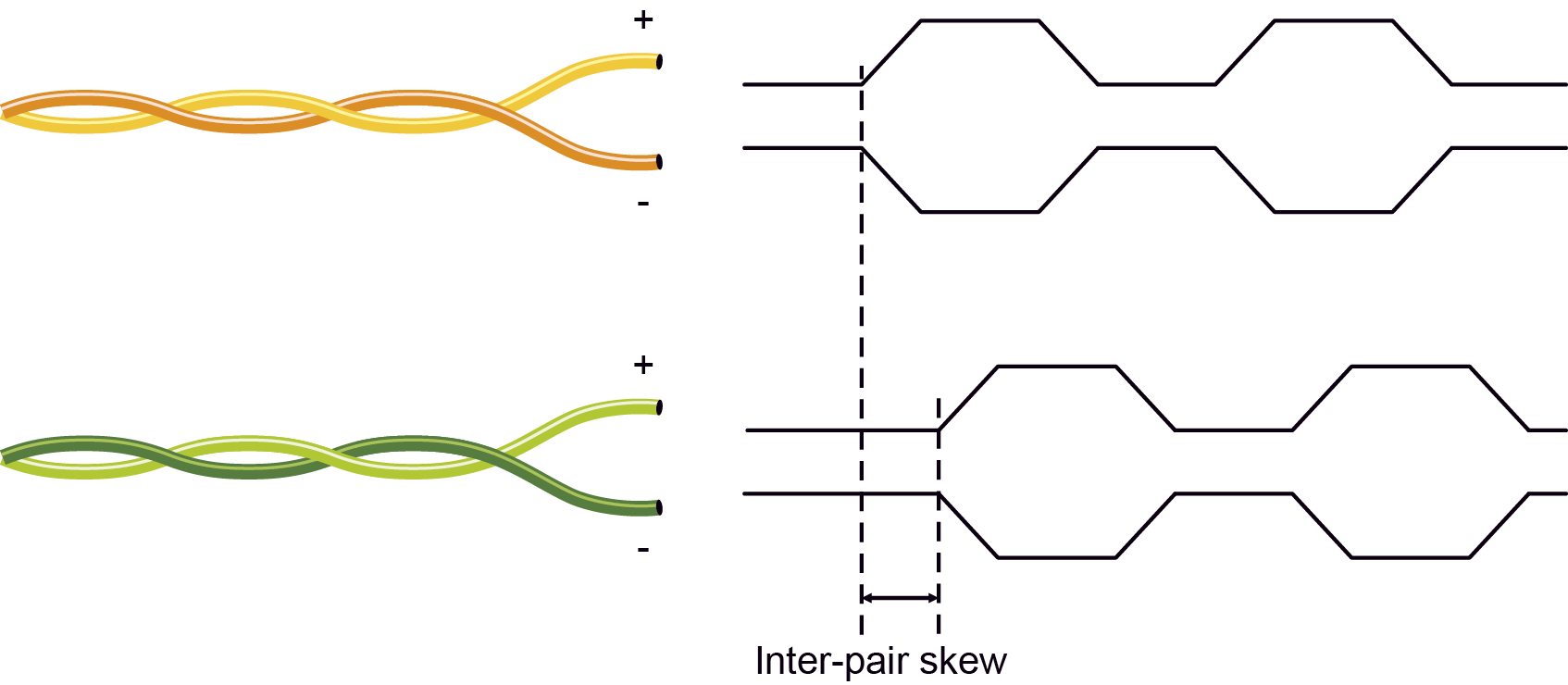
Jitter
Signal instability in the time domain. The time difference between two signal transitions should be a fixed value, but noise and other effects cause variations.
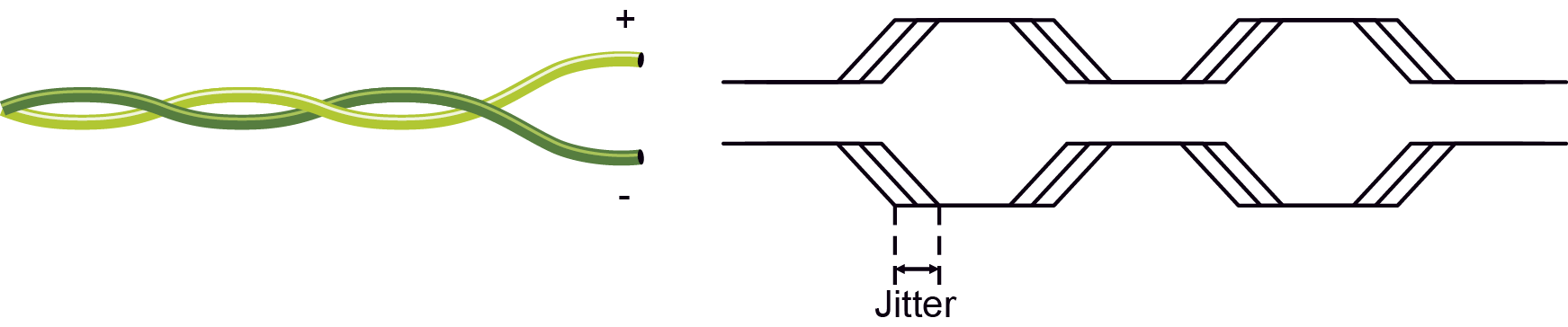
Noise
Electromagnetic interference between other electronic devices such as mobile phones, motors, etc. and the DVI cable are coupled onto the signal. Too much noise results in increased jitter.

INFO:The colors of the wire pairs in the pictures are for illustration and do not represent the color of the actual wires inside the cable.
Tables, drawings, guides, technical details and the hashtag keyword list as follows:
INFO:Specifications are subject to change without notice.
12.1.1. HDMI-3D-OPT-TX200 series Transmitters
General
|
Compliance |
CE, UKCA |
|
EMC compliance (emission) |
EN 55032:2015+A1:2020 |
|
EMC compliance (immunity) |
EN 55035:2017+A11:2020 |
|
RoHS |
EN 63000:2018 |
|
Electrical safety |
EN 62368-1:2020 |
|
Laser safety |
EN 60825-1:2014+A11:2021 |
|
Warranty |
3 years |
|
Cooling |
Passive |
|
Operating temperature |
0 to +55˚C (+32 to +122˚F) |
|
Operating humidity |
10% to 90%, non-condensing |
Power
|
Power supply |
External power adaptor |
|
Power adaptor |
In 100-240 V AC 50/60 Hz, Out 5V DC, 1 A |
|
Power connector |
Locking DC connector (2.35 mm pin) |
|
Power consumption (HDMI-3D-OPT-TX210A) |
2,5 W (typ) |
|
Power consumption (HDMI-3D-OPT-TX210RAK) |
3 W (typ) |
|
Power consumption (SW4-OPT-TX240RAK) |
6 W (typ) |
Enclosure
|
Rack mountable |
Yes |
|
Material |
1 mm steel |
|
Dimensions in mm |
221W x 100.4D x 26H |
|
Dimensions in inch |
8.7 W x 3.95 D x 1.02 H |
|
Weight (HDMI-3D-OPT-TX210A) |
605 g |
|
Weight (HDMI-3D-OPT-TX210RAK) |
605 g |
|
Weight (SW4-OPT-TX240RAK) |
627 g |
EDID Management
|
EDID emulation |
Yes |
|
EDID memory |
84 factory presets, 14 user programmable |
Video Inputs
DisplayPort input
|
DisplayPort connector type |
20-pole, DP 1.1a receptacle |
|
Color depth |
Deep color support up to 36 bits, 12 bit/color |
|
Color space |
RGB, YCbCr 4:4:4, YCbCr 4:2:2, YCbCr 4:2:0 |
|
Video delay |
0 frame |
|
Max. resolutions |
2560x1600@60 Hz 1920x1080@120 Hz, 8 bit/color 4096x2160@30 Hz |
|
3D support |
Yes |
|
HDCP 1.4 compliant |
Yes |
HDMI input
|
HDMI connector type |
19-pole HDMI Type A receptacle |
|
Standard |
DVI 1.0, HDMI 1.4 |
|
Color depth |
Deep color support up to 36 bits, 12 bit/color |
|
Color space |
RGB, YCbCr 4:4:4, YCbCr 4:2:2, YCbCr 4:2:0 |
|
Video delay |
0 frame |
|
Max. resolutions |
1600x1200@60 Hz, 36 bit 1920x1080@120 Hz 3840x2160@30 Hz, 24 bit |
|
Reclocking |
Pixel Accurate Reclocking |
|
HDCP 1.4 compliant |
Yes |
DVI-I input with DVI-D support
|
Connector type |
29-pole, DVI-I |
|
Standard |
DVI 1.0, HDMI 1.4 |
|
Color depth |
Deep color support up to 36 bits, 12 bit/color |
|
Color space |
RGB, YCbCr 4:4:4, YCbCr 4:2:2, YCbCr 4:2:0 |
|
Video delay |
0 frame |
|
Max. resolutions |
1600x1200@60 Hz, 36 bit 1920x1080@120 Hz 3840x2160@60 Hz, 24 bit |
|
Reclocking |
Pixel Accurate Reclocking |
|
3D support |
Yes |
|
HDCP 1.4 compliant |
Yes |
Audio Inputs
Embedded audio signal
|
Supported on |
DP, DVI-D, HDMI ports |
|
Supported audio formats |
PCM (up to 192 kHz), MPCM (up to 8 channels) |
Analog audio input
|
Signal type |
PCM, Compressed, DSD, High Bitrate |
|
Sampling frequency |
48 kHz |
|
Volume |
-78 dB – 0 dB |
|
Balance |
0 - 100 (50 = center) |
|
Gain |
0 dB – 6 dB |
|
Connector |
3.5 mm Jack, 5-pole Phoenix connector |
RS-232 Control
|
Serial port connector |
3-pole Phoenix connector |
|
Available Baud rates |
between 4800 and 115200 |
GPIO
|
Port connector |
8-pole Phoenix connector |
|
Port direction |
Input or output |
USB
|
USB connector |
USB mini B type |
|
USB 2.0 compliance |
Yes |
Optical
|
Fiber type |
50/125 SC Multimode (preferred), 62.5/125 SC Multimode |
|
Laser wavelengths |
High speed lanes: 778; 800; 825; 850 nm Low speed lane: 911; 980 nm |
|
Laser class specification |
Class 3R |
12.1.2. HDMI-3D-OPT-RX150RA Receiver
General
|
Compliance |
CE, UKCA |
|
EMC compliance (emission) |
EN 55032:2015+A1:2020 |
|
EMC compliance (immunity) |
EN 55035:2017+A11:2020 |
|
RoHS |
EN 63000:2018 |
|
Electrical safety |
EN 62368-1:2024 |
|
Laser safety |
EN 60825-1:2014+A11:2021 |
|
Warranty |
3 years |
|
Cooling |
Passive |
|
Operating temperature |
0 to +55˚C (+32 to +122˚F) |
|
Operating humidity |
10% to 90%, non-condensing |
Power
|
Power supply |
External power adaptor |
|
Power adaptor |
In 100-240 V AC 50/60 Hz, Out 5V DC, 1 A |
|
Power connector |
Locking DC connector (2.35 mm pin) |
|
Power consumption |
3,9 W (typ); 6,5 W (max) |
Enclosure
|
Rack mountable |
Yes |
|
Material |
1 mm steel |
|
Dimensions in mm |
100.4W x 131.9D x 26H |
|
Dimensions in inch |
8.7 W x 3.95 D x 1.02 H |
|
Weight |
430 g |
HDMI Output
|
HDMI connector type |
19-pole HDMI Type A receptacle |
|
Standard |
DVI 1.0, HDMI 1.4 |
|
Color depth |
Deep color support up to 36 bits, 12 bit/color |
|
Color space |
RGB, YCbCr 4:4:4, YCbCr 4:2:2, YCbCr 4:2:0 |
|
Video delay |
0 frame |
|
Max. resolutions |
1600x1200@60 Hz, 36 bit 1920x1080@120 Hz, 24 bit 3840x2160@30 Hz, 24 bit |
|
HDCP 1.4 compliant |
Yes |
Audio Outputs
Embedded audio signal
|
Supported on |
DP, DVI-D, HDMI ports |
|
Supported audio formats |
PCM (up to 192 kHz) MPCM (up to 8 channels) |
Analog audio output
|
Connector type |
5-pole Phoenix connector |
|
Signal type |
PCM, Compressed, DSD, High Bitrate |
|
Sampling frequency |
48 kHz |
|
Volume |
-78 dB – 0 dB |
|
Balance |
-100 - 100 (0 = center) |
Optical
|
Fiber type |
50/125 SC Multimode (preferred), 62.5/125 SC Multimode |
|
Laser wavelengths |
High speed lanes: 778; 800; 825; 850 nm Low speed lane: 911; 980 nm |
|
Laser class specification |
Class 3R |
RS-232 Control
|
Serial port connector |
9-pole D-sub |
|
Available Baud rates |
between 4800 and 115200 |
|
Signal type |
RX/TX bidirectional |
USB for KVM
|
Connector type |
2 x USB-A female |
|
USB 2.0 compliance |
Yes |
USB Control
|
USB connector |
USB mini B type |
|
USB 2.0 compliance |
Yes |
12.2. Input/Output Port Numbering
The following tables contain the input and output ports with their ID numbers that shall be used in protocol command sending or Lightware Device Controller.
HDMI-3D-OPT-TX210A
Audio/Video Ports
|
Port name |
Video port nr. (LW2 / LW3) |
Emulated EDID memory |
Audio port nr. (LW2 / LW3) |
|
HDMI in |
I1 |
E1 |
I1 |
|
Audio1 in |
- |
- |
I2 |
|
Audio2 in |
- |
- |
I3 |
|
Optical link out |
O1 |
- |
O1 |
|
Local HDMI out |
O2 |
- |
O2 |
HDMI-3D-OPT-TX210RAK
Audio/Video Ports
|
Port name |
Video port nr. (LW2 / LW3) |
Emulated EDID memory |
Audio port nr. (LW2 / LW3) |
|
HDMI in |
I1 |
E1 |
I1 |
|
Audio1 in |
- |
- |
I2 |
|
Audio2 in |
- |
- |
I3 |
|
Optical link out |
O1 |
- |
O1 |
|
Local HDMI out |
O2 |
- |
O2 |
USB Ports
|
Port name |
Port nr. (LW3) |
|
USB connector |
D1 |
|
USB Composite channel |
S1 |
|
USB Transparent channel 1 |
S2 |
|
USB Transparent channel 2 |
S3 |
RS-232 Ports
|
Port name |
Port nr. (LW2 / LW3) |
|
Local serial port |
P1 |
|
Optical serial link |
P2 |
SW4-OPT-TX240RAK
Audio/Video Ports
|
Port name |
Video port nr. (LW2 / LW3) |
Emulated EDID memory |
Audio port nr. (LW2 / LW3) |
|
DP in |
I1 |
E1 |
I1 |
|
HDMI1 in |
I2 |
E2 |
I2 |
|
HDMI2 in |
I3 |
E3 |
I3 |
|
DVI-D in |
I4 |
E4 |
I4 |
|
Audio1 in |
- |
- |
I5 |
|
Audio2 in |
- |
- |
I6 |
|
Optical link out |
O1 |
- |
O1 |
|
Local HDMI out |
O2 |
- |
O2 |
USB Ports
|
Port name |
Port nr. (LW3) |
|
USB connector |
D1 |
|
USB Composite channel |
S1 |
|
USB Transparent channel 1 |
S2 |
|
USB Transparent channel 2 |
S3 |
RS-232 Ports
|
Port name |
Port nr. (LW2 / LW3) |
|
Local serial port |
P1 |
|
Optical serial link |
P2 |
HDMI-3D-OPT-RX150RA
Audio/Video Ports
|
Port name |
Video port nr. (LW2 / LW3) |
Emulated EDID memory |
Audio port nr. (LW2 / LW3) |
|
Optical link in |
I1 |
E1 |
I1 |
|
HDMI out |
O1 |
- |
O1 |
|
Analog audio out |
- |
- |
O2 |
USB Ports
|
Port name |
Port nr. (LW3) |
|
USB connector - Mouse |
S1 |
|
USB connector - Keyboard |
S2 |
|
USB Composite channel |
D1 |
|
USB Transparent channel 1 |
D2 |
|
USB Transparent channel 2 |
D3 |
RS-232 Ports
|
Port name |
Port nr. (LW2 / LW3) |
|
Local serial port |
P1 |
|
Optical serial link |
P2 |
12.3. Factory Default Settings
|
Parameter |
Setting/Value |
|---|---|
|
Crosspoint settings * |
|
|
Video |
I1 (DisplayPort) |
|
Audio |
I1 (DisplayPort) |
|
Video input port settings (DP*, HDMI, DVI-D*) |
|
|
HDCP |
Enabled |
|
Video output port settings (optical link and local HDMI) |
|
|
HDCP mode |
Enabled |
|
Autoselect * |
Disabled |
|
Autoselect mode * |
Priority detect |
|
Autoselect video priority * |
0=DP, 1=HDMI, 2=HDMI2, 3=DVI-D |
|
Test pattern mode |
Off |
|
Test pattern resolution |
480p |
|
Test pattern |
Bar |
|
Signal type |
Auto |
|
HDCP mode |
Auto |
|
Laser enable |
On |
|
Analog audio input port properties |
|
|
Volume |
0.00 dB |
|
Balance |
0 (center) |
|
Gain |
0.00 dB |
|
Audio output port settings (optical link and local HDMI) |
|
|
Autoselect * |
Disabled |
|
Autoselect mode * |
Priority detect |
|
Autoselect video priority * |
0=DP, 1=HDMI, 2=HDMI2, 3=DVI-D, 4=Analog 1 (Jack), 5=Analog 2 (Phoenix) |
|
Network settings * |
|
|
IP address |
192.168.0.100 |
|
Subnet mask |
255.255.255.0 |
|
Static gateway |
192.168.0.1 |
|
DHCP |
Disabled |
|
LW2 / LW3 port number |
10001 |
|
RS-232 settings |
|
|
Control protocol |
LW2 |
|
Baud rate / Databits / Parity / Stopbits |
57600 / 8 / No / 1 |
|
Operation mode |
Pass-through |
|
Command injection port nr. |
8001 |
|
GPIO port settings * |
|
|
Direction |
Input |
|
Output level |
High |
* Only for SW4-OPT-TX240RAK model.
|
Parameter |
Setting/Value |
|---|---|
|
Optical input port properties |
|
|
HDCP |
Enabled |
|
HDMI output port properties |
|
|
Signal type |
Auto |
|
HDCP mode |
Auto |
|
Power 5V mode |
Always on |
|
Test pattern mode |
Off |
|
Test pattern resolution |
480p |
|
Test pattern |
Bar |
|
Analog audio output port properties |
|
|
Volume |
0.00 dB (100%) |
|
Balance |
0 (center) |
|
Bass |
0.00 dB |
|
Treble |
0.00 dB |
|
Phase invert |
Disabled |
|
RS-232 settings |
|
|
Control protocol |
LW2 |
|
Baud rate / Databits / Parity / Stopbits |
57600 / 8 / No / 1 |
|
Operation mode |
Pass-through |
For the procedure of reloading factory default values in LDC software, see the System section, or using the function buttons, see in the Reset to Factory Default Settings section for the transmitter and the Reset to Factory Default Settings section for the receiver.
The backup file contains numerous settings and parameters saved from the device. When the file is uploaded to a device, the followings will be overwritten:
|
HDMI input port(s) |
|
Video port name, Audio port name, HDCP setting |
|
DP input port |
|
Video port name, Audio port name, HDCP setting |
|
DVI-D input port |
|
Video port name, Audio port name, HDCP setting |
|
Analog audio input ports |
|
Volume, Balance, Gain, Port name |
|
Crosspoint settings |
|
Audio autoselect settings, Mute ports, Lock ports, Switch ports |
|
Video autoselect settings, Mute ports, Lock ports, Switch ports |
|
Optical output port |
|
Video port name, Audio port name |
|
Test pattern mode, clock source, and type |
|
HDCP mode, HDMI mode |
|
RS-232 mode, Control protocol, CI port number, Port name |
|
Remote port name, Enabled/Disabled setting |
|
Local output port |
|
Port name, HDCP mode, HDMI mode, Power +5V mode |
|
Test pattern mode, clock source, and type |
|
Serial port |
|
RS-232 mode, Control protocol, Baud rate, Data bits, Stop bits, Parity |
|
Port name and CI (Command Injection) port number |
|
Network settings (only for SW4-OPT-TX240RAK model) |
|
DHCP status (enable / disable) |
|
Static IP address, Network mask, Gateway address |
|
Further settings |
|
GPIO port names, directions (input/output), and levels (high/low) |
|
User EDID data (Transmitter: U1-U14; Receiver: U1-U15) |
|
Event manager: settings of all Events (E1-E20) |
For the description of backup/restore procedure, see the Configuration Cloning (Backup Tab) section.
12.5. Maximum Fiber Cable Extensions
|
OM1 |
OM2 |
OM3 |
OM4 |
|
|
(62.5/125) |
(50/125) |
(50/125) |
(50/125) |
|
|
1080p@60Hz 24 bpp |
250 m |
600 m |
1200 m |
2500 m |
|
1080p@60Hz 36 bpp |
150 m |
400 m |
800 m |
1300 m |
|
4096x2048@30Hz 24 bpp |
Not supported |
350 m |
700 m |
1100 m |
SW4-OPT-TX240RAK can be seen in the pictures, but the dimensions are valid for all models. Dimensions are in mm.
Bottom View
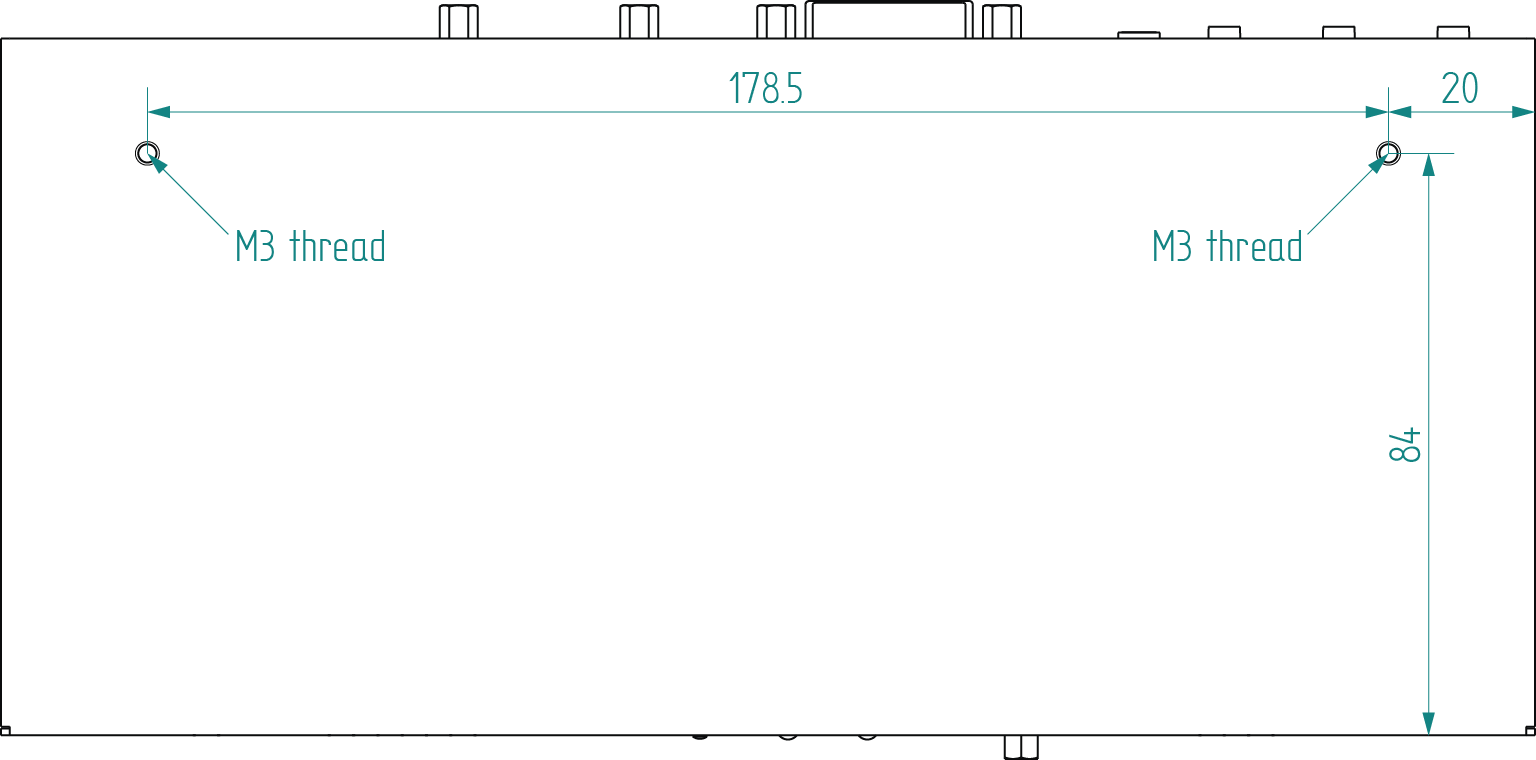
Front View

Top View
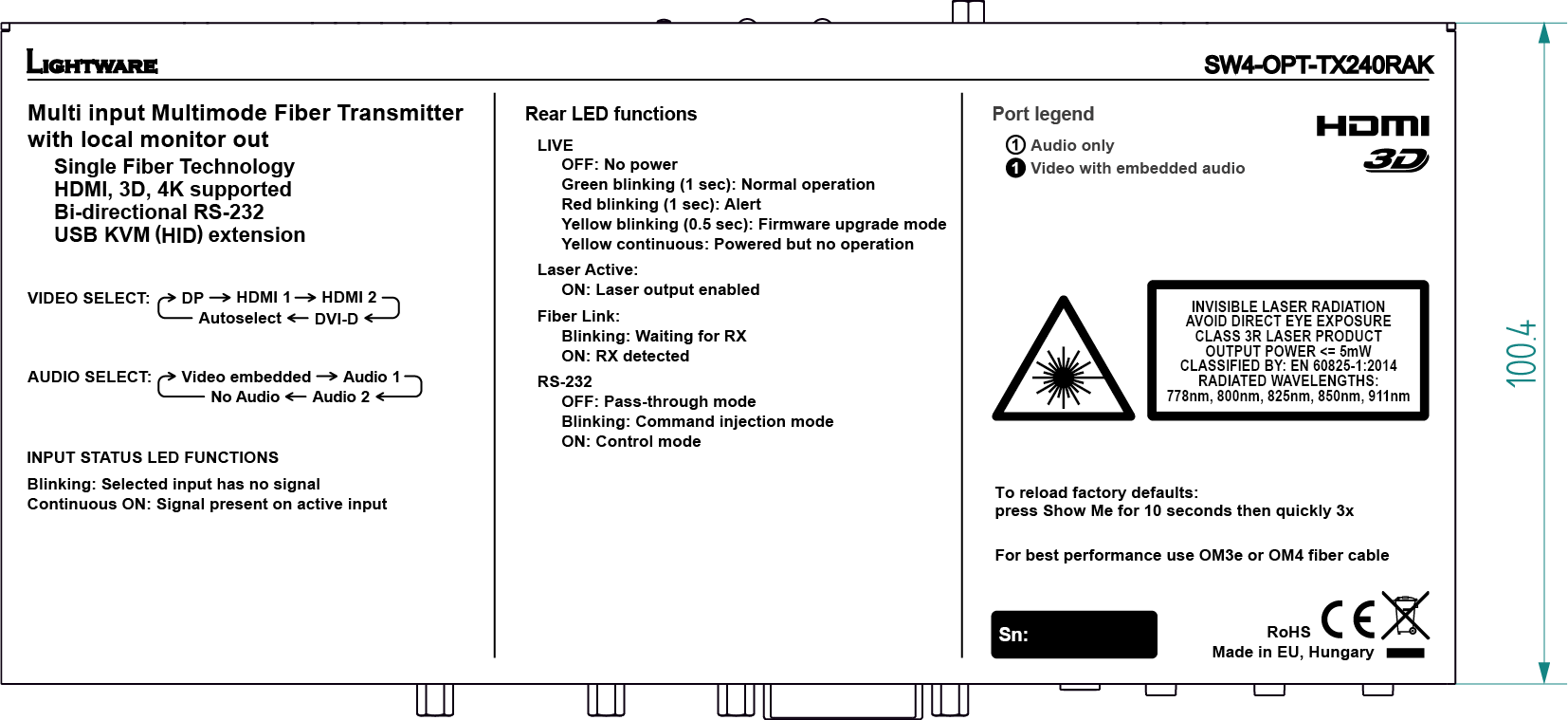
Rear View

Side View
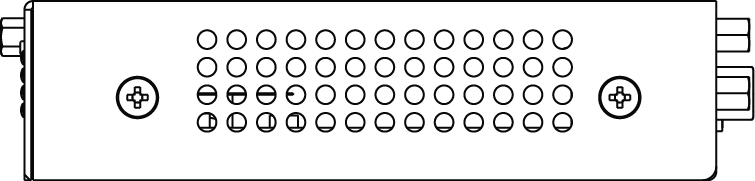
The following drawings present the physical dimensions of the HDMI-3D-OPT-RX150RA receiver. Dimensions are in mm.
|
Front View |
Rear View |
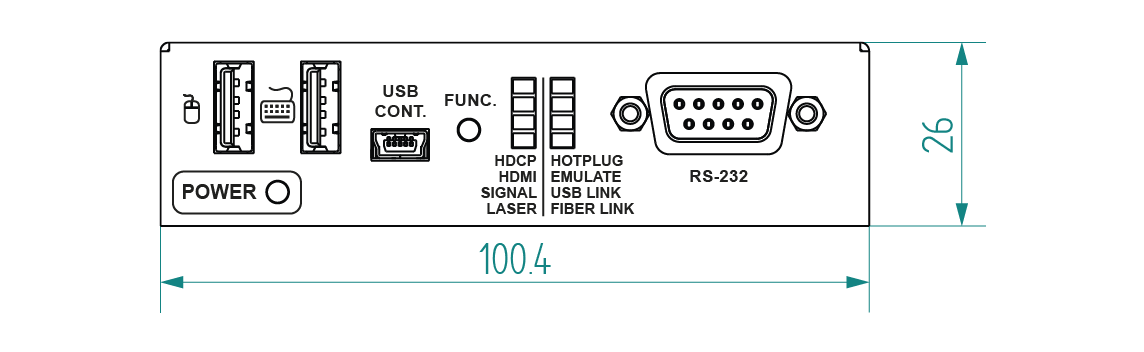
|
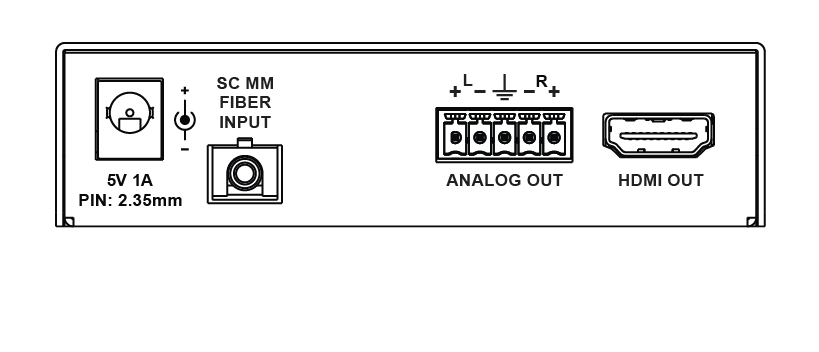
|
|
Bottom View |
Top View |
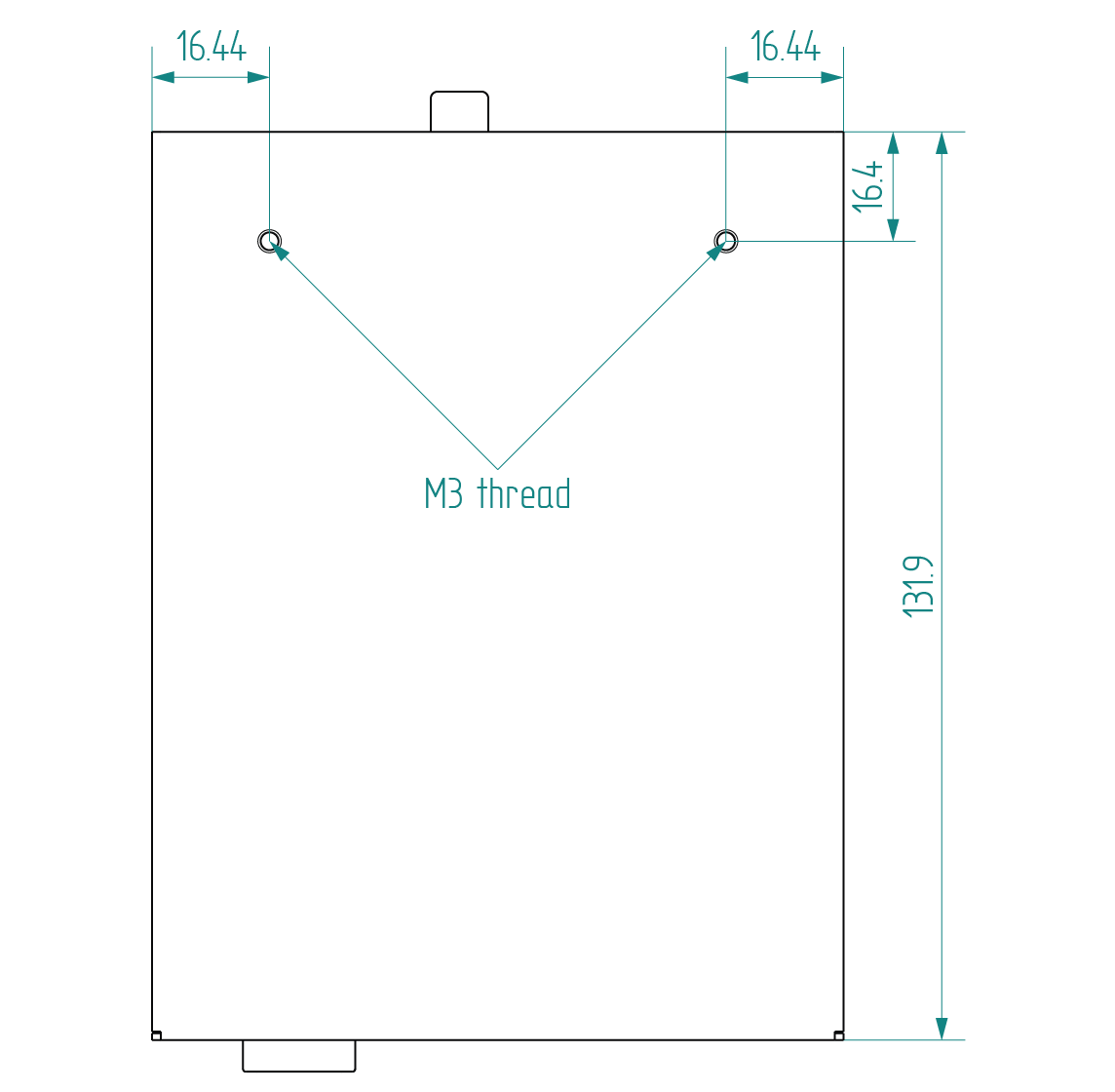
|
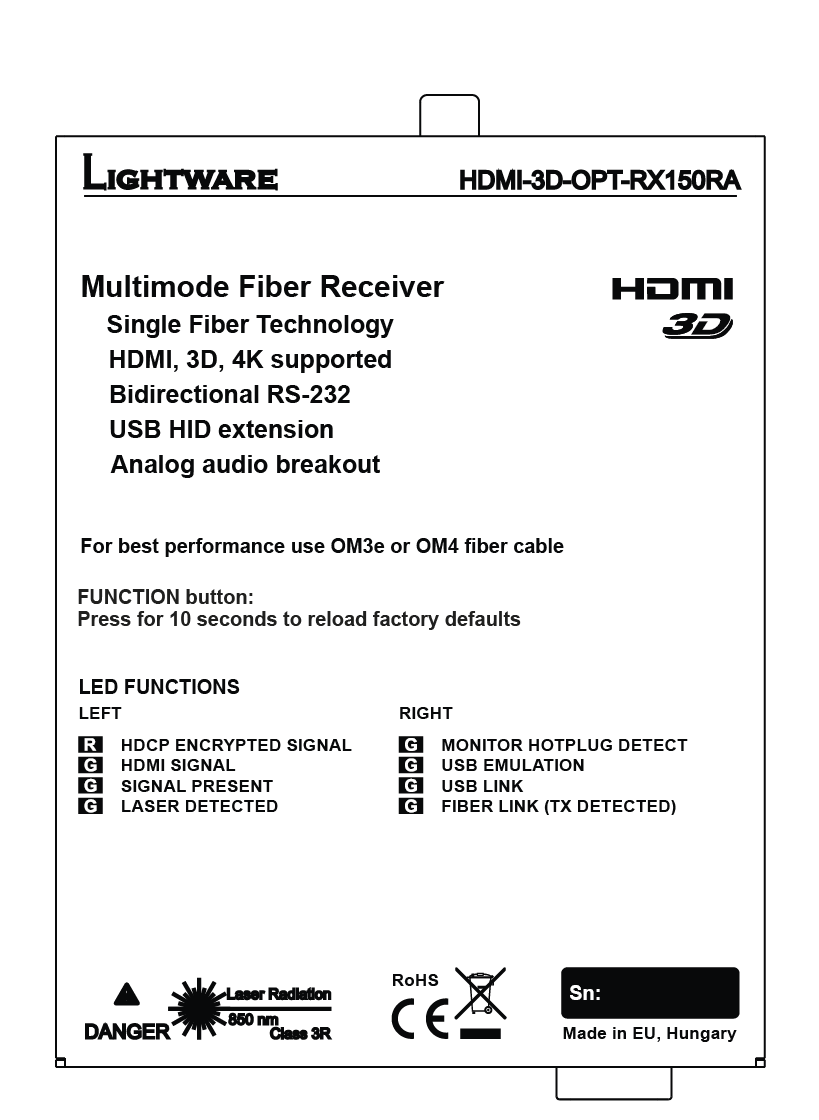
|
Inputs and outputs of audio devices are symmetric or asymmetric. The main advantage of the symmetric lines is the better protection against the noise, therefore, they are widely used in the professional audio industry. Symmetric audio is most often referred to as balanced audio, as opposed to asymmetric, which is referred to as unbalanced audio. Ligthware products are usually built with 5-pole Phoenix connectors, so we would like to help users assemble their own audio cables. See the most common cases below.
ATTENTION!Symmetric and asymmetric lines can be linked with passive accessories (e.g. special cables), but in this case half of the line level is lost.
ATTENTION!There are numerous types of regularly used connector and cable types to connect audio devices. Please always make sure that a connector or cable fits your system before use.
ATTENTION!Never join the phase-inverted (negative, cold or -) poles (either right or left) to the ground or to each other on the output side, as this can damage the unit.
INFO:Use a galvanic isolation in case of a ground loop.
The device is built with a 3-pole Phoenix connector. See the examples below of connecting to a DCE (Data Circuit-terminating Equipment) or a DTE (Data Terminal Equipment) type device:
|
Lightware device and a DCE D-SUB 9 and Phoenix |
Lightware device and a DTE D-SUB 9 and Phoenix |
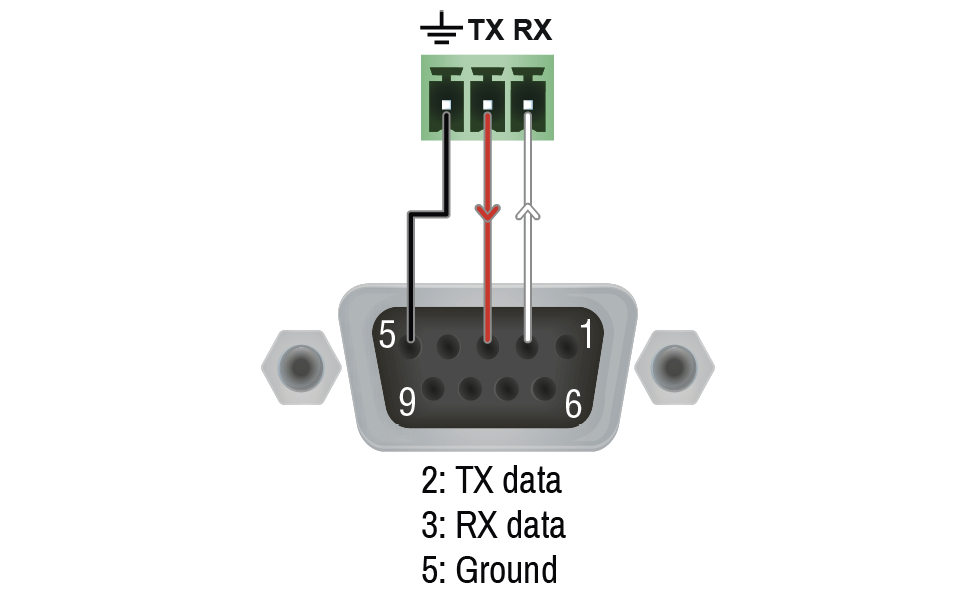
|
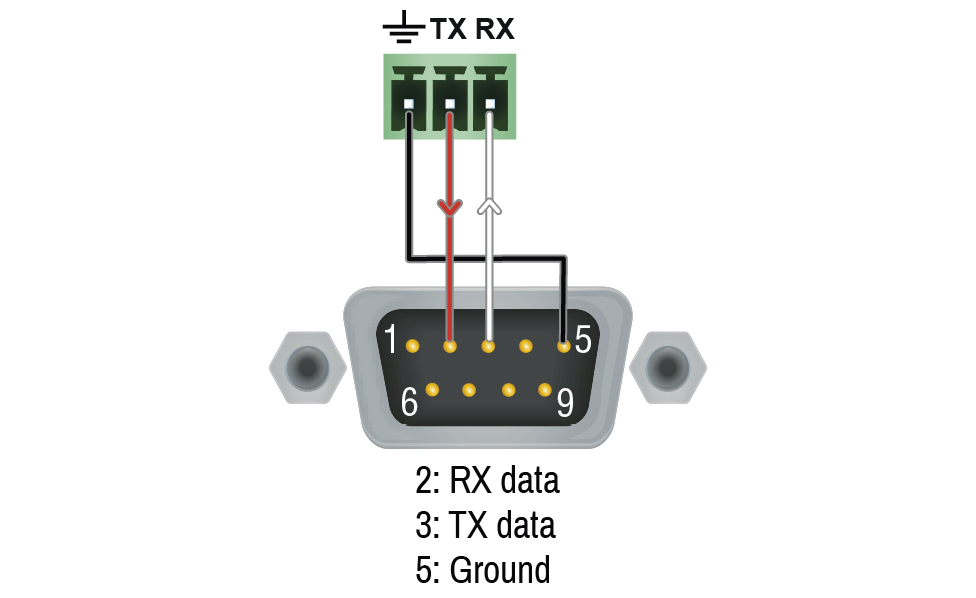
|
The Pinout of the 5-pole Phoenix Connector
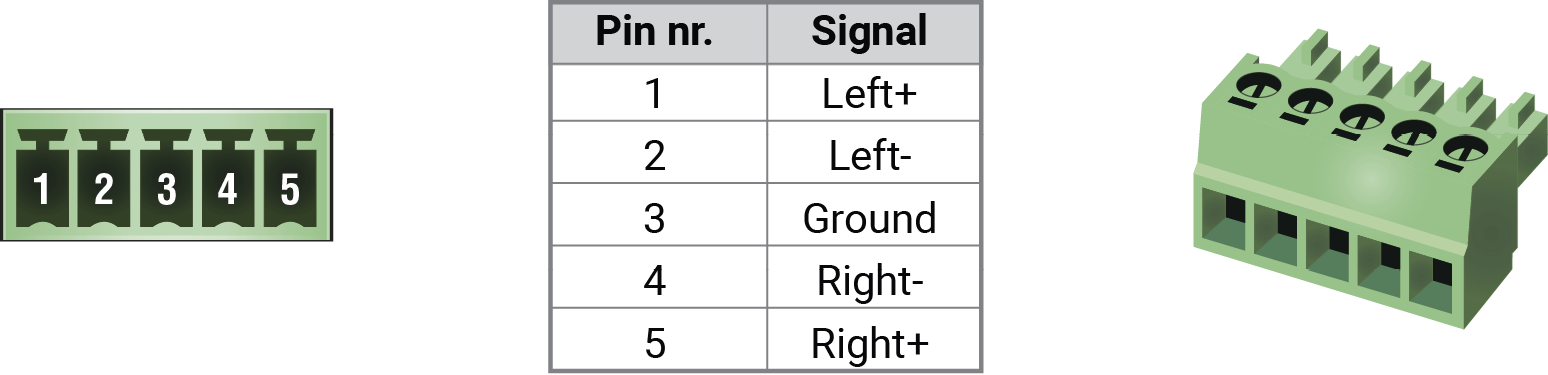
Compatible Plug Type: Phoenix® Combicon series (3.5mm pitch, 5-pole), type: MC 1.5/5-ST-3.5.
From Unbalanced Output to Balanced Input
|
2 x 6.3 (1/4") TS - Phoenix |
2 x RCA - Phoenix |
3.5 (1/8") TRS - Phoenix |
||
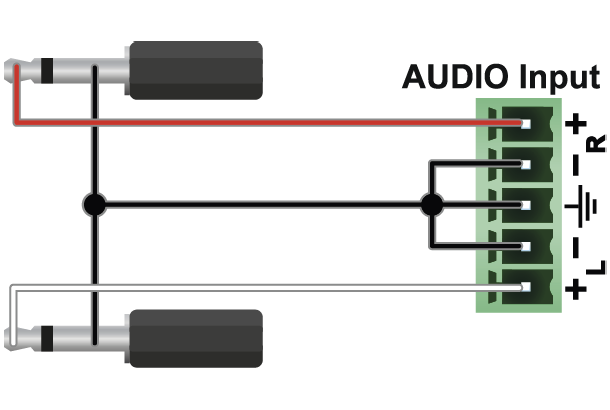
|
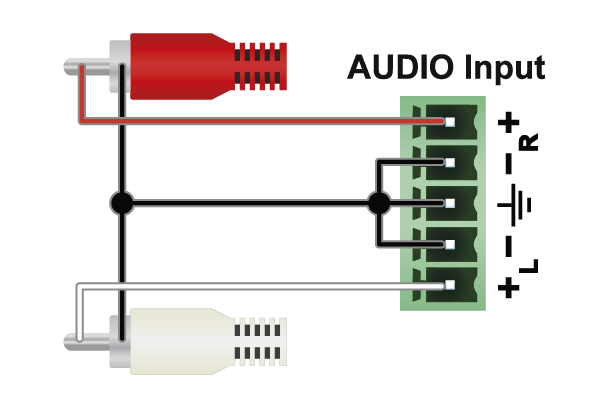
|
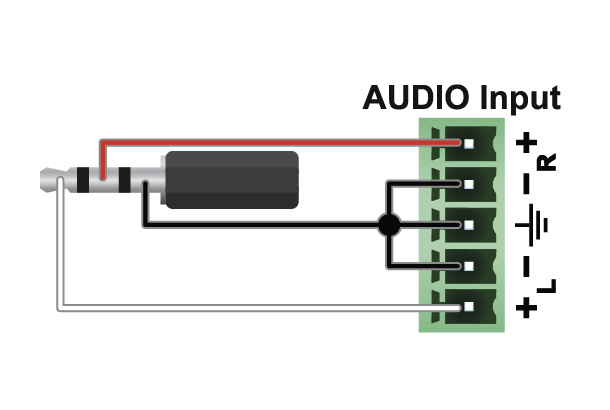
|
From Balanced Output to Unbalanced Input
|
Phoenix - 2 x 6.3 (1/4") TS |
Phoenix - 2 x RCA |
Phoenix - 3.5 (1/8") TRS |
||
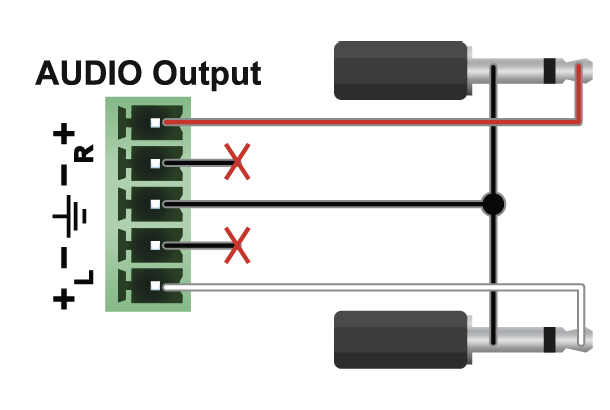
|
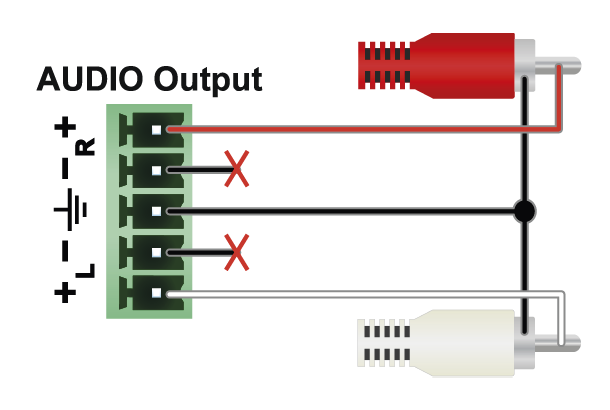
|
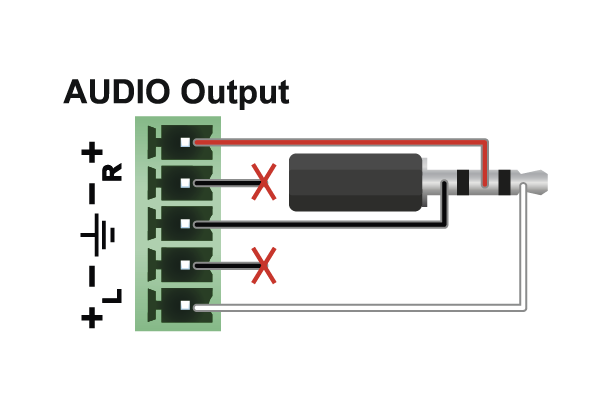
|
From Balanced Output to Balanced Input
|
Phoenix - 2 x 6.3 (1/4") TRS |
Phoenix - 2 x XLR |
2 x 6.3 TRS (1/4") - Phoenix |
||
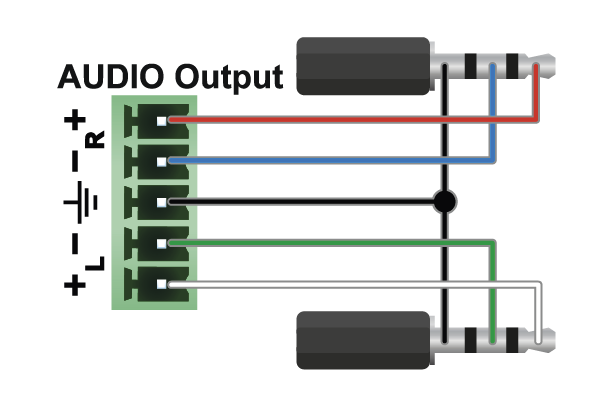
|
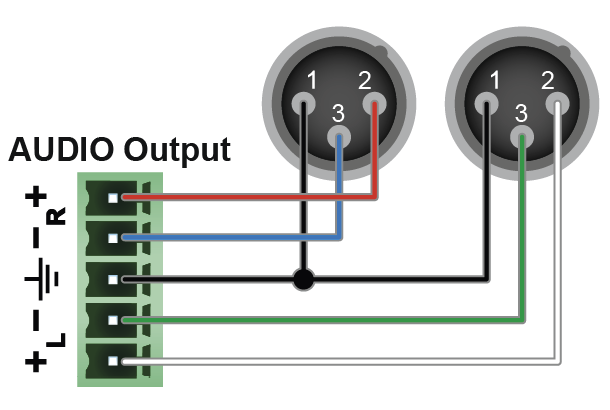
|
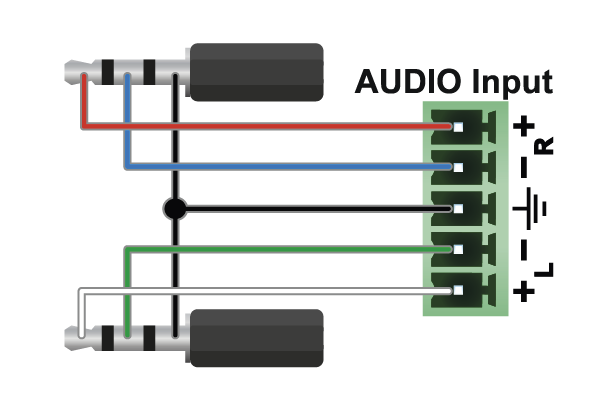
|
||
|
2 x XLR - Phoenix |
Phoenix - Phoenix |
|||
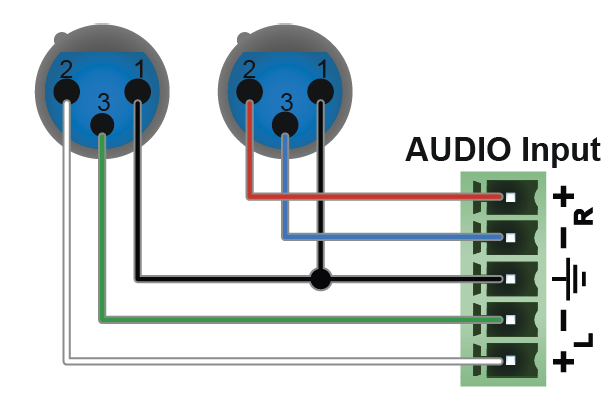
|
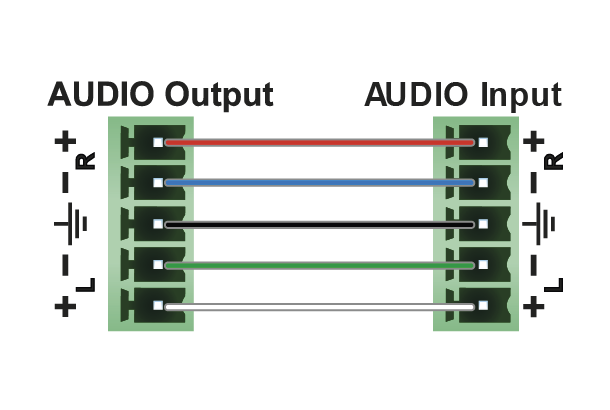
|
|
Mem |
Resolution |
Type |
EDID audio features |
|||
|---|---|---|---|---|---|---|
|
F1 |
640 x |
480p |
@ 60.00 |
Hz |
D |
|
|
F2 |
848 x |
480p |
@ 60.00 |
Hz |
D |
|
|
F3 |
800 x |
600p |
@ 60.32 |
Hz |
D |
|
|
F4 |
1024 x |
768p |
@ 60.00 |
Hz |
D |
|
|
F5 |
1280 x |
768p |
@ 50.00 |
Hz |
D |
|
|
F6 |
1280 x |
768p |
@ 59.94 |
Hz |
D |
|
|
F7 |
1280 x |
768p |
@ 75.00 |
Hz |
D |
|
|
F8 |
1360 x |
768p |
@ 60.02 |
Hz |
D |
|
|
F9 |
1280 x |
1024p |
@ 50.00 |
Hz |
D |
|
|
F10 |
1280 x |
1024p |
@ 60.02 |
Hz |
D |
|
|
F11 |
1280 x |
1024p |
@ 75.02 |
Hz |
D |
|
|
F12 |
1400 x |
1050p |
@ 50.00 |
Hz |
D |
|
|
F13 |
1400 x |
1050p |
@ 60.00 |
Hz |
D |
|
|
F14 |
1400 x |
1050p |
@ 75.00 |
Hz |
D |
|
|
F15 |
1680 x |
1050p |
@ 60.00 |
Hz |
D |
|
|
F16 |
1920 x |
1080p |
@ 50.00 |
Hz |
D |
|
|
F17 |
1920 x |
1080p |
@ 60.00 |
Hz |
D |
|
|
F18 |
2048 x |
1080p |
@ 50.00 |
Hz |
D |
|
|
F19 |
2048 x |
1080p |
@ 60.00 |
Hz |
D |
|
|
F20 |
1600 x |
1200p |
@ 50.00 |
Hz |
D |
|
|
F21 |
1600 x |
1200p |
@ 60.00 |
Hz |
D |
|
|
F22 |
1920 x |
1200p |
@ 50.00 |
Hz |
D |
|
|
F23 |
1920 x |
1200p |
@ 59.56 |
Hz |
D |
|
|
F24 |
2048 x |
1200p |
@ 59.96 |
Hz |
D |
|
|
F29 |
1920 x |
1080p |
@ 60.00 |
Hz |
U |
|
|
F30 |
1440 x |
480i |
@ 60.05 |
Hz |
H |
2chLPCM |
|
F31 |
1440 x |
576i |
@ 50.08 |
Hz |
H |
2chLPCM |
|
F32 |
640 x |
480p |
@ 59.95 |
Hz |
H |
2chLPCM |
|
F33 |
720 x |
480p |
@ 59.94 |
Hz |
H |
2chLPCM |
|
F34 |
720 x |
576p |
@ 50.00 |
Hz |
H |
2chLPCM |
|
F35 |
1280 x |
720p |
@ 50.00 |
Hz |
H |
2chLPCM |
|
F36 |
1280 x |
720p |
@ 60.00 |
Hz |
H |
2chLPCM |
|
F37 |
1920 x |
1080i |
@ 50.04 |
Hz |
H |
2chLPCM |
|
F38 |
1920 x |
1080i |
@ 50.00 |
Hz |
H |
2chLPCM |
|
F39 |
1920 x |
1080i |
@ 60.05 |
Hz |
H |
2chLPCM |
|
F40 |
1920 x |
1080i |
@ 60.05 |
Hz |
H |
2chLPCM |
|
F41 |
1920 x |
1080p |
@ 24.00 |
Hz |
H |
2chLPCM |
|
F42 |
1920 x |
1080p |
@ 25.00 |
Hz |
H |
2chLPCM |
|
F43 |
1920 x |
1080p |
@ 30.00 |
Hz |
H |
2chLPCM |
|
F44 |
1920 x |
1080p |
@ 50.00 |
Hz |
H |
2chLPCM |
|
F45 |
1920 x |
1080p |
@ 60.00 |
Hz |
H |
2chLPCM |
|
F46 |
1920 x |
1080p |
@ 60.00 |
Hz |
H |
2chLPCM |
|
F47 |
1920 x |
1080p |
@ 60.00 |
Hz |
U |
2chLPCM |
|
F48 |
1920 x |
1080p |
@ 60.00 |
Hz |
U |
2chLPCM, 8chLPCM, DD, DTS, AAC, DD+, DTS-HD, MLP, DST, WMAP |
|
F49 |
1920 x |
1080p |
@ 60.00 |
Hz |
U |
2chLPCM, 8chLPCM, DD, DTS, AAC, DD+, DTS-HD, MLP, DST, WMAP |
|
F90 |
1920 x |
2160p |
@ 59.99 |
Hz |
D |
|
|
F91 |
1024 x |
2400p |
@ 60.01 |
Hz |
D |
|
|
F94 |
2048 x |
1536p |
@ 60.00 |
Hz |
D |
|
|
F96 |
2560 x |
1600p |
@ 59.86 |
Hz |
D |
|
|
F97 |
3840 x |
2400p |
@ 24.00 |
Hz |
D |
|
|
F98 |
1280 x |
720p |
@ 60.00 |
Hz |
H |
2chLPCM |
|
F99 |
1920 x |
1080p |
@ 60.00 |
Hz |
H |
2chLPCM |
|
F100 |
1024 x |
768p |
@ 60.00 |
Hz |
H |
2chLPCM |
|
F101 |
1280 x |
1024p |
@ 50.00 |
Hz |
H |
2chLPCM |
|
F102 |
1280 x |
1024p |
@ 60.02 |
Hz |
H |
2chLPCM |
|
F103 |
1280 x |
1024p |
@ 75.02 |
Hz |
H |
2chLPCM |
|
F104 |
1600 x |
1200p |
@ 50.00 |
Hz |
H |
2chLPCM |
|
F105 |
1600 x |
1200p |
@ 60.00 |
Hz |
H |
2chLPCM |
|
F106 |
1920 x |
1200p |
@ 59.56 |
Hz |
H |
2chLPCM |
|
F107 |
2560 x |
1440p |
@ 59.95 |
Hz |
H |
2chLPCM |
|
F108 |
2560 x |
1600p |
@ 59.86 |
Hz |
H |
2chLPCM |
|
F109 |
3840 x |
2400p |
@ 24.00 |
Hz |
H |
2chLPCM |
|
F110 |
3840 x |
2160p |
@ 24.00 |
Hz |
H |
2chLPCM |
|
F111 |
3840 x |
2160p |
@ 25.00 |
Hz |
H |
2chLPCM |
|
F112 |
3840 x |
2160p |
@ 30.00 |
Hz |
H |
2chLPCM |
|
F118 |
3840 x |
2160p |
@ 30.00 |
Hz |
U |
2chLPCM |
|
F119 |
3840 x |
2160p |
@ 30.00 |
Hz |
U |
2chLPCM, 8chLPCM, DD, DTS, AAC, DD+, DTS-HD, MLP, DST, WMAP |
|
F120 |
3840 x |
2160p |
@ 60.00 |
Hz |
H |
2chLPCM |
|
F121 |
1440 x |
1080p |
@ 59.91 |
Hz |
H |
2chLPCM |
|
F122 |
2560 x |
2048p |
@ 59.98 |
Hz |
H |
2chLPCM |
|
F123 |
1280 x |
800p |
@ 59.91 |
Hz |
H |
2chLPCM |
|
F124 |
1440 x |
900p |
@ 59.90 |
Hz |
H |
2chLPCM |
|
F125 |
1368 x |
768p |
@ 59.85 |
Hz |
H |
2chLPCM |
|
F126 |
1600 x |
900p |
@ 59.98 |
Hz |
H |
2chLPCM |
|
F127 |
2048 x |
1080p |
@ 60.00 |
Hz |
H |
2chLPCM |
|
F128 |
2560 x |
1080p |
@ 60.00 |
Hz |
H |
2chLPCM |
|
F129 |
3440 x |
1440p |
@ 24.99 |
Hz |
H |
2chLPCM |
|
F130 |
3440 x |
1440p |
@ 29.99 |
Hz |
H |
2chLPCM |
|
F131 |
4096 x |
2160p |
@ 25.00 |
Hz |
H |
2chLPCM |
|
F132 |
4096 x |
2160p |
@ 30.00 |
Hz |
H |
2chLPCM |
|
F133 |
4096 x |
2160p |
@ 60.00 |
Hz |
H |
2chLPCM |
|
F134 |
3440 x |
1440p |
@ 23.99 |
Hz |
H |
2chLPCM |
|
F135 |
4096 x |
2160p |
@ 24.00 |
Hz |
H |
2chLPCM |
|
F136 |
3840 x |
2400p |
@ 29.99 |
Hz |
H |
2chLPCM |
The legend for the table can be found on the next page.
D: DVI EDID
H: HDMI EDID
U: Universal EDID, supporting many standard resolutions:
▪F29: Universal EDID for DVI signals (no audio support).
▪F47: HDMI EDID supporting PCM audio.
▪F48: HDMI EDID supporting all type of audio.
▪F49: HDMI EDID supporting all type of audio and deep color.
▪F89: Universal EDID for analog signals (no audio support).
▪F118: HDMI EDID supporting PCM audio and 4K@30 Hz signals.
▪F119: HDMI EDID supporting all type of audio and 4K@30 Hz signals.
DiD (in column EDID features): with Display ID support
Please note that minor changes in the factory EDID list may be applied in further firmware versions.
12.9. Applied Network Ports (Network Settings)
The following ports are necessary to pass via a network switch/firewall for a proper working between the device and the softwares:
|
Purpose/function |
Affected software |
Protocol |
Port nr. |
|
Firmware update TFTP |
LDU2 |
UDP |
69 |
|
UDP |
49990 |
||
|
UDP |
49995 |
||
|
Device Discovery |
LDC |
UDP |
224.0.0.251:5353 |
|
Remote IP |
LDC |
UDP |
230.76.87.82:37421 |
|
LW3 protocol |
LDC |
TCP |
6107 |
|
HTTP - file transfer and update API |
- |
TCP |
80 |
|
HTTPS port - file transfer and update API |
- |
TCP |
443 |
|
RS-232 command injection |
- |
TCP |
6752 |
12.10. Release Notes of the Firmware Packages
The list below shows the released firmware packages with important notes.
Affected models:
▪HDMI-3D-OPT-TX210A
▪HDMI-3D-OPT-TX210RAK
▪SW4-OPT-TX240RAK
v1.2.1b3
Release date: 2023-01-24
Bugfix:
▪Fixed a bug that resulted the product restarts when connected to an Ethernet network.
v1.2.0b7
Release date: 2022-09-06
New feature:
▪Support new product: HDMI-3D-OPT-TX210DD
v1.1.1b5
Release date: 2020-02-12
New feature:
▪Manufacturing support.
v1.1.0b7
Release date: 2019-10-28
New feature:
▪Initial release.
Affected model:
▪HDMI-3D-OPT-RX15RA
v2.1.1b2
Release date: 2023-01-24
Bugfix:
▪Fixed a bug that resulted the product only responded to every second request on the serial port.
v2.1.0b7
Release date: 2022-09-06
New feature:
▪Support new product: HDMI-3D-OPT-RX110DD
v2.0.1b2
Release date: 2019-10-28
Bugfix:
▪Manufacturing support.
v1.0.1b1
Release date: 2012-09-01
New feature:
▪Initial release
This user manual contains keywords with hashtag (#) to help you to find the relevant information as quick as possible.
The format of the keywords is the following:
#<keyword>
The usage of the keywords: use the Search function (Ctrl+F / Cmd+F) of your PDF reader application, type the # (hashtag) character and the wished keyword.
The #new special keyword indicates a new feature/function that has just appeared in the latest firmware or software version.
Example
#diagnostic
This keyword is placed at the Diagnostic Tools section in the Lightware Device Controller (LDC) chapter where the description of the Frame detector and Test pattern tools can be found.
The following list contains all hashtag keywords placed in the document with a short description belonging to them. The list is in alphabetical order by the hashtag keywords.
|
Hashtag Keyword |
Description |
|---|---|
|
#advancedview |
Advanced view / Terminal window |
|
#analogaudio |
Analog audio related settings |
|
#audio |
Audio related settings |
|
#autoselect |
Autoselect feature settings |
|
#backup |
Configuration cloning (backup) |
|
#balance |
Balance (for analog audio) setting |
|
#bootload |
Bootload mode setting |
|
#button |
Front panel button related setting |
|
#configurationcloning |
Configuration cloning (backup) |
|
#controllock |
Button lock setting |
|
#crosspoint |
Crosspoint switch setting |
|
#devicelabel |
Device label |
|
#dhcp |
Dynamic IP address (DHCP) setting |
|
#diagnostic |
Failure diagnostic related tool/information |
|
#edid |
EDID related settings |
|
#eventmanager |
Event manager |
|
#factory |
Factory default settings |
|
#firmwareversion |
Firmware version query |
|
#framedetector |
Frame detector in LDC |
|
#frontpanel |
Front panel button related setting |
|
#function |
Function button |
|
#gain |
Gain (for analog audio) setting |
|
#hdcp |
HDCP-encryption related setting |
|
#ipaddress |
IP address related settings |
|
#kvm |
USB KVM related settings |
|
#label |
Device label |
|
#lock |
Port lock setting |
|
#lockbutton |
Front panel button lock setting |
|
#log |
System log |
|
#message |
Message sending via communication ports |
|
#mute |
Port mute setting |
|
#network |
Network (IP address) related settings |
|
#nosyncscreen |
Test pattern (no sync screen) settings |
|
#optical |
Fiber optical port related settings |
|
#portstatus |
Source/destination port status query |
|
#power5v |
Power 5V mode setting |
|
#producttype |
Product type query |
|
#protocol |
RS-232 protocol setting |
|
#reboot |
Restarting the device |
|
#restart |
Restarting the device |
|
#rs232 |
RS-232 related settings |
|
#rs-232 |
RS-232 related settings |
|
#serial |
RS-232 related settings |
|
#serialnumber |
Serial number query |
|
#showme |
Show Me button |
|
#signaltype |
HDMI/DVI signal type setting |
|
#status |
Status query |
|
#switch |
Crosspoint switch setting |
|
#systemlog |
System log |
|
#terminal |
Advanced view / Terminal window |
|
#testpattern |
Test pattern (no sync screen) settings |
|
#unlock |
Port unlock setting |
|
#unmute |
Port unmute setting |
|
#usbkvm |
USB KVM related settings |
|
#volume |
Volume (for analog audio) setting |
12.12. Further Document Information
Symbol Legend
The following symbols and markings are used in the document:
WARNING!Safety-related information that is highly recommended to read and keep in every case!
ATTENTION!Useful information for performing a successful procedure; it is recommended to read.
DIFFERENCE:Feature or function that is available with a specific firmware/hardware version or product variant.
INFO:A notice, which contains additional information. Procedure can be successful without reading it.
DEFINITION:The short description of a feature or a function.
TIPS AND TRICKS:Ideas that you may have not known yet, but can be useful.
Navigation Buttons
|
Buttons in the PDF version |
Buttons in the HTML version |
|||
|
|
Navigate to the Table of Contents. |
|
Open the main Table of Contents. |
|
|
|
Go back to the previous page. If you clicked on a link previously, you can go back to the source page by pressing the button. |
|
Navigate to the Online User Manuals webpage. |
|
|
|
Navigate to the Bookmark page. |
|
Navigate to the Bookmark page in this User Manual. |
|
|
|
Visit www.lightware.com. |
|
Download the PDF version of the User Manual. |
|


About Printing
Lightware Visual Engineering supports green technologies and eco-friendly mentality. Thus, this document is made primarily for digital usage. If you need to print out a few pages for any reason, follow the recommended printing settings:
▪Page size: A4
▪Output size: Fit to page or Match page size
▪Orientation: Landscape
TIPS AND TRICKS: Thanks to the size of the original page, a border around the content (gray on the second picture below) makes it possible to organize the pages better. After punching holes in the printed pages, they can easily be placed into a ring folder.
12.13. Limited Warranty Statement
1. Lightware Visual Engineering PLC (Lightware) warrants to all trade and end user customers that any Lightware product purchased will be free from manufacturing defects in both material and workmanship for three (3) years from purchase unless stated otherwise below. The warranty period will begin on the latest possible date where proof of purchase/delivery can be provided by the customer. In the event that no proof can be provided (empty ‘Date of purchase’ field or a copy of invoice), the warranty period will begin from the point of delivery from Lightware.
1.1. 25G and MODEX product series will be subject to a seven (7) year warranty period under the same terms as outlined in this document.
1.2. If during the first three (3) months of purchase, the customer is unhappy with any aspect of a Lightware product, Lightware will accept a return for full credit.
1.3. Any product that fails in the first six (6) months of the warranty period will automatically be eligible for replacement and advanced replacement where available. Any replacements provided will be warranted for the remainder of the original unit’s warranty period.
1.4. Product failures from six (6) months to the end of the warranty period will either be repaired or replaced at the discretion of Lightware. If Lightware chooses to replace the product, then the replacement will be warranted for the remainder of the original unit’s warranty period.
2. The above-stated warranty and procedures will not apply to any product that has been:
2.1. Modified, repaired or altered by anyone other than a certified Lightware engineer unless expressly agreed beforehand.
2.2. Used in any application other than that for which it was intended.
2.3. Subjected to any mechanical or electrical abuse or accidental damage.
2.4. Any costs incurred for repair/replacement of goods that fall into the categories above (2.1., 2.2., 2.3.) will be borne by the customer at a pre-agreed figure.
3. All products to be returned to Lightware require a return material authorization number (RMA) prior to shipment, and this number must be clearly marked on the box. If an RMA number is not obtained or is not clearly marked on the box, Lightware will refuse the shipment.
3.1. The customer will be responsible for in-bound, and Lightware will be responsible for out-bound shipping costs.
3.2. Newly repaired or replaced products will be warranted to the end of the originally purchased product's warranty period.