
USER MANUAL
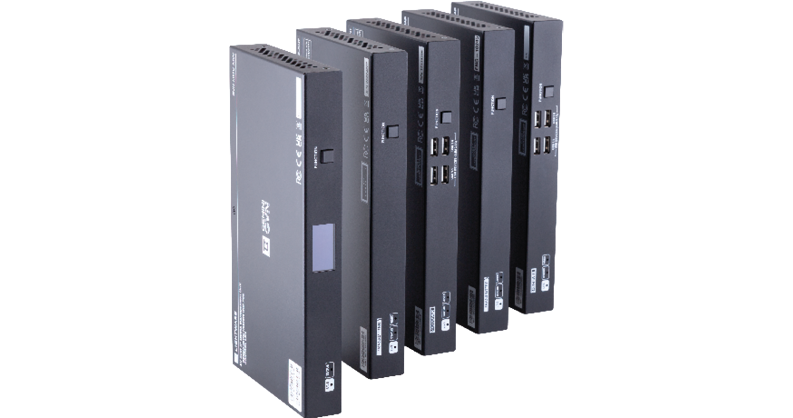
GVN-HDMI-TX210AP
GVN-HDMI-TX210-AP-DNT
GVN-HDMI-RX110AP
GVN-HDMI-RX110AP-DNT
GVN-HC-TX220AP
GVN-HC-TX220AP-DNT
GVN-MMU-X100
AV Over IP Multimedia Extender
|
|
|
|
||
|
|
|
|
||
|
|
|
|
||




|
|
|
|
||
|
|
|
|
||


Important Safety Instructions
Class II apparatus construction.
The equipment should be operated only from the power source indicated on the product. To disconnect the equipment safely from power, remove the power cord from the rear of the equipment, or from the power source. The MAINS plug is used as the disconnect device, the disconnect device shall remain readily operable.
There are no user-serviceable parts inside of the unit. Do not operate the unit without the cover installed. The appliance must be safely connected to multimedia systems. Follow instructions described in this manual.
Ventilation
For the correct ventilation and to avoid overheating, ensure enough free space around the appliance. Do not cover the appliance, leave the ventilation holes free and never block or bypass the ventilators (if there are any).
WARNING
To prevent injury, the apparatus is recommended to be securely attached to the floor/wall, or mounted in accordance with the installation instructions. The apparatus shall not be exposed to dripping or splashing, and no objects filled with liquids, such as vases, shall be placed on the apparatus. No naked flame sources, such as lit candles, should be placed on the apparatus.
CAUTION
The device contains a BR1632A button battery, which supplies power to the clock when the device is not powered on. Danger of explosion if battery is replaced incorrectly. Replace only with the same or equivalent type.
WARNING
Do not ingest the battery, Chemical Burn Hazard. This product contains a coin/button cell battery. If the coin/button cell battery is swallowed, it can cause severe internal burns in just 2 hours, and can lead to death. Keep new and used batteries away from children. If the battery compartment does not close securely, stop using the product and keep it away from children. If you think batteries might have been swallowed or placed inside any part of the body, seek immediate medical attention.
Waste Electrical & Electronic Equipment (WEEE)

This marking shown on the product or its literature indicates that it should not be disposed with other household wastes at the end of its working life. To prevent possible harm to the environment or human health from uncontrolled waste disposal, please separate this from other types of wastes and recycle it responsibly to promote the sustainable reuse of material resources. Household users should contact either the retailer where they purchased this product or their local government office for details of where and how they can take this item for environmentally safe recycling. Business users should contact their supplier and check the terms and conditions of the purchase contract. This product should not be mixed with other commercial wastes for disposal.
Caution: Laser product


Common Safety Symbols
|
Symbol |
Description |

|
Direct current |

|
Alternating current |

|
Protective conductor terminal |

|
Equipotential Connector |
.png)
|
On (Power) |
.png)
|
Off (Power) |

|
Double insulation |

|
Caution, possibility of electric shock |

|
Caution |

|
Laser radiation |

|
Warning, Rotating fan |

|
Caution: for indoor use only |
Applied SW/FW/HW Environment
All presented functions refer to the indicated products. The descriptions have been made while testing these functions in accordance with the indicated Hardware/Firmware/Software environment:
|
Rev. |
Release date |
|
FW package (MMU) |
v2.2.0b22 |
|
FW package (Endpoints) |
v1.8.0b8 |
|
Lightware Device Controller (LDC) version |
v2.23.0b4 |
|
Lightware Device Updater V2 (LDU2) version |
v2.39.0b9 |
Document Revision History
|
Rev. |
Release date |
Changes |
Editor |
|
1.0 |
2024-07-24 |
Initial release. |
Nikolett Keindl |
|
... |
|||
|
v5 |
2026-08-12 |
Information regarding new major FW update added, minor corrections |
Laszlo Zsedenyi |
|
v6 |
2026-09-03 |
GVN-MMU FW 2.0.2 alignment. |
Laszlo Zsedenyi |
Contact Us
+36 1 255 3800
+36 1 255 3810
Lightware Visual Engineering PLC.
Gizella 51-57, Budapest H-1143, Hungary
©2026 Lightware Visual Engineering. All rights reserved.
All trademarks mentioned are the property of their respective owners.
Specifications are subject to change without notice.
In this chapter we would like to introduce the device, highlighting the most important features in the sections listed below:
Lightware's revolutionary GEMINI GVN 1Gb AV-over-IP extender family, where scalability, flexibility, and rapid deployment take center stage. Designed to meet the demands of modern audiovisual environments, the GEMINI GVN is a virtual matrix system that seamlessly switches audio, video, and USB transmission with unparalleled ease.
At the heart of the GEMINI GVN system is the Matrix Management Unit (MMU) device, providing full functionality from a centralized control point, eliminating the need for individual endpoint configurations. With seamless switching capabilities, users can effortlessly manage their audiovisual setup for optimal performance.
It supports LW3 API, LDU2, LDC, features embedded web with LW content and has Separate video and corporate networks on 2× RJ45 connectors.
The device has a dedicated HDMI output and USB connection (future functionality), e.g. for displaying embedded web or stream previews.
The -DNT models offer Dante functionality alongside the general GVN AV streams.
The GVN-HC-TX220AP models contain extra USB-C inputs for A/V signals and/or USB data transmission.
Model Denomination


About the Serial Number
Lightware devices contain a label indicating the unique serial number of the product. From 1st of October 2024, serial number format of Lightware devices is the following: the first two digits are of the year of manufacture, while the remaining digits make up the running sequence number.

1.2. Major Product Changes with MMU FW 2.0.2
|
|
By default, the authentication is enabled and a default password is applied: Lightware10g. |
|
|
LW3 API is changed, the path changes affects the following nodes: /SYS /MANAGEMENT |
|
|
LW3 nodes under /MEDIA, /EDID, and /ENDPOINTS will remain unchanged. |
|
|
Routing change: CONTROL LAN is the default gateway in all cases, if both CONTROL LAN and AV LAN network interfaces have link up state. No special exceptions. If only one link has up state, it is also the default gateway. |
|
|
Use at least CAT5e type of cables for connecting the devices to the network. This can be critical during firmware update. |

|
From FW package v2.0.2, LARA 2.0 is integrated into GVN MMU. |

|
MMU v2.0.2 will only be compatible with LDC v2.24.0 and newer versions. |
|
|
Updating the MMU to FW v2.0.2 is only possible from FW package v1.8.0. |

|
Updating the MMU to FW v2.0.2 is only possible with using LDU2 v2.39.0 or newer version. |
|
|
Before updating, it is highly recommended to download a backup file from the MMU. |
|
|
It is not possible to downgrade from v2.0.2 to the officially released v1.8.0 FW version. There is a special GVN MMU package for downgrading: v1.8.128 which is available in the product's website (Downloads � Show Archived Files). Downgrading to v1.8.128 is only possible from v2.0.2. |
|
|
A downgraded MMU with FW v1.8.x will not be compatible with LDC v2.24.0, only with older LDC versions. |


See further details in the GVN MMU v2.0.2 FW Update Major Changes section.
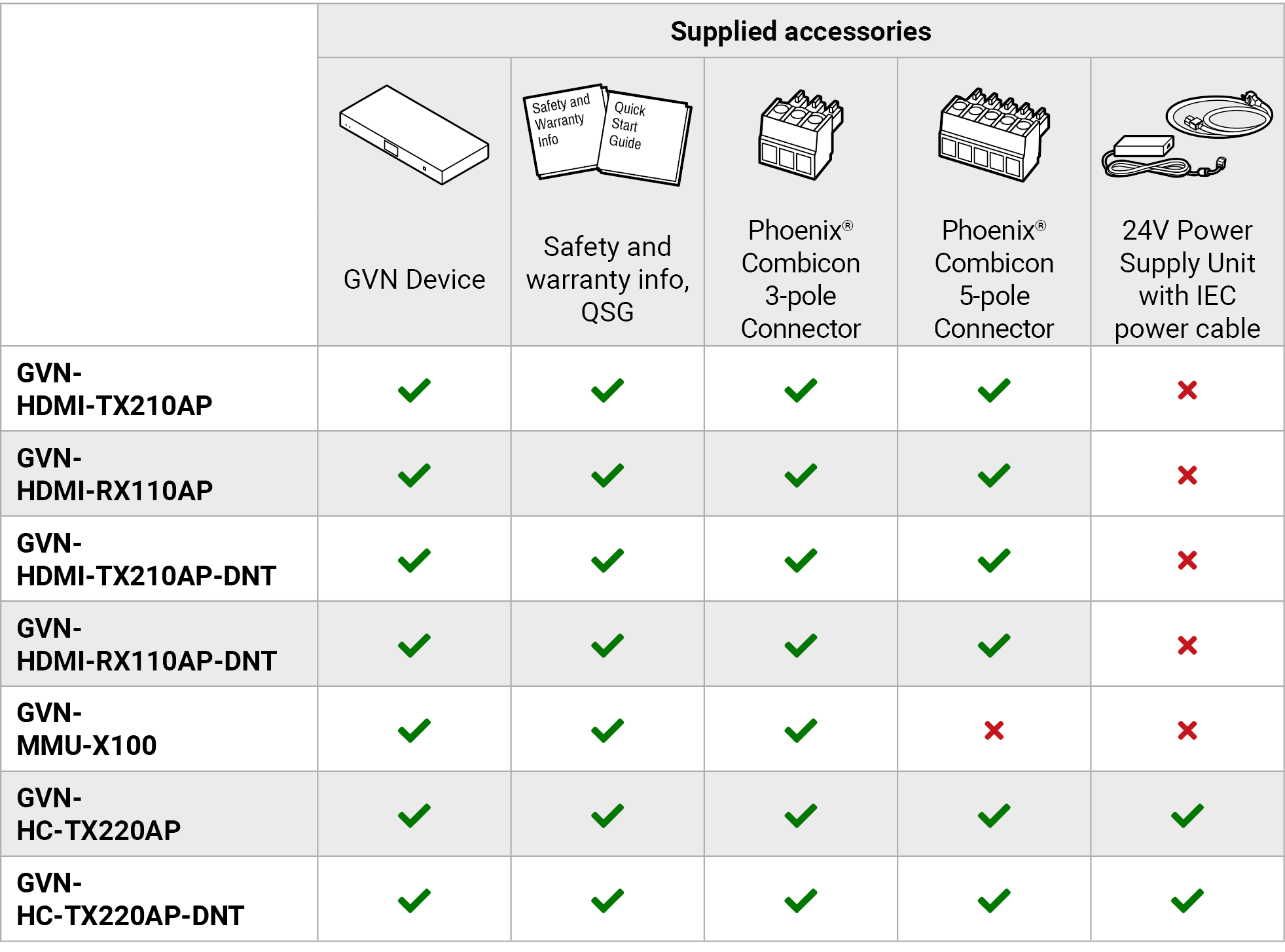
Supplied Accessories
Optional Accessories

|
Model |
External PSU |
Power over Ethernet |
Video interface |
Audio interface |
USB interface |
Network interface |
Serial interface |
|||||||
|
PSU-12VU |
HDMI input |
HDMI output |
USB-C input |
Analog audio* |
Dante audio* |
USB-C (data only) |
USB-A |
USB-B |
SFP |
RJ45 (GVN LAN) |
RJ45 (Control LAN) |
RS-232 |
||
|
|

|

|

|

|

|
|

|

|

|

|
|

|
||
|
GVN- MMU-X100 |
PSU-12VU |
PoE |
|
|
|
|
|
|
|
|
|
|
|
|
|
GVN- HDMI-TX210AP |
PSU-12VU |
PoE |
|
|
|
|
|
|
|
|
|
|
|
|
|
GVN- HDMI-TX210AP-DNT |
PSU-12VU |
PoE |
|
|
|
|
|
|
|
|
|
|
|
|
|
GVN- HDMI-RX110AP |
PSU-12VU |
PoE+ |
|
|
|
|
|
|
|
|
|
|
|
|
|
GVN- HDMI-RX110AP-DNT |
PSU-12VU |
PoE+ |
|
|
|
|
|
|
|
|
|
|
|
|
|
GVN- HC-TX220AP |
PSU-24VP3-160 |
PoE |
|
|
|
|
|
|
|
|
|
|
|
|
|
GVN- HC-TX220AP-DNT |
PSU-24VP3-160 |
PoE |
|
|
|
|
|
|
|
|
|
|
|
|


* See the Device Concept chapter for the details about the limitations.
** The connector is labeled "Custom LAN" on the device.
Legend
 : The connector is fully functional.
 : There is no such connector on the device, functionality is not available.
 : The connector is present on the device, but functionality is not yet available.

|
4K Support |
|
Up to HDMI 2.0 4K 2160p@60Hz 4:4:4 video input or 4096x2160@60Hz resolution over a 1 Gigabit network with ultra low latency. |
|

|
Pixel Accurate Reclocking |
|
Each output has a clean, jitter free signal, eliminating signal instability and distortion caused by long cables or connector reflections. |
|

|
Scaling the Output Image |
|
Video scaling is the process of changing the size of a video frame in order to match the native resolution of a display sink. It involves converting the resolution to a higher or lower format. |
|

|
HDCP 2.2 compliant |
|
The GVN extenders comply to the HDCP 2.2 standard. HDCP capability on the digital video inputs can be disabled when non-protected content is extended. |
|

|
SFP Module Support |
|
The devices can be connected to the network switch over SFP modules. |
|

|
Frame Detector and Signal Analysis |
|
The exact video and audio signal format can be determined such as timing, frequencies, scan mode, HDCP encryption, color range, color space and audio sample rate. |
|

|
Advanced EDID Management |
|
The user can emulate any EDID on the inputs independently, read out and store any attached monitor's EDID in 100 internal memory locations, upload and download EDID files. |
|

|
Local Video Output |
|
User can attach a local monitor to observe the video signal sent through the AV Output RJ45 / SFP ports. The resolution and clock frequency are the same with the HDMI inputs, no internal scaling or conversion is applied. |
|

|
RS-232 Interface |
|
AV systems can also contain serial port for controlled devices. Serial port supports any unit that works with standard RS-232. |
|

|
Built-in Website |
|
Easy access from a web browser to control and configure the devices – even with a mobile device. |
|

|
USB Extension |
|
KVM extension for USB HID (Human Interface Devices, e.g. keyboard, mouse) and USB 2.0 devices such as webcams, touchscreens, mass storage devices (e.g. flash drive, hard drive). |
|

|
Remote Power (PoE) |
|
The GVN-MMU-X100 and GVN-HDMI-TX210AP models can be Powered over Ethernet (according to IEEE 802.3af) by a compatible power source equipment. |
|

|
Remote Power (PoE+) |
|
The GVN-HDMI-RX110AP model can be Powered over Ethernet (according to IEEE 802.3at) by a compatible power source equipment. |
|

|
Seamless Switching (Clean Cut) |
|
GVN series extenders provide seamless switching (clean cut) technology, which is the capability to deliver consistent performance and reliability. |
|
|
Basic IT-security* |
|
These entry-level network security improvements help prevent unauthorized access to the Lightware device; HTTPS support, basic network authentication. |
*This feature is available from FW version v1.5.0.
GVN-HDMI-TX210AP-DNT, GVN-HDMI-RX110AP-DNT, GVN-HC-TX220AP-DNT

|
Dante® Audio Transmission |
|
GVN-DNT series extenders allow Dante audio layer to be transmitted alongside the GVN video and audio stream through the RJ45 port. |
GVN-HC-TX220AP, GVN-HC-TX220AP-DNT
|
USB-C input |
|
The USB-C input accepts 4K60 4:4:4 video with audio while providing a fully transparent and independent USB 2.0 data layer and optional 100W fast charging for BYOD hosts |

What Are the Benefits of Such a GVN System?
▪The same video content can be extended to the sinks via simple CATx cables up to 4K60 4:2:0 format.
▪Adding further transmitters to the system, dedicated video signals can be extended to the receivers.
▪The system is flexible; the number of the endpoints can be increased up till the number of the free network connections in the switch.
▪The GVN AVoIP system is a cost-effective solution for these cases.
The following sections contain links to sections that describe the physical structure of the devices, input/output ports and connectors:
GVN-MMU-X100

GVN-HDMI-TX210AP, GVN-HDMI-TX210AP-DNT

GVN-HDMI-RX110AP, GVN-HDMI-RX110AP-DNT

GVN-HC-TX220AP

|
|
LIVE LED |
For more information, please see the Status LEDs section. |
|
|
Status LED |
For more information, please see the Status LEDs section. |
|
|
OLED Display |
A screen displaying useful information such as the Product Name, the IP addresses and the package version. |
|
|
Function Button |
Button for physically controlling the device. For more information, please see the Button Functionality section. |
|
|
Video LED |
For more information, please see the Status LEDs section. |
|
|
USB-A Ports |
USB 1.1 A-type ports for transmitting USB HID devices. |
|
|
USB-A Ports |
USB 2.0 A-type ports for USB devices (e.g.: webcamera, touch screen or smart card reader, mass storage devices). |


INFO:The hardware attributes of -DNT and non-DNT endpoints are the same.
GVN-MMU-X100

GVN-HDMI-TX210AP, GVN-HDMI-TX210AP-DNT

GVN-HDMI-RX110AP, GVN-HDMI-RX110AP-DNT

GVN-HC-TX220AP, GVN-HC-TX220AP-DNT

ATTENTION!Never connect a device to the same network over the SFP and RJ45 ports. Similarly, use only one RJ45 port to connect a network to avoid a network loop.
INFO:The hardware attributes of the -DNT and non-DNT endpoints are the same. Dante-compatible models have a sticker on top to differentiate from non-DNT models.
|
|
DC Input |
12V DC input in case of powering locally. 24V DC input in case of HC models. |
|
|
Reset Button |
Reboots the device or resets factory default values. For more information, see the Button Functionality section. |
|
|
RJ45 Ports |
Separate 10/100/1000Mbps RJ45 connectors for Ethernet connection and control functions. One of the ports is for controlling the MMU, while the other is for Endpoint network control. |
|
|
HDMI Output Port |
HDMI connector for control purposes. This function will be implemented in a later firmware update. |
|
|
USB-A Ports |
USB 2.0 compatible A-type ports for local USB HID and mass storage devices. This function will be implemented in a later firmware update. |
|
|
RS-232 Port |
3-pole Phoenix® connector. This function will be implemented in a later firmware update. |
|
|
AV Ports |
RJ45 connector and slot for an SFP module. One at a time is available for transmitting an AV signal. Applied cable shall be max. 100 m (at least CAT5e) in case of RJ45. Please note that SFP module is not supplied with the device. In case of the -DNT models, Dante audio is also transmitted through the RJ45 port alongside GVN video and audio. |
|
|
HDMI Input Port |
Video port for DVI or HDMI signal. |
|
|
Local HDMI Output Port |
For a local sink device (mirrored from the AV output). |
|
|
Analog Audio Port |
5-pole Phoenix® connector for balanced analog audio output signal. The signal is de-embedded from the selected video signal. Input functionality will be added in a later firmware update. |
|
|
USB-B Port |
B-Type connector for USB pass-through application (e.g. for connecting the Encoder to a computer). |
|
|
HDMI Output Port |
HDMI output to a sink device. |
|
|
Custom LAN |
Ethernet connection point to the GVN AV network. Separate RJ45 connection feature will be added with a later firmware update. |
|
|
USB-C input (AV) |
The USB-C input accepts 4K60 4:4:4 video with audio while providing a fully transparent and independent USB 2.0 data layer and optional 100W fast charging |
|
|
USB-C input (data only) |
USB 2.0 data via USB-C. This port allows a second host computer to take advantage of a combination of HDMI 2.0 input plus data-only USB-C ports |


3
The following sections are about the front panel operation of the devices and the status LEDs:
GVN-HDMI-TX210AP(-DNT), -RX110AP(-DNT) and GVN-HC-TX220AP(-DNT)
|
LIVE LED |
||||

|
off |
The device is not powered. |
||

|
green |
blinking |
The device is booting. |
|

|
green |
on |
The device is powered and operational. |
|
|
Status LED |
||||
|
|
off |
There is no network connection. |
||

|
green |
blinking slow |
Firmware update is in progress. |
|
|
|
green |
blinking |
There is network connection, but no video transmission happens. |
|
|
|
green |
on |
There is network connection and video is being transmitted. |
|
|
Video LED |
||||
|
|
off |
There is no video iput detected. |
||
|
|
green |
blinking 2x |
Device changes to DHCP mode. |
|
|
|
green |
blinking 3x |
Device changes to Static IP mode. |
|
|
|
green |
on |
There is video input detected. |
|
GVN-MMU-X100
|
LIVE LED |
||||
|
|
off |
The device is not powered. |
||
|
|
green |
on |
The device is powered and operational. |
|
|
Status LED |
||||
|
|
off |
The device is not working or booting is in progress. |
||
|
|
green |
blinking slow |
The device is powered and operational. |
|

|
green |
blinking fast |
Firmware update is in progress. |
|
|
Left LED, Green |
Right LED, Yellow |
|
|
|
Link |
Activity |
.png)
GVN-HDMI-TX210AP(-DNT), GVN-HDMI-RX110AP(-DNT) and GVN-HC-TX220AP(-DNT)
Press and hold the button for 5 seconds to change between DHCP or Static IP mode. Please see the Video LED for checking the new active mode.
ATTENTION!Please note that if the device is in DHCP mode, pressing the Function button will configure the device to the static IP address of 192.168.1.200 regardless of what is set as a static IP either by default or by the user. This is so that anything should happen that will make the device unreachable on any network, it may be reached again at this specific IP address to be reconfigured.
GVN-MMU-X100
By pressing the button, the OLED display can be activated. The displayed information can also be toggled with it, see below.
This hidden button can be pressed using a long, thin object.
The following functions are available:
▪Short press: Reboots the device.
▪Long press (10 seconds): Restores the device to factory default settings. #factorydefault
INFO:In the case of the endpoints, the factory reset is only possible within the first 90 seconds after the device has finished booting. MMU does not have such a limitation.
For factory default settings please see the Factory Default Settings section.
The MMU contains a front panel display showing useful information:
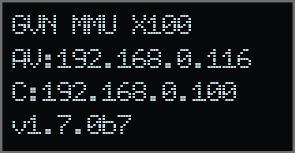
▪Product Name,
▪Gemini network IP address,
▪Control network IP address,
▪FW package version.
Further information can be toggled with the Function button on the display, like AV LAN, Control LAN, date and time setting.
This chapter is about the installation of the devices and connecting to other appliances, also presenting the mounting options and further assembly steps:
ATTENTION!In order to avoid overheating, please mare sure not to assemble GVN-HC devices to each other. Let the top side and the ventilation holes free.
INFO:Gemini devices are half-rack sized.
WARNING!Always make sure to use screws supplied with your device (if there are any), as they are device-specific. The screws supplied with the accessories are longer and may be incompatible with some devices due to danger of touching internal parts and damaging the device. If your Lightware device is supplied with fixing screws, use them for fixing.
The F120 Mounting kit provides easy mounting a single Gemini device to a flat surface (e.g. furniture).

The mouting kit provides easy mounting to flat surfaces
Mounting steps
Step 1.Turn the device upside down.
Step 2.Fix the UD Mounting Plate F120 to the device by fastening the screws.

Step 3.Fix the UD Mounting Plate F120 under the desk by fastening the screws.

INFO:UD Mounting Plate F120 does not contain the fixing screws; they can be purchased from the local hardware store. 2x4pcs M3-M5 metric or wood screws are needed, M3 size is recommended.
ATTENTION!To ensure the correct ventilation and avoid overheating, insert the device face down to the UD Mounting Plate F120 to keep the ventilation holes free.

The devices provide standard RJ45 connectors for outgoing/incoming AV/Control signals.
ATTENTION!Use at least CAT5e type of cables for connecting the devices to the network.
The Wiring of the Twisted Pair Cables
The recommended termination is based on TIA/EIA T 568 A or TIA/EIA T 568 B standards.

4.2.2. HDMI Input and Output Ports
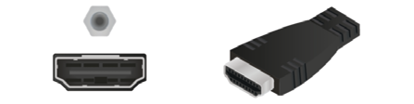
The devices are assembled with standard 19-pole HDMI connectors for inputs and outputs. Special HDMI cables can be fastened to the housing by the nut.
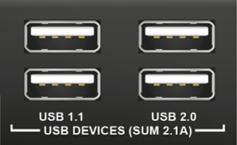
The GVN-HDMI-RX110AP(-DNT) model provides USB-A connectors for supporting K+M functionality. The device has 2 pieces of USB 1.1 A-type and 2 pieces of USB 2.0 A-type connectors.
GVN-MMU-X100 offers 2 pieces of USB-A connectors for management purposes.
For more information about the USB extension see the USB Interface section.

The GVN-HDMI-TX210AP(-DNT) model provides a USB-B connector for supporting K+M functio-nality. The device has 1x USB 2.0 B-type connector for a USB host computer.
GVN-HC-TX220AP and TX220AP-DNT models provide two types of USB-C connectors for:

▪video input: USB 2.0 with video, audio, ethernet and up to 100W charging power,
▪USB 2.0 data-only port: allowing a second host computer to take advantage of a combination of HDMI 2.0 input plus data-only USB-C ports.
4.2.6. USB-C Cable Recommendation
Please find the recommendations for the applied cables below:
▪Use Full-featured USB Type-C cables made by reliable brands.
▪USB 2.0 cables do not have the Superspeed channels, neither DP video, nor USB3 transmission works with them.
▪Type-C cables certified for USB 3.x Gen1-Gen2 (5Gbps or 10Gbps) and Displayport Alternate mode HBR2-HBR3 (5.4Gbps or 8.1Gbps) applications are recommended.
▪Thunderbolt cables are not backwards compatible with USB3.x or Displayport unless the manufacturer explicitly states so.
▪Passive, 20Gbps Thunderbolt 3 cables, which are also specified for USB3.x are a good, but more expensive choice.
▪5A charging capability is not required. All USB Type-C cables should support at least 3A (up to 60W) charging.
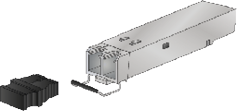
The module inserted in the SFP slot can be used for network connection (AV transmission).
DEFINITION:The small form-factor pluggable (SFP) is a compact, hot swappable optical module transceiver used for both telecommunication and data communication applications. It is a popular industry format jointly developed and supported by many network component vendors. The SFP interface supports data rates up to 1 Gbit/s. *
ATTENTION!Please note that only one of the network ports is available at the same time in a device: either the SFP or the RJ45. When SFP is connected to a network, the RJ45 port is disabled.
ATTENTION!The SFP port slot can handle SFP module up to 1 GbE support.
* Source: https://en.wikipedia.org/wiki/Small_form-factor_pluggable_transceiver
Maximum Allowed Optical Cable Length
The maximum allowed optical cable length depends on the installed SFP modules. Always check the specification of the optical modules before the fiber optical cabling.
Installation of SFP Modules
GVN endpoint devices use one SFP module slot for the fiber optical connection via the network switch. The optical module can be changed based on the recent application of the extender: it can be singlemode or multimode, or BiDi module, up to 1 GbE signal transmission.
Inserting and Cabling of SFP Modules
Step 1.Put up on the handle bar.
Step 2.Connect the module to the to one of the SFP port slot.
Step 3.Connect the LC connectors / RJ45 Ethernet cables to the SFP modules.
INFO:The SFP modules have a side that clips to the connector on the port of the switch, and is designed to prevent the module from being inserted the wrong way into the port. Do NOT force module into the port.
ATTENTION!Please note that SFP+ modules can also fit into the connector, however, transmission will not work. Make sure to use the correct modules.
Removing SFP Modules
Step 1.Disconnect the LC connectors / RJ45 Ethernet cables from the SFP module.
Step 2.Pull down on the handle bar.
Step 3.Gently slide out the SFP module from the slot.
Installation of DAC Cables
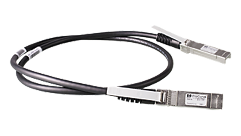
GVN endpoints can be connected via DAC (Direct Attach Copper) cables to the network switch. The cable type must support 1 GbE signal transmission.
Inserting the DAC Cables
Step 1.Push the plug of the DAC cable to one of the SFP port slot of the transmitter to stop.
Step 2.Push the other plug of the DAC cable to one of the SFP port slot of the receiver to stop.
Removing the DAC Cables
Pull the handle bar of the plug and gently slide out the cable from the slot.
INFO:See more details about the SFP interfaces in the SFP Interface section.

DIFFERENCE:The GVN-MMU-X100 model does not have an analog audio port.
5-pole Phoenix connector is used for balanced analog audio output. Unbalanced audio signals can be connected as well. For asymmetrical output, connect only + and ground. For asymmetrical input connect + and ground to the source and connect – to the ground.

GVN models contain a 3-pole Phoenix connector, which is used for RS-232 serial connection.

GVN devices can be powered locally via a locking DC 12V connector.
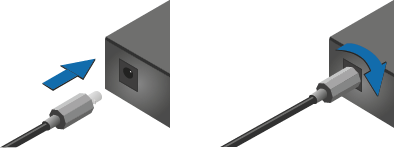
Do not forget to turn the plug counterclockwise before disconnecting the power adaptor.
DIFFERENCE:This section refers to the GVN-HC-TX220AP and -TX220AP-DNT models only.
The 'HC' models are built with 2.pole Phoenix connector for DC power connection.

The devices can be powered either locally or via Power over Ethernet (PoE) through the RJ45 ports using a PoE-capable Ethernet switch or power injector. #power #poe
|
Product |
Local powering |
Remote power (PoE, IEEE802.3af) |
Remote power (PoE+, IEEE802.1at) |
|
GVN-HDMI-TX210AP |
|
|
|
|
GVN-HDMI-TX210-AP-DNT |
|
|
|
|
GVN-HDMI-RX110AP |
|
|
|
|
GVN-HDMI-RX110AP-DNT |
|
|
|
|
GVN-HC-TX220AP |
|
|
|
|
GVN-HC-TX220AP-DNT |
|
|
|
|
GVN-MMU-X100 |
|
|
|


Powering options
* The PoE is available via the GVN LAN RJ45 port only.

Local powering vs. Remote powering
ATTENTION!Please be aware that the power adaptor is not supplied.
The booting time of the endpoints is 40-45 seconds, MMU is approx 90 seconds.
4.3.2. Power Delivery over USB-C (charging)
USB Power Delivery (PD) supersedes all previous technologies and does not incorporate them. It can achieve any of the previous levels, but does so with its own methods.


Power pins of USB-C connector
Rules
▪The VBUS and GND pins are used for powering and the return paths for the signals.
▪The CC channel is used for power negotiation.
▪The other CC pin can be used for VCONN powering.
▪The charging function at USB-C input port is independent of the crosspoint state. The function can be enabled/disabled on the port separately.
Power Data Objects
USB-C PD covers a range of different power levels, with different amperage and voltage combinations that a charger can deliver, depending on what the device asks for and the cable negotiates. These values are defined by PDO (Power Data Objects).
The PDO defines a power capability:
▪Nominal voltage and maximum current
▪A Source must have at least one PDO
▪The Sink chooses one of the Source's PDOs via CC communication
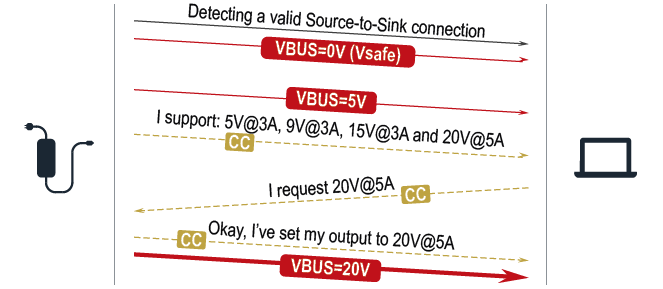
Powering handshake
The following PDOs are supported: 5V@3A, 9V@3A, 15V@3A, 20V@5A.


|
Connect an HDMI source (e.g. BYOD laptop or room PC) to the HDMI input port of the Transmitter. |

|
Connect the extenders and the MMU to a Gigabit switch using CATx cables. |

|
USB Type-A: Optionally connect the USB device (e.g. webcamera). USB Type-B: Optionally connect the USB host (e.g. PC). |

|
Connect an HDMI sink (e.g monitor) to the HDMI output port. |
|
Optionally for RS-232 extension: connect a controller/controlled device (e.g. projector) to the RS-232 port of the Receiver. |

|
Optionally connect the Control LAN port of the MMU to a Local Network Switch to provide Ethernet connection for device configuration and BYOD internet access. |

|
Optionally connect an audio device (e.g. speakers) to the analog audio output port by an audio cable. |

|
Connect the external power supply to the AC power socket and the GVN device. Powering the device is recommended as the final step. |

|
|
Connect an HDMI source (e.g. BYOD laptop or room PC) to the HDMI input port of the Transmitter. |
|
|
Connect the extenders and the MMU to a Gigabit switch using CATx cables. |
|
|
USB Type-A: Optionally connect the USB device (e.g. webcamera). USB Type-B: Optionally connect the USB host (e.g. PC). |
|
|
Connect an HDMI sink (e.g monitor) to the HDMI output port. |
|
|
Optionally for RS-232 extension: connect a controller/controlled device (e.g. projector) to the RS-232 port of the Receiver. |
|
|
Optionally connect the Control LAN port of the MMU to a Local Network Switch to provide Ethernet connection for device configuration and BYOD internet access. |
|
|
Optionally connect an audio device (e.g. speakers) to the analog audio output port by an audio cable. |

|
Optionally connect Dante-capable audio devices (e.g. mixer, speaker, microphone, etc.) to the switch to make use of their capabilities via the endpoints. |
|
|
Connect the external power supply to the AC power socket and the GVN device. Powering the device is recommended as the final step. |
ATTENTION!Never connect a device to the same network over the SFP and RJ45 ports. Similarly, use only one RJ45 port to connect a network to avoid a network loop.
The following chapter describes the features of the devices:
The Matrix Management Unit (MMU) is the brain of the GVN system in the point-multipoint (networked) application mode. The MMU builds up the endpoints with the crosspoint table; controls, manages and supervises the endpoints connected the GVN network.
The GVN system is dynamic, endpoints can be removed and new endpoints can be added to the matrix at any time of the operation. The number of the endpoints can be adjusted to the current need. Another feature is the transmission of RS-232 and USB signals. Many receiver devices can be connected to the same Transmitter through a Gigabit switch. The MMU can automatically discover all Endpoints and add them to the list of mapped devices.
Gemini Network
It consists of the following devices:
▪Managed Network switch (1G, Layer 3)
▪GVN-MMU (Matrix Management Unit)
▪GVN Endpoints (Transmitters and Receivers)
▪Source and Destination devices
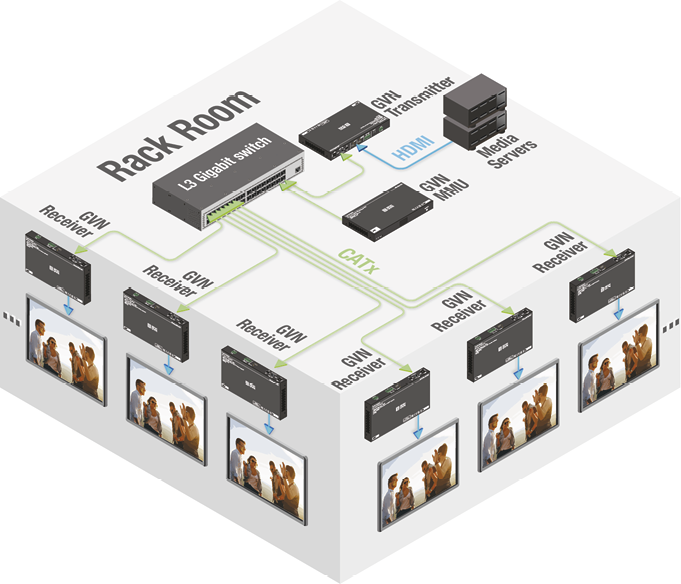
5.2.1. Video Stream Transmission
The stream of each of the transmitters may be switched to one or several receivers by setting the crosspoint in the MMU. It is essential that switching the video signals in an RX from a TX to another TX can be seamless – thanks to the built-in scaler; see more information in the Seamless Switching section.
ATTENTION!AV transmission can only happen through either the RJ45 port or the SFP port at a time.
When no signal is present on a GVN receiver, it has a built-in screen containing the GVN logo and On-Screen Display (OSD) information about the endpoint. #nosignal
DIFFERENCE:From FW version v1.6.0, it is possible to set the no signal screen to black, or even to disable the HDMI output if there is no incoming stream on the RX.
Changing the no signal screen is possible via LW3 protocol commands: No Signal Screen Settings.
GVN-MMU-X100
The GVN-MMU-X100 is equipped with two 10/100/1000 MBps Ethernet ports with RJ45 connectors. The ports can be used for managing the endpoints and configuring the GVN AV network. The two ports are physically separated from each other and got different IP addresses.
GVN-MMU-X100

GVN-HDMI-TX210AP, GVN-HDMI-TX210AP-DNT

GVN-HDMI-RX110AP, GVN-HDMI-RX110AP-DNT
GVN-HC-TX220AP, GVN-HC-TX220AP-DNT

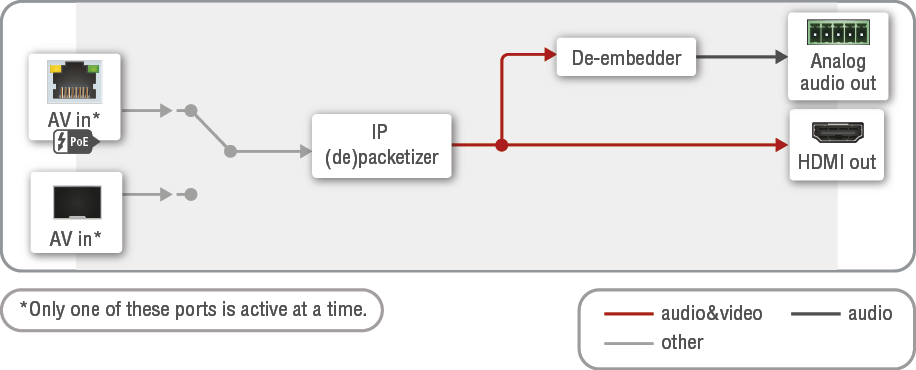
INFO:There is an approx. one second delay when switching between the input ports in the transmitter.
5.3.1. Analog Audio Input Interface (GVN-HDMI TX)
DIFFERENCE:This section refers to GNV-HDMI-TX210AP(-DNT) models only.
The Analog audio port mode can be set to input in order to switch the audio to the desired signal route. Please pay attention to the following important rules: #analogaudio
▪The Analog audio port mode is configurable as an input in GVN transmitters from FW version v1.7.0b9.
▪If the port mode is input, the output function is not available.

Analog audio port settings are available in LDC, see the Audio Source Port Properties (TX) Panel section and with LW3 commands, see the Analog Audio Port Settings section.
5.3.2. Analog Audio Output Interface (GVN-HDMI TX&RX)
DIFFERENCE:This section refers to GVN-HDMI-TX210(-DNT) and -RX210AP(-DNT) models only.
The audio embedded in the video stream is de-embedded to the Analog audio output port.
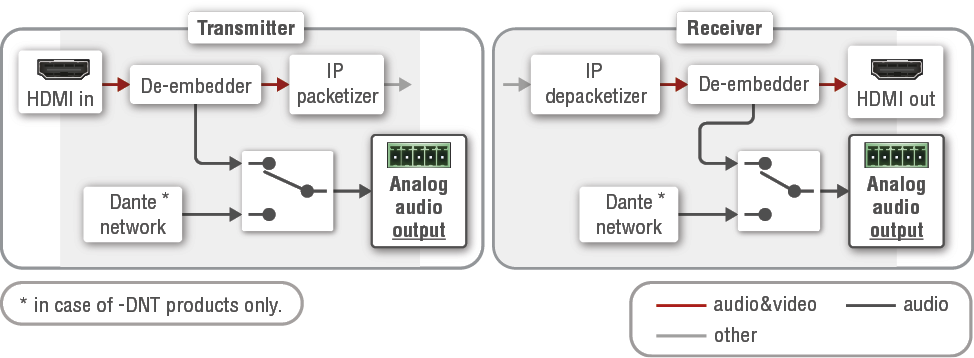
ATTENTION!Please note that the Dante audio output can be switched to the Analog audio output port, if the Dante input is selected to be embedded in the video stream.
5.3.3. Analog Audio Interface (GVN-HC TX)
DIFFERENCE:This section refers to GVN-HC-TX220AP(-DNT) models only.
When the Port Mode is Input

Step 1.The Analog audio port shall be set to Input; it is available in LDC, see the Port Information section, or with LW3 commands, see the Audio Interface section.
Step 2.The source selection is available in LDC, see the Stream Information section or with LW3 commands, see the Analog Audio Port Settings section.
When the Port Mode is Output

Step 1.The Analog audio port shall be set to Output; it is available in LDC, see the Port Information section, or with LW3 commands, see the Setting the Direction of the Analog Audio Port (Transmitters) section.
Step 2.The destination selection is available in LDC, see the Stream Information section or with LW3 commands, see the Audio Input Selection Within a Single Endpoint section.
ATTENTION!Please note that the Dante audio output can be switched to the Analog audio output port, if the Dante input is selected to be embedded in the video stream.
5.3.4. USB Audio Interface (GVN Audio)
DIFFERENCE:This section refers to GVN-HC-TX220AP(-DNT) models only. #usb
When a computer is connected to a USB-C port, the PC can use the USB Audio Converter (UAC) of the GVN transmitter as an external sound device. This emulated sound card has the following main properties:
▪The UAC input and the UAC output cannot be connected to each other.
▪The sound card can be connected to one USB-C port at a time.
▪The USB audio converter is disabled as default; do the following to enable it:
Step 1.Enable the USB audio converter in LDC, see the Port Information section or with LW3 commands, see the Enabling/Disabling the USB Audio Converter (UAC) section.
Step 2.Select the USB-C port where the computer is connected to; in LDC at the same place as above or with LW3 command, see the Connecting a USB-C Port to the UAC section.
UAC Input Options
Step 1.Enable the UAC function, see as above.
Step 1.When using the UAC input: navigate to the desired audio port destination in LDC, or with LW3 command, see the Audio Input Selection Within a Single Endpoint section. If you want to use the Analog audio port as a source, please set the port mode to input.

UAC Output Options
Step 1.Enable the UAC function, see as above.
Step 2.When using the UAC output: select the internal source in LDC, see the Port Information section or with LW3 commands, see the Audio Input Selection Within a Single Endpoint section. If you want to use the Analog audio port as a destination, please set the port mode to output.

5.3.5. Dante AV-A® Audio Interface
DIFFERENCE:This section refers to the GVN-HDMI-TX210AP-DNT, -RX110AP-DNT and GVN-HC-TX220AP-DNT models only.
The Dante-capable GVN endpoints contain a special module that allows them to transmit Dante audio alongside the AV stream through the RJ45 connector. #dante
The Dante audio can be de-embedded from the HDMI stream in the transmitter, and transmit alongside the GVN audio. Hence, it can be received by any Dante-capable device. GVN-HC transmitters support more audio/video inputs, thus, the incoming audio can be switched to the Dante Network. For more information please see the GVN-HC Transmitter sections.
Audio Switching in the Dante Network
Please be aware that switching an audio stream to the Dante Network requires two steps.
Step 1.Switching the Dante input and output to the desired ports in the endpoint (depending on the capabilities of the endpoint).
Step 2.Setting the crosspoint using Dante Controller (see below)
The Dante Controller software can be downloaded from https://www.getdante.com/products/software-essentials/dante-controller/.
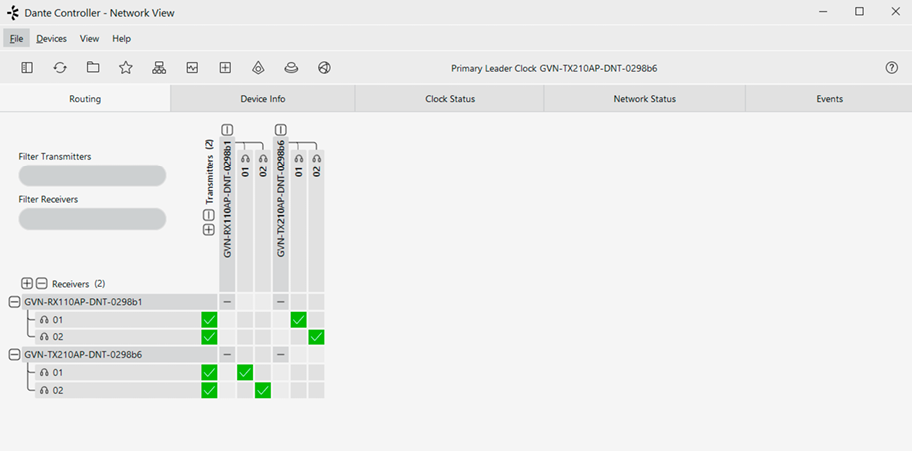
Dante Controller crosspoint
GVN-HC-TX220AP-DNT can handle multiple audio and video sources which affects the Dante audio signal handling in the transmitter. The potential signal routes are presented on the following figure:

Things to notice:
▪If Dante input is selected to be embedded in the video stream, the Dante output may carry one of the other available audio sources: Analog audio, Original embedded audio or UAC input.
▪One of the audio sources can be transmitted towards the Dante Network.
▪The incoming signal from the Dante Network can be switched to all available audio routes at a time.
ATTENTION!Please note that the GVN system adds one tier to the USB topology when transmitting USB signals between the extenders. #usb
DIFFERENCE:This section refers to GVN-HC-TX220AP and -TX220AP-DNT products only.
The USB-C ports transfer USB 2.0 signal including Audio and Ethernet. The USB-Audio and USB-Ethernet converters are disabled as default, you can enable them in LDC, see the Port Information section, or with LW3 commands, see the Enabling/Disabling the USB Audio Converter (UAC) and the Enabling/Disabling the USB Ethernet Converter (UEC) sections.

When the USB-Audio converter is enabled, the emulated devices will appear in the operating system in the connected PC:

Audio devices in Windows
Likewise, if the USB-Ethernet converter is enabled, it will appear in the network adapters:

Ethernet adapters in Windows
USB-C IN

USB-C IN port pinout
ATTENTION!The applied USB-C cable type is essential for the correct signal transmission. Please see the USB-C Cable Recommendation section for more information.
USB 2.0 Data
GVN-HC transmitters support USB 2.0 data transmission (up to 480 MBps) on their USB-C ports. Ethernet and USB data is transferred over the dedicated D+ and D- lanes.
DisplayPort Alternate Mode
DP lanes are for carrying video as non-USB data using DisplayPort Alternate mode in 4-lane mode always.
Power Delivery (charging)
The GVN transmitter can charge the connected device up to 100W.
ATTENTION!Please note that the charging function is available only if the local PSU is attached to the transmitter. The charging is not available if the transmitter is Powered over Ethernet (PoE).
USB-C Host (data only) Port

USB-C host port pinout
This port supports USB 2.0 data transmission including Audio and Ethernet.
USB 2.0 data transmission operates between the transmitter and receiver endpoints. Connect the host device (e.g. a computer) to the transmitter and the USB peripherals to the receiver. Supported USB peripherals: #usb
▪USB HID devices: keyboard, mouse, presenter, webcamera.
▪Mass storage devices: USB flash drive, external hard drive.
The signal of the mouse and the keyboard connected to a receiver will be transmitted towards the host in composite mode, and the signal of 6 further USB 2.0 device can be transmitted alongside it to the host simultaneously.
ATTENTION!Please keep in mind that in GVN receivers contain two USB-A ports for USB 1.1 connection (HID devices), and two USB-A ports for UBS 2.0 connection (e.g. webcamera, touchscreen, smart card readers, mass storage devices).
WARNING!Please be aware that if you have a USB device connected to an endpoint that you wish to disconnect from another endpoint or change crosspoints, it is highly advised to make sure the USB device is not being used actively and is properly disconnected on the host side. Otherwise, data loss may occur (e.g. there is active data transfer to/from a pen drive when the endpoints are switched/disconnected. This might corrupt the file system on the pen drive and data might be lost.)
Serial data transmission works between a Transmitter and a connected Receiver. To connect serial devices, please use the cables supplied with the extenders. #serial
ATTENTION!The serial data is transmitted only if video is transmitted between the affected devices.
Pass-through Mode
DEFINITION:The Pass-through mode means fully transparent bidirectional data transmission from an RS-232 port of a GVN transmitter to an RS-232 port of a GVN receiver – and vice versa.
All data received from the serial ports of the receivers is transmitted to the serial port of the transmitters and vice versa: the data received from the serial port of the transmitters is transmitted to the serial ports of the connected receivers.
Command Injection Mode
DEFINITION:The Command Injection mode is like an RS-232 - TCP/IP bidirectional converter. The mode allows data transmission between a TCP/IP device and a serial device.
ATTENTION!The TCP/IP port number is fixed on 6752, and a direct connection to the endpoint (through the IP address of the endpoint) via this port is necessary for proper operation.
When a device is connected to the network (e.g. TCP/IP connection from a computer) and a serial device is connected to the RS-232 port of a GVN device, they can communicate with each other.
The mode can be enabled as described in the Setting the RS-232 Port Operation Mode section.
DEFINITION:SFP: the small form-factor pluggable (SFP) is a compact, hot-pluggable optical module transceiver used for both telecommunication and data communications applications. It is a popular industry format jointly developed and supported by many network component vendors. *
* Source: https://en.wikipedia.org/wiki/Small_form-factor_pluggable_transceiver
GVN series endpoint devices contain standard 1x SFP slots for the fiber optical connections via SFP modules or DAC cables. The installed SFP modules can be single mode or multimode as well.
The following methods can be applied to connect the endpoints to the switch:
▪1x SFP transceiver module up to 1 Gbps bandwidth. The module can be single mode or multimode, built with LC duplex connectors or BiDi modules. The maximum allowed fiber optical cable length depends on the installed SFP modules. Always check the specification of the module.
▪1x 1 GbE DAC cable
ATTENTION!Please note that SFP+ modules can also fit into the connector, however, transmission will not work. Make sure to use the correct modules.
ATTENTION!Please note that Power over Ethernet is not available via the SFP slots, only the RJ45 ports!
5.7. Lightware Advanced Room Automation (LARA)

Lightware Advanced Room Automation (LARA) is a future-proof room automation platform that enables controlling both Lightware and 3rd-party devices in a meeting room area and also accessing remote services over the network. LARA has an easy-to-use graphical interface that allows the integrators to set up and deploy their system and also helps the technicians and IT personnel to check the system status and diagnose possible errors. LARA comes with built-in touchscreen control support, where a fully customizable graphical interface can be provided to literally any modern touchscreen device.
LARA eliminates the need for an external controller unit or PC, as it is embedded into GVN MMU. Because of the modular design, the integrators can build their system based on existing modules (drivers, touch screens, services and more) or create their own. Thanks to the approach of open source modules, the integrators can easily modify or extend the existing modules, or use them as a base for their new solutions.
With LARA, integrators can set up the behavior of the meeting room by creating rules and setting various parameters, there is an option to write codes. JavaScript is the most widespread language today, which has a steep learning curve and huge online community. By using the popular NodeJS engine, the integrators can rely on the public NPM repository (http://www.npmjs.org) and use the free packages available there.
We are working hard to release new functionalities regularly and make LARA more and more user-friendly.
DIFFERENCE:LARA is available in GVN MMU from FW package v2.0.2.
5.7.1. Opening the LARA interface
ATTENTION!When connecting to a device, you will need the 443 port for HTTPS connection, and optionally the 6107 port for raw TCP connection and the 80 port for HTTP connection.
Step 1.Enable LARA in your device. Navigate to the Settings/Services tab, and enable LARA via the checkbox.
INFO:As LARA is capable of running NodeJS scripts accessing your network, it is imperative to prevent open access that could be used by a malicious attacker.
Step 2.Open LARA in either of the following ways:
- Via the Open LARA button under the Settings/Services tab in the LDC or the built-in web. If you use the built-in web, HTTPS connection must be established to open LARA.
- By typing https://<ip_address>/lara into the address field of your browser. Even though any modern browser should work, we recommend using the latest Chrome or Safari versions. If you don’t know the IP address of your device, please use Lightware Device Controller to discover it on your local network.
LARA does not run by default, however, once it starts, it will remain running even after resetting the device or closing the browser, until it is stopped by the user. It can be disabled in the LDC software. Please be aware that calling factory reset will erase LARA configurations.
While a graphical interface is available for most of the general functions, LARA offers the option to use it with JavaScript codes for every step and modification for both basic and more advanced task creation. Wizard and JavaScript code usage can easily be combined for maximum efficiency.
Help
LARA offers a built-in help interface, which is available by clicking on the Help button near the top right corner. If you have active Internet connection, the LARA User Manual is available either via the QR code or the clickable link beneath it.
LARA uses modules and their instances as basic building blocks of a configuration.
Modules
Modules are software pieces that give a base to the processes in the LARA interface. There are five module categories available as follows:
▪Driver: a module connected to a certain device in the network
▪Logic: a module for organizing the other modules into a system
▪Userpanel: provides a user interface for the end user (e.g. tabletop control)
▪Service: a module connected to a certain service in the network (e.g. calendar services)
▪Script: any custom module for a specific purpose
LARA modules have access to the devices' every port, connection interface and the entire parameter library of the LW3 tree.
There are several pre-made modules that can be found in LARA for quick and easy system setup. These modules can be found in the Browse Modules menu by clicking on the Create New button and choosing one of the options from the Base modules drop-down list, e.g.:
▪GVN MMU driver module - for controlling the device
▪Generic LW3 driver module - for controlling another Lightware device that supports LW3 protocol
▪Generic TCP/IP driver module - for controlling any device that is available via TCP/IP connection
Instances
Modules can be run as instances. Different parameters may be added to different instances for the same module to include every possible process in the desired system.
Instances can communicate with each other using Events and Methods.
ATTENTION!It is currently only possible to run all instances together, or run none of them.
Events
Every instance can emit Events when something happens. An event is always momentary, it will be emitted immediately when something triggers it. An event can be used by other logic or user panel instances, or even by the same instance itself.
Methods
Methods are software pieces in any instance, which can be invoked (called) to initiate an activity in the associated room equipment.
Rules
Rules allow setting up processes according to changes in the state of the device. A status change might dispatch an Event, which can trigger a rule. The rule will then be able to execute an Action according to the triggering Event. When defining a new rule, a triggering Event must be selected. In case of Logic and Userpanel modules any instance can be chosen as the source of the Event. In other cases only the given module's own Events may be selected.
Once an Event has been dispatched that triggered a rule, an Action will be launched. An Action may have an unlimited number of steps defined.
5.7.3. Downloading/Uploading a Configuration
The modules, or even the entire configuration can be downloaded to the computer as a .zip file, or a previously saved configuration can be uploaded to a device.
ATTENTION!If the links to methods/properties are compatible with other models within the GVN product family, the configuration will work without a problem. However, sometimes a simple fine tune in the LW3 path of the properties/methods is necessary.
In case of downloading (and later uploading) a configuration of the module, these files are contained within the .zip file.
The Status board offers real-time information about the connected devices through all running instances as Status Indicators. Such information might include connection status, signal presence, or even parameter status tracking. The indicators may show either static or self-refreshing information based on the current states of the device.
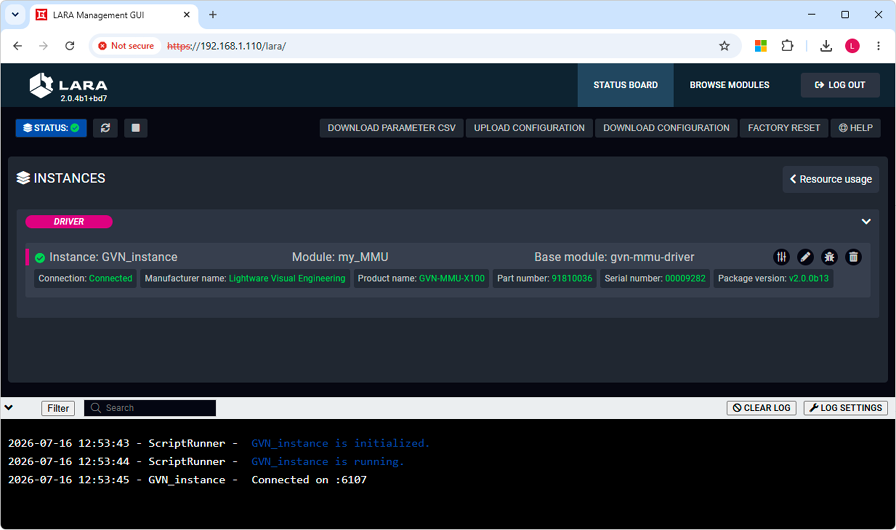
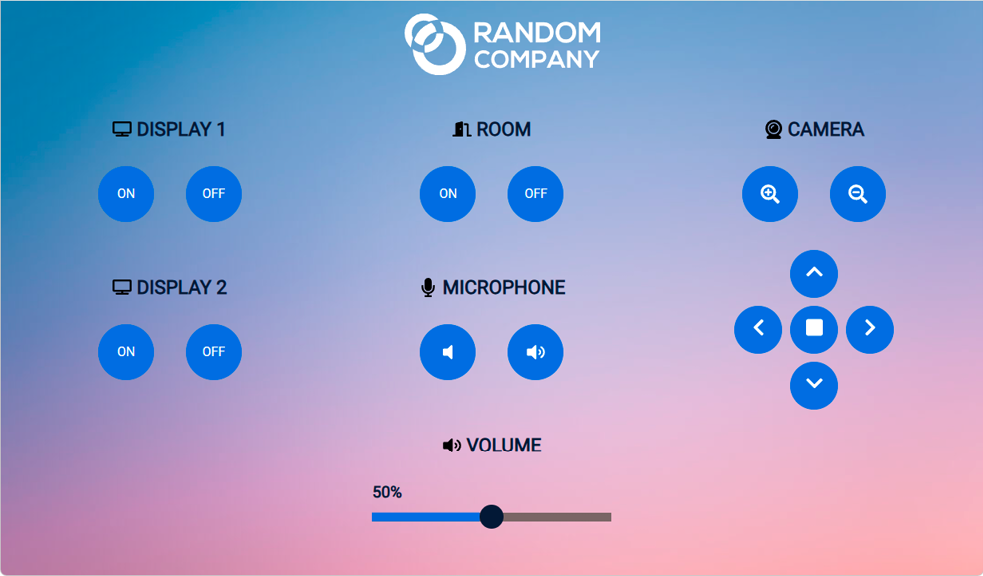
LARA offers support for any touch panel device that has a browser installed on it. With the use of Userpanel modules, you can easily upload project specific HTML/CSS/JS files to your devices, and edit or change them in LARA in real time. There is a Content option under a Userpanel module for the purpose of uploading and editing these files. It is also possible to create folders and subfolders for easy organization. Uploading can be done by dragging and dropping the files into the content section.
For proper operation, in the HTML code a unique ID shall be assigned to every HTML element where LARA interaction is required.
For more information, sample configurations and training materials, please visit www.lightware.com/lara or take a look at the LARA User Manual.
WARNING!Enabling LARA on your device will open TCP ports 20,000 to 30,000 for service deployment. These ports will not be protected or filtered by the device's firewall, making them accessible from the device's network interfaces. Please be aware that running services on these ports could expose potential vulnerabilities on the device. Make sure to only activate services that have undergone thorough testing and do not contain any vulnerabilities.
ATTENTION!Never connect a device to the same network over the SFP and RJ45 ports. Similarly, use only one RJ45 port to connect a network to avoid a network loop.
These basic network security improvements help to prevent unauthorized access to the GVN series devices:
▪Disable Network Services
▪Basic Authentication
▪Encryption (HTTPS, WSS)
The following table summarizes the ports, protocols, features and the security options.
|
Port number |
Protocol |
Function |
Affected software |
Port disable option |
Encryption |
Authentication |
Other features |
|---|---|---|---|---|---|---|---|
|
80 |
TCP |
HTTP port (LW3 over WS) |
LDC, LDU2 |
|
|
|
FW update, Log files |
|
443 |
TCP |
HTTPS port (LW3 over WSS, GUI) |
LDC, LDU2 |
|
|
|
|
|
6107 |
TCP |
LW3 protocol |
LDC |
|
|
|
|
|
6752 |
TCP |
Serial over IP (RS-232) |
- |
|
|
|

GVN series devices provide HTTP/HTTPS server services on their 80 (for HTTP) and 443 (for HTTPS) ports. It makes it possible to use the following services via HTTP/HTTPS:
▪LW3 over WebSocket (WS, WSS) for LW3 protocol or using LDC for device control
▪Firmware update
▪Downloading log files from the device
DIFFERENCE:Basic authentication is available from FW version v1.5.0 and LDC version v2.18.0.
To limit user access for HTTP/HTTPS server services, basic authentication can be turned on for the ports 80 and 443 separately.
The picture below illustrates the successful authentication process:
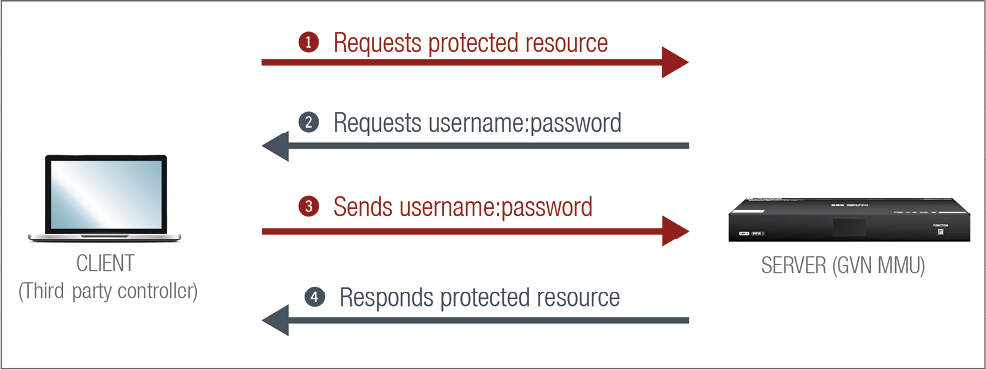
User
▪The MMU can manage one user (with fixed username: admin) with full access.
Password
▪No password is set by default, the authentication can be enabled after setting a password. The old password is required when password is changed.
▪The password must be at least 10 characters, at most 100 characters long, and any UTF-8 character is allowed.
▪The device does not store the password string, so it can not be queried.
▪The password can be reset by calling factory defaults (see the Reset Button section)
Follow the instructions to set the authentication:
Step 1.Set the password with Lightware Device Controller software (Services).
Step 2.Enable the authentication on the chosen port (HTTP: 80 or HTTPS: 443) with the Lightware Device Controller software (Services) or LW3 protocol command (Network Security).
ATTENTION!The password will not be encrypted by this authentication mode, it remains accessible when the communication happens on HTTP.
5.8.3. Encryption (HTTPS, WSS)
HTTP protocol uses clear text format for data transport. This method allows a third-party to listen in and eavesdrop on the transferred information.
HTTP Request-Response
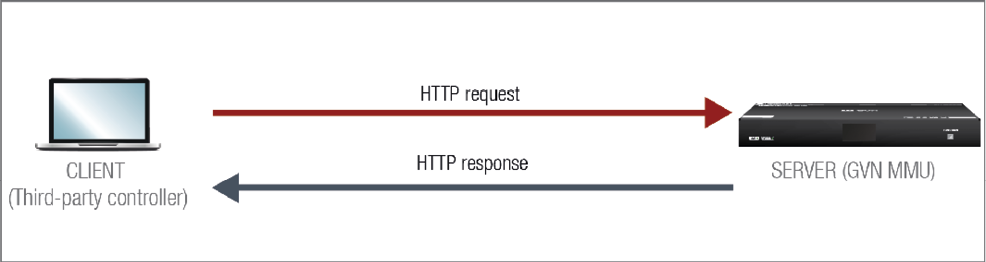
To ensure the secure data transmission, the HTTP port (80) can be disabled, and the all the information can be transferred via HTTPS (443 port). HTTPS protocol encrypts the clear text, so it becomes incomprehensible for a third-party and keeps the data secure.
HTTPS Request-Response
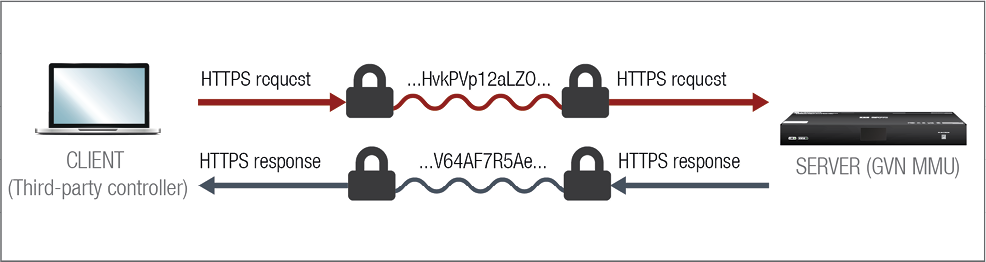
The same services are available on HTTPS as HTTP (for the detailed service list, see the HTTP/HTTPS section).
▪The GVN MMU generates a self-signed certificate, so the user does not have to deal with the configuration.
▪A new certificate is generated after hostname changing or restoring the factory default settings.
▪Please ensure proper GVN time and date setting, because it affects the self-signed certificate (TLS 1.3) generation when using WSS or HTTPS. Improper time and date setting may lead to certificate rejection.
ATTENTION!HTTPS does not guarantee that the communication is secure. Make sure that the client communicates with the server directly, without any third-party element in the communication route (Man-in-the-middle attack).
Basic Security System Example
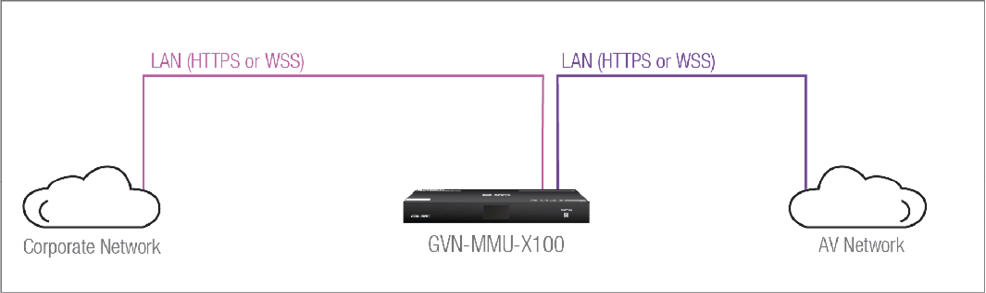
Both the control (Corporate) and GVN AV LAN are managed over secure protocols
To keep the system protected, the unsecured ports should be disabled and data traffic should be managed by secured channels.
Step 1.Disable the HTTP port (80) and use HTTPS (443) instead.
The setting is available in the following ways:
▪LW3 protocol commands (see the details in the Enabling/Disabling the HTTP Port section).
Step 2.Set the password and enable the authentication.
The username is always fix (admin) and the password has to be set before authentication is enabled.
The password setting is available in the following ways:
▪Lightware Device Controller software (see the details in the Services section)
The authentication may be enabled in the following ways:
▪Lightware Device Controller software (see the details in the Services section)
▪LW3 protocol commands (see the details in the Enabling/Disabling Authentication on the HTTP Port or Enabling/Disabling Authentication on the HTTPS Port sections)
Step 3.Disable 6107 port, use HTTPS (443 port) or WSS for LW3 protocol to control the device.
The setting is available in the following ways:
▪LW3 protocol commands (see the details in the Enabling/Disabling the LW3 Port section).
DIFFERENCE:The websocket service feature is available only from FW version v1.5.0.
GVN series devices provide WS/WSS services on their 80 (for WS) and 443 (for WSS) ports to control the device with LW3 protocol commands.
The WebSocket connection is built up by HTTP handshake. After the connection is established, communication switches to a bi-directional WebSocket protocol for LW3 communication.
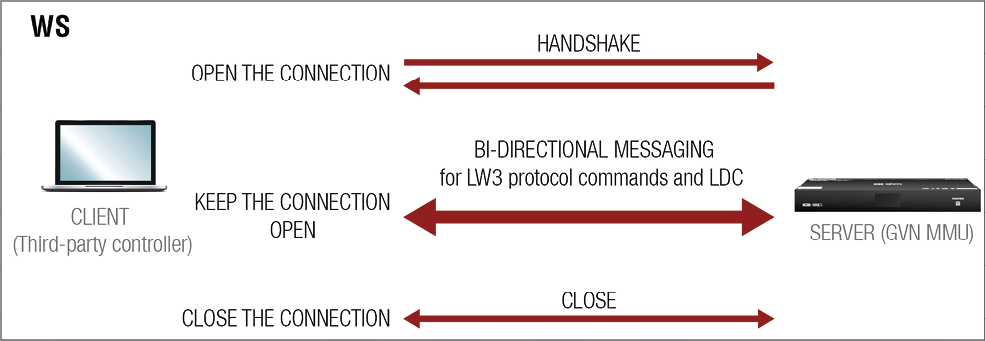
The main difference between HTTP and WS communication process is that HTTP closes the connection between the client and the server after one request-response pair, while WebSocket keeps the connection open. This feature allows real-time communication such as controlling the device with LW3 protocol commands. The WS functions are also available via WebSocket Secure (WSS).
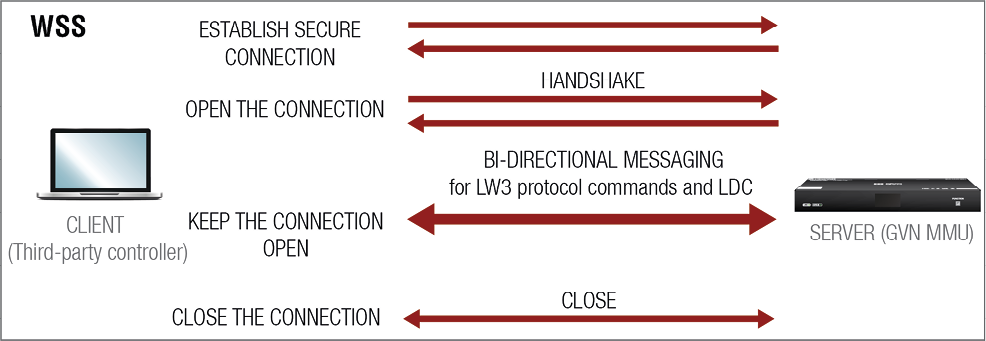
WS is transported securely over TLS 1.3 in WSS communication. In WSS, the handshake and further communication is happening only after a secure envelope is generated.
5.9. Further Built-in Features
5.9.1. GVN Matrix Database Backup and Restore
The GVN matrix cloning is a simple method to save the database of the matrix and the configuration settings of the MMU to a backup file. This file can be saved to your computer and can be restored to the MMU later. See more information about the contents of the backup file in the Contents of the Backup File section.
You can find more information about the backup procedure in the System section. #backup
5.9.2. Advanced EDID Management
Factory Preset EDIDs
The factory EDIDs (F1-F148) are factory preprogrammed and cannot be modified. These are the most common signal formats. They are specially provided to force the graphic cards to output only the exact pixel resolution and refresh rate.
Universal EDID allows multiple signal formats, including all common VESA defined resolutions. The use of universal EDID is recommended for fast and easy system setup.
Sources and Destinations
The EDID memory consists of four parts:
▪Factory EDID list shows the pre-programmed EDIDs (F1-F148).
▪Dynamic EDID list shows the sinks connected to the device's outputs (D). The unit stores the last display devices’ EDID on either output, so there is an EDID shown even if there is no display device attached to the output port at the moment.
▪User memory locations (U1 – U100) can be used to save custom EDIDs.
▪Emulated EDID list shows the currently emulated EDID for the inputs (E). The source column displays the memory location that the current EDID was routed from.
The source reads the EDID from the Emulated EDID memory on the INPUT port. Any EDID from any of the User/Factory/Dynamic EDID lists can be copied to the user memory.
There are two types of emulation: static and dynamic.
▪Static EDID emulation: an EDID from the Factory or User EDID list is selected. Thus, the Emulated EDID remains the same until the user emulates another EDID.
▪Dynamic EDID emulation: it can be enabled by selecting D EDID memory. The attached monitor’s EDID is copied to the input; if a new monitor is attached to the output, the emulated EDID changes automatically.
See more information about the settings in the EDID Management Menu section in the LDC software.
For the list of Factory EDIDs, please see the Factory EDID List section. #edid
The GVN series devices are capable of switching video signals to a transmitter seamlessly (with no black screen visible upon switching). However, in passthrough mode this is not available. To ensure that seamless switching works properly, make sure to set these parameters on the receiver: #seamless
▪If you want to switch between HDCP signals, make sure to force HDCP in the device.
▪Set the output resolution with the scaler function.
▪The streams should have the same scanning mode (interlace/progressive mode)
▪The streams should have the same HDMI info frame
=The audio format of the incoming signals must be the same.
=The color dynamic range of the incoming signals must be the same (limited range vs. full range)
=Use SDR signals
▪Force the color space.
INFO:The video signal gets priority during switching - it may happen that the other signals appear on the output 1-2 seconds later.
ATTENTION!If a transmitter has no connected receivers, it will enter a suspended state. When a receiver is connected to such a transmitter, the transmitter will take extra time to resume operation.
ATTENTION!In case of HDR signal the switching will not be seamless, because the HDR infoframe changes in each case.
The user has several possibilities to control the device. The following list contains the software control modes:
▪Lightware Device Controller (LDC) - you can connect to the GVN matrix via our control software using Ethernet interface and control or configure the matrix as you wish. For the details see the Software Control chapter.
▪Built-in website of the MMU - you can connect to the GVN matrix via a web browser application using Ethernet interface and control or configure the matrix as you wish. For the details, see the Built-in Web chapter.
▪LW3 protocol commands: you can configure the matrix by using the full-range command set of LW3 protocol. For more details, see the LW3 Programmer's Reference chapter.
GVN series devices allow setting all the parameters via a user-friendly interface. Open a web browser (Google Chrome or Mozilla Firefox is highly recommended) and connect to the device to access the parameters and settings. The other option is to use the Lightware Device Controller (LDC) software and connect to the device without a web browser. The features are described in the coming sections.
The GVN-MMU-X100 model can be reached via a browser without downloading and installing the Lightware Device Controller (LDC) application. The look and functionality is the same, the only difference between the web LDC and the desktop application is that there is no button to reach the Device Discovery window in the first. #web #builtinweb
To connect to the MMU via a browser, simply type in the IP address of the device into the address bar. Also please make sure your computer is in the same subnet as the device you wish to control.
There are two possible ways to monitor chosen streams through the built-in web: the Snapshot view and the Substream view.
It is possible to get a snapshot of the chosen stream with this setting. To utilize this function, type into your address bar of your browser the IP address of the chosen endpoint and the port number used to connect to the device in the following way: #snapshot
http://<endpoint_ip>:8080/?action=snapshot
This will show you a snapshot from the stream with the default settings ( .jpeg format, 1024x576p resolution).
It is possible to configure the output image properties as seen in the following section:
http://<ip_address>:8080/?action=snapshot&w=<width>&h=<height>&q=<quality>&as=<aspect_ratio>
Parameters
|
Parameter |
Description |
Default |
Value |
|
<endpoint_ip> |
The IP address of the endpoint |
||
|
<width> |
The width of the snapshot picture in pixels |
1024 |
Max.: 1280* |
|
<height> |
The height of the snapshot picture in pixels |
576 |
Max.: 720* |
|
<quality> |
The image quality of the snapshot image - higher setting means higher quality |
60 |
10-100 in steps of 10 |
|
<aspect_ratio> |
Aspect ratio configuration |
0 |
0: Extends to the configured width and height values |
|
1: Keeps the original aspect ratio and places the snapshot in the center of the output |
* It is not possible to upscale the resolution of the input stream - it is only possible to downgrade it.
ATTENTION!Configuration over the built-in web will take effect immediately, however, it will not be saved. Hence it will revert to default values after a system reboot.
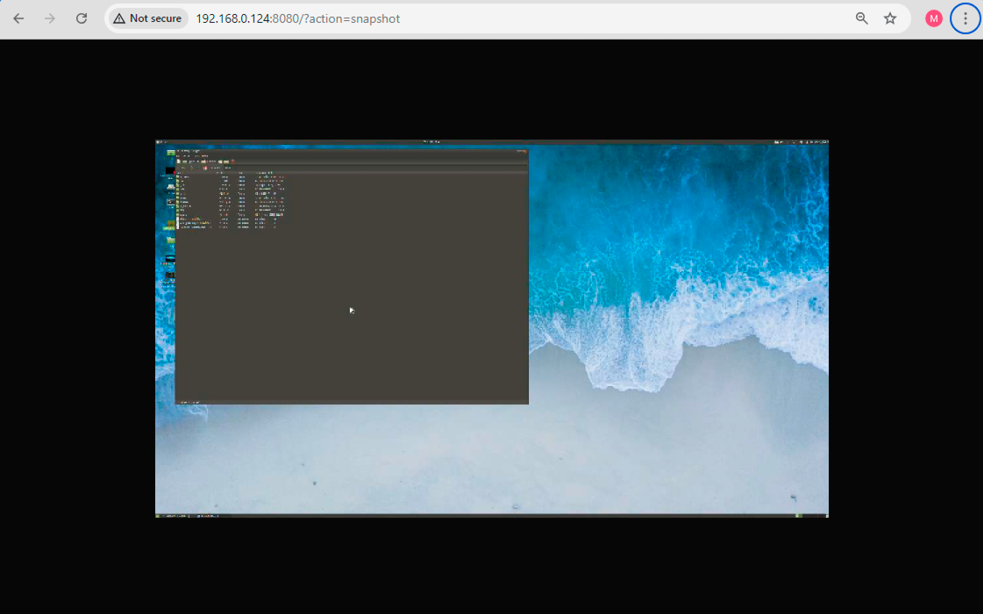
The snapshot function in action in a browser window
It is possible to get a low-definition video from the chosen stream for management purposes. To utilize this function, type into the address bar of your browser the IP address of the chosen endpoint and the stream parameter. #substream
http://<ip_address>/stream
This will show you a low-definition video from the stream with the default settings ( .mjpeg format, 960x540 resolution, 15fps).
It is possible to configure the output video properties as seen in the following section:
http://<endpoint_ip>:8080/stream&w=<width>&h=<height>&fps=<frame_rate>&bw=<bandwidth>&as=<aspect_ratio>&mq=<min_quality>
Parameters
|
Parameter |
Description |
Default |
Value |
|
<endpoint_ip> |
The IP address of the endpoint |
||
|
<width> |
The width of the substream in pixels |
960 |
Max.: 1280* |
|
<height> |
The height of the substream in pixels |
540 |
Max.: 720* |
|
<frame_rate> |
The number of frames per second in the substream |
15 |
|
|
<bandwidth> |
The maximum bandwidth of the substream (kb/s) |
8000 |
|
|
<aspect_ratio> |
Aspect ratio configuration |
0 |
0: Extends to the configured width and height values |
|
1: Keeps the original aspect ratio and places the snapshot in the center of the output |
|||
|
<min_quality> |
Minimum image quality number - higher setting means better image quality |
10 |
10-100 in steps of 10** |
* It is not possible to upscale the resolution of the input stream - it is only possible to downgrade it.
** The quality is limited by the bandwidth of the substream, lowering the quality if the data rate is over the maximum bandwidth. If the quality is lowered below the minimum quality value, the stream will drop frames.
ATTENTION!Configuration over the built-in web will take effect immediately, however, it will not be saved. Hence it will revert to default values after a system reboot.
ATTENTION!It is possible to have several previews of the same substream simultaneously, but please keep in mind that each open substream will add extra network bandwidth load. By default, substream network bandwidth is not expected to exceed 8Mbps, which is the default maximum bandwidth for one substream. Another preview of the substream can add another 8Mbps. In such cases make sure to configure the substreams so that the network bandwidth of the substream does not impact the quality of the main stream. Adjusting the resolution, frame rate, maximum bandwidth, image quality or the number of simultaneous substreams are key to managing good transmission quality.
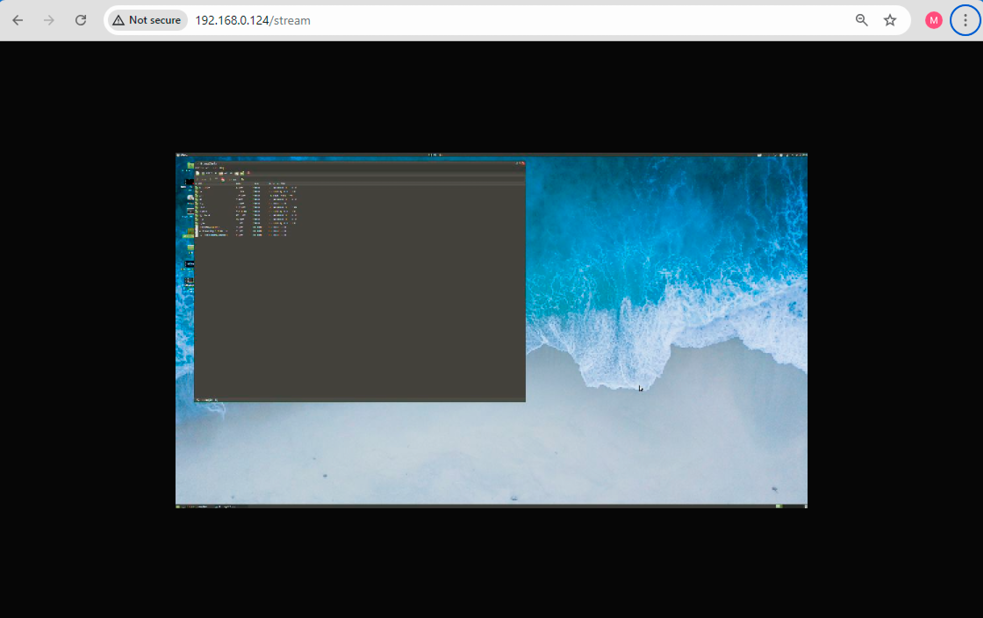
The substream function in action in a browser window
Bandwidth Control Function
In order to conserve as much bandwidth for the main stream as possible, the bandwidth control function will automatically adjust the JPEG quality of the substream. If the substream data rate is over the maximum, it will reduce the image quality to conserve bandwidth. If the bandwidth is sufficient, it will increase the image quality.
If the substream network bandwidth still exceeds the maximum bandwidth after reducing the image quality to minimum, the substream will start dropping frames.
INFO:If the user sets a high resolution for the substream, the bandwidth control function might not be able to limit the bandwidth to the target value. In such cases, reducing the resolution or frame rate is advised to ensure problem-free transmission.
INFO:The substream function does not support color space conversion for Dolby Vision, thus the output color may be distorted or unusual.
6.2. Install and Update the LDC
INFO:After the installation, the Windows and the Mac applications have the same look and functionality. This type of the installer is equal with the Normal install in case of Windows and results in an updatable version with the same attributes.
Installation for Windows OS
Run the installer. If the User Account Control drops a pop-up message, click Yes.
During the installation you will be prompted to select the type of the installation: normal and the snapshot install:
|
Normal install |
Snapshot install |
|
Available for Windows and macOS |
Available for Windows |
|
The installer can update only this instance |
Cannot be updated |
|
Only one updatable instance can exist for all users |
More than one different version can be installed for all users |
Comparison of installation types
ATTENTION!Using the Normal install as the default choice is highly recommended.
Installation for macOS
Mount the DMG file by double clicking on it, and drag the LDC icon over the Applications icon to copy the program into the Applications folder. If you want to copy the LDC into another location, just drag the icon over the desired folder.
Updating of LDC

Step 1.Run the application.
The Device Discovery window appears automatically, and the program checks the available updates on Lightware’s website and opens the update window if LDC updates are found.
The current and the update version numbers can be seen at the top of the window and they are shown in this window even with the snapshot install.
The Update window can also be opened by clicking on the About icon and the Update button.
Step 2.Set the desired update setting in the Options section.
▪If you do not want to check for the updates automatically, uncheck the circle that contains the green tick.
▪If you want to postpone the update, a reminder can be set with different delays from the drop down list.
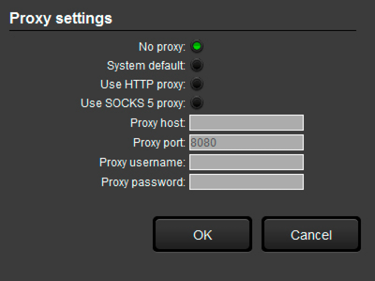
▪If the proxy settings traverse the update process, set the proper values, then click on the OK button.
Step 3.Click on the Download update button to start the updating.
The updates can be checked manually by clicking on the Check now button.
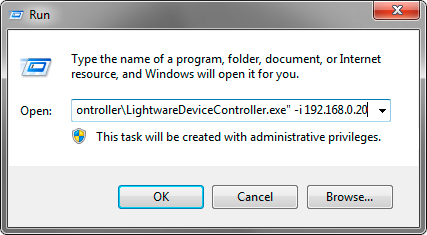
The common way to start the software is to double-click on the LDC icon. But the LDC can be run by command line parameters as follows:
Connecting to a Device with Static IP Address
The LDC is connected to a device with the indicated static IP address directly; the Device Discovery window is not displayed. When the port number is not set, the default port is used: 6107 (LW3 protocol).
Format: LightwareDeviceController -i <IP_address>:<port>
Example: LightwareDeviceController -i 192.168.0.20:6107
Adjusting the Zoom
The window can be zoomed to a specific value to fit to the resolution of the desktop (higher/lower). '1' is the default value (100%).
Format: LightwareDeviceController -z <magnifying_value>
Example: LightwareDeviceController -z 1.2
ATTENTION!The last set value is stored and applied when LDC is started without a parameter.
6.4. Establishing the Connection
Step 1.Connect the device to a computer via Ethernet.
Step 2.Run the controller software; the Device discovery window appears automatically.
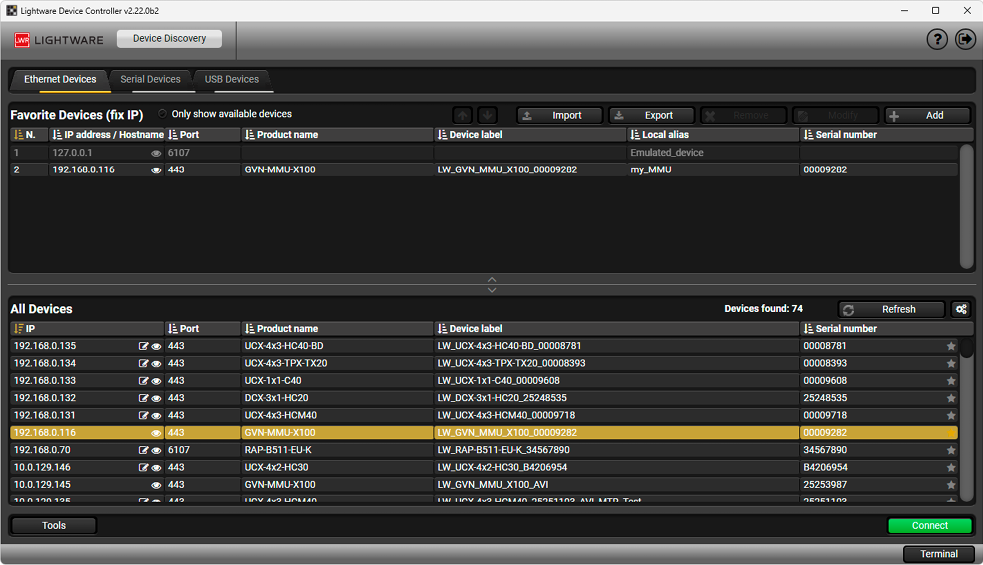
Device discovery window in LDC
The Ethernet tab consists of two lists. All devices list contains all Lightware devices that are available in the connected network. However, there is no need to browse all the available devices as you can expand the list of Favorite devices with any Lightware device that is connected via Ethernet by any of the following ways:
▪Mark the desired device with the symbol in the All Devices list,
▪Press the Add button and add the device in the appearing window, or
▪Import the list of favorite devices that was exported previously.
DIFFERENCE:In the initial release only GVN-MMU-X100 model appears in the All Devices list
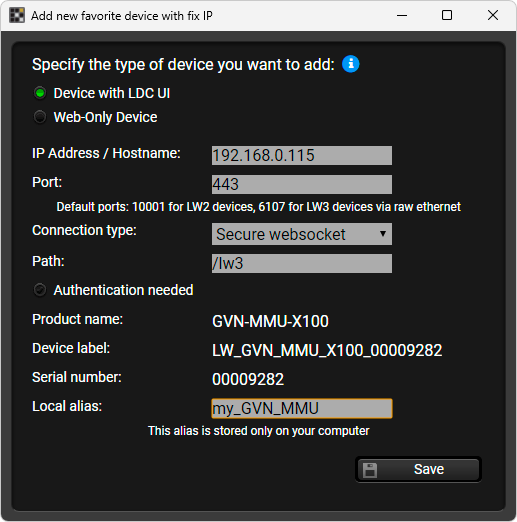
Press the Add button; you can select:
▪Device with LDC UI (for devices that include control interface directly accessible in LDC), or
▪Web-Only Device (for devices designed to be accessed via their built-in web interface).
Enter the IP address or the hostname of the desired device if it is supported. That allows setting a unique name to identify the device in a network. If the host name is saved in this window and the IP address is changing, the device will still be available and connectible.
ATTENTION!The host name connection-feature does not work when the target device is accessed over VPN.
See more information about the hostname property in the Setting the Hostname section.
Import/Export the List of Favorite Devices
The list of favorite devices can be exported/imported by the dedicated buttons (saved as *.JSON file). The list can be imported later (in another computer, too), but please note that the current list will be overwritten by the imported list.
Device Discovery Timeout
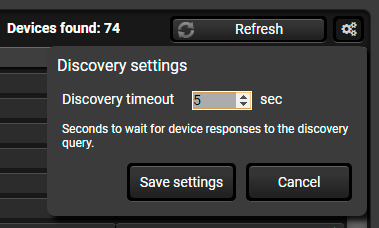
Press the cogwheel (  ) button next to the Refresh button; you can set the device discovery timeout value (seconds). The minimum and default value is three. The setting is saved and applied at the following run of LDC, too. #new
The Concept
ATTENTION!If you select a layer, you always have to select the desired device after that.
The Crosspoint menu displays the GVN network in grid layout with all sources (the input ports of the transmitters) and destinations (the output ports of the receivers). Clicking on a source or destination panel, the properties and settings of the selected item appear on the right side. The selected source/destination is framed with orange. #switch #crosspoint
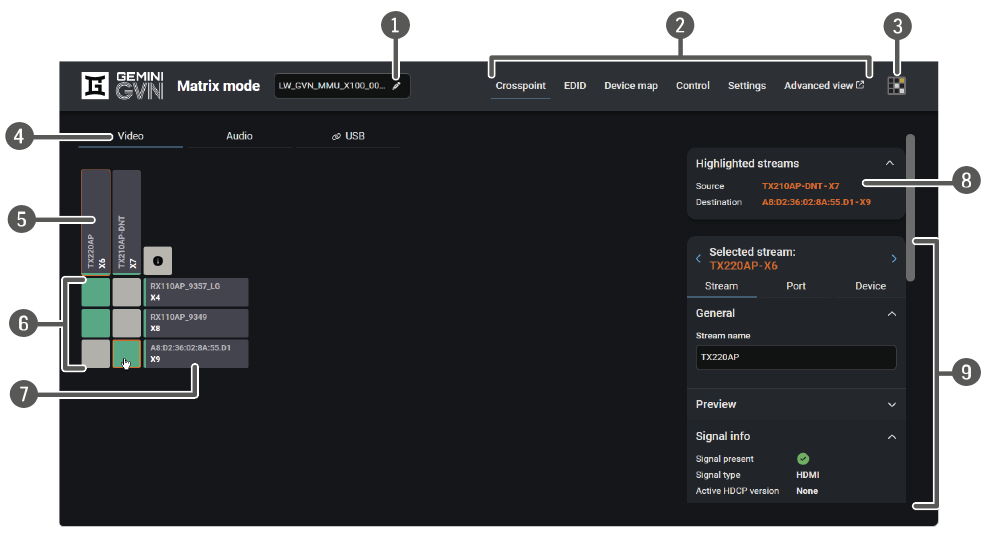
|
|
Device label of the MMU |
The device label of the MMU is displayed here. It can be modified by the user to any unique name by clicking on the icon. The device label can be 39 characters long and ASCII characters are allowed. Longer names will be truncated. |
|
|
Main menu |
The available menu items are displayed. The active one is shown with blue underline. |
|
|
Navigation button |
The device discovery window can be displayed by clicking on this button. |
|
|
Layer selector |
The video, audio and USB layers are available under the tabs. |
|
|
Source streams |
Each tile represents a stream coming from one of the input ports of the transmitter. The tiles below the streams show the current crosspoint setting; if the stream is switched to a receiver, the color of the tile is green, otherwise grey. Clicking on the tile opens the stream information panel on the right side of the screen. |
|
|
Connections |
The crosspoint connections can be selected in this table. The legend for the tile colors can be seen below. |
|
|
Destination streams |
Each tile represents an output port of a receiver. Clicking on the tile opens the stream information panel on the right side of the screen. |
|
|
Highlighted streams |
Move the cursor above the desired crosspoint and the names of the source and destination are displayed in the field. |
|
|
Stream information panel |
Settings and status information of the selected stream are displayed in this section. |

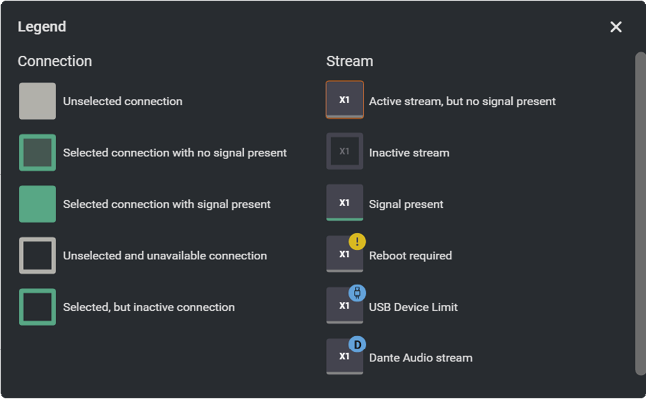
INFO:Clicking on a tile with an unselected connection (gray) connects the stream, clicking on a selected connection (green) disconnects it.

The MMU and the endpoints need to be rebooted following some changes (e.g. switching HDCP settings, Hostname settings, etc.). In this case a yellow circle with an exclamation mark will appear in the upper right-hand corner of the affected tile for the endpoints.
Reboot requirement for the MMU will appear as a yellow button at the top.
Stream Names and Map ID
DIFFERENCE:The default stream naming and map ID have been changed with FW version v1.8.0b9.
The default stream name is the following: <MAC_address>.<endpoint_type>-<dev_map_ID>
Example: A8:D2:36:02:9E:5D.S1-X3
The <endpoint_type> is S1 for transmitters and D1 for receivers. The <dev_map_ID> is the order number of the endpoint given by the MMU.
Highlighted Streams
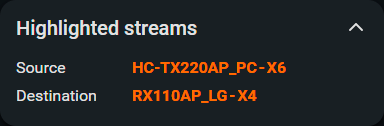
This box helps you keep track of stream crosspoints in a big network with many endpoints. When you hover your cursor over a crosspoint setting, its source and destination stream name and device map ID will appear here.
Crosspoint Settings
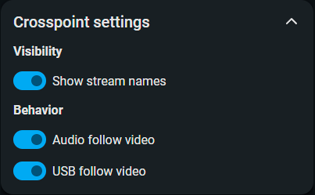
You can toggle the appearance of the stream name in the crosspoint via a checkbox underneath the port properties panel.
ATTENTION!The USB/Audio follow video settings refer to the switching between the endpoints, not inside a unit.
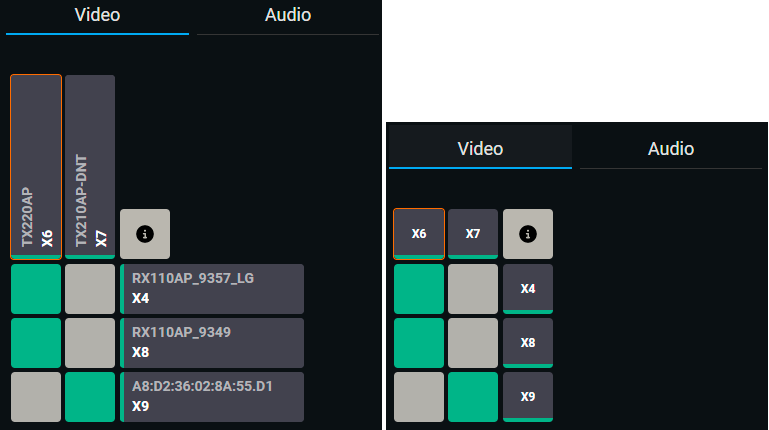
Crosspoint view with or without stream names
INFO:Unique stream names in the crosspoint are turned on by default.
Audio Follow Video
You can toggle the audio signal to follow the video crosspoint settings or being able to be routed to a different endpoint. It is enabled by default.

|
Audio follows video (default) |
The audio and video crosspoint states match |
|
Audio is independent of video |
The audio and video crosspoint states may differ |
Important notes
▪When switching from disabled to enabled, it will align the audio crosspoint setting to match the video crosspoint setting.
▪If you manually change the crosspoint settings on the Audio crosspoint tab, it can also disable the Audio follow video setting.
USB Follow Video
You can toggle the USB signal to follow the video crosspoint settings or being able to be routed to a different endpoint. It is enabled by default.
|
USB follows video (default) |
The USB and video crosspoint states match |

|
USB is independent of video |
The USB and video crosspoint states may differ |
Important notes
▪When switching from disabled to enabled, it will align the USB crosspoint setting to match the video crosspoint setting.
▪If you manually change the crosspoint settings on the USB crosspoint tab, it can also disable the USB follow video setting.
6.6. Video Source Port Properties (TX) Panel
DIFFERENCE:From FW version v1.7.0 and LDC version v2.21.0, the Port Properties panel has been rearranged in several parts. Audio and Serial settings have been moved to their own tabs and menus.
Clicking on a source port, the properties panel opens on the right side.

The most important information and settings of the stream are available in the Stream section.
General
▪Stream name
Preview
INFO:This section is rolled up by default.
INFO:Preview is only available over the GVN LAN.
A live preview of the stream can be seen in this section. If there is no active video signal, the default screen will appear.
In case of an inactive endpoint, preview states 'Unit offline'.
Clicking on the preview opens it in a new window, with the stream name, stream ID and the IP address of the stream displayed.
Signal Info
All important audio and video information (e.g. HDCP status, resolution, total size, pixel clock, color space, embedded audio information) are available in the signal info section.
Auto select policy (in case of GVN-HC-TX220AP and -TX220AP-DNT products only)
The following options are available:
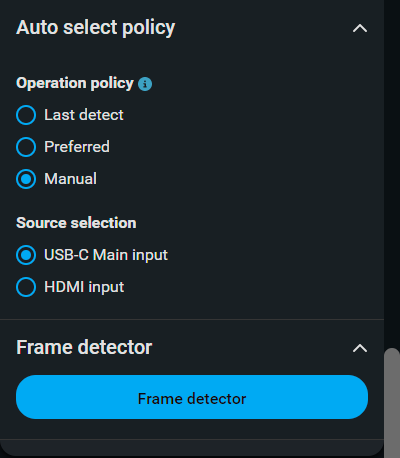
▪Last detect: it is always the last attached input that is selected to transmit.
▪Preferred (default setting): one of the inputs has a priority. If signal is present on that port, it will be selected to transmit independently of the other input port state. If the signal is lost from the preferred input, and signal is present on the other input, it will be selected. #autoselect
▪Manual: you can select an input directly.
Frame detector
The tool displays the frame information of the original stream coming from the input port before a possible rescaling / frame rate conversion. See the Frame Detector section for more information. #framedetector

The most important information and settings of the input ports are available in the Port section.
General
▪(Port) Name
HDCP Settings #hdcp
▪HDCP capability (HDCP 2.2 / Off)
▪HDCP version (current)
INFO:HDCP setting in the transmitter is needed to force the source to send the signal according to the needs of the system. If the source sends unencrypted signal, but we need encryption for our system, setting this value to 2.2, the source will send encrypted signal. If the sink connected to the transmitter is not HDCP-capable, we can set this value to Off to force the source to send unencrypted signal. Protected content will not be transmitted in this scenario.
Signal Info
All important audio and video information (e.g. HDCP status, resolution, total size, pixel clock, color space, embedded audio information) are available in the signal info section.
▪Hot Plug detect mode (Auto / Off)
DisplayPort link (in case of USB-C IN port)
Pin assignment information.

Hot Plug Detect (HPD) mode (in case of HDMI input port)
▪Auto: sets the HPD signal as usual.
▪Off: keeps the HPD low
Frame detector
The tool displays the frame information of the original stream coming from the input port before a possible rescaling / frame rate conversion. See the Frame Detector section for more information. #framedetector
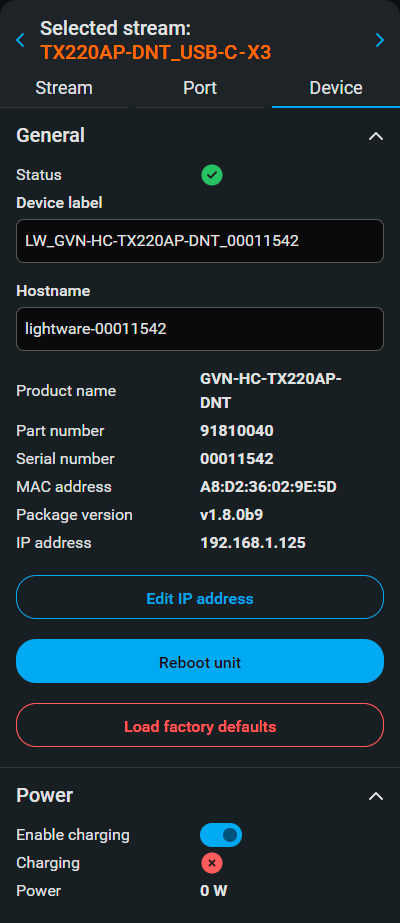
The most important information and settings of the transmitter are available in the Device information section.
General
▪Device status (active/inactive)
▪Device label: the default label structure is: LW_<Product_name>_<serial_number>,
but it can be changed to any unique name. #label #devicelabel
▪Hostname: the hostname can be set.
▪Product name
▪Part number
▪Serial number
▪MAC address #mac
▪Package version
▪Edit IP address: the IP address can be changed by clicking on the Edit IP address button.
▪Reboot unit: clicking on the button makes rebooting the device (the same as disconnecting from the power source and reconnecting again). #reboot #restart
▪Load factory defaults: factory default setting can be called by clicking on the button.
Power (in case of USB-C IN port only)
The charging function can be enabled/disabled and the current state is displayed.
6.7. Video Destination Port (RX) Properties Panel
ATTENTION!If you select a layer, you always have to select the desired device after that.
Clicking on a destination port, the properties panel opens on the right side.
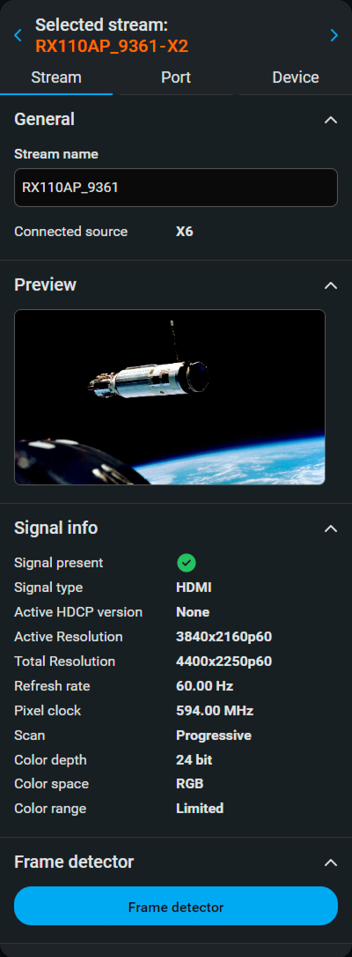
The most important information and settings of the stream are available in the Stream information section.
General
▪Stream name
▪Connected source: the device map ID of the connected source stream.
Preview
INFO:This section is rolled up by default.
INFO:Preview is only available over the GVN LAN, not over the Control LAN.
A live preview of the stream can be seen in this section. If there is no active video signal, the default screen will appear.
In case of an inactive endpoint, preview is unavailable.
Clicking on the preview opens it in a new window, with the stream name, stream ID and the IP address of the stream displayed.
Signal Info
All important information (e.g. resolution, pixel clock, color space) are available in the signal info section.
Frame detector
The tool displays the frame information of the original stream coming from the input port before a possible rescaling / frame rate conversion. See the Frame Detector section for more information. #framedetector

The most important information and settings of the input port are available in the Port information section.
General
▪Port name
HDCP Settings
▪Active HDCP version
▪HDCP mode (Auto / Always) #hdcp
▪Allowed HDCP version (HDCP 1.4 / HDCP 2.2)
▪Sink device max HDCP version
Signal Info
All important audio and video information (e.g. resolution, total size, pixel clock, color space, embedded audio information) are available in the signal info section.
Signal info (continues)
▪Output 5V mode (Auto / Off)
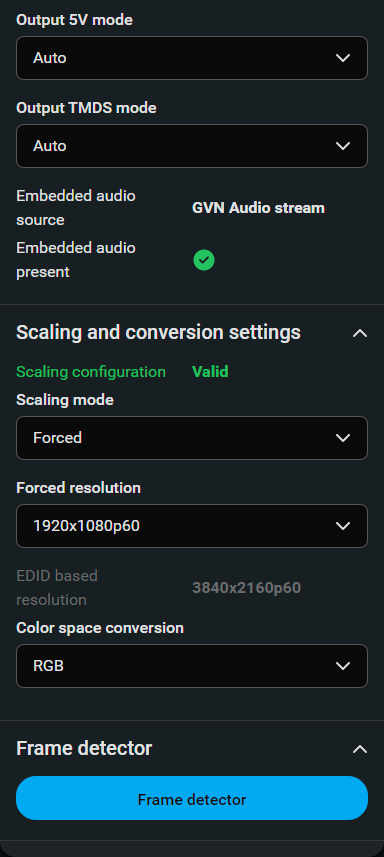
▪Output TMDS mode (Auto / Off)
▪Embedded audio source and signal presence state
Scaling and Conversion Settings
▪Scaling mode / Output resolution mode: #scaler
=Pass: the scaler is in pass-through mode.
=Forced resolution: the scaling is active, the selected value in the forced resolution option will be applied to the video signal;
=EDID based: the scaler forces the resolution that is read out from the EDID of the connected sink device.
▪Color space conversion #colorspace
=Pass (only in Passthrough mode)
=RGB
=YCbCr 4:4:4
=YCbCr 4:2:2
=YCbCr 4:2:0
Frame detector
The tool displays the frame information of the original stream coming from the input port before a possible rescaling / frame rate conversion. See the Frame Detector section for more information. #framedetector
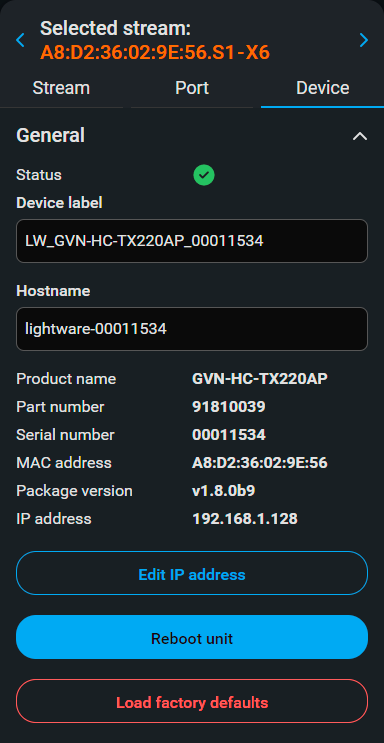
The most important information and settings of the receiver are available in the Device information section.
Settings
▪Device status (active/inactive)
▪Device label: the default label is the name and serial number of the device but it can be changed to any unique name. #label #devicelabel
▪Hostname: the hostname can be set.
▪Product name
▪Part number
▪Serial number
▪MAC address #mac
▪Package version
▪IP address: the IP address can be changed by clicking on the Edit IP address button. #ip
▪Reboot unit: clicking on the button makes rebooting the device (the same as disconnecting from the power source and reconnecting again). #reboot #restart
▪Load factory defaults: factory default setting can be called by clicking on the button. #factorydefault
6.8. Audio Source Port Properties (TX) Panel

ATTENTION!If you select a layer, you always have to select the desired device after that.
The most important information and settings of the stream are available in the Stream information section.
GVN Audio Output
▪Stream name
▪Signal presence state
Auto select policy
The following options are available:
▪Auto select is enabled: the audio will follow the selected video source.
▪Manual: you can select an input directly.
INFO:Analog input is available only if the Port mode is set to Input on the Port tab.
Dante Input
▪Stream name
▪Embedding state
Dante Output #dante
▪Stream name
▪Connected source
▪Dante input and output are available if the USB audio converter is enabled: USB layer <desired device> Port tab; see the Port Information section.
Important Notes about Dante Input and Output
▪If Dante input is selected to be embedded in the video stream, the Dante output may carry one of the other available audio sources: Analog audio, Original embedded audio or UAC input.
▪One of the audio sources can be transmitted towards the Dante Network.
▪The incoming signal from the Dante Network can be switched to all available audio routes at a time.

The most important information and settings of the input port are available in the Port information section.
USB-C Main input (in case of GVN-HC-TX220AP and -TX220AP-DNT products)
▪Port status
▪Port name
▪Signal info
HDMI Input
▪Port status
▪Port name
▪Signal info
Analog #analogaudio
▪Port mode:
=Analog input
=Analog output
▪Port name
▪Signal info
▪Mute setting and Volume slider
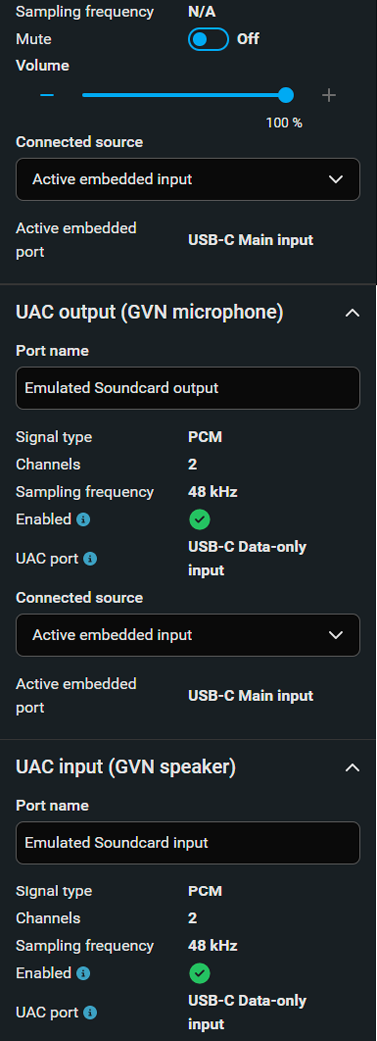
▪Connected source (only if the Analog port mode is input).
▪Active embedded port (visible only if the connected source is Video port: HDMI or USB-C IN).
General Information
▪Connection state
▪Signal presence
UAC output (in case of GVN-HC-TX220AP and -TX220AP-DNT products) #usb
ATTENTION!The USB Audio Converter must be enabled to make this section active as follows: USB layer <desired device> Port tab; see the Port Information section.
This section is about the output of the USB sound card:
▪Port name
▪Signal info
▪UAC Port: shows which USB-C port is connected to the UAC device (USB-C data only input or USB-C Main input). This setting can be changed as follows:
USB layer <desired device> Port tab.
▪Connected source: select the desire audio that will present on the UAC audio output.
▪Active embedded port: this shows which video input port is selected on the video layer (HDMI IN or USB-C IN).
UAC input (in case of GVN-HC-TX220AP and -TX220AP-DNT products)
The USB Audio Converter must be enabled to make this section active as follows: USB layer <desired device> Port tab; see the Port Information section.
▪Port name
▪Signal info
▪UAC Port: shows which USB-C port is connected to the UAC device (USB-C data only input or USB-C Main input). This setting can be changed as follows:
USB layer <desired device> Port tab
When the UAC is enabled, it will be visible for the opearting system at the connected PC, see the USB-C Ports section.
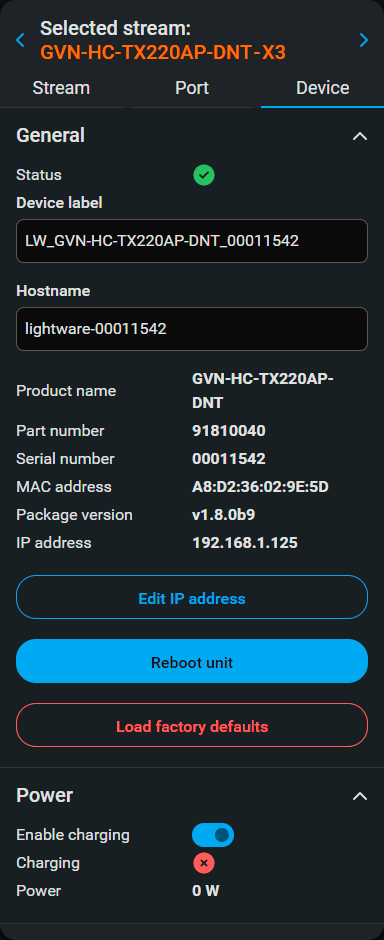
The most important information and settings of the receiver are available in the Device information section.
General
▪Device status (active/inactive)
▪Device label: the default label is the name and serial number of the device but it can be changed to any unique name. #label #devicelabel
▪Hostname: the hostname can be set.
▪Product name
▪Part number
▪Serial number
▪MAC address #mac
▪Package version
▪IP address: the IP address can be changed by clicking on the Edit IP address button. #ip
▪Reboot unit: clicking on the button makes rebooting the device (the same as disconnecting from the power source and reconnecting again). #reboot #restart
▪Load factory defaults: factory default setting can be called by clicking on the button. #factorydefault
Power (in case of GVN-HX-TX220AP and TX220AP-DNT devices only)
▪Enable charging: setting the charging (it is enabled by default).
▪Information about the charging state.
6.9. Audio Destination Port Properties (RX) Panel
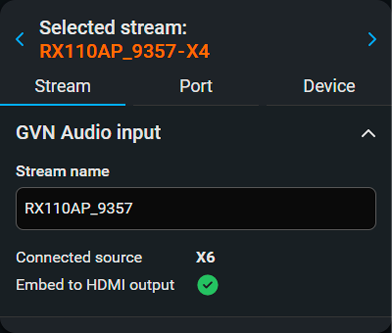
The most important information and settings of the stream are available in the Stream information section.
GVN Audio Input Settings
▪Stream name
General Information
▪Connected source
▪Embedding state to HDMI output

The most important information and settings of the input port are available in the Port information section.
HDMI Output Settings
▪Port name
▪Connection state
▪Signal presence
▪Signal type
▪Channels
▪Sampling frequency
Analog Output Settings
▪Port name
▪Mute state
▪Volume
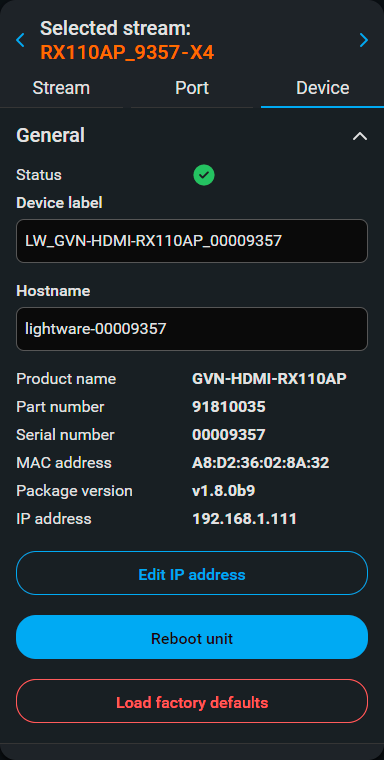
The most important information and settings of the receiver are available in the Device information section.
Settings
▪Device status (active/inactive)
▪Device label: the default label is the name and serial number of the device but it can be changed to any unique name. #label #devicelabel
▪Hostname: the hostname can be set.
▪Product name
▪Part number
▪Serial number
▪MAC address #mac
▪Package version
▪IP address: the IP address can be changed by clicking on the Edit IP address button. #ip
▪Reboot unit: clicking on the button makes rebooting the device (the same as disconnecting from the power source and reconnecting again). #reboot #restart
▪Load factory defaults: factory default setting can be called by clicking on the button. #factorydefault
6.10. USB Source Port Properties (TX) Panel
ATTENTION!If you select a layer, you always have to select the desired device after that.
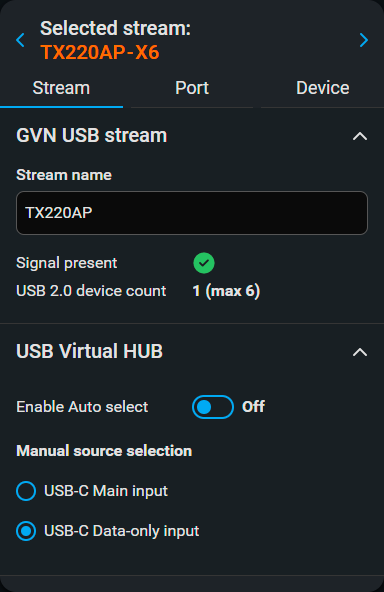
The most important information and settings of the stream are available in the Stream information section.
GVN USB Stream
▪Stream name
▪Signal presence (if USB cable is connected to the host)
▪USB 2.0 device count (Displays the number of the connected USB devices; on transmitters only non-HID devices are enumerated.)
USB Virtual Hub #usb
The USB virtual hub carries the signals of the connected USB peripherals to/from the connected computer. Thus, the USB peripherals will be available for the computer via the selected USB-C port.
▪Auto select: if it is enabled, the USB will follow the video.
▪Manual : you can select a USB-C port directly.
INFO:This setting appears only in case of GVN-HC-TX220AP and TX220AP-DNT products only. For other transmitters the USB connection is automatic towards the USB-B port.
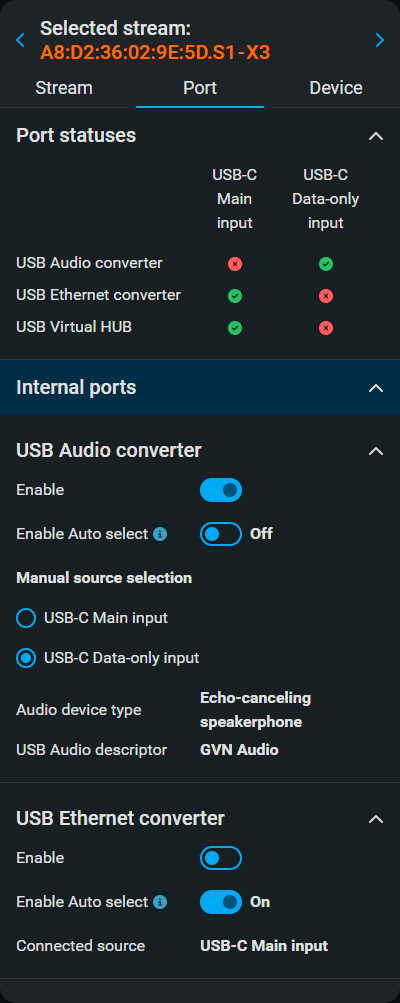
The most important information and settings of the USB port are available in the Port information section.
Port Statuses
▪The table shows which USB function is set the which USB-C port.
Internal Ports: USB Audio converter (UAC)
▪The UAC function can be enabled/disabled (disabled is default)
▪Source selection:
=Auto (default; the audio is routed to the port where the video is coming from)
=Manual
Internal Ports: USB Ethernet converter (UEC)
▪The UEC function can be enabled/disabled (disabled is default)
▪Source selection:
=Auto (default; the Ethernet is routed to the port where the video is coming from)
=Manual
When the UAC or UEC is enabled, it will be visible for the operating system at the connected PC, see the USB-C Ports section.
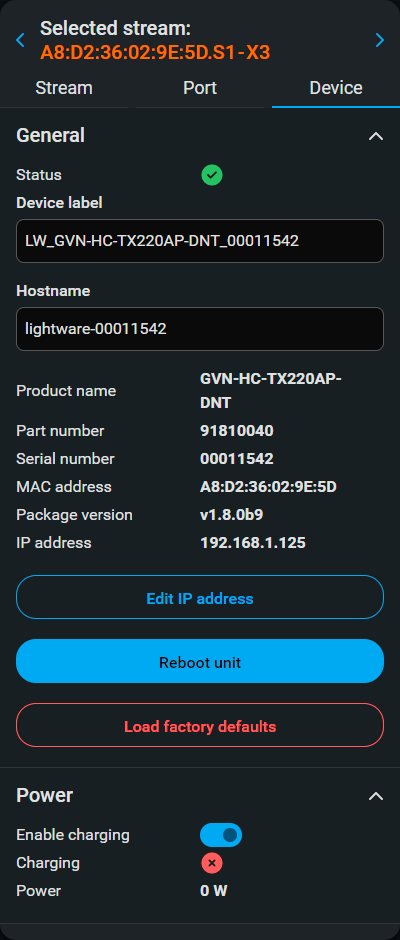
The most important information and settings of the transmitter are available in the Device information section.
General
▪Device status (active/inactive)
▪Device label: the default label is the name and serial number of the device but it can be changed to any unique name. #label #devicelabel
▪Hostname: the hostname can be set.
▪Product name
▪Part number
▪Serial number
▪MAC address #mac
▪Package version
▪IP address: the IP address can be changed by clicking on the Edit IP address button. #ip
▪Reboot unit: clicking on the button makes rebooting the device (the same as disconnecting from the power source and reconnecting again). #reboot #restart
▪Load factory defaults: factory default setting can be called by clicking on the button. #factorydefault
Power (at GVN-HC-TX220AP and TX220AP-DNT products)
▪The charging function can be enabled/disabled.
▪The charging state is displayed.
6.11. USB Destination Port Properties (RX) Panel
ATTENTION!If you select a layer, you always have to select the desired device after that.
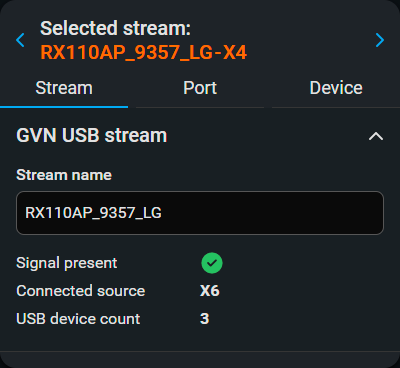
The most important information and settings of the stream are available in the Stream information section.
USB Stream Settings #usb
▪Stream name
General Information
▪Signal presence
▪Connected source
▪USB device count

The most important information and settings of the USB ports are available in the Port information section.
USB Settings
▪Device 1-4 (USB peripherals):
=Enabled/Disabled
=Product name
=Vendor
=Speed
=Max. Current

The most important information and settings of the receiver are available in the Device information section.
Settings
▪Device label: the default label is the name and serial number of the device but it can be changed to any unique name. #label #devicelabel
▪Hostname: the hostname can be set.
▪IP address: the IP address can be changed by clicking on the Edit IP address button. #ip
▪Reboot unit: clicking on the button makes rebooting the device (the same as disconnecting from the power source and reconnecting again). #reboot #restart
▪Load factory defaults: factory default setting can be called by clicking on the button. #factorydefault
General Info
▪Device status (active/inactive)
▪Product name
▪Part number
▪Serial number
▪MAC address #mac
▪Package version
6.12. Default Naming / Numbering Explanation
The following section explains the default numbering of the sources/destinations and the default stream names of the endpoint devices.
6.12.1. Source and Destination Numbering
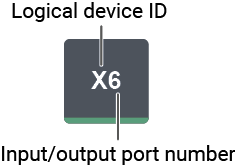
The source and destination ID contains two numbers: the logical device ID (it can be changed by the user) and the port number (it is fixed).
Logical device ID: It is created by the MMU based on the discovery order of the endpoints - independently of the operation mode. The first discovered endpoint gets the 1, the second one gets the 2, and so on.
INFO:The logical device ID can be reconfigured by the Device map feature. See the details in the EDID Management Menu section.
6.12.2. Default Naming of the Devices and the Streams
Device Name

The default name (label) of the device is the device name and the serial number. It can be changed freely in the Device label field by the user. #devicelabel #label
ATTENTION!There is a known issue in firmware version v1.0 regarding the device label. Please avoid using accentuated letters and spaces when setting this parameter in the endpoints, as this could cause applications being unable to detect the devices.
Stream Name

The default name of the stream is built from the MAC address and the S1 stream ID. The MAC address and the stream ID is separated by a dot character.
Example: A8:D2:36:F0:00:33.S1
The green characters are the MAC address of the device, the red characters are the stream ID numbers. The stream name can be changed freely in the Stream name field by the user.
The ports can show detailed information about the signal, like blanking intervals and active video resolution. This feature is a good troubleshooter if compatibility problems occur during system installation. Lightware’s Frame Detector function works like a signal analyzer and makes it possible to determine the exact video format that is present on the port, thus helping to identify many problems. E.g. actual timing parameters may differ from the expected and this may cause some displays to drop the picture. #framedetector

Frame Detector (Opened in a New Tab)
Frame Detector measures detailed timings on the video signals just like a built-in oscilloscope, but it is much more easy to use. Actual display area shows the active video size (light grey). Dark grey area of the full frame is the blanking interval, which can contain the info frames and embedded audio data for HDMI signals. Shown values are measured directly on the signal and not retrieved only from the HDMI info frames.
There is also an option to download the history of the measured data into a CSV file by clicking on the Export data to CSV button.
EDID Management can be accessed by selecting the EDID Management menu. There are two panels: the left one contains Source EDIDs, the right one contains Destination places where the EDIDs can be emulated or copied to. #edid
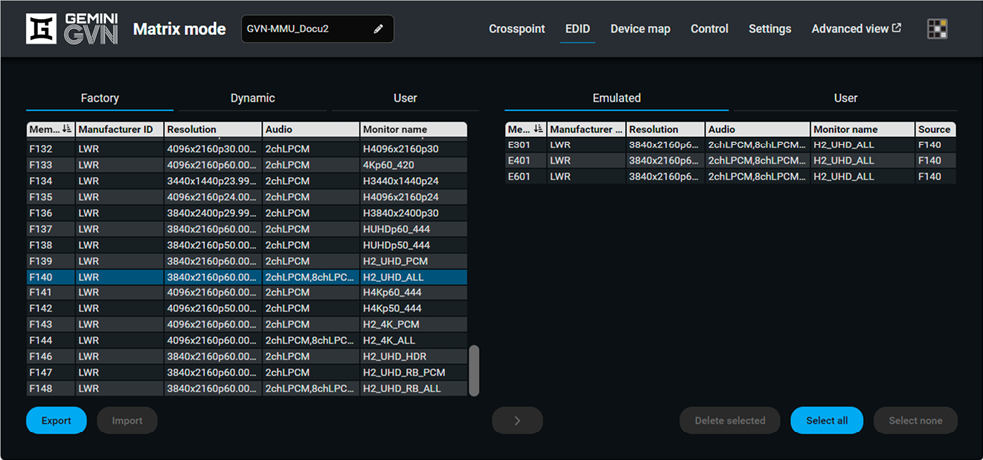
EDID Management menu
Control Buttons

|
Exporting an EDID (save to a file) |

|
Importing an EDID (load from a file) |

|
Transfer button: executing EDID emulation or copying |
|
Deleting EDID (from User memory) |

|
Selecting all memory places in the right panel |

|
Selecting none of the memory places in the right panel |
Changing Emulated EDID

Step 1.Choose the desired EDID list on the source panel and select an EDID.
Step 2.Press the Emulated button on the top of the Destination panel.
Step 3.Select the desired port on the right panel (one or more ports can be selected); the EDID(s) will be highlighted with a yellow cursor.
Step 4.Press the Transfer button to change the emulated EDID.
Learning an EDID
The process is the same as changing the emulated EDID; the only difference is the Destination panel: press the User button. Thus, one or more EDIDs can be copied into the user memory either from the factory memory or from a connected sink (Dynamic).
Exporting an EDID

Source EDID can be downloaded as a file (*.bin, *.dat or *.edid) to the computer:
Step 1.Select the desired EDID from the Source panel (line will be highlighted with yellow).
Step 2.Press the Export button to open the dialog box and save the file to the computer.
Importing an EDID

Previously saved EDID (*.bin, *.dat or *.edid file) can be uploaded to the user memory:
Step 1.Press the User button on the top of the Source panel and select a memory slot.
Step 2.Press the Import button below the Source panel.
Step 3.Browse the file in the opening window, then press the Open button. The browsed EDID is imported into the selected User memory.
ATTENTION!The imported EDID overwrites the selected memory place even if it is not empty.
Deleting EDID(s)

The EDID(s) from User memory can be deleted as follows:
Step 1.Press User button on the top of the Destination panel.
Step 2.Select the desired memory slot(s); one or more can be selected (“Select All” and “Select None” buttons can be used). The EDID(s) will be highlighted with yellow.
Step 3.Press the Delete selected button to delete the EDID(s).
DIFFERENCE:The EDID export function is available from LDC version v2.12.0 and FW version v1.1.0.
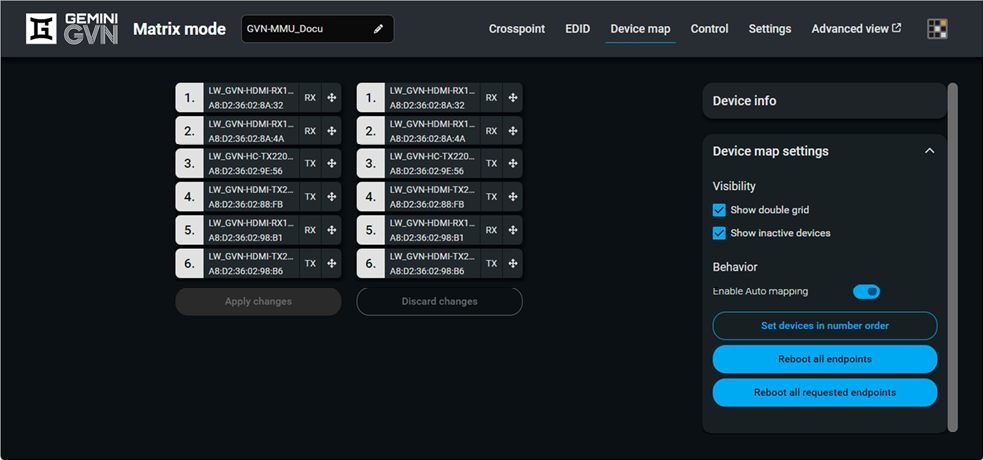
Clicking on the Device map submenu opens the Device map function window. The order list of the discovered transmitters and receivers can be changed to a custom list. The new order is saved in the MMU, the last applied order list will be loaded next time the device is restarted. #devicemap
Device Map menu of the GVN-MMU-X100
6.14.1. The Steps of Reordering
TIPS AND TRICKS:It is recommended to change the name of the devices to unique ones before the re-ordering process, it can help a lot to find the desired device in the matrix.
Step 1.Select the tile of the desired endpoint device by clicking with the left button of the mouse.
Step 2.Drag and drop the tile to the desired place.
Step 3.Select the Apply Changes button and confirm the selection.
Device Label
The device label can be changed by rewriting the text inside the text box. #devicelabel #label
Hostname
The hostname can be changed by rewriting the text inside the text box.
Edit IP Address
You can change the IP address of the endpoint by clicking on the button. #ip
Reboot Unit
Clicking on the button makes restarting the selected endpoint device (the same method as unplugging and reconnecting the power source). #restart #reboot
Load Factory Defaults
Factory defaults settings of the MMU can be recalled with a dedicated button. See the factory default values in the Factory Default Settings section. #factory
Remove Unit
This button removes the selected endpoint from the Device map. Please be aware that if auto mapping is enabled, the endpoint may be rediscovered right away.
Show Double Grid
When it is enabled, the device list is duplicated for the better overseeing. The two columns are the same, but can be browsed separately, making drag and drop changes easier.
Show Inactive Devices
When it is enabled, the currently inactive endpoints appear in the list.
Enable Auto Mapping
Automatic discovery and mapping can be enabled/disabled by toggling this slide.
Set devices in number order
This button will reassign ID numbers to the devices in the set order, starting from 1.
Reboot All Endpoints
Clicking on this button reboots all endpoints in the system.
Reboot All Requested Endpoints
Clicking on this button reboots all endpoints that require it due to changes in settings.
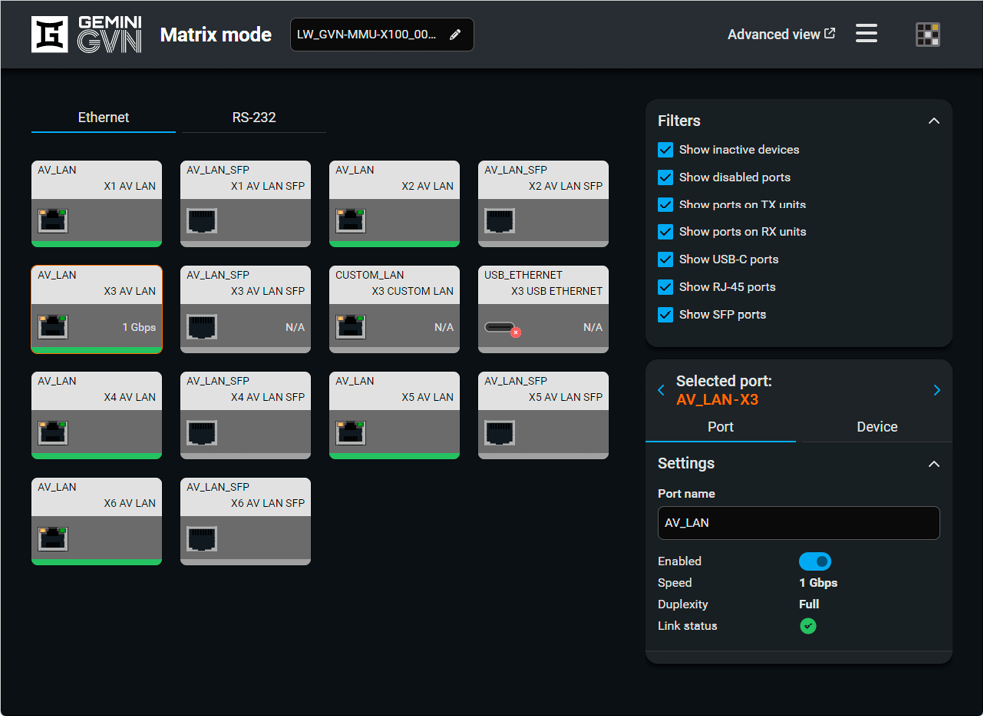
Ethernet tab of the GVN-MMU-X100
On this tab you can see all Ethernet ports in your GVN system (coming from all endpoints) and adjust their settings separately. You can also filter them by selecting the desired checkboxes in the Filters section to easily find a specific port.
Port Tile
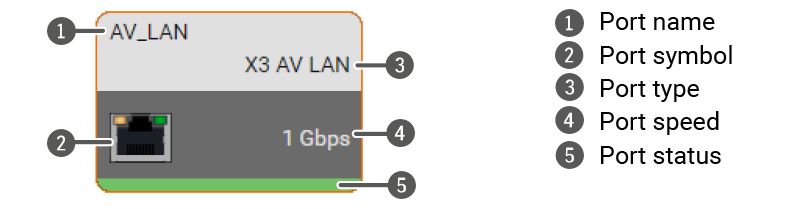
The structure of the Port type: <endpoint_ID> <endpoint_type>
Example: X3 AV LAN, where X3 identifies the endpoint, the AV LAN means the RJ45 port used for the GVN network.
Port Settings
AV LAN and AV LAN SFP: the Ethernet can be disabled in GVN-HC-TX models (e.g. in case of the unused port for network security reasons).
Custom LAN (GVN-HC devices): Ethernet connection to the GVN AV network. Separate RJ45 connection feature will be added with a later firmware update. Make sure not to connect the AV LAN and the Custom LAN to the same network to avoid loop. The Ethernet is disabled as default.
USB Ethernet (GVN-HC devices): This tile represents the Ethernet over the USB-C port. The Ethernet is disabled as default. To enable, please navigate to Crosspoint menu USB layer <desired device> Port tab.
ATTENTION!Please be aware that if the Ethernet is enabled on the Custom LAN port or the USB Ethernet Converter is enabled on the USB-C input port, the GVN network will be transparent over these network connections.
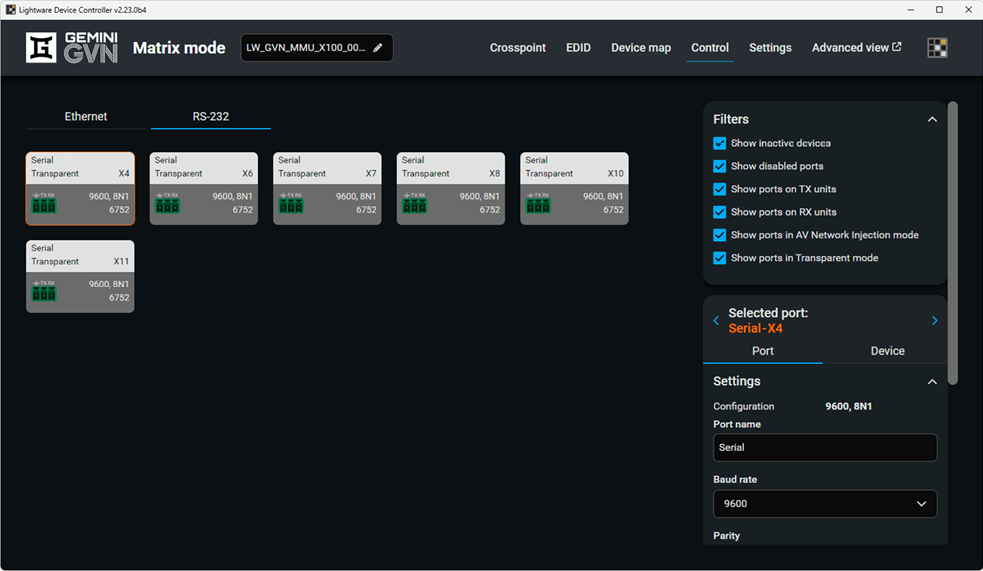
Control - RS-232 tab of the GVN-MMU-X100
On this tab you can see all endpoint serial ports in your GVN system and adjust their settings separately. You can also filter them by selecting the desired check boxes in the Filters section to easily find a specific port. #rs-232 #serial
Port tile
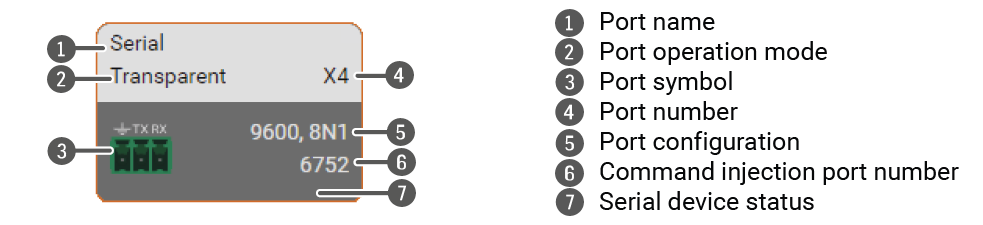
6.15.3. Serial Port Properties

After selecting a port, an orange frame will appear around the tile and port properties will be available on the right side.
General Settings
▪Port name
▪Baud rate (9600, 19200, 38400, 57600, 115200)
▪Parity (None, Odd, Even)
▪Stop bits (1, 2)
Command Injection Settings
▪Operation mode (Transparent, AV Network Injection, None)
▪TCP port for command injection (6752)
6.15.4. Serial Port Device Properties

The most important information and settings of the receiver are available in the Device information section.
Settings
▪Device label: the default label is the name and serial number of the device but it can be changed to any unique name. #label #devicelabel
▪Hostname: the hostname can be set.
▪IP address: the IP address can be changed by clicking on the Edit IP address button. #ip
▪Reboot unit: clicking on the button makes rebooting the device (the same as disconnecting from the power source and reconnecting again). #reboot #restart
▪Load factory defaults: factory default setting can be called by clicking on the button. #factorydefault
General Info
▪Device status (active/inactive)
▪Product name
▪Part number
▪Serial number
▪MAC address #mac
▪Package version
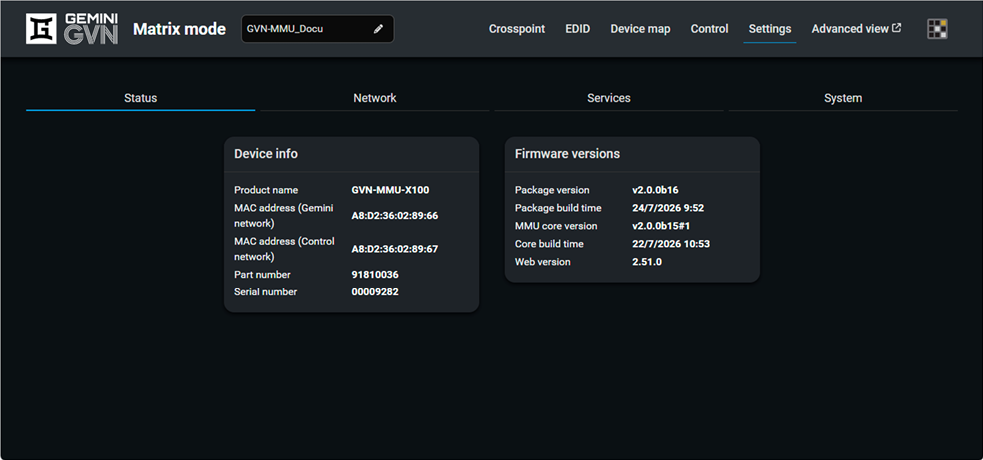
Settings - Status tab of the GVN-MMU-X100
The most important software related information can be found on this tab: firmware version, serial number and MAC addresses. #firmwareversion #mac
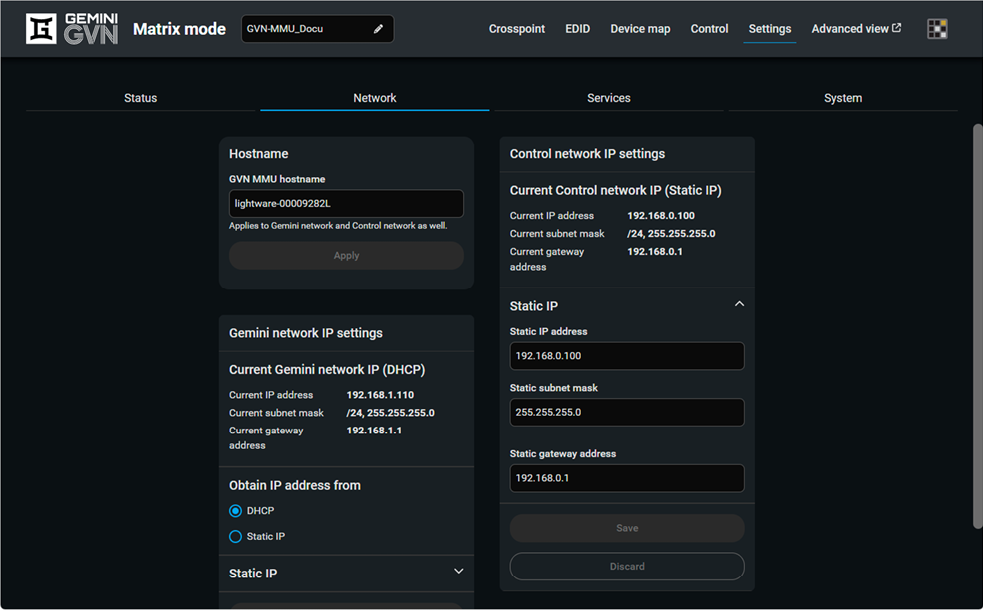
Settings - Network tab of the GVN-MMU-X100
IP address settings for both the Control network and the Gemini network can be set on this tab. Always press the Save button to save changes. #network
INFO:GVN-MMU-X100 has separate network interfaces for controlling the Gemini network and the MMU Control network. Please make sure to adjust the correct interface.
The Control network can only be set to Static IP on this tab currently. DHCP settings are only available through LW3 (for example in the Advanced View window). The Gemini network may be set with both Static IP or DHCP on this tab.
INFO:Error messages will warn users if the given values are invalid or if the settings may cause a network subnet collision.
The Hostname of the MMU can also be changed here - this setting applies to both network interfaces available.

Settings - Services tab of the GVN-MMU-X100
DIFFERENCE:The services tab is available from FW version v1.5.0 and LDC version v2.18.0.
ATTENTION!Please take care not to disable all service ports at once. If that happens, connection to the device can only be restored by calling factory default settings physically.
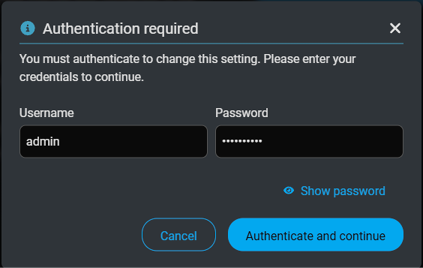
HTTP(S) services, LW3 services and Credentials can be handled on this tab:
▪Enable port 80: this can be used for HTTP, LW3 over WS and REST API.
▪Enable port 443: this can be used for HTTPS, LW3 over WSS and secure REST API.
▪Enable LW3 over 6107 - you can enable/disable LW3 services over the insecure port 6107 via toggling this switch. LW3 services will still be available over WS/WSS.
ATTENTION!If both 80 and 443 ports are disabled, backup download and settings over HTTP/HTTPS will not work.
Credentials

Username
Currently the username is set as admin and it is not changeable.
DIFFERENCE:Factory default password has been introduced in GVN-MMU with FW package v2.0.2: Lightware10g
Rules for setting a password:
▪UTF-8 characters are allowed.
▪Min length: 10 characters.
▪Max length: 100 characters.
The password string can not be queried. #password
INFO:If wrong password is typed three times after each other, the login is suspended for 10 minutes.
LARA

DIFFERENCE:LARA is available in GVN-MMU from FW package v2.0.2. #lara
In order to access LARA, enable it in this menu.
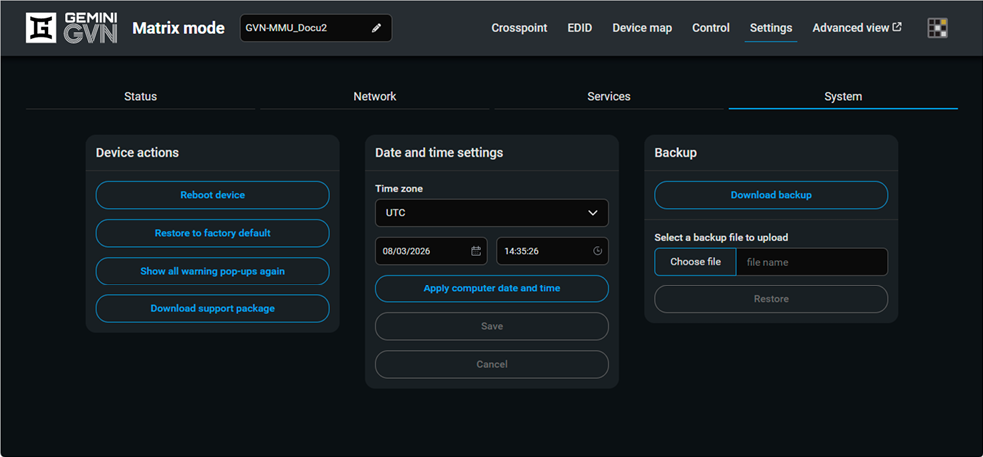
Settings - System tab of the GVN-MMU-X100
The following functions are available under the System tab:
▪Reboot - rebooting the system. #reboot #restart
▪Load factory defaults - recalling factory default settings and values. All factory default settings are listed in the Factory Default Settings section. #factorydefault
▪Show all warning pop-ups again - reactivates all pop-up windows that had been closed with "Don't show again" ticked in.
▪Download support package - saving a log package that helps during a troubleshooting process,
▪Date and time settings - internal clock of the MMU, which is used for debugging purposes.
▪Apply computer date and time - the date and time settings are synchronized to the computer settings. This does not affect the time zone, however.
▪Download and restore backup file - makes it possible to save the configuration of the GVN system into a file and reupload it later. #backup
ATTENTION!If both 80 and 443 ports are disabled, support package downloading is not available.
#date #time
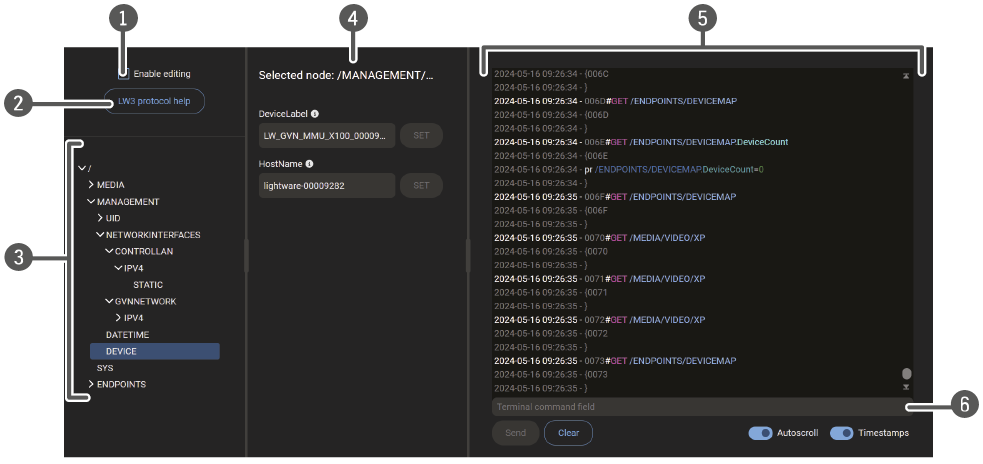
|
|
Edit mode |
The default appearance is the read-only mode. If you want to modify the values or parameters, tick the option. You will be prompted to confirm your selection. |
|
|
|
LW3 protocol help |
Pushing the button results in a help window opening, which describes the most important information about LW3 protocol commands in HTML format. |
|
|
|
Protocol tree |
LW3 protocol tree; select an item to see its content. |
|
|
|
Node list #advancedview #terminal |
Correspondent parameters and nodes are shown that are connected to the selected item in the protocol tree. |
|
|
Info bubble: |
Manual (short description) of the node can be called and displayed in the terminal window. |
||
|
Set button: |
Saves the value/parameter typed in the textbox. |
||
|
Call button: |
Calls the method, e.g. reloads factory default settings. |
||
|
|
Terminal window |
Commands and responses with time and date are listed in this window. The color of each item depends on the type of the command and response. The content of the window can be emptied by the Clear button. If the Autoscroll option is ticked, the list is scrolled automatically when a new line is added. |
|
|
|
Command line |
Type the desired command and execute it by the Send button. Clear all current commands and responses in the Terminal window by the Clear button. You can also recall a previously sent command by pressing the Up arrow. |
|


The device can be controlled through Lightware 3 (LW3) protocol commands to ensure the compatibility with other Lightware products. The supported LW3 commands are described in this chapter.
The Lightware Protocol #3 (LW3) is implemented in almost all new Lightware devices (matrix switchers, signal extenders and distribution amplifiers) since 2012. The protocol is ASCII-based and all commands are terminated with a carriage return (Cr, ‘\r’) and line feed (Lf, ‘\n’) pair. It is organized as a tree structure that provides outstanding flexibility and user-friendly handling with ‘nodes’, ‘properties’ and ‘methods’. The Advanced View of the Lightware Device Controller software is the perfect tool for browsing and learning how the LW3 protocol can be used in practice.
7.2. Instructions for the Terminal Application Usage
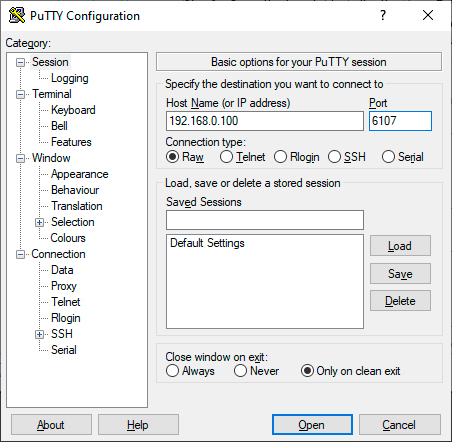
Terminal Application
The LW3 protocol commands can be applied to the receiver using a terminal application. You need to install one of them on your control device, for example Putty or CLI. #terminal
Establishing Connection
Follow the steps to establish connection to the receiver:
Step 1.Connect the receiver to a LAN over Ethernet.
Step 2.Open the terminal application (e.g. Putty).
Step 3.Add the IP address of the device (default: 192.168.0.100) and the port number (6107).
Step 4.Select the Raw connection type, and open the connection.
Once the terminal window is opened, you can enter the LW3 protocol commands, which are listed in the following sections.

LW3 protocol command communication in a terminal window
7.3.1. LW3 Tree Structure and Command Structure (examples)

▪All names and parameters are case-sensitive.
▪The nodes are separated by a slash (‘/’) character.
▪The node name can contain the elements of the English alphabet and numbers.
▪The command lines have to be closed by Carriage return and Line Feed (CrLf).
▪Use the TCP port no. 6107 when using LW3 protocol over Ethernet.
▪The length of a line (command/response, command type / prefix, path, method/property and parameters together) can be max. 800 bytes.
▪When a command is issued by the device, the received response cannot be processed by the CPU.
▪The node paths describe the exact location of the node, listing each parent node up to the root.
▪The maximum number of subscriptions is 512. This includes subscriptions by the LDC.
▪The maximum number of updates that can be handled by the MMU is 128 (e.g. switchAll command). This includes the updates done in LDC.
▪The maximum number of connected LW3 clients is 10. This includes the LDC Graphical User Interface.
GVN system can be controlled with LW3 commands, however, the approach is a but different. You can send certain commands directly to endpoints, but most of the communication happens with the MMU. You can control the whole system with commands sent to the MMU, therefore, numerous LW3 commands are about the connections between the endpoints and not refers to a single device.
|
Parameter |
Value |
Description |
|
<source> |
<dev_map_id>_<port_type> |
The ID and port type of a source stream. |
|
<destination> |
<dev_map_id>_<port_type> |
The ID and port type of a destination stream. |
|
<dev_map_id> |
Device order number of the endpoint. |
|
|
<parameter> |
Specific parameter defined and described in the command. |
|
|
<expression> |
Batched parameters: the underline means that more expressions or parameters can be placed by using a semicolon, e.g. X6_HDMI_IN;X7_HDMI_IN |
|
|
� |
Sent command. |
|
|
� |
Received response. |
|
|
· |
Space character. |
Command and Response
»CALL /MEDIA/VIDEO/XP:switch(<source>:<destination>)
«mO /MEDIA/VIDEO/XP:switch=
Example
»CALL /MEDIA/VIDEO/XP:switch(X6_NATIVE_OUT:X4_NATIVE_IN)
«mO /MEDIA/VIDEO/XP:switch=
GET command
The GET command can be used to get the child nodes, properties and methods of a specific node. It can also be used to get the value of a property. Use the dot character (.) when addressing a property:
»GET /.SerialNumber
«pr /.SerialNumber=87654321
GETALL command
The GETALL command can be used to get all child nodes, properties and methods of a node with one command.
»GETALL /MEDIA/VIDEO/XP
«n /MEDIA/VIDEO/XP/D101
«n /MEDIA/VIDEO/XP/S201
«n /MEDIA/VIDEO/XP/S301
«m /MEDIA/VIDEO/XP:switch
«m /MEDIA/VIDEO/XP:switchAll
SET command
The SET command can be used to modify the value of a property. Use the dot character (.) when addressing the property:
»SET /MEDIA/VIDEO/D101.Name=MyDevice
«pw /MEDIA/VIDEO/D101.Name=MyDevice
CALL command
A method can be invoked by the CALL command. Use the colon character (:) when addressing the method:
»CALL /EDID:switchAll(F49)
«mO /EDID:switchAll
MAN command
The manual is a human readable text that describes the syntax and provides a hint for how to use the primitives. For every node, property and method in the tree there is a manual, type the MAN command to get the manual:
»MAN /MEDIA/VIDEO/D101.Name
«pm /MEDIA/VIDEO/D101.Name User configurable name of the port. Avoid using special characters.
DEFINITION:The prefix is a two-character long code that describes the type of the response.
The following prefixes are defined in the LW3 protocol:
|
Prefix |
Description |
Prefix |
Description |
|
|
n- |
a node |
nr |
remote node |
|
|
nE |
an error for a node |
pm |
a manual for the property |
|
|
nm |
a manual for a node |
m- |
a method |
|
|
pr |
a read-only property |
mO |
a response after a success method execution |
|
|
pw |
read-write property |
mF |
a response after a failed method execution |
|
|
pE |
an error for the property |
mE |
an error for a method |
|
|
ns |
symlink node |
mm |
a manual for a method |
|
|
nv |
virtual node |
There are several error messages defined in the LW3 protocol, all of them have a unique error number.
»CALL /MEDIA/VIDEO/XP:lock(IA)
«mE /MEDIA/VIDEO/XP:lock %E002:Not exist
DEFINITION:An escape sequence is a sequence of characters that does not represent itself when used inside a character or string literal, but is translated into another character or a sequence of characters.
Property values and method parameters can contain characters that are used as control characters in the protocol. They must be escaped. The escape character is the backslash (‘\’) and escaping means injecting a backslash before the character that should be escaped (like in C language).
Control characters are the following: \ { } # % ( ) \r \n \t
The original message: CALL /MEDIA/UART/P1:sendMessage(Set(01))
The escaped message: CALL /MEDIA/UART/P1:sendMessage(Set\(01\))
DEFINITION:The signature is a four-digit-long hexadecimal value that can be optionally placed before every command to keep a command and the corresponding responses together as a group.
Each line is terminated with carriage return (Cr, ‘\r’) and line feed (Lf, ‘\n’) characters. In several cases the number of the lines in the response cannot be determined in advance, e.g. the client intends to receive the whole response and also wants to be sure that the received lines belong together and to the same command. In these cases, a special feature, the ‘signature’ can be used. The response to that particular command will also be preceded by the signature, and the corresponding lines will be between brackets:
»1700#GET /EDID.*
«{1700
«pr /EDID.EdidStatus=F47:E201;F47:E301
«m- /EDID:copy
«m- /EDID:delete
«m- /EDID:reset
«m- /EDID:switch
«m- /EDID:switchAll
«}
INFO:The lines of the signature are also Cr and Lf terminated.
DEFINITION:Subscription to a node means that the user will get a notification if a property of the node changes.
A user can subscribe to any node. These notifications are asynchronous messages and are useful to keep the client application up to date, without having to periodically poll the node to detect a changed property. When the user does not want to be informed about the changes anymore, he can simply unsubscribe from the node.
ATTENTION!The subscriptions are handled separately for connections. Hence, if the connection is terminated, all registered subscriptions are deleted. After reopening a connection all subscribe commands have to be sent in order to get the notifications of the changes on that connection.
Subscribe to a Node
»OPEN /MEDIA/VIDEO
«o- /MEDIA/VIDEO
Unsubscribe from a Node
»CLOSE /MEDIA/VIDEO
«c- /MEDIA/VIDEO
Subscribe to Multiple Nodes
»OPEN /MEDIA/VIDEO/*
«o- /MEDIA/VIDEO/*
Unsubscribe from Multiple Nodes
»CLOSE /MEDIA/VIDEO/*
«c- /MEDIA/VIDEO/*
Get the Active Subscriptions
»OPEN
«o- /MEDIA/VIDEO
«o- /EDID
«o- /DISCOVERY
7.3.10. Notifications about the Changes of the Properties
When the value of a property is changed and the user is subscribed to the node which the property belongs to, an asynchronous notification is generated. This notification is called the ‘change message’. The format of such a message is very similar to the response for the GET command:
«CHG /EDID.EdidStatus=F48:E201
A Short Example of How to Use the Subscription
There are two independent users controlling the device through two independent connections (Connection #1 and Connection #2). The events in the rows occur after each other.
|
»OPEN /MEDIA/AUDIO/O101 «o- /MEDIA/AUDIO/O101 »GET /MEDIA/AUDIO/O101.ConnectedSource «pw /MEDIA/AUDIO/O101.ConnectedSource=D1 |
connection #1 |
|
»GET /MEDIA/AUDIO/O101.ConnectedSource «pw /MEDIA/AUDIO/O101.ConnectedSource=D1 »SET /MEDIA/AUDIO/O101.ConnectedSource=D4 «pw /MEDIA/AUDIO/O101.ConnectedSource=D4 |
connection #2 |
|
«CHG /MEDIA/AUDIO/O101.ConnectedSource=D4 |
connection #1 |
The first user (Connection #1) set a subscription to a node. Later the other user (Connection #2) made a change, and thanks to the subscription, the first user got a notification about the change.
7.4.1. Querying the Product Name
Command and Response
»GET·/.ProductName
«pr·/.ProductName=<product_name>
Parameters
The <product_name> is the type of the device: it is a read-only parameter and cannot be modified.
Example
»GET /.ProductName
«pr /.ProductName=GVN-MMU-X100
7.4.2. Setting the Device Label
A unique name can be set that will be visible when the given device is listed in the built-in web page of other Gemini devices. The default format of the device label is the following: LW_<product_name>_<serial_no>
ATTENTION!There is a known issue in firmware version v1.0 regarding the device label. Please avoid using accentuated letters and spaces when setting this parameter in the endpoints, as this could cause applications being unable to detect the devices.
ATTENTION!This property is a writable parameter and not the same as the ProductName.
DIFFERENCE:The path of this node is changed with FW package v2.0.2, the new path is as follows.
Command and Response #label
»SET·/EXPERIMENTAL/MANAGEMENT/DEVICE.DeviceLabel=<device_label>
«pw·/EXPERIMENTAL/MANAGEMENT/DEVICE.DeviceLabel=<device_label>
Parameters
The <device_label> may consist of ASCII characters and can be 63 characters long. Longer names are truncated.
Example
»SET /EXPERIMENTAL/MANAGEMENT/DEVICE.DeviceLabel=GVN-MMU-LOBBY
«pw /EXPERIMENTAL/MANAGEMENT/DEVICE.DeviceLabel=GVN-MMU-LOBBY
7.4.3. Querying the Serial Number
Command and Response
»GET·/.SerialNumber
«pr·/.SerialNumber=<serial_no>
Example
»GET /.SerialNumber
«pr /.SerialNumber=00008084
7.4.4. Querying the Package Version
Command and Response
»GET·/.PackageVersion
«pr·/.PackageVersion=<package_version>
Example
»GET /.PackageVersion
«pr /.PackageVersion=v1.0.0
7.4.5. Querying the Current Date and Time of the System
The query returns the current date and time set in the MMU. The format is based on the ISO 8601 standard.
DIFFERENCE:The path of this node is changed with FW package v2.0.2, the new path is as follows.
Command and Response #date #time
»GET·/V1/MANAGEMENT/DATETIME.CurrentTime
«pr·/V1/MANAGEMENT/DATETIME.CurrentTime=<date_time>
Parameters
|
Parameter |
Description |
Formula |
|
<date_time> |
Current date and time |
YYYY-MM-DDTHH:MM:SS |
Example
»GET /V1/MANAGEMENT/DATETIME.CurrentTime
«pr /V1/MANAGEMENT/DATETIME.CurrentTime= 2024-05-10T06:23:37
7.4.6. Setting the Date and Time Manually
DIFFERENCE:The path of this node is changed with FW package v2.0.2, the new path is as follows.
Command and Response
»CALL·/V1/MANAGEMENT/DATETIME:setTime=<date_time>
«mO·/V1/MANAGEMENT/DATETIME:setTime
Parameters
|
Parameter |
Description |
Formula |
|
<date_time> |
Current date and time |
YYYY-MM-DDTHH:MM:SS |
Example
»CALL /V1/MANAGEMENT/DATETIME:setTime=2021-12-24T20:00:15
«mO /V1/MANAGEMENT/DATETIME.setTime
The device can be restarted; the current connections will be terminated. #reboot #restart
DIFFERENCE:The path of this node and the name of the command were changed with FW package v2.0.2, see as follows.
Command and Response
»CALL·/V1/SYS:restart(1)
«mO·/V1/SYS:restart=
Example
»CALL /V1/SYS:restart(1)
«mO /V1/SYS:restart=
7.4.8. Restoring the Factory Default Settings
ATTENTION!Calling this command will restore factory default settings for all connected Endpoints as well.
DIFFERENCE:The path of this node is changed with FW package v2.0.2, the new path is as follows.
Command and Response
»CALL·/V1/SYS:factoryDefaults()
«mO·/V1/SYS:factoryDefaults=
Example
»CALL /V1/SYS:factoryDefaults()
«mO /V1/SYS:factoryDefaults=
The device is restarted, the current connections are terminated, the default settings are restored. See the complete list in the Factory Default Settings section. #factorydefault
7.4.9. Querying the Number of Discovered Devices
Command and Response
»GET·/ENDPOINTS/DISCOVERY/ALL.DeviceCount
«pr·/ENDPOINTS/DISCOVERY/ALL.DeviceCount=<no_of_devices>
Example
»GET /ENDPOINTS/DISCOVERY/ALL.DeviceCount
«pr /ENDPOINTS/DISCOVERY/ALL.DeviceCount=4
7.5. System Commands - Endpoints
7.5.1. Querying the Product Name
Command and Response
»GET·/ENDPOINTS/DEVICEMAP/<endpoint>.ProductName
«pr·/ENDPOINTS/DEVICEMAP/<endpoint>.ProductName=<product_name>
Parameters
The <product_name> is the type of the device: it is a read-only parameter and cannot be modified.
Example
»GET /ENDPOINTS/DEVICEMAP/X1.ProductName
«pr /ENDPOINTS/DEVICEMAP/X1.ProductName=GVN-HDMI-TX210AP
7.5.2. Setting the Device Label
A unique name can be set that will be visible when the given device is listed in the built-in web page of other Gemini devices. #devicelabel #label
The default format of the device label is the following: LW_<product_name>_<serial_no>
ATTENTION!This property is a writable parameter and not the same as the ProductName.
Command and Response
»SET·/ENDPOINTS/DEVICEMAP/<endpoint>/MANAGEMENT.DeviceLabel=<device_label>
«pw·/ENDPOINTS/DEVICEMAP/<endpoint>/MANAGEMENT.DeviceLabel=<device_label>
Example
»SET /ENDPOINTS/DEVICEMAP/X1/MANAGEMENT.DeviceLabel=MyGeminiTX
«pw /ENDPOINTS/DEVICEMAP/X1/MANAGEMENT.DeviceLabel=MyGeminiTX
7.5.3. Querying the Serial Number
Command and Response
»GET·/ENDPOINTS/DEVICEMAP/<endpoint>.SerialNumber
«pr·/ENDPOINTS/DEVICEMAP/<endpoint>.SerialNumber=<serial_no>
Example
»GET /ENDPOINTS/DEVICEMAP/X1.SerialNumber
«pr /ENDPOINTS/DEVICEMAP/X1.SerialNumber=92145512
7.5.4. Querying the MAC Address
Command and Response #mac
»GET·/ENDPOINTS/DEVICEMAP/<endpoint>.MacAddress
«pr·/ENDPOINTS/DEVICEMAP/<endpoint>.MacAddress=<mac_address>
Example
»GET /ENDPOINTS/DEVICEMAP/X1.MacAddress
«pr /ENDPOINTS/DEVICEMAP/X1.MacAddress= a8:d2:36:ef:ba:cd
7.5.5. Querying the Package Version
Command and Response #firmwareversion
»GET·/ENDPOINTS/DEVICEMAP/<endpoint>.PackageVersion
«pr·/ENDPOINTS/DEVICEMAP/<endpoint>.PackageVersion=<package_version>
Example
»GET /ENDPOINTS/DEVICEMAP/X1.PackageVersion
«pr /ENDPOINTS/DEVICEMAP/X1.PackageVersion=v1.1.0
7.5.6. Querying the Discovery ID
Discovery ID is a unique identifier of an endpoint, made up of the endpoint type (TX or RX) and the MAC address separated by a hyphen.
Command and Response
»GET·/ENDPOINTS/DEVICEMAP/<device_map_id>.DiscoveryId
«pr·/ENDPOINTS/DEVICEMAP/<device_map_id>.DiscoveryId=<discovery_id>
Example
»GET /ENDPOINTS/DEVICEMAP/X1.DiscoveryId
«pr /ENDPOINTS/DEVICEMAP/X1.DiscoveryId=RX-A8D2360298B1
7.5.7. Querying the Device Map ID
Device Map ID is the value of an endpoint within the device map. If a device is unmapped, this value is empty.
Command and Response
»GET·/ENDPOINTS/DISCOVERY/ALL/<discovery_id>.DeviceMapId
«pr·/ENDPOINT/DISCOVERY/ALL/<discovery_id>.DeviceMapId=<device_map_id>
Example
»GET /ENDPOINTS/DISCOVERY/ALL/RX-A8D2360298B1.DeviceMapId
«pr /ENDPOINTS/DISCOVERY/ALL/RX-A8D2360298B1.DeviceMapId=X1
7.5.8. Adding a Device to the Device Map
In case adding devices to the device map automatically is disabled, you can add devices manually via this command.
Command and Response
»CALL·/ENDPOINTS/DISCOVERY/ALL/<discovery_id>:addToDeviceMap()
«mO·/ENDPOINTS/DISCOVERY/ALL/<discovery_id>:addToDeviceMap=
Example
»CALL /ENDPOINTS/DISCOVERY/ALL/RX-A8D2360298B1:addToDeviceMap()
«mO /ENDPOINTS/DISCOVERY/ALL/RX-A8D2360298B1:addToDeviceMap=
7.5.9. Removing a Device from the Device Map
Command and Response
»CALL·/ENDPOINTS/DEVICEMAP/<device_map_id>:removeFromDeviceMap()
«mO·/ENDPOINTS/DEVICEMAP/<device_map_id>:removeFromDeviceMap=
Example
»CALL /ENDPOINTS/DEVICEMAP/X1:removeFromDeviceMap()
«mO /ENDPOINTS/DEVICEMAP/X1:removeFromDeviveMap=
Command and Response #reboot #restart
»CALL·/ENDPOINTS/DEVICEMAP/<device_map_id>/SYS:reboot()
«mO·/ENDPOINTS/DEVICEMAP/<device_map_id>/SYS:reboot
Example
»CALL /ENDPOINTS/DEVICEMAP/X1/SYS:reboot()
«mO /ENDPOINTS/DEVICEMAP/X1/SYS.reboot
7.5.11. Restoring the Factory Default Settings
Command and Response #factorydefault
»CALL·/ENDPOINTS/DEVICEMAP/<device_map_id>/SYS:factoryDefaults()
«mO·/ENDPOINTS/DEVICEMAP/<device_map_id>/SYS:factoryDefaults=
Example
»CALL /ENDPOINTS/DEVICEMAP/X1/SYS:factoryDefaults()
«mO /ENDPOINTS/DEVICEMAP/X1/SYS:factoryDefaults=
7.6. Video Crosspoint Settings
The following parameters are used in most of the video commands for crosspoint settings between endpoints:
|
Parameter |
Value |
Description |
|
<stream_name> |
<source> or <destination> |
Source or destination stream. |
|
<source> |
<dev_map_id>_NATIVE_IN |
The ID and port type of a source stream. |
|
<destination> |
<dev_map_id>_NATIVE_OUT> |
The ID and port type of a destination stream. |
|
<dev_map_id> |
Device order number of the endpoint. |
7.6.2. Switching the Video Stream to One Destination
With this command the current Video connection is cut off between the affected endpoints, then the desired transmitter and receiver are connected. #switch #crosspoint
Command and Response
»CALL·/MEDIA/VIDEO/XP:switch(<source>:<destination>)
«mO·/MEDIA/VIDEO/XP:switch=
Parameters
|
Parameter |
Value |
Description |
|
<source> |
See the Command Legend. |
The ID of a source stream. |
|
<destination> |
The ID of a destination stream. |
Example1
»CALL /MEDIA/VIDEO/XP:switch(X6_NATIVE_OUT:X4_NATIVE_IN)
«mO /MEDIA/VIDEO/XP:switch=
Example2
»CALL /MEDIA/VIDEO/XP:switch(X6_NATIVE_OUT:X4_NATIVE_IN;X7_NATIVE_OUT:X8_NATIVE_IN)
«mO /MEDIA/VIDEO/XP:switch=
7.6.3. Switching a Video Stream to All Destinations
With this command the current Video connection is cut off between the affected endpoints, then the desired transmitter and receiver(s) are connected. #switch #crosspoint
Command and Response
»CALL·/MEDIA/VIDEO/XP:switchAll(<source>)
«mO·/MEDIA/VIDEO/XP:switchAll=
Parameters
|
Parameter |
Value |
Description |
|
<source> |
See the Command Legend. |
The ID of a source stream. |
Example1
»CALL /MEDIA/VIDEO/XP:switchAll(X6_NATIVE_OUT)
«mO /MEDIA/VIDEO/XP:switchAll=
Example2
»CALL /MEDIA/VIDEO/XP:switchAll(X6_NATIVE_OUT;X7_NATIVE_OUT)
«mO /MEDIA/VIDEO/XP:switchAll=
INFO:Setting 0 as a parameter will disconnect all destinations.
7.6.4. Disconnecting the Stream from a Destination
Command and Response
»CALL·/MEDIA/VIDEO/XP:switch(0:<destination>)
«mO·/MEDIA/VIDEO/XP:switch=
Parameters
|
Parameter |
Value |
Description |
|
<destination> |
See the Command Legend. |
The ID of a destination stream. |
Example
»CALL /MEDIA/VIDEO/XP:switch(0:X4_NATIVE_IN)
«mO /MEDIA/VIDEO/XP:switch=
7.6.5. Enabling/Disabling the Auto Select Within a Transmitter
The automatic input selection can be enabled/disabled with this command in transmitters with multiple video inputs. #autoselect
Command and Response
»SET·/MEDIA/VIDEO/<destination>/AUTOSELECT.Policy=<as_policy>
«pw·/MEDIA/VIDEO/<destination>/AUTOSELECT.Policy=<as_policy>
Parameters
|
Parameter |
Value |
Description |
|
<destination> |
<dev_map_id>_NATIVE_OUT> |
The ID and port type of a destination stream. |
|
<dev_map_id> |
Device order number of the endpoint. |
|
|
<as_policy> |
Off |
Auto select is disabled, manual select is available. |
|
Last detect |
It is always the last attached input that is selected to transmit. |
|
|
Priority |
One of the inputs has a priority. If signal is present on that port, it will be selected to transmit independently of the other input port state. If the signal is lost from the preferred input, and signal is present on the other input, it will be selected. |
Example
»SET /MEDIA/VIDEO/X6_NATIVE_OUT/AUTOSELECT.Policy=Last detect
«pw /MEDIA/VIDEO/X6_NATIVE_OUT/AUTOSELECT.Policy=Last detect
The priority can be set with the following command.
7.6.6. Priority Setting for Video Auto Select Within a Transmitter
The 'Priority' automatic input selection can be set with this command in transmitters with multiple video inputs.
Command and Response
»SET·/MEDIA/VIDEO/<destination>/AUTOSELECT.Priority=<input1>:<input2>
«pw·/MEDIA/VIDEO/<destination>/AUTOSELECT.Priority=<input1>:<input2>
Parameters
|
Parameter |
Parameter description |
Value |
Description |
|
<destination> |
The ID and port type of a destination stream. |
<dev_map_id>_NATIVE_OUT> |
|
|
<dev_map_id> |
Device order number of the endpoint. |
||
|
<input1> |
The input port that has priority. |
HDMI_IN USBC_MAIN_IN |
HDMI input port. USB-C main input port. |
|
<input2> |
The other input port that has no priority. |
One of the inputs can have a priority. If signal is present on that port, it will be selected to transmit independently of the other input port state. If the signal is lost from the preferred input, and signal is present on the other input, it will be selected.
Example
»SET /MEDIA/VIDEO/X6_NATIVE_OUT/AUTOSELECT.Priority= USBC_MAIN_IN:HDMI_IN
«pw /MEDIA/VIDEO/X6_NATIVE_OUT/AUTOSELECT.Priority=USBC_MAIN_IN:HDMI_IN
7.6.7. Manual Input Selection Within a Transmitter
This command is for direct selecting the video input to be transferred via the GVN AV output.
Command and Response
»SET·/MEDIA/VIDEO/<destination>.ConnectedSourceByName=<source>
«pw·/MEDIA/VIDEO/<destination>.ConnectedSourceByName=<source>
Parameters
|
Parameter |
Value |
Description |
|
<destination> |
<dev_map_id>_NATIVE_OUT |
The ID and port type of a GVN AV output port. |
|
<source> |
HDMI_IN |
HDMI input port. |
|
USBC_MAIN_IN |
USB-C main input port. |
|
|
<dev_map_id> |
Device order number of the endpoint. |
Example
»SET /MEDIA/AUDIO/X7_NATIVE_OUT.ConnectedSourceByName=HDMI_IN
«pw /MEDIA/AUDIO/X7_NATIVE_OUT.ConnectedSourceByName=HDMI_IN
7.7.1. Querying the Signal Presence on a Stream
Command and Response
»GET·/MEDIA/VIDEO/<stream_name>.SignalPresent
«pr·/MEDIA/VIDEO/<stream_name>.SignalPresent=<status>
Parameters
|
Parameter |
Value |
Description |
|
<stream_name> |
See the Command Legend. |
The ID of a source or a destination stream. |
|
<status> |
true |
Signal is present. |
|
false |
Signal is not present. |
Example
»GET /MEDIA/VIDEO/X4_NATIVE_IN.SignalPresent
«pr /MEDIA/VIDEO/X4_NATIVE_IN.SignalPresent=true
7.7.2. Querying the Active Resolution of the Signal
Command and Response
»GET·/MEDIA/VIDEO/<stream_name>.ActiveResolution
«pr·/MEDIA/VIDEO/<stream_name>.ActiveResolution=<active_resolution>
Parameters
|
Parameter |
Value |
Description |
|
<stream_name> |
See the Command Legend. |
The ID of a source or a destination stream. |
|
<dev_map_id> |
Device map ID. |
|
|
<active_resolution> |
<pixels>x<lines> |
The visible resolution of the signal. |
Example
»GET /MEDIA/VIDEO/X4_NATIVE_IN.ActiveResolution
«pr /MEDIA/VIDEO/X4_NATIVE_IN.ActiveResolution=3840x2160
7.7.3. Querying the Total Resolution of the Signal
Command and Response
»GET·/MEDIA/VIDEO/<stream_name>.TotalResolution
«pr·/MEDIA/VIDEO/<stream_name>.TotalResolution=<total_resolution>
Parameters
|
Parameter |
Value |
Description |
|
<stream_name> |
See the Command Legend. |
The ID of a source or a destination stream. |
|
<dev_map_id> |
Device map ID. |
|
|
<total_resolution> |
<pixels>x<lines> |
The total resolution of the signal with blanking. |
Example
»GET /MEDIA/VIDEO/X4_NATIVE_IN.TotalResolution
«pr /MEDIA/VIDEO/X4_NATIVE_IN.TotalResolution=4400x2250
7.7.4. Querying the Refresh Rate of the Signal
Command and Response
»GET·/MEDIA/VIDEO/<stream_name>.RefreshRate
«pr·/MEDIA/VIDEO/<stream_name>.RefreshRate=<refresh_rate>
Parameters
|
Parameter |
Value |
Description |
|
<stream_name> |
See the Command Legend. |
The ID of a source or a destination stream. |
|
<dev_map_id> |
Device map ID. |
|
|
<refresh_rate> |
The refresh rate of the video in Hz. |
Example
»GET /MEDIA/VIDEO/X4_NATIVE_IN.RefreshRate
«pr /MEDIA/VIDEO/X4_NATIVE_IN.RefreshRate=60.00
7.7.5. Querying the Signal Type
Command and Response
»GET·/MEDIA/VIDEO/<stream_name>.SignalType
«pr·/MEDIA/VIDEO/<stream_name>.SignalType=<type>
Parameters
|
Parameter |
Value |
Description |
|
<stream_name> |
See the Command Legend. |
The ID of a source or a destination stream. |
|
<type> |
N/A |
There is no active video signal on the stream. |
|
DVI |
The video signal is DVI. |
|
|
HDMI |
The video signal is HDMI. |
|
|
DP |
The video signal is DisplayPort. |
Example
»GET /MEDIA/VIDEO/X6_USBC_MAIN_IN.SignalType
«pr /MEDIA/VIDEO/X6_USBC_MAIN_IN.SignalType=HDMI
7.7.6. Querying the Connection Status
Command and Response
»GET·/MEDIA/VIDEO/<stream_name>.Connected
«pr·/MEDIA/VIDEO/<stream_name>.Connected=<status>
Parameters
|
Parameter |
Value |
Description |
|
<stream_name> |
See the Command Legend. |
The ID of a source or a destination stream. |
|
<status> |
true |
Cable/device is connected to the port. |
|
false |
Cable/device is not connected to the port. |
INFO:This command is not available in case of NATIVE ports.
Example
»GET /MEDIA/VIDEO/X8_HDMI_OUT.Connected
«pr /MEDIA/VIDEO/X8_HDMI_OUT.Connected=true
7.8. No Signal Screen Settings
DIFFERENCE:This section is only available in case of video output ports of GVN RX devices. Please be aware that any changes require rebooting the endpoint. #nosignal
7.8.1. Changing the No Signal Screen
INFO:Please note that the on-screen display (OSD) is independent and can be set with a different command.
You can control what happens on the output of an RX when there is no incoming signal with this command.
Command and Response
»SET·/MEDIA/VIDEO/<destination>/SCREEN.SignalLossHandling=<option>
«pw·/MEDIA/VIDEO/<destination>/SCREEN.SignalLossHandling=<option>
Parameters
|
Parameter |
Value |
Description |
|
<destination> |
See the Command Legend. |
The ID of a destination stream. |
|
<option> |
DefaultLogo |
The GVN logo appears on the HDMI output when there is no incoming signal. |
|
BlackScreen |
An empty black screen appears on the HDMI output when there is no incoming signal. |
|
|
DisableHDMIOut |
The HDMI output is disabled when there is no incoming signal. |
Example
»SET /MEDIA/VIDEO/X8_HDMI_OUT/SCREEN.SignalLossHandling=DisableHDMIOut
«pw /MEDIA/VIDEO/X8_HDMI_OUT/SCREEN.SignalLossHandling=DisableHDMIOut
7.8.2. Enabling/Disabling the On-Screen Display (OSD)
The OSD can be enabled/disabled with this command which containsthe following information in the bottom corners: FW package version, local IP address, MAC address, furthermore the 'Services started' text.
Command and Response
»SET·/MEDIA/VIDEO/<destination>/SCREEN.ShowOSD=<status>
«pw·/MEDIA/VIDEO/<destination>/SCREEN.ShowOSD=<status>
Parameters
|
Parameter |
Value |
Description |
|
<destination> |
See the Command Legend. |
The ID of a destination stream. |
|
<status> |
true |
The OSD appears on the no signal screen. |
|
false |
The OSD does not appear on the no signal screen. |
Example
»SET /MEDIA/VIDEO/X8_HDMI_OUT/SCREEN.ShowOSD=true
«pw /MEDIA/VIDEO/X8_HDMI_OUT/SCREEN.ShowOSD=true
7.8.3. Setting the Timeout for Signal Loss Activity
You can set the time for the no signal screen to appear after signal loss with this command.
Command and Response
»SET·/MEDIA/VIDEO/<destination>/SCREEN.SignalLossTimeout=<value>
«pw·/MEDIA/VIDEO/<destination>/SCREEN.SignalLossTimeout=<value>
Parameters
|
Parameter |
Value |
Description |
|
<destination> |
See the Command Legend. |
The ID of a destination stream. |
|
<value> |
100-60000 |
The timeout for activating the no signal screen after signal loss in milliseconds. |
Example
»SET /MEDIA/VIDEO/X8_HDMI_OUT/SCREEN.SignalLossTimeout=10000
«pw /MEDIA/VIDEO/X8_HDMI_OUT/SCREEN.SignalLossTimeout=10000
7.9. Audio Crosspoint Settings
ATTENTION!The commands in this section refer to the crosspoint settings between endpoints not inside a single unit.
7.9.1. Enabling/Disabling the Follow Policy
This command allows the audio crosspoint to follow the video crosspoint settings or to be able to route the audio to different endpoints.
Command and Response
»SET·/MEDIA/AUDIO/XP.DefaultFollowPolicy=<follow_policy>
«pw·/MEDIA/AUDIO/XP.DefaultFollowPolicy=<follow_policy>
Parameters
|
Parameter |
Value |
Description |
|
<follow_policy> |
Off |
The audio crosspoint can be switched independently of the video crosspoint. |
|
Forced follow video |
The audio crosspoint follows the changes made to the video crosspoint. |
Example
»SET /MEDIA/AUDIO/XP.DefaultFollowPolicy=Off
«pw /MEDIA/AUDIO/XP.DefaultFollowPolicy=Off
7.9.2. Switching the Audio Stream to One Destination
With this command the current Audio connection is cut off between the affected endpoints, then the desired transmitter and receiver are connected. #switch #crosspoint
Command and Response
»CALL·/MEDIA/AUDIO/XP:switch(<source>:<destination>)
«mO·/MEDIA/AUDIO/XP:switch=
Parameters
|
Parameter |
Value |
Description |
|
<source> |
<dev_map_id>_NATIVE_OUT |
The ID and port type of a source stream. |
|
<destination> |
<dev_map_id>_NATIVE_IN |
The ID and port type of a destination stream. |
|
<dev_map_id> |
Device order number of the endpoint. |
Example1
»CALL /MEDIA/AUDIO/XP:switch(X6_NATIVE_OUT:X4_NATIVE_IN)
«mO /MEDIA/AUDIO/XP:switch=
Example2
»CALL /MEDIA/AUDIO/XP:switch(X6_NATIVE_OUT:X4_NATIVE_IN;X7_NATIVE_OUT:X8_NATIVE_IN)
«mO /MEDIA/AUDIO/XP:switch=
7.9.3. Switching an Audio Stream to All Destinations
With this command the current Video connection is cut off between the affected endpoints, then the desired transmitter and receiver(s) are connected. #switch #crosspoint
Command and Response
»CALL·/MEDIA/AUDIO/XP:switchAll(<source>)
«mO·/MEDIA/AUDIO/XP:switchAll=
Parameters
|
Parameter |
Value |
Description |
|
<source> |
<dev_map_id>_NATIVE_OUT |
The ID and port type of a source stream. |
|
<dev_map_id> |
Device order number of the endpoint. |
Example
»CALL /MEDIA/AUDIO/XP:switchAll(X6_NATIVE_OUT)
«mO /MEDIA/AUDIO/XP:switchAll=
INFO:Setting 0 as a parameter will disconnect all destinations.
7.9.4. Disconnecting the Stream from a Destination
Command and Response
»CALL·/MEDIA/AUDIO/XP:switch(0:<destination>)
«mO·/MEDIA/AUDIO/XP:switch=
Parameters
|
Parameter |
Value |
Description |
|
<destination> |
<dev_map_id>_NATIVE_IN |
The ID and port type of a destination stream. |
|
<dev_map_id> |
Device order number of the endpoint. |
Example1
»CALL /MEDIA/AUDIO/XP:switch(0:X4_NATIVE_IN)
«mO /MEDIA/AUDIO/XP:switch=
Example2
»CALL /MEDIA/AUDIO/XP:switch(0:X4_NATIVE_IN;0:X8_NATIVE_IN)
«mO /MEDIA/AUDIO/XP:switch=
7.9.5. Audio Input Selection Within a Single Endpoint
This command is for selecting the audio input to be embedded in the video stream of the GVN AV output.
Command and Response #analogaudio
»SET·/MEDIA/AUDIO/<output>.ConnectedSourceByName=<source>
«pw·/MEDIA/AUDIO/<output>.ConnectedSourceByName=<source>
Parameters
|
Parameter |
Value |
Description |
|
<output> |
<dev_map_id>_NATIVE_OUT> |
The ID and port type of a GVN AV output port. |
|
<dev_map_id>_DANTE_OUT> |
The ID and port type of a Dante output port. |
|
|
<dev_map_id>_ANALOG_OUT> |
The ID and port type of an Analog output port. |
|
|
<dev_map_id>_UAC_OUT> |
The ID and port type of the UAC output port. |
|
|
<source> |
UAC_IN |
UAC input port. |
|
ANALOG_IN |
Analog audio input port. |
|
|
ACTIVE_EMBEDDED_IN |
The audio of the selected video input port. |
|
|
DANTE_IN |
Incoming Dante AV-A signal. |
|
|
<dev_map_id> |
Device order number of the endpoint. |
ATTENTION!Please note that not all combinations of input and output ports are available. See more information in the Video Interface and Audio Interface sections; the available parameter values depend on the product capabilities.
Example1
»SET /MEDIA/AUDIO/X7_NATIVE_OUT.ConnectedSourceByName=UAC_IN
«pw /MEDIA/AUDIO/X7_NATIVE_OUT.ConnectedSourceByName=UAC_IN
Example2
»SET /MEDIA/AUDIO/X7_DANTE_OUT.ConnectedSourceByName=ANALOG_IN
«pw /MEDIA/AUDIO/X7_DANTE_OUT.ConnectedSourceByName=ANALOG_IN
7.10. Analog Audio Port Settings
7.10.1. Setting the Volume in Percent
The volume level (in percentage) can be set with the following command:
Command and Response #analogaudio
»SET·/MEDIA/AUDIO/<audio_out>/VOLUME.VolumePercent=<volume>
«pw·/MEDIA/AUDIO/<audio_out>/VOLUME.VolumePercent=<volume>
Parameters
|
Parameter |
Value |
Description |
|
<audio_out> |
<dev_map_id>_ANALOG_OUT> |
The ID of an analog audio output port. |
|
<volume> |
0-100 |
The volume level of the outgoing signal in percentage. |
|
<map_id> |
Device order number of the endpoint. |
Example
»SET /MEDIA/AUDIO/X10_ANALOG_OUT/VOLUME.VolumePercent=50
«pw /MEDIA/AUDIO/X10_ANALOG_OUT/VOLUME.VolumePercent=50
7.10.2. Stepping the Volume in Percent
Command and Response
»CALL·/MEDIA/AUDIO/<audio_out>/VOLUME:stepVolumePercent(<step_value>)
«mO·/MEDIA/AUDIO/<audio_out>/VOLUME:stepVolumePercent=
Parameters
|
Parameter |
Value |
Description |
|
<audio_out> |
<dev_map_id>_ANALOG_OUT> |
The ID of an analog audio output port. |
|
<step_value> |
-100 to 100 |
The value in percent with which to increase or decrease the volume. |
|
<map_id> |
Device order number of the endpoint. |
Example
»CALL /MEDIA/AUDIO/X10_ANALOG_OUT/VOLUME:stepVolumePercent(-15)
«mO /MEDIA/AUDIO/X10_ANALOG_OUT/VOLUME:stepVolumePercent=
7.10.3. Muting/Unmuting the Analog Audio Output Port
Command and Response #mute
»SET·/MEDIA/AUDIO/<audio_out>/VOLUME.Mute=<state>
«pw·/MEDIA/AUDIO/<audio_out>/VOLUME.Mute=<state>
Parameters
|
Parameter |
Value |
Description |
|
<audio_out> |
<dev_map_id>_ANALOG_OUT> |
The ID of an analog audio output port. |
|
<state> |
true |
Mute state is active. |
|
false |
Mute state is inactive. |
|
|
<map_id> |
Device order number of the endpoint. |
Example
»SET /MEDIA/AUDIO/X10_ANALOG_OUT/VOLUME.Mute=true
«pw /MEDIA/AUDIO/X10_ANALOG_OUT/VOLUME.Mute=true
7.10.4. Setting the Direction of the Analog Audio Port (Transmitters)
You can set the analog audio port to be input or output on the transmitter with this command.
ATTENTION!The status between the input and output is toggled automatically: if you enable the input, the output will be disabled and vice versa.
Command and Response
»SET·/MEDIA/AUDIO/<audio_port>.Enabled=<status>
«pw·/MEDIA/AUDIO/<audio_port>.Enabled=<status>
Parameters
|
Parameter |
Value |
Description |
|
<audio_port> |
<dev_map_id>_ANALOG_OUT> |
The ID of an analog audio output port. |
|
<dev_map_id>_ANALOG_IN> |
The ID of an analog audio input port. |
|
|
<status> |
true |
Analog audio input is enabled. |
|
false |
Analog audio input is disabled. |
|
|
<map_id> |
Device order number of the endpoint. |
Example
»SET /MEDIA/AUDIO/X10_ANALOG_OUT.Enabled=true
«pw /MEDIA/AUDIO/X10_ANALOG_OUT.Enabled=true
7.11.1. Enabling/Disabling the Follow Policy
This command allows the USB crosspoint to follow the video crosspoint settings or to be able to route the USB signal to different endpoints.
Command and Response #usb
»SET·/MEDIA/USB/XP.DefaultFollowPolicy=<follow_policy>
«pw·/MEDIA/USB/XP.DefaultFollowPolicy=<follow_policy>
Parameters
|
Parameter |
Value |
Description |
|
<follow_policy> |
Off |
The USB crosspoint can be switched independently of the video crosspoint. |
|
Forced follow video |
The USB crosspoint follows the changes made to the video crosspoint. |
Example
»SET /MEDIA/USB/XP.DefaultFollowPolicy=Off
«pw /MEDIA/USB/XP.DefaultFollowPolicy=Off
7.11.2. Switching the USB Device Side (RX) to a USB Host (TX)
With this command the current USB connection is cut off between the affected endpoints, then the desired transmitter (USB host side) and receiver (USB device side) endpoints are connected.
ATTENTION!Please note that only one RX can be switched to a TX in the USB layer, but a TX can be switched to multiple RX endpoints.
Command and Response #switch #crosspoint
»CALL·/MEDIA/USB/XP:switch(<usb_host>:<usb_dev>)
«mO·/MEDIA/USB/XP:switch=
Parameters
|
Parameter |
Value |
Description |
|
<usb_host> |
<dev_map_id>_NATIVE_DOWNSTR |
The ID and port type of an endpoint with USB host (GVN TX). |
|
<usb_dev> |
<dev_map_id>_NATIVE_UPSTR |
The ID and port type of an endpoint with USB devices (GVN RX). |
|
<dev_map_id> |
Device order number of the endpoint. |
Example1
»CALL /MEDIA/USB/XP:switch(X7_NATIVE_DOWNSTR:X8_NATIVE_UPSTR)
«mO /MEDIA/USB/XP:switch=
Example2
»CALL /MEDIA/USB/XP:switch(X6_NATIVE_OUT:X4_NATIVE_IN;X7_NATIVE_OUT:X8_NATIVE_IN)
«mO /MEDIA/USB/XP:switch=
7.11.3. Switching All USB Devices (RX) to a USB Host (TX)
With this command the current USB connection is cut off between the affected endpoints, then one transmitter (USB host side) and the desired receiver (USB device side) endpoints are connected.
Command and Response #switch #crosspoint
»CALL·/MEDIA/USB/XP:switchAll(<usb_host>)
«mO·/MEDIA/USB/XP:switchAll=
Parameters
|
Parameter |
Value |
Description |
|
<usb_host> |
<dev_map_id>_NATIVE_DOWNSTR |
The ID and port type of an endpoint with USB host (GVN TX). |
|
<dev_map_id> |
Device order number of the endpoint. |
Example
»CALL /MEDIA/USB/XP:switchAll(X7_NATIVE_DOWNSTR)
«mO /MEDIA/USB/XP:switchAll=
INFO:Setting 0 as a parameter will disconnect all destinations.
7.11.4. Disconnecting the USB Device Side (RX) from a USB Host (TX)
Command and Response
»CALL·/MEDIA/USB/XP:switch(0:<usb_dev>)
«mO·/MEDIA/USB/XP:switch=
Parameters
|
Parameter |
Value |
Description |
|
<destination> |
<dev_map_id>_NATIVE_UPSTR |
The ID and port type of a destination stream. |
|
<dev_map_id> |
Device order number of the endpoint. |
Example1
»CALL /MEDIA/USB/XP:switch(0:X4_NATIVE_UPSTR)
«mO /MEDIA/USB/XP:switch=
Example2
»CALL /MEDIA/USB/XP:switch(0:X4_NATIVE_UPSTR;0:X8_NATIVE_UPSTR)
«mO /MEDIA/USB/XP:switch=
7.11.5. Connecting a USB-C Port to the UAC
This command is for selecting the USB-C input that is connected to the UAC.
Command and Response
»SET·/MEDIA/USB/<uac>.ConnectedSourceByName=<input>
«pw·/MEDIA/USB/<uac>.ConnectedSourceByName=<input>
Parameters
|
Parameter |
Value |
Description |
|
<uac> |
<dev_map_id>_UAC_SOUNDCARD> |
The ID of the sound card. |
|
<input> |
USBC_MAIN_HOST |
Main USB-C input. |
|
USB_DATA_ONLY_HOST |
Data-only USB-C input. |
|
|
<dev_map_id> |
Device order number of the endpoint. |
Example1
»SET /MEDIA/USB/X6_UAC_SOUNDCARD.ConnectedSourceByName=USB_DATA_ONLY_HOST
«pw /MEDIA/USB/X6_UAC_SOUNDCARD.ConnectedSourceByName=USB_DATA_ONLY_HOST
7.12.1. Enabling/Disabling the USB-A Ports
This command enables or disables the device-side USB ports on the receiver. All ports are enabled by default.
ATTENTION!The USB ports are enabled/disabled in pairs. USB_DOWNSTR_1 & USB_DOWNSTR_2 (USB 1.1) and USB_DOWNSTR_3 & USB_DOWNSTR_4 (USB 2.0) are switched together. Enabling/disabling either one in a pair will trigger the same change in the other.
ATTENTION!After changing this, re-switching the current the crosspoint setting is mandatory, because the USB devices might not appear on the network otherwise!
Command and Response #usb
»SET·/MEDIA/USB/<hub>/<usb_port>.DataEnabled=<status>
«pw·/MEDIA/USB/<hub>/<usb_port>.DataEnabled=<status>
Parameters
|
Parameter |
Value |
Description |
|
<hub> |
<dev_map_id>_VIRTUAL_HUB |
The ID and device type of a USB hub in a receiver. |
|
<dev_map_id> |
Device order number of the endpoint. |
|
|
<usb_port> |
USB_DOWNSTR_1 |
USB 1.1 port (upper) |
|
USB_DOWNSTR_2 |
USB 1.1 port (lower) |
|
|
USB_DOWNSTR_3 |
USB 2.0 port (upper) |
|
|
USB_DOWNSTR_4 |
USB 2.0 port (lower) |
|
|
<status> |
true |
The port is enabled. |
|
false |
The port is disabled. |
Example
»SET /MEDIA/USB/X4_VIRTUAL_HUB/USB_DOWNSTR_4.DataEnabled=false
«pw /MEDIA/USB/X4_VIRTUAL_HUB/USB_DOWNSTR_4.DataEnabled=false
7.12.2. Enabling/Disabling the USB Audio Converter (UAC)
This command is for enabling the virtual sound card in the transmitter; the default state is disabled.
Command and Response
»SET·/MEDIA/USB/<hub>.Enabled=<status>
«pw·/MEDIA/USB/<hub>.Enabled=<status>
Parameters
|
Parameter |
Value |
Description |
|
<hub> |
<dev_map_id>_UAC_SOUNDCARD |
The ID and device type of the UAC sound card in the transmitter. |
|
<dev_map_id> |
Device order number of the endpoint. |
|
|
<status> |
true |
UAC is enabled. |
|
false (default state) |
UAC is disabled. |
Example
»SET /MEDIA/USB/X6_UAC_SOUNDCARD.Enabled=true
«pw /MEDIA/USB/X6_UAC_SOUNDCARD.Enabled=true
7.12.3. Enabling/Disabling the USB Ethernet Converter (UEC)
This command is for enabling the virtual sound card in the transmitter; the default state is disabled.
Command and Response
»SET·/MEDIA/USB/<hub>.Enabled=<status>
«pw·/MEDIA/USB/<hub>.Enabled=<status>
Parameters
|
Parameter |
Value |
Description |
|
<hub> |
<dev_map_id>_ETHERNET_ADAPTER |
The ID and device type of the UEC in the transmitter. |
|
<dev_map_id> |
Device order number of the endpoint. |
|
|
<status> |
true |
UEC is enabled. |
|
false (default state) |
UEC is disabled. |
Example
»SET /MEDIA/USB/X6_ETHERNET_ADAPTER.Enabled=true
«pw /MEDIA/USB/X6_ETHERNET_ADAPTER.Enabled=true
7.13. Network Configuration (Endpoint)
7.13.1. Querying the IP Address
Command and Response #network
»GET·/ENDPOINTS/DEVICEMAP/<device>/MANAGEMENT/NETWORKINTERFACES/GVNNETWORK/IPV4/<IP_mode>.IpAddress
«pr·/ENDPOINTS/DEVICEMAP/<device>/MANAGEMENT/NETWORKINTERFACES/GVNNETWORK/IPV4/<IP_mode>.IpAddress=
<ip_address>/<mask>
Parameters
|
Parameter |
Value |
Description |
|
<IP_mode> |
STATIC |
Static IP acquisition mode. |
|
DHCP |
Dynamic IP acquisition mode. |
|
|
<ip_address> |
in #.#.#.# format |
|
|
<mask> |
in CIDR format |
Example
»GET /ENDPOINTS/DEVICEMAP/X6/MANAGEMENT/NETWORKINTERFACES/GVNNETWORK/IPV4/DHCP.IpAddress
«pr /ENDPOINTS/DEVICEMAP/X6/MANAGEMENT/NETWORKINTERFACES/GVNNETWORK/IPV4/DHCP.IpAddress=192.168.0.135/24
7.13.2. Enabling/Disabling Static IP Address Setting
INFO:Prior to setting a Static IP address, the Enabled property must be set to true.
Command and Response
»SET·/ENDPOINTS/DEVICEMAP/<device>/MANAGEMENT/NETWORKINTERFACES/GVNNETWORK/IPV4/STATIC.Enabled=<status>
«pw·/ENDPOINTS/DEVICEMAP/<device>/MANAGEMENT/NETWORKINTERFACES/GVNNETWORK/IPV4/STATIC.Enabled=<status>
Parameters
|
Parameter |
Value |
Description |
|
<status> |
true |
Static IP address can be set. |
|
false |
Static IP address cannot be set. |
Example
»SET /ENDPOINTS/DEVICEMAP/X6/MANAGEMENT/NETWORKINTERFACES/GVNNETWORK/IPV4/STATIC.Enabled=true
«pw /ENDPOINTS/DEVICEMAP/X6/MANAGEMENT/NETWORKINTERFACES/GVNNETWORK/IPV4/STATIC.Enabled=true
7.13.3. Setting a Static IP Address
INFO:Prior to setting a Static IP address, the Enabled property must be set to true.
INFO:Setting the subnet mask is also necessary when setting the IP address.
Command and Response #ip
»SET·/ENDPOINTS/DEVICEMAP/<device>/MANAGEMENT/NETWORKINTERFACES/GVNNETWORK/IPV4/STATIC.ConfiguredIpAddress=<ip_address>/<mask>
«pw·/ENDPOINTS/DEVICEMAP/<device>/MANAGEMENT/NETWORKINTERFACES/GVNNETWORK/IPV4/STATIC.ConfiguredIpAddress=<ip_address>/<mask>
Parameters
|
Parameter |
Value |
Description |
|
<mask> |
1-29 |
The static subnet mask. |
|
<ip_address> |
in #.#.#.# format |
|
|
<mask> |
in CIDR format |
Example
»SET /ENDPOINTS/DEVICEMAP/X6/MANAGEMENT/NETWORKINTERFACES/GVNNETWORK/IPV4/STATIC.ConfiguredIpAddress=192.168.0.115/24
«pw /ENDPOINTS/DEVICEMAP/X6/MANAGEMENT/NETWORKINTERFACES/GVNNETWORK/IPV4/STATIC.ConfiguredIpAddress=192.168.0.115/24
7.13.4. Querying the Static Gateway Address
Command and Response
»GET·/ENDPOINTS/DEVICEMAP/<device>/MANAGEMENT/NETWORKINTERFACES/GVNNETWORK/IPV4/STATIC/.GatewayAddress
«pr·/ENDPOINTS/DEVICEMAP/<device>/MANAGEMENT/NETWORKINTERFACES/GVNNETWORK/IPV4/STATIC/.GatewayAddress=
<gw_address>
Parameters
|
Parameter |
Value |
Description |
|
<gw_address> |
in #.#.#.# format |
Example
»GET /ENDPOINTS/DEVICEMAP/X6/MANAGEMENT/NETWORKINTERFACES/GVNNETWORK/IPV4/DHCP.GatewayAddress
«pr /ENDPOINTS/DEVICEMAP/X6/MANAGEMENT/NETWORKINTERFACES/GVNNETWORK/IPV4/DHCP.GatewayAddress=192.168.1.1
7.13.5. Setting the Static Gateway Address
INFO:This command is only available in static mode.
Command and Response
»SET·/ENDPOINTS/DEVICEMAP/<device>/MANAGEMENT/NETWORKINTERFACES/GVNNETWORK/IPV4/STATIC/.ConfiguredGatewayAddress=<gw_address>
«pr·/ENDPOINTS/DEVICEMAP/<device>/MANAGEMENT/NETWORKINTERFACES/GVNNETWORK/IPV4/STATIC/.ConfiguredGatewayAddress=<gw_address>
Parameters
|
Parameter |
Value |
Description |
|
<gw_address> |
in #.#.#.# format |
Example
»SET /ENDPOINTS/DEVICEMAP/X6/MANAGEMENT/NETWORKINTERFACES/GVNNETWORK/IPV4/STATIC.ConfiguredGatewayAddress=192.168.1.1
«pw /ENDPOINTS/DEVICEMAP/X6/MANAGEMENT/NETWORKINTERFACES/GVNNETWORK/IPV4/STATIC.ConfiguredGatewayAddress=192.168.1.1
The hostname is a property that can be used instead of the IP address when connecting to the device. It is also suitable for finding it in the Device Discovery window of the LDC, see more details in the Add New Favorite Device section. Furthermore, the name is listed when browsing the client list of a DHCP server.
The hostname may contain uppercase (A-Z) and lowercase (a-z) letters of the English alphabet, as well as numbers (0-9) and the hyphen character ( - ).
Command and Response
»SET·/ENDPOINTS/DEVICEMAP/<device>/MANAGEMENT/DEVICE.HostName=<hostname>
«pw·/ENDPOINTS/DEVICEMAP/<device>/MANAGEMENT/DEVICE.HostName=<hostname>
Example
»SET /ENDPOINTS/DEVICEMAP/X6/MANAGEMENT/DEVICE.HostName=MyGemini
«pw /ENDPOINTS/DEVICEMAP/X6/MANAGEMENT/DEVICE.HostName=MyGemini
7.14. Network Configuration (MMU)
7.14.1. Querying the IP Address
DIFFERENCE:The path of this node is changed with FW package v2.0.2, the new path is as follows.
Command and Response #network
»GET·/EXPERIMENTAL/MANAGEMENT/NETWORKINTERFACES/<netw_int>/IPV4/<IP_mode>.
IpAddress
«pr·/EXPERIMENTAL/MANAGEMENT/NETWORKINTERFACES/<netw_int>/IPV4/<IP_mode>.
IpAddress=<ip_address>/<mask>
Parameters
|
Parameter |
Value |
Description |
|
<netw_int> |
DEFAULT |
The GVN network for controlling the endpoints. |
|
MANAGEMENT |
The control network interface of the MMU. |
|
|
<IP_mode> |
STATIC |
Static IP acquisition mode. |
|
DHCP |
Dynamic IP acquisition mode. |
|
|
<ip_address> |
in #.#.#.# format |
|
|
<mask> |
in CIDR format |
Example
»GET /EXPERIMENTAL/MANAGEMENT/NETWORKINTERFACES/DEFAULT/IPV4/DHCP.IpAddress
«pr /EXPERIMENTAL/MANAGEMENT/NETWORKINTERFACES/DEFAULT/IPV4/DHCP.IpAddress=192.168.0.135/24
7.14.2. Enabling/Disabling Static IP Address Setting
INFO:Prior to setting a Static IP address, the Enabled property must be set to true.
DIFFERENCE:The path of this node is changed with FW package v2.0.2, the new path is as follows.
Command and Response
»SET·/EXPERIMENTAL/MANAGEMENT/NETWORKINTERFACES/<netw_int>/IPV4/STATIC.Enabled=<status>
«pw·/EXPERIMENTAL/MANAGEMENT/NETWORKINTERFACES/<netw_int>/IPV4/STATIC.Enabled=<status>
Parameters
|
Parameter |
Value |
Description |
|
<netw_int> |
DEFAULT |
The GVN network for controlling the endpoints. |
|
MANAGEMENT |
The control network interface of the MMU. |
|
|
<status> |
true |
Static IP address can be set. |
|
false |
Static IP address cannot be set. |
Example
»SET /EXPERIMENTAL/MANAGEMENT/NETWORKINTERFACES/DEFAULT/IPV4/STATIC.Enabled=true
«pw /EXPERIMENTAL/MANAGEMENT/NETWORKINTERFACES/DEFAULT/IPV4/STATIC.Enabled=true
7.14.3. Setting a Static IP Address
INFO:Prior to setting a Static IP address, the Enabled property must be set to true.
INFO:Setting the subnet mask is also necessary when setting the IP address.
DIFFERENCE:The path of this node is changed with FW package v2.0.2, the new path is as follows.
Command and Response #ip
»SET·/EXPERIMENTAL/MANAGEMENT/NETWORKINTERFACES/<netw_int>/IPV4/STATIC.ConfiguredIpAddress=<ip_add>/<mask>
«pw·/EXPERIMENTAL/MANAGEMENT/NETWORKINTERFACES/<netw_int>/IPV4/STATIC.ConfiguredIpAddress=<ip_add>/<mask>
Parameters
|
Parameter |
Value |
Description |
|
<netw_int> |
DEFAULT |
The GVN network for controlling the endpoints. |
|
MANAGEMENT |
The control network interface of the MMU. |
|
|
<mask> |
1-29 |
The static subnet mask in CIDR format |
Example
»SET /EXPERIMENTAL/MANAGEMENT/NETWORKINTERFACES/DEFAULT/IPV4/STATIC.ConfiguredIpAddress=192.168.0.115/24
«pw /EXPERIMENTAL/MANAGEMENT/NETWORKINTERFACES/DEFAULT/IPV4/STATIC.ConfiguredIpAddress=192.168.0.115/24
7.14.4. Querying the Gateway Address
DIFFERENCE:The path of this node is changed with FW package v2.0.2, the new path is as follows.
Command and Response
»GET·/EXPERIMENTAL/MANAGEMENT/NETWORKINTERFACES/<netw_int>/IPV4/<IP_mode>.GatewayAddress
«pr·/EXPERIMENTAL/MANAGEMENT/NETWORKINTERFACES/<netw_int>/IPV4/<IP_mode>.GatewayAddress=<gw_address>
Parameters
|
Parameter |
Value |
Description |
|
<netw_int> |
DEFAULT |
The GVN network for controlling the endpoints. |
|
MANAGEMENT |
The control network interface of the MMU. |
|
|
<IP_mode> |
STATIC |
Static IP acquisition mode. |
|
DHCP |
Dynamic IP acquisition mode. |
|
|
<gw_address> |
In #.#.#.# format |
Example
»GET /EXPERIMENTAL/MANAGEMENT/NETWORKINTERFACES/GVNNETWORK/IPV4/DHCP.GatewayAddress
«pr /EXPERIMENTAL/MANAGEMENT/NETWORKINTERFACES/GVNNETWORK/IPV4/DHCP.GatewayAddress=192.168.0.1
7.14.5. Setting the Gateway Address
INFO:This command is only available in static mode.
DIFFERENCE:The path of this node is changed with FW package v2.0.2, the new path is as follows.
Command and Response
»SET·/EXPERIMENTAL/MANAGEMENT/NETWORKINTERFACES/<netw_int>/IPV4/<IP_mode>.ConfiguredGatewayAddress=<gw_address>
«pw·/EXPERIMENTAL/MANAGEMENT/NETWORKINTERFACES/<netw_int>/IPV4/<IP_mode>.ConfiguredGatewayAddress=<gw_address>
Parameters
|
Parameter |
Value |
Description |
|
<netw_int> |
DEFAULT |
The GVN network for controlling the endpoints. |
|
MANAGEMENT |
The control network interface of the MMU. |
|
|
<IP_mode> |
STATIC |
Static IP acquisition mode. |
|
DHCP |
Dynamic IP acquisition mode. |
|
|
<gw_address> |
In #.#.#.# format |
Example
»SET /EXPERIMENTAL/MANAGEMENT/NETWORKINTERFACES/DEFAULT/IPV4/STATIC.ConfiguredGatewayAddress=192.168.0.5
«pw /EXPERIMENTAL/MANAGEMENT/NETWORKINTERFACES/DEFAULT/IPV4/STATIC.ConfiguredGatewayAddress=192.168.0.5
The hostname is a property that can be used instead of the IP address when connecting to the device. It is also suitable for finding it in the Device Discovery window of the LDC, see more details in the Add New Favorite Device section. Furthermore, the name is listed when browsing the client list of a DHCP server.
The hostname may contain uppercase (A-Z) and lowercase (a-z) letters of the English alphabet, as well as numbers (0-9) and the hyphen character ( - ).
DIFFERENCE:The path of this node is changed with FW package v2.0.2, the new path is as follows.
Command and Response
»SET·/EXPERIMENTAL/MANAGEMENT/DEVICE.HostName=<hostname>
«pw·/EXPERIMENTAL/MANAGEMENT/DEVICE.HostName=<hostname>
Example
»SET /EXPERIMENTAL/MANAGEMENT/DEVICE.HostName=MyGemini
«pw /EXPERIMENTAL/MANAGEMENT/DEVICE.HostName=MyGemini
7.15.1. Enabling/Disabling the HTTP Port
DIFFERENCE:The path of this node is changed with FW package v2.0.2, the new path is as follows.
Command and Response
»SET·/V1/MANAGEMENT/NETWORK/SERVICES/HTTP.Enabled=<state>
«pw·/V1/MANAGEMENT/NETWORK/SERVICES/HTTP.Enabled=<state>
Parameters
|
Parameter |
Value |
Description |
|
<state> |
true |
HTTP port (80) is enabled. |
|
false |
HTTP port (80) is disabled. |
Example
»SET /V1/MANAGEMENT/NETWORK/SERVICES/HTTP.Enabled=true
«pw /V1/MANAGEMENT/NETWORK/SERVICES/HTTP.Enabled=true
7.15.2. Enabling/Disabling Authentication on the HTTP Port
ATTENTION!Authentication can only be enabled this way if a password is already set. Otherwise an error message will appear. See Setting a Password for steps to take.
DIFFERENCE:The path of this node is changed with FW package v2.0.2, the new path is as follows.
Command and Response
»SET·/V1/MANAGEMENT/NETWORK/SERVICES/HTTP.AuthenticationEnabled=<authentication>
«pw·/V1/MANAGEMENT/NETWORK/SERVICES/HTTP.AuthenticationEnabled=<authentication>
Parameters
|
Parameter |
Value |
Description |
|
<authentication> |
true |
Authentication on HTTP port (80) is enabled. |
|
false |
Authentication on HTTP port (80) is disabled. |
Example
»SET /V1/MANAGEMENT/NETWORK/SERVICES/HTTP.AuthenticationEnabled=true
«pw /V1/MANAGEMENT/NETWORK/SERVICES/HTTP.AuthenticationEnabled=true
7.15.3. Enabling/Disabling the HTTPS Port
DIFFERENCE:The path of this node is changed with FW package v2.0.2, the new path is as follows.
Command and Response
»SET·/V1/MANAGEMENT/NETWORK/SERVICES/HTTPS.Enabled=<state>
«pw·/V1/MANAGEMENT/NETWORK/SERVICES/HTTPS.Enabled=<state>
Parameters
|
Parameter |
Value |
Description |
|
<state> |
true |
HTTPS port (443) is enabled. |
|
false |
HTTPS port (443) is disabled. |
Example
»SET /V1/MANAGEMENT/NETWORK/SERVICES/HTTPS.Enabled=false
«pw /V1/MANAGEMENT/NETWORK/SERVICES/HTTPS.Enabled=false
7.15.4. Enabling/Disabling Authentication on the HTTPS Port
ATTENTION!Authentication can only be enabled this way if a password is already set. Otherwise an error message will appear. See Setting a Password for steps to take.
DIFFERENCE:The path of this node is changed with FW package v2.0.2, the new path is as follows.
Command and Response
»SET·/V1/MANAGEMENT/NETWORK/SERVICES/HTTPS.AuthenticationEnabled=<authentication>
«pw·/V1/MANAGEMENT/NETWORK/SERVICES/HTTPS.AuthenticationEnabled=<authentication>
Parameters
|
Parameter |
Value |
Description |
|
<authentication> |
true |
Authentication on HTTPS port (443) is enabled. |
|
false |
Authentication on HTTPS port (443) is disabled. |
Example
»SET /V1/MANAGEMENT/NETWORK/SERVICES/HTTPS.AuthenticationEnabled=false
«pw /V1/MANAGEMENT/NETWORK/SERVICES/HTTPS.AuthenticationEnabled=false
7.15.5. Enabling/Disabling the LW3 Port
DIFFERENCE:The path of this node is changed with FW package v2.0.2, the new path is as follows.
Command and Response
»SET·/V1/MANAGEMENT/NETWORK/SERVICES/LW3.Enabled=<state>
«pw·/V1/MANAGEMENT/NETWORK/SERVICES/LW3.Enabled=<state>
Parameters
|
Parameter |
Value |
Description |
|
<state> |
true |
LW3 port (6107) is enabled. |
|
false |
LW3 port (6107) is disabled. |
Example
»SET /V1/MANAGEMENT/NETWORK/SERVICES/LW3.Enabled=true
«pw /V1/MANAGEMENT/NETWORK/SERVICES/LW3.Enabled=true
7.16.1. Setting the BAUD Rate of the Port
Command and Response #serial
»SET·/MEDIA/SERIAL/<port>.Baudrate=<baudrate>
«pw·/MEDIA/SERIAL/<port>.Baudrate=<baudrate>
Parameters
|
Parameter |
Value |
Description |
|
<port> |
<dev_map_id>_RS232 |
The ID and the serial port type of an endpoint. |
|
<dev_map_id> |
Device order number of the endpoint. |
|
|
<baudrate> |
9600; 19200; 38400; 57600;115200 |
Bade rate setting of the port. |
Example
»SET /MEDIA/SERIAL/X7_RS232.Baudrate=9600
«pw /MEDIA/SERIAL/ X7_RS232.Baudrate=9600
Command and Response
»SET·/MEDIA/SERIAL/<port>.DataBits=<data_bits>
«pw·/MEDIA/SERIAL/<port>.DataBits=<data_bits>
Parameters
|
Parameter |
Value |
Description |
|
<port> |
<dev_map_id>_RS232 |
The ID and the serial port type of an endpoint. |
|
<dev_map_id> |
Device order number of the endpoint. |
|
|
<data_bits> |
8 |
Data bits setting of the port. |
Example
»SET /MEDIA/SERIAL/X7_RS232.DataBits=8
«pw /MEDIA/SERIAL/X7_RS232.DataBits=8
Command and Response
»SET·/MEDIA/SERIAL/<port>.StopBits=<stop_bits>
«pw·/MEDIA/SERIAL/<port>.StopBits=<stop_bits>
Parameters
|
Parameter |
Value |
Description |
|
<port> |
<dev_map_id>_RS232 |
The ID and the serial port type of an endpoint. |
|
<dev_map_id> |
Device order number of the endpoint. |
|
|
<stop_bits> |
1; 2 |
Stop bits setting of the port. |
Example
»SET /MEDIA/SERIAL/X7_RS232.StopBits=1
«pw /MEDIA/SERIAL/X7_RS232.StopBits=1
Command and Response
»SET·/MEDIA/SERIAL/<port>.Parity=<parity>
«pw·/MEDIA/SERIAL/<port>.Parity=<parity>
Parameters
|
Parameter |
Value |
Description |
|
<port> |
<dev_map_id>_RS232 |
The ID and the serial port type of an endpoint. |
|
<dev_map_id> |
Device order number of the endpoint. |
|
|
<parity> |
None; Odd;Even |
The parity setting of the port. |
Example
»SET /MEDIA/SERIAL/X7_RS232.Parity=None
«pw /MEDIA/SERIAL/X7_RS232.Parity=None
7.16.5. Setting the RS-232 Port Operation Mode
INFO:Changing this setting will automatically update the status of the Transparent operation mode and the Serial over IP functionality and vice versa.
This setting allows you to set the operation mode for the RS-232 port on the endpoint.
Command and Response
»SET·/MEDIA/SERIAL/<port>.OperationMode=<operation_mode>
«pw·/MEDIA/SERIAL/<port>.OperationMode=<operation_mode>
Parameters
|
Parameter |
Value |
Description |
|
<port> |
<dev_map_id>_RS232 |
The ID and the serial port type of an endpoint. |
|
<dev_map_id> |
Device order number of the endpoint. |
|
|
<operation_mode> |
Transparent |
Transparent RS-232 transmission between the endpoints that are crosspointed together. |
|
AvNetworkInjection |
Provides serial over IP functionality inside the AV network from the endpoint IP address. |
|
|
None |
The serial over IP feature is disabled for the port. |
Example
»SET /MEDIA/SERIAL/X7_RS232.OperationMode=AvNetworkInjection
«pw /MEDIA/SERIAL/X7_RS232.OperationMode=AvNetworkInjection
7.16.6. Enabling/Disabling the Transparent Operation Mode
INFO:Changing this setting will automatically update the status of the RS-232 port operation mode and the Serial over IP functionality and vice versa.
Command and Response
»SET·/MEDIA/SERIAL/<port>/TRANSPARENT.Enabled=<status>
«pw·/MEDIA/SERIAL/<port>/TRANSPARENT.Enabled=<status>
Parameters
|
Parameter |
Value |
Description |
|
<port> |
<dev_map_id>_RS232 |
The ID and the serial port type of an endpoint. |
|
<dev_map_id> |
Device order number of the endpoint. |
|
|
<status> |
true |
Transparent operation mode is enabled. |
|
false |
Transparent operation mode is disabled. |
Example
»SET /MEDIA/SERIAL/X7_RS232/TRANSPARENT.Enabled=true
«pw /MEDIA/SERIAL/X7_RS232/TRANSPARENT.Enabled=true
7.16.7. Enabling/Disabling the Serial Over IP Functionality
INFO:Changing this setting will automatically update the status of the RS-232 port operation mode and the Transparent operation mode and vice versa.
For command injection you need to connect directly to TCP port 6752.
Command and Response
»SET·/MEDIA/SERIAL/<port_id>/AVNETWORKINJECTION.Enabled=<status>
«pw·/MEDIA/SERIAL/<port_id>/AVNETWORKINJECTION.Enabled=<status>
Parameters
|
Parameter |
Value |
Description |
|
<port_id> |
P<map_id>01 |
The ID of the serial port. |
|
<status> |
true |
Transparent operation mode is enabled. |
|
false |
Transparent operation mode is disabled. |
|
|
<map_id> |
Device order number of the endpoint |
Example
»SET /MEDIA/SERIAL/P201/AVNETWORKINJECTION.Enabled=true
«pw /MEDIA/SERIAL/P201/AVNETWORKINJECTION.Enabled=true
Parameters #edid
|
Parameter |
Value |
Description |
|
<edid_category> |
E |
The node for the Emulated EDIDs. |
|
D |
The node for the Dynamic EDIDs. |
|
|
U |
The node for the User EDIDs. |
|
|
F |
The node for the Factory EDIDs. |
|
|
<edid_type> |
<emulated> |
The emulated EDID memory of the desired input port. Example: E1. |
|
<dynamic> |
Dynamic EDID memory index. Example: D1 |
|
|
<user> |
User EDID memory index. Example: U1 |
|
|
<factory> |
Factory EDID memory index. Example: F1 |
7.17.1. Querying the Validity of a Dynamic EDID
Command and Response
»GET·/EDID/<edid_category>/<edid_type>.Validity
«pr·/EDID/<edid_category>/<edid_type>.Validity=<logical_value>
Parameters
The <logical_value> can be true or false.
Example
»GET /EDID/D/D1001.Validity
«pr /EDID/D/D1001.Validity=true
7.17.2. Querying the Preferred Resolution of an EDID
Command and Response
»GET·/EDID/<edid_category>/<edid_type>.PreferredResolution
«pr·/EDID/<edid_category>/<edid_type>.PreferredResolution=<resolution>
Example
»GET /EDID/F/F5.PreferredResolution
«pr /EDID/F/F5.PreferredResolution=1280x768p50.00Hz
7.17.3. Emulating an EDID to an Input Port
Command and Response
»CALL·/EDID:switch(<source>:<destination>)
«mO·/EDID:switch=
Parameters
|
Parameter |
Parameter description |
Value |
Description |
|
<source> |
Source EDID memory place |
F1-F148 |
Factory EDIDs |
|
U1-U100 |
User EDIDs |
||
|
D<map_id>01 |
Dynamic EDIDs |
||
|
<destination> |
The emulated EDID of the desired input port |
E<map_id>01 |
Emulated EDIDs |
|
<map_id> |
Device order number of the endpoint |
Example
»CALL /EDID:switch(F49:E201)
«mO /EDID:switch=
7.17.4. Emulating an EDID to All Input Ports
Command and Response
»CALL·/EDID:switchAll(<source>)
«mO·/EDID:switchAll
Parameters
|
Parameter |
Parameter description |
Value |
Description |
|
<source> |
Source EDID memory place |
F1-F148 |
Factory EDIDs |
|
U1-U100 |
User EDIDs |
||
|
D<map_id>01 |
Dynamic EDIDs |
||
|
<map_id> |
Device order number of the endpoint |
Example
»CALL /EDID:switchAll(F47)
«mO /EDID:switchAll
7.17.5. Copying an EDID to User Memory
Command and Response
»CALL·/EDID:copy(<source>:<destination>)
«mO·/EDID:copy
Parameters
|
Parameter |
Parameter description |
Value |
Description |
|
<source> |
Source EDID memory place |
F1-F148 |
Factory EDIDs |
|
U1-U100 |
User EDIDs |
||
|
D<map_id>01 |
Dynamic EDIDs |
||
|
<destination> |
The desired user EDID spot |
U1-U100 |
User EDIDs |
|
<map_id> |
Device order number of the endpoint |
Example
»CALL /EDID:copy(F1:U2)
«mO /EDID:copy
7.17.6. Deleting an EDID from User Memory
Command and Response
»CALL·/EDID:delete(<user_edid>)
«mO·/EDID:delete
Parameters
|
Parameter |
Parameter description |
Value |
Description |
|
<user_edid> |
The emulated EDID memory of the desired input port. |
U1-U100 |
User EDIDs |
Example
»CALL /EDID:delete(U2)
«mO /EDID:delete
7.17.7. Resetting the Emulated EDIDs
Command and Response
»CALL·/EDID:reset()
«mO·/EDID:reset
Example
»CALL /EDID:reset()
«mO /EDID:reset
Calling this method switches all emulated EDIDs to a factory default one.See the table in the Factory EDID List section.
This chapter is meant to help customers perform firmware updates on our products by giving a few tips on how to start and by explaining the features of the Lightware Device Updater v2 (LDU2) software. The latest software and firmware pack can be downloaded from www.lightware.com.
ATTENTION!While the firmware is being updated, the normal operation mode is suspended, as the transmitter is switched to bootload mode. Signal processing is not performed. Do not interrupt the firmware update. If any problem occurs, reboot the device and restart the process.

Lightware Device Updater v2 (LDU2) software is the second generation of the LFP-based (Lightware Firmware Package) firmware update process.
Most Lightware devices can be controlled over several interfaces (e.g. Ethernet, USB, RS-232). But the firmware can be updated usually over one dedicated interface, which is the Ethernet in most cases.
If you want to update the firmware of one or more devices, you need the following:
▪LFP2 file,
▪LDU2 software installed on your PC or Mac.
Both can be downloaded from www.lightware.com.
Optionally, you can download the release notes file in HTML format.
8.2.1. About the Firmware Package (LFP2 File)
All the necessary tools and binary files are packed into the LFP2 package file. You only need this file to do the update on your device.
▪This allows the use of the same LFP2 package for different devices.
▪The package contains all the necessary components, binary, and other files.
▪The release notes is included in the LFP2 file, which is displayed in the window where you select the firmware package file in LDU2.
INFO:The size of the LFP2 file is more than 300 MB due to the components of the package. That is not a fault: GVN runs embedded Linux inside that is necessary for the complex functions and features of the device.
ATTENTION!Minimum system requirement: 2 GB RAM. The minimum display resolution is 1600x900.
INFO:The Windows and the Mac applications have the same look and functionality.
Download the software from www.lightware.com.
Installation in case of Windows OS

Run the installer. If the User Account Control displays a pop-up message, click Yes.
Installation Modes
|
Normal install |
Snapshot install |
|
Available for Windows, MacOS and Linux |
Available for Windows |
|
The installer can update only this instance |
Cannot be updated |
|
One updateable instance may exist for all users |
Many different versions can be installed for all users |
ATTENTION!Using the default Normal install is highly recommended.
INFO:If you have a previously installed version, you will be prompted to remove the old version before installing the new one.
Installation in case of macOS

Mount the DMG file by double clicking on it, and drag the LDU2 icon over the Applications icon to copy the program into the Applications folder. If you want to copy LDU2 into another location, just drag the icon over the desired folder.
ATTENTION!Please check the firewall settings on the macOS device. LDC needs to be added to the exceptions of the blocked software for the proper operation.
INFO:This type of installer is equal to the Normal install of Windows.
Installation in case of Linux

Step 1.Download the archive file (tar.gz) from www.lightware.com and unpack it to a temp folder.
Step 2.Run the install_ldu2.sh file in the temp folder. The script will install LDU2 into the following folder: HOME/.local/share/lightware/ldu2.
Step 3.The folder above will contain this file: LightwareDeviceUpdaterV2.sh, which can be used to start LDU2.
You have two options:
▪Starting the LDU2 by double-clicking on the shortcut/program file, or
▪Double-clicking on an LFP2 file.
LDU2 Auto-Update
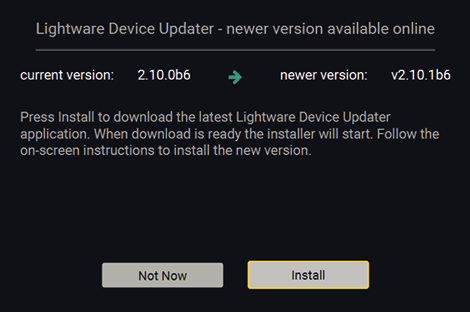
At startup, the software checks if a newer version is available on the web.
Main Screen

When the software is started by the shortcut, the device discovery screen appears. Press the Discover devices button to start finding the Lightware devices:
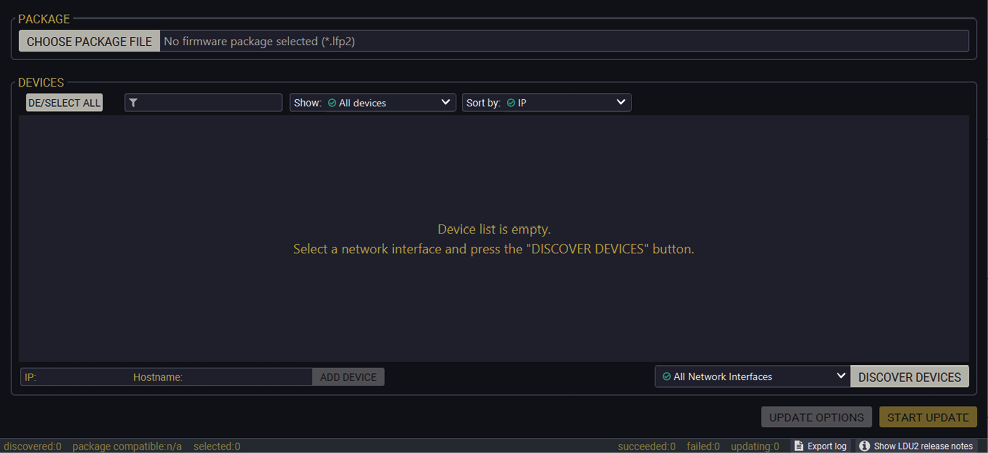
Devices may also be added manually by typing the IP address in the box near the bottom of the screen. From LDU2 version v2.16.1, manual addition of devices can also be done using the hostname.
ATTENTION!If the device cannot be added by the hostname, please use the IP address.
If you start the software by double-clicking on the LFP2 file, the firmware will be loaded. Press the Search for devices button; all the devices will be listed that are compatible with the selected firmware pack.
INFO:If you press the Choose package file button, the release notes of the LFP2 file will be displayed in the right panel; see the Step 1. Select the Firmware Package. section.
Device List
When the discovery has completed, the devices available on the network are listed in the application.
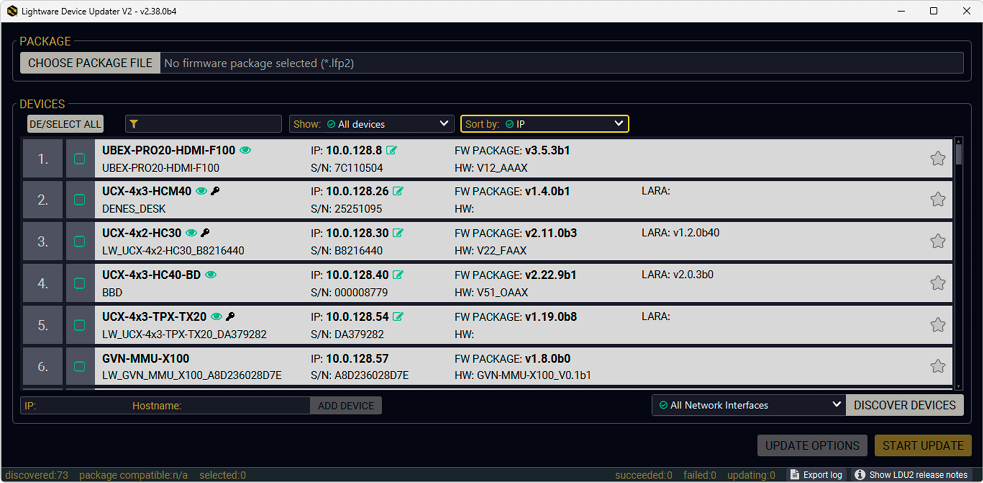
Legend of the Icons

|
IP address editor |
The IP address of the device can be changed in the pop-up window. |

|
Identify me |
Clicking on the icon makes the front panel LEDs blink for 10 seconds, which helps identify the device physically. |

|
Authentication required |
The password-protection is enabled. You have to enter the password to perform the firmware update in the pop-up window at the beginning of the update. |

|
Favorite device |
The device has been marked, thus the IP address is stored. When a device is connected with that IP address, the star will be highlighted in that line. |

|
Further information available |
Device is unreachable. Change the IP address using the front panel LCD menu or the IP address editor of the LDU2. |
8.4. Important – Before Updating
In All Cases
▪Use at least CAT5e type of cables for connecting the devices to the network.
▪The computer that runs LDU2 and the target device (that will be updated) must be in the same subnet. The update cannot be performed from behind a firewall or gateway.
▪While the firmware is being updated, the normal operation mode is suspended, as the device is switched to bootload mode. Signal processing is not performed. Do not interrupt the firmware update. If any problem occurs, reboot the unit and restart the process.
▪It is highly recommended to install the firmware released at the same time on the MMU and the endpoints to ensure compatibility.
▪It is highly recommended to create a backup of your settings before updating, because downgrading results in factory settings being restored.
▪In case of a downgrade, please make sure to call factory default settings before starting the downgrade, as some settings may remain from the higher FW version that are not handled by earlier versions, but may still compromise proper operation.
FW version-related Issues
▪Updating the GVN-MMU with FW package v2.0.2 is only possible from FW package v1.8.0. Please note that the password-handling is introduced with FW package v2.0.2, too.
▪When updating from FW package v1.6.0 to v1.7.0, an extra reboot is needed.
▪Please note that FW package v1.5.0 is not backward compatible. Make sure that the MMU and all the endpoints are updated to this version.
▪When updating the endpoints from firmware package v1.x to 1.4.0, or downgrading from v1.4 to v1.x, the endpoints will require one additional reboot to work properly.
▪In rare cases, Dante-enabled GVN endpoints running FW version v1.4.x may not appear in LDU2 due to a bug in v1.4.x. Before updating, we recommend noting down the IP addresses of your Dante devices so you can add any manually that are not found. Devices running FW package v1.5.0 are discovered reliably by LDU2. Please note that in some situations with FW package v1.5.0, the hostname shown in LDU2 may differ from the actual hostname of the device. This can happen if the hostname changes on the device due to an internal state issue. We are working closely with Audinate to resolve this, as it also affects device discovery in Dante Controller. If you have any issues discovering or updating your devices, please reach out to support for assistance.
To update the desired device(s) via the Graphical User Interface, follow these steps.
Step 1. Select the Firmware Package.

Click on the Choose package file button and navigate to the location where the LFP2 file was saved. When you click on the name of the package, the preview of the release notes is displayed in the right panel.

After the package file is loaded, the list is filtered to show the compatible devices only. The current firmware version of the device is highlighted in orange if it is different from the version of the package loaded.

If you start the update by double-clicking on the LFP file, the screen above will be loaded right away.
The Meaning of the Symbols

|
Show details |
The log about the updating process of the device can be displayed in a new window. |

|
Service mode |
The device is in bootload mode. Backup and restore cannot be performed in this case. |
Step 2. Select the desired devices for updating
Select the devices for updating; the selected line will be highlighted in green.
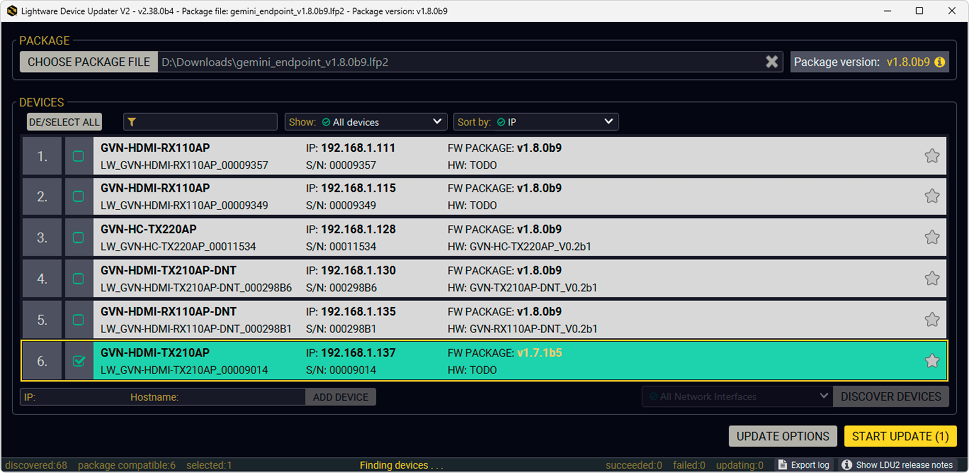
Step 3. Start the update and wait until it is finished.
Click on the Start Update button to start the procedure. The status is shown in percent in the right side of the device line and the overall process in the bottom progress bar. The device might reboot during the firmware update procedure.

When the progress bar reaches 100% (Done is displayed at all devices), the update of all devices are finished successfully and a message appears; you can close the software.
Step 4. Wait until the unit reboots with the new firmware.
Once the firmware update procedure is completed, the device is rebooted with the new firmware. Shutting down and restarting the device is recommended.

Usually, if the system seems not to transport the signal as expected, the best strategy for troubleshooting is to check signal integrity through the whole signal chain starting from source side and moving forward to receiver end.
First, check the front panel LEDs and take the necessary steps according to their states. For more information about status LEDs, refer to the Status LEDs section.
Legend

|
Link to the section of connections/cabling. |

|
Link to the section of the built-in web page. |

|
Link to the section of LW3 protocol commands. |
|
Symptom |
Root cause |
Action |
Refer to |
|
|---|---|---|---|---|
|
Video issues |
||||
|
No video on the screen |
No video signal on the input. |
Check the source and the cable connections. |
||
|
The Video Stream IDs are different. |
Check the settings of the extenders and assign them. |
|||
|
HDCP is disabled (EDID information cannot be read) |
Enable the HDCP on the input of the Encoder. (In certain cases, the source device cannot read the EDID from the Encoder.) |
|||
|
HDCP-encrypted content sent to a non-HDCP sink. |
Replace the sink to a HDCP-capable one. |
|||
9.2. How to Speed Up the Troubleshooting Process

Lightware’s technical support team is always working hard to provide the fastest support possible. Our team’s response time is one of the best in the industry, and in the toughest of cases we can directly consult with the hardware or software engineer who designed the product to get the information from the most reliable source.
However, the troubleshooting process can be even faster… with your help.
There are certain pieces of information that push us in the right direction to find the root cause of the problem. If we receive most of this information in the first e-mail, or it is gathered at the time when you call us, then there is a pretty high chance that we will be able to respond with the final solution right away. This information is the following:
▪Schematic (a pdf version is preferred, but a hand drawing is sufficient).
▪Serial number(s) of the device(s) (it is either printed somewhere on the box or you can query it in the Device Controller software or on the built-in website).
▪Firmware versions of the devices (please note that there may be multiple CPUs or controllers in the device and we need to know all of their firmware versions, a screenshot is the best option).
▪Cable lengths and types (in our experience, it’s usually the cable).
▪Patch panels, gender changers or anything else in the signal path that can affect the transmission.
▪Signal type (resolution, refresh rate, color space, deep color).
▪Emulated EDID(s) (please save them as a file and send it to us).
▪Actions to take in order to re-create the problem (if we cannot reproduce the problem, it is hard for us to find the cause).
▪Photo or video about the problem (‘image noise’ can mean many different things, it’s better if we see it too).
▪Error logs from the Device Controller software.
▪In the case of Event Manager issue, the event file and/or backup file from the Device Controller software.
▪The more of the information above you can give us, the better. Please send this information to the Lightware Support Team (support@lightware.com) to speed up the troubleshooting process.
The following sections contain descriptions and useful technical information on how the devices work in the background. The content is based on experiences and cases we met in the practice. These sections help understand features and technical standards like the following:
10.1.1. Understanding the EDID
The Extended Display Identification Data (EDID) is the passport of display devices (monitors, TV sets, projectors). It contains information about the capabilities of the display, such as supported resolutions, refresh rates (these are called Detailed Timings), the type and manufacturer of the display device, etc.
After connecting a source to a display (DVI, HDMI, DP), the source reads out the EDID to determine the resolution and refresh rate of the image to be transmitted.

EDID Communication
Most DVI computer displays have a 128-byte long EDID structure. However, Digital Televisions and HDMI capable displays may have another 128 bytes, which is called E-EDID and defined is by CEA (Consumer Electronics Association). This extension contains information about additional Detailed Timings, audio capabilities, speaker allocation and HDMI capabilities. It is important to know that all HDMI capable devices must have CEA extension, but not all devices with CEA extension are HDMI capable.
Common Problems Related to EDID
Problem: “My system consists of the following: a computer, a Lightware device, a WUXGA (1920x1200) LCD monitor, and an SXGA (1280x1024) projector. I would like to see the same image on the monitor and the projector. What EDID should I choose on the Lightware device?”
Solution: If you want to see the image on both displays, you need to select the resolution of the smaller display (in this case SXGA), otherwise the smaller display may not show the higher resolution image.
Problem: “I have changed to a different EDID on an input port of the Lightware device to have a different resolution, but nothing happens.”
Solution: Some graphics cards and video sources read out the EDID only after power-up and later they do not sense that the EDID has been changed. You need to restart your source to make it read out the EDID again.
10.1.2. Advanced EDID Management
Each DVI sink (e.g. monitors, projectors, plasma displays, etc...) must support the EDID data structure. Source BIOS and operating systems are likely to query the sink using DDC2B protocol to determine what pixel formats and interface are supported. The DVI standard uses EDID data structure to identify the monitor type and capabilities. Most DVI sources (VGA cards, set top boxes, etc.) will output DVI signal after accepting the connected sink’s EDID information. In the case of EDID readout failure or missing EDID, the source will not output DVI video signal.
Lightware devices provide the Advanced EDID Management function that helps system integration. The built-in EDID Router can store and emulate factory pre-programmed- and User programmable EDIDs. The EDID of the attached monitors or projectors for each output is stored in a non-volatile memory. This way the EDID of a monitor is available when the monitor is unplugged or switched off.
Any EDID can be emulated on any input. An emulated EDID can be copied from the EDID router’s memory (static EDID emulation), or from the last attached monitor’s memory (dynamic EDID emulation). For example, the Lightware device can be set up to emulate a sink device that is connected to one of the outputs. In this case, the EDID automatically changes if the monitor is replaced with another display device (as long as it has a valid EDID).
EDID is independently programmable for all inputs without affecting each other. All inputs have their own EDID circuit.
INFO:The user is not required to disconnect the video cable to change an EDID as opposed to other manufacturer’s products. The EDID can be changed even if a source is connected to the input and powered ON.
INFO:When the EDID has been changed, the router toggles the HOTPLUG signal for 2 seconds. Some sources do not sense this signal. In such cases, the source device must be restarted or powered OFF and ON again.
Lightware Visual Engineering is a legal HDCP adopter. Several functions have been developed, which helps to solve HDCP related problems. Complex AV systems often have both HDCP and non-HDCP components. The matrix allows transmitting HDCP encrypted and unencrypted signals. The devices will be still HDCP compliant, as they will never output an encrypted signal to a non-HDCP compliant display device. If an encrypted signal is switched to a non-compliant output, a red screen alert or muted screen will appear.
10.2.1. Protected and Unprotected Content
Many video sources send HDCP protected signal if they detect that the sink is HDCP capable – even if the content is not copyrighted. This can cause trouble if an HDCP capable device is connected between the source and the display. In this case, the content cannot be viewed on non-HDCP capable displays and interfaces like event controllers. Rental and staging technicians often complain about certain laptops, which are always sending HDCP encrypted signals if the receiver device (display, matrix router, etc.) reports HDCP compliancy. Even though HDCP encryption is not required all the time (e.g. computer desktop image), certain laptops still do that.
To avoid unnecessary HDCP encryption, Lightware introduced the HDCP enabling/disabling function: the HDCP capability can be disabled in the Lightware device. If HDCP is disabled, the connected source will detect that the sink is not HDCP capable, and turn off authentication.
10.2.2. Disable Unnecessary Encryption
HDCP Compliant Sink
All the devices are HDCP-compliant, no manual setting is required, both protected and unprotected contents are transmitted and displayed on the sink.

Not HDCP-compliant Sink 1.
Not-HDCP compliant sink is connected to the matrix. Some sources (e.g. computers) always send HDCP encrypted signals if the receiver device reports HDCP compliancy, however, HDCP encryption is not required all the time (e.g. computer desktop image). If HDCP is enabled in the matrix, the image will not be displayed on the sink.
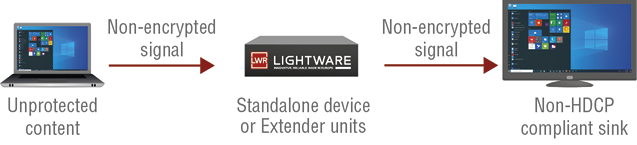
Setting the HDCP parameter to Auto on the output port and disable HDCP on the input port, the transmitted signal will not be encrypted if the content is not protected. Thus, non-HDCP compliant sinks will display non-encrypted signal.
Not HDCP-compliant Sink 2.
The layout is the same as in the previous case: non-HDCP compliant display device is connected to the matrix but the source would send protected content with encryption. If HDCP is enabled on the input port of the matrix, the source will send encrypted signal.
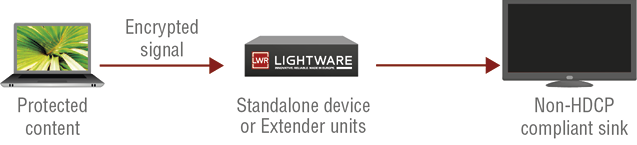
The sink is not HDCP compliant, thus it will not display the video signal, but blank screen is shown. If HDCP is disabled on the input port of the matrix, the source will not send the signal. The solution is to replace the display device with an HDCP-capable one.
HDCP 2.2 is the latest evolution of copy protection. It is designed to create a secure connection between a source and a display. The 2.x version of HDCP is not a continuation of HDCPv1, and is rather a completely different link protection. One of the main differences is the number of the allowed devices within a closed AV system: HDCP 2.2 allows 32 devices (HDCP 1.4 allows 128 devices). A further limit is that up to four level is allowed, which means the protected signal can be transmitted over at most four repeater/matrix/switcher devices. HDCP content protection is activated only if an active video stream is transmitted from the source to the display. The encryption is not activated without a video signal.
HDCP 2.2 standard allows the application of a previous version of HDCP (e.g. HDCP 1.4) between the source and the display if the source device allows it. According to the standard, if the image content is protected with HDCP, the highest supported content protection level has to be applied. However, if the highest level of protection is not justified by the source content, the level may be decreased to avoid compatibility problems; this case is determined by the source.
HDCP 2.2 Source and HDCP 1.4 Sink
In this case the signal of an HDCP 2.2 compliant source is switched to an HDCP 1.4 compliant sink device. The signal is encrypted with HDCP 2.2 on the input and encrypted with HDCP 1.4 on the output of the Lightware device. A lower level of encryption may be applied only if the source device/content allows it - according to the HDCP standard. In this case, the HDCP setting on the input port has to be set to HDCP 1.4 and Depends on input on the output port.
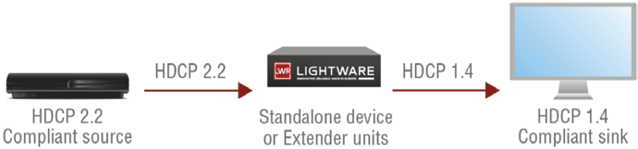
HDCP 1.4 Source and HDCP 2.2 Sink
The example below is the reversal of the previous case. An HDCP 1.4 compliant source sends a signal with HDCP 1.4 encryption. The signal is switched to an HDCP v2.2 compliant sink device. In this case, the outgoing signal has to be encrypted with the highest supported encryption level towards the sink, as the Lightware device and the sink are both HDCP 2.2 compliant. The HDCP 2.2 standard does not allow keeping the original HDCP 1.4 encryption level on the output.
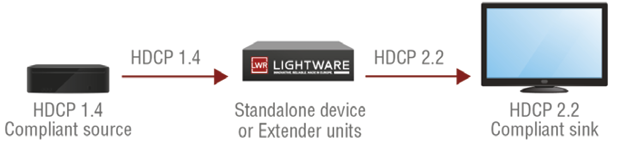
What Kind of Signal Will be on the Output of the Lightware Device?
See the table below that summarizes the possible cases:
|
Incoming Signal |
HDCP 1.4 Compatible Sink |
HDCP 2.2. Compatible Sink |
|---|---|---|
|
HDCP 1.4 |
HDCP 1.4 |
HDCP 2.2 |
|
HDCP 2.2 (convertable)* |
HDCP 1.4 |
HDCP 2.2 |
|
HDCP 2.2 (not convertable)** |
Red screen |
HDCP 2.2 |
* Stream type 0: the video stream allows the conversion of the signal to apply a lower level of encryption.
** Stream type 1: the video stream does not allow the conversion of the signal.
Tables, drawings, guides, technical details and hashtag keyword list as follows:
INFO:Specifications are subject to change without notice.
General
|
Compliance |
CE, UKCA |
|
EMC (emission) |
EN 55032:2015+A1:2020 |
|
EMC (immunity) |
EN 55035:2017+A11:2020 |
|
RoHS |
EN 63000:2018 |
|
Electrical safety |
EN 62368-1:2020 |
|
Laser safety |
EN 60825-1:2014+A11:2021 |
|
Warranty |
3 years |
|
Operating temperature |
0° to +45˚C (+32° to +113˚F) |
|
Operating humidity |
10% to 90%, non-condensing |
|
Cooling |
Passive |
Power (GVN-HDMI Models)
Power Adaptor
|
Supported power source |
100-240 V AC; 50/60 Hz |
|
Supplied power |
12V DC, 2A DC |
|
AC power plug |
Interchangeable (EU, UK, JP/US, AUS/NZ) |
|
DC power plug |
Locking DC connector (2.1/5.5 mm pin) |
|
Battery cell type |
BR1632A |
|
Power over Ethernet (PoE)* |
48V DC via RJ45 connector (IEEE802.3af) |
|
Power over Ethernet + (PoE+)** |
48V DC via RJ45 connector (IEEE802.3at) |
* In case of GVN-MMU-X100 and GVN-HDMI-TX210AP(-DNT) models.
** In case of GVN-HDMI-RX110AP(-DNT) models.
GVN-HDMI-TX210AP
|
Power consumption (max, measured) |
11 W |
|
Heat dissipation (max) |
38 BTU/h |
GVN-HDMI-RX110AP
|
Power consumption (max, measured) |
11 W* |
|
Heat dissipation (max) |
38 BTU/h |
* without USB devices
GVN-HDMI-TX210AP-DNT
|
Power consumption (max, measured) |
14 W* |
|
Heat dissipation (max) |
48 BTU/h |
* without USB devices
GVN-HDMI-RX110AP-DNT
|
Power consumption (max, measured) |
12 W* |
|
Heat dissipation (max) |
41 BTU/h |
* without USB devices
GVN-MMU-X100
|
Power consumption (max, measured) |
4 W |
|
Heat dissipation (max) |
14 BTU/h |
Power (GVN-HC Models)
Power Adaptor (PSU-24VP3-160)
|
Supported power source |
100-240 V AC; 50/60 Hz |
|
Supplied power |
24V DC, 6.67A DC |
|
AC power plug |
Interchangeable (EU, UK, JP/US, AUS/NZ) |
|
DC power plug |
2-pole Phoenix connector |
|
Battery cell type |
BR1632A |
|
Power over Ethernet (PoE) |
48V DC via RJ45 connector (IEEE802.3af) |
GVN-HC-TX220AP
|
Power consumption (max, measured) |
15.2 W |
|
Heat dissipation (max) |
52 BTU/h |
GVN-HC-TX220AP-DNT
|
Power consumption (max, measured) |
16.3 W |
|
Heat dissipation (max) |
55.7 BTU/h |
Enclosure
|
Enclosure Material |
1 mm steel |
|
Dimensions in mm |
221W x 120D x 26H |
|
Dimensions in mm (GVN-HC models) |
221W x 150D x 26H |
|
Dimensions in inch |
8.7W x 4.14D x 1.02H |
|
Dimensions in inch (GVN-HC models) |
8.7W x 5.9D x 1.02H |
|
Weight (GVN-MMU-X100) |
698 g (1.54 lb) |
|
Weight (GVN-HDMI-TX210AP, -DNT) |
692 g (1.53 lb) |
|
Weight (GVN-HDMI-RX110AP, -DNT) |
694 g (1.53 lb) |
|
Weight (GVN-HC models) |
940 g (2.08 lb) |
Video Input (GVN-HDMI-TX210AP, GVN-HDMI-TX210AP-DNT, GVN-HC models)
HDMI Input Port
|
Connector type |
19-pole HDMI type A receptacle |
|
AV standard |
DVI 1.0, HDMI 1.4, HDMI 2.0 |
|
HDCP Compliance |
v2.2 |
|
Color space |
RGB, YCbCr |
|
Supported resolutions at 8 bits/color |
up to 3840x2160@60Hz (4:4:4) or 3840x2160@60Hz (4:2:0), 1920x1080@60Hz (4:4:4) or 4096x2160@60Hz (4:2:0) up to 12 bits/color |
|
Audio formats |
Embedded LPCM, Dolby Digital 5.1 ch, Dolby Digital Plus, Dolby Digital Pro-Logic, Dolby TrueHD, DTS:X, Dolby Atmos, DTS 5.1 ch, DTS 96/24, DTS-ES Discrete, DTS-ES Matrix, DTS-HD High Resolution Audio, DTS-HD Master Audio |
USB-C Input Port (GVN-HC models)
|
Connector type |
24-pole USB type C receptacle |
|
AV standard |
DP 1.3 |
|
HDCP Compliance |
HDCP 2.2 |
|
Color space |
RGB, YCbCr |
|
Video delay |
0 frame |
|
Supported resolutions at 8 bits/color |
up to 3840x2160@60Hz (4:4:4) or 3840x2160@60Hz (4:2:0), 1920x1080@60Hz (4:4:4) or 4096x2160@60Hz (4:2:0) up to 12 bits/color |
|
Audio formats |
Embedded LPCM, Dolby Digital 5.1 ch, Dolby Digital Plus, Dolby Digital Pro-Logic, Dolby TrueHD, DTS:X, Dolby Atmos, DTS 5.1 ch, DTS 96/24, DTS-ES Discrete, DTS-ES Matrix, DTS-HD High Resolution Audio, DTS-HD Master Audio |
|
Charing over USB-C * |
yes, with 5V@3A, 9V@3A, 15V@3A, or 20V@5A |
* Only if the transmitter is powered with local adaptor.
AV Input Port (GVN-HDMI-RX110AP, GVN-HDMI-RX110AP-DNT)
ATTENTION!Use at least CAT5e type of cables for connecting the devices to the network.
|
Connector type |
RJ45 connector |
|
Power Over Ethernet |
yes (IEE 802.3at) |
|
HDCP Compliance |
v2.2 |
|
Color space |
RGB, YCbCr |
|
Supported resolutions at 8 bits/color |
up to 4096x2160@60Hz (4:4:4) or 4096x2160@60Hz (4:2:0), up to 3840x2160@60Hz (4:4:4) or 3840x2160@60Hz (4:2:0); 1920x1080@60Hz (4:4:4) or 4096x2160@60Hz (4:2:0) up to 12 bits/color |
|
Audio formats |
8 channel PCM, Dolby TrueHD; DTS-HD Master Audio7.1 2-channel stereo (Dante)** |
** Only in GVN-HDMI-RX110AP-DNT.
SFP Module Slot (GVN-HDMI-RX110AP, GVN-HDMI-RX110AP-DNT)
|
Number of ports |
1 |
|
Supported data rate |
1 Gbps |
|
Accepted interfaces |
SFP optical transceiver modules |
Video Output (GVN-HDMI-TX210AP, GVN-HDMI-TX210AP-DNT)
HDMI Output Port
|
Connector type |
19-pole HDMI type A receptacle |
|
AV standard |
DVI 1.0, HDMI 1.4, HDMI 2.0 |
|
HDCP Compliance |
v2.2 |
|
Color space |
RGB, YCbCr |
|
Supported resolutions at 8 bits/color |
up to 3840x2160@60Hz (4:4:4) or 3840x2160@60Hz (4:2:0), 1920x1080@60Hz (4:4:4) or 4096x2160@60Hz (4:2:0) up to 12 bits/color |
|
Audio formats |
Embedded LPCM, Dolby Digital 5.1 ch, Dolby Digital Plus, Dolby Digital Pro-Logic, Dolby TrueHD, DTS:X, Dolby Atmos, DTS 5.1 ch, DTS 96/24, DTS-ES Discrete, DTS-ES Matrix, DTS-HD High Resolution Audio, DTS-HD Master Audio |
Video Output (GVN-MMU-X100)
HDMI Output Port
|
Connector type |
19-pole HDMI type A receptacle |
|
AV standard |
DVI 1.0, HDMI 1.4, HDMI 2.0 |
|
HDCP Compliance |
v2.2 |
|
Color space |
RGB, YCbCr |
|
Supported resolutions at 8 bits/color |
up to 3840x2160@60Hz (4:4:4) or 3840x2160@60Hz (4:2:0), 1920x1080@60Hz (4:4:4) or 4096x2160@60Hz (4:2:0) up to 12 bits/color |
|
Audio formats |
Embedded LPCM, Dolby Digital 5.1 ch, Dolby Digital Plus, Dolby Digital Pro-Logic, Dolby TrueHD, DTS:X, Dolby Atmos, DTS 5.1 ch, DTS 96/24, DTS-ES Discrete, DTS-ES Matrix, DTS-HD High Resolution Audio, DTS-HD Master Audio |
AV Output Port (GVN-HDMI-TX210AP, GVN-HDMI-TX210AP-DNT)
ATTENTION!Use at least CAT5e type of cables for connecting the devices to the network.
|
Connector type |
RJ45 connector |
|
Power Over Ethernet |
yes (IEE 802.3af) |
|
HDCP Compliance |
v2.2 |
|
Color space |
RGB, YCbCr |
|
Supported resolutions at 8 bits/color |
up to 4096x2160@60Hz (4:4:4) or 4096x2160@60Hz (4:2:0), up to 3840x2160@60Hz (4:4:4) or 3840x2160@60Hz (4:2:0); 1920x1080@60Hz (4:4:4) or 4096x2160@60Hz (4:2:0) up to 12 bits/color |
|
Audio formats |
8 channel PCM, Dolby TrueHD; DTS-HD Master Audio7.1 2-channel stereo (Dante)* |
* Only in GVN-HDMI-TX210AP-DNT.
SFP Module Slot (GVN-HDMI-TX210AP, GVN-HDMI-TX210AP-DNT)
|
Number of ports |
1 |
|
Supported data rate |
1 Gbps |
|
Accepted interfaces |
SFP optical transceiver modules |
Video Output (GVN-HDMI-RX110AP, GVN-HDMI-RX110AP-DNT)
HDMI Output Port
|
Connector type |
19-pole HDMI type A receptacle |
|
AV standard |
DVI 1.0, HDMI 1.4, HDMI 2.0 |
|
HDCP Compliance |
v2.2 |
|
Color space |
RGB, YCbCr |
|
Supported resolutions at 8 bits/color |
up to 3840x2160@60Hz (4:4:4) or 3840x2160@60Hz (4:2:0), 1920x1080@60Hz (4:4:4) or 4096x2160@60Hz (4:2:0) up to 12 bits/color |
|
Audio formats |
Embedded LPCM, Dolby Digital 5.1 ch, Dolby Digital Plus, Dolby Digital Pro-Logic, Dolby TrueHD, DTS:X, Dolby Atmos, DTS 5.1 ch, DTS 96/24, DTS-ES Discrete, DTS-ES Matrix, DTS-HD High Resolution Audio, DTS-HD Master Audio |
Control Ports
Ethernet Ports (GVN-MMU-X100)
|
Connector type |
RJ45 female connector |
|
Ethernet data rate |
1 Gigabit, full duplex with autodetect |
|
Power over Ethernet (PoE) |
via GVN Network RJ45 connector (IEEE802.3af) |
USB Ports
|
Connector type |
A-type receptacle |
|
USB compliance |
USB 2.0 (5V DC) |
|
Connector type |
B-type receptacle |
|
USB compliance |
USB 2.0 (5V DC) |
RS-232 Ports
|
Connector type |
3-pole Phoenix connector |
|
Baud rates |
between 9600 and 115200 baud |
|
Data bits |
8 |
|
Parity |
None / Odd / Even |
|
Stop bits |
1 / 2 |
Analog Audio Output
|
Connector type |
5-pole Phoenix connector |
|
Audio formats |
2-ch LPCM |
|
Sampling frequency |
48 kHz |
11.2. Factory Default Settings
11.2.1. Endpoint Factory Default Settings
|
Parameter |
Value |
|
Network settings |
|
|
IP acquisition mode (default GVN network) |
DHCP |
|
Static IP address |
10.0.0.100/16 |
|
Static Gateway address |
10.0.0.1 |
|
Device label |
LW_<device_type>_<serial_number> |
|
Hostname |
lightware-<serial_number> |
|
Domain name |
<hostname> |
|
Custom Ethernet port (GVN-HC devices) |
disabled |
|
Video settings |
|
|
Emulated EDID |
F140 |
|
Allowed HDCP version |
HDCP 2.2 |
|
HPD mode (transmitters only) |
Auto |
|
Output 5V mode (receivers only) |
Auto |
|
Output TMDS mode (receivers only) |
Auto |
|
Embedded audio muted (receivers only) |
false |
|
HDCP mode (receivers only) |
Auto |
|
Scaling setting (receivers only) |
Passthrough (no scaling) |
|
No signal screen (receivers only) |
DefaultLogo |
|
USB settings |
|
|
USB Audio Converter (GVN-HC devices) |
disabled |
|
USB Ethernet Converter (GVN-HC devices) |
disabled |
11.2.2. MMU Factory Default Settings
|
Parameter |
Value |
|
GVN network mode |
DHCP |
|
GVN network static IP address |
10.0.0.1/16 |
|
GVN network static gateway address |
0.0.0.0 |
|
Control LAN static IP address |
192.168.0.100/24 |
|
Control LAN static gateway address |
192.168.0.1 |
|
Device label |
LW_GVN-MMU-X100_<serial_number> |
|
Hostname |
lightware-<serial_number> |
|
Domain name |
<hostname> |
|
Map |
empty |
|
Crosspoint |
empty |
|
User EDID |
empty |
|
Automatic Addition Enabled |
true |
#factorydefault
|
Mem |
Resolution |
Type |
EDID features |
|||
|---|---|---|---|---|---|---|
|
F1 |
640 x |
480p |
@ 60.00 |
Hz |
D |
DVI |
|
F2 |
848 x |
480p |
@ 60.00 |
Hz |
D |
DVI |
|
F3 |
800 x |
600p |
@ 60.32 |
Hz |
D |
DVI |
|
F4 |
1024 x |
768p |
@ 60.00 |
Hz |
D |
DVI |
|
F5 |
1280 x |
768p |
@ 50.00 |
Hz |
D |
DVI |
|
F6 |
1280 x |
768p |
@ 59.94 |
Hz |
D |
DVI |
|
F7 |
1280 x |
768p |
@ 75.00 |
Hz |
D |
DVI |
|
F8 |
1360 x |
768p |
@ 60.02 |
Hz |
D |
DVI |
|
F9 |
1280 x |
1024p |
@ 50.00 |
Hz |
D |
DVI |
|
F10 |
1280 x |
1024p |
@ 60.02 |
Hz |
D |
DVI |
|
F11 |
1280 x |
1024p |
@ 75.02 |
Hz |
D |
DVI |
|
F12 |
1400 x |
1050p |
@ 50.00 |
Hz |
D |
DVI |
|
F13 |
1400 x |
1050p |
@ 60.00 |
Hz |
D |
DVI |
|
F14 |
1400 x |
1050p |
@ 75.00 |
Hz |
D |
DVI |
|
F15 |
1680 x |
1050p |
@ 60.00 |
Hz |
D |
DVI |
|
F16 |
1920 x |
1080p |
@ 50.00 |
Hz |
D |
DVI |
|
F17 |
1920 x |
1080p |
@ 60.00 |
Hz |
D |
DVI |
|
F18 |
2048 x |
1080p |
@ 50.00 |
Hz |
D |
DVI |
|
F19 |
2048 x |
1080p |
@ 60.00 |
Hz |
D |
DVI |
|
F20 |
1600 x |
1200p |
@ 50.00 |
Hz |
D |
DVI |
|
F21 |
1600 x |
1200p |
@ 60.00 |
Hz |
D |
DVI |
|
F22 |
1920 x |
1200p |
@ 50.00 |
Hz |
D |
DVI |
|
F23 |
1920 x |
1200p |
@ 59.56 |
Hz |
D |
DVI |
|
F24 |
2048 x |
1200p |
@ 59.96 |
Hz |
D |
DVI |
|
F29 |
1920 x |
1080p |
@ 60.00 |
Hz |
U |
DVI |
|
F32 |
640 x |
480p |
@ 59.95 |
Hz |
H |
HDMI; YUV444; YUV422; 2CH_AUD |
|
F33 |
720 x |
480p |
@ 59.94 |
Hz |
H |
HDMI; YUV444; YUV422; 2CH_AUD |
|
F34 |
720 x |
576p |
@ 50.00 |
Hz |
H |
HDMI; YUV444; YUV422; 2CH_AUD |
|
F35 |
1280 x |
720p |
@ 50.00 |
Hz |
H |
HDMI; YUV444; YUV422; 2CH_AUD |
|
F36 |
1280 x |
720p |
@ 60.00 |
Hz |
H |
HDMI; YUV444; YUV422; 2CH_AUD |
|
F41 |
1920 x |
1080p |
@ 24.00 |
Hz |
H |
HDMI; YUV444; YUV422; 2CH_AUD |
|
F42 |
1920 x |
1080p |
@ 25.00 |
Hz |
H |
HDMI; YUV444; YUV422; 2CH_AUD |
|
F43 |
1920 x |
1080p |
@ 30.00 |
Hz |
H |
HDMI; YUV444; YUV422; 2CH_AUD |
|
F44 |
1920 x |
1080p |
@ 50.00 |
Hz |
H |
HDMI; YUV444; YUV422; 2CH_AUD |
|
F45 |
1920 x |
1080p |
@ 59.94 |
Hz |
H |
HDMI; YUV444; YUV422; 2CH_AUD |
|
F46 |
1920 x |
1080p |
@ 60.00 |
Hz |
H |
HDMI; YUV444; YUV422; 2CH_AUD |
|
F47 |
1920 x |
1080p |
@ 60.00 |
Hz |
U |
HDMI; YUV444; YUV422; 2CH_AUD |
|
F48 |
1920 x |
1080p |
@ 60.00 |
Hz |
U |
HDMI; YUV444; YUV422; 8CH_AUD |
|
F49 |
1920 x |
1080p |
@ 60.00 |
Hz |
U |
HDMI; YUV444; YUV422; DC30; DC36; YUVDC; 8CH_AUD |
|
F90 |
1920 x |
2160p |
@ 59.99 |
Hz |
D |
DVI |
|
F91 |
1024 x |
2400p |
@ 60.01 |
Hz |
D |
DVI |
|
F92 |
1920 x |
2400p |
@ 59.97 |
Hz |
D |
DVI |
|
F93 |
2048 x |
2400p |
@ 59.98 |
Hz |
D |
DVI |
|
F94 |
2048 x |
1536p |
@ 60.00 |
Hz |
D |
DVI |
|
F95 |
2048 x |
1536p |
@ 75.00 |
Hz |
D |
DVI |
|
F96 |
2560 x |
1600p |
@ 59.86 |
Hz |
D |
DVI |
|
F97 |
3840 x |
2400p |
@ 24.00 |
Hz |
D |
DVI |
|
F98 |
1280 x |
720p |
@ 60.00 |
Hz |
H |
HDMI; YUV444; YUV422; 2CH_AUD; 3D |
|
F99 |
1920 x |
1080p |
@ 60.00 |
Hz |
H |
HDMI; YUV444; YUV422; 2CH_AUD; 3D |
|
F100 |
1024 x |
768p |
@ 60.00 |
Hz |
H |
HDMI; YUV444; YUV422; 2CH_AUD |
|
F101 |
1280 x |
1024p |
@ 50.00 |
Hz |
H |
HDMI; YUV444; YUV422; 2CH_AUD |
|
F102 |
1280 x |
1024p |
@ 60.02 |
Hz |
H |
HDMI; YUV444; YUV422; 2CH_AUD |
|
F103 |
1280 x |
1024p |
@ 75.02 |
Hz |
H |
HDMI; YUV444; YUV422; 2CH_AUD |
|
F104 |
1600 x |
1200p |
@ 50.00 |
Hz |
H |
HDMI; YUV444; YUV422; 2CH_AUD |
|
F105 |
1600 x |
1200p |
@ 60.00 |
Hz |
H |
HDMI; YUV444; YUV422; 2CH_AUD |
|
F106 |
1920 x |
1200p |
@ 59.56 |
Hz |
H |
HDMI; YUV444; YUV422; 2CH_AUD |
|
F107 |
2560 x |
1440p |
@ 59.95 |
Hz |
H |
HDMI; YUV444; YUV422; 2CH_AUD |
|
F108 |
2560 x |
1600p |
@ 59.86 |
Hz |
H |
HDMI; YUV444; YUV422; 2CH_AUD |
|
F109 |
3840 x |
2400p |
@ 24.00 |
Hz |
H |
HDMI; YUV444; YUV422; 2CH_AUD |
|
F110 |
3840 x |
2160p |
@ 24.00 |
Hz |
H |
HDMI; YUV444; YUV422; 2CH_AUD |
|
F111 |
3840 x |
2160p |
@ 25.00 |
Hz |
H |
HDMI; YUV444; YUV422; 2CH_AUD |
|
F112 |
3840 x |
2160p |
@ 30.00 |
Hz |
H |
HDMI; YUV444; YUV422; 2CH_AUD |
|
F118 |
3840 x |
2160p |
@ 30.00 |
Hz |
U |
HDMI; YUV444; YUV422; 2CH_AUD |
|
F119 |
3840 x |
2160p |
@ 30.00 |
Hz |
U |
HDMI; YUV444; YUV422; 8CH_AUD |
|
F120 |
3840 x |
2160p |
@ 60.00 |
Hz |
H |
HDMI; YUV444; YUV422; YUV420; 2CH_AUD |
|
F121 |
1440 x |
1080p |
@ 59.91 |
Hz |
H |
HDMI; YUV444; YUV422; 2CH_AUD |
|
F122 |
2560 x |
2048p |
@ 59.98 |
Hz |
H |
HDMI; YUV444; YUV422; 2CH_AUD |
|
F123 |
1280 x |
800p |
@ 59.91 |
Hz |
H |
HDMI; YUV444; YUV422; 2CH_AUD |
|
F124 |
1440 x |
900p |
@ 59.90 |
Hz |
H |
HDMI; YUV444; YUV422; 2CH_AUD |
|
F125 |
1366 x |
768p |
@ 60.00 |
Hz |
H |
HDMI; YUV444; YUV422; 2CH_AUD |
|
F126 |
1600 x |
900p |
@ 59.98 |
Hz |
H |
HDMI; YUV444; YUV422; 2CH_AUD |
|
F127 |
2048 x |
1080p |
@ 60.00 |
Hz |
H |
HDMI; YUV444; YUV422; 2CH_AUD |
|
F128 |
2560 x |
1080p |
@ 60.00 |
Hz |
H |
HDMI; YUV444; YUV422; 2CH_AUD |
|
F129 |
3440 x |
1440p |
@ 24.99 |
Hz |
H |
HDMI; YUV444; YUV422; 2CH_AUD |
|
F130 |
3440 x |
1440p |
@ 29.99 |
Hz |
H |
HDMI; YUV444; YUV422; 2CH_AUD |
|
F131 |
4096 x |
2160p |
@ 25.00 |
Hz |
H |
HDMI; YUV444; YUV422; 2CH_AUD |
|
F132 |
4096 x |
2160p |
@ 30.00 |
Hz |
H |
HDMI; YUV444; YUV422; 2CH_AUD |
|
F133 |
4096 x |
2160p |
@ 60.00 |
Hz |
4 |
HDMI; YUV444; YUV422; YUV420; 2CH_AUD |
|
F134 |
3440 x |
1440p |
@ 23.99 |
Hz |
H |
HDMI; YUV444; YUV422; 2CH_AUD |
|
F135 |
4096 x |
2160p |
@ 24.00 |
Hz |
H |
HDMI; YUV444; YUV422; 2CH_AUD |
|
F136 |
3840 x |
2400p |
@ 29.99 |
Hz |
H |
HDMI; YUV444; YUV422; 2CH_AUD |
|
F137 |
3840 x |
2160p |
@ 60.00 |
Hz |
H |
HDMI; HDMI2; YUV444; YUV422; 2CH_AUD |
|
F138 |
3840 x |
2160p |
@ 50.00 |
Hz |
H |
HDMI; HDMI2; YUV444; YUV422; 2CH_AUD |
|
F139 |
3840 x |
2160p |
@ 60.00 |
Hz |
H |
HDMI; HDMI2; YUV444; YUV422; YUV420; 2CH_AUD |
|
F140 |
3840 x |
2160p |
@ 60.00 |
Hz |
H |
HDMI; HDMI2; YUV444; YUV422; YUV420; 8CH_AUD |
|
F141 |
4096 x |
2160p |
@ 60.00 |
Hz |
H |
HDMI; HDMI2; YUV444; YUV422; 2CH_AUD |
|
F142 |
4096 x |
2160p |
@ 50.00 |
Hz |
H |
HDMI; HDMI2; YUV444; YUV422; 2CH_AUD |
|
F143 |
4096 x |
2160p |
@ 60.00 |
Hz |
H |
HDMI; HDMI2; YUV444; YUV422; YUV420; 2CH_AUD |
|
F144 |
4096 x |
2160p |
@ 60.00 |
Hz |
H |
HDMI; HDMI2; YUV444; YUV422; YUV420; 8CH_AUD |
|
F146 |
3840 x |
2160p |
@ 60.00 |
Hz |
H |
HDMI; HDMI2; YUV420; DC30; DC36; YUVDC; YUV420_DC30; YUV420_DC36; 2CH_AUD; HDR |
|
F147 |
3840 x |
2160p |
@ 60.00 |
Hz |
H |
HDMI; HDMI2; YUV444; YUV422; 2CH_AUD |
|
F148 |
3840 x |
2160p |
@ 60.00 |
Hz |
H |
HDMI; HDMI2; YUV444; YUV422; 8CH_AUD |
D: DVI EDID
H: HDMI EDID
U: Universal EDID, supporting many standard resolutions:
▪F29: Universal EDID for DVI signals (no audio support).
▪F47: HDMI EDID supporting PCM audio.
▪F48: HDMI EDID supporting all type of audio.
▪F49: HDMI EDID supporting all type of audio and deep color.
▪F89: Universal EDID for analog signals (no audio support).
▪F118: HDMI EDID supporting PCM audio and 4K@30 Hz signals.
▪F119: HDMI EDID supporting all type of audio and 4K@30 Hz signals.
▪F144:
DiD (in column EDID features): with Display ID support
Please note that minor changes in the factory EDID list may be applied in further firmware versions.
11.4. Contents of the Backup File
The backup file contains numerous settings and parameters saved from the device. When the file is uploaded to a device, the following will be overwritten: #backup
|
GVN-MMU-X100 |
GVN-HDMI-TX210AP |
GVN-HDMI-RX110AP |
|
|
Audio / Video crosspoint settings |
Crosspoint state Mute state |
|
|
|
HDMI input ports |
|
Video port name Audio port name Stream name HPD mode Allowed HDCP version |
|
|
HDMI output ports |
|
|
Video port name Audio port name Stream name HPD mode Allowed HDCP version HDCP mode Scaling setting Embedded audio mute setting Output TMDS mode Output 5V mode |
|
Analog audio port |
|
Volume Mute state |
Volume Mute state |
|
Local serial port |
|
Port name Baud rate Data bits Stop bits Parity |
Port name Baud rate Data bits Stop bits Parity |
|
Network settings |
IP settings Static IP settings (IP address, Subnet mask Gateway address) for each interface |
IP setting (Last IP address, Last netmask address, Last IP mode) |
IP setting (Last IP address, Last netmask address, Last IP mode) |
|
Further settings |
Device label Hostname Device map Device Mapping settings Dynamic, Emulated and User EDID data Package version |
Device label Hostname Device type Package version EDID (Dynamic/Emulated) |
Device label Hostname Device type Package version EDID (Dynamic/Emulated) |

GVN endpoints transmit video signals with Ultra Low Latency (ULL). In the following table we describe how much latency is experienced while using the most common resolutions:
|
Resolution |
Refresh Rate |
Vertical Total Lines |
Ultra Low Latency (in milliseconds) |
|
|
Min. |
Max. |
|||
|
3840x2160 |
60 |
2250 |
2.044 |
3.580 |
|
1080P |
60 |
1125 |
3.822 |
5.358 |
|
720P |
60 |
750 |
5.556 |
7.092 |
|
480P |
60 |
525 |
8.095 |
9.631 |
To have a smooth and stable GVN system working, the firmware running in the MMU and the endpoints shall be in line with each other as well as in case of LDC and LDU2. Along with the fact that using the latest software tools and firmware packages is always recommended, the following table shows the compatible versions:
|
MMU FW package |
Endpoint FW package |
LDC |
LDU2 |
|
|
v1.0.x v1.1.x |
|
v1.0.x |
no restrictions |
no restrictions |
|
v1.3.x |
|
v1.3.x |
||
|
v1.4.x |
|
v1.4.x |
||
|
v1.5.x |
|
v1.5.x |
||
|
v1.6.x |
|
v1.6.x |
||
|
v1.7.x |
|
v1.7.x |
||
|
v1.8.x |
|
v1.8.x |
||
|
v2.0.x |
|
v1.8.x |
v2.24.x or newer |
v2.39.x or newer |
The following resolutions are available for scaling in the receiver devices: #scaler
|
1 |
640x480p60 |
|
2 |
720x480p60 |
|
3 |
720x576p50 |
|
4 |
800x600p60 |
|
5 |
848x480p60 |
|
6 |
1024x768p60 |
|
7 |
1280x720p50 |
|
8 |
1280x720p60 |
|
9 |
1280x768p50 |
|
10 |
1280x768p60 |
|
11 |
1280x768p75 |
|
12 |
1280x800p60 |
|
13 |
1280x1024p50 |
|
14 |
1280x1024p60 |
|
15 |
1280x1024p75 |
|
16 |
1360x768p60 |
|
17 |
1366x768p60 |
|
18 |
1400x1050p50 |
|
19 |
1400x1050p60 |
|
20 |
1400x1050p75 |
|
21 |
1440x900p60 |
|
23 |
1600x900p60 |
|
24 |
1600x1200p50 |
|
25 |
1600x1200p60 |
|
26 |
1920x1080p24 |
|
27 |
1920x1080p25 |
|
28 |
1920x1080p30 |
|
29 |
1920x1080p50 |
|
30 |
1920x1080p59 |
|
31 |
1920x1080p60 |
|
32 |
1920x1200p50 |
|
33 |
1920x1200p60 |
|
34 |
2048x1080p50 |
|
35 |
2048x1080p60 |
|
38 |
2560x1080p60 |
|
39 |
2560x1440p60 |
|
40 |
2560x1600p60 |
|
46 |
3840x2160p24 |
|
47 |
3840x2160p25 |
|
48 |
3840x2160p30 |
|
49 |
3840x2160p50 |
|
50 |
3840x2160p60 |
|
51 |
3840x2160p60_reduced |
|
55 |
4096x2160p24 |
|
56 |
4096x2160p25 |
|
57 |
4096x2160p30 |
|
58 |
4096x2160p50 |
|
59 |
4096x2160p60 |
In the initial release of the GVN family, there are a few limitations that will be fixed in future developments.
Such limitations are:
▪Some features will only be available in a future firmware update (e.g. analog audio input, RS-232 command injection, MMU HDMI Output and USB port functions)
▪The effect of the Function button might be modified in later updates. Currently it only changes the IP settings on the endpoints. For more information please see the Button Functionality section.
▪The HDCP error signal is realized with a black screen and OSD display.
▪In case the sink (e.g. monitor) only supports HDCP 1.4, but the incoming signal has HDCP 2.2 content with 4K resolution, the video will be converted to HDCP 1.4 encrypted 1080p resolution. This limitation only applies if the HDCP level of the sink is lower than that of the source signal. Under no circumstances will HDCP-encrypted content be displayed on non-HDCP-compliant displays.
▪Certain parts of the firmware were created using previous codes that were not designed to properly support a larger AV system, resulting in limitations in LW3 connectivity, namely to the number of clients and subscriptions. For more information please see the General Rules section.
▪In case of several LDC applications connecting to a GVN system, response times can increase. It is advised to only use one application at a time whenever possible.
▪It is a known bug that when the HDCP setting for the HDMI output port on the receiver is set to Auto, the v1.4.0 firmware also encrypts unencrypted video if the sink is HDCP capable. From FW version v1.5.0, this issue is solved.
▪It is a known issue that from FW version v1.4.0, calling factory default settings in the MMU incorrectly states that it will also call factory default settings on the connected endpoints. The MMU erases the stored endpoint settings database within itself and treat the rediscovered endpoints as new devices, but it does not equal factory default settings on the endpoints. To reset the whole system to factory default values, factory reset must be called on each device individually.
▪It is a known issue that from FW version v1.6.0, disabling the HDMI output on the RX in the no signal screen settings cannot be used with the output 5V mode turned off.
▪When updating from FW version v1.6.0 to v1.7.0, an extra reboot is needed.
Inputs and outputs of audio devices are symmetric or asymmetric. The main advantage of the symmetric lines is the better protection against the noise, therefore they are widely used in the professional audio industry. Symmetric audio is most often referred to as balanced audio, as opposed to asymmetric, which is referred to as unbalanced audio. Ligthware products are usually built with 5-pole Phoenix connectors, so we would like to help users assemble their own audio cables. See the most common cases below.
ATTENTION!Symmetric and asymmetric lines can be linked with passive accessories (e.g. special cables), but in this case half of the line level is lost.
ATTENTION!There are numerous types of regularly used connector and cable types to connect audio devices. Please always make sure that a connector or cable fits your system before use.
ATTENTION!Never join the phase-inverted (negative, cold or -) poles (either right or left) to the ground or to each other on the output side, as this can damage the unit.
INFO:Use a galvanic isolation in case of a ground loop.
The device is built with a 3-pole Phoenix connector. See the examples below of connecting to a DCE (Data Circuit-terminating Equipment) or a DTE (Data Terminal Equipment) type device:
|
Lightware device and a DCE D-SUB 9 and Phoenix |
Lightware device and a DTE D-SUB 9 and Phoenix |

|

|
The Pinout of the 5-pole Phoenix Connector

Compatible Plug Type: Phoenix® Combicon series (3.5mm pitch, 5-pole), type: MC 1.5/5-ST-3.5.
From Unbalanced Output to Balanced Input
|
2 x 6.3 (1/4") TS - Phoenix |
2 x RCA - Phoenix |
3.5 (1/8") TRS - Phoenix |
||

|

|

|
From Balanced Output to Unbalanced Input
|
Phoenix - 2 x 6.3 (1/4") TS |
Phoenix - 2 x RCA |
Phoenix - 3.5 (1/8") TRS |
||

|

|

|
From Balanced Output to Balanced Input
|
Phoenix - 2 x 6.3 (1/4") TRS |
Phoenix - 2 x XLR |
2 x 6.3 TRS (1/4") - Phoenix |
||

|
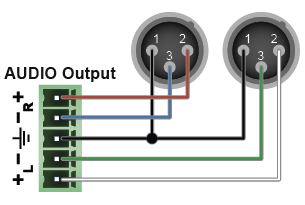
|

|
||
|
2 x XLR - Phoenix |
Phoenix - Phoenix |
|||

|

|
INFO:All models have the same size. Dimensions are in mm.

11.11. Firmware Release Notes - MMU
The list below shows the released firmware packages with important notes.
v2.0.2b2
Release date: 2026-08-31
New feature:
▪LDC v2.24 is released and must be used together with GVN MMU v2.0.2
Bugfix:
▪If it is not possible to keep the network settings of AV LAN and CONTROL LAN during a GVN MMU v2.0.2 firmware upgrade due to an incompatible network settings file, both network interfaces will be reset to factory default values: AV LAN to DHCP, CONTROL LAN to static IP. It might cause that the user has to re-set their network interface settings after the firmware upgrade.
Known issue:
▪If both AV LAN and CONTROL LAN is set to DHCP, and there is no DHCP server on the network, only the AV LAN will have an automatic link local IP address. In this case, CONTROL LAN will have no valid IP address.
v2.0.0b22
Release date: 2026-08-12
New feature:
▪Major upgrade: LiLi-based platform software on GVN MMU.
▪Built-in LARA v2.0.7 is included in GVN MMU.
▪All settings related security under Settings / Services will be lost and set to the following default values: lw3 enabled, http disabled, https enabled, and authentication with default password enabled. These settings are found in lw3 API under /V1/MANAGEMENT/NETWORK/SERVICES.
▪API changes: every lw3 node previously under /MANAGEMENT is now under either /V1/MANAGEMENT or /EXPERIMENTAL/MANAGEMENT. Every lw3 node previously under /SYS is now under /V1/SYS.
▪Note: all public lw3 nodes under /MEDIA, /EDID, and /ENDPOINTS remain unchanged.
Bugfix:
▪AV LAN and Control LAN gateway address settings work correctly.
▪Control LAN is the default gateway in all cases, if both Control LAN and AV LAN network interfaces have link up state.
Known issue:
▪In very rare cases, if MMU is rebooted under a heavy load (100 endpoints, all CPUs on 100%), the rebooting process might fail. In such cases, a physical power cycle (turning the device off and on) will resolve the issue.
▪Downgrading to v1.8.0 is not possible directly. Please use the special downgrade v1.8.128 package from the archive files on the official GVN MMU product website, if a downgrade to v1.8 is necessary. After downgrading to v1.8.128, further downgrade to v1.8.0 is possible and recommended.
▪Dante microphones used through Audinate AVIO USB adapter are not working properly with GVN systems.
v1.8.0b8
Release date: 2026-05-28
New feature:
▪USB-C transmitter release: full featured USB-C input port with 4k60 video, audio, USB2.0 data, 100W charging, and ethernet connection.
Bugfix:
▪Fixed compatibility issue with Logitech Rally Bar Huddle.
v1.7.0b9
Release date: 2026-01-05
New feature:
▪Independent media layer support: the VIDEO, AUDIO and USB layers can be switched independently each other. For the easy use we added Audio follow video and USB follow video functions. USB port properties added. Audio stream source selection (embedded audio, analog input, Dante input) functionality added to TX (only in LW3 API). Dante bridge (RX) - LW3 API changed: BridgeEnabled property removed(!) and ConnectedSource property added to the output. Dante bridge functionality added to TX. Introduce the Control page for RS232 ports.
v1.6.1b2
Release date: 2025-09-25
New feature:
▪We closed a security back door.
v1.6.0b10
Release date: 2025-09-05
New feature:
▪Added controls to disconnect or preview individual streams.
▪Option to remove devices from the Device Map.
▪Option to disable automatic device mapping.
▪Improved UI to clearly indicate inactive devices.
▪Added ability to synchronize device time with the computer’s system clock.
▪Option to display full stream names in the Crosspoint for easier identification.
▪When Dante bridge is enabled, the RX device automatically forwards the incoming GVN audio stream to the Dante network in addition to the HDMI and analog outputs.
▪Improved "No Signal" behavior - added black screen and the ability to disable HDMI output to the list of options alongside displaying the GVN logo
v1.5.0b20
Release date: 2025-07-23
New feature:
▪Improved MMU–Endpoint Communication – We have restructured the communication between the MMU and endpoints by adopting industry-standard technologies (ZMQ). This results in a more robust, consistent, and scalable system architecture. System response times have significantly improved: - Endpoint state changes (e.g., signal present) now reach the MMU in around 2 seconds in a 100-endpoint system, compared to previous delays of up to 10 seconds, and this performance is maintained regardless of system size. - Device discovery has been accelerated from over 60 seconds to under 3 seconds for 100 endpoints.
▪HTTP(S) Basic Authentication Support – Adds secure user authentication with standard username and password credentials over HTTP or HTTPS connections.
The GVN MMU now provides HTTP and HTTPS server services on ports 80 (HTTP) and 443 (HTTPS).
The raw TCP connection previously used for LW3 control (port 6107) can now be disabled. In addition, the LW3 protocol is now supported over WS/WSS connections, enabling secure device control via WebSocket.
Known Issue:
▪In rare cases, Dante-enabled Gemini endpoints running firmware v1.4.x may not appear in LDU2 due to a bug in v1.4.x. Before upgrading, we recommend noting down the IP addresses of your Dante devices so you can manually add any that are not found. Devices running v1.5.0 are discovered reliably by LDU2. Please note that in 1.5.0 some situations, the hostname shown in LDU2 may differ from the device’s actual hostname. This can happen if the hostname changes on the device due to an internal state issue. We are working closely with Audinate to resolve this, as it also affects device discovery in Dante Controller. If you have any issues discovering or updating your devices, please reach out to support for assistance.
v1.4.0b14
Release date: 2025-04-09
New feature:
▪We have updated the backend of the LW3 API, making it more robust and simplifying development and testing. It is a known bug that when the HDCP setting for the HDMI output port on the receiver is set to Auto, the v1.4.0 firmware also encrypts unencrypted video if the sink is HDCP capable.
▪Discovery and support of Dante-capable endpoints. For full compatibility, we recommend that all elements of the system (MMU and endpoints) should be updated to the same firmware version (v1.4.0).
v1.3.0b4
Release date: 2024-12-12
New feature:
▪Basic command injection support on MMU in LW3 and embedded-web. LDC support is not yet available in v2.14.0, it will be supported only in the next version (v2.15.0).
v1.1.0b2
Release date: 2024-09-05
New feature:
▪Serial port and analog audio port related setting are now supported on the control UI. EDID export is now supported on the control UI. Fixed several bugs regarding UI and user workflow.
v1.0.0b39
Release date: 2024-07-19
New feature:
▪The first public release for the Gemini GVN Matrix Management Unit (MMU). The supported hardware is GVN-MMU-X100. Core functions include Gemini GVN endpoint discovery and management, endpoint\u2019s crosspoint, EDID management, system support information, backup and restore of actual system state. Managed by Lightware Device Controller (LDC) and Lightware Device Updater v2 (LDU v2).
11.12. Firmware Release Notes - Endpoints
The list below shows the released firmware packages with important notes.
v1.8.0b13
Release date: 2026-05-28
New feature:
▪USB-C transmitter release: full featured USB-C input port with 4k60 video, audio, USB2.0 data, 100W charging, and ethernet connection.
▪Set custom no-signal image on RX through <RX-ip-address>/tools/nosignal.html
Bugfix:
▪Fixed compatibility issue with Logitech Rally Bar Huddle.
Known issue:
▪In very rare cases, endpoints connected with a fibre optic cable might not be reachable after software reboot. Should this issue occur, a hard reset resolves the issue.
▪If HDCP is turned off and a video source is reconnected to the USB-C input of HC-TX, there is a short (~1 sec) interruption of the signal at the beginning of transmission.
▪4096x2160p60 YUV 4:2:2 output on RX is shown with incorrect colors.
▪HC-TX might occasionally reboot, if HDCP is turned off on its input and a Gomax test device keeps sending HDCP-encrypted video signal.
▪HC-TX devices emulate HID (keyboard and mouse) devices, even if there are no such devices routed to them.
▪YUV 4:2:0 scaling only works if the scaled video resolution is 4096x2160p50 or 4096x2160p60. Otherwise, YUV scaled video output is 4:4:4 or 4:2:2.
▪No-signal output on RX might flicker occasionally, if HDCP is disabled on TX but the video source is enforcing HDCP-encrypted video signal.
v1.7.1b5
Release date: 2026-02-18
Bugfix:
▪Updated UBoot version for a more resilient SPI flash initialization. Fixed rare network interface instability on restart. Mirrored writable persistent system configuration information to EMMC. Fixed compatibility issue with Logitech Rally Bar.
Known issue:
▪In very rare occasions, the device may not initialize properly after power-up. Should this occur, a hard reset or a restart through ssh will resolve the issue and the device will return to normal operation. This behavior has been observed since firmware version 1.6.0. In addition, known compatibility issues with PTZ camera.
v1.7.0b9
Release date: 2026-01-05
New feature:
▪ASIC firmware has been updated. Dante embedded platform firmware has been updated. There were a lot of "Invalid edid provided" error messages in the log files. This has been fixed. Fixed the HDMI black screen issue when RX disconnected from the network. Fixed the discovery protocol issues (mDNS and Avahi). Fixed a DDC communication issue on HDMI output (EDID reading and HDCP handshake problems). TCP port 5555 has been closed for security reasons. Analog audio input capability added to TX endpoints.
v1.6.1b4
Release date: 2025-09-25
New feature:
▪Firmware changes required for the modified process for manufacturing Dante endpoints. Expanding endpoint logs for support cases.
v1.6.0b3
Release date: 2025-08-28
New feature:
▪When Dante bridge is enabled, the RX device automatically forwards the incoming GVN audio stream to the Dante network in addition to the HDMI and analog outputs.
▪Improved "No Signal" behavior - added black screen and the ability to disable HDMI output to the list of options alongside displaying the GVN logo
v1.5.0b18
Release date: 2025-07-24
New feature:
▪Improved MMU\u2013Endpoint Communication \u2013 We have restructured the communication between the MMU and endpoints by adopting industry-standard technologies (ZMQ). This results in a more robust, consistent, and scalable system architecture. System response times have significantly improved: - Endpoint state changes (e.g., signal present) now reach the MMU in around 2 seconds in a 100-endpoint system, compared to previous delays of up to 10 seconds, and this performance is maintained regardless of system size. - Device discovery has been accelerated from over 60 seconds to under 3 seconds for 100 endpoints.
Bugfix:
▪We have fixed a known issue where when receiving a non-HDCP protected signal, the video signal on the HDMI output was converted to protected video.
v1.4.0b12
Release date: 2025-04-09
New feature:
▪Fixed an issue where technical information would flash after switching HDMI output
▪Fix USB 2.0 incompatibility issue with macOS v15.
▪We have updated the backend of the LW3 API, making it more robust and simplifying development and testing. It is a known bug that when the HDCP setting for the HDMI output port on the receiver is set to Auto, the v1.4.0 firmware also encrypts unencrypted video if the sink is HDCP capable.
Release the Dante capable RX endpoint (91810038, GVN-HDMI-RX110AP-DNT). The received Dante stream can be embedded into the HDMI output.
Release the Dante capable TX endpoint (91810037, GVN-HDMI-TX210AP-DNT). Embedded stereo uncompressed audio coming from the HDMI input is automatically sent to the Dante network.
v1.3.0b3
Release date: 2024-12-12
New feature:
▪Basic command injection support with direct TCP connections to endpoints over port 6752
v1.0.0b36
Release date: 2024-07-15
New feature:
▪The first public release for the Gemini GVN endpoints. Supported endpoints are GVN-HDMI-TX210AP and GVN-HDMI-RX110AP. Basic functionality with 4K60 4:4:4, seamless switching, scaling, EDID handling, analog audio output, USB HID and full USB 2.0 support, virtual HUB function up to six USB 2.0 devices, managed by Lightware Device Updater v2 (LDU v2).
The following content is an HTML file demonstrating an example how the preview image of the extenders can be used within a system. This file collects the images from the extenders and the image file are organized into a table. The preview images are scaled to 400px width in the cells. If you click on an image, the preview image is opened in a new browser tab in higher resolution.
The Appearance
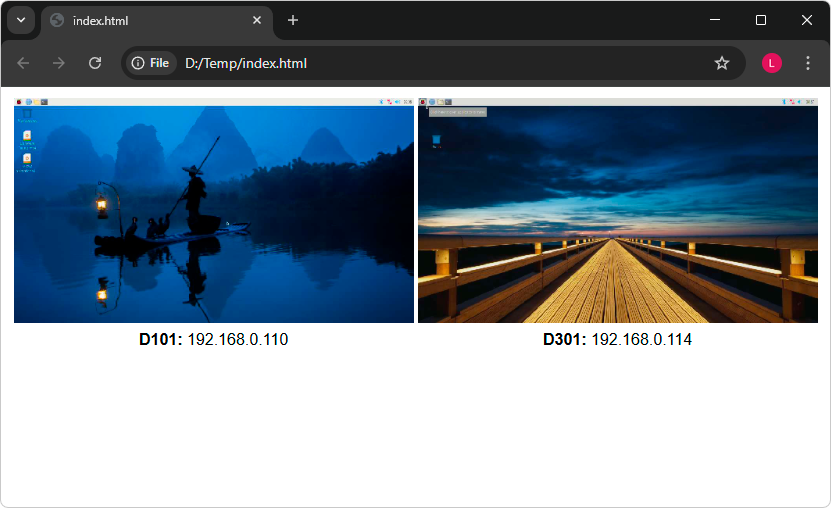
INFO:This example is a static page, the preview shall be updated manually by refreshing the page.
The Source File (HTML)
<!DOCTYPE html>
<html>
<style>
table, h2, p {
font-family:Arial;
text-align: center;
}
body {
display: flex;
justify-content: center;
}
</style>
<body>
<table>
<tr>
<th><a href="http://192.168.0.110:8080/?action=snapshot" target="_blank"><img src="http://192.168.0.110:8080/?action=snapshot" style="width:400px"></a></th>
<th><a href="http://192.168.0.114:8080/?action=snapshot" target="_blank"><img src="http://192.168.0.114:8080/?action=snapshot" style="width:400px"></a></th>
</tr>
<tr>
<td><b>D101:</b> 192.168.0.110</td>
<td><b>D301:</b> 192.168.0.114</td>
</tr>
</table>
</body>
</html>
11.14. GVN MMU v2.0.2 FW Update Major Changes
There was a major platform update of the GVN MMU firmware between FW v1.8.0, and the v2.0.2 versions. It is not a simple firmware update, but rather a firmware upgrade. Please read through carefully and prepare for the firmware upgrade process accordingly.
Potential Breaking Changes
The following changes between MMU v1.8.0 and v2.0.2 are crucial and all existing GVN users must be notified:
All settings related security under Settings / Services will be reset to default values:
▪LW3 enabled (port 6107)
▪HTTP disabled
▪HTTPS enabled
▪Authentication is enabled
▪These settings will be found in LW3 API under /V1/MANAGEMENT/NETWORK/SERVICES.
By default, authentication will be enabled and a default password will be used: Lightware10g. After the firmware upgrade or first power-on cycle, this default password must be changed by the user. Username is still ‘admin’ and cannot be changed yet. This document describes password handling also for GVN:
https://go.lightware.com/Password_Handling_in_Lightware_Devices_ApplicationNotes.pdf
LW3 API is changed, therefore existing control scripts and control applications might need an update. Existing node changes:
▪Every node under /MANAGEMENT will go under /V1/MANAGEMENT or /EXPERIMENTAL/MANAGEMENT.
▪Every node under /SYS will go under /V1/SYS.
▪For the network interfaces, “DomainName” property will not exist. DHCP servers can use /EXPERIMENTAL/MANAGEMENT/DEVICE/HostName property from this firmware version.
▪Changes in details:
|
v1.8.0 Node Name |
v2.0.2 Node Name |
|
/MANAGEMENT/DEVICE |
/EXPERIMENTAL/MANAGEMENT/DEVICE |
|
/MANAGEMENT/UID |
/V1/MANAGEMENT/UID |
|
/MANAGEMENT/UID/PACKAGES |
/V1/MANAGEMENT/UID/PACKAGES; Comment: Completely new node structure with new properties under PACKAGES. |
|
/MANAGEMENT/UID/PACKAGES/CORE |
Will Not Exist |
|
/MANAGEMENT/NETWORKINTERFACES/CONTROLLAN |
/EXPERIMENTAL/MANAGEMENT/NETWORKINTERFACES/MANAGEMENT; Comment: “DomainName” and “MacAddress” properties will not exist, “Enabled” property will exist. |
|
/MANAGEMENT/NETWORKINTERFACES/GVNNETWORK |
/EXPERIMENTAL/MANAGEMENT/NETWORKINTERFACES/DEFAULT; Comment: “DomainName” and “MacAddress” properties will not exist, “Enabled” property will exist. |
|
/MANAGEMENT/DATETIME |
/V1/MANAGEMENT/DATETIME; Comment: CoreUpTime property will not exist. |
|
/MANAGEMENT/HEALTH |
/V1/MANAGEMENT/HEALTH |
|
/MANAGEMENT/HEALTH/MB/SYSTEMSTATS |
Will Not Exist |
|
/MANAGEMENT/SERVICES |
/V1/MANAGEMENT/SERVICES |
|
/SYS |
/V1/SYS; Comment: “reboot” method will be called “restart”, “RebootNeed” and “RebootPending” properties will not exist. |
Important: LW3 nodes under /MEDIA, /EDID, and /ENDPOINTS will remain unchanged!
Routing change: CONTROL LAN is the default gateway in all cases, if both CONTROL LAN and AV LAN network interfaces have link up state. If only one link has up state, it is also the default gateway.
MMU v2.0.2 will only be compatible with LDC v2.24.0 and newer versions.
Upgrading from v1.8.0 to v2.0.2
▪Upgrading and downgrading will only be possible with LDU2 v2.39.0 or newer versions. This version will also notify the user through pop-up messages about the risks and recommended preparation steps of the upgrade process.
▪LDU2 will support upgrading to v2.0.2 only from v1.8.0. Please update the MMU to v1.8.0 first if you have an older FW version.
▪Before upgrading, it is highly recommended to download a backup file from the MMU (under Settings / System / Backup).
=Background: if a user upgrades their MMU to v2.0.2, and wants to downgrade later to v1.8, the MMU will automatically perform a factory reset after downgrading, and all previous settings will be lost.
=If a backup file before upgrading exists, the users will be able to restore their pre-upgrade settings after a downgrade. A backup file created on v2.0.2 firmware will not be compatible with v1.8.0.
=A pop-up window will remind the users of this recommended step in LDU2.
▪After upgrading the MMU from v1.8.0 to v2.0.2 through LDU2, authentication will be enabled and the users will be required to change the default password (Lightware10g). A pop-up window will remind the user of this change in LDU2.
▪At the end of the upgrade process, a pop-up window in LDU2 will inform the user about the security-related changes described in the first section of this document.
▪Note: at the end of the upgrade process, the IP address of the MMU might change if the network interface used for the upgrade is set to DHCP. In this case, LDU2 cannot connect to the device and will give a warning message to the user. Restarting LDU2 restores the connection with the MMU device.
Downgrading from v2.0.2 to v1.8
▪It will not be possible to downgrade from v2.0.2 to the officially released v1.8.0 firmware version.
▪There is going to be a special GVN MMU package for downgrading, called v1.8.128. This package needs to be downloaded from the archive files of the “Downloads” section of the official GVN MMU product website.
▪This v1.8.128 package must be used through LDU2 with the usual steps to downgrade from v2.0.2. This package will have identical features compared to v1.8.0, only the behind-the-scenes technical steps of the downgrade process will be special.
▪Downgrading to v1.8.128 will be only possible from v2.0.2.
▪It is highly recommended to use CAT5 or higher cable for downgrading. CAT4 or lower cables might work but the uploading process is unstable with them.
▪After downgrading to v1.8.128, all settings will be lost, as the process involves a factory reset. Backup files downloaded in v2.0.2 cannot be used to restore settings, that is why it is highly recommended to download backup files in v1.8.0 before upgrading.
▪After downgrading to v1.8.128, it is mandatory to further downgrade to v1.8.0 or older MMU versions with the normal downgrade process via LDU2.
▪A downgraded MMU with v1.8.x firmware will not be compatible with LDC v2.24.0, only with older LDC versions. Older LDC versions can be downloaded from the archive files of the “Downloads” section of the official LDC website.
Introduction of LARA in GVN MMU
From v2.0.2 firmware version, LARA2.0 is integrated into GVN MMU. No need for hardware change, the firmware upgrade will deliver LARA to the existing customers as well.
This user manual contains keywords with hashtags (#) to help you find the relevant information as quick as possible.
The format of the keywords is the following:
#<keyword>
The usage of the keywords: use the Search function (Ctrl+F / Cmd+F) of your PDF reader application, type the # (hashtag) character and the wished keyword.
The #new special keyword indicates a new feature/function that has just appeared in the latest firmware or software version.
Example
#dhcp
This keyword is placed at the DHCP (dynamic IP address) setting in the front panel operation, the Lightware Device Controller (LDC) and the LW3 programmer's reference section.
The following list contains all hashtag keywords placed in the document with a short description belonging to them. The list is in alphabetical order by the hashtag keywords.
|
Hashtag Keyword |
Description |
|---|---|
|
#advancedview |
Advanced view window |
|
#analogaudio |
Analog audio related settings |
|
#audio |
Audio related settings |
|
#backup |
Downloading and restoring backup file |
|
#balance |
Balance (for analog audio) setting |
|
#builtinweb |
Built-in Web for the MMU |
|
#colorspace |
Color space converter related settings |
|
#crosspoint |
Crosspoint switch setting |
|
#dante |
Dante-related settings |
|
#date |
Date setting in the MMU |
|
#devicelabel |
Device label |
|
#devicemap |
Device map in LDC |
|
#dhcp |
DHCP (Dynamic IP address) setting options |
|
#edid |
EDID related settings |
|
#factorydefault |
Setting factory default |
|
#firmwareversion |
Firmware version query |
|
#framedetector |
Frame detector in LDC |
|
#hdcp |
HDCP related settings |
|
#ip |
IP address related settings |
|
#label |
Device label |
|
#mac |
MAC address query |
|
#mute |
Mute (for analog audio) setting |
|
#network |
Network (IP address) related settings |
|
#nosignal |
Settings of the no signal screen |
|
#poe |
PoE related information |
|
#power |
Powering information |
|
#reboot |
Restarting the device |
|
#restart |
Restarting the device |
|
#rs-232 |
RS-232 related settings |
|
#scaler |
Scaler related settings |
|
#seamless |
Settings for seamless switching |
|
#serial |
RS-232 related settings |
|
#snapshot |
Snapshot function settings |
|
#substream |
Substream function settings |
|
#switch |
Crosspoint switch setting |
|
#terminal |
Advanced view window |
|
#time |
Time setting in the MMU |
|
#web |
Built-in web for the MMU |
11.16. Further Document Information
Symbol Legend
The following symbols and markings are used in the document:
WARNING!Safety-related information that is highly recommended to read and keep in every case!
ATTENTION!Useful information for performing a successful procedure; it is recommended to read.
DIFFERENCE:Feature or function that is available with a specific firmware/hardware version or product variant.
INFO:A notice, which contains additional information. Procedure can be successful without reading it.
DEFINITION:The short description of a feature or a function.
TIPS AND TRICKS:Ideas that you may have not known yet, but can be useful.
Navigation Buttons
|
Buttons in the PDF version |
Buttons in the HTML version |
|||
|
|
Navigate to the Table of Contents. |
|
Open the main Table of Contents. |
|
|
|
Go back to the previous page. If you clicked on a link previously, you can go back to the source page by pressing the button. |
|
Navigate to the Online User Manuals webpage. |
|
|
|
Navigate to the Bookmark page. |
|
Navigate to the Bookmark page in this User Manual. |
|
|
|
Visit www.lightware.com. |
|
Download the PDF version of the User Manual. |
|


About Printing

Lightware Visual Engineering supports green technologies and eco-friendly mentality. Thus, this document is made primarily for digital usage. If you need to print out a few pages for any reason, follow the recommended printing settings:
▪Page size: A4
▪Output size: Fit to page or Match page size
▪Orientation: Landscape
TIPS AND TRICKS: Thanks to the size of the original page, a border around the content (gray on the second picture below) makes it possible to organize the pages better. After punching holes in the printed pages, they can easily be placed into a ring folder.
11.17. Limited Warranty Statement
1. Lightware Visual Engineering PLC (Lightware) warrants to all trade and end user customers that any Lightware product purchased will be free from manufacturing defects in both material and workmanship for three (3) years from purchase unless stated otherwise below. The warranty period will begin on the latest possible date where proof of purchase/delivery can be provided by the customer. In the event that no proof can be provided (empty ‘Date of purchase’ field or a copy of invoice), the warranty period will begin from the point of delivery from Lightware.
1.1. 25G and MODEX product series will be subject to a seven (7) year warranty period under the same terms as outlined in this document.
1.2. If during the first three (3) months of purchase, the customer is unhappy with any aspect of a Lightware product, Lightware will accept a return for full credit.
1.3. Any product that fails in the first six (6) months of the warranty period will automatically be eligible for replacement and advanced replacement where available. Any replacements provided will be warranted for the remainder of the original unit’s warranty period.
1.4. Product failures from six (6) months to the end of the warranty period will either be repaired or replaced at the discretion of Lightware. If Lightware chooses to replace the product, then the replacement will be warranted for the remainder of the original unit’s warranty period.
2. The above-stated warranty and procedures will not apply to any product that has been:
2.1. Modified, repaired or altered by anyone other than a certified Lightware engineer unless expressly agreed beforehand.
2.2. Used in any application other than that for which it was intended.
2.3. Subjected to any mechanical or electrical abuse or accidental damage.
2.4. Any costs incurred for repair/replacement of goods that fall into the categories above (2.1., 2.2., 2.3.) will be borne by the customer at a pre-agreed figure.
3. All products to be returned to Lightware require a return material authorization number (RMA) prior to shipment, and this number must be clearly marked on the box. If an RMA number is not obtained or is not clearly marked on the box, Lightware will refuse the shipment.
3.1. The customer will be responsible for in-bound, and Lightware will be responsible for out-bound shipping costs.
3.2. Newly repaired or replaced products will be warranted to the end of the originally purchased product's warranty period.