
USER MANUAL
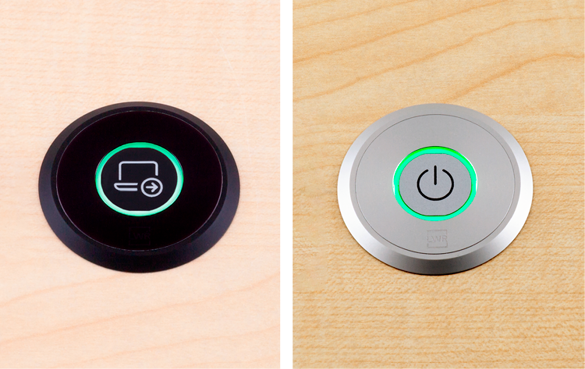
GPIO-Button-10B
GPIO-Button-10S
Customizable pushbutton
|
|
|
|
||
|
|
|
|
||


Important Safety Instructions
Class II apparatus construction.
The equipment should be operated only from the power source indicated on the product.
To disconnect the equipment safely from power, remove the power cord from the rear of the equipment, or from the power source. The MAINS plug is used as the disconnect device, the disconnect device shall remain readily operable.
There are no user-serviceable parts inside of the unit. Removal of the cover will expose dangerous voltages. To avoid personal injury, do not remove the cover. Do not operate the unit without the cover installed.
The appliance must be safely connected to multimedia systems. Follow instructions described in this manual.
Waste Electrical & Electronic Equipment (WEEE)
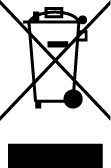
This marking shown on the product or its literature indicates that it should not be disposed with other household wastes at the end of its working life. To prevent possible harm to the environment or human health from uncontrolled waste disposal, please separate this from other types of wastes and recycle it responsibly to promote the sustainable reuse of material resources. Household users should contact either the retailer where they purchased this product or their local government office for details of where and how they can take this item for environmentally safe recycling. Business users should contact their supplier and check the terms and conditions of the purchase contract. This product should not be mixed with other commercial wastes for disposal.
Common Safety Symbols
|
Symbol |
Description |
|
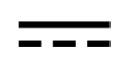
Direct current |
|
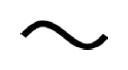
Alternating current |
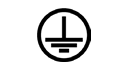
|
Protective conductor terminal |
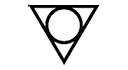
|
Equipotential Connector |
.png)
|
On (Power) |
.png)
|
Off (Power) |
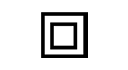
|
Double insulation |

|
Caution, possibility of electric shock |

|
Caution |

|
Laser radiation |

|
Warning, Rotating fan |
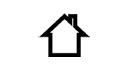
|
Caution: for indoor use only |
Document Revision History
|
Rev. |
Release date |
Changes |
Editor |
|
v1 |
2026-07-06 |
Initial release. |
Laszlo Zsedenyi, Zsolt Podoba-Szalai |
|
... |
|||
|
v3 |
2026-09-01 |
ToC correction. |
Laszlo Zsedenyi |
|
v4 |
2026-10-20 |
Black version added. |
Laszlo Zsedenyi |
Contact Us
+36 1 255 3800
+36 1 255 3810
Lightware Visual Engineering PLC.
Gizella 51-57, Budapest H-1143, Hungary
©2026 Lightware Visual Engineering. All rights reserved.
All trademarks mentioned are the property of their respective owners.
Specifications are subject to change without notice.
Thank you for choosing Lightware’s GPIO button. In the first chapter we would like to introduce the device by highlighting the most important features in the sections listed below:
The GPIO-Button-10S is a dedicated GPIO button for Lightware systems, created to enable straightforward 'press-to-action' control scenarios in AV and room automation environments. By connecting the button to a compatible Lightware device’s GPIO interface, the button press can be used as an input condition to initiate predefined control actions, supporting easy-to-use local control without requiring a separate complex control processor for basic tasks.
Up to 2 buttons can be connected to a 6-GPIO* Lightware device (like the Taurus/MMX2 range), each unit uses 1 GPIO as input for the button press, and 2 GPIOs as output for the feedback LED. Once connected, the device can be configured in LARA or Event Manager.
Typical use cases include triggering room/AV actions such as "Show Me", "Mute/Unmute", "Device On/Off", or other custom automation sequences configured on the host device.
* The structure of the 8-pin GPIO port is the following: 6 user-configurable GPIO pins, a pin with constant +5V output, and the last pin is the ground.
|
Supplied Accessories |
Optional Accessory |
||||
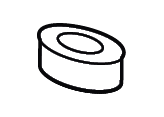
|
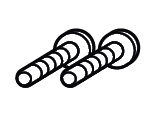
|
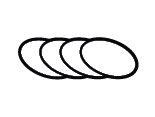
|
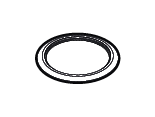
|
|
|
|
Pushbutton with cable and 8-pin Phoenix connector |
Fixing screws (5x2 pcs.) |
Stickers (7 pcs.) |
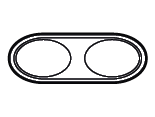
Single Frame |
Double-Frame-S |
|
|
GPIO-Button-10S |
|
|
|
|
|


|
Complete Flexibility |
|
One button for any custom action. |
|

|
Intuitive Control |
|
Stickers provide quick function identification |
|

|
Colored feedback LED |
|
LED ring shows red, green, or blue for visual feedback |
|

|
Multiple Units |
|
Supports up to 2 buttons on 6-GPIO devices |
|

|
LARA Compatible |
|
The pushbutton can be used with the Lightware products that come with LARA to support BYOD solutions and room control options. |
|

|
Event Manager |
|
The pushbutton can be used with the Lightware products that contain the Event Manager for simple room configurations. |
This chapter is about the structure of the button, the physical installation, the mounting and wiring steps of the button.
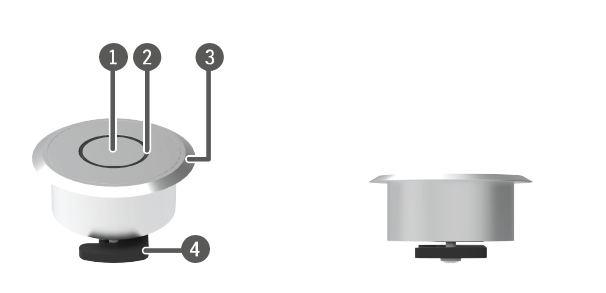
Top Profile view
|
|
Pushbutton |
Customizable sticker can be attached to it. |
|
|
Light ring |
It can light in red, green or blue (only one at a time). |
|
|
Single frame |
It can be replaced with the Double frame. |
|
|
Clamp |
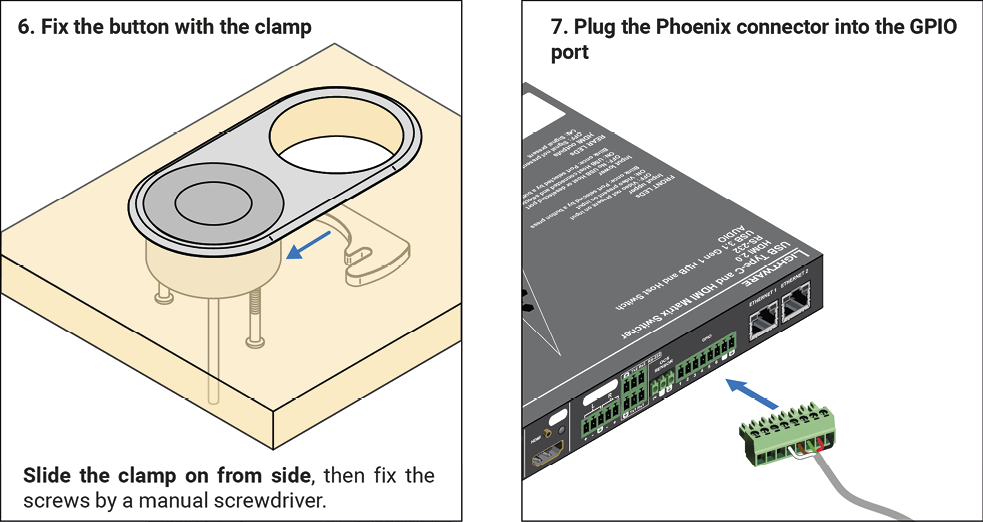
This part fixes the button to the desk with two screws. |


This accessory contains one simple button, and the software-based solutions allow the following common options:
▪Simple press
▪Double press
▪Long press
The LARA-based drivers allow defining exact values for these behaviors.
The internal LED is able to light in three colors:
▪blue 
▪green 
▪red 
This LED can be used as a continuous or blinking light source in case of blue and green. Due to technical limitations the red blinking function is not available.
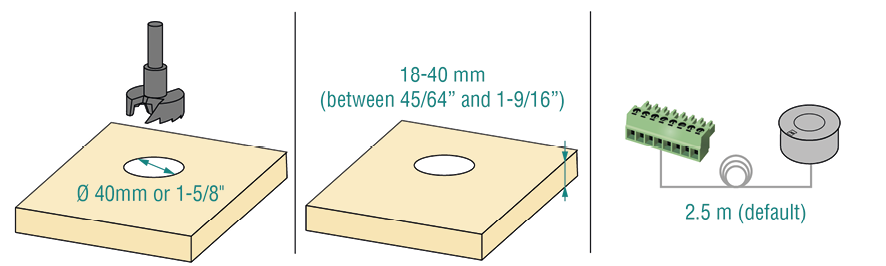
Please pay attention to the following details:
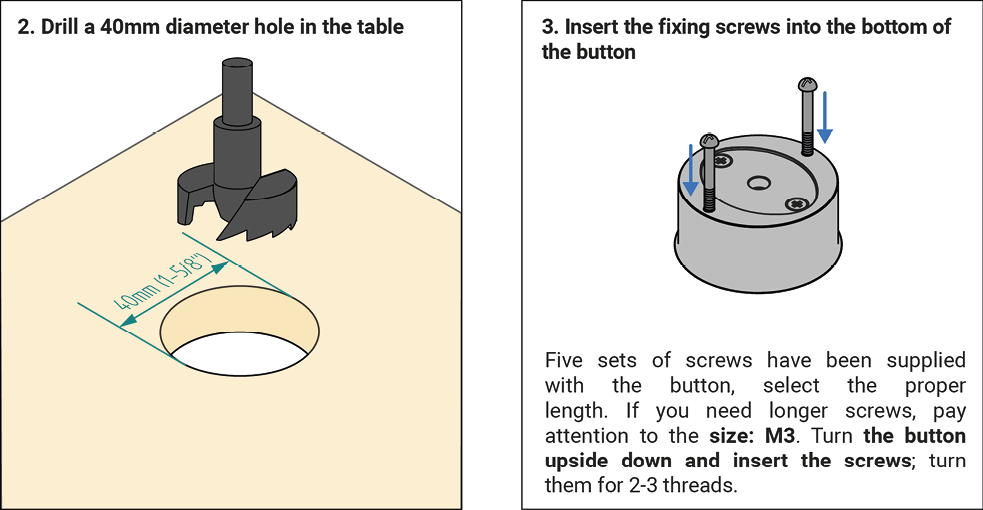
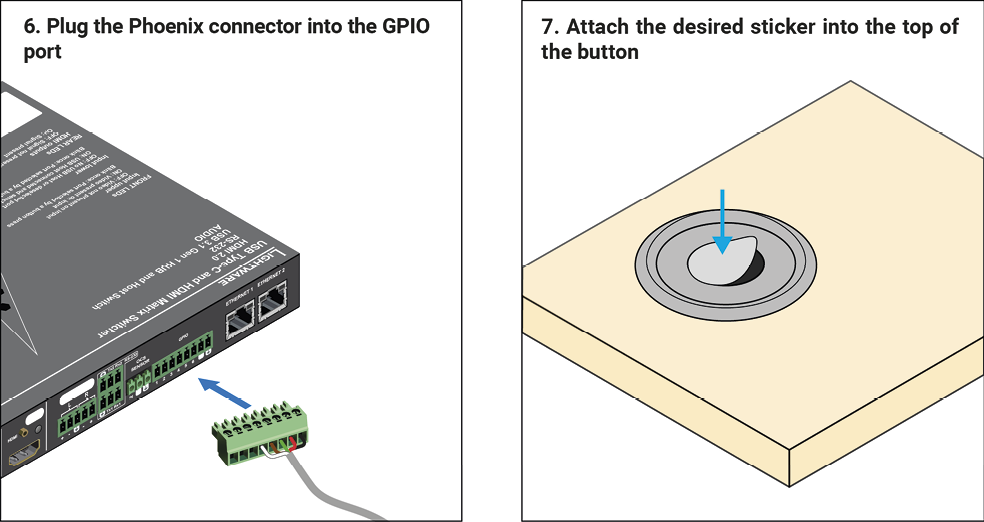
▪A button needs a 40 mm diameter hole in the desk.
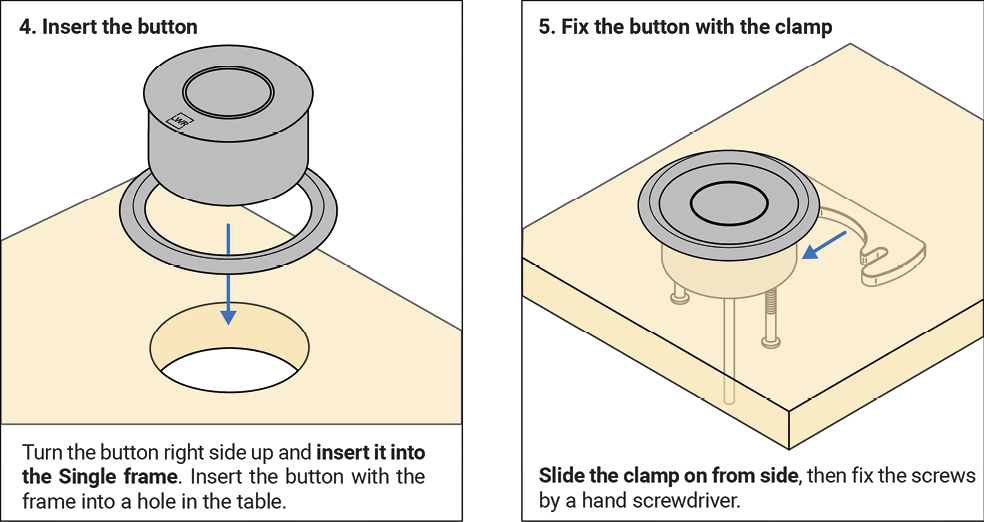
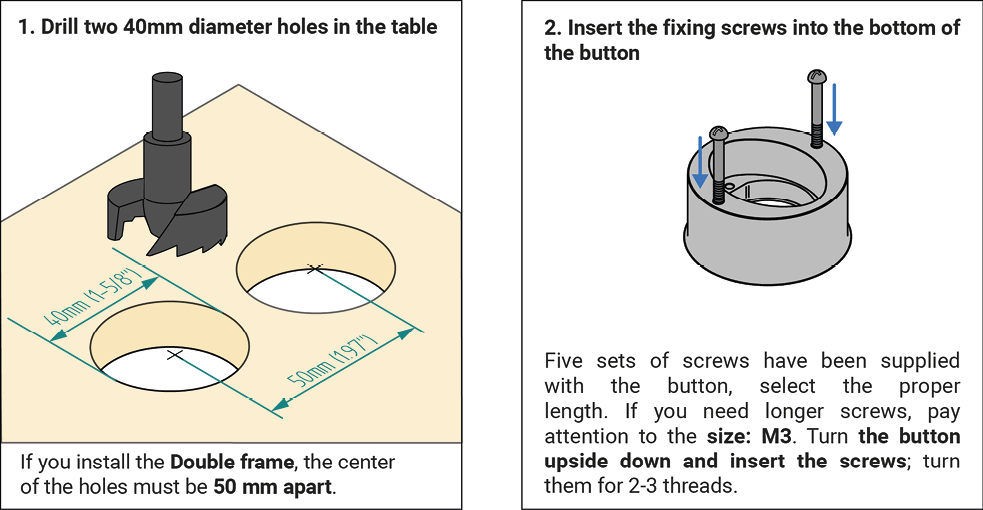
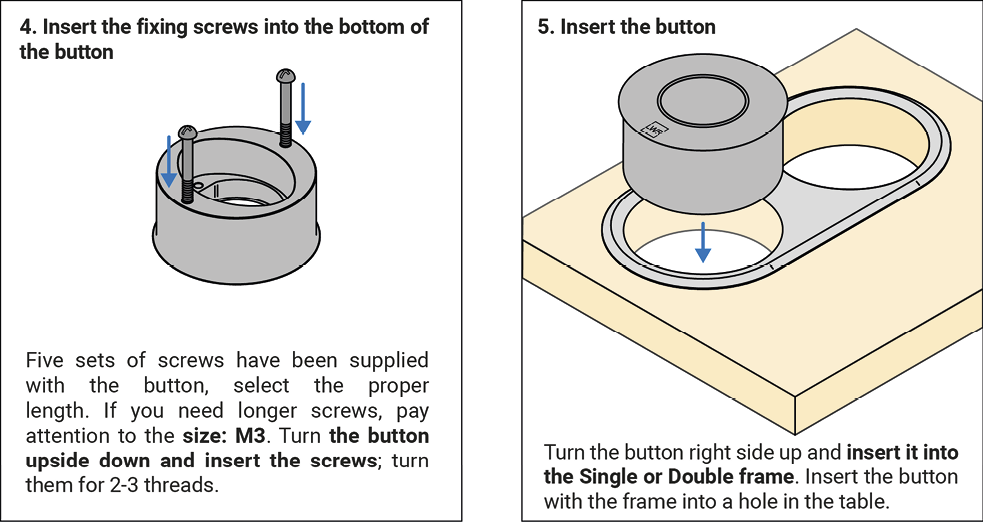
▪The supplied fixing screws allow 18-40 mm desk thickness. Please select the screw that fits best for your installation. If you need longer screws, pay attention to the size: M3.
▪The cable length is 2.5 m. If this is not long enough, the cable can be lengthened.
In order to get (semi-)automatic functions for the button, certain settings need to be done. Please check which software tool is necessary for your product:
|
Event Manager |
LARA |
|
DP-TPS-TX220 |
DCX series |
|
DVI-HDCP-TPS-TX220 |
GVN series |
|
HDMI-TPS-TX220/TX226 |
MMX2 series |
|
SW4-TPS series |
UCX series |
|
UMX-TPS-TX130/TX140 models |
UCX-TPX series |
|
SW4-OPT-TX240RAK |
UCX-TPN series |
|
MMX4x2-HDMI-USB20-L |
|
|
MMX8x4-HT-420M/HT440/HT080 |
|
|
MMX8x8-HDMI-4K-A-USB20 |
|
|
SW4-OPT-TX240RAK |
|
|
UMX-HDMI-140 series |
2.5.1. Using the Event Manager
Step 1.Download the Lightware Device Controller (LDC) software from our webpage.
Step 2.Connect to the device (Ethernet, USB or RS-232 - whichever is available).
Step 3.Further steps of the desired installation are described in the corresponding chapter.
For further information about the Event Manager please refer to the Event Manager Application Notes.
Step 1.Download the Lightware Device Controller (LDC) software from our webpage.or use the webLDC.
Step 2.Connect to the device (Ethernet, USB or RS-232 - whichever is available).
For further information about LARA please refer to the LARA User Manual.
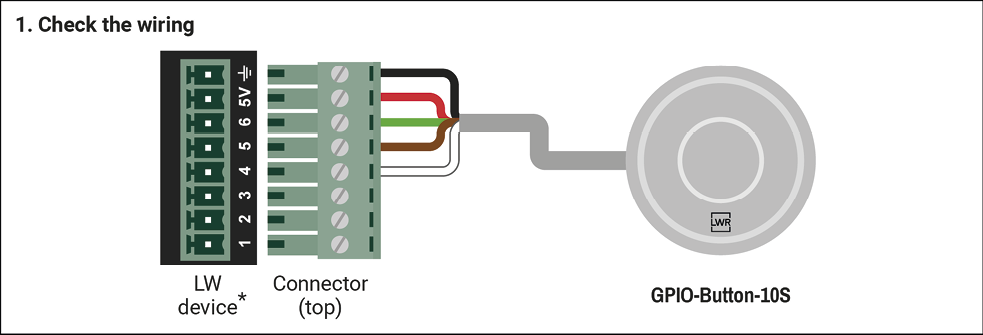
Wire connections
INFO:Please note that the default wiring of the cable is the same as above.
|
Pin nr. |
Wire color |
GPIO port pin direction |
Function |
Functions (level) |
|
1 |
N/A |
|||
|
2 |
N/A |
|||
|
3 |
N/A |
|||
|
4 |
white |
input |
Button press |
high: default state low: button is pressed |
|
5 |
brown |
output |
Blue light |
high: button lights blue ** low: dark |
|
6 |
green |
output |
Green light |
high: button lights green ** low: dark |
|
7 |
red |
+5V constant / output * |
PCB supply |
high: +5V output to the button PCB low: N/A or button does not work |
|
8 |
black |
N/A |
Ground |
|
* The 7th pin of certain devices' GPIO port does not work as a constant 5V output but as a user-configurable GPIO pin.
** Red light can be achieved when the output level of pin 2 & pin 3 are high.
2.7. Two-button Install in a GPIO Port
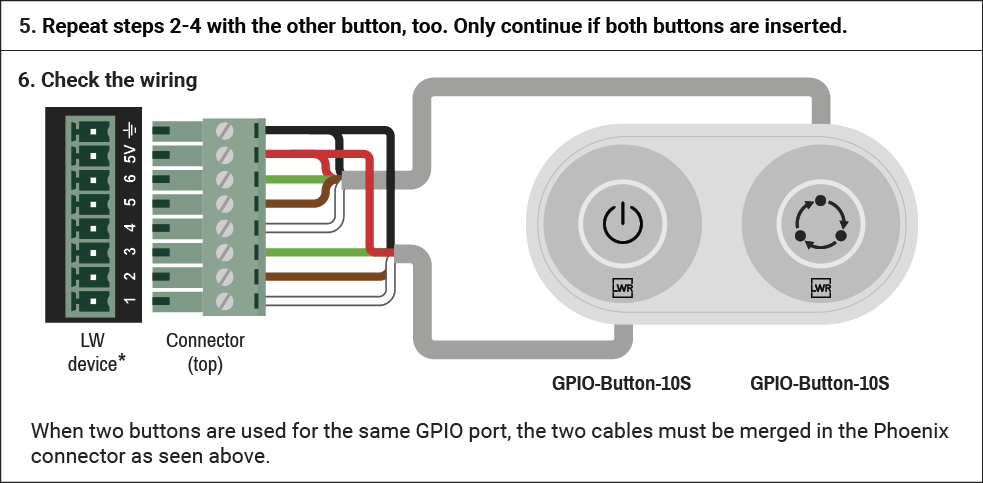
|
Pin nr. |
Wire color |
Button1 / Button2 |
GPIO port pin direction |
Function |
Functions (level) |
|
1 |
white |
Button1 |
input |
Button press |
high: default state low: button is pressed |
|
2 |
brown |
output |
Blue light |
high: button lights blue ** low: dark |
|
|
3 |
green |
output |
Green light |
high: button lights green ** low: dark |
|
|
4 |
white |
Button2 |
input |
Button press |
high: default state low: button is pressed |
|
5 |
brown |
output |
Blue light |
high: button lights blue ** low: dark |
|
|
6 |
green |
output |
Green light |
high: button lights green ** low: dark |
|
|
7 |
red |
Common |
+5V constant / output * |
PCB supply |
high: +5V output to the button PCB low: N/A or button does not work |
|
8 |
black |
N/A |
Ground |
||
* The 7th pin of certain devices' GPIO port does not work as a constant 5V output but as a configurable GPIO pin.
** Red light can be achieved when the output level of pin 2 & pin 3 are high.
2.8. GPIO Button and C-PopUp-20RS (Cable PopUp) Install

Wire connections
|
Pin nr. |
Wire color |
GPIO port pin direction |
Function |
Functions (level) |
|
1 |
N/A |
|||
|
2 |
N/A |
|||
|
3 |
N/A |
|||
|
4 |
white |
input |
Button press |
high: default state low: button is pressed |
|
5 |
brown |
output |
Blue light |
high: button lights blue ** low: dark |
|
6 |
green |
output |
Green light |
high: button lights green ** low: dark |
|
7 |
red |
+5V constant / output * |
PCB supply |
high: +5V output to the button PCB low: N/A or button does not work |
|
8 |
black |
N/A |
Ground |
|
* The 7th pin of certain devices' GPIO port does not work as a constant 5V output but as a configurable GPIO pin.
** Red light can be achieved when the output level of pin 2 & pin 3 are high.
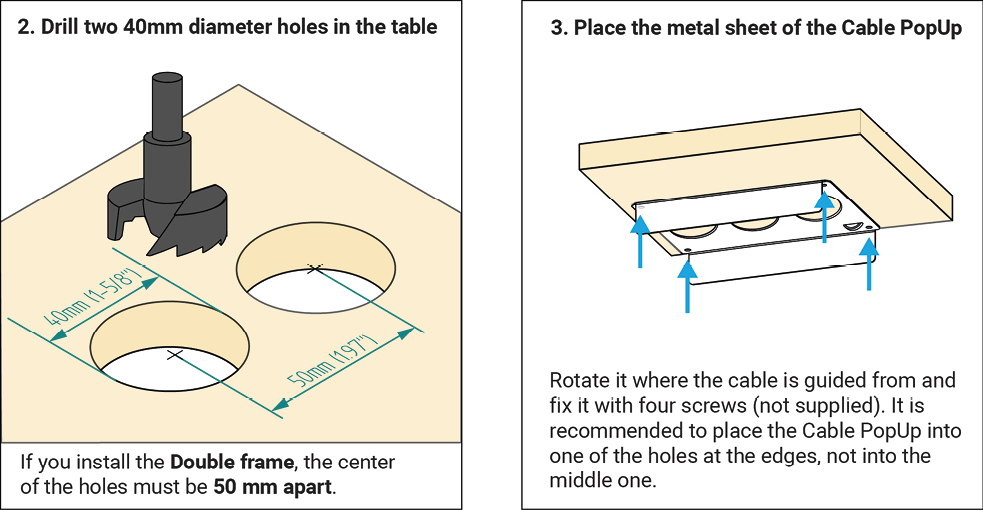
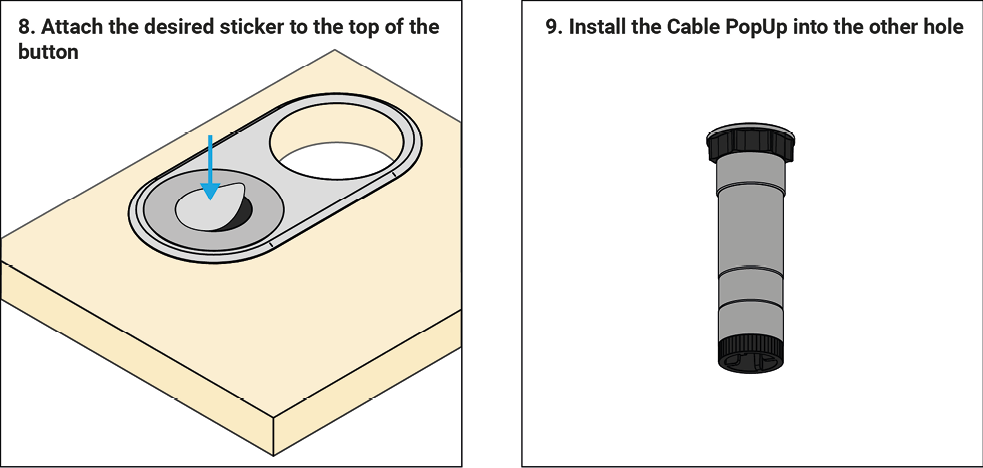
The User Manual of the Cable PopUp is available here: https://go.lightware.com/c-popup-pum.
2.9. GPIO Button with RAP-B511 or RAC-B501
The GPIO button can be connected to Room Automation Devices, too, but in this case you will meet limitations since the RAP and RAC devices contains 4-pin GPIO connector: only one color will be available as LED light (preferably green or blue). Therefore, the following wiring solutions are recommended:
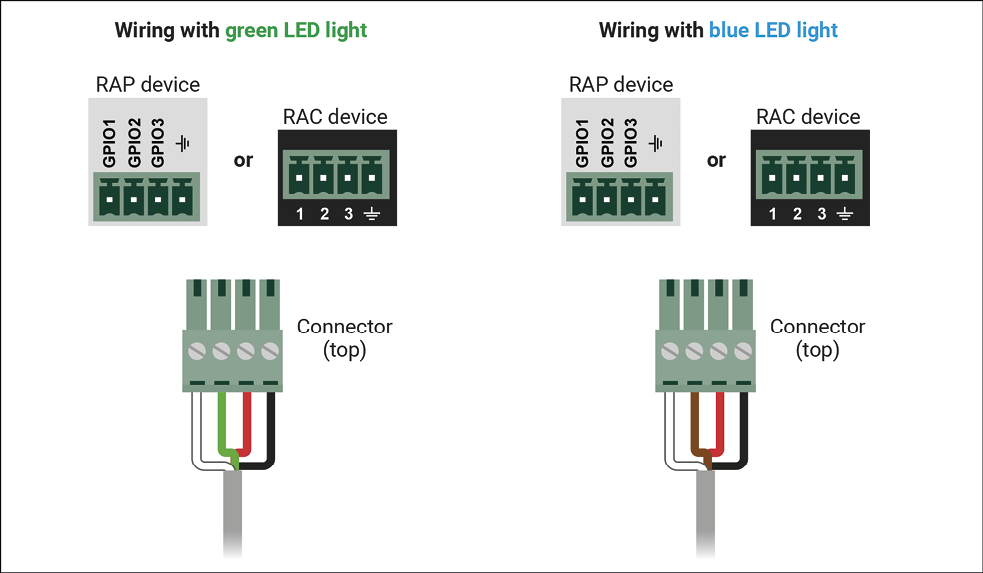
ATTENTION!Please note that RAP and RAC devices support Event Manager, not LARA.
INFO:The necessary 4-pin Phoenix connector is supplied with the RAP and RAC devices, but can also be purchased from Lightware.
This chapter is about the necessary settings in connection with LARA or Event Manager.
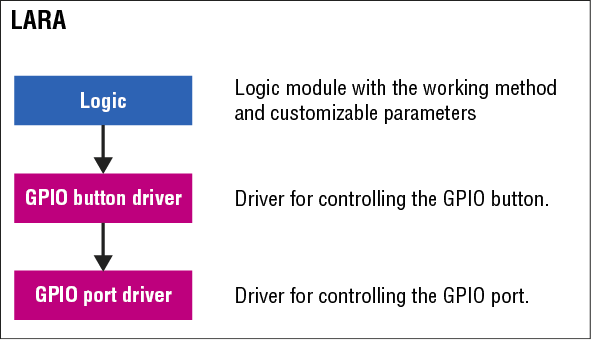
If you connect the GPIO button to a LW device that runs LARA, you have to set the software-environment, too. The good news is that you can have a prepared software environment as a package to implement controlling functions. The structure of the GPIO Button package allows controlling more buttons via a GPIO port and demonstrated as follows:
3.1.1. Importing the LARA Configuration
Step 1 – Download the LARA configuration package
Navigate to the product page of LARA and download the ZIP file. Unpack the content to a temporary folder.
Step 2 – Open LARA
LARA is enabled by default (in FW packages since 2026) but if you need to enable it manually, connect to your device, navigate to Settings/Services and check the 'Enable LARA' option. Please note that authentication is required to access LARA, so you will need the password for 'admin' user.
Open the https://<IP_address>/lara/ page.
Step 3 – Import the configuration
Press the UPLOAD CONFIGURATION button.
WARNING!The existing LARA configuration will be overwritten after confirmation.
Select the desired unzipped package in the upcoming window and press OK:
▪LARA1-SHOW-ME-CONFIGURATION.zip: when a button is pressed, the dedicated input source is shared.
▪LARA1-INPUT-CYCLE-CONFIGURATION.zip: this is a button press cycle logic between the available video sources connected to a Taurus device. In the absence of a valid option, it switches to the fallback option.
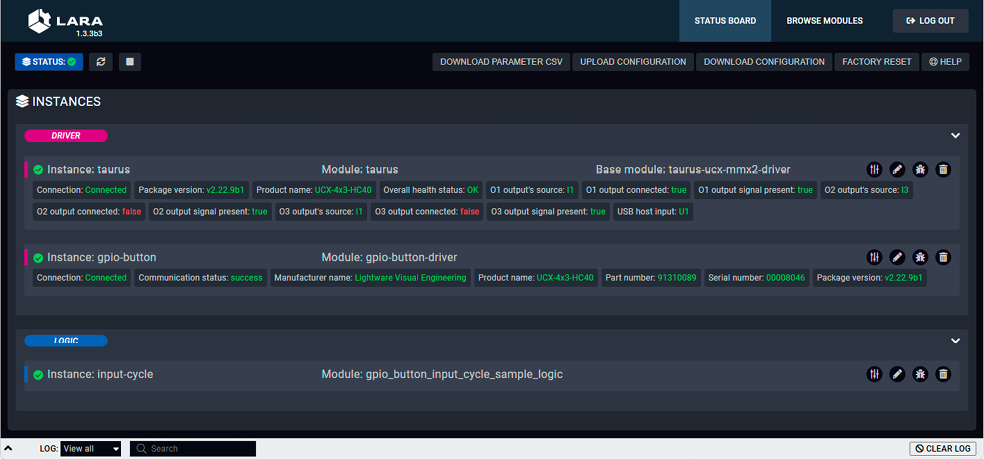
Where are customizable parameters?
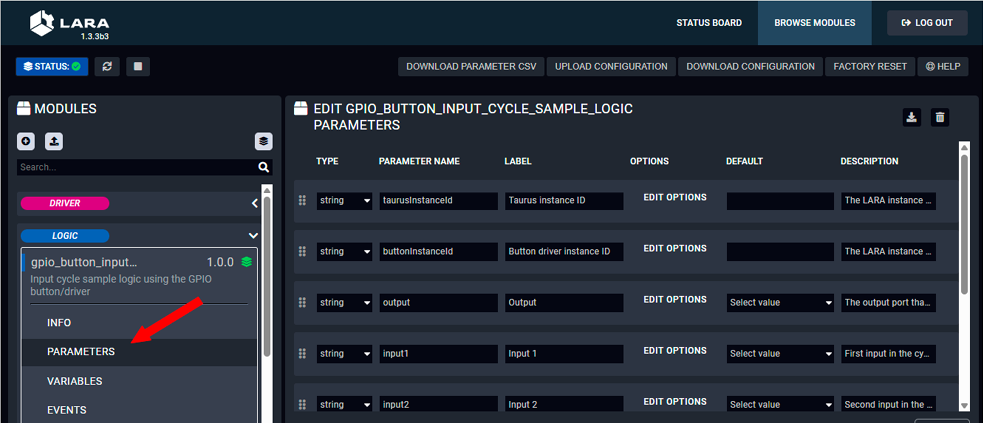
Navigate to the BROWSE MODULES page, find the PARAMETERS section under LOGIC module.
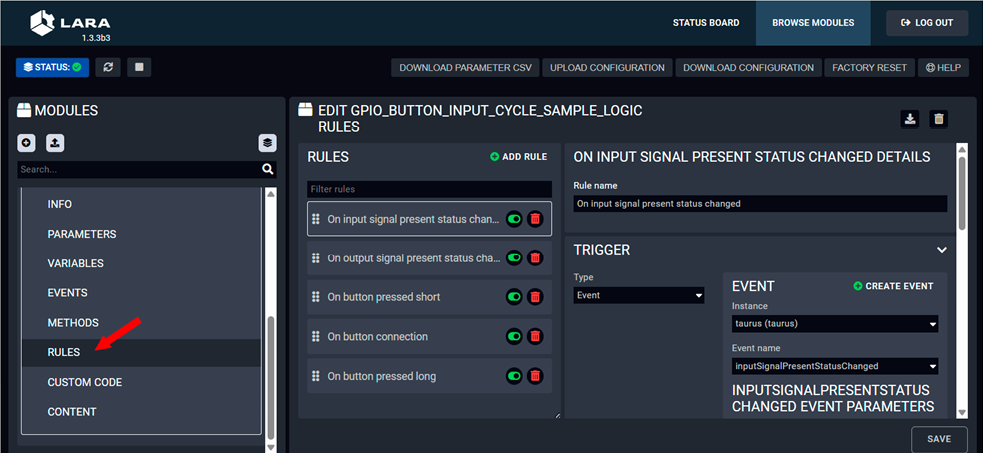
What functions can be enabled/disabled?
Navigate to the BROWSE MODULES page, find the RULES section under LOGIC module
If you need more information about LARA, please open the LARA User Manual.
Press the ► (play) button:
Introduction
This document is a user manual for the GPIO Port Driver written for LARA 2.0. It contains information about how to install and configure the module.
Module description
The GPIO Port Driver module is a driver made for LARA to read and control the state and behavior of the GPIO ports on the Lightware devices. GPIO ports can have a direction (input or output) and a value (either high or low).
Compatibility
Supported LARA version: 2.0.2 or higher.
How to use
The module can be uploaded to LARA in the Browse Modules tab. It can be part of a LARA configuration to provide connection and control to the GPIO ports.
In a typical setup the LARA configuration contains a logic module for control. These logic modules, such as the GPIO Button Show Me sample logic, can use the methods, events, and status variables from the GPIO Driver to interact with various compatible devices (e.g. lamps, buttons, switches).
Each module that is intended to be used when running the LARA configuration has to have at least one instance created from the module, with having the module parameters set to the desired values. See LARA user manual for further details about the LARA system.
Module parameters – IP Parameters
IP address
The IP address of the Taurus device that has the GPIO ports to control.
Port number
TCP port number to establish the LW3 client connection on, by default it is 6107.
Status variables
clientConnected
Indicates whether the LW3 client managed to connect to the correct Lightware device.
Values: True, False
communicationStatusUpdated
Indicates whether the LW3 protocol is ready to receive commands.
Values: True, False
Events
connected
Dispatched when the LW3 connection to the device is established.
disconnected
Dispatched when the LW3 connection to the device is lost.
LW3 property changed
Dispatched when one of the GPIO ports' properties change.
LW3 GET response received
Dispatched when a response is received for a sent GET command from the LW3 client.
Methods
closePort
Stops listening to changes on the given port via LW3.
Parameters: portNumber (number between 1-6)
Return type: boolean
openPort
Starts listening to changes on the given port via LW3.
Parameters: portNumber (number between 1-6)
Return type: boolean
setPortValueForDuration
Sets the given GPIO port's value to either High or Low for a given duration, then reverts automatically.
Parameters: portNumber (number between 1-6), value ("High" or "Low"), duration (number in seconds)
Return type: void
togglePortValue
Switches the given port's value between High and Low.
Parameters: portNumber (number between 1-6)
Return type: void
setPortDirection
Sets the GPIO port's direction to either Input or Output.
Parameters: portNumber (number between 1-6), direction ("Input" or "Output")
Return type: void
setPortValue
Sets the given GPIO port's value to either High or Low.
Parameters: portNumber (number between 1-6), value ("High" or "Low")
return type: void
3.3. GPIO Button Driver Module
Introduction
This document is a user manual for the GPIO Button Driver written for LARA 2.0.
It contains information about how to install and configure the module.
Module description
The GPIO Button Driver module is a driver made for LARA to control the GPIO Button's behavior, LED feedback and to dispatch events when the button is pressed.
Currently the button supports 3 different press events:
- Short press
- Long press
- Double press
With full functionality, currently 2 buttons can be added to the 6 available GPIO ports of the Taurus devices. Each button needs one input port for handling the button presses, and 2 ports for the LED feedback (handling the blue/green/red/off states of the GPIO button's LED).
Compatibility
Supported LARA version: 2.0.2 or higher.
How to use
The module can be uploaded to LARA in the Browse Modules tab.
It can be part of a LARA configuration to handle button presses, dispatch related events and handle LED feedback on the buttons.
In a typical setup the LARA configuration contains a logic module for control. These logic modules, such as the GPIO Button Show Me sample logic, can use the methods, events, and status variables from the GPIO Button Driver to interact with various other drivers and logic modules (e.g. switch input sources on a button press).
Each module that is intended to be used when running the LARA configuration has to have at least one instance created from the module, with having the module parameters set to the desired values.
See LARA user manual for further details about the LARA system.
Module parameters
gpioDriverInstanceId
LARA Instance ID of the GPIO Driver.
button1InputPort
GPIO pin (1-6) for button 1 switch input, write 0 if not configured.
button1OutputPort1
GPIO pin (1-6) for button 1 LED 1 (blue), write 0 if not configured.
button1OutputPort2
GPIO pin (1-6) for button 1 LED 2 (green), write 0 if not configured.
button2InputPort
GPIO pin (1-6) for button 2 switch input, write 0 if not configured.
button2OutputPort1
GPIO pin (1-6) for button 2 LED 1 (blue), write 0 if not configured.
button2OutputPort2
GPIO pin (1-6) for button 2 LED 2 (green), write 0 if not configured.
shortPressMaxMs
Maximum duration for a short press - keeping the button pressed longer than this counts as a long press (default: 2000ms).
longPressMinMs
Minimum duration for a long press - pressing equal to this or longer counts as a long press. (default: 2000ms).
doublePressTimeoutMs
Time window after first press release in which a second press counts as a double. Pressing it later will either not be recognized due to command timeout (see below) or will count as another single press (default: 1000ms).
commandTimeoutMs
Cooldown after a press is recognized, any input during this duration will restart the cooldown (default: 2000ms).
Status variables
N/A
Events
short
Dispatched when the driver confirms a short press.
Parameters:
- buttonIndex: number (1 for button 1, 2 for button 2).
long
Dispatched when the driver confirms a short press.
Parameters:
- buttonIndex: number (1 for button 1, 2 for button 2)
double
Dispatched when the driver confirms a short press.
Parameters:
- buttonIndex: number (1 for button 1, 2 for button 2)
buttonConnected
Dispatched when a button's GPIO input becomes active, and the button is ready to be pressed.
Parameters:
- buttonIndex: number (1 for button 1, 2 for button 2)
buttonDisconnected
Dispatched when a button's GPIO input becomes inactive.
Parameters:
- buttonIndex: number (1 for button 1, 2 for button 2)
Methods
stop
Stops the driver — sets all LEDs to idle and closes input subscriptions.
ledFeedback
Triggers an LED feedback effect on the specified button.
Parameters:
- buttonIndex: integer (1 for button 1, 2 for button 2)
- animation: string (LED animation pair: flashingBlue, flashingGreen, flashingRedBlue, flashingRedGreen, flashingGreenBlue)
- mode: string (LED animation mode: fast or slow)
setColor
Sets the LED to a static color.
Parameters:
- buttonIndex: integer (1 for button 1, 2 for button 2)
- color: string (Static LED color: blue, green, red, off)
Important
There are 2 distinct versions available for the GPIO Button package with Show me/Input cycle sample logic - one compatible with LARA 1.3.3 and one for LARA 2.0.2 and newer.
The major difference between the two is the reduced amount of instances one needs to create in order to run the configuration. LARA 1.3.3 has a hard limit on the number of instances it can run parallel, which LARA 2 does not have. For this reason, we provided you with 2 distinct configurations for both sample logics, in which we merged the GPIO driver together with the GPIO Button driver to reduce the number of instances needed.
Any steps needed to configure and set up your configs will be identical, apart from the fact that the merged GPIO driver + Button combination will have all their params together in a single LARA module, except that the Button driver does not need an instance ID for the GPIO driver, since they will communicate directly. Follow the instructions found in both drivers, and the configurations will run the same.
3.4.1. GPIO Show Me Sample Logic
Introduction
This document is a user manual for the GPIO Button's sample logic "Show Me", in which a button press shares the input source paired with the button.
Module description
In this sample logic, GPIO buttons can be assigned to input sources. When a button is pressed, the associated input source starts sharing on the configured output of the Taurus device by switching crosspoints inside the device.
Another press stops the sharing, and defaults to the configured fallback source.
By default, a priority will be set between buttons for a Taurus device. (This can be turned off) The primary button has priority over the secondary button(s).
▪When neither sources are sharing, pressing a button shares the paired input source's video signal if connected.
▪If the primary button's input is sharing, pressing the secondary button will have no effect.
▪If the secondary button's input is sharing, pressing the primary button will stop the sharing of the secondary button's input source, and starts sharing its own input source.
Compatibility
Supported LARA version: 2.0.2 or higher.
How to use
The module can be uploaded to LARA in the Browse Modules tab.
It is part of a LARA configuration to control source sharing by pressing GPIO buttons that are associated with input ports.
On top of this module, you'll need for LARA 2.0:
▪GPIO Driver module
▪GPIO Button Driver module
For LARA 1.3.3:
▪The combined GPIO Driver + GPIO Button driver module
Each module that is intended to be used when running the LARA configuration has to have at least one instance created from the module, with having the module parameters set to the desired values. See the LARA user manual for further details about the LARA system.
INFO:If you have downloaded the complete GPIO package for either LARA 1.3.3 or 2.0.x, it will include a complete LARA configuration for both the "Show me" and the "Input cycle" sample logic, together with the necessary GPIO and Taurus drivers, and most parameters are pre-filled (with the exception of IP addresses, usernames and passwords).
Module parameters
taurusInstanceId
The LARA instance id of the Taurus device that will handle the crosspoint switching on button presses.
buttonInstanceId
LARA instance id of the GPIO button driver.
primaryButtonInput
The input port assigned to the primary (highest priority) button. Primary buttons can take over sharing from other buttons. Options: I1-I5.
secondaryButtonInput
The input port assigned to the secondary (lower priority) button. Options: I1-I5.
output
The common output port that all button's input will share to. Options: O1-O3.
ignorePriority
When set to `true`, any button can take over sharing from another regardless of priority.
fallBackInput
The input port to switch back to on all outputs when sharing stops (e.g. I4 for a welcome screen on a 3x3 Taurus). If fallback input is set to 0, fallback process will clear the video crosspoint, resulting in no video signal on the output port. (default is 0, clearing the crosspoint). Options: 0, I1-I5.
Status variables
activelySharedInput
Type: string
Input that is currently shared
communicationStatusUpdated
Indicates whether the LW3 protocol is ready to receive commands. Values: True, False.
Events
connected
Dispatched when the LW3 connection to the device is established.
disconnected
Dispatched when the LW3 connection to the device is lost.
LW3 property changed
Dispatched when one of the GPIO ports' properties change.
LW3 GET response received
Dispatched when a response is received for a sent GET command from the LW3 client.
Methods
showMe
Starts sharing the input assigned to the button with the configured output. If the other button is currently sharing, it will be stopped to give priority to the pressed button. If the pressed button's input has no signal, sharing will not start and any currently sharing button will keep sharing.
Parameters:
- buttonIndex: number (1 for primary, 2 for secondary)
startSharing
Switches the Taurus crosspoint to the button's assigned input, updates the activelySharedInput status variable, and sets the sharing button's LED to green while turning off all other connected button LEDs.
Parameters:
- buttonIndex: number (1 for primary, 2 for secondary)
stopSharing
Switches the Taurus crosspoint to the fallback input, clears the activelySharedInput status variable, and turns off all connected button LEDs. Only takes effect if the button's input is currently the actively shared one.
Parameters:
- buttonIndex: number (1 for primary, 2 for secondary)
getSharingButton
Returns the button object whose input is currently the actively shared one, or undefined if no input is being shared.
Return value: json object of the actively sharing button's details, or `undefined` if not sharing
stop
Switches to the fallback input and clears the actively shared input state.
handleInputSignalPresentStatusChanged
Required, must be called on every inputSignalPresentStatusChanged event. Tracks whether each configured button's input has an active signal. Used by showMe to prevent sharing when no source is connected.
Parameters:
- inputPort: string (The Taurus input port whose signal status changed (e.g. I1).)
- status: boolean (True if signal is present on the input, false if lost.)
handleButtonConnected
Required initialization step, must be called to set up every button. Switches to fallback input, performs one-time Taurus setup (port range validation, autoswitch off, USB follow port), then marks the button as connected and starts its LED feedback.
Parameters:
- buttonIndex: number (Index of the button that connected, 1 for primary, 2 for secondary)
#Rules
On input signal present status changed
Triggers:
- `inputSignalPresentStatusChanged` event from `taurus` instance
Updates the button's signalPresent status.
On button pressed short
Triggers:
- `short` event from `gpio-button` instance
Calls the `showMe(buttonIndex)` method. Triggers the crosspoint switching logic that will share the input signal connected to the button that initiated the short button press.
On button connection
Triggers:
- `buttonConnected` event from the `gpio-button` instance
Validates connections and fallback options based on settings. See comments in the code for more details. (most of the code here is optional - as long as you set things up with the correct number of inputs and outputs, this rule should have limited effect)
3.4.2. GPIO Input Cycle Sample Logic Module
Introduction
This document is a user manual for the GPIO Button's sample logic "Input Cycle", in which a button press cycles between the available video sources connected to a Taurus device. In the absence of a valid option, it switches to the fallback option.
Module description
In this sample logic, a GPIO button is assigned to a Taurus device. When a button is pressed, the associated Taurus device starts cycling between the different inputs, first selecting the first input configured via LARA, then starts cycling from that source onwards in the preconfigured order (which may or may not be in incremental order between inputs). Once it reaches the end of the configured sources, it circles back. If it cannot find available sources connected and with a present video signal, it switches to the fallback option - either to a welcome screen if applicable, or it cuts the video signal via the crosspoint, not sharing anything.
A short button press starts cycling the inputs, a long press goes to the fallback option, or stops the video signal sharing entirely.
Compatibility
Supported LARA version: Either LARA 1.3.3 or LARA 2.0.2 or higher.
How to use
The module can be uploaded to LARA in the Browse Modules tab.
It is part of a LARA configuration to control source sharing by pressing GPIO buttons that are associated with input ports.
On top of this module, you'll need:
For LARA 2.0:
- GPIO Driver module
- GPIO Button Driver module
For LARA 1.3.3:
- The combined GPIO Driver + GPIO Button driver module
Each module that is intended to be used when running the LARA configuration has to have at least one instance created from the module, with having the module parameters set to the desired values. See the LARA user manual for further details about the LARA system.
INFO:If you have downloaded the complete GPIO package for either LARA 1.3.3 or 2.0.x, it will include a complete LARA configuration for both the "Show me" and the "Input cycle" sample logic, together with the necessary GPIO and Taurus drivers, and most parameters are pre-filled (with the exception of IP addresses, usernames and passwords)
Module parameters
taurusInstanceId
The LARA instance ID of the Taurus device that will handle the crosspoint switching on button presses.
buttonInstanceId
LARA instance ID of the GPIO button driver.
output
The common output port that all buttons' input will be routed to.
Options: O1-O3
input1
First input in the input cycle.
Options: I1-I4
input2
Second input in the input cycle.
Options: I1-I4
input3
Third input in the input cycle.
Options: I1-I4
input4
Fourth input in the input cycle.
Options: I1-I4
fallBackInput
The input port to switch back to on all outputs when sharing stops (e.g. I4 for a welcome screen on a 3x3 Taurus). If fallback input is set to 0, fallback process will clear the video crosspoint, resulting in no video signal on the output port. (default is 0, clearing the crosspoint).
Options: 0, I1-I5
Status variables
selectedInput
Type: string
Input that is currently shared.
Events
N/A
Methods
cycleInput
Cycles to the next input with signal present. If no signal found in a full cycle, switches to fallback input and blinks red.
Parameters:
- buttonIndex: number (index of the number that triggered the cycle if multiple button is configured)
stop
Switches to the fallback input when LARA stops.
selectInput
Switches to the given input, updates the status variable and LED state.
Parameters:
- input: string (The input port to select, e.g. I1-I4)
- buttonIndex: number (Index of the button that triggered the selection, used for LED feedback)
goToFallback
Switches to the fallback input and resets all connected button LEDs to off.
Parameters:
- buttonIndex: number (index of the button to show red LED feedback)
stop
Switches to the fallback input and clears the actively shared input state.
handleInputSignalPresentStatusChanged
Required, must be called on every inputSignalPresentStatusChanged event. Tracks whether each configured input has an active signal. If the currently selected input loses signal, switches to fallback and shows red feedback on the last pressed button.
Parameters:
- inputPort: string (The Taurus input port whose signal status changed (e.g. I1).)
- status: boolean (True if signal is present on the input, false if lost.)
handleButtonConnected
Required initialization step, must be called to set up every button. Switches to fallback input, performs one-time Taurus setup (port range validation, autoswitch off, USB follow port), then marks the button as connected and starts its LED feedback.
Parameters:
- buttonIndex: number (Index of the button that connected, 1 for primary, 2 for secondary)
#Rules
On input signal present status changed
Triggers:
- `inputSignalPresentStatusChanged` event from `taurus` instance
Updates the button's signalPresent status, calls the `inputSignalPresentStatusChanged(inputPort, status)` method.
On output signal present status changed
Triggers:
- `outputSignalPresentStatusChanged` from the Taurus device
Logs the status change of the output port.
On button connection
Triggers:
- `buttonConnected` event from the `gpio-button` instance
Validates connections and fallback options based on settings. See comments in the code for more details. (most of the code here is optional - as long as you set things up with the correct number of inputs and outputs, this rule should have limited effect).
On button pressed short
Triggers:
- `short` event from `gpio-button` instance
Calls the `cycleInput(buttonIndex)` method.
On button pressed long
Triggers:
- `long` event from `gpio-button` instance
Calls the `goToFallback(buttonIndex)` method.
If your Lightware device supports Event manager, you can control the GPIO button with that, too. Connect to your device with Lightware Device Controller (LDC), and navigate to the Event Manager menu. Here is a short example on how a simple button press is used for toggling the input ports:
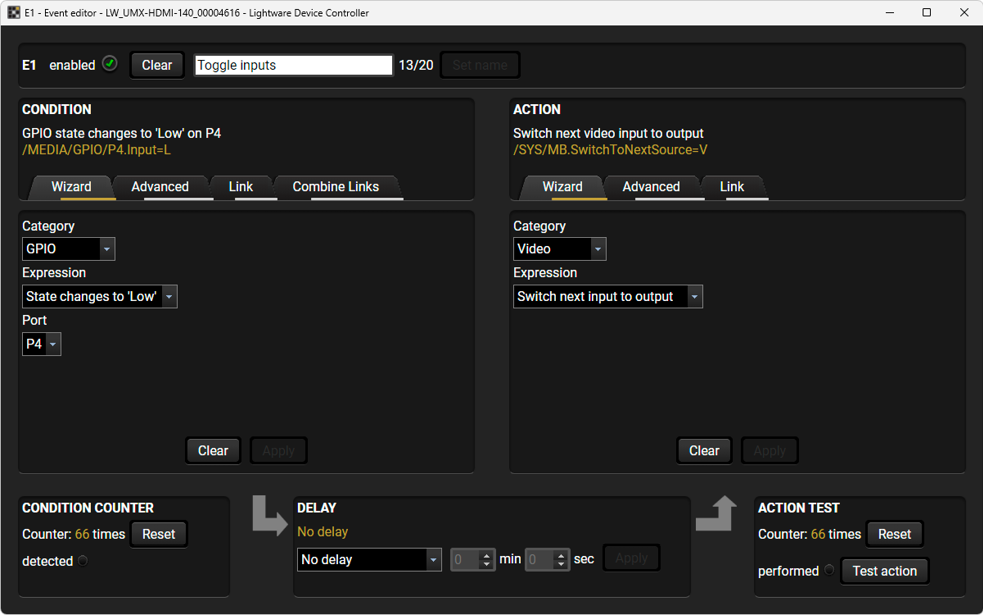
For more information about Event manager please refer to the User Manual of your Lightware device or open the Event Manager Application Notes.
Tables, drawings, guides, and technical details as follows:
INFO:Specifications are subject to change without notice.
General
|
Compliance |
CE, UKCA |
|
EMC (emission) |
EN 55032:2015+A1:2020 |
|
EMC (immunity) |
EN 55035:2017+A11:2020 |
|
RoHS |
EN 63000:2018 |
|
Electrical safety |
EN 62368-1:2020 |
|
Warranty |
3 years |
|
Operating temperature |
0° to +50˚C (+32° to +122˚F) |
|
Operating humidity |
10% to 90%, non-condensing |
|
Cooling |
Passive |
Control
|
Connector type |
8-pole Phoenix connector |
|
Number of configurable pins |
6 |
|
Number of buttons |
1 |
|
Number of LEDs |
1 |
|
Available LED colors |
Green, blue, red (one at a time) |
|
Power supply |
Over GPIO port (external PSU not needed) |
|
Cable length |
2.5 m (8 ft 2.4 inch) |
Dimensions
|
Enclosure material |
Anodized aluminum |
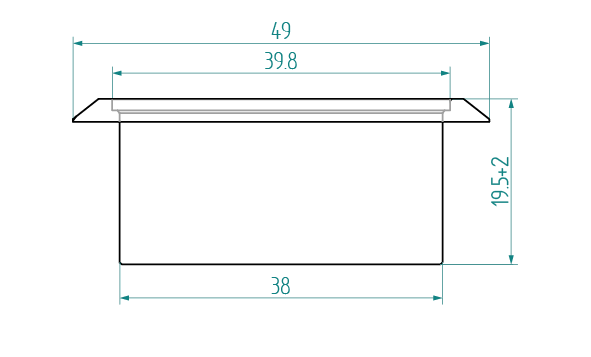
|
Dimensions in mm (without single frame) |
39.8 (diameter) x 19.5 (height) |
|
Dimensions in inch |
1.57 (diameter) x 0.77 (height) |
|
Dimensions in mm (with single frame) |
49 (diameter) x 19.5 (height) |
|
Dimensions in inch |
1.93 (diameter) x 0.77 (height) |
|
Weight (with cable) |
134 g (0.3 lb) |
4.3. Further Document Information
Symbol Legend
The following symbols and markings are used in the document:
WARNING!Safety-related information that is highly recommended to read and keep in every case!
ATTENTION!Useful information for performing a successful procedure; it is recommended to read.
DIFFERENCE:Feature or function that is available with a specific firmware/hardware version or product variant.
INFO:A notice, which contains additional information. Procedure can be successful without reading it.
DEFINITION:The short description of a feature or a function.
TIPS AND TRICKS:Ideas that you may have not known yet, but can be useful.
Navigation Buttons
|
Buttons in the PDF version |
Buttons in the HTML version |
|||
|
|
Navigate to the Table of Contents. |
|
Open the main Table of Contents. |
|
|
|
Go back to the previous page. If you clicked on a link previously, you can go back to the source page by pressing the button. |
|
Navigate to the Online User Manuals webpage. |
|
|
|
Navigate to the Bookmark page. |
|
Navigate to the Bookmark page in this User Manual. |
|
|
|
Visit www.lightware.com. |
|
Download the PDF version of the User Manual. |
|


About Printing
Lightware Visual Engineering supports green technologies and eco-friendly mentality. Thus, this document is made primarily for digital usage. If you need to print out a few pages for any reason, follow the recommended printing settings:
▪Page size: A4
▪Output size: Fit to page or Match page size
▪Orientation: Landscape
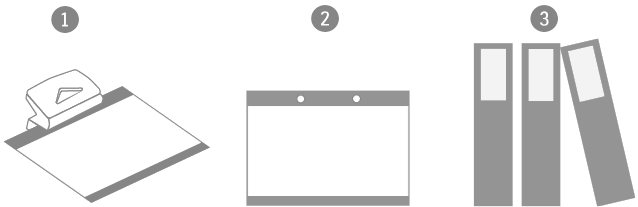
TIPS AND TRICKS: Thanks to the size of the original page, a border around the content (gray on the second picture below) makes it possible to organize the pages better. After punching holes in the printed pages, they can easily be placed into a ring folder.
4.4. Limited Warranty Statement
1. Lightware Visual Engineering PLC (Lightware) warrants to all trade and end user customers that any Lightware product purchased will be free from manufacturing defects in both material and workmanship for three (3) years from purchase unless stated otherwise below. The warranty period will begin on the latest possible date where proof of purchase/delivery can be provided by the customer. In the event that no proof can be provided (empty ‘Date of purchase’ field or a copy of invoice), the warranty period will begin from the point of delivery from Lightware.
1.1. 25G and MODEX product series will be subject to a seven (7) year warranty period under the same terms as outlined in this document.
1.2. If during the first three (3) months of purchase, the customer is unhappy with any aspect of a Lightware product, Lightware will accept a return for full credit.
1.3. Any product that fails in the first six (6) months of the warranty period will automatically be eligible for replacement and advanced replacement where available. Any replacements provided will be warranted for the remainder of the original unit’s warranty period.
1.4. Product failures from six (6) months to the end of the warranty period will either be repaired or replaced at the discretion of Lightware. If Lightware chooses to replace the product, then the replacement will be warranted for the remainder of the original unit’s warranty period.
2. The above-stated warranty and procedures will not apply to any product that has been:
2.1. Modified, repaired or altered by anyone other than a certified Lightware engineer unless expressly agreed beforehand.
2.2. Used in any application other than that for which it was intended.
2.3. Subjected to any mechanical or electrical abuse or accidental damage.
2.4. Any costs incurred for repair/replacement of goods that fall into the categories above (2.1., 2.2., 2.3.) will be borne by the customer at a pre-agreed figure.
3. All products to be returned to Lightware require a return material authorization number (RMA) prior to shipment, and this number must be clearly marked on the box. If an RMA number is not obtained or is not clearly marked on the box, Lightware will refuse the shipment.
3.1. The customer will be responsible for in-bound, and Lightware will be responsible for out-bound shipping costs.
3.2. Newly repaired or replaced products will be warranted to the end of the originally purchased product's warranty period.