
USER MANUAL
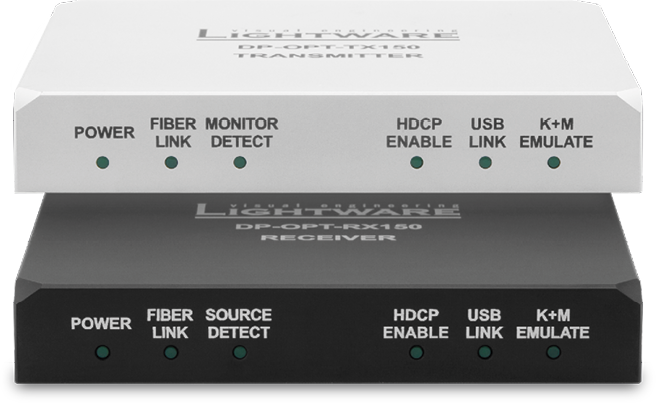
DP-OPT-RX150
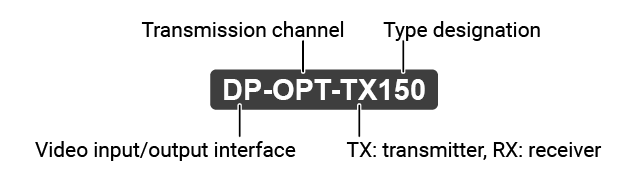
DP-OPT-TX150
Fiber Optical Multimedia Extender
|
|
|
|
||
|
|
|
|
||
|
|
|
|
||


|
|
|
|
||
|
|
||||


To disconnect the equipment safely from power, remove the power cord from the rear of the equipment or from the power source. The MAINS plug is used as the disconnect device, the disconnect device shall remain readily operable.
There are no user-serviceable parts inside of the unit. Removal of the cover will expose dangerous voltages. To avoid personal injury, do not remove the cover. Do not operate the unit without the cover installed.
The appliance must be safely connected to multimedia systems. Follow instructions described in this manual.
Ventilation
For the correct ventilation and to avoid overheating, ensure enough free space around the appliance. Do not cover the appliance, leave the ventilation holes free and never block or bypass the ventilators (if there are any).
WARNING
To prevent injury, the apparatus is recommended to be securely attach to the floor/wall, or mounted in accordance with the installation instructions. The apparatus shall not be exposed to dripping or splashing, and no objects filled with liquids, such as vases, shall be placed on the apparatus. No naked flame sources, such as lit candles, should be placed on the apparatus.
Waste Electrical & Electronic Equipment (WEEE)

This marking shown on the product or its literature indicates that it should not be disposed with other household wastes at the end of its working life. To prevent possible harm to the environment or human health from uncontrolled waste disposal, please separate this from other types of wastes and recycle it responsibly to promote the sustainable reuse of material resources. Household users should contact either the retailer where they purchased this product or their local government office for details of where and how they can take this item for environmentally safe recycling. Business users should contact their supplier and check the terms and conditions of the purchase contract. This product should not be mixed with other commercial wastes for disposal.
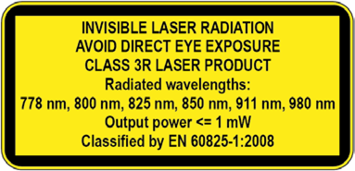
Caution: Laser product

Common Safety Symbols
|
Symbol |
Description |

|
Direct current |

|
Alternating current |

|
Protective conductor terminal |

|
Equipotential Connector |
.png)
|
On (Power) |
.png)
|
Off (Power) |

|
Double insulation |

|
Caution, possibility of eletric shock |

|
Caution |

|
Laser radiation |

|
Warning, Rotating fan |

|
Caution: for indoor use only |
Applied SW/FW/HW Environment
All presented functions refer to the indicated products. The descriptions have been made while testing these functions in accordance with the indicated Hardware/Firmware/Software environment:
|
Item |
Version |
|
FW package |
v1.1.13. |
|
Lightware Device Controller (LDC) version |
v2.20.0b3 |
|
Lightware Device Updater (LDU) version |
v1.5.3b4 |
Document Revision History
|
Rev. |
Release date |
Changes |
Editor |
|
1.0 |
2013-10-01 |
Initial release. |
Laszlo Zsedenyi |
|
... |
|||
|
v4 |
2026-01-13 |
New document template, minor corrections. |
Laszlo Zsedenyi |
|
v5 |
2026-08-31 |
ToC correction. |
Laszlo Zsedenyi |
Contact Us
+36 1 255 3800
+36 1 255 3810
Lightware Visual Engineering PLC.
Gizella 51-57, Budapest H-1143, Hungary
©2026 Lightware Visual Engineering. All rights reserved.
All trademarks mentioned are the property of their respective owners.
Specifications are subject to change without notice.
Thank you for choosing Lightware’s DisplayPort Fiber Optical extender devices. In the first chapter we would like to introduce the device, highlighting the most important features in the sections listed below:
DisplayPort is one of the newest video interface standards. Using DisplayPort, high resolution video and excellent quality audio can be transmitted. The interface’s 10.8 Gbps bandwidth is capable of transmitting 2560x1600@60Hz pixel resolution video with full support of content protection (HDCP). UHD and 4Kx2K resolution can be achieved up to 30Hz frame rate.
Intelligent HID Emulation is provided for two devices with full transparency. The special HID devices – including keyboard and mouse – are emulated by the extender and transparently transferred to the computer with the result that no extra drivers are required for the proper functionality, it’s as easy as Plug & Play. DP-OPT-TX150 has 2 extra local USB ports with a built-in HUB and can be connected to the PC/Mac with a single USB cable.
When connecting a DVI or HDMI display through an adaptor cable, Dual-mode DisplayPort graphic cards reconfigure their outputs to DVI or HDMI accordingly. Lightware DisplayPort extenders support Dual-mode port extension and adaptor cables.
Lightware’s DisplayPort extenders can be used with Thunderbolt sources and devices. The extender pair and the DisplayPort monitor have to be placed at the end of the Thunderbolt chain. Apple Thunderbolt Display is not supported.
Single Fiber Technology makes these units fully DisplayPort 1.1a and HDCP 1.1 compliant without the need of a second fiber cable or copper connections. To simplify cabling, the bidirectional communication - necessary for DisplayPort Link Training, HDCP handshaking and USB transfer - is performed on the same fiber core that transmits the video signal. Both receiver and transmitter are remotely configurable from either side through the mini USB connector.
About the Serial Number
Lightware devices contain a label indicating the unique serial number of the product. The structure is the following:
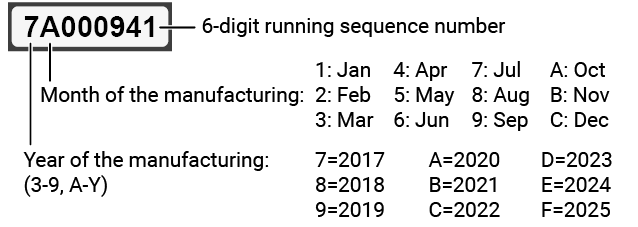
From 1st of October 2024, serial number format of Lightware devices is the following: the first two digits are of the year of manufacture, while the remaining digits make up the running sequence number.

|
Supplied accessories |
|||
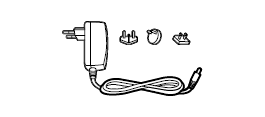
|
.png)
|
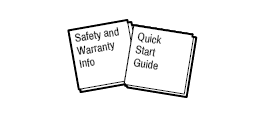
|
|
|
DC adaptor with interchangeable plug |
USB cable with mini-B and type-A connector (1 pc./extender pair) |
Safety & warranty info, Quick Start Guide |
|
|
DP-OPT-TX150 |
|
|
|
|
DP-OPT-RX150 |
|
|
|


The following items can be purchased optionally for the device. For the details, please contact sales@lightware.com.
|
Optional accessories |
||||
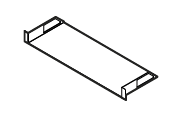
|
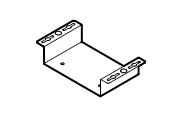
|
|
|
|
|
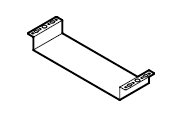
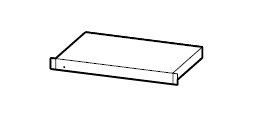
1U high rack shelf |
UD kit |
UD kit double |
PSU2x10-200-5V or PSU2x20-400-5V rack mountable power supply |
|
|
DP-OPT-TX150 |
|
|
|
|
|
DP-OPT-RX150 |
|
|
|
|

|
Supports Highest Resolutions |
|
Transmitting DisplayPort 1.1a video signals to up to 10.8 Gbps bandwidth, e.g. 2560x1600 pixels at 60 Hz or 4096x2400 pixels at 30 Hz. |
|

|
One Multimedia Fiber Cable |
|
DisplayPort signal is transmitted using only one multimode 50/125 fiber optical cable with SC connector. |
|

|
No Signal Latency With Zero Frame Delay |
|
The signal management architecture ensures that there is no delay added between the input and the output. |
|
|
Dual-mode DisplayPort |
|
DVI or HDMI display device can be connected to DP-OPT-RX150 through a passive adaptor, thus forcing the source to send DVI/HDMI signal. |
|
|
|
HDCP Enable/Disable |
|
When the extenders are in HDMI mode, HDCP can be enabled or disabled to prevent unnecessary encryption to ensure compatibility. |
|

|
USB KVM Extension |
|
The source computer can be controlled remotely by USB HID devices (e.g. mouse, keyboard) connected to DP-OPT-RX150, as their signal is transmitted through the fiber cable. |
|

|
USB 2.0 HUB |
|
DP-OPT-TX150 connected to a computer via USB can be used as a local USB HUB with two USB 2.0 ports. |
|

|
Thunderbolt |
|
Sources with Thunderbolt ports are also supported – just connect a miniDP-DP cable between the source and DP-OPT-TX150. |
|
|
Front Panel LEDs |
|
Immediate feedback about the status of connected DP source and monitor. Fiber link-, USB- and HDCP-status are also shown on the front panel. |
|

|
USB Control |
|
USB management, information about connected devices and firmware update can be accessed with Lightware software via USB connection. |
|

|
Universal Power Adaptor |
|
Equipped with a universal +5V DC power adaptor, which accepts AC voltages from 100 to 240 Volts with 50 or 60 Hz line frequency. |
|

|
Kensington Security Slot® Support |
|
The security slot can be found on the side of the units for theft protection. |

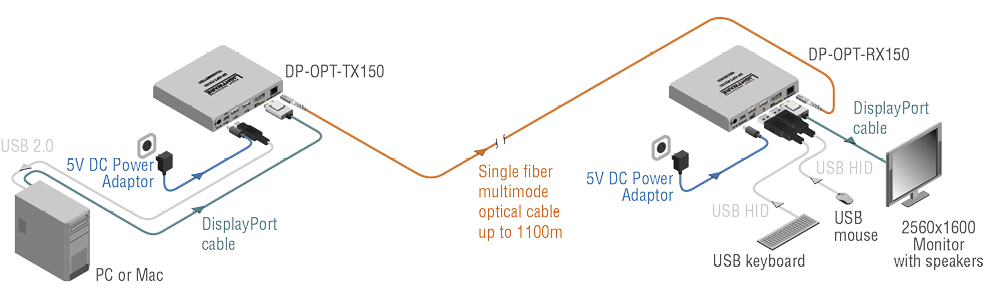
Stand-alone Diagram with a High-resolution DP monitor
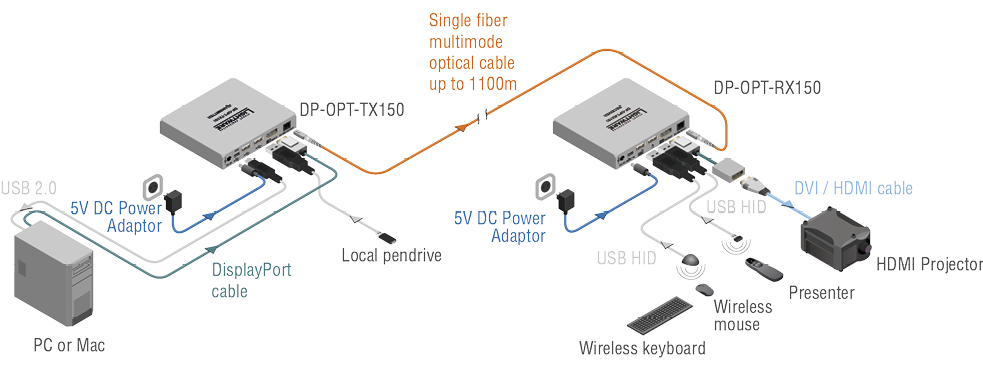
Stand-alone Diagram with an HDMI Projector
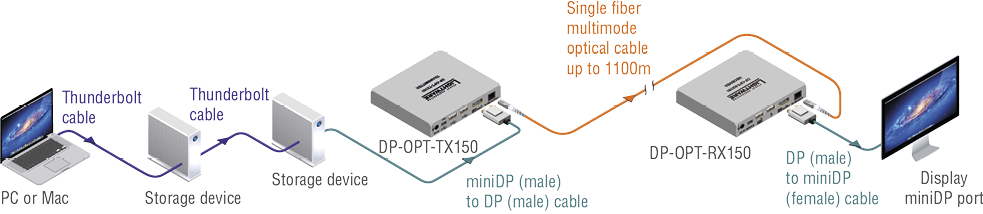
Daisy-chained Thunderbolt Devices and a LED Cinema Display
The following sections are about the physical structure of the device, input/output ports and connectors:
Front View
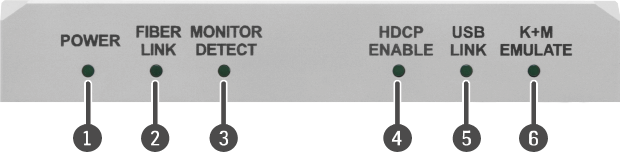
|
|
Power LED |
ON: the unit is powered on. BLINKING: an error has occurred and the device is out of normal operation, or it is in bootload mode (during firmware update) |
|
|
Fiber Link LED |
ON: the link is active between the extenders and ready to use. BLINKING: there is no connection between the extenders. |
|
|
Monitor LED |
ON: a sink device is connected to the output port of the receiver. |
|
|
HDCP LED |
ON: DP signal transmission is in progress or HDCP encryption is enabled during DVI/HDMI transmission. OFF: a DVI or HDMI display is connected to the receiver (via an adaptor cable) and HDCP is disabled (thus, the source is forced to send non-encrypted stream). For more information about the HDCP setting, see the HDCP Setting section. |
|
|
USB Link LED |
ON: HID extension is active. BLINKING: the USB channel is ready to use, but HID extension is not active (e.g. there is no USB HID device connected to the receiver or the computer is powered off). OFF: the USB channel between the extenders is not ready. |
|
|
K+M Emulate LED |
OFF: the transmitter is in transparent USB mode (default). BLINKING: the transmitter is in configuration USB mode; see the USB Modes section for more information |


Rear View
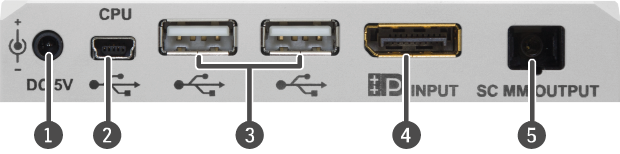
|
|
DC connector |
Connect the output of the supplied +5 V power adaptor. Lightware’s rack mountable power supply can also be used (PSUx10-200 or PSUx20-400). |
|
|
USB mini-B connector |
USB mini-B type connector. Connect to the computer if USB HUB or USB KVM (HID) features are used. Control functions (with Lightware Device Controller) and firmware update are also performed through this connector. |
|
|
Local USB-A ports |
The transmitter has a built-in USB HUB. These local USB 2.0 ports can be used as extra USB ports connected to your computer but without extension. |
|
|
DisplayPort input |
DisplayPort 1.1a input connector. The applied cable shall not be more than 2 m. See the Introduction section for more information about the connector. |
|
|
SC Fiber connector |
SC fiber optical output connector. Connect to the receiver by a multimode fiber cable. |
Front View
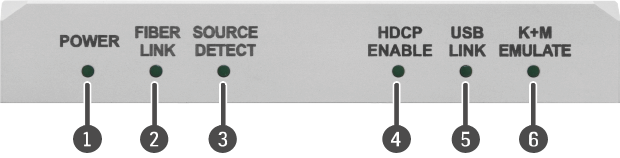
|
|
Power LED |
ON: the unit is powered on. BLINKING: an error has occurred and the device is out of normal operation, or it is in bootload mode (during firmware update) |
|
|
Fiber Link LED |
ON: the link is active between the extenders and ready to use. BLINKING: there is no connection between the extenders. |
|
|
Source Detect LED |
ON: a powered DP source is connected to the transmitter. BLINKING: an HDMI adaptor cable is connected to the receiver to indicate HDMI mode operation. |
|
|
HDCP LED |
ON: DP signal transmission is in progress or HDCP encryption is enabled during DVI/HDMI transmission. OFF: a DVI or HDMI display is connected to the receiver (via an adaptor cable) and HDCP is disabled (thus, the source is forced to send non-encrypted stream). For more information about the HDCP setting, see the HDCP Setting section. |
|
|
USB Link LED |
ON: HID extension is active. BLINKING: the USB channel is ready to use, but HID extension is not active (e.g. there is no USB HID device connected to the receiver or the computer is powered off). OFF: the USB channel between the extenders is not ready. |
|
|
K+M Emulate LED |
OFF: the transmitter is in transparent USB mode (default). BLINKING: the transmitter is in configuration USB mode; see the USB Modes section for more information |
Rear View
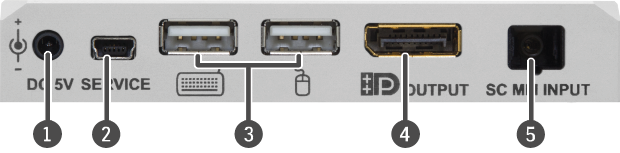
|
|
DC connector |
Connect the output of the supplied +5 V power adaptor. Lightware’s rack mountable power supply can also be used (PSU2x10-200 or PSU2x20-400). |
|
|
USB mini-B connector |
USB mini-B type connector for control functions (with Lightware Device Controller) and firmware update. |
|
|
USB-A ports |
Ports for USB HID (Human Interface Device, e.g. mouse, keyboard, or presenter) and USB HUB devices (e.g. keyboard with built-in USB HUB). Only HID devices are extended to the source computer. (The symbols are just recommendations; a mouse can be plugged into the port indicated with a keyboard-symbol and vice versa.) |
|
|
DisplayPort output |
DisplayPort 1.1a output connector for display devices with a DisplayPort connector. The applied DP-DP cable shall not be more than 2 m. DP adapters with DVI or HDMI connector are also supported. See the Introduction section for more information about the connector. |
|
|
SC Fiber connector |
SC fiber optical input connector. Connect to the transmitter by a single multimode fiber cable. |

The chapter is about the installation of the device and connecting to other appliances, presenting also the mounting options.
WARNING!For the correct ventilation and to avoid overheating, ensure enough free space around the appliance and do not cover it.
INFO:In order to get the necessary mounting accessory, please contact sales@lightware.com.
INFO:More details about the accessories and the mounting can be found in the Mounting Assembly Guide (https://go.lightware.com/mounting-assembly-guide).
The 1U high rack shelf provides mounting holes for fastening four DP-OPT_150 extenders and put them into a standard rack cabinet (width of the Rack shelf is 448 mm – without the ears). Fix the device to the Rack shelf as shown in the figure:
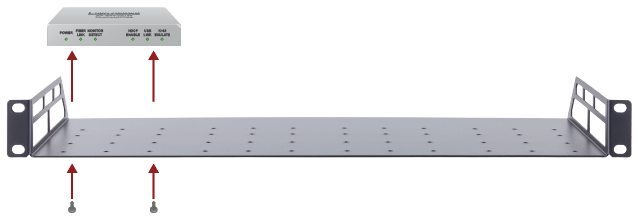
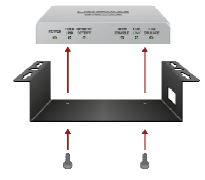
Mounting with UD-kit (Under desk)
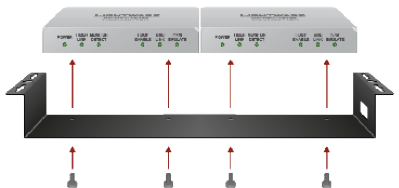
Mounting with UD-kit Double (Under Desk Double)
3.2.1. Fiber Optical Connector

The extenders are assembled with standard SC receptacles.
3.2.2. DP Input and Output Ports

DP-OPT-TX150 and DP-OPT-RX150 provides DisplayPort connectors with Dual-mode support. When a passive adapter is connected to the receiver, the source device is forced to switch to DVI/HDMI mode.


Standard USB connectors are built in the extenders supporting different features, but the pinout of the connectors is the same.
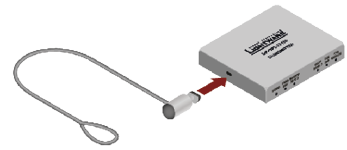
A Kensington-compatible security slot can be found on the side of the units for theft protection. (Security cable is not supplied with the extenders.)
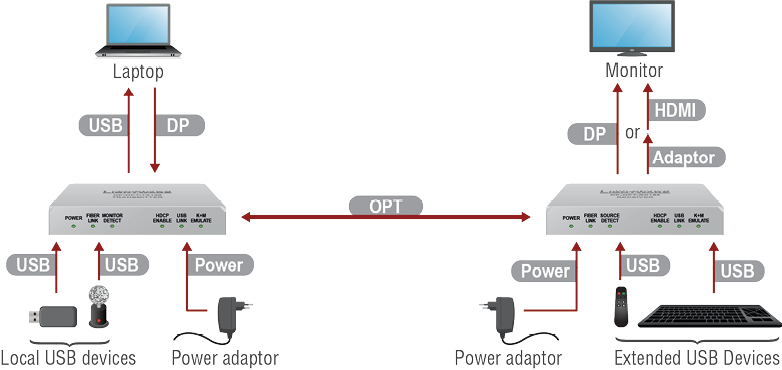

|
Connect the desired source to the DP input port of the transmitter. |

|
Connect the supplied USB cable between the transmitter and a computer to extend USB HID devices, to connect local USB devices, and/or to control the extenders by LDC. |
|
|
Connect the desired local USB devices to the Transmitter and USB HID devices to the Receiver for USB KVM extension. |
|
|
Connect a DP sink device to the Receiver by a DP cable or an HDMI sink device by an HDMI cable and a DP/HDMI adaptor cable. |

|
Connect a multimode fiber optical cable between the transmitter and the receiver. |

|
Connect the power adaptor to the DC input on the receiver first, then to the AC power socket, or use Lightware's rack-mountable Power Supply Units. |


ATTENTION!When building an electronic system, make sure that all of the devices are powered down before connecting them. Powered on devices may have dangerous voltage levels, which can damage sensitive electronic circuits.
After the system is complete, connect the DC power cable to the extender unit and then to the power outlet. The unit is immediately powered ON.
After the extender units are initialized, the attached DP source and monitor can be powered on.
ATTENTION!If the power LED does not light up upon power-up, the unit is most likely damaged and further use is not advised. Please contact support@lightware.com.
INFO:The laser becomes enabled any time the transmitter is powered on. This is done to avoid accidental laser loss problems.
DP-OPT-RX150 handles USB HID devices (Human Interface Device), which are input devices like the mouse, keyboard, presenter, pointing device, etc. Even though USB HUBs are supported (like those keyboards, monitors that have built-in USB HUB), only two devices are available for extension at the same time.
When the transmitter is connected to the computer by the USB cable, it can be used as a local USB 2.0 HUB. To build the USB connection, do the following steps:
Step 1.Connect the supplied USB cable to the transmitter’s mini USB connector.
Step 2.Connect the other end of the USB cable into an empty USB slot on the computer.
Step 3.Connect the HID device(s) to the receiver.
INFO:If the previously used USB devices are connected through the extenders to the computer, they may be handled as new hardware by the operating system the first time.
Two channels are used for the USB communication between the extenders. Channel A1 is always transparent and one USB HID device is always operable. The other channel’s state can be set, which determines the current USB mode.
Transparent USB Mode
Both channels are available for USB HID devices connected to the receiver. The default setting is the transparent USB mode, which means both USB HID devices connected to the receiver are transparently transmitted to the source computer.
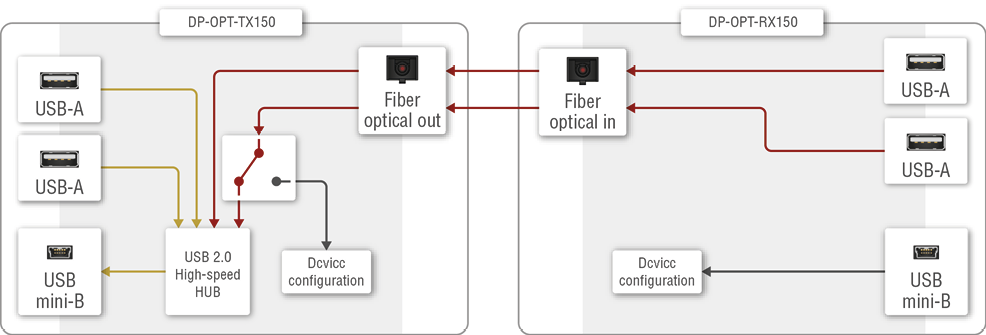
USB channels in Transparent mode
Configuration USB Mode
Configuration USB mode is an option where the USB settings of the extenders can be configured by using the Lightware Device Controller. One channel (A1) is available for a USB HID device, the other channel (A2) is reserved for communication.
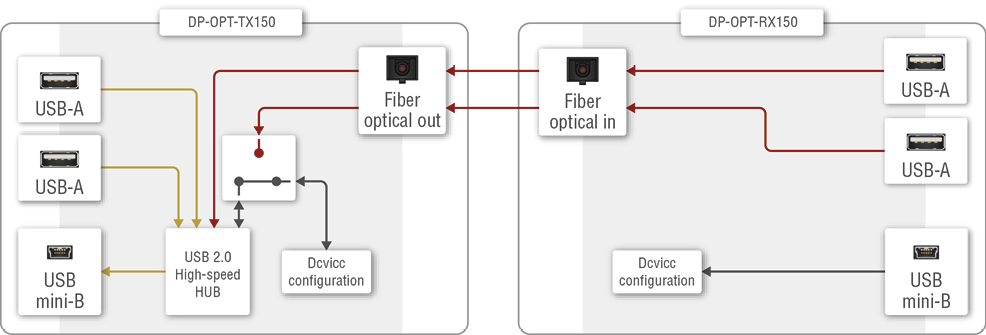
USB channels in Configuration mode
INFO:The USB mode has an effect only on the state of the transmitter. Receiver is always in configuration mode. Setting the USB mode on the receiver affects only the transmitter.
The USB mode can be changed in the transmitter or in the receiver, but in the latter case make sure that the extenders are linked by the fiber cables.
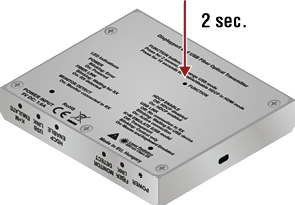
ATTENTION!If the USB mode is changed in the receiver when the extenders are not connected by fiber cable, the setting is stored in the receiver and the USB mode will be changed after reconnecting.
Step 1.Power ON the extender(s) and locate the hidden function button on the bottom side.
Step 2.Press and keep pressing the button with a thin tool (e.g. paper clip) for about two seconds. Release the button before not more than five seconds.
Step 3.The current USB mode is visible on the front panel.
ATTENTION!When the configuration mode is active, only one USB HID device can be used: the one that was connected to the receiver first.
INFO:The default setting (transparent mode) is restored when the device is powered on.
When a non-HDCP compatible sink is connected to the receiver, the source can be forced to output non-encrypted signal if the content is not protected. For more information about the HDCP management, see the HDCP Management section.
HDCP is enabled as a default setting, but can be changed as follows:
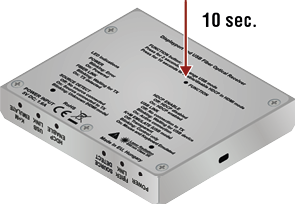
Step 1.Locate the hidden function button on the bottom side of the extender (either on TX150 or RX150).
Step 2.Press and keep pressing the hidden function button with a thin tool (e.g. paper clip) for at least 10 seconds (pressing the button for a shorter period changes the USB mode instead). If the extenders are in HDMI mode, the ‘HDCP enable’ LED status is changed before releasing the button.
ATTENTION!The HDCP setting can be changed in DP mode, but in this case the ‘HDCP enable’ LED will not show the change. The setting will be effective only after switching to HDMI mode. In DP mode HDCP is always enabled.
INFO:The HDCP setting is available in both extenders.
The extenders work in two modes according to the connected display device:
DisplayPort Mode (DP-DP cable)
When the DP output port of the transmitter is connected to the DP input port of the display device, the extenders are in DP mode. In this case the source sends DP signal.
Display is Connected by a DVI/HDMI Passive Adaptor
When the DP output port of the transmitter is connected to the DVI/HDMI port of the display device through a passive adaptor, the extenders and the source are in HDMI mode. In this case the source sends DVI/HDMI signal. See more information about the Dual mode in the HDCP Setting section.
4. Software Control - Lightware Device Contoller
The extenders can be controlled by a computer through the USB port using Lightware Device Controller (LDC). The software can be installed on a Windows PC or macOS. The application can be downloaded from www.lightware.com. The Windows and the macOS versions have the same look and functionality.
INFO:After the installation, the Windows and the macOS applications have the same look and functionality. This type of the installer is equal to the Normal install in case of Windows and results in an updateable version with the same attributes.
Minimum System Requirement
RAM: 1 GB
Minimum display resolution: 1280x720
Installation for Windows OS
Run the installer. If the User Account Control drops a pop-up message, click Yes.
During the installation you will be prompted to select the type of the installation: normal and the snapshot install:
|
Normal install |
Snapshot install |
|
Available for Windows and macOS |
Available for Windows |
|
The installer can update only this instance |
Cannot be updated |
|
Only one updateable instance can exist for all users |
More than one different version can be installed for all users |
Comparison of installation types
ATTENTION!Using the Normal install as the default choice is highly recommended.
Installation for macOS
Mount the DMG file by double clicking on it, and drag the LDC icon over the Applications icon to copy the program into the Applications folder. If you want to copy the LDC into another location, just drag the icon over the desired folder.
ATTENTION!Please check the firewall settings on the macOS device. LDC needs to be added to the exeptions of the blocked software for the proper operation.
Updating of LDC
Step 1.Run the application.
The Device Discovery window appears automatically, and the program checks the available updates on Lightware’s website and opens the update window if LDC updates are found.
The current and the update version number can be seen at the top of the window and they are shown in this window even with the snapshot install.

The Update window can also be opened by clicking on the About icon and the Update button.
Step 2.Set the desired update setting in the Options section.
▪If you do not want to check for the updates automatically, uncheck the circle that contains the green tick.
▪If you want to postpone the update, a reminder can be set with different delays from the drop down list.
▪If the proxy settings traverse the update process, set the proper values, then click on the OK button.
Step 3.Click the Download update button to start the updating.
The updates can be checked manually by clicking the Check now button.
4.2. Connecting to a Device (Device Discovery Window)
There are three tabs for the different types of interfaces: Ethernet, Serial, and USB. Select the USB tab to connect to the desired extender.
Establishing the Connection
Double click on the device or select it and click on the green Connect button. Please note that if you connect to the Transmitter directly, it must be in Configuration mode.
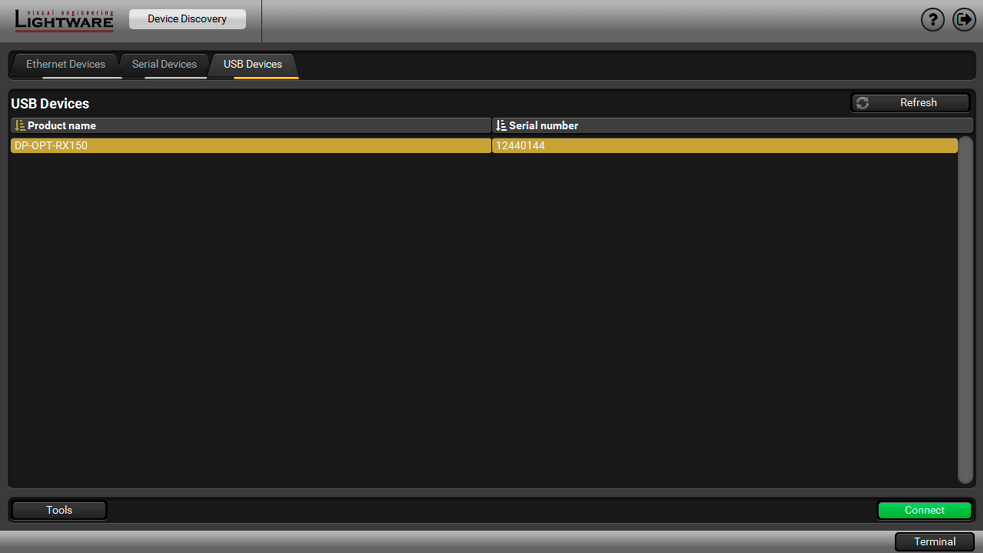
The Device Discovery window
The Control menu shows basic information about the extender(s) in three panels. The Connected text is displayed in the extender’s title that is directly connected to the computer.
|
Parameter |
State and Description |
|---|---|
|
Fiber link |
Connected: Transmitter and Receiver are linked Disconnected: no fiber connection |
|
DP link speed and channels |
According to the incoming signal (only in DP mode) |
|
Video mode |
DisplayPort HDMI: passive adaptor is connected to the receiver |
|
Video source state |
ON: source is present in DP mode Not connected: source is not connected n/a: no information about the signal (HDMI mode) |
|
Monitor state |
ON: DP or HDMI display OFF: display device is not connected |
|
HDCP enable |
checked: HDCP enabled unchecked: HDCP disabled |
Basic information is displayed about the extenders and the video signal. If the extenders are linked by fiber cable, they can read information about each other and the display.
INFO:Source can be forced to send unencrypted signal (if the content allows) by unchecking the HDCP enable setting.
INFO:HDCP enable setting can be changed in DP and HDMI mode as well, but has an effect only when a DVI/HDMI adaptor is connected. When HDCP is changed in DP mode, the setting is stored and will be applied when an adaptor is connected.
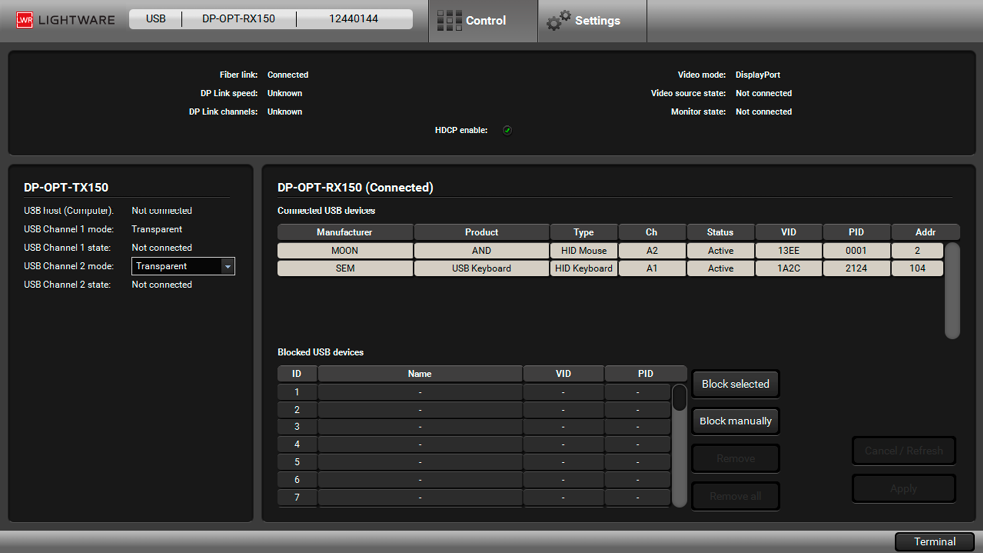
The Control menu
Two channels are used for the USB communication, which can be set as described in the USB Modes section. Channel 1 is always transparent, Channel 2 can be set to transparent or configuration mode.
|
Parameter |
State and Description |
|---|---|
|
USB host (computer) |
Connected |
|
USB Channel 1 mode |
Transparent (always) |
|
USB Channel 1 state |
Active Not connected (it depends on the HID devices) |
|
USB Channel 2 mode |
Configuration Transparent |
|
USB Channel 2 status |
Active |
ATTENTION!USB Channel 2 mode can be changed through a drop-down menu. When switched to transparent mode, the extender is disconnected from the LDC immediately.
The panel consists of the lists that are showing connected and blocked USB devices.
Connected USB Devices
The listed devices are connected to the receiver’s USB ports.

Parameters
|
Parameter |
State and Description |
|---|---|
|
Manufacturer, Product, Type |
As coded in the USB device. |
|
CH (Channel) |
Channel A1 and A2 are used for USB communication. A1 is always transparent, A2 can be switched. The USB device on Channel A1 is the one that was connected to the receiver the earliest. |
|
Status |
Active: the device is ready to use in transparent mode. Supported: the device is supported, but not active (no channel is available for extension). Unsupported: the device is not USB HID (e.g. pen drive). |
|
VID, PID |
Vendor ID and Product ID as coded in the USB device. |
|
Address |
See the following section. |
The Address of the Device


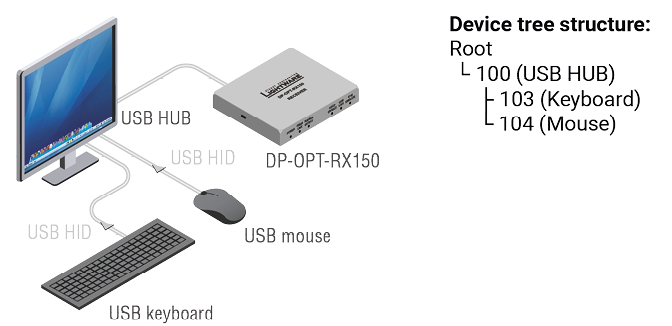
Address of the device plugged in = 1 and the device plugged in = 2. Since a USB HUB can be connected to the receiver, the addresses are determined as follows:

▪Address of the USB HUB: 100 (not visible)
▪Address of the USB device connected to the first port of the USB HUB: 104
The example above shows a mouse that is connected to the USB port (Ch A1, Addr 2). The other device is a keyboard, which is connected via an USB HUB – that is why its address is not 1 but 101. Since the extenders are in configuration mode, only one device can be used: the one on channel A1 (the mouse).
Even though USB HUBs are supported by the receiver, only two devices are active at the same time in transparent mode: the devices that are closest to the root address. If an active device is disconnected, the next valid device (that is the closest to the root) will be active.
INFO:Channel A1 and A2 are assigned to the devices automatically when a new device is connected.
Port Numbers
The port numbers of the USB HUB determines the priority of the devices. When more devices are connected to an USB HUB, the USB port number determines the priority of the connected devices: the lower the number, the higher the priority. This priority has an effect when the channels are assigned to the devices.
Blocked USB Devices
The USB blocking feature allows you to activate the desired devices when more than two USB HID devices are connected to the receiver (two channels are available for USB extension). A typical example is shown in the Example 3: Connecting three USB HID devices and a HUB section.
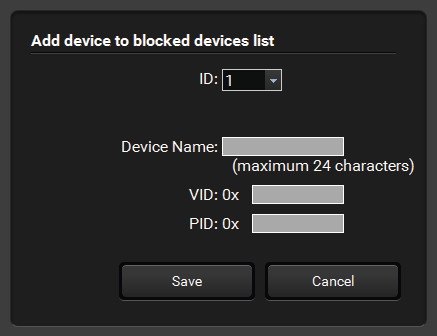
Blocking a Device
Step 1.Click on the Block manually button, or select a device from the Connected USB devices list and click on Block selected button.
Step 2.Check the fields in the appearing window (Device name, Vendor ID, Product ID) and click on the Save button. The ID is the number of the blocked device in the list.
Step 3.Click on the Apply button in the bottom of the window to save changes. The desired device is added to the Blocked USB devices list and next time when you connect it to the receiver, its status will be displayed as Blocked.
Removing blocked devices
Step 1.Select the device from the Blocked USB devices list.
Step 2.Click on the Remove button.
Step 3.Click on the Apply button on the bottom of the screen to save changes.
INFO:The Remove all button will empty the list of blocked devices.
4.4. Real-life examples (USB devices and modes)
The background of the USB modes, connected USB devices, displayed information can be understood easier by presenting examples.
Example 1: Connecting Two USB HID Devices
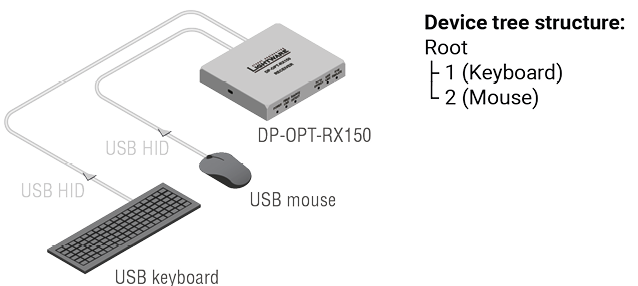
Shown in the LDC:

In a simple case a keyboard and a mouse are connected to the receiver.
In Transparent mode both devices are operable.
In Configuration mode only one of them is available (as seen on the screenshot), the keyboard on channel A1. The second row (the mouse) is blinking, showing that the device is not available.
Example 2: Connecting Two USB HID Devices via an USB HUB
Shown in LDC:

This case is similar to the first, but now the mouse and the keyboard are connected to a local USB HUB. The HUB (with 4 available USB ports) is built into the monitor and connected to the receiver (the address of the HUB is 200). The keyboard is connected to the 2nd port (Addr. 202) and the mouse is connected to the 4th port of the HUB (Addr. 204).
In Transparent mode both devices are operable.
In Configuration mode only one USB HID device is available (as seen on the screenshot), the keyboard on channel A1. The second row (the mouse) is blinking, showing that the device is out of operation currently due to the USB mode.
Example 3: Connecting three USB HID devices and a HUB
Shown in LDC:

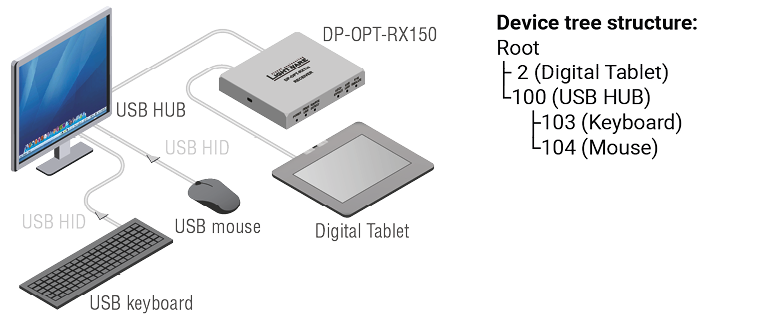
On the third example three USB devices can be seen. A mouse and a keyboard are connected to the USB HUB that is connected to one of the receiver’s USB ports. A presenter device is connected to the other USB port (the presenter is listed as “Keyboard”).
In Transparent mode two devices are operable: the presenter (on channel A1) and the keyboard (on channel A2). The presenter was connected to the receiver the earliest, that is why channel A1 is assigned to the presenter. The address number of the keyboard is lower than the mouse, that is why channel A2 is assigned to the keyboard. If you want to use the mouse, you have to block the presenter or the keyboard (the other option is to disconnect one of them).
In Configuration mode only one device is operable: the presenter on channel A1. The second row (the keyboard) is blinking, showing the device is not available due to the USB mode.
INFO:Channel A1 and A2 are assigned to the devices automatically when a new device is connected; they cannot be changed manually.
INFO:The port numbers of the USB HUB determine the priority of the devices. When more devices are connected to a USB HUB, the USB port number determines the priority of the connected devices: the lower the number, the higher the priority. This priority has an effect when the channels are assigned to the devices.
Example 4: Using an Apple LED cinema display
Shown in LDC:
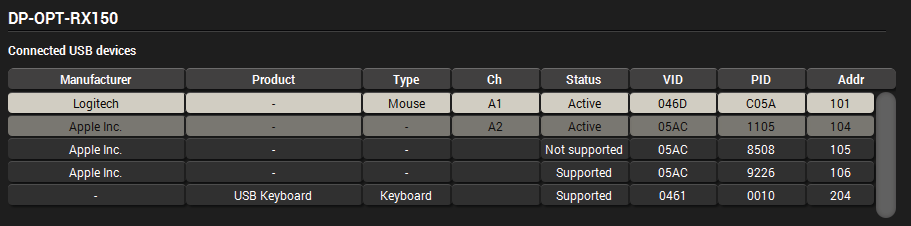
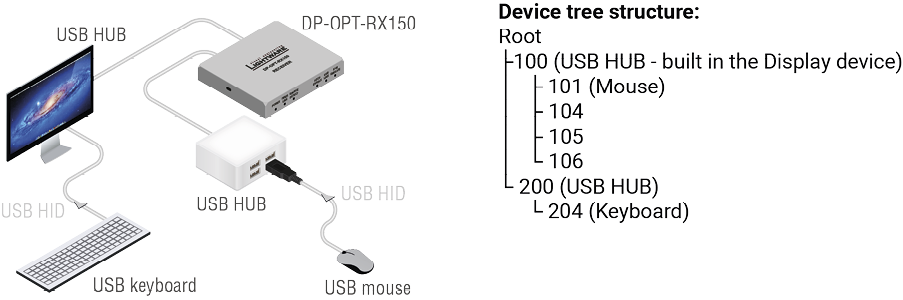
The last example shows a special layout, where an Apple LED cinema display (with built-in USB HUB), a mouse, a keyboard and another simple USB HUB are installed. The layout could cause headache, since the display contains three components which report themselves as HID devices. The result is that the keyboard’s address is lower than the components in the display device and the keyboard will be operable neither in configuration-, nor in transparent mode.
The solution in this case is to block the unnecessary devices, shown in the 2nd and 4th rows. (The device in the 3rd row is not supported, it is not necessary to block.) Block the two devices:
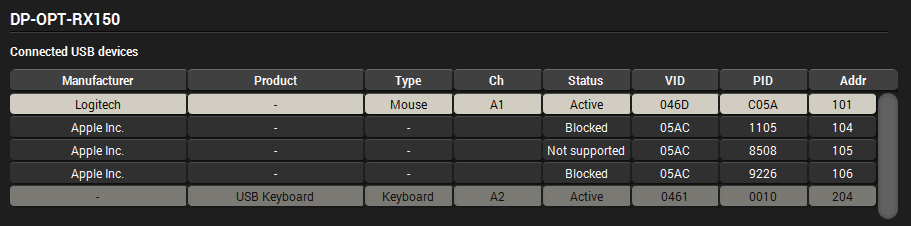
This way in Transparent mode the mouse and the keyboard will be operable.
In Configuration mode only the mouse is available, that is why the last row is blinking.
The general purpose of this serial terminal is intended mainly for testing and debugging purposes. Nevertheless, when the window is open, the automatically executed commands can be followed on the screen.
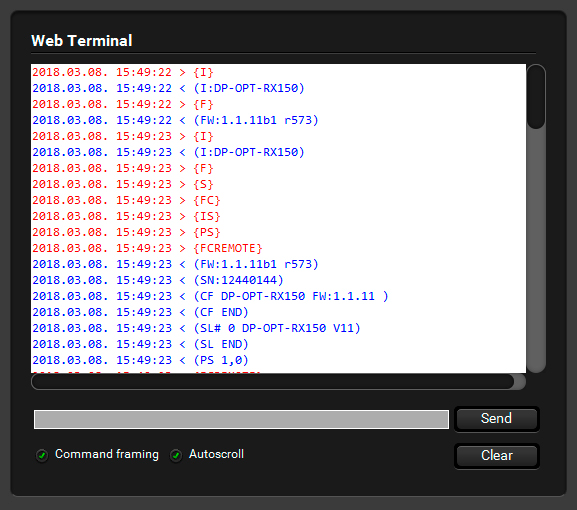
Terminal window
Basic information about the extender, such as type, serial number, firmware and hardware revisions are displayed on this tab.
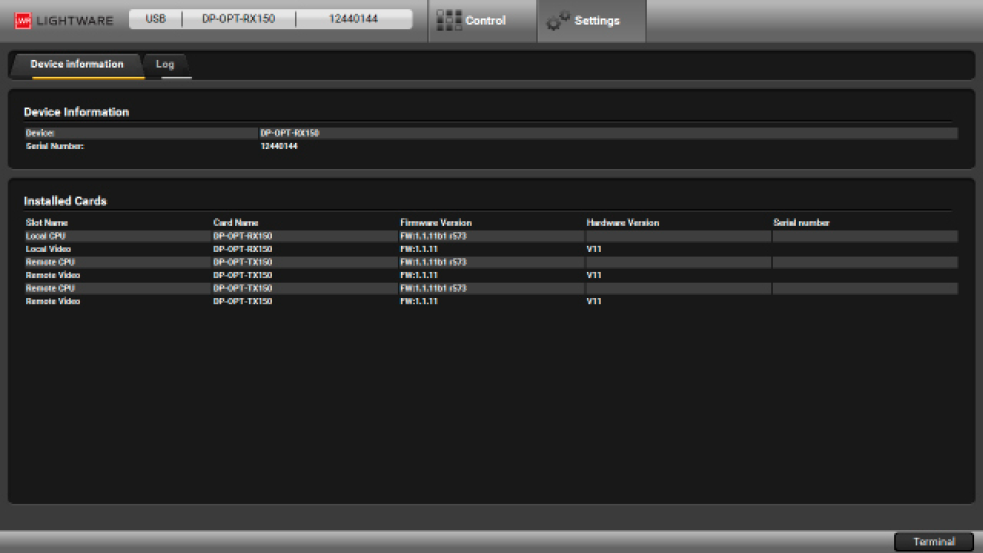
The Device Information tab
Generate Report
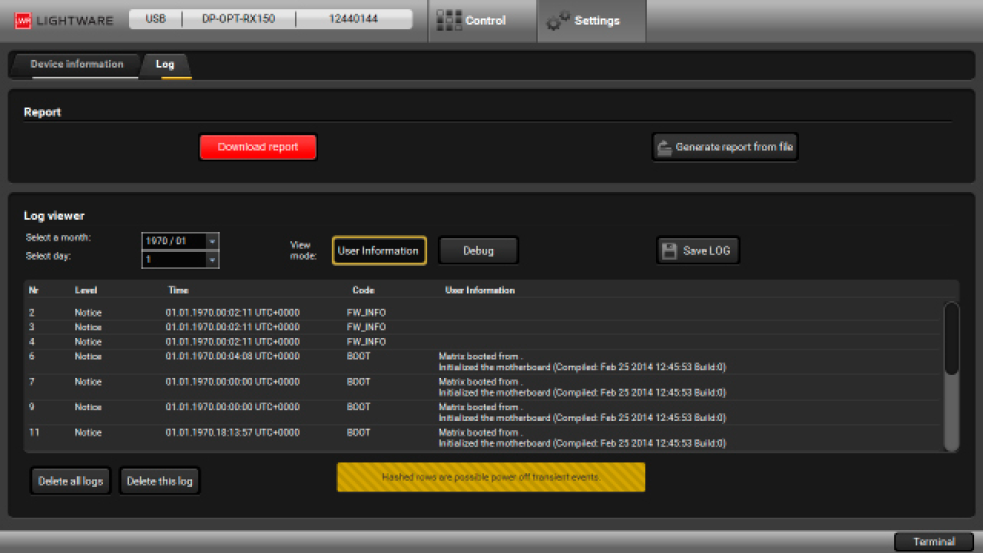
The Log tab
LDC is able to collect information from the extender and save it to a report file. This information package can be sent to the Lightware support team when a problem may arise with the extender.
ATTENTION!When a report is necessary to be generated, always leave devices (source, sink) connected to the extenders, do not disconnect them. Lightware Device Controller will collect information about the USB devices and about their status.
Step 1.Press the big red Download report labeled button on the Log tab in Settings menu.
Step 2.LDC collects the needed information in a minute.
Step 3.When the process is finished, the Save as dialog box appears. Select the place where you want to save the report file. The default file name can be changed.
The report contains the following information:
▪Current command protocol
▪The equipment type and serial number
▪Firmware version of the controller
▪Installed I/O board type and version
Generating a Custom Report File
INFO:This function is only for special troubleshooting cases.
Device Controller is able to send a custom command file to the extender. The command file can be generated by Lightware support. This is needed when some special commands need to be used for configuring or troubleshooting.
The extenders can be updated using the Lightware Device Updater (LDU) software via the USB port. The application and the User manual can be downloaded from www.lightware.com. In order to get the firmware pack with the necessary components (*.lfp file) for your specific product, please contact support@lightware.com.
ATTENTION!While the firmware is being updated, the normal operation mode is suspended, as the receiver is switched to bootload mode. Signal processing is not performed. Do not interrupt the firmware update. If any problem occurs, reboot the receiver and restart the process.
5.1. About the Firmware Package (LFP File)
The firmware files are packed in an LFP package. You need only this file to do the update on your device.
▪The package contains all the necessary components, binary, and other files; You do not have to get further files.
▪There is a descriptor file in the package that contains each firmware with version number and a list showing the compatible devices. The descriptor is displayed after loading the LFP file in the LDU.
Step 1.Get the firmware pack and the Lightware Device Updater (LDU) application.
Step 2.Install the LDU application.
Step 3.Establish the connection between the computer and the device(s).
Step 4.Start the LDU and follow the instructions shown on the screen.
Installation for Windows OS

INFO:The application can be installed under Windows XP or above.
Run the installer. If the User Account Control drops a pop-up message, click Yes. During the installation you will be prompted to select the type of the installation:
|
Normal install |
Snapshot install |
|
Available for Windows and macOS |
Available for Windows |
|
The installer can update only this instance |
Cannot be updated |
|
Only one updateable instance can exist for all users |
More than one different version can be installed for each user |
Comparison of install types
ATTENTION!Using the Normal install as the default value is highly recommended.
Installation for macOS

INFO:After the installation the Windows and the macOS applications have the same look and functionality. This type of the installer is equal to the Normal install in case of Windows and results in an updateable version with the same attributes.
Mount the DMG file by double clicking on it, and drag the LDU icon over the Applications icon to copy the program into the Applications folder. If you want to copy the LDU into another location, just drag the icon over the desired folder.
LDU Update

Step 1.Run the application. In the welcome screen click on the button in the top right corner; the About window will appear. Click on the Check now button. The program checks the available updates on the Lightware website and shows its version.
Step 2.Set the desired update settings in the Options section.
▪If you do not want to check for the updates automatically, uncheck the circle that contains the green tick.
▪If you want to postpone the update, a reminder can be set with different delays from the drop down list.
▪If the proxy settings traverse the update process, set the proper values then click the OK button.
Step 3.Press the Update button to download the new version; the installer will start.
5.4.1. Establish the Connection
Make sure that the computer and the device are connected via USB. If you connect a Transmitter, it must be in Configuration mode.
5.4.2. Start the LDU and Follow the Instructions
After launching LDU, the welcome screen will appear. Pressing the  button, a list will appear, showing the supported devices. Click on the Extender button on the main screen.
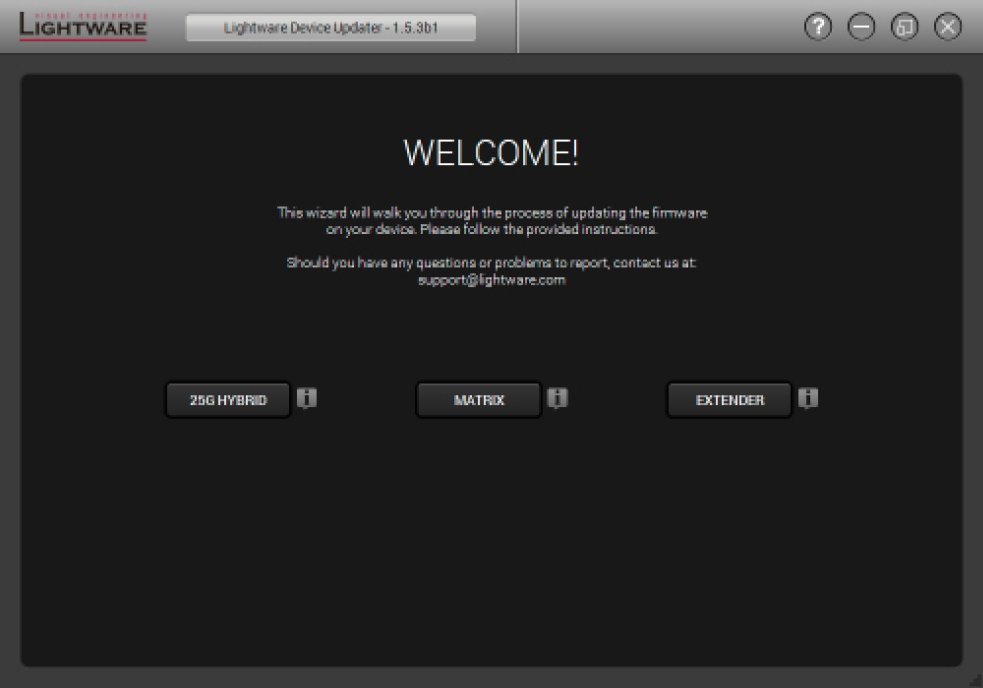
Welcome screen
Step 1.Select the Package.
Click on the Browse button and select the .lfp file that will be used for the update.
Package information is displayed:
▪General version info, creation date, short description,
▪Devices that are compatible with the firmware,
▪Components in the package with release notes.
Click on the Next button and follow the instructions.
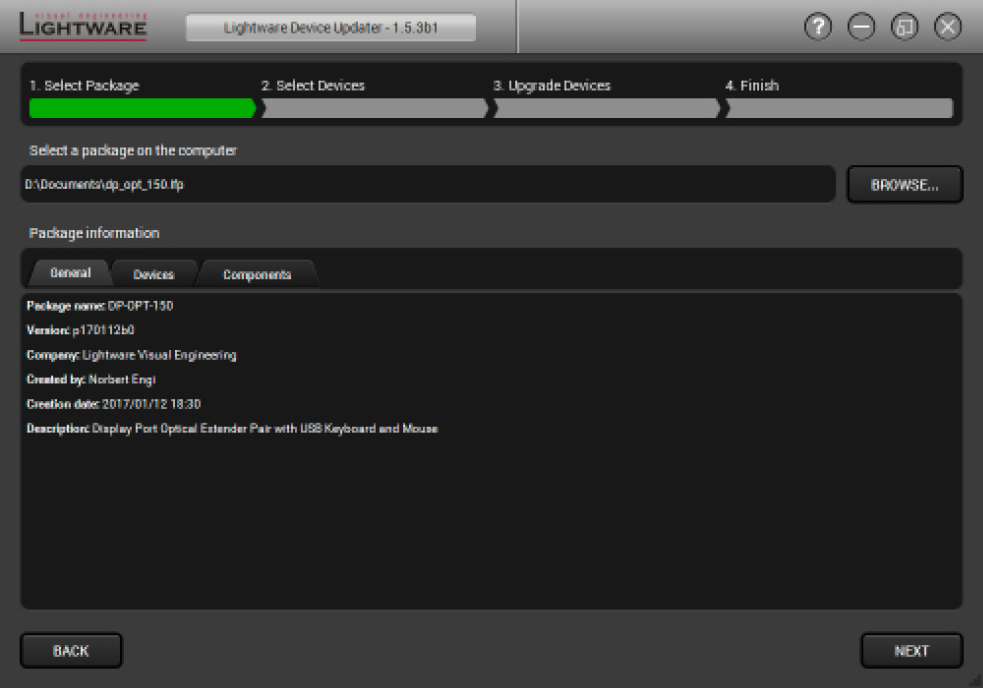
TIPS AND TRICKS:Files with .lfp extension are associated to LDU during installation. If you double click on the “.lfp” file, the application is launched, the package is loaded automatically and the screen above is shown.
Step 2.Select the Device.
The following step is to select the desired device(s). The available and supported devices are searched and listed automatically. If the desired device is not listed, update the list by clicking on the Refresh button. Select the desired devices: highlight them with a yellow cursor, then click on OK.
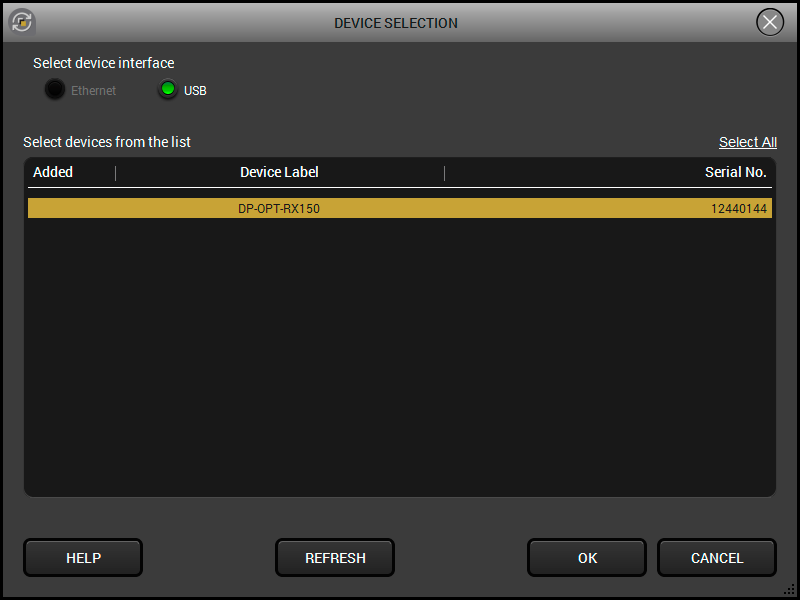
A tick mark can be seen in the Added column if the device was added by the user previously.
Firmware Components
The firmware components of the selected devices are listed on the following screen: installed and update versions. (Update version will be uploaded to the device.)
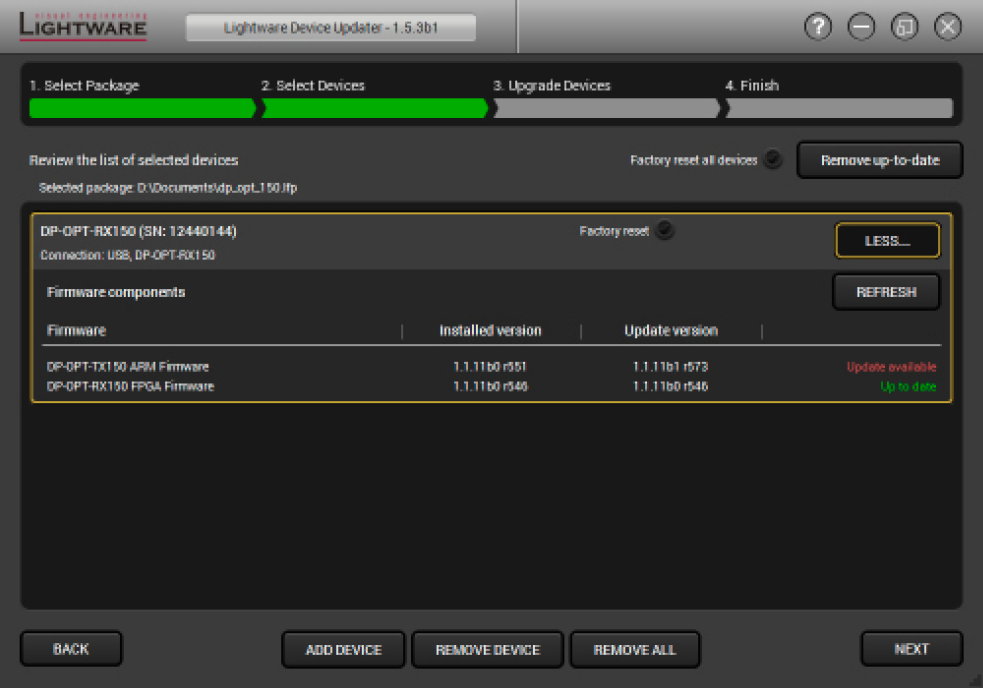
Add a device by clicking on the Add device button. The previous screen will be shown; select the desired device(s) and click on OK. Remove a device by selecting it (highlight with yellow) and click on Remove device button, or click on the Remove all button to empty the list.
Enabling Factory reset will perform factory default values for all settings in the device. The following cases may appear:
▪Enabled by user: all settings will be set to factory default values.
▪Disabled by user: your settings will be saved and restored after updating.
▪Enabled by default and not changeable by user: firmware update must perform a factory reset to apply all changes coming with the new firmware version.
Click on the Next button to continue.
Step 3.Update the device.
Click on the Start button to continue.
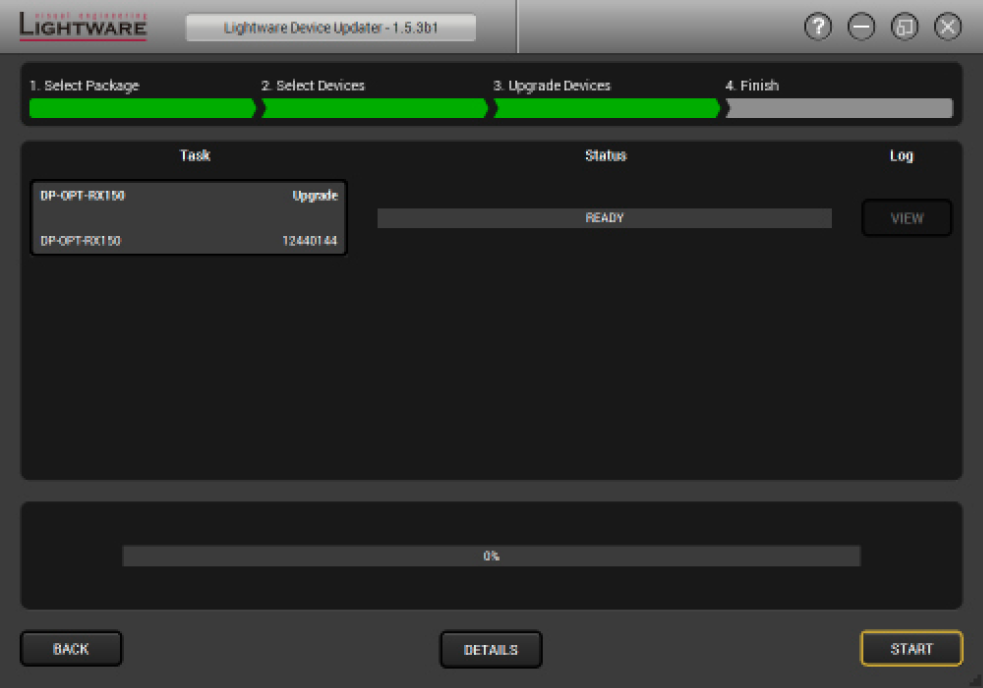
A window will pop up before starting the update of the device; confirm by the OK button or Cancel to stop the process.
After confirmation, the update process is started.
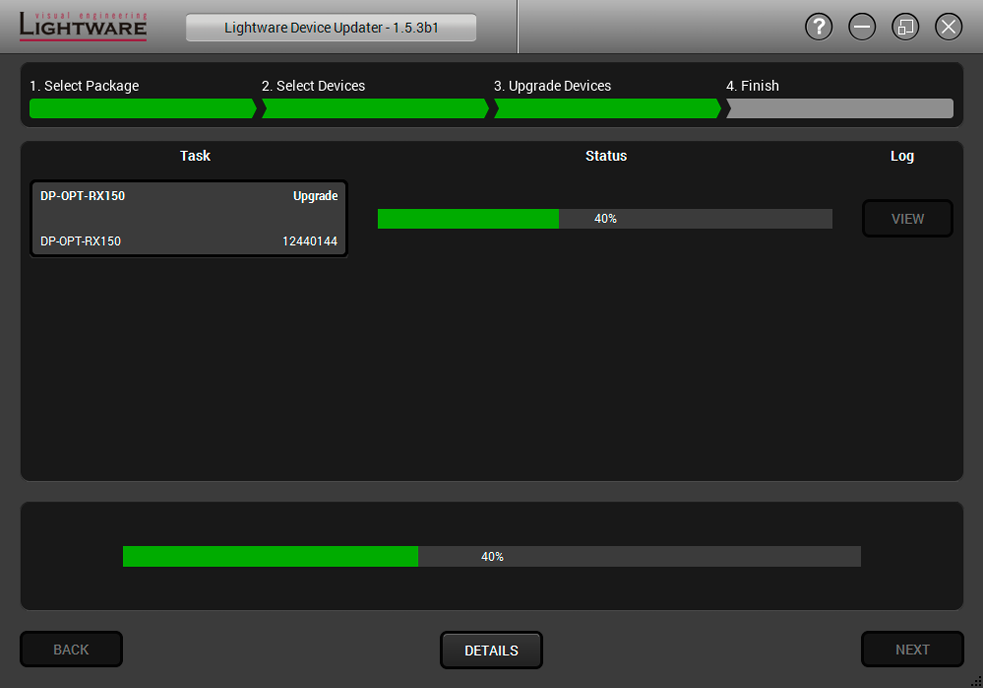
The Details button opens a new window where the process is logged.
Step 4.Finish.
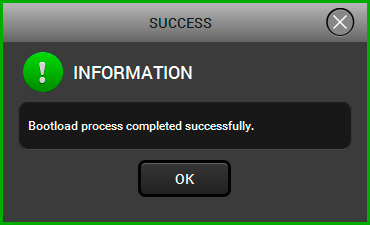
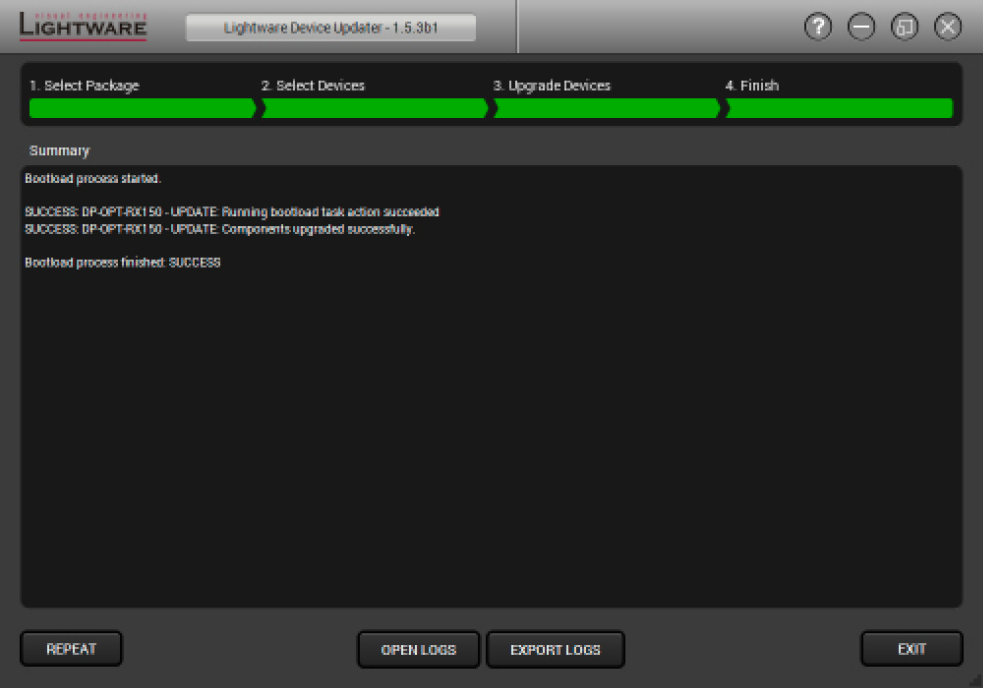
If the update of a device is finished, the log can be opened by the View button on the right. When all the tasks are finished, a window appears. Click on OK to close and Next to display the summary page.
The Repeat button starts the process again with the selected device(s). Open logs button opens the temporary folder where the logs can be found. Export logs by saving the files as a zipped file.
Press Exit to close the program.
If the update failed, the progress bar of the device is changed to red; restart the devices and repeat the process.
ATTENTION!Even though the device is rebooted after the firmware update, switching it off and on again is recommended.
Usually, if the system seems not to transport the signal as expected, the best strategy for troubleshooting is to check signal integrity through the whole signal chain starting from source side and moving forward to receiver end.
|
Symptom |
Root cause |
Action |
|---|---|---|
|
General video signal problems |
||
|
Picture is not displayed or distorted |
Video connectors are loose |
Make sure the connectors fit well. |
|
Another port is selected in the source/display device |
Select the desired/connected port. |
|
|
When adaptor cable is applied: the source port does not support the Dual-mode |
Extend the picture to a DisplayPort capable display device. |
|
|
The monitor is not able to display the desired image resolution |
Select another display device or reduce the image resolution. |
|
|
Protected image is extended to a non-HDCP capable device |
If the monitor does not support displaying HDCP-encrypted image content, try to disable the HDCP (if the content allows). |
|
|
The fiber optical connector is unplugged or dirty |
Check and clean the connectors carefully if necessary. |
|
|
Audio problems |
||
|
No audio is present |
Not the right interface is selected in the source device |
If the source is a computer, make sure the audio is embedded in the video stream and not switched to an analog output. |
|
The audio output is muted in the source |
Check the source device settings. |
|
|
USB problems |
||
|
Extended USB device does not work |
The desired device is not connected |
Check the cable connections; pay attention to the USB HUB if it was installed. |
|
The Transmitter is in Configuration mode |
In this case only one USB HID device is transmitted. Switch the Transmitter to Transparent mode if possible. |
|
|
Not supported USB device is connected |
Only USB HID devices can be extended from the Transmitter to the Receiver. Check if it is supported. |
|
|
The USB device is not supported by the source computer |
Check the device by plugging in the computer directly. |
|
|
Local USB device does not work |
The USB device is not supported by the source computer |
Check the device by plugging in the computer directly. |
6.2. How to Speed Up the Troubleshooting Process
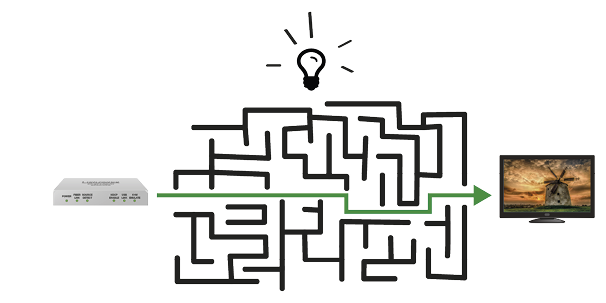
Lightware’s technical support team is always working hard to provide the fastest support possible. Our team’s response time is one of the best in the industry, and in the toughest of cases we can directly consult with the hardware or software engineer who designed the product to get the information from the most reliable source.
However, the troubleshooting process can be even faster… with your help.
There are certain pieces of information that push us in the right direction to find the root cause of the problem. If we receive most of this information in the first e-mail, or it is gathered at the time when you call us, then there is a pretty high chance that we will be able to respond with the final solution right away.
This information is the following:
▪Schematic (a pdf version is preferred, but a hand drawing is sufficient).
▪Serial number(s) of the device(s) (it is either printed somewhere on the box or you can query it in the Device Controller software or on the built-in website).
▪Firmware versions of the devices (please note that there may be multiple CPUs or controllers in the device and we need to know all of their firmware versions, a screenshot is the best option).
▪Cable lengths and types (in our experience, it’s usually the cable).
▪Patch panels, gender changers or anything else in the signal path that can affect the transmission.
▪Signal type (resolution, refresh rate, color space, deep color).
▪Emulated EDID(s) (please save them as a file and send it to us).
▪Actions to take in order to re-create the problem (if we cannot reproduce the problem, it is hard for us to find the cause).
▪Photo or video about the problem (‘image noise’ can mean many different things, it’s better if we see it too).
▪Error logs from the Device Controller software.
▪In the case of an Event Manager issue, the event file and/or backup file from the Device Controller software.
The more of the information above you can give us, the better. Please send this information to the Lightware Support Team (support@lightware.com) to speed up the troubleshooting process.
The following sections contain descriptions and useful technical information on how the devices work in the background. The content is based on experiences and cases we met in the practice. These sections help to understand features and technical standards like the following:
Lightware Visual Engineering is a legal HDCP adopter. Several functions have been developed that help solve HDCP related problems. Complex AV systems often have both HDCP and non-HDCP components. The matrix allows transmitting both HDCP encrypted and unencrypted signals. The devices will be still HDCP compliant, as they will never output an encrypted signal to a non-HDCP compliant display device. If an encrypted signal is switched to a non-compliant output, a red screen alert or muted screen will appear.
7.1.1. Protected and Unprotected Content
Many video sources send HDCP protected signal if they detect that the sink is HDCP capable – even if the content is not copyrighted. This can cause trouble if an HDCP capable device is connected between the source and the display. In this case, the content cannot be viewed on non-HDCP capable displays and interfaces like event controllers. Rental and staging technicians often complain about certain laptops that are always sending HDCP encrypted signals if the receiver device (display, matrix router, etc.) reports HDCP compliancy. Even though HDCP encryption is not required all the time (e.g. computer desktop image), certain laptops still do that.
To avoid unnecessary HDCP encryption, Lightware introduced the HDCP enabling/disabling function: the HDCP capability can be disabled in the Lightware device. If HDCP is disabled, the connected source will detect that the sink is not HDCP capable, and turn off authentication.
7.1.2. Disable Unnecessary Encryption
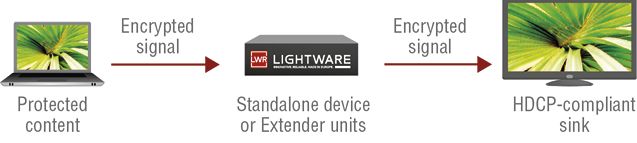
HDCP Compliant Sink
All the devices are HDCP-compliant, no manual setting is required, both protected and unprotected contents are transmitted and displayed on the sink.
Not HDCP-compliant Sink 1.
Not-HDCP compliant sink is connected to the matrix. Some sources (e.g. computers) always send HDCP encrypted signals if the receiver device reports HDCP compliancy, however, HDCP encryption is not required all the time (e.g. computer desktop image). If HDCP is enabled in the matrix, the image will not be displayed on the sink.
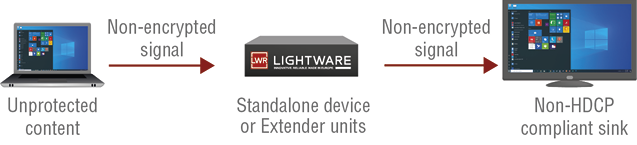
Setting the HDCP parameter to Auto on the output port and disable HDCP on the input port, the transmitted signal will not be encrypted if the content is not protected. Thus, non-HDCP compliant sinks will display non-encrypted signal.
Not HDCP-compliant Sink 2.
The layout is the same as in the previous case: non-HDCP compliant display device is connected to the matrix but the source would send protected content with encryption. If HDCP is enabled on the input port of the matrix, the source will send encrypted signal.
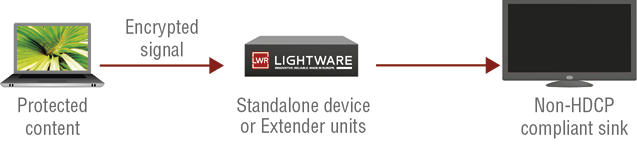
The sink is not HDCP compliant, thus it will not display the video signal, but blank screen is shown. If HDCP is disabled on the input port of the matrix, the source will not send the signal. The solution is to replace the display device with an HDCP-capable one.
DisplayPort is a widely spread audio/video interface standard designed by VESA (Video Electronics Standard Association) in 2006. The aim was to create an interface that would be the connection between graphic cards and display devices. The standard is available and free, thus it can be implemented widely, which could help replace the previously used interfaces, such as VGA or DVI.
Lightware’s DP-OPT extenders are designed according to DisplayPort standard 1.1a. The maximum allowed bandwidth is 10.8 Gbps, which means e.g. 2560x1600 pixel resolution at 60 Hz or 4096x2400 pixels at 30 Hz. Color depth is up to 16 bits per color and 8-channel embedded LPCM audio is supported.
The mentioned standard was designed to support HDMI/DVI display devices too. If the sink is assembled with DVI or HDMI input connector, it can be connected to a dual mode DisplayPort source by a passive adaptor (DP++). In this case the source switches to DVI/HDMI mode, and the signal is changed to be in line with DVI/HDMI requirements.
INFO:Most of the sources assembled with DisplayPort supports Dual mode, but if you are not sure, check the documentation of your device.
Passive adaptor
A display device with a HDMI or DVI connector can be connected by a passive DP-HDMI or DP-DVI adaptor to the source. The passive adaptor has two functions: sending a sign to the source if DVI or HDMI signal is required, and doing level shifting from +3.3V to +5V. The source switches to DVI/HDMI mode and sends the proper signal.
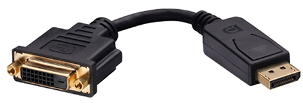
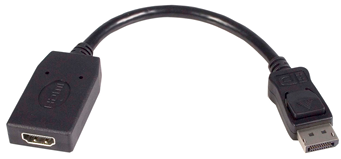
DP-DVI and DP-HDMI Passive Adaptors
INFO:More information about adaptors can be found in the VESA DisplayPort Interoperability Guideline (www.displayport.org).
Tables, drawings, guides, hashtag keyword list and technical details as follows:
INFO:Specifications are subject to change without notice.
General
|
Compliance |
CE, UKCA |
|
EMC (emission) |
EN 55032:2015+A1:2020 |
|
EMC (immunity) |
EN 55035:2017+A11:2020 |
|
RoHS |
EN 63000:2018 |
|
Electrical safety |
EN 62368-1:2020 |
|
Laser safety |
EN 60825-1:2014+A11:2021 |
|
Warranty |
3 years |
|
Operating temperature |
0°C to +50°C (+32°F to +122°F) |
|
Storage temperature |
-40°C to +85˚C (-40°F to +185˚F) |
|
Operating humidity |
10-90%, non-condensing |
|
Cooling |
Passive |
Power
|
Power supply |
External power adaptor |
|
Supported power source |
100-240 V AC; 50~60 Hz |
|
Power adaptor |
Input 100-240 V AC 50/60 Hz, Output 5 V DC, 2 A |
DP-OPT-TX150
|
Power consumption |
3W (max., without USB extension); 3.1W (typ, with USB extension); 8.2W (max., with 2x500mA for local USB devices) |
|
Heat dissipation |
9.4 BTU/h (min), 10.5 BTU/h (max) |
DP-OPT-RX150
|
Power consumption |
3.5 W (max., without USB extension); 3.75 W (typ., with USB extension) |
|
Heat dissipation |
11.2 BTU/h (min), 12.8 BTU/h (max) |
Enclosure
|
Material |
Solid aluminum body |
|
Dimensions in mm |
W110 x D95 x H18 |
|
Dimensions in inch |
W4.3 x D3.7 x H0.7 |
|
Net weight |
300 g |
Video Input
DisplayPort Input (DP-OPT-TX150)
|
Connector type |
20-pole DisplayPort receptacle |
|
Standard |
DisplayPort 1.1a (Dual-mode) |
|
Color depth |
24, 30, 36, 48 bits deep color |
|
Date rates |
1.62 / 2.7 Gbps (1.65 Gbps /lane), max. 10.8 Gbps total |
|
Video delay |
0 frame |
|
Max video resolutions |
2560x1600@60Hz; 4096x2400@30Hz; 1920x1080@120Hz up to 8 bits/color |
|
Audio formats |
8 channel PCM |
|
HDCP pass-through |
Supported |
Video Output
DisplayPort Onput (DP-OPT-RX150)
|
Connector type |
20-pole DisplayPort receptacle |
|
Standard |
DisplayPort 1.1a (Dual-mode) |
|
Color depth |
24, 30, 36, 48 bits deep color |
|
Date rates |
1.62 / 2.7 Gbps (1.65 Gbps/lane), max. 10.8 Gbps |
|
Video delay |
0 frame |
|
Max video resolutions |
2560x1600@60Hz; 4096x2400@30Hz; 1920x1080@120Hz up to 8 bits/color |
|
Audio formats |
8 channel PCM |
|
HDCP pass-through |
Supported |
Fiber Optical Ports
|
Fiber type |
50/125 SC Multimode (preferred); 62.5/125 SC Multimode |
|
Laser wavelengths |
High speed lanes: 778; 800; 825; 850 nm; Low speed lanes: 911; 980 nm |
|
Laser class specification |
Class 3R |
|
Transmitter output OMA* |
-6.25 dBm (worst case) |
|
Receiver OMA* sensitivity |
-14.25 dBm (worst case) |
|
Transmission distance |
1100 meters (at OM4 50/125 fiber); 800 meters (at OM3 50/125 fiber); 350 meters (at OM2 50/125 fiber); 150 meters (at OM1 62.5/125 fiber) |
* OMA: Optical Modulation Amplitude
USB support
|
USB control (TX150: labelled ‘CPU’) |
USB 2.0 |
|
USB control (RX150: labelled ‘Service’) |
USB 2.0 |
|
Local USB ports (TX150) |
USB 2.0 HiSpeed 480 Mbps |
|
Extended USB ports (RX150) |
USB HID |
ESD Protection of the Connectors (HBM EIA/JESD22-A114F)
|
Video in / out |
Standard DisplayPort 20-pole connector / 8 kV |
|
Optical fiber in/out |
SC receptacle / 8 kV |
|
USB port for devices |
USB-A receptacle / 4 kV |
|
USB port for control |
USB Mini-B receptacle / 4 kV |
|
Power connector |
DC connector (1.35 mm pin) / 2 kV |
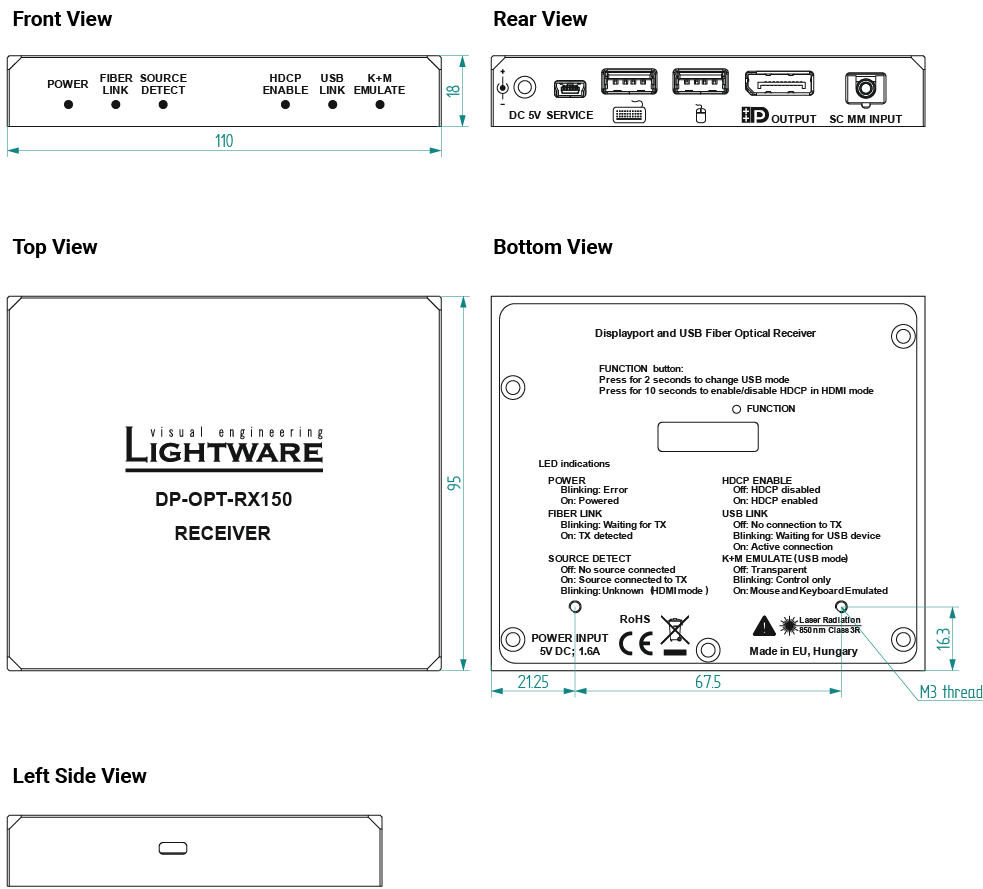
The dimensions are in mm.
|
OM1 |
OM2 |
OM3 |
OM4 |
|
|
(62.5/125) |
(50/125) |
(50/125) |
(50/125) |
|
|
1080p@60Hz 24 bpp |
250 m |
600 m |
1200 m |
2500 m |
|
1080p@60Hz 36 bpp |
150 m |
400 m |
800 m |
1300 m |
|
4096x2048@30Hz 24 bpp |
Not supported |
350 m |
700 m |
1100 m |
8.4. Release Notes of the Firmware Packages
Valid for the following models:
▪DP-OPT-TX150
▪DP-OPT-RX150
v1.1.13b1
Release date: 2019-11-22
New feature:
▪Made improvements to manufacturing.
v1.1.12b5
Release date: 2019-11-15
New feature:
▪Made improvements to manufacturing.
v1.1.5b1
Release date: 2013-04-15
New feature:
▪Full USB HID implementation, supports all special USB requests.
▪Suspend and resume support.
Known issue:
▪HUBs working only in USB Full Speed mode are not supported. HUBs must allow High Speed communication in order to work.
v1.1.4b1
Release date: 2013-03-27
Bugfix:
▪Microsoft wireless dongle patch (maximum length of report descriptor increased).
v1.1.3b1
Release date: 2013-01-14
Bugfix:
▪USB fixes
v1.1.2b1
Release date: 2012-08-30
New feature:
▪Smartcard capable keyboard support implemented.
8.5. Further Document Information
Symbol Legend
The following symbols and markings are used in the document:
WARNING!Safety-related information that is highly recommended to read and keep in every case!
ATTENTION!Useful information for performing a successful procedure; it is recommended to read.
DIFFERENCE:Feature or function that is available with a specific firmware/hardware version or product variant.
INFO:A notice, which contains additional information. Procedure can be successful without reading it.
DEFINITION:The short description of a feature or a function.
TIPS AND TRICKS:Ideas that you may have not known yet, but can be useful.
Navigation Buttons
|
Buttons in the PDF version |
Buttons in the HTML version |
|||
|
|
Navigate to the Table of Contents. |
|
Open the main Table of Contents. |
|
|
|
Go back to the previous page. If you clicked on a link previously, you can go back to the source page by pressing the button. |
|
Navigate to the Online User Manuals webpage. |
|
|
|
Navigate to the Bookmark page. |
|
Navigate to the Bookmark page in this User Manual. |
|
|
|
Visit www.lightware.com. |
|
Download the PDF version of the User Manual. |
|


About Printing
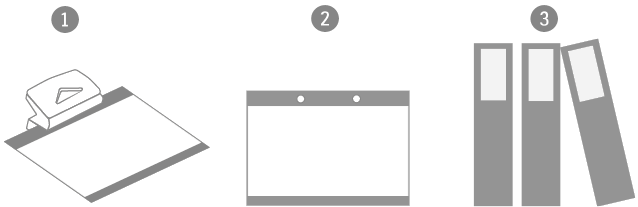
Lightware Visual Engineering supports green technologies and eco-friendly mentality. Thus, this document is made primarily for digital usage. If you need to print out a few pages for any reason, follow the recommended printing settings:
▪Page size: A4
▪Output size: Fit to page or Match page size
▪Orientation: Landscape
TIPS AND TRICKS: Thanks to the size of the original page, a border around the content (gray on the second picture below) makes it possible to organize the pages better. After punching holes in the printed pages, they can easily be placed into a ring folder.
8.6. Limited Warranty Statement
1. Lightware Visual Engineering PLC (Lightware) warrants to all trade and end user customers that any Lightware product purchased will be free from manufacturing defects in both material and workmanship for three (3) years from purchase unless stated otherwise below. The warranty period will begin on the latest possible date where proof of purchase/delivery can be provided by the customer. In the event that no proof can be provided (empty ‘Date of purchase’ field or a copy of invoice), the warranty period will begin from the point of delivery from Lightware.
1.1. 25G and MODEX product series will be subject to a seven (7) year warranty period under the same terms as outlined in this document.
1.2. If during the first three (3) months of purchase, the customer is unhappy with any aspect of a Lightware product, Lightware will accept a return for full credit.
1.3. Any product that fails in the first six (6) months of the warranty period will automatically be eligible for replacement and advanced replacement where available. Any replacements provided will be warranted for the remainder of the original unit’s warranty period.
1.4. Product failures from six (6) months to the end of the warranty period will either be repaired or replaced at the discretion of Lightware. If Lightware chooses to replace the product, then the replacement will be warranted for the remainder of the original unit’s warranty period.
2. The above-stated warranty and procedures will not apply to any product that has been:
2.1. Modified, repaired or altered by anyone other than a certified Lightware engineer unless expressly agreed beforehand.
2.2. Used in any application other than that for which it was intended.
2.3. Subjected to any mechanical or electrical abuse or accidental damage.
2.4. Any costs incurred for repair/replacement of goods that fall into the categories above (2.1., 2.2., 2.3.) will be borne by the customer at a pre-agreed figure.
3. All products to be returned to Lightware require a return material authorization number (RMA) prior to shipment, and this number must be clearly marked on the box. If an RMA number is not obtained or is not clearly marked on the box, Lightware will refuse the shipment.
3.1. The customer will be responsible for in-bound, and Lightware will be responsible for out-bound shipping costs.
3.2. Newly repaired or replaced products will be warranted to the end of the originally purchased product's warranty period.