
5.4.2. Start the LDU and Follow the Instructions
After launching LDU, the welcome screen will appear. Pressing the  button, a list will appear, showing the supported devices. Click on the Extender button on the main screen.
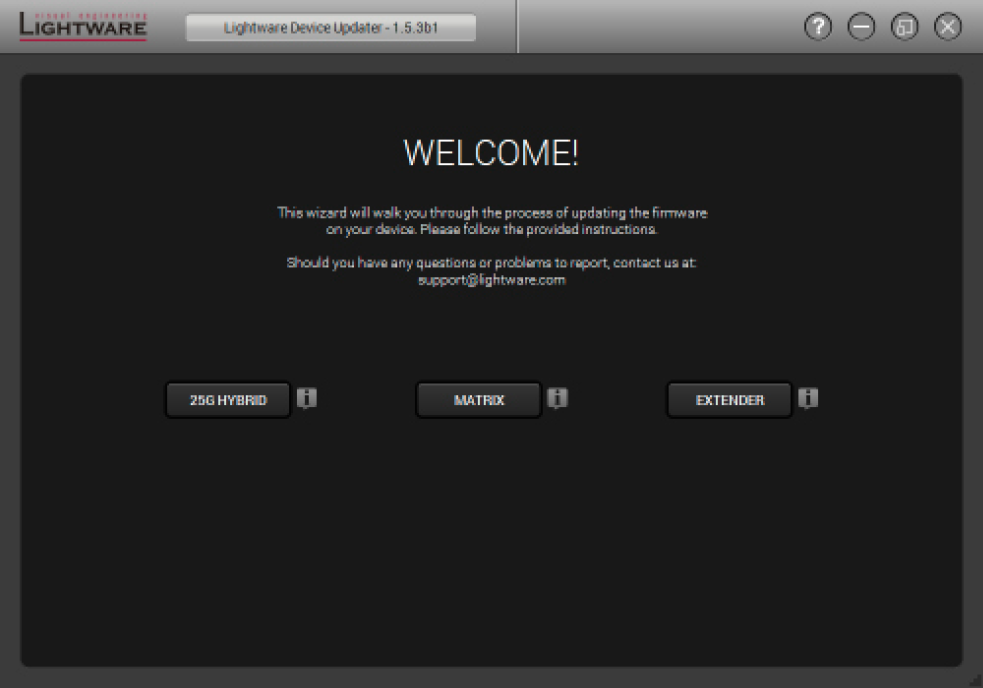
Welcome screen
Step 1.Select the Package.
Click on the Browse button and select the .lfp file that will be used for the update.
Package information is displayed:
▪General version info, creation date, short description,
▪Devices that are compatible with the firmware,
▪Components in the package with release notes.
Click on the Next button and follow the instructions.
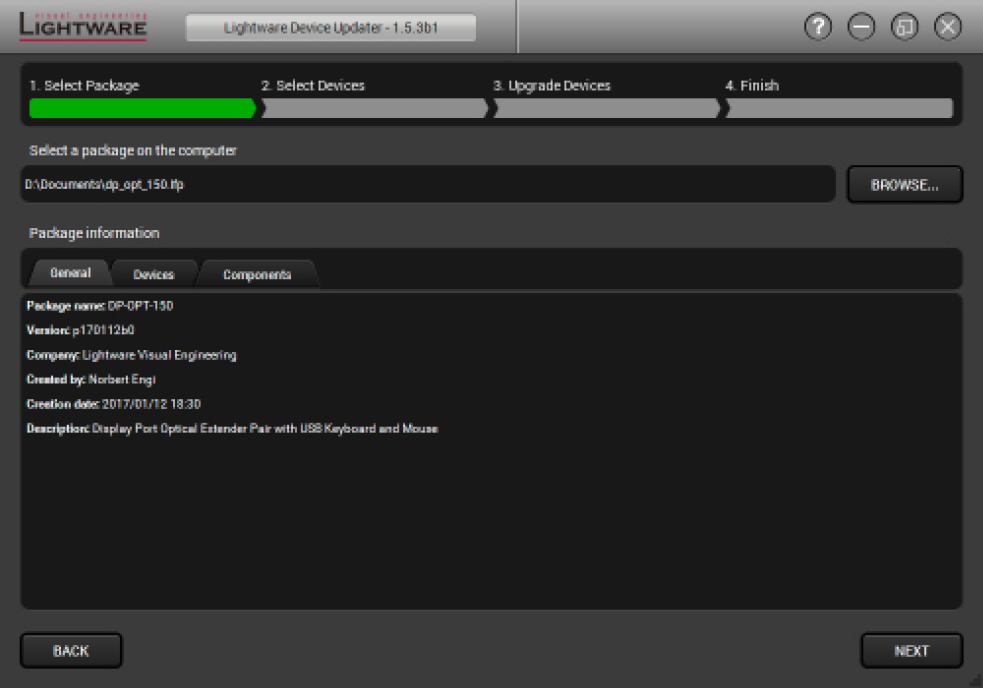
TIPS AND TRICKS:Files with .lfp extension are associated to LDU during installation. If you double click on the “.lfp” file, the application is launched, the package is loaded automatically and the screen above is shown.
Step 2.Select the Device.
The following step is to select the desired device(s). The available and supported devices are searched and listed automatically. If the desired device is not listed, update the list by clicking on the Refresh button. Select the desired devices: highlight them with a yellow cursor, then click on OK.
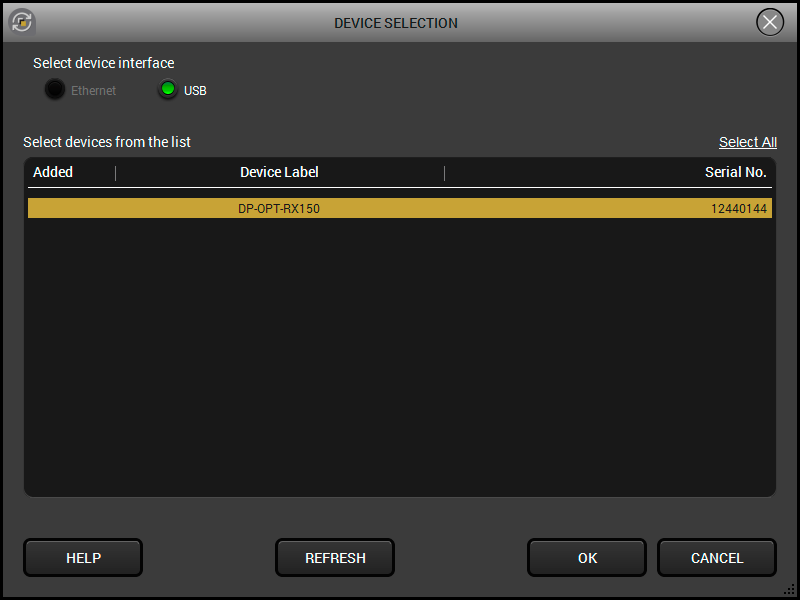
A tick mark can be seen in the Added column if the device was added by the user previously.
Firmware Components
The firmware components of the selected devices are listed on the following screen: installed and update versions. (Update version will be uploaded to the device.)
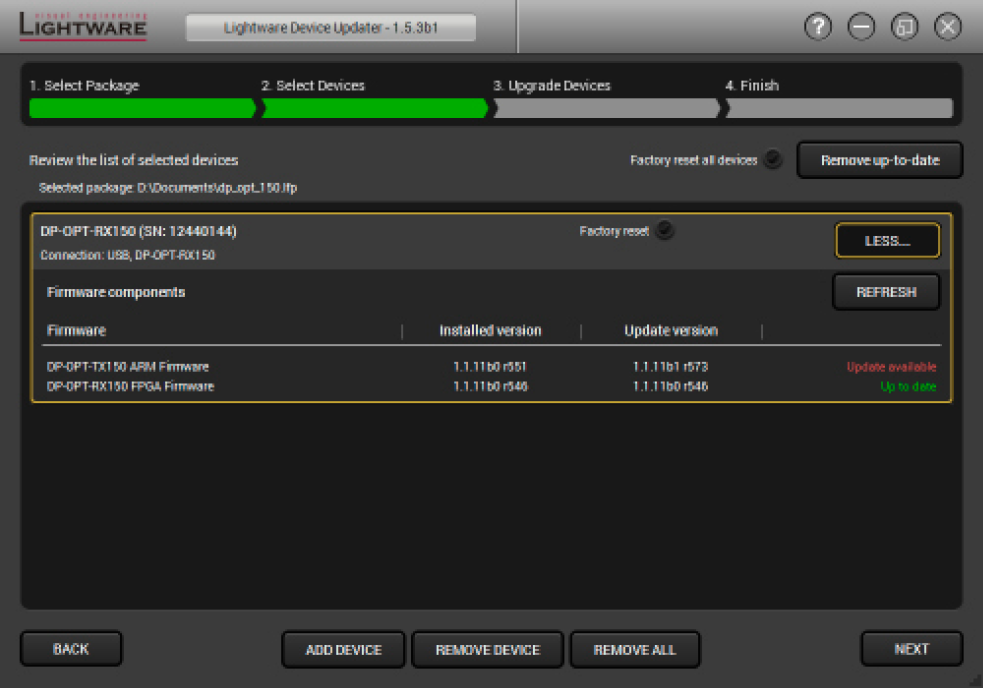
Add a device by clicking on the Add device button. The previous screen will be shown; select the desired device(s) and click on OK. Remove a device by selecting it (highlight with yellow) and click on Remove device button, or click on the Remove all button to empty the list.
Enabling Factory reset will perform factory default values for all settings in the device. The following cases may appear:
▪Enabled by user: all settings will be set to factory default values.
▪Disabled by user: your settings will be saved and restored after updating.
▪Enabled by default and not changeable by user: firmware update must perform a factory reset to apply all changes coming with the new firmware version.
Click on the Next button to continue.
Step 3.Update the device.
Click on the Start button to continue.
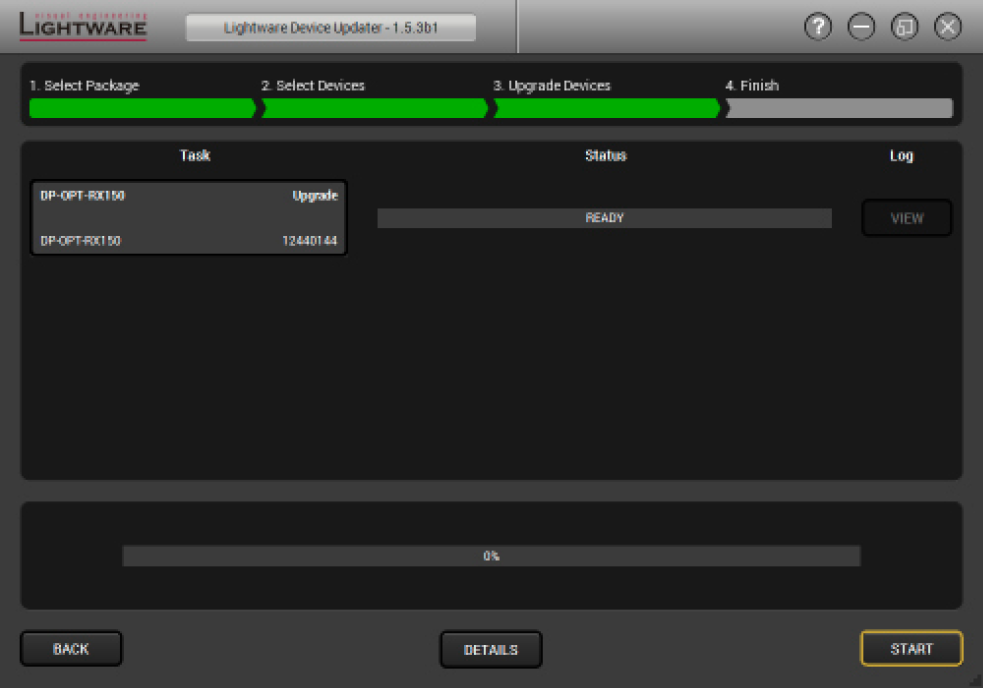
A window will pop up before starting the update of the device; confirm by the OK button or Cancel to stop the process.
After confirmation, the update process is started.
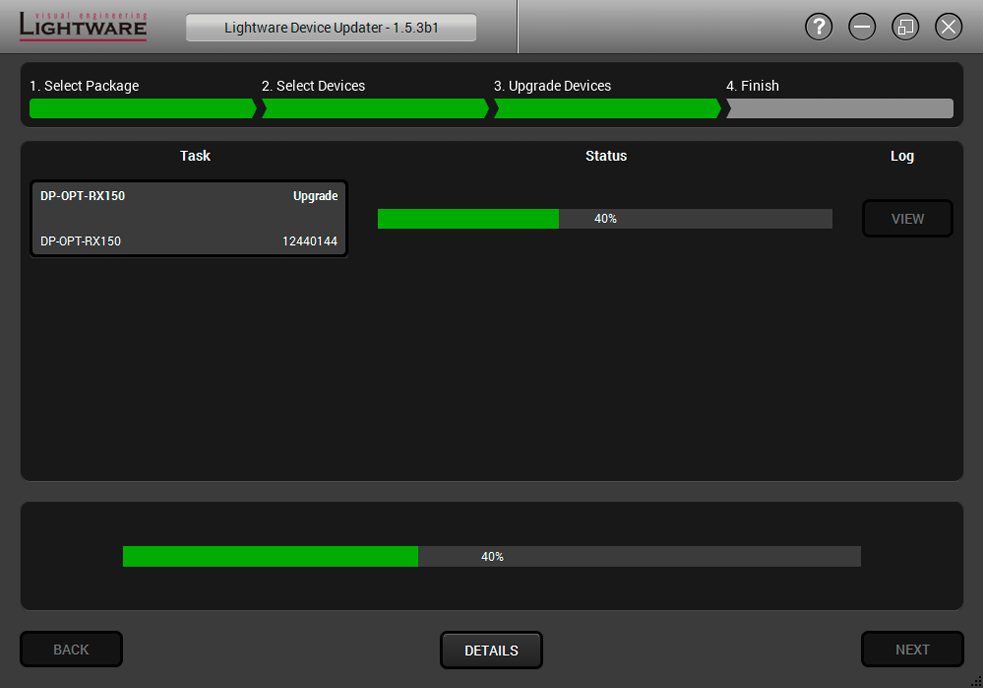
The Details button opens a new window where the process is logged.
Step 4.Finish.
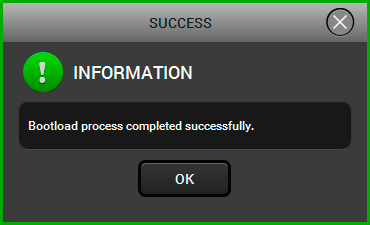
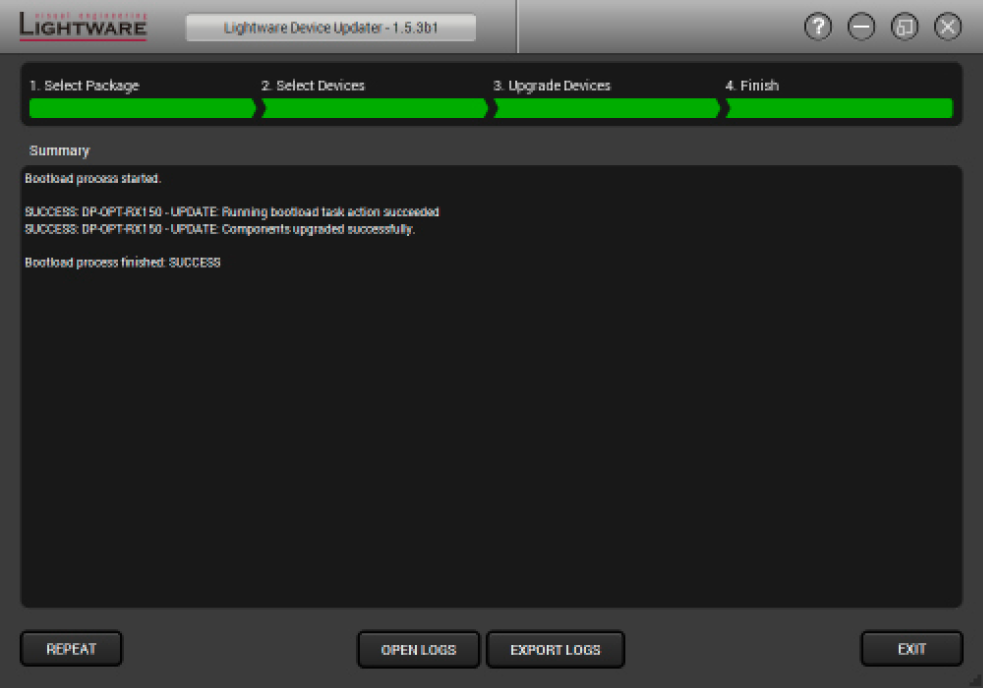
If the update of a device is finished, the log can be opened by the View button on the right. When all the tasks are finished, a window appears. Click on OK to close and Next to display the summary page.
The Repeat button starts the process again with the selected device(s). Open logs button opens the temporary folder where the logs can be found. Export logs by saving the files as a zipped file.
Press Exit to close the program.
If the update failed, the progress bar of the device is changed to red; restart the devices and repeat the process.
ATTENTION!Even though the device is rebooted after the firmware update, switching it off and on again is recommended.